<!DOCTYPE html>
    <html lang="vi" xmlns="http://www.w3.org/1999/xhtml" prefix="og: http://ogp.me/ns#">
    <head>
<title>Tạo USB boot với Linux Mint 19.3</title>
<meta name="description" content="Tạo USB boot với Linux Mint 19.3 - Savefile - Tin Tức - https&#x3A;&#x002F;&#x002F;www.nguoicodonvn2008.info&#x002F;vi&#x002F;news&#x002F;savefile&#x002F;phan-mem&#x002F;tao-usb-boot-voi-linux-mint-19-3-2177.html">
<meta name="author" content=".: Nguoicodonvn2008.info - Cõi lòng người cô đơn :.">
<meta name="copyright" content=".: Nguoicodonvn2008.info - Cõi lòng người cô đơn :. [admin@nguoicodonvn2008.info]">
<meta name="robots" content="index, archive, follow, noodp">
<meta name="googlebot" content="index,archive,follow,noodp">
<meta name="msnbot" content="all,index,follow">
<meta name="generator" content="NukeViet v4.5">
<meta http-equiv="Content-Type" content="text/html; charset=utf-8">
<meta property="og:title" content="Tạo USB boot với Linux Mint 19.3">
<meta property="og:type" content="website">
<meta property="og:description" content="Savefile - Tin Tức - https&#x3A;&#x002F;&#x002F;www.nguoicodonvn2008.info&#x002F;vi&#x002F;news&#x002F;savefile&#x002F;phan-mem&#x002F;tao-usb-boot-voi-linux-mint-19-3-2177.html">
<meta property="og:site_name" content=".&#x3A; Nguoicodonvn2008.info - Cõi lòng người cô đơn &#x3A;.">
<meta property="og:url" content="https://www.nguoicodonvn2008.info/vi/news/savefile/phan-mem/tao-usb-boot-voi-linux-mint-19-3-2177.html">
<link rel="shortcut icon" href="https://www.nguoicodonvn2008.info/favicon.ico">
<link rel="canonical" href="https://www.nguoicodonvn2008.info/vi/news/savefile/phan-mem/tao-usb-boot-voi-linux-mint-19-3-2177.html">
<link rel="alternate" href="https://www.nguoicodonvn2008.info/vi/news/rss/" title="Tin Tức" type="application/rss+xml">
<link rel="alternate" href="https://www.nguoicodonvn2008.info/vi/news/rss/karaoke-dual/" title="Tin Tức - Karaoke Dual" type="application/rss+xml">
<link rel="alternate" href="https://www.nguoicodonvn2008.info/vi/news/rss/nhac-tre/" title="Tin Tức - Nhạc trẻ" type="application/rss+xml">
<link rel="alternate" href="https://www.nguoicodonvn2008.info/vi/news/rss/tru-tinh/" title="Tin Tức - Trữ tình" type="application/rss+xml">
<link rel="alternate" href="https://www.nguoicodonvn2008.info/vi/news/rss/nuoc-ngoai/" title="Tin Tức - Nước ngoài" type="application/rss+xml">
<link rel="alternate" href="https://www.nguoicodonvn2008.info/vi/news/rss/remix/" title="Tin Tức - Remix" type="application/rss+xml">
<link rel="alternate" href="https://www.nguoicodonvn2008.info/vi/news/rss/tam-su-tinh-yeu/" title="Tin Tức - Tâm sự tình yêu" type="application/rss+xml">
<link rel="alternate" href="https://www.nguoicodonvn2008.info/vi/news/rss/tho-suu-tam/" title="Tin Tức - Thơ sưu tầm" type="application/rss+xml">
<link rel="alternate" href="https://www.nguoicodonvn2008.info/vi/news/rss/cuoc-song/" title="Tin Tức - Cuộc sống" type="application/rss+xml">
<link rel="alternate" href="https://www.nguoicodonvn2008.info/vi/news/rss/phan-mem/" title="Tin Tức - Phần mềm" type="application/rss+xml">
<link rel="alternate" href="https://www.nguoicodonvn2008.info/vi/news/rss/kien-thuc-may-tinh/" title="Tin Tức - Kiến thức máy tính" type="application/rss+xml">
<link rel="alternate" href="https://www.nguoicodonvn2008.info/vi/news/rss/hoc-tap/" title="Tin Tức - Học tập" type="application/rss+xml">
<link rel="alternate" href="https://www.nguoicodonvn2008.info/vi/news/rss/tai-lieu/" title="Tin Tức - Tài liệu" type="application/rss+xml">
<link rel="alternate" href="https://www.nguoicodonvn2008.info/vi/news/rss/de-thi/" title="Tin Tức - Đề thi" type="application/rss+xml">
<link rel="preload" as="style" href="https://www.nguoicodonvn2008.info/assets/css/font-awesome.min.css" type="text/css">
<link rel="preload" as="style" href="https://www.nguoicodonvn2008.info/themes/default/css/bootstrap.non-responsive.css" type="text/css">
<link rel="preload" as="style" href="https://www.nguoicodonvn2008.info/themes/default/css/style.css" type="text/css">
<link rel="preload" as="style" href="https://www.nguoicodonvn2008.info/themes/default/css/style.non-responsive.css" type="text/css">
<link rel="preload" as="style" href="https://www.nguoicodonvn2008.info/themes/default/css/news.css" type="text/css">
<link rel="preload" as="style" href="https://www.nguoicodonvn2008.info/themes/default/css/custom.css" type="text/css">
<link rel="preload" as="script" href="https://www.nguoicodonvn2008.info/assets/js/jquery/jquery.min.js" type="text/javascript">
<link rel="preload" as="script" href="https://www.nguoicodonvn2008.info/assets/js/language/vi.js" type="text/javascript">
<link rel="preload" as="script" href="https://www.nguoicodonvn2008.info/assets/js/DOMPurify/purify3.js" type="text/javascript">
<link rel="preload" as="script" href="https://www.nguoicodonvn2008.info/assets/js/global.js" type="text/javascript">
<link rel="preload" as="script" href="https://www.nguoicodonvn2008.info/assets/js/site.js" type="text/javascript">
<link rel="preload" as="script" href="https://www.nguoicodonvn2008.info/themes/default/js/news.js" type="text/javascript">
<link rel="preload" as="script" href="https://www.nguoicodonvn2008.info/themes/default/js/main.js" type="text/javascript">
<link rel="preload" as="script" href="https://www.nguoicodonvn2008.info/themes/default/js/custom.js" type="text/javascript">
<link rel="preload" as="script" href="https://www.nguoicodonvn2008.info/themes/default/js/bootstrap.min.js" type="text/javascript">
<link rel="stylesheet" href="https://www.nguoicodonvn2008.info/assets/css/font-awesome.min.css">
<link rel="stylesheet" href="https://www.nguoicodonvn2008.info/themes/default/css/bootstrap.non-responsive.css">
<link rel="stylesheet" href="https://www.nguoicodonvn2008.info/themes/default/css/style.css">
<link rel="stylesheet" href="https://www.nguoicodonvn2008.info/themes/default/css/style.non-responsive.css">
<link rel="StyleSheet" href="https://www.nguoicodonvn2008.info/themes/default/css/news.css">
<link rel="stylesheet" href="https://www.nguoicodonvn2008.info/themes/default/css/custom.css">
<style type="text/css">
	body{background: #fff;}
</style>
    </head>
    <body>
<div id="print">
	<div id="hd_print">
		<h2 class="pull-left">.&#x3A; Nguoicodonvn2008.info - Cõi lòng người cô đơn &#x3A;.</h2>
		<p class="pull-right"><a title=".&#x3A; Nguoicodonvn2008.info - Cõi lòng người cô đơn &#x3A;." href="https://www.nguoicodonvn2008.info/">https://www.nguoicodonvn2008.info</a></p>
	</div>
	<div class="clear"></div>
	<hr />
	<div id="content">
		<h1>Tạo USB boot với Linux Mint 19.3</h1>
		<ul class="list-inline">
			<li>Thứ ba - 09/06/2020 00:48</li>
			<li class="hidden-print txtrequired"><em class="fa fa-print">&nbsp;</em><a title="In ra" href="javascript:;" onclick="window.print()">In ra</a></li>
			<li class="hidden-print txtrequired"><em class="fa fa-power-off">&nbsp;</em><a title="Đóng cửa sổ này" href="javascript:;" onclick="window.close()">Đóng cửa sổ này</a></li>
		</ul>
		<div class="clear"></div>
		<div id="hometext">
		</div>
				<div class="imghome">
			<img alt="Tạo USB boot với Linux Mint 19.3" src="https://st.quantrimang.com/photos/image/2020/06/09/tao-usb-boot-voi-linux-mint-2.jpg" width="460" class="img-thumbnail" />
		</div>
		<div class="clear"></div>
		<div id="bodytext" class="clearfix">
			<p style="text-align: justify;">Trong bài viết hôm nay,&nbsp;<strong>Quantrimang.com</strong>&nbsp;sẽ hướng dẫn bạn đọc cách nâng cấp từ Linux Mint 17.3 lên Linux Mint 19.3 mới nhất hiện có. Dưới đây là hướng dẫn từng bước để thực hiện việc này!</p>

<ul>
	<li style="text-align: justify;">Tải Linux Mint 19.3:</li>
</ul>

<div style="text-align: justify;"><strong><span style="color:rgb(192, 57, 43);">https://linuxmint.com/download.php</span></strong></div>

<h2 style="text-align: justify;">Tạo USB boot</h2>

<p style="text-align: justify;">Khi file ISO (<strong>linuxmint-19.3-cinnamon-64bit.iso</strong>) được tải xuống, đã đến lúc tạo USB boot. Đừng sử dụng&nbsp;<strong>dd</strong>&nbsp;và&nbsp;<strong>unetbootin</strong>! Linux Mint sẽ không thể boot từ USB.</p>

<p style="text-align: justify;">Thay vào đó, hãy làm theo hướng dẫn chính thức về cách tạo phương tiện boot. Trên bản cài đặt&nbsp;Linux Mint&nbsp;đã có sẵn, nhấp chuột phải vào file ISO và mở nó bằng&nbsp;<strong>Disk Image Writer</strong>&nbsp;(hoặc&nbsp;<strong>Make bootable USB stick</strong>). Đối với các bản phân phối khác (hoặc thậm chí những hệ điều hành), công cụ mã nguồn mở Etcher được đề xuất.</p>

<p style="text-align: justify;">Bài viết đã thành công khi sử dụng ứng dụng Disk Image Writer. Linux Mint đã boot chính xác từ USB.</p>

<div style="text-align: justify;">&nbsp;</div>

<h2 style="text-align: justify;">Linux Mint 19.3 đã khởi động - phải làm gì tiếp theo?</h2>

<p style="text-align: justify;">Linux Mint là một &quot;live image&quot;. Bạn có thể thoải mái thử nghiệm và sử dụng Mint. Nhưng nếu muốn cài đặt Linux Mint, bạn phải mở ứng dụng thiết lập. Shortcut đến đó có thể được tìm thấy trên desktop và được đặt tên là &quot;<strong>Install Linux Mint</strong>&quot;. Khá tiện dụng phải không?</p>

<h2 style="text-align: justify;">Thiết lập</h2>

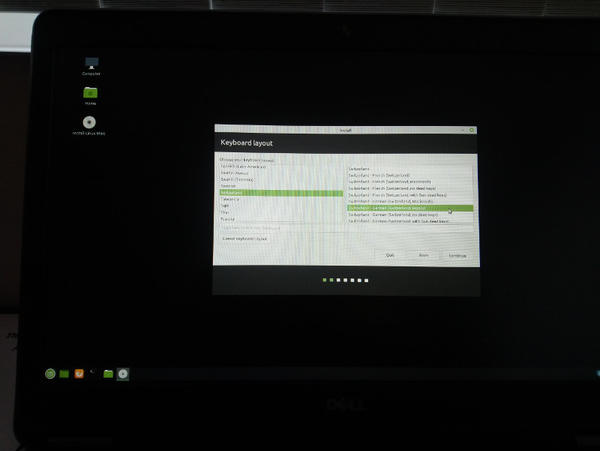
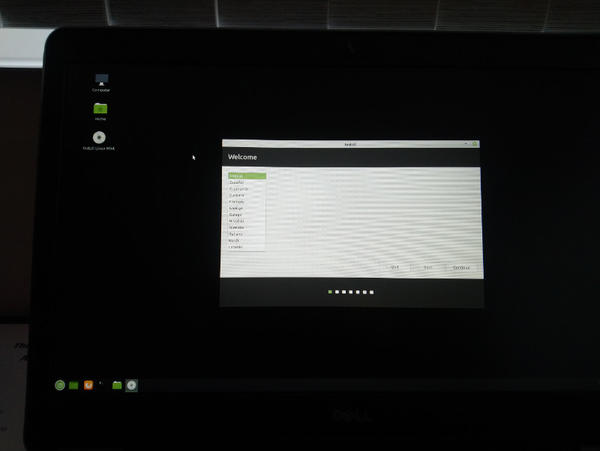
<p style="text-align: justify;">Trình cài đặt là một thiết lập chỉ cần nhấp “Next, Next, Next” thuần túy. Nó bắt đầu với việc lựa chọn ngôn ngữ rồi đến bố cục bàn phím.</p>

<figure>
<div style="text-align: justify;"><img alt="Chọn ngôn ngữ" data-i="0" data-src="https://st.quantrimang.com/photos/image/2020/06/09/tao-usb-boot-voi-linux-mint-1.jpg" data-was-processed="true" height="451" src="https://st.quantrimang.com/photos/image/2020/06/09/tao-usb-boot-voi-linux-mint-1.jpg" width="600" /></div>
</figure>

<figure>
<div style="text-align: justify;"><img alt="Chọn bố cục bàn phím" data-i="1" data-src="https://st.quantrimang.com/photos/image/2020/06/09/tao-usb-boot-voi-linux-mint-2.jpg" data-was-processed="true" height="451" src="https://st.quantrimang.com/photos/image/2020/06/09/tao-usb-boot-voi-linux-mint-2.jpg" width="600" /></div>
</figure>

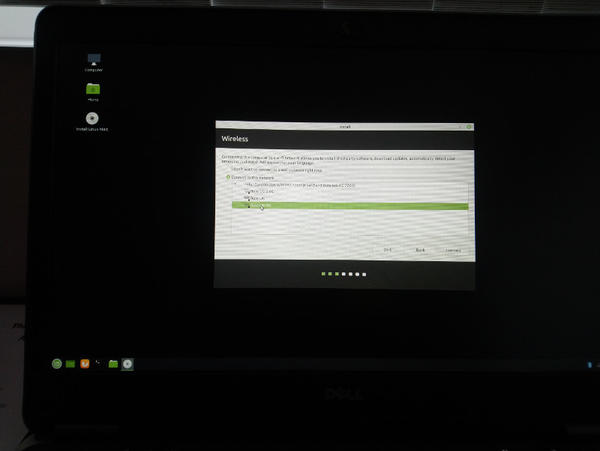
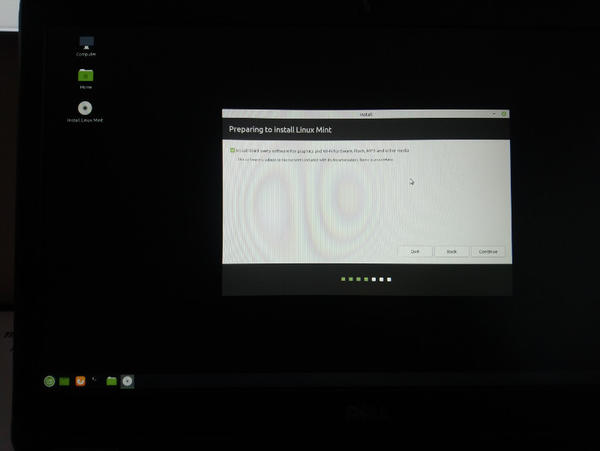
<p style="text-align: justify;">Cửa sổ tiếp theo là tạo kết nối với mạng không dây (nếu chưa được kết nối với mạng). Việc kết nối này cho phép trực tiếp tải xuống và cài đặt các công cụ của bên thứ ba (như driver và phần mềm độc quyền) phù hợp với phần cứng.</p>

<figure>
<div style="text-align: justify;"><img alt="Tạo kết nối mạng không dây" data-i="2" data-src="https://st.quantrimang.com/photos/image/2020/06/09/tao-usb-boot-voi-linux-mint-3.jpg" data-was-processed="true" height="451" src="https://st.quantrimang.com/photos/image/2020/06/09/tao-usb-boot-voi-linux-mint-3.jpg" width="600" /></div>
</figure>

<figure>
<div style="text-align: justify;"><img alt="Chuẩn bị cài đặt Linux Mint" data-i="3" data-src="https://st.quantrimang.com/photos/image/2020/06/09/tao-usb-boot-voi-linux-mint-4.jpg" data-was-processed="true" height="451" src="https://st.quantrimang.com/photos/image/2020/06/09/tao-usb-boot-voi-linux-mint-4.jpg" width="600" /></div>
</figure>

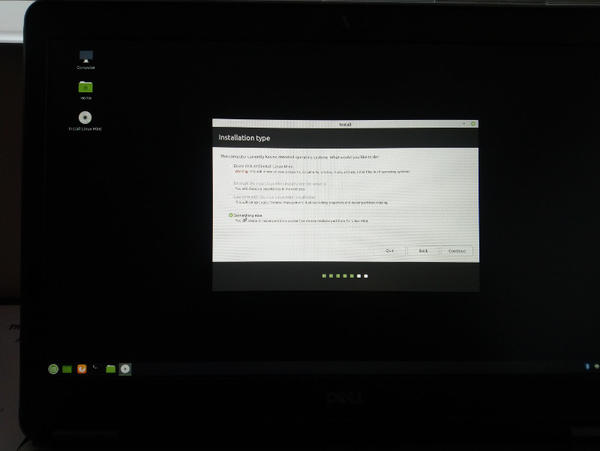
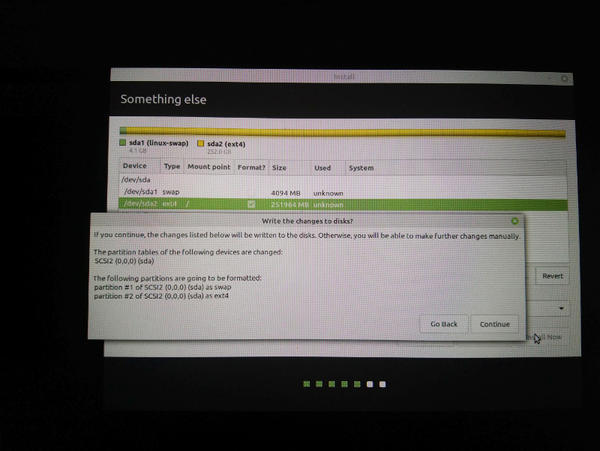
<p style="text-align: justify;">Bước tiếp theo là phần duy nhất trong thiết lập đòi hỏi kiến ​​thức nâng cao. Câu hỏi&nbsp;<strong>Installation type</strong>&nbsp;(Kiểu cài đặt) có thể được trả lời bằng thiết lập cơ bản nhất (<strong>Erase disk and install Linux Mint</strong>&nbsp;- Xóa ổ đĩa và cài đặt Linux Mint), về cơ bản sẽ chỉ cài đặt Linux Mint trong một phân vùng root. Người dùng nâng cao có thể nhấp vào&nbsp;<strong>Something else.</strong>&nbsp;Tác giả bài viết cũng đã nhấp vào&nbsp;<strong>&quot;Something else&quot;</strong>&nbsp;và tự tạo hai phân vùng. Phân vùng đầu tiên có dung lượng 4GB (4096MB), cái còn lại là phân vùng root duy nhất được mount.</p>

<p style="text-align: justify;"><strong>Lưu ý</strong>: Khi thực hiện nâng cấp từ bản cài đặt hiện có, tác giả bài viết đã xóa các phân vùng hiện có trước khi khởi chạy thiết lập bằng&nbsp;<strong>gparted</strong>&nbsp;từ live image.</p>

<figure>
<div style="text-align: justify;"><img alt="Thiết lập cơ bản" data-i="4" data-src="https://st.quantrimang.com/photos/image/2020/06/09/tao-usb-boot-voi-linux-mint-5.jpg" data-was-processed="true" height="451" src="https://st.quantrimang.com/photos/image/2020/06/09/tao-usb-boot-voi-linux-mint-5.jpg" width="600" /></div>
</figure>

<figure>
<div style="text-align: justify;"><img alt="Thiết lập cho người dùng nâng cao" data-i="5" data-src="https://st.quantrimang.com/photos/image/2020/06/09/tao-usb-boot-voi-linux-mint-6.jpg" data-was-processed="true" height="451" src="https://st.quantrimang.com/photos/image/2020/06/09/tao-usb-boot-voi-linux-mint-6.jpg" width="600" /></div>
</figure>

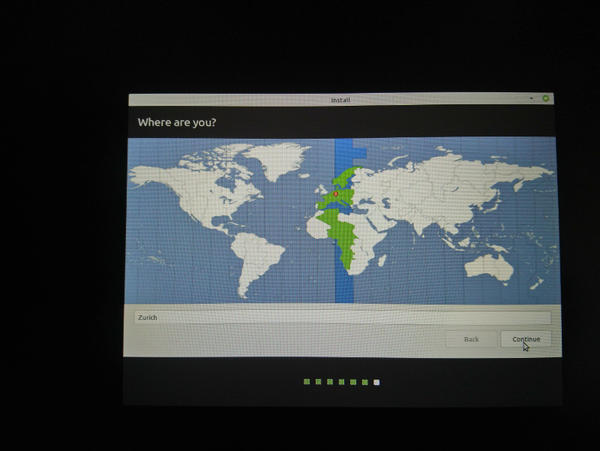
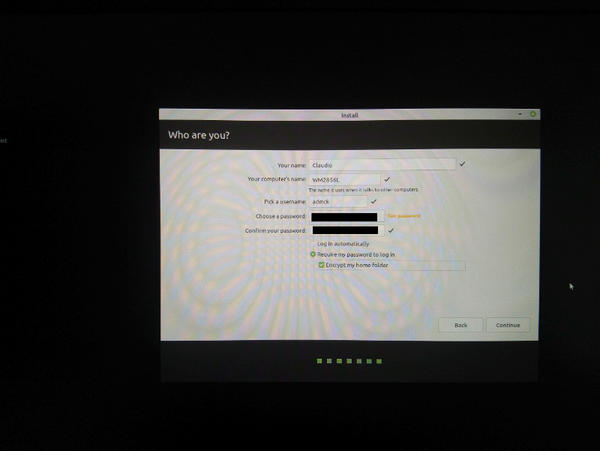
<p style="text-align: justify;">Sau khi thiết lập phân vùng ổ đĩa, bạn có thể chọn vùng/vị trí (múi giờ) rồi tạo user (đầu tiên).</p>

<figure>
<div style="text-align: justify;"><img alt="Chọn múi giờ" data-i="6" data-src="https://st.quantrimang.com/photos/image/2020/06/09/tao-usb-boot-voi-linux-mint-7.jpg" data-was-processed="true" height="451" src="https://st.quantrimang.com/photos/image/2020/06/09/tao-usb-boot-voi-linux-mint-7.jpg" width="600" /></div>
</figure>

<figure>
<div style="text-align: justify;"><img alt="Tạo người dùng đầu tiên" data-i="7" data-src="https://st.quantrimang.com/photos/image/2020/06/09/tao-usb-boot-voi-linux-mint-8.jpg" data-was-processed="true" height="451" src="https://st.quantrimang.com/photos/image/2020/06/09/tao-usb-boot-voi-linux-mint-8.jpg" width="600" /></div>
</figure>

<p style="text-align: justify;">Sau cửa sổ người dùng này, quá trình cài đặt sẽ bắt đầu diễn ra. Khi cài đặt xong, có thể khởi động lại máy và (với phương tiện cài đặt đã được gỡ bỏ) Linux Mint 19.3 sẽ boot từ&nbsp;ổ HDD.</p>
		</div>
				<div id="author">
						<p>
				<strong>Nguồn tin:</strong>
				Quantrimang.com
			</p>
		</div>
	</div>
	<div id="footer" class="clearfix">
		<div id="url">
			<strong>URL của bản tin này: </strong><a href="https://www.nguoicodonvn2008.info/vi/news/savefile/phan-mem/tao-usb-boot-voi-linux-mint-19-3-2177.html" title="Tạo USB boot với Linux Mint 19.3">https://www.nguoicodonvn2008.info/vi/news/savefile/phan-mem/tao-usb-boot-voi-linux-mint-19-3-2177.html</a>

		</div>
		<div class="clear"></div>
		<div class="copyright">
			&copy; .&#x3A; Nguoicodonvn2008.info - Cõi lòng người cô đơn &#x3A;.
		</div>
		<div id="contact">
			<a href="mailto:admin@nguoicodonvn2008.info">admin@nguoicodonvn2008.info</a>
		</div>
	</div>
</div>
        <div id="timeoutsess" class="chromeframe">
            Bạn đã không sử dụng Site, <a onclick="timeoutsesscancel();" href="https://www.nguoicodonvn2008.info/#">Bấm vào đây để duy trì trạng thái đăng nhập</a>. Thời gian chờ: <span id="secField"> 60 </span> giây
        </div>
        <div id="openidResult" class="nv-alert" style="display:none"></div>
        <div id="openidBt" data-result="" data-redirect=""></div>
		</script>
		<div class="car-top">
  <span><img src="https://www.nguoicodonvn2008.info/themes/default/images/car.png" alt=""></span>
</div>
<script src="https://www.nguoicodonvn2008.info/assets/js/jquery/jquery.min.js"></script>
<script>var nv_base_siteurl="/",nv_lang_data="vi",nv_lang_interface="vi",nv_name_variable="nv",nv_fc_variable="op",nv_lang_variable="language",nv_module_name="news",nv_func_name="savefile",nv_is_user=0, nv_my_ofs=-4,nv_my_abbr="EDT",nv_cookie_prefix="nv4c_e856T",nv_check_pass_mstime=1738000,nv_area_admin=0,nv_safemode=0,theme_responsive=0,nv_recaptcha_ver=2,nv_recaptcha_sitekey="",nv_recaptcha_type="image",XSSsanitize=1;</script>
<script src="https://www.nguoicodonvn2008.info/assets/js/language/vi.js"></script>
<script src="https://www.nguoicodonvn2008.info/assets/js/DOMPurify/purify3.js"></script>
<script src="https://www.nguoicodonvn2008.info/assets/js/global.js"></script>
<script src="https://www.nguoicodonvn2008.info/assets/js/site.js"></script>
<script src="https://www.nguoicodonvn2008.info/themes/default/js/news.js"></script>
<script src="https://www.nguoicodonvn2008.info/themes/default/js/main.js"></script>
<script src="https://www.nguoicodonvn2008.info/themes/default/js/custom.js"></script>
<script type="application/ld+json">
        {
            "@context": "https://schema.org",
            "@type": "Organization",
            "url": "https://www.nguoicodonvn2008.info",
            "logo": "https://www.nguoicodonvn2008.info/uploads/angel.gif"
        }
        </script>
<script src="https://www.nguoicodonvn2008.info/themes/default/js/bootstrap.min.js"></script>
<script type="text/javascript">
var $scrolltop = $('.car-top');
$scrolltop.on('click', function () {
    $('html,body').animate({
        scrollTop: 0
    }, 800);
    $(this).addClass("car-run");
    setTimeout(function(){ $scrolltop.removeClass('car-run');}, 1000);
    return false;
});
$(window).on('scroll', function ()
{ 
    if($(window).scrollTop() >= 200)
    {
        $scrolltop.addClass("show");
        $scrolltop.addClass("car-down");
    }
    else
    {
       $scrolltop.removeClass("show");
       setTimeout(function(){ $scrolltop.removeClass('car-down');}, 300);
    }
});
</script>
</body>
</html>