<!DOCTYPE html>
    <html lang="vi" xmlns="http://www.w3.org/1999/xhtml" prefix="og: http://ogp.me/ns#">
    <head>
<title>Tự động hóa 5 tác vụ thiết yếu này trên cài đặt Windows để giúp mọi thứ chạy hoàn hảo</title>
<meta name="description" content="Tự động hóa 5 tác vụ thiết yếu này trên cài đặt Windows để giúp mọi thứ chạy hoàn hảo - Savefile - Tin Tức -...">
<meta name="author" content=".: Nguoicodonvn2008.info - Cõi lòng người cô đơn :.">
<meta name="copyright" content=".: Nguoicodonvn2008.info - Cõi lòng người cô đơn :. [admin@nguoicodonvn2008.info]">
<meta name="robots" content="index, archive, follow, noodp">
<meta name="googlebot" content="index,archive,follow,noodp">
<meta name="msnbot" content="all,index,follow">
<meta name="generator" content="NukeViet v4.5">
<meta http-equiv="Content-Type" content="text/html; charset=utf-8">
<meta property="og:title" content="Tự động hóa 5 tác vụ thiết yếu này trên cài đặt Windows để giúp mọi thứ chạy hoàn hảo">
<meta property="og:type" content="website">
<meta property="og:description" content="Savefile - Tin Tức -...">
<meta property="og:site_name" content=".&#x3A; Nguoicodonvn2008.info - Cõi lòng người cô đơn &#x3A;.">
<meta property="og:url" content="https://www.nguoicodonvn2008.info/vi/news/savefile/kien-thuc-may-tinh/tu-dong-hoa-5-tac-vu-thiet-yeu-nay-tren-cai-dat-windows-de-giup-moi-thu-chay-hoan-hao-11578.html">
<link rel="shortcut icon" href="https://www.nguoicodonvn2008.info/favicon.ico">
<link rel="canonical" href="https://www.nguoicodonvn2008.info/vi/news/savefile/kien-thuc-may-tinh/tu-dong-hoa-5-tac-vu-thiet-yeu-nay-tren-cai-dat-windows-de-giup-moi-thu-chay-hoan-hao-11578.html">
<link rel="alternate" href="https://www.nguoicodonvn2008.info/vi/news/rss/" title="Tin Tức" type="application/rss+xml">
<link rel="alternate" href="https://www.nguoicodonvn2008.info/vi/news/rss/karaoke-dual/" title="Tin Tức - Karaoke Dual" type="application/rss+xml">
<link rel="alternate" href="https://www.nguoicodonvn2008.info/vi/news/rss/nhac-tre/" title="Tin Tức - Nhạc trẻ" type="application/rss+xml">
<link rel="alternate" href="https://www.nguoicodonvn2008.info/vi/news/rss/tru-tinh/" title="Tin Tức - Trữ tình" type="application/rss+xml">
<link rel="alternate" href="https://www.nguoicodonvn2008.info/vi/news/rss/nuoc-ngoai/" title="Tin Tức - Nước ngoài" type="application/rss+xml">
<link rel="alternate" href="https://www.nguoicodonvn2008.info/vi/news/rss/remix/" title="Tin Tức - Remix" type="application/rss+xml">
<link rel="alternate" href="https://www.nguoicodonvn2008.info/vi/news/rss/tam-su-tinh-yeu/" title="Tin Tức - Tâm sự tình yêu" type="application/rss+xml">
<link rel="alternate" href="https://www.nguoicodonvn2008.info/vi/news/rss/tho-suu-tam/" title="Tin Tức - Thơ sưu tầm" type="application/rss+xml">
<link rel="alternate" href="https://www.nguoicodonvn2008.info/vi/news/rss/cuoc-song/" title="Tin Tức - Cuộc sống" type="application/rss+xml">
<link rel="alternate" href="https://www.nguoicodonvn2008.info/vi/news/rss/phan-mem/" title="Tin Tức - Phần mềm" type="application/rss+xml">
<link rel="alternate" href="https://www.nguoicodonvn2008.info/vi/news/rss/kien-thuc-may-tinh/" title="Tin Tức - Kiến thức máy tính" type="application/rss+xml">
<link rel="alternate" href="https://www.nguoicodonvn2008.info/vi/news/rss/hoc-tap/" title="Tin Tức - Học tập" type="application/rss+xml">
<link rel="alternate" href="https://www.nguoicodonvn2008.info/vi/news/rss/tai-lieu/" title="Tin Tức - Tài liệu" type="application/rss+xml">
<link rel="alternate" href="https://www.nguoicodonvn2008.info/vi/news/rss/de-thi/" title="Tin Tức - Đề thi" type="application/rss+xml">
<link rel="preload" as="style" href="https://www.nguoicodonvn2008.info/assets/css/font-awesome.min.css" type="text/css">
<link rel="preload" as="style" href="https://www.nguoicodonvn2008.info/themes/default/css/bootstrap.non-responsive.css" type="text/css">
<link rel="preload" as="style" href="https://www.nguoicodonvn2008.info/themes/default/css/style.css" type="text/css">
<link rel="preload" as="style" href="https://www.nguoicodonvn2008.info/themes/default/css/style.non-responsive.css" type="text/css">
<link rel="preload" as="style" href="https://www.nguoicodonvn2008.info/themes/default/css/news.css" type="text/css">
<link rel="preload" as="style" href="https://www.nguoicodonvn2008.info/themes/default/css/custom.css" type="text/css">
<link rel="preload" as="script" href="https://www.nguoicodonvn2008.info/assets/js/jquery/jquery.min.js" type="text/javascript">
<link rel="preload" as="script" href="https://www.nguoicodonvn2008.info/assets/js/language/vi.js" type="text/javascript">
<link rel="preload" as="script" href="https://www.nguoicodonvn2008.info/assets/js/DOMPurify/purify3.js" type="text/javascript">
<link rel="preload" as="script" href="https://www.nguoicodonvn2008.info/assets/js/global.js" type="text/javascript">
<link rel="preload" as="script" href="https://www.nguoicodonvn2008.info/assets/js/site.js" type="text/javascript">
<link rel="preload" as="script" href="https://www.nguoicodonvn2008.info/themes/default/js/news.js" type="text/javascript">
<link rel="preload" as="script" href="https://www.nguoicodonvn2008.info/themes/default/js/main.js" type="text/javascript">
<link rel="preload" as="script" href="https://www.nguoicodonvn2008.info/themes/default/js/custom.js" type="text/javascript">
<link rel="preload" as="script" href="https://www.nguoicodonvn2008.info/themes/default/js/bootstrap.min.js" type="text/javascript">
<link rel="stylesheet" href="https://www.nguoicodonvn2008.info/assets/css/font-awesome.min.css">
<link rel="stylesheet" href="https://www.nguoicodonvn2008.info/themes/default/css/bootstrap.non-responsive.css">
<link rel="stylesheet" href="https://www.nguoicodonvn2008.info/themes/default/css/style.css">
<link rel="stylesheet" href="https://www.nguoicodonvn2008.info/themes/default/css/style.non-responsive.css">
<link rel="StyleSheet" href="https://www.nguoicodonvn2008.info/themes/default/css/news.css">
<link rel="stylesheet" href="https://www.nguoicodonvn2008.info/themes/default/css/custom.css">
<style type="text/css">
	body{background: #fff;}
</style>
    </head>
    <body>
<div id="print">
	<div id="hd_print">
		<h2 class="pull-left">.&#x3A; Nguoicodonvn2008.info - Cõi lòng người cô đơn &#x3A;.</h2>
		<p class="pull-right"><a title=".&#x3A; Nguoicodonvn2008.info - Cõi lòng người cô đơn &#x3A;." href="https://www.nguoicodonvn2008.info/">https://www.nguoicodonvn2008.info</a></p>
	</div>
	<div class="clear"></div>
	<hr />
	<div id="content">
		<h1>Tự động hóa 5 tác vụ thiết yếu này trên cài đặt Windows để giúp mọi thứ chạy hoàn hảo</h1>
		<ul class="list-inline">
			<li>Thứ ba - 11/11/2025 22:24</li>
			<li class="hidden-print txtrequired"><em class="fa fa-print">&nbsp;</em><a title="In ra" href="javascript:;" onclick="window.print()">In ra</a></li>
			<li class="hidden-print txtrequired"><em class="fa fa-power-off">&nbsp;</em><a title="Đóng cửa sổ này" href="javascript:;" onclick="window.close()">Đóng cửa sổ này</a></li>
		</ul>
		<div class="clear"></div>
		<div id="hometext">
		</div>
				<div class="imghome">
			<img alt="Tự động hóa 5 tác vụ thiết yếu này trên cài đặt Windows để giúp mọi thứ chạy hoàn hảo" src="https://st.quantrimang.com/photos/image/2025/11/10/tu-dong-hoa-tac-vu-thiet-yeu-tren-cai-dat-windows-9.jpg" width="460" class="img-thumbnail" />
		</div>
		<div class="clear"></div>
		<div id="bodytext" class="clearfix">
			<p style="text-align: justify;">Windows 11&nbsp;là một hệ điều hành ổn định, nhưng nó vẫn tiềm ẩn một số điểm kém hiệu quả.</p>

<div style="text-align: justify;">&nbsp;</div>

<p style="text-align: justify;">Nhiều người đã thiết lập một số tính năng tự động hóa trên mọi máy tính Windows. Chúng giúp bạn tiết kiệm thời gian, tối ưu hóa hiệu suất và bảo vệ dữ liệu. Bạn nên áp dụng chúng để có trải nghiệm tốt hơn. Mặc dù họ sử dụng&nbsp;Task Scheduler&nbsp;gốc, nhưng vẫn có một số công cụ khác bạn có thể sử dụng để tự động hóa tác vụ trên Windows.</p>

<h2 style="text-align: justify;">Khởi động lại từ đầu</h2>

<h3 style="text-align: justify;">Đăng nhập mới với cảm giác như mọi thứ đang bắt đầu lại</h3>

<p style="text-align: justify;">Bạn có thể &quot;khởi động lại hệ thống&quot; với Task Scheduler mỗi khi đăng nhập. Tính năng này có thể giúp bạn xóa các file tạm thời, reset những tiến trình chiếm dụng tài nguyên bộ nhớ và đóng các ứng dụng nền không cần chạy ngay lập tức. Nhờ đó, máy tính luôn hoạt động mượt mà, nhanh chóng và hiệu quả.</p>

<p style="text-align: justify;">Thay vì phải tự tay dọn dẹp máy tính hoặc tắt một số ứng dụng khởi động, hãy sử dụng Task Scheduler để chạy một script thực hiện các tác vụ này mỗi khi bật máy tính.</p>

<p style="text-align: justify;">Đây là script:</p>

<pre id="pre0">
<code># The Clean Slate Power-Up Script
# Safely close running background apps

$appsToClose = &quot;Spotify&quot;, &quot;Teams&quot;, &quot;Discord&quot;
foreach ($app in $appsToClose) {
Get-Process -Name $app -ErrorAction SilentlyContinue | Stop-Process -Force
}

# Delete files in the temp folder older than 3 days

$paths = @(&quot;$env:TEMP&quot;, &quot;$env:LOCALAPPDATA\Temp&quot;, &quot;C:\Windows\Temp&quot;)
foreach ($path in $paths) {
if (Test-Path $path) {
Get-ChildItem -Path $path -Recurse -Force -ErrorAction SilentlyContinue |
Where-Object { $_.LastWriteTime -lt (Get-Date).AddDays(-3) } |
Remove-Item -Force -Recurse -ErrorAction SilentlyContinue
}
}</code></pre>

<p style="text-align: justify;"><strong>Lưu ý</strong>: Script sẽ đóng&nbsp;Spotify,&nbsp;Teams&nbsp;và&nbsp;Discord&nbsp;khi đăng nhập và xóa các file trong thư mục&nbsp;<strong>Temp</strong>&nbsp;3 ngày 1 lần. Bạn có thể tùy chỉnh script này và thêm các tác vụ khác.</p>

<p style="text-align: justify;">Để tự động hóa tác vụ, hãy làm theo các bước sau:</p>

<ol>
	<li style="text-align: justify;">Lưu script trên với phần mở rộng&nbsp;<strong>.ps1</strong>. Trong trường hợp ví dụ, đó là&nbsp;<strong>CleanSlate.ps1</strong>.</li>
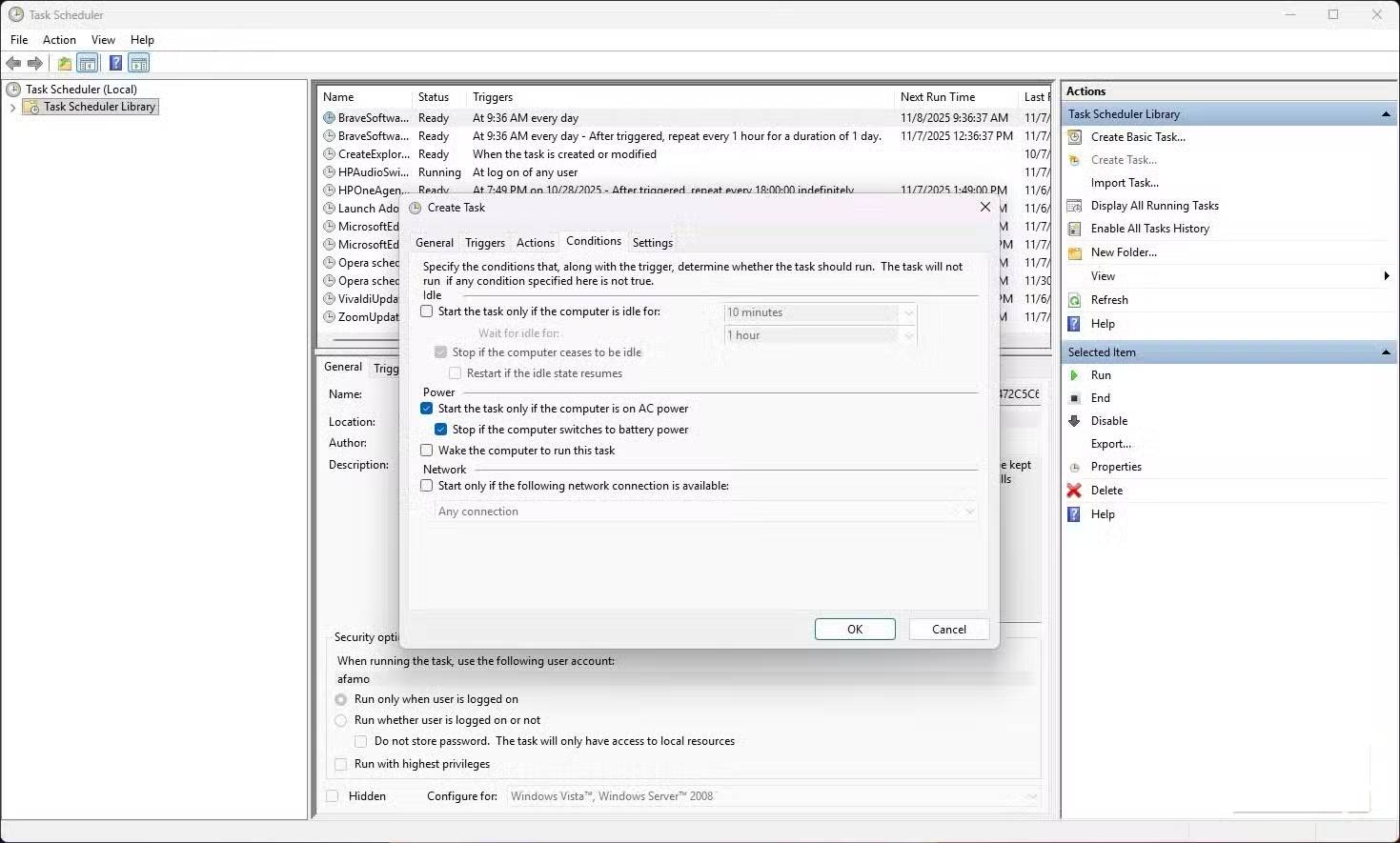
	<li style="text-align: justify;">Tìm kiếm và&nbsp;khởi chạy Task Scheduler, sau đó nhấp vào&nbsp;<strong>Create Task</strong>&nbsp;ở bên phải.</li>
	<li style="text-align: justify;">Điền vào trường&nbsp;<strong>Name</strong>, chọn&nbsp;<strong>Run with highest privileges</strong>, sau đó trong&nbsp;<strong>Configure for</strong>, chọn&nbsp;<strong>Windows 10</strong>&nbsp;(tùy chọn này vẫn hoạt động ngay cả khi bạn sử dụng Windows 11).</li>
	<li style="text-align: justify;">Chuyển đến tab&nbsp;<strong>Triggers</strong>, nhấp vào&nbsp;<strong>New</strong>, sau đó chọn&nbsp;<strong>At log on</strong>&nbsp;từ danh sách drop-down&nbsp;<strong>Begin the task</strong>, rồi nhấp vào&nbsp;<strong>OK</strong>.</li>
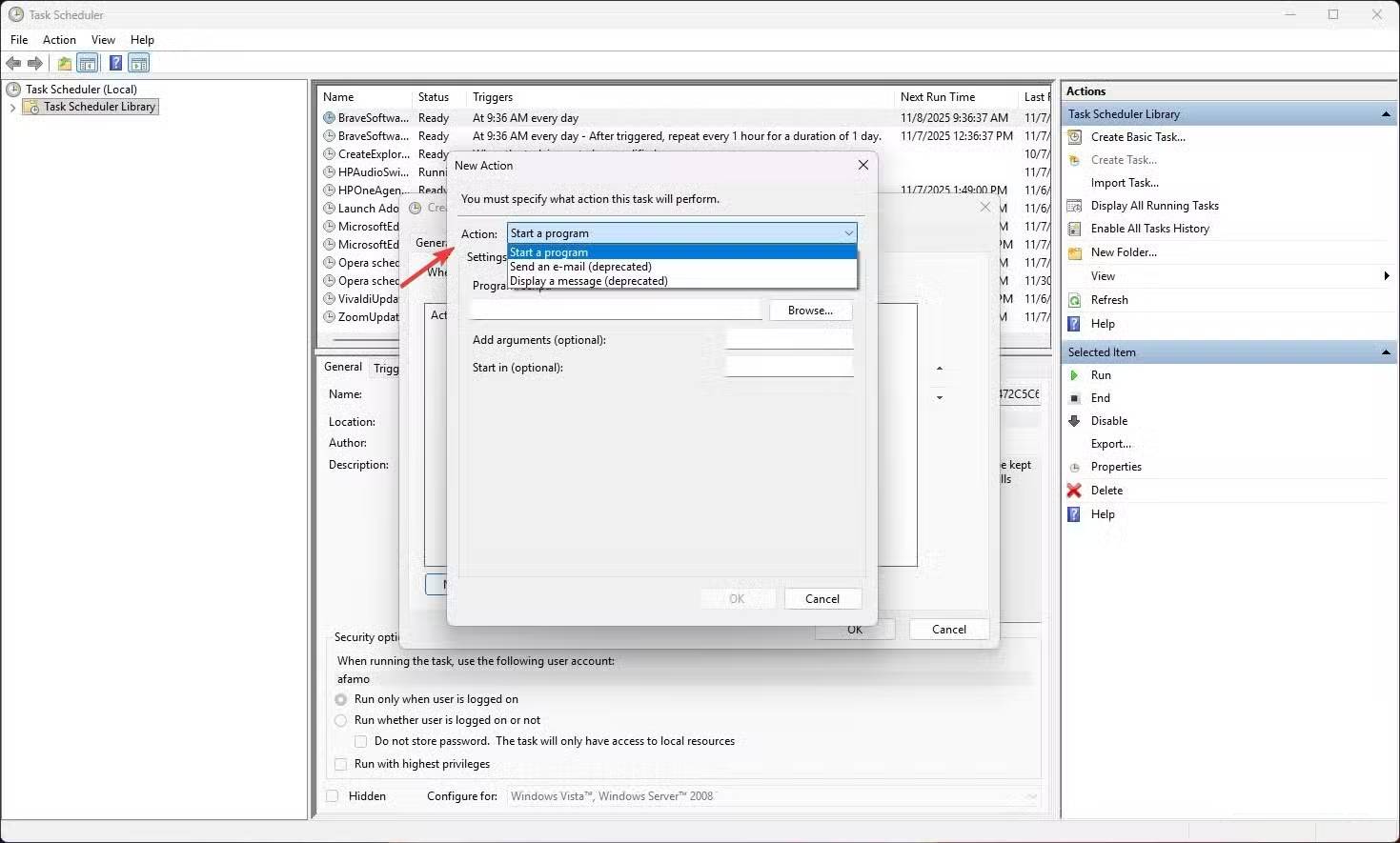
	<li style="text-align: justify;">Chuyển đến tab&nbsp;<strong>Actions</strong>&nbsp;và nhấp vào&nbsp;<strong>New.</strong>&nbsp;Trong&nbsp;<strong>Program/script</strong>, nhập:&nbsp;<strong>powershell.exe</strong>, sau đó trong&nbsp;<strong>Add arguments</strong>, nhập:&nbsp;<strong>-ExecutionPolicy Bypass -File &quot;C:\Scripts\CleanSlate.ps1&quot;</strong></li>
	<li style="text-align: justify;">Nhấp vào&nbsp;<strong>OK</strong>.</li>
</ol>

<figure>
<div style="text-align: justify;"><img alt="" data-adbro-processed="true" data-i="0" data-src="https://st.quantrimang.com/photos/image/2025/11/10/tu-dong-hoa-tac-vu-thiet-yeu-tren-cai-dat-windows-1.jpg" data-was-processed="true" height="885" src="https://st.quantrimang.com/photos/image/2025/11/10/tu-dong-hoa-tac-vu-thiet-yeu-tren-cai-dat-windows-1.jpg" width="1469" /></div>
</figure>

<figure>
<div style="text-align: justify;"><img alt="" data-i="1" data-src="https://st.quantrimang.com/photos/image/2025/11/10/tu-dong-hoa-tac-vu-thiet-yeu-tren-cai-dat-windows-2.jpg" data-was-processed="true" height="885" src="https://st.quantrimang.com/photos/image/2025/11/10/tu-dong-hoa-tac-vu-thiet-yeu-tren-cai-dat-windows-2.jpg" width="1469" /></div>
</figure>

<figure>
<div style="text-align: justify;">&nbsp;</div>
</figure>

<div style="text-align: justify;">&nbsp;</div>

<p style="text-align: justify;">Tác vụ này là cách hoàn hảo để dọn dẹp PC. Nó chạy êm ru, và bạn sẽ bắt đầu với một hệ thống gọn nhẹ, nhanh chóng mỗi ngày.</p>

<h2 style="text-align: justify;">Sao lưu theo ngữ cảnh khi kết nối đĩa</h2>

<h3 style="text-align: justify;">Ổ cứng ngoài trở thành tác nhân kích hoạt</h3>

<p style="text-align: justify;">Hãy cấu hình một quy tắc với Windows Task Scheduler để tự động sao lưu mỗi khi bạn cắm ổ cứng ngoài vào. Tính năng tự động hóa này sử dụng tiện ích Robocopy gốc của Windows để sao chép các thư mục chính như&nbsp;<strong>Documents</strong>,&nbsp;<strong>Projects</strong>&nbsp;và&nbsp;<strong>Downloads</strong>. Mọi thứ vẫn được đồng bộ mà không cần bạn phải làm gì cả.</p>

<p style="text-align: justify;">Dưới đây là script được sử dụng:</p>

<pre id="pre1">
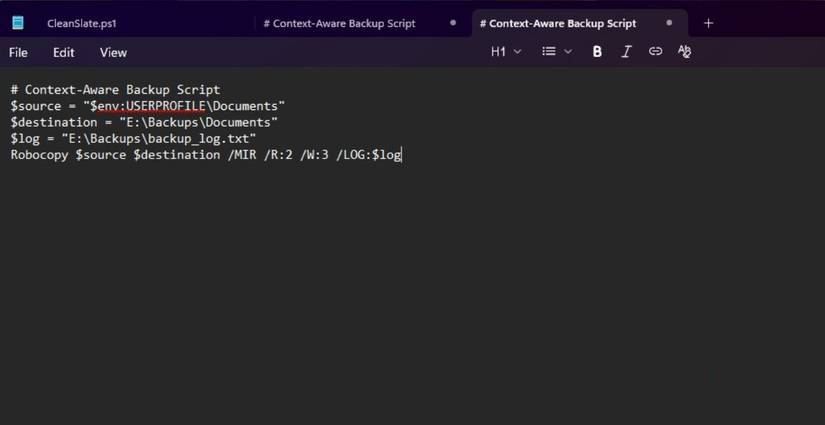
<code># Context-Aware Backup Script
$source = &quot;$env:USERPROFILE\Documents&quot;
$destination = &quot;E:\Backups\Documents&quot;
$log = &quot;E:\Backups\backup_log.txt&quot;
Robocopy $source $destination /MIR /R:2 /W:3 /LOG:$log</code></pre>

<figure>
<div style="text-align: justify;"><img alt="Viết script nhận biết ngữ cảnh cho tự động hóa tác vụ" data-i="5" data-src="https://st.quantrimang.com/photos/image/2025/11/10/tu-dong-hoa-tac-vu-thiet-yeu-tren-cai-dat-windows-6.jpg" data-was-processed="true" height="425" src="https://st.quantrimang.com/photos/image/2025/11/10/tu-dong-hoa-tac-vu-thiet-yeu-tren-cai-dat-windows-6.jpg" width="825" /></div>

<figcaption>
<div style="text-align: justify;">Viết script nhận biết ngữ cảnh cho tự động hóa tác vụ</div>
</figcaption>
</figure>

<p style="text-align: justify;">Trong script,&nbsp;<strong>$source</strong>&nbsp;thiết lập thư mục để sao lưu,&nbsp;<strong>$destination</strong>&nbsp;là nơi sao lưu được chuyển đến và&nbsp;<strong>$log</strong>&nbsp;chỉ định file nhật ký nơi Robocopy ghi lại mọi thứ nó sao chép.</p>

<p style="text-align: justify;">Để tạo tự động hóa này:</p>

<ol>
	<li style="text-align: justify;">Khởi chạy Task Scheduler, nhấp vào&nbsp;<strong>Create Task</strong>&nbsp;ở bên phải, sau đó điền vào trường&nbsp;<strong>Name</strong>.</li>
	<li style="text-align: justify;">Điều hướng đến tab&nbsp;<strong>Trigger</strong>&nbsp;và đặt&nbsp;<strong>Begin the task</strong>&nbsp;thành&nbsp;<strong>On an event</strong>.</li>
	<li style="text-align: justify;">Đặt&nbsp;<strong>Log</strong>&nbsp;thành&nbsp;<em>Microsoft-Windows-DriverFrameworks-UserMode/Operational</em>.</li>
	<li style="text-align: justify;">Đặt&nbsp;<strong>Event ID</strong>&nbsp;thành&nbsp;<em>20001</em>, sau đó nhấp vào&nbsp;<strong>OK</strong>.</li>
</ol>

<h2 style="text-align: justify;">Quét những vùng riêng tư</h2>

<h3 style="text-align: justify;">Xóa dữ liệu cá nhân khi bạn ngủ</h3>

<figure>
<div style="text-align: justify;"><img alt="Sử dụng script để tự động xóa cache trình duyệt" data-i="6" data-src="https://st.quantrimang.com/photos/image/2025/11/10/tu-dong-hoa-tac-vu-thiet-yeu-tren-cai-dat-windows-7.jpg" data-was-processed="true" height="420" src="https://st.quantrimang.com/photos/image/2025/11/10/tu-dong-hoa-tac-vu-thiet-yeu-tren-cai-dat-windows-7.jpg" width="825" /></div>

<figcaption>
<div style="text-align: justify;">Sử dụng script để tự động xóa cache trình duyệt</div>
</figcaption>
</figure>

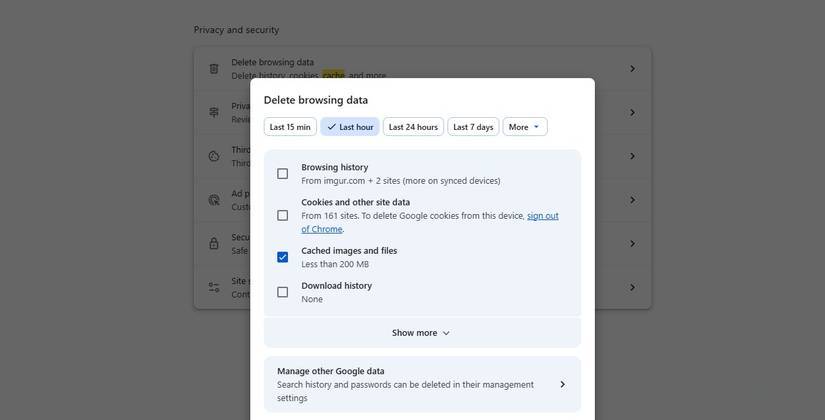
<p style="text-align: justify;">Gần như không thể vô hiệu hóa hoàn toàn telemetry trên Windows 11. Mặc dù Windows telemetry không phải là độc hại, nhưng nó lại trở thành dấu vết riêng tư. Hãy tạo một script quét những vùng riêng tư chạy mỗi đêm. Nó tự động xóa dữ liệu kỹ thuật số còn sót lại và cho phép bạn bắt đầu lại vào buổi sáng.</p>

<p style="text-align: justify;">Tác vụ này dựa trên một script&nbsp;PowerShell&nbsp;xóa nhật ký chẩn đoán Windows, cấu hình Wi-Fi được lưu trong cache, danh sách file gần đây và dữ liệu telemetry của ứng dụng. Dưới đây là script được dùng:</p>

<pre id="pre2">
<code># Privacy Shadow Sweep
# Clear the PCs Diagnostic Logs

Remove-Item -Path &quot;C:\ProgramData\Microsoft\Diagnosis\ETLLogs&quot; -Recurse -Force -ErrorAction SilentlyContinue

# Remove your Recent Items and Quick Access

Remove-Item -Path &quot;$env:APPDATA\Microsoft\Windows\Recent\*&quot; -Force -ErrorAction SilentlyContinue

# Clear browser caches (Edge and Chrome)

$edge = &quot;$env:LOCALAPPDATA\Microsoft\Edge\User Data\Default\Cache&quot;
$chrome = &quot;$env:LOCALAPPDATA\Google\Chrome\User Data\Default\Cache&quot;
Remove-Item -Path $edge,$chrome -Recurse -Force -ErrorAction SilentlyContinue

# Get a summary of log cleanup

$report = &quot;C:\Logs\PrivacySweep_$(Get-Date -Format &#039;yyyyMMdd&#039;).txt&quot;
&quot;Privacy Sweep completed at $(Get-Date)&quot; | Out-File $report -Encoding **UTF8**</code></pre>

<h2 style="text-align: justify;">Chế độ hiệu suất đáp ứng cho các ứng dụng nặng</h2>

<h3 style="text-align: justify;">Tăng cường hiệu suất tạm thời khi bạn cần nhất</h3>

<figure>
<div style="text-align: justify;"><img alt="Theo dõi hiệu suất hệ thống khi chạy các chương trình nặng" data-i="7" data-src="https://st.quantrimang.com/photos/image/2025/11/10/tu-dong-hoa-tac-vu-thiet-yeu-tren-cai-dat-windows-8.jpg" data-was-processed="true" height="471" src="https://st.quantrimang.com/photos/image/2025/11/10/tu-dong-hoa-tac-vu-thiet-yeu-tren-cai-dat-windows-8.jpg" width="825" /></div>

<figcaption>
<div style="text-align: justify;">Theo dõi hiệu suất hệ thống khi chạy các chương trình nặng</div>
</figcaption>
</figure>

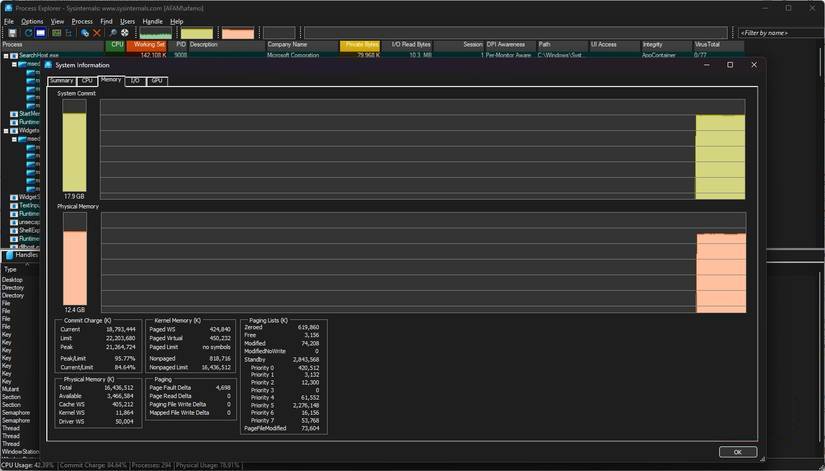
<p style="text-align: justify;">Đây có thể là tính năng tự động hóa được yêu thích nhất vì người dùng có được hiệu suất theo yêu cầu. Việc chạy các ứng dụng tốn nhiều tài nguyên có thể làm hao mòn máy tính của bạn.</p>

<p style="text-align: justify;">Đây là một tính năng tự động hóa mà chúng ta sẽ không sử dụng Task Scheduler vì việc triển khai nó phức tạp hơn. Bạn thậm chí có thể cần hai tác vụ riêng biệt cho nó: Một tác vụ được kích hoạt khi khởi chạy ứng dụng và tác vụ còn lại khi thoát ứng dụng.</p>

<p style="text-align: justify;">Dưới đây là script được sử dụng:</p>

<pre id="pre3">
<code># Adaptive Performance Mode Watcher Script

$appName = &quot;blender&quot;
$backgroundApps = &quot;Spotify&quot;, &quot;Teams&quot;, &quot;Discord&quot;

# Performance boost at heavy app startup

Start-Process -FilePath &quot;C:\Program Files\Blender Foundation\Blender 4.0\blender.exe&quot;
Start-Sleep -Seconds 10

# Close all running and unnecessary background apps

foreach ($app in $backgroundApps) {
Get-Process -Name $app -ErrorAction SilentlyContinue | Stop-Process -Force
}

# Sets the app priority to High

$process = Get-Process -Name $appName -ErrorAction SilentlyContinue
if ($process) { $process.PriorityClass = &#039;High&#039; }

# Wait for the heavy app to exit

Wait-Process -Name $appName

# Restore closed background apps

foreach ($app in $backgroundApps) {
Start-Process $app -ErrorAction SilentlyContinue
}</code></pre>

<h2 style="text-align: justify;">Nhắc nhở tập trung cuối ngày và tự động tắt máy</h2>

<h3 style="text-align: justify;">Nhẹ nhàng nhắc nhở đăng xuất và nạp lại năng lượng</h3>

<figure>
<div style="text-align: justify;"><img alt="Nhắc nhở tập trung tự động để tắt máy tính" data-i="8" data-src="https://st.quantrimang.com/photos/image/2025/11/10/tu-dong-hoa-tac-vu-thiet-yeu-tren-cai-dat-windows-9.jpg" data-was-processed="true" height="497" src="https://st.quantrimang.com/photos/image/2025/11/10/tu-dong-hoa-tac-vu-thiet-yeu-tren-cai-dat-windows-9.jpg" width="825" /></div>

<figcaption>
<div style="text-align: justify;">Nhắc nhở tập trung tự động để tắt máy tính</div>
</figcaption>
</figure>

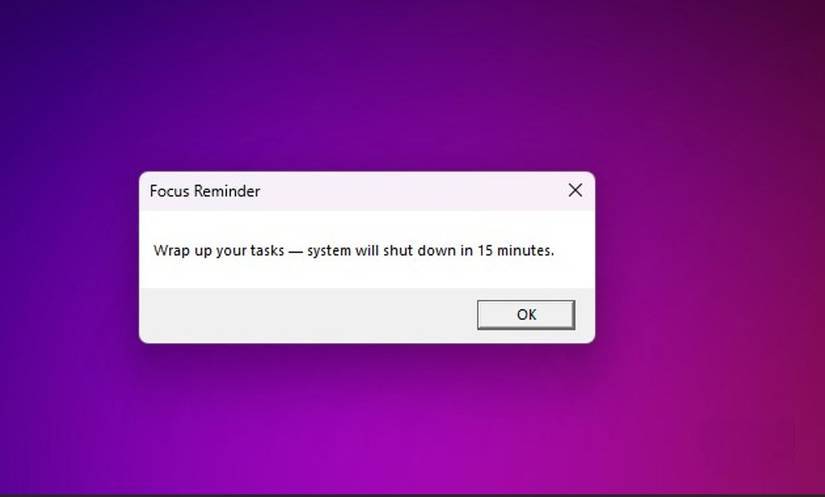
<p style="text-align: justify;">Nhiều người thích để ngày của mình trôi qua trong đêm tối. Máy tính của họ thường bị bỏ lại với các cửa sổ mở lộn xộn, những tác vụ chưa hoàn thành và đôi khi là các ứng dụng chiếm nhiều bộ nhớ. Hãy giải quyết vấn đề này bằng tính năng tự động hóa của Task Scheduler, cho phép máy tính tự động tắt dần sau khi nhắc bạn hoàn thành công việc. Bạn nhận được lời nhắc 15 phút trước khi tắt máy. Tính năng này giúp máy tính được nghỉ ngơi và kết thúc một ngày một cách gọn gàng.</p>

<p style="text-align: justify;">Để làm được điều này, cần có hai tác vụ khác nhau trong Task Scheduler. Đây là cách tạo tác vụ đầu tiên:</p>

<ol>
	<li style="text-align: justify;">Khởi chạy Task Scheduler và tạo một tác vụ. Đặt tên là &quot;Focus Reminder&quot;.</li>
	<li style="text-align: justify;">Chọn&nbsp;<strong>Run whether user is logged on or not&nbsp;</strong>và tích vào&nbsp;<strong>Run with highest privileges</strong>.</li>
	<li style="text-align: justify;">Chuyển đến tab&nbsp;<strong>Triggers</strong>&nbsp;và nhấp vào&nbsp;<strong>New</strong>. Chọn&nbsp;<strong>Daily</strong>&nbsp;và chọn thời gian bạn muốn chạy, sau đó nhấp vào&nbsp;<strong>OK</strong>.</li>
	<li style="text-align: justify;">Chuyển đến tab&nbsp;<strong>Action</strong>&nbsp;và nhấp vào&nbsp;<strong>New</strong>. Nhập&nbsp;<strong>powershell.exe</strong>&nbsp;cho&nbsp;<strong>Program/script</strong>, sau đó trong mục&nbsp;<strong>Add arguments</strong>&nbsp;(tùy chọn), nhập lệnh sau và nhấn&nbsp;<strong>OK</strong>:</li>
</ol>

<pre id="pre4">
<code>-ExecutionPolicy Bypass -WindowStyle Hidden -Command &quot;Add-Type -AssemblyName PresentationFramework; &#91;System.Windows.MessageBox&#93;::Show(&#039;Wrap up your tasks — system will shut down in 15 minutes.&#039;, &#039;Focus Reminder&#039;)&quot;</code></pre>

<p style="text-align: justify;">Đây là tác vụ thứ hai:</p>

<ol>
	<li style="text-align: justify;">Khởi chạy Task Scheduler và tạo một tác vụ tên là &quot;Auto Shutdown&quot;.</li>
	<li style="text-align: justify;">Chọn&nbsp;<strong>Run whether user is logged on or not</strong>&nbsp;và tích vào&nbsp;<strong>Run with highest privileges</strong>.</li>
	<li style="text-align: justify;">Chuyển đến tab&nbsp;<strong>Triggers</strong>&nbsp;và nhấp vào&nbsp;<strong>New</strong>, sau đó chọn&nbsp;<strong>Daily</strong>. Nhập thời gian 15 phút sau tác vụ&nbsp;<strong>&quot;Focus Reminder&quot;</strong>, sau đó nhấp vào&nbsp;<strong>OK</strong>.</li>
	<li style="text-align: justify;">Chuyển đến tab&nbsp;<strong>Action</strong>&nbsp;và nhấp vào&nbsp;<strong>New.</strong>&nbsp;Nhập&nbsp;<strong>shutdown.exe</strong>&nbsp;cho&nbsp;<strong>Program/script</strong>, sau đó trong mục&nbsp;<strong>Add arguments</strong>&nbsp;(tùy chọn), nhập lệnh sau, tiếp theo là&nbsp;<strong>OK</strong>&nbsp;để lưu tác vụ.</li>
</ol>

<pre id="pre5">
<code>/s /f /t 60 /c &quot;System shutting down. Save your work now.&quot;</code></pre>

<p style="text-align: justify;">Bây giờ bạn sẽ nhận được cảnh báo và có 15 phút để tắt máy tính trước khi đến lúc tập trung vào các vấn đề quan trọng khác.</p>

<div style="text-align: justify;">&nbsp;</div>
		</div>
				<div id="author">
						<p>
				<strong>Nguồn tin:</strong>
				Quantrimang.com:
			</p>
		</div>
	</div>
	<div id="footer" class="clearfix">
		<div id="url">
			<strong>URL của bản tin này: </strong><a href="https://www.nguoicodonvn2008.info/vi/news/savefile/kien-thuc-may-tinh/tu-dong-hoa-5-tac-vu-thiet-yeu-nay-tren-cai-dat-windows-de-giup-moi-thu-chay-hoan-hao-11578.html" title="Tự động hóa 5 tác vụ thiết yếu này trên cài đặt Windows để giúp mọi thứ chạy hoàn hảo">https://www.nguoicodonvn2008.info/vi/news/savefile/kien-thuc-may-tinh/tu-dong-hoa-5-tac-vu-thiet-yeu-nay-tren-cai-dat-windows-de-giup-moi-thu-chay-hoan-hao-11578.html</a>

		</div>
		<div class="clear"></div>
		<div class="copyright">
			&copy; .&#x3A; Nguoicodonvn2008.info - Cõi lòng người cô đơn &#x3A;.
		</div>
		<div id="contact">
			<a href="mailto:admin@nguoicodonvn2008.info">admin@nguoicodonvn2008.info</a>
		</div>
	</div>
</div>
        <div id="timeoutsess" class="chromeframe">
            Bạn đã không sử dụng Site, <a onclick="timeoutsesscancel();" href="https://www.nguoicodonvn2008.info/#">Bấm vào đây để duy trì trạng thái đăng nhập</a>. Thời gian chờ: <span id="secField"> 60 </span> giây
        </div>
        <div id="openidResult" class="nv-alert" style="display:none"></div>
        <div id="openidBt" data-result="" data-redirect=""></div>
		</script>
		<div class="car-top">
  <span><img src="https://www.nguoicodonvn2008.info/themes/default/images/car.png" alt=""></span>
</div>
<div id="run_cronjobs" style="visibility:hidden;display:none;"><img alt="cron" src="/index.php?second=cronjobs&amp;p=u3F1ZsFF" width="1" height="1" /></div>
<script src="https://www.nguoicodonvn2008.info/assets/js/jquery/jquery.min.js"></script>
<script>var nv_base_siteurl="/",nv_lang_data="vi",nv_lang_interface="vi",nv_name_variable="nv",nv_fc_variable="op",nv_lang_variable="language",nv_module_name="news",nv_func_name="savefile",nv_is_user=0, nv_my_ofs=-4,nv_my_abbr="EDT",nv_cookie_prefix="nv4c_e856T",nv_check_pass_mstime=1738000,nv_area_admin=0,nv_safemode=0,theme_responsive=0,nv_recaptcha_ver=2,nv_recaptcha_sitekey="",nv_recaptcha_type="image",XSSsanitize=1;</script>
<script src="https://www.nguoicodonvn2008.info/assets/js/language/vi.js"></script>
<script src="https://www.nguoicodonvn2008.info/assets/js/DOMPurify/purify3.js"></script>
<script src="https://www.nguoicodonvn2008.info/assets/js/global.js"></script>
<script src="https://www.nguoicodonvn2008.info/assets/js/site.js"></script>
<script src="https://www.nguoicodonvn2008.info/themes/default/js/news.js"></script>
<script src="https://www.nguoicodonvn2008.info/themes/default/js/main.js"></script>
<script src="https://www.nguoicodonvn2008.info/themes/default/js/custom.js"></script>
<script type="application/ld+json">
        {
            "@context": "https://schema.org",
            "@type": "Organization",
            "url": "https://www.nguoicodonvn2008.info",
            "logo": "https://www.nguoicodonvn2008.info/uploads/angel.gif"
        }
        </script>
<script src="https://www.nguoicodonvn2008.info/themes/default/js/bootstrap.min.js"></script>
<script type="text/javascript">
var $scrolltop = $('.car-top');
$scrolltop.on('click', function () {
    $('html,body').animate({
        scrollTop: 0
    }, 800);
    $(this).addClass("car-run");
    setTimeout(function(){ $scrolltop.removeClass('car-run');}, 1000);
    return false;
});
$(window).on('scroll', function ()
{ 
    if($(window).scrollTop() >= 200)
    {
        $scrolltop.addClass("show");
        $scrolltop.addClass("car-down");
    }
    else
    {
       $scrolltop.removeClass("show");
       setTimeout(function(){ $scrolltop.removeClass('car-down');}, 300);
    }
});
</script>
</body>
</html>