<!DOCTYPE html>
    <html lang="vi" xmlns="http://www.w3.org/1999/xhtml" prefix="og: http://ogp.me/ns#">
    <head>
<title>Tự động &quot;dọn sạch&quot; Recycle Bin trên Windows</title>
<meta name="description" content="Tự động &quot;dọn sạch&quot; Recycle Bin trên Windows - Savefile - Tin Tức -...">
<meta name="author" content=".: Nguoicodonvn2008.info - Cõi lòng người cô đơn :.">
<meta name="copyright" content=".: Nguoicodonvn2008.info - Cõi lòng người cô đơn :. [admin@nguoicodonvn2008.info]">
<meta name="robots" content="index, archive, follow, noodp">
<meta name="googlebot" content="index,archive,follow,noodp">
<meta name="msnbot" content="all,index,follow">
<meta name="generator" content="NukeViet v4.5">
<meta http-equiv="Content-Type" content="text/html; charset=utf-8">
<meta property="og:title" content="Tự động &quot;dọn sạch&quot; Recycle Bin trên Windows">
<meta property="og:type" content="website">
<meta property="og:description" content="Savefile - Tin Tức - https&#x3A;&#x002F;&#x002F;www.nguoicodonvn2008.info&#x002F;vi&#x002F;news&#x002F;savefile&#x002F;kien-thuc-may-tinh&#x002F;tu-dong-don-sach-recycle-bin-tren-windows-7461.html">
<meta property="og:site_name" content=".&#x3A; Nguoicodonvn2008.info - Cõi lòng người cô đơn &#x3A;.">
<meta property="og:url" content="https://www.nguoicodonvn2008.info/vi/news/savefile/kien-thuc-may-tinh/tu-dong-don-sach-recycle-bin-tren-windows-7461.html">
<link rel="shortcut icon" href="https://www.nguoicodonvn2008.info/favicon.ico">
<link rel="canonical" href="https://www.nguoicodonvn2008.info/vi/news/savefile/kien-thuc-may-tinh/tu-dong-don-sach-recycle-bin-tren-windows-7461.html">
<link rel="alternate" href="https://www.nguoicodonvn2008.info/vi/news/rss/" title="Tin Tức" type="application/rss+xml">
<link rel="alternate" href="https://www.nguoicodonvn2008.info/vi/news/rss/karaoke-dual/" title="Tin Tức - Karaoke Dual" type="application/rss+xml">
<link rel="alternate" href="https://www.nguoicodonvn2008.info/vi/news/rss/nhac-tre/" title="Tin Tức - Nhạc trẻ" type="application/rss+xml">
<link rel="alternate" href="https://www.nguoicodonvn2008.info/vi/news/rss/tru-tinh/" title="Tin Tức - Trữ tình" type="application/rss+xml">
<link rel="alternate" href="https://www.nguoicodonvn2008.info/vi/news/rss/nuoc-ngoai/" title="Tin Tức - Nước ngoài" type="application/rss+xml">
<link rel="alternate" href="https://www.nguoicodonvn2008.info/vi/news/rss/remix/" title="Tin Tức - Remix" type="application/rss+xml">
<link rel="alternate" href="https://www.nguoicodonvn2008.info/vi/news/rss/tam-su-tinh-yeu/" title="Tin Tức - Tâm sự tình yêu" type="application/rss+xml">
<link rel="alternate" href="https://www.nguoicodonvn2008.info/vi/news/rss/tho-suu-tam/" title="Tin Tức - Thơ sưu tầm" type="application/rss+xml">
<link rel="alternate" href="https://www.nguoicodonvn2008.info/vi/news/rss/cuoc-song/" title="Tin Tức - Cuộc sống" type="application/rss+xml">
<link rel="alternate" href="https://www.nguoicodonvn2008.info/vi/news/rss/phan-mem/" title="Tin Tức - Phần mềm" type="application/rss+xml">
<link rel="alternate" href="https://www.nguoicodonvn2008.info/vi/news/rss/kien-thuc-may-tinh/" title="Tin Tức - Kiến thức máy tính" type="application/rss+xml">
<link rel="alternate" href="https://www.nguoicodonvn2008.info/vi/news/rss/hoc-tap/" title="Tin Tức - Học tập" type="application/rss+xml">
<link rel="alternate" href="https://www.nguoicodonvn2008.info/vi/news/rss/tai-lieu/" title="Tin Tức - Tài liệu" type="application/rss+xml">
<link rel="alternate" href="https://www.nguoicodonvn2008.info/vi/news/rss/de-thi/" title="Tin Tức - Đề thi" type="application/rss+xml">
<link rel="preload" as="style" href="https://www.nguoicodonvn2008.info/assets/css/font-awesome.min.css" type="text/css">
<link rel="preload" as="style" href="https://www.nguoicodonvn2008.info/themes/default/css/bootstrap.non-responsive.css" type="text/css">
<link rel="preload" as="style" href="https://www.nguoicodonvn2008.info/themes/default/css/style.css" type="text/css">
<link rel="preload" as="style" href="https://www.nguoicodonvn2008.info/themes/default/css/style.non-responsive.css" type="text/css">
<link rel="preload" as="style" href="https://www.nguoicodonvn2008.info/themes/default/css/news.css" type="text/css">
<link rel="preload" as="style" href="https://www.nguoicodonvn2008.info/themes/default/css/custom.css" type="text/css">
<link rel="preload" as="script" href="https://www.nguoicodonvn2008.info/assets/js/jquery/jquery.min.js" type="text/javascript">
<link rel="preload" as="script" href="https://www.nguoicodonvn2008.info/assets/js/language/vi.js" type="text/javascript">
<link rel="preload" as="script" href="https://www.nguoicodonvn2008.info/assets/js/DOMPurify/purify3.js" type="text/javascript">
<link rel="preload" as="script" href="https://www.nguoicodonvn2008.info/assets/js/global.js" type="text/javascript">
<link rel="preload" as="script" href="https://www.nguoicodonvn2008.info/assets/js/site.js" type="text/javascript">
<link rel="preload" as="script" href="https://www.nguoicodonvn2008.info/themes/default/js/news.js" type="text/javascript">
<link rel="preload" as="script" href="https://www.nguoicodonvn2008.info/themes/default/js/main.js" type="text/javascript">
<link rel="preload" as="script" href="https://www.nguoicodonvn2008.info/themes/default/js/custom.js" type="text/javascript">
<link rel="preload" as="script" href="https://www.nguoicodonvn2008.info/themes/default/js/bootstrap.min.js" type="text/javascript">
<link rel="stylesheet" href="https://www.nguoicodonvn2008.info/assets/css/font-awesome.min.css">
<link rel="stylesheet" href="https://www.nguoicodonvn2008.info/themes/default/css/bootstrap.non-responsive.css">
<link rel="stylesheet" href="https://www.nguoicodonvn2008.info/themes/default/css/style.css">
<link rel="stylesheet" href="https://www.nguoicodonvn2008.info/themes/default/css/style.non-responsive.css">
<link rel="StyleSheet" href="https://www.nguoicodonvn2008.info/themes/default/css/news.css">
<link rel="stylesheet" href="https://www.nguoicodonvn2008.info/themes/default/css/custom.css">
<style type="text/css">
	body{background: #fff;}
</style>
    </head>
    <body>
<div id="print">
	<div id="hd_print">
		<h2 class="pull-left">.&#x3A; Nguoicodonvn2008.info - Cõi lòng người cô đơn &#x3A;.</h2>
		<p class="pull-right"><a title=".&#x3A; Nguoicodonvn2008.info - Cõi lòng người cô đơn &#x3A;." href="https://www.nguoicodonvn2008.info/">https://www.nguoicodonvn2008.info</a></p>
	</div>
	<div class="clear"></div>
	<hr />
	<div id="content">
		<h1>Tự động &quot;dọn sạch&quot; Recycle Bin trên Windows</h1>
		<ul class="list-inline">
			<li>Thứ năm - 24/08/2023 10:40</li>
			<li class="hidden-print txtrequired"><em class="fa fa-print">&nbsp;</em><a title="In ra" href="javascript:;" onclick="window.print()">In ra</a></li>
			<li class="hidden-print txtrequired"><em class="fa fa-power-off">&nbsp;</em><a title="Đóng cửa sổ này" href="javascript:;" onclick="window.close()">Đóng cửa sổ này</a></li>
		</ul>
		<div class="clear"></div>
		<div id="hometext">
		</div>
				<div class="imghome">
			<img alt="Tự động &quot;dọn sạch&quot; Recycle Bin trên Windows" src="https://st.quantrimang.com/photos/image/2023/08/24/tu-dong-don-sach-recycle-bin-9.jpg" width="460" class="img-thumbnail" />
		</div>
		<div class="clear"></div>
		<div id="bodytext" class="clearfix">
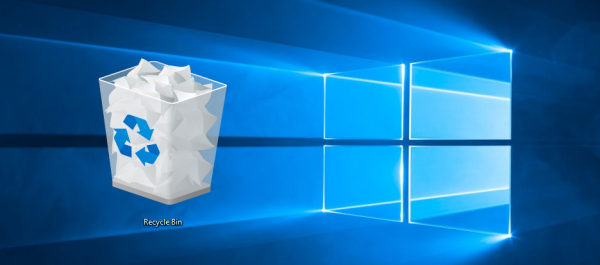
			<p style="text-align: justify;">Recycle Bin là nơi lưu trữ các tập tin và thư mục tạm thời mà bạn vô tình xóa mất. Tuy nhiên để dọn sạch các tập tin không cần thiết nữa, bạn sẽ phải thực hiện thêm một thao tác nữa là dọn sạch Recycle Bin. Thay vì mất công thao tác nhiều bước như vậy bạn có thể thiết lập tự động dọn sạch Recycle Bin mỗi khi mở máy tính Windows của mình lên.</p>

<p style="text-align: justify;"><img alt="Recycle Bin " data-i="0" data-src="https://st.quantrimang.com/photos/image/2016/09/01/recycle-bin.png" data-was-processed="true" height="265" src="https://st.quantrimang.com/photos/image/2016/09/01/recycle-bin.png" title="Recycle Bin " width="600" /></p>

<h2 style="text-align: justify;">1. Cách tự động &quot;dọn sạch&quot; Recycle Bin bằng cài đặt hệ thống</h2>

<p style="text-align: justify;">Thật dễ dàng để cấu hình Windows tự động dọn sạch Recycle Bin. Tất cả những gì bạn cần làm là mở System settings, thực hiện một số thao tác. Thế là xong!</p>

<p style="text-align: justify;">Tuy nhiên, tính năng này chỉ áp dụng cho tài khoản người dùng hiện tại. Những người dùng khác trên cùng một máy tính sẽ không tự động dọn sạch Recycle Bin cho đến khi họ điều chỉnh cài đặt này. Nói cách khác, nếu bạn đang sử dụng máy tính dùng chung thì sẽ không ảnh hưởng đến bất kỳ ai khác.</p>

<p style="text-align: justify;">Đây là cách thực hiện:</p>

<p style="text-align: justify;">1.&nbsp;<a data-type="internal" href="https://quantrimang.com/cong-nghe/6-cach-truy-cap-nhanh-settings-tren-windows-10-130106" title="Tổng hợp 12 cách truy cập nhanh ứng dụng Settings trên Windows 10">Mở cửa sổ Settings</a>.</p>

<p style="text-align: justify;">2. Từ bảng điều khiển bên trái, chọn tab&nbsp;<strong>System</strong>.</p>

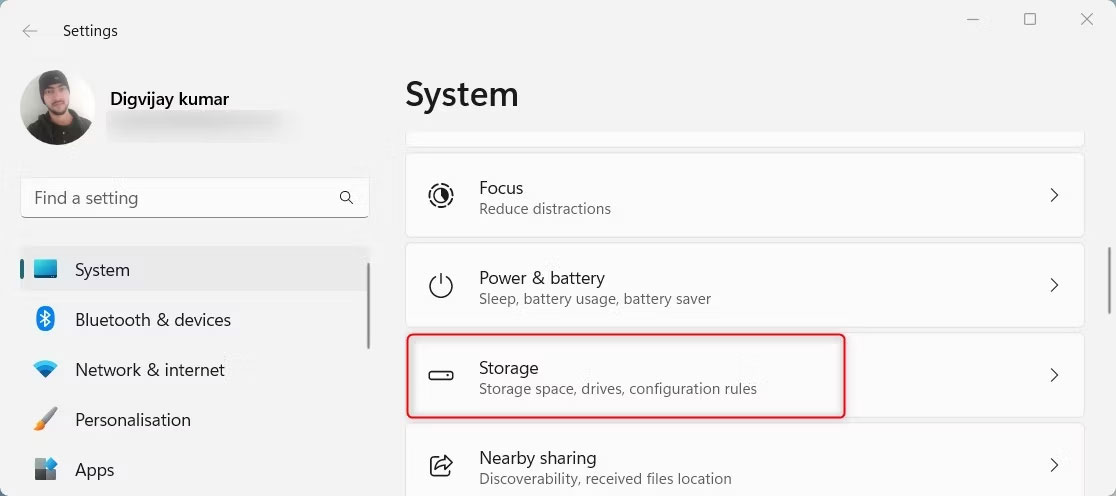
<p style="text-align: justify;">3. Cuộn xuống và nhấp vào&nbsp;<strong>Storage</strong>&nbsp;ở phía bên tay phải. Tại đây, bạn sẽ tìm thấy nhiều tùy chọn quản lý và lưu trữ dữ liệu máy tính khác nhau.</p>

<figure>
<div style="text-align: justify;"><img alt="Storage trong System settings" data-i="1" data-src="https://st.quantrimang.com/photos/image/2023/08/24/tu-dong-don-sach-recycle-bin-1.jpg" data-was-processed="true" height="496" src="https://st.quantrimang.com/photos/image/2023/08/24/tu-dong-don-sach-recycle-bin-1.jpg" width="1116" /></div>

<figcaption>
<div style="text-align: justify;">Storage trong System settings</div>
</figcaption>
</figure>

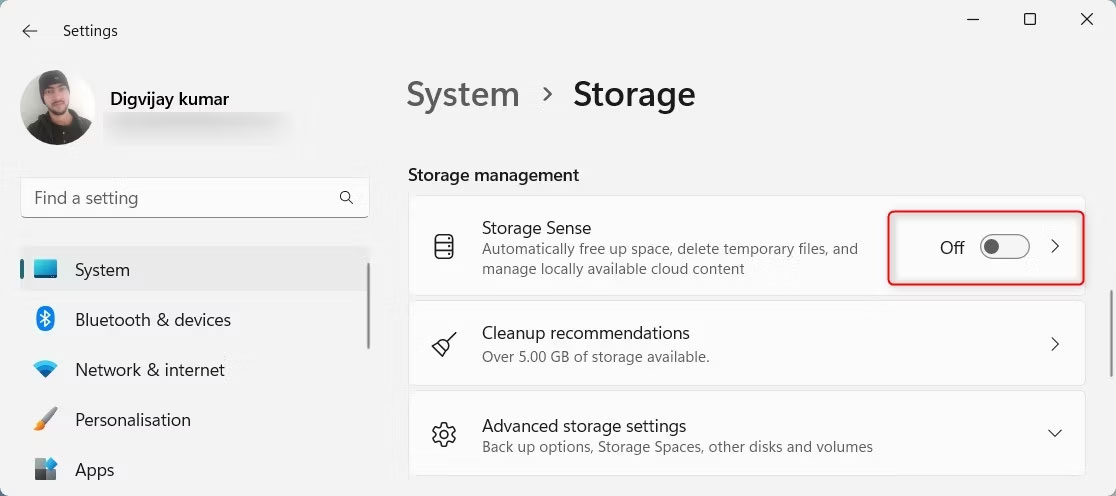
<p style="text-align: justify;">4. Bây giờ, bạn sẽ thấy một công tắc chuyển đổi trong&nbsp;<strong>Storage Sense.</strong>&nbsp;Nếu nó bị tắt, hãy nhấp để bật nó lên. Tính năng này cho phép Windows tự động xóa các file không còn cần thiết.</p>

<figure>
<div style="text-align: justify;"><img alt="Bật Storage Sense" data-i="2" data-src="https://st.quantrimang.com/photos/image/2023/08/24/tu-dong-don-sach-recycle-bin-2.jpg" data-was-processed="true" height="496" src="https://st.quantrimang.com/photos/image/2023/08/24/tu-dong-don-sach-recycle-bin-2.jpg" width="1116" /></div>

<figcaption>
<div style="text-align: justify;">Bật Storage Sense</div>
</figcaption>
</figure>

<p style="text-align: justify;">5. Khi Storage Sense được kích hoạt, hãy nhấp vào mũi tên nhỏ bên cạnh để mở rộng các tùy chọn.</p>

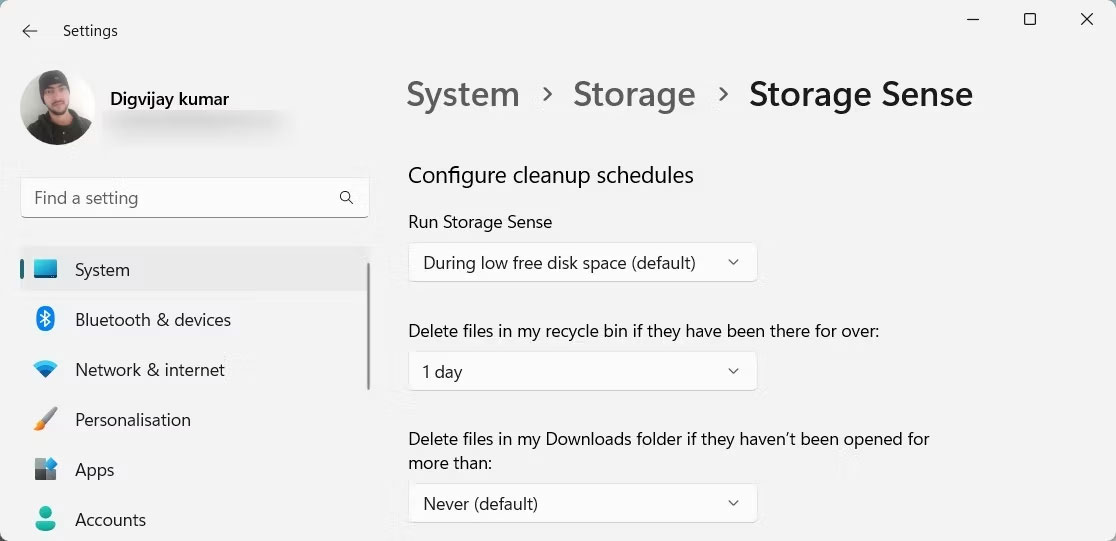
<p style="text-align: justify;">6. Trên màn hình tiếp theo, bạn sẽ tìm thấy tùy chọn có nội dung&nbsp;<strong>Delete files in my recycle bin if they have been there for over</strong>. Nhấp vào menu drop-down bên cạnh và chọn khoảng thời gian, sau đó Windows sẽ tự động dọn sạch Recycle Bin.</p>

<p style="text-align: justify;">7. Chọn 1 ngày nếu bạn muốn Windows xóa những mục này hàng ngày. Hoặc chọn một phương án khác phù hợp với nhu cầu của bạn hơn.</p>

<figure>
<div style="text-align: justify;"><img alt="Cấu hình Storage Sense" data-i="3" data-src="https://st.quantrimang.com/photos/image/2023/08/24/tu-dong-don-sach-recycle-bin-3.jpg" data-was-processed="true" height="541" src="https://st.quantrimang.com/photos/image/2023/08/24/tu-dong-don-sach-recycle-bin-3.jpg" width="1116" /></div>

<figcaption>
<div style="text-align: justify;">Cấu hình Storage Sense</div>
</figcaption>
</figure>

<p style="text-align: justify;">8. Bạn cũng có thể cấu hình hệ thống để xóa các file đã tải xuống không được sử dụng trong vài ngày. Để làm như vậy, hãy nhấp vào menu drop-down&nbsp;<strong>Delete files in my Downloaded folder if they haven&#039;t been opened for more than</strong>&nbsp;và chọn tùy chọn mong muốn.</p>

<p style="text-align: justify;">Khi bạn đã hoàn tất, hãy đóng cửa sổ Settings. Windows sẽ tự động dọn sạch Recycle Bin của bạn kể từ bây giờ.</p>

<h2 style="text-align: justify;">2. Cách tự động hóa Recycle Bin bằng Task Scheduler</h2>

<p style="text-align: justify;">Nếu muốn kiểm soát nhiều hơn quy trình, bạn có thể sử dụng Windows Task Scheduler để dọn sạch Recycle Bin. Đây là cách thực hiện:</p>

<p style="text-align: justify;">1. Nhấn&nbsp;<strong>Win + R</strong>&nbsp;trên bàn phím để&nbsp;mở cửa sổ Run.</p>

<p style="text-align: justify;">2. Gõ&nbsp;<strong>taskchd.msc</strong>&nbsp;và nhấn&nbsp;<strong>Enter</strong>&nbsp;hoặc nhấn&nbsp;<strong>OK</strong>&nbsp;để&nbsp;mở chương trình Task Scheduler.</p>

<p style="text-align: justify;">3. Ở phía bên trái của cửa sổ, chọn&nbsp;<strong>Task Scheduler Library</strong>.</p>

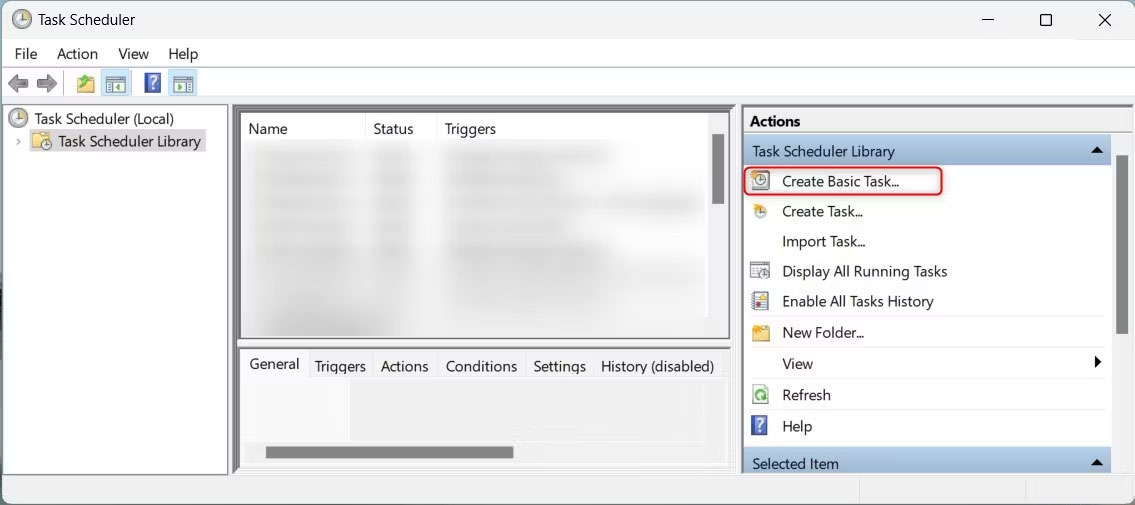
<p style="text-align: justify;">4. Bây giờ, hãy nhấp vào&nbsp;<strong>Create Basic Task</strong>&nbsp;từ bảng điều khiển bên phải. Nó sẽ mở một cửa sổ khác nơi bạn có thể cấu hình cài đặt tác vụ của mình.</p>

<figure>
<div style="text-align: justify;"><img alt="Nhấp vào Create Basic Task" data-i="4" data-src="https://st.quantrimang.com/photos/image/2023/08/24/tu-dong-don-sach-recycle-bin-4.jpg" data-was-processed="true" height="505" src="https://st.quantrimang.com/photos/image/2023/08/24/tu-dong-don-sach-recycle-bin-4.jpg" width="1135" /></div>

<figcaption>
<div style="text-align: justify;">Nhấp vào Create Basic Task</div>
</figcaption>
</figure>

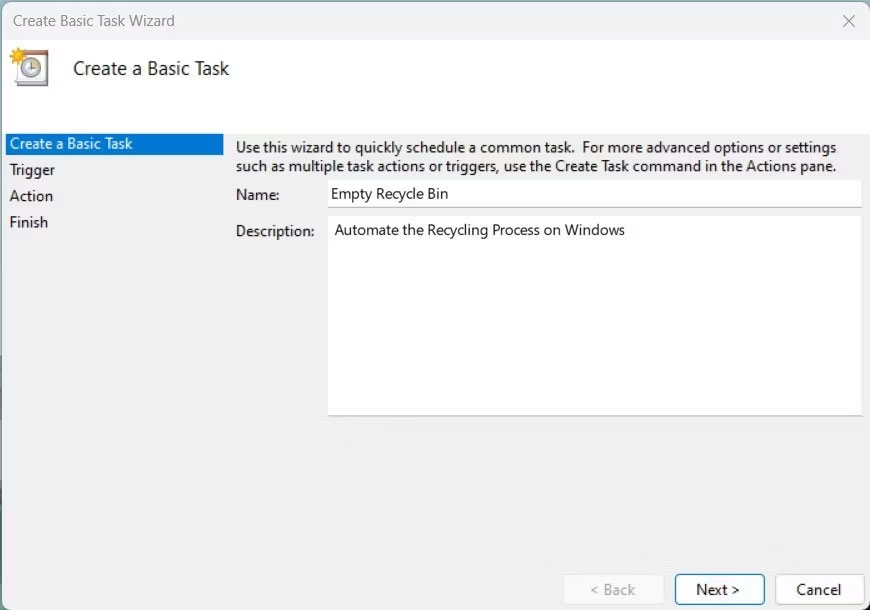
<p style="text-align: justify;">5. Nhập tên cho tác vụ của bạn (ví dụ: Empty Recycle Bin) và mô tả ngắn gọn nếu bạn muốn. Sau đó, nhấp vào nút&nbsp;<strong>Next</strong>.</p>

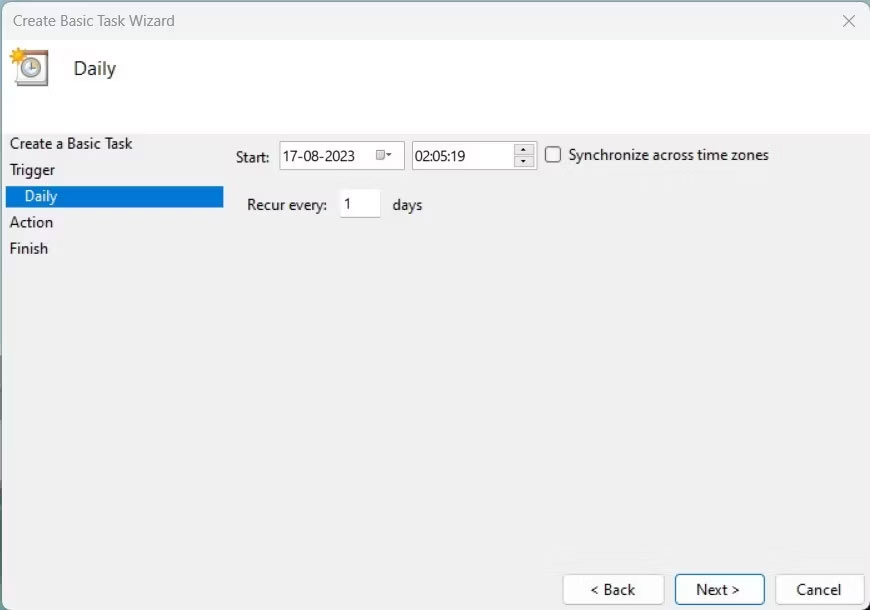
<p style="text-align: justify;">6. Cửa sổ sau yêu cầu bạn chọn tần suất Windows sẽ dọn dẹp Recycle Bin của bạn. Bạn có thể chọn&nbsp;<strong>Daily, Weekly, Monthly</strong>&nbsp;hoặc<strong>&nbsp;One time only</strong>. Khi bạn đã chọn tần suất ưa thích của mình, hãy nhấp vào&nbsp;<strong>Next</strong>.</p>

<figure>
<div style="text-align: justify;"><img alt="Tạo một tác vụ cơ bản" data-i="5" data-src="https://st.quantrimang.com/photos/image/2023/08/24/tu-dong-don-sach-recycle-bin-5.jpg" data-was-processed="true" height="610" src="https://st.quantrimang.com/photos/image/2023/08/24/tu-dong-don-sach-recycle-bin-5.jpg" width="870" /></div>

<figcaption>
<div style="text-align: justify;">Tạo một tác vụ cơ bản</div>
</figcaption>
</figure>

<p style="text-align: justify;">7. Sau đó, đặt ngày và giờ bắt đầu cho nhiệm vụ của bạn. Ngoài ra, hãy chọn&nbsp;<strong>Recur every</strong>&nbsp;để chỉ định tổng thời lượng của mỗi phiên dọn dẹp. Sau đó, nhấp vào&nbsp;<strong>Next</strong>.</p>

<figure>
<div style="text-align: justify;"><img alt="Ngày và giờ bắt đầu trong Task Wizard" data-i="6" data-src="https://st.quantrimang.com/photos/image/2023/08/24/tu-dong-don-sach-recycle-bin-6.jpg" data-was-processed="true" height="610" src="https://st.quantrimang.com/photos/image/2023/08/24/tu-dong-don-sach-recycle-bin-6.jpg" width="870" /></div>

<figcaption>
<div style="text-align: justify;">Ngày và giờ bắt đầu trong Task Wizard</div>
</figcaption>
</figure>

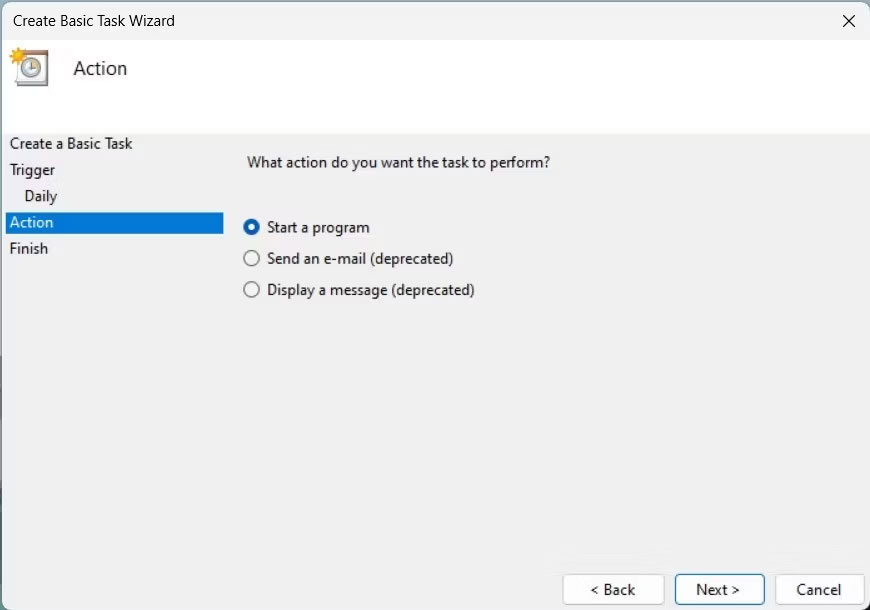
<p style="text-align: justify;">8. Bạn phải chỉ định hành động nào Windows sẽ thực hiện khi tác vụ này chạy. Nhấp vào tùy chọn&nbsp;<strong>Start a program</strong>&nbsp;và nhấp vào&nbsp;<strong>Next</strong>&nbsp;lần nữa.</p>

<figure>
<div style="text-align: justify;"><img alt="Bắt đầu một chương trình trong Task Wizard" data-i="7" data-src="https://st.quantrimang.com/photos/image/2023/08/24/tu-dong-don-sach-recycle-bin-7.jpg" data-was-processed="true" height="610" src="https://st.quantrimang.com/photos/image/2023/08/24/tu-dong-don-sach-recycle-bin-7.jpg" width="870" /></div>

<figcaption>
<div style="text-align: justify;">Bắt đầu một chương trình trong Task Wizard</div>
</figcaption>
</figure>

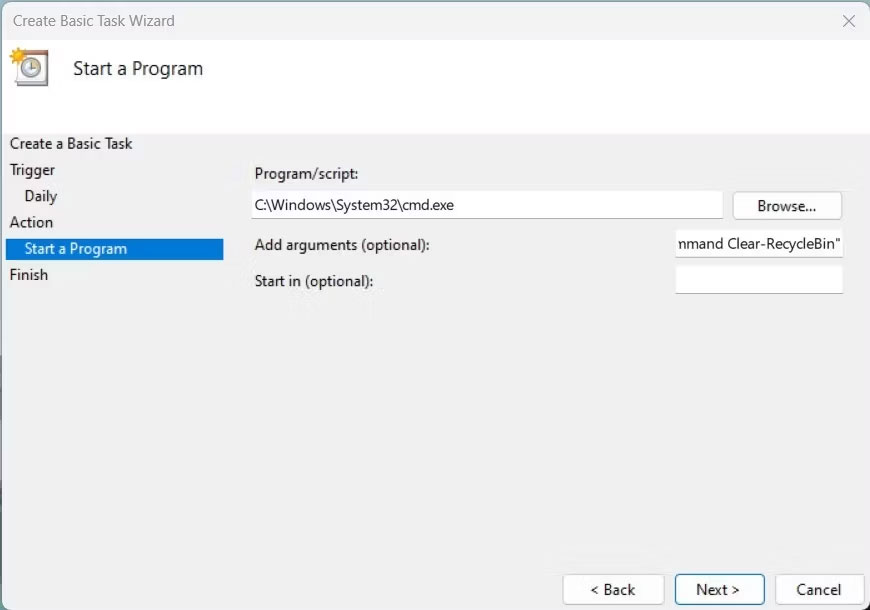
<p style="text-align: justify;">9. Trong hộp&nbsp;<strong>Program/script</strong>, nhập&nbsp;<strong>C:\Windows\System32\cmd.exe</strong>. Sau đó, trong trường&nbsp;<strong>Add arguments (optional)</strong>, nhập lệnh sau:</p>

<pre id="pre0">
<code>/c &quot;echo Y|PowerShell.exe -NoProfile -Command Clear-RecycleBin&quot;</code></pre>

<figure>
<div style="text-align: justify;"><img alt="Viết chương trình hoặc script trong Task Wizard" data-i="8" data-src="https://st.quantrimang.com/photos/image/2023/08/24/tu-dong-don-sach-recycle-bin-8.jpg" data-was-processed="true" height="610" src="https://st.quantrimang.com/photos/image/2023/08/24/tu-dong-don-sach-recycle-bin-8.jpg" width="870" /></div>

<figcaption>
<div style="text-align: justify;">Viết chương trình hoặc script trong Task Wizard</div>
</figcaption>
</figure>

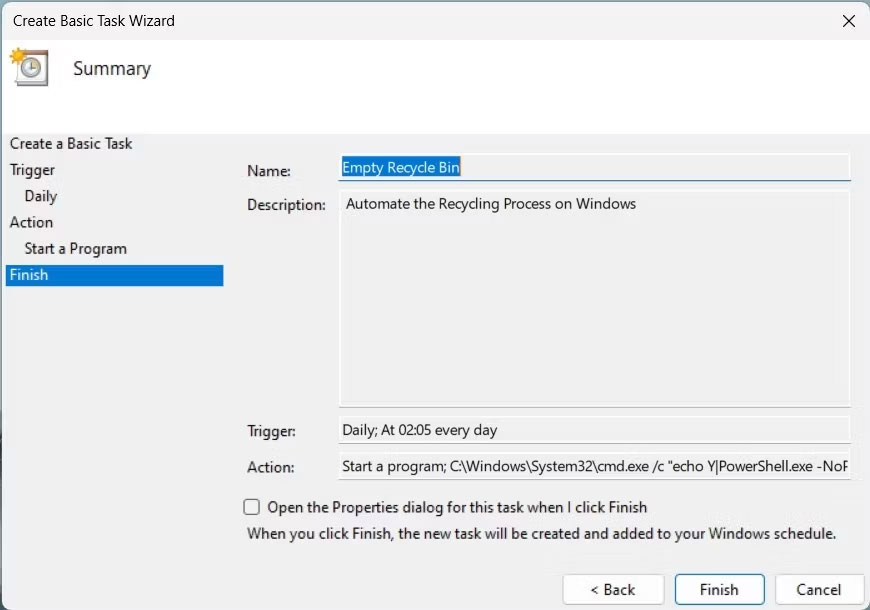
<p style="text-align: justify;">10. Chạy lệnh này sẽ xóa nội dung Recycle Bin của bạn. Nhấn&nbsp;<strong>Next</strong>&nbsp;để tiếp tục.</p>

<p style="text-align: justify;">11. Bây giờ, bạn có thể xem lại cài đặt của mình và đánh dấu&nbsp;<strong>Open the Properties dialog for this task when I click Finish</strong>&nbsp;nếu bạn muốn thực hiện bất kỳ thay đổi nào. Khi hoàn tất, nhấn nút&nbsp;<strong>Finish</strong>.</p>

<figure>
<div style="text-align: justify;"><img alt="Trình hướng dẫn hoàn tất tác vụ" data-i="9" data-src="https://st.quantrimang.com/photos/image/2023/08/24/tu-dong-don-sach-recycle-bin-9.jpg" data-was-processed="true" height="610" src="https://st.quantrimang.com/photos/image/2023/08/24/tu-dong-don-sach-recycle-bin-9.jpg" width="870" /></div>

<figcaption>
<div style="text-align: justify;">Trình hướng dẫn hoàn tất tác vụ</div>
</figcaption>
</figure>

<p style="text-align: justify;">Khi bạn đã hoàn tất, hãy đóng cửa sổ Task Scheduler. Từ giờ trở đi, Windows sẽ dọn sạch Recycle Bin theo tần suất bạn đã chỉ định.</p>

<p style="text-align: justify;">Chúc các bạn thành công!</p>

<div style="text-align: justify;">&nbsp;</div>
		</div>
				<div id="author">
						<p>
				<strong>Nguồn tin:</strong>
				Quantrimang.com
			</p>
		</div>
	</div>
	<div id="footer" class="clearfix">
		<div id="url">
			<strong>URL của bản tin này: </strong><a href="https://www.nguoicodonvn2008.info/vi/news/savefile/kien-thuc-may-tinh/tu-dong-don-sach-recycle-bin-tren-windows-7461.html" title="Tự động &quot;dọn sạch&quot; Recycle Bin trên Windows">https://www.nguoicodonvn2008.info/vi/news/savefile/kien-thuc-may-tinh/tu-dong-don-sach-recycle-bin-tren-windows-7461.html</a>

		</div>
		<div class="clear"></div>
		<div class="copyright">
			&copy; .&#x3A; Nguoicodonvn2008.info - Cõi lòng người cô đơn &#x3A;.
		</div>
		<div id="contact">
			<a href="mailto:admin@nguoicodonvn2008.info">admin@nguoicodonvn2008.info</a>
		</div>
	</div>
</div>
        <div id="timeoutsess" class="chromeframe">
            Bạn đã không sử dụng Site, <a onclick="timeoutsesscancel();" href="https://www.nguoicodonvn2008.info/#">Bấm vào đây để duy trì trạng thái đăng nhập</a>. Thời gian chờ: <span id="secField"> 60 </span> giây
        </div>
        <div id="openidResult" class="nv-alert" style="display:none"></div>
        <div id="openidBt" data-result="" data-redirect=""></div>
		</script>
		<div class="car-top">
  <span><img src="https://www.nguoicodonvn2008.info/themes/default/images/car.png" alt=""></span>
</div>
<script src="https://www.nguoicodonvn2008.info/assets/js/jquery/jquery.min.js"></script>
<script>var nv_base_siteurl="/",nv_lang_data="vi",nv_lang_interface="vi",nv_name_variable="nv",nv_fc_variable="op",nv_lang_variable="language",nv_module_name="news",nv_func_name="savefile",nv_is_user=0, nv_my_ofs=-4,nv_my_abbr="EDT",nv_cookie_prefix="nv4c_e856T",nv_check_pass_mstime=1738000,nv_area_admin=0,nv_safemode=0,theme_responsive=0,nv_recaptcha_ver=2,nv_recaptcha_sitekey="",nv_recaptcha_type="image",XSSsanitize=1;</script>
<script src="https://www.nguoicodonvn2008.info/assets/js/language/vi.js"></script>
<script src="https://www.nguoicodonvn2008.info/assets/js/DOMPurify/purify3.js"></script>
<script src="https://www.nguoicodonvn2008.info/assets/js/global.js"></script>
<script src="https://www.nguoicodonvn2008.info/assets/js/site.js"></script>
<script src="https://www.nguoicodonvn2008.info/themes/default/js/news.js"></script>
<script src="https://www.nguoicodonvn2008.info/themes/default/js/main.js"></script>
<script src="https://www.nguoicodonvn2008.info/themes/default/js/custom.js"></script>
<script type="application/ld+json">
        {
            "@context": "https://schema.org",
            "@type": "Organization",
            "url": "https://www.nguoicodonvn2008.info",
            "logo": "https://www.nguoicodonvn2008.info/uploads/angel.gif"
        }
        </script>
<script src="https://www.nguoicodonvn2008.info/themes/default/js/bootstrap.min.js"></script>
<script type="text/javascript">
var $scrolltop = $('.car-top');
$scrolltop.on('click', function () {
    $('html,body').animate({
        scrollTop: 0
    }, 800);
    $(this).addClass("car-run");
    setTimeout(function(){ $scrolltop.removeClass('car-run');}, 1000);
    return false;
});
$(window).on('scroll', function ()
{ 
    if($(window).scrollTop() >= 200)
    {
        $scrolltop.addClass("show");
        $scrolltop.addClass("car-down");
    }
    else
    {
       $scrolltop.removeClass("show");
       setTimeout(function(){ $scrolltop.removeClass('car-down');}, 300);
    }
});
</script>
</body>
</html>