<!DOCTYPE html>
    <html lang="vi" xmlns="http://www.w3.org/1999/xhtml" prefix="og: http://ogp.me/ns#">
    <head>
<title>Tổng hợp các cách bật Bluetooth trên Windows 10&#x002F;8&#x002F;7</title>
<meta name="description" content="Tổng hợp các cách bật Bluetooth trên Windows 10&#x002F;8&#x002F;7 - Savefile - Tin Tức -...">
<meta name="author" content=".: Nguoicodonvn2008.info - Cõi lòng người cô đơn :.">
<meta name="copyright" content=".: Nguoicodonvn2008.info - Cõi lòng người cô đơn :. [admin@nguoicodonvn2008.info]">
<meta name="robots" content="index, archive, follow, noodp">
<meta name="googlebot" content="index,archive,follow,noodp">
<meta name="msnbot" content="all,index,follow">
<meta name="generator" content="NukeViet v4.5">
<meta http-equiv="Content-Type" content="text/html; charset=utf-8">
<meta property="og:title" content="Tổng hợp các cách bật Bluetooth trên Windows 10&#x002F;8&#x002F;7">
<meta property="og:type" content="website">
<meta property="og:description" content="Savefile - Tin Tức - https&#x3A;&#x002F;&#x002F;www.nguoicodonvn2008.info&#x002F;vi&#x002F;news&#x002F;savefile&#x002F;kien-thuc-may-tinh&#x002F;tong-hop-cac-cach-bat-bluetooth-tren-windows-10-8-7-10746.html">
<meta property="og:site_name" content=".&#x3A; Nguoicodonvn2008.info - Cõi lòng người cô đơn &#x3A;.">
<meta property="og:url" content="https://www.nguoicodonvn2008.info/vi/news/savefile/kien-thuc-may-tinh/tong-hop-cac-cach-bat-bluetooth-tren-windows-10-8-7-10746.html">
<link rel="shortcut icon" href="https://www.nguoicodonvn2008.info/favicon.ico">
<link rel="canonical" href="https://www.nguoicodonvn2008.info/vi/news/savefile/kien-thuc-may-tinh/tong-hop-cac-cach-bat-bluetooth-tren-windows-10-8-7-10746.html">
<link rel="alternate" href="https://www.nguoicodonvn2008.info/vi/news/rss/" title="Tin Tức" type="application/rss+xml">
<link rel="alternate" href="https://www.nguoicodonvn2008.info/vi/news/rss/karaoke-dual/" title="Tin Tức - Karaoke Dual" type="application/rss+xml">
<link rel="alternate" href="https://www.nguoicodonvn2008.info/vi/news/rss/nhac-tre/" title="Tin Tức - Nhạc trẻ" type="application/rss+xml">
<link rel="alternate" href="https://www.nguoicodonvn2008.info/vi/news/rss/tru-tinh/" title="Tin Tức - Trữ tình" type="application/rss+xml">
<link rel="alternate" href="https://www.nguoicodonvn2008.info/vi/news/rss/nuoc-ngoai/" title="Tin Tức - Nước ngoài" type="application/rss+xml">
<link rel="alternate" href="https://www.nguoicodonvn2008.info/vi/news/rss/remix/" title="Tin Tức - Remix" type="application/rss+xml">
<link rel="alternate" href="https://www.nguoicodonvn2008.info/vi/news/rss/tam-su-tinh-yeu/" title="Tin Tức - Tâm sự tình yêu" type="application/rss+xml">
<link rel="alternate" href="https://www.nguoicodonvn2008.info/vi/news/rss/tho-suu-tam/" title="Tin Tức - Thơ sưu tầm" type="application/rss+xml">
<link rel="alternate" href="https://www.nguoicodonvn2008.info/vi/news/rss/cuoc-song/" title="Tin Tức - Cuộc sống" type="application/rss+xml">
<link rel="alternate" href="https://www.nguoicodonvn2008.info/vi/news/rss/phan-mem/" title="Tin Tức - Phần mềm" type="application/rss+xml">
<link rel="alternate" href="https://www.nguoicodonvn2008.info/vi/news/rss/kien-thuc-may-tinh/" title="Tin Tức - Kiến thức máy tính" type="application/rss+xml">
<link rel="alternate" href="https://www.nguoicodonvn2008.info/vi/news/rss/hoc-tap/" title="Tin Tức - Học tập" type="application/rss+xml">
<link rel="alternate" href="https://www.nguoicodonvn2008.info/vi/news/rss/tai-lieu/" title="Tin Tức - Tài liệu" type="application/rss+xml">
<link rel="alternate" href="https://www.nguoicodonvn2008.info/vi/news/rss/de-thi/" title="Tin Tức - Đề thi" type="application/rss+xml">
<link rel="preload" as="style" href="https://www.nguoicodonvn2008.info/assets/css/font-awesome.min.css" type="text/css">
<link rel="preload" as="style" href="https://www.nguoicodonvn2008.info/themes/default/css/bootstrap.non-responsive.css" type="text/css">
<link rel="preload" as="style" href="https://www.nguoicodonvn2008.info/themes/default/css/style.css" type="text/css">
<link rel="preload" as="style" href="https://www.nguoicodonvn2008.info/themes/default/css/style.non-responsive.css" type="text/css">
<link rel="preload" as="style" href="https://www.nguoicodonvn2008.info/themes/default/css/news.css" type="text/css">
<link rel="preload" as="style" href="https://www.nguoicodonvn2008.info/themes/default/css/custom.css" type="text/css">
<link rel="preload" as="script" href="https://www.nguoicodonvn2008.info/assets/js/jquery/jquery.min.js" type="text/javascript">
<link rel="preload" as="script" href="https://www.nguoicodonvn2008.info/assets/js/language/vi.js" type="text/javascript">
<link rel="preload" as="script" href="https://www.nguoicodonvn2008.info/assets/js/DOMPurify/purify3.js" type="text/javascript">
<link rel="preload" as="script" href="https://www.nguoicodonvn2008.info/assets/js/global.js" type="text/javascript">
<link rel="preload" as="script" href="https://www.nguoicodonvn2008.info/assets/js/site.js" type="text/javascript">
<link rel="preload" as="script" href="https://www.nguoicodonvn2008.info/themes/default/js/news.js" type="text/javascript">
<link rel="preload" as="script" href="https://www.nguoicodonvn2008.info/themes/default/js/main.js" type="text/javascript">
<link rel="preload" as="script" href="https://www.nguoicodonvn2008.info/themes/default/js/custom.js" type="text/javascript">
<link rel="preload" as="script" href="https://www.nguoicodonvn2008.info/themes/default/js/bootstrap.min.js" type="text/javascript">
<link rel="stylesheet" href="https://www.nguoicodonvn2008.info/assets/css/font-awesome.min.css">
<link rel="stylesheet" href="https://www.nguoicodonvn2008.info/themes/default/css/bootstrap.non-responsive.css">
<link rel="stylesheet" href="https://www.nguoicodonvn2008.info/themes/default/css/style.css">
<link rel="stylesheet" href="https://www.nguoicodonvn2008.info/themes/default/css/style.non-responsive.css">
<link rel="StyleSheet" href="https://www.nguoicodonvn2008.info/themes/default/css/news.css">
<link rel="stylesheet" href="https://www.nguoicodonvn2008.info/themes/default/css/custom.css">
<style type="text/css">
	body{background: #fff;}
</style>
    </head>
    <body>
<div id="print">
	<div id="hd_print">
		<h2 class="pull-left">.&#x3A; Nguoicodonvn2008.info - Cõi lòng người cô đơn &#x3A;.</h2>
		<p class="pull-right"><a title=".&#x3A; Nguoicodonvn2008.info - Cõi lòng người cô đơn &#x3A;." href="https://www.nguoicodonvn2008.info/">https://www.nguoicodonvn2008.info</a></p>
	</div>
	<div class="clear"></div>
	<hr />
	<div id="content">
		<h1>Tổng hợp các cách bật Bluetooth trên Windows 10&#x002F;8&#x002F;7</h1>
		<ul class="list-inline">
			<li>Thứ ba - 08/07/2025 23:59</li>
			<li class="hidden-print txtrequired"><em class="fa fa-print">&nbsp;</em><a title="In ra" href="javascript:;" onclick="window.print()">In ra</a></li>
			<li class="hidden-print txtrequired"><em class="fa fa-power-off">&nbsp;</em><a title="Đóng cửa sổ này" href="javascript:;" onclick="window.close()">Đóng cửa sổ này</a></li>
		</ul>
		<div class="clear"></div>
		<div id="hometext">
		</div>
				<div class="imghome">
			<img alt="Tổng hợp các cách bật Bluetooth trên Windows 10&#x002F;8&#x002F;7" src="https://st.quantrimang.com/photos/image/2020/07/04/bat-bluetooth-tren-win-10-1.jpg" width="460" class="img-thumbnail" />
		</div>
		<div class="clear"></div>
		<div id="bodytext" class="clearfix">
			<h1 style="text-align: justify;">Nhiều máy tính Windows có kết nối Bluetooth, mà bạn có thể sử dụng để kết nối hầu hết các thiết bị của mình, như điện thoại thông minh, loa, tai nghe, máy in, v.v...</h1>

<div style="text-align: justify;">&nbsp;</div>

<h2 id="mcetoc_1ecbs1avq0" style="text-align: justify;">Cách bật Bluetooth trên Win 10</h2>

<p style="text-align: justify;">Có 5 phương pháp bạn có thể sử dụng để bật Bluetooth trên Windows 10</p>

<ul>
	<li style="text-align: justify;">Sử dụng Windows&nbsp;<strong>Settings</strong></li>
	<li style="text-align: justify;">Bật Bluetooth từ&nbsp;<em>Action Center</em></li>
	<li style="text-align: justify;">Sử dụng&nbsp;<strong>Swift Pair</strong></li>
	<li style="text-align: justify;">Bật Bluetooth từ cài đặt&nbsp;<em>Airplane mode</em></li>
	<li style="text-align: justify;">Sử dụng&nbsp;<strong>Cortana</strong></li>
</ul>

<h3 id="mcetoc_1ecbs1avr1" style="text-align: justify;">1. Sử dụng Windows Settings</h3>

<p style="text-align: justify;">Bước đầu tiên trước khi sử dụng thiết bị Bluetooth là cấu hình cài đặt Bluetooth trong Windows 10. Để thực hiện việc này, hãy truy cập ứng dụng&nbsp;<strong>Settings</strong>&nbsp;trong Windows 10 bằng cách nhấp vào nút&nbsp;<strong>Start</strong>, sau đó nhấp vào biểu tượng&nbsp;<strong>Settings.</strong></p>

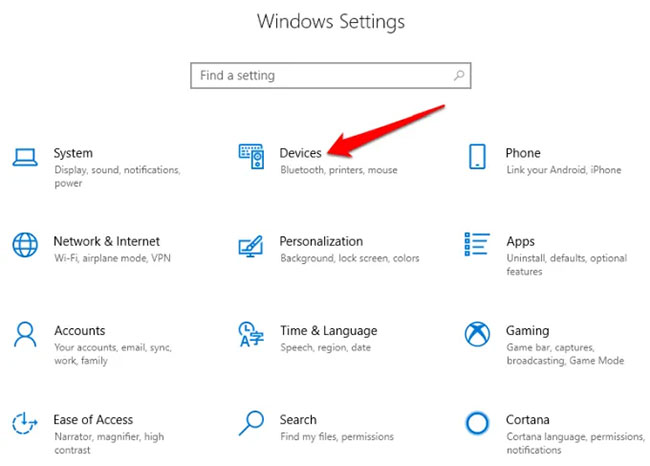
<p style="text-align: justify;">Tiếp theo, nhấp vào&nbsp;<strong>Devices.</strong></p>

<figure>
<div style="text-align: justify;"><img alt="Nhấp vào Devices" data-i="0" data-src="https://st.quantrimang.com/photos/image/2020/07/04/bat-bluetooth-tren-win-10-1.jpg" data-was-processed="true" height="466" src="https://st.quantrimang.com/photos/image/2020/07/04/bat-bluetooth-tren-win-10-1.jpg" width="650" /></div>

<figcaption>
<div style="text-align: justify;">Nhấp vào Devices</div>
</figcaption>
</figure>

<p style="text-align: justify;">Nhấp vào&nbsp;<strong>Bluetooth &amp; Other Devices</strong>.</p>

<p style="text-align: justify;"><strong>Lưu ý</strong>: Nếu công tắc chuyển đổi&nbsp;<strong>Bluetooth</strong>&nbsp;không có sẵn trên cài đặt&nbsp;<strong>Bluetooth &amp; Other devices</strong>, máy tính Windows đó có thể không có tính năng Bluetooth hoặc phần cứng có liên quan không được nhận diện.</p>

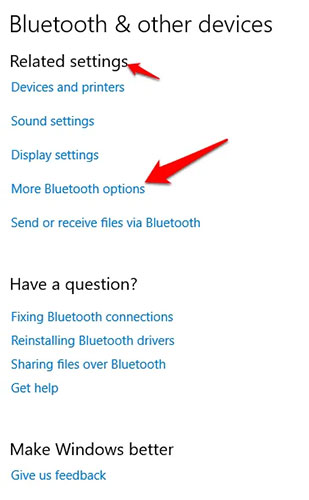
<p style="text-align: justify;">Nhấp vào&nbsp;<strong>More Bluetooth options</strong>&nbsp;trong phần&nbsp;<strong>Related Settings</strong>&nbsp;để có thêm cài đặt Bluetooth.</p>

<figure>
<div style="text-align: justify;"><img alt="Nhấp vào More Bluetooth options" data-i="1" data-src="https://st.quantrimang.com/photos/image/2020/07/04/bat-bluetooth-tren-win-10-2.jpg" data-was-processed="true" height="500" src="https://st.quantrimang.com/photos/image/2020/07/04/bat-bluetooth-tren-win-10-2.jpg" width="309" /></div>

<figcaption>
<div style="text-align: justify;">Nhấp vào More Bluetooth options</div>
</figcaption>
</figure>

<div style="text-align: justify;"><iframe allow="autoplay" bis_chainid="25" bis_depth="0" bis_id="fr_38qf14sc2mga8tn3p61hoj" bis_size="{&#039;x&#039;:129,&#039;y&#039;:3427,&#039;w&#039;:694,&#039;h&#039;:280,&#039;abs_x&#039;:129,&#039;abs_y&#039;:3427}" height="280" loading="lazy" sandbox="allow-scripts allow-same-origin allow-forms allow-presentation allow-popups" title="Quảng cáo " width="694"></iframe></div>

<p style="text-align: justify;">Bạn có thể mở rộng cửa sổ để xem các tùy chọn trên menu bên phải.</p>

<h3 id="mcetoc_1ecbs1avr2" style="text-align: justify;">2. Bật Bluetooth trong Action Center</h3>

<p style="text-align: justify;">Action Center trong Windows 10 cho phép bạn truy cập các cài đặt nhanh và thông báo ứng dụng có thể thao tác.</p>

<ul>
	<li style="text-align: justify;">Bạn có thể tìm thấy biểu tượng&nbsp;<strong>Action Center</strong>&nbsp;trên thanh tác vụ ở phía dưới bên phải màn hình.</li>
	<li style="text-align: justify;">Khi nhấp vào nó, bạn sẽ thấy các cài đặt nhanh và những biểu tượng thông báo ứng dụng. Nhấp vào&nbsp;<strong>All Settings</strong>.</li>
	<li style="text-align: justify;">Tiếp theo, nhấp vào&nbsp;<strong>Devices.</strong></li>
	<li style="text-align: justify;">Nhấp vào&nbsp;<strong>Bluetooth</strong>&nbsp;và các thiết bị khác ở phía bên tay trái.</li>
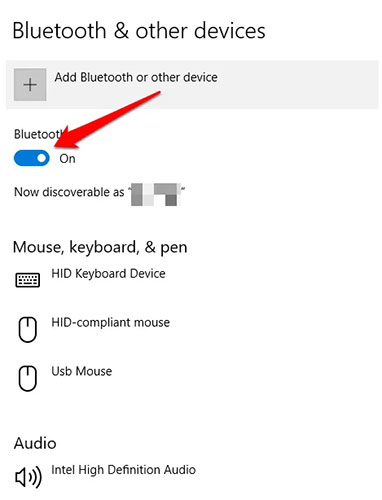
	<li style="text-align: justify;">Chuyển đổi thanh trượt&nbsp;<strong>Bluetooth</strong>&nbsp;sang vị trí&nbsp;<strong>On.</strong></li>
</ul>

<figure>
<div style="text-align: justify;"><img alt="Chuyển đổi thanh trượt Bluetooth sang vị trí On" data-i="2" data-src="https://st.quantrimang.com/photos/image/2020/07/04/bat-bluetooth-tren-win-10-3.jpg" data-was-processed="true" height="500" src="https://st.quantrimang.com/photos/image/2020/07/04/bat-bluetooth-tren-win-10-3.jpg" width="382" /></div>

<figcaption>
<div style="text-align: justify;">Chuyển đổi thanh trượt Bluetooth sang vị trí On</div>
</figcaption>
</figure>

<ul>
	<li style="text-align: justify;">Nhấp vào&nbsp;<strong>Add Bluetooth or other device</strong>.</li>
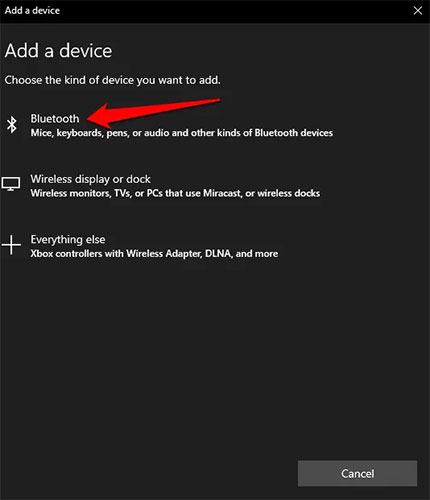
	<li style="text-align: justify;">Nhấp vào&nbsp;<strong>Bluetooth.</strong>&nbsp;Windows sẽ bắt đầu tìm kiếm các thiết bị Bluetooth có sẵn.</li>
</ul>

<figure>
<div style="text-align: justify;"><img alt="Nhấp vào Bluetooth để bắt đầu tìm kiếm các thiết bị Bluetooth có sẵn" data-i="3" data-src="https://st.quantrimang.com/photos/image/2020/07/04/bat-bluetooth-tren-win-10-4.jpg" data-was-processed="true" height="500" src="https://st.quantrimang.com/photos/image/2020/07/04/bat-bluetooth-tren-win-10-4.jpg" width="430" /></div>

<figcaption>
<div style="text-align: justify;">Nhấp vào Bluetooth để bắt đầu tìm kiếm các thiết bị Bluetooth có sẵn</div>
</figcaption>
</figure>

<h3 id="mcetoc_1ecbs1avr3" style="text-align: justify;">3. Sử dụng Swift Pair</h3>

<p style="text-align: justify;">Để biết chi tiết về cách bật và sử dụng Swift Pair trên Windows 10, bạn đọc tham khảo bài viết:&nbsp;Cách bật tính năng Swift Pair trên Windows 10&nbsp;để biết thêm chi tiết.</p>

<h3 id="mcetoc_1ecbs1avr4" style="text-align: justify;">4. Bật Bluetooth từ cài đặt Airplane mode</h3>

<p style="text-align: justify;">Windows 10 Bluetooth cũng có một công tắc chuyển đổi trong phần cài đặt cho Airplane mode. Sử dụng&nbsp;<code>Win</code>+<code>I</code>&nbsp;để&nbsp;mở Settings&nbsp;và nhấp hoặc nhấn vào&nbsp;<strong>Network &amp; Internet</strong>.</p>

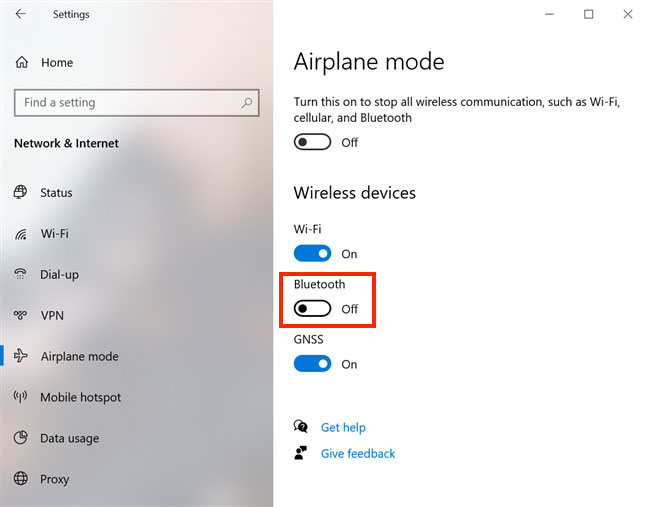
<p style="text-align: justify;">Chuyển đến tab&nbsp;<strong>Airplane mode</strong>&nbsp;từ cột bên trái. Ở phía bên phải, trong phần&nbsp;<strong>Wireless devices</strong>, bạn có thể thấy một công tắc bật/tắt Bluetooth. Nhấp vào nó để chuyển sang vị trí&nbsp;<strong>On.</strong></p>

<figure>
<div style="text-align: justify;"><img alt="Trong phần Wireless devices, bạn có thể thấy một công tắc bật/tắt Bluetooth" data-i="4" data-src="https://st.quantrimang.com/photos/image/2020/07/04/bat-bluetooth-tren-win-10-5.jpg" data-was-processed="true" height="507" src="https://st.quantrimang.com/photos/image/2020/07/04/bat-bluetooth-tren-win-10-5.jpg" width="648" /></div>

<figcaption>
<div style="text-align: justify;">Trong phần Wireless devices, bạn có thể thấy một công tắc bật/tắt Bluetooth</div>
</figcaption>
</figure>

<p style="text-align: justify;">Khi công tắc này được đặt thành&nbsp;<strong>On</strong>, bạn có thể bắt đầu kết nối các thiết bị khác với Windows 10 qua Bluetooth. Nhấn vào nó một lần nữa nếu bạn muốn tắt Bluetooth.</p>

<p style="text-align: justify;"><strong>GHI CHÚ</strong>: Công tắc Bluetooth trong tab Airplane mode hoạt động bất kể chế độ Airplane mode có được bật hay không. Tuy nhiên,&nbsp;<a href="https://quantrimang.com/cong-nghe/cach-bat-tat-che-do-may-bay-tren-windows-10-143734" title="Cách bật, tắt chế độ máy bay trên Windows 10">bật Airplane mode</a>&nbsp;sẽ tắt Bluetooth theo mặc định trong Windows 10.</p>

<h3 id="mcetoc_1ecbs1avr5" style="text-align: justify;">5. Sử dụng Cortana</h3>

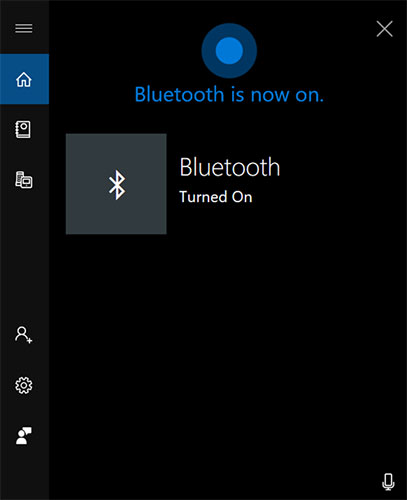
<p style="text-align: justify;">Bạn cũng có thể yêu cầu Cortana, trợ lý ảo của Microsoft, bật Windows 10 Bluetooth. Đảm bảo Cortana có thể nghe thấy bạn và nói&nbsp;<em>&quot;turn on Bluetooth&quot;, &quot;enable Bluetooth&quot;, &quot;start Bluetooth&quot;</em>&nbsp;hoặc<em>&nbsp;&quot;activate Bluetooth&quot;</em>. Cortana sẽ bật Bluetooth và cho bạn biết nó đã hoàn thành nhiệm vụ.</p>

<figure>
<div style="text-align: justify;"><img alt="Cortana bật Bluetooth" data-i="5" data-src="https://st.quantrimang.com/photos/image/2020/07/04/bat-bluetooth-tren-win-10-6.jpg" data-was-processed="true" height="500" src="https://st.quantrimang.com/photos/image/2020/07/04/bat-bluetooth-tren-win-10-6.jpg" width="407" /></div>

<figcaption>
<div style="text-align: justify;">Cortana bật Bluetooth</div>
</figcaption>
</figure>

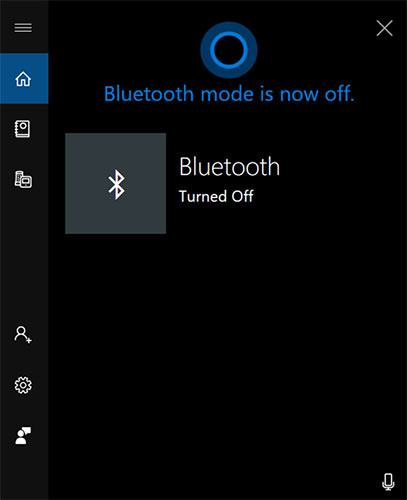
<p style="text-align: justify;">Để tắt Bluetooth Windows 10 bằng Cortana, hãy nói&nbsp;<em>&quot;turn off Bluetooth&quot;, &quot;disable Bluetooth&quot;, &quot;stop Bluetooth&quot;</em>&nbsp;hoặc<em>&nbsp;&quot;deactivate Bluetooth&quot;</em>. Cortana sẽ thông báo cho bạn rằng Bluetooth đã tắt.</p>

<figure>
<div style="text-align: justify;"><img alt="Bluetooth đã tắt" data-i="6" data-src="https://st.quantrimang.com/photos/image/2020/07/04/bat-bluetooth-tren-win-10-7.jpg" data-was-processed="true" height="500" src="https://st.quantrimang.com/photos/image/2020/07/04/bat-bluetooth-tren-win-10-7.jpg" width="407" /></div>

<figcaption>
<div style="text-align: justify;">Bluetooth đã tắt</div>
</figcaption>
</figure>

<h3 id="mcetoc_1f4oig7t00" style="text-align: justify;">6. Đặt service Bluetooth thành Automatic</h3>

<p style="text-align: justify;">Nếu bạn vẫn gặp sự cố với Bluetooth trên PC của mình, một tùy chọn khác là đặt service&nbsp;<strong>Bluetooth</strong>&nbsp;thành<strong>&nbsp;Automatic</strong>:</p>

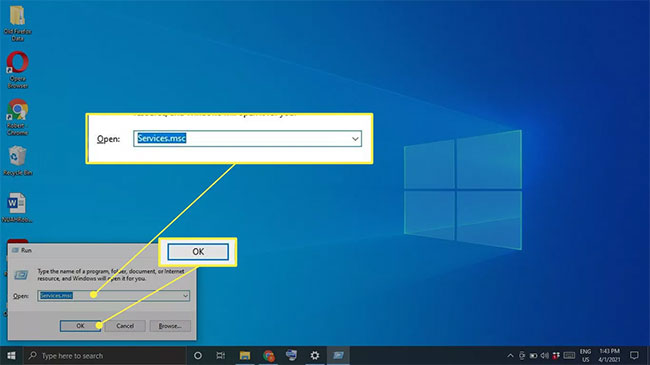
<p style="text-align: justify;"><strong>Bước 1</strong>: Nhấn&nbsp;<strong>Windows + R</strong>&nbsp;trên bàn phím, nhập&nbsp;<strong>Services.msc</strong>&nbsp;vào hộp&nbsp;<strong>Run</strong>, sau đó chọn&nbsp;<strong>OK.</strong></p>

<figure>
<div style="text-align: justify;"><img alt="Nhập Services.msc vào hộp Run" data-i="7" data-src="https://st.quantrimang.com/photos/image/2021/05/03/bat-bluetooth-1.jpg" data-was-processed="true" height="365" src="https://st.quantrimang.com/photos/image/2021/05/03/bat-bluetooth-1.jpg" width="650" /></div>

<figcaption>
<div style="text-align: justify;">Nhập Services.msc vào hộp Run</div>
</figcaption>
</figure>

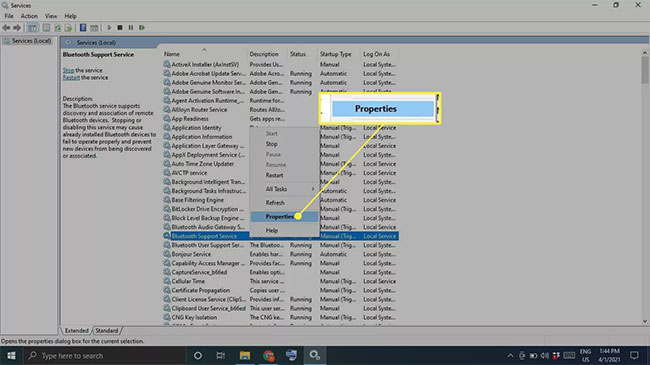
<p style="text-align: justify;"><strong>Bước 2</strong>: Nhấp chuột phải vào&nbsp;<strong>Bluetooth Support Service</strong>&nbsp;và chọn&nbsp;<strong>Properties.</strong></p>

<figure>
<div style="text-align: justify;"><img alt="Nhấp chuột phải vào Bluetooth Support Service và chọn Properties" data-i="8" data-src="https://st.quantrimang.com/photos/image/2021/05/03/bat-bluetooth-2.jpg" data-was-processed="true" height="365" src="https://st.quantrimang.com/photos/image/2021/05/03/bat-bluetooth-2.jpg" width="650" /></div>

<figcaption>
<div style="text-align: justify;">Nhấp chuột phải vào Bluetooth Support Service và chọn Properties</div>
</figcaption>
</figure>

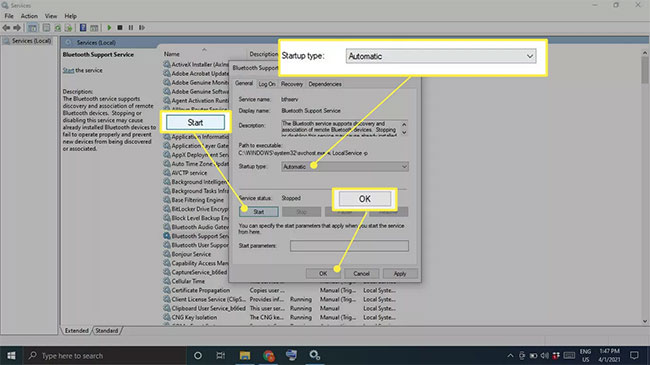
<p style="text-align: justify;"><strong>Bước 3</strong>: Đặt&nbsp;<strong>Startup type</strong>&nbsp;thành&nbsp;<strong>Automatic</strong>, chọn&nbsp;<strong>Start</strong>&nbsp;trong&nbsp;<strong>Service</strong>&nbsp;<strong>status</strong>, sau đó chọn&nbsp;<strong>OK.</strong></p>

<figure>
<div style="text-align: justify;"><img alt="Đặt Startup type thành Automatic" data-i="9" data-src="https://st.quantrimang.com/photos/image/2021/05/03/bat-bluetooth-3.jpg" data-was-processed="true" height="365" src="https://st.quantrimang.com/photos/image/2021/05/03/bat-bluetooth-3.jpg" width="650" /></div>

<figcaption>
<div style="text-align: justify;">Đặt Startup type thành Automatic</div>
</figcaption>
</figure>

<p style="text-align: justify;">Sau khi đã bật Bluetooth trên Windows 10, bạn có thể kết nối với các thiết bị được hỗ trợ. Tham khảo:&nbsp;Hướng dẫn cách kết nối Bluetooth Windows 10&nbsp;để biết chi tiết cách thực hiện. Quy trình kết nối được mô tả ngắn gọn trong phần sau:</p>

<h2 id="mcetoc_1g14ufg9g3" style="text-align: justify;"><strong>Cách kết nối thiết bị Bluetooth với Windows 10</strong></h2>

<p style="text-align: justify;">Sau khi Bluetooth được bật, bạn có thể kết nối một thiết bị:</p>

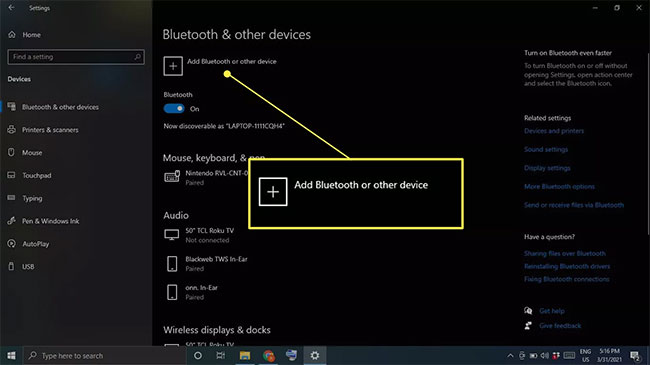
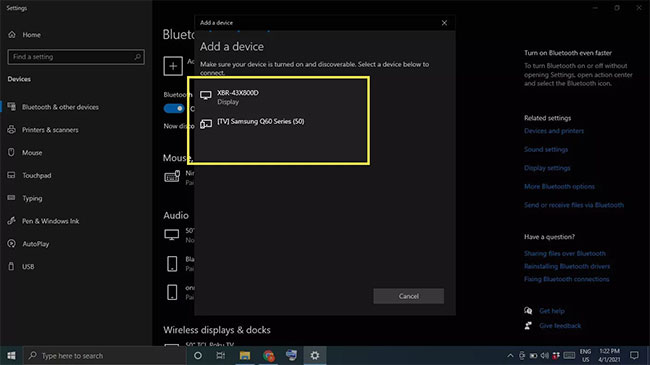
<p style="text-align: justify;"><strong>Bước 1</strong>: Đi tới cài đặt Bluetooth của bạn và chọn&nbsp;<strong>Add Bluetooth or other device</strong>.</p>

<figure>
<div style="text-align: justify;"><img alt="Chọn Add Bluetooth or other device" data-i="10" data-src="https://st.quantrimang.com/photos/image/2021/05/03/bat-bluetooth-4.jpg" data-was-processed="true" height="365" src="https://st.quantrimang.com/photos/image/2021/05/03/bat-bluetooth-4.jpg" width="650" /></div>

<figcaption>
<div style="text-align: justify;">Chọn Add Bluetooth or other device</div>
</figcaption>
</figure>

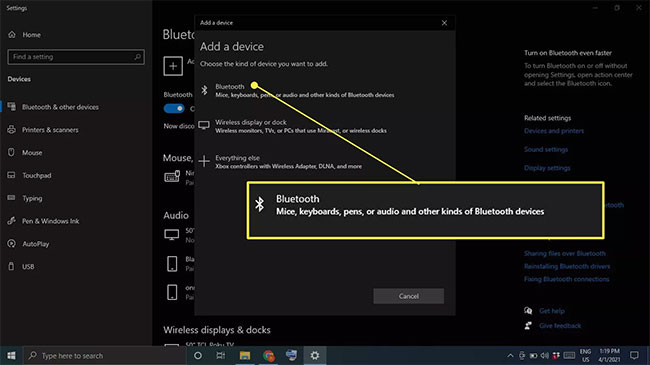
<p style="text-align: justify;"><strong>Bước 2</strong>: Chọn&nbsp;<strong>Bluetooth.</strong></p>

<figure>
<div style="text-align: justify;"><img alt="Chọn Bluetooth" data-i="11" data-src="https://st.quantrimang.com/photos/image/2021/05/03/bat-bluetooth-5.jpg" data-was-processed="true" height="365" src="https://st.quantrimang.com/photos/image/2021/05/03/bat-bluetooth-5.jpg" width="650" /></div>

<figcaption>
<div style="text-align: justify;">Chọn Bluetooth</div>
</figcaption>
</figure>

<p style="text-align: justify;"><strong>Bước 3</strong>: Bật thiết bị Bluetooth và đặt thiết bị ở chế độ ghép nối.</p>

<p style="text-align: justify;"><strong>Bước 4</strong>: Chờ thiết bị hiển thị trong danh sách rồi chọn thiết bị đó.</p>

<figure>
<div style="text-align: justify;"><img alt="Chờ thiết bị hiển thị trong danh sách rồi chọn thiết bị đó" data-i="12" data-src="https://st.quantrimang.com/photos/image/2021/05/03/bat-bluetooth-6.jpg" data-was-processed="true" height="365" src="https://st.quantrimang.com/photos/image/2021/05/03/bat-bluetooth-6.jpg" width="650" /></div>

<figcaption>
<div style="text-align: justify;">Chờ thiết bị hiển thị trong danh sách rồi chọn thiết bị đó</div>
</figcaption>
</figure>

<p style="text-align: justify;"><strong>Lưu ý:</strong>&nbsp;Tùy thuộc vào thiết bị, bạn có thể phải nhập mã PIN hiển thị trên thiết bị Bluetooth.</p>

<h2 style="text-align: justify;">Cách bật/tắt Bluetooth trên máy tính Windows 8</h2>

<p style="text-align: justify;">Ngày nay, tuy Windows 11 đã ra mắt nhưng vẫn còn không ít người đang sử dụng các bản Windows cũ như Windows 8 và Windows 7. Nếu đang sử dụng Windows 8 thì cách bật/tắt Bluetooth được thực hiện như sau:</p>

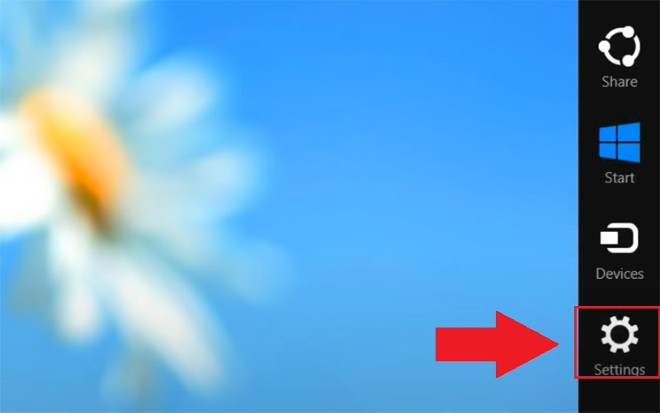
<p style="text-align: justify;"><strong>Bước 1</strong>: Mở phần&nbsp;<strong>Settings (Cài đặt)</strong>.</p>

<p style="text-align: justify;"><img alt="Mở phần Settings (Cài đặt)" data-i="13" data-src="https://st.quantrimang.com/photos/image/2022/04/21/bat-bluetooth-tren-win-10-1000.jpg" data-was-processed="true" height="413" src="https://st.quantrimang.com/photos/image/2022/04/21/bat-bluetooth-tren-win-10-1000.jpg" width="660" /></p>

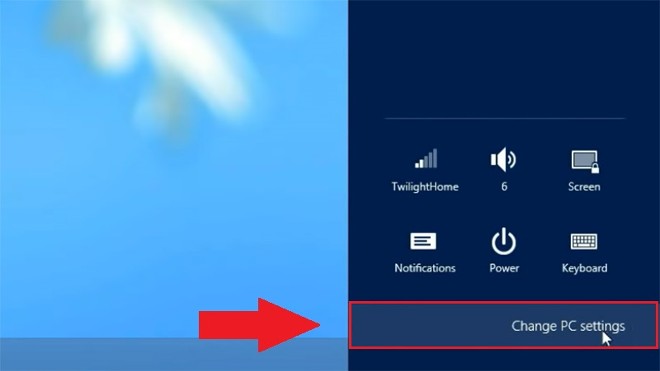
<p style="text-align: justify;"><strong>Bước 2</strong>: Vào mục&nbsp;<strong>Change PC settings</strong>.</p>

<p style="text-align: justify;"><img alt="Vào mục Change PC settings" data-i="14" data-src="https://st.quantrimang.com/photos/image/2022/04/21/bat-bluetooth-tren-win-10-1001.jpg" data-was-processed="true" height="371" src="https://st.quantrimang.com/photos/image/2022/04/21/bat-bluetooth-tren-win-10-1001.jpg" width="660" /></p>

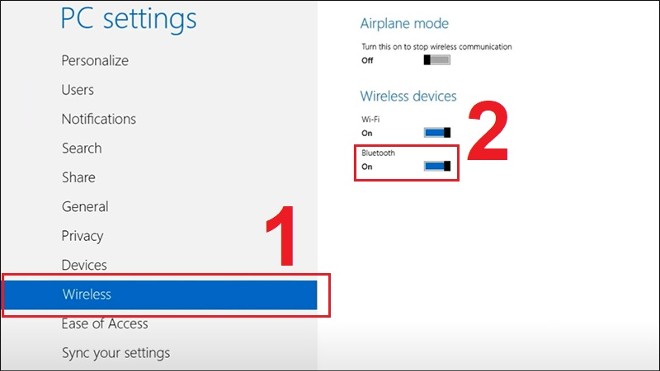
<p style="text-align: justify;"><strong>Bước 3</strong>: Truy cập vào phần&nbsp;<strong>Wireless (Không dây)&nbsp;</strong>sau đó để bật Bluetooth bạn chỉ cần gạt nút công tắc ở phần Bluetooth sang&nbsp;<strong>On.</strong>&nbsp;Khi muốn tắt, bạn chỉ gần gạt nút này trở về&nbsp;<strong>Off</strong>&nbsp;là xong.</p>

<p style="text-align: justify;"><img alt="Gạt Bluetooth sang On" data-i="15" data-src="https://st.quantrimang.com/photos/image/2022/04/21/bat-bluetooth-tren-win-10-1002.jpg" data-was-processed="true" height="371" src="https://st.quantrimang.com/photos/image/2022/04/21/bat-bluetooth-tren-win-10-1002.jpg" width="660" /></p>

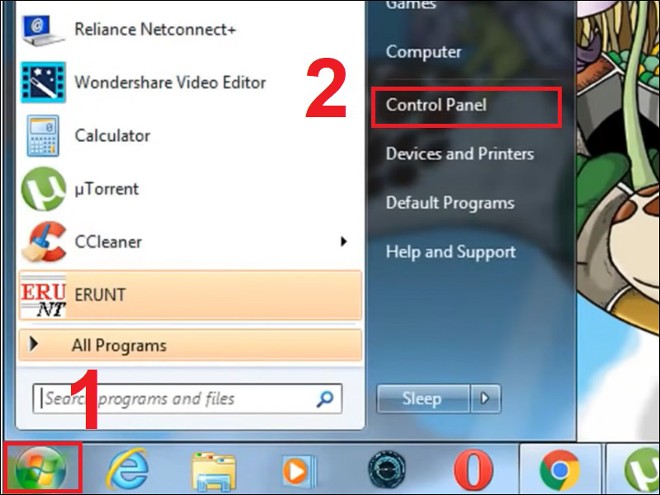
<h2 style="text-align: justify;">Cách bật/tắt Bluetooth trên máy tính Windows 7</h2>

<p style="text-align: justify;">Với những máy tính đang cài Windows 7, cách bật/tắt Bluetooth như sau:</p>

<p style="text-align: justify;"><strong>Bước 1</strong>: Nhấn nút&nbsp;<strong>Start</strong>&nbsp;sau đó chọn&nbsp;<strong>Control Panel (Bảng điều khiển)</strong>.</p>

<p style="text-align: justify;"><img alt="Nhấn nút Start sau đó chọn Control Panel" data-i="16" data-src="https://st.quantrimang.com/photos/image/2022/04/21/bat-bluetooth-tren-win-10-1003.jpg" data-was-processed="true" height="495" src="https://st.quantrimang.com/photos/image/2022/04/21/bat-bluetooth-tren-win-10-1003.jpg" width="660" /></p>

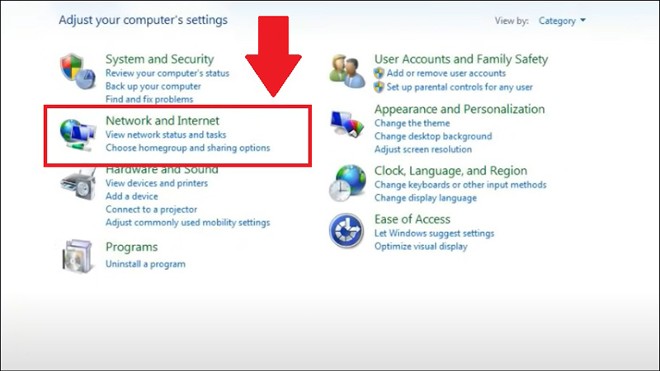
<p style="text-align: justify;"><strong>Bước 2</strong>: Bạn chọn&nbsp;<strong>Network and Internet (Mạng và Internet)</strong>.</p>

<p style="text-align: justify;"><img alt="Chọn Network and Internet" data-i="17" data-src="https://st.quantrimang.com/photos/image/2022/04/21/bat-bluetooth-tren-win-10-1004.jpg" data-was-processed="true" height="371" src="https://st.quantrimang.com/photos/image/2022/04/21/bat-bluetooth-tren-win-10-1004.jpg" width="660" /></p>

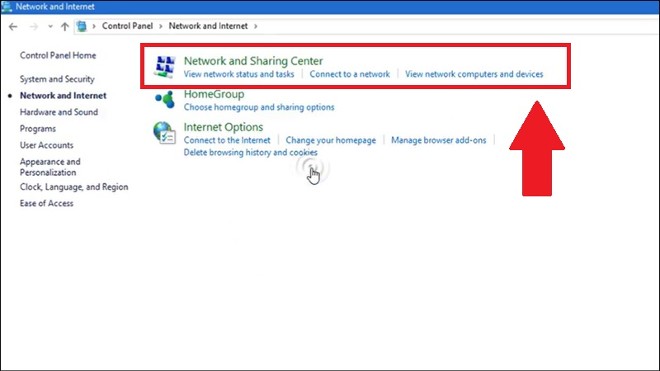
<p style="text-align: justify;"><strong>Bước 3</strong>: Tại đây, bạn nhấp vào&nbsp;<strong>Network and Sharing Center (Trung tâm Kết nối và Chia sẻ)</strong>.</p>

<p style="text-align: justify;"><img alt="Nhấp vào Network and Sharing Center" data-i="18" data-src="https://st.quantrimang.com/photos/image/2022/04/21/bat-bluetooth-tren-win-10-1005.jpg" data-was-processed="true" height="371" src="https://st.quantrimang.com/photos/image/2022/04/21/bat-bluetooth-tren-win-10-1005.jpg" width="660" /></p>

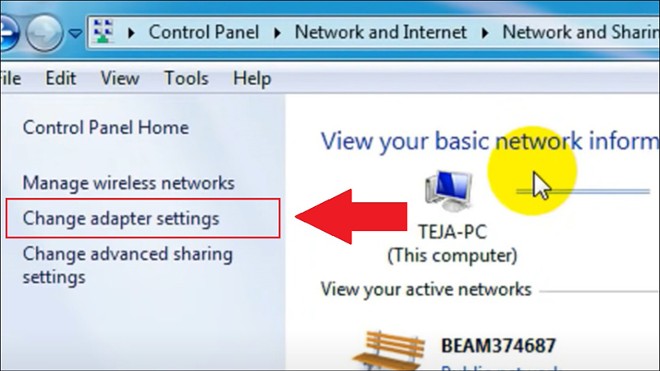
<p style="text-align: justify;"><strong>Bước 4</strong>: Bạn nhấp vào&nbsp;<strong>Change adapter settings</strong>&nbsp;ở thanh bên trái cửa sổ Network and Sharing Center.</p>

<p style="text-align: justify;"><img alt="nhấp vào Change adapter settings" data-i="19" data-src="https://st.quantrimang.com/photos/image/2022/04/21/bat-bluetooth-tren-win-10-1006.jpg" data-was-processed="true" height="371" src="https://st.quantrimang.com/photos/image/2022/04/21/bat-bluetooth-tren-win-10-1006.jpg" width="660" /></p>

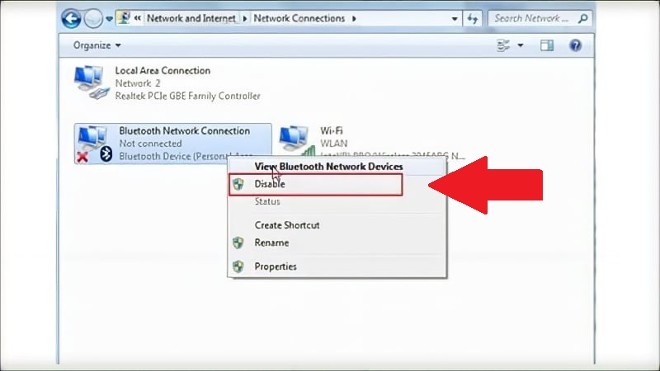
<p style="text-align: justify;"><strong>Bước 5</strong>: Bạn nhấn chuột phải vào&nbsp;<strong>Bluetooth Network Connection (Kết nối Bluetooth)</strong>. Nếu muốn bận bạn chọn&nbsp;<strong>Enable</strong>&nbsp;còn nếu muốn tắt bạn chọn&nbsp;<strong>Disable.</strong></p>

<p style="text-align: justify;"><strong><img alt="Chọn Enable để bật hoặc Disable để tắt" data-i="20" data-src="https://st.quantrimang.com/photos/image/2022/04/21/bat-bluetooth-tren-win-10-1007.jpg" data-was-processed="true" height="371" src="https://st.quantrimang.com/photos/image/2022/04/21/bat-bluetooth-tren-win-10-1007.jpg" width="660" /></strong></p>

<h2 id="mcetoc_1ecbs1avr6" style="text-align: justify;">Phải làm gì nếu Bluetooth không hoạt động trên Windows 10?</h2>

<p style="text-align: justify;">Trước đây,&nbsp;<strong>Quantrimang.com</strong>&nbsp;đã giới thiệu với bạn đọc&nbsp;cách sửa lỗi Bluetooth bị mất trên cài đặt Settings Windows 10&nbsp;và&nbsp;cách sửa lỗi Bluetooth không có trong Device Manager. Nếu rơi vào một trong hai trường hợp này, bạn đọc có thể tham khảo hướng dẫn chi tiết ở trên. Nếu không, hãy thử áp dụng cách cách sau để khắc phục sự cố.</p>

<h3 id="mcetoc_1ecbs1avr7" style="text-align: justify;">Làm cho hệ thống có thể được phát hiện</h3>

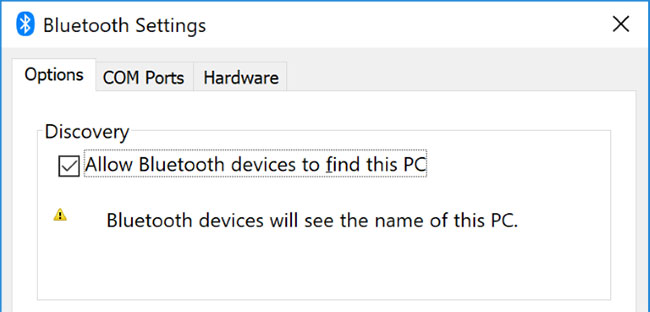
<p style="text-align: justify;">Hãy thiết lập để làm cho PC có thể phát hiện được đối với các thiết bị Bluetooth khác. Nhấn phím&nbsp;<code>Win</code>+<code>I</code>&nbsp;và đi đến&nbsp;<strong>Devices &gt; More Bluetooth options</strong>.</p>

<figure>
<div style="text-align: justify;"><img alt="Đi đến Devices &gt; More Bluetooth options" data-i="21" data-src="https://st.quantrimang.com/photos/image/2020/07/04/bat-bluetooth-tren-win-10-8.jpg" data-was-processed="true" height="312" src="https://st.quantrimang.com/photos/image/2020/07/04/bat-bluetooth-tren-win-10-8.jpg" width="650" /></div>

<figcaption>
<div style="text-align: justify;">Đi đến Devices &gt; More Bluetooth options</div>
</figcaption>
</figure>

<p style="text-align: justify;">Đánh dấu vào&nbsp;<strong>Allow Bluetooth devices to find this PC</strong>&nbsp;và nhấn&nbsp;<strong>OK.</strong>&nbsp;Điều này không cần thiết nếu bạn muốn ghép một cái gì đó như chuột hoặc bàn phím, nhưng có thể hữu ích khi ghép nối các thiết bị như điện thoại.</p>

<h3 id="mcetoc_1ecbs1avr8" style="text-align: justify;">Định vị lại thiết bị</h3>

<p style="text-align: justify;">Bluetooth có phạm vi hạn chế. Giá trị cụ thể khác nhau, nhưng trong một thiết lập tại nhà, nó rơi vào khoảng mười mét. Con số này có thể được giảm đáng kể bởi các rào cản vật lý như những bức tường.</p>

<p style="text-align: justify;">Do đó, đảm bảo rằng thiết bị bạn muốn ghép nối với máy tính đã được bật, sạc đầy và nằm trong phạm vi gần với hệ thống Windows 10.</p>

<p style="text-align: justify;">Ngoài ra, hãy chắc chắn rằng nó không quá gần với thiết bị khác sử dụng cổng USB 3.0. Các thiết bị USB này đôi khi có thể can thiệp vào kết nối Bluetooth.</p>

<h3 id="mcetoc_1ecbs1avr9" style="text-align: justify;">Vô hiệu hóa các thiết bị Bluetooth khác</h3>

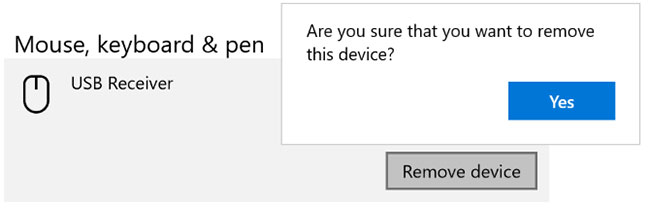
<p style="text-align: justify;">Về mặt kỹ thuật, bạn không cần phải vô hiệu hóa các thiết bị Bluetooth khác, nhưng chúng có thể gây hiện tượng nhiễu khi bạn cố gắng ghép nối một thiết bị mới.</p>

<figure>
<div style="text-align: justify;"><img alt="Vô hiệu hóa các thiết bị Bluetooth khác" data-i="22" data-src="https://st.quantrimang.com/photos/image/2020/07/04/bat-bluetooth-tren-win-10-9.jpg" data-was-processed="true" height="211" src="https://st.quantrimang.com/photos/image/2020/07/04/bat-bluetooth-tren-win-10-9.jpg" width="650" /></div>

<figcaption>
<div style="text-align: justify;">Vô hiệu hóa các thiết bị Bluetooth khác</div>
</figcaption>
</figure>

<p style="text-align: justify;">Để tắt chúng, nhấn phím&nbsp;<code>Win</code>+<code>I</code>&nbsp;để mở&nbsp;<strong>Settings</strong>&nbsp;và nhấp vào&nbsp;<strong>Devices.</strong>&nbsp;Lần lượt, nhấp vào từng thiết bị Bluetooth và nhấp vào&nbsp;<strong>Remove device &gt; Yes</strong>.</p>

<p style="text-align: justify;">Tất nhiên, hãy nhớ ghép nối lại các thiết bị này nếu bạn vẫn cần chúng.</p>

<h3 id="mcetoc_1ecbs1avra" style="text-align: justify;">Đọc Event Log</h3>

<p style="text-align: justify;">Vào tháng 6 năm 2019, Microsoft đã vá Windows 10 để bảo vệ hệ điều hành này khỏi lỗ hổng bảo mật Bluetooth. Tuy nhiên, điều này khiến một số thiết bị Bluetooth gặp sự cố kết nối.</p>

<p style="text-align: justify;">Bạn có thể thấy nếu điều này đang tác động đến bạn. Nhấn phím&nbsp;<code>Win</code>+<code>X</code>&nbsp;và nhấp vào&nbsp;<strong>Event Viewer.</strong>&nbsp;Trên&nbsp;<strong>Summary of Administrative Events</strong>, hãy mở rộng&nbsp;<strong>Error</strong>&nbsp;và tìm kiếm những điều sau đây:</p>

<ul>
	<li style="text-align: justify;"><strong>Event ID</strong>: 22</li>
	<li style="text-align: justify;"><strong>Event Source</strong>: BTHUSB hoặc BTHMINI</li>
	<li style="text-align: justify;"><strong>Name</strong>: BTHPORT_DEBUG_LINK_KEY_NOT_ALLOWED</li>
	<li style="text-align: justify;"><strong>Event Message Text</strong>: Thiết bị Bluetooth đã cố thiết lập kết nối gỡ lỗi. Windows Bluetooth stack không cho phép kết nối gỡ lỗi nếu không ở chế độ Debug.</li>
</ul>

<p style="text-align: justify;">Nếu bạn thấy điều này, Microsoft khuyên bạn nên liên hệ với nhà sản xuất thiết bị Bluetooth để xem họ có thực hiện việc khắc phục sự cố hay không. Nếu không, bạn có thể cần phải mua một thiết bị Bluetooth hoàn toàn mới.</p>

<h3 id="mcetoc_1ecbs1avrb" style="text-align: justify;">Kiểm tra Windows Update</h3>

<p style="text-align: justify;">Tốt nhất nên giữ cho Windows luôn cập nhật để hưởng lợi từ các tính năng mới nhất và những bản vá bảo mật. Điều này có thể giúp giải quyết các vấn đề với Bluetooth.</p>

<p style="text-align: justify;">Windows 10 sẽ tự động cập nhật, nhưng bạn có thể tự kiểm tra và cài đặt các bản cập nhật. Tham khảo:&nbsp;Cách giữ cho máy tính Windows luôn được cập nhật&nbsp;để biết thêm chi tiết.</p>

<h3 id="mcetoc_1ecbs1avrc" style="text-align: justify;">Chạy Bluetooth Troubleshooter</h3>

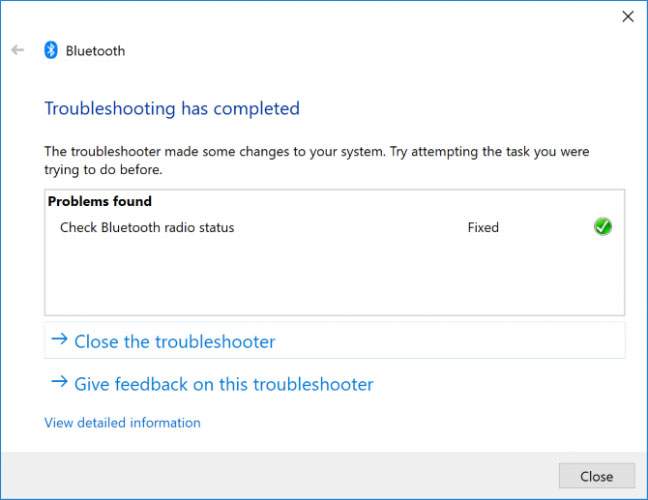
<p style="text-align: justify;">Windows 10 có trình khắc phục sự cố Bluetooth tích hợp. Công cụ này sẽ phát hiện bất kỳ vấn đề nào và tự động cố gắng sửa chữa chúng.</p>

<figure>
<div style="text-align: justify;"><img alt="Chạy Bluetooth Troubleshooter" data-i="23" data-src="https://st.quantrimang.com/photos/image/2020/07/04/bat-bluetooth-tren-win-10-10.jpg" data-was-processed="true" height="500" src="https://st.quantrimang.com/photos/image/2020/07/04/bat-bluetooth-tren-win-10-10.jpg" width="648" /></div>

<figcaption>
<div style="text-align: justify;">Chạy Bluetooth Troubleshooter</div>
</figcaption>
</figure>

<p style="text-align: justify;">Để chạy nó, nhấn phím&nbsp;<code>Win</code>+<code>I</code>&nbsp;để mở&nbsp;<strong>Settings</strong>&nbsp;và đi đến&nbsp;<strong>Update &amp; Security &gt; Troubleshoot &gt; Bluetooth &gt; Run the troubleshooter</strong>. Làm theo chỉ dẫn.</p>

<p style="text-align: justify;">Công cụ sẽ khắc phục mọi sự cố mà nó tìm thấy, nhưng một số trong số chúng có thể yêu cầu hành động thủ công từ phía bạn.</p>

<h2 id="mcetoc_1fmut2dak0" style="text-align: justify;">Một số câu hỏi về tính năng Bluetooth trong Windows 10</h2>

<h3 id="mcetoc_1fmut2dak1" style="text-align: justify;">PC của bạn không có Bluetooth. Tại sao vậy?</h3>

<p style="text-align: justify;">Mặc dù Bluetooth là một tính năng phổ biến ngày nay, nhưng không phải PC nào cũng đi kèm với nó. Nếu máy tính của bạn là model cũ, thì nó có thể chưa được cài đặt phần cứng. Tuy nhiên, bạn có thể thêm nó bằng cách mua một dongle Bluetooth USB.</p>

<h3 id="mcetoc_1fmut2dak2" style="text-align: justify;">Làm cách nào để cài đặt lại driver Bluetooth trong Windows 10?</h3>

<p style="text-align: justify;">Truy cập phần&nbsp;<strong>Device Manager</strong>, sau đó mở menu&nbsp;<strong>Bluetooth.</strong>&nbsp;Nhấp chuột phải vào thiết bị Bluetooth của bạn (thường được gọi kiểu như là&nbsp;<em>Intel Wireless Bluetooth</em>&nbsp;hoặc tên gì đó tương tự) và chọn&nbsp;<strong>Uninstall device</strong>. Khởi động lại PC và Windows sẽ cố gắng cài đặt lại driver cho bạn.</p>

<h3 id="mcetoc_1fmut2dal3" style="text-align: justify;">Làm cách nào để kiểm tra phiên bản Bluetooth nào bạn có trong Windows 10?</h3>

<p style="text-align: justify;">Truy cập phần&nbsp;<strong>Device Manager</strong>, sau đó mở menu&nbsp;<strong>Bluetooth.</strong>&nbsp;Nhấp chuột phải vào thiết bị Bluetooth của bạn (thường được gọi kiểu như là&nbsp;<em>Intel Wireless Bluetooth</em>&nbsp;hoặc tên gì đó tương tự) và chọn&nbsp;<strong>Properties.</strong>&nbsp;Trong tab&nbsp;<strong>Advanced</strong>, hãy tìm firmware và các số bên cạnh nó bắt đầu bằng LMP. Nếu số đó bắt đầu bằng 6, 7 hoặc 8, thì máy tương ứng sẽ hỗ trợ Bluetooth 4.0, 4.1 hoặc 4.2. Nếu số đó bắt đầu bằng số 9, 10 hoặc 11, thì máy hỗ trợ Bluetooth 5.0, 5.1 hoặc 5.2.</p>

<h2 style="text-align: justify;">Một số cách sửa nhanh lỗi Bluetooth trên Windows 10</h2>

<ul>
	<li style="text-align: justify;">Bật lại dịch vụ Bluetooth Support.</li>
	<li style="text-align: justify;">Thiết lập tùy chọn khôi phục dịch vụ Bluetooth Support.</li>
	<li style="text-align: justify;">Dùng các phần mềm sửa lỗi driver để rà quét, sửa lỗi driver Bluetooth.</li>
	<li style="text-align: justify;">Thực hiện khôi phục hệ thống</li>
	<li style="text-align: justify;">Nếu dùng thiết bị Bluetooth kết nối qua cổng USB thì nên kiểm tra lại kết nối hoặc sức khỏe của thiết bị.</li>
</ul>

<p style="text-align: justify;">Chúc các bạn thành công! Nếu gặp vấn đề gì không tự khắc phục được hãy liên hệ với Quản Trị Mạng qua fanpage để được hỗ trợ.</p>

<div style="text-align: justify;">&nbsp;</div>
		</div>
				<div id="author">
						<p>
				<strong>Nguồn tin:</strong>
				Quantrimang.com:
			</p>
		</div>
	</div>
	<div id="footer" class="clearfix">
		<div id="url">
			<strong>URL của bản tin này: </strong><a href="https://www.nguoicodonvn2008.info/vi/news/savefile/kien-thuc-may-tinh/tong-hop-cac-cach-bat-bluetooth-tren-windows-10-8-7-10746.html" title="Tổng hợp các cách bật Bluetooth trên Windows 10&#x002F;8&#x002F;7">https://www.nguoicodonvn2008.info/vi/news/savefile/kien-thuc-may-tinh/tong-hop-cac-cach-bat-bluetooth-tren-windows-10-8-7-10746.html</a>

		</div>
		<div class="clear"></div>
		<div class="copyright">
			&copy; .&#x3A; Nguoicodonvn2008.info - Cõi lòng người cô đơn &#x3A;.
		</div>
		<div id="contact">
			<a href="mailto:admin@nguoicodonvn2008.info">admin@nguoicodonvn2008.info</a>
		</div>
	</div>
</div>
        <div id="timeoutsess" class="chromeframe">
            Bạn đã không sử dụng Site, <a onclick="timeoutsesscancel();" href="https://www.nguoicodonvn2008.info/#">Bấm vào đây để duy trì trạng thái đăng nhập</a>. Thời gian chờ: <span id="secField"> 60 </span> giây
        </div>
        <div id="openidResult" class="nv-alert" style="display:none"></div>
        <div id="openidBt" data-result="" data-redirect=""></div>
		</script>
		<div class="car-top">
  <span><img src="https://www.nguoicodonvn2008.info/themes/default/images/car.png" alt=""></span>
</div>
<script src="https://www.nguoicodonvn2008.info/assets/js/jquery/jquery.min.js"></script>
<script>var nv_base_siteurl="/",nv_lang_data="vi",nv_lang_interface="vi",nv_name_variable="nv",nv_fc_variable="op",nv_lang_variable="language",nv_module_name="news",nv_func_name="savefile",nv_is_user=0, nv_my_ofs=-4,nv_my_abbr="EDT",nv_cookie_prefix="nv4c_e856T",nv_check_pass_mstime=1738000,nv_area_admin=0,nv_safemode=0,theme_responsive=0,nv_recaptcha_ver=2,nv_recaptcha_sitekey="",nv_recaptcha_type="image",XSSsanitize=1;</script>
<script src="https://www.nguoicodonvn2008.info/assets/js/language/vi.js"></script>
<script src="https://www.nguoicodonvn2008.info/assets/js/DOMPurify/purify3.js"></script>
<script src="https://www.nguoicodonvn2008.info/assets/js/global.js"></script>
<script src="https://www.nguoicodonvn2008.info/assets/js/site.js"></script>
<script src="https://www.nguoicodonvn2008.info/themes/default/js/news.js"></script>
<script src="https://www.nguoicodonvn2008.info/themes/default/js/main.js"></script>
<script src="https://www.nguoicodonvn2008.info/themes/default/js/custom.js"></script>
<script type="application/ld+json">
        {
            "@context": "https://schema.org",
            "@type": "Organization",
            "url": "https://www.nguoicodonvn2008.info",
            "logo": "https://www.nguoicodonvn2008.info/uploads/angel.gif"
        }
        </script>
<script src="https://www.nguoicodonvn2008.info/themes/default/js/bootstrap.min.js"></script>
<script type="text/javascript">
var $scrolltop = $('.car-top');
$scrolltop.on('click', function () {
    $('html,body').animate({
        scrollTop: 0
    }, 800);
    $(this).addClass("car-run");
    setTimeout(function(){ $scrolltop.removeClass('car-run');}, 1000);
    return false;
});
$(window).on('scroll', function ()
{ 
    if($(window).scrollTop() >= 200)
    {
        $scrolltop.addClass("show");
        $scrolltop.addClass("car-down");
    }
    else
    {
       $scrolltop.removeClass("show");
       setTimeout(function(){ $scrolltop.removeClass('car-down');}, 300);
    }
});
</script>
</body>
</html>