<!DOCTYPE html>
    <html lang="vi" xmlns="http://www.w3.org/1999/xhtml" prefix="og: http://ogp.me/ns#">
    <head>
<title>Thiết lập Remote Desktop trên Windows Server 2019</title>
<meta name="description" content="Thiết lập Remote Desktop trên Windows Server 2019 - Savefile - Tin Tức -...">
<meta name="author" content=".: Nguoicodonvn2008.info - Cõi lòng người cô đơn :.">
<meta name="copyright" content=".: Nguoicodonvn2008.info - Cõi lòng người cô đơn :. [admin@nguoicodonvn2008.info]">
<meta name="robots" content="index, archive, follow, noodp">
<meta name="googlebot" content="index,archive,follow,noodp">
<meta name="msnbot" content="all,index,follow">
<meta name="generator" content="NukeViet v4.5">
<meta http-equiv="Content-Type" content="text/html; charset=utf-8">
<meta property="og:title" content="Thiết lập Remote Desktop trên Windows Server 2019">
<meta property="og:type" content="website">
<meta property="og:description" content="Savefile - Tin Tức - https&#x3A;&#x002F;&#x002F;www.nguoicodonvn2008.info&#x002F;vi&#x002F;news&#x002F;savefile&#x002F;kien-thuc-may-tinh&#x002F;thiet-lap-remote-desktop-tren-windows-server-2019-3826.html">
<meta property="og:site_name" content=".&#x3A; Nguoicodonvn2008.info - Cõi lòng người cô đơn &#x3A;.">
<meta property="og:url" content="https://www.nguoicodonvn2008.info/vi/news/savefile/kien-thuc-may-tinh/thiet-lap-remote-desktop-tren-windows-server-2019-3826.html">
<link rel="shortcut icon" href="https://www.nguoicodonvn2008.info/favicon.ico">
<link rel="canonical" href="https://www.nguoicodonvn2008.info/vi/news/savefile/kien-thuc-may-tinh/thiet-lap-remote-desktop-tren-windows-server-2019-3826.html">
<link rel="alternate" href="https://www.nguoicodonvn2008.info/vi/news/rss/" title="Tin Tức" type="application/rss+xml">
<link rel="alternate" href="https://www.nguoicodonvn2008.info/vi/news/rss/karaoke-dual/" title="Tin Tức - Karaoke Dual" type="application/rss+xml">
<link rel="alternate" href="https://www.nguoicodonvn2008.info/vi/news/rss/nhac-tre/" title="Tin Tức - Nhạc trẻ" type="application/rss+xml">
<link rel="alternate" href="https://www.nguoicodonvn2008.info/vi/news/rss/tru-tinh/" title="Tin Tức - Trữ tình" type="application/rss+xml">
<link rel="alternate" href="https://www.nguoicodonvn2008.info/vi/news/rss/nuoc-ngoai/" title="Tin Tức - Nước ngoài" type="application/rss+xml">
<link rel="alternate" href="https://www.nguoicodonvn2008.info/vi/news/rss/remix/" title="Tin Tức - Remix" type="application/rss+xml">
<link rel="alternate" href="https://www.nguoicodonvn2008.info/vi/news/rss/tam-su-tinh-yeu/" title="Tin Tức - Tâm sự tình yêu" type="application/rss+xml">
<link rel="alternate" href="https://www.nguoicodonvn2008.info/vi/news/rss/tho-suu-tam/" title="Tin Tức - Thơ sưu tầm" type="application/rss+xml">
<link rel="alternate" href="https://www.nguoicodonvn2008.info/vi/news/rss/cuoc-song/" title="Tin Tức - Cuộc sống" type="application/rss+xml">
<link rel="alternate" href="https://www.nguoicodonvn2008.info/vi/news/rss/phan-mem/" title="Tin Tức - Phần mềm" type="application/rss+xml">
<link rel="alternate" href="https://www.nguoicodonvn2008.info/vi/news/rss/kien-thuc-may-tinh/" title="Tin Tức - Kiến thức máy tính" type="application/rss+xml">
<link rel="alternate" href="https://www.nguoicodonvn2008.info/vi/news/rss/hoc-tap/" title="Tin Tức - Học tập" type="application/rss+xml">
<link rel="alternate" href="https://www.nguoicodonvn2008.info/vi/news/rss/tai-lieu/" title="Tin Tức - Tài liệu" type="application/rss+xml">
<link rel="alternate" href="https://www.nguoicodonvn2008.info/vi/news/rss/de-thi/" title="Tin Tức - Đề thi" type="application/rss+xml">
<link rel="preload" as="style" href="https://www.nguoicodonvn2008.info/assets/css/font-awesome.min.css" type="text/css">
<link rel="preload" as="style" href="https://www.nguoicodonvn2008.info/themes/default/css/bootstrap.non-responsive.css" type="text/css">
<link rel="preload" as="style" href="https://www.nguoicodonvn2008.info/themes/default/css/style.css" type="text/css">
<link rel="preload" as="style" href="https://www.nguoicodonvn2008.info/themes/default/css/style.non-responsive.css" type="text/css">
<link rel="preload" as="style" href="https://www.nguoicodonvn2008.info/themes/default/css/news.css" type="text/css">
<link rel="preload" as="style" href="https://www.nguoicodonvn2008.info/themes/default/css/custom.css" type="text/css">
<link rel="preload" as="script" href="https://www.nguoicodonvn2008.info/assets/js/jquery/jquery.min.js" type="text/javascript">
<link rel="preload" as="script" href="https://www.nguoicodonvn2008.info/assets/js/language/vi.js" type="text/javascript">
<link rel="preload" as="script" href="https://www.nguoicodonvn2008.info/assets/js/DOMPurify/purify3.js" type="text/javascript">
<link rel="preload" as="script" href="https://www.nguoicodonvn2008.info/assets/js/global.js" type="text/javascript">
<link rel="preload" as="script" href="https://www.nguoicodonvn2008.info/assets/js/site.js" type="text/javascript">
<link rel="preload" as="script" href="https://www.nguoicodonvn2008.info/themes/default/js/news.js" type="text/javascript">
<link rel="preload" as="script" href="https://www.nguoicodonvn2008.info/themes/default/js/main.js" type="text/javascript">
<link rel="preload" as="script" href="https://www.nguoicodonvn2008.info/themes/default/js/custom.js" type="text/javascript">
<link rel="preload" as="script" href="https://www.nguoicodonvn2008.info/themes/default/js/bootstrap.min.js" type="text/javascript">
<link rel="stylesheet" href="https://www.nguoicodonvn2008.info/assets/css/font-awesome.min.css">
<link rel="stylesheet" href="https://www.nguoicodonvn2008.info/themes/default/css/bootstrap.non-responsive.css">
<link rel="stylesheet" href="https://www.nguoicodonvn2008.info/themes/default/css/style.css">
<link rel="stylesheet" href="https://www.nguoicodonvn2008.info/themes/default/css/style.non-responsive.css">
<link rel="StyleSheet" href="https://www.nguoicodonvn2008.info/themes/default/css/news.css">
<link rel="stylesheet" href="https://www.nguoicodonvn2008.info/themes/default/css/custom.css">
<style type="text/css">
	body{background: #fff;}
</style>
    </head>
    <body>
<div id="print">
	<div id="hd_print">
		<h2 class="pull-left">.&#x3A; Nguoicodonvn2008.info - Cõi lòng người cô đơn &#x3A;.</h2>
		<p class="pull-right"><a title=".&#x3A; Nguoicodonvn2008.info - Cõi lòng người cô đơn &#x3A;." href="https://www.nguoicodonvn2008.info/">https://www.nguoicodonvn2008.info</a></p>
	</div>
	<div class="clear"></div>
	<hr />
	<div id="content">
		<h1>Thiết lập Remote Desktop trên Windows Server 2019</h1>
		<ul class="list-inline">
			<li>Thứ năm - 25/03/2021 00:55</li>
			<li class="hidden-print txtrequired"><em class="fa fa-print">&nbsp;</em><a title="In ra" href="javascript:;" onclick="window.print()">In ra</a></li>
			<li class="hidden-print txtrequired"><em class="fa fa-power-off">&nbsp;</em><a title="Đóng cửa sổ này" href="javascript:;" onclick="window.close()">Đóng cửa sổ này</a></li>
		</ul>
		<div class="clear"></div>
		<div id="hometext">
		</div>
				<div class="imghome">
			<img alt="Thiết lập Remote Desktop trên Windows Server 2019" src="https://st.quantrimang.com/photos/image/2021/03/24/thiet-lap-remote-desktop-tren-windows-server-2019-9.jpg" width="460" class="img-thumbnail" />
		</div>
		<div class="clear"></div>
		<div id="bodytext" class="clearfix">
			<p style="text-align: justify;">Bài viết hôm nay sẽ giới thiệu với bạn cách thiết lập Remote Desktop trên Windows Server 2019.</p>

<h2 style="text-align: justify;">Thiết lập Remote Desktop: Cài đặt phía server</h2>

<p style="text-align: justify;">Hãy kích hoạt Remote Desktop để kết nối với server từ máy tính khác. Ví dụ này cho thấy cách kích hoạt chức năng phiên duy nhất của Remote Desktop mà Windows Client OS cũng có.</p>

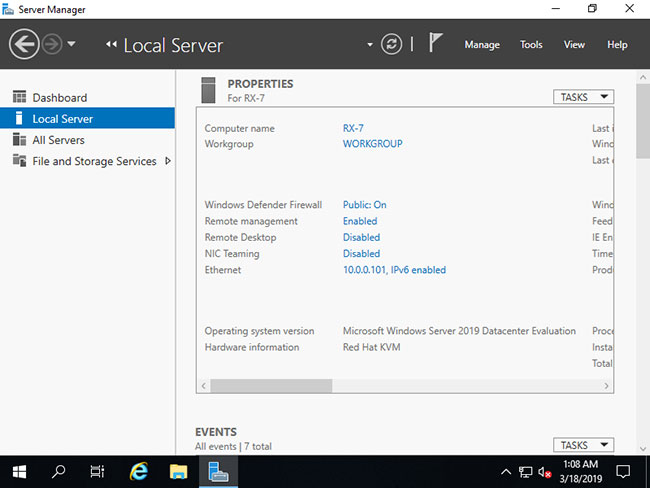
<p style="text-align: justify;">1. Chạy&nbsp;<strong>Server Manager</strong>&nbsp;và chọn&nbsp;<strong>Local Server</strong>&nbsp;trên bảng điều khiển bên trái, sau đó nhấp vào&nbsp;<strong>Disabled</strong>&nbsp;cho phần&nbsp;<strong>Remote Desktop.</strong></p>

<figure>
<div style="text-align: justify;"><img alt="Nhấp vào Disabled cho phần Remote Desktop" data-i="0" data-src="https://st.quantrimang.com/photos/image/2021/03/24/thiet-lap-remote-desktop-tren-windows-server-2019-1.jpg" data-was-processed="true" height="488" src="https://st.quantrimang.com/photos/image/2021/03/24/thiet-lap-remote-desktop-tren-windows-server-2019-1.jpg" width="650" /></div>

<figcaption>
<div style="text-align: justify;">Nhấp vào Disabled cho phần Remote Desktop</div>
</figcaption>
</figure>

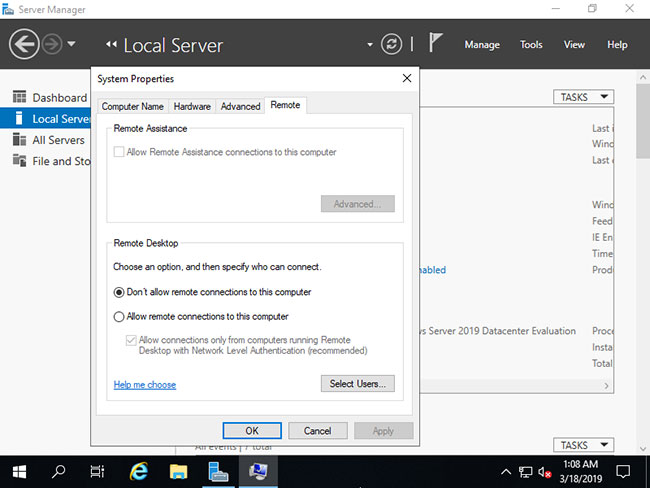
<p style="text-align: justify;">2. Chọn hộp&nbsp;<strong>Allow remote connections to this computer</strong>.</p>

<figure>
<div style="text-align: justify;"><img alt="Chọn hộp Allow remote connections to this computer" data-i="1" data-src="https://st.quantrimang.com/photos/image/2021/03/24/thiet-lap-remote-desktop-tren-windows-server-2019-2.jpg" data-was-processed="true" height="488" src="https://st.quantrimang.com/photos/image/2021/03/24/thiet-lap-remote-desktop-tren-windows-server-2019-2.jpg" width="650" /></div>

<figcaption>
<div style="text-align: justify;">Chọn hộp Allow remote connections to this computer</div>
</figcaption>
</figure>

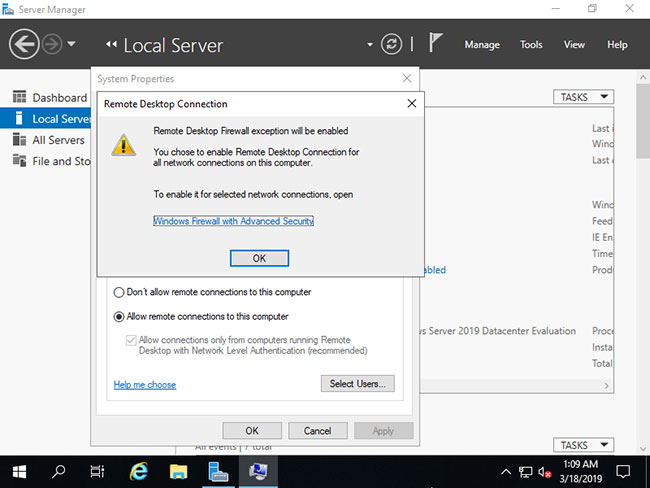
<p style="text-align: justify;">3. Thông báo rằng ngoại lệ tường lửa cho Remote Desktop đã được kích hoạt, hãy nhấp vào nút&nbsp;<strong>OK.</strong></p>

<figure>
<div style="text-align: justify;"><img alt="Nhấp vào nút OK" data-i="2" data-src="https://st.quantrimang.com/photos/image/2021/03/24/thiet-lap-remote-desktop-tren-windows-server-2019-3.jpg" data-was-processed="true" height="488" src="https://st.quantrimang.com/photos/image/2021/03/24/thiet-lap-remote-desktop-tren-windows-server-2019-3.jpg" width="650" /></div>

<figcaption>
<div style="text-align: justify;">Nhấp vào nút OK</div>
</figcaption>
</figure>

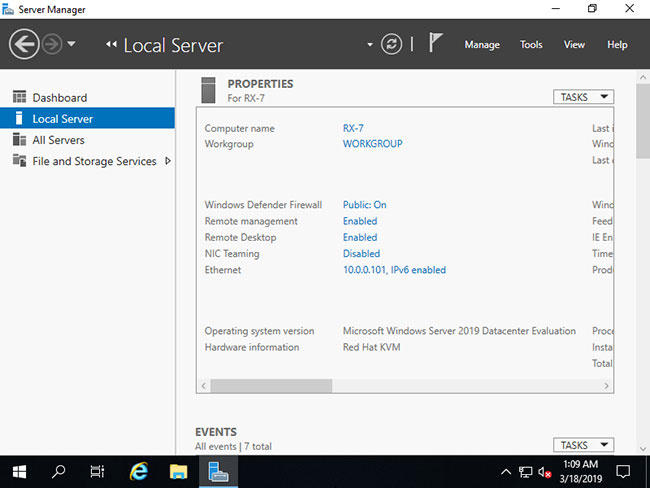
<p style="text-align: justify;">4. Chức năng Remote Desktop đã chuyển sang trạng thái&nbsp;<strong>Enabled.</strong></p>

<figure>
<div style="text-align: justify;"><img alt="Chức năng Remote Desktop đã chuyển sang trạng thái Enabled" data-i="3" data-src="https://st.quantrimang.com/photos/image/2021/03/24/thiet-lap-remote-desktop-tren-windows-server-2019-4.jpg" data-was-processed="true" height="488" src="https://st.quantrimang.com/photos/image/2021/03/24/thiet-lap-remote-desktop-tren-windows-server-2019-4.jpg" width="650" /></div>

<figcaption>
<div style="text-align: justify;">Chức năng Remote Desktop đã chuyển sang trạng thái Enabled</div>
</figcaption>
</figure>

<ul>
	<li style="text-align: justify;"><a href="https://quantrimang.com/cau-hinh-ssh-server-ssh-client-windows-server-2019-179955" title="Cấu hình SSH Server và SSH Client trên Windows Server 2019">Cấu hình SSH Server và SSH Client trên Windows Server 2019</a></li>
</ul>

<h2 style="text-align: justify;">Thiết lập Remote Desktop: Cài đặt phía client</h2>

<p style="text-align: justify;">Đây là cách kết nối với phiên Remote Desktop từ Client OS. Ví dụ này được thực hiện trên Windows 10.</p>

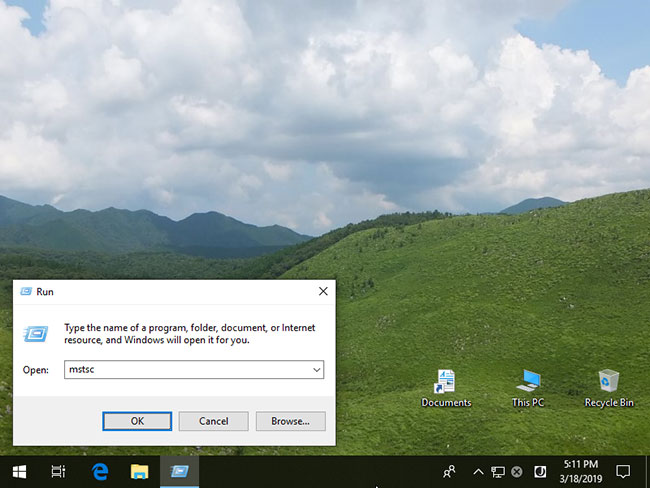
<p style="text-align: justify;">1. Nhấp chuột phải vào biểu tượng&nbsp;<strong>Windows</strong>, mở&nbsp;<strong>Run</strong>&nbsp;và nhập&nbsp;<strong>mstsc</strong>&nbsp;như sau.</p>

<figure>
<div style="text-align: justify;"><img alt="Nhập mstsc vào hộp Open" data-i="4" data-src="https://st.quantrimang.com/photos/image/2021/03/24/thiet-lap-remote-desktop-tren-windows-server-2019-5.jpg" data-was-processed="true" height="488" src="https://st.quantrimang.com/photos/image/2021/03/24/thiet-lap-remote-desktop-tren-windows-server-2019-5.jpg" width="650" /></div>

<figcaption>
<div style="text-align: justify;">Nhập mstsc vào hộp Open</div>
</figcaption>
</figure>

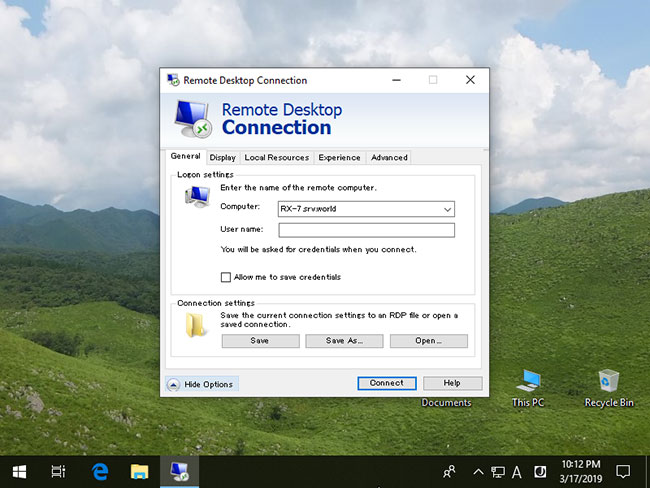
<p style="text-align: justify;">2. Nhập Hostname hoặc&nbsp;<a href="https://quantrimang.com/dia-chi-ip-la-gi-143625" title="Địa chỉ IP là gì?">địa chỉ IP</a>&nbsp;bạn muốn kết nối và nhấp vào nút&nbsp;<strong>Connect.</strong>&nbsp;Đối với các phần khác, hãy thay đổi hoặc đặt bất kỳ thông số nào bạn thích.</p>

<figure>
<div style="text-align: justify;"><img alt="Nhấp vào nút Connect" data-i="5" data-src="https://st.quantrimang.com/photos/image/2021/03/24/thiet-lap-remote-desktop-tren-windows-server-2019-6.jpg" data-was-processed="true" height="488" src="https://st.quantrimang.com/photos/image/2021/03/24/thiet-lap-remote-desktop-tren-windows-server-2019-6.jpg" width="650" /></div>

<figcaption>
<div style="text-align: justify;">Nhấp vào nút Connect</div>
</figcaption>
</figure>

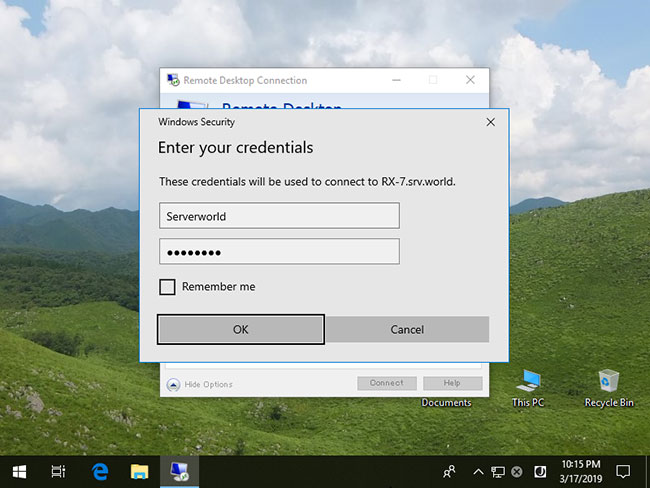
<p style="text-align: justify;">3. Nhập tên người dùng và mật khẩu bạn muốn đăng nhập.</p>

<figure>
<div style="text-align: justify;"><img alt="Nhập tên người dùng và mật khẩu" data-i="6" data-src="https://st.quantrimang.com/photos/image/2021/03/24/thiet-lap-remote-desktop-tren-windows-server-2019-7.jpg" data-was-processed="true" height="488" src="https://st.quantrimang.com/photos/image/2021/03/24/thiet-lap-remote-desktop-tren-windows-server-2019-7.jpg" width="650" /></div>

<figcaption>
<div style="text-align: justify;">Nhập tên người dùng và mật khẩu</div>
</figcaption>
</figure>

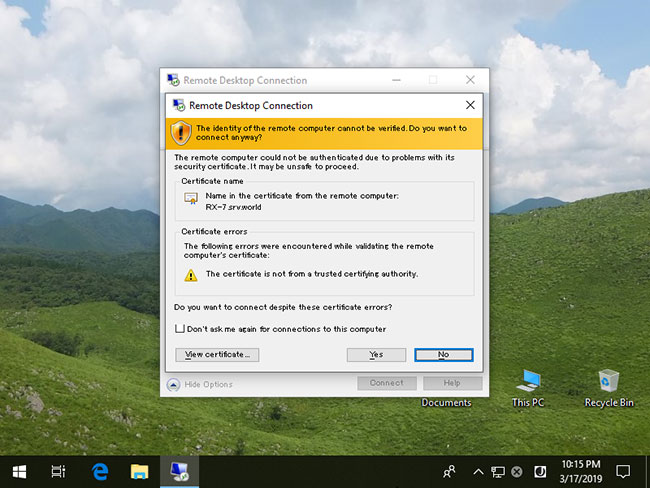
<p style="text-align: justify;">4. Thông báo cho các certificate (chứng chỉ) được hiển thị như sau. Nhấp vào&nbsp;<strong>Yes</strong>&nbsp;để tiếp tục.</p>

<figure>
<div style="text-align: justify;"><img alt="Nhấp vào Yes để tiếp tục" data-i="7" data-src="https://st.quantrimang.com/photos/image/2021/03/24/thiet-lap-remote-desktop-tren-windows-server-2019-8.jpg" data-was-processed="true" height="488" src="https://st.quantrimang.com/photos/image/2021/03/24/thiet-lap-remote-desktop-tren-windows-server-2019-8.jpg" width="650" /></div>

<figcaption>
<div style="text-align: justify;">Nhấp vào Yes để tiếp tục</div>
</figcaption>
</figure>

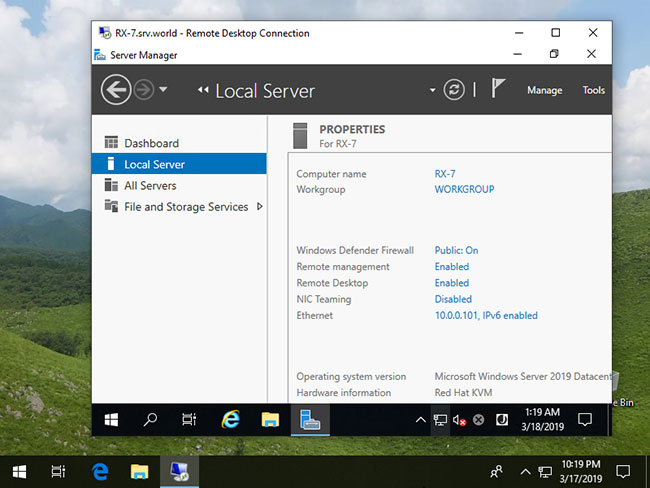
<p style="text-align: justify;">5. Mọi thứ đã được kết nối.</p>

<figure>
<div style="text-align: justify;"><img alt="Mọi thứ đã được kết nối" data-i="8" data-src="https://st.quantrimang.com/photos/image/2021/03/24/thiet-lap-remote-desktop-tren-windows-server-2019-9.jpg" data-was-processed="true" height="488" src="https://st.quantrimang.com/photos/image/2021/03/24/thiet-lap-remote-desktop-tren-windows-server-2019-9.jpg" width="650" /></div>

<figcaption>
<div style="text-align: justify;">Mọi thứ đã được kết nối</div>
</figcaption>
</figure>
		</div>
				<div id="author">
						<p>
				<strong>Nguồn tin:</strong>
				Quantrimang.com
			</p>
		</div>
	</div>
	<div id="footer" class="clearfix">
		<div id="url">
			<strong>URL của bản tin này: </strong><a href="https://www.nguoicodonvn2008.info/vi/news/savefile/kien-thuc-may-tinh/thiet-lap-remote-desktop-tren-windows-server-2019-3826.html" title="Thiết lập Remote Desktop trên Windows Server 2019">https://www.nguoicodonvn2008.info/vi/news/savefile/kien-thuc-may-tinh/thiet-lap-remote-desktop-tren-windows-server-2019-3826.html</a>

		</div>
		<div class="clear"></div>
		<div class="copyright">
			&copy; .&#x3A; Nguoicodonvn2008.info - Cõi lòng người cô đơn &#x3A;.
		</div>
		<div id="contact">
			<a href="mailto:admin@nguoicodonvn2008.info">admin@nguoicodonvn2008.info</a>
		</div>
	</div>
</div>
        <div id="timeoutsess" class="chromeframe">
            Bạn đã không sử dụng Site, <a onclick="timeoutsesscancel();" href="https://www.nguoicodonvn2008.info/#">Bấm vào đây để duy trì trạng thái đăng nhập</a>. Thời gian chờ: <span id="secField"> 60 </span> giây
        </div>
        <div id="openidResult" class="nv-alert" style="display:none"></div>
        <div id="openidBt" data-result="" data-redirect=""></div>
		</script>
		<div class="car-top">
  <span><img src="https://www.nguoicodonvn2008.info/themes/default/images/car.png" alt=""></span>
</div>
<div id="run_cronjobs" style="visibility:hidden;display:none;"><img alt="cron" src="/index.php?second=cronjobs&amp;p=r9XZowIW" width="1" height="1" /></div>
<script src="https://www.nguoicodonvn2008.info/assets/js/jquery/jquery.min.js"></script>
<script>var nv_base_siteurl="/",nv_lang_data="vi",nv_lang_interface="vi",nv_name_variable="nv",nv_fc_variable="op",nv_lang_variable="language",nv_module_name="news",nv_func_name="savefile",nv_is_user=0, nv_my_ofs=-4,nv_my_abbr="EDT",nv_cookie_prefix="nv4c_e856T",nv_check_pass_mstime=1738000,nv_area_admin=0,nv_safemode=0,theme_responsive=0,nv_recaptcha_ver=2,nv_recaptcha_sitekey="",nv_recaptcha_type="image",XSSsanitize=1;</script>
<script src="https://www.nguoicodonvn2008.info/assets/js/language/vi.js"></script>
<script src="https://www.nguoicodonvn2008.info/assets/js/DOMPurify/purify3.js"></script>
<script src="https://www.nguoicodonvn2008.info/assets/js/global.js"></script>
<script src="https://www.nguoicodonvn2008.info/assets/js/site.js"></script>
<script src="https://www.nguoicodonvn2008.info/themes/default/js/news.js"></script>
<script src="https://www.nguoicodonvn2008.info/themes/default/js/main.js"></script>
<script src="https://www.nguoicodonvn2008.info/themes/default/js/custom.js"></script>
<script type="application/ld+json">
        {
            "@context": "https://schema.org",
            "@type": "Organization",
            "url": "https://www.nguoicodonvn2008.info",
            "logo": "https://www.nguoicodonvn2008.info/uploads/angel.gif"
        }
        </script>
<script src="https://www.nguoicodonvn2008.info/themes/default/js/bootstrap.min.js"></script>
<script type="text/javascript">
var $scrolltop = $('.car-top');
$scrolltop.on('click', function () {
    $('html,body').animate({
        scrollTop: 0
    }, 800);
    $(this).addClass("car-run");
    setTimeout(function(){ $scrolltop.removeClass('car-run');}, 1000);
    return false;
});
$(window).on('scroll', function ()
{ 
    if($(window).scrollTop() >= 200)
    {
        $scrolltop.addClass("show");
        $scrolltop.addClass("car-down");
    }
    else
    {
       $scrolltop.removeClass("show");
       setTimeout(function(){ $scrolltop.removeClass('car-down');}, 300);
    }
});
</script>
</body>
</html>