<!DOCTYPE html>
    <html lang="vi" xmlns="http://www.w3.org/1999/xhtml" prefix="og: http://ogp.me/ns#">
    <head>
<title>Thêm tài khoản Gmail vào Outlook với POP</title>
<meta name="description" content="Thêm tài khoản Gmail vào Outlook với POP - Savefile - Tin Tức -...">
<meta name="author" content=".: Nguoicodonvn2008.info - Cõi lòng người cô đơn :.">
<meta name="copyright" content=".: Nguoicodonvn2008.info - Cõi lòng người cô đơn :. [admin@nguoicodonvn2008.info]">
<meta name="robots" content="index, archive, follow, noodp">
<meta name="googlebot" content="index,archive,follow,noodp">
<meta name="msnbot" content="all,index,follow">
<meta name="generator" content="NukeViet v4.5">
<meta http-equiv="Content-Type" content="text/html; charset=utf-8">
<meta property="og:title" content="Thêm tài khoản Gmail vào Outlook với POP">
<meta property="og:type" content="website">
<meta property="og:description" content="Savefile - Tin Tức - https&#x3A;&#x002F;&#x002F;www.nguoicodonvn2008.info&#x002F;vi&#x002F;news&#x002F;savefile&#x002F;kien-thuc-may-tinh&#x002F;them-tai-khoan-gmail-vao-outlook-voi-pop-8580.html">
<meta property="og:site_name" content=".&#x3A; Nguoicodonvn2008.info - Cõi lòng người cô đơn &#x3A;.">
<meta property="og:url" content="https://www.nguoicodonvn2008.info/vi/news/savefile/kien-thuc-may-tinh/them-tai-khoan-gmail-vao-outlook-voi-pop-8580.html">
<link rel="shortcut icon" href="https://www.nguoicodonvn2008.info/favicon.ico">
<link rel="canonical" href="https://www.nguoicodonvn2008.info/vi/news/savefile/kien-thuc-may-tinh/them-tai-khoan-gmail-vao-outlook-voi-pop-8580.html">
<link rel="alternate" href="https://www.nguoicodonvn2008.info/vi/news/rss/" title="Tin Tức" type="application/rss+xml">
<link rel="alternate" href="https://www.nguoicodonvn2008.info/vi/news/rss/karaoke-dual/" title="Tin Tức - Karaoke Dual" type="application/rss+xml">
<link rel="alternate" href="https://www.nguoicodonvn2008.info/vi/news/rss/nhac-tre/" title="Tin Tức - Nhạc trẻ" type="application/rss+xml">
<link rel="alternate" href="https://www.nguoicodonvn2008.info/vi/news/rss/tru-tinh/" title="Tin Tức - Trữ tình" type="application/rss+xml">
<link rel="alternate" href="https://www.nguoicodonvn2008.info/vi/news/rss/nuoc-ngoai/" title="Tin Tức - Nước ngoài" type="application/rss+xml">
<link rel="alternate" href="https://www.nguoicodonvn2008.info/vi/news/rss/remix/" title="Tin Tức - Remix" type="application/rss+xml">
<link rel="alternate" href="https://www.nguoicodonvn2008.info/vi/news/rss/tam-su-tinh-yeu/" title="Tin Tức - Tâm sự tình yêu" type="application/rss+xml">
<link rel="alternate" href="https://www.nguoicodonvn2008.info/vi/news/rss/tho-suu-tam/" title="Tin Tức - Thơ sưu tầm" type="application/rss+xml">
<link rel="alternate" href="https://www.nguoicodonvn2008.info/vi/news/rss/cuoc-song/" title="Tin Tức - Cuộc sống" type="application/rss+xml">
<link rel="alternate" href="https://www.nguoicodonvn2008.info/vi/news/rss/phan-mem/" title="Tin Tức - Phần mềm" type="application/rss+xml">
<link rel="alternate" href="https://www.nguoicodonvn2008.info/vi/news/rss/kien-thuc-may-tinh/" title="Tin Tức - Kiến thức máy tính" type="application/rss+xml">
<link rel="alternate" href="https://www.nguoicodonvn2008.info/vi/news/rss/hoc-tap/" title="Tin Tức - Học tập" type="application/rss+xml">
<link rel="alternate" href="https://www.nguoicodonvn2008.info/vi/news/rss/tai-lieu/" title="Tin Tức - Tài liệu" type="application/rss+xml">
<link rel="alternate" href="https://www.nguoicodonvn2008.info/vi/news/rss/de-thi/" title="Tin Tức - Đề thi" type="application/rss+xml">
<link rel="preload" as="style" href="https://www.nguoicodonvn2008.info/assets/css/font-awesome.min.css" type="text/css">
<link rel="preload" as="style" href="https://www.nguoicodonvn2008.info/themes/default/css/bootstrap.non-responsive.css" type="text/css">
<link rel="preload" as="style" href="https://www.nguoicodonvn2008.info/themes/default/css/style.css" type="text/css">
<link rel="preload" as="style" href="https://www.nguoicodonvn2008.info/themes/default/css/style.non-responsive.css" type="text/css">
<link rel="preload" as="style" href="https://www.nguoicodonvn2008.info/themes/default/css/news.css" type="text/css">
<link rel="preload" as="style" href="https://www.nguoicodonvn2008.info/themes/default/css/custom.css" type="text/css">
<link rel="preload" as="script" href="https://www.nguoicodonvn2008.info/assets/js/jquery/jquery.min.js" type="text/javascript">
<link rel="preload" as="script" href="https://www.nguoicodonvn2008.info/assets/js/language/vi.js" type="text/javascript">
<link rel="preload" as="script" href="https://www.nguoicodonvn2008.info/assets/js/DOMPurify/purify3.js" type="text/javascript">
<link rel="preload" as="script" href="https://www.nguoicodonvn2008.info/assets/js/global.js" type="text/javascript">
<link rel="preload" as="script" href="https://www.nguoicodonvn2008.info/assets/js/site.js" type="text/javascript">
<link rel="preload" as="script" href="https://www.nguoicodonvn2008.info/themes/default/js/news.js" type="text/javascript">
<link rel="preload" as="script" href="https://www.nguoicodonvn2008.info/themes/default/js/main.js" type="text/javascript">
<link rel="preload" as="script" href="https://www.nguoicodonvn2008.info/themes/default/js/custom.js" type="text/javascript">
<link rel="preload" as="script" href="https://www.nguoicodonvn2008.info/themes/default/js/bootstrap.min.js" type="text/javascript">
<link rel="stylesheet" href="https://www.nguoicodonvn2008.info/assets/css/font-awesome.min.css">
<link rel="stylesheet" href="https://www.nguoicodonvn2008.info/themes/default/css/bootstrap.non-responsive.css">
<link rel="stylesheet" href="https://www.nguoicodonvn2008.info/themes/default/css/style.css">
<link rel="stylesheet" href="https://www.nguoicodonvn2008.info/themes/default/css/style.non-responsive.css">
<link rel="StyleSheet" href="https://www.nguoicodonvn2008.info/themes/default/css/news.css">
<link rel="stylesheet" href="https://www.nguoicodonvn2008.info/themes/default/css/custom.css">
<style type="text/css">
	body{background: #fff;}
</style>
    </head>
    <body>
<div id="print">
	<div id="hd_print">
		<h2 class="pull-left">.&#x3A; Nguoicodonvn2008.info - Cõi lòng người cô đơn &#x3A;.</h2>
		<p class="pull-right"><a title=".&#x3A; Nguoicodonvn2008.info - Cõi lòng người cô đơn &#x3A;." href="https://www.nguoicodonvn2008.info/">https://www.nguoicodonvn2008.info</a></p>
	</div>
	<div class="clear"></div>
	<hr />
	<div id="content">
		<h1>Thêm tài khoản Gmail vào Outlook với POP</h1>
		<ul class="list-inline">
			<li>Thứ sáu - 28/06/2024 23:51</li>
			<li class="hidden-print txtrequired"><em class="fa fa-print">&nbsp;</em><a title="In ra" href="javascript:;" onclick="window.print()">In ra</a></li>
			<li class="hidden-print txtrequired"><em class="fa fa-power-off">&nbsp;</em><a title="Đóng cửa sổ này" href="javascript:;" onclick="window.close()">Đóng cửa sổ này</a></li>
		</ul>
		<div class="clear"></div>
		<div id="hometext">
		</div>
				<div class="imghome">
			<img alt="Thêm tài khoản Gmail vào Outlook với POP" src="https://st.quantrimang.com/photos/image/2019/11/13/them-gmail-vao-outlook-1.png" width="460" class="img-thumbnail" />
		</div>
		<div class="clear"></div>
		<div id="bodytext" class="clearfix">
			<p style="text-align: justify;">Bạn cảm thấy thú vị với phiên bản mới nhất của Outlook và muốn cài đặt nó với tài khoản Gmail của mình? Trong bài viết dưới đây Quantrimang.com sẽ hướng dẫn bạn cách sử dụng POP để thêm tài khoản Gmail vào Microsoft Outlook. Mời bạn đọc theo dõi!</p>

<p style="text-align: justify;"><strong>Chú ý:</strong>&nbsp;Bài viết áp dụng với các phiên bản Outlook 2019, Outlook 2016, Outlook 2013, Outlook 2010, Outlook 2007 và Outlook Office 365.</p>

<h2 style="text-align: justify;">Kích hoạt POP để Gmail hoạt động với Outlook</h2>

<p style="text-align: justify;">Trước khi sử dụng Outlook với Gmail, bạn cần bật POP trong Gmail. Các bước thực hiện như sau:</p>

<p style="text-align: justify;"><strong>Bước 1:&nbsp;</strong>Trước hết bạn cần&nbsp;<strong>đăng nhập tài khoản Gmail cá nhân</strong>&nbsp;trên máy tính.</p>

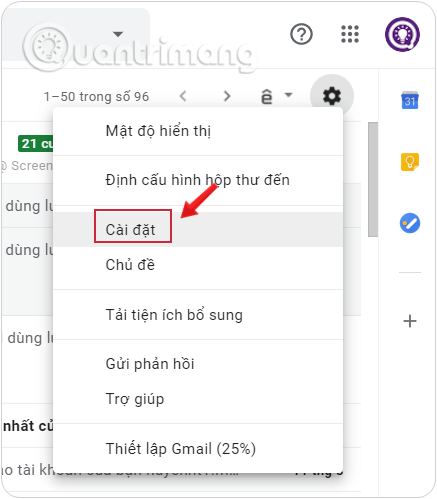
<p style="text-align: justify;"><strong>Bước 2:</strong>&nbsp;Tại giao diện chính, click vào&nbsp;<strong>biểu tượng bánh răng cưa</strong>&nbsp;và chọn&nbsp;<strong>Cài đặt</strong>&nbsp;(Settings).</p>

<figure>
<div style="text-align: justify;"><img alt="Vào Cài đặt tài khoản Gmail" data-i="0" data-src="https://st.quantrimang.com/photos/image/2019/09/03/doi-mat-khau-gmail-1.png" data-was-processed="true" height="499" src="https://st.quantrimang.com/photos/image/2019/09/03/doi-mat-khau-gmail-1.png" width="437" /></div>

<figcaption>
<div style="text-align: justify;">Vào Cài đặt tài khoản Gmail</div>
</figcaption>
</figure>

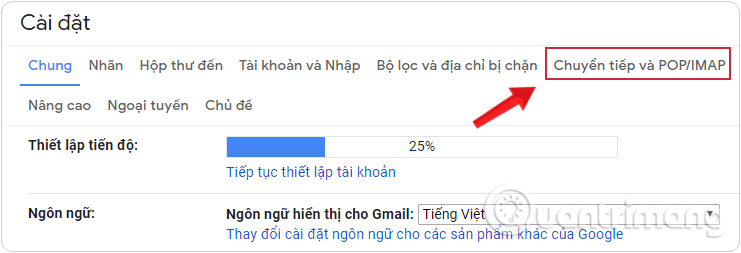
<p style="text-align: justify;"><strong>Bước 3:&nbsp;</strong>Tiếp đến nhấn chọn vào mục&nbsp;<strong>Chuyển tiếp và POP/IMAP</strong>&nbsp;(Forwarding and POP/IMAP) ở thanh tùy chọn trong giao diện này.</p>

<div style="text-align: justify;"><iframe allow="autoplay" allowtransparency="true" aria-label="Advertisement" data-google-container-id="a!2" data-google-query-id="CLugs6r0_4YDFViBpgMdfgEE6w" data-load-complete="true" frameborder="0" height="0" hspace="0" id="aswift_1" marginheight="0" marginwidth="0" name="aswift_1" sandbox="allow-scripts allow-same-origin allow-forms allow-presentation" scrolling="no" tabindex="0" title="Advertisement" vspace="0" width="694"></iframe></div>

<figure>
<div style="text-align: justify;"><img alt="Chọn vào mục Chuyển tiếp và POP/IMAP trong cài đặt Gmail" data-i="1" data-src="https://st.quantrimang.com/photos/image/2019/09/06/tu-dong-chuyen-tiep-thu-gmail-1.png" data-was-processed="true" height="253" src="https://st.quantrimang.com/photos/image/2019/09/06/tu-dong-chuyen-tiep-thu-gmail-1.png" width="741" /></div>

<figcaption>
<div style="text-align: justify;">Chọn vào mục Chuyển tiếp và POP/IMAP trong cài đặt Gmail</div>
</figcaption>
</figure>

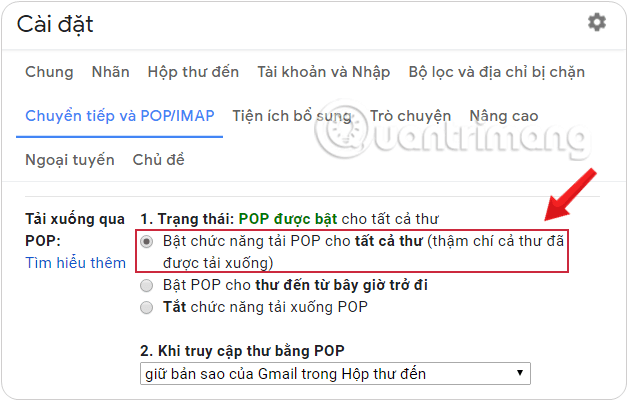
<p style="text-align: justify;"><strong>Bước 4:</strong>&nbsp;Bạn kéo xuống phần&nbsp;<strong>Tải xuống qua POP</strong>&nbsp;(POP download) và nhấp chọn&nbsp;<strong>Bật chức năng tải POP cho&nbsp;tất cả thư&nbsp;</strong>(Enable POP for all mail).</p>

<p style="text-align: justify;">Bạn cũng có thể chọn tùy chọn&nbsp;<strong>Bật POP cho thư đến từ bây giờ trở đi</strong>&nbsp;(Enable POP only for mail that arrives from now on) cũng được.</p>

<figure>
<div style="text-align: justify;"><img alt="Nhấp chọn Bật chức năng tải POP cho tất cả thư trong phần Tải xuống qua POP" data-i="2" data-src="https://st.quantrimang.com/photos/image/2019/11/13/them-gmail-vao-outlook-1.png" data-was-processed="true" height="401" src="https://st.quantrimang.com/photos/image/2019/11/13/them-gmail-vao-outlook-1.png" width="628" /></div>

<figcaption>
<div style="text-align: justify;">Nhấp chọn Bật chức năng tải POP cho tất cả thư trong phần Tải xuống qua POP</div>
</figcaption>
</figure>

<p style="text-align: justify;"><br />
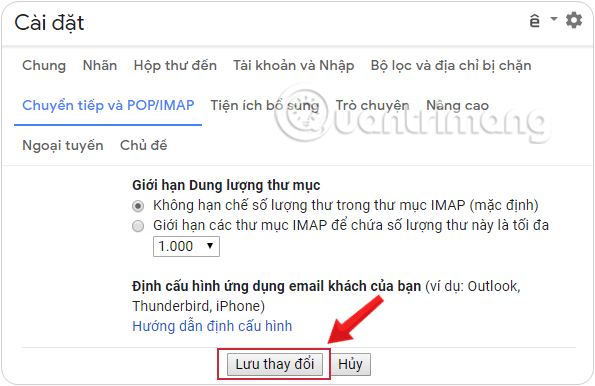
<strong>Bước 5:&nbsp;</strong>Sau khi thay đổi thiết lập, kéo xuống cuối cùng và bấm nút&nbsp;<strong>Lưu thay đổi</strong>&nbsp;(Save Changes) và tiến hành đóng trình duyệt của bạn lại.</p>

<figure>
<div style="text-align: justify;"><img alt="Kéo xuống cuối trang rồi click Lưu thay đổi" data-i="3" data-src="https://st.quantrimang.com/photos/image/2019/09/10/them-gmail-vao-outlook-3.png" data-was-processed="true" height="386" src="https://st.quantrimang.com/photos/image/2019/09/10/them-gmail-vao-outlook-3.png" width="595" /></div>

<figcaption>
<div style="text-align: justify;">Kéo xuống cuối trang rồi click Lưu thay đổi</div>
</figcaption>
</figure>

<div style="text-align: justify;">&nbsp;</div>

<h2 style="text-align: justify;">Cách thêm tài khoản Gmail vào Outlook bằng POP</h2>

<p style="text-align: justify;">Để thêm tài khoản Gmail và Outlook bằng POP, bạn làm như sau:</p>

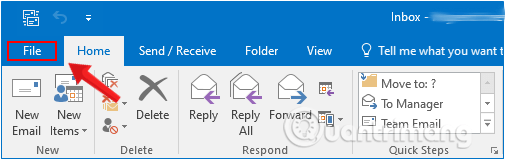
<p style="text-align: justify;"><strong>Bước 1:</strong>&nbsp;Mở ứng dụng Outlook của bạn rồi click chọn thẻ&nbsp;<strong>File</strong>.</p>

<figure>
<div style="text-align: justify;"><img alt="Chọn thẻ File trong ứng dụng Outlook" data-i="4" data-src="https://st.quantrimang.com/photos/image/2019/09/11/them-gmail-vao-outlook-4.png" data-was-processed="true" height="160" src="https://st.quantrimang.com/photos/image/2019/09/11/them-gmail-vao-outlook-4.png" width="505" /></div>

<figcaption>
<div style="text-align: justify;">Chọn thẻ File trong ứng dụng Outlook</div>
</figcaption>
</figure>

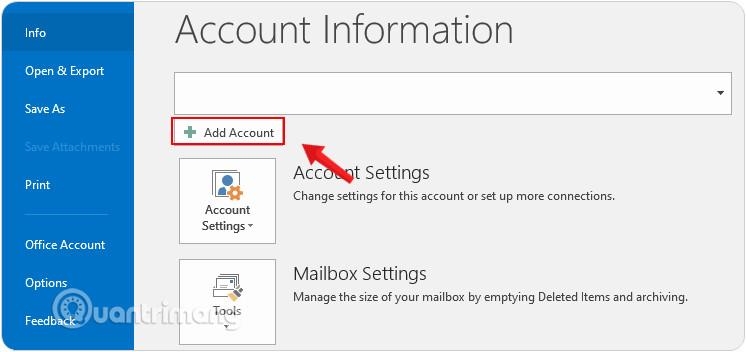
<p style="text-align: justify;"><strong>Bước 2:</strong>&nbsp;Trên giao diện Account Information, click chọn&nbsp;<strong>Add Account</strong>.</p>

<figure>
<div style="text-align: justify;"><img alt="Chọn Add Account trên giao diện Account Information" data-i="5" data-src="https://st.quantrimang.com/photos/image/2019/09/11/them-gmail-vao-outlook-5.png" data-was-processed="true" height="352" src="https://st.quantrimang.com/photos/image/2019/09/11/them-gmail-vao-outlook-5.png" width="746" /></div>

<figcaption>
<div style="text-align: justify;">Chọn Add Account trên giao diện Account Information</div>
</figcaption>
</figure>

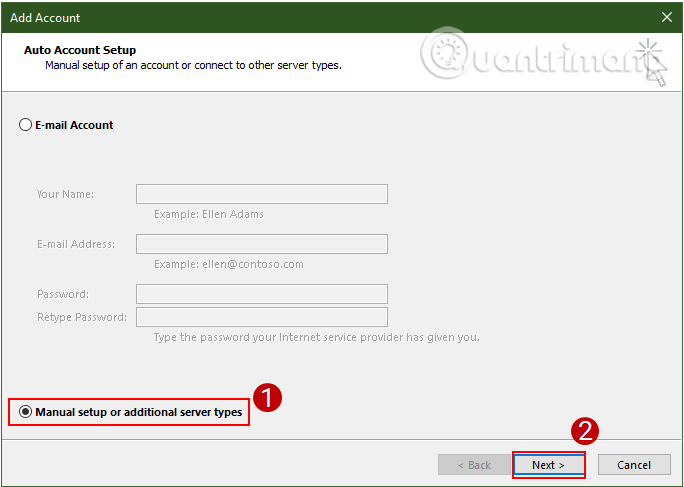
<p style="text-align: justify;"><strong>Bước 3:</strong>&nbsp;Lúc này trên màn hình sẽ xuất hiện hộp thoại<strong>&nbsp;Add account</strong>. Tại đây bạn click chọn&nbsp;<strong>Manual Setup or additional server types</strong>, rồi click chọn&nbsp;<strong>Next.</strong></p>

<figure>
<div style="text-align: justify;"><img alt="Chọn Manual Setup or additional server types" data-i="6" data-src="https://st.quantrimang.com/photos/image/2019/09/11/them-gmail-vao-outlook-6.png" data-was-processed="true" height="487" src="https://st.quantrimang.com/photos/image/2019/09/11/them-gmail-vao-outlook-6.png" width="684" /></div>

<figcaption>
<div style="text-align: justify;">Chọn Manual Setup or additional server types</div>
</figcaption>
</figure>

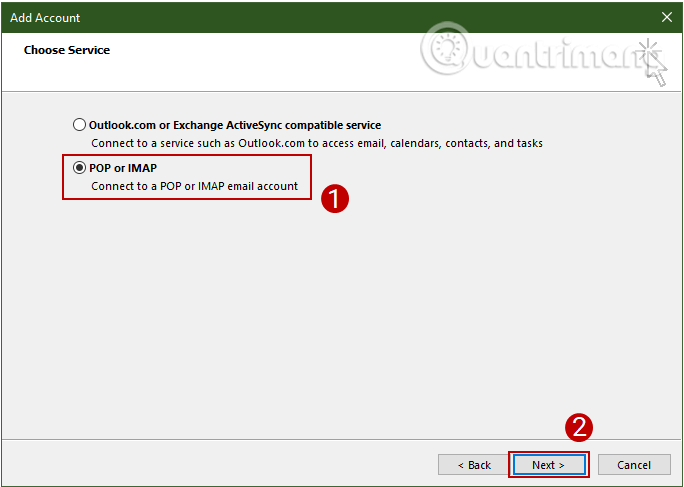
<p style="text-align: justify;"><strong>Bước 4:</strong>&nbsp;Tiếp theo trên giao diện&nbsp;<strong>Choose Service</strong>, bạn chọn tùy chọn&nbsp;<strong>POP or IMAP</strong>&nbsp;rồi click chọn&nbsp;<strong>Next.</strong></p>

<figure>
<div style="text-align: justify;"><img alt="Chọn POP or IMAP trên giao diện Choose Service" data-i="7" data-src="https://st.quantrimang.com/photos/image/2019/09/11/them-gmail-vao-outlook-7.png" data-was-processed="true" height="487" src="https://st.quantrimang.com/photos/image/2019/09/11/them-gmail-vao-outlook-7.png" width="684" /></div>

<figcaption>
<div style="text-align: justify;">Chọn POP or IMAP trên giao diện Choose Service</div>
</figcaption>
</figure>

<div style="text-align: justify;"><iframe allow="autoplay" allowtransparency="true" aria-label="Advertisement" data-google-container-id="a!4" data-google-query-id="CJP046_0_4YDFbluDwId90sFbw" data-load-complete="true" frameborder="0" height="0" hspace="0" id="aswift_3" marginheight="0" marginwidth="0" name="aswift_3" sandbox="allow-scripts allow-same-origin allow-forms allow-presentation" scrolling="no" tabindex="0" title="Advertisement" vspace="0" width="694"></iframe></div>

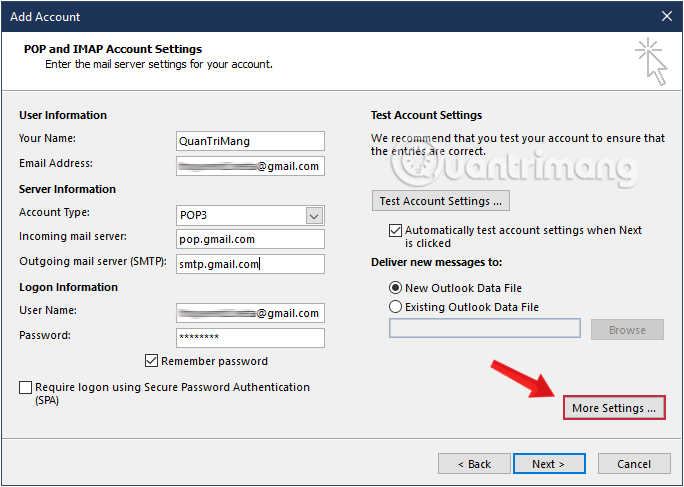
<p style="text-align: justify;"><strong>Bước 5:&nbsp;</strong>Trên giao diện&nbsp;<strong>POP and IMAP Account Setting</strong>, bạn nhập đầy đủ thông tin vào các phần<strong>&nbsp;User Information, Server Information</strong>&nbsp;và<strong>&nbsp;Logon Information.</strong></p>

<ol>
	<li style="text-align: justify;"><strong>User Information</strong>

	<ul>
		<li><em>Your Name:</em>&nbsp;Tên người nhận nhìn thấy khi nhận thư của bạn</li>
		<li><em>Email Address:</em>&nbsp;Địa chỉ Gmail của bạn</li>
	</ul>
	</li>
	<li style="text-align: justify;"><strong>Server Information</strong>
	<ul>
		<li><em>Account Type</em>: POP3</li>
		<li><em>Incoming mail server:</em>&nbsp;pop.gmail.com</li>
		<li><em>Outgoing mail server (SMTP):</em>&nbsp;smtp.gmail.com</li>
	</ul>
	</li>
	<li style="text-align: justify;"><strong>Logon Information</strong>
	<ul>
		<li><em>User Name:</em>&nbsp;Địa chỉ Gmail đầy đủ của bạn</li>
		<li><em>Password:</em>&nbsp;mật khẩu Gmail của bạn</li>
	</ul>
	</li>
</ol>

<p style="text-align: justify;"><strong>Bước 6:</strong>&nbsp;Tiếp theo click chọn&nbsp;<strong>More Settings</strong>.</p>

<figure>
<div style="text-align: justify;"><img alt="Click chọn More Settings" data-i="8" data-src="https://st.quantrimang.com/photos/image/2019/11/13/them-gmail-vao-outlook-2.png" data-was-processed="true" height="487" src="https://st.quantrimang.com/photos/image/2019/11/13/them-gmail-vao-outlook-2.png" width="684" /></div>

<figcaption>
<div style="text-align: justify;">Click chọn More Settings</div>
</figcaption>
</figure>

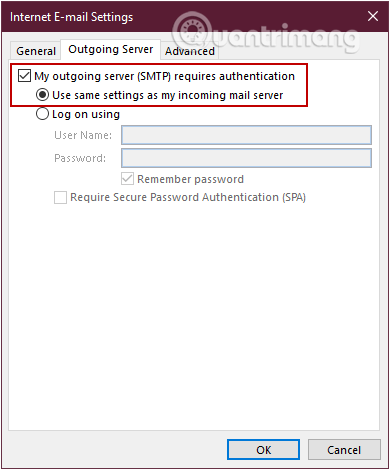
<p style="text-align: justify;"><strong>Bước 7:</strong>&nbsp;Trên màn hình lúc này xuất hiện hộp thoại&nbsp;<strong>Internet Email Setting</strong>.</p>

<p style="text-align: justify;">Tại hộp thoại này bạn click chọn thẻ&nbsp;<strong>Outgoing Server</strong>&nbsp;sau đó đánh tích chọn<strong>&nbsp;My outgoing server (SMTP) requires authentication</strong>, rồi chọn&nbsp;<strong>Use same settings as my incoming mail server</strong>.</p>

<figure>
<div style="text-align: justify;"><img alt="Sử dụng thẻ Outgoing Server trong hộp thoại Internet Email Setting" data-i="9" data-src="https://st.quantrimang.com/photos/image/2019/09/11/them-gmail-vao-outlook-9.png" data-was-processed="true" height="470" src="https://st.quantrimang.com/photos/image/2019/09/11/them-gmail-vao-outlook-9.png" width="390" /></div>

<figcaption>
<div style="text-align: justify;">Sử dụng thẻ Outgoing Server trong hộp thoại Internet Email Setting</div>
</figcaption>
</figure>

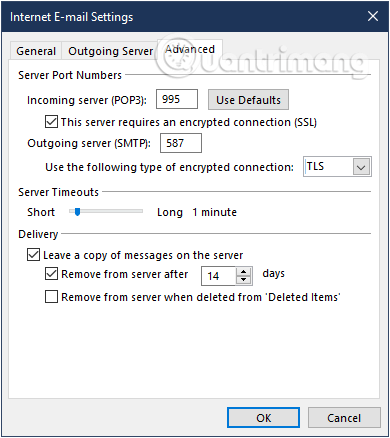
<p style="text-align: justify;"><strong>Bước 8:</strong>&nbsp;Click chọn tiếp thẻ&nbsp;<strong>Advanced</strong>&nbsp;và nhập các thông số dưới đây vào:</p>

<ul>
	<li style="text-align: justify;"><em>Incoming Server (POP3):</em>&nbsp;<strong>995</strong></li>
	<li style="text-align: justify;">Tích vào ô&nbsp;<em>This server requires an encrypted connection (SSL)</em></li>
	<li style="text-align: justify;"><em>Outgoing server (SMTP)</em>:&nbsp;<strong>587</strong></li>
	<li style="text-align: justify;"><em>Use the following type of encrypted connection:</em>&nbsp;<strong>TLS</strong></li>
</ul>

<p style="text-align: justify;"><strong>Bước 9:</strong>&nbsp;Click<strong>&nbsp;OK</strong>&nbsp;để lưu lại thay đổi và đóng cửa sổ hộp thoại<strong>&nbsp;Email Settings.</strong></p>

<figure>
<div style="text-align: justify;"><img alt="Thiết lập xong các thông số rồi đóng cửa sổ hộp thoại Email Settings" data-i="10" data-src="https://st.quantrimang.com/photos/image/2019/11/13/them-gmail-vao-outlook-3.png" data-was-processed="true" height="438" src="https://st.quantrimang.com/photos/image/2019/11/13/them-gmail-vao-outlook-3.png" width="390" /></div>

<figcaption>
<div style="text-align: justify;">Thiết lập xong các thông số rồi đóng cửa sổ hộp thoại Email Settings</div>
</figcaption>
</figure>

<div style="text-align: justify;">&nbsp;</div>

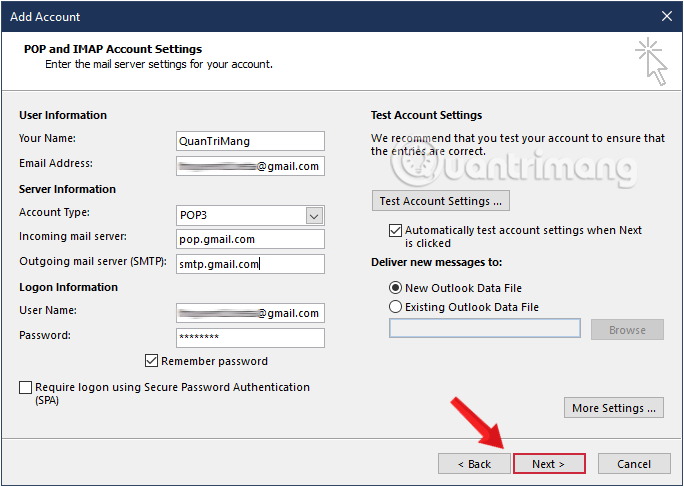
<p style="text-align: justify;"><strong>Bước 10:</strong>&nbsp;Tiếp theo click chọn&nbsp;<strong>Next</strong>&nbsp;để sang bước tiếp theo.</p>

<figure>
<div style="text-align: justify;"><img alt="Click chọn Next để sang bước tiếp theo" data-i="11" data-src="https://st.quantrimang.com/photos/image/2019/11/13/them-gmail-vao-outlook-4.png" data-was-processed="true" height="487" src="https://st.quantrimang.com/photos/image/2019/11/13/them-gmail-vao-outlook-4.png" width="684" /></div>

<figcaption>
<div style="text-align: justify;">Click chọn Next để sang bước tiếp theo</div>
</figcaption>
</figure>

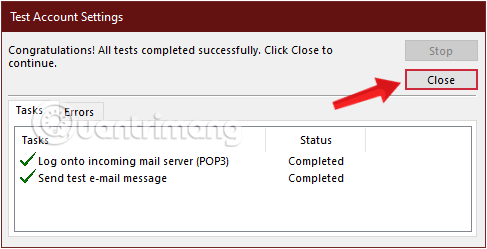
<p style="text-align: justify;"><strong>Bước 11:</strong>&nbsp;Outlook sẽ tiến hành kiểm tra việc cài đặt và gửi cho bạn một email thông báo. Khi quá trình kiểm tra kết thúc, click chọn&nbsp;<strong>Close</strong>.</p>

<figure>
<div style="text-align: justify;"><img alt="Thông báo kết nối Gmail vào Outlook thành công" data-i="12" data-src="https://st.quantrimang.com/photos/image/2019/11/13/them-gmail-vao-outlook-5.png" data-was-processed="true" height="249" src="https://st.quantrimang.com/photos/image/2019/11/13/them-gmail-vao-outlook-5.png" width="487" /></div>

<figcaption>
<div style="text-align: justify;">Thông báo kết nối Gmail vào Outlook thành công</div>
</figcaption>
</figure>

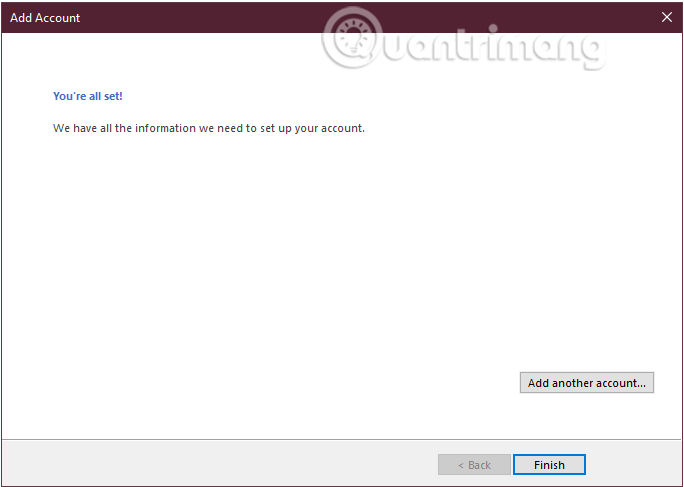
<p style="text-align: justify;"><strong>Bước 12:</strong>&nbsp;Lúc này trên màn hình bạn sẽ nhận được thông báo nói rằng&nbsp;<strong>You&#039;are all set</strong>. Bạn chỉ cần click chọn&nbsp;<strong>Finish</strong>&nbsp;là xong.</p>

<figure>
<div style="text-align: justify;"><img alt="Click chọn Finish sau khi nhận được thông báo You&#039;are all set" data-i="13" data-src="https://st.quantrimang.com/photos/image/2019/09/11/them-gmail-vao-outlook-13.png" data-was-processed="true" height="487" src="https://st.quantrimang.com/photos/image/2019/09/11/them-gmail-vao-outlook-13.png" width="684" /></div>

<figcaption>
<div style="text-align: justify;">Click chọn Finish sau khi nhận được thông báo You&#039;are all set</div>
</figcaption>
</figure>

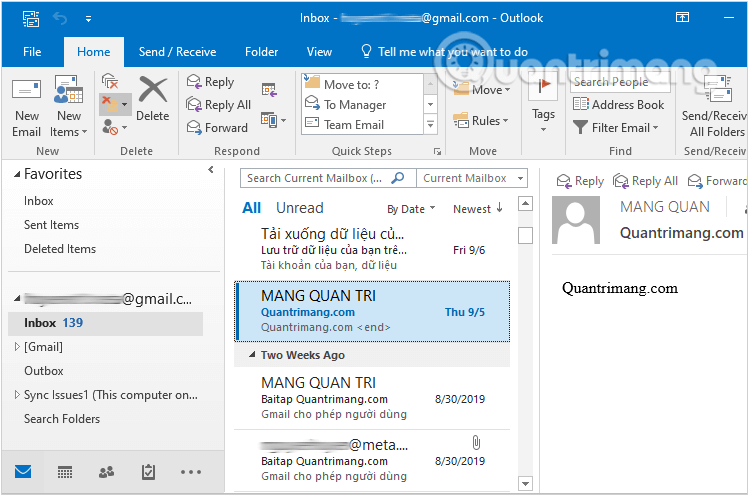
<p style="text-align: justify;">Vậy là xong! Tài khoản Gmail mà bạn vừa thêm vào Outlook được hiển thị trong danh sách địa chỉ Email ở khung bên trái.</p>

<p style="text-align: justify;">Click vào<strong>&nbsp;Inbox</strong>&nbsp;để xem hộp thư đến trong tài khoản Gmail của bạn.</p>

<figure>
<div style="text-align: justify;"><img alt="Click vào Inbox để xem hộp thư đến trong tài khoản Gmail" data-i="14" data-src="https://st.quantrimang.com/photos/image/2019/09/11/them-gmail-vao-outlook-14.png" data-was-processed="true" height="496" src="https://st.quantrimang.com/photos/image/2019/09/11/them-gmail-vao-outlook-14.png" width="749" /></div>

<figcaption>
<div style="text-align: justify;">Click vào Inbox để xem hộp thư đến trong tài khoản Gmail</div>
</figcaption>
</figure>

<p style="text-align: justify;">Nếu bạn gặp một số lỗi không thêm được tài khoản Gmail vào Outlook, tham khảo thêm bài viết&nbsp;Hướng dẫn khắc phục lỗi không thêm được tài khoản Gmail vào Microsoft Outlook</p>

<p style="text-align: justify;">Thêm Gmail vào Outlook sử dụng POP là cách dễ dàng với một vài bước đơn giản. Bạn có thể thêm rất nhiều tài khoản email với POP3 nếu bạn muốn. Chúc các bạn thành công!</p>
		</div>
				<div id="author">
						<p>
				<strong>Nguồn tin:</strong>
				Quantrimang.com:
			</p>
		</div>
	</div>
	<div id="footer" class="clearfix">
		<div id="url">
			<strong>URL của bản tin này: </strong><a href="https://www.nguoicodonvn2008.info/vi/news/savefile/kien-thuc-may-tinh/them-tai-khoan-gmail-vao-outlook-voi-pop-8580.html" title="Thêm tài khoản Gmail vào Outlook với POP">https://www.nguoicodonvn2008.info/vi/news/savefile/kien-thuc-may-tinh/them-tai-khoan-gmail-vao-outlook-voi-pop-8580.html</a>

		</div>
		<div class="clear"></div>
		<div class="copyright">
			&copy; .&#x3A; Nguoicodonvn2008.info - Cõi lòng người cô đơn &#x3A;.
		</div>
		<div id="contact">
			<a href="mailto:admin@nguoicodonvn2008.info">admin@nguoicodonvn2008.info</a>
		</div>
	</div>
</div>
        <div id="timeoutsess" class="chromeframe">
            Bạn đã không sử dụng Site, <a onclick="timeoutsesscancel();" href="https://www.nguoicodonvn2008.info/#">Bấm vào đây để duy trì trạng thái đăng nhập</a>. Thời gian chờ: <span id="secField"> 60 </span> giây
        </div>
        <div id="openidResult" class="nv-alert" style="display:none"></div>
        <div id="openidBt" data-result="" data-redirect=""></div>
		</script>
		<div class="car-top">
  <span><img src="https://www.nguoicodonvn2008.info/themes/default/images/car.png" alt=""></span>
</div>
<script src="https://www.nguoicodonvn2008.info/assets/js/jquery/jquery.min.js"></script>
<script>var nv_base_siteurl="/",nv_lang_data="vi",nv_lang_interface="vi",nv_name_variable="nv",nv_fc_variable="op",nv_lang_variable="language",nv_module_name="news",nv_func_name="savefile",nv_is_user=0, nv_my_ofs=-4,nv_my_abbr="EDT",nv_cookie_prefix="nv4c_e856T",nv_check_pass_mstime=1738000,nv_area_admin=0,nv_safemode=0,theme_responsive=0,nv_recaptcha_ver=2,nv_recaptcha_sitekey="",nv_recaptcha_type="image",XSSsanitize=1;</script>
<script src="https://www.nguoicodonvn2008.info/assets/js/language/vi.js"></script>
<script src="https://www.nguoicodonvn2008.info/assets/js/DOMPurify/purify3.js"></script>
<script src="https://www.nguoicodonvn2008.info/assets/js/global.js"></script>
<script src="https://www.nguoicodonvn2008.info/assets/js/site.js"></script>
<script src="https://www.nguoicodonvn2008.info/themes/default/js/news.js"></script>
<script src="https://www.nguoicodonvn2008.info/themes/default/js/main.js"></script>
<script src="https://www.nguoicodonvn2008.info/themes/default/js/custom.js"></script>
<script type="application/ld+json">
        {
            "@context": "https://schema.org",
            "@type": "Organization",
            "url": "https://www.nguoicodonvn2008.info",
            "logo": "https://www.nguoicodonvn2008.info/uploads/angel.gif"
        }
        </script>
<script src="https://www.nguoicodonvn2008.info/themes/default/js/bootstrap.min.js"></script>
<script type="text/javascript">
var $scrolltop = $('.car-top');
$scrolltop.on('click', function () {
    $('html,body').animate({
        scrollTop: 0
    }, 800);
    $(this).addClass("car-run");
    setTimeout(function(){ $scrolltop.removeClass('car-run');}, 1000);
    return false;
});
$(window).on('scroll', function ()
{ 
    if($(window).scrollTop() >= 200)
    {
        $scrolltop.addClass("show");
        $scrolltop.addClass("car-down");
    }
    else
    {
       $scrolltop.removeClass("show");
       setTimeout(function(){ $scrolltop.removeClass('car-down');}, 300);
    }
});
</script>
</body>
</html>