<!DOCTYPE html>
    <html lang="vi" xmlns="http://www.w3.org/1999/xhtml" prefix="og: http://ogp.me/ns#">
    <head>
<title>Tạo và sử dụng các macro tự động trong Word 2010</title>
<meta name="description" content="Tạo và sử dụng các macro tự động trong Word 2010 - Savefile - Tin Tức -...">
<meta name="author" content=".: Nguoicodonvn2008.info - Cõi lòng người cô đơn :.">
<meta name="copyright" content=".: Nguoicodonvn2008.info - Cõi lòng người cô đơn :. [admin@nguoicodonvn2008.info]">
<meta name="robots" content="index, archive, follow, noodp">
<meta name="googlebot" content="index,archive,follow,noodp">
<meta name="msnbot" content="all,index,follow">
<meta name="generator" content="NukeViet v4.5">
<meta http-equiv="Content-Type" content="text/html; charset=utf-8">
<meta property="og:title" content="Tạo và sử dụng các macro tự động trong Word 2010">
<meta property="og:type" content="website">
<meta property="og:description" content="Savefile - Tin Tức - https&#x3A;&#x002F;&#x002F;www.nguoicodonvn2008.info&#x002F;vi&#x002F;news&#x002F;savefile&#x002F;kien-thuc-may-tinh&#x002F;tao-va-su-dung-cac-macro-tu-dong-trong-word-2010-11224.html">
<meta property="og:site_name" content=".&#x3A; Nguoicodonvn2008.info - Cõi lòng người cô đơn &#x3A;.">
<meta property="og:url" content="https://www.nguoicodonvn2008.info/vi/news/savefile/kien-thuc-may-tinh/tao-va-su-dung-cac-macro-tu-dong-trong-word-2010-11224.html">
<link rel="shortcut icon" href="https://www.nguoicodonvn2008.info/favicon.ico">
<link rel="canonical" href="https://www.nguoicodonvn2008.info/vi/news/savefile/kien-thuc-may-tinh/tao-va-su-dung-cac-macro-tu-dong-trong-word-2010-11224.html">
<link rel="alternate" href="https://www.nguoicodonvn2008.info/vi/news/rss/" title="Tin Tức" type="application/rss+xml">
<link rel="alternate" href="https://www.nguoicodonvn2008.info/vi/news/rss/karaoke-dual/" title="Tin Tức - Karaoke Dual" type="application/rss+xml">
<link rel="alternate" href="https://www.nguoicodonvn2008.info/vi/news/rss/nhac-tre/" title="Tin Tức - Nhạc trẻ" type="application/rss+xml">
<link rel="alternate" href="https://www.nguoicodonvn2008.info/vi/news/rss/tru-tinh/" title="Tin Tức - Trữ tình" type="application/rss+xml">
<link rel="alternate" href="https://www.nguoicodonvn2008.info/vi/news/rss/nuoc-ngoai/" title="Tin Tức - Nước ngoài" type="application/rss+xml">
<link rel="alternate" href="https://www.nguoicodonvn2008.info/vi/news/rss/remix/" title="Tin Tức - Remix" type="application/rss+xml">
<link rel="alternate" href="https://www.nguoicodonvn2008.info/vi/news/rss/tam-su-tinh-yeu/" title="Tin Tức - Tâm sự tình yêu" type="application/rss+xml">
<link rel="alternate" href="https://www.nguoicodonvn2008.info/vi/news/rss/tho-suu-tam/" title="Tin Tức - Thơ sưu tầm" type="application/rss+xml">
<link rel="alternate" href="https://www.nguoicodonvn2008.info/vi/news/rss/cuoc-song/" title="Tin Tức - Cuộc sống" type="application/rss+xml">
<link rel="alternate" href="https://www.nguoicodonvn2008.info/vi/news/rss/phan-mem/" title="Tin Tức - Phần mềm" type="application/rss+xml">
<link rel="alternate" href="https://www.nguoicodonvn2008.info/vi/news/rss/kien-thuc-may-tinh/" title="Tin Tức - Kiến thức máy tính" type="application/rss+xml">
<link rel="alternate" href="https://www.nguoicodonvn2008.info/vi/news/rss/hoc-tap/" title="Tin Tức - Học tập" type="application/rss+xml">
<link rel="alternate" href="https://www.nguoicodonvn2008.info/vi/news/rss/tai-lieu/" title="Tin Tức - Tài liệu" type="application/rss+xml">
<link rel="alternate" href="https://www.nguoicodonvn2008.info/vi/news/rss/de-thi/" title="Tin Tức - Đề thi" type="application/rss+xml">
<link rel="preload" as="style" href="https://www.nguoicodonvn2008.info/assets/css/font-awesome.min.css" type="text/css">
<link rel="preload" as="style" href="https://www.nguoicodonvn2008.info/themes/default/css/bootstrap.non-responsive.css" type="text/css">
<link rel="preload" as="style" href="https://www.nguoicodonvn2008.info/themes/default/css/style.css" type="text/css">
<link rel="preload" as="style" href="https://www.nguoicodonvn2008.info/themes/default/css/style.non-responsive.css" type="text/css">
<link rel="preload" as="style" href="https://www.nguoicodonvn2008.info/themes/default/css/news.css" type="text/css">
<link rel="preload" as="style" href="https://www.nguoicodonvn2008.info/themes/default/css/custom.css" type="text/css">
<link rel="preload" as="script" href="https://www.nguoicodonvn2008.info/assets/js/jquery/jquery.min.js" type="text/javascript">
<link rel="preload" as="script" href="https://www.nguoicodonvn2008.info/assets/js/language/vi.js" type="text/javascript">
<link rel="preload" as="script" href="https://www.nguoicodonvn2008.info/assets/js/DOMPurify/purify3.js" type="text/javascript">
<link rel="preload" as="script" href="https://www.nguoicodonvn2008.info/assets/js/global.js" type="text/javascript">
<link rel="preload" as="script" href="https://www.nguoicodonvn2008.info/assets/js/site.js" type="text/javascript">
<link rel="preload" as="script" href="https://www.nguoicodonvn2008.info/themes/default/js/news.js" type="text/javascript">
<link rel="preload" as="script" href="https://www.nguoicodonvn2008.info/themes/default/js/main.js" type="text/javascript">
<link rel="preload" as="script" href="https://www.nguoicodonvn2008.info/themes/default/js/custom.js" type="text/javascript">
<link rel="preload" as="script" href="https://www.nguoicodonvn2008.info/themes/default/js/bootstrap.min.js" type="text/javascript">
<link rel="stylesheet" href="https://www.nguoicodonvn2008.info/assets/css/font-awesome.min.css">
<link rel="stylesheet" href="https://www.nguoicodonvn2008.info/themes/default/css/bootstrap.non-responsive.css">
<link rel="stylesheet" href="https://www.nguoicodonvn2008.info/themes/default/css/style.css">
<link rel="stylesheet" href="https://www.nguoicodonvn2008.info/themes/default/css/style.non-responsive.css">
<link rel="StyleSheet" href="https://www.nguoicodonvn2008.info/themes/default/css/news.css">
<link rel="stylesheet" href="https://www.nguoicodonvn2008.info/themes/default/css/custom.css">
<style type="text/css">
	body{background: #fff;}
</style>
    </head>
    <body>
<div id="print">
	<div id="hd_print">
		<h2 class="pull-left">.&#x3A; Nguoicodonvn2008.info - Cõi lòng người cô đơn &#x3A;.</h2>
		<p class="pull-right"><a title=".&#x3A; Nguoicodonvn2008.info - Cõi lòng người cô đơn &#x3A;." href="https://www.nguoicodonvn2008.info/">https://www.nguoicodonvn2008.info</a></p>
	</div>
	<div class="clear"></div>
	<hr />
	<div id="content">
		<h1>Tạo và sử dụng các macro tự động trong Word 2010</h1>
		<ul class="list-inline">
			<li>Thứ tư - 24/09/2025 23:05</li>
			<li class="hidden-print txtrequired"><em class="fa fa-print">&nbsp;</em><a title="In ra" href="javascript:;" onclick="window.print()">In ra</a></li>
			<li class="hidden-print txtrequired"><em class="fa fa-power-off">&nbsp;</em><a title="Đóng cửa sổ này" href="javascript:;" onclick="window.close()">Đóng cửa sổ này</a></li>
		</ul>
		<div class="clear"></div>
		<div id="hometext">
		</div>
				<div class="imghome">
			<img alt="Tạo và sử dụng các macro tự động trong Word 2010" src="https://st.quantrimang.com/photos/image/2025/09/24/tao-va-su-dung-macro-trong-word-1.png" width="460" class="img-thumbnail" />
		</div>
		<div class="clear"></div>
		<div id="bodytext" class="clearfix">
			<p style="text-align: justify;">Macro là shortcut cho một việc bạn thường xuyên làm. Nó giúp tiết kiệm thời gian cho các tác vụ bạn thường làm, nhưng lại yêu cầu phải gộp các bước vào một macro. Vì vậy, trước tiên chúng ta cần ghi lại hoặc tạo macro. Sau đó, chạy macro bằng cách nhấp vào một nút hoặc nhấn tổ hợp phím. Điều này phụ thuộc vào cách chúng ta thiết lập! Bây giờ, hãy cùng xem cách tạo một macro Word 2010 đơn giản!</p>

<div style="text-align: justify;">&nbsp;</div>

<h2 style="text-align: justify;">Cách tạo macro trong Word 2010</h2>

<p style="text-align: justify;"><strong>Bước 1</strong>: Nhấp vào&nbsp;<strong>View</strong>&nbsp;trong menu Microsoft Word 2010 và nhấp vào&nbsp;<strong>Macros &gt; Record Macro</strong>&nbsp;trên thanh công cụ Quick Access.</p>

<figure>
<div style="text-align: justify;"><img alt="Ghi macro trong Word 2010" data-i="0" data-src="https://st.quantrimang.com/photos/image/2025/09/24/tao-va-su-dung-macro-trong-word-1.png" data-was-processed="true" height="137" src="https://st.quantrimang.com/photos/image/2025/09/24/tao-va-su-dung-macro-trong-word-1.png" width="600" /></div>

<figcaption>
<div style="text-align: justify;">Ghi macro trong Word 2010</div>
</figcaption>
</figure>

<p style="text-align: justify;"><strong>Bước 2</strong>: Khi nhấp vào&nbsp;<strong>Record Macro</strong>, hộp thoại Record Macro sẽ xuất hiện. Nó trông như bên dưới.</p>

<figure>
<div style="text-align: justify;"><img alt="Ghi macro 4 thiết lập quan trọng trong Word 2010" data-i="1" data-src="https://st.quantrimang.com/photos/image/2025/09/24/tao-va-su-dung-macro-trong-word-2.png" data-was-processed="true" height="297" src="https://st.quantrimang.com/photos/image/2025/09/24/tao-va-su-dung-macro-trong-word-2.png" width="400" /></div>

<figcaption>
<div style="text-align: justify;">Ghi macro 4 thiết lập quan trọng trong Word 2010</div>
</figcaption>
</figure>

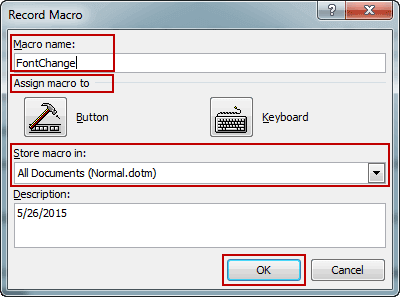
<p style="text-align: justify;">Có 4 mục trong hộp thoại Record Macro:&nbsp;<strong>Macro name, Assign Macro to, Store Macro in</strong>&nbsp;và&nbsp;<strong>Description</strong>.</p>

<p style="text-align: justify;">Việc đầu tiên là đặt tên cho macro mới. Tên macro được đặt mặc định là Macro1 hoặc Macro2, v.v... Tuy nhiên, nó không mô tả chính xác những gì chúng ta muốn macro thực hiện. Vì vậy, chúng ta nên đặt tên macro cụ thể, thể hiện rõ chức năng của macro. Ví dụ, nếu muốn tạo macro để thay đổi phông chữ trong tài liệu Word, bạn có thể đặt tên là&nbsp;<strong>FontChange</strong>.</p>

<p style="text-align: justify;">Trong phần&nbsp;<strong>Assign Macro to</strong>, bạn có thể chọn&nbsp;<strong>Button</strong>&nbsp;hoặc&nbsp;<strong>Keyboard</strong>&nbsp;để ghi và chạy macro.</p>

<p style="text-align: justify;">Lưu macro trong cho biết macro sẽ áp dụng cho tài liệu Word nào. Khi bạn chọn&nbsp;<strong>All Documents (Normal.dotm)</strong>, macro bạn sắp ghi sẽ khả dụng cho tất cả các tài liệu Word mới được tạo trong tương lai. Khi bạn chọn&nbsp;<strong>MS Word (document)</strong>, macro đó sẽ chỉ được sử dụng trong tài liệu Word này.</p>

<p style="text-align: justify;">Trong phần&nbsp;<strong>Description</strong>, bạn có thể tự do đặt bất cứ điều gì mình muốn. Vì vậy, nếu có điều gì đó bạn không thể mô tả macro trong các phần khác, hãy viết chúng vào phần này.</p>

<p style="text-align: justify;"><strong>Bước 3</strong>: Nhấp vào&nbsp;<strong>OK</strong>&nbsp;trong hộp thoại Record Macro để bắt đầu ghi macro.</p>

<p style="text-align: justify;"><strong>Bước 4</strong>: Khi quay lại tài liệu Word, bạn sẽ thấy con trỏ chuột thay đổi.</p>

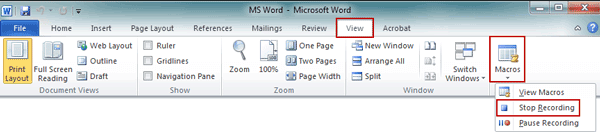
<p style="text-align: justify;"><strong>Mẹo</strong>: Nếu bạn đã chọn&nbsp;<strong>Button</strong>&nbsp;trong mục&nbsp;<strong>Assign Macro to</strong>&nbsp;ở bước 2, hãy nhấp vào&nbsp;<strong>View</strong>&nbsp;và trỏ đến mũi tên xuống&nbsp;<strong>Macros</strong>, bạn sẽ thấy các tùy chọn&nbsp;<strong>Stop Recording</strong>&nbsp;và&nbsp;<strong>Pause Recording</strong>. Macro đang được ghi có thể dễ dàng dừng hoặc tạm dừng bằng các tùy chọn này.</p>

<p style="text-align: justify;"><strong>Bước 5</strong>: Sau khi hoàn tất việc bạn muốn ghi, hãy nhấp vào&nbsp;<strong>Stop Recording</strong>. Bây giờ, macro cho tài liệu Word 2010 đã được tạo thành công.</p>

<figure>
<div style="text-align: justify;"><img alt="Dừng ghi macro trong Word 2010" data-i="2" data-src="https://st.quantrimang.com/photos/image/2025/09/24/tao-va-su-dung-macro-trong-word-3.png" data-was-processed="true" height="135" src="https://st.quantrimang.com/photos/image/2025/09/24/tao-va-su-dung-macro-trong-word-3.png" width="600" /></div>

<figcaption>
<div style="text-align: justify;">Dừng ghi macro trong Word 2010</div>
</figcaption>
</figure>

<p style="text-align: justify;">Nếu đã áp dụng macro cho tất cả các tài liệu, bây giờ, bạn có thể chạy macro và áp dụng nó cho các tài liệu khác trong Word 2010.</p>

<h2 style="text-align: justify;">Cách chạy Macro trong tài liệu Word 2010 mới</h2>

<p style="text-align: justify;"><strong>Bước 1</strong>: Mở tài liệu Word mà bạn muốn thực hiện thao tác nào đó với macro trên tài liệu đó một cách nhanh chóng.</p>

<p style="text-align: justify;"><strong>Bước 2</strong>: Nhấp vào&nbsp;<strong>View &gt; Macros</strong>.</p>

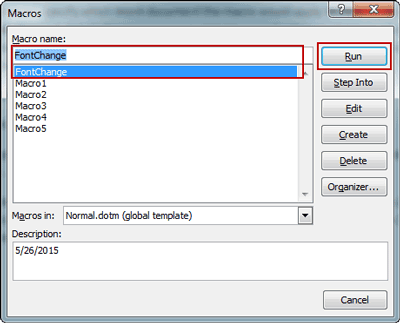
<p style="text-align: justify;"><strong>Bước 3</strong>: Hộp thoại&nbsp;<strong>Macros</strong>&nbsp;xuất hiện và một số macro khả dụng được liệt kê trong hộp thoại.</p>

<figure>
<div style="text-align: justify;"><img alt="Chọn macro trong Word 2010 để chạy" data-i="3" data-src="https://st.quantrimang.com/photos/image/2025/09/24/tao-va-su-dung-macro-trong-word-4.png" data-was-processed="true" height="323" src="https://st.quantrimang.com/photos/image/2025/09/24/tao-va-su-dung-macro-trong-word-4.png" width="400" /></div>

<figcaption>
<div style="text-align: justify;">Chọn macro trong Word 2010 để chạy</div>
</figcaption>
</figure>

<p style="text-align: justify;"><strong>Bước 4</strong>: Chọn phần tài liệu Word bạn muốn áp dụng macro và chọn macro phù hợp trong hộp thoại Macros. Sau đó, nhấp vào nút&nbsp;<strong>Run</strong>&nbsp;ở góc trên bên phải.</p>

<p style="text-align: justify;"><strong>Mẹo</strong>: Nếu macro có sẵn cho toàn bộ tài liệu Word, bạn không cần chỉ định bất kỳ phần nào của tài liệu Word trước khi chạy macro.</p>

<p style="text-align: justify;">Cuối cùng, còn một điều nữa cần lưu ý. Nếu macro đã được áp dụng cho template Word và bạn tạo tài liệu mới với template normal.dotx, thì việc chạy macro này trong tài liệu mới là không cần thiết.</p>
		</div>
				<div id="author">
						<p>
				<strong>Nguồn tin:</strong>
				Quantrimang.com:
			</p>
		</div>
	</div>
	<div id="footer" class="clearfix">
		<div id="url">
			<strong>URL của bản tin này: </strong><a href="https://www.nguoicodonvn2008.info/vi/news/savefile/kien-thuc-may-tinh/tao-va-su-dung-cac-macro-tu-dong-trong-word-2010-11224.html" title="Tạo và sử dụng các macro tự động trong Word 2010">https://www.nguoicodonvn2008.info/vi/news/savefile/kien-thuc-may-tinh/tao-va-su-dung-cac-macro-tu-dong-trong-word-2010-11224.html</a>

		</div>
		<div class="clear"></div>
		<div class="copyright">
			&copy; .&#x3A; Nguoicodonvn2008.info - Cõi lòng người cô đơn &#x3A;.
		</div>
		<div id="contact">
			<a href="mailto:admin@nguoicodonvn2008.info">admin@nguoicodonvn2008.info</a>
		</div>
	</div>
</div>
        <div id="timeoutsess" class="chromeframe">
            Bạn đã không sử dụng Site, <a onclick="timeoutsesscancel();" href="https://www.nguoicodonvn2008.info/#">Bấm vào đây để duy trì trạng thái đăng nhập</a>. Thời gian chờ: <span id="secField"> 60 </span> giây
        </div>
        <div id="openidResult" class="nv-alert" style="display:none"></div>
        <div id="openidBt" data-result="" data-redirect=""></div>
		</script>
		<div class="car-top">
  <span><img src="https://www.nguoicodonvn2008.info/themes/default/images/car.png" alt=""></span>
</div>
<script src="https://www.nguoicodonvn2008.info/assets/js/jquery/jquery.min.js"></script>
<script>var nv_base_siteurl="/",nv_lang_data="vi",nv_lang_interface="vi",nv_name_variable="nv",nv_fc_variable="op",nv_lang_variable="language",nv_module_name="news",nv_func_name="savefile",nv_is_user=0, nv_my_ofs=-4,nv_my_abbr="EDT",nv_cookie_prefix="nv4c_e856T",nv_check_pass_mstime=1738000,nv_area_admin=0,nv_safemode=0,theme_responsive=0,nv_recaptcha_ver=2,nv_recaptcha_sitekey="",nv_recaptcha_type="image",XSSsanitize=1;</script>
<script src="https://www.nguoicodonvn2008.info/assets/js/language/vi.js"></script>
<script src="https://www.nguoicodonvn2008.info/assets/js/DOMPurify/purify3.js"></script>
<script src="https://www.nguoicodonvn2008.info/assets/js/global.js"></script>
<script src="https://www.nguoicodonvn2008.info/assets/js/site.js"></script>
<script src="https://www.nguoicodonvn2008.info/themes/default/js/news.js"></script>
<script src="https://www.nguoicodonvn2008.info/themes/default/js/main.js"></script>
<script src="https://www.nguoicodonvn2008.info/themes/default/js/custom.js"></script>
<script type="application/ld+json">
        {
            "@context": "https://schema.org",
            "@type": "Organization",
            "url": "https://www.nguoicodonvn2008.info",
            "logo": "https://www.nguoicodonvn2008.info/uploads/angel.gif"
        }
        </script>
<script src="https://www.nguoicodonvn2008.info/themes/default/js/bootstrap.min.js"></script>
<script type="text/javascript">
var $scrolltop = $('.car-top');
$scrolltop.on('click', function () {
    $('html,body').animate({
        scrollTop: 0
    }, 800);
    $(this).addClass("car-run");
    setTimeout(function(){ $scrolltop.removeClass('car-run');}, 1000);
    return false;
});
$(window).on('scroll', function ()
{ 
    if($(window).scrollTop() >= 200)
    {
        $scrolltop.addClass("show");
        $scrolltop.addClass("car-down");
    }
    else
    {
       $scrolltop.removeClass("show");
       setTimeout(function(){ $scrolltop.removeClass('car-down');}, 300);
    }
});
</script>
</body>
</html>