<!DOCTYPE html>
    <html lang="vi" xmlns="http://www.w3.org/1999/xhtml" prefix="og: http://ogp.me/ns#">
    <head>
<title>System Cooling Policy trên Windows là gì? Cách thiết lập ra sao?</title>
<meta name="description" content="System Cooling Policy trên Windows là gì? Cách thiết lập ra sao? - Savefile - Tin Tức -...">
<meta name="author" content=".: Nguoicodonvn2008.info - Cõi lòng người cô đơn :.">
<meta name="copyright" content=".: Nguoicodonvn2008.info - Cõi lòng người cô đơn :. [admin@nguoicodonvn2008.info]">
<meta name="robots" content="index, archive, follow, noodp">
<meta name="googlebot" content="index,archive,follow,noodp">
<meta name="msnbot" content="all,index,follow">
<meta name="generator" content="NukeViet v4.5">
<meta http-equiv="Content-Type" content="text/html; charset=utf-8">
<meta property="og:title" content="System Cooling Policy trên Windows là gì? Cách thiết lập ra sao?">
<meta property="og:type" content="website">
<meta property="og:description" content="Savefile - Tin Tức - https&#x3A;&#x002F;&#x002F;www.nguoicodonvn2008.info&#x002F;vi&#x002F;news&#x002F;savefile&#x002F;kien-thuc-may-tinh&#x002F;system-cooling-policy-tren-windows-la-gi-cach-thiet-lap-ra-sao-6819.html">
<meta property="og:site_name" content=".&#x3A; Nguoicodonvn2008.info - Cõi lòng người cô đơn &#x3A;.">
<meta property="og:url" content="https://www.nguoicodonvn2008.info/vi/news/savefile/kien-thuc-may-tinh/system-cooling-policy-tren-windows-la-gi-cach-thiet-lap-ra-sao-6819.html">
<link rel="shortcut icon" href="https://www.nguoicodonvn2008.info/favicon.ico">
<link rel="canonical" href="https://www.nguoicodonvn2008.info/vi/news/savefile/kien-thuc-may-tinh/system-cooling-policy-tren-windows-la-gi-cach-thiet-lap-ra-sao-6819.html">
<link rel="alternate" href="https://www.nguoicodonvn2008.info/vi/news/rss/" title="Tin Tức" type="application/rss+xml">
<link rel="alternate" href="https://www.nguoicodonvn2008.info/vi/news/rss/karaoke-dual/" title="Tin Tức - Karaoke Dual" type="application/rss+xml">
<link rel="alternate" href="https://www.nguoicodonvn2008.info/vi/news/rss/nhac-tre/" title="Tin Tức - Nhạc trẻ" type="application/rss+xml">
<link rel="alternate" href="https://www.nguoicodonvn2008.info/vi/news/rss/tru-tinh/" title="Tin Tức - Trữ tình" type="application/rss+xml">
<link rel="alternate" href="https://www.nguoicodonvn2008.info/vi/news/rss/nuoc-ngoai/" title="Tin Tức - Nước ngoài" type="application/rss+xml">
<link rel="alternate" href="https://www.nguoicodonvn2008.info/vi/news/rss/remix/" title="Tin Tức - Remix" type="application/rss+xml">
<link rel="alternate" href="https://www.nguoicodonvn2008.info/vi/news/rss/tam-su-tinh-yeu/" title="Tin Tức - Tâm sự tình yêu" type="application/rss+xml">
<link rel="alternate" href="https://www.nguoicodonvn2008.info/vi/news/rss/tho-suu-tam/" title="Tin Tức - Thơ sưu tầm" type="application/rss+xml">
<link rel="alternate" href="https://www.nguoicodonvn2008.info/vi/news/rss/cuoc-song/" title="Tin Tức - Cuộc sống" type="application/rss+xml">
<link rel="alternate" href="https://www.nguoicodonvn2008.info/vi/news/rss/phan-mem/" title="Tin Tức - Phần mềm" type="application/rss+xml">
<link rel="alternate" href="https://www.nguoicodonvn2008.info/vi/news/rss/kien-thuc-may-tinh/" title="Tin Tức - Kiến thức máy tính" type="application/rss+xml">
<link rel="alternate" href="https://www.nguoicodonvn2008.info/vi/news/rss/hoc-tap/" title="Tin Tức - Học tập" type="application/rss+xml">
<link rel="alternate" href="https://www.nguoicodonvn2008.info/vi/news/rss/tai-lieu/" title="Tin Tức - Tài liệu" type="application/rss+xml">
<link rel="alternate" href="https://www.nguoicodonvn2008.info/vi/news/rss/de-thi/" title="Tin Tức - Đề thi" type="application/rss+xml">
<link rel="preload" as="style" href="https://www.nguoicodonvn2008.info/assets/css/font-awesome.min.css" type="text/css">
<link rel="preload" as="style" href="https://www.nguoicodonvn2008.info/themes/default/css/bootstrap.non-responsive.css" type="text/css">
<link rel="preload" as="style" href="https://www.nguoicodonvn2008.info/themes/default/css/style.css" type="text/css">
<link rel="preload" as="style" href="https://www.nguoicodonvn2008.info/themes/default/css/style.non-responsive.css" type="text/css">
<link rel="preload" as="style" href="https://www.nguoicodonvn2008.info/themes/default/css/news.css" type="text/css">
<link rel="preload" as="style" href="https://www.nguoicodonvn2008.info/themes/default/css/custom.css" type="text/css">
<link rel="preload" as="script" href="https://www.nguoicodonvn2008.info/assets/js/jquery/jquery.min.js" type="text/javascript">
<link rel="preload" as="script" href="https://www.nguoicodonvn2008.info/assets/js/language/vi.js" type="text/javascript">
<link rel="preload" as="script" href="https://www.nguoicodonvn2008.info/assets/js/DOMPurify/purify3.js" type="text/javascript">
<link rel="preload" as="script" href="https://www.nguoicodonvn2008.info/assets/js/global.js" type="text/javascript">
<link rel="preload" as="script" href="https://www.nguoicodonvn2008.info/assets/js/site.js" type="text/javascript">
<link rel="preload" as="script" href="https://www.nguoicodonvn2008.info/themes/default/js/news.js" type="text/javascript">
<link rel="preload" as="script" href="https://www.nguoicodonvn2008.info/themes/default/js/main.js" type="text/javascript">
<link rel="preload" as="script" href="https://www.nguoicodonvn2008.info/themes/default/js/custom.js" type="text/javascript">
<link rel="preload" as="script" href="https://www.nguoicodonvn2008.info/themes/default/js/bootstrap.min.js" type="text/javascript">
<link rel="stylesheet" href="https://www.nguoicodonvn2008.info/assets/css/font-awesome.min.css">
<link rel="stylesheet" href="https://www.nguoicodonvn2008.info/themes/default/css/bootstrap.non-responsive.css">
<link rel="stylesheet" href="https://www.nguoicodonvn2008.info/themes/default/css/style.css">
<link rel="stylesheet" href="https://www.nguoicodonvn2008.info/themes/default/css/style.non-responsive.css">
<link rel="StyleSheet" href="https://www.nguoicodonvn2008.info/themes/default/css/news.css">
<link rel="stylesheet" href="https://www.nguoicodonvn2008.info/themes/default/css/custom.css">
<style type="text/css">
	body{background: #fff;}
</style>
    </head>
    <body>
<div id="print">
	<div id="hd_print">
		<h2 class="pull-left">.&#x3A; Nguoicodonvn2008.info - Cõi lòng người cô đơn &#x3A;.</h2>
		<p class="pull-right"><a title=".&#x3A; Nguoicodonvn2008.info - Cõi lòng người cô đơn &#x3A;." href="https://www.nguoicodonvn2008.info/">https://www.nguoicodonvn2008.info</a></p>
	</div>
	<div class="clear"></div>
	<hr />
	<div id="content">
		<h1>System Cooling Policy trên Windows là gì? Cách thiết lập ra sao?</h1>
		<ul class="list-inline">
			<li>Thứ ba - 28/02/2023 23:58</li>
			<li class="hidden-print txtrequired"><em class="fa fa-print">&nbsp;</em><a title="In ra" href="javascript:;" onclick="window.print()">In ra</a></li>
			<li class="hidden-print txtrequired"><em class="fa fa-power-off">&nbsp;</em><a title="Đóng cửa sổ này" href="javascript:;" onclick="window.close()">Đóng cửa sổ này</a></li>
		</ul>
		<div class="clear"></div>
		<div id="hometext">
		</div>
				<div class="imghome">
			<img alt="System Cooling Policy trên Windows là gì? Cách thiết lập ra sao?" src="https://st.quantrimang.com/photos/image/2023/02/27/system-cooling-policy-1.jpg" width="460" class="img-thumbnail" />
		</div>
		<div class="clear"></div>
		<div id="bodytext" class="clearfix">
			<p style="text-align: justify;">Khi máy tính Windows của bạn hoạt động mạnh, cho dù bạn đang sử dụng nó để làm việc hay giải trí,&nbsp;CPU&nbsp;sẽ tạo ra nhiệt. Để giữ mọi thứ mát mẻ, máy tính của bạn cần duy trì sự cân bằng tốt giữa tốc độ quạt và bộ xử lý. Và đó là lúc System Cooling Policy xuất hiện.</p>

<p style="text-align: justify;">Bài viết hôm nay sẽ thảo luận về System Cooling Policy là gì và cách thiết lập nó sao cho phù hợp nhất với PC Windows của bạn.</p>

<h2 style="text-align: justify;">System Cooling Policy Windows là gì?</h2>

<figure>
<div style="text-align: justify;"><img alt="Quạt máy tính" data-i="0" data-src="https://st.quantrimang.com/photos/image/2023/02/27/system-cooling-policy-1.jpg" data-was-processed="true" height="1000" src="https://st.quantrimang.com/photos/image/2023/02/27/system-cooling-policy-1.jpg" width="1500" /></div>

<figcaption>
<div style="text-align: justify;">Quạt máy tính</div>
</figcaption>
</figure>

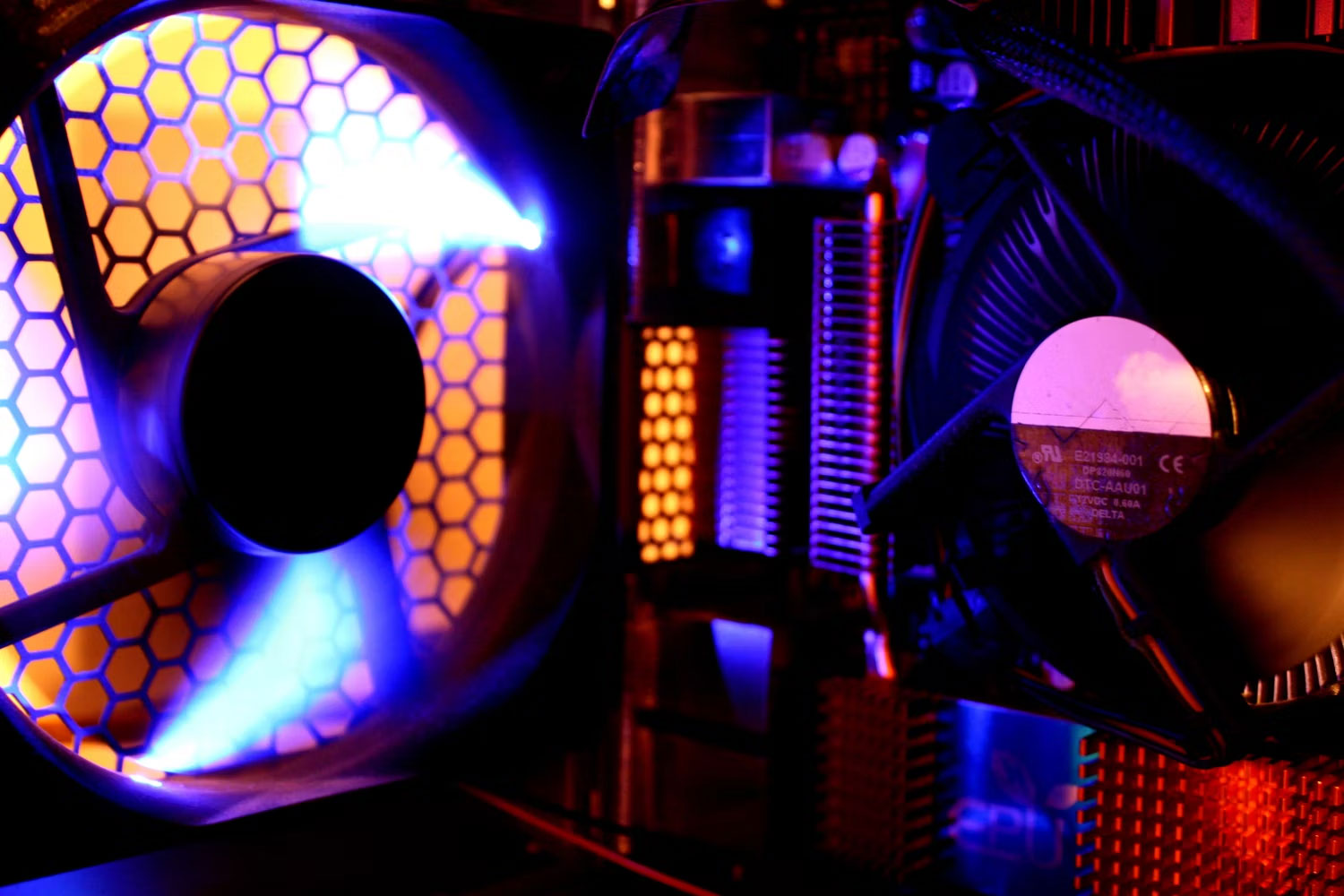
<p style="text-align: justify;">System Cooling Policy là một tập hợp các cấu hình giúp giữ nhiệt độ bên trong máy tính Windows của bạn mát mẻ bằng cách tự động điều chỉnh tốc độ xung nhịp của CPU và tốc độ quạt của PC. Khi máy tính đang làm việc gì đó chuyên sâu về bộ xử lý và bạn nghe thấy tiếng quạt của PC bắt đầu quay to hơn, thì đó là System Cooling Policy đang hoạt động.</p>

<p style="text-align: justify;">Có hai tùy chọn khi cài đặt System Cooling Policy:&nbsp;<strong>Active</strong>&nbsp;và&nbsp;<strong>Passive.</strong>&nbsp;Active Cooling Policy làm cho quạt chạy nhanh hơn trước khi làm chậm bộ xử lý. Trong khi đó, Passive thực hiện ngược lại – làm cho bộ xử lý chậm hơn trước khi tăng tốc quạt.</p>

<p style="text-align: justify;">Policy bạn thiết lập sẽ phụ thuộc vào điều bạn muốn ưu tiên: Hiệu suất hay sức mạnh. Vì vậy, ví dụ, nếu muốn tiết kiệm pin trên laptop, bạn có thể muốn thực hiện Passive Cooling Policy.</p>

<h2 style="text-align: justify;">Cách thiết lập System Cooling Policy trên Windows</h2>

<p style="text-align: justify;">Để thiết lập một system policy, hãy bắt đầu bằng&nbsp;cách mở Control Panel. Nhấn&nbsp;<strong>Win + S&nbsp;</strong>để mở Windows Search, nhập control panel vào hộp văn bản và nhấp vào Control Panel trong kết quả.</p>

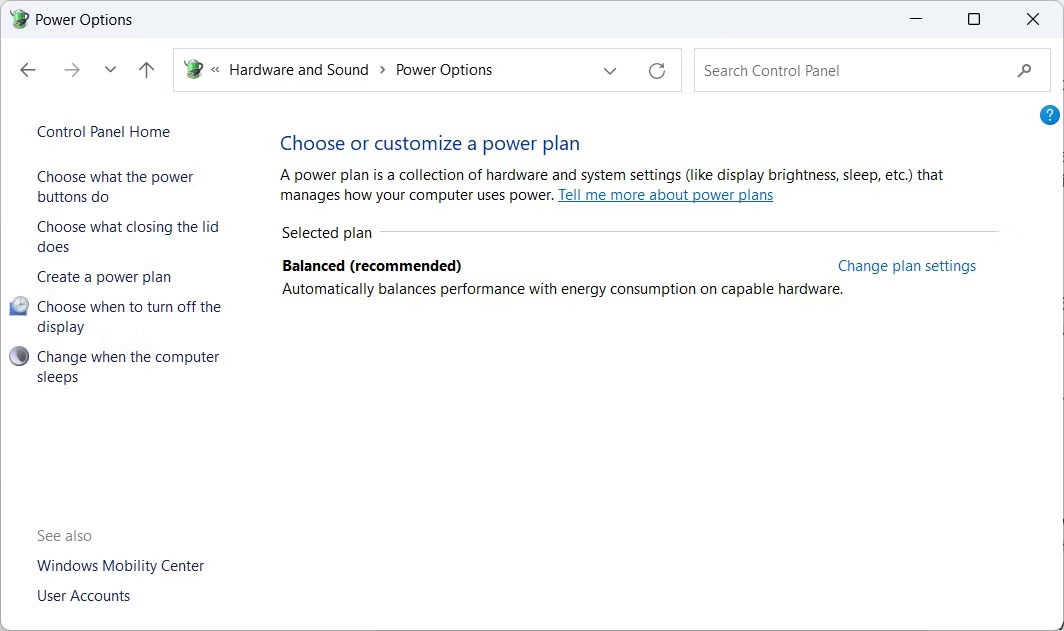
<p style="text-align: justify;">Tiếp theo, đi tới&nbsp;<strong>Hardware and Sound &gt; Power Options</strong>, sau đó nhấp vào&nbsp;<strong>Change plan settings</strong>&nbsp;bên cạnh power plan bạn đang sử dụng.</p>

<figure>
<div style="text-align: justify;"><img alt="Màn hình Power Options trong Control Panel trên Windows" data-i="1" data-src="https://st.quantrimang.com/photos/image/2023/02/27/system-cooling-policy-2.jpg" data-was-processed="true" height="631" src="https://st.quantrimang.com/photos/image/2023/02/27/system-cooling-policy-2.jpg" width="1064" /></div>

<figcaption>
<div style="text-align: justify;">Màn hình Power Options trong Control Panel trên Windows</div>
</figcaption>
</figure>

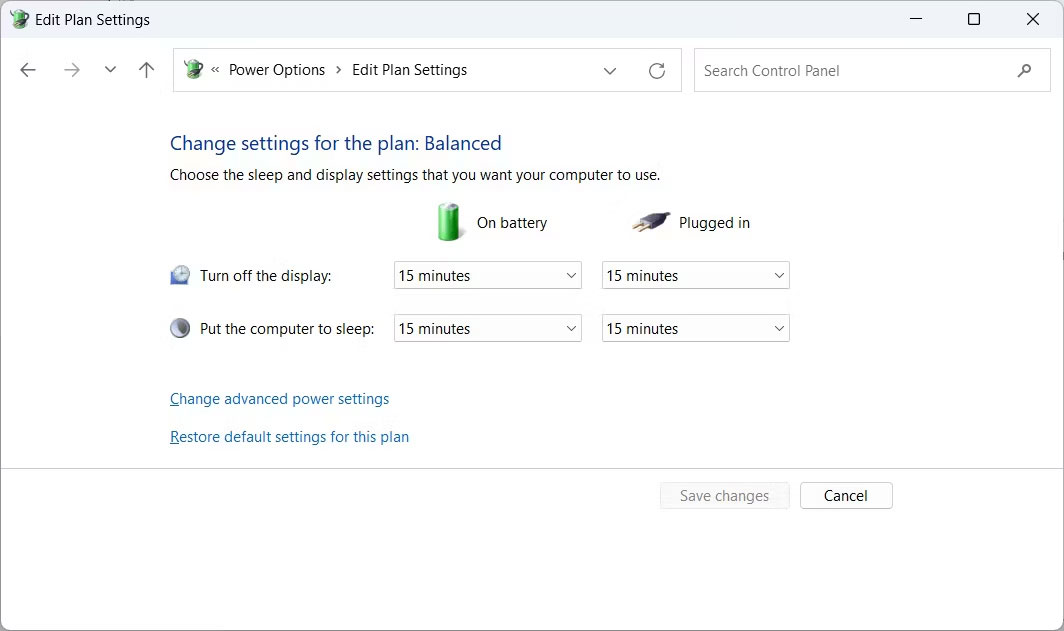
<p style="text-align: justify;">Nhấp vào&nbsp;<strong>Change advanced power settings</strong>&nbsp;để mở menu&nbsp;<strong>Power Options.</strong></p>

<figure>
<div style="text-align: justify;"><img alt="Màn hình Edit Power Plan Settings trong Control Panel trên Windows" data-i="2" data-src="https://st.quantrimang.com/photos/image/2023/02/27/system-cooling-policy-3.jpg" data-was-processed="true" height="631" src="https://st.quantrimang.com/photos/image/2023/02/27/system-cooling-policy-3.jpg" width="1064" /></div>

<figcaption>
<div style="text-align: justify;">Màn hình Edit Power Plan Settings trong Control Panel trên Windows</div>
</figcaption>
</figure>

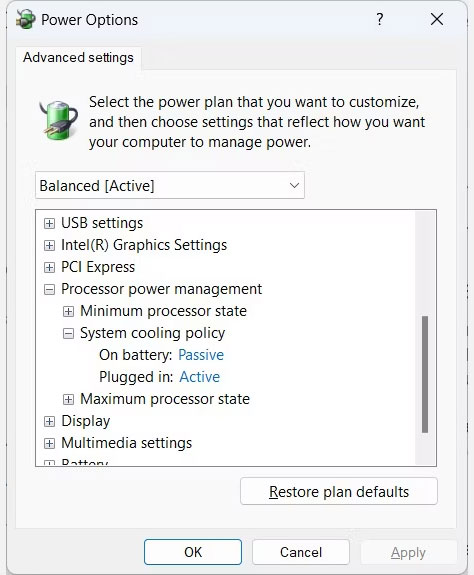
<p style="text-align: justify;">Mở rộng&nbsp;<strong>Processor power management</strong>&nbsp;bằng cách nhấp vào dấu cộng ở bên phải và bạn sẽ thấy System Cooling Policy. Mở rộng cả nó nữa.</p>

<figure>
<div style="text-align: justify;"><img alt="Menu Power Options trên Windows với System Cooling Policy được mở rộng" data-i="3" data-src="https://st.quantrimang.com/photos/image/2023/02/27/system-cooling-policy-4.jpg" data-was-processed="true" height="575" src="https://st.quantrimang.com/photos/image/2023/02/27/system-cooling-policy-4.jpg" width="474" /></div>

<figcaption>
<div style="text-align: justify;">Menu Power Options trên Windows với System Cooling Policy được mở rộng</div>
</figcaption>
</figure>

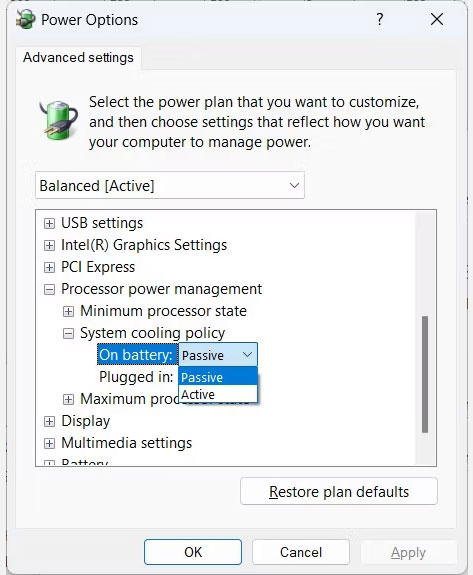
<p style="text-align: justify;">Sau đó, bạn sẽ thấy cách thiết lập các cooling policy – tất nhiên, những gì bạn thấy sẽ phụ thuộc vào việc bạn đang sử dụng máy tính để bàn hay laptop. Để thay đổi chúng, hãy nhấp vào liên kết của cooling policy – vì vậy nếu&nbsp;<strong>On battery</strong>&nbsp;được đặt thành&nbsp;<strong>Passive</strong>, hãy nhấp vào&nbsp;<strong>Passive.</strong>&nbsp;Điều này sẽ biến nó thành một danh sách drop-down, vì vậy hãy nhấp vào đó và chọn cooling policy khác.</p>

<figure>
<div style="text-align: justify;"><img alt="Lựa chọn System Cooling Policy trên Windows" data-i="4" data-src="https://st.quantrimang.com/photos/image/2023/02/27/system-cooling-policy-5.jpg" data-was-processed="true" height="575" src="https://st.quantrimang.com/photos/image/2023/02/27/system-cooling-policy-5.jpg" width="473" /></div>

<figcaption>
<div style="text-align: justify;">Lựa chọn System Cooling Policy trên Windows</div>
</figcaption>
</figure>

<p style="text-align: justify;">Bạn có thể thiết lập cooling policy cho tất cả các power plan của mình. Và nếu bạn đang thay đổi cooling policy để tiết kiệm pin, hãy cân nhắc đọc hướng dẫn của Quantrimang.com về&nbsp;cách tạo power plan tùy chỉnh trên Windows.</p>

<p style="text-align: justify;">Hãy nhớ rằng, Active Cooling Policy ưu tiên hiệu suất, trong khi Passive Cooling Policy ưu tiên mức tiêu thụ pin. Bạn có thể thay đổi policy thường xuyên nếu cần trong cài đặt nguồn nâng cao cho các power plan ưa thích của mình.</p>
		</div>
				<div id="author">
						<p>
				<strong>Nguồn tin:</strong>
				Quantrimang.com
			</p>
		</div>
	</div>
	<div id="footer" class="clearfix">
		<div id="url">
			<strong>URL của bản tin này: </strong><a href="https://www.nguoicodonvn2008.info/vi/news/savefile/kien-thuc-may-tinh/system-cooling-policy-tren-windows-la-gi-cach-thiet-lap-ra-sao-6819.html" title="System Cooling Policy trên Windows là gì? Cách thiết lập ra sao?">https://www.nguoicodonvn2008.info/vi/news/savefile/kien-thuc-may-tinh/system-cooling-policy-tren-windows-la-gi-cach-thiet-lap-ra-sao-6819.html</a>

		</div>
		<div class="clear"></div>
		<div class="copyright">
			&copy; .&#x3A; Nguoicodonvn2008.info - Cõi lòng người cô đơn &#x3A;.
		</div>
		<div id="contact">
			<a href="mailto:admin@nguoicodonvn2008.info">admin@nguoicodonvn2008.info</a>
		</div>
	</div>
</div>
        <div id="timeoutsess" class="chromeframe">
            Bạn đã không sử dụng Site, <a onclick="timeoutsesscancel();" href="https://www.nguoicodonvn2008.info/#">Bấm vào đây để duy trì trạng thái đăng nhập</a>. Thời gian chờ: <span id="secField"> 60 </span> giây
        </div>
        <div id="openidResult" class="nv-alert" style="display:none"></div>
        <div id="openidBt" data-result="" data-redirect=""></div>
		</script>
		<div class="car-top">
  <span><img src="https://www.nguoicodonvn2008.info/themes/default/images/car.png" alt=""></span>
</div>
<script src="https://www.nguoicodonvn2008.info/assets/js/jquery/jquery.min.js"></script>
<script>var nv_base_siteurl="/",nv_lang_data="vi",nv_lang_interface="vi",nv_name_variable="nv",nv_fc_variable="op",nv_lang_variable="language",nv_module_name="news",nv_func_name="savefile",nv_is_user=0, nv_my_ofs=-4,nv_my_abbr="EDT",nv_cookie_prefix="nv4c_e856T",nv_check_pass_mstime=1738000,nv_area_admin=0,nv_safemode=0,theme_responsive=0,nv_recaptcha_ver=2,nv_recaptcha_sitekey="",nv_recaptcha_type="image",XSSsanitize=1;</script>
<script src="https://www.nguoicodonvn2008.info/assets/js/language/vi.js"></script>
<script src="https://www.nguoicodonvn2008.info/assets/js/DOMPurify/purify3.js"></script>
<script src="https://www.nguoicodonvn2008.info/assets/js/global.js"></script>
<script src="https://www.nguoicodonvn2008.info/assets/js/site.js"></script>
<script src="https://www.nguoicodonvn2008.info/themes/default/js/news.js"></script>
<script src="https://www.nguoicodonvn2008.info/themes/default/js/main.js"></script>
<script src="https://www.nguoicodonvn2008.info/themes/default/js/custom.js"></script>
<script type="application/ld+json">
        {
            "@context": "https://schema.org",
            "@type": "Organization",
            "url": "https://www.nguoicodonvn2008.info",
            "logo": "https://www.nguoicodonvn2008.info/uploads/angel.gif"
        }
        </script>
<script src="https://www.nguoicodonvn2008.info/themes/default/js/bootstrap.min.js"></script>
<script type="text/javascript">
var $scrolltop = $('.car-top');
$scrolltop.on('click', function () {
    $('html,body').animate({
        scrollTop: 0
    }, 800);
    $(this).addClass("car-run");
    setTimeout(function(){ $scrolltop.removeClass('car-run');}, 1000);
    return false;
});
$(window).on('scroll', function ()
{ 
    if($(window).scrollTop() >= 200)
    {
        $scrolltop.addClass("show");
        $scrolltop.addClass("car-down");
    }
    else
    {
       $scrolltop.removeClass("show");
       setTimeout(function(){ $scrolltop.removeClass('car-down');}, 300);
    }
});
</script>
</body>
</html>