<!DOCTYPE html>
    <html lang="vi" xmlns="http://www.w3.org/1999/xhtml" prefix="og: http://ogp.me/ns#">
    <head>
<title>Sửa lỗi The print spooler service is not running trên Windows 10, 8.1, 7</title>
<meta name="description" content="Sửa lỗi The print spooler service is not running trên Windows 10, 8.1, 7 - Savefile - Tin Tức -...">
<meta name="author" content=".: Nguoicodonvn2008.info - Cõi lòng người cô đơn :.">
<meta name="copyright" content=".: Nguoicodonvn2008.info - Cõi lòng người cô đơn :. [admin@nguoicodonvn2008.info]">
<meta name="robots" content="index, archive, follow, noodp">
<meta name="googlebot" content="index,archive,follow,noodp">
<meta name="msnbot" content="all,index,follow">
<meta name="generator" content="NukeViet v4.5">
<meta http-equiv="Content-Type" content="text/html; charset=utf-8">
<meta property="og:title" content="Sửa lỗi The print spooler service is not running trên Windows 10, 8.1, 7">
<meta property="og:type" content="website">
<meta property="og:description" content="Savefile - Tin Tức -...">
<meta property="og:site_name" content=".&#x3A; Nguoicodonvn2008.info - Cõi lòng người cô đơn &#x3A;.">
<meta property="og:url" content="https://www.nguoicodonvn2008.info/vi/news/savefile/kien-thuc-may-tinh/sua-loi-the-print-spooler-service-is-not-running-tren-windows-10-8-1-7-2438.html">
<link rel="shortcut icon" href="https://www.nguoicodonvn2008.info/favicon.ico">
<link rel="canonical" href="https://www.nguoicodonvn2008.info/vi/news/savefile/kien-thuc-may-tinh/sua-loi-the-print-spooler-service-is-not-running-tren-windows-10-8-1-7-2438.html">
<link rel="alternate" href="https://www.nguoicodonvn2008.info/vi/news/rss/" title="Tin Tức" type="application/rss+xml">
<link rel="alternate" href="https://www.nguoicodonvn2008.info/vi/news/rss/karaoke-dual/" title="Tin Tức - Karaoke Dual" type="application/rss+xml">
<link rel="alternate" href="https://www.nguoicodonvn2008.info/vi/news/rss/nhac-tre/" title="Tin Tức - Nhạc trẻ" type="application/rss+xml">
<link rel="alternate" href="https://www.nguoicodonvn2008.info/vi/news/rss/tru-tinh/" title="Tin Tức - Trữ tình" type="application/rss+xml">
<link rel="alternate" href="https://www.nguoicodonvn2008.info/vi/news/rss/nuoc-ngoai/" title="Tin Tức - Nước ngoài" type="application/rss+xml">
<link rel="alternate" href="https://www.nguoicodonvn2008.info/vi/news/rss/remix/" title="Tin Tức - Remix" type="application/rss+xml">
<link rel="alternate" href="https://www.nguoicodonvn2008.info/vi/news/rss/tam-su-tinh-yeu/" title="Tin Tức - Tâm sự tình yêu" type="application/rss+xml">
<link rel="alternate" href="https://www.nguoicodonvn2008.info/vi/news/rss/tho-suu-tam/" title="Tin Tức - Thơ sưu tầm" type="application/rss+xml">
<link rel="alternate" href="https://www.nguoicodonvn2008.info/vi/news/rss/cuoc-song/" title="Tin Tức - Cuộc sống" type="application/rss+xml">
<link rel="alternate" href="https://www.nguoicodonvn2008.info/vi/news/rss/phan-mem/" title="Tin Tức - Phần mềm" type="application/rss+xml">
<link rel="alternate" href="https://www.nguoicodonvn2008.info/vi/news/rss/kien-thuc-may-tinh/" title="Tin Tức - Kiến thức máy tính" type="application/rss+xml">
<link rel="alternate" href="https://www.nguoicodonvn2008.info/vi/news/rss/hoc-tap/" title="Tin Tức - Học tập" type="application/rss+xml">
<link rel="alternate" href="https://www.nguoicodonvn2008.info/vi/news/rss/tai-lieu/" title="Tin Tức - Tài liệu" type="application/rss+xml">
<link rel="alternate" href="https://www.nguoicodonvn2008.info/vi/news/rss/de-thi/" title="Tin Tức - Đề thi" type="application/rss+xml">
<link rel="preload" as="style" href="https://www.nguoicodonvn2008.info/assets/css/font-awesome.min.css" type="text/css">
<link rel="preload" as="style" href="https://www.nguoicodonvn2008.info/themes/default/css/bootstrap.non-responsive.css" type="text/css">
<link rel="preload" as="style" href="https://www.nguoicodonvn2008.info/themes/default/css/style.css" type="text/css">
<link rel="preload" as="style" href="https://www.nguoicodonvn2008.info/themes/default/css/style.non-responsive.css" type="text/css">
<link rel="preload" as="style" href="https://www.nguoicodonvn2008.info/themes/default/css/news.css" type="text/css">
<link rel="preload" as="style" href="https://www.nguoicodonvn2008.info/themes/default/css/custom.css" type="text/css">
<link rel="preload" as="script" href="https://www.nguoicodonvn2008.info/assets/js/jquery/jquery.min.js" type="text/javascript">
<link rel="preload" as="script" href="https://www.nguoicodonvn2008.info/assets/js/language/vi.js" type="text/javascript">
<link rel="preload" as="script" href="https://www.nguoicodonvn2008.info/assets/js/DOMPurify/purify3.js" type="text/javascript">
<link rel="preload" as="script" href="https://www.nguoicodonvn2008.info/assets/js/global.js" type="text/javascript">
<link rel="preload" as="script" href="https://www.nguoicodonvn2008.info/assets/js/site.js" type="text/javascript">
<link rel="preload" as="script" href="https://www.nguoicodonvn2008.info/themes/default/js/news.js" type="text/javascript">
<link rel="preload" as="script" href="https://www.nguoicodonvn2008.info/themes/default/js/main.js" type="text/javascript">
<link rel="preload" as="script" href="https://www.nguoicodonvn2008.info/themes/default/js/custom.js" type="text/javascript">
<link rel="preload" as="script" href="https://www.nguoicodonvn2008.info/themes/default/js/bootstrap.min.js" type="text/javascript">
<link rel="stylesheet" href="https://www.nguoicodonvn2008.info/assets/css/font-awesome.min.css">
<link rel="stylesheet" href="https://www.nguoicodonvn2008.info/themes/default/css/bootstrap.non-responsive.css">
<link rel="stylesheet" href="https://www.nguoicodonvn2008.info/themes/default/css/style.css">
<link rel="stylesheet" href="https://www.nguoicodonvn2008.info/themes/default/css/style.non-responsive.css">
<link rel="StyleSheet" href="https://www.nguoicodonvn2008.info/themes/default/css/news.css">
<link rel="stylesheet" href="https://www.nguoicodonvn2008.info/themes/default/css/custom.css">
<style type="text/css">
	body{background: #fff;}
</style>
    </head>
    <body>
<div id="print">
	<div id="hd_print">
		<h2 class="pull-left">.&#x3A; Nguoicodonvn2008.info - Cõi lòng người cô đơn &#x3A;.</h2>
		<p class="pull-right"><a title=".&#x3A; Nguoicodonvn2008.info - Cõi lòng người cô đơn &#x3A;." href="https://www.nguoicodonvn2008.info/">https://www.nguoicodonvn2008.info</a></p>
	</div>
	<div class="clear"></div>
	<hr />
	<div id="content">
		<h1>Sửa lỗi The print spooler service is not running trên Windows 10, 8.1, 7</h1>
		<ul class="list-inline">
			<li>Thứ năm - 30/07/2020 00:57</li>
			<li class="hidden-print txtrequired"><em class="fa fa-print">&nbsp;</em><a title="In ra" href="javascript:;" onclick="window.print()">In ra</a></li>
			<li class="hidden-print txtrequired"><em class="fa fa-power-off">&nbsp;</em><a title="Đóng cửa sổ này" href="javascript:;" onclick="window.close()">Đóng cửa sổ này</a></li>
		</ul>
		<div class="clear"></div>
		<div id="hometext">
		</div>
				<div class="imghome">
			<img alt="Sửa lỗi The print spooler service is not running trên Windows 10, 8.1, 7" src="https://st.quantrimang.com/photos/image/2020/07/29/sua-loi-the-print-spooler-service-is-not-running-3.jpg" width="460" class="img-thumbnail" />
		</div>
		<div class="clear"></div>
		<div id="bodytext" class="clearfix">
			<p style="text-align: justify;">Việc cài đặt máy in với nhiều người sẽ không hề khó, nhất là với những ai biết về công nghệ. Nhưng đôi khi trong quá trình cài đặt, bạn sẽ gặp một số lỗi khiến quá trình cài đặt bị dừng lại. Chẳng hạn như báo lỗi The print spooler service is not running khi chúng ta cài máy in trên Windows 10, 8.1 hoặc 7. Quá trình cài đặt sẽ không thể tiếp tục, ảnh hưởng đến công việc của người dùng. Vậy làm sao có thể khắc phục lỗi The print spooler service is not running khi cài đặt máy in?</p>

<h2 style="text-align: justify;">Xóa các file Print Spooler bị hỏng</h2>

<p style="text-align: justify;">Đôi khi service Print Spooler có thể tiếp tục dừng hoạt động do các file Print Spooler bị hỏng. Bạn có thể xóa các file đó để khắc phục sự cố này.</p>

<p style="text-align: justify;">Nhấn phím&nbsp;<code>Win</code>+<code>R</code>&nbsp;và nhập&nbsp;<strong>services.msc</strong>&nbsp;vào trường tìm kiếm, rồi nhấn&nbsp;<code>Enter</code>.</p>

<p style="text-align: justify;">Trong các service được liệt kê, hãy dừng service&nbsp;<strong>Print Spooler</strong>.</p>

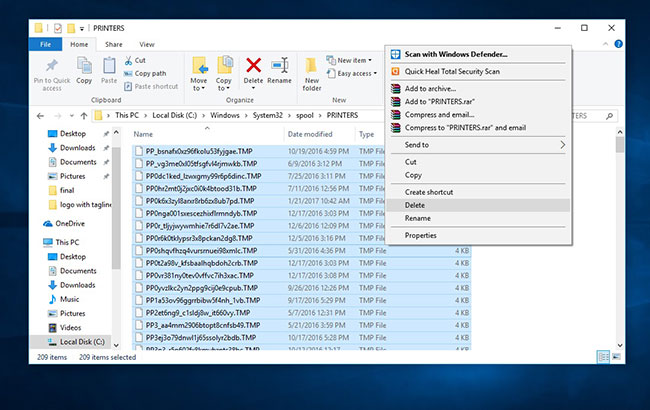
<p style="text-align: justify;">Trong&nbsp;<strong>Windows Explorer</strong>, điều hướng đến thư mục bên dưới và mở&nbsp;<strong>PRINTERS.</strong></p>

<pre id="pre0">
<code>C:\Windows\system32\spool\PRINTERS</code></pre>

<p style="text-align: justify;">Nhấp vào&nbsp;<strong>Continue</strong>&nbsp;hoặc&nbsp;<strong>Yes</strong>&nbsp;(nếu được nhắc bởi UAC) để phê duyệt việc mở thư mục&nbsp;<strong>PRINTERS.</strong></p>

<p style="text-align: justify;">Xóa tất cả các file trong thư mục&nbsp;<strong>PRINTERS</strong>&nbsp;cho đến khi nó trống và sau đó đóng Windows Explorer.</p>

<figure>
<div style="text-align: justify;"><img alt="Xóa tất cả các file trong thư mục PRINTERS" data-i="0" data-src="https://st.quantrimang.com/photos/image/2020/07/29/sua-loi-the-print-spooler-service-is-not-running-1.jpg" data-was-processed="true" height="410" src="https://st.quantrimang.com/photos/image/2020/07/29/sua-loi-the-print-spooler-service-is-not-running-1.jpg" width="650" /></div>

<figcaption>
<div style="text-align: justify;">Xóa tất cả các file trong thư mục PRINTERS</div>
</figcaption>
</figure>

<p style="text-align: justify;"><strong>Lưu ý:</strong>&nbsp;KHÔNG XÓA thư mục PRINTERS. Chỉ xóa nội dung của nó.</p>

<p style="text-align: justify;">Mở&nbsp;<strong>Services</strong>&nbsp;và bắt đầu lại service&nbsp;<strong>Print Spooler.</strong></p>

<p style="text-align: justify;">Bây giờ, hãy kiểm tra xem chức năng in đã chạy bình thường chưa.</p>

<div style="text-align: justify;">&nbsp;</div>

<h2 style="text-align: justify;">Thay đổi service Print Spooler thành Automatic</h2>

<p style="text-align: justify;"><strong>Lưu ý</strong>, bài viết thực hiện với Windows 8.1. Với phiên bản hệ điều hành khác, chúng ta thực hiện tương tự.</p>

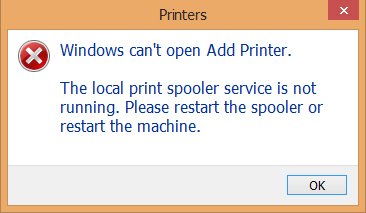
<p style="text-align: justify;"><img alt="The print spooler service is not running" data-i="1" data-src="https://st.quantrimang.com/photos/image/2016/09/14/loi-may-in-thong-bao.jpg" data-was-processed="true" height="213" src="https://st.quantrimang.com/photos/image/2016/09/14/loi-may-in-thong-bao.jpg" title="The print spooler service is not running" width="366" /></p>

<h3 style="text-align: justify;">Bước 1:</h3>

<p style="text-align: justify;">Trước hết, bạn nhấn chọn nút<strong>&nbsp;Search</strong>&nbsp;hoặc nút Start và gõ từ khóa tìm kiếm&nbsp;<strong>services.msc</strong>.</p>

<p style="text-align: justify;"><img alt="The print spooler service is not running" data-i="2" data-src="https://st.quantrimang.com/photos/image/2016/09/14/loi-may-in-services-msc.jpg" data-was-processed="true" height="382" src="https://st.quantrimang.com/photos/image/2016/09/14/loi-may-in-services-msc.jpg" title="Nhập từ khóa services.msc" width="346" /></p>

<div style="text-align: justify;">&nbsp;</div>

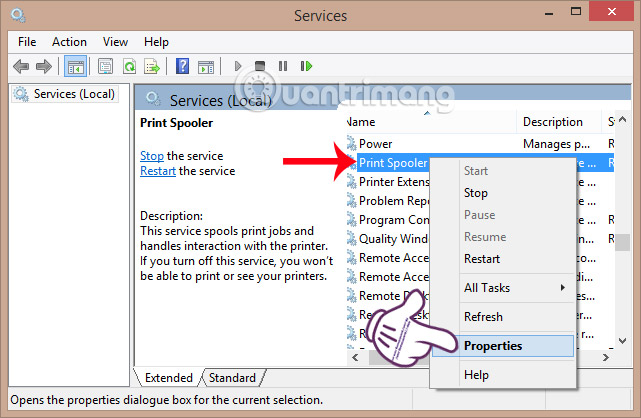
<h3 style="text-align: justify;">Bước 2:</h3>

<p style="text-align: justify;">Tại giao diện cửa sổ&nbsp;<strong>Services</strong>, chúng ta tìm tới mục&nbsp;<strong>Print Spooler</strong>. Sau đó kích chuột phải và chọn&nbsp;<strong>Properties</strong>.</p>

<p style="text-align: justify;"><img alt="The print spooler service is not running" data-i="3" data-src="https://st.quantrimang.com/photos/image/2016/09/14/loi-may-in-Print-Spooler.jpg" data-was-processed="true" height="418" src="https://st.quantrimang.com/photos/image/2016/09/14/loi-may-in-Print-Spooler.jpg" title="Print Spooler " width="641" /></p>

<h3 style="text-align: justify;">Bước 3:</h3>

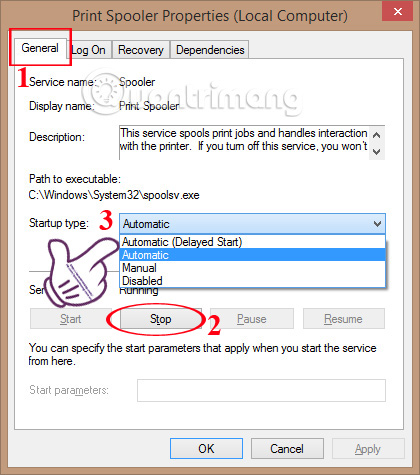
<p style="text-align: justify;">Xuất hiện giao diện&nbsp;<strong>Print Spooler (Local Computer)</strong>. Tại tab&nbsp;<strong>General</strong>, nhấn nút&nbsp;<strong>Stop</strong>&nbsp;ở bên dưới để ngừng chạy. Tiếp theo, mục&nbsp;<strong>Startup type</strong>, chúng ta sẽ chọn chế độ&nbsp;<strong>Automatic</strong>.</p>

<p style="text-align: justify;"><img alt="The print spooler service is not running" data-i="4" data-src="https://st.quantrimang.com/photos/image/2016/09/14/loi-may-in-Startup-type.jpg" data-was-processed="true" height="475" src="https://st.quantrimang.com/photos/image/2016/09/14/loi-may-in-Startup-type.jpg" title="Automatic " width="420" /></p>

<h3 style="text-align: justify;">Bước 4:</h3>

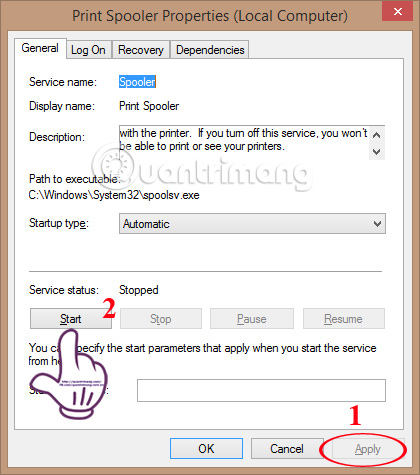
<p style="text-align: justify;">Sau đó nhấn&nbsp;<strong>Apply</strong>&nbsp;để lưu lại và nhấn&nbsp;<strong>Start</strong>&nbsp;để chạy.</p>

<p style="text-align: justify;"><img alt="The print spooler service is not running" data-i="5" data-src="https://st.quantrimang.com/photos/image/2016/09/14/loi-may-in-Start.jpg" data-was-processed="true" height="475" src="https://st.quantrimang.com/photos/image/2016/09/14/loi-may-in-Start.jpg" title="Start " width="420" /></p>

<div style="text-align: justify;">&nbsp;</div>

<h3 style="text-align: justify;">Bước 5:</h3>

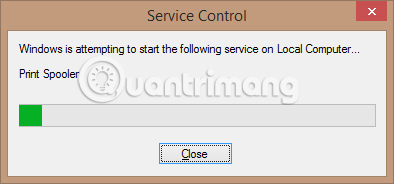
<p style="text-align: justify;">Chúng ta chờ đợi vài giây để Print Spooler khởi động lại là xong.</p>

<p style="text-align: justify;"><img alt="The print spooler service is not running" data-i="6" data-src="https://st.quantrimang.com/photos/image/2016/09/14/loi-may-in-Service-Control.jpg" data-was-processed="true" height="184" src="https://st.quantrimang.com/photos/image/2016/09/14/loi-may-in-Service-Control.jpg" title="Service Control" width="394" /></p>

<h3 style="text-align: justify;">Bước 6:</h3>

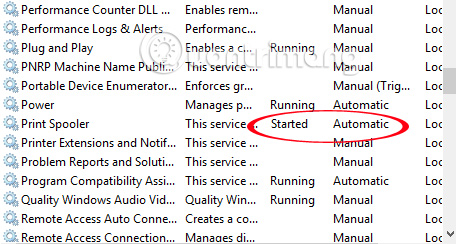
<p style="text-align: justify;">Ngay sau đó, khi bạn quay lại cửa sổ Service, sẽ thấy mục&nbsp;<strong>Print Spooler</strong>&nbsp;ở chế độ&nbsp;<strong>Automatic</strong>&nbsp;là được. Cuối cùng chúng ta khởi động lại máy để thay đổi có hiệu lực.</p>

<p style="text-align: justify;"><img alt="The print spooler service is not running" data-i="7" data-src="https://st.quantrimang.com/photos/image/2016/09/14/loi-may-in-Print-Spooler-Automatic.jpg" data-was-processed="true" height="244" src="https://st.quantrimang.com/photos/image/2016/09/14/loi-may-in-Print-Spooler-Automatic.jpg" title="Print Spooler Automatic " width="456" /></p>

<h2 style="text-align: justify;">Chạy Printer Troubleshooter</h2>

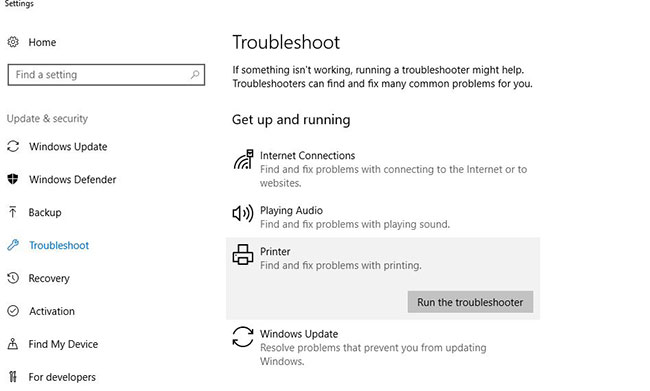
<p style="text-align: justify;">Printer Troubleshooter tích hợp có thể tự động phát hiện và sửa hầu hết các cài đặt hoặc lỗi gây ra sự cố trong khi in. Để chạy Printer Troubleshooter:</p>

<p style="text-align: justify;">Nhập&nbsp;<strong>troubleshoot settings</strong>&nbsp;vào ô tìm kiếm trên menu&nbsp;<strong>Start</strong>&nbsp;và chọn kết quả đầu tiên.</p>

<p style="text-align: justify;">Tìm và chọn máy in, sau đó nhấp vào&nbsp;<strong>Run the Troubleshooter.</strong></p>

<figure>
<div style="text-align: justify;"><img alt="Nhấp vào Run the Troubleshooter" data-i="8" data-src="https://st.quantrimang.com/photos/image/2020/07/29/sua-loi-the-print-spooler-service-is-not-running-2.jpg" data-was-processed="true" height="391" src="https://st.quantrimang.com/photos/image/2020/07/29/sua-loi-the-print-spooler-service-is-not-running-2.jpg" width="650" /></div>

<figcaption>
<div style="text-align: justify;">Nhấp vào Run the Troubleshooter</div>
</figcaption>
</figure>

<p style="text-align: justify;">Các sự cố ngăn Printer Spooler chạy sẽ được phát hiện và cố gắng khắc phục.</p>

<p style="text-align: justify;">Khởi động lại Windows sau khi hoàn tất quá trình xử lý sự cố.</p>

<p style="text-align: justify;">Kiểm tra xem vấn đề đã được giải quyết chưa.</p>

<h2 style="text-align: justify;">Cài đặt lại driver máy in</h2>

<p style="text-align: justify;">Đôi khi driver máy in lỗi thời có thể gây ra các lỗi khác nhau. Và service Print Spooler dừng lại là một trong số đó. Hãy gỡ cài đặt và cài đặt lại driver máy in từ trang web của nhà sản xuất, rồi kiểm tra lại.</p>

<ul>
	<li style="text-align: justify;">Nhấn phím&nbsp;<strong>Win + X</strong>&nbsp;và nhấp vào&nbsp;<strong>Device Manager.</strong></li>
	<li style="text-align: justify;">Mở rộng&nbsp;<strong>Printer drivers.</strong></li>
	<li style="text-align: justify;">Nhấp chuột phải vào driver máy in và chọn&nbsp;<strong>Uninstall.</strong></li>
	<li style="text-align: justify;">Bây giờ, cài đặt driver máy in mới nhất cho Windows 10 từ trang web của nhà sản xuất.</li>
</ul>

<h3 style="text-align: justify;">Cài đặt driver máy in ở chế độ Compatibility</h3>

<p style="text-align: justify;">Sự cố này có thể phát sinh do sự không tương thích của driver máy in với Windows 10. Hãy thử cài đặt driver ở chế độ Compatibility và kiểm tra xem nó có giúp ích không.</p>

<ul>
	<li style="text-align: justify;">Nhấp chuột phải vào driver máy in mà bạn đã tải xuống từ trang web của nhà sản xuất.</li>
	<li style="text-align: justify;">Nhấp vào&nbsp;<strong>Properties.</strong></li>
	<li style="text-align: justify;">Chọn&nbsp;<strong>Run this program in Compatibility mode for</strong>&nbsp;trong tab&nbsp;<strong>Compatibility.</strong></li>
	<li style="text-align: justify;">Chọn&nbsp;<strong>Windows 8.1/8</strong>&nbsp;từ menu drop-down trong&nbsp;<strong>Compatibility</strong></li>
	<li style="text-align: justify;">Nhấp vào&nbsp;<strong>Apply &gt; OK</strong>.</li>
	<li style="text-align: justify;">Cài đặt driver, khởi động lại PC và kiểm tra xem sự cố đã được giải quyết chưa.</li>
</ul>

<h2 style="text-align: justify;">Chỉnh sửa Registry</h2>

<p style="text-align: justify;">Nếu tất cả các phương pháp trên không thể khắc phục sự cố, thì đây là chỉnh sửa Registry đơn giản có thể khắc phục sự cố cho bạn.</p>

<p style="text-align: justify;"><a href="https://quantrimang.com/cach-mo-registry-editor-tren-windows-143522" title="Cách mở Registry Editor trên Windows">Mở Registry Editor</a>.</p>

<p style="text-align: justify;">Sao lưu cơ sở dữ liệu Registry, sau đó điều hướng đến key sau.</p>

<p style="text-align: justify;">- Đối với phiên bản Windows 32-bit:</p>

<pre id="pre1">
<code>HKEY_LOCAL_MACHINE\SYSTEM\CurrentControlSet\Control\Print\Environments\Windows NT x86\Print Processors</code></pre>

<p style="text-align: justify;">- Đối với phiên bản Windows 64-bit:</p>

<pre id="pre2">
<code>HKEY_LOCAL_MACHINE\SYSTEM\CurrentControlSet\Control\Print\Environments\Windows x64\Print Processors</code></pre>

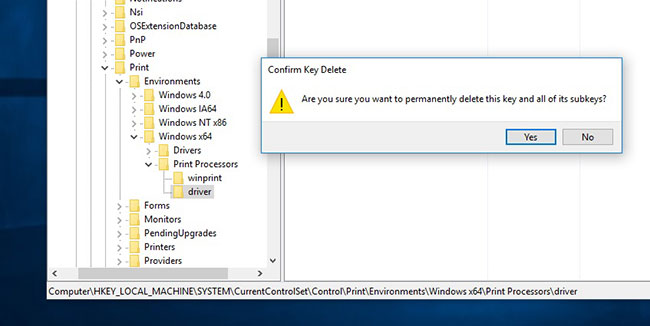
<p style="text-align: justify;">Xóa tất cả các key trừ&nbsp;<strong>winprint.</strong></p>

<figure>
<div style="text-align: justify;"><img alt="Xóa tất cả các key trừ winprint" data-i="9" data-src="https://st.quantrimang.com/photos/image/2020/07/29/sua-loi-the-print-spooler-service-is-not-running-3.jpg" data-was-processed="true" height="326" src="https://st.quantrimang.com/photos/image/2020/07/29/sua-loi-the-print-spooler-service-is-not-running-3.jpg" width="650" /></div>

<figcaption>
<div style="text-align: justify;">Xóa tất cả các key trừ winprint</div>
</figcaption>
</figure>

<p style="text-align: justify;">Chỉ cần nhấp chuột phải vào key bạn muốn xóa và chọn&nbsp;<strong>Delete</strong>&nbsp;từ menu.</p>

<p style="text-align: justify;">Bây giờ, đóng Registry Editor và khởi động lại Windows.</p>

<p style="text-align: justify;">Sau đó, mở&nbsp;<strong>Windows Services</strong>&nbsp;và khởi động lại service&nbsp;<strong>Print Spooler</strong>.</p>

<p style="text-align: justify;">Lần này Print Spooler sẽ bắt đầu và không gặp vấn đề gì.</p>

<p style="text-align: justify;">Trên đây là từng bước giúp bạn khắc phục lỗi khi cài đặt máy in trên máy tính Windows 10,8.1,7, đặc biệt là lỗi thông báo The print spooler service is not running. Hy vọng với cách khắc phục này, chúng ta có thể tiếp tục quá trình cài đặt máy in trên Windows và sử dụng bình thường.</p>

<p style="text-align: justify;">&nbsp;</p>

<p style="text-align: justify;">Chúc các bạn thực hiện thành công!</p>
		</div>
				<div id="author">
						<p>
				<strong>Nguồn tin:</strong>
				Quantrimang.com
			</p>
		</div>
	</div>
	<div id="footer" class="clearfix">
		<div id="url">
			<strong>URL của bản tin này: </strong><a href="https://www.nguoicodonvn2008.info/vi/news/savefile/kien-thuc-may-tinh/sua-loi-the-print-spooler-service-is-not-running-tren-windows-10-8-1-7-2438.html" title="Sửa lỗi The print spooler service is not running trên Windows 10, 8.1, 7">https://www.nguoicodonvn2008.info/vi/news/savefile/kien-thuc-may-tinh/sua-loi-the-print-spooler-service-is-not-running-tren-windows-10-8-1-7-2438.html</a>

		</div>
		<div class="clear"></div>
		<div class="copyright">
			&copy; .&#x3A; Nguoicodonvn2008.info - Cõi lòng người cô đơn &#x3A;.
		</div>
		<div id="contact">
			<a href="mailto:admin@nguoicodonvn2008.info">admin@nguoicodonvn2008.info</a>
		</div>
	</div>
</div>
        <div id="timeoutsess" class="chromeframe">
            Bạn đã không sử dụng Site, <a onclick="timeoutsesscancel();" href="https://www.nguoicodonvn2008.info/#">Bấm vào đây để duy trì trạng thái đăng nhập</a>. Thời gian chờ: <span id="secField"> 60 </span> giây
        </div>
        <div id="openidResult" class="nv-alert" style="display:none"></div>
        <div id="openidBt" data-result="" data-redirect=""></div>
		</script>
		<div class="car-top">
  <span><img src="https://www.nguoicodonvn2008.info/themes/default/images/car.png" alt=""></span>
</div>
<script src="https://www.nguoicodonvn2008.info/assets/js/jquery/jquery.min.js"></script>
<script>var nv_base_siteurl="/",nv_lang_data="vi",nv_lang_interface="vi",nv_name_variable="nv",nv_fc_variable="op",nv_lang_variable="language",nv_module_name="news",nv_func_name="savefile",nv_is_user=0, nv_my_ofs=-4,nv_my_abbr="EDT",nv_cookie_prefix="nv4c_e856T",nv_check_pass_mstime=1738000,nv_area_admin=0,nv_safemode=0,theme_responsive=0,nv_recaptcha_ver=2,nv_recaptcha_sitekey="",nv_recaptcha_type="image",XSSsanitize=1;</script>
<script src="https://www.nguoicodonvn2008.info/assets/js/language/vi.js"></script>
<script src="https://www.nguoicodonvn2008.info/assets/js/DOMPurify/purify3.js"></script>
<script src="https://www.nguoicodonvn2008.info/assets/js/global.js"></script>
<script src="https://www.nguoicodonvn2008.info/assets/js/site.js"></script>
<script src="https://www.nguoicodonvn2008.info/themes/default/js/news.js"></script>
<script src="https://www.nguoicodonvn2008.info/themes/default/js/main.js"></script>
<script src="https://www.nguoicodonvn2008.info/themes/default/js/custom.js"></script>
<script type="application/ld+json">
        {
            "@context": "https://schema.org",
            "@type": "Organization",
            "url": "https://www.nguoicodonvn2008.info",
            "logo": "https://www.nguoicodonvn2008.info/uploads/angel.gif"
        }
        </script>
<script src="https://www.nguoicodonvn2008.info/themes/default/js/bootstrap.min.js"></script>
<script type="text/javascript">
var $scrolltop = $('.car-top');
$scrolltop.on('click', function () {
    $('html,body').animate({
        scrollTop: 0
    }, 800);
    $(this).addClass("car-run");
    setTimeout(function(){ $scrolltop.removeClass('car-run');}, 1000);
    return false;
});
$(window).on('scroll', function ()
{ 
    if($(window).scrollTop() >= 200)
    {
        $scrolltop.addClass("show");
        $scrolltop.addClass("car-down");
    }
    else
    {
       $scrolltop.removeClass("show");
       setTimeout(function(){ $scrolltop.removeClass('car-down');}, 300);
    }
});
</script>
</body>
</html>