<!DOCTYPE html>
    <html lang="vi" xmlns="http://www.w3.org/1999/xhtml" prefix="og: http://ogp.me/ns#">
    <head>
<title>Sửa lỗi OBS Studio không thể ghi âm trên Windows 11</title>
<meta name="description" content="Sửa lỗi OBS Studio không thể ghi âm trên Windows 11 - Savefile - Tin Tức -...">
<meta name="author" content=".: Nguoicodonvn2008.info - Cõi lòng người cô đơn :.">
<meta name="copyright" content=".: Nguoicodonvn2008.info - Cõi lòng người cô đơn :. [admin@nguoicodonvn2008.info]">
<meta name="robots" content="index, archive, follow, noodp">
<meta name="googlebot" content="index,archive,follow,noodp">
<meta name="msnbot" content="all,index,follow">
<meta name="generator" content="NukeViet v4.5">
<meta http-equiv="Content-Type" content="text/html; charset=utf-8">
<meta property="og:title" content="Sửa lỗi OBS Studio không thể ghi âm trên Windows 11">
<meta property="og:type" content="website">
<meta property="og:description" content="Savefile - Tin Tức - https&#x3A;&#x002F;&#x002F;www.nguoicodonvn2008.info&#x002F;vi&#x002F;news&#x002F;savefile&#x002F;kien-thuc-may-tinh&#x002F;sua-loi-obs-studio-khong-the-ghi-am-tren-windows-11-6661.html">
<meta property="og:site_name" content=".&#x3A; Nguoicodonvn2008.info - Cõi lòng người cô đơn &#x3A;.">
<meta property="og:url" content="https://www.nguoicodonvn2008.info/vi/news/savefile/kien-thuc-may-tinh/sua-loi-obs-studio-khong-the-ghi-am-tren-windows-11-6661.html">
<link rel="shortcut icon" href="https://www.nguoicodonvn2008.info/favicon.ico">
<link rel="canonical" href="https://www.nguoicodonvn2008.info/vi/news/savefile/kien-thuc-may-tinh/sua-loi-obs-studio-khong-the-ghi-am-tren-windows-11-6661.html">
<link rel="alternate" href="https://www.nguoicodonvn2008.info/vi/news/rss/" title="Tin Tức" type="application/rss+xml">
<link rel="alternate" href="https://www.nguoicodonvn2008.info/vi/news/rss/karaoke-dual/" title="Tin Tức - Karaoke Dual" type="application/rss+xml">
<link rel="alternate" href="https://www.nguoicodonvn2008.info/vi/news/rss/nhac-tre/" title="Tin Tức - Nhạc trẻ" type="application/rss+xml">
<link rel="alternate" href="https://www.nguoicodonvn2008.info/vi/news/rss/tru-tinh/" title="Tin Tức - Trữ tình" type="application/rss+xml">
<link rel="alternate" href="https://www.nguoicodonvn2008.info/vi/news/rss/nuoc-ngoai/" title="Tin Tức - Nước ngoài" type="application/rss+xml">
<link rel="alternate" href="https://www.nguoicodonvn2008.info/vi/news/rss/remix/" title="Tin Tức - Remix" type="application/rss+xml">
<link rel="alternate" href="https://www.nguoicodonvn2008.info/vi/news/rss/tam-su-tinh-yeu/" title="Tin Tức - Tâm sự tình yêu" type="application/rss+xml">
<link rel="alternate" href="https://www.nguoicodonvn2008.info/vi/news/rss/tho-suu-tam/" title="Tin Tức - Thơ sưu tầm" type="application/rss+xml">
<link rel="alternate" href="https://www.nguoicodonvn2008.info/vi/news/rss/cuoc-song/" title="Tin Tức - Cuộc sống" type="application/rss+xml">
<link rel="alternate" href="https://www.nguoicodonvn2008.info/vi/news/rss/phan-mem/" title="Tin Tức - Phần mềm" type="application/rss+xml">
<link rel="alternate" href="https://www.nguoicodonvn2008.info/vi/news/rss/kien-thuc-may-tinh/" title="Tin Tức - Kiến thức máy tính" type="application/rss+xml">
<link rel="alternate" href="https://www.nguoicodonvn2008.info/vi/news/rss/hoc-tap/" title="Tin Tức - Học tập" type="application/rss+xml">
<link rel="alternate" href="https://www.nguoicodonvn2008.info/vi/news/rss/tai-lieu/" title="Tin Tức - Tài liệu" type="application/rss+xml">
<link rel="alternate" href="https://www.nguoicodonvn2008.info/vi/news/rss/de-thi/" title="Tin Tức - Đề thi" type="application/rss+xml">
<link rel="preload" as="style" href="https://www.nguoicodonvn2008.info/assets/css/font-awesome.min.css" type="text/css">
<link rel="preload" as="style" href="https://www.nguoicodonvn2008.info/themes/default/css/bootstrap.non-responsive.css" type="text/css">
<link rel="preload" as="style" href="https://www.nguoicodonvn2008.info/themes/default/css/style.css" type="text/css">
<link rel="preload" as="style" href="https://www.nguoicodonvn2008.info/themes/default/css/style.non-responsive.css" type="text/css">
<link rel="preload" as="style" href="https://www.nguoicodonvn2008.info/themes/default/css/news.css" type="text/css">
<link rel="preload" as="style" href="https://www.nguoicodonvn2008.info/themes/default/css/custom.css" type="text/css">
<link rel="preload" as="script" href="https://www.nguoicodonvn2008.info/assets/js/jquery/jquery.min.js" type="text/javascript">
<link rel="preload" as="script" href="https://www.nguoicodonvn2008.info/assets/js/language/vi.js" type="text/javascript">
<link rel="preload" as="script" href="https://www.nguoicodonvn2008.info/assets/js/DOMPurify/purify3.js" type="text/javascript">
<link rel="preload" as="script" href="https://www.nguoicodonvn2008.info/assets/js/global.js" type="text/javascript">
<link rel="preload" as="script" href="https://www.nguoicodonvn2008.info/assets/js/site.js" type="text/javascript">
<link rel="preload" as="script" href="https://www.nguoicodonvn2008.info/themes/default/js/news.js" type="text/javascript">
<link rel="preload" as="script" href="https://www.nguoicodonvn2008.info/themes/default/js/main.js" type="text/javascript">
<link rel="preload" as="script" href="https://www.nguoicodonvn2008.info/themes/default/js/custom.js" type="text/javascript">
<link rel="preload" as="script" href="https://www.nguoicodonvn2008.info/themes/default/js/bootstrap.min.js" type="text/javascript">
<link rel="stylesheet" href="https://www.nguoicodonvn2008.info/assets/css/font-awesome.min.css">
<link rel="stylesheet" href="https://www.nguoicodonvn2008.info/themes/default/css/bootstrap.non-responsive.css">
<link rel="stylesheet" href="https://www.nguoicodonvn2008.info/themes/default/css/style.css">
<link rel="stylesheet" href="https://www.nguoicodonvn2008.info/themes/default/css/style.non-responsive.css">
<link rel="StyleSheet" href="https://www.nguoicodonvn2008.info/themes/default/css/news.css">
<link rel="stylesheet" href="https://www.nguoicodonvn2008.info/themes/default/css/custom.css">
<style type="text/css">
	body{background: #fff;}
</style>
    </head>
    <body>
<div id="print">
	<div id="hd_print">
		<h2 class="pull-left">.&#x3A; Nguoicodonvn2008.info - Cõi lòng người cô đơn &#x3A;.</h2>
		<p class="pull-right"><a title=".&#x3A; Nguoicodonvn2008.info - Cõi lòng người cô đơn &#x3A;." href="https://www.nguoicodonvn2008.info/">https://www.nguoicodonvn2008.info</a></p>
	</div>
	<div class="clear"></div>
	<hr />
	<div id="content">
		<h1>Sửa lỗi OBS Studio không thể ghi âm trên Windows 11</h1>
		<ul class="list-inline">
			<li>Thứ năm - 02/02/2023 22:46</li>
			<li class="hidden-print txtrequired"><em class="fa fa-print">&nbsp;</em><a title="In ra" href="javascript:;" onclick="window.print()">In ra</a></li>
			<li class="hidden-print txtrequired"><em class="fa fa-power-off">&nbsp;</em><a title="Đóng cửa sổ này" href="javascript:;" onclick="window.close()">Đóng cửa sổ này</a></li>
		</ul>
		<div class="clear"></div>
		<div id="hometext">
		</div>
				<div class="imghome">
			<img alt="Sửa lỗi OBS Studio không thể ghi âm trên Windows 11" src="https://st.quantrimang.com/photos/image/2023/01/31/obs-studio-khong-the-ghi-am-12.jpg" width="460" class="img-thumbnail" />
		</div>
		<div class="clear"></div>
		<div id="bodytext" class="clearfix">
			<p style="text-align: justify;">OBS Studio là một ứng dụng miễn phí cho phép bạn ghi lại quá trình chơi game và phát trực tuyến. Tuy nhiên, giống như bất kỳ ứng dụng nào khác, nó có những sai sót riêng. Nhiều người dùng đã báo cáo rằng OBS Studio không ghi được âm thanh trên PC chạy Windows 11.</p>

<p style="text-align: justify;">&nbsp;</p>

<p style="text-align: justify;">May mắn thay, đó là một vấn đề rất phổ biến và có thể nhanh chóng được giải quyết. Dưới đây là tất cả các giải pháp hiệu quả sẽ giúp bạn khắc phục lỗi OBS Studio không thể ghi lại âm thanh.</p>

<h2 style="text-align: justify;">1. Khởi động lại OBS Studio</h2>

<p style="text-align: justify;">Trước khi bắt đầu các bước khắc phục sự cố nâng cao, hãy cân nhắc khởi động lại OBS Studio. Cách tốt nhất là&nbsp;khởi chạy Task Manager&nbsp;và đóng tất cả các tiến trình liên quan đến OBS Studio.</p>

<p style="text-align: justify;">Tiếp theo, khởi chạy lại OBS Studio và kiểm tra xem nó có thể ghi lại âm thanh hay không. Nếu không, đã đến lúc cần một số bước sửa chữa phức tạp hơn.</p>

<h2 style="text-align: justify;">2. Khởi chạy OBS Studio với quyền admin</h2>

<p style="text-align: justify;">Thông thường, các sự cố trong ứng dụng của bên thứ ba xảy ra do thiếu đặc quyền admin. Nó có thể xảy ra ngay cả khi bạn đang sử dụng tài khoản admin trên máy tính của mình.</p>

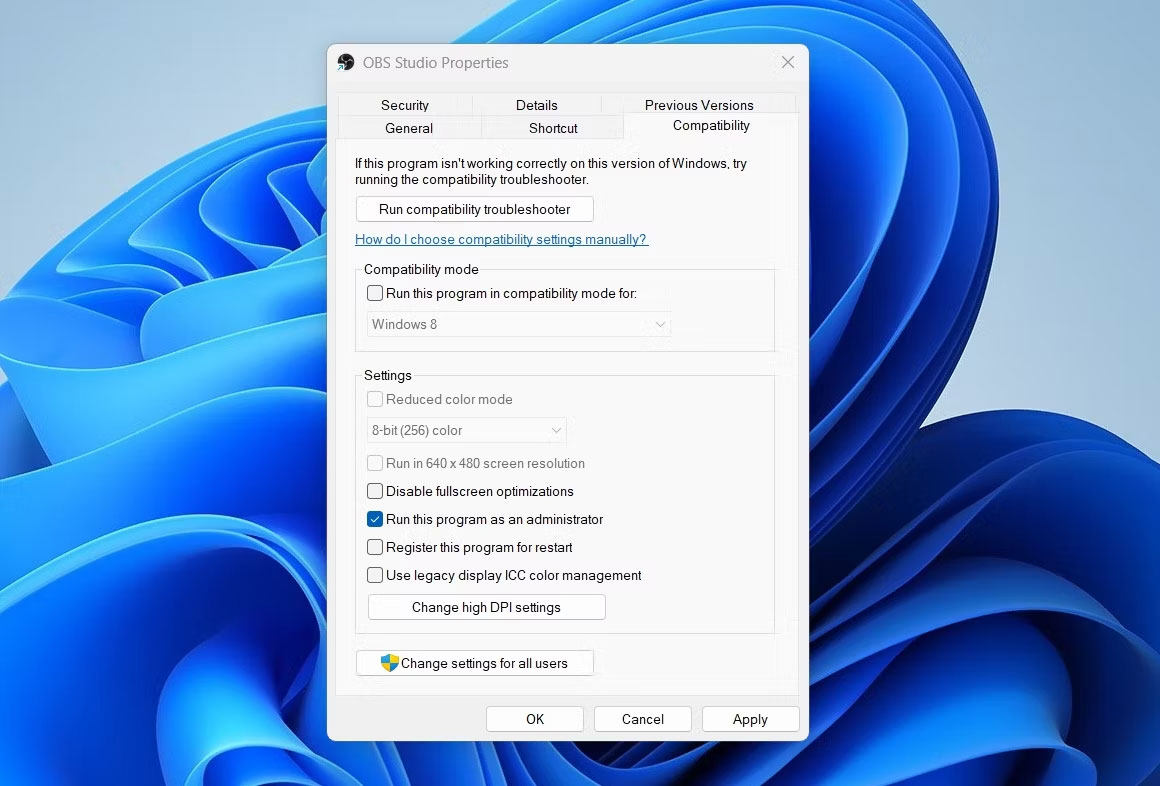
<p style="text-align: justify;">Cách tốt nhất để giải quyết vấn đề này là cấu hình OBS Studio để luôn khởi chạy với quyền admin. Để làm điều đó, hãy thực hiện theo các bước dưới đây:</p>

<p style="text-align: justify;">1. Nhấp chuột phải vào biểu tượng OBS Studio và chọn&nbsp;<strong>Properties</strong>&nbsp;từ menu ngữ cảnh.</p>

<p style="text-align: justify;">2. Trong cửa sổ&nbsp;<strong>Properties</strong>, chuyển sang tab&nbsp;<strong>Compatibility.</strong></p>

<p style="text-align: justify;">3. Tích vào tùy chọn&nbsp;<strong>Run this program as an administrator</strong>.</p>

<figure>
<div style="text-align: justify;"><img alt="Tùy chọn chạy với quyền admin cho OBS Studio" data-i="0" data-src="https://st.quantrimang.com/photos/image/2023/01/31/obs-studio-khong-the-ghi-am-1.jpg" data-was-processed="true" height="786" src="https://st.quantrimang.com/photos/image/2023/01/31/obs-studio-khong-the-ghi-am-1.jpg" width="1160" /></div>

<figcaption>
<div style="text-align: justify;">Tùy chọn chạy với quyền admin cho OBS Studio</div>
</figcaption>
</figure>

<p style="text-align: justify;">4. Nhấp vào&nbsp;<strong>Apply &gt; OK</strong>&nbsp;để lưu cài đặt.</p>

<h2 style="text-align: justify;">3. Bật tiếng OBS Studio trong ứng dụng Settings</h2>

<p style="text-align: justify;">OBS Studio sẽ không ghi được âm thanh nếu bị tắt tiếng trong ứng dụng Settings. Dưới đây là cách kiểm tra và thay đổi cài đặt âm thanh OBS Studio trong ứng dụng Settings.</p>

<p style="text-align: justify;">1.&nbsp;<a href="https://quantrimang.com/cong-nghe/6-cach-truy-cap-nhanh-settings-tren-windows-10-130106" title="Tổng hợp 12 cách truy cập nhanh ứng dụng Settings trên Windows 10">Mở ứng dụng Settings</a>&nbsp;và chọn&nbsp;<strong>System</strong>&nbsp;từ thanh bên trái.</p>

<p style="text-align: justify;">2. Chọn&nbsp;<strong>Sound</strong>&nbsp;từ khung bên phải.</p>

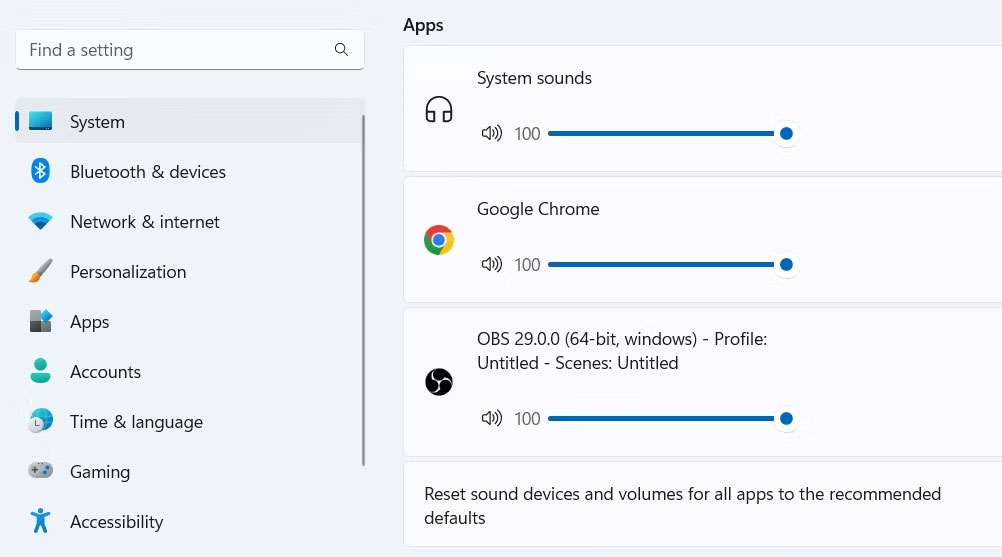
<p style="text-align: justify;">3. Trong phần&nbsp;<strong>Advanced section</strong>, chọn tùy chọn&nbsp;<strong>Volume Mixer</strong>.</p>

<p style="text-align: justify;">4. Trong phần&nbsp;<strong>Apps section</strong>, bật tiếng OBS Studio nếu nó bị tắt tiếng và điều chỉnh thanh trượt cho phù hợp.</p>

<figure>
<div style="text-align: justify;"><img alt="Bật tiếng OBS Studio trong ứng dụng Settings" data-i="1" data-src="https://st.quantrimang.com/photos/image/2023/01/31/obs-studio-khong-the-ghi-am-2.jpg" data-was-processed="true" height="557" src="https://st.quantrimang.com/photos/image/2023/01/31/obs-studio-khong-the-ghi-am-2.jpg" width="1002" /></div>

<figcaption>
<div style="text-align: justify;">Bật tiếng OBS Studio trong ứng dụng Settings</div>
</figcaption>
</figure>

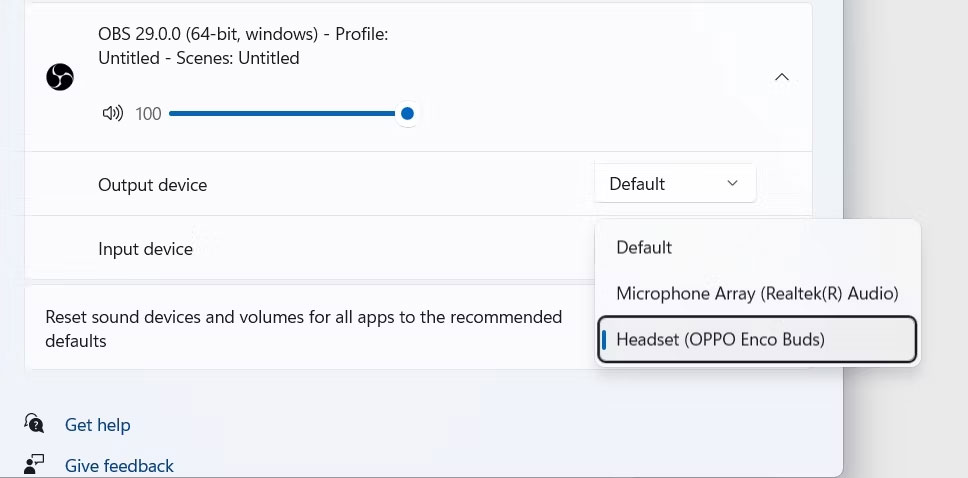
<p style="text-align: justify;">5. Ngoài ra, hãy nhấp vào biểu tượng drop-down bên cạnh OBS Studio, sau đó chọn đúng thiết bị đầu vào.</p>

<figure>
<div style="text-align: justify;"><img alt="Chọn thiết bị âm thanh mặc định cho OBS Studio" data-i="2" data-src="https://st.quantrimang.com/photos/image/2023/01/31/obs-studio-khong-the-ghi-am-3.jpg" data-was-processed="true" height="478" src="https://st.quantrimang.com/photos/image/2023/01/31/obs-studio-khong-the-ghi-am-3.jpg" width="968" /></div>

<figcaption>
<div style="text-align: justify;">Chọn thiết bị âm thanh mặc định cho OBS Studio</div>
</figcaption>
</figure>

<p style="text-align: justify;">Khởi động lại OBS Studio và kiểm tra xem sự cố có tiếp diễn không.</p>

<h2 style="text-align: justify;">4. Sử dụng đúng thiết bị ghi âm</h2>

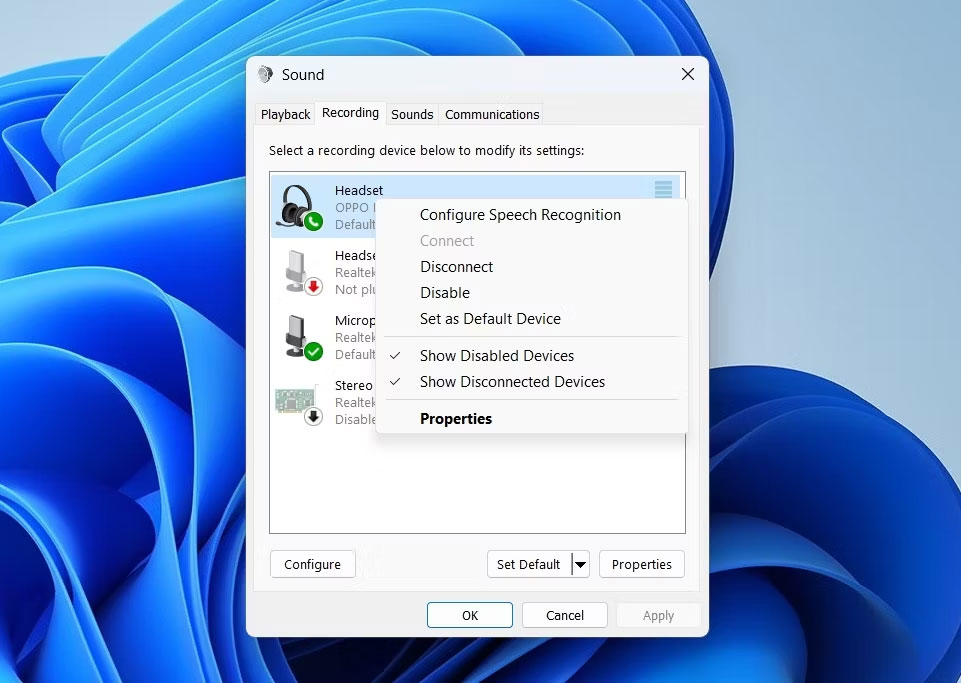
<p style="text-align: justify;">Windows cho phép bạn chọn thủ công các thiết bị ghi và phát. Nhưng nếu đã chọn sai thiết bị ghi âm trong Settings, thì bạn có thể gặp phải sự cố này. Để khắc phục điều này, bạn sẽ phải cấu hình đúng thiết bị làm tùy chọn ghi mặc định. Đây là cách để làm điều đó:</p>

<p style="text-align: justify;">1. Mở ứng dụng&nbsp;<strong>Settings</strong>&nbsp;và đi tới&nbsp;<strong>System &gt; Sound</strong>.</p>

<p style="text-align: justify;">2. Chọn&nbsp;<strong>More sound settings</strong>&nbsp;trong phần&nbsp;<strong>Advanced section</strong>.</p>

<p style="text-align: justify;">3. Chuyển sang tab&nbsp;<strong>Recording.</strong></p>

<p style="text-align: justify;">4. Nhấp chuột phải vào thiết bị ghi chính xác và chọn tùy chọn&nbsp;<strong>Set as Default Device</strong>&nbsp;từ menu ngữ cảnh.</p>

<figure>
<div style="text-align: justify;"><img alt="Đặt làm tùy chọn mặc định trong thuộc tính Sound" data-i="3" data-src="https://st.quantrimang.com/photos/image/2023/01/31/obs-studio-khong-the-ghi-am-4.jpg" data-was-processed="true" height="683" src="https://st.quantrimang.com/photos/image/2023/01/31/obs-studio-khong-the-ghi-am-4.jpg" width="961" /></div>

<figcaption>
<div style="text-align: justify;">Đặt làm tùy chọn mặc định trong thuộc tính Sound</div>
</figcaption>
</figure>

<p style="text-align: justify;">5. Nhấp vào&nbsp;<strong>Apply &gt; OK</strong>.</p>

<h2 style="text-align: justify;">5. Cho phép OBS Studio truy cập micro</h2>

<p style="text-align: justify;">Windows 11 chú trọng đến quyền riêng tư và bảo mật. Hệ điều hành để bạn cho phép hoặc hạn chế các ứng dụng truy cập một số dịch vụ nhất định trên máy tính. Chẳng hạn, bạn có thể hạn chế các ứng dụng sử dụng micro trên máy tính của mình.</p>

<p style="text-align: justify;">Do đó, nếu bạn đã nhầm lẫn hạn chế OBS Studio truy cập micro, thì bạn sẽ gặp phải sự cố âm thanh. Giải pháp ở đây là cho phép OBS Studio truy cập micro. Đây là cách thực hiện:</p>

<p style="text-align: justify;">1. Mở ứng dụng&nbsp;<strong>Settings</strong>&nbsp;và chọn&nbsp;<strong>Privacy &amp; Security</strong>&nbsp;từ thanh bên trái.</p>

<p style="text-align: justify;">2. Trong phần&nbsp;<strong>App permission</strong>, hãy chọn tùy chọn&nbsp;<strong>Microphone.</strong></p>

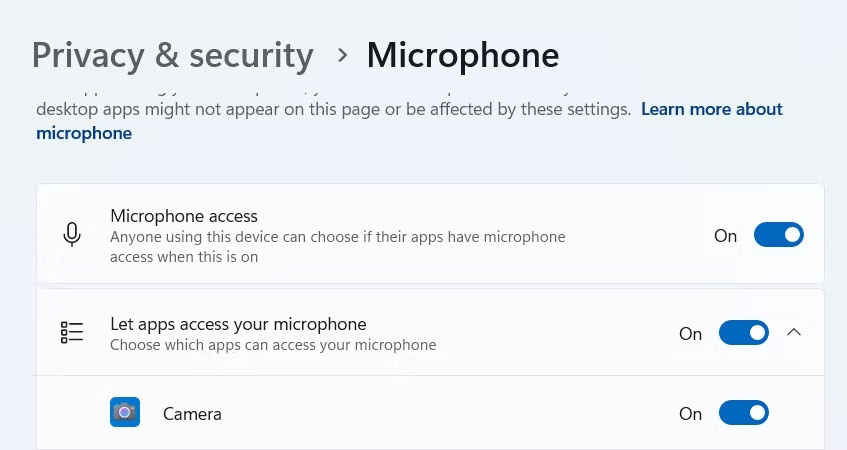
<p style="text-align: justify;">3. Bật nút chuyển đổi bên cạnh tùy chọn&nbsp;<strong>Microphone access</strong>.</p>

<figure>
<div style="text-align: justify;"><img alt="Tùy chọn truy cập micro trong ứng dụng Settings" data-i="4" data-src="https://st.quantrimang.com/photos/image/2023/01/31/obs-studio-khong-the-ghi-am-5.jpg" data-was-processed="true" height="450" src="https://st.quantrimang.com/photos/image/2023/01/31/obs-studio-khong-the-ghi-am-5.jpg" width="847" /></div>

<figcaption>
<div style="text-align: justify;">Tùy chọn truy cập micro trong ứng dụng Settings</div>
</figcaption>
</figure>

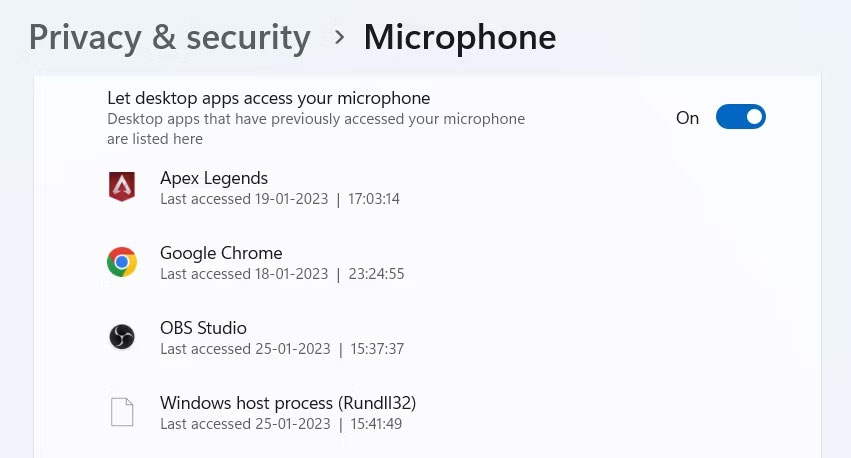
<p style="text-align: justify;">4. Tiếp theo, bật nút chuyển đổi bên cạnh&nbsp;<strong>Let desktop apps to access your microphone</strong>.</p>

<figure>
<div style="text-align: justify;"><img alt="Cho phép các ứng dụng desktop bàn truy cập tùy chọn micro trong ứng dụng Settings" data-i="5" data-src="https://st.quantrimang.com/photos/image/2023/01/31/obs-studio-khong-the-ghi-am-6.jpg" data-was-processed="true" height="458" src="https://st.quantrimang.com/photos/image/2023/01/31/obs-studio-khong-the-ghi-am-6.jpg" width="851" /></div>

<figcaption>
<div style="text-align: justify;">Cho phép các ứng dụng desktop bàn truy cập tùy chọn micro trong ứng dụng Settings</div>
</figcaption>
</figure>

<h2 style="text-align: justify;">6. Thay đổi cài đặt OBS Studio</h2>

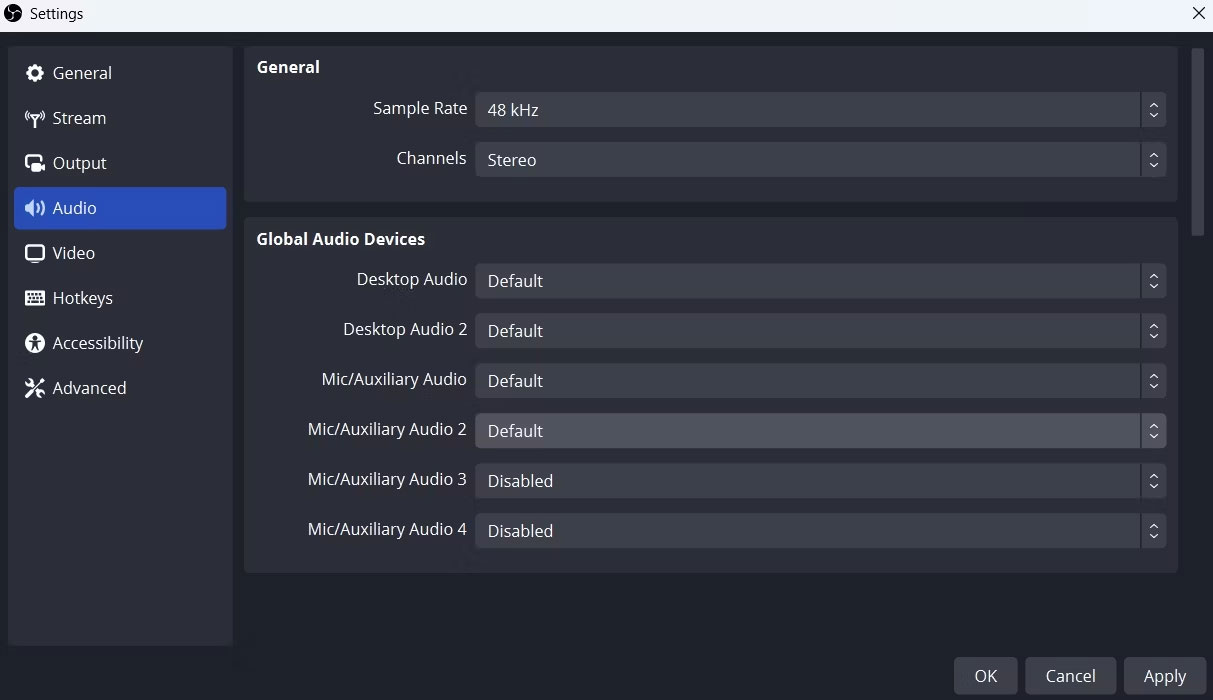
<p style="text-align: justify;">OBS Studio cho phép bạn đặt thiết bị âm thanh theo cách thủ công và điều chỉnh cài đặt của chúng theo sở thích. Tuy nhiên, OBS Studio sẽ không thể ghi âm nếu bạn chọn sai thiết bị âm thanh trong cài đặt của nó.</p>

<p style="text-align: justify;">Vì vậy, hãy đi tới cài đặt âm thanh OBS Studio và chọn đúng thiết bị âm thanh để giải quyết vấn đề. Dưới đây là các bước để làm điều đó:</p>

<p style="text-align: justify;">1. Khởi chạy OBS Studio và chọn&nbsp;<strong>File</strong>&nbsp;từ góc trên cùng bên trái.</p>

<p style="text-align: justify;">2. Chọn&nbsp;<strong>Settings</strong>&nbsp;từ menu ngữ cảnh.</p>

<p style="text-align: justify;">3. Trong cửa sổ&nbsp;<strong>Settings</strong>, chọn&nbsp;<strong>Audio</strong>&nbsp;từ thanh bên trái.</p>

<p style="text-align: justify;">4. Trong phần&nbsp;<strong>Global Audio Devices</strong>, nhấp vào biểu tượng drop-down bên cạnh&nbsp;<strong>Desktop Audio</strong>&nbsp;và&nbsp;<strong>Desktop Audio 2</strong>, rồi chọn&nbsp;<strong>Default</strong>&nbsp;trong cả hai tùy chọn.</p>

<p style="text-align: justify;">5. Tiếp theo, nhấp vào biểu tượng drop-down bên cạnh&nbsp;<strong>Mic/Auxiliary Audio</strong>&nbsp;và&nbsp;<strong>Mic/Auxiliary Audio 2</strong>, rồi chọn&nbsp;<strong>Default</strong>&nbsp;trong cả hai tùy chọn.</p>

<figure>
<div style="text-align: justify;"><img alt="Cài đặt âm thanh của OBS Studio" data-i="6" data-src="https://st.quantrimang.com/photos/image/2023/01/31/obs-studio-khong-the-ghi-am-7.jpg" data-was-processed="true" height="700" src="https://st.quantrimang.com/photos/image/2023/01/31/obs-studio-khong-the-ghi-am-7.jpg" width="1213" /></div>

<figcaption>
<div style="text-align: justify;">Cài đặt âm thanh của OBS Studio</div>
</figcaption>
</figure>

<p style="text-align: justify;">6. Chọn&nbsp;<strong>Apply &gt; OK</strong>&nbsp;để lưu các thay đổi.</p>

<h2 style="text-align: justify;">7. Điều chỉnh cài đặt Audio Mixer</h2>

<p style="text-align: justify;">Giải pháp tiếp theo trong danh sách là điều chỉnh cài đặt Audio Mixer của OBS Studio. Đây là cách thực hiện:</p>

<p style="text-align: justify;">1. Mở OBS Studio.</p>

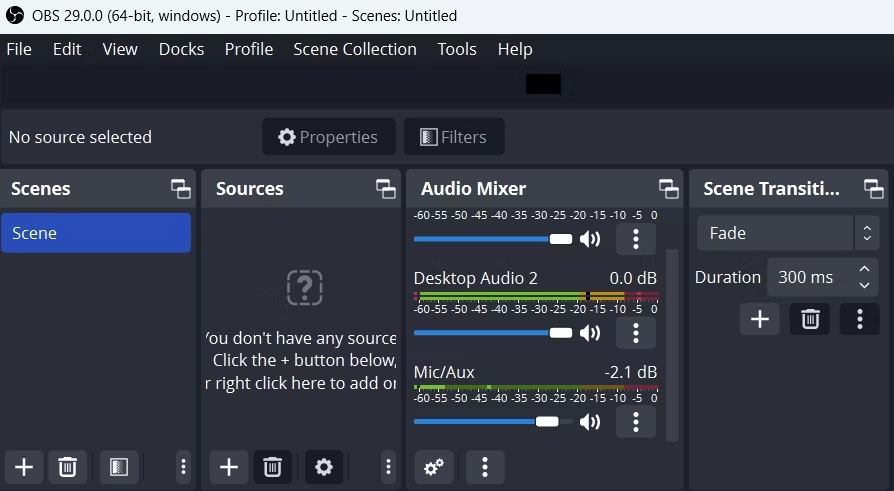
<p style="text-align: justify;">2. Trong phần&nbsp;<strong>Audio Mixer</strong>, điều chỉnh thanh trượt&nbsp;<strong>Mic/Aux</strong>&nbsp;thành&nbsp;<strong>-2.1dB.</strong></p>

<figure>
<div style="text-align: justify;"><img alt="Chỉnh dB trong OBS Studio" data-i="7" data-src="https://st.quantrimang.com/photos/image/2023/01/31/obs-studio-khong-the-ghi-am-8.jpg" data-was-processed="true" height="491" src="https://st.quantrimang.com/photos/image/2023/01/31/obs-studio-khong-the-ghi-am-8.jpg" width="894" /></div>

<figcaption>
<div style="text-align: justify;">Chỉnh dB trong OBS Studio</div>
</figcaption>
</figure>

<p style="text-align: justify;">3. Nhấp vào ba dấu chấm bên cạnh&nbsp;<strong>Mic/Aux</strong>&nbsp;và chọn&nbsp;<strong>Properties.</strong></p>

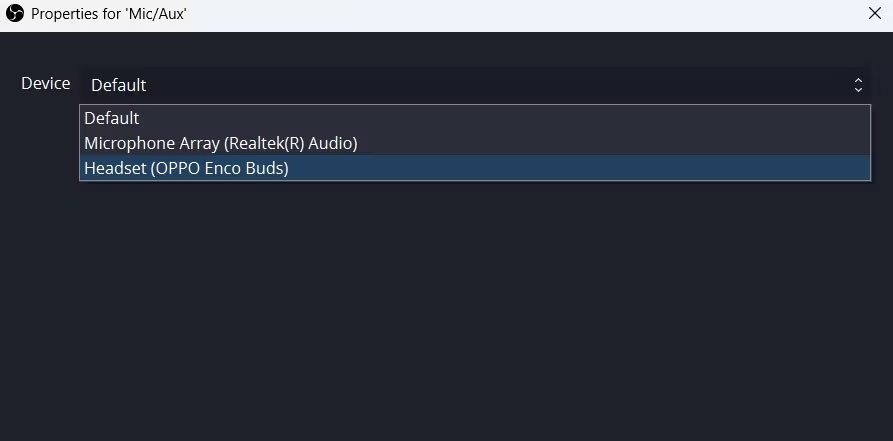
<p style="text-align: justify;">4. Nhấp vào biểu tượng drop-down bên cạnh&nbsp;<strong>Device</strong>, chọn thiết bị ghi âm mặc định và nhấp vào OK.</p>

<figure>
<div style="text-align: justify;"><img alt="Chọn đúng Mic trong OBS Studio" data-i="8" data-src="https://st.quantrimang.com/photos/image/2023/01/31/obs-studio-khong-the-ghi-am-9.jpg" data-was-processed="true" height="441" src="https://st.quantrimang.com/photos/image/2023/01/31/obs-studio-khong-the-ghi-am-9.jpg" width="893" /></div>

<figcaption>
<div style="text-align: justify;">Chọn đúng Mic trong OBS Studio</div>
</figcaption>
</figure>

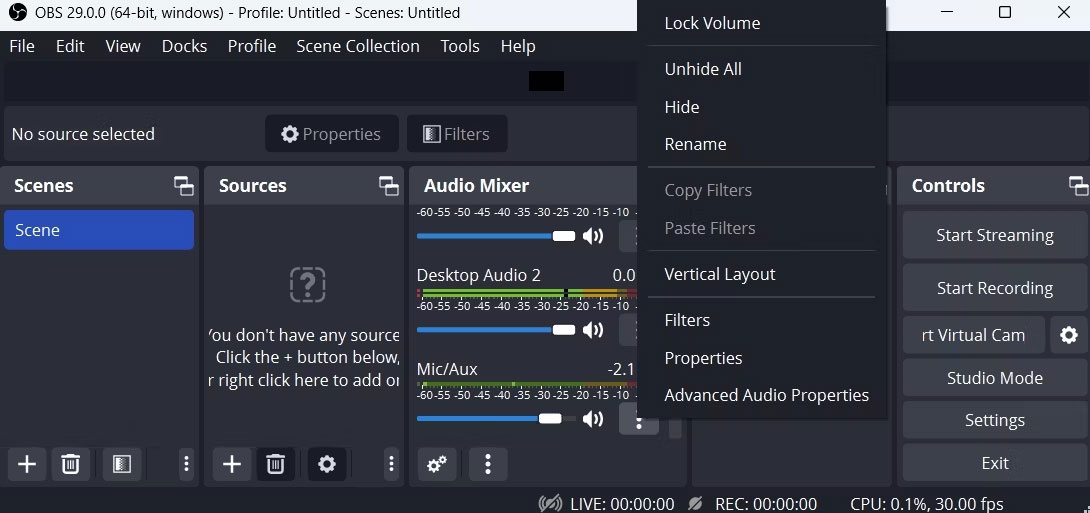
<p style="text-align: justify;">5. Tiếp theo, nhấp lại vào ba dấu chấm bên cạnh&nbsp;<strong>Mic/Aux</strong>&nbsp;và chọn&nbsp;<strong>Advanced Audio Properties</strong>.</p>

<figure>
<div style="text-align: justify;"><img alt="Chọn Advanced Audio Properties trong OBS Studio" data-i="9" data-src="https://st.quantrimang.com/photos/image/2023/01/31/obs-studio-khong-the-ghi-am-10.jpg" data-was-processed="true" height="513" src="https://st.quantrimang.com/photos/image/2023/01/31/obs-studio-khong-the-ghi-am-10.jpg" width="1090" /></div>

<figcaption>
<div style="text-align: justify;">Chọn Advanced Audio Properties trong OBS Studio</div>
</figcaption>
</figure>

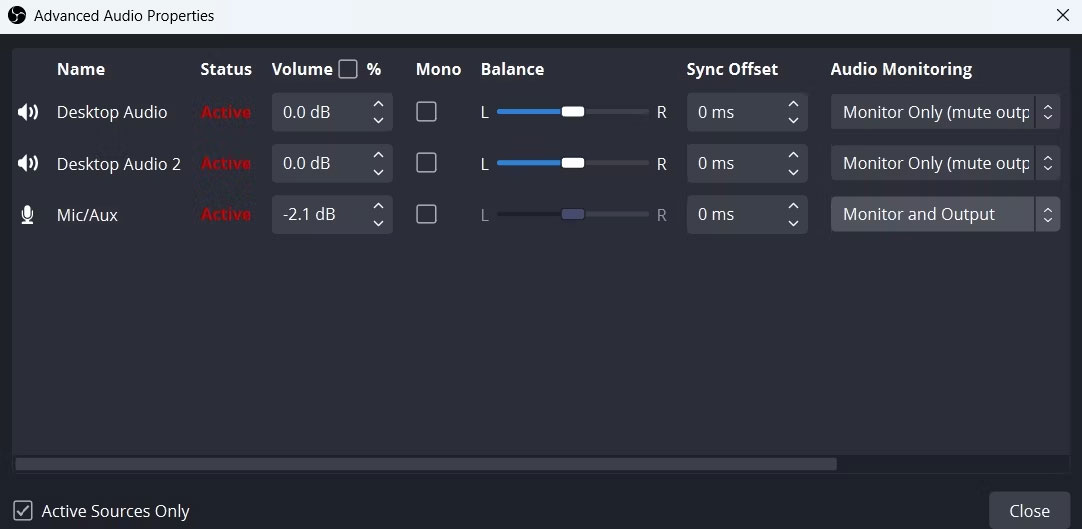
<p style="text-align: justify;">6. Trong tab&nbsp;<strong>Audio Monitoring</strong>, chọn&nbsp;<strong>Monitor and Output</strong>&nbsp;cho&nbsp;<strong>Desktop Audio</strong>&nbsp;và&nbsp;<strong>Monitor Only (mute output)</strong>&nbsp;cho&nbsp;<strong>Mic/Aux</strong>.</p>

<figure>
<div style="text-align: justify;"><img alt="Điều chỉnh thuộc tính nâng cao trong OBS Studio" data-i="10" data-src="https://st.quantrimang.com/photos/image/2023/01/31/obs-studio-khong-the-ghi-am-11.jpg" data-was-processed="true" height="529" src="https://st.quantrimang.com/photos/image/2023/01/31/obs-studio-khong-the-ghi-am-11.jpg" width="1082" /></div>

<figcaption>
<div style="text-align: justify;">Điều chỉnh thuộc tính nâng cao trong OBS Studio</div>
</figcaption>
</figure>

<h2 style="text-align: justify;">8. Tải xuống bản cập nhật driver âm thanh mới nhất</h2>

<p style="text-align: justify;">Driver âm thanh bị hỏng hoặc lỗi thời cũng có thể là lý do chính khiến OBS Studio không thể ghi lại âm thanh. Để khắc phục điều này, bạn sẽ phải cập nhật driver âm thanh trên Windows.</p>

<p style="text-align: justify;">Bạn có thể làm điều đó bằng cách thực hiện theo các bước dưới đây:</p>

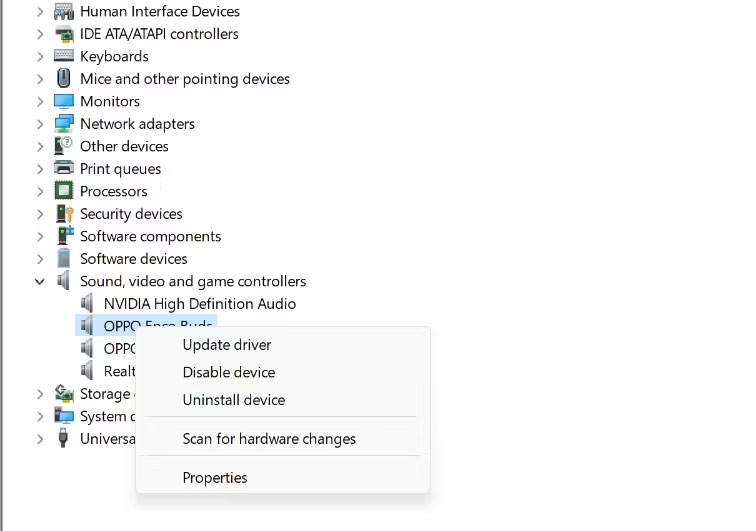
<p style="text-align: justify;">1. Nhấn&nbsp;<strong>Win + X&nbsp;</strong>và chọn&nbsp;<strong>Device Manager</strong>&nbsp;từ danh sách.</p>

<p style="text-align: justify;">2. Bấm đúp vào node&nbsp;<strong>Sound, video, and game controllers</strong>&nbsp;để mở rộng nó.</p>

<p style="text-align: justify;">3. Nhấp chuột phải vào thiết bị ghi âm mặc định và chọn&nbsp;<strong>Update driver</strong>&nbsp;từ menu ngữ cảnh.</p>

<figure>
<div style="text-align: justify;"><img alt="Tùy chọn cập nhật driver trong Device Manager" data-i="11" data-src="https://st.quantrimang.com/photos/image/2023/01/31/obs-studio-khong-the-ghi-am-12.jpg" data-was-processed="true" height="531" src="https://st.quantrimang.com/photos/image/2023/01/31/obs-studio-khong-the-ghi-am-12.jpg" width="756" /></div>

<figcaption>
<div style="text-align: justify;">Tùy chọn cập nhật driver trong Device Manager</div>
</figcaption>
</figure>

<p style="text-align: justify;">4. Chọn tùy chọn<strong>&nbsp;Search automatically for drivers</strong>&nbsp;trong cửa sổ hiện ra.</p>

<p style="text-align: justify;">Tiếp theo, cho phép Windows tìm kiếm và tải xuống mọi bản cập nhật driver có sẵn cho thiết bị ghi âm của bạn.</p>

<h2 style="text-align: justify;">9. Cài đặt lại OBS Studio</h2>

<p style="text-align: justify;">Nếu lỗi vẫn không được giải quyết, thì nghĩa là có gì đó không ổn với file cài đặt OBS Studio đã gây ra sự cố. Giải pháp duy nhất trong trường hợp này là cài đặt lại OBS Studio.</p>
		</div>
				<div id="author">
						<p>
				<strong>Nguồn tin:</strong>
				Quantrimang.com
			</p>
		</div>
	</div>
	<div id="footer" class="clearfix">
		<div id="url">
			<strong>URL của bản tin này: </strong><a href="https://www.nguoicodonvn2008.info/vi/news/savefile/kien-thuc-may-tinh/sua-loi-obs-studio-khong-the-ghi-am-tren-windows-11-6661.html" title="Sửa lỗi OBS Studio không thể ghi âm trên Windows 11">https://www.nguoicodonvn2008.info/vi/news/savefile/kien-thuc-may-tinh/sua-loi-obs-studio-khong-the-ghi-am-tren-windows-11-6661.html</a>

		</div>
		<div class="clear"></div>
		<div class="copyright">
			&copy; .&#x3A; Nguoicodonvn2008.info - Cõi lòng người cô đơn &#x3A;.
		</div>
		<div id="contact">
			<a href="mailto:admin@nguoicodonvn2008.info">admin@nguoicodonvn2008.info</a>
		</div>
	</div>
</div>
        <div id="timeoutsess" class="chromeframe">
            Bạn đã không sử dụng Site, <a onclick="timeoutsesscancel();" href="https://www.nguoicodonvn2008.info/#">Bấm vào đây để duy trì trạng thái đăng nhập</a>. Thời gian chờ: <span id="secField"> 60 </span> giây
        </div>
        <div id="openidResult" class="nv-alert" style="display:none"></div>
        <div id="openidBt" data-result="" data-redirect=""></div>
		</script>
		<div class="car-top">
  <span><img src="https://www.nguoicodonvn2008.info/themes/default/images/car.png" alt=""></span>
</div>
<div id="run_cronjobs" style="visibility:hidden;display:none;"><img alt="cron" src="/index.php?second=cronjobs&amp;p=e2J36Pxb" width="1" height="1" /></div>
<script src="https://www.nguoicodonvn2008.info/assets/js/jquery/jquery.min.js"></script>
<script>var nv_base_siteurl="/",nv_lang_data="vi",nv_lang_interface="vi",nv_name_variable="nv",nv_fc_variable="op",nv_lang_variable="language",nv_module_name="news",nv_func_name="savefile",nv_is_user=0, nv_my_ofs=-4,nv_my_abbr="EDT",nv_cookie_prefix="nv4c_e856T",nv_check_pass_mstime=1738000,nv_area_admin=0,nv_safemode=0,theme_responsive=0,nv_recaptcha_ver=2,nv_recaptcha_sitekey="",nv_recaptcha_type="image",XSSsanitize=1;</script>
<script src="https://www.nguoicodonvn2008.info/assets/js/language/vi.js"></script>
<script src="https://www.nguoicodonvn2008.info/assets/js/DOMPurify/purify3.js"></script>
<script src="https://www.nguoicodonvn2008.info/assets/js/global.js"></script>
<script src="https://www.nguoicodonvn2008.info/assets/js/site.js"></script>
<script src="https://www.nguoicodonvn2008.info/themes/default/js/news.js"></script>
<script src="https://www.nguoicodonvn2008.info/themes/default/js/main.js"></script>
<script src="https://www.nguoicodonvn2008.info/themes/default/js/custom.js"></script>
<script type="application/ld+json">
        {
            "@context": "https://schema.org",
            "@type": "Organization",
            "url": "https://www.nguoicodonvn2008.info",
            "logo": "https://www.nguoicodonvn2008.info/uploads/angel.gif"
        }
        </script>
<script src="https://www.nguoicodonvn2008.info/themes/default/js/bootstrap.min.js"></script>
<script type="text/javascript">
var $scrolltop = $('.car-top');
$scrolltop.on('click', function () {
    $('html,body').animate({
        scrollTop: 0
    }, 800);
    $(this).addClass("car-run");
    setTimeout(function(){ $scrolltop.removeClass('car-run');}, 1000);
    return false;
});
$(window).on('scroll', function ()
{ 
    if($(window).scrollTop() >= 200)
    {
        $scrolltop.addClass("show");
        $scrolltop.addClass("car-down");
    }
    else
    {
       $scrolltop.removeClass("show");
       setTimeout(function(){ $scrolltop.removeClass('car-down');}, 300);
    }
});
</script>
</body>
</html>