<!DOCTYPE html>
    <html lang="vi" xmlns="http://www.w3.org/1999/xhtml" prefix="og: http://ogp.me/ns#">
    <head>
<title>Sửa lỗi Full Disk 100&#x25; trên Windows với 14 thủ thuật sau</title>
<meta name="description" content="Sửa lỗi Full Disk 100&#x25; trên Windows với 14 thủ thuật sau - Savefile - Tin Tức -...">
<meta name="author" content=".: Nguoicodonvn2008.info - Cõi lòng người cô đơn :.">
<meta name="copyright" content=".: Nguoicodonvn2008.info - Cõi lòng người cô đơn :. [admin@nguoicodonvn2008.info]">
<meta name="robots" content="index, archive, follow, noodp">
<meta name="googlebot" content="index,archive,follow,noodp">
<meta name="msnbot" content="all,index,follow">
<meta name="generator" content="NukeViet v4.5">
<meta http-equiv="Content-Type" content="text/html; charset=utf-8">
<meta property="og:title" content="Sửa lỗi Full Disk 100&#x25; trên Windows với 14 thủ thuật sau">
<meta property="og:type" content="website">
<meta property="og:description" content="Savefile - Tin Tức - https&#x3A;&#x002F;&#x002F;www.nguoicodonvn2008.info&#x002F;vi&#x002F;news&#x002F;savefile&#x002F;kien-thuc-may-tinh&#x002F;sua-loi-full-disk-100-tren-windows-voi-14-thu-thuat-sau-11037.html">
<meta property="og:site_name" content=".&#x3A; Nguoicodonvn2008.info - Cõi lòng người cô đơn &#x3A;.">
<meta property="og:url" content="https://www.nguoicodonvn2008.info/vi/news/savefile/kien-thuc-may-tinh/sua-loi-full-disk-100-tren-windows-voi-14-thu-thuat-sau-11037.html">
<link rel="shortcut icon" href="https://www.nguoicodonvn2008.info/favicon.ico">
<link rel="canonical" href="https://www.nguoicodonvn2008.info/vi/news/savefile/kien-thuc-may-tinh/sua-loi-full-disk-100-tren-windows-voi-14-thu-thuat-sau-11037.html">
<link rel="alternate" href="https://www.nguoicodonvn2008.info/vi/news/rss/" title="Tin Tức" type="application/rss+xml">
<link rel="alternate" href="https://www.nguoicodonvn2008.info/vi/news/rss/karaoke-dual/" title="Tin Tức - Karaoke Dual" type="application/rss+xml">
<link rel="alternate" href="https://www.nguoicodonvn2008.info/vi/news/rss/nhac-tre/" title="Tin Tức - Nhạc trẻ" type="application/rss+xml">
<link rel="alternate" href="https://www.nguoicodonvn2008.info/vi/news/rss/tru-tinh/" title="Tin Tức - Trữ tình" type="application/rss+xml">
<link rel="alternate" href="https://www.nguoicodonvn2008.info/vi/news/rss/nuoc-ngoai/" title="Tin Tức - Nước ngoài" type="application/rss+xml">
<link rel="alternate" href="https://www.nguoicodonvn2008.info/vi/news/rss/remix/" title="Tin Tức - Remix" type="application/rss+xml">
<link rel="alternate" href="https://www.nguoicodonvn2008.info/vi/news/rss/tam-su-tinh-yeu/" title="Tin Tức - Tâm sự tình yêu" type="application/rss+xml">
<link rel="alternate" href="https://www.nguoicodonvn2008.info/vi/news/rss/tho-suu-tam/" title="Tin Tức - Thơ sưu tầm" type="application/rss+xml">
<link rel="alternate" href="https://www.nguoicodonvn2008.info/vi/news/rss/cuoc-song/" title="Tin Tức - Cuộc sống" type="application/rss+xml">
<link rel="alternate" href="https://www.nguoicodonvn2008.info/vi/news/rss/phan-mem/" title="Tin Tức - Phần mềm" type="application/rss+xml">
<link rel="alternate" href="https://www.nguoicodonvn2008.info/vi/news/rss/kien-thuc-may-tinh/" title="Tin Tức - Kiến thức máy tính" type="application/rss+xml">
<link rel="alternate" href="https://www.nguoicodonvn2008.info/vi/news/rss/hoc-tap/" title="Tin Tức - Học tập" type="application/rss+xml">
<link rel="alternate" href="https://www.nguoicodonvn2008.info/vi/news/rss/tai-lieu/" title="Tin Tức - Tài liệu" type="application/rss+xml">
<link rel="alternate" href="https://www.nguoicodonvn2008.info/vi/news/rss/de-thi/" title="Tin Tức - Đề thi" type="application/rss+xml">
<link rel="preload" as="style" href="https://www.nguoicodonvn2008.info/assets/css/font-awesome.min.css" type="text/css">
<link rel="preload" as="style" href="https://www.nguoicodonvn2008.info/themes/default/css/bootstrap.non-responsive.css" type="text/css">
<link rel="preload" as="style" href="https://www.nguoicodonvn2008.info/themes/default/css/style.css" type="text/css">
<link rel="preload" as="style" href="https://www.nguoicodonvn2008.info/themes/default/css/style.non-responsive.css" type="text/css">
<link rel="preload" as="style" href="https://www.nguoicodonvn2008.info/themes/default/css/news.css" type="text/css">
<link rel="preload" as="style" href="https://www.nguoicodonvn2008.info/themes/default/css/custom.css" type="text/css">
<link rel="preload" as="script" href="https://www.nguoicodonvn2008.info/assets/js/jquery/jquery.min.js" type="text/javascript">
<link rel="preload" as="script" href="https://www.nguoicodonvn2008.info/assets/js/language/vi.js" type="text/javascript">
<link rel="preload" as="script" href="https://www.nguoicodonvn2008.info/assets/js/DOMPurify/purify3.js" type="text/javascript">
<link rel="preload" as="script" href="https://www.nguoicodonvn2008.info/assets/js/global.js" type="text/javascript">
<link rel="preload" as="script" href="https://www.nguoicodonvn2008.info/assets/js/site.js" type="text/javascript">
<link rel="preload" as="script" href="https://www.nguoicodonvn2008.info/themes/default/js/news.js" type="text/javascript">
<link rel="preload" as="script" href="https://www.nguoicodonvn2008.info/themes/default/js/main.js" type="text/javascript">
<link rel="preload" as="script" href="https://www.nguoicodonvn2008.info/themes/default/js/custom.js" type="text/javascript">
<link rel="preload" as="script" href="https://www.nguoicodonvn2008.info/themes/default/js/bootstrap.min.js" type="text/javascript">
<link rel="stylesheet" href="https://www.nguoicodonvn2008.info/assets/css/font-awesome.min.css">
<link rel="stylesheet" href="https://www.nguoicodonvn2008.info/themes/default/css/bootstrap.non-responsive.css">
<link rel="stylesheet" href="https://www.nguoicodonvn2008.info/themes/default/css/style.css">
<link rel="stylesheet" href="https://www.nguoicodonvn2008.info/themes/default/css/style.non-responsive.css">
<link rel="StyleSheet" href="https://www.nguoicodonvn2008.info/themes/default/css/news.css">
<link rel="stylesheet" href="https://www.nguoicodonvn2008.info/themes/default/css/custom.css">
<style type="text/css">
	body{background: #fff;}
</style>
    </head>
    <body>
<div id="print">
	<div id="hd_print">
		<h2 class="pull-left">.&#x3A; Nguoicodonvn2008.info - Cõi lòng người cô đơn &#x3A;.</h2>
		<p class="pull-right"><a title=".&#x3A; Nguoicodonvn2008.info - Cõi lòng người cô đơn &#x3A;." href="https://www.nguoicodonvn2008.info/">https://www.nguoicodonvn2008.info</a></p>
	</div>
	<div class="clear"></div>
	<hr />
	<div id="content">
		<h1>Sửa lỗi Full Disk 100&#x25; trên Windows với 14 thủ thuật sau</h1>
		<ul class="list-inline">
			<li>Thứ tư - 27/08/2025 23:38</li>
			<li class="hidden-print txtrequired"><em class="fa fa-print">&nbsp;</em><a title="In ra" href="javascript:;" onclick="window.print()">In ra</a></li>
			<li class="hidden-print txtrequired"><em class="fa fa-power-off">&nbsp;</em><a title="Đóng cửa sổ này" href="javascript:;" onclick="window.close()">Đóng cửa sổ này</a></li>
		</ul>
		<div class="clear"></div>
		<div id="hometext">
		</div>
				<div class="imghome">
			<img alt="Sửa lỗi Full Disk 100&#x25; trên Windows với 14 thủ thuật sau" src="https://st.quantrimang.com/photos/image/2016/08/27/task-manager.png" width="460" class="img-thumbnail" />
		</div>
		<div class="clear"></div>
		<div id="bodytext" class="clearfix">
			<h1>&nbsp;</h1>
Lỗi này khiến&nbsp;&nbsp;Windows&nbsp;khởi động rất chậm, luôn báo đỏ Disk nếu mở Task Manager

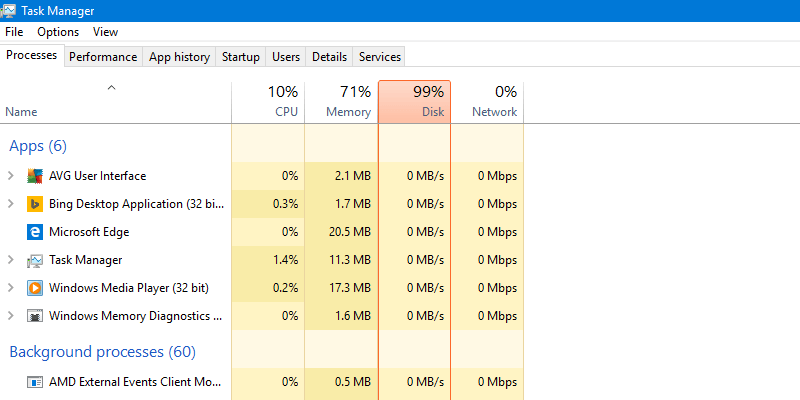
<p><strong>Lỗi Full Disk 100%&nbsp;</strong>hay<strong>&nbsp;lỗi 100 disk&nbsp;</strong>có lẽ không còn xa lạ gì đối với những người dùng Windows 10/8.1. Không chỉ trên Windows 8.1 mà bạn có thể gặp lỗi&nbsp;Full Disk 100% trên Windows 7&nbsp;hay&nbsp;Windows 8. Mỗi lần mở Task Manager để xem chi tiết các hoạt động thì thấy tab Disk luôn đỏ lòm, với chỉ số 99%, 100% hoặc luôn chiếm từ 90% trở lên.</p>
<br />
<br />
Advertisement
<p>Lỗi này vẫn xuất hiện ngay cả khi không có tiến trình nào chạy nền và CPU khoảng 2-10%. Vậy làm sao để khắc phục<strong>&nbsp;lỗi Full Disk 100%</strong>, mời bạn cùng tham khảo bài viết dưới đây của Quản trị mạng.</p>

<p><img alt="Lỗi Full Disk 100% khi xem trong Task Manager" data-adbro-processed="true" data-i="0" data-src="https://st.quantrimang.com/photos/image/2016/08/27/task-manager.png" data-was-processed="true" height="325" src="https://st.quantrimang.com/photos/image/2016/08/27/task-manager.png" title=" Task Manager " width="650" /></p>

<h2 id="mcetoc_1cug5d88i0">Hướng dẫn fix lỗi 100% disk bằng video:</h2>

<p><iframe allow="autoplay" allowfullscreen="" data-src="https://www.nguoicodonvn2008.info//www.youtube.com/embed/55xF2AsKOuk" data-was-processed="true" frameborder="0" height="315" sandbox="allow-scripts allow-same-origin allow-forms allow-presentation allow-popups" scrolling="no" src="https://www.youtube.com/embed/55xF2AsKOuk" width="560"></iframe></p>

<h2>&nbsp;</h2>

<h2 id="mcetoc_1cug5d88i2">1. Set Ram ảo bằng thủ công thay vì để chế độ Automatically</h2>

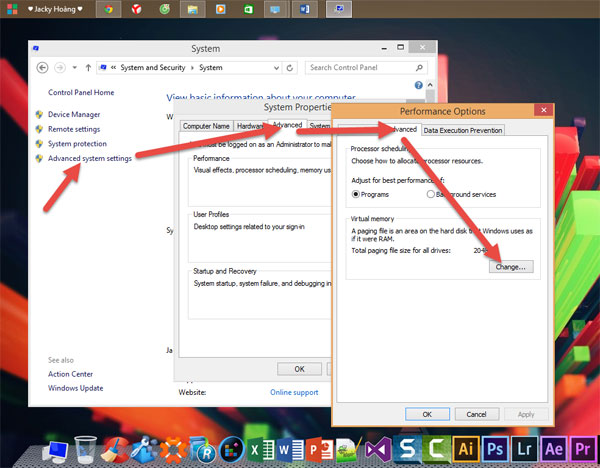
<p>Để Ram ở chế độ&nbsp;<strong>Automatically</strong>&nbsp;(tự động) cũng là một trong những nguyên nhân khiến&nbsp;<a data-google-interstitial="false" data-google-vignette="false" href="https://quantrimang.com/cong-nghe/11-thu-thuat-giup-ban-khac-phuc-loi-full-disk-100-tren-windows-8-1-112336#">&nbsp;máy tính</a>&nbsp;bạn bị dính lỗi Full Disk. Thay vì để chế độ Auto thì bạn nên&nbsp;<strong>Set cứng RAM ảo</strong>. Cách thực hiện như ảnh ở dưới:</p>

<p><img alt="11 thủ thuật giúp bạn khắc phục lỗi Full Disk 100% trên Windows 8.1" data-i="1" data-src="https://st.quantrimang.com/photos/image/112014/06/thu-thuat-windows-811.jpg" data-was-processed="true" height="468" src="https://st.quantrimang.com/photos/image/112014/06/thu-thuat-windows-811.jpg" title="Khắc phục lỗi Full Disk 100% trên Windows 8.1" width="600" /></p>

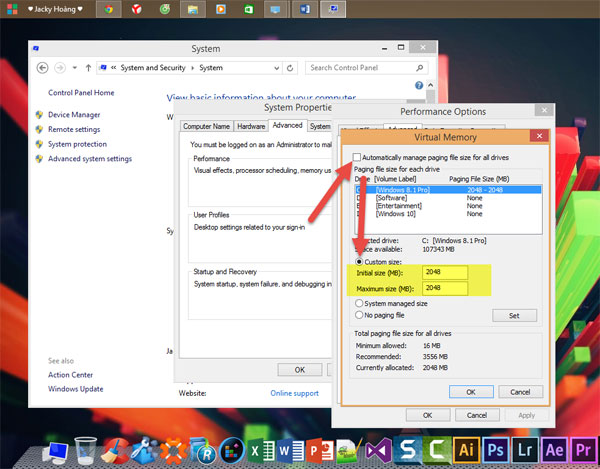
<p>​Tại Tab&nbsp;<strong>Virtual Memory</strong>, bỏ dấu tick ở<strong>&nbsp;Automatically manage paging file size for all drives</strong>. Chọn ổ đĩa cài&nbsp;<strong>Hệ điều hành của bạn (thường là ổ C)</strong>. Sau đó tích vào&nbsp;<strong>Custom size</strong>.</p>

<p>Tại mục&nbsp;<strong>Maximum size và Initial size</strong>. Bạn set cứng cho Ram ảo bằng 1/2 Ram thật của bạn. Ở đây mình có 4GB Ram nên sẽ Set một nửa là 2GB Ram = 2048MB, tương tự các bạn làm với máy tính của bạn.</p>

<p><img alt="11 thủ thuật giúp bạn khắc phục lỗi Full Disk 100% trên Windows 8.1" data-i="2" data-src="https://st.quantrimang.com/photos/image/112014/06/thu-thuat-windows-812.jpg" data-was-processed="true" height="469" src="https://st.quantrimang.com/photos/image/112014/06/thu-thuat-windows-812.jpg" title="Khắc phục lỗi Full Disk 100% trên Windows 8.1" width="600" /></p>

<p>Cuối cùng ấn&nbsp;<strong>OK</strong>&nbsp;để lưu, và khởi động để thay đổi có hiệu lực.</p>

<h2 id="mcetoc_1cug5d88i3">2. Xử lý Troubleshooting</h2>

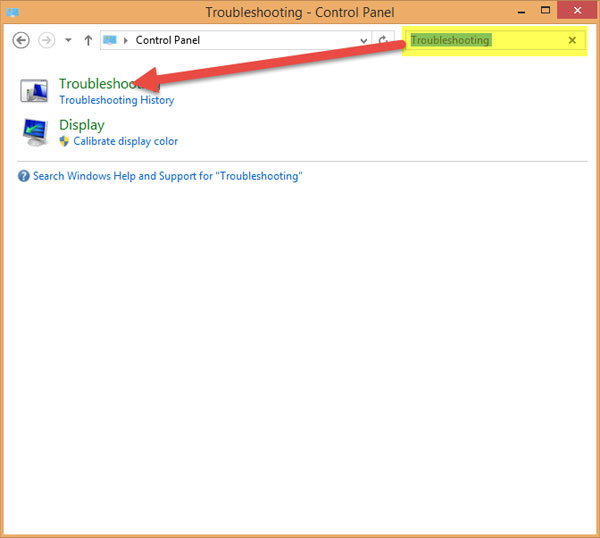
<p>Bạn vào&nbsp;<strong>Control Panel</strong>, gõ&nbsp;<strong>Troubleshooting</strong>&nbsp;trên ô tìm kiếm và nhấn vào&nbsp;<strong>Troubleshooting</strong>.</p>

<p><img alt="11 thủ thuật giúp bạn khắc phục lỗi Full Disk 100% trên Windows 8.1" data-i="3" data-src="https://st.quantrimang.com/photos/image/112014/06/thu-thuat-windows-813.jpg" data-was-processed="true" height="538" src="https://st.quantrimang.com/photos/image/112014/06/thu-thuat-windows-813.jpg" title="Khắc phục lỗi Full Disk 100% trên Windows 8.1" width="600" /></p>

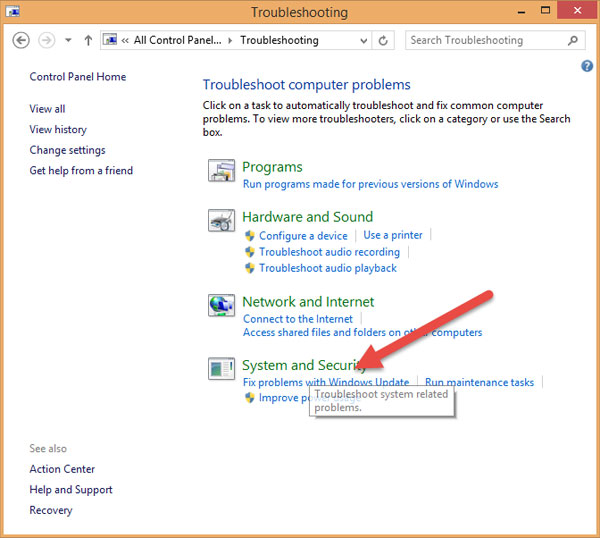
<p>Cửa sổ mới hiện ra, kích đúp chuột vào&nbsp;<strong>System and Security:</strong></p>

<p><img alt="11 thủ thuật giúp bạn khắc phục lỗi Full Disk 100% trên Windows 8.1" data-i="4" data-src="https://st.quantrimang.com/photos/image/112014/06/thu-thuat-windows-814.jpg" data-was-processed="true" height="538" src="https://st.quantrimang.com/photos/image/112014/06/thu-thuat-windows-814.jpg" title="Khắc phục lỗi Full Disk 100% trên Windows 8.1" width="600" /></p>

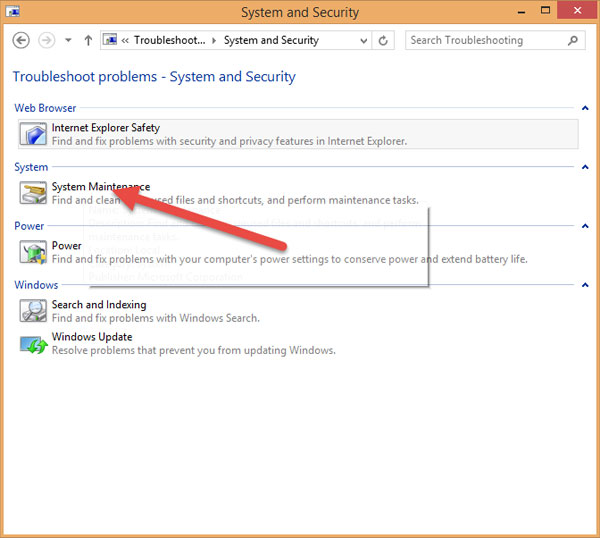
<p>Cửa sổ mới hiện ra, kích vào&nbsp;<strong>System Maintenance:</strong></p>

<p><img alt="11 thủ thuật giúp bạn khắc phục lỗi Full Disk 100% trên Windows 8.1" data-i="5" data-src="https://st.quantrimang.com/photos/image/112014/06/thu-thuat-windows-815.jpg" data-was-processed="true" height="538" src="https://st.quantrimang.com/photos/image/112014/06/thu-thuat-windows-815.jpg" title="Khắc phục lỗi Full Disk 100% trên Windows 8.1" width="600" /></p>

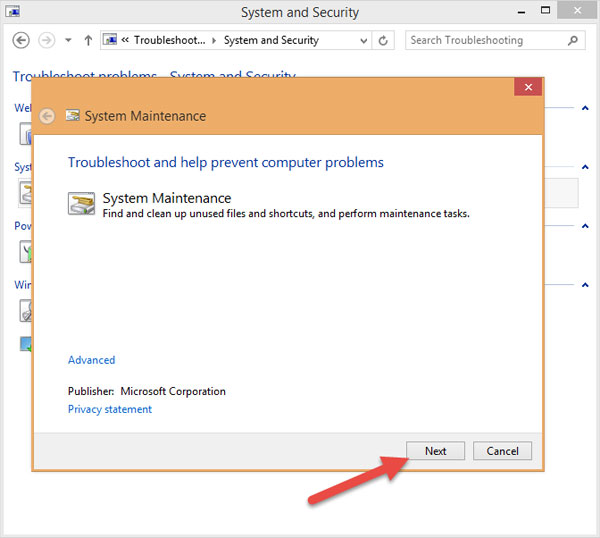
<p>Nhấn&nbsp;<strong>Next:</strong></p>

<p><img alt="11 thủ thuật giúp bạn khắc phục lỗi Full Disk 100% trên Windows 8.1" data-i="6" data-src="https://st.quantrimang.com/photos/image/112014/06/thu-thuat-windows-816.jpg" data-was-processed="true" height="538" src="https://st.quantrimang.com/photos/image/112014/06/thu-thuat-windows-816.jpg" title="Khắc phục lỗi Full Disk 100% trên Windows 8.1" width="600" /></p>

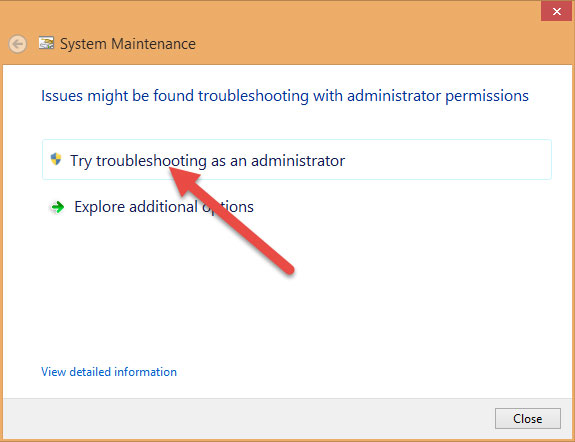
<p>Sau đó cứ để cho máy nó làm việc khi xuất hiện thông báo&nbsp;<strong>System Maintenance</strong>&nbsp;như hình thì nhấn vào mục&nbsp;<strong>Try troubleshooting as an administrator:</strong></p>

<p><img alt="11 thủ thuật giúp bạn khắc phục lỗi Full Disk 100% trên Windows 8.1" data-i="7" data-src="https://st.quantrimang.com/photos/image/112014/06/thu-thuat-windows-817.jpg" data-was-processed="true" height="442" src="https://st.quantrimang.com/photos/image/112014/06/thu-thuat-windows-817.jpg" title="Khắc phục lỗi Full Disk 100% trên Windows 8.1" width="575" /></p>

<p>Sau đó ngồi đợi, chờ cho nó chạy đến khi nào có chữ&nbsp;<strong>Close</strong>&nbsp;thì nhấn vào.</p>

<h2 id="mcetoc_1cug5d88i4">3. Tắt Maintenance</h2>

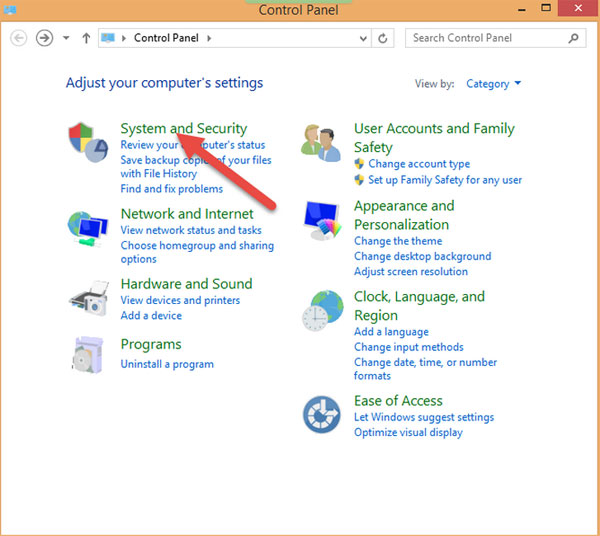
<p>Cũng ở<strong>&nbsp;Control Panel</strong>, chọn<strong>&nbsp;System and Security và Action Center:</strong></p>

<p><img alt="11 thủ thuật giúp bạn khắc phục lỗi Full Disk 100% trên Windows 8.1" data-i="8" data-src="https://st.quantrimang.com/photos/image/112014/06/thu-thuat-windows-818.jpg" data-was-processed="true" height="536" src="https://st.quantrimang.com/photos/image/112014/06/thu-thuat-windows-818.jpg" title="Khắc phục lỗi Full Disk 100% trên Windows 8.1" width="600" /></p>

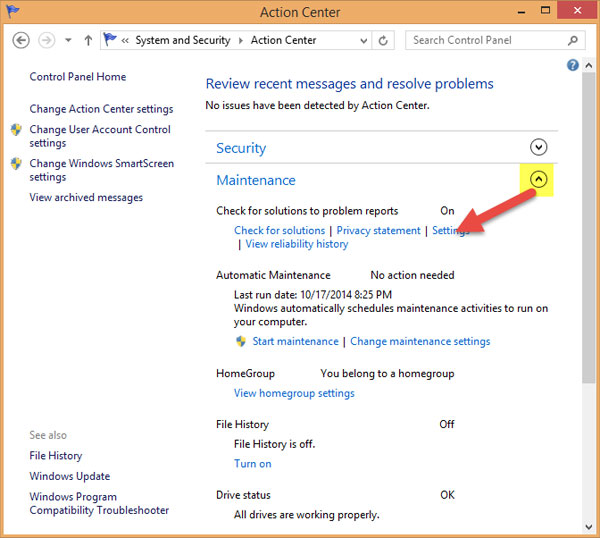
<p>Tiếp theo nhấp chuột vào mũi tên đở phần thiết lập&nbsp;<strong>Maintenance</strong>, chọn&nbsp;<strong>Settings:</strong></p>

<p><img alt="11 thủ thuật giúp bạn khắc phục lỗi Full Disk 100% trên Windows 8.1" data-i="9" data-src="https://st.quantrimang.com/photos/image/112014/06/thu-thuat-windows-819.jpg" data-was-processed="true" height="538" src="https://st.quantrimang.com/photos/image/112014/06/thu-thuat-windows-819.jpg" title="Khắc phục lỗi Full Disk 100% trên Windows 8.1" width="600" /></p>

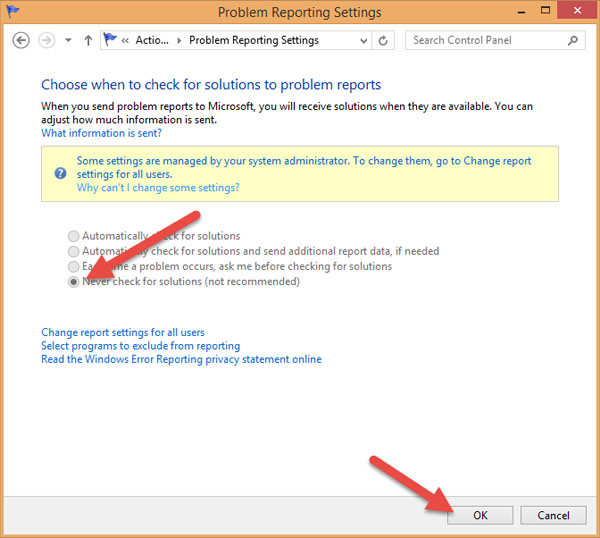
<p>Bạn tích vào&nbsp;<strong>Never check for solutions (Not recommended)</strong>&nbsp;và&nbsp;<strong>OK:</strong></p>

<p><img alt="11 thủ thuật giúp bạn khắc phục lỗi Full Disk 100% trên Windows 8.1" data-i="10" data-src="https://st.quantrimang.com/photos/image/112014/06/thu-thuat-windows-8110.jpg" data-was-processed="true" height="538" src="https://st.quantrimang.com/photos/image/112014/06/thu-thuat-windows-8110.jpg" title="Khắc phục lỗi Full Disk 100% trên Windows 8.1" width="600" /></p>

<h2 id="mcetoc_1cug5d88i5">4. Tắt Windows SmartScreen</h2>

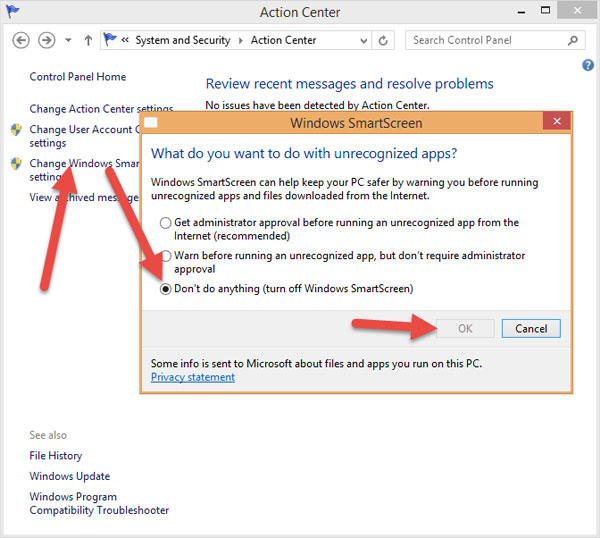
<p>Vẫn ở cửa sổ&nbsp;<strong>Action Center</strong>, chọn&nbsp;<strong>Change Windows SmartScreen Settings</strong>, sau đó tích vào&nbsp;<strong>Don’t do anything (Turn off Windows SmartScreen)</strong>.</p>

<p><img alt="11 thủ thuật giúp bạn khắc phục lỗi Full Disk 100% trên Windows 8.1" data-i="11" data-src="https://st.quantrimang.com/photos/image/112014/06/thu-thuat-windows-8111.jpg" data-was-processed="true" height="538" src="https://st.quantrimang.com/photos/image/112014/06/thu-thuat-windows-8111.jpg" title="Khắc phục lỗi Full Disk 100% trên Windows 8.1" width="600" />&nbsp;​</p>

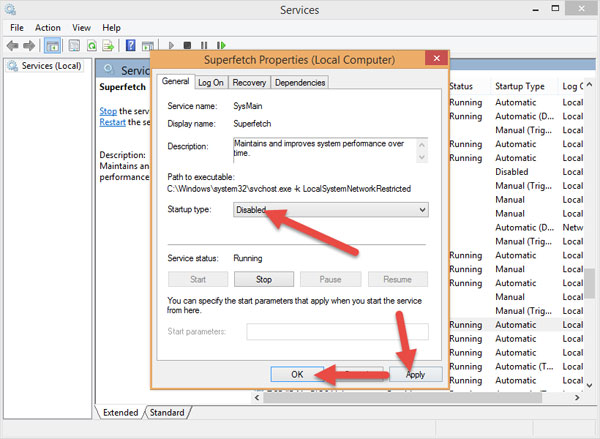
<h2 id="mcetoc_1cug5d88i6">5. Tắt Service Superfetch</h2>

<p>Các bạn ấn tổ hợp phím&nbsp;<strong>Windows + R</strong>&nbsp;để mở&nbsp;<strong>Run gõ Services.msc</strong>. Sau đó tìm&nbsp;<strong>Superfetch</strong>&nbsp;(ấn S rồi tìm cho nhanh), kích đúp vào nó và chọn&nbsp;<strong>Disabled</strong>.</p>

<p><img alt="11 thủ thuật giúp bạn khắc phục lỗi Full Disk 100% trên Windows 8.1" data-i="12" data-src="https://st.quantrimang.com/photos/image/112014/06/thu-thuat-windows-8112.jpg" data-was-processed="true" height="439" src="https://st.quantrimang.com/photos/image/112014/06/thu-thuat-windows-8112.jpg" title="Khắc phục lỗi Full Disk 100% trên Windows 8.1" width="600" /></p>

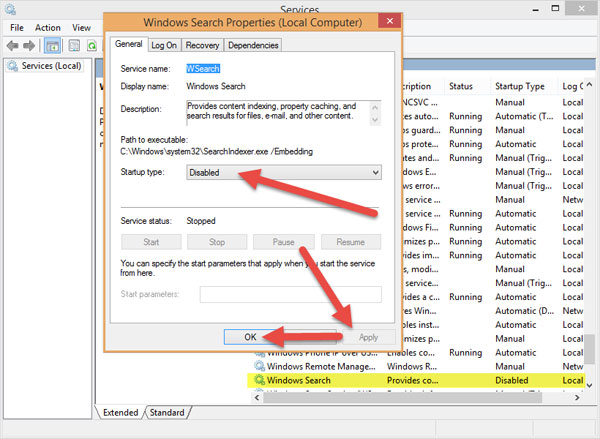
<h2 id="mcetoc_1cug5d88i7">​6. Tắt Service Windows Search</h2>

<p>Các bạn cũng làm tương tự như trên nhưng tìm&nbsp;<strong>Windows Search</strong>&nbsp;(ấn W rồi tìm), kích đúp vào nó và chọn&nbsp;<strong>Disabled</strong>.</p>

<p><strong><img alt="11 thủ thuật giúp bạn khắc phục lỗi Full Disk 100% trên Windows 8.1" data-i="13" data-src="https://st.quantrimang.com/photos/image/112014/06/thu-thuat-windows-8113.jpg" data-was-processed="true" height="439" src="https://st.quantrimang.com/photos/image/112014/06/thu-thuat-windows-8113.jpg" title="Khắc phục lỗi Full Disk 100% trên Windows 8.1" width="600" /></strong></p>

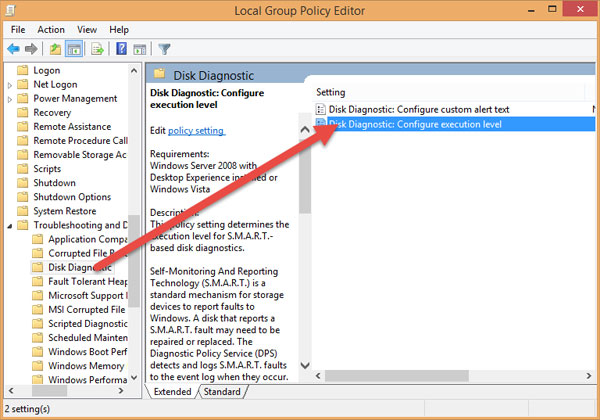
<h2 id="mcetoc_1cug5d88i8">7. Tắt Disk Diagnostics: Configure execution level</h2>

<p>Các bạn vào&nbsp;<strong>Run</strong>&nbsp;gõ&nbsp;<strong>gpedit.msc</strong>. Sau đó tìm đến đường dẫn sau:</p>

<p><strong>Computer Configuration / Adminnistrative Templates / System / Troubleshooting and Diagnostics / Disk Diagnostics</strong></p>

<p>Nhìn sang cửa sổ bên phải bạn sẽ thấy<strong>&nbsp;Disk Diagnostics: Configure execution level</strong>, kích đúp vào nó.</p>

<p><strong><img alt="11 thủ thuật giúp bạn khắc phục lỗi Full Disk 100% trên Windows 8.1" data-i="14" data-src="https://st.quantrimang.com/photos/image/112014/06/thu-thuat-windows-8114.jpg" data-was-processed="true" height="420" src="https://st.quantrimang.com/photos/image/112014/06/thu-thuat-windows-8114.jpg" title="Khắc phục lỗi Full Disk 100% trên Windows 8.1" width="600" /></strong></p>

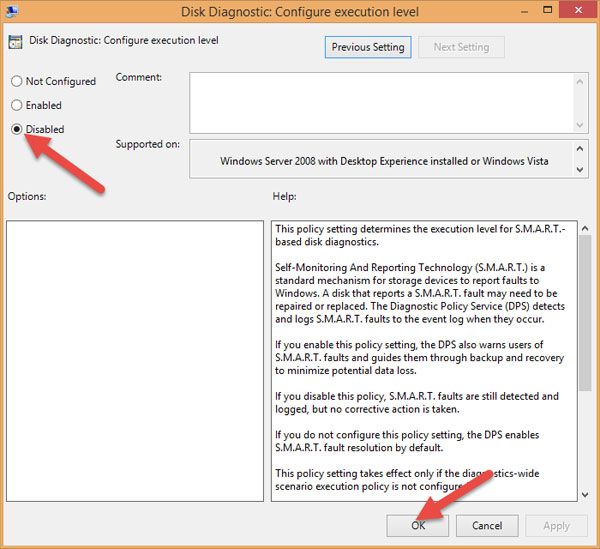
<p>Chọn&nbsp;<strong>Disabled</strong>&nbsp;và&nbsp;<strong>OK</strong>&nbsp;để lưu.</p>

<p><strong><img alt="11 thủ thuật giúp bạn khắc phục lỗi Full Disk 100% trên Windows 8.1" data-i="15" data-src="https://st.quantrimang.com/photos/image/112014/06/thu-thuat-windows-8115.jpg" data-was-processed="true" height="549" src="https://st.quantrimang.com/photos/image/112014/06/thu-thuat-windows-8115.jpg" title="Khắc phục lỗi Full Disk 100% trên Windows 8.1" width="600" /></strong></p>

<h2 id="mcetoc_1cug5d88i9">8. Chống phân mảnh ổ cứng</h2>

<p>Hiện nay có rất nhiều phần mềm để chống phân mảnh ổ cứng nhưng trong bài này mình sẽ sử dụng công cụ của Windows.</p>
Phần mềm đồ họa

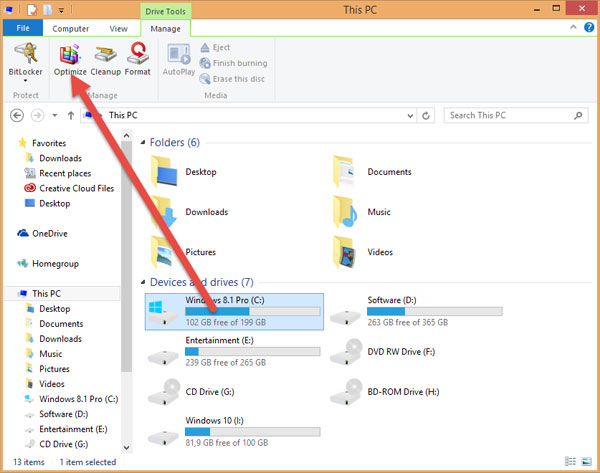
<p>Mở&nbsp;<strong>This PC</strong>. Sau đó bạn nhấp vào một phân vùng bất kỳ, rồi chọn<strong>&nbsp;Manage -&gt; Optimize</strong>.</p>

<p><strong><img alt="11 thủ thuật giúp bạn khắc phục lỗi Full Disk 100% trên Windows 8.1" data-i="16" data-src="https://st.quantrimang.com/photos/image/112014/06/thu-thuat-windows-8116.jpg" data-was-processed="true" height="473" src="https://st.quantrimang.com/photos/image/112014/06/thu-thuat-windows-8116.jpg" title="Khắc phục lỗi Full Disk 100% trên Windows 8.1" width="600" /></strong></p>
Máy tính xách tay chơi game

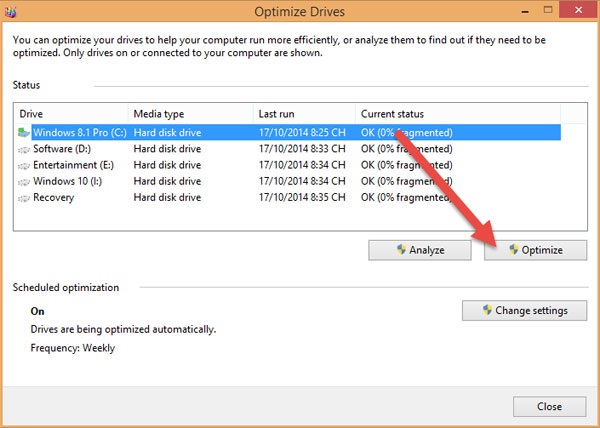
<p>Chọn phân vùng mà bạn muốn chống phân mảnh (nên chọn ổ cài ổ chứa HDH trước) rồi nhấn vào&nbsp;<strong>Optimize</strong>&nbsp;để tiến hành chống phân mảnh và tối ưu hóa phân vùng.</p>

<p><strong><img alt="11 thủ thuật giúp bạn khắc phục lỗi Full Disk 100% trên Windows 8.1" data-i="17" data-src="https://st.quantrimang.com/photos/image/112014/06/thu-thuat-windows-8117.jpg" data-was-processed="true" height="428" src="https://st.quantrimang.com/photos/image/112014/06/thu-thuat-windows-8117.jpg" title="Khắc phục lỗi Full Disk 100% trên Windows 8.1" width="600" /></strong></p>

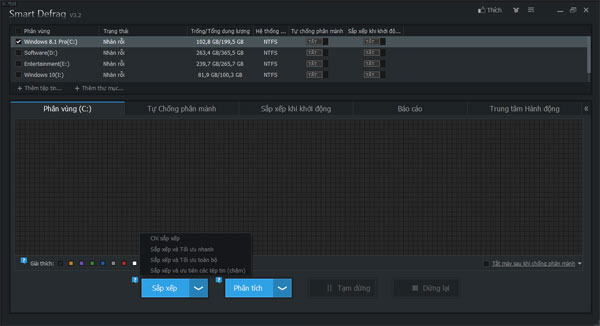
<p>Ngoài ra, các bạn có thể sử dụng phần mềm bên thứ 3 như&nbsp;<a href="https://quantrimang.com/url?u=aHR0cHM6Ly9kb3dubG9hZC5jb20udm4vc21hcnQtZGVmcmFnLTUwMjY%3D" rel="noopener" target="_blank" title=" IObit Smart Defrag "><strong>Smart Defrag 3</strong></a>, ưu điểm của phần mềm này là dễ sử dụng, hỗ trợ ngôn ngữ tiếng việt và hoàn toàn Miễn phí, các bạn có thể tải về và sử dụng tại:</p>
Phần mềm đồ họa

<p><strong><img alt="11 thủ thuật giúp bạn khắc phục lỗi Full Disk 100% trên Windows 8.1" data-i="18" data-src="https://st.quantrimang.com/photos/image/112014/06/thu-thuat-windows-8118.jpg" data-was-processed="true" height="326" src="https://st.quantrimang.com/photos/image/112014/06/thu-thuat-windows-8118.jpg" title="Khắc phục lỗi Full Disk 100% trên Windows 8.1" width="600" /></strong></p>

<h2 id="mcetoc_1cug5d88ia">9. Sử dụng các phần mềm dọn rác và sửa lỗi Registry</h2>

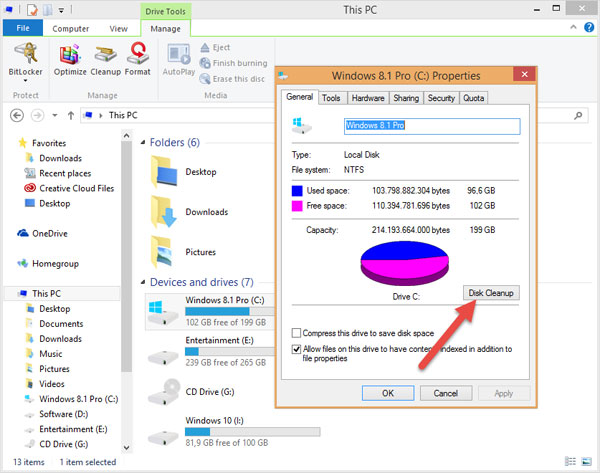
<p>Mở&nbsp;<strong>This&nbsp;<a data-google-interstitial="false" data-google-vignette="false" href="https://quantrimang.com/cong-nghe/11-thu-thuat-giup-ban-khac-phuc-loi-full-disk-100-tren-windows-8-1-112336#">&nbsp;PC</a></strong>, sau đó bạn nhấp vào một phân vùng mà bạn cài hệ điều hành (thường là ổ C).&nbsp;<strong>Chuột phải &gt; Properties &gt; Disk Cleanup.</strong></p>
Máy tính xách tay chơi game<br />
Phần mềm đồ họa
<p><strong><img alt="11 thủ thuật giúp bạn khắc phục lỗi Full Disk 100% trên Windows 8.1" data-i="19" data-src="https://st.quantrimang.com/photos/image/112014/06/thu-thuat-windows-8119.jpg" data-was-processed="true" height="473" src="https://st.quantrimang.com/photos/image/112014/06/thu-thuat-windows-8119.jpg" title="Khắc phục lỗi Full Disk 100% trên Windows 8.1" width="600" /></strong></p>

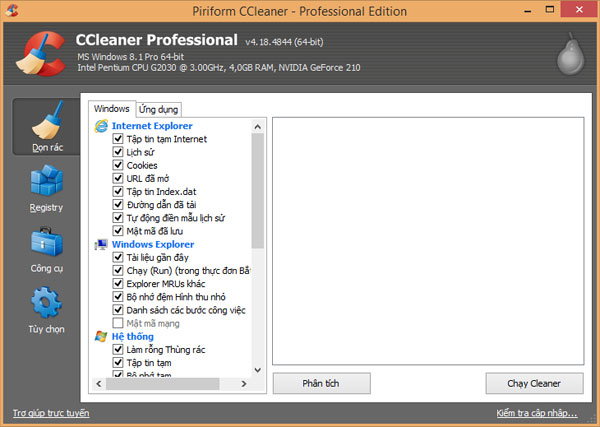
<p>Nếu muốn nhanh hơn thì các bạn có thể<a href="https://quantrimang.com/cong-nghe/huong-dan-su-dung-ccleaner-hieu-qua-87018" title="Cách sử dụng phần mềm CCleaner dọn rác máy tính hiệu quả ">&nbsp;dùng phần mềm&nbsp;<strong>CCleaner</strong></a>, các bạn tải&nbsp;<a href="https://quantrimang.com/url?u=aHR0cHM6Ly9kb3dubG9hZC5jb20udm4vY2NsZWFuZXItNDY0OA%3D%3D" rel="noopener" target="_blank" title="CCleaner">tại đây</a>:</p>

<p><strong><img alt="11 thủ thuật giúp bạn khắc phục lỗi Full Disk 100% trên Windows 8.1" data-i="20" data-src="https://st.quantrimang.com/photos/image/112014/06/thu-thuat-windows-8120.jpg" data-was-processed="true" height="427" src="https://st.quantrimang.com/photos/image/112014/06/thu-thuat-windows-8120.jpg" title="Khắc phục lỗi Full Disk 100% trên Windows 8.1" width="600" /></strong></p>

<h2 id="mcetoc_1cug5d88ib">10. Gỡ các phần mềm không cần thiết, tắt các phần mềm không cần dùng lúc&nbsp;&nbsp;Windows&nbsp;khởi động</h2>

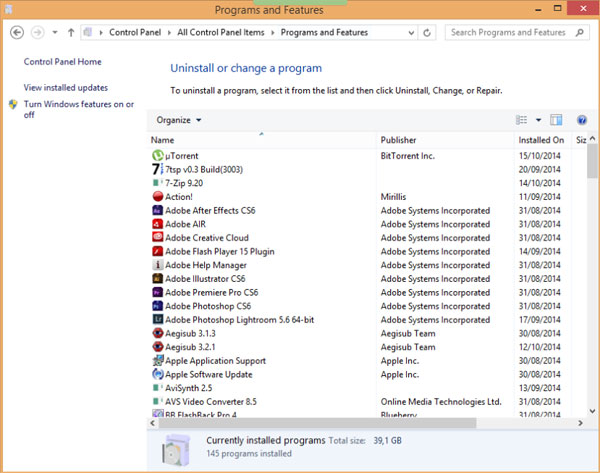
<p>- Để gỡ các phần mềm không cần thiết các bạn có thể dùng chức năng có sẵn của Windows hoặc phần mềm bên thứ 3 như&nbsp;Revo Uninstaller, CCleaner,...</p>
Phần mềm đồ họa

<p><strong><img alt="11 thủ thuật giúp bạn khắc phục lỗi Full Disk 100% trên Windows 8.1" data-i="21" data-src="https://st.quantrimang.com/photos/image/112014/06/thu-thuat-windows-8121.jpg" data-was-processed="true" height="473" src="https://st.quantrimang.com/photos/image/112014/06/thu-thuat-windows-8121.jpg" title="Khắc phục lỗi Full Disk 100% trên Windows 8.1" width="600" /></strong></p>

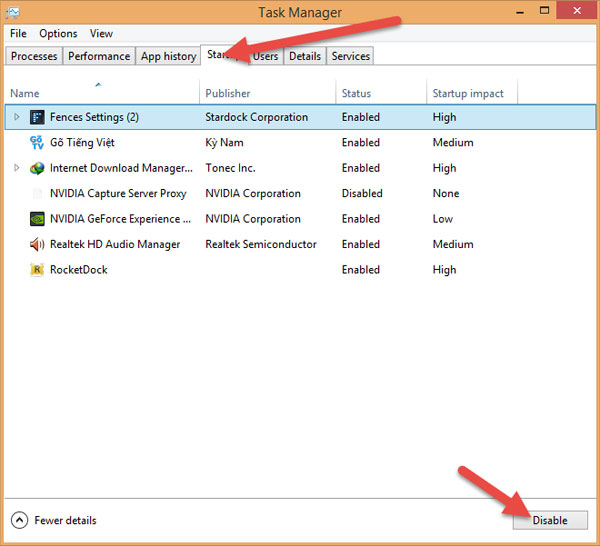
<p>​- Còn tắt các phần mềm, các bạn có thể sử dụng công cụ&nbsp;<strong>Startup</strong>&nbsp;ở thanh&nbsp;<strong>Task Manager</strong>, rồi&nbsp;<strong>Disable</strong>&nbsp;phần mềm mà bạn thấy không cần thiết (lưu ý không&nbsp;<strong>Disable Driver</strong>&nbsp;của hệ thống nhé).</p>
Phần mềm đồ họa

<p><strong><img alt="11 thủ thuật giúp bạn khắc phục lỗi Full Disk 100% trên Windows 8.1" data-i="22" data-src="https://st.quantrimang.com/photos/image/112014/06/thu-thuat-windows-8122.jpg" data-was-processed="true" height="546" src="https://st.quantrimang.com/photos/image/112014/06/thu-thuat-windows-8122.jpg" title="Khắc phục lỗi Full Disk 100% trên Windows 8.1" width="600" /></strong></p>

<h2 id="mcetoc_1cug5d88ic">​11. Windows Update</h2>

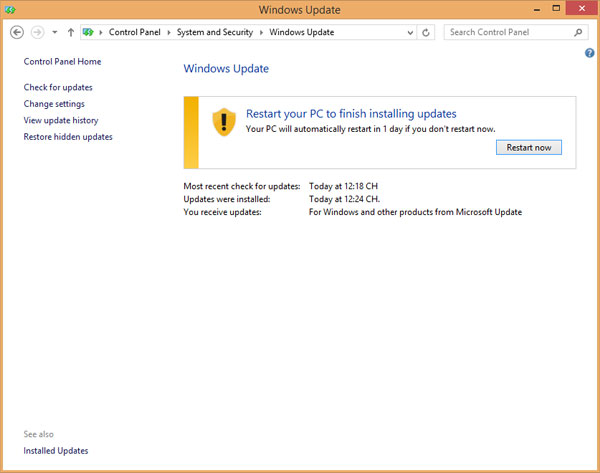
<p>Tải các bản vá lỗi của Mircosoft để sửa lỗi cho Windows của bạn.</p>

<p><strong><img alt="11 thủ thuật giúp bạn khắc phục lỗi Full Disk 100% trên Windows 8.1" data-i="23" data-src="https://st.quantrimang.com/photos/image/112014/06/thu-thuat-windows-8123.jpg" data-was-processed="true" height="473" src="https://st.quantrimang.com/photos/image/112014/06/thu-thuat-windows-8123.jpg" title="Khắc phục lỗi Full Disk 100% trên Windows 8.1" width="600" /></strong></p>

<h2 id="mcetoc_1cug5d88id">12. Chạy CheckDisk</h2>

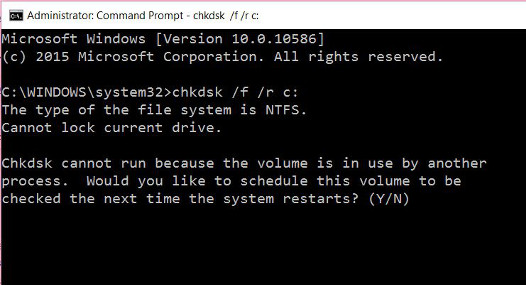
<p>1. Click Start, sau đó nhập&nbsp;<strong>cmd</strong>&nbsp;vào khung Search. Trên danh sách kết quả tìm kiếm, kích chuột phải vào&nbsp;<strong>Command Prompt</strong>&nbsp;chọn<strong>&nbsp;Run as administrator.</strong></p>

<p>2. Trên cửa sổ Command prompt, bạn nhập câu lệnh dưới đây vào để kiểm tra và tự động khắc phục các lỗi trên&nbsp;<a data-google-interstitial="false" data-google-vignette="false" href="https://quantrimang.com/cong-nghe/11-thu-thuat-giup-ban-khac-phuc-loi-full-disk-100-tren-windows-8-1-112336#">&nbsp;ổ đĩa cứng</a>&nbsp;của bạn:</p>

<blockquote>
<p>chkdsk /f&#039; /r C:</p>
</blockquote>

<p><strong>Lưu ý</strong>: Trong câu lệnh trên, thay thế &quot;C&quot; bằng tên các ổ đĩa cứng chính trên máy tính Windows của bạn.</p>

<p>3. Lúc này trên màn hình bạn sẽ nhận được thông báo ổ đĩa cứng đang sử dụng, nếu muốn chạy CheckDisk khởi động lại hệ thống. Nhấn<strong>&nbsp;Y</strong>&nbsp;để khởi động lại máy tính của bạn.</p>

<p>4. CheckDisk sẽ chạy sau khi máy tính của bạn khởi động. Quá trình diễn ra sẽ khá lâu, do đó bạn cần phải kiên nhẫn. Quá trình kết thúc và lỗi sẽ không còn xuất hiện nữa.</p>

<p><img alt=" Chạy CheckDisk" data-i="24" data-src="https://st.quantrimang.com/photos/image/2016/08/27/chkdsk.jpg" data-was-processed="true" height="285" src="https://st.quantrimang.com/photos/image/2016/08/27/chkdsk.jpg" title=" Chạy CheckDisk" width="526" /></p>

<h2 id="mcetoc_1cug5d88ie">13. Vô hiệu hóa Tips About Windows</h2>

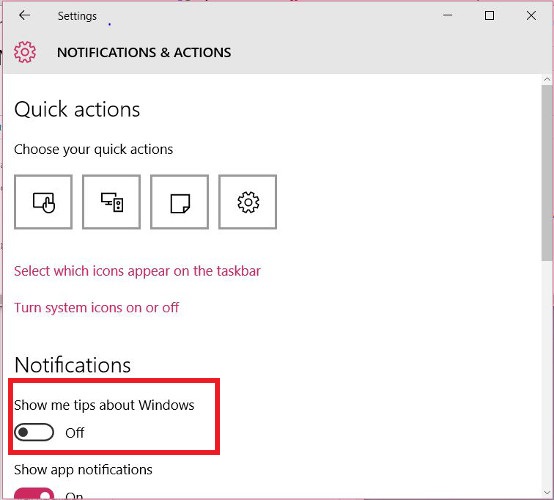
<p>Đôi khi trong một số trường hợp, người dùng có thể vô hiệu hóa Tips About Windows để khắc phục lỗi.</p>

<p>Để vô hiệu hóa Tips About Windows, bạn vào&nbsp;<strong>Start</strong>&nbsp;=&gt;&nbsp;<strong>Settings</strong>&nbsp;=&gt;&nbsp;<strong>System</strong>&nbsp;=&gt;&nbsp;<strong>Notification &amp; actions</strong>. Chuyển đổi tùy chọn&nbsp;<strong>Show me tips about Windows</strong>&nbsp;sang&nbsp;<strong>OFF</strong>&nbsp;là xong.</p>

<p><img alt="Vô hiệu hóa Tips About Windows" data-i="25" data-src="https://st.quantrimang.com/photos/image/2016/08/27/disable-tips-for-windows-2.jpg" data-was-processed="true" height="500" src="https://st.quantrimang.com/photos/image/2016/08/27/disable-tips-for-windows-2.jpg" title="Vô hiệu hóa Tips About Windows" width="554" /></p>

<h2 id="mcetoc_1cug5d88if">14. Thay đổi vị trí Pagefile</h2>

<p>Pagefile là một file trên ổ đĩa cứng để hỗ trợ khả năng ghi có “hạn” của RAM trong máy tính trong trường hợp cần thiết.</p>

<p>Máy tính của bạn sẽ ưu tiên sử dụng RAM để lưu trữ dữ liệu bởi vì khả năng truy suất của nó nhanh hơn ổ cứng. Tuy nhiên, khi bộ nhớ RAM đầy hoặc quá tải thì Windows sẽ tự động chuyển các dữ liệu từ RAM sang Pagefile trong ổ cứng.</p>

<p>Tuy nhiên trong một số trường hợp nguyên nhân gây lỗi Disk Usage có thể là do Pagefile được sử dụng liên tục.</p>

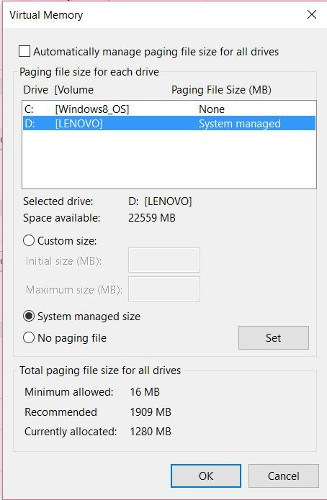
<p>Để khắc phục lỗi, giải pháp đầu tiên bạn có thể áp dụng là cấy thêm RAM. Tuy nhiên để không phải mất tiền oan, bạn có thể áp dụng cách khác là di chuyển pagefile sang ổ không phải là ổ cứng hệ thống. Để làm được điều này:</p>

<p>1. Kích chuột phải vào&nbsp;<strong>My Computer</strong>&nbsp;hoặc&nbsp;<strong>This PC</strong>, chọn&nbsp;<strong>Properties.</strong></p>
Máy tính xách tay chơi game

<p>2. Tiếp theo vào<strong>&nbsp;Advanced system setting</strong>s =&gt;&nbsp;<strong>Settings</strong>&nbsp;(dưới mục Performance) =&gt;<strong>&nbsp;Advanced</strong>&nbsp;=&gt;<strong>&nbsp;Change.</strong></p>

<p>3. Theo mặc định pagefile sẽ được chọn, bạn chọn&nbsp;<strong>No paging file</strong>&nbsp;rồi click chọn&nbsp;<strong>Set</strong>.</p>

<p>4. Tiếp theo chọn ổ đĩa cứng mà bạn muốn di chuyển pagefile sang, sau đó click chọn&nbsp;<strong>“System managed size”</strong>&nbsp;=&gt;<strong>&nbsp;Set.</strong></p>

<p>5. Click chọn&nbsp;<strong>OK</strong>&nbsp;và khởi động lại máy tính của bạn.</p>

<p><img alt="Thay đổi vị trí Pagefile" data-i="26" data-src="https://st.quantrimang.com/photos/image/2016/08/27/pagefile.jpg" data-was-processed="true" height="500" src="https://st.quantrimang.com/photos/image/2016/08/27/pagefile.jpg" title="Thay đổi vị trí Pagefile" width="327" /></p>

<p>Sau tất cả, nếu những cách trên đều không có tác dụng với bạn thì hãy &quot;bóp miệng&quot; nâng cấp&nbsp;<a data-google-interstitial="false" data-google-vignette="false" href="https://quantrimang.com/cong-nghe/11-thu-thuat-giup-ban-khac-phuc-loi-full-disk-100-tren-windows-8-1-112336#">&nbsp;ổ cứng</a>&nbsp;lên SSD nhé, đảm bảo lỗi full disk 100% này sẽ biến mất.</p>

<p>&nbsp;</p>

<p>Chúc các bạn thành công!</p>
		</div>
				<div id="author">
						<p>
				<strong>Nguồn tin:</strong>
				Quantrimang.com:
			</p>
		</div>
	</div>
	<div id="footer" class="clearfix">
		<div id="url">
			<strong>URL của bản tin này: </strong><a href="https://www.nguoicodonvn2008.info/vi/news/savefile/kien-thuc-may-tinh/sua-loi-full-disk-100-tren-windows-voi-14-thu-thuat-sau-11037.html" title="Sửa lỗi Full Disk 100&#x25; trên Windows với 14 thủ thuật sau">https://www.nguoicodonvn2008.info/vi/news/savefile/kien-thuc-may-tinh/sua-loi-full-disk-100-tren-windows-voi-14-thu-thuat-sau-11037.html</a>

		</div>
		<div class="clear"></div>
		<div class="copyright">
			&copy; .&#x3A; Nguoicodonvn2008.info - Cõi lòng người cô đơn &#x3A;.
		</div>
		<div id="contact">
			<a href="mailto:admin@nguoicodonvn2008.info">admin@nguoicodonvn2008.info</a>
		</div>
	</div>
</div>
        <div id="timeoutsess" class="chromeframe">
            Bạn đã không sử dụng Site, <a onclick="timeoutsesscancel();" href="https://www.nguoicodonvn2008.info/#">Bấm vào đây để duy trì trạng thái đăng nhập</a>. Thời gian chờ: <span id="secField"> 60 </span> giây
        </div>
        <div id="openidResult" class="nv-alert" style="display:none"></div>
        <div id="openidBt" data-result="" data-redirect=""></div>
		</script>
		<div class="car-top">
  <span><img src="https://www.nguoicodonvn2008.info/themes/default/images/car.png" alt=""></span>
</div>
<script src="https://www.nguoicodonvn2008.info/assets/js/jquery/jquery.min.js"></script>
<script>var nv_base_siteurl="/",nv_lang_data="vi",nv_lang_interface="vi",nv_name_variable="nv",nv_fc_variable="op",nv_lang_variable="language",nv_module_name="news",nv_func_name="savefile",nv_is_user=0, nv_my_ofs=-4,nv_my_abbr="EDT",nv_cookie_prefix="nv4c_e856T",nv_check_pass_mstime=1738000,nv_area_admin=0,nv_safemode=0,theme_responsive=0,nv_recaptcha_ver=2,nv_recaptcha_sitekey="",nv_recaptcha_type="image",XSSsanitize=1;</script>
<script src="https://www.nguoicodonvn2008.info/assets/js/language/vi.js"></script>
<script src="https://www.nguoicodonvn2008.info/assets/js/DOMPurify/purify3.js"></script>
<script src="https://www.nguoicodonvn2008.info/assets/js/global.js"></script>
<script src="https://www.nguoicodonvn2008.info/assets/js/site.js"></script>
<script src="https://www.nguoicodonvn2008.info/themes/default/js/news.js"></script>
<script src="https://www.nguoicodonvn2008.info/themes/default/js/main.js"></script>
<script src="https://www.nguoicodonvn2008.info/themes/default/js/custom.js"></script>
<script type="application/ld+json">
        {
            "@context": "https://schema.org",
            "@type": "Organization",
            "url": "https://www.nguoicodonvn2008.info",
            "logo": "https://www.nguoicodonvn2008.info/uploads/angel.gif"
        }
        </script>
<script src="https://www.nguoicodonvn2008.info/themes/default/js/bootstrap.min.js"></script>
<script type="text/javascript">
var $scrolltop = $('.car-top');
$scrolltop.on('click', function () {
    $('html,body').animate({
        scrollTop: 0
    }, 800);
    $(this).addClass("car-run");
    setTimeout(function(){ $scrolltop.removeClass('car-run');}, 1000);
    return false;
});
$(window).on('scroll', function ()
{ 
    if($(window).scrollTop() >= 200)
    {
        $scrolltop.addClass("show");
        $scrolltop.addClass("car-down");
    }
    else
    {
       $scrolltop.removeClass("show");
       setTimeout(function(){ $scrolltop.removeClass('car-down');}, 300);
    }
});
</script>
</body>
</html>