<!DOCTYPE html>
    <html lang="vi" xmlns="http://www.w3.org/1999/xhtml" prefix="og: http://ogp.me/ns#">
    <head>
<title>Sử dụng SharePoint trong Windows 10</title>
<meta name="description" content="Sử dụng SharePoint trong Windows 10 - Savefile - Tin Tức -...">
<meta name="author" content=".: Nguoicodonvn2008.info - Cõi lòng người cô đơn :.">
<meta name="copyright" content=".: Nguoicodonvn2008.info - Cõi lòng người cô đơn :. [admin@nguoicodonvn2008.info]">
<meta name="robots" content="index, archive, follow, noodp">
<meta name="googlebot" content="index,archive,follow,noodp">
<meta name="msnbot" content="all,index,follow">
<meta name="generator" content="NukeViet v4.5">
<meta http-equiv="Content-Type" content="text/html; charset=utf-8">
<meta property="og:title" content="Sử dụng SharePoint trong Windows 10">
<meta property="og:type" content="website">
<meta property="og:description" content="Savefile - Tin Tức - https&#x3A;&#x002F;&#x002F;www.nguoicodonvn2008.info&#x002F;vi&#x002F;news&#x002F;savefile&#x002F;kien-thuc-may-tinh&#x002F;su-dung-sharepoint-trong-windows-10-1481.html">
<meta property="og:site_name" content=".&#x3A; Nguoicodonvn2008.info - Cõi lòng người cô đơn &#x3A;.">
<meta property="og:url" content="https://www.nguoicodonvn2008.info/vi/news/savefile/kien-thuc-may-tinh/su-dung-sharepoint-trong-windows-10-1481.html">
<link rel="shortcut icon" href="https://www.nguoicodonvn2008.info/favicon.ico">
<link rel="canonical" href="https://www.nguoicodonvn2008.info/vi/news/savefile/kien-thuc-may-tinh/su-dung-sharepoint-trong-windows-10-1481.html">
<link rel="alternate" href="https://www.nguoicodonvn2008.info/vi/news/rss/" title="Tin Tức" type="application/rss+xml">
<link rel="alternate" href="https://www.nguoicodonvn2008.info/vi/news/rss/karaoke-dual/" title="Tin Tức - Karaoke Dual" type="application/rss+xml">
<link rel="alternate" href="https://www.nguoicodonvn2008.info/vi/news/rss/nhac-tre/" title="Tin Tức - Nhạc trẻ" type="application/rss+xml">
<link rel="alternate" href="https://www.nguoicodonvn2008.info/vi/news/rss/tru-tinh/" title="Tin Tức - Trữ tình" type="application/rss+xml">
<link rel="alternate" href="https://www.nguoicodonvn2008.info/vi/news/rss/nuoc-ngoai/" title="Tin Tức - Nước ngoài" type="application/rss+xml">
<link rel="alternate" href="https://www.nguoicodonvn2008.info/vi/news/rss/remix/" title="Tin Tức - Remix" type="application/rss+xml">
<link rel="alternate" href="https://www.nguoicodonvn2008.info/vi/news/rss/tam-su-tinh-yeu/" title="Tin Tức - Tâm sự tình yêu" type="application/rss+xml">
<link rel="alternate" href="https://www.nguoicodonvn2008.info/vi/news/rss/tho-suu-tam/" title="Tin Tức - Thơ sưu tầm" type="application/rss+xml">
<link rel="alternate" href="https://www.nguoicodonvn2008.info/vi/news/rss/cuoc-song/" title="Tin Tức - Cuộc sống" type="application/rss+xml">
<link rel="alternate" href="https://www.nguoicodonvn2008.info/vi/news/rss/phan-mem/" title="Tin Tức - Phần mềm" type="application/rss+xml">
<link rel="alternate" href="https://www.nguoicodonvn2008.info/vi/news/rss/kien-thuc-may-tinh/" title="Tin Tức - Kiến thức máy tính" type="application/rss+xml">
<link rel="alternate" href="https://www.nguoicodonvn2008.info/vi/news/rss/hoc-tap/" title="Tin Tức - Học tập" type="application/rss+xml">
<link rel="alternate" href="https://www.nguoicodonvn2008.info/vi/news/rss/tai-lieu/" title="Tin Tức - Tài liệu" type="application/rss+xml">
<link rel="alternate" href="https://www.nguoicodonvn2008.info/vi/news/rss/de-thi/" title="Tin Tức - Đề thi" type="application/rss+xml">
<link rel="preload" as="style" href="https://www.nguoicodonvn2008.info/assets/css/font-awesome.min.css" type="text/css">
<link rel="preload" as="style" href="https://www.nguoicodonvn2008.info/themes/default/css/bootstrap.non-responsive.css" type="text/css">
<link rel="preload" as="style" href="https://www.nguoicodonvn2008.info/themes/default/css/style.css" type="text/css">
<link rel="preload" as="style" href="https://www.nguoicodonvn2008.info/themes/default/css/style.non-responsive.css" type="text/css">
<link rel="preload" as="style" href="https://www.nguoicodonvn2008.info/themes/default/css/news.css" type="text/css">
<link rel="preload" as="style" href="https://www.nguoicodonvn2008.info/themes/default/css/custom.css" type="text/css">
<link rel="preload" as="script" href="https://www.nguoicodonvn2008.info/assets/js/jquery/jquery.min.js" type="text/javascript">
<link rel="preload" as="script" href="https://www.nguoicodonvn2008.info/assets/js/language/vi.js" type="text/javascript">
<link rel="preload" as="script" href="https://www.nguoicodonvn2008.info/assets/js/DOMPurify/purify3.js" type="text/javascript">
<link rel="preload" as="script" href="https://www.nguoicodonvn2008.info/assets/js/global.js" type="text/javascript">
<link rel="preload" as="script" href="https://www.nguoicodonvn2008.info/assets/js/site.js" type="text/javascript">
<link rel="preload" as="script" href="https://www.nguoicodonvn2008.info/themes/default/js/news.js" type="text/javascript">
<link rel="preload" as="script" href="https://www.nguoicodonvn2008.info/themes/default/js/main.js" type="text/javascript">
<link rel="preload" as="script" href="https://www.nguoicodonvn2008.info/themes/default/js/custom.js" type="text/javascript">
<link rel="preload" as="script" href="https://www.nguoicodonvn2008.info/themes/default/js/bootstrap.min.js" type="text/javascript">
<link rel="stylesheet" href="https://www.nguoicodonvn2008.info/assets/css/font-awesome.min.css">
<link rel="stylesheet" href="https://www.nguoicodonvn2008.info/themes/default/css/bootstrap.non-responsive.css">
<link rel="stylesheet" href="https://www.nguoicodonvn2008.info/themes/default/css/style.css">
<link rel="stylesheet" href="https://www.nguoicodonvn2008.info/themes/default/css/style.non-responsive.css">
<link rel="StyleSheet" href="https://www.nguoicodonvn2008.info/themes/default/css/news.css">
<link rel="stylesheet" href="https://www.nguoicodonvn2008.info/themes/default/css/custom.css">
<style type="text/css">
	body{background: #fff;}
</style>
    </head>
    <body>
<div id="print">
	<div id="hd_print">
		<h2 class="pull-left">.&#x3A; Nguoicodonvn2008.info - Cõi lòng người cô đơn &#x3A;.</h2>
		<p class="pull-right"><a title=".&#x3A; Nguoicodonvn2008.info - Cõi lòng người cô đơn &#x3A;." href="https://www.nguoicodonvn2008.info/">https://www.nguoicodonvn2008.info</a></p>
	</div>
	<div class="clear"></div>
	<hr />
	<div id="content">
		<h1>Sử dụng SharePoint trong Windows 10</h1>
		<ul class="list-inline">
			<li>Thứ sáu - 20/12/2019 19:25</li>
			<li class="hidden-print txtrequired"><em class="fa fa-print">&nbsp;</em><a title="In ra" href="javascript:;" onclick="window.print()">In ra</a></li>
			<li class="hidden-print txtrequired"><em class="fa fa-power-off">&nbsp;</em><a title="Đóng cửa sổ này" href="javascript:;" onclick="window.close()">Đóng cửa sổ này</a></li>
		</ul>
		<div class="clear"></div>
		<div id="hometext">
		</div>
				<div class="imghome">
			<img alt="Sử dụng SharePoint trong Windows 10" src="https://st.quantrimang.com/photos/image/2019/12/20/su-dung-sharepoint-trong-windows-10-8.jpg" width="460" class="img-thumbnail" />
		</div>
		<div class="clear"></div>
		<div id="bodytext" class="clearfix">
			<p style="text-align: justify;">Windows 10&nbsp;là một nền tảng tuyệt vời để chạy SharePoint. Bản cập nhật Fall Creator cho Windows 10 bao gồm chức năng đồng bộ mới cho SharePoint có tên là&nbsp;<strong>Files on Demand</strong>.</p>

<h2 style="text-align: justify;">Internet Explorer 11 và Microsoft Edge</h2>

<p style="text-align: justify;">Tùy thuộc vào những gì đang làm trong SharePoint, bạn có thể muốn chuyển đổi giữa Microsoft Edge và Internet Explorer 11.</p>

<h3 style="text-align: justify;">Trình duyệt Microsoft Edge</h3>

<p style="text-align: justify;">Trình duyệt Internet mặc định trong Windows 10 là Microsoft Edge. Khi bạn mở một trang SharePoint, nó sẽ mở trong Microsoft Edge và hoạt động tốt khi xem các trang web, hầu hết những ứng dụng và nhiều thành phần khác. Điều này đặc biệt tốt trong việc upload các file, vì bạn có thể upload nhiều file và thư mục lên thư viện tài liệu, bằng cách kéo và thả hoặc sử dụng nút upload.</p>

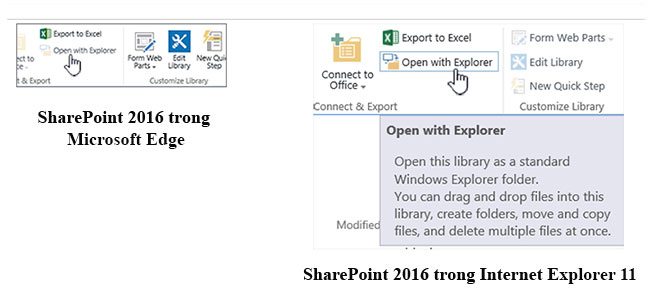
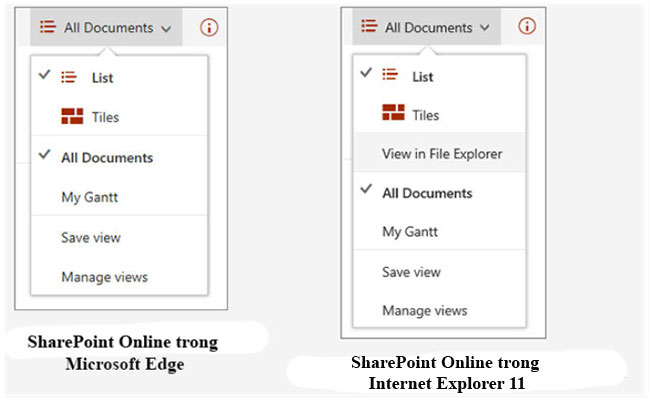
<p style="text-align: justify;">Tuy nhiên, Microsoft Edge không hỗ trợ mở thư viện tài liệu bằng&nbsp;<strong>Open with File Explorer</strong>. Trong SharePoint 2016 và SharePoint 2013, cũng như trải nghiệm Classic trong SharePoint Online, nút ribbon sẽ có màu xám trong Microsoft Edge. Trong SharePoint Online, tùy chọn&nbsp;<strong>View in File Explorer</strong>&nbsp;sẽ biến mất trong menu&nbsp;<strong>Views.</strong></p>

<p style="text-align: justify;"><strong>Lưu ý</strong>: Trình duyệt Microsoft Edge được thiết kế để cập nhật định kỳ. Với bản cập nhật Anniversary cho Windows 10, Microsoft Edge, tính năng kéo thả file và thư mục đã được thêm vào. Đảm bảo bạn có phiên bản mới nhất vì các tính năng có thể thay đổi hoặc được thêm vào.</p>

<p style="text-align: justify;"><img alt="Tùy chọn mở với trình duyệt mặc định" data-i="0" data-src="https://st.quantrimang.com/photos/image/2019/12/20/su-dung-sharepoint-trong-windows-10-8.jpg" data-was-processed="true" height="297" src="https://st.quantrimang.com/photos/image/2019/12/20/su-dung-sharepoint-trong-windows-10-8.jpg" width="650" /></p>

<p style="text-align: justify;"><img alt="SharePoint Online trong 2 trình duyệt" data-i="1" data-src="https://st.quantrimang.com/photos/image/2019/12/20/su-dung-sharepoint-trong-windows-10-10.jpg" data-was-processed="true" height="400" src="https://st.quantrimang.com/photos/image/2019/12/20/su-dung-sharepoint-trong-windows-10-10.jpg" width="650" /></p>

<h3 style="text-align: justify;">Internet Explorer 11</h3>

<p style="text-align: justify;">Internet Explorer 11 cũng đi kèm với Windows 10, nhưng bạn phải khởi chạy thủ công. Internet Explorer hoạt động tốt cho hầu hết các tác vụ trong SharePoint, bao gồm mở thư viện tài liệu bằng&nbsp;<strong>Open with Explorer</strong>. Internet Explorer 11 cho phép bạn upload lên các file bằng cách kéo và thả hoặc sử dụng nút upload, mặc dù bạn không thể upload lên các thư mục. Bạn có thể giải quyết vấn đề này bằng cách sử dụng&nbsp;<strong>Open with Explorer</strong>&nbsp;hoặc đồng bộ thư viện tài liệu với máy tính. Dù bằng cách nào, bạn sử dụng File Explorer trên máy tính của mình để sao chép hoặc di chuyển file và thư mục.</p>

<p style="text-align: justify;"><strong>Ghi chú:</strong></p>

<p style="text-align: justify;">Nếu đang sử dụng File Explorer với Internet Explorer 11 hoặc Microsoft Edge trong trải nghiệm SharePoint Classic, bạn cũng cần đảm bảo rằng mình có các domain đủ điều kiện (FQDN) sau đây, trong thư mục trang web đáng tin cậy:</p>

<ul>
	<li style="text-align: justify;">&lt;tenant&gt;.sharepoint.com</li>
	<li style="text-align: justify;">&lt;tenant&gt;-my.sharepoint.com</li>
	<li style="text-align: justify;">&lt;tenant&gt;-files.sharepoint.com</li>
	<li style="text-align: justify;">&lt;tenant&gt;-myfiles.sharepoint.com</li>
</ul>

<p style="text-align: justify;">Trong đó&nbsp;<strong>&lt;tenant&gt;</strong>&nbsp;là tên SharePoint của công ty bạn. Ví dụ, nếu bạn truy cập SharePoint qua&nbsp;<strong>contoso.sharepoint.com</strong>, thì hãy thay thế&nbsp;<strong>&lt;tenant&gt;</strong>&nbsp;bằng&nbsp;<strong>Contoso</strong>. Các URL của bạn sẽ kiểu như&nbsp;<strong>contoso.sharepoint.com</strong>&nbsp;hoặc&nbsp;<strong>contoso-my.sharepoint.com,</strong>&nbsp;v.v...</p>

<h2 style="text-align: justify;">Mở Internet Explorer 11 hoặc Microsoft Edge trong Windows 10</h2>

<p style="text-align: justify;">Bạn có thể dễ dàng mở Internet Explorer 11 hoặc Microsoft Edge từ menu Start trong Windows 10. Dưới đây là cách thực hiện:</p>

<div style="text-align: justify;">&nbsp;</div>

<h3 style="text-align: justify;">Internet Explorer</h3>

<p style="text-align: justify;">1. Nhấp vào&nbsp;<strong>Start.</strong></p>

<p style="text-align: justify;">2. Nhập&nbsp;<strong>Internet Explorer</strong>, sau đó chọn&nbsp;<strong>Internet Explorer</strong>.</p>

<p style="text-align: justify;">3. Khi trình duyệt mở, bạn có thể mở SharePoint.</p>

<p style="text-align: justify;">Nếu Microsoft Edge là trình duyệt mặc định, phiên của bạn sẽ ở trong Internet Explorer 11 cho đến khi bạn mở một trang từ một liên kết. Liên kết mới mở trong trình duyệt mặc định, Microsoft Edge.</p>

<h3 style="text-align: justify;">Microsoft Edge</h3>

<p style="text-align: justify;">1. Nhấp vào&nbsp;<strong>Start.</strong></p>

<p style="text-align: justify;">2. Nhập&nbsp;<strong>Edge</strong>&nbsp;và sau đó chọn&nbsp;<strong>Microsoft Edge</strong>.</p>

<p style="text-align: justify;">3. Khi trình duyệt mở, bạn có thể mở SharePoint.</p>

<h2 style="text-align: justify;">Chuyển đổi trình duyệt mặc định trong Windows 10</h2>

<p style="text-align: justify;">Nếu muốn làm việc với Internet Explorer 11 hoặc muốn chuyển đổi trình duyệt mặc định theo định kỳ, hãy làm theo các bước sau:</p>

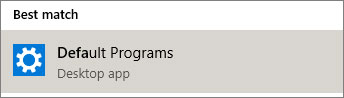
<p style="text-align: justify;">1. Trong Windows 10, bấm vào nút&nbsp;<strong>Start,</strong>&nbsp;nhập&nbsp;<strong>Default Programs</strong>, sau đó nhấp vào&nbsp;<strong>Default Programs</strong>.</p>

<p style="text-align: justify;"><img alt="Nhấp vào Default Programs" data-i="2" data-src="https://st.quantrimang.com/photos/image/2019/12/20/su-dung-sharepoint-trong-windows-10-5.jpg" data-was-processed="true" height="98" src="https://st.quantrimang.com/photos/image/2019/12/20/su-dung-sharepoint-trong-windows-10-5.jpg" width="344" /></p>

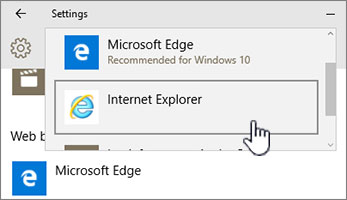
<p style="text-align: justify;">2. Trong&nbsp;<strong>Web Browser</strong>, nhấp vào&nbsp;<strong>Microsoft Edge</strong>, sau đó chọn&nbsp;<strong>Internet Explorer</strong>&nbsp;trong hộp thoại&nbsp;<strong>Choose an app</strong>. Nếu bạn đang chuyển từ Internet Explorer sang Microsoft Edge, hãy bấm&nbsp;<strong>Internet Explorer</strong>&nbsp;trong<strong>&nbsp;Web Browser</strong>, sau đó chọn&nbsp;<strong>Microsoft Edge</strong>.</p>

<p style="text-align: justify;"><img alt="Chọn Internet Explorer" data-i="3" data-src="https://st.quantrimang.com/photos/image/2019/12/20/su-dung-sharepoint-trong-windows-10-6.jpg" data-was-processed="true" height="200" src="https://st.quantrimang.com/photos/image/2019/12/20/su-dung-sharepoint-trong-windows-10-6.jpg" width="347" /></p>

<p style="text-align: justify;">3. Đóng hộp thoại&nbsp;<strong>Choose default apps</strong>.</p>

<p style="text-align: justify;">&nbsp;</p>

<h2 style="text-align: justify;">Thêm cả hai trình duyệt vào thanh tác vụ Windows 10</h2>

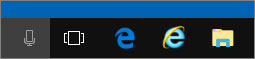
<p style="text-align: justify;">Cả hai trình duyệt Windows 10 này đều mang lại những lợi thế riêng và có cả hai trong tay sẽ rất tiện dụng. Thực hiện theo các bước sau để đặt cả Microsoft Edge và Internet Explorer 11 trên Taskbar ở cuối màn hình.</p>

<p style="text-align: justify;"><img alt="Thêm cả hai trình duyệt vào thanh tác vụ Windows 10" data-i="4" data-src="https://st.quantrimang.com/photos/image/2019/12/20/su-dung-sharepoint-trong-windows-10-7.jpg" data-was-processed="true" height="59" src="https://st.quantrimang.com/photos/image/2019/12/20/su-dung-sharepoint-trong-windows-10-7.jpg" width="255" /></p>

<p style="text-align: justify;">1. Nhấp vào&nbsp;<strong>Start.</strong></p>

<p style="text-align: justify;">2. Nhập&nbsp;<strong>Internet Explorer,</strong>&nbsp;bấm chuột phải vào&nbsp;<strong>Internet Explorer,</strong>&nbsp;sau đó chọn&nbsp;<strong>Pin to Taskbar</strong>.</p>

<p style="text-align: justify;">3. Nhập&nbsp;<strong>Edge,</strong>&nbsp;bấm chuột phải vào&nbsp;<strong>Microsoft Edge,</strong>&nbsp;sau đó chọn&nbsp;<strong>Pin to Taskbar</strong>.</p>

<p style="text-align: justify;">Chúc bạn thực hiện thành công!</p>
		</div>
				<div id="author">
						<p>
				<strong>Nguồn tin:</strong>
				Quantrimang.com
			</p>
		</div>
	</div>
	<div id="footer" class="clearfix">
		<div id="url">
			<strong>URL của bản tin này: </strong><a href="https://www.nguoicodonvn2008.info/vi/news/savefile/kien-thuc-may-tinh/su-dung-sharepoint-trong-windows-10-1481.html" title="Sử dụng SharePoint trong Windows 10">https://www.nguoicodonvn2008.info/vi/news/savefile/kien-thuc-may-tinh/su-dung-sharepoint-trong-windows-10-1481.html</a>

		</div>
		<div class="clear"></div>
		<div class="copyright">
			&copy; .&#x3A; Nguoicodonvn2008.info - Cõi lòng người cô đơn &#x3A;.
		</div>
		<div id="contact">
			<a href="mailto:admin@nguoicodonvn2008.info">admin@nguoicodonvn2008.info</a>
		</div>
	</div>
</div>
        <div id="timeoutsess" class="chromeframe">
            Bạn đã không sử dụng Site, <a onclick="timeoutsesscancel();" href="https://www.nguoicodonvn2008.info/#">Bấm vào đây để duy trì trạng thái đăng nhập</a>. Thời gian chờ: <span id="secField"> 60 </span> giây
        </div>
        <div id="openidResult" class="nv-alert" style="display:none"></div>
        <div id="openidBt" data-result="" data-redirect=""></div>
		</script>
		<div class="car-top">
  <span><img src="https://www.nguoicodonvn2008.info/themes/default/images/car.png" alt=""></span>
</div>
<script src="https://www.nguoicodonvn2008.info/assets/js/jquery/jquery.min.js"></script>
<script>var nv_base_siteurl="/",nv_lang_data="vi",nv_lang_interface="vi",nv_name_variable="nv",nv_fc_variable="op",nv_lang_variable="language",nv_module_name="news",nv_func_name="savefile",nv_is_user=0, nv_my_ofs=-4,nv_my_abbr="EDT",nv_cookie_prefix="nv4c_e856T",nv_check_pass_mstime=1738000,nv_area_admin=0,nv_safemode=0,theme_responsive=0,nv_recaptcha_ver=2,nv_recaptcha_sitekey="",nv_recaptcha_type="image",XSSsanitize=1;</script>
<script src="https://www.nguoicodonvn2008.info/assets/js/language/vi.js"></script>
<script src="https://www.nguoicodonvn2008.info/assets/js/DOMPurify/purify3.js"></script>
<script src="https://www.nguoicodonvn2008.info/assets/js/global.js"></script>
<script src="https://www.nguoicodonvn2008.info/assets/js/site.js"></script>
<script src="https://www.nguoicodonvn2008.info/themes/default/js/news.js"></script>
<script src="https://www.nguoicodonvn2008.info/themes/default/js/main.js"></script>
<script src="https://www.nguoicodonvn2008.info/themes/default/js/custom.js"></script>
<script type="application/ld+json">
        {
            "@context": "https://schema.org",
            "@type": "Organization",
            "url": "https://www.nguoicodonvn2008.info",
            "logo": "https://www.nguoicodonvn2008.info/uploads/angel.gif"
        }
        </script>
<script src="https://www.nguoicodonvn2008.info/themes/default/js/bootstrap.min.js"></script>
<script type="text/javascript">
var $scrolltop = $('.car-top');
$scrolltop.on('click', function () {
    $('html,body').animate({
        scrollTop: 0
    }, 800);
    $(this).addClass("car-run");
    setTimeout(function(){ $scrolltop.removeClass('car-run');}, 1000);
    return false;
});
$(window).on('scroll', function ()
{ 
    if($(window).scrollTop() >= 200)
    {
        $scrolltop.addClass("show");
        $scrolltop.addClass("car-down");
    }
    else
    {
       $scrolltop.removeClass("show");
       setTimeout(function(){ $scrolltop.removeClass('car-down');}, 300);
    }
});
</script>
</body>
</html>