<!DOCTYPE html>
    <html lang="vi" xmlns="http://www.w3.org/1999/xhtml" prefix="og: http://ogp.me/ns#">
    <head>
<title>Protected View là gì? Bật, tắt tính năng Protected View trong Office 2016</title>
<meta name="description" content="Protected View là gì? Bật, tắt tính năng Protected View trong Office 2016 - Savefile - Tin Tức -...">
<meta name="author" content=".: Nguoicodonvn2008.info - Cõi lòng người cô đơn :.">
<meta name="copyright" content=".: Nguoicodonvn2008.info - Cõi lòng người cô đơn :. [admin@nguoicodonvn2008.info]">
<meta name="robots" content="index, archive, follow, noodp">
<meta name="googlebot" content="index,archive,follow,noodp">
<meta name="msnbot" content="all,index,follow">
<meta name="generator" content="NukeViet v4.5">
<meta http-equiv="Content-Type" content="text/html; charset=utf-8">
<meta property="og:title" content="Protected View là gì? Bật, tắt tính năng Protected View trong Office 2016">
<meta property="og:type" content="website">
<meta property="og:description" content="Savefile - Tin Tức -...">
<meta property="og:site_name" content=".&#x3A; Nguoicodonvn2008.info - Cõi lòng người cô đơn &#x3A;.">
<meta property="og:url" content="https://www.nguoicodonvn2008.info/vi/news/savefile/kien-thuc-may-tinh/protected-view-la-gi-bat-tat-tinh-nang-protected-view-trong-office-2016-778.html">
<link rel="shortcut icon" href="https://www.nguoicodonvn2008.info/favicon.ico">
<link rel="canonical" href="https://www.nguoicodonvn2008.info/vi/news/savefile/kien-thuc-may-tinh/protected-view-la-gi-bat-tat-tinh-nang-protected-view-trong-office-2016-778.html">
<link rel="alternate" href="https://www.nguoicodonvn2008.info/vi/news/rss/" title="Tin Tức" type="application/rss+xml">
<link rel="alternate" href="https://www.nguoicodonvn2008.info/vi/news/rss/karaoke-dual/" title="Tin Tức - Karaoke Dual" type="application/rss+xml">
<link rel="alternate" href="https://www.nguoicodonvn2008.info/vi/news/rss/nhac-tre/" title="Tin Tức - Nhạc trẻ" type="application/rss+xml">
<link rel="alternate" href="https://www.nguoicodonvn2008.info/vi/news/rss/tru-tinh/" title="Tin Tức - Trữ tình" type="application/rss+xml">
<link rel="alternate" href="https://www.nguoicodonvn2008.info/vi/news/rss/nuoc-ngoai/" title="Tin Tức - Nước ngoài" type="application/rss+xml">
<link rel="alternate" href="https://www.nguoicodonvn2008.info/vi/news/rss/remix/" title="Tin Tức - Remix" type="application/rss+xml">
<link rel="alternate" href="https://www.nguoicodonvn2008.info/vi/news/rss/tam-su-tinh-yeu/" title="Tin Tức - Tâm sự tình yêu" type="application/rss+xml">
<link rel="alternate" href="https://www.nguoicodonvn2008.info/vi/news/rss/tho-suu-tam/" title="Tin Tức - Thơ sưu tầm" type="application/rss+xml">
<link rel="alternate" href="https://www.nguoicodonvn2008.info/vi/news/rss/cuoc-song/" title="Tin Tức - Cuộc sống" type="application/rss+xml">
<link rel="alternate" href="https://www.nguoicodonvn2008.info/vi/news/rss/phan-mem/" title="Tin Tức - Phần mềm" type="application/rss+xml">
<link rel="alternate" href="https://www.nguoicodonvn2008.info/vi/news/rss/kien-thuc-may-tinh/" title="Tin Tức - Kiến thức máy tính" type="application/rss+xml">
<link rel="alternate" href="https://www.nguoicodonvn2008.info/vi/news/rss/hoc-tap/" title="Tin Tức - Học tập" type="application/rss+xml">
<link rel="alternate" href="https://www.nguoicodonvn2008.info/vi/news/rss/tai-lieu/" title="Tin Tức - Tài liệu" type="application/rss+xml">
<link rel="alternate" href="https://www.nguoicodonvn2008.info/vi/news/rss/de-thi/" title="Tin Tức - Đề thi" type="application/rss+xml">
<link rel="preload" as="style" href="https://www.nguoicodonvn2008.info/assets/css/font-awesome.min.css" type="text/css">
<link rel="preload" as="style" href="https://www.nguoicodonvn2008.info/themes/default/css/bootstrap.non-responsive.css" type="text/css">
<link rel="preload" as="style" href="https://www.nguoicodonvn2008.info/themes/default/css/style.css" type="text/css">
<link rel="preload" as="style" href="https://www.nguoicodonvn2008.info/themes/default/css/style.non-responsive.css" type="text/css">
<link rel="preload" as="style" href="https://www.nguoicodonvn2008.info/themes/default/css/news.css" type="text/css">
<link rel="preload" as="style" href="https://www.nguoicodonvn2008.info/themes/default/css/custom.css" type="text/css">
<link rel="preload" as="script" href="https://www.nguoicodonvn2008.info/assets/js/jquery/jquery.min.js" type="text/javascript">
<link rel="preload" as="script" href="https://www.nguoicodonvn2008.info/assets/js/language/vi.js" type="text/javascript">
<link rel="preload" as="script" href="https://www.nguoicodonvn2008.info/assets/js/DOMPurify/purify3.js" type="text/javascript">
<link rel="preload" as="script" href="https://www.nguoicodonvn2008.info/assets/js/global.js" type="text/javascript">
<link rel="preload" as="script" href="https://www.nguoicodonvn2008.info/assets/js/site.js" type="text/javascript">
<link rel="preload" as="script" href="https://www.nguoicodonvn2008.info/themes/default/js/news.js" type="text/javascript">
<link rel="preload" as="script" href="https://www.nguoicodonvn2008.info/themes/default/js/main.js" type="text/javascript">
<link rel="preload" as="script" href="https://www.nguoicodonvn2008.info/themes/default/js/custom.js" type="text/javascript">
<link rel="preload" as="script" href="https://www.nguoicodonvn2008.info/themes/default/js/bootstrap.min.js" type="text/javascript">
<link rel="stylesheet" href="https://www.nguoicodonvn2008.info/assets/css/font-awesome.min.css">
<link rel="stylesheet" href="https://www.nguoicodonvn2008.info/themes/default/css/bootstrap.non-responsive.css">
<link rel="stylesheet" href="https://www.nguoicodonvn2008.info/themes/default/css/style.css">
<link rel="stylesheet" href="https://www.nguoicodonvn2008.info/themes/default/css/style.non-responsive.css">
<link rel="StyleSheet" href="https://www.nguoicodonvn2008.info/themes/default/css/news.css">
<link rel="stylesheet" href="https://www.nguoicodonvn2008.info/themes/default/css/custom.css">
<style type="text/css">
	body{background: #fff;}
</style>
    </head>
    <body>
<div id="print">
	<div id="hd_print">
		<h2 class="pull-left">.&#x3A; Nguoicodonvn2008.info - Cõi lòng người cô đơn &#x3A;.</h2>
		<p class="pull-right"><a title=".&#x3A; Nguoicodonvn2008.info - Cõi lòng người cô đơn &#x3A;." href="https://www.nguoicodonvn2008.info/">https://www.nguoicodonvn2008.info</a></p>
	</div>
	<div class="clear"></div>
	<hr />
	<div id="content">
		<h1>Protected View là gì? Bật, tắt tính năng Protected View trong Office 2016</h1>
		<ul class="list-inline">
			<li>Chủ nhật - 18/08/2019 10:55</li>
			<li class="hidden-print txtrequired"><em class="fa fa-print">&nbsp;</em><a title="In ra" href="javascript:;" onclick="window.print()">In ra</a></li>
			<li class="hidden-print txtrequired"><em class="fa fa-power-off">&nbsp;</em><a title="Đóng cửa sổ này" href="javascript:;" onclick="window.close()">Đóng cửa sổ này</a></li>
		</ul>
		<div class="clear"></div>
		<div id="hometext">
		</div>
				<div class="imghome">
			<img alt="Protected View là gì? Bật, tắt tính năng Protected View trong Office 2016" src="https://st.quantrimang.com/photos/image/2019/08/18/bat-tat-Protected-View-trong-office-3.png" width="460" class="img-thumbnail" />
		</div>
		<div class="clear"></div>
		<div id="bodytext" class="clearfix">
			<p style="text-align: justify;">Khi mở các văn bản, tài liệu, bảng tính Word, Excel hay Power Point từ các nguồn không xác định, một tính năng trong Office có tên<strong>&nbsp;Protected View</strong>&nbsp;sẽ bảo vệ bạn khỏi các rủi ro tiềm ẩn, ngăn chặn các mã độc, virus khi mở tài liệu. Điều này khá là tuyệt, tuy nhiên, khi người dùng mở văn bản hay tài liệu,&nbsp;<strong>Protected View</strong>&nbsp;sẽ chỉ cho phép đọc chứ không thể chỉnh sửa trực tiếp, mà phải nhấn vào nút&nbsp;<strong>Enable Editing.</strong></p>

<h2 style="text-align: justify;">Tại sao nên sử dụng Protected View?</h2>

<p style="text-align: justify;"><strong>Protected View</strong>&nbsp;bảo vệ bạn khỏi virus, các phần mềm độc hại và các mối đe dọa có thể gặp phải khi mở tệp Excel từ khác nguồn không xác định.</p>

<p style="text-align: justify;">Chế độ này cũng khá phù hợp với những bảng tính, tài liệu mà bạn chỉ muốn mở ra để đọc chứ không cần chỉnh sửa.</p>

<div style="text-align: justify;">&nbsp;</div>

<h2 style="text-align: justify;">Cách chuyển sang chế độ chỉnh sửa của tệp Protected View</h2>

<p style="text-align: justify;">Chế độ&nbsp;<strong>Protected View được bật sẵn theo mặc định</strong>. Vì vậy, bất cứ khi nào bạn mở tệp có nguồn gốc từ một trang web nào đó hoặc nhận được qua email, bạn sẽ nghiễm nhiên mở file ở chế độ Protected View.</p>

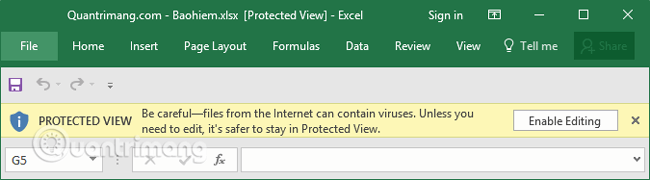
<p style="text-align: justify;">Khi mở tệp ở dạng này, một dòng cảnh báo sẽ xuất hiện dọc theo phần trên cùng của tài liệu đang mở cùng nút&nbsp;<strong>Enable Editing,&nbsp;</strong>click vào đó, chương trình sẽ cho phép bạn chỉnh sửa tài liệu sau khi đã cân nhắc xong.</p>

<figure>
<div style="text-align: justify;"><img alt="Một dòng cảnh báo sẽ xuất hiện dọc theo phần trên cùng của tài liệu đang mở cùng nút Enable Editing" data-i="0" data-src="https://st.quantrimang.com/photos/image/2019/08/18/bat-tat-Protected-View-trong-office-1.png" data-was-processed="true" height="180" src="https://st.quantrimang.com/photos/image/2019/08/18/bat-tat-Protected-View-trong-office-1.png" width="650" /></div>

<figcaption>
<div style="text-align: justify;">Một dòng cảnh báo sẽ xuất hiện dọc theo phần trên cùng của tài liệu đang mở cùng nút Enable Editing</div>
</figcaption>
</figure>

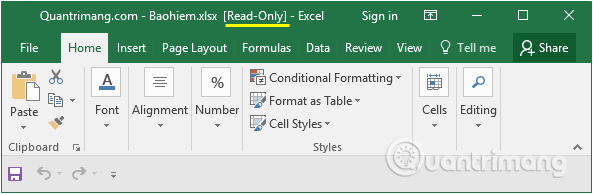
<p style="text-align: justify;">Một dạng sẽ edit là tài liệu được mở dưới dạng&nbsp;<strong>read-only</strong>&nbsp;với một số nội dung không được hiện.</p>

<figure>
<div style="text-align: justify;"><img alt="Một dạng khác là tài liệu được mở dưới dạng read-only" data-i="1" data-src="https://st.quantrimang.com/photos/image/2019/08/18/bat-tat-Protected-View-trong-office-2.png" data-was-processed="true" height="194" src="https://st.quantrimang.com/photos/image/2019/08/18/bat-tat-Protected-View-trong-office-2.png" width="593" /></div>

<figcaption>
<div style="text-align: justify;">Một dạng khác là tài liệu được mở dưới dạng read-only</div>
</figcaption>
</figure>

<p style="text-align: justify;">Nếu ở dạng này, bạn nên lưu tài liệu thành một bản khác để làm việc dễ dàng hơn.</p>

<h2 style="text-align: justify;">Cách vô hiệu hóa chế độ Protected View</h2>

<p style="text-align: justify;">Tuy tính năng này khá hữu ích nhưng cũng gây khó khăn không nhỏ cho người sử dụng vì không thể sửa ngay nội dung trong văn bản và tài liệ. Nếu bạn muốn&nbsp;<strong>tắt tính năng Protected View trên Office 2016</strong>&nbsp;thì có thể tham khảo cách thực hiện sau đây.</p>

<p style="text-align: justify;"><strong>Lưu ý:</strong></p>

<ul>
	<li style="text-align: justify;">Hướng dẫn sau lấy ví dụ với Excel 2016, thực hiện tương tự các bước với Word và Power Point để tắt tính năng&nbsp;<strong>Protected View</strong>.</li>
	<li style="text-align: justify;">Nên hỏi ý kiến của IT hoặc quản trị viên mạng nếu bạn thực hiện việc này trên hệ thống chung, vì rất có thể nó sẽ đem đến những rủi ro tiềm ẩn.</li>
</ul>

<p style="text-align: justify;">Để tắt&nbsp;<strong>Protected View</strong>, bạn thực hiện theo các bước như sau:</p>

<p style="text-align: justify;"><strong>Bước 1:</strong>&nbsp;Nhấn chọn&nbsp;<strong>File</strong>&nbsp;nằm trên cùng bên trái từ thanh tác vụ.</p>

<p style="text-align: justify;"><strong>Bước 2:</strong>&nbsp;Trong giao diện mới, từ menu bên trái bạn nhấn chọn vào mục&nbsp;<strong>Options.</strong></p>

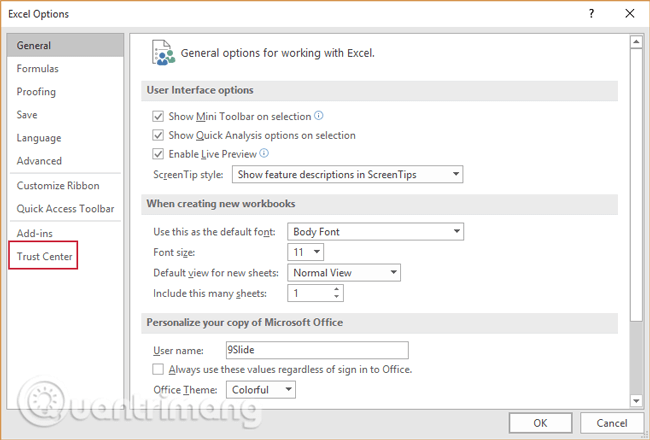
<p style="text-align: justify;"><strong>Bước 3:</strong>&nbsp;Trong giao diện&nbsp;<strong>Excel Options</strong>, cũng tại menu bên trái nhấn chọn&nbsp;<strong>Trust Center</strong>.</p>

<figure>
<div style="text-align: justify;"><img alt="Nhấn chọn Trust Center" data-i="2" data-src="https://st.quantrimang.com/photos/image/2019/08/18/bat-tat-Protected-View-trong-office-3.png" data-was-processed="true" height="440" src="https://st.quantrimang.com/photos/image/2019/08/18/bat-tat-Protected-View-trong-office-3.png" width="650" /></div>

<figcaption>
<div style="text-align: justify;">Nhấn chọn Trust Center</div>
</figcaption>
</figure>

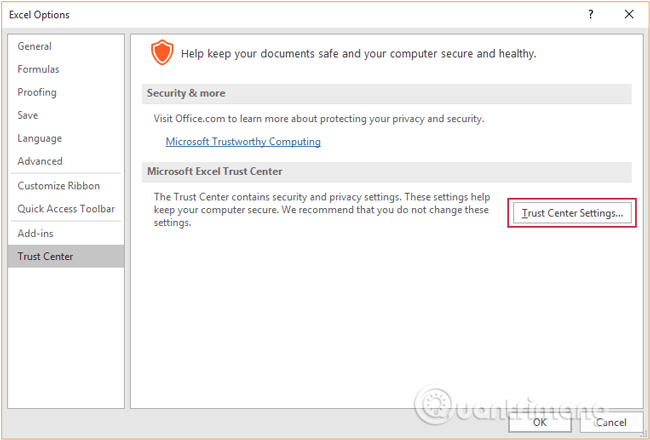
<p style="text-align: justify;"><strong>Bước 4:</strong>&nbsp;Tiếp theo, chọn&nbsp;<strong>Trust Center Settings…</strong></p>

<figure>
<div style="text-align: justify;"><img alt="Chọn Trust Center Settings…" data-i="3" data-src="https://st.quantrimang.com/photos/image/2019/08/18/bat-tat-Protected-View-trong-office-4.png" data-was-processed="true" height="440" src="https://st.quantrimang.com/photos/image/2019/08/18/bat-tat-Protected-View-trong-office-4.png" width="650" /></div>

<figcaption>
<div style="text-align: justify;">Chọn Trust Center Settings…</div>
</figcaption>
</figure>

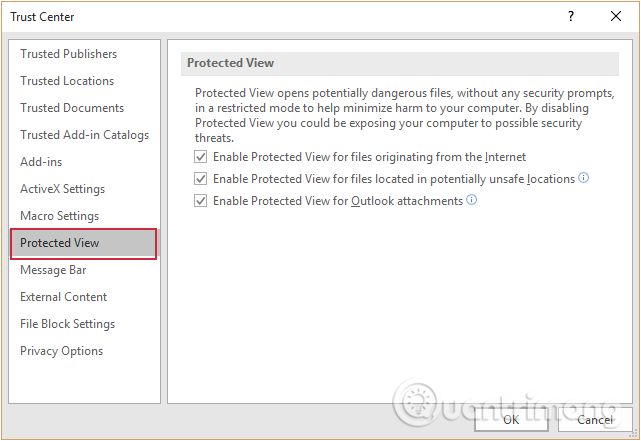
<p style="text-align: justify;"><strong>Bước 5:</strong>&nbsp;Chuyển sang giao diện&nbsp;<strong>Trust Center</strong>, nhấn chọn danh mục&nbsp;<strong>Protected View</strong>.</p>

<figure>
<div style="text-align: justify;"><img alt="Chọn tiếp danh mục Protected View." data-i="4" data-src="https://st.quantrimang.com/photos/image/2019/08/18/bat-tat-Protected-View-trong-office-5.png" data-was-processed="true" height="441" src="https://st.quantrimang.com/photos/image/2019/08/18/bat-tat-Protected-View-trong-office-5.png" width="641" /></div>

<figcaption>
<div style="text-align: justify;">Chọn tiếp danh mục Protected View.</div>
</figcaption>
</figure>

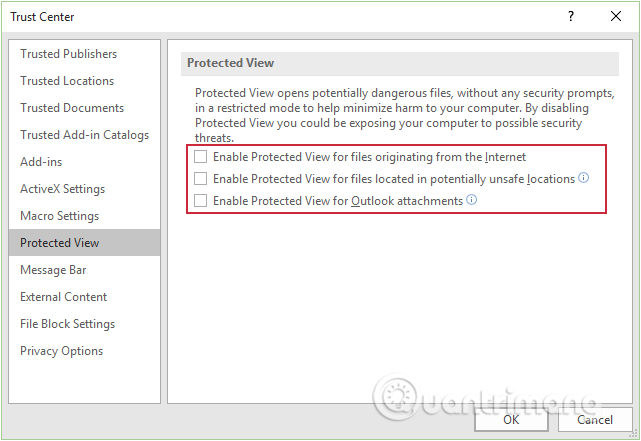
<p style="text-align: justify;"><strong>Bước 6:</strong>&nbsp;Ở đây có 3 chế độ:&nbsp;<strong>files originating from the Internet, unsafe locations&nbsp;</strong>và<strong>Outlook attachments</strong>. Hãy vô hiệu hóa cả 3 bằng cách bỏ tích trước mỗi tùy chọn nếu không muốn&nbsp;<strong>Protected View</strong>&nbsp;can thiệp vào tệp của bạn trong tương lai.</p>

<figure>
<div style="text-align: justify;"><img alt="Bỏ tích trước các tùy chọn để vô hiệu hóa Protected View " data-i="5" data-src="https://st.quantrimang.com/photos/image/2019/08/18/bat-tat-Protected-View-trong-office-6.png" data-was-processed="true" height="441" src="https://st.quantrimang.com/photos/image/2019/08/18/bat-tat-Protected-View-trong-office-6.png" width="641" /></div>

<figcaption>
<div style="text-align: justify;">Bỏ tích trước các tùy chọn để vô hiệu hóa Protected View</div>
</figcaption>
</figure>

<p style="text-align: justify;">Như vậy, chúng ta đã vô hiệu hóa tính năng&nbsp;<strong>Protected View</strong>&nbsp;trên Office 2016. Khi bạn lại mở tài liệu sẽ không thấy xuất hiện nút&nbsp;<strong>Enable Editing</strong>&nbsp;nữa, vậy nên có thể chỉnh sửa trực tiếp ngay. Đặc biệt, với những tài liệu chúng ta tải từ trên mạng xuống cũng đã được bỏ tính năng bảo vệ&nbsp;<strong>Protected View</strong>.</p>

<p style="text-align: justify;">Có thể đánh giá&nbsp;<strong>Protected View</strong>&nbsp;là một tính năng rất hữu ích giúp bảo về người dùng khỏi các mối đe dọa tiềm ẩn khi mở tài liệu từ các nguồn không xác định. Chế độ này rất phổ biến khi làm việc với Office trên các thiết bị di động hoặc truy cập file ở các địa điểm công cộng không thường xuyên sử dụng.</p>
		</div>
				<div id="author">
						<p>
				<strong>Nguồn tin:</strong>
				Quantrimang.com
			</p>
		</div>
	</div>
	<div id="footer" class="clearfix">
		<div id="url">
			<strong>URL của bản tin này: </strong><a href="https://www.nguoicodonvn2008.info/vi/news/savefile/kien-thuc-may-tinh/protected-view-la-gi-bat-tat-tinh-nang-protected-view-trong-office-2016-778.html" title="Protected View là gì? Bật, tắt tính năng Protected View trong Office 2016">https://www.nguoicodonvn2008.info/vi/news/savefile/kien-thuc-may-tinh/protected-view-la-gi-bat-tat-tinh-nang-protected-view-trong-office-2016-778.html</a>

		</div>
		<div class="clear"></div>
		<div class="copyright">
			&copy; .&#x3A; Nguoicodonvn2008.info - Cõi lòng người cô đơn &#x3A;.
		</div>
		<div id="contact">
			<a href="mailto:admin@nguoicodonvn2008.info">admin@nguoicodonvn2008.info</a>
		</div>
	</div>
</div>
        <div id="timeoutsess" class="chromeframe">
            Bạn đã không sử dụng Site, <a onclick="timeoutsesscancel();" href="https://www.nguoicodonvn2008.info/#">Bấm vào đây để duy trì trạng thái đăng nhập</a>. Thời gian chờ: <span id="secField"> 60 </span> giây
        </div>
        <div id="openidResult" class="nv-alert" style="display:none"></div>
        <div id="openidBt" data-result="" data-redirect=""></div>
		</script>
		<div class="car-top">
  <span><img src="https://www.nguoicodonvn2008.info/themes/default/images/car.png" alt=""></span>
</div>
<script src="https://www.nguoicodonvn2008.info/assets/js/jquery/jquery.min.js"></script>
<script>var nv_base_siteurl="/",nv_lang_data="vi",nv_lang_interface="vi",nv_name_variable="nv",nv_fc_variable="op",nv_lang_variable="language",nv_module_name="news",nv_func_name="savefile",nv_is_user=0, nv_my_ofs=-4,nv_my_abbr="EDT",nv_cookie_prefix="nv4c_e856T",nv_check_pass_mstime=1738000,nv_area_admin=0,nv_safemode=0,theme_responsive=0,nv_recaptcha_ver=2,nv_recaptcha_sitekey="",nv_recaptcha_type="image",XSSsanitize=1;</script>
<script src="https://www.nguoicodonvn2008.info/assets/js/language/vi.js"></script>
<script src="https://www.nguoicodonvn2008.info/assets/js/DOMPurify/purify3.js"></script>
<script src="https://www.nguoicodonvn2008.info/assets/js/global.js"></script>
<script src="https://www.nguoicodonvn2008.info/assets/js/site.js"></script>
<script src="https://www.nguoicodonvn2008.info/themes/default/js/news.js"></script>
<script src="https://www.nguoicodonvn2008.info/themes/default/js/main.js"></script>
<script src="https://www.nguoicodonvn2008.info/themes/default/js/custom.js"></script>
<script type="application/ld+json">
        {
            "@context": "https://schema.org",
            "@type": "Organization",
            "url": "https://www.nguoicodonvn2008.info",
            "logo": "https://www.nguoicodonvn2008.info/uploads/angel.gif"
        }
        </script>
<script src="https://www.nguoicodonvn2008.info/themes/default/js/bootstrap.min.js"></script>
<script type="text/javascript">
var $scrolltop = $('.car-top');
$scrolltop.on('click', function () {
    $('html,body').animate({
        scrollTop: 0
    }, 800);
    $(this).addClass("car-run");
    setTimeout(function(){ $scrolltop.removeClass('car-run');}, 1000);
    return false;
});
$(window).on('scroll', function ()
{ 
    if($(window).scrollTop() >= 200)
    {
        $scrolltop.addClass("show");
        $scrolltop.addClass("car-down");
    }
    else
    {
       $scrolltop.removeClass("show");
       setTimeout(function(){ $scrolltop.removeClass('car-down');}, 300);
    }
});
</script>
</body>
</html>