<!DOCTYPE html>
    <html lang="vi" xmlns="http://www.w3.org/1999/xhtml" prefix="og: http://ogp.me/ns#">
    <head>
<title>Program Compatibility Troubleshooter trong Windows 11 là gì? Cách sử dụng ra sao?</title>
<meta name="description" content="Program Compatibility Troubleshooter trong Windows 11 là gì? Cách sử dụng ra sao? - Savefile - Tin Tức -...">
<meta name="author" content=".: Nguoicodonvn2008.info - Cõi lòng người cô đơn :.">
<meta name="copyright" content=".: Nguoicodonvn2008.info - Cõi lòng người cô đơn :. [admin@nguoicodonvn2008.info]">
<meta name="robots" content="index, archive, follow, noodp">
<meta name="googlebot" content="index,archive,follow,noodp">
<meta name="msnbot" content="all,index,follow">
<meta name="generator" content="NukeViet v4.5">
<meta http-equiv="Content-Type" content="text/html; charset=utf-8">
<meta property="og:title" content="Program Compatibility Troubleshooter trong Windows 11 là gì? Cách sử dụng ra sao?">
<meta property="og:type" content="website">
<meta property="og:description" content="Savefile - Tin Tức -...">
<meta property="og:site_name" content=".&#x3A; Nguoicodonvn2008.info - Cõi lòng người cô đơn &#x3A;.">
<meta property="og:url" content="https://www.nguoicodonvn2008.info/vi/news/savefile/kien-thuc-may-tinh/program-compatibility-troubleshooter-trong-windows-11-la-gi-cach-su-dung-ra-sao-10384.html">
<link rel="shortcut icon" href="https://www.nguoicodonvn2008.info/favicon.ico">
<link rel="canonical" href="https://www.nguoicodonvn2008.info/vi/news/savefile/kien-thuc-may-tinh/program-compatibility-troubleshooter-trong-windows-11-la-gi-cach-su-dung-ra-sao-10384.html">
<link rel="alternate" href="https://www.nguoicodonvn2008.info/vi/news/rss/" title="Tin Tức" type="application/rss+xml">
<link rel="alternate" href="https://www.nguoicodonvn2008.info/vi/news/rss/karaoke-dual/" title="Tin Tức - Karaoke Dual" type="application/rss+xml">
<link rel="alternate" href="https://www.nguoicodonvn2008.info/vi/news/rss/nhac-tre/" title="Tin Tức - Nhạc trẻ" type="application/rss+xml">
<link rel="alternate" href="https://www.nguoicodonvn2008.info/vi/news/rss/tru-tinh/" title="Tin Tức - Trữ tình" type="application/rss+xml">
<link rel="alternate" href="https://www.nguoicodonvn2008.info/vi/news/rss/nuoc-ngoai/" title="Tin Tức - Nước ngoài" type="application/rss+xml">
<link rel="alternate" href="https://www.nguoicodonvn2008.info/vi/news/rss/remix/" title="Tin Tức - Remix" type="application/rss+xml">
<link rel="alternate" href="https://www.nguoicodonvn2008.info/vi/news/rss/tam-su-tinh-yeu/" title="Tin Tức - Tâm sự tình yêu" type="application/rss+xml">
<link rel="alternate" href="https://www.nguoicodonvn2008.info/vi/news/rss/tho-suu-tam/" title="Tin Tức - Thơ sưu tầm" type="application/rss+xml">
<link rel="alternate" href="https://www.nguoicodonvn2008.info/vi/news/rss/cuoc-song/" title="Tin Tức - Cuộc sống" type="application/rss+xml">
<link rel="alternate" href="https://www.nguoicodonvn2008.info/vi/news/rss/phan-mem/" title="Tin Tức - Phần mềm" type="application/rss+xml">
<link rel="alternate" href="https://www.nguoicodonvn2008.info/vi/news/rss/kien-thuc-may-tinh/" title="Tin Tức - Kiến thức máy tính" type="application/rss+xml">
<link rel="alternate" href="https://www.nguoicodonvn2008.info/vi/news/rss/hoc-tap/" title="Tin Tức - Học tập" type="application/rss+xml">
<link rel="alternate" href="https://www.nguoicodonvn2008.info/vi/news/rss/tai-lieu/" title="Tin Tức - Tài liệu" type="application/rss+xml">
<link rel="alternate" href="https://www.nguoicodonvn2008.info/vi/news/rss/de-thi/" title="Tin Tức - Đề thi" type="application/rss+xml">
<link rel="preload" as="style" href="https://www.nguoicodonvn2008.info/assets/css/font-awesome.min.css" type="text/css">
<link rel="preload" as="style" href="https://www.nguoicodonvn2008.info/themes/default/css/bootstrap.non-responsive.css" type="text/css">
<link rel="preload" as="style" href="https://www.nguoicodonvn2008.info/themes/default/css/style.css" type="text/css">
<link rel="preload" as="style" href="https://www.nguoicodonvn2008.info/themes/default/css/style.non-responsive.css" type="text/css">
<link rel="preload" as="style" href="https://www.nguoicodonvn2008.info/themes/default/css/news.css" type="text/css">
<link rel="preload" as="style" href="https://www.nguoicodonvn2008.info/themes/default/css/custom.css" type="text/css">
<link rel="preload" as="script" href="https://www.nguoicodonvn2008.info/assets/js/jquery/jquery.min.js" type="text/javascript">
<link rel="preload" as="script" href="https://www.nguoicodonvn2008.info/assets/js/language/vi.js" type="text/javascript">
<link rel="preload" as="script" href="https://www.nguoicodonvn2008.info/assets/js/DOMPurify/purify3.js" type="text/javascript">
<link rel="preload" as="script" href="https://www.nguoicodonvn2008.info/assets/js/global.js" type="text/javascript">
<link rel="preload" as="script" href="https://www.nguoicodonvn2008.info/assets/js/site.js" type="text/javascript">
<link rel="preload" as="script" href="https://www.nguoicodonvn2008.info/themes/default/js/news.js" type="text/javascript">
<link rel="preload" as="script" href="https://www.nguoicodonvn2008.info/themes/default/js/main.js" type="text/javascript">
<link rel="preload" as="script" href="https://www.nguoicodonvn2008.info/themes/default/js/custom.js" type="text/javascript">
<link rel="preload" as="script" href="https://www.nguoicodonvn2008.info/themes/default/js/bootstrap.min.js" type="text/javascript">
<link rel="stylesheet" href="https://www.nguoicodonvn2008.info/assets/css/font-awesome.min.css">
<link rel="stylesheet" href="https://www.nguoicodonvn2008.info/themes/default/css/bootstrap.non-responsive.css">
<link rel="stylesheet" href="https://www.nguoicodonvn2008.info/themes/default/css/style.css">
<link rel="stylesheet" href="https://www.nguoicodonvn2008.info/themes/default/css/style.non-responsive.css">
<link rel="StyleSheet" href="https://www.nguoicodonvn2008.info/themes/default/css/news.css">
<link rel="stylesheet" href="https://www.nguoicodonvn2008.info/themes/default/css/custom.css">
<style type="text/css">
	body{background: #fff;}
</style>
    </head>
    <body>
<div id="print">
	<div id="hd_print">
		<h2 class="pull-left">.&#x3A; Nguoicodonvn2008.info - Cõi lòng người cô đơn &#x3A;.</h2>
		<p class="pull-right"><a title=".&#x3A; Nguoicodonvn2008.info - Cõi lòng người cô đơn &#x3A;." href="https://www.nguoicodonvn2008.info/">https://www.nguoicodonvn2008.info</a></p>
	</div>
	<div class="clear"></div>
	<hr />
	<div id="content">
		<h1>Program Compatibility Troubleshooter trong Windows 11 là gì? Cách sử dụng ra sao?</h1>
		<ul class="list-inline">
			<li>Thứ sáu - 16/05/2025 00:12</li>
			<li class="hidden-print txtrequired"><em class="fa fa-print">&nbsp;</em><a title="In ra" href="javascript:;" onclick="window.print()">In ra</a></li>
			<li class="hidden-print txtrequired"><em class="fa fa-power-off">&nbsp;</em><a title="Đóng cửa sổ này" href="javascript:;" onclick="window.close()">Đóng cửa sổ này</a></li>
		</ul>
		<div class="clear"></div>
		<div id="hometext">
		</div>
				<div class="imghome">
			<img alt="Program Compatibility Troubleshooter trong Windows 11 là gì? Cách sử dụng ra sao?" src="https://st.quantrimang.com/photos/image/2025/03/05/program-compatibility-troubleshooter-windows-11-1.jpg" width="460" class="img-thumbnail" />
		</div>
		<div class="clear"></div>
		<div id="bodytext" class="clearfix">
			<p style="text-align: justify;">Bạn đang chạy một ứng dụng cũ trên&nbsp;&nbsp;Windows&nbsp;11 và gặp sự cố? Có thể là do có vấn đề về khả năng tương thích khiến ứng dụng hoạt động không bình thường vì chương trình có thể không hỗ trợ&nbsp;Windows 11.</p>

<p style="text-align: justify;">May mắn thay, có một công cụ bạn có thể sử dụng để giúp ứng dụng hoạt động bình thường. Công cụ này có tên là Program Compatibility Troubleshooter. Bài viết sau đây sẽ cho bạn biết công cụ này là gì và cách sử dụng nó ra sao.</p>

<h2 style="text-align: justify;">&nbsp;</h2>

<h2 id="mcetoc_1ir9otki717o" style="text-align: justify;">Program Compatibility Troubleshooter là gì?</h2>

<p style="text-align: justify;">Nói một cách ngắn gọn, Program Compatibility Shooter là một công cụ trên Windows giúp bạn khắc phục sự cố về khả năng tương thích của ứng dụng. Ví dụ, công cụ này có thể giúp ích nếu ứng dụng hoạt động hoàn hảo trên Windows 8 nhưng bạn thấy ứng dụng không hoạt động bình thường (ví dụ, một số thành phần đồ họa bị lỗi) hoặc bị sập trên Windows 11.</p>

<p style="text-align: justify;">Windows 11 có nhiều công cụ khắc phục sự cố và bạn có thể đọc hướng dẫn về&nbsp;mọi công cụ khắc phục sự cố trên Windows&nbsp;để biết tổng quan ngắn gọn về từng công cụ.</p>

<p style="text-align: justify;">Với Program Compatibility Troubleshooter, bạn thực hiện một loạt các bước để giúp công cụ xác định sự cố về khả năng tương thích cụ thể. Và khi bạn thực hiện, công cụ sẽ áp dụng các thiết lập tốt nhất cho chương trình để chương trình có thể chạy mượt mà trên Windows 11.</p>

<div style="text-align: justify;">&nbsp;</div>

<h2 id="mcetoc_1ir9otki717p" style="text-align: justify;">Khởi chạy Program Compatibility Troubleshooter như thế nào?</h2>

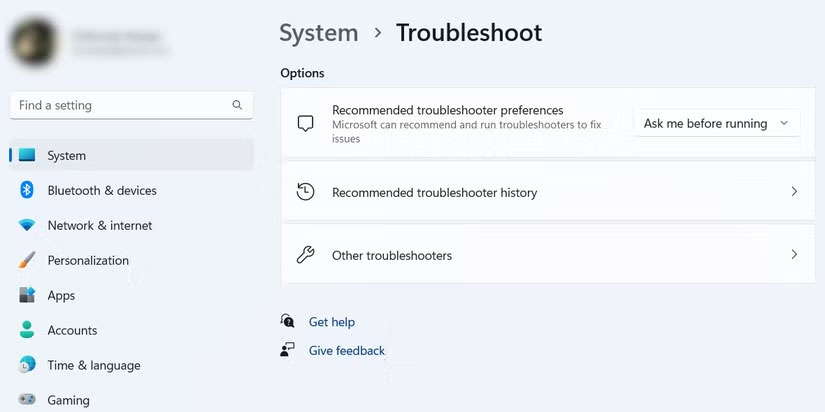
<p style="text-align: justify;">Để mở Program Compatibility Troubleshooter, hãy làm theo các bước dưới đây:</p>

<p style="text-align: justify;">1. Nhấn&nbsp;<strong>Win + I</strong>&nbsp;để&nbsp;mở ứng dụng Settings.</p>

<p style="text-align: justify;">2. Bạn sẽ tự động đến trang System, nếu không, hãy nhấp vào&nbsp;<strong>System</strong>&nbsp;trên menu bên trái.</p>

<p style="text-align: justify;">3. Ở bên phải trang&nbsp;<strong>System</strong>, hãy nhấp vào&nbsp;<strong>Troubleshoot</strong>.</p>

<p style="text-align: justify;">4. Cuộn xuống và nhấp vào&nbsp;<strong>Other troubleshooters</strong>.</p>

<figure>
<div style="text-align: justify;"><img alt="Trang khắc phục sự cố trong Settings" data-i="0" data-src="https://st.quantrimang.com/photos/image/2025/03/05/program-compatibility-troubleshooter-windows-11-1.jpg" data-was-processed="true" height="412" src="https://st.quantrimang.com/photos/image/2025/03/05/program-compatibility-troubleshooter-windows-11-1.jpg" width="825" /></div>

<figcaption>
<div style="text-align: justify;">Trang khắc phục sự cố trong Settings</div>
</figcaption>
</figure>

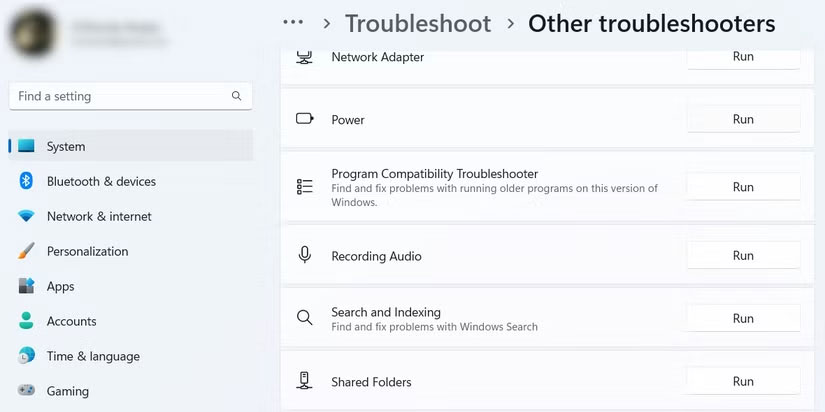
<p style="text-align: justify;">5. Bạn sẽ tìm thấy&nbsp;<strong>Program Compatibility Troubleshooter</strong>&nbsp;trong phần&nbsp;<strong>Other</strong>&nbsp;và để khởi chạy, hãy nhấp vào nút&nbsp;<strong>Run</strong>&nbsp;bên cạnh.</p>

<figure>
<div style="text-align: justify;"><img alt="" data-i="1" data-src="https://st.quantrimang.com/photos/image/2025/03/05/program-compatibility-troubleshooter-windows-11-2.jpg" data-was-processed="true" height="412" src="https://st.quantrimang.com/photos/image/2025/03/05/program-compatibility-troubleshooter-windows-11-2.jpg" width="825" /></div>
</figure>

<h2 id="mcetoc_1ir9otki717q" style="text-align: justify;">Cách chọn chương trình để sửa trong Program Compatibility Troubleshooter</h2>

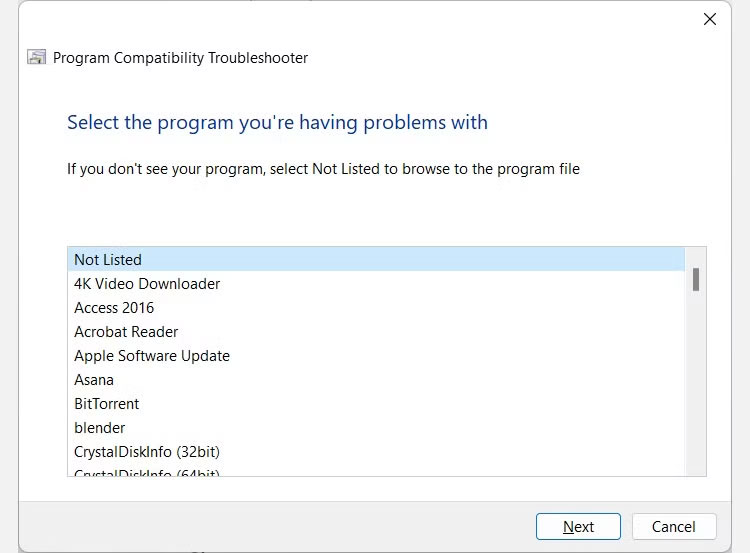
<p style="text-align: justify;">Sau khi bạn khởi chạy Program Compatibility Troubleshooter, nó sẽ tìm kiếm tất cả các chương trình mà bạn có thể khắc phục sự cố và liệt kê chúng cho bạn. Chọn chương trình bạn muốn sửa, sau đó nhấp vào&nbsp;<strong>Next</strong>. Và nếu chương trình không có trong danh sách, hãy chọn&nbsp;<strong>Not listed</strong>&nbsp;và duyệt tìm chương trình đó.</p>

<figure>
<div style="text-align: justify;"><img alt="Chọn chương trình trong Program Compatibility Troubleshooter trên Windows 11" data-i="2" data-src="https://st.quantrimang.com/photos/image/2025/03/05/program-compatibility-troubleshooter-windows-11-3.jpg" data-was-processed="true" height="553" src="https://st.quantrimang.com/photos/image/2025/03/05/program-compatibility-troubleshooter-windows-11-3.jpg" width="750" /></div>

<figcaption>
<div style="text-align: justify;">Chọn chương trình trong Program Compatibility Troubleshooter trên Windows 11</div>
</figcaption>
</figure>

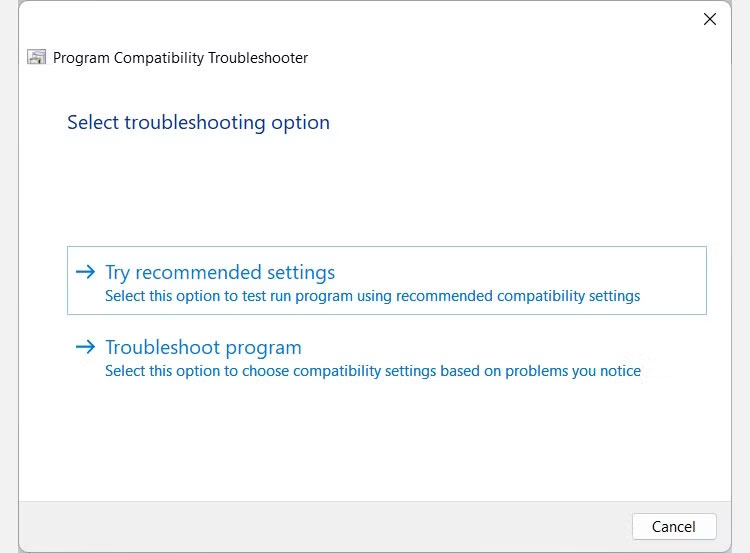
<p style="text-align: justify;">Sau khi công cụ phân tích chương trình, nó sẽ yêu cầu bạn chọn tùy chọn khắc phục sự cố giữa&nbsp;<strong>Try recommended settings</strong>&nbsp;và&nbsp;<strong>Troubleshoot program</strong>.</p>

<figure>
<div style="text-align: justify;"><img alt="Chọn tùy chọn khắc phục sự cố trong Program Compatibility Troubleshooter trên Windows 11" data-i="3" data-src="https://st.quantrimang.com/photos/image/2025/03/05/program-compatibility-troubleshooter-windows-11-4.jpg" data-was-processed="true" height="553" src="https://st.quantrimang.com/photos/image/2025/03/05/program-compatibility-troubleshooter-windows-11-4.jpg" width="750" /></div>

<figcaption>
<div style="text-align: justify;">Chọn tùy chọn khắc phục sự cố trong Program Compatibility Troubleshooter trên Windows 11</div>
</figcaption>
</figure>

<p style="text-align: justify;">Hãy cùng xem từng mục có chức năng gì.</p>

<h2 id="mcetoc_1ir9otki717r" style="text-align: justify;">Cách khắc phục sự cố tương thích với tùy chọn &quot;Try recommended settings&quot;</h2>

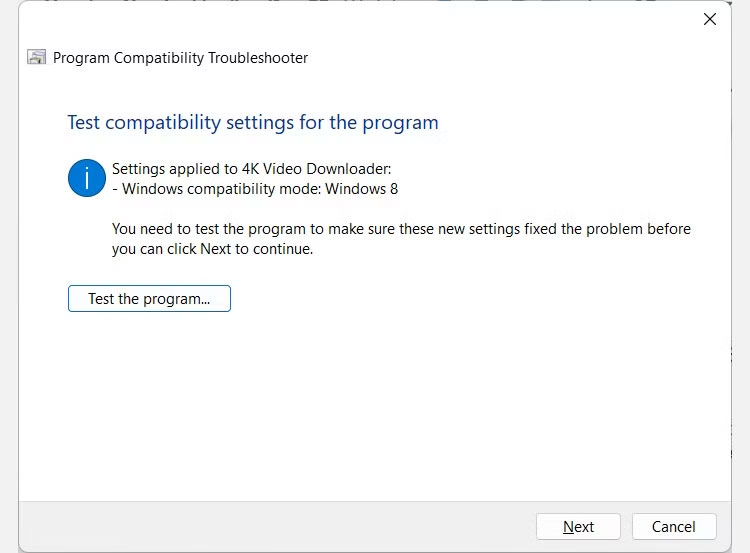
<p style="text-align: justify;">Nếu bạn chọn&nbsp;<strong>Try recommended settings</strong>, Windows sẽ áp dụng cài đặt tương thích tốt nhất cho chương trình đã chọn dựa trên phiên bản Windows trước đó. Tuy nhiên, sau đó bạn sẽ cần nhấp vào nút&nbsp;<strong>Test the program</strong>&nbsp;để khởi chạy ứng dụng và đảm bảo ứng dụng hoạt động như mong đợi. Sau đó, nhấp vào&nbsp;<strong>Next</strong>&nbsp;để tiếp tục.</p>

<figure>
<div style="text-align: justify;"><img alt="" data-i="4" data-src="https://st.quantrimang.com/photos/image/2025/05/15/program-compatibility-troubleshooter-windows-11-1.jpg" data-was-processed="true" height="553" src="https://st.quantrimang.com/photos/image/2025/05/15/program-compatibility-troubleshooter-windows-11-1.jpg" width="750" /></div>
</figure>

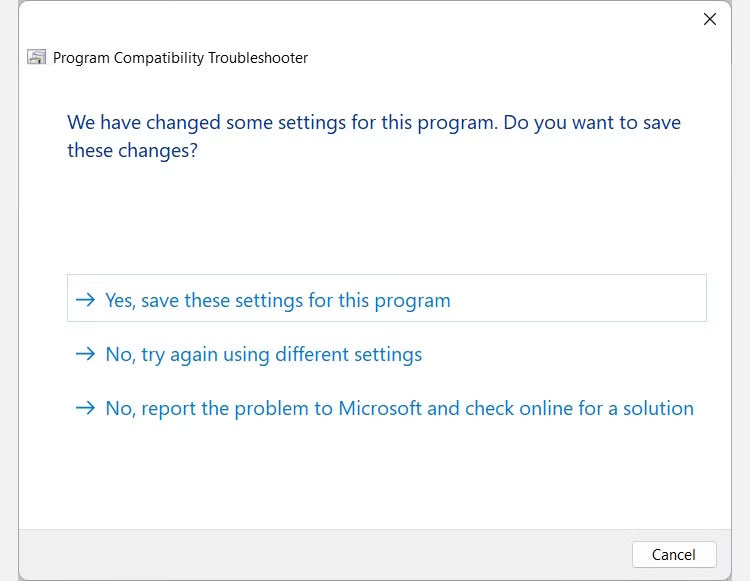
<p style="text-align: justify;">Sau đó, bạn sẽ được hỏi xem bạn có muốn lưu các cài đặt đã áp dụng không. Nếu chúng hoạt động, hãy nhấp vào&nbsp;<strong>Yes, save these settings for this program</strong>. Nếu không, hãy nhấp vào&nbsp;<strong>No, try again using different settings</strong>&nbsp;- điều này giống như chọn&nbsp;<strong>Troubleshoot program</strong>&nbsp;làm tùy chọn khắc phục sự cố của bạn.</p>

<figure>
<div style="text-align: justify;"><img alt="" data-i="5" data-src="https://st.quantrimang.com/photos/image/2025/05/15/program-compatibility-troubleshooter-windows-11-2.jpg" data-was-processed="true" height="581" src="https://st.quantrimang.com/photos/image/2025/05/15/program-compatibility-troubleshooter-windows-11-2.jpg" width="750" /></div>
</figure>

<p style="text-align: justify;">Nếu không, hãy nhấp vào&nbsp;<strong>No, report the problem to Microsoft and check online for a solution</strong>.</p>

<h2 id="mcetoc_1ir9otki717s" style="text-align: justify;">Cách khắc phục sự cố tương thích với tùy chọn &quot;Troubleshoot Program&quot;</h2>

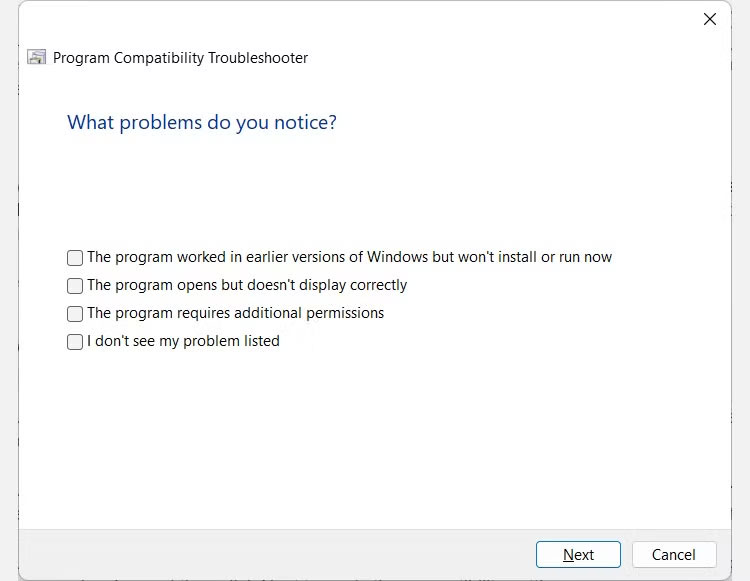
<p style="text-align: justify;">Nếu chọn tùy chọn&nbsp;<strong>Troubleshooter program</strong>, bạn sẽ được cung cấp danh sách các sự cố để lựa chọn. Đánh dấu vào những mục bạn đang gặp phải (bạn có thể chọn nhiều mục), sau đó nhấp vào&nbsp;<strong>Next</strong>.</p>

<figure>
<div style="text-align: justify;"><img alt="" data-i="6" data-src="https://st.quantrimang.com/photos/image/2025/05/15/program-compatibility-troubleshooter-windows-11-3.jpg" data-was-processed="true" height="581" src="https://st.quantrimang.com/photos/image/2025/05/15/program-compatibility-troubleshooter-windows-11-3.jpg" width="750" /></div>
</figure>

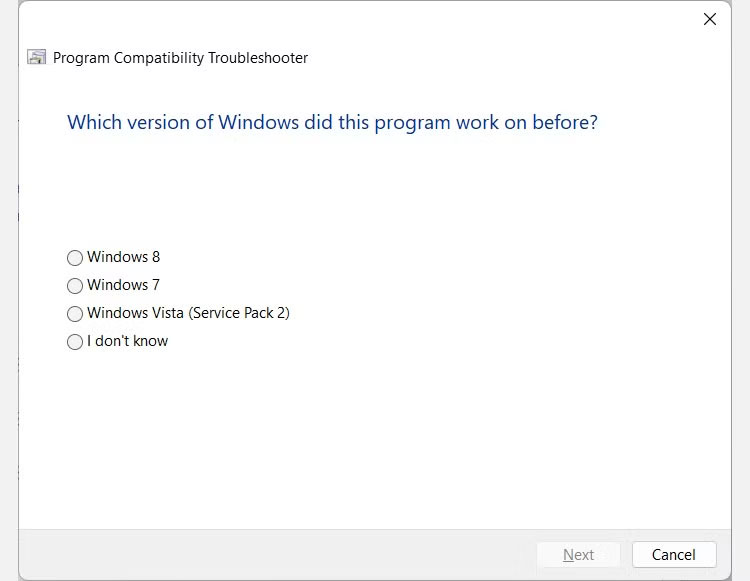
<p style="text-align: justify;">Nếu bạn đã đánh dấu vào&nbsp;<strong>The program worked in earlier versions of&nbsp;&nbsp;Windows&nbsp;but won’t install or run now</strong>, bạn sẽ được yêu cầu chọn phiên bản Windows trước đó bằng cách nhấp vào nút thích hợp. Sau đó, nhấp vào&nbsp;<strong>Next</strong>&nbsp;để áp dụng các cài đặt tương thích.</p>

<figure>
<div style="text-align: justify;"><img alt="" data-i="7" data-src="https://st.quantrimang.com/photos/image/2025/05/15/program-compatibility-troubleshooter-windows-11-4.jpg" data-was-processed="true" height="581" src="https://st.quantrimang.com/photos/image/2025/05/15/program-compatibility-troubleshooter-windows-11-4.jpg" width="750" /></div>
</figure>

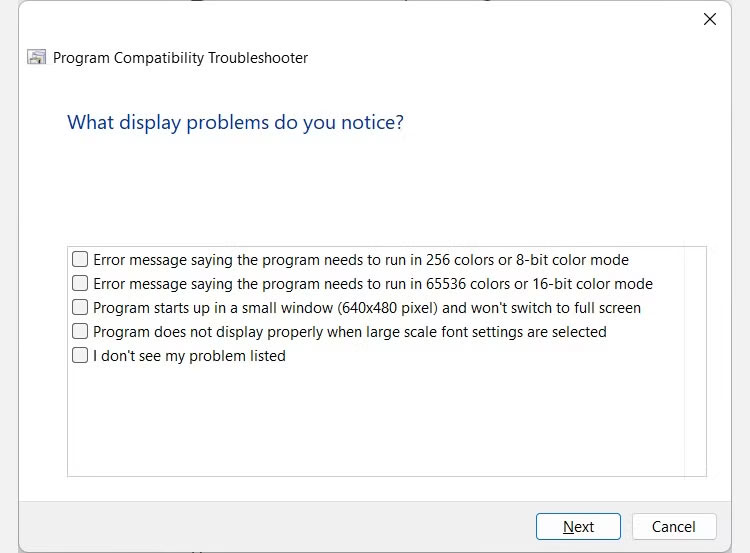
<p style="text-align: justify;">Nếu đã đánh dấu vào&nbsp;<strong>The program opens but doesn’t display correctly</strong>&nbsp;khi chọn sự cố, bạn sẽ cần chọn các sự cố hiển thị mà bạn đang gặp phải. Sau đó, nhấp vào&nbsp;<strong>Next</strong>&nbsp;để áp dụng các cài đặt tương thích và hãy nhớ rằng bạn có thể chọn nhiều sự cố để cung cấp cho công cụ nhiều thông tin hơn về cách tối ưu hóa tốt nhất.</p>

<figure>
<div style="text-align: justify;"><img alt="" data-i="8" data-src="https://st.quantrimang.com/photos/image/2025/05/15/program-compatibility-troubleshooter-windows-11-5.jpg" data-was-processed="true" height="553" src="https://st.quantrimang.com/photos/image/2025/05/15/program-compatibility-troubleshooter-windows-11-5.jpg" width="750" /></div>
</figure>

<p style="text-align: justify;">Nếu bạn đã đánh dấu vào&nbsp;<strong>The program requires additional permissions</strong>, các cài đặt tương thích sẽ được áp dụng ngay lập tức. Và nếu bạn chọn&nbsp;<strong>I don’t see my problem on the list</strong>, bạn sẽ được đưa đến màn hình nơi phải chọn phiên bản Windows trước đó mà chương trình đã hoạt động lần cuối.</p>

<p style="text-align: justify;">Sau đó, bạn cần nhấp vào nút&nbsp;<strong>Test the program</strong>&nbsp;để xem sự cố đã biến mất chưa. Sau đó, nhấp vào&nbsp;<strong>Next</strong>&nbsp;để tiếp tục.</p>

<p style="text-align: justify;">Nếu trình khắc phục sự cố đã giải quyết được sự cố, hãy nhấp vào&nbsp;<strong>Yes, save these settings for this program</strong>&nbsp;trên màn hình tiếp theo. Nếu không, hãy nhấp vào&nbsp;<strong>No, try again using different settings</strong>&nbsp;để thử các bước khắc phục sự cố khác. Nếu không có tùy chọn nào áp dụng cho tình huống của bạn, hãy nhấp vào&nbsp;<strong>No, report the problem to Microsoft and check online for a solution</strong>.</p>

<h2 id="mcetoc_1ir9otki717t" style="text-align: justify;">Loại bỏ các vấn đề về khả năng tương thích của chương trình trên Windows 11</h2>

<p style="text-align: justify;">Bây giờ bạn đã hiểu rõ về Program Compatibility Troubleshooter. Bạn có thể sử dụng nó để sửa các ứng dụng cũ không hoạt động bình thường trên Windows 11. Nó tốt hơn nhiều so với việc chờ đợi các nhà phát triển ứng dụng cập nhật, điều này có thể không bao giờ xảy ra nếu họ ngừng làm việc trên đó.</p>

<p style="text-align: justify;">Đây chỉ là một trong nhiều trình khắc phục sự cố mà bạn có thể sử dụng trên Windows 11. Và bạn thậm chí có thể thiết lập các phím tắt cho chúng nếu sử dụng thường xuyên.</p>
		</div>
				<div id="author">
						<p>
				<strong>Nguồn tin:</strong>
				Quantrimang.com:
			</p>
		</div>
	</div>
	<div id="footer" class="clearfix">
		<div id="url">
			<strong>URL của bản tin này: </strong><a href="https://www.nguoicodonvn2008.info/vi/news/savefile/kien-thuc-may-tinh/program-compatibility-troubleshooter-trong-windows-11-la-gi-cach-su-dung-ra-sao-10384.html" title="Program Compatibility Troubleshooter trong Windows 11 là gì? Cách sử dụng ra sao?">https://www.nguoicodonvn2008.info/vi/news/savefile/kien-thuc-may-tinh/program-compatibility-troubleshooter-trong-windows-11-la-gi-cach-su-dung-ra-sao-10384.html</a>

		</div>
		<div class="clear"></div>
		<div class="copyright">
			&copy; .&#x3A; Nguoicodonvn2008.info - Cõi lòng người cô đơn &#x3A;.
		</div>
		<div id="contact">
			<a href="mailto:admin@nguoicodonvn2008.info">admin@nguoicodonvn2008.info</a>
		</div>
	</div>
</div>
        <div id="timeoutsess" class="chromeframe">
            Bạn đã không sử dụng Site, <a onclick="timeoutsesscancel();" href="https://www.nguoicodonvn2008.info/#">Bấm vào đây để duy trì trạng thái đăng nhập</a>. Thời gian chờ: <span id="secField"> 60 </span> giây
        </div>
        <div id="openidResult" class="nv-alert" style="display:none"></div>
        <div id="openidBt" data-result="" data-redirect=""></div>
		</script>
		<div class="car-top">
  <span><img src="https://www.nguoicodonvn2008.info/themes/default/images/car.png" alt=""></span>
</div>
<script src="https://www.nguoicodonvn2008.info/assets/js/jquery/jquery.min.js"></script>
<script>var nv_base_siteurl="/",nv_lang_data="vi",nv_lang_interface="vi",nv_name_variable="nv",nv_fc_variable="op",nv_lang_variable="language",nv_module_name="news",nv_func_name="savefile",nv_is_user=0, nv_my_ofs=-4,nv_my_abbr="EDT",nv_cookie_prefix="nv4c_e856T",nv_check_pass_mstime=1738000,nv_area_admin=0,nv_safemode=0,theme_responsive=0,nv_recaptcha_ver=2,nv_recaptcha_sitekey="",nv_recaptcha_type="image",XSSsanitize=1;</script>
<script src="https://www.nguoicodonvn2008.info/assets/js/language/vi.js"></script>
<script src="https://www.nguoicodonvn2008.info/assets/js/DOMPurify/purify3.js"></script>
<script src="https://www.nguoicodonvn2008.info/assets/js/global.js"></script>
<script src="https://www.nguoicodonvn2008.info/assets/js/site.js"></script>
<script src="https://www.nguoicodonvn2008.info/themes/default/js/news.js"></script>
<script src="https://www.nguoicodonvn2008.info/themes/default/js/main.js"></script>
<script src="https://www.nguoicodonvn2008.info/themes/default/js/custom.js"></script>
<script type="application/ld+json">
        {
            "@context": "https://schema.org",
            "@type": "Organization",
            "url": "https://www.nguoicodonvn2008.info",
            "logo": "https://www.nguoicodonvn2008.info/uploads/angel.gif"
        }
        </script>
<script src="https://www.nguoicodonvn2008.info/themes/default/js/bootstrap.min.js"></script>
<script type="text/javascript">
var $scrolltop = $('.car-top');
$scrolltop.on('click', function () {
    $('html,body').animate({
        scrollTop: 0
    }, 800);
    $(this).addClass("car-run");
    setTimeout(function(){ $scrolltop.removeClass('car-run');}, 1000);
    return false;
});
$(window).on('scroll', function ()
{ 
    if($(window).scrollTop() >= 200)
    {
        $scrolltop.addClass("show");
        $scrolltop.addClass("car-down");
    }
    else
    {
       $scrolltop.removeClass("show");
       setTimeout(function(){ $scrolltop.removeClass('car-down');}, 300);
    }
});
</script>
</body>
</html>