<!DOCTYPE html>
    <html lang="vi" xmlns="http://www.w3.org/1999/xhtml" prefix="og: http://ogp.me/ns#">
    <head>
<title>PowerPoint 2019 &#40;Phần 2&#41;&#x3A; Tạo và mở bài thuyết trình</title>
<meta name="description" content="PowerPoint 2019 &#40;Phần 2&#41;&#x3A; Tạo và mở bài thuyết trình - Savefile - Tin Tức -...">
<meta name="author" content=".: Nguoicodonvn2008.info - Cõi lòng người cô đơn :.">
<meta name="copyright" content=".: Nguoicodonvn2008.info - Cõi lòng người cô đơn :. [admin@nguoicodonvn2008.info]">
<meta name="robots" content="index, archive, follow, noodp">
<meta name="googlebot" content="index,archive,follow,noodp">
<meta name="msnbot" content="all,index,follow">
<meta name="generator" content="NukeViet v4.5">
<meta http-equiv="Content-Type" content="text/html; charset=utf-8">
<meta property="og:title" content="PowerPoint 2019 &#40;Phần 2&#41;&#x3A; Tạo và mở bài thuyết trình">
<meta property="og:type" content="website">
<meta property="og:description" content="Savefile - Tin Tức - https&#x3A;&#x002F;&#x002F;www.nguoicodonvn2008.info&#x002F;vi&#x002F;news&#x002F;savefile&#x002F;kien-thuc-may-tinh&#x002F;powerpoint-2019-phan-2-tao-va-mo-bai-thuyet-trinh-5361.html">
<meta property="og:site_name" content=".&#x3A; Nguoicodonvn2008.info - Cõi lòng người cô đơn &#x3A;.">
<meta property="og:url" content="https://www.nguoicodonvn2008.info/vi/news/savefile/kien-thuc-may-tinh/powerpoint-2019-phan-2-tao-va-mo-bai-thuyet-trinh-5361.html">
<link rel="shortcut icon" href="https://www.nguoicodonvn2008.info/favicon.ico">
<link rel="canonical" href="https://www.nguoicodonvn2008.info/vi/news/savefile/kien-thuc-may-tinh/powerpoint-2019-phan-2-tao-va-mo-bai-thuyet-trinh-5361.html">
<link rel="alternate" href="https://www.nguoicodonvn2008.info/vi/news/rss/" title="Tin Tức" type="application/rss+xml">
<link rel="alternate" href="https://www.nguoicodonvn2008.info/vi/news/rss/karaoke-dual/" title="Tin Tức - Karaoke Dual" type="application/rss+xml">
<link rel="alternate" href="https://www.nguoicodonvn2008.info/vi/news/rss/nhac-tre/" title="Tin Tức - Nhạc trẻ" type="application/rss+xml">
<link rel="alternate" href="https://www.nguoicodonvn2008.info/vi/news/rss/tru-tinh/" title="Tin Tức - Trữ tình" type="application/rss+xml">
<link rel="alternate" href="https://www.nguoicodonvn2008.info/vi/news/rss/nuoc-ngoai/" title="Tin Tức - Nước ngoài" type="application/rss+xml">
<link rel="alternate" href="https://www.nguoicodonvn2008.info/vi/news/rss/remix/" title="Tin Tức - Remix" type="application/rss+xml">
<link rel="alternate" href="https://www.nguoicodonvn2008.info/vi/news/rss/tam-su-tinh-yeu/" title="Tin Tức - Tâm sự tình yêu" type="application/rss+xml">
<link rel="alternate" href="https://www.nguoicodonvn2008.info/vi/news/rss/tho-suu-tam/" title="Tin Tức - Thơ sưu tầm" type="application/rss+xml">
<link rel="alternate" href="https://www.nguoicodonvn2008.info/vi/news/rss/cuoc-song/" title="Tin Tức - Cuộc sống" type="application/rss+xml">
<link rel="alternate" href="https://www.nguoicodonvn2008.info/vi/news/rss/phan-mem/" title="Tin Tức - Phần mềm" type="application/rss+xml">
<link rel="alternate" href="https://www.nguoicodonvn2008.info/vi/news/rss/kien-thuc-may-tinh/" title="Tin Tức - Kiến thức máy tính" type="application/rss+xml">
<link rel="alternate" href="https://www.nguoicodonvn2008.info/vi/news/rss/hoc-tap/" title="Tin Tức - Học tập" type="application/rss+xml">
<link rel="alternate" href="https://www.nguoicodonvn2008.info/vi/news/rss/tai-lieu/" title="Tin Tức - Tài liệu" type="application/rss+xml">
<link rel="alternate" href="https://www.nguoicodonvn2008.info/vi/news/rss/de-thi/" title="Tin Tức - Đề thi" type="application/rss+xml">
<link rel="preload" as="style" href="https://www.nguoicodonvn2008.info/assets/css/font-awesome.min.css" type="text/css">
<link rel="preload" as="style" href="https://www.nguoicodonvn2008.info/themes/default/css/bootstrap.non-responsive.css" type="text/css">
<link rel="preload" as="style" href="https://www.nguoicodonvn2008.info/themes/default/css/style.css" type="text/css">
<link rel="preload" as="style" href="https://www.nguoicodonvn2008.info/themes/default/css/style.non-responsive.css" type="text/css">
<link rel="preload" as="style" href="https://www.nguoicodonvn2008.info/themes/default/css/news.css" type="text/css">
<link rel="preload" as="style" href="https://www.nguoicodonvn2008.info/themes/default/css/custom.css" type="text/css">
<link rel="preload" as="script" href="https://www.nguoicodonvn2008.info/assets/js/jquery/jquery.min.js" type="text/javascript">
<link rel="preload" as="script" href="https://www.nguoicodonvn2008.info/assets/js/language/vi.js" type="text/javascript">
<link rel="preload" as="script" href="https://www.nguoicodonvn2008.info/assets/js/DOMPurify/purify3.js" type="text/javascript">
<link rel="preload" as="script" href="https://www.nguoicodonvn2008.info/assets/js/global.js" type="text/javascript">
<link rel="preload" as="script" href="https://www.nguoicodonvn2008.info/assets/js/site.js" type="text/javascript">
<link rel="preload" as="script" href="https://www.nguoicodonvn2008.info/themes/default/js/news.js" type="text/javascript">
<link rel="preload" as="script" href="https://www.nguoicodonvn2008.info/themes/default/js/main.js" type="text/javascript">
<link rel="preload" as="script" href="https://www.nguoicodonvn2008.info/themes/default/js/custom.js" type="text/javascript">
<link rel="preload" as="script" href="https://www.nguoicodonvn2008.info/themes/default/js/bootstrap.min.js" type="text/javascript">
<link rel="stylesheet" href="https://www.nguoicodonvn2008.info/assets/css/font-awesome.min.css">
<link rel="stylesheet" href="https://www.nguoicodonvn2008.info/themes/default/css/bootstrap.non-responsive.css">
<link rel="stylesheet" href="https://www.nguoicodonvn2008.info/themes/default/css/style.css">
<link rel="stylesheet" href="https://www.nguoicodonvn2008.info/themes/default/css/style.non-responsive.css">
<link rel="StyleSheet" href="https://www.nguoicodonvn2008.info/themes/default/css/news.css">
<link rel="stylesheet" href="https://www.nguoicodonvn2008.info/themes/default/css/custom.css">
<style type="text/css">
	body{background: #fff;}
</style>
    </head>
    <body>
<div id="print">
	<div id="hd_print">
		<h2 class="pull-left">.&#x3A; Nguoicodonvn2008.info - Cõi lòng người cô đơn &#x3A;.</h2>
		<p class="pull-right"><a title=".&#x3A; Nguoicodonvn2008.info - Cõi lòng người cô đơn &#x3A;." href="https://www.nguoicodonvn2008.info/">https://www.nguoicodonvn2008.info</a></p>
	</div>
	<div class="clear"></div>
	<hr />
	<div id="content">
		<h1>PowerPoint 2019 &#40;Phần 2&#41;&#x3A; Tạo và mở bài thuyết trình</h1>
		<ul class="list-inline">
			<li>Thứ tư - 30/03/2022 02:03</li>
			<li class="hidden-print txtrequired"><em class="fa fa-print">&nbsp;</em><a title="In ra" href="javascript:;" onclick="window.print()">In ra</a></li>
			<li class="hidden-print txtrequired"><em class="fa fa-power-off">&nbsp;</em><a title="Đóng cửa sổ này" href="javascript:;" onclick="window.close()">Đóng cửa sổ này</a></li>
		</ul>
		<div class="clear"></div>
		<div id="hometext">
		</div>
				<div class="imghome">
			<img alt="PowerPoint 2019 &#40;Phần 2&#41;&#x3A; Tạo và mở bài thuyết trình" src="https://st.quantrimang.com/photos/image/2022/03/29/tao-va-mo-bai-thuyet-trinh-1.png" width="460" class="img-thumbnail" />
		</div>
		<div class="clear"></div>
		<div id="bodytext" class="clearfix">
			<p style="text-align: justify;">File PowerPoint được gọi là bài thuyết trình. Bất cứ khi nào bạn bắt đầu một dự án mới trong PowerPoint, bạn sẽ cần tạo một bài thuyết trình mới, có thể để trống hoặc từ một template. Bạn cũng sẽ cần biết cách mở một bài thuyết trình hiện có.</p>

<h2 style="text-align: justify;">Cách tạo một bài thuyết trình mới</h2>

<p style="text-align: justify;">Khi bắt đầu một dự án mới trong PowerPoint, bạn thường muốn bắt đầu với một bài thuyết trình trống mới.</p>

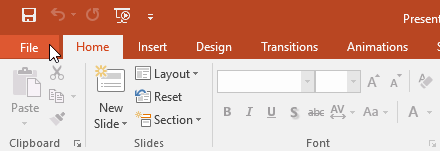
<p style="text-align: justify;">1. Chọn tab&nbsp;<strong>File</strong>&nbsp;để chuyển đến Backstage view.</p>

<p style="text-align: justify;"><img alt="" data-i="0" data-src="https://st.quantrimang.com/photos/image/2022/03/29/tao-va-mo-bai-thuyet-trinh-1.png" data-was-processed="true" height="151" src="https://st.quantrimang.com/photos/image/2022/03/29/tao-va-mo-bai-thuyet-trinh-1.png" width="440" /></p>

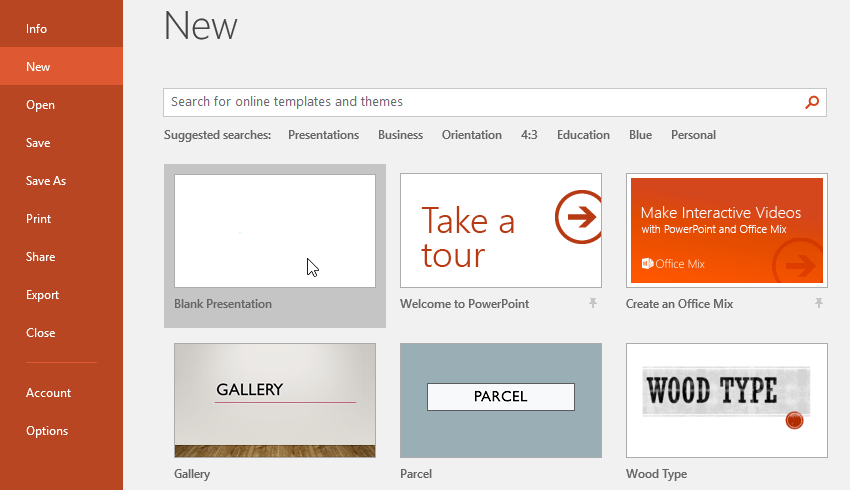
<p style="text-align: justify;">2. Chọn&nbsp;<strong>New</strong>&nbsp;ở bên trái cửa sổ, sau đó nhấp vào&nbsp;<strong>Blank Presentation.</strong></p>

<p style="text-align: justify;"><strong><img alt="" data-i="1" data-src="https://st.quantrimang.com/photos/image/2022/03/29/tao-va-mo-bai-thuyet-trinhv-2.png" data-was-processed="true" height="375" src="https://st.quantrimang.com/photos/image/2022/03/29/tao-va-mo-bai-thuyet-trinhv-2.png" width="650" /></strong></p>

<p style="text-align: justify;">3. Một bài thuyết trình mới sẽ xuất hiện.</p>

<h3 style="text-align: justify;">Cách tạo bài thuyết trình mới từ một template</h3>

<p style="text-align: justify;">Template là một bài thuyết trình được thiết kế trước mà bạn có thể sử dụng để tạo slideshow mới một cách nhanh chóng. Các template thường bao gồm định dạng và thiết kế tùy chỉnh, vì vậy chúng có thể giúp bạn tiết kiệm rất nhiều thời gian và công sức khi bắt đầu một dự án mới.</p>

<p style="text-align: justify;">1. Bấm vào tab&nbsp;<strong>File</strong>&nbsp;để truy cập&nbsp;<strong>Backstage view</strong>, sau đó chọn&nbsp;<strong>New.</strong></p>

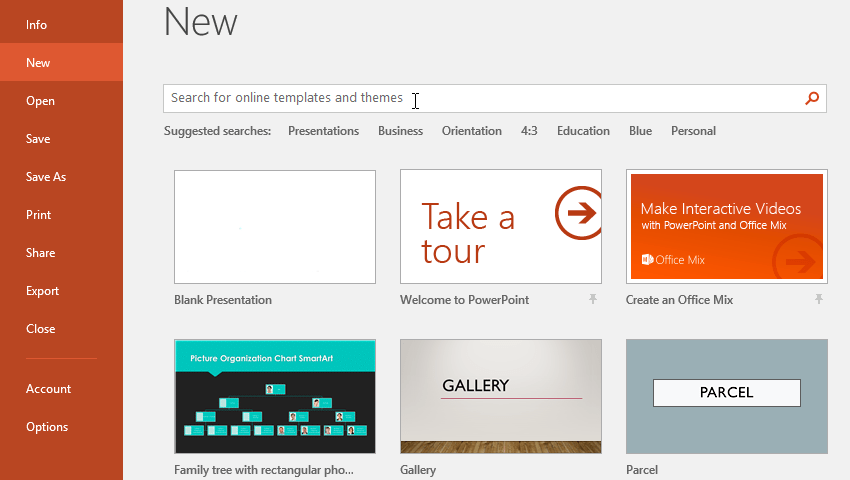
<p style="text-align: justify;">2. Bạn có thể nhấp vào một tìm kiếm được đề xuất để tìm các template hoặc sử dụng thanh tìm kiếm để tìm một cái gì đó cụ thể hơn. Ví dụ sẽ tìm kiếm từ khóa&nbsp;<em>chalkboard.</em></p>

<p style="text-align: justify;"><em><img alt="" data-i="2" data-src="https://st.quantrimang.com/photos/image/2022/03/29/tao-va-mo-bai-thuyet-trinh-3.png" data-was-processed="true" height="367" src="https://st.quantrimang.com/photos/image/2022/03/29/tao-va-mo-bai-thuyet-trinh-3.png" width="650" /></em></p>

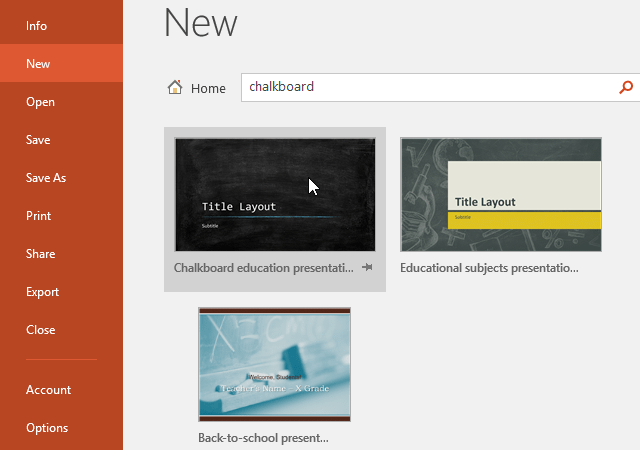
<p style="text-align: justify;">3. Chọn một template để xem xét.</p>

<p style="text-align: justify;"><img alt="" data-i="3" data-src="https://st.quantrimang.com/photos/image/2022/03/29/tao-va-mo-bai-thuyet-trinh-4.png" data-was-processed="true" height="450" src="https://st.quantrimang.com/photos/image/2022/03/29/tao-va-mo-bai-thuyet-trinh-4.png" width="640" /></p>

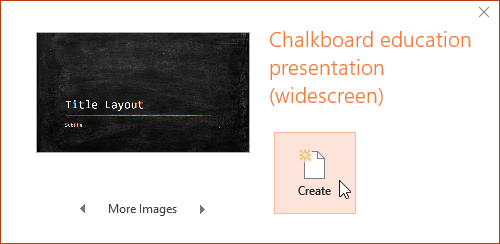
<p style="text-align: justify;">4. Bản xem trước của template sẽ xuất hiện, cùng với thông tin bổ sung về cách có thể sử dụng template.</p>

<p style="text-align: justify;">5. Nhấp vào&nbsp;<strong>Create</strong>&nbsp;để sử dụng template đã chọn.</p>

<p style="text-align: justify;"><img alt="" data-i="4" data-src="https://st.quantrimang.com/photos/image/2022/03/29/tao-va-mo-bai-thuyet-trinh-5.png" data-was-processed="true" height="244" src="https://st.quantrimang.com/photos/image/2022/03/29/tao-va-mo-bai-thuyet-trinh-5.png" width="500" /></p>

<p style="text-align: justify;">6. Một bài thuyết trình mới sẽ xuất hiện với template đã chọn.</p>

<p style="text-align: justify;">Điều quan trọng cần lưu ý là không phải tất cả các template đều được tạo bởi Microsoft. Nhiều template được tạo bởi các nhà cung cấp bên thứ ba và thậm chí cả người dùng cá nhân, vì vậy một số tùy chọn có thể hoạt động tốt hơn những cái khác.</p>

<h2 style="text-align: justify;">Cách mở một bài thuyết trình hiện có</h2>

<p style="text-align: justify;">Ngoài việc tạo bài thuyết trình mới, bạn thường cần mở bài thuyết trình đã được lưu trước đó.</p>

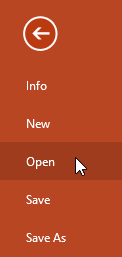
<p style="text-align: justify;">1. Chọn tab&nbsp;<strong>File</strong>&nbsp;để chuyển đến Backstage view, sau đó bấm&nbsp;<strong>Open.</strong></p>

<p style="text-align: justify;"><img alt="" data-i="5" data-src="https://st.quantrimang.com/photos/image/2022/03/29/tao-va-mo-bai-thuyet-trinh-6.png" data-was-processed="true" height="257" src="https://st.quantrimang.com/photos/image/2022/03/29/tao-va-mo-bai-thuyet-trinh-6.png" width="122" /></p>

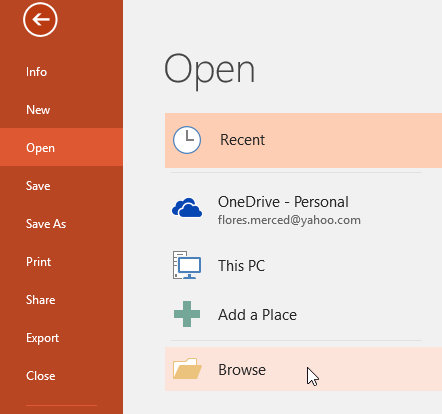
<p style="text-align: justify;">2. Nhấp vào&nbsp;<strong>Browse.</strong>&nbsp;Bạn cũng có thể chọn&nbsp;<strong>OneDrive</strong>&nbsp;để mở các file được lưu trữ trên bộ nhớ đám mây của mình.</p>

<p style="text-align: justify;"><img alt="" data-i="6" data-src="https://st.quantrimang.com/photos/image/2022/03/29/tao-va-mo-bai-thuyet-trinh-7.png" data-was-processed="true" height="414" src="https://st.quantrimang.com/photos/image/2022/03/29/tao-va-mo-bai-thuyet-trinh-7.png" width="442" /></p>

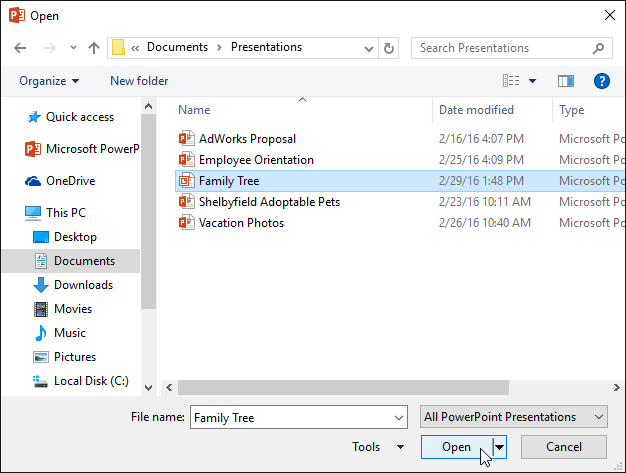
<p style="text-align: justify;">3. Hộp thoại&nbsp;<strong>Open</strong>&nbsp;sẽ xuất hiện. Định vị và chọn bài thuyết trình, sau đó nhấp vào&nbsp;<strong>Open.</strong></p>

<p style="text-align: justify;"><strong><img alt="" data-i="7" data-src="https://st.quantrimang.com/photos/image/2022/03/29/tao-va-mo-bai-thuyet-trinh-8.png" data-was-processed="true" height="473" src="https://st.quantrimang.com/photos/image/2022/03/29/tao-va-mo-bai-thuyet-trinh-8.png" width="626" /></strong></p>

<p style="text-align: justify;">Hầu hết các tính năng trong Microsoft Office, bao gồm&nbsp;PowerPoint, đều hướng tới việc lưu và chia sẻ tài liệu trực tuyến. Điều này được thực hiện với OneDrive, là không gian lưu trữ trực tuyến cho các tài liệu và file của bạn. Nếu muốn sử dụng&nbsp;OneDrive, hãy đảm bảo rằng bạn đã đăng nhập vào PowerPoint bằng tài khoản Microsoft của mình.</p>

<h2 style="text-align: justify;">Cách ghim một bài thuyết trình</h2>

<p style="text-align: justify;">Nếu phải thường xuyên làm việc với cùng một bài thuyết trình, bạn có thể ghim nó vào Backstage view để dễ dàng truy cập.</p>

<p style="text-align: justify;">1. Chọn tab&nbsp;<strong>File</strong>&nbsp;để chuyển đến Backstage view, sau đó bấm&nbsp;<strong>Open.</strong>&nbsp;Bài thuyết trình gần đây của bạn sẽ xuất hiện.</p>

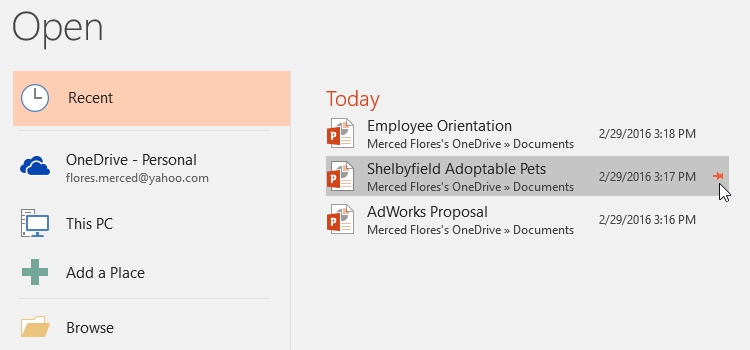
<p style="text-align: justify;">2. Di chuột qua bài thuyết trình bạn muốn ghim, sau đó nhấp vào biểu tượng đinh ghim.</p>

<p style="text-align: justify;"><img alt="" data-i="8" data-src="https://st.quantrimang.com/photos/image/2022/03/29/tao-va-mo-bai-thuyet-trinh-9.png" data-was-processed="true" height="303" src="https://st.quantrimang.com/photos/image/2022/03/29/tao-va-mo-bai-thuyet-trinh-9.png" width="650" /></p>

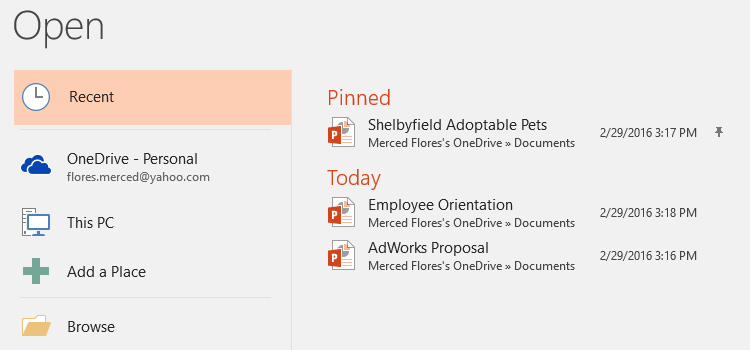
<p style="text-align: justify;">3. Bài thuyết trình sẽ ở trong danh sách bài thuyết trình gần đây cho đến khi nó được bỏ ghim. Để bỏ ghim một bài thuyết trình, hãy nhấp lại vào biểu tượng đinh ghim.</p>

<p style="text-align: justify;"><img alt="" data-i="9" data-src="https://st.quantrimang.com/photos/image/2022/03/29/tao-va-mo-bai-thuyet-trinh-10.png" data-was-processed="true" height="303" src="https://st.quantrimang.com/photos/image/2022/03/29/tao-va-mo-bai-thuyet-trinh-10.png" width="650" /></p>

<h2 style="text-align: justify;">Compatibility Mode</h2>

<p style="text-align: justify;">Đôi khi bạn có thể cần phải làm việc với các bài thuyết trình đã được tạo trong những phiên bản trước của PowerPoint, như PowerPoint 2003 hoặc PowerPoint 2000. Khi bạn mở các loại bài thuyết trình này, chúng sẽ xuất hiện trong Compatibility Mode.</p>

<p style="text-align: justify;">Compatibility Mode vô hiệu hóa một số tính năng, vì vậy bạn sẽ chỉ có thể truy cập các lệnh có trong chương trình được sử dụng để tạo bài thuyết trình. Ví dụ, nếu bạn mở bài thuyết trình được tạo trong PowerPoint 2003, bạn chỉ có thể sử dụng các tab và lệnh có trong PowerPoint 2003.</p>

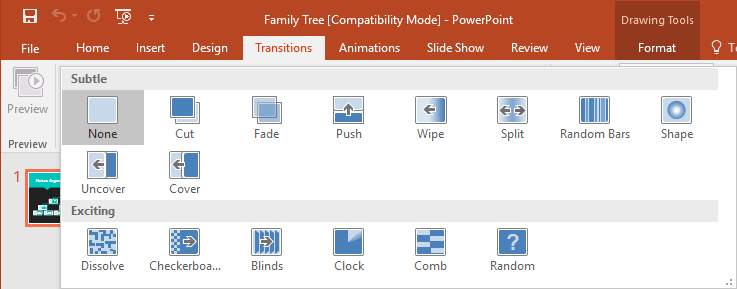
<p style="text-align: justify;">Trong hình ảnh bên dưới, bạn có thể thấy ở đầu cửa sổ cho biết rằng bài thuyết trình đang ở Compatibility Mode. Thao tác này sẽ vô hiệu hóa một số tính năng hiện tại của PowerPoint, bao gồm cả các kiểu chuyển slide mới hơn.</p>

<p style="text-align: justify;"><img alt="" data-i="10" data-src="https://st.quantrimang.com/photos/image/2022/03/29/tao-va-mo-bai-thuyet-trinh-11.png" data-was-processed="true" height="255" src="https://st.quantrimang.com/photos/image/2022/03/29/tao-va-mo-bai-thuyet-trinh-11.png" width="650" /></p>

<p style="text-align: justify;">Để thoát khỏi Compatibility Mode, bạn sẽ cần chuyển đổi bài thuyết trình sang kiểu phiên bản hiện tại. Tuy nhiên, nếu bạn đang cộng tác với những người khác chỉ có quyền truy cập vào phiên bản PowerPoint cũ, tốt nhất nên để bài thuyết trình ở Compatibility Mode để định dạng không thay đổi.</p>

<h3 style="text-align: justify;">Cách chuyển đổi một bài thuyết trình</h3>

<p style="text-align: justify;">Nếu muốn truy cập vào các tính năng mới hơn, bạn có thể chuyển đổi bài thuyết trình sang định dạng file hiện tại.</p>

<p style="text-align: justify;">Lưu ý rằng việc chuyển đổi file có thể gây ra một số thay đổi đối với bố cục ban đầu của bài thuyết trình.</p>

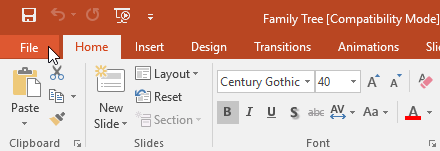
<p style="text-align: justify;">1. Bấm vào tab&nbsp;<strong>File</strong>&nbsp;để truy cập Backstage view.</p>

<p style="text-align: justify;"><img alt="" data-i="11" data-src="https://st.quantrimang.com/photos/image/2022/03/29/tao-va-mo-bai-thuyet-trinh-12.png" data-was-processed="true" height="151" src="https://st.quantrimang.com/photos/image/2022/03/29/tao-va-mo-bai-thuyet-trinh-12.png" width="440" /></p>

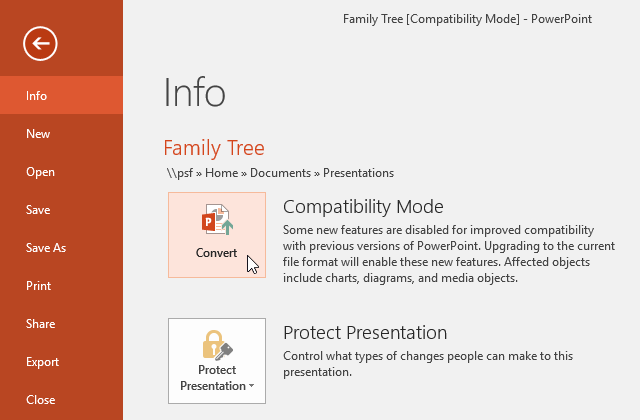
<p style="text-align: justify;">2. Định vị và chọn lệnh&nbsp;<strong>Convert.</strong></p>

<p style="text-align: justify;"><strong><img alt="" data-i="12" data-src="https://st.quantrimang.com/photos/image/2022/03/29/tao-va-mo-bai-thuyet-trinh-13.png" data-was-processed="true" height="420" src="https://st.quantrimang.com/photos/image/2022/03/29/tao-va-mo-bai-thuyet-trinh-13.png" width="640" /></strong></p>

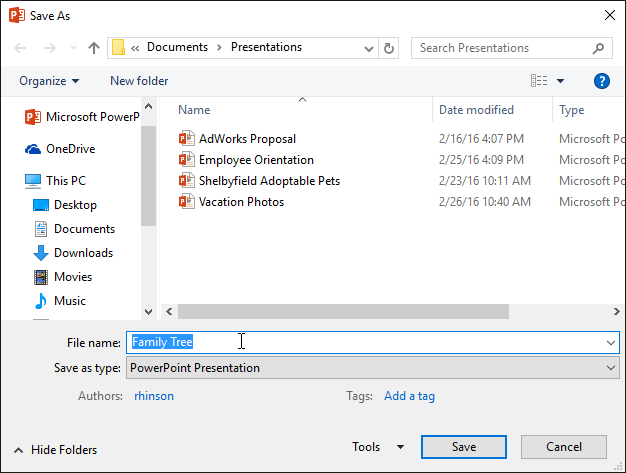
<p style="text-align: justify;">3. Hộp thoại&nbsp;<strong>Save As</strong>&nbsp;sẽ xuất hiện. Chọn vị trí bạn muốn lưu bài thuyết trình, nhập tên file và bấm&nbsp;<strong>Save.</strong></p>

<p style="text-align: justify;"><strong><img alt="" data-i="13" data-src="https://st.quantrimang.com/photos/image/2022/03/29/tao-va-mo-bai-thuyet-trinh-14.png" data-was-processed="true" height="473" src="https://st.quantrimang.com/photos/image/2022/03/29/tao-va-mo-bai-thuyet-trinh-14.png" width="626" /></strong></p>

<p style="text-align: justify;">4. Bài thuyết trình sẽ được chuyển đổi sang loại file mới nhất.</p>
		</div>
				<div id="author">
						<p>
				<strong>Nguồn tin:</strong>
				Quantrimang.com
			</p>
		</div>
	</div>
	<div id="footer" class="clearfix">
		<div id="url">
			<strong>URL của bản tin này: </strong><a href="https://www.nguoicodonvn2008.info/vi/news/savefile/kien-thuc-may-tinh/powerpoint-2019-phan-2-tao-va-mo-bai-thuyet-trinh-5361.html" title="PowerPoint 2019 &#40;Phần 2&#41;&#x3A; Tạo và mở bài thuyết trình">https://www.nguoicodonvn2008.info/vi/news/savefile/kien-thuc-may-tinh/powerpoint-2019-phan-2-tao-va-mo-bai-thuyet-trinh-5361.html</a>

		</div>
		<div class="clear"></div>
		<div class="copyright">
			&copy; .&#x3A; Nguoicodonvn2008.info - Cõi lòng người cô đơn &#x3A;.
		</div>
		<div id="contact">
			<a href="mailto:admin@nguoicodonvn2008.info">admin@nguoicodonvn2008.info</a>
		</div>
	</div>
</div>
        <div id="timeoutsess" class="chromeframe">
            Bạn đã không sử dụng Site, <a onclick="timeoutsesscancel();" href="https://www.nguoicodonvn2008.info/#">Bấm vào đây để duy trì trạng thái đăng nhập</a>. Thời gian chờ: <span id="secField"> 60 </span> giây
        </div>
        <div id="openidResult" class="nv-alert" style="display:none"></div>
        <div id="openidBt" data-result="" data-redirect=""></div>
		</script>
		<div class="car-top">
  <span><img src="https://www.nguoicodonvn2008.info/themes/default/images/car.png" alt=""></span>
</div>
<script src="https://www.nguoicodonvn2008.info/assets/js/jquery/jquery.min.js"></script>
<script>var nv_base_siteurl="/",nv_lang_data="vi",nv_lang_interface="vi",nv_name_variable="nv",nv_fc_variable="op",nv_lang_variable="language",nv_module_name="news",nv_func_name="savefile",nv_is_user=0, nv_my_ofs=-4,nv_my_abbr="EDT",nv_cookie_prefix="nv4c_e856T",nv_check_pass_mstime=1738000,nv_area_admin=0,nv_safemode=0,theme_responsive=0,nv_recaptcha_ver=2,nv_recaptcha_sitekey="",nv_recaptcha_type="image",XSSsanitize=1;</script>
<script src="https://www.nguoicodonvn2008.info/assets/js/language/vi.js"></script>
<script src="https://www.nguoicodonvn2008.info/assets/js/DOMPurify/purify3.js"></script>
<script src="https://www.nguoicodonvn2008.info/assets/js/global.js"></script>
<script src="https://www.nguoicodonvn2008.info/assets/js/site.js"></script>
<script src="https://www.nguoicodonvn2008.info/themes/default/js/news.js"></script>
<script src="https://www.nguoicodonvn2008.info/themes/default/js/main.js"></script>
<script src="https://www.nguoicodonvn2008.info/themes/default/js/custom.js"></script>
<script type="application/ld+json">
        {
            "@context": "https://schema.org",
            "@type": "Organization",
            "url": "https://www.nguoicodonvn2008.info",
            "logo": "https://www.nguoicodonvn2008.info/uploads/angel.gif"
        }
        </script>
<script src="https://www.nguoicodonvn2008.info/themes/default/js/bootstrap.min.js"></script>
<script type="text/javascript">
var $scrolltop = $('.car-top');
$scrolltop.on('click', function () {
    $('html,body').animate({
        scrollTop: 0
    }, 800);
    $(this).addClass("car-run");
    setTimeout(function(){ $scrolltop.removeClass('car-run');}, 1000);
    return false;
});
$(window).on('scroll', function ()
{ 
    if($(window).scrollTop() >= 200)
    {
        $scrolltop.addClass("show");
        $scrolltop.addClass("car-down");
    }
    else
    {
       $scrolltop.removeClass("show");
       setTimeout(function(){ $scrolltop.removeClass('car-down');}, 300);
    }
});
</script>
</body>
</html>