<!DOCTYPE html>
    <html lang="vi" xmlns="http://www.w3.org/1999/xhtml" prefix="og: http://ogp.me/ns#">
    <head>
<title>Người dùng Microsoft Outlook không xem và soạn được email, hãy xem các cách khắc phục này</title>
<meta name="description" content="Người dùng Microsoft Outlook không xem và soạn được email, hãy xem các cách khắc phục này - Savefile - Tin Tức -...">
<meta name="author" content=".: Nguoicodonvn2008.info - Cõi lòng người cô đơn :.">
<meta name="copyright" content=".: Nguoicodonvn2008.info - Cõi lòng người cô đơn :. [admin@nguoicodonvn2008.info]">
<meta name="robots" content="index, archive, follow, noodp">
<meta name="googlebot" content="index,archive,follow,noodp">
<meta name="msnbot" content="all,index,follow">
<meta name="generator" content="NukeViet v4.5">
<meta http-equiv="Content-Type" content="text/html; charset=utf-8">
<meta property="og:title" content="Người dùng Microsoft Outlook không xem và soạn được email, hãy xem các cách khắc phục này">
<meta property="og:type" content="website">
<meta property="og:description" content="Savefile - Tin Tức -...">
<meta property="og:site_name" content=".&#x3A; Nguoicodonvn2008.info - Cõi lòng người cô đơn &#x3A;.">
<meta property="og:url" content="https://www.nguoicodonvn2008.info/vi/news/savefile/kien-thuc-may-tinh/nguoi-dung-microsoft-outlook-khong-xem-va-soan-duoc-email-hay-xem-cac-cach-khac-phuc-nay-4068.html">
<link rel="shortcut icon" href="https://www.nguoicodonvn2008.info/favicon.ico">
<link rel="canonical" href="https://www.nguoicodonvn2008.info/vi/news/savefile/kien-thuc-may-tinh/nguoi-dung-microsoft-outlook-khong-xem-va-soan-duoc-email-hay-xem-cac-cach-khac-phuc-nay-4068.html">
<link rel="alternate" href="https://www.nguoicodonvn2008.info/vi/news/rss/" title="Tin Tức" type="application/rss+xml">
<link rel="alternate" href="https://www.nguoicodonvn2008.info/vi/news/rss/karaoke-dual/" title="Tin Tức - Karaoke Dual" type="application/rss+xml">
<link rel="alternate" href="https://www.nguoicodonvn2008.info/vi/news/rss/nhac-tre/" title="Tin Tức - Nhạc trẻ" type="application/rss+xml">
<link rel="alternate" href="https://www.nguoicodonvn2008.info/vi/news/rss/tru-tinh/" title="Tin Tức - Trữ tình" type="application/rss+xml">
<link rel="alternate" href="https://www.nguoicodonvn2008.info/vi/news/rss/nuoc-ngoai/" title="Tin Tức - Nước ngoài" type="application/rss+xml">
<link rel="alternate" href="https://www.nguoicodonvn2008.info/vi/news/rss/remix/" title="Tin Tức - Remix" type="application/rss+xml">
<link rel="alternate" href="https://www.nguoicodonvn2008.info/vi/news/rss/tam-su-tinh-yeu/" title="Tin Tức - Tâm sự tình yêu" type="application/rss+xml">
<link rel="alternate" href="https://www.nguoicodonvn2008.info/vi/news/rss/tho-suu-tam/" title="Tin Tức - Thơ sưu tầm" type="application/rss+xml">
<link rel="alternate" href="https://www.nguoicodonvn2008.info/vi/news/rss/cuoc-song/" title="Tin Tức - Cuộc sống" type="application/rss+xml">
<link rel="alternate" href="https://www.nguoicodonvn2008.info/vi/news/rss/phan-mem/" title="Tin Tức - Phần mềm" type="application/rss+xml">
<link rel="alternate" href="https://www.nguoicodonvn2008.info/vi/news/rss/kien-thuc-may-tinh/" title="Tin Tức - Kiến thức máy tính" type="application/rss+xml">
<link rel="alternate" href="https://www.nguoicodonvn2008.info/vi/news/rss/hoc-tap/" title="Tin Tức - Học tập" type="application/rss+xml">
<link rel="alternate" href="https://www.nguoicodonvn2008.info/vi/news/rss/tai-lieu/" title="Tin Tức - Tài liệu" type="application/rss+xml">
<link rel="alternate" href="https://www.nguoicodonvn2008.info/vi/news/rss/de-thi/" title="Tin Tức - Đề thi" type="application/rss+xml">
<link rel="preload" as="style" href="https://www.nguoicodonvn2008.info/assets/css/font-awesome.min.css" type="text/css">
<link rel="preload" as="style" href="https://www.nguoicodonvn2008.info/themes/default/css/bootstrap.non-responsive.css" type="text/css">
<link rel="preload" as="style" href="https://www.nguoicodonvn2008.info/themes/default/css/style.css" type="text/css">
<link rel="preload" as="style" href="https://www.nguoicodonvn2008.info/themes/default/css/style.non-responsive.css" type="text/css">
<link rel="preload" as="style" href="https://www.nguoicodonvn2008.info/themes/default/css/news.css" type="text/css">
<link rel="preload" as="style" href="https://www.nguoicodonvn2008.info/themes/default/css/custom.css" type="text/css">
<link rel="preload" as="script" href="https://www.nguoicodonvn2008.info/assets/js/jquery/jquery.min.js" type="text/javascript">
<link rel="preload" as="script" href="https://www.nguoicodonvn2008.info/assets/js/language/vi.js" type="text/javascript">
<link rel="preload" as="script" href="https://www.nguoicodonvn2008.info/assets/js/DOMPurify/purify3.js" type="text/javascript">
<link rel="preload" as="script" href="https://www.nguoicodonvn2008.info/assets/js/global.js" type="text/javascript">
<link rel="preload" as="script" href="https://www.nguoicodonvn2008.info/assets/js/site.js" type="text/javascript">
<link rel="preload" as="script" href="https://www.nguoicodonvn2008.info/themes/default/js/news.js" type="text/javascript">
<link rel="preload" as="script" href="https://www.nguoicodonvn2008.info/themes/default/js/main.js" type="text/javascript">
<link rel="preload" as="script" href="https://www.nguoicodonvn2008.info/themes/default/js/custom.js" type="text/javascript">
<link rel="preload" as="script" href="https://www.nguoicodonvn2008.info/themes/default/js/bootstrap.min.js" type="text/javascript">
<link rel="stylesheet" href="https://www.nguoicodonvn2008.info/assets/css/font-awesome.min.css">
<link rel="stylesheet" href="https://www.nguoicodonvn2008.info/themes/default/css/bootstrap.non-responsive.css">
<link rel="stylesheet" href="https://www.nguoicodonvn2008.info/themes/default/css/style.css">
<link rel="stylesheet" href="https://www.nguoicodonvn2008.info/themes/default/css/style.non-responsive.css">
<link rel="StyleSheet" href="https://www.nguoicodonvn2008.info/themes/default/css/news.css">
<link rel="stylesheet" href="https://www.nguoicodonvn2008.info/themes/default/css/custom.css">
<style type="text/css">
	body{background: #fff;}
</style>
    </head>
    <body>
<div id="print">
	<div id="hd_print">
		<h2 class="pull-left">.&#x3A; Nguoicodonvn2008.info - Cõi lòng người cô đơn &#x3A;.</h2>
		<p class="pull-right"><a title=".&#x3A; Nguoicodonvn2008.info - Cõi lòng người cô đơn &#x3A;." href="https://www.nguoicodonvn2008.info/">https://www.nguoicodonvn2008.info</a></p>
	</div>
	<div class="clear"></div>
	<hr />
	<div id="content">
		<h1>Người dùng Microsoft Outlook không xem và soạn được email, hãy xem các cách khắc phục này</h1>
		<ul class="list-inline">
			<li>Thứ tư - 12/05/2021 00:58</li>
			<li class="hidden-print txtrequired"><em class="fa fa-print">&nbsp;</em><a title="In ra" href="javascript:;" onclick="window.print()">In ra</a></li>
			<li class="hidden-print txtrequired"><em class="fa fa-power-off">&nbsp;</em><a title="Đóng cửa sổ này" href="javascript:;" onclick="window.close()">Đóng cửa sổ này</a></li>
		</ul>
		<div class="clear"></div>
		<div id="hometext">
		</div>
				<div class="imghome">
			<img alt="Người dùng Microsoft Outlook không xem và soạn được email, hãy xem các cách khắc phục này" src="https://st.quantrimang.com/photos/image/2021/05/12/cach-khac-phuc-mirsoft-outlook-khong-soan-va-doc-duoc-email-2.jpg" width="460" class="img-thumbnail" />
		</div>
		<div class="clear"></div>
		<div id="bodytext" class="clearfix">
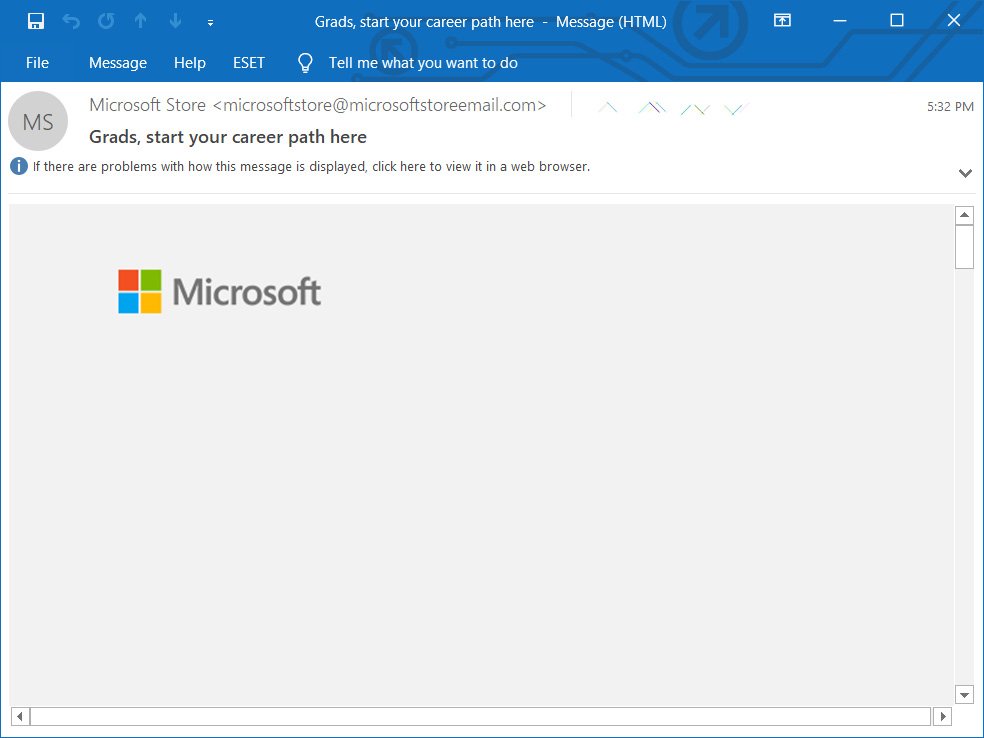
			<p style="text-align: justify;">Bản cập nhật Microsoft Outlook 2104 build 13929.20372 được phát hành ngày 11 tháng 5 khiến nhiều người dùng máy tính để bàn không xem và soạn được&nbsp;email Outlook.</p>

<p style="text-align: justify;">Thay vì xem được toàn bộ nội dung email, người dùng chỉ xem được một phần hoặc một dòng duy nhất, như được hiển thị ở ảnh bên dưới.</p>

<figure>
<div style="text-align: justify;"><img alt="Lỗi không xem được nội dung thư ở Outlook." data-i="0" data-src="https://st.quantrimang.com/photos/image/2021/05/12/cach-khac-phuc-mirsoft-outlook-khong-soan-va-doc-duoc-email-1.jpg" data-was-processed="true" height="738" src="https://st.quantrimang.com/photos/image/2021/05/12/cach-khac-phuc-mirsoft-outlook-khong-soan-va-doc-duoc-email-1.jpg" width="984" /></div>

<figcaption>
<div style="text-align: justify;">Lỗi không xem được nội dung thư ở Outlook.</div>
</figcaption>
</figure>

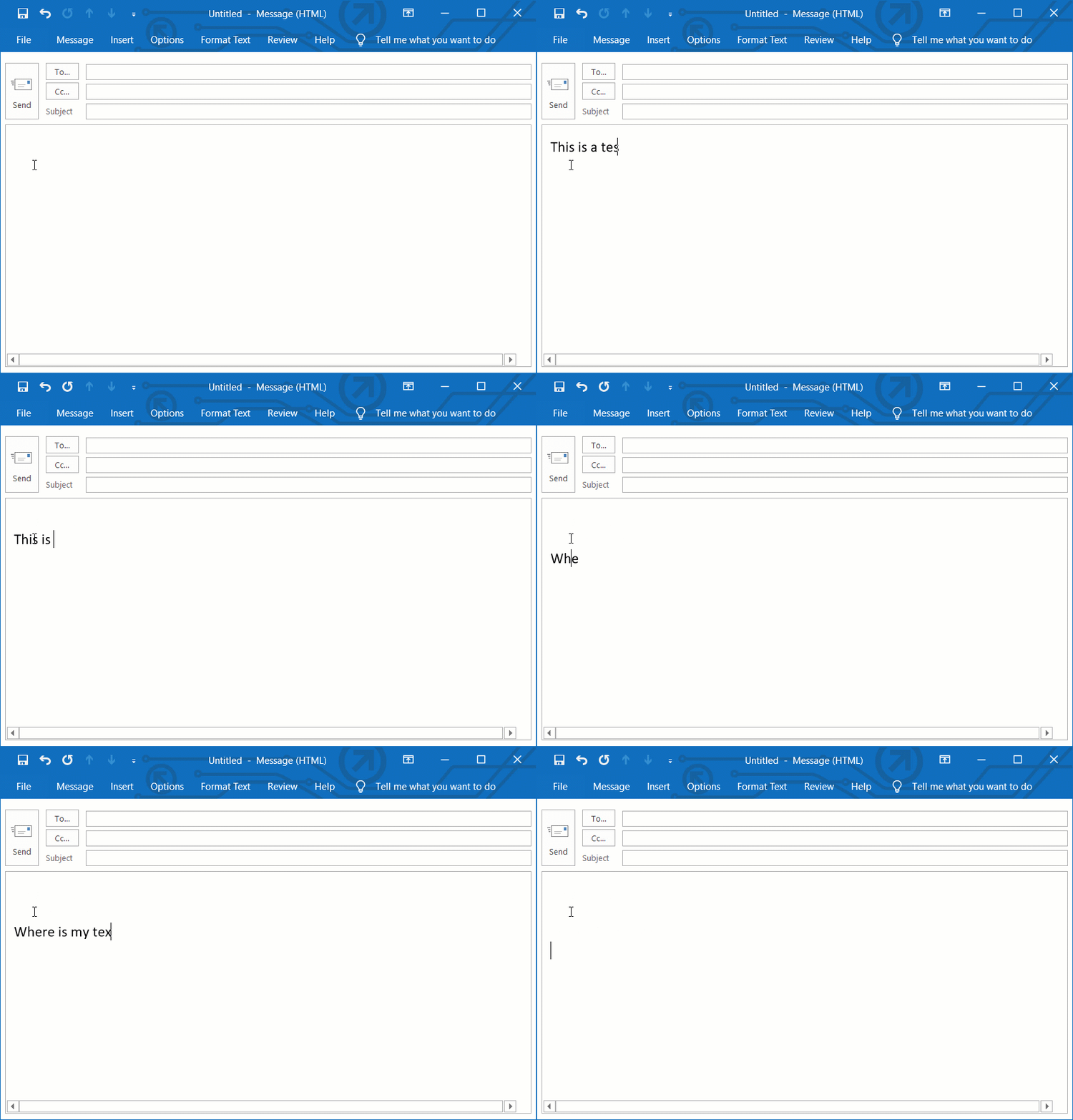
<p style="text-align: justify;">Ngoài ra, khi soạn email xong, người dùng nhấn Enter thì tất cả nội dung đã viết trước đó đều bị xóa, như hình dưới đây.</p>

<figure>
<div style="text-align: justify;"><img alt="Lỗi bị xóa nội dung thư khi soạn sau khi nhấn Enter." data-i="1" data-src="https://st.quantrimang.com/photos/image/2021/05/12/cach-khac-phuc-mirsoft-outlook-khong-soan-va-doc-duoc-email-2.jpg" data-was-processed="true" height="588" src="https://st.quantrimang.com/photos/image/2021/05/12/cach-khac-phuc-mirsoft-outlook-khong-soan-va-doc-duoc-email-2.jpg" width="844" /></div>

<figcaption>
<div style="text-align: justify;">Lỗi bị xóa nội dung thư khi soạn sau khi nhấn Enter.</div>
</figcaption>
</figure>

<p style="text-align: justify;">Trong thông báo trạng thái sự cố của Trung tâm quản trị Microsoft 365 có tiêu đề “EX255650: Sự cố ảnh hưởng đến việc xem nội dung email ở Outlook”, Microsoft thông tin rằng họ đã xác định được nguyên nhân của sự cố và đưa ra bản sửa lỗi.</p>

<p style="text-align: justify;">“Chúng tôi đã xác định được nguyên nhân cơ bản gây ra sự cố và đang áp dụng biện pháp khắc phục. Bản sửa lỗi này sẽ đến tay tất cả những người dùng bị ảnh hưởng trong vòng 4 đến 5 giờ tới. Sau khi người dùng nhận được bản sửa lỗi, họ sẽ cần khởi động lại ứng dụng email của mình. Trong một số trường hợp, người dùng có thể cần phải khởi động lại ứng dụng của họ lần thứ hai để được khắc phục. Chúng tôi dự kiến ​​sẽ hoàn tất quá trình này và khôi phục dịch vụ cho tất cả người dùng bị ảnh hưởng trước 3 giờ sáng ngày 12 tháng 5 năm 2021 (giờ địa phương)” – Microsoft thông báo đến người dùng.</p>

<div style="text-align: justify;">&nbsp;</div>

<p style="text-align: justify;">Nguyên nhân xảy ra sự cố là do thay đổi gần đây đối với hệ thống hỗ trợ quản lý hiển thị văn bản cho nội dung bên trong máy khách Outlook.</p>

<p style="text-align: justify;">Tất cả người dùng bị ảnh hưởng sẽ nhận được bản cập nhật trong vòng 3 đến 4 giờ tới và sẽ cần khởi động lại Outlook để cài đặt bản sửa lỗi.</p>

<p style="text-align: justify;">Nếu trước đó bạn đã tắt các bản cập nhật Microsoft Office, bạn nên bật lại chúng để nhận bản cập nhật này từ Microsoft.</p>

<h2 style="text-align: justify;">Cách khắc phục sự cố Microsoft Outlook</h2>

<p style="text-align: justify;">Nếu bạn đang gặp sự cố này trong Microsoft Outlook, nhiều người dùng khác phản hồi rằng có thể khắc phục bằng cách quay trở lại phiên bản Microsoft Outlook trước đó.</p>

<p style="text-align: justify;">BleepingComputer đã thử nghiệm phương pháp này và đã thành công.</p>

<h3 style="text-align: justify;">Phương pháp 1: Khôi phục Microsoft Office về bản phát hành mới nhất vào tháng 4 năm 2021</h3>

<p style="text-align: justify;">Để quay trở lại bản phát hành ngày 23 tháng 4 năm 2021, người dùng làm theo các bước sau:</p>

<p style="text-align: justify;"><strong>Bước 1:</strong>&nbsp;Mở&nbsp;<strong>Command Prompt</strong>.</p>

<p style="text-align: justify;"><strong>Bước 2:</strong>&nbsp;Trong Command Prompt, nhập dòng dưới và nhấn Enter.</p>

<pre id="pre0">
<code>cd &quot;C:\Program Files\Common Files\microsoft shared\ClickToRun</code></pre>

<p style="text-align: justify;">&nbsp;</p>

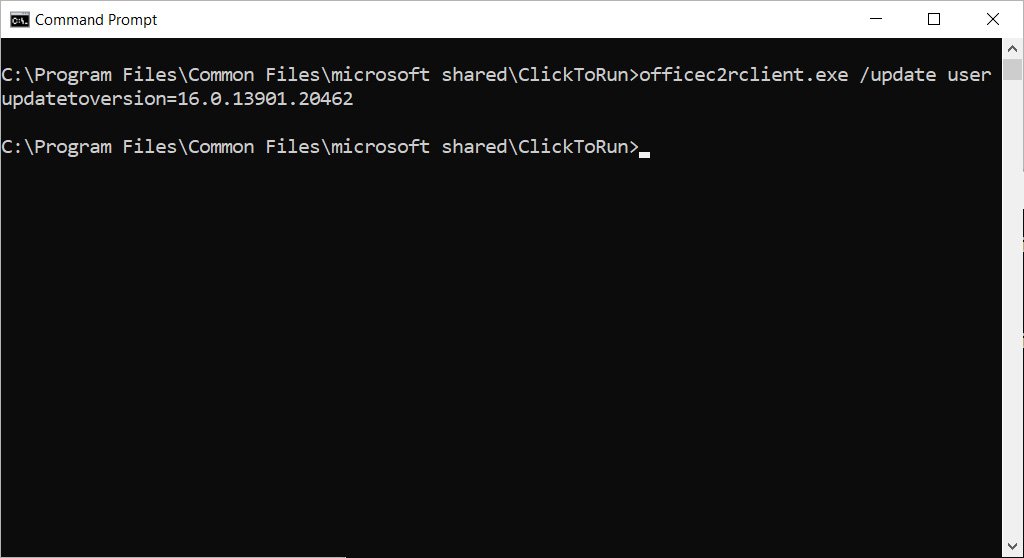
<p style="text-align: justify;"><strong>Bước 3:</strong>&nbsp;Thư mục ClickToRun được mở ra,&nbsp; bạn nhập dòng dưới và nhấn Enter.</p>

<pre id="pre1">
<code>officec2rclient.exe /update user updatetoversion=16.0.13901.20462 </code></pre>
<figure>
<div style="text-align: justify;"><img alt="Nhập lệnh trong Command Prompt." data-i="2" data-src="https://st.quantrimang.com/photos/image/2021/05/12/cach-khac-phuc-mirsoft-outlook-khong-soan-va-doc-duoc-email-3.jpg" data-was-processed="true" height="558" src="https://st.quantrimang.com/photos/image/2021/05/12/cach-khac-phuc-mirsoft-outlook-khong-soan-va-doc-duoc-email-3.jpg" width="1024" /></div>

<figcaption>
<div style="text-align: justify;">Nhập lệnh trong Command Prompt.</div>
</figcaption>
</figure>

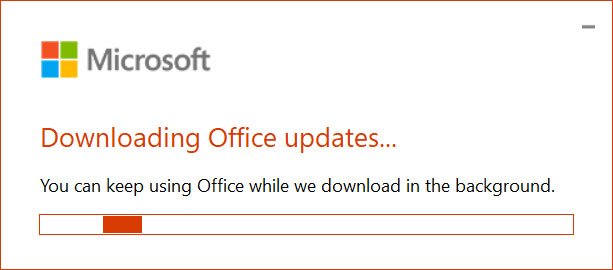
<p style="text-align: justify;"><strong>Bước 4:</strong>&nbsp;Lúc này, Microsoft Office sẽ tải phiên bản Microsoft Office được chỉ định và quay trở lại phiên bản trước đó. Hãy kiên nhẫn vì quá trình này có thể mất vài phút hoặc lâu hơn, tùy thuộc vào máy tính và tốc độ kết nối Internet của bạn.</p>

<figure>
<div style="text-align: justify;"><img alt="Micorsoft sẽ quay về phiên bản trước." data-i="3" data-src="https://st.quantrimang.com/photos/image/2021/05/12/cach-khac-phuc-mirsoft-outlook-khong-soan-va-doc-duoc-email-4.jpg" data-was-processed="true" height="270" src="https://st.quantrimang.com/photos/image/2021/05/12/cach-khac-phuc-mirsoft-outlook-khong-soan-va-doc-duoc-email-4.jpg" width="613" /></div>

<figcaption>
<div style="text-align: justify;">Micorsoft sẽ quay về phiên bản trước.</div>
</figcaption>
</figure>

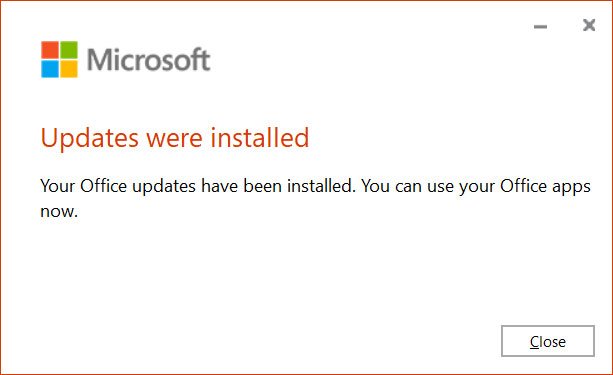
<p style="text-align: justify;"><strong>Bước 5:</strong>&nbsp;Khi cài đặt xong các bản cập nhật, màn hình xuất hiện dòng chữ&nbsp;<strong>Update were installed</strong>, tức là bản cập nhật đã được cài, bạn chọn&nbsp;<strong>Close</strong>.</p>

<figure>
<div style="text-align: justify;"><img alt="Bản cập nhật trước đã được cài đặt." data-i="4" data-src="https://st.quantrimang.com/photos/image/2021/05/12/cach-khac-phuc-mirsoft-outlook-khong-soan-va-doc-duoc-email-5.jpg" data-was-processed="true" height="375" src="https://st.quantrimang.com/photos/image/2021/05/12/cach-khac-phuc-mirsoft-outlook-khong-soan-va-doc-duoc-email-5.jpg" width="613" /></div>

<figcaption>
<div style="text-align: justify;">Bản cập nhật trước đã được cài đặt.</div>
</figcaption>
</figure>

<p style="text-align: justify;"><strong>Bước 6:</strong>&nbsp;Microsoft Outlook sẽ được khôi phục về phiên bản trước và bạn sẽ có thể&nbsp;<strong>khởi động lại Microsoft Outlook</strong>.</p>

<p style="text-align: justify;"><strong>Bước 7:</strong>&nbsp;Bây giờ, bạn có thể&nbsp;<strong>đóng Command Prompt</strong>&nbsp;bằng cách nhấp vào&nbsp;<strong>nút X</strong>.</p>

<h3 style="text-align: justify;">Phương pháp 2: Khởi động Microsoft Outlook ở chế độ Safe Mode</h3>

<p style="text-align: justify;">Nếu bạn không muốn quay lại phiên bản Microsoft Outlook trước hoặc không thể tìm thấy thư mục ClickToRun, bạn có thể khởi chạy Microsoft Outlook ở Safe Mode để sửa lỗi cho đến khi bản cập nhật được phát hành.</p>

<p style="text-align: justify;">Cần lưu ý rằng, khi khởi động Outlook ở Safe Mode, tất cả các phần bổ trợ sẽ bị vô hiệu hóa, bao gồm cả các bổ trợ bảo mật.</p>

<div style="text-align: justify;">&nbsp;</div>

<p style="text-align: justify;">Để khởi động Outlook ở Safe Mode, hãy làm theo các bước sau:</p>

<div style="text-align: justify;">&nbsp;</div>

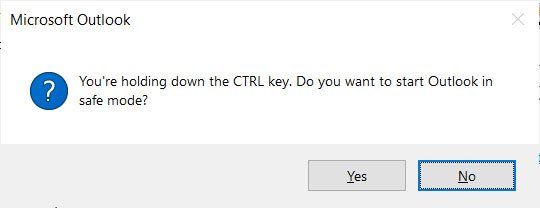
<p style="text-align: justify;"><strong>Bước 1:</strong>&nbsp;<strong>Nhấn và giữ phím Ctrl</strong>&nbsp;trên bàn phím, sau đó&nbsp;<strong>khởi chạy Microsoft Outlook</strong>. Outlook sẽ khởi động và hỏi bạn có chắc chắn muốn khởi động ở chế độ an toàn hay không.</p>

<figure>
<div style="text-align: justify;"><img alt="Microsoft Outlook hỏi bạn có chắc chắn muốn khởi động ở chế độ an toàn hay không?" data-i="5" data-src="https://st.quantrimang.com/photos/image/2021/05/12/cach-khac-phuc-mirsoft-outlook-khong-soan-va-doc-duoc-email-6.jpg" data-was-processed="true" height="208" src="https://st.quantrimang.com/photos/image/2021/05/12/cach-khac-phuc-mirsoft-outlook-khong-soan-va-doc-duoc-email-6.jpg" width="540" /></div>

<figcaption>
<div style="text-align: justify;">Microsoft Outlook hỏi bạn có chắc chắn muốn khởi động ở chế độ an toàn hay không?</div>
</figcaption>
</figure>

<p style="text-align: justify;"><strong>Bước 2:</strong>&nbsp;Chọn&nbsp;<strong>Có</strong>&nbsp;và Outlook sẽ bắt đầu ở Safe Mode khi các phần bổ trợ bị tắt.</p>

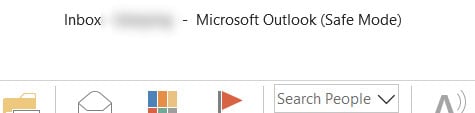
<p style="text-align: justify;"><strong>Bước 3:</strong>&nbsp;Khi Outlook khởi động, bạn có thể chắc chắn đang ở Safe Mode, bởi tiêu đề của cửa sổ Outlook sẽ hiện&nbsp;<strong>Microsoft Outlook (Safe Mode)</strong>, như được hiển thị bên dưới.</p>

<figure>
<div style="text-align: justify;"><img alt="Microsoft Outlook đã chạy ở chế độ Safe Mode." data-i="6" data-src="https://st.quantrimang.com/photos/image/2021/05/12/cach-khac-phuc-mirsoft-outlook-khong-soan-va-doc-duoc-email-7.jpg" data-was-processed="true" height="113" src="https://st.quantrimang.com/photos/image/2021/05/12/cach-khac-phuc-mirsoft-outlook-khong-soan-va-doc-duoc-email-7.jpg" width="475" /></div>

<figcaption>
<div style="text-align: justify;">Microsoft Outlook đã chạy ở chế độ Safe Mode.</div>
</figcaption>
</figure>

<p style="text-align: justify;"><strong>Bước 4:</strong>&nbsp;Khi sử dụng xong Outlook, bạn chỉ cần đóng chương trình.</p>

<p style="text-align: justify;">Lưu ý, bạn cần lặp lại quy trình này mỗi khi bạn muốn khởi động Outlook ở Safe Mode.</p>

<h2 style="text-align: justify;">Cách tắt cập nhật Microsoft Office</h2>

<p style="text-align: justify;">Nếu muốn ngăn Microsoft Office tự động cập nhật vào phiên bản lỗi này, bạn có thể tạm thời vô hiệu hóa các bản cập nhật.</p>

<p style="text-align: justify;">Để ngăn Microsoft Outlook tự động cập nhật, hãy làm theo các bước sau:</p>

<p style="text-align: justify;"><strong>Bước 1:</strong>&nbsp;Mở&nbsp;<strong>Microsoft Outlook</strong>.</p>

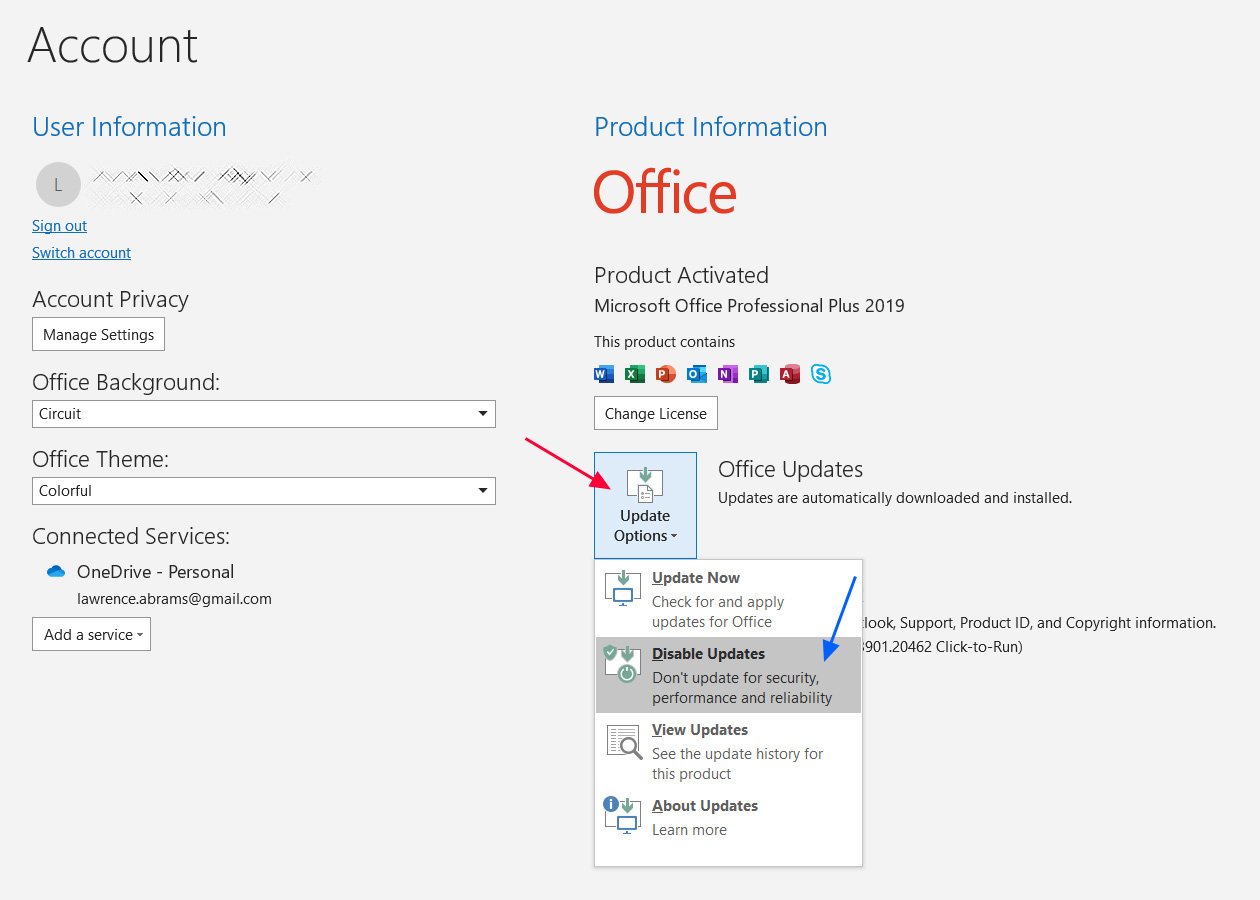
<p style="text-align: justify;"><strong>Bước 2:</strong>&nbsp;Chọn&nbsp;<strong>File</strong>.</p>

<p style="text-align: justify;"><strong>Bước 3:</strong>&nbsp;Chọn&nbsp;<strong>Office Account</strong>&nbsp;ở phía dưới bên trái của thanh bên cạnh.</p>

<p style="text-align: justify;"><strong>Bước 4:&nbsp;</strong>&nbsp;Khi màn hình Account mở ra, chọn&nbsp;<strong>Update options</strong>&nbsp;-&gt; chọn&nbsp;<strong>Disable Updates</strong>.</p>

<figure>
<div style="text-align: justify;"><img alt="Tắt cập nhật trong Microsoft Outlook." data-i="7" data-src="https://st.quantrimang.com/photos/image/2021/05/12/cach-khac-phuc-mirsoft-outlook-khong-soan-va-doc-duoc-email-8.jpg" data-was-processed="true" height="900" src="https://st.quantrimang.com/photos/image/2021/05/12/cach-khac-phuc-mirsoft-outlook-khong-soan-va-doc-duoc-email-8.jpg" width="1260" /></div>

<figcaption>
<div style="text-align: justify;">Tắt cập nhật trong Microsoft Outlook.</div>
</figcaption>
</figure>

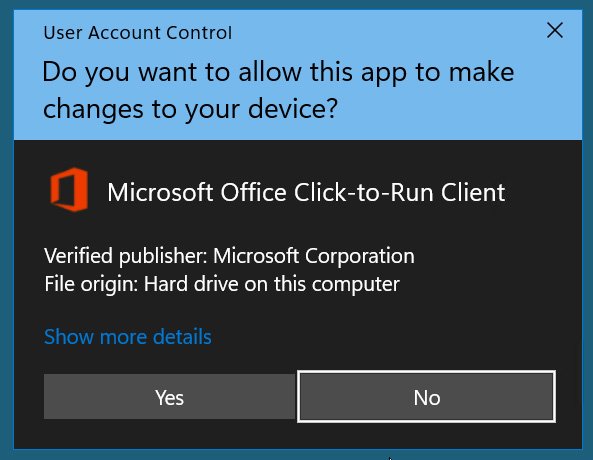
<p style="text-align: justify;"><strong>Bước 5:</strong>&nbsp; Lúc này, lời nhắc&nbsp;<strong>User Account Control</strong>&nbsp;sẽ được hiển thị -&gt; chọn&nbsp;<strong>Có</strong>&nbsp;để tắt tất cả cập nhật.</p>

<figure>
<div style="text-align: justify;"><img alt="Lời nhắc của Microsoft UAC." data-i="8" data-src="https://st.quantrimang.com/photos/image/2021/05/12/cach-khac-phuc-mirsoft-outlook-khong-soan-va-doc-duoc-email-9.jpg" data-was-processed="true" height="460" src="https://st.quantrimang.com/photos/image/2021/05/12/cach-khac-phuc-mirsoft-outlook-khong-soan-va-doc-duoc-email-9.jpg" width="593" /></div>

<figcaption>
<div style="text-align: justify;">Lời nhắc của Microsoft UAC.</div>
</figcaption>
</figure>

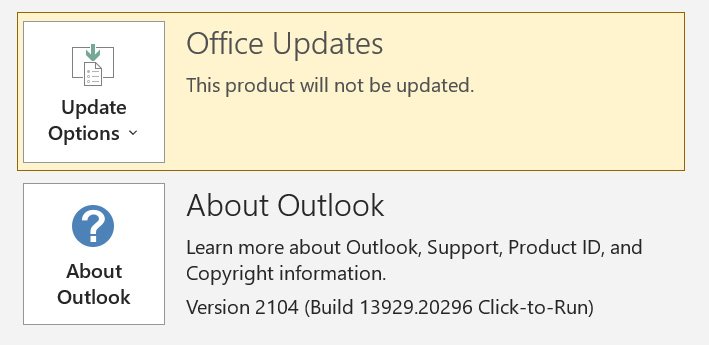
<p style="text-align: justify;"><strong>Bước 6:</strong>&nbsp;Sau đó, bạn sẽ quay lại màn hình Outlook Account và được thông báo rằng các bản cập nhật đã bị vô hiệu hóa, như được hiển thị bên dưới.</p>

<figure>
<div style="text-align: justify;"><img alt="Các bản cập nhật đã được tắt." data-i="9" data-src="https://st.quantrimang.com/photos/image/2021/05/12/cach-khac-phuc-mirsoft-outlook-khong-soan-va-doc-duoc-email-10.jpg" data-was-processed="true" height="345" src="https://st.quantrimang.com/photos/image/2021/05/12/cach-khac-phuc-mirsoft-outlook-khong-soan-va-doc-duoc-email-10.jpg" width="709" /></div>

<figcaption>
<div style="text-align: justify;">Các bản cập nhật đã được tắt.</div>
</figcaption>
</figure>

<p style="text-align: justify;"><strong>Bước 7:</strong>&nbsp;Để thoát khỏi trang Account, bạn có thể&nbsp;<strong>nhấn phím Esc</strong>&nbsp;trên bàn phím.</p>

<p style="text-align: justify;">Các bản cập nhật Microsoft Outlook hiện sẽ bị vô hiệu hóa và bạn có thể đảo ngược các bước này để kích hoạt lại khi bản sửa lỗi được phát hành.</p>
		</div>
				<div id="author">
						<p>
				<strong>Nguồn tin:</strong>
				Quantrimang.com
			</p>
		</div>
	</div>
	<div id="footer" class="clearfix">
		<div id="url">
			<strong>URL của bản tin này: </strong><a href="https://www.nguoicodonvn2008.info/vi/news/savefile/kien-thuc-may-tinh/nguoi-dung-microsoft-outlook-khong-xem-va-soan-duoc-email-hay-xem-cac-cach-khac-phuc-nay-4068.html" title="Người dùng Microsoft Outlook không xem và soạn được email, hãy xem các cách khắc phục này">https://www.nguoicodonvn2008.info/vi/news/savefile/kien-thuc-may-tinh/nguoi-dung-microsoft-outlook-khong-xem-va-soan-duoc-email-hay-xem-cac-cach-khac-phuc-nay-4068.html</a>

		</div>
		<div class="clear"></div>
		<div class="copyright">
			&copy; .&#x3A; Nguoicodonvn2008.info - Cõi lòng người cô đơn &#x3A;.
		</div>
		<div id="contact">
			<a href="mailto:admin@nguoicodonvn2008.info">admin@nguoicodonvn2008.info</a>
		</div>
	</div>
</div>
        <div id="timeoutsess" class="chromeframe">
            Bạn đã không sử dụng Site, <a onclick="timeoutsesscancel();" href="https://www.nguoicodonvn2008.info/#">Bấm vào đây để duy trì trạng thái đăng nhập</a>. Thời gian chờ: <span id="secField"> 60 </span> giây
        </div>
        <div id="openidResult" class="nv-alert" style="display:none"></div>
        <div id="openidBt" data-result="" data-redirect=""></div>
		</script>
		<div class="car-top">
  <span><img src="https://www.nguoicodonvn2008.info/themes/default/images/car.png" alt=""></span>
</div>
<script src="https://www.nguoicodonvn2008.info/assets/js/jquery/jquery.min.js"></script>
<script>var nv_base_siteurl="/",nv_lang_data="vi",nv_lang_interface="vi",nv_name_variable="nv",nv_fc_variable="op",nv_lang_variable="language",nv_module_name="news",nv_func_name="savefile",nv_is_user=0, nv_my_ofs=-4,nv_my_abbr="EDT",nv_cookie_prefix="nv4c_e856T",nv_check_pass_mstime=1738000,nv_area_admin=0,nv_safemode=0,theme_responsive=0,nv_recaptcha_ver=2,nv_recaptcha_sitekey="",nv_recaptcha_type="image",XSSsanitize=1;</script>
<script src="https://www.nguoicodonvn2008.info/assets/js/language/vi.js"></script>
<script src="https://www.nguoicodonvn2008.info/assets/js/DOMPurify/purify3.js"></script>
<script src="https://www.nguoicodonvn2008.info/assets/js/global.js"></script>
<script src="https://www.nguoicodonvn2008.info/assets/js/site.js"></script>
<script src="https://www.nguoicodonvn2008.info/themes/default/js/news.js"></script>
<script src="https://www.nguoicodonvn2008.info/themes/default/js/main.js"></script>
<script src="https://www.nguoicodonvn2008.info/themes/default/js/custom.js"></script>
<script type="application/ld+json">
        {
            "@context": "https://schema.org",
            "@type": "Organization",
            "url": "https://www.nguoicodonvn2008.info",
            "logo": "https://www.nguoicodonvn2008.info/uploads/angel.gif"
        }
        </script>
<script src="https://www.nguoicodonvn2008.info/themes/default/js/bootstrap.min.js"></script>
<script type="text/javascript">
var $scrolltop = $('.car-top');
$scrolltop.on('click', function () {
    $('html,body').animate({
        scrollTop: 0
    }, 800);
    $(this).addClass("car-run");
    setTimeout(function(){ $scrolltop.removeClass('car-run');}, 1000);
    return false;
});
$(window).on('scroll', function ()
{ 
    if($(window).scrollTop() >= 200)
    {
        $scrolltop.addClass("show");
        $scrolltop.addClass("car-down");
    }
    else
    {
       $scrolltop.removeClass("show");
       setTimeout(function(){ $scrolltop.removeClass('car-down');}, 300);
    }
});
</script>
</body>
</html>