<!DOCTYPE html>
    <html lang="vi" xmlns="http://www.w3.org/1999/xhtml" prefix="og: http://ogp.me/ns#">
    <head>
<title>Microsoft Edit là trình soạn thảo Command Prompt mà bạn đang chờ đợi</title>
<meta name="description" content="Microsoft Edit là trình soạn thảo Command Prompt mà bạn đang chờ đợi - Savefile - Tin Tức -...">
<meta name="author" content=".: Nguoicodonvn2008.info - Cõi lòng người cô đơn :.">
<meta name="copyright" content=".: Nguoicodonvn2008.info - Cõi lòng người cô đơn :. [admin@nguoicodonvn2008.info]">
<meta name="robots" content="index, archive, follow, noodp">
<meta name="googlebot" content="index,archive,follow,noodp">
<meta name="msnbot" content="all,index,follow">
<meta name="generator" content="NukeViet v4.5">
<meta http-equiv="Content-Type" content="text/html; charset=utf-8">
<meta property="og:title" content="Microsoft Edit là trình soạn thảo Command Prompt mà bạn đang chờ đợi">
<meta property="og:type" content="website">
<meta property="og:description" content="Savefile - Tin Tức - https&#x3A;&#x002F;&#x002F;www.nguoicodonvn2008.info&#x002F;vi&#x002F;news&#x002F;savefile&#x002F;kien-thuc-may-tinh&#x002F;microsoft-edit-la-trinh-soan-thao-command-prompt-ma-ban-dang-cho-doi-10558.html">
<meta property="og:site_name" content=".&#x3A; Nguoicodonvn2008.info - Cõi lòng người cô đơn &#x3A;.">
<meta property="og:url" content="https://www.nguoicodonvn2008.info/vi/news/savefile/kien-thuc-may-tinh/microsoft-edit-la-trinh-soan-thao-command-prompt-ma-ban-dang-cho-doi-10558.html">
<link rel="shortcut icon" href="https://www.nguoicodonvn2008.info/favicon.ico">
<link rel="canonical" href="https://www.nguoicodonvn2008.info/vi/news/savefile/kien-thuc-may-tinh/microsoft-edit-la-trinh-soan-thao-command-prompt-ma-ban-dang-cho-doi-10558.html">
<link rel="alternate" href="https://www.nguoicodonvn2008.info/vi/news/rss/" title="Tin Tức" type="application/rss+xml">
<link rel="alternate" href="https://www.nguoicodonvn2008.info/vi/news/rss/karaoke-dual/" title="Tin Tức - Karaoke Dual" type="application/rss+xml">
<link rel="alternate" href="https://www.nguoicodonvn2008.info/vi/news/rss/nhac-tre/" title="Tin Tức - Nhạc trẻ" type="application/rss+xml">
<link rel="alternate" href="https://www.nguoicodonvn2008.info/vi/news/rss/tru-tinh/" title="Tin Tức - Trữ tình" type="application/rss+xml">
<link rel="alternate" href="https://www.nguoicodonvn2008.info/vi/news/rss/nuoc-ngoai/" title="Tin Tức - Nước ngoài" type="application/rss+xml">
<link rel="alternate" href="https://www.nguoicodonvn2008.info/vi/news/rss/remix/" title="Tin Tức - Remix" type="application/rss+xml">
<link rel="alternate" href="https://www.nguoicodonvn2008.info/vi/news/rss/tam-su-tinh-yeu/" title="Tin Tức - Tâm sự tình yêu" type="application/rss+xml">
<link rel="alternate" href="https://www.nguoicodonvn2008.info/vi/news/rss/tho-suu-tam/" title="Tin Tức - Thơ sưu tầm" type="application/rss+xml">
<link rel="alternate" href="https://www.nguoicodonvn2008.info/vi/news/rss/cuoc-song/" title="Tin Tức - Cuộc sống" type="application/rss+xml">
<link rel="alternate" href="https://www.nguoicodonvn2008.info/vi/news/rss/phan-mem/" title="Tin Tức - Phần mềm" type="application/rss+xml">
<link rel="alternate" href="https://www.nguoicodonvn2008.info/vi/news/rss/kien-thuc-may-tinh/" title="Tin Tức - Kiến thức máy tính" type="application/rss+xml">
<link rel="alternate" href="https://www.nguoicodonvn2008.info/vi/news/rss/hoc-tap/" title="Tin Tức - Học tập" type="application/rss+xml">
<link rel="alternate" href="https://www.nguoicodonvn2008.info/vi/news/rss/tai-lieu/" title="Tin Tức - Tài liệu" type="application/rss+xml">
<link rel="alternate" href="https://www.nguoicodonvn2008.info/vi/news/rss/de-thi/" title="Tin Tức - Đề thi" type="application/rss+xml">
<link rel="preload" as="style" href="https://www.nguoicodonvn2008.info/assets/css/font-awesome.min.css" type="text/css">
<link rel="preload" as="style" href="https://www.nguoicodonvn2008.info/themes/default/css/bootstrap.non-responsive.css" type="text/css">
<link rel="preload" as="style" href="https://www.nguoicodonvn2008.info/themes/default/css/style.css" type="text/css">
<link rel="preload" as="style" href="https://www.nguoicodonvn2008.info/themes/default/css/style.non-responsive.css" type="text/css">
<link rel="preload" as="style" href="https://www.nguoicodonvn2008.info/themes/default/css/news.css" type="text/css">
<link rel="preload" as="style" href="https://www.nguoicodonvn2008.info/themes/default/css/custom.css" type="text/css">
<link rel="preload" as="script" href="https://www.nguoicodonvn2008.info/assets/js/jquery/jquery.min.js" type="text/javascript">
<link rel="preload" as="script" href="https://www.nguoicodonvn2008.info/assets/js/language/vi.js" type="text/javascript">
<link rel="preload" as="script" href="https://www.nguoicodonvn2008.info/assets/js/DOMPurify/purify3.js" type="text/javascript">
<link rel="preload" as="script" href="https://www.nguoicodonvn2008.info/assets/js/global.js" type="text/javascript">
<link rel="preload" as="script" href="https://www.nguoicodonvn2008.info/assets/js/site.js" type="text/javascript">
<link rel="preload" as="script" href="https://www.nguoicodonvn2008.info/themes/default/js/news.js" type="text/javascript">
<link rel="preload" as="script" href="https://www.nguoicodonvn2008.info/themes/default/js/main.js" type="text/javascript">
<link rel="preload" as="script" href="https://www.nguoicodonvn2008.info/themes/default/js/custom.js" type="text/javascript">
<link rel="preload" as="script" href="https://www.nguoicodonvn2008.info/themes/default/js/bootstrap.min.js" type="text/javascript">
<link rel="stylesheet" href="https://www.nguoicodonvn2008.info/assets/css/font-awesome.min.css">
<link rel="stylesheet" href="https://www.nguoicodonvn2008.info/themes/default/css/bootstrap.non-responsive.css">
<link rel="stylesheet" href="https://www.nguoicodonvn2008.info/themes/default/css/style.css">
<link rel="stylesheet" href="https://www.nguoicodonvn2008.info/themes/default/css/style.non-responsive.css">
<link rel="StyleSheet" href="https://www.nguoicodonvn2008.info/themes/default/css/news.css">
<link rel="stylesheet" href="https://www.nguoicodonvn2008.info/themes/default/css/custom.css">
<style type="text/css">
	body{background: #fff;}
</style>
    </head>
    <body>
<div id="print">
	<div id="hd_print">
		<h2 class="pull-left">.&#x3A; Nguoicodonvn2008.info - Cõi lòng người cô đơn &#x3A;.</h2>
		<p class="pull-right"><a title=".&#x3A; Nguoicodonvn2008.info - Cõi lòng người cô đơn &#x3A;." href="https://www.nguoicodonvn2008.info/">https://www.nguoicodonvn2008.info</a></p>
	</div>
	<div class="clear"></div>
	<hr />
	<div id="content">
		<h1>Microsoft Edit là trình soạn thảo Command Prompt mà bạn đang chờ đợi</h1>
		<ul class="list-inline">
			<li>Thứ năm - 12/06/2025 23:24</li>
			<li class="hidden-print txtrequired"><em class="fa fa-print">&nbsp;</em><a title="In ra" href="javascript:;" onclick="window.print()">In ra</a></li>
			<li class="hidden-print txtrequired"><em class="fa fa-power-off">&nbsp;</em><a title="Đóng cửa sổ này" href="javascript:;" onclick="window.close()">Đóng cửa sổ này</a></li>
		</ul>
		<div class="clear"></div>
		<div id="hometext">
		</div>
				<div class="imghome">
			<img alt="Microsoft Edit là trình soạn thảo Command Prompt mà bạn đang chờ đợi" src="https://st.quantrimang.com/photos/image/2025/06/12/microsoft-edit-1.jpg" width="460" class="img-thumbnail" />
		</div>
		<div class="clear"></div>
		<div id="bodytext" class="clearfix">
			<p style="text-align: justify;">Nếu là người hâm mộ MS-DOS từ những năm 90, bạn sẽ thích Microsoft Edit – trình soạn thảo giao diện dòng lệnh (CLI) mã nguồn mở hoàn toàn. Microsoft Edit đáp ứng nhu cầu cụ thể về trình soạn thảo CLI mặc định trong Windows 64 bit. Chỉ với 250KB, nó cực kỳ nhẹ, cho phép chỉnh sửa file văn bản trong&nbsp;Command Prompt&nbsp;hoặc&nbsp;PowerShell&nbsp;trong khi cung cấp hỗ trợ chỉnh sửa và tạo script không theo mô hình.</p>

<h2 style="text-align: justify;">Cài đặt Microsoft Edit</h2>

<p style="text-align: justify;">Có hai cách để cài đặt Microsoft Edit, sử dụng file nguồn Github hoặc thông qua winget trong PowerShell. Nó hỗ trợ cả Windows 10 và Windows 11.</p>

<h3 style="text-align: justify;">GitHub</h3>

<p style="text-align: justify;">Truy cập trang kho lưu trữ GitHub chính thức của Microsoft Edit. Tải file ZIP xuống PC của bạn và giải nén các thư mục của nó.<br />
<span style="color:rgb(39, 174, 96);"><strong>https://github.com/microsoft/edit</strong></span></p>

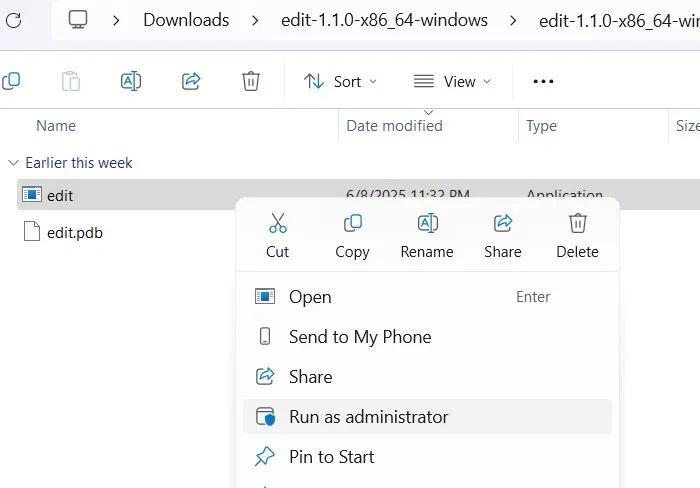
<p style="text-align: justify;">Từ thư mục bên trong đã giải nén, bạn có thể chạy ứng dụng với quyền admin chỉ bằng một cú nhấp chuột phải.</p>

<figure>
<div style="text-align: justify;"><img alt="Chạy ứng dụng Edit trong thư mục đã giải nén ở chế độ admin" data-i="0" data-src="https://st.quantrimang.com/photos/image/2025/06/12/microsoft-edit-1.jpg" data-was-processed="true" height="488" src="https://st.quantrimang.com/photos/image/2025/06/12/microsoft-edit-1.jpg" width="700" /></div>

<figcaption>
<div style="text-align: justify;">Chạy ứng dụng Edit trong thư mục đã giải nén ở chế độ admin</div>
</figcaption>
</figure>

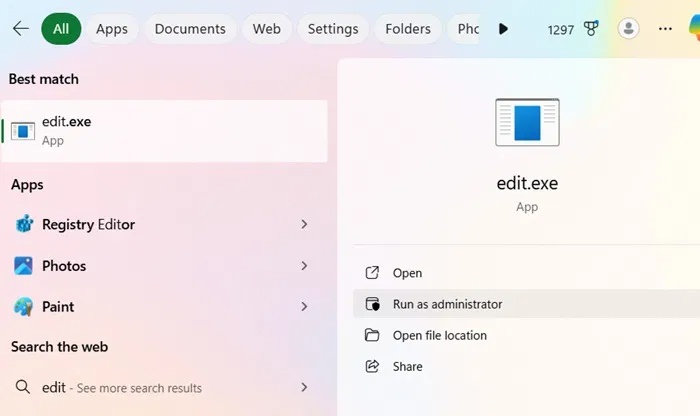
<p style="text-align: justify;">Bạn cũng có thể khởi chạy ứng dụng Edit, được xem là &quot;edit.exe&quot; từ menu tìm kiếm. Luôn tốt hơn nếu chọn&nbsp;<strong>Run as administrator</strong>.</p>

<figure>
<div style="text-align: justify;"><img alt="Chỉnh sửa thư mục trong menu tìm kiếm, mở ở chế độ admin" data-i="1" data-src="https://st.quantrimang.com/photos/image/2025/06/12/microsoft-edit-2.jpg" data-was-processed="true" height="416" src="https://st.quantrimang.com/photos/image/2025/06/12/microsoft-edit-2.jpg" width="700" /></div>

<figcaption>
<div style="text-align: justify;">Chỉnh sửa thư mục trong menu tìm kiếm, mở ở chế độ admin</div>
</figcaption>
</figure>

<p style="text-align: justify;">Để có được đầy đủ các lợi ích về tính năng của Edit, tốt hơn hết là bạn nên cài đặt ứng dụng đầy đủ như hình dưới đây.</p>

<h3 style="text-align: justify;">Winget</h3>

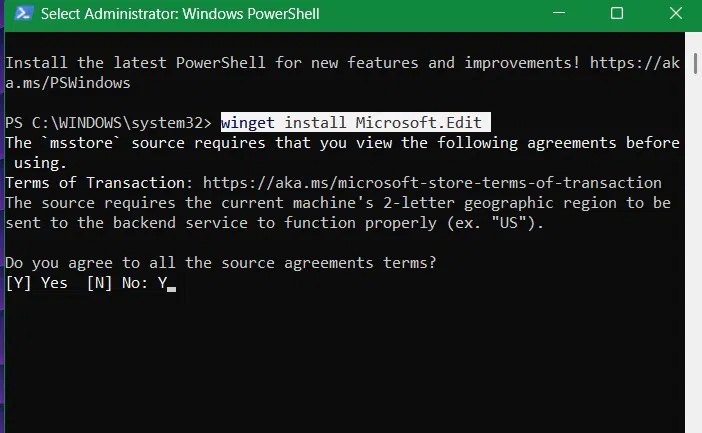
<p style="text-align: justify;">Mở cửa sổ PowerShell ở chế độ admin. Nhập lệnh sau, sau đó nhấn&nbsp;<strong>Y&nbsp;</strong>để đồng ý với tất cả các điều khoản thỏa thuận nguồn.</p>

<pre id="pre0">
<code>winget install Microsoft.Edit</code></pre>

<figure>
<div style="text-align: justify;"><img alt="Lệnh cài đặt Winget cho phần mềm Microsoft Edit." data-i="2" data-src="https://st.quantrimang.com/photos/image/2025/06/12/microsoft-edit-3.jpg" data-was-processed="true" height="433" src="https://st.quantrimang.com/photos/image/2025/06/12/microsoft-edit-3.jpg" width="702" /></div>

<figcaption>
<div style="text-align: justify;">Lệnh cài đặt Winget cho phần mềm Microsoft Edit.</div>
</figcaption>
</figure>

<p style="text-align: justify;">Khi thực hành với Microsoft Edit, bạn sẽ khám phá ra nhiều cách sử dụng và tính năng tiện lợi. Không giống như MS-DOS Editor trước đây chỉ hỗ trợ các ứng dụng 16 bit, Edit mới hoàn toàn có khả năng mở rộng với Windows 11 64 bit trong tương lai.</p>

<h2 style="text-align: justify;">Trình soạn thảo dòng lệnh Windows cực kỳ đơn giản</h2>

<p style="text-align: justify;">Là một nhà phát triển Windows, bạn sẽ thấy Microsoft Edit là một công cụ lý tưởng cho nhu cầu của mình. Nó tạo ra sự cân bằng hoàn hảo giữa tính đơn giản và chức năng, cho phép bạn sửa đổi code đằng sau các ứng dụng phần mềm mà không cần ghi nhớ những lệnh và bước phức tạp</p>

<p style="text-align: justify;">Hoàn toàn là mã nguồn mở, Microsoft Edit đã gây được sự phấn khích nhờ tính đơn giản tổng thể với giao diện màn hình xanh rõ nét. Chỉ có 4 nút thể hiện thiết kế tối giản của nó, với File, Edit và View chứa mọi thứ bạn cần.</p>

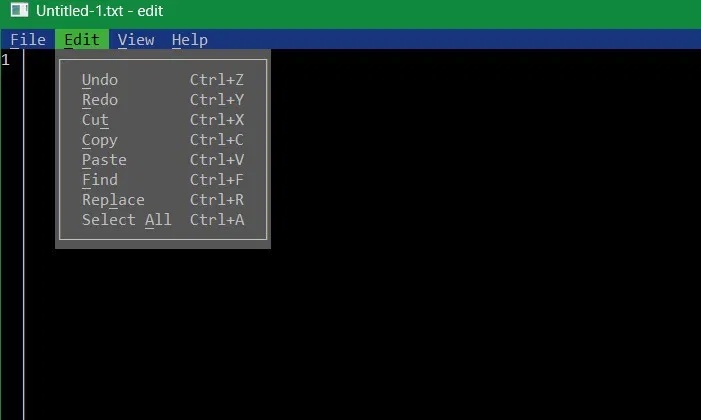
<p style="text-align: justify;">Giống như Notepad, nút&nbsp;<strong>Edit</strong>&nbsp;trong ứng dụng này hỗ trợ tất cả các phím tắt phổ biến, chẳng hạn như&nbsp;<strong>Ctrl + S</strong>&nbsp;để lưu file văn bản, cùng với những phím tắt như&nbsp;<strong>Ctrl + Z, Ctrl + Y, Ctrl + F</strong>&nbsp;để tìm file,&nbsp;<strong>Ctrl + R&nbsp;</strong>để thay thế và&nbsp;<strong>Ctrl + A&nbsp;</strong>để chọn tất cả. Tất nhiên, các shortcut cắt, sao chép và dán đều khả dụng.</p>

<figure>
<div style="text-align: justify;"><img alt="Danh sách các shortcut phổ biến được sử dụng trong Microsoft Edit." data-i="3" data-src="https://st.quantrimang.com/photos/image/2025/06/12/microsoft-edit-4.jpg" data-was-processed="true" height="420" src="https://st.quantrimang.com/photos/image/2025/06/12/microsoft-edit-4.jpg" width="701" /></div>

<figcaption>
<div style="text-align: justify;">Danh sách các shortcut phổ biến được sử dụng trong Microsoft Edit.</div>
</figcaption>
</figure>

<p style="text-align: justify;">Tuy nhiên, không giống như Notepad là công cụ chỉnh sửa GUI, bạn có thể truy cập các lệnh này trong giao diện CLI, lý tưởng cho những nhà phát triển.</p>

<p style="text-align: justify;">Vì file ứng dụng Edit cốt lõi có kích thước nhỏ hơn 250KB nên việc mở file chỉ mất một phần giây so với các tiến trình của những ứng dụng dựa trên console khác.</p>

<h2 style="text-align: justify;">Sử dụng Edit trong Command Prompt và PowerShell</h2>

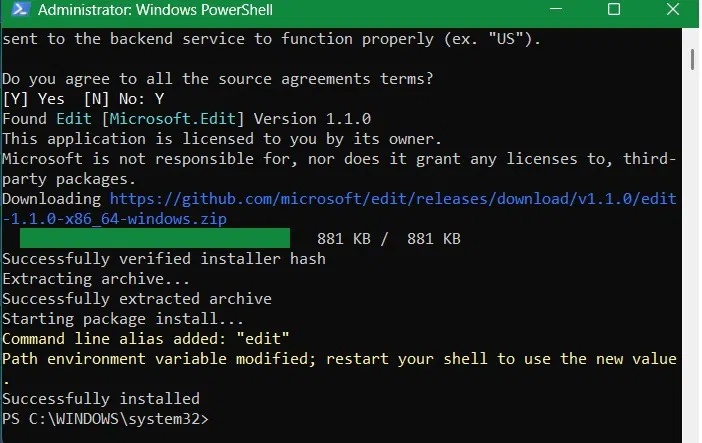
<p style="text-align: justify;">Một lý do lớn để sử dụng winget cài đặt Edit là nó tự thêm chính mình dưới dạng alias dòng lệnh, hỗ trợ tất cả các console hiện có trong Windows, bao gồm Command Prompt, PowerShell và Windows Terminal.</p>

<figure>
<div style="text-align: justify;"><img alt="Cài đặt thành công ứng dụng Edit thông qua Winget, với alias dòng lệnh được thêm vào." data-i="4" data-src="https://st.quantrimang.com/photos/image/2025/06/12/microsoft-edit-5.jpg" data-was-processed="true" height="443" src="https://st.quantrimang.com/photos/image/2025/06/12/microsoft-edit-5.jpg" width="702" /></div>

<figcaption>
<div style="text-align: justify;">Cài đặt thành công ứng dụng Edit thông qua Winget, với alias dòng lệnh được thêm vào.</div>
</figcaption>
</figure>

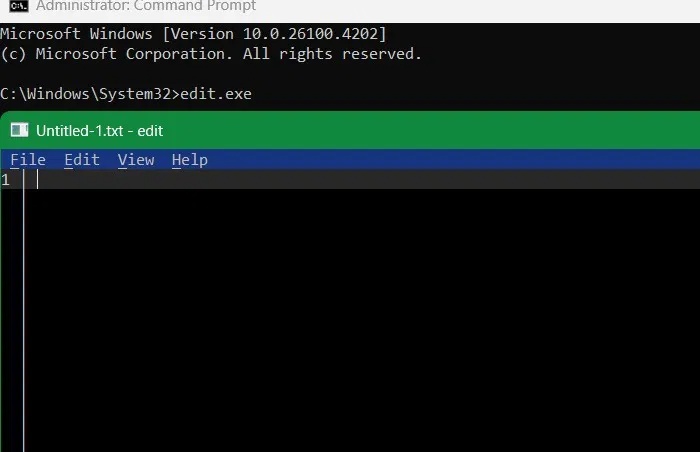
<p style="text-align: justify;">Sau khi alias được thêm vào, tất cả những gì bạn phải làm là nhập&nbsp;<strong>edit</strong>&nbsp;hoặc&nbsp;<strong>edit.exe</strong>&nbsp;trong bất kỳ trình thông dịch dòng lệnh nào, chẳng hạn như Command Prompt, PowerShell hoặc Windows Terminal. Edit tích hợp với tất cả các môi trường này để chỉnh sửa những file văn bản, bổ sung cho khả năng thực thi lệnh của chúng.</p>

<figure>
<div style="text-align: justify;"><img alt="Microsoft Edit được khởi chạy từ Command Prompt thông qua lệnh &#039;edit.exe&#039;." data-i="5" data-src="https://st.quantrimang.com/photos/image/2025/06/12/microsoft-edit-6.jpg" data-was-processed="true" height="452" src="https://st.quantrimang.com/photos/image/2025/06/12/microsoft-edit-6.jpg" width="700" /></div>

<figcaption>
<div style="text-align: justify;">Microsoft Edit được khởi chạy từ Command Prompt thông qua lệnh &quot;edit.exe&quot;.</div>
</figcaption>
</figure>

<p style="text-align: justify;">Xin lưu ý rằng Edit không tự thực thi bất kỳ lệnh nào, vì vậy bạn không thể sử dụng nó để chạy lệnh hệ thống như&nbsp;<a data-type="internal" href="https://quantrimang.com/cong-nghe/lenh-iconfig-82965" title="Cách sử dụng lệnh ipconfig để làm mới, reset địa chỉ IP">ipconfig</a>. Tuy nhiên, bạn có thể sử dụng nó để viết bất kỳ script PowerShell nào, với các file PS1.</p>

<h2 style="text-align: justify;">Tạo và chỉnh sửa file batch</h2>

<p style="text-align: justify;">Edit đóng vai trò thay thế nhiều chức năng chỉnh sửa văn bản của Notepad, đặc biệt là khả năng chỉnh sửa các batch script, mặc dù không thể tạo chúng.</p>

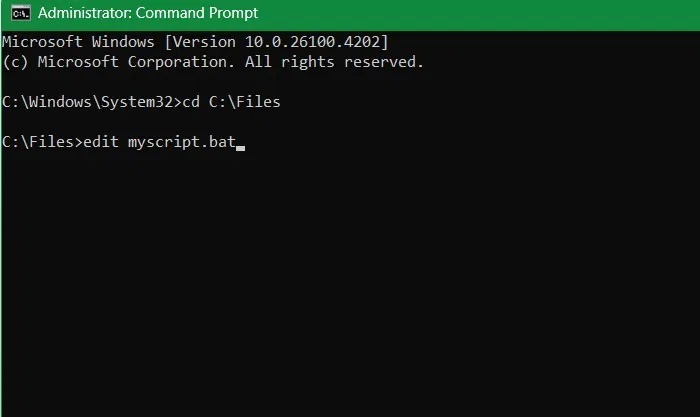
<p style="text-align: justify;">Mở Command Prompt&nbsp;và sử dụng cd để đặt mình vào đường dẫn của file nơi bạn lưu trữ một số BAT script. Ở đây, ví dụ có một script tên là&nbsp;<strong>&quot;Myscript&quot;</strong>&nbsp;được lưu trong đường dẫn thư mục&nbsp;<strong>C:\Files.</strong>&nbsp;Bây giờ, tất cả những gì bạn phải làm là sử dụng cd để đến đúng vị trí thư mục và nhập lệnh sau:</p>

<pre id="pre1">
<code>edit &quot;Batch file script name&quot;.bat</code></pre>

<figure>
<div style="text-align: justify;"><img alt="Mở file BAT tại vị trí thư mục trong Cmd thông qua giao diện Edit text." data-i="6" data-src="https://st.quantrimang.com/photos/image/2025/06/12/microsoft-edit-7.jpg" data-was-processed="true" height="417" src="https://st.quantrimang.com/photos/image/2025/06/12/microsoft-edit-7.jpg" width="700" /></div>

<figcaption>
<div style="text-align: justify;">Mở file BAT tại vị trí thư mục trong Cmd thông qua giao diện Edit text.</div>
</figcaption>
</figure>

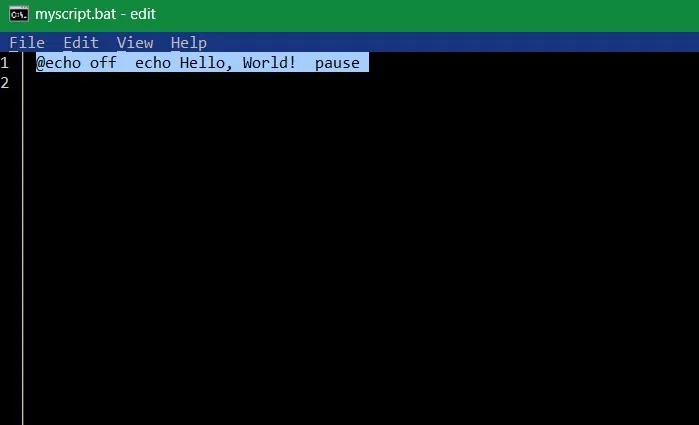
<p style="text-align: justify;">Trước khi có Microsoft Edit, việc chỉnh sửa các batch script trực tiếp trong trình thông dịch dòng lệnh như PowerShell hoặc Command Prompt rất phức tạp và đầy thách thức. Bạn phải sử dụng trình chỉnh sửa của bên thứ ba như Vim hoặc thoát khỏi trình thông dịch và&nbsp;mở Notepad&nbsp;hoặc&nbsp;Visual Studio Code. Việc chuyển đổi cửa sổ thường xuyên này đã phá vỡ quy trình của hầu hết các nhà phát triển.</p>

<figure>
<div style="text-align: justify;"><img alt="File BAT script có thể chỉnh sửa được trong Microsoft Edit." data-i="7" data-src="https://st.quantrimang.com/photos/image/2025/06/12/microsoft-edit-8.jpg" data-was-processed="true" height="425" src="https://st.quantrimang.com/photos/image/2025/06/12/microsoft-edit-8.jpg" width="699" /></div>

<figcaption>
<div style="text-align: justify;">File BAT script có thể chỉnh sửa được trong Microsoft Edit.</div>
</figcaption>
</figure>

<p style="text-align: justify;">Việc quản lý file thủ công cũng rất phiền phức. Hãy nhớ tất cả những thuật ngữ &quot;echo on&quot; và &quot;echo off&quot; chỉ để di chuyển các file trong hệ thống của riêng bạn. Tất cả những điều đó giờ đã là chuyện cũ, vì ứng dụng Edit khởi chạy trực tiếp trong đường dẫn thư mục mà bạn chọn.</p>
		</div>
				<div id="author">
						<p>
				<strong>Nguồn tin:</strong>
				Quantrimang.com:
			</p>
		</div>
	</div>
	<div id="footer" class="clearfix">
		<div id="url">
			<strong>URL của bản tin này: </strong><a href="https://www.nguoicodonvn2008.info/vi/news/savefile/kien-thuc-may-tinh/microsoft-edit-la-trinh-soan-thao-command-prompt-ma-ban-dang-cho-doi-10558.html" title="Microsoft Edit là trình soạn thảo Command Prompt mà bạn đang chờ đợi">https://www.nguoicodonvn2008.info/vi/news/savefile/kien-thuc-may-tinh/microsoft-edit-la-trinh-soan-thao-command-prompt-ma-ban-dang-cho-doi-10558.html</a>

		</div>
		<div class="clear"></div>
		<div class="copyright">
			&copy; .&#x3A; Nguoicodonvn2008.info - Cõi lòng người cô đơn &#x3A;.
		</div>
		<div id="contact">
			<a href="mailto:admin@nguoicodonvn2008.info">admin@nguoicodonvn2008.info</a>
		</div>
	</div>
</div>
        <div id="timeoutsess" class="chromeframe">
            Bạn đã không sử dụng Site, <a onclick="timeoutsesscancel();" href="https://www.nguoicodonvn2008.info/#">Bấm vào đây để duy trì trạng thái đăng nhập</a>. Thời gian chờ: <span id="secField"> 60 </span> giây
        </div>
        <div id="openidResult" class="nv-alert" style="display:none"></div>
        <div id="openidBt" data-result="" data-redirect=""></div>
		</script>
		<div class="car-top">
  <span><img src="https://www.nguoicodonvn2008.info/themes/default/images/car.png" alt=""></span>
</div>
<script src="https://www.nguoicodonvn2008.info/assets/js/jquery/jquery.min.js"></script>
<script>var nv_base_siteurl="/",nv_lang_data="vi",nv_lang_interface="vi",nv_name_variable="nv",nv_fc_variable="op",nv_lang_variable="language",nv_module_name="news",nv_func_name="savefile",nv_is_user=0, nv_my_ofs=-4,nv_my_abbr="EDT",nv_cookie_prefix="nv4c_e856T",nv_check_pass_mstime=1738000,nv_area_admin=0,nv_safemode=0,theme_responsive=0,nv_recaptcha_ver=2,nv_recaptcha_sitekey="",nv_recaptcha_type="image",XSSsanitize=1;</script>
<script src="https://www.nguoicodonvn2008.info/assets/js/language/vi.js"></script>
<script src="https://www.nguoicodonvn2008.info/assets/js/DOMPurify/purify3.js"></script>
<script src="https://www.nguoicodonvn2008.info/assets/js/global.js"></script>
<script src="https://www.nguoicodonvn2008.info/assets/js/site.js"></script>
<script src="https://www.nguoicodonvn2008.info/themes/default/js/news.js"></script>
<script src="https://www.nguoicodonvn2008.info/themes/default/js/main.js"></script>
<script src="https://www.nguoicodonvn2008.info/themes/default/js/custom.js"></script>
<script type="application/ld+json">
        {
            "@context": "https://schema.org",
            "@type": "Organization",
            "url": "https://www.nguoicodonvn2008.info",
            "logo": "https://www.nguoicodonvn2008.info/uploads/angel.gif"
        }
        </script>
<script src="https://www.nguoicodonvn2008.info/themes/default/js/bootstrap.min.js"></script>
<script type="text/javascript">
var $scrolltop = $('.car-top');
$scrolltop.on('click', function () {
    $('html,body').animate({
        scrollTop: 0
    }, 800);
    $(this).addClass("car-run");
    setTimeout(function(){ $scrolltop.removeClass('car-run');}, 1000);
    return false;
});
$(window).on('scroll', function ()
{ 
    if($(window).scrollTop() >= 200)
    {
        $scrolltop.addClass("show");
        $scrolltop.addClass("car-down");
    }
    else
    {
       $scrolltop.removeClass("show");
       setTimeout(function(){ $scrolltop.removeClass('car-down');}, 300);
    }
});
</script>
</body>
</html>