<!DOCTYPE html>
    <html lang="vi" xmlns="http://www.w3.org/1999/xhtml" prefix="og: http://ogp.me/ns#">
    <head>
<title>Mẹo tối đa hóa chất lượng âm thanh trên hệ thống Windows 11</title>
<meta name="description" content="Mẹo tối đa hóa chất lượng âm thanh trên hệ thống Windows 11 - Savefile - Tin Tức -...">
<meta name="author" content=".: Nguoicodonvn2008.info - Cõi lòng người cô đơn :.">
<meta name="copyright" content=".: Nguoicodonvn2008.info - Cõi lòng người cô đơn :. [admin@nguoicodonvn2008.info]">
<meta name="robots" content="index, archive, follow, noodp">
<meta name="googlebot" content="index,archive,follow,noodp">
<meta name="msnbot" content="all,index,follow">
<meta name="generator" content="NukeViet v4.5">
<meta http-equiv="Content-Type" content="text/html; charset=utf-8">
<meta property="og:title" content="Mẹo tối đa hóa chất lượng âm thanh trên hệ thống Windows 11">
<meta property="og:type" content="website">
<meta property="og:description" content="Savefile - Tin Tức - https&#x3A;&#x002F;&#x002F;www.nguoicodonvn2008.info&#x002F;vi&#x002F;news&#x002F;savefile&#x002F;kien-thuc-may-tinh&#x002F;meo-toi-da-hoa-chat-luong-am-thanh-tren-he-thong-windows-11-5635.html">
<meta property="og:site_name" content=".&#x3A; Nguoicodonvn2008.info - Cõi lòng người cô đơn &#x3A;.">
<meta property="og:url" content="https://www.nguoicodonvn2008.info/vi/news/savefile/kien-thuc-may-tinh/meo-toi-da-hoa-chat-luong-am-thanh-tren-he-thong-windows-11-5635.html">
<link rel="shortcut icon" href="https://www.nguoicodonvn2008.info/favicon.ico">
<link rel="canonical" href="https://www.nguoicodonvn2008.info/vi/news/savefile/kien-thuc-may-tinh/meo-toi-da-hoa-chat-luong-am-thanh-tren-he-thong-windows-11-5635.html">
<link rel="alternate" href="https://www.nguoicodonvn2008.info/vi/news/rss/" title="Tin Tức" type="application/rss+xml">
<link rel="alternate" href="https://www.nguoicodonvn2008.info/vi/news/rss/karaoke-dual/" title="Tin Tức - Karaoke Dual" type="application/rss+xml">
<link rel="alternate" href="https://www.nguoicodonvn2008.info/vi/news/rss/nhac-tre/" title="Tin Tức - Nhạc trẻ" type="application/rss+xml">
<link rel="alternate" href="https://www.nguoicodonvn2008.info/vi/news/rss/tru-tinh/" title="Tin Tức - Trữ tình" type="application/rss+xml">
<link rel="alternate" href="https://www.nguoicodonvn2008.info/vi/news/rss/nuoc-ngoai/" title="Tin Tức - Nước ngoài" type="application/rss+xml">
<link rel="alternate" href="https://www.nguoicodonvn2008.info/vi/news/rss/remix/" title="Tin Tức - Remix" type="application/rss+xml">
<link rel="alternate" href="https://www.nguoicodonvn2008.info/vi/news/rss/tam-su-tinh-yeu/" title="Tin Tức - Tâm sự tình yêu" type="application/rss+xml">
<link rel="alternate" href="https://www.nguoicodonvn2008.info/vi/news/rss/tho-suu-tam/" title="Tin Tức - Thơ sưu tầm" type="application/rss+xml">
<link rel="alternate" href="https://www.nguoicodonvn2008.info/vi/news/rss/cuoc-song/" title="Tin Tức - Cuộc sống" type="application/rss+xml">
<link rel="alternate" href="https://www.nguoicodonvn2008.info/vi/news/rss/phan-mem/" title="Tin Tức - Phần mềm" type="application/rss+xml">
<link rel="alternate" href="https://www.nguoicodonvn2008.info/vi/news/rss/kien-thuc-may-tinh/" title="Tin Tức - Kiến thức máy tính" type="application/rss+xml">
<link rel="alternate" href="https://www.nguoicodonvn2008.info/vi/news/rss/hoc-tap/" title="Tin Tức - Học tập" type="application/rss+xml">
<link rel="alternate" href="https://www.nguoicodonvn2008.info/vi/news/rss/tai-lieu/" title="Tin Tức - Tài liệu" type="application/rss+xml">
<link rel="alternate" href="https://www.nguoicodonvn2008.info/vi/news/rss/de-thi/" title="Tin Tức - Đề thi" type="application/rss+xml">
<link rel="preload" as="style" href="https://www.nguoicodonvn2008.info/assets/css/font-awesome.min.css" type="text/css">
<link rel="preload" as="style" href="https://www.nguoicodonvn2008.info/themes/default/css/bootstrap.non-responsive.css" type="text/css">
<link rel="preload" as="style" href="https://www.nguoicodonvn2008.info/themes/default/css/style.css" type="text/css">
<link rel="preload" as="style" href="https://www.nguoicodonvn2008.info/themes/default/css/style.non-responsive.css" type="text/css">
<link rel="preload" as="style" href="https://www.nguoicodonvn2008.info/themes/default/css/news.css" type="text/css">
<link rel="preload" as="style" href="https://www.nguoicodonvn2008.info/themes/default/css/custom.css" type="text/css">
<link rel="preload" as="script" href="https://www.nguoicodonvn2008.info/assets/js/jquery/jquery.min.js" type="text/javascript">
<link rel="preload" as="script" href="https://www.nguoicodonvn2008.info/assets/js/language/vi.js" type="text/javascript">
<link rel="preload" as="script" href="https://www.nguoicodonvn2008.info/assets/js/DOMPurify/purify3.js" type="text/javascript">
<link rel="preload" as="script" href="https://www.nguoicodonvn2008.info/assets/js/global.js" type="text/javascript">
<link rel="preload" as="script" href="https://www.nguoicodonvn2008.info/assets/js/site.js" type="text/javascript">
<link rel="preload" as="script" href="https://www.nguoicodonvn2008.info/themes/default/js/news.js" type="text/javascript">
<link rel="preload" as="script" href="https://www.nguoicodonvn2008.info/themes/default/js/main.js" type="text/javascript">
<link rel="preload" as="script" href="https://www.nguoicodonvn2008.info/themes/default/js/custom.js" type="text/javascript">
<link rel="preload" as="script" href="https://www.nguoicodonvn2008.info/themes/default/js/bootstrap.min.js" type="text/javascript">
<link rel="stylesheet" href="https://www.nguoicodonvn2008.info/assets/css/font-awesome.min.css">
<link rel="stylesheet" href="https://www.nguoicodonvn2008.info/themes/default/css/bootstrap.non-responsive.css">
<link rel="stylesheet" href="https://www.nguoicodonvn2008.info/themes/default/css/style.css">
<link rel="stylesheet" href="https://www.nguoicodonvn2008.info/themes/default/css/style.non-responsive.css">
<link rel="StyleSheet" href="https://www.nguoicodonvn2008.info/themes/default/css/news.css">
<link rel="stylesheet" href="https://www.nguoicodonvn2008.info/themes/default/css/custom.css">
<style type="text/css">
	body{background: #fff;}
</style>
    </head>
    <body>
<div id="print">
	<div id="hd_print">
		<h2 class="pull-left">.&#x3A; Nguoicodonvn2008.info - Cõi lòng người cô đơn &#x3A;.</h2>
		<p class="pull-right"><a title=".&#x3A; Nguoicodonvn2008.info - Cõi lòng người cô đơn &#x3A;." href="https://www.nguoicodonvn2008.info/">https://www.nguoicodonvn2008.info</a></p>
	</div>
	<div class="clear"></div>
	<hr />
	<div id="content">
		<h1>Mẹo tối đa hóa chất lượng âm thanh trên hệ thống Windows 11</h1>
		<ul class="list-inline">
			<li>Thứ năm - 19/05/2022 00:53</li>
			<li class="hidden-print txtrequired"><em class="fa fa-print">&nbsp;</em><a title="In ra" href="javascript:;" onclick="window.print()">In ra</a></li>
			<li class="hidden-print txtrequired"><em class="fa fa-power-off">&nbsp;</em><a title="Đóng cửa sổ này" href="javascript:;" onclick="window.close()">Đóng cửa sổ này</a></li>
		</ul>
		<div class="clear"></div>
		<div id="hometext">
		</div>
				<div class="imghome">
			<img alt="Mẹo tối đa hóa chất lượng âm thanh trên hệ thống Windows 11" src="https://st.quantrimang.com/photos/image/2022/05/10/toi-da-hoa-chat-luong-am-thanh-tren-he-thong-windows-111.jpg" width="460" class="img-thumbnail" />
		</div>
		<div class="clear"></div>
		<div id="bodytext" class="clearfix">
			<p style="text-align: justify;">Chất lượng âm thanh là trọng tâm của trải nghiệm xem phim, nghe nhạc hoặc chơi game. Trên các hệ thống Windows 11 cũng không phải ngoại lệ. Bạn không thể có trải nghiệm tốt với một hệ thống âm thanh tệ hại. Tuy nhiên, nếu bạn không có đủ khả năng để sở hữu một dàn âm thanh tốt, bạn có thể tinh chỉnh máy tính của mình và đảm bảo rằng mọi thứ đã được tối ưu hóa, ít nhất về mặt phần mềm.</p>

<p style="text-align: justify;">Bài viết này sẽ hướng dẫn bạn một vài mẹo tinh chỉnh để tối đa hóa chất lượng âm thanh trên hệ thống Windows 11.</p>

<h2 style="text-align: justify;">Tối đa hóa chất lượng âm thanh trên Windows 11</h2>

<p style="text-align: justify;">Bạn có thể thực hiện một số chỉnh sửa khác nhau cho hệ thống Windows 11 của mình để có được trải nghiệm âm thanh tốt nhất có thể. Cụ thể như sau.</p>

<h3 style="text-align: justify;">Kích hoạt các tính năng cải tiến âm thanh</h3>

<p style="text-align: justify;"><strong>Bước 1:&nbsp;</strong>Sử dụng phím tắt<strong>&nbsp;Win + I&nbsp;</strong>để mở ứng dụng&nbsp;<strong>Settings&nbsp;</strong>Windows.</p>

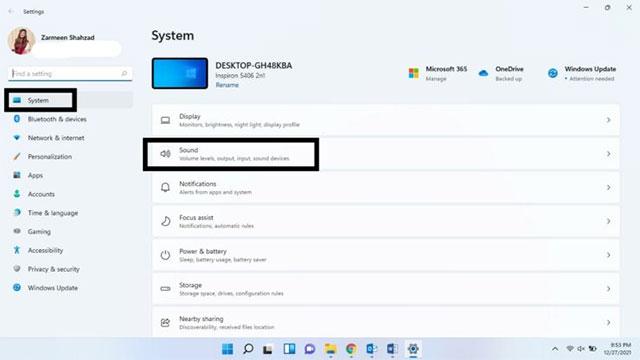
<p style="text-align: justify;"><strong>Bước 2:</strong>&nbsp;Trong phần cài đặt&nbsp;<strong>System</strong>, bấm chọn mục&nbsp;<strong>Sound</strong>.</p>

<p style="text-align: justify;"><img alt="Bấm chọn mục Sound" data-i="0" data-src="https://st.quantrimang.com/photos/image/2022/05/10/toi-da-hoa-chat-luong-am-thanh-tren-he-thong-windows-111.jpg" data-was-processed="true" height="360" src="https://st.quantrimang.com/photos/image/2022/05/10/toi-da-hoa-chat-luong-am-thanh-tren-he-thong-windows-111.jpg" width="640" /></p>

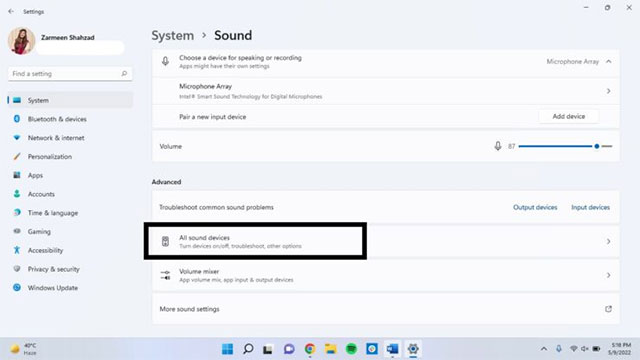
<p style="text-align: justify;"><strong>Bước 3:</strong>&nbsp;Cuộn xuống phần&nbsp;<strong>Advanced&nbsp;</strong>và bấm vào&nbsp;<strong>All sound devices</strong>.</p>

<p style="text-align: justify;"><img alt="Bấm vào All sound devices" data-i="1" data-src="https://st.quantrimang.com/photos/image/2022/05/10/toi-da-hoa-chat-luong-am-thanh-tren-he-thong-windows-112.jpg" data-was-processed="true" height="360" src="https://st.quantrimang.com/photos/image/2022/05/10/toi-da-hoa-chat-luong-am-thanh-tren-he-thong-windows-112.jpg" width="640" /></p>

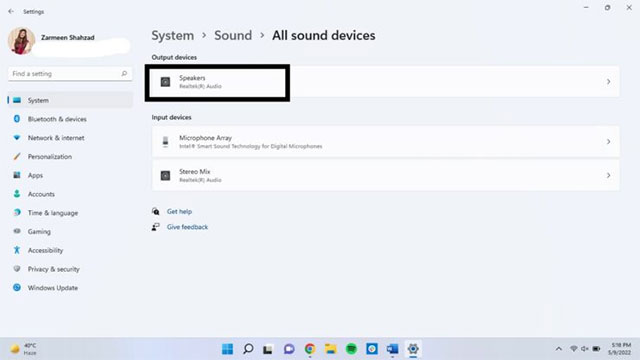
<p style="text-align: justify;"><strong>Bước 4:&nbsp;</strong>Chọn thiết bị âm thanh mà bạn muốn sử dụng từ danh sách&nbsp;<strong>Output devices</strong>.</p>

<p style="text-align: justify;"><img alt=" Chọn thiết bị âm thanh " data-i="2" data-src="https://st.quantrimang.com/photos/image/2022/05/10/toi-da-hoa-chat-luong-am-thanh-tren-he-thong-windows-113.jpg" data-was-processed="true" height="360" src="https://st.quantrimang.com/photos/image/2022/05/10/toi-da-hoa-chat-luong-am-thanh-tren-he-thong-windows-113.jpg" width="640" /></p>

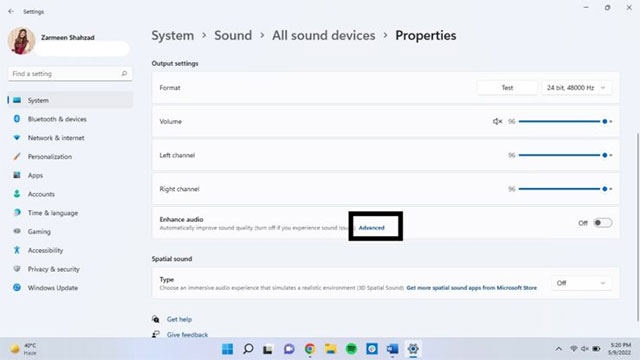
<p style="text-align: justify;"><strong>Bước 5:&nbsp;</strong>Nhấp vào&nbsp;<strong>Advanced&nbsp;</strong>trong&nbsp;<strong>Enhance audio</strong>.</p>

<p style="text-align: justify;"><img alt="Nhấp vào Advanced" data-i="3" data-src="https://st.quantrimang.com/photos/image/2022/05/10/toi-da-hoa-chat-luong-am-thanh-tren-he-thong-windows-114.jpg" data-was-processed="true" height="360" src="https://st.quantrimang.com/photos/image/2022/05/10/toi-da-hoa-chat-luong-am-thanh-tren-he-thong-windows-114.jpg" width="640" /></p>

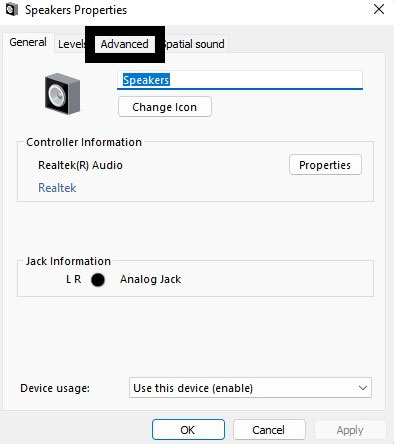
<p style="text-align: justify;"><strong>Bước 6:</strong>&nbsp;Nhấp vào tab&nbsp;<strong>Advanced</strong>.</p>

<p style="text-align: justify;"><img alt="Nhấp vào tab Advanced" data-i="4" data-src="https://st.quantrimang.com/photos/image/2022/05/10/toi-da-hoa-chat-luong-am-thanh-tren-he-thong-windows-115.jpg" data-was-processed="true" height="444" src="https://st.quantrimang.com/photos/image/2022/05/10/toi-da-hoa-chat-luong-am-thanh-tren-he-thong-windows-115.jpg" width="394" /></p>

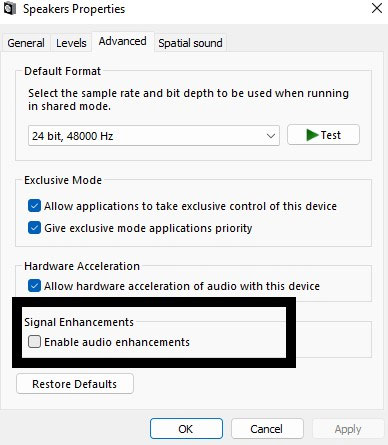
<p style="text-align: justify;"><strong>Bước 7:</strong>&nbsp;Trong phần&nbsp;<strong>Signal Enhancements</strong>, bạn kích hoạt tùy chọn<strong>&nbsp;Enable audio enhancements</strong>&nbsp;và nhấn&nbsp;<strong>Apply</strong>, sau đó là&nbsp;<strong>OK</strong>.</p>

<p style="text-align: justify;"><img alt="Kích hoạt tùy chọn Enable audio enhancements" data-i="5" data-src="https://st.quantrimang.com/photos/image/2022/05/10/toi-da-hoa-chat-luong-am-thanh-tren-he-thong-windows-116.jpg" data-was-processed="true" height="445" src="https://st.quantrimang.com/photos/image/2022/05/10/toi-da-hoa-chat-luong-am-thanh-tren-he-thong-windows-116.jpg" width="388" /></p>

<h3 style="text-align: justify;">Kích hoạt hiệu ứng Spatial</h3>

<p style="text-align: justify;">Ngay cả khi không có thiết lập âm thanh vòm, bạn vẫn có thể tạo trải nghiệm tương tự bằng cách điều chỉnh một số cài đặt trong Windows 11.</p>

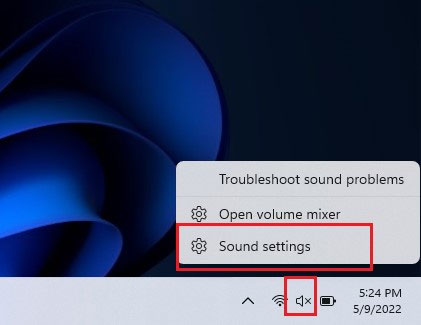
<p style="text-align: justify;">Nhấp chuột phải vào biểu tượng âm thanh trên thanh tác vụ (taskbar).</p>

<p style="text-align: justify;">Bấm chọn&nbsp;<strong>Sound Settings</strong>.</p>

<p style="text-align: justify;"><img alt="Bấm chọn Sound Settings" data-i="6" data-src="https://st.quantrimang.com/photos/image/2022/05/10/toi-da-hoa-chat-luong-am-thanh-tren-he-thong-windows-117.jpg" data-was-processed="true" height="325" src="https://st.quantrimang.com/photos/image/2022/05/10/toi-da-hoa-chat-luong-am-thanh-tren-he-thong-windows-117.jpg" width="421" /></p>

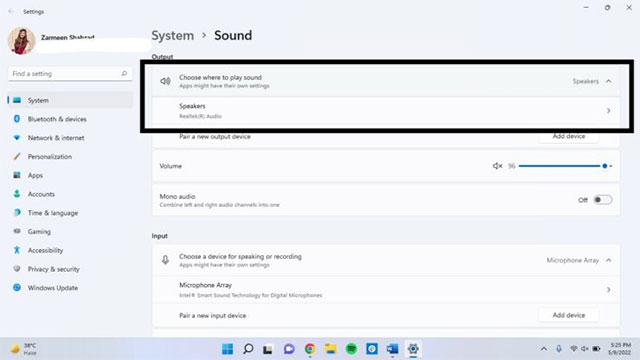
<p style="text-align: justify;">Chọn thiết bị âm thanh của bạn trong phần&nbsp;<strong>Choose where to play sound</strong>.</p>

<p style="text-align: justify;"><img alt="Chọn thiết bị âm thanh " data-i="7" data-src="https://st.quantrimang.com/photos/image/2022/05/10/toi-da-hoa-chat-luong-am-thanh-tren-he-thong-windows-118.jpg" data-was-processed="true" height="360" src="https://st.quantrimang.com/photos/image/2022/05/10/toi-da-hoa-chat-luong-am-thanh-tren-he-thong-windows-118.jpg" width="640" /></p>

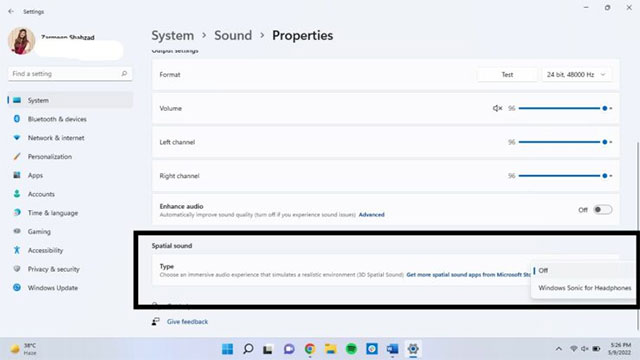
<p style="text-align: justify;">Cuộn xuống và bên dưới phần&nbsp;<strong>Spatial sound</strong>, bạn sẽ thấy một menu thả xuống. Chọn&nbsp;<strong>Windows Sonic for Headphones</strong>.</p>

<p style="text-align: justify;"><img alt="Chọn Windows Sonic for Headphones" data-i="8" data-src="https://st.quantrimang.com/photos/image/2022/05/10/toi-da-hoa-chat-luong-am-thanh-tren-he-thong-windows-119.jpg" data-was-processed="true" height="360" src="https://st.quantrimang.com/photos/image/2022/05/10/toi-da-hoa-chat-luong-am-thanh-tren-he-thong-windows-119.jpg" width="640" /></p>

<h3 style="text-align: justify;">Độ sâu và tốc độ lấy mẫu</h3>

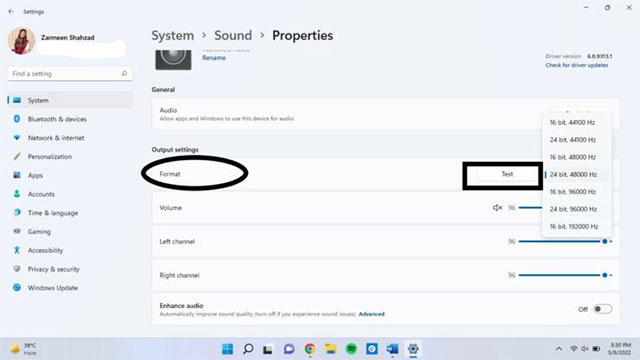
<p style="text-align: justify;">Tăng tốc độ và độ sâu mẫu có thể giúp chất lượng âm thanh không bị biến dạng và cải thiện trải nghiệm tổng thể.</p>

<p style="text-align: justify;"><strong>Bước 1:</strong>&nbsp;Sử dụng phím tắt<strong>&nbsp;Win + I</strong>&nbsp;để mở ứng dụng&nbsp;<strong>Settings&nbsp;</strong>Windows và chọn mục&nbsp;<strong>Sound</strong>.</p>

<p style="text-align: justify;"><strong>Bước 2:</strong>&nbsp;Chọn thiết bị đầu ra âm thanh của bạn.</p>

<p style="text-align: justify;"><strong>Bước 3:&nbsp;</strong>Chọn mức chất lượng cao hơn từ menu&nbsp;<strong>Format&nbsp;</strong>trong phần cài đặt đầu ra&nbsp;<strong>Output</strong>.</p>

<p style="text-align: justify;"><strong>Bước 4:&nbsp;</strong>Nhấp vào&nbsp;<strong>Test&nbsp;</strong>để kiểm tra chất lượng âm thanh. Sau khi hài lòng, hãy đóng Settings.</p>

<p style="text-align: justify;"><img alt="" data-i="9" data-src="https://st.quantrimang.com/photos/image/2022/05/10/toi-da-hoa-chat-luong-am-thanh-tren-he-thong-windows-1110.jpg" data-was-processed="true" height="360" src="https://st.quantrimang.com/photos/image/2022/05/10/toi-da-hoa-chat-luong-am-thanh-tren-he-thong-windows-1110.jpg" width="640" /></p>

<h3 style="text-align: justify;">Kích hoạt Enhance audio</h3>

<p style="text-align: justify;">Nếu bạn muốn cải tiến chất lượng âm thanh theo cách tự động, hãy kích hoạt tính năng Enhance audio.</p>

<p style="text-align: justify;">Nhấp chuột phải vào biểu tượng&nbsp;<strong>Sound&nbsp;</strong>và chọn&nbsp;<strong>Sound settings</strong>.</p>

<p style="text-align: justify;">Cuộn xuống và chọn&nbsp;<strong>All sound devices</strong>.</p>

<p style="text-align: justify;">Chọn thiết bị đầu ra của bạn.</p>

<p style="text-align: justify;">Bên cạnh tùy chọn<strong>&nbsp;Enhance audio</strong>&nbsp;sẽ có một công tắc gạt, hãy bật nó lên.</p>

<p style="text-align: justify;"><img alt="Kích hoạt Enhance audio" data-i="10" data-src="https://st.quantrimang.com/photos/image/2022/05/10/toi-da-hoa-chat-luong-am-thanh-tren-he-thong-windows-111.jpg" data-was-processed="true" height="360" src="https://st.quantrimang.com/photos/image/2022/05/10/toi-da-hoa-chat-luong-am-thanh-tren-he-thong-windows-111.jpg" width="640" /></p>

<p style="text-align: justify;">Chúc bạn có được trải nghiệm âm thanh tốt nhất trên PC Windows của mình!</p>
		</div>
				<div id="author">
						<p>
				<strong>Nguồn tin:</strong>
				Quantrimang.com
			</p>
		</div>
	</div>
	<div id="footer" class="clearfix">
		<div id="url">
			<strong>URL của bản tin này: </strong><a href="https://www.nguoicodonvn2008.info/vi/news/savefile/kien-thuc-may-tinh/meo-toi-da-hoa-chat-luong-am-thanh-tren-he-thong-windows-11-5635.html" title="Mẹo tối đa hóa chất lượng âm thanh trên hệ thống Windows 11">https://www.nguoicodonvn2008.info/vi/news/savefile/kien-thuc-may-tinh/meo-toi-da-hoa-chat-luong-am-thanh-tren-he-thong-windows-11-5635.html</a>

		</div>
		<div class="clear"></div>
		<div class="copyright">
			&copy; .&#x3A; Nguoicodonvn2008.info - Cõi lòng người cô đơn &#x3A;.
		</div>
		<div id="contact">
			<a href="mailto:admin@nguoicodonvn2008.info">admin@nguoicodonvn2008.info</a>
		</div>
	</div>
</div>
        <div id="timeoutsess" class="chromeframe">
            Bạn đã không sử dụng Site, <a onclick="timeoutsesscancel();" href="https://www.nguoicodonvn2008.info/#">Bấm vào đây để duy trì trạng thái đăng nhập</a>. Thời gian chờ: <span id="secField"> 60 </span> giây
        </div>
        <div id="openidResult" class="nv-alert" style="display:none"></div>
        <div id="openidBt" data-result="" data-redirect=""></div>
		</script>
		<div class="car-top">
  <span><img src="https://www.nguoicodonvn2008.info/themes/default/images/car.png" alt=""></span>
</div>
<script src="https://www.nguoicodonvn2008.info/assets/js/jquery/jquery.min.js"></script>
<script>var nv_base_siteurl="/",nv_lang_data="vi",nv_lang_interface="vi",nv_name_variable="nv",nv_fc_variable="op",nv_lang_variable="language",nv_module_name="news",nv_func_name="savefile",nv_is_user=0, nv_my_ofs=-4,nv_my_abbr="EDT",nv_cookie_prefix="nv4c_e856T",nv_check_pass_mstime=1738000,nv_area_admin=0,nv_safemode=0,theme_responsive=0,nv_recaptcha_ver=2,nv_recaptcha_sitekey="",nv_recaptcha_type="image",XSSsanitize=1;</script>
<script src="https://www.nguoicodonvn2008.info/assets/js/language/vi.js"></script>
<script src="https://www.nguoicodonvn2008.info/assets/js/DOMPurify/purify3.js"></script>
<script src="https://www.nguoicodonvn2008.info/assets/js/global.js"></script>
<script src="https://www.nguoicodonvn2008.info/assets/js/site.js"></script>
<script src="https://www.nguoicodonvn2008.info/themes/default/js/news.js"></script>
<script src="https://www.nguoicodonvn2008.info/themes/default/js/main.js"></script>
<script src="https://www.nguoicodonvn2008.info/themes/default/js/custom.js"></script>
<script type="application/ld+json">
        {
            "@context": "https://schema.org",
            "@type": "Organization",
            "url": "https://www.nguoicodonvn2008.info",
            "logo": "https://www.nguoicodonvn2008.info/uploads/angel.gif"
        }
        </script>
<script src="https://www.nguoicodonvn2008.info/themes/default/js/bootstrap.min.js"></script>
<script type="text/javascript">
var $scrolltop = $('.car-top');
$scrolltop.on('click', function () {
    $('html,body').animate({
        scrollTop: 0
    }, 800);
    $(this).addClass("car-run");
    setTimeout(function(){ $scrolltop.removeClass('car-run');}, 1000);
    return false;
});
$(window).on('scroll', function ()
{ 
    if($(window).scrollTop() >= 200)
    {
        $scrolltop.addClass("show");
        $scrolltop.addClass("car-down");
    }
    else
    {
       $scrolltop.removeClass("show");
       setTimeout(function(){ $scrolltop.removeClass('car-down');}, 300);
    }
});
</script>
</body>
</html>