<!DOCTYPE html>
    <html lang="vi" xmlns="http://www.w3.org/1999/xhtml" prefix="og: http://ogp.me/ns#">
    <head>
<title>Memory Compression trong Windows là gì?</title>
<meta name="description" content="Memory Compression trong Windows là gì? - Savefile - Tin Tức -...">
<meta name="author" content=".: Nguoicodonvn2008.info - Cõi lòng người cô đơn :.">
<meta name="copyright" content=".: Nguoicodonvn2008.info - Cõi lòng người cô đơn :. [admin@nguoicodonvn2008.info]">
<meta name="robots" content="index, archive, follow, noodp">
<meta name="googlebot" content="index,archive,follow,noodp">
<meta name="msnbot" content="all,index,follow">
<meta name="generator" content="NukeViet v4.5">
<meta http-equiv="Content-Type" content="text/html; charset=utf-8">
<meta property="og:title" content="Memory Compression trong Windows là gì?">
<meta property="og:type" content="website">
<meta property="og:description" content="Savefile - Tin Tức - https&#x3A;&#x002F;&#x002F;www.nguoicodonvn2008.info&#x002F;vi&#x002F;news&#x002F;savefile&#x002F;kien-thuc-may-tinh&#x002F;memory-compression-trong-windows-la-gi-7598.html">
<meta property="og:site_name" content=".&#x3A; Nguoicodonvn2008.info - Cõi lòng người cô đơn &#x3A;.">
<meta property="og:url" content="https://www.nguoicodonvn2008.info/vi/news/savefile/kien-thuc-may-tinh/memory-compression-trong-windows-la-gi-7598.html">
<link rel="shortcut icon" href="https://www.nguoicodonvn2008.info/favicon.ico">
<link rel="canonical" href="https://www.nguoicodonvn2008.info/vi/news/savefile/kien-thuc-may-tinh/memory-compression-trong-windows-la-gi-7598.html">
<link rel="alternate" href="https://www.nguoicodonvn2008.info/vi/news/rss/" title="Tin Tức" type="application/rss+xml">
<link rel="alternate" href="https://www.nguoicodonvn2008.info/vi/news/rss/karaoke-dual/" title="Tin Tức - Karaoke Dual" type="application/rss+xml">
<link rel="alternate" href="https://www.nguoicodonvn2008.info/vi/news/rss/nhac-tre/" title="Tin Tức - Nhạc trẻ" type="application/rss+xml">
<link rel="alternate" href="https://www.nguoicodonvn2008.info/vi/news/rss/tru-tinh/" title="Tin Tức - Trữ tình" type="application/rss+xml">
<link rel="alternate" href="https://www.nguoicodonvn2008.info/vi/news/rss/nuoc-ngoai/" title="Tin Tức - Nước ngoài" type="application/rss+xml">
<link rel="alternate" href="https://www.nguoicodonvn2008.info/vi/news/rss/remix/" title="Tin Tức - Remix" type="application/rss+xml">
<link rel="alternate" href="https://www.nguoicodonvn2008.info/vi/news/rss/tam-su-tinh-yeu/" title="Tin Tức - Tâm sự tình yêu" type="application/rss+xml">
<link rel="alternate" href="https://www.nguoicodonvn2008.info/vi/news/rss/tho-suu-tam/" title="Tin Tức - Thơ sưu tầm" type="application/rss+xml">
<link rel="alternate" href="https://www.nguoicodonvn2008.info/vi/news/rss/cuoc-song/" title="Tin Tức - Cuộc sống" type="application/rss+xml">
<link rel="alternate" href="https://www.nguoicodonvn2008.info/vi/news/rss/phan-mem/" title="Tin Tức - Phần mềm" type="application/rss+xml">
<link rel="alternate" href="https://www.nguoicodonvn2008.info/vi/news/rss/kien-thuc-may-tinh/" title="Tin Tức - Kiến thức máy tính" type="application/rss+xml">
<link rel="alternate" href="https://www.nguoicodonvn2008.info/vi/news/rss/hoc-tap/" title="Tin Tức - Học tập" type="application/rss+xml">
<link rel="alternate" href="https://www.nguoicodonvn2008.info/vi/news/rss/tai-lieu/" title="Tin Tức - Tài liệu" type="application/rss+xml">
<link rel="alternate" href="https://www.nguoicodonvn2008.info/vi/news/rss/de-thi/" title="Tin Tức - Đề thi" type="application/rss+xml">
<link rel="preload" as="style" href="https://www.nguoicodonvn2008.info/assets/css/font-awesome.min.css" type="text/css">
<link rel="preload" as="style" href="https://www.nguoicodonvn2008.info/themes/default/css/bootstrap.non-responsive.css" type="text/css">
<link rel="preload" as="style" href="https://www.nguoicodonvn2008.info/themes/default/css/style.css" type="text/css">
<link rel="preload" as="style" href="https://www.nguoicodonvn2008.info/themes/default/css/style.non-responsive.css" type="text/css">
<link rel="preload" as="style" href="https://www.nguoicodonvn2008.info/themes/default/css/news.css" type="text/css">
<link rel="preload" as="style" href="https://www.nguoicodonvn2008.info/themes/default/css/custom.css" type="text/css">
<link rel="preload" as="script" href="https://www.nguoicodonvn2008.info/assets/js/jquery/jquery.min.js" type="text/javascript">
<link rel="preload" as="script" href="https://www.nguoicodonvn2008.info/assets/js/language/vi.js" type="text/javascript">
<link rel="preload" as="script" href="https://www.nguoicodonvn2008.info/assets/js/DOMPurify/purify3.js" type="text/javascript">
<link rel="preload" as="script" href="https://www.nguoicodonvn2008.info/assets/js/global.js" type="text/javascript">
<link rel="preload" as="script" href="https://www.nguoicodonvn2008.info/assets/js/site.js" type="text/javascript">
<link rel="preload" as="script" href="https://www.nguoicodonvn2008.info/themes/default/js/news.js" type="text/javascript">
<link rel="preload" as="script" href="https://www.nguoicodonvn2008.info/themes/default/js/main.js" type="text/javascript">
<link rel="preload" as="script" href="https://www.nguoicodonvn2008.info/themes/default/js/custom.js" type="text/javascript">
<link rel="preload" as="script" href="https://www.nguoicodonvn2008.info/themes/default/js/bootstrap.min.js" type="text/javascript">
<link rel="stylesheet" href="https://www.nguoicodonvn2008.info/assets/css/font-awesome.min.css">
<link rel="stylesheet" href="https://www.nguoicodonvn2008.info/themes/default/css/bootstrap.non-responsive.css">
<link rel="stylesheet" href="https://www.nguoicodonvn2008.info/themes/default/css/style.css">
<link rel="stylesheet" href="https://www.nguoicodonvn2008.info/themes/default/css/style.non-responsive.css">
<link rel="StyleSheet" href="https://www.nguoicodonvn2008.info/themes/default/css/news.css">
<link rel="stylesheet" href="https://www.nguoicodonvn2008.info/themes/default/css/custom.css">
<style type="text/css">
	body{background: #fff;}
</style>
    </head>
    <body>
<div id="print">
	<div id="hd_print">
		<h2 class="pull-left">.&#x3A; Nguoicodonvn2008.info - Cõi lòng người cô đơn &#x3A;.</h2>
		<p class="pull-right"><a title=".&#x3A; Nguoicodonvn2008.info - Cõi lòng người cô đơn &#x3A;." href="https://www.nguoicodonvn2008.info/">https://www.nguoicodonvn2008.info</a></p>
	</div>
	<div class="clear"></div>
	<hr />
	<div id="content">
		<h1>Memory Compression trong Windows là gì?</h1>
		<ul class="list-inline">
			<li>Thứ ba - 03/10/2023 10:18</li>
			<li class="hidden-print txtrequired"><em class="fa fa-print">&nbsp;</em><a title="In ra" href="javascript:;" onclick="window.print()">In ra</a></li>
			<li class="hidden-print txtrequired"><em class="fa fa-power-off">&nbsp;</em><a title="Đóng cửa sổ này" href="javascript:;" onclick="window.close()">Đóng cửa sổ này</a></li>
		</ul>
		<div class="clear"></div>
		<div id="hometext">
		</div>
				<div class="imghome">
			<img alt="Memory Compression trong Windows là gì?" src="https://st.quantrimang.com/photos/image/2023/10/02/memory-compression-trong-windows-5.jpg" width="460" class="img-thumbnail" />
		</div>
		<div class="clear"></div>
		<div id="bodytext" class="clearfix">
			<p style="text-align: justify;">Được giới thiệu trong&nbsp;Windows 10, Memory Compression là một tính năng giúp RAM của bạn có nhiều không gian hơn để ngăn không cho nó bị đầy quá nhanh. Windows sẽ bật tính năng Memory Compression theo mặc định và bạn có thể tắt tính năng này nếu muốn.</p>

<p style="text-align: justify;">Nhưng Memory Compression chính xác là gì và bạn có nên tắt tính năng này ngay từ đầu không? Hãy xem xét tính năng này chi tiết hơn một chút qua bài viết sau đây!</p>

<h2 style="text-align: justify;">Memory Compression trên Windows là gì? Tại sao nó quan trọng đến vậy?</h2>

<p style="text-align: justify;">Memory Compression trên Windows là tính năng tự động giảm kích thước dữ liệu trước khi ghi vào RAM. Quá trình này cho phép máy tính của bạn lưu trữ nhiều file trong bộ nhớ vật lý hơn bình thường, giảm nhu cầu về page file trên Windows. Paging có thể làm chậm đáng kể máy tính trong các tình huống sử dụng RAM cao, điều này khiến cho Memory Compression trở thành một tính năng tuyệt vời cần có.</p>

<p style="text-align: justify;">Mặc dù việc nén có nhiều lợi ích nhưng đây là những ưu điểm chính mà bạn cần biết:</p>

<ul>
	<li style="text-align: justify;">Máy tính của bạn sẽ ít phụ thuộc hơn vào bộ nhớ phụ, truy cập chậm hơn so với RAM, dẫn đến hiệu suất bộ nhớ tốt hơn, đa nhiệm và ổn định hơn, đặc biệt là trên các hệ thống có giới hạn bộ nhớ vật lý.</li>
	<li style="text-align: justify;">Vì máy tính của bạn sẽ lưu trữ nhiều dữ liệu hơn trong bộ nhớ vật lý nên nhiều ứng dụng của bạn sẽ chạy nhanh và mượt mà hơn.</li>
	<li style="text-align: justify;">Việc sử dụng ổ đĩa sẽ giảm, nghĩa là nhu cầu bộ nhớ của máy tính sẽ không gây áp lực lên ổ lưu trữ của bạn.</li>
	<li style="text-align: justify;">Với việc sử dụng ổ đĩa ít hơn, điều đó có nghĩa là mức tiêu thụ điện năng của máy tính của bạn sẽ giảm.</li>
	<li style="text-align: justify;">Nó có thể giúp bạn không phải sớm nâng cấp RAM, vì một người bình thường có thể làm tốt với RAM 8GB.</li>
</ul>

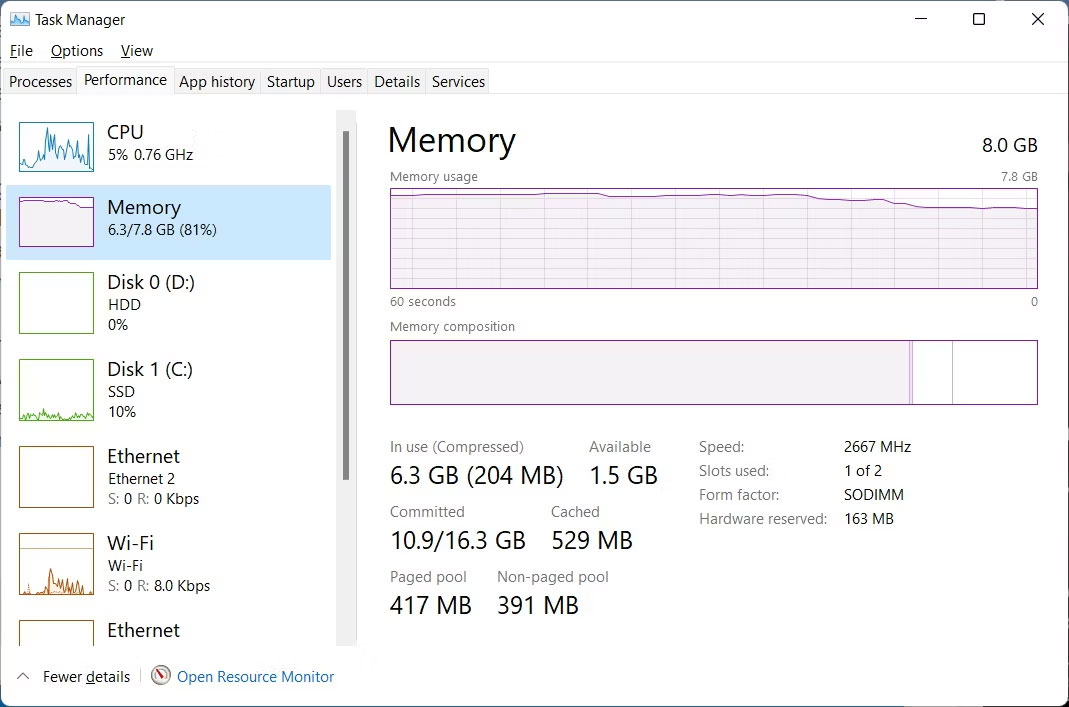
<p style="text-align: justify;">Bạn có thể kiểm tra xem máy tính của bạn đang nén bao nhiêu bộ nhớ trong Task Manager. Để làm điều đó, nhấp chuột phải vào&nbsp;<strong>Start</strong>&nbsp;và chọn&nbsp;<strong>Task Manager.</strong>&nbsp;Trong Task Manager, điều hướng đến tab&nbsp;<strong>Performance</strong>&nbsp;và nhấp vào&nbsp;<strong>Memory</strong>&nbsp;ở bên trái.</p>

<figure>
<div style="text-align: justify;"><img alt="Tab Memory trong Task Manager." data-i="0" data-src="https://st.quantrimang.com/photos/image/2023/10/02/memory-compression-trong-windows-1.jpg" data-was-processed="true" height="707" src="https://st.quantrimang.com/photos/image/2023/10/02/memory-compression-trong-windows-1.jpg" width="1069" /></div>

<figcaption>
<div style="text-align: justify;">Tab Memory trong Task Manager.</div>
</figcaption>
</figure>

<p style="text-align: justify;">Bạn sẽ thấy Windows đã nén bao nhiêu bộ nhớ trong mục&nbsp;<strong>In Use (Compressed)</strong>; con số trong ngoặc biểu thị mức nén bộ nhớ.</p>

<h2 style="text-align: justify;">Cách bật tính năng Memory Compression</h2>

<figure>
<div style="text-align: justify;"><img alt="Kích hoạt tính năng Memory Compression trong PowerShell." data-i="1" data-src="https://st.quantrimang.com/photos/image/2023/10/02/memory-compression-trong-windows-2.jpg" data-was-processed="true" height="192" src="https://st.quantrimang.com/photos/image/2023/10/02/memory-compression-trong-windows-2.jpg" width="1103" /></div>

<figcaption>
<div style="text-align: justify;">Kích hoạt tính năng Memory Compression trong PowerShell.</div>
</figcaption>
</figure>

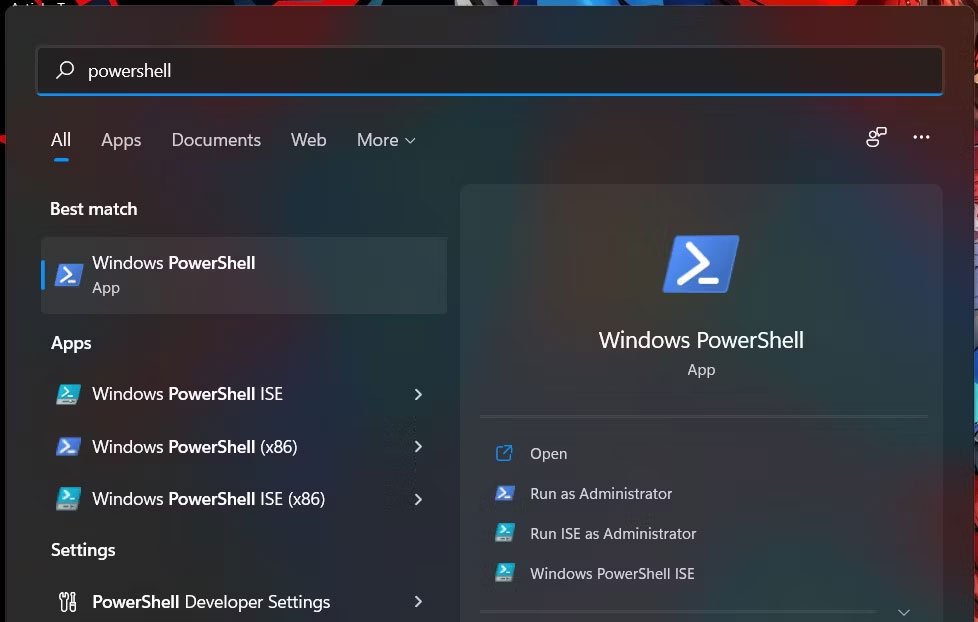
<p style="text-align: justify;">Để bật tính năng Memory Compression trên PC của bạn, hãy nhấn phím&nbsp;<strong>Win</strong>&nbsp;và nhập&nbsp;<strong>powershell</strong>&nbsp;vào thanh tìm kiếm. Khi ứng dụng PowerShell hiển thị trong kết quả, hãy nhấp vào&nbsp;<strong>Run as Administrator</strong>.</p>

<figure>
<div style="text-align: justify;"><img alt="Mở PowerShell thông qua tìm kiếm." data-i="2" data-src="https://st.quantrimang.com/photos/image/2023/10/02/memory-compression-trong-windows-3.jpg" data-was-processed="true" height="622" src="https://st.quantrimang.com/photos/image/2023/10/02/memory-compression-trong-windows-3.jpg" width="978" /></div>

<figcaption>
<div style="text-align: justify;">Mở PowerShell thông qua tìm kiếm.</div>
</figcaption>
</figure>

<p style="text-align: justify;">Khi PowerShell khởi chạy, hãy nhập lệnh bên dưới:</p>

<pre id="pre0">
<code>Enable-MMAgent -mc</code></pre>

<p style="text-align: justify;">Khi bạn nhấn&nbsp;<strong>Enter</strong>, PowerShell sẽ chạy lệnh và bật tính năng Memory Compression.</p>

<h2 style="text-align: justify;">Cách tắt tính năng Memory Compression</h2>

<figure>
<div style="text-align: justify;"><img alt="Tắt tính năng Memory Compression trong PowerShell." data-i="3" data-src="https://st.quantrimang.com/photos/image/2023/10/02/memory-compression-trong-windows-4.jpg" data-was-processed="true" height="186" src="https://st.quantrimang.com/photos/image/2023/10/02/memory-compression-trong-windows-4.jpg" width="1103" /></div>

<figcaption>
<div style="text-align: justify;">Tắt tính năng Memory Compression trong PowerShell.</div>
</figcaption>
</figure>

<p style="text-align: justify;">Mặc dù việc nén bộ nhớ rất quan trọng nhưng có thể có trường hợp bạn muốn tắt tính năng này. Ví dụ, bạn có thể có rất nhiều RAM trên máy tính, nghĩa là bạn không có nhu cầu nén bộ nhớ hoặc tính năng này có thể xung đột với ứng dụng hoặc driver mà bạn cần. Bạn thậm chí có thể chỉ muốn tắt nó đi do sở thích cá nhân.</p>

<p style="text-align: justify;"><strong>Mẹo</strong>: Nếu máy tính của bạn đang nén nhiều dữ liệu hoặc phụ thuộc quá nhiều vào paging và bạn cho rằng nó ảnh hưởng nhiều đến hiệu suất thì việc bổ sung thêm RAM là giải pháp tốt nhất.</p>

<p style="text-align: justify;">Dù lý do bạn muốn tắt tính năng Memory Compression là gì, bạn có thể tắt tính năng này bằng cách&nbsp;<a data-type="internal" href="https://quantrimang.com/cong-nghe/cach-mo-powershell-voi-quyen-admin-tren-windows-10-154498" title="Cách mở PowerShell với quyền Admin trên Windows 10">mở PowerShell với quyền admin</a>&nbsp;và gõ lệnh bên dưới:</p>

<pre id="pre1">
<code>Disable-MMAgent -mc</code></pre>

<p style="text-align: justify;">Khi bạn nhấn&nbsp;<strong>Enter</strong>&nbsp;và lệnh thực thi, tính năng Memory Compression sẽ bị tắt.</p>

<h2 style="text-align: justify;">Cách kiểm tra xem tính năng Memory Compression đang bật hay tắt</h2>

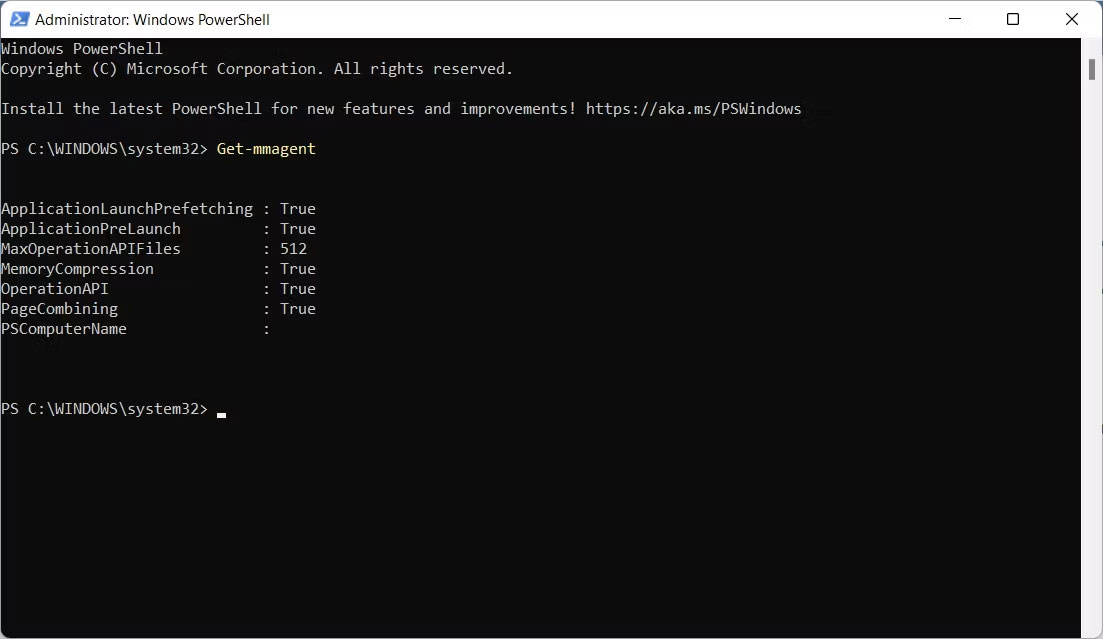
<p style="text-align: justify;">Vì bạn không nhận được thông báo xác nhận cho biết bạn đã bật tính năng Memory Compression hay chưa nên bạn có thể nhanh chóng kiểm tra nó trong PowerShell. Để làm điều đó, hãy mở PowerShell với quyền admin, nhập lệnh bên dưới rồi nhấn phím&nbsp;<strong>Enter</strong>:</p>

<pre id="pre2">
<code>Get-MMAgent</code></pre>

<p style="text-align: justify;">Nếu tính năng Memory Compression bị tắt, nó sẽ hiển thị&nbsp;<strong>True</strong>&nbsp;bên cạnh&nbsp;<strong>MemoryCompression</strong>&nbsp;trong kết quả của lệnh.</p>

<figure>
<div style="text-align: justify;"><img alt="Kiểm tra Memory Compression bật hay tắt trong PowerShell" data-i="4" data-src="https://st.quantrimang.com/photos/image/2023/10/02/memory-compression-trong-windows-5.jpg" data-was-processed="true" height="639" src="https://st.quantrimang.com/photos/image/2023/10/02/memory-compression-trong-windows-5.jpg" width="1103" /></div>

<figcaption>
<div style="text-align: justify;">Kiểm tra Memory Compression bật hay tắt trong PowerShell</div>
</figcaption>
</figure>

<p style="text-align: justify;">Nếu nó báo&nbsp;<strong>False</strong>&nbsp;thì có nghĩa là tính năng Memory Compression bị tắt.</p>

<div style="text-align: justify;">&nbsp;</div>
		</div>
				<div id="author">
						<p>
				<strong>Nguồn tin:</strong>
				Quantrimang.com
			</p>
		</div>
	</div>
	<div id="footer" class="clearfix">
		<div id="url">
			<strong>URL của bản tin này: </strong><a href="https://www.nguoicodonvn2008.info/vi/news/savefile/kien-thuc-may-tinh/memory-compression-trong-windows-la-gi-7598.html" title="Memory Compression trong Windows là gì?">https://www.nguoicodonvn2008.info/vi/news/savefile/kien-thuc-may-tinh/memory-compression-trong-windows-la-gi-7598.html</a>

		</div>
		<div class="clear"></div>
		<div class="copyright">
			&copy; .&#x3A; Nguoicodonvn2008.info - Cõi lòng người cô đơn &#x3A;.
		</div>
		<div id="contact">
			<a href="mailto:admin@nguoicodonvn2008.info">admin@nguoicodonvn2008.info</a>
		</div>
	</div>
</div>
        <div id="timeoutsess" class="chromeframe">
            Bạn đã không sử dụng Site, <a onclick="timeoutsesscancel();" href="https://www.nguoicodonvn2008.info/#">Bấm vào đây để duy trì trạng thái đăng nhập</a>. Thời gian chờ: <span id="secField"> 60 </span> giây
        </div>
        <div id="openidResult" class="nv-alert" style="display:none"></div>
        <div id="openidBt" data-result="" data-redirect=""></div>
		</script>
		<div class="car-top">
  <span><img src="https://www.nguoicodonvn2008.info/themes/default/images/car.png" alt=""></span>
</div>
<div id="run_cronjobs" style="visibility:hidden;display:none;"><img alt="cron" src="/index.php?second=cronjobs&amp;p=y3ypDH7F" width="1" height="1" /></div>
<script src="https://www.nguoicodonvn2008.info/assets/js/jquery/jquery.min.js"></script>
<script>var nv_base_siteurl="/",nv_lang_data="vi",nv_lang_interface="vi",nv_name_variable="nv",nv_fc_variable="op",nv_lang_variable="language",nv_module_name="news",nv_func_name="savefile",nv_is_user=0, nv_my_ofs=-4,nv_my_abbr="EDT",nv_cookie_prefix="nv4c_e856T",nv_check_pass_mstime=1738000,nv_area_admin=0,nv_safemode=0,theme_responsive=0,nv_recaptcha_ver=2,nv_recaptcha_sitekey="",nv_recaptcha_type="image",XSSsanitize=1;</script>
<script src="https://www.nguoicodonvn2008.info/assets/js/language/vi.js"></script>
<script src="https://www.nguoicodonvn2008.info/assets/js/DOMPurify/purify3.js"></script>
<script src="https://www.nguoicodonvn2008.info/assets/js/global.js"></script>
<script src="https://www.nguoicodonvn2008.info/assets/js/site.js"></script>
<script src="https://www.nguoicodonvn2008.info/themes/default/js/news.js"></script>
<script src="https://www.nguoicodonvn2008.info/themes/default/js/main.js"></script>
<script src="https://www.nguoicodonvn2008.info/themes/default/js/custom.js"></script>
<script type="application/ld+json">
        {
            "@context": "https://schema.org",
            "@type": "Organization",
            "url": "https://www.nguoicodonvn2008.info",
            "logo": "https://www.nguoicodonvn2008.info/uploads/angel.gif"
        }
        </script>
<script src="https://www.nguoicodonvn2008.info/themes/default/js/bootstrap.min.js"></script>
<script type="text/javascript">
var $scrolltop = $('.car-top');
$scrolltop.on('click', function () {
    $('html,body').animate({
        scrollTop: 0
    }, 800);
    $(this).addClass("car-run");
    setTimeout(function(){ $scrolltop.removeClass('car-run');}, 1000);
    return false;
});
$(window).on('scroll', function ()
{ 
    if($(window).scrollTop() >= 200)
    {
        $scrolltop.addClass("show");
        $scrolltop.addClass("car-down");
    }
    else
    {
       $scrolltop.removeClass("show");
       setTimeout(function(){ $scrolltop.removeClass('car-down');}, 300);
    }
});
</script>
</body>
</html>