<!DOCTYPE html>
    <html lang="vi" xmlns="http://www.w3.org/1999/xhtml" prefix="og: http://ogp.me/ns#">
    <head>
<title>Làm sao để cắt ảnh trong ứng dụng OneNote?</title>
<meta name="description" content="Làm sao để cắt ảnh trong ứng dụng OneNote? - Savefile - Tin Tức -...">
<meta name="author" content=".: Nguoicodonvn2008.info - Cõi lòng người cô đơn :.">
<meta name="copyright" content=".: Nguoicodonvn2008.info - Cõi lòng người cô đơn :. [admin@nguoicodonvn2008.info]">
<meta name="robots" content="index, archive, follow, noodp">
<meta name="googlebot" content="index,archive,follow,noodp">
<meta name="msnbot" content="all,index,follow">
<meta name="generator" content="NukeViet v4.5">
<meta http-equiv="Content-Type" content="text/html; charset=utf-8">
<meta property="og:title" content="Làm sao để cắt ảnh trong ứng dụng OneNote?">
<meta property="og:type" content="website">
<meta property="og:description" content="Savefile - Tin Tức - https&#x3A;&#x002F;&#x002F;www.nguoicodonvn2008.info&#x002F;vi&#x002F;news&#x002F;savefile&#x002F;kien-thuc-may-tinh&#x002F;lam-sao-de-cat-anh-trong-ung-dung-onenote-3982.html">
<meta property="og:site_name" content=".&#x3A; Nguoicodonvn2008.info - Cõi lòng người cô đơn &#x3A;.">
<meta property="og:url" content="https://www.nguoicodonvn2008.info/vi/news/savefile/kien-thuc-may-tinh/lam-sao-de-cat-anh-trong-ung-dung-onenote-3982.html">
<link rel="shortcut icon" href="https://www.nguoicodonvn2008.info/favicon.ico">
<link rel="canonical" href="https://www.nguoicodonvn2008.info/vi/news/savefile/kien-thuc-may-tinh/lam-sao-de-cat-anh-trong-ung-dung-onenote-3982.html">
<link rel="alternate" href="https://www.nguoicodonvn2008.info/vi/news/rss/" title="Tin Tức" type="application/rss+xml">
<link rel="alternate" href="https://www.nguoicodonvn2008.info/vi/news/rss/karaoke-dual/" title="Tin Tức - Karaoke Dual" type="application/rss+xml">
<link rel="alternate" href="https://www.nguoicodonvn2008.info/vi/news/rss/nhac-tre/" title="Tin Tức - Nhạc trẻ" type="application/rss+xml">
<link rel="alternate" href="https://www.nguoicodonvn2008.info/vi/news/rss/tru-tinh/" title="Tin Tức - Trữ tình" type="application/rss+xml">
<link rel="alternate" href="https://www.nguoicodonvn2008.info/vi/news/rss/nuoc-ngoai/" title="Tin Tức - Nước ngoài" type="application/rss+xml">
<link rel="alternate" href="https://www.nguoicodonvn2008.info/vi/news/rss/remix/" title="Tin Tức - Remix" type="application/rss+xml">
<link rel="alternate" href="https://www.nguoicodonvn2008.info/vi/news/rss/tam-su-tinh-yeu/" title="Tin Tức - Tâm sự tình yêu" type="application/rss+xml">
<link rel="alternate" href="https://www.nguoicodonvn2008.info/vi/news/rss/tho-suu-tam/" title="Tin Tức - Thơ sưu tầm" type="application/rss+xml">
<link rel="alternate" href="https://www.nguoicodonvn2008.info/vi/news/rss/cuoc-song/" title="Tin Tức - Cuộc sống" type="application/rss+xml">
<link rel="alternate" href="https://www.nguoicodonvn2008.info/vi/news/rss/phan-mem/" title="Tin Tức - Phần mềm" type="application/rss+xml">
<link rel="alternate" href="https://www.nguoicodonvn2008.info/vi/news/rss/kien-thuc-may-tinh/" title="Tin Tức - Kiến thức máy tính" type="application/rss+xml">
<link rel="alternate" href="https://www.nguoicodonvn2008.info/vi/news/rss/hoc-tap/" title="Tin Tức - Học tập" type="application/rss+xml">
<link rel="alternate" href="https://www.nguoicodonvn2008.info/vi/news/rss/tai-lieu/" title="Tin Tức - Tài liệu" type="application/rss+xml">
<link rel="alternate" href="https://www.nguoicodonvn2008.info/vi/news/rss/de-thi/" title="Tin Tức - Đề thi" type="application/rss+xml">
<link rel="preload" as="style" href="https://www.nguoicodonvn2008.info/assets/css/font-awesome.min.css" type="text/css">
<link rel="preload" as="style" href="https://www.nguoicodonvn2008.info/themes/default/css/bootstrap.non-responsive.css" type="text/css">
<link rel="preload" as="style" href="https://www.nguoicodonvn2008.info/themes/default/css/style.css" type="text/css">
<link rel="preload" as="style" href="https://www.nguoicodonvn2008.info/themes/default/css/style.non-responsive.css" type="text/css">
<link rel="preload" as="style" href="https://www.nguoicodonvn2008.info/themes/default/css/news.css" type="text/css">
<link rel="preload" as="style" href="https://www.nguoicodonvn2008.info/themes/default/css/custom.css" type="text/css">
<link rel="preload" as="script" href="https://www.nguoicodonvn2008.info/assets/js/jquery/jquery.min.js" type="text/javascript">
<link rel="preload" as="script" href="https://www.nguoicodonvn2008.info/assets/js/language/vi.js" type="text/javascript">
<link rel="preload" as="script" href="https://www.nguoicodonvn2008.info/assets/js/DOMPurify/purify3.js" type="text/javascript">
<link rel="preload" as="script" href="https://www.nguoicodonvn2008.info/assets/js/global.js" type="text/javascript">
<link rel="preload" as="script" href="https://www.nguoicodonvn2008.info/assets/js/site.js" type="text/javascript">
<link rel="preload" as="script" href="https://www.nguoicodonvn2008.info/themes/default/js/news.js" type="text/javascript">
<link rel="preload" as="script" href="https://www.nguoicodonvn2008.info/themes/default/js/main.js" type="text/javascript">
<link rel="preload" as="script" href="https://www.nguoicodonvn2008.info/themes/default/js/custom.js" type="text/javascript">
<link rel="preload" as="script" href="https://www.nguoicodonvn2008.info/themes/default/js/bootstrap.min.js" type="text/javascript">
<link rel="stylesheet" href="https://www.nguoicodonvn2008.info/assets/css/font-awesome.min.css">
<link rel="stylesheet" href="https://www.nguoicodonvn2008.info/themes/default/css/bootstrap.non-responsive.css">
<link rel="stylesheet" href="https://www.nguoicodonvn2008.info/themes/default/css/style.css">
<link rel="stylesheet" href="https://www.nguoicodonvn2008.info/themes/default/css/style.non-responsive.css">
<link rel="StyleSheet" href="https://www.nguoicodonvn2008.info/themes/default/css/news.css">
<link rel="stylesheet" href="https://www.nguoicodonvn2008.info/themes/default/css/custom.css">
<style type="text/css">
	body{background: #fff;}
</style>
    </head>
    <body>
<div id="print">
	<div id="hd_print">
		<h2 class="pull-left">.&#x3A; Nguoicodonvn2008.info - Cõi lòng người cô đơn &#x3A;.</h2>
		<p class="pull-right"><a title=".&#x3A; Nguoicodonvn2008.info - Cõi lòng người cô đơn &#x3A;." href="https://www.nguoicodonvn2008.info/">https://www.nguoicodonvn2008.info</a></p>
	</div>
	<div class="clear"></div>
	<hr />
	<div id="content">
		<h1>Làm sao để cắt ảnh trong ứng dụng OneNote?</h1>
		<ul class="list-inline">
			<li>Thứ năm - 22/04/2021 00:58</li>
			<li class="hidden-print txtrequired"><em class="fa fa-print">&nbsp;</em><a title="In ra" href="javascript:;" onclick="window.print()">In ra</a></li>
			<li class="hidden-print txtrequired"><em class="fa fa-power-off">&nbsp;</em><a title="Đóng cửa sổ này" href="javascript:;" onclick="window.close()">Đóng cửa sổ này</a></li>
		</ul>
		<div class="clear"></div>
		<div id="hometext">
		</div>
				<div class="imghome">
			<img alt="Làm sao để cắt ảnh trong ứng dụng OneNote?" src="https://st.quantrimang.com/photos/image/2021/04/10/cat-anh-trong-microsoft-onenote1.jpg" width="460" class="img-thumbnail" />
		</div>
		<div class="clear"></div>
		<div id="bodytext" class="clearfix">
			<p style="text-align: justify;">Nhiều công cụ của Microsoft cho phép người dùng&nbsp;cắt ảnh&nbsp;trực tiếp trên giao diện ứng dụng. Bạn cũng có thể thực hiện việc này với nền tảng OneNote web, nhưng đối với các phiên bản OneNote cho Mac hoặc Windows, tính năng này lại không khả dụng, và bạn sẽ phải cần tới một giải pháp thay thế.</p>

<h2 style="text-align: justify;">Cách cắt ảnh trong Microsoft OneNote Web</h2>

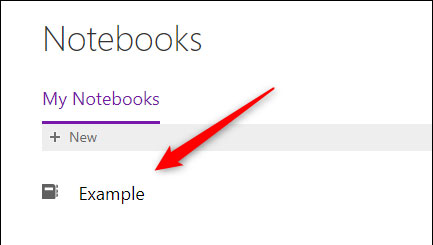
<p style="text-align: justify;">Để cắt ảnh trong Microsoft OneNote web, trước tiên, bạn cần đăng nhập vào trang web OneNote từ một trình duyệt bất kỳ. Trên màn hình Notebook, hãy chọn tài liệu ghi chú có chứa hình ảnh mà bạn muốn cắt (hoặc bạn có thể chèn ảnh bằng cách bấm Insert &gt; Picture).</p>

<p style="text-align: justify;"><img alt="Chọn tài liệu ghi chú có chứa hình ảnh" data-i="0" data-src="https://st.quantrimang.com/photos/image/2021/04/10/cat-anh-trong-microsoft-onenote1.jpg" data-was-processed="true" height="245" src="https://st.quantrimang.com/photos/image/2021/04/10/cat-anh-trong-microsoft-onenote1.jpg" width="433" /></p>

<p style="text-align: justify;">Tiếp theo, chọn hình ảnh mà bạn muốn cắt bằng cách nhấp vào nó. Lập tức, một khung viền nét đứt sẽ xuất hiện xung quanh hình ảnh.</p>

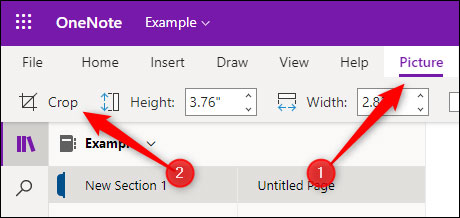
<p style="text-align: justify;">Sau khi hình ảnh được chọn, bạn sẽ thấy tab Picture xuất hiện, Nhấp vào nó rồi chọn “<strong>Crop</strong>”.</p>

<p style="text-align: justify;"><img alt="Chọn “Crop”" data-i="1" data-src="https://st.quantrimang.com/photos/image/2021/04/10/cat-anh-trong-microsoft-onenote3.jpg" data-was-processed="true" height="218" src="https://st.quantrimang.com/photos/image/2021/04/10/cat-anh-trong-microsoft-onenote3.jpg" width="460" /></p>

<p style="text-align: justify;">Cửa sổ Crop sẽ xuất hiện. Hãy nhấp và kéo các góc hoặc các cạnh của đường viền để định vị hình ảnh theo cách bạn muốn cắt. Các vùng màu xám sẽ bị loại bỏ. Cuối cùng, nhấn vào “Crop&quot; để cắt ảnh.</p>

<p style="text-align: justify;">Hình ảnh của bạn hiện đã được cắt.</p>

<h2 style="text-align: justify;">Cắt hình ảnh trong ứng dụng Microsoft OneNote desktop</h2>

<p style="text-align: justify;">Như đã nói, phiên bản ứng dụng Microsoft OneNote dành cho máy tính hiện không hỗ trợ tính năng cắt ảnh - một điều khá khó hiểu. Khi bạn chèn và chọn một hình ảnh, tab “Picture” sẽ không xuất hiện, trong khi đây lại chính là tab chứa tất cả&nbsp;các công cụ chỉnh sửa hình ảnh&nbsp;mà bạn cần dùng.</p>

<p style="text-align: justify;">“Cái khó ló cái khôn”, cả Mac và Windows 10 đều đi kèm với một công cụ tích hợp cho phép bạn chụp ảnh toàn màn hình hoặc một vị trí cụ thể trên màn hình — và bạn có thể sử dụng chính các công cụ này để cắt hình ảnh trước khi chèn vào OneNote.</p>

<div style="text-align: justify;">&nbsp;</div>

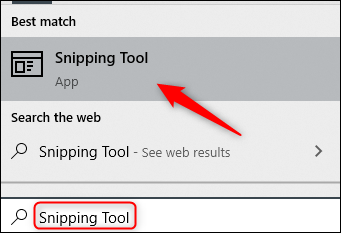
<p style="text-align: justify;">Nếu đang sử dụng Windows 10, bạn có thể nhanh chóng khởi chạy công cụ quen thuộc Snipping Tool bằng cách nhấn&nbsp;tổ hợp phím tắt Windows&nbsp;Key + Shift + S. Tất nhiên, bạn cũng có thể sử dụng bất cứ công cụ hỗ trợ cắt, chỉnh sửa ảnh nào khác đều được.</p>

<p style="text-align: justify;"><img alt="Snipping Tool" data-i="2" data-src="https://st.quantrimang.com/photos/image/2021/04/10/cat-anh-trong-microsoft-onenote6.jpg" data-was-processed="true" height="233" src="https://st.quantrimang.com/photos/image/2021/04/10/cat-anh-trong-microsoft-onenote6.jpg" width="341" /></p>

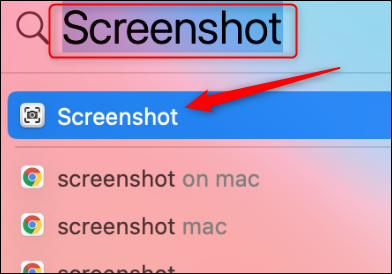
<p style="text-align: justify;">Trên Mac, bạn có thể sử dụng phím tắt Command + Shift + 4 hoặc nhấn Command + Space để mở Finder. Nhập từ khóa “Screenshot” vào thanh tìm kiếm, sau đó bấm vào ứng dụng “Screenshot”.</p>

<p style="text-align: justify;"><img alt="Ứng dụng “Screenshot”" data-i="3" data-src="https://st.quantrimang.com/photos/image/2021/04/10/cat-anh-trong-microsoft-onenote7.jpg" data-was-processed="true" height="274" src="https://st.quantrimang.com/photos/image/2021/04/10/cat-anh-trong-microsoft-onenote7.jpg" width="392" /></p>

<p style="text-align: justify;">Tóm lại, bạn có thể sử dụng các công cụ này để cắt hình ảnh, rồi chèn hình ảnh đã cắt vào OneNote (Insert &gt; Picture).</p>
		</div>
				<div id="author">
						<p>
				<strong>Nguồn tin:</strong>
				Quantrimang.com
			</p>
		</div>
	</div>
	<div id="footer" class="clearfix">
		<div id="url">
			<strong>URL của bản tin này: </strong><a href="https://www.nguoicodonvn2008.info/vi/news/savefile/kien-thuc-may-tinh/lam-sao-de-cat-anh-trong-ung-dung-onenote-3982.html" title="Làm sao để cắt ảnh trong ứng dụng OneNote?">https://www.nguoicodonvn2008.info/vi/news/savefile/kien-thuc-may-tinh/lam-sao-de-cat-anh-trong-ung-dung-onenote-3982.html</a>

		</div>
		<div class="clear"></div>
		<div class="copyright">
			&copy; .&#x3A; Nguoicodonvn2008.info - Cõi lòng người cô đơn &#x3A;.
		</div>
		<div id="contact">
			<a href="mailto:admin@nguoicodonvn2008.info">admin@nguoicodonvn2008.info</a>
		</div>
	</div>
</div>
        <div id="timeoutsess" class="chromeframe">
            Bạn đã không sử dụng Site, <a onclick="timeoutsesscancel();" href="https://www.nguoicodonvn2008.info/#">Bấm vào đây để duy trì trạng thái đăng nhập</a>. Thời gian chờ: <span id="secField"> 60 </span> giây
        </div>
        <div id="openidResult" class="nv-alert" style="display:none"></div>
        <div id="openidBt" data-result="" data-redirect=""></div>
		</script>
		<div class="car-top">
  <span><img src="https://www.nguoicodonvn2008.info/themes/default/images/car.png" alt=""></span>
</div>
<script src="https://www.nguoicodonvn2008.info/assets/js/jquery/jquery.min.js"></script>
<script>var nv_base_siteurl="/",nv_lang_data="vi",nv_lang_interface="vi",nv_name_variable="nv",nv_fc_variable="op",nv_lang_variable="language",nv_module_name="news",nv_func_name="savefile",nv_is_user=0, nv_my_ofs=-4,nv_my_abbr="EDT",nv_cookie_prefix="nv4c_e856T",nv_check_pass_mstime=1738000,nv_area_admin=0,nv_safemode=0,theme_responsive=0,nv_recaptcha_ver=2,nv_recaptcha_sitekey="",nv_recaptcha_type="image",XSSsanitize=1;</script>
<script src="https://www.nguoicodonvn2008.info/assets/js/language/vi.js"></script>
<script src="https://www.nguoicodonvn2008.info/assets/js/DOMPurify/purify3.js"></script>
<script src="https://www.nguoicodonvn2008.info/assets/js/global.js"></script>
<script src="https://www.nguoicodonvn2008.info/assets/js/site.js"></script>
<script src="https://www.nguoicodonvn2008.info/themes/default/js/news.js"></script>
<script src="https://www.nguoicodonvn2008.info/themes/default/js/main.js"></script>
<script src="https://www.nguoicodonvn2008.info/themes/default/js/custom.js"></script>
<script type="application/ld+json">
        {
            "@context": "https://schema.org",
            "@type": "Organization",
            "url": "https://www.nguoicodonvn2008.info",
            "logo": "https://www.nguoicodonvn2008.info/uploads/angel.gif"
        }
        </script>
<script src="https://www.nguoicodonvn2008.info/themes/default/js/bootstrap.min.js"></script>
<script type="text/javascript">
var $scrolltop = $('.car-top');
$scrolltop.on('click', function () {
    $('html,body').animate({
        scrollTop: 0
    }, 800);
    $(this).addClass("car-run");
    setTimeout(function(){ $scrolltop.removeClass('car-run');}, 1000);
    return false;
});
$(window).on('scroll', function ()
{ 
    if($(window).scrollTop() >= 200)
    {
        $scrolltop.addClass("show");
        $scrolltop.addClass("car-down");
    }
    else
    {
       $scrolltop.removeClass("show");
       setTimeout(function(){ $scrolltop.removeClass('car-down');}, 300);
    }
});
</script>
</body>
</html>