<!DOCTYPE html>
    <html lang="vi" xmlns="http://www.w3.org/1999/xhtml" prefix="og: http://ogp.me/ns#">
    <head>
<title>Khắc phục tình trạng Service Host Local System sử dụng nhiều CPU trong Windows 10</title>
<meta name="description" content="Khắc phục tình trạng Service Host Local System sử dụng nhiều CPU trong Windows 10 - Savefile - Tin Tức -...">
<meta name="author" content=".: Nguoicodonvn2008.info - Cõi lòng người cô đơn :.">
<meta name="copyright" content=".: Nguoicodonvn2008.info - Cõi lòng người cô đơn :. [admin@nguoicodonvn2008.info]">
<meta name="robots" content="index, archive, follow, noodp">
<meta name="googlebot" content="index,archive,follow,noodp">
<meta name="msnbot" content="all,index,follow">
<meta name="generator" content="NukeViet v4.5">
<meta http-equiv="Content-Type" content="text/html; charset=utf-8">
<meta property="og:title" content="Khắc phục tình trạng Service Host Local System sử dụng nhiều CPU trong Windows 10">
<meta property="og:type" content="website">
<meta property="og:description" content="Savefile - Tin Tức -...">
<meta property="og:site_name" content=".&#x3A; Nguoicodonvn2008.info - Cõi lòng người cô đơn &#x3A;.">
<meta property="og:url" content="https://www.nguoicodonvn2008.info/vi/news/savefile/kien-thuc-may-tinh/khac-phuc-tinh-trang-service-host-local-system-su-dung-nhieu-cpu-trong-windows-10-2211.html">
<link rel="shortcut icon" href="https://www.nguoicodonvn2008.info/favicon.ico">
<link rel="canonical" href="https://www.nguoicodonvn2008.info/vi/news/savefile/kien-thuc-may-tinh/khac-phuc-tinh-trang-service-host-local-system-su-dung-nhieu-cpu-trong-windows-10-2211.html">
<link rel="alternate" href="https://www.nguoicodonvn2008.info/vi/news/rss/" title="Tin Tức" type="application/rss+xml">
<link rel="alternate" href="https://www.nguoicodonvn2008.info/vi/news/rss/karaoke-dual/" title="Tin Tức - Karaoke Dual" type="application/rss+xml">
<link rel="alternate" href="https://www.nguoicodonvn2008.info/vi/news/rss/nhac-tre/" title="Tin Tức - Nhạc trẻ" type="application/rss+xml">
<link rel="alternate" href="https://www.nguoicodonvn2008.info/vi/news/rss/tru-tinh/" title="Tin Tức - Trữ tình" type="application/rss+xml">
<link rel="alternate" href="https://www.nguoicodonvn2008.info/vi/news/rss/nuoc-ngoai/" title="Tin Tức - Nước ngoài" type="application/rss+xml">
<link rel="alternate" href="https://www.nguoicodonvn2008.info/vi/news/rss/remix/" title="Tin Tức - Remix" type="application/rss+xml">
<link rel="alternate" href="https://www.nguoicodonvn2008.info/vi/news/rss/tam-su-tinh-yeu/" title="Tin Tức - Tâm sự tình yêu" type="application/rss+xml">
<link rel="alternate" href="https://www.nguoicodonvn2008.info/vi/news/rss/tho-suu-tam/" title="Tin Tức - Thơ sưu tầm" type="application/rss+xml">
<link rel="alternate" href="https://www.nguoicodonvn2008.info/vi/news/rss/cuoc-song/" title="Tin Tức - Cuộc sống" type="application/rss+xml">
<link rel="alternate" href="https://www.nguoicodonvn2008.info/vi/news/rss/phan-mem/" title="Tin Tức - Phần mềm" type="application/rss+xml">
<link rel="alternate" href="https://www.nguoicodonvn2008.info/vi/news/rss/kien-thuc-may-tinh/" title="Tin Tức - Kiến thức máy tính" type="application/rss+xml">
<link rel="alternate" href="https://www.nguoicodonvn2008.info/vi/news/rss/hoc-tap/" title="Tin Tức - Học tập" type="application/rss+xml">
<link rel="alternate" href="https://www.nguoicodonvn2008.info/vi/news/rss/tai-lieu/" title="Tin Tức - Tài liệu" type="application/rss+xml">
<link rel="alternate" href="https://www.nguoicodonvn2008.info/vi/news/rss/de-thi/" title="Tin Tức - Đề thi" type="application/rss+xml">
<link rel="preload" as="style" href="https://www.nguoicodonvn2008.info/assets/css/font-awesome.min.css" type="text/css">
<link rel="preload" as="style" href="https://www.nguoicodonvn2008.info/themes/default/css/bootstrap.non-responsive.css" type="text/css">
<link rel="preload" as="style" href="https://www.nguoicodonvn2008.info/themes/default/css/style.css" type="text/css">
<link rel="preload" as="style" href="https://www.nguoicodonvn2008.info/themes/default/css/style.non-responsive.css" type="text/css">
<link rel="preload" as="style" href="https://www.nguoicodonvn2008.info/themes/default/css/news.css" type="text/css">
<link rel="preload" as="style" href="https://www.nguoicodonvn2008.info/themes/default/css/custom.css" type="text/css">
<link rel="preload" as="script" href="https://www.nguoicodonvn2008.info/assets/js/jquery/jquery.min.js" type="text/javascript">
<link rel="preload" as="script" href="https://www.nguoicodonvn2008.info/assets/js/language/vi.js" type="text/javascript">
<link rel="preload" as="script" href="https://www.nguoicodonvn2008.info/assets/js/DOMPurify/purify3.js" type="text/javascript">
<link rel="preload" as="script" href="https://www.nguoicodonvn2008.info/assets/js/global.js" type="text/javascript">
<link rel="preload" as="script" href="https://www.nguoicodonvn2008.info/assets/js/site.js" type="text/javascript">
<link rel="preload" as="script" href="https://www.nguoicodonvn2008.info/themes/default/js/news.js" type="text/javascript">
<link rel="preload" as="script" href="https://www.nguoicodonvn2008.info/themes/default/js/main.js" type="text/javascript">
<link rel="preload" as="script" href="https://www.nguoicodonvn2008.info/themes/default/js/custom.js" type="text/javascript">
<link rel="preload" as="script" href="https://www.nguoicodonvn2008.info/themes/default/js/bootstrap.min.js" type="text/javascript">
<link rel="stylesheet" href="https://www.nguoicodonvn2008.info/assets/css/font-awesome.min.css">
<link rel="stylesheet" href="https://www.nguoicodonvn2008.info/themes/default/css/bootstrap.non-responsive.css">
<link rel="stylesheet" href="https://www.nguoicodonvn2008.info/themes/default/css/style.css">
<link rel="stylesheet" href="https://www.nguoicodonvn2008.info/themes/default/css/style.non-responsive.css">
<link rel="StyleSheet" href="https://www.nguoicodonvn2008.info/themes/default/css/news.css">
<link rel="stylesheet" href="https://www.nguoicodonvn2008.info/themes/default/css/custom.css">
<style type="text/css">
	body{background: #fff;}
</style>
    </head>
    <body>
<div id="print">
	<div id="hd_print">
		<h2 class="pull-left">.&#x3A; Nguoicodonvn2008.info - Cõi lòng người cô đơn &#x3A;.</h2>
		<p class="pull-right"><a title=".&#x3A; Nguoicodonvn2008.info - Cõi lòng người cô đơn &#x3A;." href="https://www.nguoicodonvn2008.info/">https://www.nguoicodonvn2008.info</a></p>
	</div>
	<div class="clear"></div>
	<hr />
	<div id="content">
		<h1>Khắc phục tình trạng Service Host Local System sử dụng nhiều CPU trong Windows 10</h1>
		<ul class="list-inline">
			<li>Thứ bảy - 13/06/2020 01:00</li>
			<li class="hidden-print txtrequired"><em class="fa fa-print">&nbsp;</em><a title="In ra" href="javascript:;" onclick="window.print()">In ra</a></li>
			<li class="hidden-print txtrequired"><em class="fa fa-power-off">&nbsp;</em><a title="Đóng cửa sổ này" href="javascript:;" onclick="window.close()">Đóng cửa sổ này</a></li>
		</ul>
		<div class="clear"></div>
		<div id="hometext">
		</div>
				<div class="imghome">
			<img alt="Khắc phục tình trạng Service Host Local System sử dụng nhiều CPU trong Windows 10" src="https://st.quantrimang.com/photos/image/2020/06/13/service-host-local-system-2.jpg" width="460" class="img-thumbnail" />
		</div>
		<div class="clear"></div>
		<div id="bodytext" class="clearfix">
			<p>Trong Task Manager, bạn có thể thấy rằng&nbsp;<strong>Service Host: Local System</strong>&nbsp;đang chiếm phần lớn việc sử dụng ổ đĩa, CPU và bộ nhớ. Bài viết hôm nay sẽ chỉ cho bạn cách khắc phục tình trạng Service Host Local System sử dụng nhiều CPU trong Windows 10 bằng 7 giải pháp.</p>

<h2 id="mcetoc_1ealnjfvd0">Giải pháp 1. Vô hiệu hóa Superfetch</h2>

<p>Để bắt đầu, bài viết sẽ giới thiệu phương pháp đầu tiên để giải quyết vấn đề Service Host Local System có mức sử dụng ổ đĩa cao.</p>

<p>Bạn có thể thử tắt Superfetch.&nbsp;</p>

<p>Sau đó, khởi động lại máy tính để xem vấn đề đã được giải quyết chưa.</p>

<div>&nbsp;</div>

<h2 id="mcetoc_1ealnjfve1">Giải pháp 2. Thay đổi dữ liệu giá trị registry</h2>

<p>Để giải quyết vấn đề Service Host Local System sử dụng nhiều CPU, bạn có thể thử sửa chữa registry.</p>

<p>Tuy nhiên, xin lưu ý rằng việc thay đổi registry rất rủi ro. Vì vậy, bạn nên sao lưu Windows 10 để giữ an toàn cho máy tính trước khi tiếp tục.</p>

<p>Bây giờ, bài viết sẽ chỉ cho bạn cách thay đổi dữ liệu giá trị registry để giải quyết vấn đề Service Host Local System sử dụng nhiều bộ nhớ.</p>

<p><strong>Bước 1:</strong>&nbsp;Mở cửa sổ Registry.</p>

<ul>
	<li>Nhấn đồng thời phím&nbsp;<strong>Win + R</strong>&nbsp;để mở&nbsp;<strong>Run.</strong></li>
	<li>Nhập&nbsp;<strong>regedit</strong>&nbsp;và nhấp&nbsp;<strong>OK</strong>&nbsp;để tiếp tục.</li>
</ul>

<p><strong>Bước 2:</strong>&nbsp;Thay đổi dữ liệu giá trị.</p>

<ul>
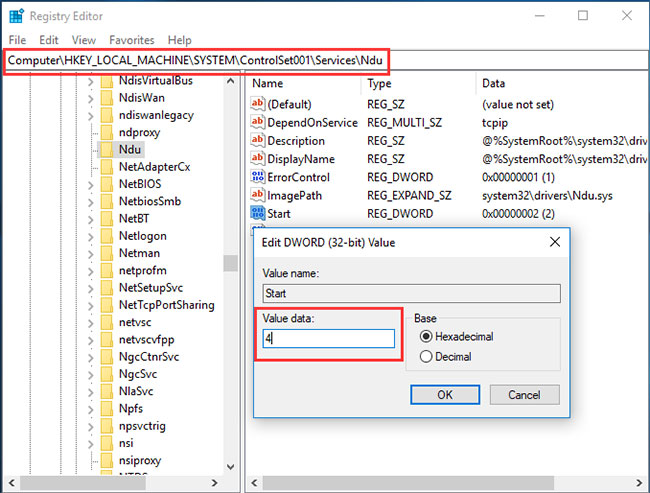
	<li>Trong cửa sổ&nbsp;<strong>Registry Editor</strong>, điều hướng đến thư mục&nbsp;<strong>ControlSet001</strong>&nbsp;theo đường dẫn sau:&nbsp;</li>
</ul>

<pre id="pre0">
<code>HKEY_LOCAL_MACHINE &gt; SYSTEM &gt; ControlSet001</code></pre>

<ul>
	<li>Sau đó mở rộng thư mục&nbsp;<strong>ControlSet001</strong>&nbsp;để tìm ra thư mục&nbsp;<strong>Services</strong>&nbsp;và chọn key&nbsp;<strong>Ndu.</strong></li>
	<li>Trong bảng điều khiển bên phải, chọn key&nbsp;<strong>Start</strong>&nbsp;và bấm đúp vào nó.</li>
	<li>Tiếp theo, thay đổi&nbsp;<strong>Value data</strong>&nbsp;thành<strong>&nbsp;4</strong>&nbsp;và nhấp vào&nbsp;<strong>OK</strong>&nbsp;để tiếp tục.</li>
</ul>

<figure>
<div><img alt="Thay đổi Value data thành 4" data-i="0" data-src="https://st.quantrimang.com/photos/image/2020/06/13/service-host-local-system-1.jpg" data-was-processed="true" height="493" src="https://st.quantrimang.com/photos/image/2020/06/13/service-host-local-system-1.jpg" width="650" /></div>

<figcaption>
<div>Thay đổi Value data thành 4</div>
</figcaption>
</figure>

<p>Sau khi hoàn thành tất cả các bước, bạn có thể thoát khỏi cửa sổ Registry Editor và khởi động lại máy tính để kiểm tra xem vấn đề đã được giải quyết chưa.</p>

<h2 id="mcetoc_1ealnjfve2">Giải pháp 3. Chạy System File Checker</h2>

<p>Sự cố Service Host Local System sử dụng ổ đĩa ở mức cao có thể do file hệ thống bị hỏng. Vì vậy, nếu gặp phải tình trạng Service Host Local System sử dụng nhiều CPU, bạn có thể thử chạy System File Checker để kiểm tra và sửa chữa các file hệ thống bị hỏng.</p>

<p><strong>Bước 1:</strong>&nbsp;Mở cửa sổ Command Prompt với quyền admin.</p>

<p><strong>Bước 2:</strong>&nbsp;Nhập lệnh.</p>

<ul>
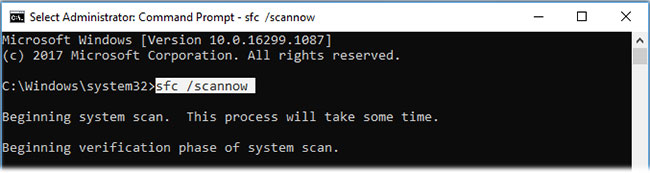
	<li>Trong cửa sổ xuất hiện, gõ lệnh&nbsp;<strong>sfc /scannow</strong>&nbsp;và nhấn&nbsp;<strong>Enter</strong>&nbsp;để tiếp tục.</li>
	<li>Đừng đóng cửa sổ cho đến khi quá trình quét kết thúc.</li>
</ul>

<figure>
<div><img alt="System File Checker có thể giúp bạn tìm các file hệ thống bị hỏng và sửa chữa chúng" data-i="1" data-src="https://st.quantrimang.com/photos/image/2020/06/13/service-host-local-system-2.jpg" data-was-processed="true" height="173" src="https://st.quantrimang.com/photos/image/2020/06/13/service-host-local-system-2.jpg" width="650" /></div>

<figcaption>
<div>System File Checker có thể giúp bạn tìm các file hệ thống bị hỏng và sửa chữa chúng</div>
</figcaption>
</figure>

<p>Khi quá trình quét kết thúc, System File Checker có thể giúp bạn tìm các file hệ thống bị hỏng và sửa chữa chúng.</p>

<div>&nbsp;</div>

<h2 id="mcetoc_1ealnjfve3">Giải pháp 4. Vô hiệu hóa Background Intelligent Transfer Service</h2>

<p>Phương pháp thứ tư để khắc phục sự cố là thử tắt Background Intelligent Transfer Service.</p>

<p><strong>Bước 1:</strong>&nbsp;Mở cửa sổ&nbsp;<strong>System Configuration.</strong></p>

<ul>
	<li>Nhấn&nbsp;<strong>Win + R</strong>&nbsp;để mở&nbsp;<strong>Run</strong></li>
	<li>Nhập&nbsp;<strong>msconfig</strong>&nbsp;vào hộp và nhấn&nbsp;<strong>OK</strong>&nbsp;để tiếp tục.</li>
</ul>

<p><strong>Bước 2:</strong>&nbsp;Vô hiệu hóa&nbsp;<strong>Background Intelligent Transfer Service</strong></p>

<ul>
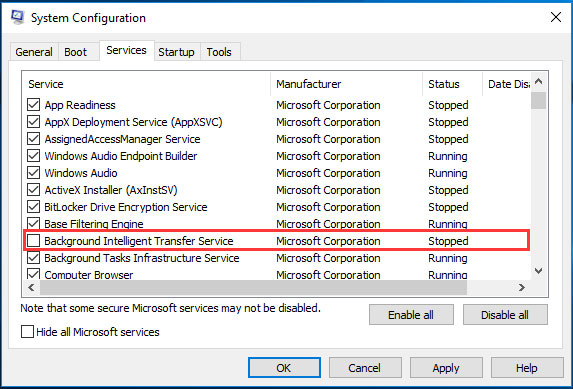
	<li>Trong cửa sổ&nbsp;<strong>System Configuration,</strong>&nbsp;chuyển đến tab&nbsp;<strong>Service.</strong></li>
	<li>Cuộn xuống và tìm&nbsp;<strong>Background Intelligent Transfer Service</strong>, rồi bỏ chọn nó.</li>
	<li>Nhấp vào&nbsp;<strong>Apply</strong>&nbsp;và&nbsp;<strong>OK</strong>&nbsp;để xác nhận thay đổi.</li>
</ul>

<figure>
<div><img alt="Vô hiệu hóa Background Intelligent Transfer Service" data-i="2" data-src="https://st.quantrimang.com/photos/image/2020/06/13/service-host-local-system-3.jpg" data-was-processed="true" height="389" src="https://st.quantrimang.com/photos/image/2020/06/13/service-host-local-system-3.jpg" width="573" /></div>

<figcaption>
<div>Vô hiệu hóa Background Intelligent Transfer Service</div>
</figcaption>
</figure>

<p>Sau khi hoàn thành tất cả các bước, hãy khởi động lại máy tính.</p>

<h2 id="mcetoc_1ealnjfve4">Giải pháp 5. Vô hiệu hóa tác vụ Service Host Local System</h2>

<p>Giải pháp thứ năm để phục vụ CPU hệ thống cục bộ cao là vô hiệu hóa trực tiếp Service Host Local System. Bạn có thể kết thúc tác vụ&nbsp;này để khắc phục vấn đề.</p>

<p><strong>Bước 1:</strong>&nbsp;<a href="https://quantrimang.com/6-cach-don-gian-mo-task-manager-tren-windows-119941" title="6 cách mở Task Manager trên Windows đơn giản nhất">Mở Task Manager</a>.</p>

<p><strong>Bước 2:</strong>&nbsp;Vô hiệu hóa tác vụ Service Host Local System</p>

<p>1. Trong cửa sổ pop-up, chuyển đến tab&nbsp;<strong>Processes</strong>&nbsp;để tiếp tục.</p>

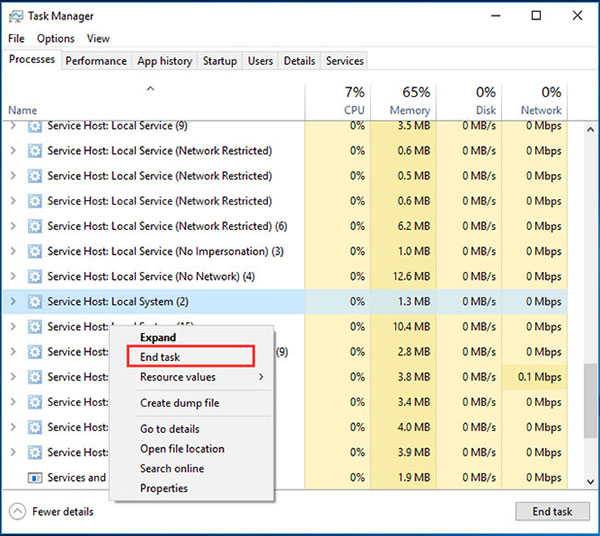
<p>2. Cuộn xuống để tìm&nbsp;<strong>Service Host Local System</strong>. Bạn cũng có thể mở rộng nó để xem những mục nào đang tiêu tốn CPU, ổ đĩa và bộ nhớ.</p>

<p>3. Sau khi bạn biết mục nào đang “ngốn” CPU, ổ đĩa và bộ nhớ, bạn có thể nhấp chuột phải vào nó và chọn&nbsp;<strong>End task</strong>&nbsp;từ menu ngữ cảnh để tắt.</p>

<figure>
<div><img alt="Vô hiệu hóa tác vụ Service Host Local System" data-i="3" data-src="https://st.quantrimang.com/photos/image/2020/06/13/service-host-local-system-4.jpg" data-was-processed="true" height="536" src="https://st.quantrimang.com/photos/image/2020/06/13/service-host-local-system-4.jpg" width="600" /></div>

<figcaption>
<div>Vô hiệu hóa tác vụ Service Host Local System</div>
</figcaption>
</figure>

<p>4. Tiếp theo, bạn sẽ thấy một thông báo cảnh báo yêu cầu bạn xác nhận có muốn kết thúc Service Host: Local System không.</p>

<p>5. Bạn cần tích vào tùy chọn&nbsp;<strong>Abandon unsaved data and shut down</strong>. Sau đó bấm&nbsp;<strong>Shut down</strong>&nbsp;để tiếp tục.</p>

<p>Sau đó, bạn có thể theo dõi CPU của mình trong Task Manager và kiểm tra xem tình trạng Service Host Local System sử dụng nhiều CPU đã được giải quyết hay chưa.</p>

<h2 id="mcetoc_1ealnjfve5">Giải pháp 6. Thực hiện Clean Boot</h2>

<p>Trên hết, vấn đề Service Host Local System sử dụng ổ đĩa ở mức cao có thể do phần mềm của bên thứ ba gây ra. Do đó, để khắc phục sự cố, bạn có thể thực hiện clean boot (khởi động sạch) và kiểm tra xem vấn đề có phải do phần mềm và dịch vụ của bên thứ ba gây ra hay không.</p>

<p>&nbsp;</p>

<p>Sau khi khởi động lại máy tính trong Clean Boot, bạn có thể kiểm tra xem sự cố đã được giải quyết chưa. Nếu vấn đề đã được giải quyết, bạn có thể kích hoạt lại từng service một lần nữa và kiểm tra xem service nào gây ra vấn đề.</p>

<p>Nếu tìm thấy các mục có vấn đề, bạn có thể chọn vô hiệu hóa hoặc cài đặt lại nó.</p>

<div>&nbsp;</div>

<h2 id="mcetoc_1ealnjfve6">Giải pháp 7. Nâng cấp CPU</h2>

<p>Nếu không có giải pháp nào ở trên hiệu quả, bạn có thể chọn nâng cấp CPU. Sự cố Service Host Local System sử dụng ổ đĩa ở mức cao có thể do CPU cũ gây ra. Vì vậy, nếu gặp phải vấn đề này, bạn có thể thử nâng cấp CPU.</p>

<p>Tuy nhiên, việc nâng cấp CPU cũng có những rủi ro nhất định. Máy tính có thể không khởi động được do một số vấn đề tương thích sau khi nâng cấp CPU. Nếu vậy, bạn có thể cần phải cài đặt lại Windows. Do đó, hãy nhớ sao lưu dữ liệu trước khi cập nhật CPU để giữ an toàn.</p>

<p>Sau khi bạn đã sao lưu các file quan trọng của mình, đã đến lúc nâng cấp CPU. Nhưng xin lưu ý rằng CPU nên được chọn theo model và thông số hiệu năng của&nbsp;bo mạch chủ. Sau đó, bạn có thể cài đặt CPU mới trên máy tính. Cuối cùng, bạn chỉ cần nâng cấp driver nữa là xong.</p>
		</div>
				<div id="author">
						<p>
				<strong>Nguồn tin:</strong>
				Quantrimang.com
			</p>
		</div>
	</div>
	<div id="footer" class="clearfix">
		<div id="url">
			<strong>URL của bản tin này: </strong><a href="https://www.nguoicodonvn2008.info/vi/news/savefile/kien-thuc-may-tinh/khac-phuc-tinh-trang-service-host-local-system-su-dung-nhieu-cpu-trong-windows-10-2211.html" title="Khắc phục tình trạng Service Host Local System sử dụng nhiều CPU trong Windows 10">https://www.nguoicodonvn2008.info/vi/news/savefile/kien-thuc-may-tinh/khac-phuc-tinh-trang-service-host-local-system-su-dung-nhieu-cpu-trong-windows-10-2211.html</a>

		</div>
		<div class="clear"></div>
		<div class="copyright">
			&copy; .&#x3A; Nguoicodonvn2008.info - Cõi lòng người cô đơn &#x3A;.
		</div>
		<div id="contact">
			<a href="mailto:admin@nguoicodonvn2008.info">admin@nguoicodonvn2008.info</a>
		</div>
	</div>
</div>
        <div id="timeoutsess" class="chromeframe">
            Bạn đã không sử dụng Site, <a onclick="timeoutsesscancel();" href="https://www.nguoicodonvn2008.info/#">Bấm vào đây để duy trì trạng thái đăng nhập</a>. Thời gian chờ: <span id="secField"> 60 </span> giây
        </div>
        <div id="openidResult" class="nv-alert" style="display:none"></div>
        <div id="openidBt" data-result="" data-redirect=""></div>
		</script>
		<div class="car-top">
  <span><img src="https://www.nguoicodonvn2008.info/themes/default/images/car.png" alt=""></span>
</div>
<script src="https://www.nguoicodonvn2008.info/assets/js/jquery/jquery.min.js"></script>
<script>var nv_base_siteurl="/",nv_lang_data="vi",nv_lang_interface="vi",nv_name_variable="nv",nv_fc_variable="op",nv_lang_variable="language",nv_module_name="news",nv_func_name="savefile",nv_is_user=0, nv_my_ofs=-4,nv_my_abbr="EDT",nv_cookie_prefix="nv4c_e856T",nv_check_pass_mstime=1738000,nv_area_admin=0,nv_safemode=0,theme_responsive=0,nv_recaptcha_ver=2,nv_recaptcha_sitekey="",nv_recaptcha_type="image",XSSsanitize=1;</script>
<script src="https://www.nguoicodonvn2008.info/assets/js/language/vi.js"></script>
<script src="https://www.nguoicodonvn2008.info/assets/js/DOMPurify/purify3.js"></script>
<script src="https://www.nguoicodonvn2008.info/assets/js/global.js"></script>
<script src="https://www.nguoicodonvn2008.info/assets/js/site.js"></script>
<script src="https://www.nguoicodonvn2008.info/themes/default/js/news.js"></script>
<script src="https://www.nguoicodonvn2008.info/themes/default/js/main.js"></script>
<script src="https://www.nguoicodonvn2008.info/themes/default/js/custom.js"></script>
<script type="application/ld+json">
        {
            "@context": "https://schema.org",
            "@type": "Organization",
            "url": "https://www.nguoicodonvn2008.info",
            "logo": "https://www.nguoicodonvn2008.info/uploads/angel.gif"
        }
        </script>
<script src="https://www.nguoicodonvn2008.info/themes/default/js/bootstrap.min.js"></script>
<script type="text/javascript">
var $scrolltop = $('.car-top');
$scrolltop.on('click', function () {
    $('html,body').animate({
        scrollTop: 0
    }, 800);
    $(this).addClass("car-run");
    setTimeout(function(){ $scrolltop.removeClass('car-run');}, 1000);
    return false;
});
$(window).on('scroll', function ()
{ 
    if($(window).scrollTop() >= 200)
    {
        $scrolltop.addClass("show");
        $scrolltop.addClass("car-down");
    }
    else
    {
       $scrolltop.removeClass("show");
       setTimeout(function(){ $scrolltop.removeClass('car-down');}, 300);
    }
});
</script>
</body>
</html>