<!DOCTYPE html>
    <html lang="vi" xmlns="http://www.w3.org/1999/xhtml" prefix="og: http://ogp.me/ns#">
    <head>
<title>Khắc phục lỗi không kết nối được với tai nghe trong Windows 10</title>
<meta name="description" content="Khắc phục lỗi không kết nối được với tai nghe trong Windows 10 - Savefile - Tin Tức -...">
<meta name="author" content=".: Nguoicodonvn2008.info - Cõi lòng người cô đơn :.">
<meta name="copyright" content=".: Nguoicodonvn2008.info - Cõi lòng người cô đơn :. [admin@nguoicodonvn2008.info]">
<meta name="robots" content="index, archive, follow, noodp">
<meta name="googlebot" content="index,archive,follow,noodp">
<meta name="msnbot" content="all,index,follow">
<meta name="generator" content="NukeViet v4.5">
<meta http-equiv="Content-Type" content="text/html; charset=utf-8">
<meta property="og:title" content="Khắc phục lỗi không kết nối được với tai nghe trong Windows 10">
<meta property="og:type" content="website">
<meta property="og:description" content="Savefile - Tin Tức - https&#x3A;&#x002F;&#x002F;www.nguoicodonvn2008.info&#x002F;vi&#x002F;news&#x002F;savefile&#x002F;kien-thuc-may-tinh&#x002F;khac-phuc-loi-khong-ket-noi-duoc-voi-tai-nghe-trong-windows-10-3331.html">
<meta property="og:site_name" content=".&#x3A; Nguoicodonvn2008.info - Cõi lòng người cô đơn &#x3A;.">
<meta property="og:url" content="https://www.nguoicodonvn2008.info/vi/news/savefile/kien-thuc-may-tinh/khac-phuc-loi-khong-ket-noi-duoc-voi-tai-nghe-trong-windows-10-3331.html">
<link rel="shortcut icon" href="https://www.nguoicodonvn2008.info/favicon.ico">
<link rel="canonical" href="https://www.nguoicodonvn2008.info/vi/news/savefile/kien-thuc-may-tinh/khac-phuc-loi-khong-ket-noi-duoc-voi-tai-nghe-trong-windows-10-3331.html">
<link rel="alternate" href="https://www.nguoicodonvn2008.info/vi/news/rss/" title="Tin Tức" type="application/rss+xml">
<link rel="alternate" href="https://www.nguoicodonvn2008.info/vi/news/rss/karaoke-dual/" title="Tin Tức - Karaoke Dual" type="application/rss+xml">
<link rel="alternate" href="https://www.nguoicodonvn2008.info/vi/news/rss/nhac-tre/" title="Tin Tức - Nhạc trẻ" type="application/rss+xml">
<link rel="alternate" href="https://www.nguoicodonvn2008.info/vi/news/rss/tru-tinh/" title="Tin Tức - Trữ tình" type="application/rss+xml">
<link rel="alternate" href="https://www.nguoicodonvn2008.info/vi/news/rss/nuoc-ngoai/" title="Tin Tức - Nước ngoài" type="application/rss+xml">
<link rel="alternate" href="https://www.nguoicodonvn2008.info/vi/news/rss/remix/" title="Tin Tức - Remix" type="application/rss+xml">
<link rel="alternate" href="https://www.nguoicodonvn2008.info/vi/news/rss/tam-su-tinh-yeu/" title="Tin Tức - Tâm sự tình yêu" type="application/rss+xml">
<link rel="alternate" href="https://www.nguoicodonvn2008.info/vi/news/rss/tho-suu-tam/" title="Tin Tức - Thơ sưu tầm" type="application/rss+xml">
<link rel="alternate" href="https://www.nguoicodonvn2008.info/vi/news/rss/cuoc-song/" title="Tin Tức - Cuộc sống" type="application/rss+xml">
<link rel="alternate" href="https://www.nguoicodonvn2008.info/vi/news/rss/phan-mem/" title="Tin Tức - Phần mềm" type="application/rss+xml">
<link rel="alternate" href="https://www.nguoicodonvn2008.info/vi/news/rss/kien-thuc-may-tinh/" title="Tin Tức - Kiến thức máy tính" type="application/rss+xml">
<link rel="alternate" href="https://www.nguoicodonvn2008.info/vi/news/rss/hoc-tap/" title="Tin Tức - Học tập" type="application/rss+xml">
<link rel="alternate" href="https://www.nguoicodonvn2008.info/vi/news/rss/tai-lieu/" title="Tin Tức - Tài liệu" type="application/rss+xml">
<link rel="alternate" href="https://www.nguoicodonvn2008.info/vi/news/rss/de-thi/" title="Tin Tức - Đề thi" type="application/rss+xml">
<link rel="preload" as="style" href="https://www.nguoicodonvn2008.info/assets/css/font-awesome.min.css" type="text/css">
<link rel="preload" as="style" href="https://www.nguoicodonvn2008.info/themes/default/css/bootstrap.non-responsive.css" type="text/css">
<link rel="preload" as="style" href="https://www.nguoicodonvn2008.info/themes/default/css/style.css" type="text/css">
<link rel="preload" as="style" href="https://www.nguoicodonvn2008.info/themes/default/css/style.non-responsive.css" type="text/css">
<link rel="preload" as="style" href="https://www.nguoicodonvn2008.info/themes/default/css/news.css" type="text/css">
<link rel="preload" as="style" href="https://www.nguoicodonvn2008.info/themes/default/css/custom.css" type="text/css">
<link rel="preload" as="script" href="https://www.nguoicodonvn2008.info/assets/js/jquery/jquery.min.js" type="text/javascript">
<link rel="preload" as="script" href="https://www.nguoicodonvn2008.info/assets/js/language/vi.js" type="text/javascript">
<link rel="preload" as="script" href="https://www.nguoicodonvn2008.info/assets/js/DOMPurify/purify3.js" type="text/javascript">
<link rel="preload" as="script" href="https://www.nguoicodonvn2008.info/assets/js/global.js" type="text/javascript">
<link rel="preload" as="script" href="https://www.nguoicodonvn2008.info/assets/js/site.js" type="text/javascript">
<link rel="preload" as="script" href="https://www.nguoicodonvn2008.info/themes/default/js/news.js" type="text/javascript">
<link rel="preload" as="script" href="https://www.nguoicodonvn2008.info/themes/default/js/main.js" type="text/javascript">
<link rel="preload" as="script" href="https://www.nguoicodonvn2008.info/themes/default/js/custom.js" type="text/javascript">
<link rel="preload" as="script" href="https://www.nguoicodonvn2008.info/themes/default/js/bootstrap.min.js" type="text/javascript">
<link rel="stylesheet" href="https://www.nguoicodonvn2008.info/assets/css/font-awesome.min.css">
<link rel="stylesheet" href="https://www.nguoicodonvn2008.info/themes/default/css/bootstrap.non-responsive.css">
<link rel="stylesheet" href="https://www.nguoicodonvn2008.info/themes/default/css/style.css">
<link rel="stylesheet" href="https://www.nguoicodonvn2008.info/themes/default/css/style.non-responsive.css">
<link rel="StyleSheet" href="https://www.nguoicodonvn2008.info/themes/default/css/news.css">
<link rel="stylesheet" href="https://www.nguoicodonvn2008.info/themes/default/css/custom.css">
<style type="text/css">
	body{background: #fff;}
</style>
    </head>
    <body>
<div id="print">
	<div id="hd_print">
		<h2 class="pull-left">.&#x3A; Nguoicodonvn2008.info - Cõi lòng người cô đơn &#x3A;.</h2>
		<p class="pull-right"><a title=".&#x3A; Nguoicodonvn2008.info - Cõi lòng người cô đơn &#x3A;." href="https://www.nguoicodonvn2008.info/">https://www.nguoicodonvn2008.info</a></p>
	</div>
	<div class="clear"></div>
	<hr />
	<div id="content">
		<h1>Khắc phục lỗi không kết nối được với tai nghe trong Windows 10</h1>
		<ul class="list-inline">
			<li>Thứ hai - 28/12/2020 23:48</li>
			<li class="hidden-print txtrequired"><em class="fa fa-print">&nbsp;</em><a title="In ra" href="javascript:;" onclick="window.print()">In ra</a></li>
			<li class="hidden-print txtrequired"><em class="fa fa-power-off">&nbsp;</em><a title="Đóng cửa sổ này" href="javascript:;" onclick="window.close()">Đóng cửa sổ này</a></li>
		</ul>
		<div class="clear"></div>
		<div id="hometext">
		</div>
				<div class="imghome">
			<img alt="Khắc phục lỗi không kết nối được với tai nghe trong Windows 10" src="https://st.quantrimang.com/photos/image/2020/12/29/sua-loi-tai-nghe-2.jpg" width="460" class="img-thumbnail" />
		</div>
		<div class="clear"></div>
		<div id="bodytext" class="clearfix">
			<p style="text-align: justify;">Thiết lập kết nối với các thiết bị âm thanh trên Windows không phải là một công việc đơn giản. Các&nbsp;driver&nbsp;có thể không tương thích với nhau, Windows có thể đọc sai kiểu tín hiệu đầu ra âm thanh và khi đó, nhiều khả năng bạn sẽ phải can thiệp sâu vào các thiết lập âm thanh nâng cao trên hệ thống để tìm ra chính xác nguyên nhân dẫn đến sự cố là gì. Dưới đây là các biện pháp khắc phục lỗi không kết nối được với tai nghe trong Windows 10 mà bạn có thể thử khi gặp vấn đề với chiếc tai nghe của mình.</p>

<p style="text-align: justify;"><img alt="Thiết lập kết nối với các thiết bị âm thanh trên Windows không phải là một công việc đơn giản." data-i="0" data-src="https://st.quantrimang.com/photos/image/2019/01/21/sua-loi-tai-nghe1.jpg" data-was-processed="true" height="375" src="https://st.quantrimang.com/photos/image/2019/01/21/sua-loi-tai-nghe1.jpg" width="471" /></p>

<div style="text-align: justify;">&nbsp;</div>

<h2 style="text-align: justify;">Tai nghe không hoạt động trong Windows 10? Đây là cách khắc phục!</h2>

<div style="text-align: justify;">&nbsp;</div>

<h2 id="mcetoc_1eqm34s0b0" style="text-align: justify;">Trước tiên, xác định xem đó có phải là vấn đề phần cứng không</h2>

<p style="text-align: justify;">Trước khi chuyển sang tất cả các bản sửa lỗi dựa trên phần mềm mà bài viết sẽ liệt kê bên dưới, điều quan trọng là phải kiểm tra xem sự cố có liên quan đến phần cứng không. Nếu đúng như vậy thì các bản sửa lỗi dưới đây có thể không giúp ích được gì cho bạn.</p>

<figure>
<div style="text-align: justify;"><img alt="Bản thân tai nghe có thể bị lỗi" data-i="1" data-src="https://st.quantrimang.com/photos/image/2020/12/29/sua-loi-tai-nghe.jpg" data-was-processed="true" height="325" src="https://st.quantrimang.com/photos/image/2020/12/29/sua-loi-tai-nghe.jpg" width="650" /></div>

<figcaption>
<div style="text-align: justify;">Bản thân tai nghe có thể bị lỗi</div>
</figcaption>
</figure>

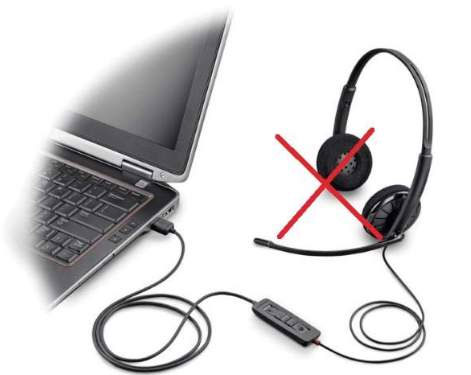
<p style="text-align: justify;">Hai phần cứng đáng chú ý có thể bị lỗi khi tai nghe không hoạt động là bản thân tai nghe và cổng mà bạn cắm chúng vào. Trước tiên, hãy cắm tai nghe vào một thiết bị khác để xem chúng có hoạt động ở đó không. Nếu không, có lẽ đã đến lúc bạn nên mua tai nghe mới.</p>

<div style="text-align: justify;">&nbsp;</div>

<p style="text-align: justify;">Nếu chúng hoạt động trên một thiết bị khác, thì hãy thử cắm tai nghe vào một cổng âm thanh khác trên PC mà chúng không hoạt động. Nếu tai nghe đột nhiên bắt đầu hoạt động, thì điều đó cho thấy rằng vấn đề nằm ở cổng ban đầu. Bạn có thể chỉ cần sử dụng tai nghe của mình trên cổng mới hoặc đọc tiếp để biết danh sách các bản sửa lỗi mà&nbsp;<strong>Quantrimang</strong>&nbsp;sẽ gợi ý sau đây.</p>

<h2 id="mcetoc_1d1n3n3qm0" style="text-align: justify;"><strong>Cập nhật, cài đặt lại hoặc thay thế driver âm thanh</strong></h2>

<p style="text-align: justify;">Nếu bạn đã cắm&nbsp;tai nghe&nbsp;vào đúng cổng kết nối trên PC&nbsp;Windows 10&nbsp;của mình mà tại nghe không thể hoạt động, rất có thể đã có lỗi xuất hiện ở phần mềm, gây ảnh hưởng đến việc truyền âm thanh từ PC sang tai nghe.</p>

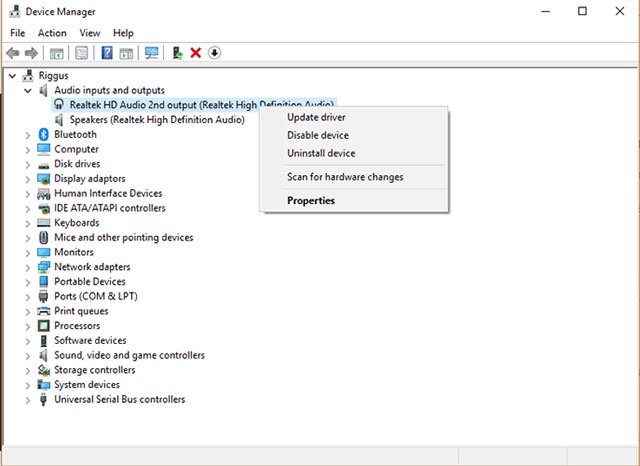
<p style="text-align: justify;">Để khắc phục vấn đề này, đầu tiên bạn hãy truy cập vào&nbsp;<strong>Device Manager -&gt; Sound, video and game controllers</strong>, sau đó chọn driver âm thanh của mình. Trong trường hợp ở ví dụ, driver âm thanh được chọn là&nbsp;<strong>Realtek High Definition Audio.</strong></p>

<p style="text-align: justify;"><strong><img alt="Realtek High Definition Audio." data-i="2" data-src="https://st.quantrimang.com/photos/image/2019/01/21/sua-loi-tai-nghe2.jpg" data-was-processed="true" height="466" src="https://st.quantrimang.com/photos/image/2019/01/21/sua-loi-tai-nghe2.jpg" width="640" /></strong></p>

<p style="text-align: justify;">Tiếp theo, bạn nhấp chuột phải vào driver, chọn&nbsp;<strong>Update driver</strong>, và sau đó bấm vào&nbsp;<strong>Search automatically for updated driver software.</strong></p>

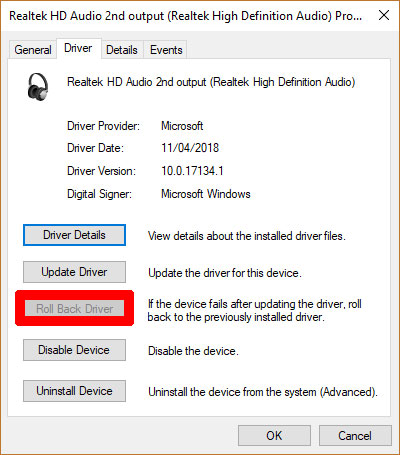
<p style="text-align: justify;">Nếu không thành công, bạn có thể nhấp chuột phải vào driver, bấm chọn&nbsp;<strong>Disable device</strong>&nbsp;và&nbsp;<strong>enable</strong>&nbsp;lại ngay sau đó. Cuối cùng, bạn có thể roll-back lại driver bằng cách nhấp chuột phải vào driver, chọn&nbsp;<strong>Properties</strong>, sau đó nhấp tiếp vào tab&nbsp;<strong>Driver</strong>&nbsp;và click chọn&nbsp;<strong>Roll Back Driver.</strong></p>

<p style="text-align: justify;"><strong><img alt="Chọn Properties, sau đó nhấp tiếp vào tab Driver và click chọn Roll Back Driver." data-i="3" data-src="https://st.quantrimang.com/photos/image/2019/01/21/sua-loi-tai-nghe3.jpg" data-was-processed="true" height="455" src="https://st.quantrimang.com/photos/image/2019/01/21/sua-loi-tai-nghe3.jpg" width="400" /></strong></p>

<p style="text-align: justify;">Cũng có một phương pháp khác liên quan đến driver mà bạn có thể thử áp dụng như sau. Trên cửa sổ&nbsp;<strong>Update driver</strong>, đầu tiên bạn hãy bấm vào<strong>&nbsp;Browse my computer for driver software</strong>, sau đó là&nbsp;<strong>Let me pick from a list</strong>&nbsp;và cuối cùng click chọn&nbsp;<strong>High Definition Audio Device</strong>. Bỏ qua các thông báo của Windows, và tiếp tục cài đặt driver như bình thường.</p>

<h2 id="mcetoc_1d1n3n3qn1" style="text-align: justify;"><strong>Hãy chắc chắn rằng tai nghe mà bạn đang sử dụng là Default Device và đã được Enabled</strong></h2>

<p style="text-align: justify;">Một nơi quan trọng khác mà bạn có thể cần thực hiện một số thay đổi để tai nghe hoạt động là cửa sổ&nbsp;<strong>Sound.</strong>&nbsp;Cách tốt nhất để đến đây là nhấp chuột phải vào biểu tượng loa trong khu vực thông báo ở góc phải của Windows, sau đó nhấp vào&nbsp;<strong>“Sound Settings”.</strong></p>

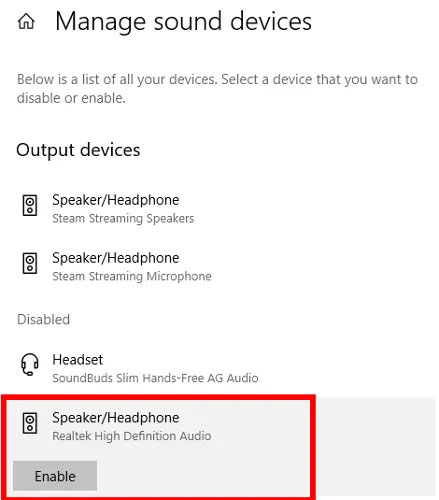
<p style="text-align: justify;">Trong cửa sổ&nbsp;<strong>Sound Settings</strong>, nhấp vào&nbsp;<strong>“Manage sound devices”</strong>&nbsp;và xem liệu&nbsp;<strong>“headset”</strong>&nbsp;hoặc&nbsp;<strong>“headphones”</strong>&nbsp;của bạn có nằm trong danh sách&nbsp;<strong>“Disabled”</strong>&nbsp;hay không. Nếu có, hãy nhấp vào chúng và chọn&nbsp;<strong>“Enable”.</strong></p>

<figure>
<div style="text-align: justify;"><img alt="Kích hoạt tai nghe" data-i="4" data-src="https://st.quantrimang.com/photos/image/2020/12/29/sua-loi-tai-nghe-1.jpg" data-was-processed="true" height="500" src="https://st.quantrimang.com/photos/image/2020/12/29/sua-loi-tai-nghe-1.jpg" width="439" /></div>

<figcaption>
<div style="text-align: justify;">Kích hoạt tai nghe</div>
</figcaption>
</figure>

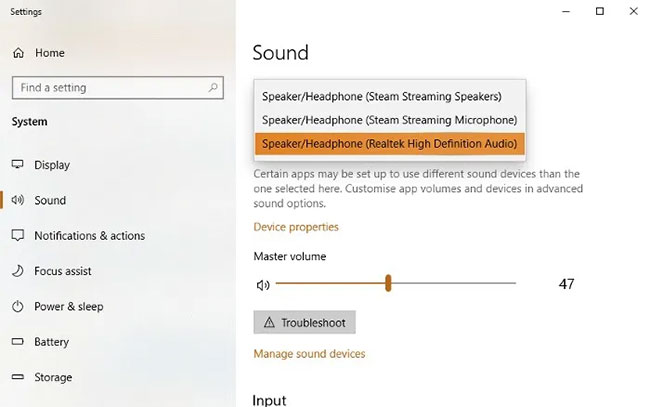
<p style="text-align: justify;">Để đặt tai nghe làm thiết bị âm thanh mặc định, tự động chuyển sang tai nghe ngay sau khi chúng được cắm vào, hãy quay lại menu&nbsp;<strong>Sound Settings.</strong></p>

<p style="text-align: justify;">Tại đây, hãy nhấp vào menu drop-down&nbsp;<strong>“Choose your output device”</strong>&nbsp;và chọn tai nghe từ danh sách.</p>

<figure>
<div style="text-align: justify;"><img alt="Đặt tai nghe làm thiết bị âm thanh mặc định" data-i="5" data-src="https://st.quantrimang.com/photos/image/2020/12/29/sua-loi-tai-nghe-2.jpg" data-was-processed="true" height="407" src="https://st.quantrimang.com/photos/image/2020/12/29/sua-loi-tai-nghe-2.jpg" width="650" /></div>

<figcaption>
<div style="text-align: justify;">Đặt tai nghe làm thiết bị âm thanh mặc định</div>
</figcaption>
</figure>

<p style="text-align: justify;">Trong tương lai, bạn cũng có thể thay đổi thiết bị âm thanh mặc định của mình bằng cách chỉ cần nhấp vào biểu tượng loa trong khu vực thông báo trên thanh tác vụ và chọn thiết bị âm thanh ưa thích từ đó.</p>

<h2 id="mcetoc_1d1n3n3qn2" style="text-align: justify;"><strong>Thay đổi định dạng mặc định của tai nghe</strong></h2>

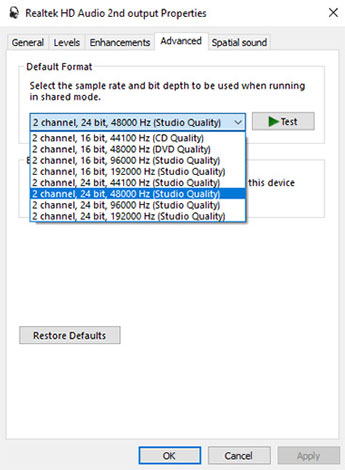
<p style="text-align: justify;">Lại truy cập vào mục&nbsp;<strong>Sound</strong>&nbsp;theo các bước như trên. Trong cửa sổ&nbsp;<strong>Sound</strong>, bạn nhấp vào tab&nbsp;<strong>Playback</strong>. Nhấp chuột phải vào tai nghe của bạn (chúng có thể xuất hiện dưới tên “<strong>Speakers</strong>&nbsp;nếu bạn sử dụng loa), sau đó bấm vào&nbsp;<strong>Properties</strong>&nbsp;và chọn tab&nbsp;<strong>Advanced</strong>.</p>

<p style="text-align: justify;">Cố gắng tìm kiếm định dạng mặc định (Default Format) của tai nghe, sau mỗi lần thay đổi, bạn bấm vào&nbsp;<strong>Test</strong>&nbsp;để xem tai nghe có hoạt động hay không.</p>

<p style="text-align: justify;"><img alt="Cố gắng tìm kiếm định dạng mặc định (Default Format) của tai nghe, sau mỗi lần thay đổi, bạn bấm vào Test để xem tai nghe có hoạt động hay không." data-i="6" data-src="https://st.quantrimang.com/photos/image/2019/01/21/sua-loi-tai-nghe5.jpg" data-was-processed="true" height="470" src="https://st.quantrimang.com/photos/image/2019/01/21/sua-loi-tai-nghe5.jpg" width="345" /></p>

<h2 id="mcetoc_1d1n3n3qn3" style="text-align: justify;"><strong>HD Audio và AC97</strong></h2>

<p style="text-align: justify;">AC97 và HD Audio là hai tiêu chuẩn âm thanh thường được kết nối với jack âm thanh 3.5mm phía trước trên nhiều hệ thống máy tính để bàn. Việc PC của bạn sử dụng chuẩn AC97 hay HD Audio sẽ phụ thuộc vào kết nối trên bo mạch chủ của bạn với các cổng âm thanh phía trước. Do đó, bạn nên truy cập vào công cụ driver âm thanh và đảm bảo rằng&nbsp;<strong>Connector Settings</strong>&nbsp;của mình là hoàn toàn chính xác.</p>

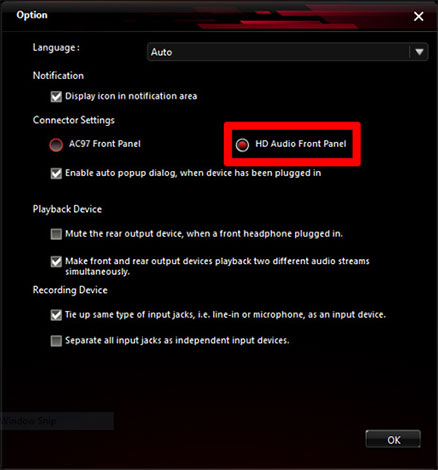
<p style="text-align: justify;">Ví dụ, công cụ driver âm thanh được sử dụng trong bài là<strong>&nbsp;Realtek HD Audio Manager</strong>&nbsp;(được tìm thấy trong Control Panel). Mở nó, sau đó nhấp vào mục&nbsp;<strong>Settings</strong>&nbsp;ở góc trên cùng bên phải. Bạn nhìn xuống mục&nbsp;<strong>Connector Settings</strong>&nbsp;và có thể thấy tùy chọn&nbsp;<strong>HD Audio Front Panel</strong>&nbsp;đã được bật.</p>

<p style="text-align: justify;"><img alt="Bạn nhìn xuống mục Connector Settings và có thể thấy tùy chọn HD Audio Front Panel đã được bật." data-i="7" data-src="https://st.quantrimang.com/photos/image/2019/01/21/sua-loi-tai-nghe6.jpg" data-was-processed="true" height="470" src="https://st.quantrimang.com/photos/image/2019/01/21/sua-loi-tai-nghe6.jpg" width="438" /></p>

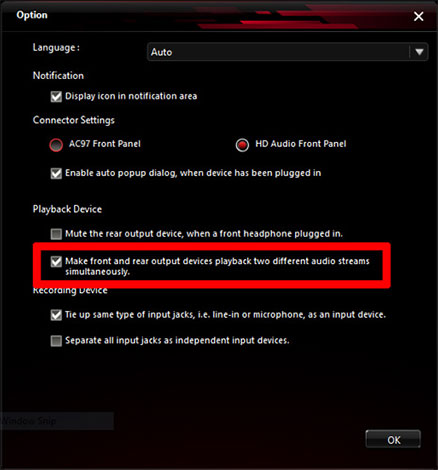
<p style="text-align: justify;">Tại đây, bạn cũng có thể sử dụng tai nghe như một thiết bị âm thanh thứ hai thay thế cho loa bằng cách tích vào tùy chọn&nbsp;<strong>Make front and rear output devices playback two different audio streams simultaneously</strong>&nbsp;như trong hình minh họa bên dưới.</p>

<p style="text-align: justify;"><img alt=" Bạn cũng có thể sử dụng tai nghe như một thiết bị âm thanh thứ hai thay vì thay thế cho loa bằng cách tích vào tùy chọn Make front and rear output devices playback two different audio streams simultaneously " data-i="8" data-src="https://st.quantrimang.com/photos/image/2019/01/21/sua-loi-tai-nghe7.jpg" data-was-processed="true" height="470" src="https://st.quantrimang.com/photos/image/2019/01/21/sua-loi-tai-nghe7.jpg" width="438" /></p>

<p style="text-align: justify;"><strong>Tổng kết</strong></p>

<p style="text-align: justify;">Khắc phục các sự cố về âm thanh chưa bao giờ là một nhiệm vụ dễ dàng, các vấn đề khác nhau sinh ra nhiều giải pháp khác nhau. Hy vọng bạn sẽ tìm thấy những gì mình cần ở những phương pháp trên. Nếu bạn vẫn không thể khắc phục được vấn đề hay tìm ra cách khác để khắc phục vấn để, hãy để lại ý kiến cho chúng tôi ở phần bình luận bên dưới nhé!</p>
		</div>
				<div id="author">
						<p>
				<strong>Nguồn tin:</strong>
				Quantrimang.com
			</p>
		</div>
	</div>
	<div id="footer" class="clearfix">
		<div id="url">
			<strong>URL của bản tin này: </strong><a href="https://www.nguoicodonvn2008.info/vi/news/savefile/kien-thuc-may-tinh/khac-phuc-loi-khong-ket-noi-duoc-voi-tai-nghe-trong-windows-10-3331.html" title="Khắc phục lỗi không kết nối được với tai nghe trong Windows 10">https://www.nguoicodonvn2008.info/vi/news/savefile/kien-thuc-may-tinh/khac-phuc-loi-khong-ket-noi-duoc-voi-tai-nghe-trong-windows-10-3331.html</a>

		</div>
		<div class="clear"></div>
		<div class="copyright">
			&copy; .&#x3A; Nguoicodonvn2008.info - Cõi lòng người cô đơn &#x3A;.
		</div>
		<div id="contact">
			<a href="mailto:admin@nguoicodonvn2008.info">admin@nguoicodonvn2008.info</a>
		</div>
	</div>
</div>
        <div id="timeoutsess" class="chromeframe">
            Bạn đã không sử dụng Site, <a onclick="timeoutsesscancel();" href="https://www.nguoicodonvn2008.info/#">Bấm vào đây để duy trì trạng thái đăng nhập</a>. Thời gian chờ: <span id="secField"> 60 </span> giây
        </div>
        <div id="openidResult" class="nv-alert" style="display:none"></div>
        <div id="openidBt" data-result="" data-redirect=""></div>
		</script>
		<div class="car-top">
  <span><img src="https://www.nguoicodonvn2008.info/themes/default/images/car.png" alt=""></span>
</div>
<script src="https://www.nguoicodonvn2008.info/assets/js/jquery/jquery.min.js"></script>
<script>var nv_base_siteurl="/",nv_lang_data="vi",nv_lang_interface="vi",nv_name_variable="nv",nv_fc_variable="op",nv_lang_variable="language",nv_module_name="news",nv_func_name="savefile",nv_is_user=0, nv_my_ofs=-4,nv_my_abbr="EDT",nv_cookie_prefix="nv4c_e856T",nv_check_pass_mstime=1738000,nv_area_admin=0,nv_safemode=0,theme_responsive=0,nv_recaptcha_ver=2,nv_recaptcha_sitekey="",nv_recaptcha_type="image",XSSsanitize=1;</script>
<script src="https://www.nguoicodonvn2008.info/assets/js/language/vi.js"></script>
<script src="https://www.nguoicodonvn2008.info/assets/js/DOMPurify/purify3.js"></script>
<script src="https://www.nguoicodonvn2008.info/assets/js/global.js"></script>
<script src="https://www.nguoicodonvn2008.info/assets/js/site.js"></script>
<script src="https://www.nguoicodonvn2008.info/themes/default/js/news.js"></script>
<script src="https://www.nguoicodonvn2008.info/themes/default/js/main.js"></script>
<script src="https://www.nguoicodonvn2008.info/themes/default/js/custom.js"></script>
<script type="application/ld+json">
        {
            "@context": "https://schema.org",
            "@type": "Organization",
            "url": "https://www.nguoicodonvn2008.info",
            "logo": "https://www.nguoicodonvn2008.info/uploads/angel.gif"
        }
        </script>
<script src="https://www.nguoicodonvn2008.info/themes/default/js/bootstrap.min.js"></script>
<script type="text/javascript">
var $scrolltop = $('.car-top');
$scrolltop.on('click', function () {
    $('html,body').animate({
        scrollTop: 0
    }, 800);
    $(this).addClass("car-run");
    setTimeout(function(){ $scrolltop.removeClass('car-run');}, 1000);
    return false;
});
$(window).on('scroll', function ()
{ 
    if($(window).scrollTop() >= 200)
    {
        $scrolltop.addClass("show");
        $scrolltop.addClass("car-down");
    }
    else
    {
       $scrolltop.removeClass("show");
       setTimeout(function(){ $scrolltop.removeClass('car-down');}, 300);
    }
});
</script>
</body>
</html>