<!DOCTYPE html>
    <html lang="vi" xmlns="http://www.w3.org/1999/xhtml" prefix="og: http://ogp.me/ns#">
    <head>
<title>Khắc phục lỗi 0x80040115 của Microsoft Outlook trên Windows 10</title>
<meta name="description" content="Khắc phục lỗi 0x80040115 của Microsoft Outlook trên Windows 10 - Savefile - Tin Tức -...">
<meta name="author" content=".: Nguoicodonvn2008.info - Cõi lòng người cô đơn :.">
<meta name="copyright" content=".: Nguoicodonvn2008.info - Cõi lòng người cô đơn :. [admin@nguoicodonvn2008.info]">
<meta name="robots" content="index, archive, follow, noodp">
<meta name="googlebot" content="index,archive,follow,noodp">
<meta name="msnbot" content="all,index,follow">
<meta name="generator" content="NukeViet v4.5">
<meta http-equiv="Content-Type" content="text/html; charset=utf-8">
<meta property="og:title" content="Khắc phục lỗi 0x80040115 của Microsoft Outlook trên Windows 10">
<meta property="og:type" content="website">
<meta property="og:description" content="Savefile - Tin Tức - https&#x3A;&#x002F;&#x002F;www.nguoicodonvn2008.info&#x002F;vi&#x002F;news&#x002F;savefile&#x002F;kien-thuc-may-tinh&#x002F;khac-phuc-loi-0x80040115-cua-microsoft-outlook-tren-windows-10-3471.html">
<meta property="og:site_name" content=".&#x3A; Nguoicodonvn2008.info - Cõi lòng người cô đơn &#x3A;.">
<meta property="og:url" content="https://www.nguoicodonvn2008.info/vi/news/savefile/kien-thuc-may-tinh/khac-phuc-loi-0x80040115-cua-microsoft-outlook-tren-windows-10-3471.html">
<link rel="shortcut icon" href="https://www.nguoicodonvn2008.info/favicon.ico">
<link rel="canonical" href="https://www.nguoicodonvn2008.info/vi/news/savefile/kien-thuc-may-tinh/khac-phuc-loi-0x80040115-cua-microsoft-outlook-tren-windows-10-3471.html">
<link rel="alternate" href="https://www.nguoicodonvn2008.info/vi/news/rss/" title="Tin Tức" type="application/rss+xml">
<link rel="alternate" href="https://www.nguoicodonvn2008.info/vi/news/rss/karaoke-dual/" title="Tin Tức - Karaoke Dual" type="application/rss+xml">
<link rel="alternate" href="https://www.nguoicodonvn2008.info/vi/news/rss/nhac-tre/" title="Tin Tức - Nhạc trẻ" type="application/rss+xml">
<link rel="alternate" href="https://www.nguoicodonvn2008.info/vi/news/rss/tru-tinh/" title="Tin Tức - Trữ tình" type="application/rss+xml">
<link rel="alternate" href="https://www.nguoicodonvn2008.info/vi/news/rss/nuoc-ngoai/" title="Tin Tức - Nước ngoài" type="application/rss+xml">
<link rel="alternate" href="https://www.nguoicodonvn2008.info/vi/news/rss/remix/" title="Tin Tức - Remix" type="application/rss+xml">
<link rel="alternate" href="https://www.nguoicodonvn2008.info/vi/news/rss/tam-su-tinh-yeu/" title="Tin Tức - Tâm sự tình yêu" type="application/rss+xml">
<link rel="alternate" href="https://www.nguoicodonvn2008.info/vi/news/rss/tho-suu-tam/" title="Tin Tức - Thơ sưu tầm" type="application/rss+xml">
<link rel="alternate" href="https://www.nguoicodonvn2008.info/vi/news/rss/cuoc-song/" title="Tin Tức - Cuộc sống" type="application/rss+xml">
<link rel="alternate" href="https://www.nguoicodonvn2008.info/vi/news/rss/phan-mem/" title="Tin Tức - Phần mềm" type="application/rss+xml">
<link rel="alternate" href="https://www.nguoicodonvn2008.info/vi/news/rss/kien-thuc-may-tinh/" title="Tin Tức - Kiến thức máy tính" type="application/rss+xml">
<link rel="alternate" href="https://www.nguoicodonvn2008.info/vi/news/rss/hoc-tap/" title="Tin Tức - Học tập" type="application/rss+xml">
<link rel="alternate" href="https://www.nguoicodonvn2008.info/vi/news/rss/tai-lieu/" title="Tin Tức - Tài liệu" type="application/rss+xml">
<link rel="alternate" href="https://www.nguoicodonvn2008.info/vi/news/rss/de-thi/" title="Tin Tức - Đề thi" type="application/rss+xml">
<link rel="preload" as="style" href="https://www.nguoicodonvn2008.info/assets/css/font-awesome.min.css" type="text/css">
<link rel="preload" as="style" href="https://www.nguoicodonvn2008.info/themes/default/css/bootstrap.non-responsive.css" type="text/css">
<link rel="preload" as="style" href="https://www.nguoicodonvn2008.info/themes/default/css/style.css" type="text/css">
<link rel="preload" as="style" href="https://www.nguoicodonvn2008.info/themes/default/css/style.non-responsive.css" type="text/css">
<link rel="preload" as="style" href="https://www.nguoicodonvn2008.info/themes/default/css/news.css" type="text/css">
<link rel="preload" as="style" href="https://www.nguoicodonvn2008.info/themes/default/css/custom.css" type="text/css">
<link rel="preload" as="script" href="https://www.nguoicodonvn2008.info/assets/js/jquery/jquery.min.js" type="text/javascript">
<link rel="preload" as="script" href="https://www.nguoicodonvn2008.info/assets/js/language/vi.js" type="text/javascript">
<link rel="preload" as="script" href="https://www.nguoicodonvn2008.info/assets/js/DOMPurify/purify3.js" type="text/javascript">
<link rel="preload" as="script" href="https://www.nguoicodonvn2008.info/assets/js/global.js" type="text/javascript">
<link rel="preload" as="script" href="https://www.nguoicodonvn2008.info/assets/js/site.js" type="text/javascript">
<link rel="preload" as="script" href="https://www.nguoicodonvn2008.info/themes/default/js/news.js" type="text/javascript">
<link rel="preload" as="script" href="https://www.nguoicodonvn2008.info/themes/default/js/main.js" type="text/javascript">
<link rel="preload" as="script" href="https://www.nguoicodonvn2008.info/themes/default/js/custom.js" type="text/javascript">
<link rel="preload" as="script" href="https://www.nguoicodonvn2008.info/themes/default/js/bootstrap.min.js" type="text/javascript">
<link rel="stylesheet" href="https://www.nguoicodonvn2008.info/assets/css/font-awesome.min.css">
<link rel="stylesheet" href="https://www.nguoicodonvn2008.info/themes/default/css/bootstrap.non-responsive.css">
<link rel="stylesheet" href="https://www.nguoicodonvn2008.info/themes/default/css/style.css">
<link rel="stylesheet" href="https://www.nguoicodonvn2008.info/themes/default/css/style.non-responsive.css">
<link rel="StyleSheet" href="https://www.nguoicodonvn2008.info/themes/default/css/news.css">
<link rel="stylesheet" href="https://www.nguoicodonvn2008.info/themes/default/css/custom.css">
<style type="text/css">
	body{background: #fff;}
</style>
    </head>
    <body>
<div id="print">
	<div id="hd_print">
		<h2 class="pull-left">.&#x3A; Nguoicodonvn2008.info - Cõi lòng người cô đơn &#x3A;.</h2>
		<p class="pull-right"><a title=".&#x3A; Nguoicodonvn2008.info - Cõi lòng người cô đơn &#x3A;." href="https://www.nguoicodonvn2008.info/">https://www.nguoicodonvn2008.info</a></p>
	</div>
	<div class="clear"></div>
	<hr />
	<div id="content">
		<h1>Khắc phục lỗi 0x80040115 của Microsoft Outlook trên Windows 10</h1>
		<ul class="list-inline">
			<li>Thứ năm - 14/01/2021 23:54</li>
			<li class="hidden-print txtrequired"><em class="fa fa-print">&nbsp;</em><a title="In ra" href="javascript:;" onclick="window.print()">In ra</a></li>
			<li class="hidden-print txtrequired"><em class="fa fa-power-off">&nbsp;</em><a title="Đóng cửa sổ này" href="javascript:;" onclick="window.close()">Đóng cửa sổ này</a></li>
		</ul>
		<div class="clear"></div>
		<div id="hometext">
		</div>
				<div class="imghome">
			<img alt="Khắc phục lỗi 0x80040115 của Microsoft Outlook trên Windows 10" src="https://st.quantrimang.com/photos/image/2021/01/14/khac-phuc-loi-0x80040115-cua-microsoft-outlook-tren-windows-10-2.jpg" width="460" class="img-thumbnail" />
		</div>
		<div class="clear"></div>
		<div id="bodytext" class="clearfix">
			<p style="text-align: justify;">Microsoft Outlook&nbsp;là một&nbsp;dịch vụ email&nbsp;phổ biến trên Windows và nó đôi khi cũng gặp những vấn đề khó chịu. Trong bài viết này, Quantrimang sẽ hướng dẫn các bạn cách sửa lỗi không thể gửi mail, mã lỗi 0x80040115 trong Outlook trên&nbsp;Windows 10.</p>

<p style="text-align: justify;">Khi chúng ta gửi email Outlook sẽ không thể hoàn thành nhiệm vụ gửi mail và hiển thị thông báo lỗi:</p>

<pre id="pre0">
<code>We can’t complete this because we can’t contact the server right now.</code></pre>

<p style="text-align: justify;">Thoạt nhìn, chúng ta sẽ nghĩ ngay tới việc lỗi 0x80040115 xuất phát từ việc kết nối internet không ổn định. Tuy nhiên, còn có một số nguyên nhân khác gây ra lỗi này, mời các bạn cùng tìm hiểu.</p>

<h2 style="text-align: justify;">1. Sửa lỗi kết nối internet</h2>

<p style="text-align: justify;">Nguyên nhân phổ biến nhất gây ra lỗi 0x80040115 chính là kết nối internet không ổn định. Vì thế, trước khi thử các giải pháp phức tạp bên dưới, bạn hãy thử khởi động lại router mạng và chạy trình sửa lỗi internet.</p>

<p style="text-align: justify;"><img alt="" data-i="0" data-src="https://st.quantrimang.com/photos/image/2021/01/14/khac-phuc-loi-0x80040115-cua-microsoft-outlook-tren-windows-10-4.jpg" data-was-processed="true" height="582" src="https://st.quantrimang.com/photos/image/2021/01/14/khac-phuc-loi-0x80040115-cua-microsoft-outlook-tren-windows-10-4.jpg" width="633" /></p>

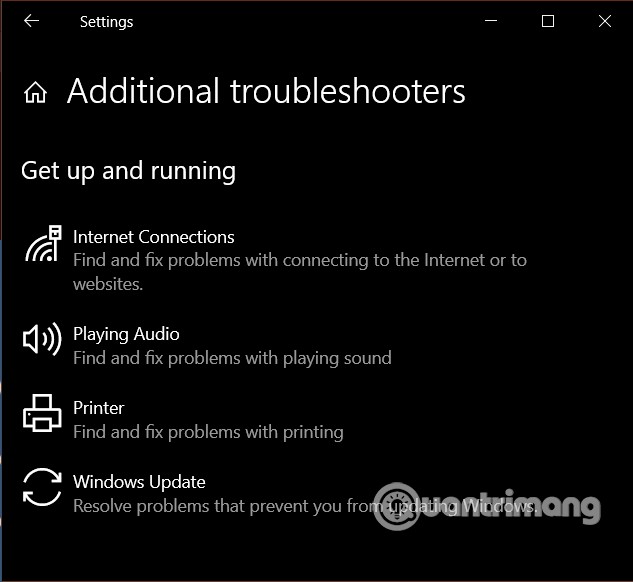
<p style="text-align: justify;">Bạn có thể chạy trình sửa lỗi internet bằng cách nhấn nút Windows để mở&nbsp;<strong>Start menu</strong>&nbsp;sau đó nhập&nbsp;<code><strong>troubleshoot settings</strong></code>. Nhấp vào&nbsp;<strong>Troubleshoot settings</strong>&nbsp;trong kết quả tìm kiếm sẽ giúp bạn mở cửa sổ thiết lập trình sửa lỗi.</p>

<p style="text-align: justify;">Tại đây, bạn nhấn vào&nbsp;<strong>Additional troubleshooters</strong>&nbsp;và chọn&nbsp;<strong>Internet Connections</strong>&nbsp;rồi nhấn&nbsp;<strong>Run the troubleshooter</strong>. Tiếp theo, bạn để hệ thống tự tìm kiếm và khắc phục vấn đề.</p>

<div style="text-align: justify;">&nbsp;</div>

<p style="text-align: justify;">Nếu sau đó kết nối internet của bạn hoạt động bình thường mà vẫn gặp lỗi 0x80040115 thì bạn hãy chuyển sang các giải pháp tiếp theo.</p>

<h2 style="text-align: justify;">2. Mở Outlook ở chế độ safe mode và chạy trình sửa lỗi các add-in</h2>

<p style="text-align: justify;">Lỗi 0x80040115 cũng có thể xuất hiện do các add-in mà bạn thêm vào Outlook gặp vấn đề. Vì thế, bạn cần truy cập Outlook ở chế độ safe mode để chạy trình sửa lỗi add-in. Ở chế độ safe mode, Outlook sẽ không khởi động các add-in.</p>

<p style="text-align: justify;"><img alt="" data-i="1" data-src="https://st.quantrimang.com/photos/image/2021/01/14/khac-phuc-loi-0x80040115-cua-microsoft-outlook-tren-windows-10.jpg" data-was-processed="true" height="271" src="https://st.quantrimang.com/photos/image/2021/01/14/khac-phuc-loi-0x80040115-cua-microsoft-outlook-tren-windows-10.jpg" width="456" /></p>

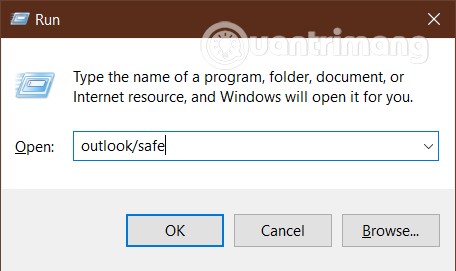
<p style="text-align: justify;">Bạn làm điều này bằng cách nhấn nút&nbsp;<strong>Windows</strong>&nbsp;sau đó nhập&nbsp;<code><strong>Run</strong></code>&nbsp;và nhấn&nbsp;<strong>Enter</strong>&nbsp;để mở&nbsp;<strong>Run</strong>. Sau đó nhập lệnh&nbsp;<strong>Outlook/safe</strong>&nbsp;vào Run và nhấn&nbsp;<strong>Enter</strong>&nbsp;để chạy Outlook ở chế độ safe mode. Sau khi Outllook mở lên, bạn chọn tài khoản rồi nhấn&nbsp;<strong>OK</strong>.</p>

<p style="text-align: justify;">Lúc này, bạn hãy thử gửi email xem có được hay không. Nếu vẫn không thể gửi email thì bạn cần chuyển sang giải pháp tiếp theo. Mặt khác, nếu vấn đề được giải quyết và bạn có thể gửi email thì rõ ràng là một trong số những add-in đã bị lỗi.</p>

<p style="text-align: justify;"><img alt="" data-i="2" data-src="https://st.quantrimang.com/photos/image/2021/01/14/khac-phuc-loi-0x80040115-cua-microsoft-outlook-tren-windows-10-1.jpg" data-was-processed="true" height="530" src="https://st.quantrimang.com/photos/image/2021/01/14/khac-phuc-loi-0x80040115-cua-microsoft-outlook-tren-windows-10-1.jpg" width="650" /></p>

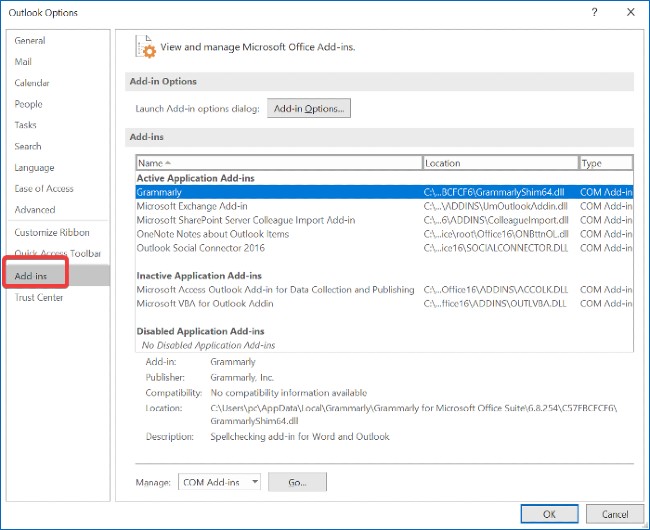
<p style="text-align: justify;">Để tìm add-in bị lỗi bạn cần chạy Outlook ở chế độ bình thường. Tiếp theo, nhấn vào&nbsp;<strong>File &gt; Options</strong>&nbsp;và tìm tới thẻ&nbsp;<strong>Add-in</strong>&nbsp;ở bên dưới. Tại đây, bạn nên vô hiệu hóa tất cả các add-in sau đó khởi động từng cái và thử gửi email xem có gặp lỗi hay không.</p>

<h2 style="text-align: justify;">3. Flush DNS trên thiết bị của bạn</h2>

<p style="text-align: justify;">Rất nhiều người đã khắc phục thành công lỗi 0x80040115 chỉ bằng cách flush DNS (xóa cache DNS) trên thiết bị của bọ. Bạn có thể flush DNS bằng cách nhấn&nbsp;<strong>Windows + X</strong>&nbsp;sau đó chọn&nbsp;<strong>Command Prompt (Admin)</strong>&nbsp;để mở Command Prompt dưới quyền Administrator.</p>

<p style="text-align: justify;">Tiếp theo, bạn nhập lệnh sau vào Command Prompt và nhấn&nbsp;<strong>Enter</strong>:</p>

<pre id="pre1">
<code>ipconfig/flushdns</code></pre>

<p style="text-align: justify;">Thoát Command Prompt sau khi flush DNS xong và thử gửi email một lần nữa. Nếu lỗi 0x80040115 vẫn còn, mời các bạn thử giải pháp tiếp theo.</p>

<h2 style="text-align: justify;">4. Mã hóa dữ liệu giữa Outlook và Exchange</h2>

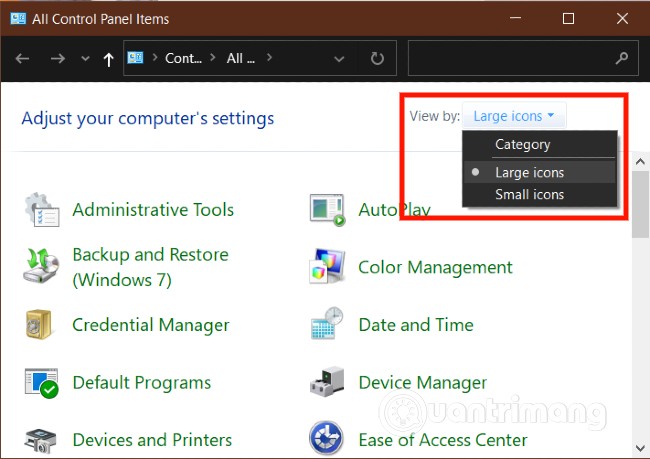
<p style="text-align: justify;">Bây giờ, bạn mở Control Panel và thiết lập để nó hiển thị ở chế độ biểu tượng lớn. Bạn làm điều này bằng cách nhấp vào menu thả xuống ở góc trên bên phải của cửa sổ Control Panel.</p>

<p style="text-align: justify;"><img alt="" data-i="3" data-src="https://st.quantrimang.com/photos/image/2021/01/14/khac-phuc-loi-0x80040115-cua-microsoft-outlook-tren-windows-10-2.jpg" data-was-processed="true" height="459" src="https://st.quantrimang.com/photos/image/2021/01/14/khac-phuc-loi-0x80040115-cua-microsoft-outlook-tren-windows-10-2.jpg" width="650" /></p>

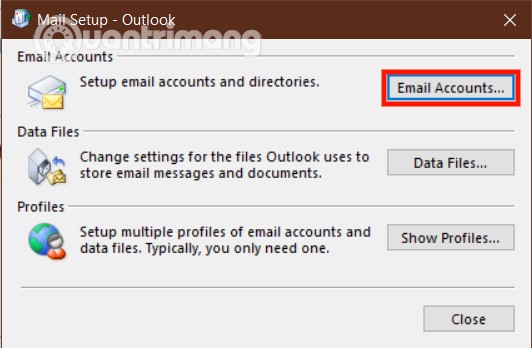
<p style="text-align: justify;">Tiếp theo, nhấp vào&nbsp;<strong>Mail (Microsoft Outlook)</strong>&nbsp;để mở cửa sổ&nbsp;<strong>Mail Setup</strong>. Ở đây, bạn chọn tài khoản đang gặp lỗi và nhấp vào nút&nbsp;<strong>Properties</strong>. Kết tiếp, nhấp vào&nbsp;<strong>Email Accounts</strong>.</p>

<p style="text-align: justify;">Chọn tài khoản mà bạn đang cố sửa lỗi và nhấp vào&nbsp;<strong>Change</strong>. Bây giờ, bạn chọn&nbsp;<strong>More Settings</strong>. Cuối cùng, chuyển sang thẻ&nbsp;<strong>Security</strong>&nbsp;và nhấp vào hộp kiểm bên cạnh&nbsp;<strong>Encrypt data between Microsoft Office Outlook and Microsoft Exchange</strong>.</p>

<p style="text-align: justify;"><img alt="" data-i="4" data-src="https://st.quantrimang.com/photos/image/2021/01/14/khac-phuc-loi-0x80040115-cua-microsoft-outlook-tren-windows-10-3.jpg" data-was-processed="true" height="348" src="https://st.quantrimang.com/photos/image/2021/01/14/khac-phuc-loi-0x80040115-cua-microsoft-outlook-tren-windows-10-3.jpg" width="532" /></p>

<p style="text-align: justify;">Nhấn&nbsp;<strong>OK</strong>&nbsp;để lưu thay đổi và chạy lại Microsoft Outlook.</p>

<h2 style="text-align: justify;">5. Cài đặt lại, sửa cài đặt Microsoft Outlook</h2>

<p style="text-align: justify;">Giống như mọi ứng dụng khác trên máy tính của bạn, Outlook có thể gặp vấn đề. Khi đó, lỗi 0x80040115 nhiều khả năng sẽ xuất hiện khi bạn gửi email. Nếu tất cả các giải pháp trên đều không thể khắc phục thì bạn chỉ còn lựa chọn duy nhất là sửa lại cài đặt Microsoft Outlook.</p>

<p style="text-align: justify;"><strong>Lưu ý:</strong>&nbsp;Bạn chỉ có thể thực hiện giải pháp này nếu bạn cài Outlook một cách độc lập, không liên quan gì tới bộ ứng dụng Microsoft Office.</p>

<div style="text-align: justify;">&nbsp;</div>

<p style="text-align: justify;">Đầu tiên bạn nhấp chuột phải vào&nbsp;<strong>Start menu</strong>&nbsp;(hoặc nhấn&nbsp;<strong>Windows + X</strong>) sau đó chọn<strong>&nbsp;Apps and Features</strong>. Tìm kiếm&nbsp;<strong>Microsoft Outlook</strong>&nbsp;trong danh sách các ứng dụng đã được cài đặt và nhấp vào nó để mở&nbsp;<strong>Office Troubleshooter</strong>.&nbsp;</p>

<p style="text-align: justify;">Tiếp theo, nhấn vào&nbsp;<strong>Quick Repair</strong>&nbsp;trong Office Troubleshooter và cho phép nó quét Outlook để tìm lỗi. Lỗi có thể sẽ được khắc phục sau quá trình này.</p>

<p style="text-align: justify;">Nếu vẫn còn lỗi, bạn hãy chọn<strong>&nbsp;Online Repair</strong>&nbsp;trong Office Troubleshooter và tiến hành quét, sửa lỗi lại từ đầu. Hãy đảm bảo rằng máy tính Windows 10 của bạn luôn có kết nối internet trong quá trình sửa lỗi này. Việc sửa lỗi có thể mất một chút thời gian nhưng nhiều người đã khắc phục được lỗi 0x80040115 trên Outlook bằng cách này.</p>

<p style="text-align: justify;">Chúc các bạn thành công</p>
		</div>
				<div id="author">
						<p>
				<strong>Nguồn tin:</strong>
				Quantrimang.com
			</p>
		</div>
	</div>
	<div id="footer" class="clearfix">
		<div id="url">
			<strong>URL của bản tin này: </strong><a href="https://www.nguoicodonvn2008.info/vi/news/savefile/kien-thuc-may-tinh/khac-phuc-loi-0x80040115-cua-microsoft-outlook-tren-windows-10-3471.html" title="Khắc phục lỗi 0x80040115 của Microsoft Outlook trên Windows 10">https://www.nguoicodonvn2008.info/vi/news/savefile/kien-thuc-may-tinh/khac-phuc-loi-0x80040115-cua-microsoft-outlook-tren-windows-10-3471.html</a>

		</div>
		<div class="clear"></div>
		<div class="copyright">
			&copy; .&#x3A; Nguoicodonvn2008.info - Cõi lòng người cô đơn &#x3A;.
		</div>
		<div id="contact">
			<a href="mailto:admin@nguoicodonvn2008.info">admin@nguoicodonvn2008.info</a>
		</div>
	</div>
</div>
        <div id="timeoutsess" class="chromeframe">
            Bạn đã không sử dụng Site, <a onclick="timeoutsesscancel();" href="https://www.nguoicodonvn2008.info/#">Bấm vào đây để duy trì trạng thái đăng nhập</a>. Thời gian chờ: <span id="secField"> 60 </span> giây
        </div>
        <div id="openidResult" class="nv-alert" style="display:none"></div>
        <div id="openidBt" data-result="" data-redirect=""></div>
		</script>
		<div class="car-top">
  <span><img src="https://www.nguoicodonvn2008.info/themes/default/images/car.png" alt=""></span>
</div>
<script src="https://www.nguoicodonvn2008.info/assets/js/jquery/jquery.min.js"></script>
<script>var nv_base_siteurl="/",nv_lang_data="vi",nv_lang_interface="vi",nv_name_variable="nv",nv_fc_variable="op",nv_lang_variable="language",nv_module_name="news",nv_func_name="savefile",nv_is_user=0, nv_my_ofs=-4,nv_my_abbr="EDT",nv_cookie_prefix="nv4c_e856T",nv_check_pass_mstime=1738000,nv_area_admin=0,nv_safemode=0,theme_responsive=0,nv_recaptcha_ver=2,nv_recaptcha_sitekey="",nv_recaptcha_type="image",XSSsanitize=1;</script>
<script src="https://www.nguoicodonvn2008.info/assets/js/language/vi.js"></script>
<script src="https://www.nguoicodonvn2008.info/assets/js/DOMPurify/purify3.js"></script>
<script src="https://www.nguoicodonvn2008.info/assets/js/global.js"></script>
<script src="https://www.nguoicodonvn2008.info/assets/js/site.js"></script>
<script src="https://www.nguoicodonvn2008.info/themes/default/js/news.js"></script>
<script src="https://www.nguoicodonvn2008.info/themes/default/js/main.js"></script>
<script src="https://www.nguoicodonvn2008.info/themes/default/js/custom.js"></script>
<script type="application/ld+json">
        {
            "@context": "https://schema.org",
            "@type": "Organization",
            "url": "https://www.nguoicodonvn2008.info",
            "logo": "https://www.nguoicodonvn2008.info/uploads/angel.gif"
        }
        </script>
<script src="https://www.nguoicodonvn2008.info/themes/default/js/bootstrap.min.js"></script>
<script type="text/javascript">
var $scrolltop = $('.car-top');
$scrolltop.on('click', function () {
    $('html,body').animate({
        scrollTop: 0
    }, 800);
    $(this).addClass("car-run");
    setTimeout(function(){ $scrolltop.removeClass('car-run');}, 1000);
    return false;
});
$(window).on('scroll', function ()
{ 
    if($(window).scrollTop() >= 200)
    {
        $scrolltop.addClass("show");
        $scrolltop.addClass("car-down");
    }
    else
    {
       $scrolltop.removeClass("show");
       setTimeout(function(){ $scrolltop.removeClass('car-down');}, 300);
    }
});
</script>
</body>
</html>