<!DOCTYPE html>
    <html lang="vi" xmlns="http://www.w3.org/1999/xhtml" prefix="og: http://ogp.me/ns#">
    <head>
<title>Hướng dẫn toàn tập Word 2016 &#40;Phần 15&#41;&#x3A; Đánh số trang</title>
<meta name="description" content="Hướng dẫn toàn tập Word 2016 &#40;Phần 15&#41;&#x3A; Đánh số trang - Savefile - Tin Tức -...">
<meta name="author" content=".: Nguoicodonvn2008.info - Cõi lòng người cô đơn :.">
<meta name="copyright" content=".: Nguoicodonvn2008.info - Cõi lòng người cô đơn :. [admin@nguoicodonvn2008.info]">
<meta name="robots" content="index, archive, follow, noodp">
<meta name="googlebot" content="index,archive,follow,noodp">
<meta name="msnbot" content="all,index,follow">
<meta name="generator" content="NukeViet v4.5">
<meta http-equiv="Content-Type" content="text/html; charset=utf-8">
<meta property="og:title" content="Hướng dẫn toàn tập Word 2016 &#40;Phần 15&#41;&#x3A; Đánh số trang">
<meta property="og:type" content="website">
<meta property="og:description" content="Savefile - Tin Tức - https&#x3A;&#x002F;&#x002F;www.nguoicodonvn2008.info&#x002F;vi&#x002F;news&#x002F;savefile&#x002F;kien-thuc-may-tinh&#x002F;huong-dan-toan-tap-word-2016-phan-15-danh-so-trang-9064.html">
<meta property="og:site_name" content=".&#x3A; Nguoicodonvn2008.info - Cõi lòng người cô đơn &#x3A;.">
<meta property="og:url" content="https://www.nguoicodonvn2008.info/vi/news/savefile/kien-thuc-may-tinh/huong-dan-toan-tap-word-2016-phan-15-danh-so-trang-9064.html">
<link rel="shortcut icon" href="https://www.nguoicodonvn2008.info/favicon.ico">
<link rel="canonical" href="https://www.nguoicodonvn2008.info/vi/news/savefile/kien-thuc-may-tinh/huong-dan-toan-tap-word-2016-phan-15-danh-so-trang-9064.html">
<link rel="alternate" href="https://www.nguoicodonvn2008.info/vi/news/rss/" title="Tin Tức" type="application/rss+xml">
<link rel="alternate" href="https://www.nguoicodonvn2008.info/vi/news/rss/karaoke-dual/" title="Tin Tức - Karaoke Dual" type="application/rss+xml">
<link rel="alternate" href="https://www.nguoicodonvn2008.info/vi/news/rss/nhac-tre/" title="Tin Tức - Nhạc trẻ" type="application/rss+xml">
<link rel="alternate" href="https://www.nguoicodonvn2008.info/vi/news/rss/tru-tinh/" title="Tin Tức - Trữ tình" type="application/rss+xml">
<link rel="alternate" href="https://www.nguoicodonvn2008.info/vi/news/rss/nuoc-ngoai/" title="Tin Tức - Nước ngoài" type="application/rss+xml">
<link rel="alternate" href="https://www.nguoicodonvn2008.info/vi/news/rss/remix/" title="Tin Tức - Remix" type="application/rss+xml">
<link rel="alternate" href="https://www.nguoicodonvn2008.info/vi/news/rss/tam-su-tinh-yeu/" title="Tin Tức - Tâm sự tình yêu" type="application/rss+xml">
<link rel="alternate" href="https://www.nguoicodonvn2008.info/vi/news/rss/tho-suu-tam/" title="Tin Tức - Thơ sưu tầm" type="application/rss+xml">
<link rel="alternate" href="https://www.nguoicodonvn2008.info/vi/news/rss/cuoc-song/" title="Tin Tức - Cuộc sống" type="application/rss+xml">
<link rel="alternate" href="https://www.nguoicodonvn2008.info/vi/news/rss/phan-mem/" title="Tin Tức - Phần mềm" type="application/rss+xml">
<link rel="alternate" href="https://www.nguoicodonvn2008.info/vi/news/rss/kien-thuc-may-tinh/" title="Tin Tức - Kiến thức máy tính" type="application/rss+xml">
<link rel="alternate" href="https://www.nguoicodonvn2008.info/vi/news/rss/hoc-tap/" title="Tin Tức - Học tập" type="application/rss+xml">
<link rel="alternate" href="https://www.nguoicodonvn2008.info/vi/news/rss/tai-lieu/" title="Tin Tức - Tài liệu" type="application/rss+xml">
<link rel="alternate" href="https://www.nguoicodonvn2008.info/vi/news/rss/de-thi/" title="Tin Tức - Đề thi" type="application/rss+xml">
<link rel="preload" as="style" href="https://www.nguoicodonvn2008.info/assets/css/font-awesome.min.css" type="text/css">
<link rel="preload" as="style" href="https://www.nguoicodonvn2008.info/themes/default/css/bootstrap.non-responsive.css" type="text/css">
<link rel="preload" as="style" href="https://www.nguoicodonvn2008.info/themes/default/css/style.css" type="text/css">
<link rel="preload" as="style" href="https://www.nguoicodonvn2008.info/themes/default/css/style.non-responsive.css" type="text/css">
<link rel="preload" as="style" href="https://www.nguoicodonvn2008.info/themes/default/css/news.css" type="text/css">
<link rel="preload" as="style" href="https://www.nguoicodonvn2008.info/themes/default/css/custom.css" type="text/css">
<link rel="preload" as="script" href="https://www.nguoicodonvn2008.info/assets/js/jquery/jquery.min.js" type="text/javascript">
<link rel="preload" as="script" href="https://www.nguoicodonvn2008.info/assets/js/language/vi.js" type="text/javascript">
<link rel="preload" as="script" href="https://www.nguoicodonvn2008.info/assets/js/DOMPurify/purify3.js" type="text/javascript">
<link rel="preload" as="script" href="https://www.nguoicodonvn2008.info/assets/js/global.js" type="text/javascript">
<link rel="preload" as="script" href="https://www.nguoicodonvn2008.info/assets/js/site.js" type="text/javascript">
<link rel="preload" as="script" href="https://www.nguoicodonvn2008.info/themes/default/js/news.js" type="text/javascript">
<link rel="preload" as="script" href="https://www.nguoicodonvn2008.info/themes/default/js/main.js" type="text/javascript">
<link rel="preload" as="script" href="https://www.nguoicodonvn2008.info/themes/default/js/custom.js" type="text/javascript">
<link rel="preload" as="script" href="https://www.nguoicodonvn2008.info/themes/default/js/bootstrap.min.js" type="text/javascript">
<link rel="stylesheet" href="https://www.nguoicodonvn2008.info/assets/css/font-awesome.min.css">
<link rel="stylesheet" href="https://www.nguoicodonvn2008.info/themes/default/css/bootstrap.non-responsive.css">
<link rel="stylesheet" href="https://www.nguoicodonvn2008.info/themes/default/css/style.css">
<link rel="stylesheet" href="https://www.nguoicodonvn2008.info/themes/default/css/style.non-responsive.css">
<link rel="StyleSheet" href="https://www.nguoicodonvn2008.info/themes/default/css/news.css">
<link rel="stylesheet" href="https://www.nguoicodonvn2008.info/themes/default/css/custom.css">
<style type="text/css">
	body{background: #fff;}
</style>
    </head>
    <body>
<div id="print">
	<div id="hd_print">
		<h2 class="pull-left">.&#x3A; Nguoicodonvn2008.info - Cõi lòng người cô đơn &#x3A;.</h2>
		<p class="pull-right"><a title=".&#x3A; Nguoicodonvn2008.info - Cõi lòng người cô đơn &#x3A;." href="https://www.nguoicodonvn2008.info/">https://www.nguoicodonvn2008.info</a></p>
	</div>
	<div class="clear"></div>
	<hr />
	<div id="content">
		<h1>Hướng dẫn toàn tập Word 2016 &#40;Phần 15&#41;&#x3A; Đánh số trang</h1>
		<ul class="list-inline">
			<li>Thứ năm - 26/09/2024 00:21</li>
			<li class="hidden-print txtrequired"><em class="fa fa-print">&nbsp;</em><a title="In ra" href="javascript:;" onclick="window.print()">In ra</a></li>
			<li class="hidden-print txtrequired"><em class="fa fa-power-off">&nbsp;</em><a title="Đóng cửa sổ này" href="javascript:;" onclick="window.close()">Đóng cửa sổ này</a></li>
		</ul>
		<div class="clear"></div>
		<div id="hometext">
		</div>
				<div class="imghome">
			<img alt="Hướng dẫn toàn tập Word 2016 &#40;Phần 15&#41;&#x3A; Đánh số trang" src="https://st.quantrimang.com/photos/image/2017/05/08/word-2016-danh-so-trang-chon.jpg" width="460" class="img-thumbnail" />
		</div>
		<div class="clear"></div>
		<div id="bodytext" class="clearfix">
			<p style="text-align: justify;"><strong>Cách đánh số trang trong Word 2016</strong>&nbsp;<strong>theo ý muốn&nbsp;</strong>không khó. Bài viết sẽ hướng dẫn bạn&nbsp;<strong>cách đánh số trang trong Word 2016</strong>&nbsp;thật dễ dàng.</p>

<p style="text-align: justify;">Sọan thảo văn bản là một kỹ năng cần thiết khi bạn muốn làm việc văn phòng với một mức lương khá. Chính vì thế, nó đã được đưa vào làm môn học chính ngay từ bậc tiểu học. Tuy nhiên, để thành thạo được kỹ năng biên soạn tài liệu, bạn thật sự cần chăm chỉ luyện tập và tìm hiểu kỹ cách dùng Microsoft Word.</p>

<p style="text-align: justify;">MS Word từ lâu đã nổi tiếng là phần mềm soạn thảo, biên tập tài liệu hàng đầu. Và dù hiện đã có nhiều lựa chọn thay thế miễn phí nhưng vẫn chưa có sản phẩm nào thật sự đánh bại được nó. Sở dĩ như vậy bởi Microsoft rất tích cực cải tiến sản phẩm và mang tới cho người dùng hàng loạt những tính năng hữu ích.</p>

<p style="text-align: justify;">Với MS Word, bạn không chỉ có thể tùy chọn font, căn chỉnh lề, chèn ảnh, link mà còn có thể đánh số trang linh hoạt như ý muốn.</p>

<p style="text-align: justify;">Định dạng trang là một phần không thể thiếu khi xử lý tài liệu bởi nó góp phần làm cho tài liệu trở nên bắt mắt, ghi điểm hơn trong mắt người đọc. Về cơ bản,&nbsp;<strong>cách đánh trang trong Word 2016</strong>&nbsp;không khó. Dưới đây là hướng dẫn chi tiết.</p>

<p style="text-align: center;"><iframe allow="autoplay" allowfullscreen="" data-src="https://www.youtube.com/embed/JDqPR98mIZM" data-was-processed="true" frameborder="0" height="315" sandbox="allow-scripts allow-same-origin allow-forms allow-presentation allow-popups" src="https://www.youtube.com/embed/JDqPR98mIZM" width="560"></iframe></p>

<div style="text-align: justify;"><iframe allow="autoplay" allowtransparency="true" aria-label="Advertisement" data-google-container-id="a!2" data-google-query-id="CNeDuvHg34gDFUmJ6QUdpS0y9A" data-load-complete="true" frameborder="0" height="0" hspace="0" id="aswift_1" marginheight="0" marginwidth="0" name="aswift_1" sandbox="allow-scripts allow-same-origin allow-forms allow-presentation allow-popups" scrolling="no" tabindex="0" title="Advertisement" vspace="0" width="694"></iframe></div>

<h3 style="text-align: justify;">Cách thêm số trang vào văn bản</h3>

<p style="text-align: justify;">Word có thể tự động đánh số trang và đặt ở tiêu đề trang, chân trang hoặc lề bên. Nếu bạn đã tạo sẵn tiêu đề trang hay chân trang thì chúng sẽ bị bỏ và thay bằng số trang mới tạo.</p>

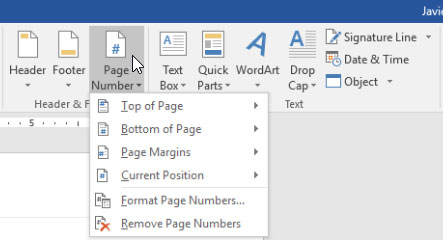
<p style="text-align: justify;"><strong>Bước 1:</strong>&nbsp;Chọn&nbsp;<strong>Page Number</strong>&nbsp;trên thẻ&nbsp;<strong>Insert.</strong></p>

<p style="text-align: justify;"><img alt="Chọn Page Number" data-i="0" data-src="https://st.quantrimang.com/photos/image/2017/05/08/word-2016-danh-so-trang-chon.jpg" data-was-processed="true" height="240" src="https://st.quantrimang.com/photos/image/2017/05/08/word-2016-danh-so-trang-chon.jpg" title="Chọn Page Number" width="443" /></p>

<p style="text-align: justify;"><strong>Bước 2:</strong>&nbsp;Tùy theo vị trí mà bạn muốn đánh số trang, chọn&nbsp;<strong>Top of Page</strong>&nbsp;(trên cùng văn bản),&nbsp;<strong>Bottom of Page</strong>&nbsp;(dưới cùng văn bản) hoặc&nbsp;<strong>Page Margin</strong>&nbsp;(lề trang) trong danh sách hiện ra. Sau đó hãy chọn kiểu hiển thị phù hợp.</p>

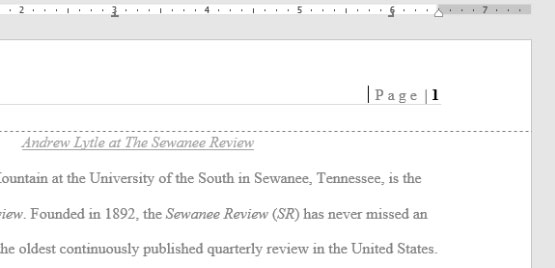
<p style="text-align: justify;"><strong>Bước 3:</strong>&nbsp;Số trang sẽ hiển thị trên văn bản.</p>

<p style="text-align: justify;"><img alt="Số trang hiển thị trên văn bản" data-i="1" data-src="https://st.quantrimang.com/photos/image/2017/05/08/word-2016-danh-so-trang-so-trang.jpg" data-was-processed="true" height="268" src="https://st.quantrimang.com/photos/image/2017/05/08/word-2016-danh-so-trang-so-trang.jpg" title="Số trang hiển thị trên văn bản" width="555" /></p>

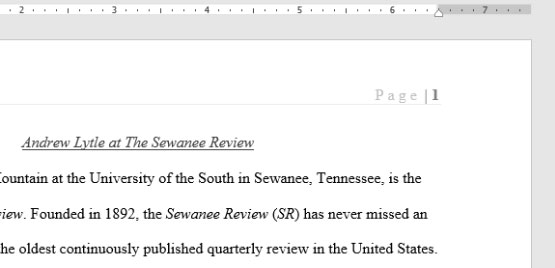
<p style="text-align: justify;"><strong>Bước 4:</strong>&nbsp;Nhấn phím&nbsp;<strong>Esc</strong>&nbsp;để khóa tiêu đề trang và chân trang.</p>

<p style="text-align: justify;"><img alt="Khóa tiêu đề trang" data-i="2" data-src="https://st.quantrimang.com/photos/image/2017/05/08/word-2016-danh-so-trang-esc.jpg" data-was-processed="true" height="268" src="https://st.quantrimang.com/photos/image/2017/05/08/word-2016-danh-so-trang-esc.jpg" title="Khóa tiêu đề trang" width="555" /></p>

<p style="text-align: justify;"><strong>Bước 5:</strong>&nbsp;Nếu cần thay đổi số trang, click đúp chuột vào tiêu đề hoặc chân trang để mở khóa. Dù bạn đánh số trang ở lề bên, nó vẫn được cho là một phần của tiêu đề trang hay chân trang. Do đó, sẽ không thể chọn số trang và chỉnh sửa nếu chưa mở khóa tiêu đề trang hoặc chân trang.</p>

<div style="text-align: justify;">&nbsp;</div>

<h3 style="text-align: justify;">Cách thêm số trang vào tiêu đề trang hoặc chân trang có sẵn</h3>

<p style="text-align: justify;">Nếu đã tạo sẵn tiêu đề trang hoặc chân trang và muốn thêm số trang, Word có một lựa chọn cho phép tự động chèn số trang rất dễ dàng.</p>

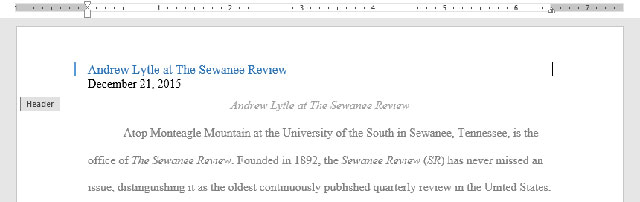
<p style="text-align: justify;"><strong>Bước 1:</strong>&nbsp;Click đúp chuột vào bất kì vị trí nào trên tiêu đề trang hoặc chân trang để mở khóa.</p>

<p style="text-align: justify;"><img alt="Mở khóa tiêu đề trang" data-i="3" data-src="https://st.quantrimang.com/photos/image/2017/05/08/word-2016-danh-so-trang-unlock.jpg" data-was-processed="true" height="202" src="https://st.quantrimang.com/photos/image/2017/05/08/word-2016-danh-so-trang-unlock.jpg" title="Mở khóa tiêu đề trang" width="640" /></p>

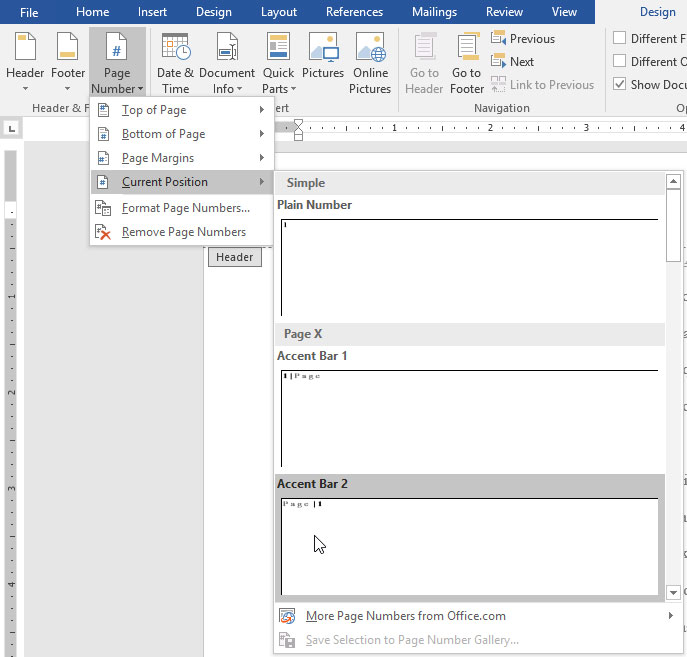
<p style="text-align: justify;"><strong>Bước 2:</strong>&nbsp;Trên thẻ&nbsp;<strong>Design,</strong>&nbsp;click&nbsp;<strong>Page Number.</strong>&nbsp;Trong danh sách hiện ra sau đó, rê chuột qua&nbsp;<strong>Current Position</strong>&nbsp;và chọn kiểu hiển thị số trang bạn thích.</p>

<p style="text-align: justify;"><img alt="Chọn kiểu hiển thị số trang" data-i="4" data-src="https://st.quantrimang.com/photos/image/2017/05/08/word-2016-danh-so-trang-re-chuot.jpg" data-was-processed="true" height="612" src="https://st.quantrimang.com/photos/image/2017/05/08/word-2016-danh-so-trang-re-chuot.jpg" title="Chọn kiểu hiển thị số trang" width="640" /></p>

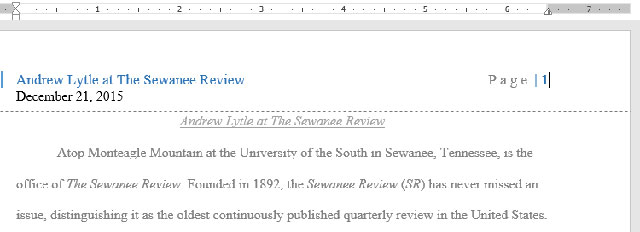
<p style="text-align: justify;"><strong>Bước 3:</strong>&nbsp;Số trang sẽ hiển thị sau đó.</p>

<p style="text-align: justify;"><img alt="Số trang mới được thêm" data-i="5" data-src="https://st.quantrimang.com/photos/image/2017/05/08/word-2016-danh-so-trang-so-trang-2.jpg" data-was-processed="true" height="232" src="https://st.quantrimang.com/photos/image/2017/05/08/word-2016-danh-so-trang-so-trang-2.jpg" title="Số trang mới được thêm" width="640" /></p>

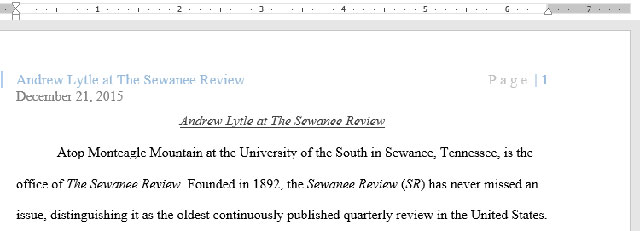
<p style="text-align: justify;"><strong>Bước 4:</strong>&nbsp;Sau khi hoàn thành, nhấp phím&nbsp;<strong>Esc.</strong></p>

<p style="text-align: justify;"><img alt="Nhấn Esc để khóa tiêu đề trang" data-i="6" data-src="https://st.quantrimang.com/photos/image/2017/05/08/word-2016-danh-so-trang-esc-2.jpg" data-was-processed="true" height="231" src="https://st.quantrimang.com/photos/image/2017/05/08/word-2016-danh-so-trang-esc-2.jpg" title="Nhấn Esc để khóa tiêu đề trang" width="640" /></p>

<h3 style="text-align: justify;">Cách ẩn số trang trên trang đầu tiên</h3>

<p style="text-align: justify;">Trong một số văn bản, có thể bạn sẽ muốn ẩn số trang ở trang đầu tiên mà không ảnh hưởng tới các trang còn lại.</p>

<div style="text-align: justify;">&nbsp;</div>

<p style="text-align: justify;"><strong>Bước 1:</strong>&nbsp;Click đúp chuột vào tiêu đề trang hoặc chân trang.<br />
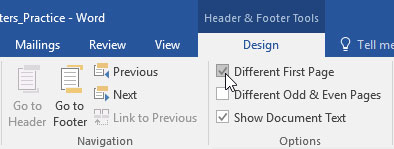
<strong>Bước 2:</strong>&nbsp;Từ thẻ&nbsp;<strong>Design,</strong>&nbsp;chọn hộp thoại&nbsp;<strong>Different First Page.</strong>&nbsp;Khi đó, tiêu đề trang và chân trang sẽ biến mất khỏi trang đầu tiên. Bạn có thể gõ nội dung lên tiêu đề trang và chân trang mà không hề ảnh hưởng tới các trang khác.</p>

<p style="text-align: justify;"><img alt="Ẩn số trang ở trang đầu tiên" data-i="7" data-src="https://st.quantrimang.com/photos/image/2017/05/08/word-2016-danh-so-trang-an.jpg" data-was-processed="true" height="149" src="https://st.quantrimang.com/photos/image/2017/05/08/word-2016-danh-so-trang-an.jpg" title="Ẩn số trang ở trang đầu tiên" width="394" /></p>

<p style="text-align: justify;">Nếu không thể chọn&nbsp;<strong>Different First Page,</strong>&nbsp;có lẽ là do một đối tượng bên trong tiêu đề trang hoặc chân trang đang được chọn. Hãy click vào bên trong tiêu đề trang hoặc chân trang để đảm bảo bạn đang không chọn đối tượng nào.</p>

<h3 style="text-align: justify;">Cách đánh số lại cho trang văn bản</h3>

<p style="text-align: justify;">Word cho phép người dùng đánh số trang lại từ bất kì trang nào trong văn bản bằng cách tạo&nbsp;<strong>Section Break</strong>&nbsp;và đánh số trang từ số cụ thể.</p>

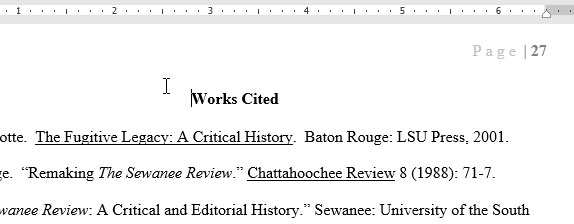
<p style="text-align: justify;"><strong>Bước 1:</strong>&nbsp;Đặt trỏ chuột vào đầu trang mà bạn muốn đánh số trang bắt đầu từ đó. Nếu đó là đoạn văn bản, hãy đặt trỏ chuột ở đầu đoạn văn bản.</p>

<p style="text-align: justify;"><img alt="Đặt trỏ chuột tại vị trí muốn đánh lại số trang" data-i="8" data-src="https://st.quantrimang.com/photos/image/2017/05/08/word-2016-danh-so-trang-tro-chuot.jpg" data-was-processed="true" height="224" src="https://st.quantrimang.com/photos/image/2017/05/08/word-2016-danh-so-trang-tro-chuot.jpg" title="Đặt trỏ chuột tại vị trí muốn đánh lại số trang" width="574" /></p>

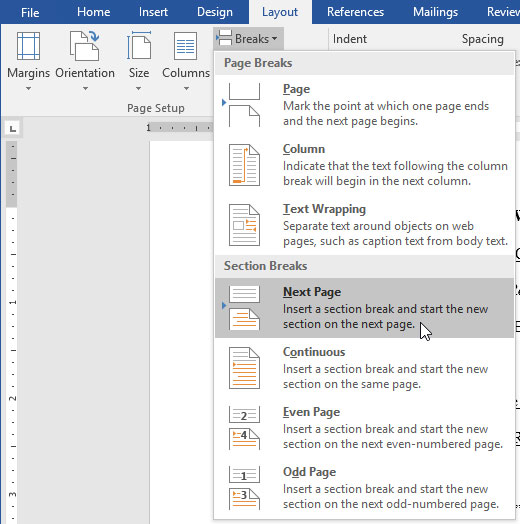
<p style="text-align: justify;"><strong>Bước 2:</strong>&nbsp;Chọn thẻ&nbsp;<strong>Layout, Next Page</strong>&nbsp;trong mục&nbsp;<strong>Section Breaks</strong>&nbsp;từ trình thả hiện ra sau đó.</p>

<p style="text-align: justify;">&nbsp;</p>

<div style="text-align: justify;"><br />
<br />
<img alt="Tạo Section Breaks" data-adbro-processed="true" data-i="9" data-src="https://st.quantrimang.com/photos/image/2017/05/08/word-2016-danh-so-trang-next-page.jpg" data-was-processed="true" height="524" src="https://st.quantrimang.com/photos/image/2017/05/08/word-2016-danh-so-trang-next-page.jpg" title="Tạo Section Breaks" width="520" /></div>

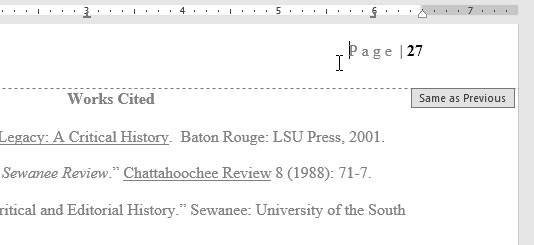
<p style="text-align: justify;"><strong>Bước 3:</strong>&nbsp;Bây giờ văn bản đã được tạo một vùng (section) mới.<br />
<strong>Bước 4:</strong>&nbsp;Click đúp chuột vào tiêu đề trang hoặc chân trang có chứa số trang mà bạn muốn thay đổi.</p>

<p style="text-align: justify;"><img alt="Thay đổi số trang" data-i="10" data-src="https://st.quantrimang.com/photos/image/2017/05/08/word-2016-danh-so-trang-so-trang-3.jpg" data-was-processed="true" height="245" src="https://st.quantrimang.com/photos/image/2017/05/08/word-2016-danh-so-trang-so-trang-3.jpg" title="Thay đổi số trang" width="534" /></p>

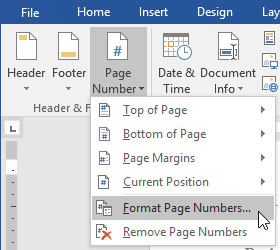
<p style="text-align: justify;"><strong>Bước 5:</strong>&nbsp;Click&nbsp;<strong>Page Number</strong>&nbsp;và chọn&nbsp;<strong>Format Page Numbers</strong>&nbsp;trong danh sách hiện ra.</p>

<p style="text-align: justify;"><img alt="Chọn Format Page Numbers để thay đổi thông tin số trang" data-i="11" data-src="https://st.quantrimang.com/photos/image/2017/05/08/word-2016-danh-so-trang-format-page-number.jpg" data-was-processed="true" height="250" src="https://st.quantrimang.com/photos/image/2017/05/08/word-2016-danh-so-trang-format-page-number.jpg" title="Chọn Format Page Numbers để thay đổi thông tin số trang" width="280" /></p>

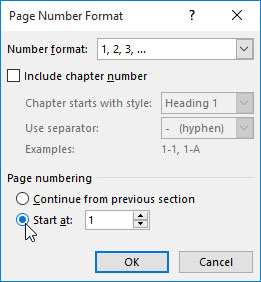
<p style="text-align: justify;"><strong>Bước 6:</strong>&nbsp;Trong hộp thoại xuất hiện ra sau đó, chọn&nbsp;<strong>Start at.</strong>&nbsp;Đây là số đầu tiên mà bạn sẽ đánh thứ tự cho trang, mặc định được chọn là 1. Nếu muốn bạn có thể thay đổi, ví dụ như đánh thứ tự từ số 5. Sau đó click&nbsp;<strong>OK.</strong></p>

<p style="text-align: justify;"><img alt="Lựa chọn số thứ tự bắt đầu đánh số trang" data-i="12" data-src="https://st.quantrimang.com/photos/image/2017/05/08/word-2016-danh-so-trang-start-at.jpg" data-was-processed="true" height="282" src="https://st.quantrimang.com/photos/image/2017/05/08/word-2016-danh-so-trang-start-at.jpg" title="Lựa chọn số thứ tự bắt đầu đánh số trang" width="261" /></p>

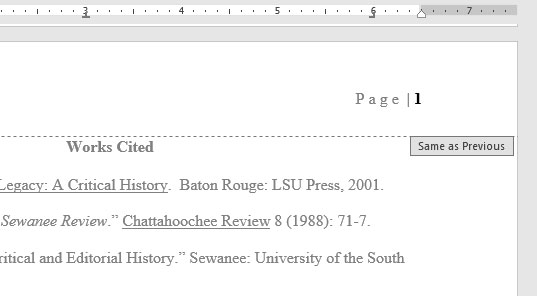
<p style="text-align: justify;"><strong>Bước 7:</strong>&nbsp;Số trang sẽ được đánh lại.</p>

<p style="text-align: justify;"><img alt="Số trang được đánh lại" data-i="13" data-src="https://st.quantrimang.com/photos/image/2017/05/08/word-2016-danh-so-trang-so-trang-4.jpg" data-was-processed="true" height="296" src="https://st.quantrimang.com/photos/image/2017/05/08/word-2016-danh-so-trang-so-trang-4.jpg" title="Số trang được đánh lại" width="537" /></p>

<p style="text-align: justify;">&nbsp;</p>

<div style="text-align: justify;">&nbsp;</div>
		</div>
				<div id="author">
						<p>
				<strong>Nguồn tin:</strong>
				Quantrimang.com:
			</p>
		</div>
	</div>
	<div id="footer" class="clearfix">
		<div id="url">
			<strong>URL của bản tin này: </strong><a href="https://www.nguoicodonvn2008.info/vi/news/savefile/kien-thuc-may-tinh/huong-dan-toan-tap-word-2016-phan-15-danh-so-trang-9064.html" title="Hướng dẫn toàn tập Word 2016 &#40;Phần 15&#41;&#x3A; Đánh số trang">https://www.nguoicodonvn2008.info/vi/news/savefile/kien-thuc-may-tinh/huong-dan-toan-tap-word-2016-phan-15-danh-so-trang-9064.html</a>

		</div>
		<div class="clear"></div>
		<div class="copyright">
			&copy; .&#x3A; Nguoicodonvn2008.info - Cõi lòng người cô đơn &#x3A;.
		</div>
		<div id="contact">
			<a href="mailto:admin@nguoicodonvn2008.info">admin@nguoicodonvn2008.info</a>
		</div>
	</div>
</div>
        <div id="timeoutsess" class="chromeframe">
            Bạn đã không sử dụng Site, <a onclick="timeoutsesscancel();" href="https://www.nguoicodonvn2008.info/#">Bấm vào đây để duy trì trạng thái đăng nhập</a>. Thời gian chờ: <span id="secField"> 60 </span> giây
        </div>
        <div id="openidResult" class="nv-alert" style="display:none"></div>
        <div id="openidBt" data-result="" data-redirect=""></div>
		</script>
		<div class="car-top">
  <span><img src="https://www.nguoicodonvn2008.info/themes/default/images/car.png" alt=""></span>
</div>
<script src="https://www.nguoicodonvn2008.info/assets/js/jquery/jquery.min.js"></script>
<script>var nv_base_siteurl="/",nv_lang_data="vi",nv_lang_interface="vi",nv_name_variable="nv",nv_fc_variable="op",nv_lang_variable="language",nv_module_name="news",nv_func_name="savefile",nv_is_user=0, nv_my_ofs=-4,nv_my_abbr="EDT",nv_cookie_prefix="nv4c_e856T",nv_check_pass_mstime=1738000,nv_area_admin=0,nv_safemode=0,theme_responsive=0,nv_recaptcha_ver=2,nv_recaptcha_sitekey="",nv_recaptcha_type="image",XSSsanitize=1;</script>
<script src="https://www.nguoicodonvn2008.info/assets/js/language/vi.js"></script>
<script src="https://www.nguoicodonvn2008.info/assets/js/DOMPurify/purify3.js"></script>
<script src="https://www.nguoicodonvn2008.info/assets/js/global.js"></script>
<script src="https://www.nguoicodonvn2008.info/assets/js/site.js"></script>
<script src="https://www.nguoicodonvn2008.info/themes/default/js/news.js"></script>
<script src="https://www.nguoicodonvn2008.info/themes/default/js/main.js"></script>
<script src="https://www.nguoicodonvn2008.info/themes/default/js/custom.js"></script>
<script type="application/ld+json">
        {
            "@context": "https://schema.org",
            "@type": "Organization",
            "url": "https://www.nguoicodonvn2008.info",
            "logo": "https://www.nguoicodonvn2008.info/uploads/angel.gif"
        }
        </script>
<script src="https://www.nguoicodonvn2008.info/themes/default/js/bootstrap.min.js"></script>
<script type="text/javascript">
var $scrolltop = $('.car-top');
$scrolltop.on('click', function () {
    $('html,body').animate({
        scrollTop: 0
    }, 800);
    $(this).addClass("car-run");
    setTimeout(function(){ $scrolltop.removeClass('car-run');}, 1000);
    return false;
});
$(window).on('scroll', function ()
{ 
    if($(window).scrollTop() >= 200)
    {
        $scrolltop.addClass("show");
        $scrolltop.addClass("car-down");
    }
    else
    {
       $scrolltop.removeClass("show");
       setTimeout(function(){ $scrolltop.removeClass('car-down');}, 300);
    }
});
</script>
</body>
</html>