<!DOCTYPE html>
    <html lang="vi" xmlns="http://www.w3.org/1999/xhtml" prefix="og: http://ogp.me/ns#">
    <head>
<title>Hướng dẫn sửa lỗi “Network path was not found” trong Windows</title>
<meta name="description" content="Hướng dẫn sửa lỗi “Network path was not found” trong Windows - Savefile - Tin Tức -...">
<meta name="author" content=".: Nguoicodonvn2008.info - Cõi lòng người cô đơn :.">
<meta name="copyright" content=".: Nguoicodonvn2008.info - Cõi lòng người cô đơn :. [admin@nguoicodonvn2008.info]">
<meta name="robots" content="index, archive, follow, noodp">
<meta name="googlebot" content="index,archive,follow,noodp">
<meta name="msnbot" content="all,index,follow">
<meta name="generator" content="NukeViet v4.5">
<meta http-equiv="Content-Type" content="text/html; charset=utf-8">
<meta property="og:title" content="Hướng dẫn sửa lỗi “Network path was not found” trong Windows">
<meta property="og:type" content="website">
<meta property="og:description" content="Savefile - Tin Tức - https&#x3A;&#x002F;&#x002F;www.nguoicodonvn2008.info&#x002F;vi&#x002F;news&#x002F;savefile&#x002F;kien-thuc-may-tinh&#x002F;huong-dan-sua-loi-network-path-was-not-found-trong-windows-7229.html">
<meta property="og:site_name" content=".&#x3A; Nguoicodonvn2008.info - Cõi lòng người cô đơn &#x3A;.">
<meta property="og:url" content="https://www.nguoicodonvn2008.info/vi/news/savefile/kien-thuc-may-tinh/huong-dan-sua-loi-network-path-was-not-found-trong-windows-7229.html">
<link rel="shortcut icon" href="https://www.nguoicodonvn2008.info/favicon.ico">
<link rel="canonical" href="https://www.nguoicodonvn2008.info/vi/news/savefile/kien-thuc-may-tinh/huong-dan-sua-loi-network-path-was-not-found-trong-windows-7229.html">
<link rel="alternate" href="https://www.nguoicodonvn2008.info/vi/news/rss/" title="Tin Tức" type="application/rss+xml">
<link rel="alternate" href="https://www.nguoicodonvn2008.info/vi/news/rss/karaoke-dual/" title="Tin Tức - Karaoke Dual" type="application/rss+xml">
<link rel="alternate" href="https://www.nguoicodonvn2008.info/vi/news/rss/nhac-tre/" title="Tin Tức - Nhạc trẻ" type="application/rss+xml">
<link rel="alternate" href="https://www.nguoicodonvn2008.info/vi/news/rss/tru-tinh/" title="Tin Tức - Trữ tình" type="application/rss+xml">
<link rel="alternate" href="https://www.nguoicodonvn2008.info/vi/news/rss/nuoc-ngoai/" title="Tin Tức - Nước ngoài" type="application/rss+xml">
<link rel="alternate" href="https://www.nguoicodonvn2008.info/vi/news/rss/remix/" title="Tin Tức - Remix" type="application/rss+xml">
<link rel="alternate" href="https://www.nguoicodonvn2008.info/vi/news/rss/tam-su-tinh-yeu/" title="Tin Tức - Tâm sự tình yêu" type="application/rss+xml">
<link rel="alternate" href="https://www.nguoicodonvn2008.info/vi/news/rss/tho-suu-tam/" title="Tin Tức - Thơ sưu tầm" type="application/rss+xml">
<link rel="alternate" href="https://www.nguoicodonvn2008.info/vi/news/rss/cuoc-song/" title="Tin Tức - Cuộc sống" type="application/rss+xml">
<link rel="alternate" href="https://www.nguoicodonvn2008.info/vi/news/rss/phan-mem/" title="Tin Tức - Phần mềm" type="application/rss+xml">
<link rel="alternate" href="https://www.nguoicodonvn2008.info/vi/news/rss/kien-thuc-may-tinh/" title="Tin Tức - Kiến thức máy tính" type="application/rss+xml">
<link rel="alternate" href="https://www.nguoicodonvn2008.info/vi/news/rss/hoc-tap/" title="Tin Tức - Học tập" type="application/rss+xml">
<link rel="alternate" href="https://www.nguoicodonvn2008.info/vi/news/rss/tai-lieu/" title="Tin Tức - Tài liệu" type="application/rss+xml">
<link rel="alternate" href="https://www.nguoicodonvn2008.info/vi/news/rss/de-thi/" title="Tin Tức - Đề thi" type="application/rss+xml">
<link rel="preload" as="style" href="https://www.nguoicodonvn2008.info/assets/css/font-awesome.min.css" type="text/css">
<link rel="preload" as="style" href="https://www.nguoicodonvn2008.info/themes/default/css/bootstrap.non-responsive.css" type="text/css">
<link rel="preload" as="style" href="https://www.nguoicodonvn2008.info/themes/default/css/style.css" type="text/css">
<link rel="preload" as="style" href="https://www.nguoicodonvn2008.info/themes/default/css/style.non-responsive.css" type="text/css">
<link rel="preload" as="style" href="https://www.nguoicodonvn2008.info/themes/default/css/news.css" type="text/css">
<link rel="preload" as="style" href="https://www.nguoicodonvn2008.info/themes/default/css/custom.css" type="text/css">
<link rel="preload" as="script" href="https://www.nguoicodonvn2008.info/assets/js/jquery/jquery.min.js" type="text/javascript">
<link rel="preload" as="script" href="https://www.nguoicodonvn2008.info/assets/js/language/vi.js" type="text/javascript">
<link rel="preload" as="script" href="https://www.nguoicodonvn2008.info/assets/js/DOMPurify/purify3.js" type="text/javascript">
<link rel="preload" as="script" href="https://www.nguoicodonvn2008.info/assets/js/global.js" type="text/javascript">
<link rel="preload" as="script" href="https://www.nguoicodonvn2008.info/assets/js/site.js" type="text/javascript">
<link rel="preload" as="script" href="https://www.nguoicodonvn2008.info/themes/default/js/news.js" type="text/javascript">
<link rel="preload" as="script" href="https://www.nguoicodonvn2008.info/themes/default/js/main.js" type="text/javascript">
<link rel="preload" as="script" href="https://www.nguoicodonvn2008.info/themes/default/js/custom.js" type="text/javascript">
<link rel="preload" as="script" href="https://www.nguoicodonvn2008.info/themes/default/js/bootstrap.min.js" type="text/javascript">
<link rel="stylesheet" href="https://www.nguoicodonvn2008.info/assets/css/font-awesome.min.css">
<link rel="stylesheet" href="https://www.nguoicodonvn2008.info/themes/default/css/bootstrap.non-responsive.css">
<link rel="stylesheet" href="https://www.nguoicodonvn2008.info/themes/default/css/style.css">
<link rel="stylesheet" href="https://www.nguoicodonvn2008.info/themes/default/css/style.non-responsive.css">
<link rel="StyleSheet" href="https://www.nguoicodonvn2008.info/themes/default/css/news.css">
<link rel="stylesheet" href="https://www.nguoicodonvn2008.info/themes/default/css/custom.css">
<style type="text/css">
	body{background: #fff;}
</style>
    </head>
    <body>
<div id="print">
	<div id="hd_print">
		<h2 class="pull-left">.&#x3A; Nguoicodonvn2008.info - Cõi lòng người cô đơn &#x3A;.</h2>
		<p class="pull-right"><a title=".&#x3A; Nguoicodonvn2008.info - Cõi lòng người cô đơn &#x3A;." href="https://www.nguoicodonvn2008.info/">https://www.nguoicodonvn2008.info</a></p>
	</div>
	<div class="clear"></div>
	<hr />
	<div id="content">
		<h1>Hướng dẫn sửa lỗi “Network path was not found” trong Windows</h1>
		<ul class="list-inline">
			<li>Thứ năm - 29/06/2023 10:15</li>
			<li class="hidden-print txtrequired"><em class="fa fa-print">&nbsp;</em><a title="In ra" href="javascript:;" onclick="window.print()">In ra</a></li>
			<li class="hidden-print txtrequired"><em class="fa fa-power-off">&nbsp;</em><a title="Đóng cửa sổ này" href="javascript:;" onclick="window.close()">Đóng cửa sổ này</a></li>
		</ul>
		<div class="clear"></div>
		<div id="hometext">
		</div>
				<div class="imghome">
			<img alt="Hướng dẫn sửa lỗi “Network path was not found” trong Windows" src="https://st.quantrimang.com/photos/image/2018/05/23/thong-bao-loi-nerwork-path-was-not-found.png" width="460" class="img-thumbnail" />
		</div>
		<div class="clear"></div>
		<div id="bodytext" class="clearfix">
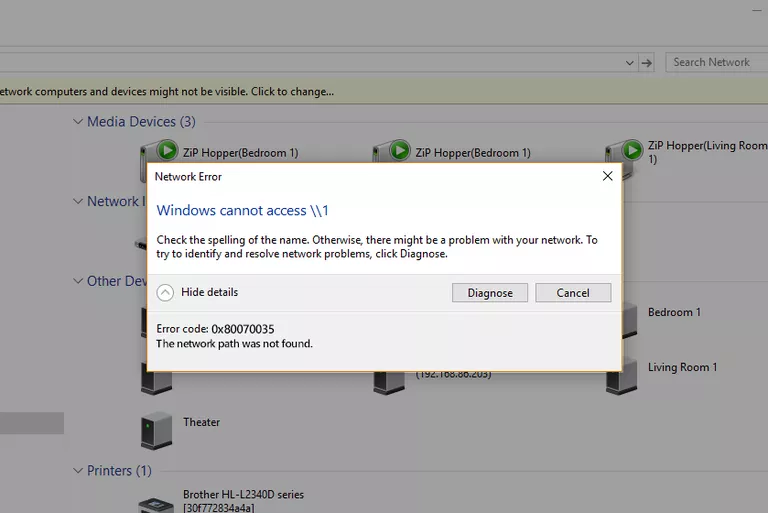
			<p style="text-align: justify;">Khi một máy tính, thiết bị di động hoặc máy in cố gắng kết nối qua mạng với máy tính Microsoft Windows chẳng hạn, thông báo lỗi &quot;network path was not found&quot; — Lỗi 0x80070035 có thể xuất hiện. Máy tính không thể thực hiện kết nối qua mạng với thiết bị kia.</p>

<p style="text-align: justify;">Thông báo lỗi này thường được hiển thị:&nbsp;<code>The Network Path Cannot Be Found.</code></p>

<p style="text-align: justify;">Hình ảnh thông báo lỗi<strong>&nbsp;The network path was not found</strong>&nbsp;sẽ như thế này:</p>

<p style="text-align: justify;"><img alt="Thông báo lỗi Network path was not found" data-i="0" data-src="https://st.quantrimang.com/photos/image/2018/05/23/thong-bao-loi-nerwork-path-was-not-found.png" data-was-processed="true" height="401" src="https://st.quantrimang.com/photos/image/2018/05/23/thong-bao-loi-nerwork-path-was-not-found.png" width="600" /></p>

<p style="text-align: justify;">Bất kỳ vấn đề kỹ thuật nào trên mạng cũng có thể gây ra lỗi này. Hãy thử các phương pháp xử lý sự cố được liệt kê ở đây để giải quyết hoặc khắc phục sự cố này.</p>

<h2 id="mcetoc_1cd3uu38u0" style="text-align: justify;">Cách 1: Sử dụng tên đường dẫn hợp lệ khi gặp lỗi Network Path Cannot Be Found</h2>

<p style="text-align: justify;">Lỗi 0x80070035 có thể xảy ra khi người dùng nhập sai tên đường dẫn mạng. Đường dẫn được chỉ định phải trỏ đến tài nguyên được chia sẻ hợp lệ trên thiết bị từ xa. Phải bật tính năng chia sẻ file hoặc máy in Windows trên thiết bị từ xa và người dùng từ xa phải có quyền truy cập tài nguyên.</p>

<p style="text-align: justify;">Đây là cách bạn có thể chia sẻ ổ được nhắm mục tiêu trên máy tính từ xa:</p>

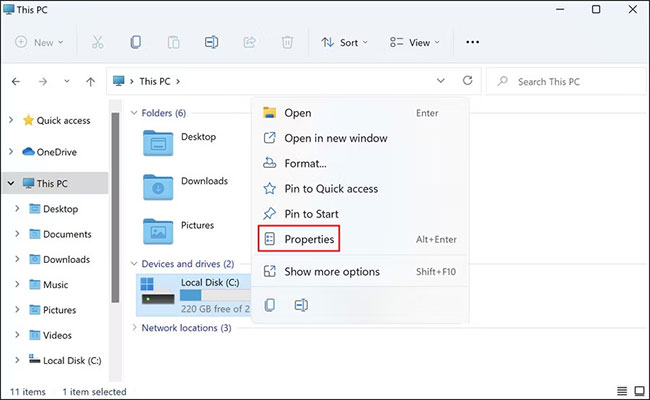
<p style="text-align: justify;">1. Nhấp chuột phải vào ổ được nhắm mục tiêu và chọn&nbsp;<strong>Properties</strong>&nbsp;từ menu ngữ cảnh.</p>

<figure>
<div style="text-align: justify;"><img alt="Chọn Properties" data-i="1" data-src="https://st.quantrimang.com/photos/image/2022/06/29/sua-loi-network-path-was-not-found-trong-windows-1.jpg" data-was-processed="true" height="400" src="https://st.quantrimang.com/photos/image/2022/06/29/sua-loi-network-path-was-not-found-trong-windows-1.jpg" width="650" /></div>

<figcaption>
<div style="text-align: justify;">Chọn Properties</div>
</figcaption>
</figure>

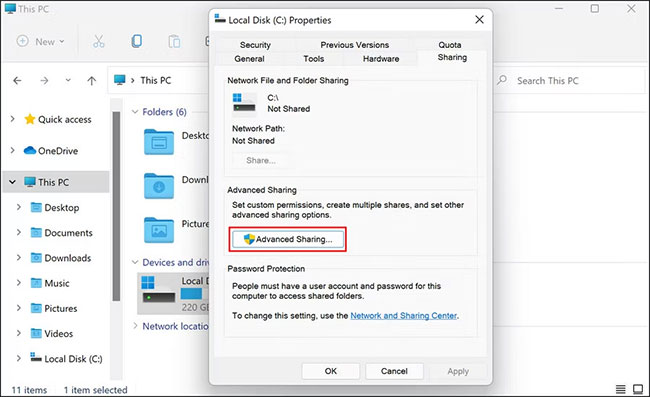
<p style="text-align: justify;">2. Trong hộp thoại sau, hãy chuyển đến tab&nbsp;<strong>Sharing</strong>&nbsp;và kiểm tra trạng thái của&nbsp;<strong>Network Path</strong>.</p>

<p style="text-align: justify;">3. Nếu trạng thái hiển thị là&nbsp;<strong>Not Shared</strong>, thì hãy nhấp vào nút&nbsp;<strong>Advanced Sharing.</strong></p>

<figure>
<div style="text-align: justify;"><img alt="Nhấp vào nút Advanced Sharing" data-i="2" data-src="https://st.quantrimang.com/photos/image/2022/06/29/sua-loi-network-path-was-not-found-trong-windows-2.jpg" data-was-processed="true" height="397" src="https://st.quantrimang.com/photos/image/2022/06/29/sua-loi-network-path-was-not-found-trong-windows-2.jpg" width="650" /></div>

<figcaption>
<div style="text-align: justify;">Nhấp vào nút Advanced Sharing</div>
</figcaption>
</figure>

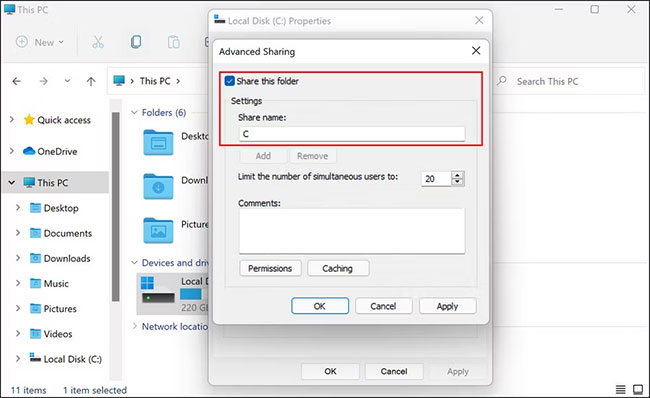
<p style="text-align: justify;">4. Đánh dấu vào ô được liên kết với&nbsp;<strong>Share this folder</strong>&nbsp;và lưu ý tên chia sẻ (<strong>Share name</strong>) của ổ đĩa.</p>

<figure>
<div style="text-align: justify;"><img alt="Đánh dấu vào ô được liên kết với Share this folder" data-i="3" data-src="https://st.quantrimang.com/photos/image/2022/06/29/sua-loi-network-path-was-not-found-trong-windows-3.jpg" data-was-processed="true" height="398" src="https://st.quantrimang.com/photos/image/2022/06/29/sua-loi-network-path-was-not-found-trong-windows-3.jpg" width="650" /></div>

<figcaption>
<div style="text-align: justify;">Đánh dấu vào ô được liên kết với Share this folder</div>
</figcaption>
</figure>

<p style="text-align: justify;">5. Sau khi hoàn tất, hãy nhấp vào&nbsp;<strong>Apply &gt; OK</strong>&nbsp;để lưu các thay đổi.</p>

<p style="text-align: justify;">Bây giờ, bạn có thể kiểm tra xem ổ có thể truy cập được không sau khi làm theo các bước ở trên.</p>

<h2 id="mcetoc_1cd3uu38u1" style="text-align: justify;">Cách 2: Một số phương pháp sửa lỗi cơ bản khác</h2>

<p style="text-align: justify;">Bất cứ điều bất thường nào trong hệ thống, bao gồm cả lỗi Network Path Cannot Be Found có thể xảy ra khi đồng hồ trên hai thiết bị không được thiết lập giống nhau. Hãy luôn để các thiết bị Windows trên mạng cục bộ được đồng bộ thông qua Network Time Protocol. Điều này có thể giúp bạn tránh gặp phải lỗi Network Path Cannot Be Found.</p>

<p style="text-align: justify;">Đảm bảo sử dụng đúng tên người dùng và mật khẩu hợp lệ khi kết nối với các tài nguyên từ xa.</p>

<p style="text-align: justify;">Nếu bất kỳ dịch vụ hệ thống Microsoft nào liên quan đến việc&nbsp;chia sẻ file&nbsp;và&nbsp;chia sẻ máy in trong mạng&nbsp;bị lỗi, lỗi Network Path Cannot Be Found cũng có thể xảy ra.</p>

<p style="text-align: justify;">Khởi động lại máy tính có thể khôi phục chức năng bình thường.</p>

<h2 id="mcetoc_1cd3uu38u2" style="text-align: justify;">Cách 3: Vô hiệu hóa tường lửa cục bộ/phần mềm diệt virus của bên thứ ba</h2>

<p style="text-align: justify;">Tường lửa bị định cấu hình sai hoặc đang chạy không đúng trên thiết bị Windows khởi tạo có thể gây ra lỗi Network Path Cannot Be Found. Tạm thời&nbsp;vô hiệu hóa tường lửa, tường lửa Windows tích hợp hoặc phần mềm tường lửa của bên thứ ba, sau đó kiểm tra thử lại xem lỗi Network Path Cannot Be Found còn xảy ra hay không.</p>

<p style="text-align: justify;">Nếu lỗi không còn xuất hiện nữa, người dùng nên thực hiện các bước bổ sung để thay đổi cài đặt tường lửa nhằm tránh kích hoạt lại lỗi này. Lưu ý rằng máy tính để bàn ở nhà đã được bảo vệ bằng tường lửa của router băng thông rộng nên không cần cài đặt tường lửa riêng cho chúng nữa, còn các thiết bị di động thì lại cần tường lửa riêng để bảo vệ.</p>

<p style="text-align: justify;">Một thủ phạm phổ biến khác thường ngăn người dùng kết nối với mạng, chia sẻ file và tải xuống ứng dụng từ các nguồn của bên thứ ba là việc phần mềm diệt virus bảo vệ quá mức.</p>

<p style="text-align: justify;">Công việc của phần mềm diệt virus là xác định các hoạt động độc hại và ngăn chặn chúng, nhưng đôi khi những chương trình bảo mật này cũng bắt đầu gắn nhãn các tiến trình hợp pháp là mối đe dọa, chặn chúng hoàn toàn.</p>

<p style="text-align: justify;">Nếu đang sử dụng chương trình bảo mật của bên thứ ba trên hệ điều hành của mình, bạn nên tạm thời vô hiệu hóa chương trình đó rồi thử kết nối với máy tính từ xa và chia sẻ file. Nếu phần mềm diệt virus đang gây ra sự cố, việc tắt phần mềm diệt virus sẽ khắc phục sự cố cho bạn.</p>

<p style="text-align: justify;">Bạn cũng có thể thử&nbsp;tắt Windows Defender&nbsp;nếu đang sử dụng nó và xem điều đó có hữu ích không. Tuy nhiên, sau khi chia sẻ xong các file, hãy đảm bảo rằng bạn bật lại phần mềm diệt virus ngay lập tức vì việc tắt phần mềm này trong thời gian dài có thể khiến PC của bạn gặp phải các mối đe dọa.</p>

<h2 id="mcetoc_1cd3uu38u3" style="text-align: justify;">Cách 4: Reset TCP/IP</h2>

<p style="text-align: justify;">Những người dùng bình thường không mấy quan tâm đến các vấn đề kỹ thuật liên quan đến hoạt động của hệ điều hành, nhưng một số người dùng khác lại muốn tìm hiểu các tùy chọn khắc phục sự cố nâng cao. Một phương pháp phổ biến để làm việc kết nối với mạng Windows ổn định hơn là reset lại các thành phần của Windows đang chạy trong nền hỗ trợ lưu lượng mạng TCP/IP.</p>

<p style="text-align: justify;">Các bước tiến hành cụ thể sẽ tùy thuộc vào phiên bản Windows đang sử dụng. Tuy nhiên cách tiếp cận này thường liên quan đến việc&nbsp;mở Command Prompt&nbsp;trên Windows và nhập lệnh &quot;netsh&quot;. Ví dụ, lệnh:</p>

<pre id="pre0" style="text-align: justify;">
netsh int ip reset</pre>

<p style="text-align: justify;">Lệnh này sẽ reset lại TCP/IP trên&nbsp;<a href="https://quantrimang.com/cong-nghe/windows-8-os" title="Chuyên mục Windows 8 trang quantrimang.com">Windows 8</a>&nbsp;và Windows 8.1. Khởi động lại máy tính sau khi thực thi lệnh này sẽ đưa Windows về trạng thái mặc định ban đầu.</p>

<h2 id="mcetoc_1g6mnrl0b3cn" style="text-align: justify;">Cách 5: Chỉnh sửa cài đặt NetBIOS</h2>

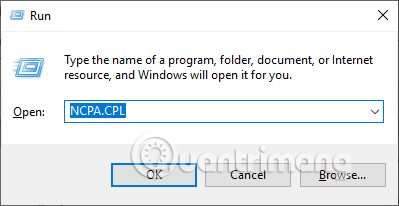
<p style="text-align: justify;">Chúng ta nhấn tổ hợp phím&nbsp;<strong>Windows + R</strong>&nbsp;để&nbsp;<a href="https://quantrimang.com/cong-nghe/cach-mo-hop-thoai-run-trong-windows-187019" title="7 cách mở hộp thoại Run trong Windows">mở hộp thoại Run</a>&nbsp;rồi nhập<strong>&nbsp;từ khóa NCPA.CP</strong>. Sau đó nhấn&nbsp;<strong>chuột phải vào mạng đang truy cập</strong>&nbsp;rồi chọn&nbsp;<strong>Properties</strong>.</p>

<p style="text-align: justify;"><img alt="Nhập từ khóa NCPA.CPL" data-i="4" data-src="https://st.quantrimang.com/photos/image/2019/09/27/loi-ket-noi-may-tinh-qua-mang-1.jpg" data-was-processed="true" height="206" src="https://st.quantrimang.com/photos/image/2019/09/27/loi-ket-noi-may-tinh-qua-mang-1.jpg" width="399" /></p>

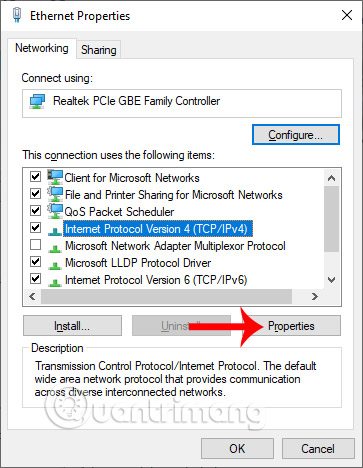
<p style="text-align: justify;">Hiển thị giao diện mới người dùng nhấn chọn vào&nbsp;<strong>Internet Protocol Version 4 (TCP/IPv4)</strong>&nbsp;trong danh sách bên dưới rồi nhấn tiếp vào&nbsp;<strong>Properties</strong>.</p>

<p style="text-align: justify;"><img alt="Internet Protocol Version 4 (TCP/IPv4)" data-i="5" data-src="https://st.quantrimang.com/photos/image/2019/09/27/loi-ket-noi-may-tinh-qua-mang-2.jpg" data-was-processed="true" height="468" src="https://st.quantrimang.com/photos/image/2019/09/27/loi-ket-noi-may-tinh-qua-mang-2.jpg" width="363" /></p>

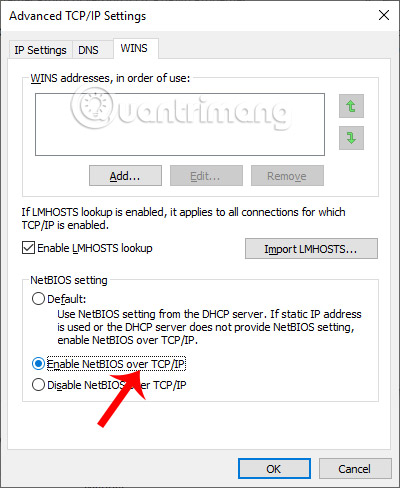
<p style="text-align: justify;">Chuyển sang hộp thoại mới bạn nhấn vào&nbsp;<strong>Advanced</strong>, rồi chọn vào&nbsp;<strong>tab WINS</strong>, tích chọn vào&nbsp;<strong>Enable NetBIOS over TCP/IP</strong>&nbsp;và nhấn OK để lưu lại.</p>

<p style="text-align: justify;"><img alt="Kích hoạt NetBIOS" data-i="6" data-src="https://st.quantrimang.com/photos/image/2019/09/27/loi-ket-noi-may-tinh-qua-mang-3.jpg" data-was-processed="true" height="488" src="https://st.quantrimang.com/photos/image/2019/09/27/loi-ket-noi-may-tinh-qua-mang-3.jpg" width="400" /></p>

<h2 id="mcetoc_1g6mnrl0b3co" style="text-align: justify;">Cách 6: Chuyển service TCP/IP NetBIOS Helper sang trạng thái hoạt động</h2>

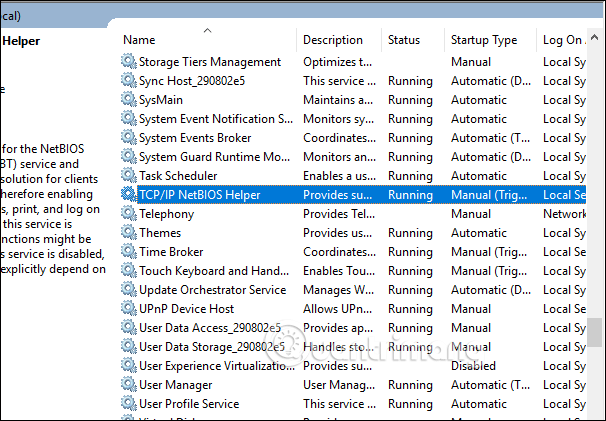
<p style="text-align: justify;">Chúng ta&nbsp;<a href="https://quantrimang.com/cong-nghe/tat-tan-tat-cach-mo-windows-services-tren-windows-1087-124047" title="Hướng dẫn sửa lỗi “Network path was not found” trong Windows">truy cập vào giao diện Windows Services</a>&nbsp;trên máy tính, rồi kiểm tra xem&nbsp;<strong>service TCP/IP NetBios Helper</strong>&nbsp;đã ở trạng thái hoạt động hay chưa. Nếu chưa thì click trực tiếp vào service rồi chuyển sang chế độ hoạt động.</p>

<p style="text-align: justify;"><img alt="Kich hoạt services" data-i="7" data-src="https://st.quantrimang.com/photos/image/2019/09/27/loi-ket-noi-may-tinh-qua-mang-4.png" data-was-processed="true" height="403" src="https://st.quantrimang.com/photos/image/2019/09/27/loi-ket-noi-may-tinh-qua-mang-4.png" width="580" /></p>

<p style="text-align: justify;">Ngoài ra, bạn cũng nên khởi động lại service này để đảm bảo rằng nó hoạt động. Dưới đây là những gì bạn cần làm:</p>

<p style="text-align: justify;">1. Mở&nbsp;<strong>Run</strong>&nbsp;bằng cách nhấn&nbsp;<strong>Win + R</strong>.</p>

<p style="text-align: justify;">2. Nhập&nbsp;<strong>services.msc</strong>&nbsp;trong&nbsp;<strong>Run</strong>&nbsp;và nhấn&nbsp;<strong>Enter.</strong></p>

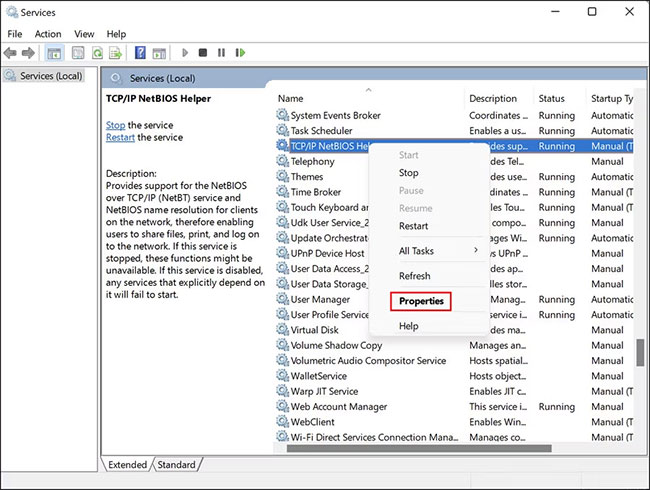
<p style="text-align: justify;">3. Trong cửa sổ&nbsp;<strong>Services</strong>, tìm&nbsp;<strong>TCP/IP NetBIOS Helper</strong>&nbsp;và nhấp chuột phải vào nó.</p>

<p style="text-align: justify;">4. Chọn&nbsp;<strong>Properties</strong>&nbsp;từ menu ngữ cảnh.</p>

<figure>
<div style="text-align: justify;"><img alt="Chọn Properties" data-i="8" data-src="https://st.quantrimang.com/photos/image/2022/06/29/sua-loi-network-path-was-not-found-trong-windows-4.jpg" data-was-processed="true" height="490" src="https://st.quantrimang.com/photos/image/2022/06/29/sua-loi-network-path-was-not-found-trong-windows-4.jpg" width="650" /></div>

<figcaption>
<div style="text-align: justify;">Chọn Properties</div>
</figcaption>
</figure>

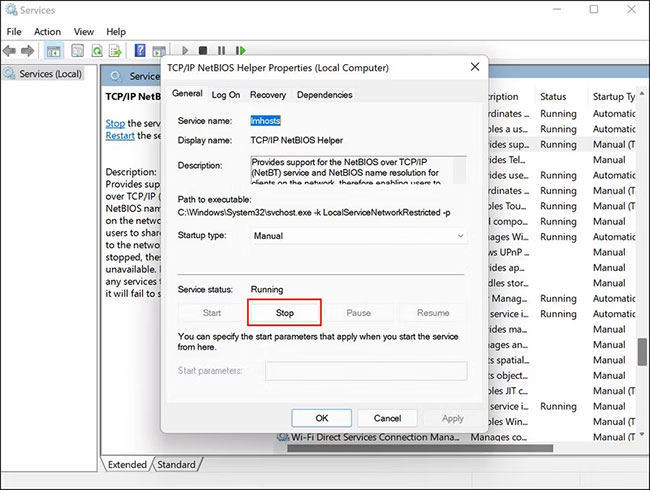
<p style="text-align: justify;">5. Trong hộp thoại sau, nhấp vào nút&nbsp;<strong>Stop.</strong></p>

<figure>
<div style="text-align: justify;"><img alt="Nhấp vào nút Stop" data-i="9" data-src="https://st.quantrimang.com/photos/image/2022/06/29/sua-loi-network-path-was-not-found-trong-windows-5.jpg" data-was-processed="true" height="490" src="https://st.quantrimang.com/photos/image/2022/06/29/sua-loi-network-path-was-not-found-trong-windows-5.jpg" width="650" /></div>

<figcaption>
<div style="text-align: justify;">Nhấp vào nút Stop</div>
</figcaption>
</figure>

<p style="text-align: justify;">6. Chờ trong vài giây và sau đó nhấp vào&nbsp;<strong>Restart.</strong></p>

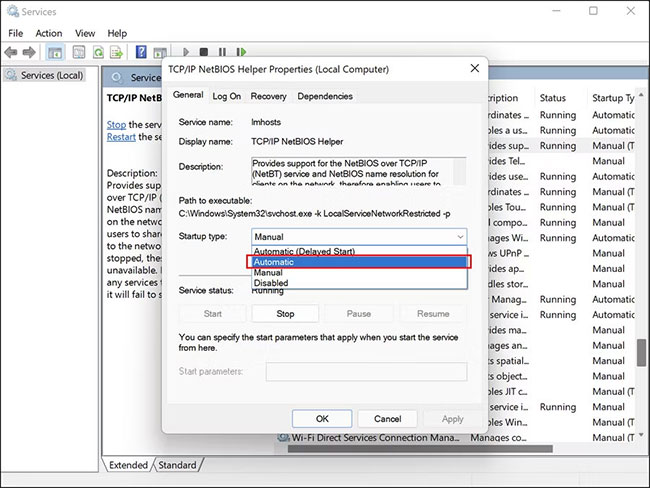
<p style="text-align: justify;">7. Bây giờ, hãy mở rộng menu drop-down&nbsp;<strong>Startup type</strong>&nbsp;và chọn&nbsp;<strong>Automatic.</strong></p>

<figure>
<div style="text-align: justify;"><img alt="Chọn Automatic" data-i="10" data-src="https://st.quantrimang.com/photos/image/2022/06/29/sua-loi-network-path-was-not-found-trong-windows-6.jpg" data-was-processed="true" height="488" src="https://st.quantrimang.com/photos/image/2022/06/29/sua-loi-network-path-was-not-found-trong-windows-6.jpg" width="650" /></div>

<figcaption>
<div style="text-align: justify;">Chọn Automatic</div>
</figcaption>
</figure>

<p style="text-align: justify;">8. Nhấp vào&nbsp;<strong>Apply &gt; OK</strong>&nbsp;để lưu các thay đổi.</p>

<p style="text-align: justify;">Sau khi hoàn tất, hãy kiểm tra xem điều đó có khắc phục được sự cố cho bạn hay không.</p>

<h2 id="mcetoc_1g6mnrl0b3cp" style="text-align: justify;">Cách 7: Chuyển Network access: Sharing and security model for local account thành Classic</h2>

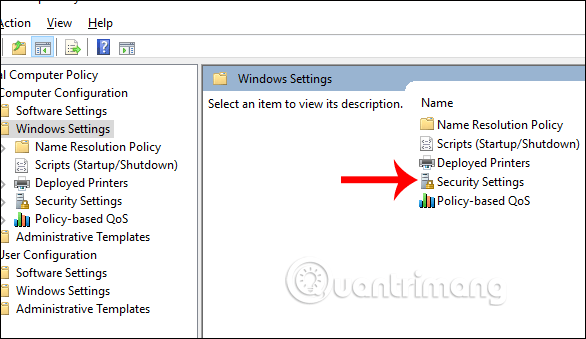
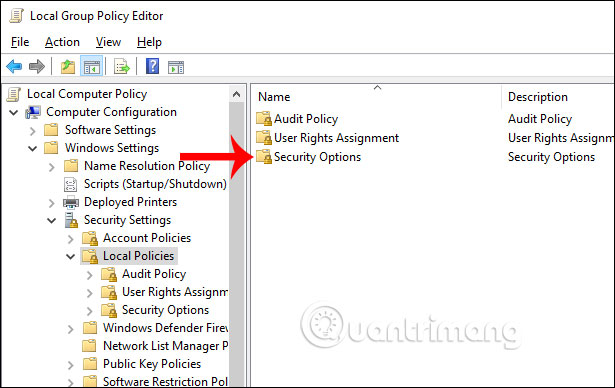
<p style="text-align: justify;">Chúng ta nhập&nbsp;<strong>từ khóa gpedit.msc</strong>&nbsp;vào&nbsp;<strong>hộp thoại Run</strong>&nbsp;để truy cập Local Group Policy Editor. Tiếp đến người dùng nhấn vào&nbsp;<strong>Computer Configuration</strong>, chọn&nbsp;<strong>Window Settings</strong>&nbsp;ở bên phải, chọn tiếp&nbsp;<strong>Security Settings.</strong></p>

<p style="text-align: justify;"><strong><img alt="Computer Configuration" data-i="11" data-src="https://st.quantrimang.com/photos/image/2019/09/27/loi-ket-noi-may-tinh-qua-mang-5.png" data-was-processed="true" height="339" src="https://st.quantrimang.com/photos/image/2019/09/27/loi-ket-noi-may-tinh-qua-mang-5.png" width="586" /></strong></p>

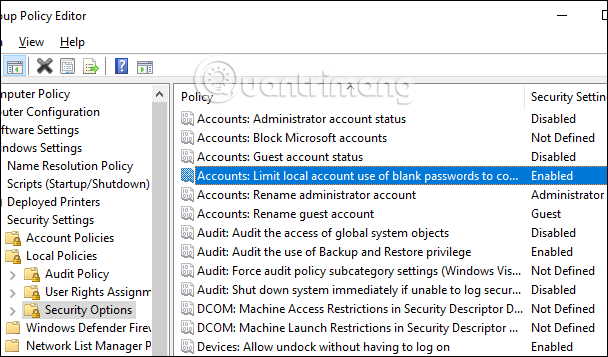
<p style="text-align: justify;">Tiếp đến nhấn vào&nbsp;<strong>Local Policies</strong>&nbsp;rồi nhấn tiếp vào&nbsp;<strong>Security Options</strong>&nbsp;rồi nhìn sang bên phải tìm tới&nbsp;<strong>khóa Account: Limit local acc use of blank password to…</strong></p>

<p style="text-align: justify;"><strong><img alt="Tìm khóa Account : Limit local acc use of blank password…" data-i="12" data-src="https://st.quantrimang.com/photos/image/2019/09/27/loi-ket-noi-may-tinh-qua-mang-6.png" data-was-processed="true" height="357" src="https://st.quantrimang.com/photos/image/2019/09/27/loi-ket-noi-may-tinh-qua-mang-6.png" width="608" /></strong></p>

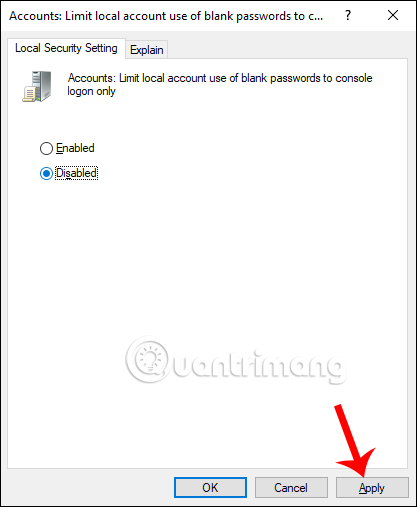
<p style="text-align: justify;">Chúng ta sẽ chuyển về&nbsp;<strong>Disable</strong>&nbsp;bằng cách click đúp chuột vào khóa này. Nhấn&nbsp;<strong>Apply</strong>&nbsp;để lưu lại.</p>

<p style="text-align: justify;"><strong><img alt="Tắt khóa" data-i="13" data-src="https://st.quantrimang.com/photos/image/2019/09/27/loi-ket-noi-may-tinh-qua-mang-7.jpg" data-was-processed="true" height="507" src="https://st.quantrimang.com/photos/image/2019/09/27/loi-ket-noi-may-tinh-qua-mang-7.jpg" width="417" /></strong></p>

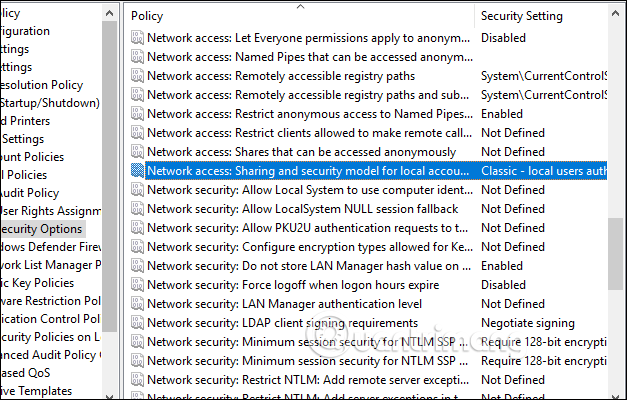
<p style="text-align: justify;">Tiếp đến bạn tìm tới&nbsp;<strong>key Network access: Sharing and security model for local account</strong>&nbsp;để chuyển về&nbsp;<strong>Classic</strong>.</p>

<p style="text-align: justify;">Quay lại giao diện máy tính chúng ta mở&nbsp;<strong>hộp thoại Run</strong>&nbsp;rồi nhập&nbsp;<strong>từ khóa cmd</strong>. Tiếp đến người dùng nhập&nbsp;<strong>lệnh gpupdate /force</strong>&nbsp;để update lại gpedit.</p>

<p style="text-align: justify;"><strong><img alt="Chuyển chế độ Classic" data-i="14" data-src="https://st.quantrimang.com/photos/image/2019/09/27/loi-ket-noi-may-tinh-qua-mang-8.png" data-was-processed="true" height="400" src="https://st.quantrimang.com/photos/image/2019/09/27/loi-ket-noi-may-tinh-qua-mang-8.png" width="627" /></strong></p>

<h2 id="mcetoc_1g6mnrl0b3cq" style="text-align: justify;">Cách 8: Chỉnh sửa cài đặt bảo mật cục bộ</h2>

<p style="text-align: justify;">Người dùng cũng truy cập vào&nbsp;<strong>Local Group Policy Editor</strong>, rồi thực hiện theo đường dẫn&nbsp;<strong>Computer Configuration &gt; Windows Settings &gt; Security Settings &gt; Local policies &gt; Securiy Options</strong>.</p>

<p style="text-align: justify;"><strong><img alt="Security Options" data-i="15" data-src="https://st.quantrimang.com/photos/image/2019/09/27/loi-ket-noi-may-tinh-qua-mang-9.jpg" data-was-processed="true" height="366" src="https://st.quantrimang.com/photos/image/2019/09/27/loi-ket-noi-may-tinh-qua-mang-9.jpg" width="580" /></strong></p>

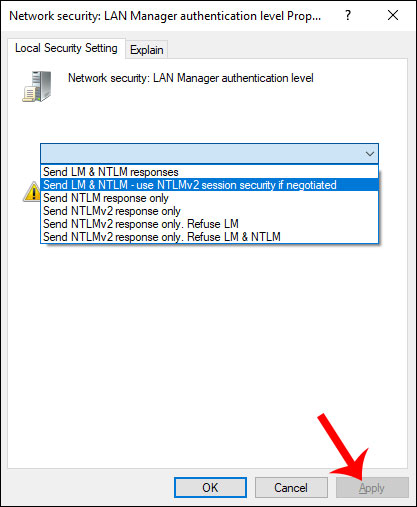
<p style="text-align: justify;">Tiếp đến chúng ta tìm tới<strong>&nbsp;key Network security: LAN Manager Authentication level&nbsp;</strong>rồi chuyển về<strong>&nbsp;Send LM &amp; NTLM -user NTLMv2 senssion security if negotiated</strong>. Nhấn&nbsp;<strong>Apply&nbsp;</strong>để lưu lại.</p>

<p style="text-align: justify;">Cuối cùng mở&nbsp;<strong>hộp thoại Run</strong>&nbsp;rồi nhập&nbsp;<strong>cmd</strong>, nhập&nbsp;<strong>lệnh gpupdate /force</strong>&nbsp;để cập nhật lại gpedit.</p>

<p style="text-align: justify;"><strong><img alt="Network security: LAN Manager Authentication level" data-i="16" data-src="https://st.quantrimang.com/photos/image/2019/09/27/loi-ket-noi-may-tinh-qua-mang-10.jpg" data-was-processed="true" height="507" src="https://st.quantrimang.com/photos/image/2019/09/27/loi-ket-noi-may-tinh-qua-mang-10.jpg" width="417" /></strong></p>

<h2 id="mcetoc_1g6mnrl0b3cr" style="text-align: justify;">Cách 9: Xác minh ổ đã được chia sẻ chưa</h2>

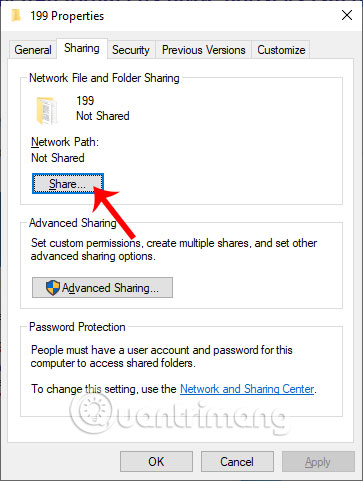
<p style="text-align: justify;">Chúng ta sẽ tiến hành xác minh ổ đĩa được chia sẻ hay chưa, bằng cách nhấn chuột phải vào&nbsp;<strong>thư mục cần chia sẻ</strong>&nbsp;rồi chọn&nbsp;<strong>Properies</strong>. Nhấn tiếp vào&nbsp;<strong>tab Sharing</strong>&nbsp;rồi kiểm tra xem thư mục đã được chia sẻ chưa. Nếu chưa bạn nhấn&nbsp;<strong>nút Share</strong>&nbsp;để chia sẻ.</p>

<p style="text-align: justify;"><strong><img alt="Chia sẻ thư mục " data-i="17" data-src="https://st.quantrimang.com/photos/image/2019/09/27/loi-ket-noi-may-tinh-qua-mang-11.jpg" data-was-processed="true" height="481" src="https://st.quantrimang.com/photos/image/2019/09/27/loi-ket-noi-may-tinh-qua-mang-11.jpg" width="363" /></strong></p>

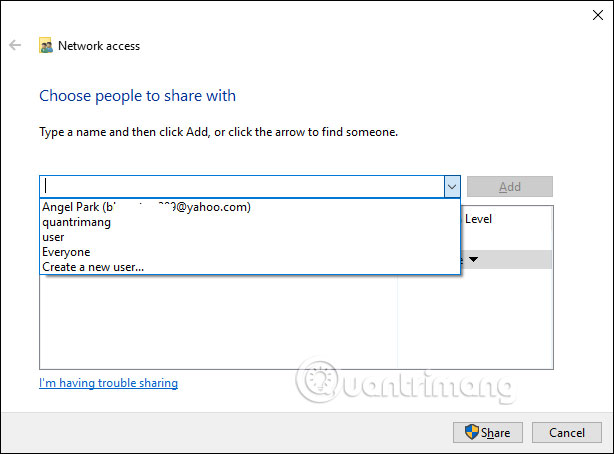
<p style="text-align: justify;">Sau đó chúng ta chọn người muốn chia sẻ rồi cấp phép cho người đó là được.</p>

<p style="text-align: justify;"><strong><img alt="Chọn tài khoản chia sẻ" data-i="18" data-src="https://st.quantrimang.com/photos/image/2019/09/27/loi-ket-noi-may-tinh-qua-mang-12.jpg" data-was-processed="true" height="444" src="https://st.quantrimang.com/photos/image/2019/09/27/loi-ket-noi-may-tinh-qua-mang-12.jpg" width="600" /></strong></p>

<h2 id="mcetoc_1g6mnrl0b3cs" style="text-align: justify;">Cách 10: Kiểm tra lại địa chỉ IP của máy đã kết nối</h2>

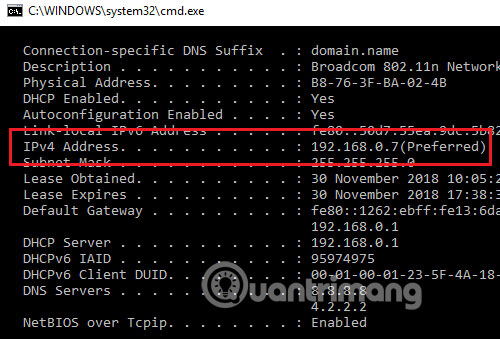
<p style="text-align: justify;">Chúng ta cần&nbsp;<strong>kiểm tra lại địa chỉ IP của máy đã kết nối</strong>&nbsp;vì có thể xảy ra trường hợp địa chỉ mạng không được kết nối đúng.</p>

<p style="text-align: justify;">Chúng ta nhấn Windows + R để&nbsp;<strong>mở hộp thoại Run</strong>&nbsp;trong máy tính đích rồi nhập<strong>&nbsp;lệnh cmd</strong>. Trong giao diện nhập lệnh bạn&nbsp;<strong>nhấn ipconfig / all</strong>. Hiển thị các thông số và bạn cần chú ý tới thông số IPv4.</p>

<p style="text-align: justify;"><strong><img alt="Địa chỉ IP" data-i="19" data-src="https://st.quantrimang.com/photos/image/2019/09/27/loi-ket-noi-may-tinh-qua-mang-13.jpg" data-was-processed="true" height="339" src="https://st.quantrimang.com/photos/image/2019/09/27/loi-ket-noi-may-tinh-qua-mang-13.jpg" width="500" /></strong></p>

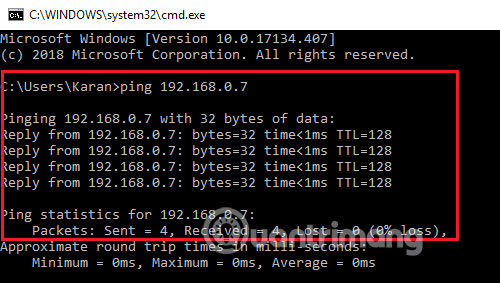
<p style="text-align: justify;">Tại&nbsp;<strong>máy tính chia sẻ</strong>&nbsp;chúng ta cũng&nbsp;<strong>nhập cmd trong hộp thoại Run</strong>, sau đó&nbsp;<strong>nhập lệnh ping &lt;địa chỉ IPv4</strong>&nbsp;<strong>của máy tính đích&gt;</strong>&nbsp;rồi nhấn&nbsp;<strong>Enter.</strong></p>

<p style="text-align: justify;">Kết quả hiển thị sẽ cho 4 thông tin dưới đây để biểu thị cho việc đã liên kết.</p>

<p style="text-align: justify;"><strong><img alt="Nhập lệnh kiểm tra" data-i="20" data-src="https://st.quantrimang.com/photos/image/2019/09/27/loi-ket-noi-may-tinh-qua-mang-14.jpg" data-was-processed="true" height="283" src="https://st.quantrimang.com/photos/image/2019/09/27/loi-ket-noi-may-tinh-qua-mang-14.jpg" width="500" /></strong></p>

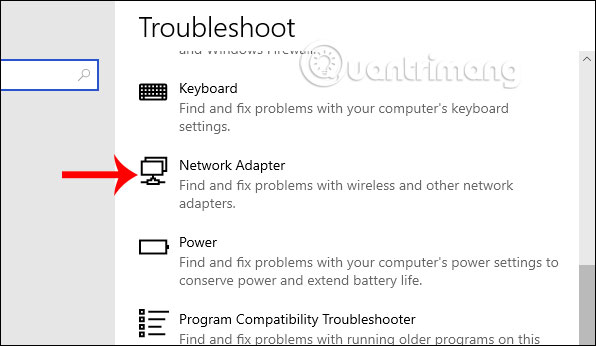
<p style="text-align: justify;">Hoặc chúng ta có thể truy cập vào&nbsp;<strong>Troubleshoot</strong>&nbsp;trong&nbsp;<strong>Windows Settings</strong>, rồi nhấn vào&nbsp;<strong>Network Adapter Troubleshooter</strong>&nbsp;để chạy trình kiểm tra lỗi kết nối.</p>

<p style="text-align: justify;"><strong><img alt="Kiểm tra kết nối mạng" data-i="21" data-src="https://st.quantrimang.com/photos/image/2019/09/27/loi-ket-noi-may-tinh-qua-mang-15.jpg" data-was-processed="true" height="319" src="https://st.quantrimang.com/photos/image/2019/09/27/loi-ket-noi-may-tinh-qua-mang-15.jpg" width="550" /></strong></p>

<h2 id="mcetoc_1g6mnrl0b3ct" style="text-align: justify;">Cách 11: Kích hoạt SMB 1.0</h2>

<p style="text-align: justify;">SMB là một giao thức mạng cho phép người dùng truy cập vào các file và máy in được chia sẻ trên Windows. Tính năng này bị tắt theo mặc định trong Windows, nhưng việc bật tính năng này có thể giúp bạn kết nối với thiết bị từ xa và chia sẻ file qua mạng.</p>

<p style="text-align: justify;">Trong phương pháp này, bạn sẽ cần kích hoạt SMB để chia sẻ các file. Tuy nhiên, bài viết đặc biệt khuyên bạn nên vô hiệu hóa SMB sau khi sử dụng vì nó được biết là có một số lỗ hổng bảo mật có thể làm rối loạn hệ thống của bạn.</p>

<p style="text-align: justify;">Dưới đây là những gì bạn cần làm:</p>

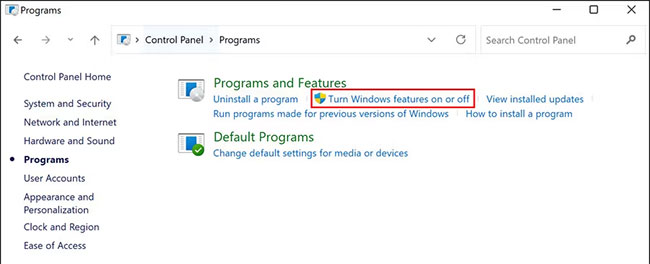
<p style="text-align: justify;">1. Nhập&nbsp;<strong>Control Panel</strong>&nbsp;trong tìm kiếm của Windows và nhấp vào&nbsp;<strong>Open.</strong></p>

<p style="text-align: justify;">2. Trong cửa sổ sau, đi tới&nbsp;<strong>Programs &gt; Programs and Features</strong>.</p>

<p style="text-align: justify;">3. Chọn&nbsp;<strong>Turn Windows features on or off&nbsp;</strong>từ ngăn bên trái.</p>

<figure>
<div style="text-align: justify;"><img alt="Chọn Turn Windows features on or off" data-i="22" data-src="https://st.quantrimang.com/photos/image/2022/06/29/sua-loi-network-path-was-not-found-trong-windows-7.jpg" data-was-processed="true" height="264" src="https://st.quantrimang.com/photos/image/2022/06/29/sua-loi-network-path-was-not-found-trong-windows-7.jpg" width="650" /></div>

<figcaption>
<div style="text-align: justify;">Chọn Turn Windows features on or off</div>
</figcaption>
</figure>

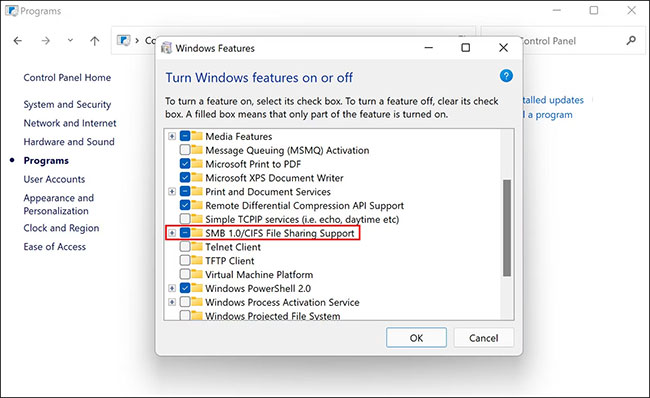
<p style="text-align: justify;">4. Bây giờ, hãy tìm&nbsp;<strong>SMB 1.0/CIFS File sharing support</strong>&nbsp;và đánh dấu vào hộp tương ứng.</p>

<figure>
<div style="text-align: justify;"><img alt="Tích vào SMB 1.0/CIFS File sharing support" data-i="23" data-src="https://st.quantrimang.com/photos/image/2022/06/29/sua-loi-network-path-was-not-found-trong-windows-8.jpg" data-was-processed="true" height="398" src="https://st.quantrimang.com/photos/image/2022/06/29/sua-loi-network-path-was-not-found-trong-windows-8.jpg" width="650" /></div>

<figcaption>
<div style="text-align: justify;">Tích vào SMB 1.0/CIFS File sharing support</div>
</figcaption>
</figure>

<p style="text-align: justify;">5. Nhấp vào&nbsp;<strong>OK</strong>&nbsp;để lưu các thay đổi và kiểm tra xem lỗi hiện đã được khắc phục chưa.</p>

<h2 id="mcetoc_1g6mnrl0b3cu" style="text-align: justify;">Cách 12: Cập nhật driver</h2>

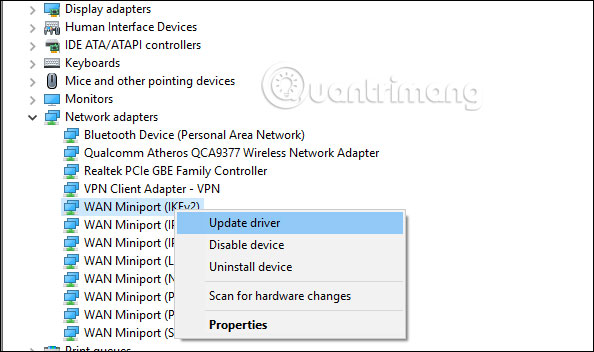
<p style="text-align: justify;">Trong giao diện&nbsp;<strong>hộp thoại Run</strong>&nbsp;bạn nhập&nbsp;<strong>từ khóa devmgmt.msc</strong>. Sau đó chúng ta tìm tới phần&nbsp;<strong>Network adapers</strong>&nbsp;rồi click chuột vào từng trình điều khiển rồi chọn&nbsp;<strong>Update driver</strong>.</p>

<p style="text-align: justify;"><strong><img alt="Cập nhật driver mạng " data-i="24" data-src="https://st.quantrimang.com/photos/image/2019/09/27/loi-ket-noi-may-tinh-qua-mang-16.jpg" data-was-processed="true" height="352" src="https://st.quantrimang.com/photos/image/2019/09/27/loi-ket-noi-may-tinh-qua-mang-16.jpg" width="594" /></strong></p>

<p style="text-align: justify;">Như vậy bạn đã có rất nhiều cách sửa, kiểm tra lại máy tính khi không thể kết nối các máy tính trong mạng LAN, với báo lỗi Network Path Cannot Be Found.</p>

<p style="text-align: justify;">Hy vọng bài viết này hữu ích với bạn!</p>
		</div>
				<div id="author">
						<p>
				<strong>Nguồn tin:</strong>
				Quantrimang.com
			</p>
		</div>
	</div>
	<div id="footer" class="clearfix">
		<div id="url">
			<strong>URL của bản tin này: </strong><a href="https://www.nguoicodonvn2008.info/vi/news/savefile/kien-thuc-may-tinh/huong-dan-sua-loi-network-path-was-not-found-trong-windows-7229.html" title="Hướng dẫn sửa lỗi “Network path was not found” trong Windows">https://www.nguoicodonvn2008.info/vi/news/savefile/kien-thuc-may-tinh/huong-dan-sua-loi-network-path-was-not-found-trong-windows-7229.html</a>

		</div>
		<div class="clear"></div>
		<div class="copyright">
			&copy; .&#x3A; Nguoicodonvn2008.info - Cõi lòng người cô đơn &#x3A;.
		</div>
		<div id="contact">
			<a href="mailto:admin@nguoicodonvn2008.info">admin@nguoicodonvn2008.info</a>
		</div>
	</div>
</div>
        <div id="timeoutsess" class="chromeframe">
            Bạn đã không sử dụng Site, <a onclick="timeoutsesscancel();" href="https://www.nguoicodonvn2008.info/#">Bấm vào đây để duy trì trạng thái đăng nhập</a>. Thời gian chờ: <span id="secField"> 60 </span> giây
        </div>
        <div id="openidResult" class="nv-alert" style="display:none"></div>
        <div id="openidBt" data-result="" data-redirect=""></div>
		</script>
		<div class="car-top">
  <span><img src="https://www.nguoicodonvn2008.info/themes/default/images/car.png" alt=""></span>
</div>
<script src="https://www.nguoicodonvn2008.info/assets/js/jquery/jquery.min.js"></script>
<script>var nv_base_siteurl="/",nv_lang_data="vi",nv_lang_interface="vi",nv_name_variable="nv",nv_fc_variable="op",nv_lang_variable="language",nv_module_name="news",nv_func_name="savefile",nv_is_user=0, nv_my_ofs=-4,nv_my_abbr="EDT",nv_cookie_prefix="nv4c_e856T",nv_check_pass_mstime=1738000,nv_area_admin=0,nv_safemode=0,theme_responsive=0,nv_recaptcha_ver=2,nv_recaptcha_sitekey="",nv_recaptcha_type="image",XSSsanitize=1;</script>
<script src="https://www.nguoicodonvn2008.info/assets/js/language/vi.js"></script>
<script src="https://www.nguoicodonvn2008.info/assets/js/DOMPurify/purify3.js"></script>
<script src="https://www.nguoicodonvn2008.info/assets/js/global.js"></script>
<script src="https://www.nguoicodonvn2008.info/assets/js/site.js"></script>
<script src="https://www.nguoicodonvn2008.info/themes/default/js/news.js"></script>
<script src="https://www.nguoicodonvn2008.info/themes/default/js/main.js"></script>
<script src="https://www.nguoicodonvn2008.info/themes/default/js/custom.js"></script>
<script type="application/ld+json">
        {
            "@context": "https://schema.org",
            "@type": "Organization",
            "url": "https://www.nguoicodonvn2008.info",
            "logo": "https://www.nguoicodonvn2008.info/uploads/angel.gif"
        }
        </script>
<script src="https://www.nguoicodonvn2008.info/themes/default/js/bootstrap.min.js"></script>
<script type="text/javascript">
var $scrolltop = $('.car-top');
$scrolltop.on('click', function () {
    $('html,body').animate({
        scrollTop: 0
    }, 800);
    $(this).addClass("car-run");
    setTimeout(function(){ $scrolltop.removeClass('car-run');}, 1000);
    return false;
});
$(window).on('scroll', function ()
{ 
    if($(window).scrollTop() >= 200)
    {
        $scrolltop.addClass("show");
        $scrolltop.addClass("car-down");
    }
    else
    {
       $scrolltop.removeClass("show");
       setTimeout(function(){ $scrolltop.removeClass('car-down');}, 300);
    }
});
</script>
</body>
</html>