<!DOCTYPE html>
    <html lang="vi" xmlns="http://www.w3.org/1999/xhtml" prefix="og: http://ogp.me/ns#">
    <head>
<title>Hướng dẫn khắc phục lỗi không thêm được tài khoản Gmail vào Microsoft Outlook</title>
<meta name="description" content="Hướng dẫn khắc phục lỗi không thêm được tài khoản Gmail vào Microsoft Outlook - Savefile - Tin Tức -...">
<meta name="author" content=".: Nguoicodonvn2008.info - Cõi lòng người cô đơn :.">
<meta name="copyright" content=".: Nguoicodonvn2008.info - Cõi lòng người cô đơn :. [admin@nguoicodonvn2008.info]">
<meta name="robots" content="index, archive, follow, noodp">
<meta name="googlebot" content="index,archive,follow,noodp">
<meta name="msnbot" content="all,index,follow">
<meta name="generator" content="NukeViet v4.5">
<meta http-equiv="Content-Type" content="text/html; charset=utf-8">
<meta property="og:title" content="Hướng dẫn khắc phục lỗi không thêm được tài khoản Gmail vào Microsoft Outlook">
<meta property="og:type" content="website">
<meta property="og:description" content="Savefile - Tin Tức -...">
<meta property="og:site_name" content=".&#x3A; Nguoicodonvn2008.info - Cõi lòng người cô đơn &#x3A;.">
<meta property="og:url" content="https://www.nguoicodonvn2008.info/vi/news/savefile/kien-thuc-may-tinh/huong-dan-khac-phuc-loi-khong-them-duoc-tai-khoan-gmail-vao-microsoft-outlook-8954.html">
<link rel="shortcut icon" href="https://www.nguoicodonvn2008.info/favicon.ico">
<link rel="canonical" href="https://www.nguoicodonvn2008.info/vi/news/savefile/kien-thuc-may-tinh/huong-dan-khac-phuc-loi-khong-them-duoc-tai-khoan-gmail-vao-microsoft-outlook-8954.html">
<link rel="alternate" href="https://www.nguoicodonvn2008.info/vi/news/rss/" title="Tin Tức" type="application/rss+xml">
<link rel="alternate" href="https://www.nguoicodonvn2008.info/vi/news/rss/karaoke-dual/" title="Tin Tức - Karaoke Dual" type="application/rss+xml">
<link rel="alternate" href="https://www.nguoicodonvn2008.info/vi/news/rss/nhac-tre/" title="Tin Tức - Nhạc trẻ" type="application/rss+xml">
<link rel="alternate" href="https://www.nguoicodonvn2008.info/vi/news/rss/tru-tinh/" title="Tin Tức - Trữ tình" type="application/rss+xml">
<link rel="alternate" href="https://www.nguoicodonvn2008.info/vi/news/rss/nuoc-ngoai/" title="Tin Tức - Nước ngoài" type="application/rss+xml">
<link rel="alternate" href="https://www.nguoicodonvn2008.info/vi/news/rss/remix/" title="Tin Tức - Remix" type="application/rss+xml">
<link rel="alternate" href="https://www.nguoicodonvn2008.info/vi/news/rss/tam-su-tinh-yeu/" title="Tin Tức - Tâm sự tình yêu" type="application/rss+xml">
<link rel="alternate" href="https://www.nguoicodonvn2008.info/vi/news/rss/tho-suu-tam/" title="Tin Tức - Thơ sưu tầm" type="application/rss+xml">
<link rel="alternate" href="https://www.nguoicodonvn2008.info/vi/news/rss/cuoc-song/" title="Tin Tức - Cuộc sống" type="application/rss+xml">
<link rel="alternate" href="https://www.nguoicodonvn2008.info/vi/news/rss/phan-mem/" title="Tin Tức - Phần mềm" type="application/rss+xml">
<link rel="alternate" href="https://www.nguoicodonvn2008.info/vi/news/rss/kien-thuc-may-tinh/" title="Tin Tức - Kiến thức máy tính" type="application/rss+xml">
<link rel="alternate" href="https://www.nguoicodonvn2008.info/vi/news/rss/hoc-tap/" title="Tin Tức - Học tập" type="application/rss+xml">
<link rel="alternate" href="https://www.nguoicodonvn2008.info/vi/news/rss/tai-lieu/" title="Tin Tức - Tài liệu" type="application/rss+xml">
<link rel="alternate" href="https://www.nguoicodonvn2008.info/vi/news/rss/de-thi/" title="Tin Tức - Đề thi" type="application/rss+xml">
<link rel="preload" as="style" href="https://www.nguoicodonvn2008.info/assets/css/font-awesome.min.css" type="text/css">
<link rel="preload" as="style" href="https://www.nguoicodonvn2008.info/themes/default/css/bootstrap.non-responsive.css" type="text/css">
<link rel="preload" as="style" href="https://www.nguoicodonvn2008.info/themes/default/css/style.css" type="text/css">
<link rel="preload" as="style" href="https://www.nguoicodonvn2008.info/themes/default/css/style.non-responsive.css" type="text/css">
<link rel="preload" as="style" href="https://www.nguoicodonvn2008.info/themes/default/css/news.css" type="text/css">
<link rel="preload" as="style" href="https://www.nguoicodonvn2008.info/themes/default/css/custom.css" type="text/css">
<link rel="preload" as="script" href="https://www.nguoicodonvn2008.info/assets/js/jquery/jquery.min.js" type="text/javascript">
<link rel="preload" as="script" href="https://www.nguoicodonvn2008.info/assets/js/language/vi.js" type="text/javascript">
<link rel="preload" as="script" href="https://www.nguoicodonvn2008.info/assets/js/DOMPurify/purify3.js" type="text/javascript">
<link rel="preload" as="script" href="https://www.nguoicodonvn2008.info/assets/js/global.js" type="text/javascript">
<link rel="preload" as="script" href="https://www.nguoicodonvn2008.info/assets/js/site.js" type="text/javascript">
<link rel="preload" as="script" href="https://www.nguoicodonvn2008.info/themes/default/js/news.js" type="text/javascript">
<link rel="preload" as="script" href="https://www.nguoicodonvn2008.info/themes/default/js/main.js" type="text/javascript">
<link rel="preload" as="script" href="https://www.nguoicodonvn2008.info/themes/default/js/custom.js" type="text/javascript">
<link rel="preload" as="script" href="https://www.nguoicodonvn2008.info/themes/default/js/bootstrap.min.js" type="text/javascript">
<link rel="stylesheet" href="https://www.nguoicodonvn2008.info/assets/css/font-awesome.min.css">
<link rel="stylesheet" href="https://www.nguoicodonvn2008.info/themes/default/css/bootstrap.non-responsive.css">
<link rel="stylesheet" href="https://www.nguoicodonvn2008.info/themes/default/css/style.css">
<link rel="stylesheet" href="https://www.nguoicodonvn2008.info/themes/default/css/style.non-responsive.css">
<link rel="StyleSheet" href="https://www.nguoicodonvn2008.info/themes/default/css/news.css">
<link rel="stylesheet" href="https://www.nguoicodonvn2008.info/themes/default/css/custom.css">
<style type="text/css">
	body{background: #fff;}
</style>
    </head>
    <body>
<div id="print">
	<div id="hd_print">
		<h2 class="pull-left">.&#x3A; Nguoicodonvn2008.info - Cõi lòng người cô đơn &#x3A;.</h2>
		<p class="pull-right"><a title=".&#x3A; Nguoicodonvn2008.info - Cõi lòng người cô đơn &#x3A;." href="https://www.nguoicodonvn2008.info/">https://www.nguoicodonvn2008.info</a></p>
	</div>
	<div class="clear"></div>
	<hr />
	<div id="content">
		<h1>Hướng dẫn khắc phục lỗi không thêm được tài khoản Gmail vào Microsoft Outlook</h1>
		<ul class="list-inline">
			<li>Thứ tư - 04/09/2024 01:48</li>
			<li class="hidden-print txtrequired"><em class="fa fa-print">&nbsp;</em><a title="In ra" href="javascript:;" onclick="window.print()">In ra</a></li>
			<li class="hidden-print txtrequired"><em class="fa fa-power-off">&nbsp;</em><a title="Đóng cửa sổ này" href="javascript:;" onclick="window.close()">Đóng cửa sổ này</a></li>
		</ul>
		<div class="clear"></div>
		<div id="hometext">
		</div>
				<div class="imghome">
			<img alt="Hướng dẫn khắc phục lỗi không thêm được tài khoản Gmail vào Microsoft Outlook" src="https://st.quantrimang.com/photos/image/2019/09/11/them-gmail-vao-outlook-23.png" width="460" class="img-thumbnail" />
		</div>
		<div class="clear"></div>
		<div id="bodytext" class="clearfix">
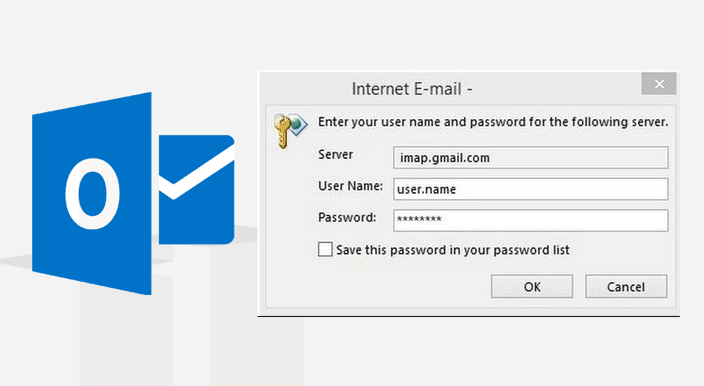
			<p style="text-align: justify;">Giả sử trong trường hợp nào đó khi bạn cố gắng kết nối tài khoản Gmail vào Outlook nhưng bị báo lỗi không thể kết nối. Vậy làm sao để khắc phục lỗi này, mời bạn cùng tham khảo bài viết dưới đây của QuanTriMang.com.</p>

<p style="text-align: justify;"><img alt="ỗi không thể kết nối" data-i="0" data-src="https://st.quantrimang.com/photos/image/2016/04/04/outlook-gmail.png" data-was-processed="true" height="356" src="https://st.quantrimang.com/photos/image/2016/04/04/outlook-gmail.png" title="ỗi không thể kết nối" width="650" /></p>

<h2 style="text-align: justify;">Sửa lỗi không cài đặt được Gmail trong Microsoft Outlook</h2>

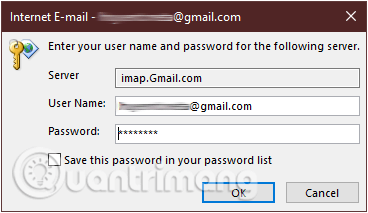
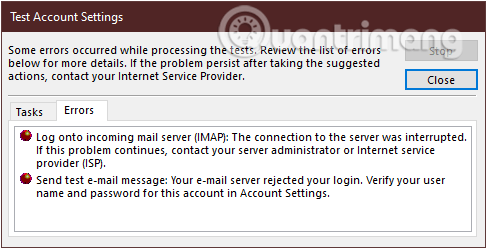
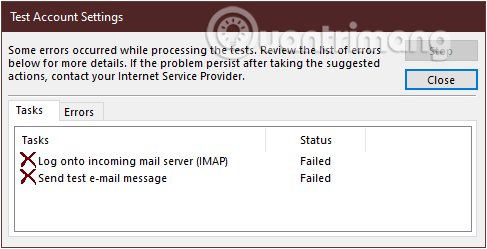
<p style="text-align: justify;">Nếu bạn không thể&nbsp;kết nối Gmail vào Outlook&nbsp;sau khi thiết lập và điền đầy đủ các thông tin vì Outlook hiện ra một số thông báo yêu cầu nhập mật khẩu (hộp thoại Enter Network Password), hay thông báo có lỗi xảy ra trong hộp thoại&nbsp;<em>Test Account Settings</em>&nbsp;như thế này:</p>

<figure>
<div style="text-align: justify;"><img alt="Hiển thị hộp thoại Enter Network Password" data-i="1" data-src="https://st.quantrimang.com/photos/image/2019/09/11/them-gmail-vao-outlook-17.png" data-was-processed="true" height="213" src="https://st.quantrimang.com/photos/image/2019/09/11/them-gmail-vao-outlook-17.png" width="368" /></div>

<figcaption>
<div style="text-align: justify;">Hiển thị hộp thoại Enter Network Password</div>
</figcaption>
</figure>

<p style="text-align: justify;">&nbsp;</p>

<figure>
<div style="text-align: justify;"><img alt="Thông báo có lỗi xảy ra trong hộp thoại Test Account Settings" data-i="2" data-src="https://st.quantrimang.com/photos/image/2019/09/11/them-gmail-vao-outlook-19.png" data-was-processed="true" height="249" src="https://st.quantrimang.com/photos/image/2019/09/11/them-gmail-vao-outlook-19.png" width="487" /></div>

<figcaption>
<div style="text-align: justify;">Thông báo có lỗi xảy ra trong hộp thoại Test Account Settings</div>
</figcaption>
</figure>

<div style="text-align: justify;"><iframe allow="autoplay" allowtransparency="true" aria-label="Advertisement" data-google-container-id="a!2" data-google-query-id="CNLy-MjLqIgDFXNXDwIdpuEA1A" data-load-complete="true" frameborder="0" height="0" hspace="0" id="aswift_1" marginheight="0" marginwidth="0" name="aswift_1" sandbox="allow-scripts allow-same-origin allow-forms allow-presentation allow-popups" scrolling="no" tabindex="0" title="Advertisement" vspace="0" width="694"></iframe></div>

<p style="text-align: justify;">&nbsp;</p>

<figure>
<div style="text-align: justify;"><img alt="Kết nối Gmail vào Outlook không thành công" data-i="3" data-src="https://st.quantrimang.com/photos/image/2019/09/11/them-gmail-vao-outlook-18.png" data-was-processed="true" height="249" src="https://st.quantrimang.com/photos/image/2019/09/11/them-gmail-vao-outlook-18.png" width="487" /></div>

<figcaption>
<div style="text-align: justify;">Kết nối Gmail vào Outlook không thành công</div>
</figcaption>
</figure>

<p style="text-align: justify;">Nguyên nhân gây nên lỗi này phần lớn là do các cài đặt về POP/IMAP trong Gmail của bạn chưa chính xác hoặc do các thiết lập bảo mật của tài khoản Gmail ngăn chặn quyền truy cập của ứng dụng thứ 3 hay chế độ xác minh tài khoản 2 lớp.</p>

<p style="text-align: justify;">Để khắc phục, bạn làm như sau:</p>

<h3 style="text-align: justify;"><strong>Giải pháp 1: Bật POP/IMAP trong cài đặt Gmail</strong></h3>

<p style="text-align: justify;">Kiểm tra kĩ lại xem bạn đã bật POP/IMAP trong cài đặt Gmail chưa</p>

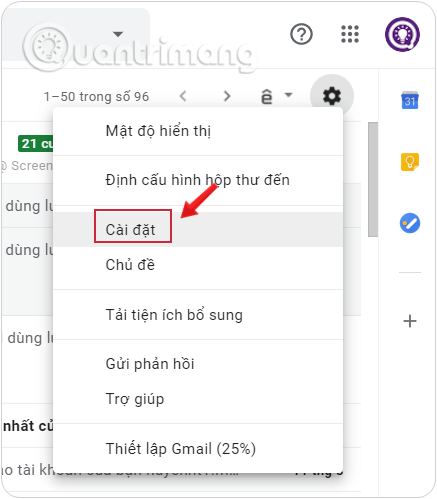
<p style="text-align: justify;"><strong>Bước 1:&nbsp;</strong>Trước hết bạn cần&nbsp;<strong>đăng nhập tài khoản Gmail cá nhân</strong>&nbsp;trên máy tính.</p>

<p style="text-align: justify;"><strong>Bước 2:</strong>&nbsp;Tại giao diện chính, click vào&nbsp;<strong>biểu tượng bánh răng cưa</strong>&nbsp;và chọn&nbsp;<strong>Cài đặt</strong>&nbsp;(Settings).</p>

<figure>
<div style="text-align: justify;"><img alt="Vào Cài đặt tài khoản Gmail" data-adbro-processed="true" data-i="4" data-src="https://st.quantrimang.com/photos/image/2019/09/03/doi-mat-khau-gmail-1.png" data-was-processed="true" height="499" src="https://st.quantrimang.com/photos/image/2019/09/03/doi-mat-khau-gmail-1.png" width="437" /></div>

<figcaption>
<div style="text-align: justify;">Vào Cài đặt tài khoản Gmail</div>
</figcaption>
</figure>

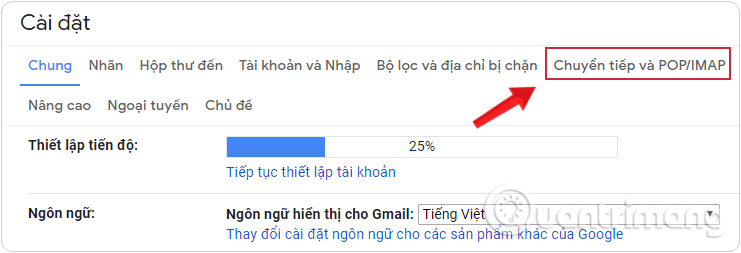
<p style="text-align: justify;"><strong>Bước 3:&nbsp;</strong>Tiếp đến nhấn chọn vào mục&nbsp;<strong>Chuyển tiếp và POP/IMAP</strong>&nbsp;(Forwarding and POP/IMAP) ở thanh tùy chọn trong giao diện này.</p>

<figure>
<div style="text-align: justify;"><img alt="Chọn vào mục Chuyển tiếp và POP/IMAP trong cài đặt Gmail" data-i="5" data-src="https://st.quantrimang.com/photos/image/2019/09/06/tu-dong-chuyen-tiep-thu-gmail-1.png" data-was-processed="true" height="253" src="https://st.quantrimang.com/photos/image/2019/09/06/tu-dong-chuyen-tiep-thu-gmail-1.png" width="741" /></div>

<figcaption>
<div style="text-align: justify;">Chọn vào mục Chuyển tiếp và POP/IMAP trong cài đặt Gmail</div>
</figcaption>
</figure>

<div style="text-align: justify;"><iframe allow="autoplay" allowtransparency="true" aria-label="Advertisement" data-google-container-id="a!3" data-google-query-id="CNq_-cjLqIgDFaZeDwIdcT4V5A" data-load-complete="true" frameborder="0" height="0" hspace="0" id="aswift_2" marginheight="0" marginwidth="0" name="aswift_2" sandbox="allow-scripts allow-same-origin allow-forms allow-presentation allow-popups" scrolling="no" tabindex="0" title="Advertisement" vspace="0" width="694"></iframe></div>

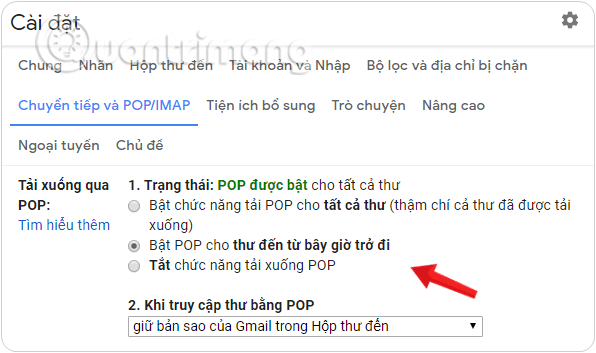
<p style="text-align: justify;"><strong>Bước 4:</strong>&nbsp;Bạn theo dõi xuống nội dung các phần sau:</p>

<ul>
	<li style="text-align: justify;"><strong>Tải xuống qua POP&nbsp;</strong>(POP download), nhấp chọn&nbsp;<strong>Bật POP cho thư đến từ bây giờ trở đi</strong>&nbsp;trong mục&nbsp;<strong>Trạng thái: POP được bật cho tất cả thư.</strong></li>
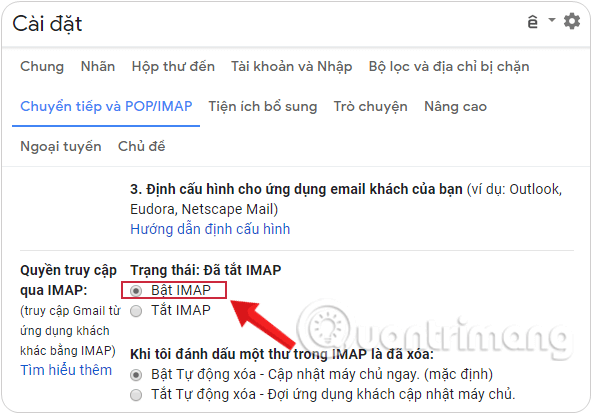
	<li style="text-align: justify;"><strong>Quyền truy cập qua IMAP</strong>&nbsp;(IMAP Access) và nhấp chọn&nbsp;<strong>Bật IMAP</strong>&nbsp;(Enable IMAP).</li>
</ul>

<figure>
<div style="text-align: justify;"><img alt="Bật POP cho thư đến từ bây giờ trở đi trong mục Tải xuống POP" data-i="6" data-src="https://st.quantrimang.com/photos/image/2019/09/11/them-gmail-vao-outlook-27.png" data-was-processed="true" height="353" src="https://st.quantrimang.com/photos/image/2019/09/11/them-gmail-vao-outlook-27.png" width="596" /></div>

<figcaption>
<div style="text-align: justify;">Bật POP cho thư đến từ bây giờ trở đi trong mục Tải xuống POP</div>
</figcaption>
</figure>

<figure>
<div style="text-align: justify;"><img alt="Nhấp chọn Bật IMAP (Enable IMAP) trong Quyền truy cập qua IMAP (IMAP Access)" data-i="7" data-src="https://st.quantrimang.com/photos/image/2019/09/10/them-gmail-vao-outlook-2.png" data-was-processed="true" height="414" src="https://st.quantrimang.com/photos/image/2019/09/10/them-gmail-vao-outlook-2.png" width="592" /></div>

<figcaption>
<div style="text-align: justify;">Nhấp chọn Bật IMAP (Enable IMAP) trong Quyền truy cập qua IMAP (IMAP Access)</div>
</figcaption>
</figure>

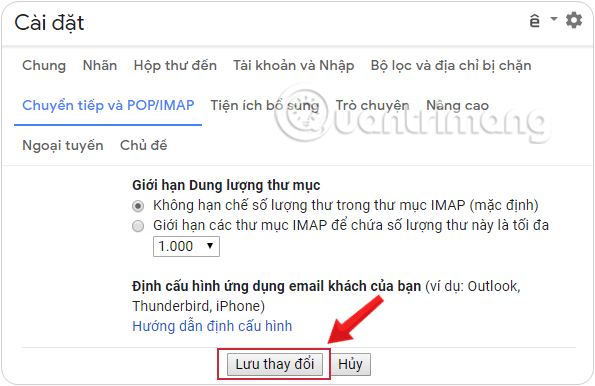
<p style="text-align: justify;"><strong>Bước 5:&nbsp;</strong>Sau khi thay đổi thiết lập, kéo xuống cuối cùng và bấm nút&nbsp;<strong>Lưu thay đổi</strong>&nbsp;(Save Changes) và tiến hành đóng trình duyệt của bạn lại.</p>

<figure>
<div style="text-align: justify;"><img alt="Kéo xuống cuối trang rồi click Lưu thay đổi" data-i="8" data-src="https://st.quantrimang.com/photos/image/2019/09/10/them-gmail-vao-outlook-3.png" data-was-processed="true" height="386" src="https://st.quantrimang.com/photos/image/2019/09/10/them-gmail-vao-outlook-3.png" width="595" /></div>

<figcaption>
<div style="text-align: justify;">Kéo xuống cuối trang rồi click Lưu thay đổi</div>
</figcaption>
</figure>

<p style="text-align: justify;">Tiếp đó, bạn thực hiện các bước đăng nhập vào Outlook tự động hoặc thiết lập thủ công như bình thường.</p>

<p style="text-align: justify;">&nbsp;</p>

<h3 style="text-align: justify;">Giải pháp 2: Bật Quyền truy cập của ứng dụng kém an toàn trong tài khoản Google.</h3>

<div style="text-align: justify;"><iframe allow="autoplay" allowtransparency="true" aria-label="Advertisement" data-google-container-id="a!4" data-google-query-id="CPOw3s_LqIgDFfJqDwIdnVsL5Q" data-load-complete="true" frameborder="0" height="0" hspace="0" id="aswift_3" marginheight="0" marginwidth="0" name="aswift_3" sandbox="allow-scripts allow-same-origin allow-forms allow-presentation allow-popups" scrolling="no" tabindex="0" title="Advertisement" vspace="0" width="694"></iframe></div>

<p style="text-align: justify;"><strong>Bước 1:&nbsp;</strong>Truy cập vào&nbsp;<a href="https://quantrimang.com/cong-nghe/huong-dan-dang-ky-tai-khoan-gmail-116905" rel="noopener" target="_blank" title="Cách tạo, lập tài khoản Google">tài khoản Gmail</a>&nbsp;cá nhân của bạn.</p>

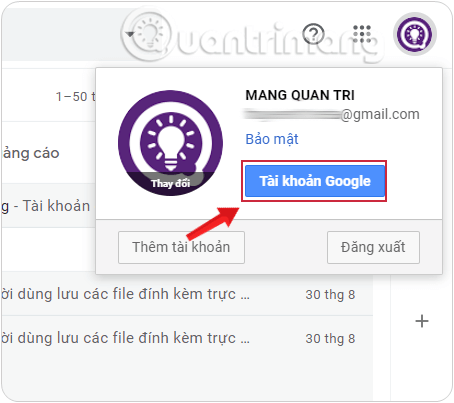
<p style="text-align: justify;"><strong>Bước 2:</strong>&nbsp;Trong giao diện chính, nhấn vào hình đại diện và chọn&nbsp;<strong>Tài khoản Google</strong>&nbsp;(Google Account).</p>

<figure>
<div style="text-align: justify;"><img alt="Mở Tài khoản Google bằng cách ấn vào hình đại diện để truy cập các vấn đề liên quan tới account" data-i="9" data-src="https://st.quantrimang.com/photos/image/2019/09/09/them-email-khoi-phuc-gmail-1.png" data-was-processed="true" height="403" src="https://st.quantrimang.com/photos/image/2019/09/09/them-email-khoi-phuc-gmail-1.png" width="454" /></div>

<figcaption>
<div style="text-align: justify;">Mở Tài khoản Google bằng cách ấn vào hình đại diện để truy cập các vấn đề liên quan tới account</div>
</figcaption>
</figure>

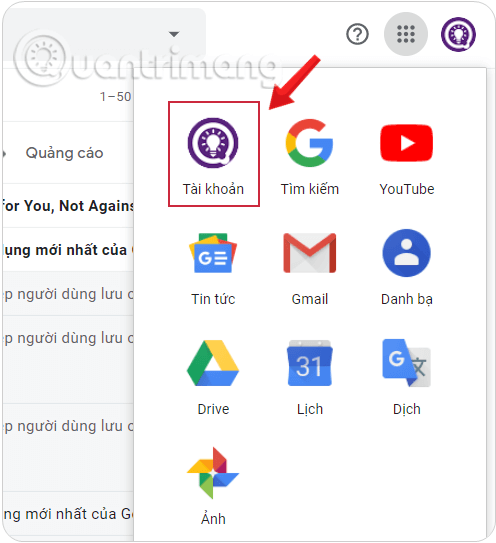
<p style="text-align: justify;">Cách khác là từ bất cứ một ứng dụng nào của Google, bạn nhấp vào&nbsp;<strong>Tài khoản</strong>&nbsp;(Account) trong danh sách Google Apps phía trên bên phải màn hình.</p>

<figure>
<div style="text-align: justify;"><img alt="Mở Tài khoản (Account) trong danh sách Google Apps" data-i="10" data-src="https://st.quantrimang.com/photos/image/2019/09/06/sao-luu-du-lieu-mail-ve-may-tinh-1.png" data-was-processed="true" height="543" src="https://st.quantrimang.com/photos/image/2019/09/06/sao-luu-du-lieu-mail-ve-may-tinh-1.png" width="496" /></div>

<figcaption>
<div style="text-align: justify;">Mở Tài khoản (Account) trong danh sách Google Apps</div>
</figcaption>
</figure>

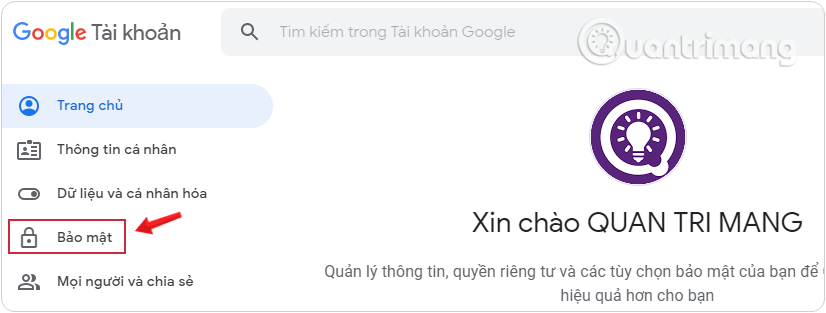
<p style="text-align: justify;"><strong>Bước 3:</strong>&nbsp;Tại cửa sổ mới, nhấp chọn&nbsp;<strong>Bảo mật&nbsp;</strong>ở menu phía bên trái.</p>

<figure>
<div style="text-align: justify;"><img alt="Tìm mục Bảo mật trong giao diện tài khoản Google" data-i="11" data-src="https://st.quantrimang.com/photos/image/2019/09/09/them-email-khoi-phuc-gmail-2.png" data-was-processed="true" height="313" src="https://st.quantrimang.com/photos/image/2019/09/09/them-email-khoi-phuc-gmail-2.png" width="826" /></div>

<figcaption>
<div style="text-align: justify;">Tìm mục Bảo mật trong giao diện tài khoản Google</div>
</figcaption>
</figure>

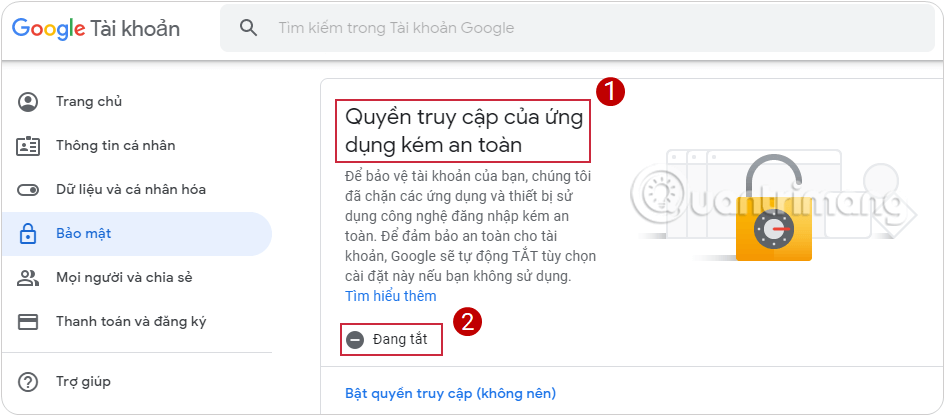
<p style="text-align: justify;"><strong>Bước 4:</strong>&nbsp;Ở phần&nbsp;<strong>Quyền truy cập của ứng dụng kém an toàn,&nbsp;</strong>bạn hãy chú ý chế độ này đang bật hay tắt, nếu đang tắt thì hãy bật nó lên<strong>.</strong></p>

<figure>
<div style="text-align: justify;"><img alt="Bật Quyền truy cập của ứng dụng kém an toàn trên tài khoản Gmail" data-i="12" data-src="https://st.quantrimang.com/photos/image/2019/09/11/them-gmail-vao-outlook-24.png" data-was-processed="true" height="416" src="https://st.quantrimang.com/photos/image/2019/09/11/them-gmail-vao-outlook-24.png" width="945" /></div>

<figcaption>
<div style="text-align: justify;">Bật Quyền truy cập của ứng dụng kém an toàn trên tài khoản Gmail</div>
</figcaption>
</figure>

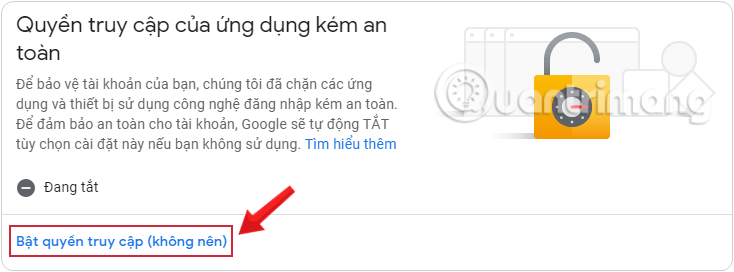
<p style="text-align: justify;"><strong>Bước 5:</strong>&nbsp;Nếu đang tắt, bạn nhấn vào<strong>&nbsp;Bật quyền truy cập</strong>&nbsp;trong phần này.</p>

<div style="text-align: justify;"><iframe allow="autoplay" allowtransparency="true" aria-label="Advertisement" data-google-container-id="a!5" data-google-query-id="CJ6LpNDLqIgDFfhgDwIdpBUGXg" data-load-complete="true" frameborder="0" height="0" hspace="0" id="aswift_4" marginheight="0" marginwidth="0" name="aswift_4" sandbox="allow-scripts allow-same-origin allow-forms allow-presentation allow-popups" scrolling="no" tabindex="0" title="Advertisement" vspace="0" width="694"></iframe></div>

<figure>
<div style="text-align: justify;"><img alt="Bật quyền truy cập ứng dụng kém an toàn trong Gmail" data-i="13" data-src="https://st.quantrimang.com/photos/image/2019/09/11/them-gmail-vao-outlook-25.png" data-was-processed="true" height="272" src="https://st.quantrimang.com/photos/image/2019/09/11/them-gmail-vao-outlook-25.png" width="734" /></div>

<figcaption>
<div style="text-align: justify;">Bật quyền truy cập</div>
</figcaption>
</figure>

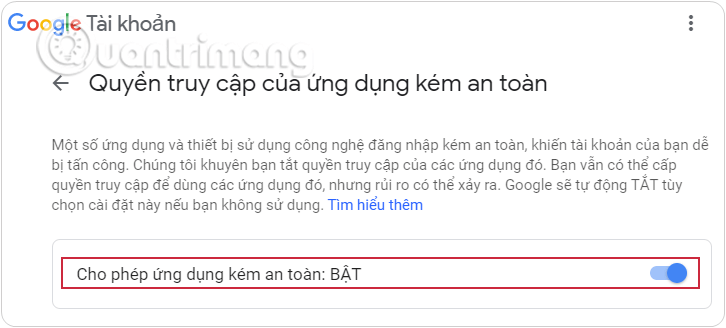
<p style="text-align: justify;"><strong>Bước 6:&nbsp;</strong>Màn hình tiếp theo hiển thị, bạn nhấn vào&nbsp;<strong>BẬT</strong>&nbsp;là xong.</p>

<figure>
<div style="text-align: justify;"><img alt="Nhấn vào BẬT để bật quyền truy cập" data-i="14" data-src="https://st.quantrimang.com/photos/image/2019/09/11/them-gmail-vao-outlook-26.png" data-was-processed="true" height="328" src="https://st.quantrimang.com/photos/image/2019/09/11/them-gmail-vao-outlook-26.png" width="726" /></div>

<figcaption>
<div style="text-align: justify;">Nhấn vào BẬT để bật quyền truy cập</div>
</figcaption>
</figure>

<p style="text-align: justify;">Quay lại Outlook và xem lại còn lỗi hay không, đã kết nối được tài khoản Gmail của mình chưa.</p>

<h3 style="text-align: justify;"><strong>Giải pháp 3: Tắt cài đặt Xác minh 2 bước trong tài khoản Google.</strong></h3>

<p style="text-align: justify;"><strong>Bước 1, 2, 3:</strong>&nbsp;Làm tương tự giải pháp 2</p>

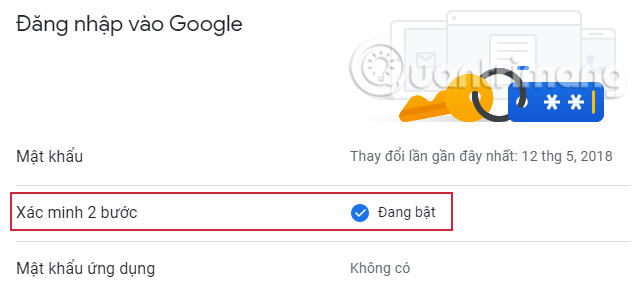
<p style="text-align: justify;"><strong>Bước 4:</strong>&nbsp;Ở phần&nbsp;<strong>Đăng nhập vào Google,&nbsp;</strong>bạn hãy chú ý đến mục<strong>&nbsp;Xác minh 2 bước</strong>&nbsp;có đang bật hay không, nếu có thì hãy click vào để tắt nó đi<strong>.</strong></p>

<figure>
<div style="text-align: justify;"><img alt="Tắt Xác minh 2 bước trên tài khoản Gmail" data-i="15" data-src="https://st.quantrimang.com/photos/image/2019/09/11/them-gmail-vao-outlook-20.png" data-was-processed="true" height="293" src="https://st.quantrimang.com/photos/image/2019/09/11/them-gmail-vao-outlook-20.png" width="641" /></div>

<figcaption>
<div style="text-align: justify;">Tắt Xác minh 2 bước trên tài khoản Gmail</div>
</figcaption>
</figure>

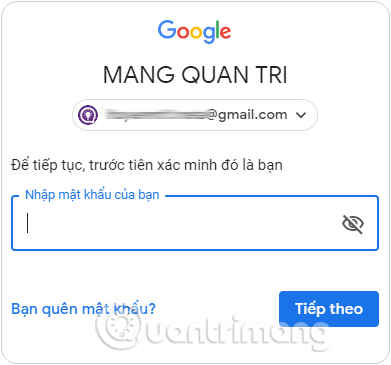
<p style="text-align: justify;"><strong>Bước 5:</strong>&nbsp;Sau khi chọn để tắt&nbsp;<strong>Xác minh 2 bước</strong>, bạn sẽ được chuyển sang giao diện mới, tại đây hãy nhập lại mật khẩu hiện tại của tài khoản Gmail đang dùng. Nhấn&nbsp;<strong>Tiếp theo</strong>&nbsp;để chuyển sang giao diện kế tiếp.</p>

<figure>
<div style="text-align: justify;"><img alt="Nhập lại mật khẩu hiện tại của tài khoản Google đang dùng" data-i="16" data-src="https://st.quantrimang.com/photos/image/2019/09/10/them-email-khoi-phuc-gmail-4.png" data-was-processed="true" height="365" src="https://st.quantrimang.com/photos/image/2019/09/10/them-email-khoi-phuc-gmail-4.png" width="391" /></div>

<figcaption>
<div style="text-align: justify;">Nhập lại mật khẩu hiện tại của tài khoản Google đang dùng</div>
</figcaption>
</figure>

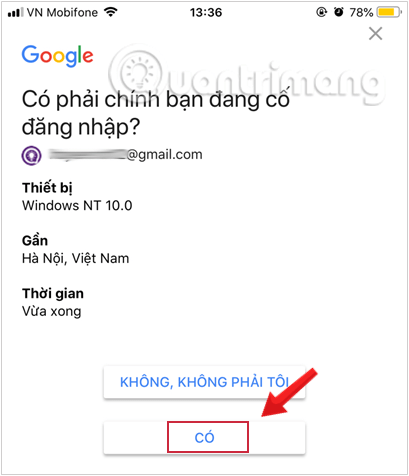
<p style="text-align: justify;"><strong>Bước 6:</strong>&nbsp;Sau khi đăng nhập bằng mật khẩu, Gmail yêu cầu bạn mở ứng dụng Gmail trên điện thoại để xác nhận bước thứ 2, ấn&nbsp;<strong>Có</strong>&nbsp;hiển thị trên màn hình thiết bị để đăng nhập thành công trên máy tính.</p>

<figure>
<div style="text-align: justify;"><img alt="Mở ứng dụng Gmail trên điện thoại để xác nhận bước thứ 2" data-i="17" data-src="https://st.quantrimang.com/photos/image/2019/09/11/them-gmail-vao-outlook-21-1.png" data-was-processed="true" height="476" src="https://st.quantrimang.com/photos/image/2019/09/11/them-gmail-vao-outlook-21-1.png" width="409" /></div>

<figcaption>
<div style="text-align: justify;">Mở ứng dụng Gmail trên điện thoại để xác nhận bước thứ 2</div>
</figcaption>
</figure>

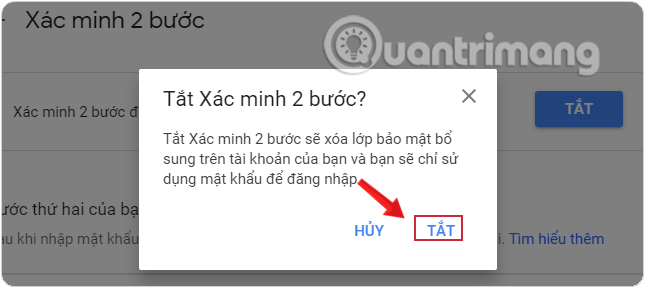
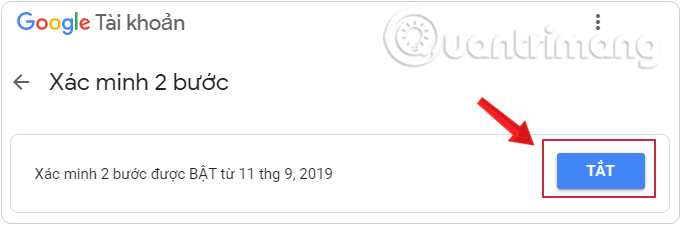
<p style="text-align: justify;"><strong>Bước 7:</strong>&nbsp;Màn hình tiếp theo hiển thị, bạn nhấn vào&nbsp;<strong>TẮT&nbsp;</strong>để tắt chức năng bảo mật 2 lớp.</p>

<figure>
<div style="text-align: justify;"><img alt="Tắt chức năng bảo mật 2 lớp trên Gmail" data-i="18" data-src="https://st.quantrimang.com/photos/image/2019/09/11/them-gmail-vao-outlook-22.png" data-was-processed="true" height="225" src="https://st.quantrimang.com/photos/image/2019/09/11/them-gmail-vao-outlook-22.png" width="681" /></div>

<figcaption>
<div style="text-align: justify;">Tắt chức năng bảo mật 2 lớp trên Gmail</div>
</figcaption>
</figure>

<p style="text-align: justify;"><strong>Bước 8:</strong>&nbsp;Xác nhận lại một lần nữa tắt bảo mật hai lớp, nhấp vào&nbsp;<strong>Tắt&nbsp;</strong>là xong.</p>

<figure>
<div style="text-align: justify;"><img alt="Xác nhận lại một lần nữa tắt bảo mật hai lớp" data-i="19" data-src="https://st.quantrimang.com/photos/image/2019/09/11/them-gmail-vao-outlook-23.png" data-was-processed="true" height="288" src="https://st.quantrimang.com/photos/image/2019/09/11/them-gmail-vao-outlook-23.png" width="645" /></div>

<figcaption>
<div style="text-align: justify;">Xác nhận lại một lần nữa tắt bảo mật hai lớp</div>
</figcaption>
</figure>

<p style="text-align: justify;">Quay lại Outlook và xem lại đã kết nối được tài khoản Gmail của mình chưa.</p>

<p style="text-align: justify;">&nbsp;</p>

<p style="text-align: justify;">Chúc các bạn thành công!</p>

<div style="text-align: justify;">&nbsp;</div>
		</div>
				<div id="author">
						<p>
				<strong>Nguồn tin:</strong>
				Quantrimang.com:
			</p>
		</div>
	</div>
	<div id="footer" class="clearfix">
		<div id="url">
			<strong>URL của bản tin này: </strong><a href="https://www.nguoicodonvn2008.info/vi/news/savefile/kien-thuc-may-tinh/huong-dan-khac-phuc-loi-khong-them-duoc-tai-khoan-gmail-vao-microsoft-outlook-8954.html" title="Hướng dẫn khắc phục lỗi không thêm được tài khoản Gmail vào Microsoft Outlook">https://www.nguoicodonvn2008.info/vi/news/savefile/kien-thuc-may-tinh/huong-dan-khac-phuc-loi-khong-them-duoc-tai-khoan-gmail-vao-microsoft-outlook-8954.html</a>

		</div>
		<div class="clear"></div>
		<div class="copyright">
			&copy; .&#x3A; Nguoicodonvn2008.info - Cõi lòng người cô đơn &#x3A;.
		</div>
		<div id="contact">
			<a href="mailto:admin@nguoicodonvn2008.info">admin@nguoicodonvn2008.info</a>
		</div>
	</div>
</div>
        <div id="timeoutsess" class="chromeframe">
            Bạn đã không sử dụng Site, <a onclick="timeoutsesscancel();" href="https://www.nguoicodonvn2008.info/#">Bấm vào đây để duy trì trạng thái đăng nhập</a>. Thời gian chờ: <span id="secField"> 60 </span> giây
        </div>
        <div id="openidResult" class="nv-alert" style="display:none"></div>
        <div id="openidBt" data-result="" data-redirect=""></div>
		</script>
		<div class="car-top">
  <span><img src="https://www.nguoicodonvn2008.info/themes/default/images/car.png" alt=""></span>
</div>
<script src="https://www.nguoicodonvn2008.info/assets/js/jquery/jquery.min.js"></script>
<script>var nv_base_siteurl="/",nv_lang_data="vi",nv_lang_interface="vi",nv_name_variable="nv",nv_fc_variable="op",nv_lang_variable="language",nv_module_name="news",nv_func_name="savefile",nv_is_user=0, nv_my_ofs=-4,nv_my_abbr="EDT",nv_cookie_prefix="nv4c_e856T",nv_check_pass_mstime=1738000,nv_area_admin=0,nv_safemode=0,theme_responsive=0,nv_recaptcha_ver=2,nv_recaptcha_sitekey="",nv_recaptcha_type="image",XSSsanitize=1;</script>
<script src="https://www.nguoicodonvn2008.info/assets/js/language/vi.js"></script>
<script src="https://www.nguoicodonvn2008.info/assets/js/DOMPurify/purify3.js"></script>
<script src="https://www.nguoicodonvn2008.info/assets/js/global.js"></script>
<script src="https://www.nguoicodonvn2008.info/assets/js/site.js"></script>
<script src="https://www.nguoicodonvn2008.info/themes/default/js/news.js"></script>
<script src="https://www.nguoicodonvn2008.info/themes/default/js/main.js"></script>
<script src="https://www.nguoicodonvn2008.info/themes/default/js/custom.js"></script>
<script type="application/ld+json">
        {
            "@context": "https://schema.org",
            "@type": "Organization",
            "url": "https://www.nguoicodonvn2008.info",
            "logo": "https://www.nguoicodonvn2008.info/uploads/angel.gif"
        }
        </script>
<script src="https://www.nguoicodonvn2008.info/themes/default/js/bootstrap.min.js"></script>
<script type="text/javascript">
var $scrolltop = $('.car-top');
$scrolltop.on('click', function () {
    $('html,body').animate({
        scrollTop: 0
    }, 800);
    $(this).addClass("car-run");
    setTimeout(function(){ $scrolltop.removeClass('car-run');}, 1000);
    return false;
});
$(window).on('scroll', function ()
{ 
    if($(window).scrollTop() >= 200)
    {
        $scrolltop.addClass("show");
        $scrolltop.addClass("car-down");
    }
    else
    {
       $scrolltop.removeClass("show");
       setTimeout(function(){ $scrolltop.removeClass('car-down');}, 300);
    }
});
</script>
</body>
</html>