<!DOCTYPE html>
    <html lang="vi" xmlns="http://www.w3.org/1999/xhtml" prefix="og: http://ogp.me/ns#">
    <head>
<title>Hướng dẫn đổi DNS Google 8.8.8.8 và 8.8.4.4</title>
<meta name="description" content="Hướng dẫn đổi DNS Google 8.8.8.8 và 8.8.4.4 - Savefile - Tin Tức -...">
<meta name="author" content=".: Nguoicodonvn2008.info - Cõi lòng người cô đơn :.">
<meta name="copyright" content=".: Nguoicodonvn2008.info - Cõi lòng người cô đơn :. [admin@nguoicodonvn2008.info]">
<meta name="robots" content="index, archive, follow, noodp">
<meta name="googlebot" content="index,archive,follow,noodp">
<meta name="msnbot" content="all,index,follow">
<meta name="generator" content="NukeViet v4.5">
<meta http-equiv="Content-Type" content="text/html; charset=utf-8">
<meta property="og:title" content="Hướng dẫn đổi DNS Google 8.8.8.8 và 8.8.4.4">
<meta property="og:type" content="website">
<meta property="og:description" content="Savefile - Tin Tức - https&#x3A;&#x002F;&#x002F;www.nguoicodonvn2008.info&#x002F;vi&#x002F;news&#x002F;savefile&#x002F;kien-thuc-may-tinh&#x002F;huong-dan-doi-dns-google-8-8-8-8-va-8-8-4-4-8491.html">
<meta property="og:site_name" content=".&#x3A; Nguoicodonvn2008.info - Cõi lòng người cô đơn &#x3A;.">
<meta property="og:url" content="https://www.nguoicodonvn2008.info/vi/news/savefile/kien-thuc-may-tinh/huong-dan-doi-dns-google-8-8-8-8-va-8-8-4-4-8491.html">
<link rel="shortcut icon" href="https://www.nguoicodonvn2008.info/favicon.ico">
<link rel="canonical" href="https://www.nguoicodonvn2008.info/vi/news/savefile/kien-thuc-may-tinh/huong-dan-doi-dns-google-8-8-8-8-va-8-8-4-4-8491.html">
<link rel="alternate" href="https://www.nguoicodonvn2008.info/vi/news/rss/" title="Tin Tức" type="application/rss+xml">
<link rel="alternate" href="https://www.nguoicodonvn2008.info/vi/news/rss/karaoke-dual/" title="Tin Tức - Karaoke Dual" type="application/rss+xml">
<link rel="alternate" href="https://www.nguoicodonvn2008.info/vi/news/rss/nhac-tre/" title="Tin Tức - Nhạc trẻ" type="application/rss+xml">
<link rel="alternate" href="https://www.nguoicodonvn2008.info/vi/news/rss/tru-tinh/" title="Tin Tức - Trữ tình" type="application/rss+xml">
<link rel="alternate" href="https://www.nguoicodonvn2008.info/vi/news/rss/nuoc-ngoai/" title="Tin Tức - Nước ngoài" type="application/rss+xml">
<link rel="alternate" href="https://www.nguoicodonvn2008.info/vi/news/rss/remix/" title="Tin Tức - Remix" type="application/rss+xml">
<link rel="alternate" href="https://www.nguoicodonvn2008.info/vi/news/rss/tam-su-tinh-yeu/" title="Tin Tức - Tâm sự tình yêu" type="application/rss+xml">
<link rel="alternate" href="https://www.nguoicodonvn2008.info/vi/news/rss/tho-suu-tam/" title="Tin Tức - Thơ sưu tầm" type="application/rss+xml">
<link rel="alternate" href="https://www.nguoicodonvn2008.info/vi/news/rss/cuoc-song/" title="Tin Tức - Cuộc sống" type="application/rss+xml">
<link rel="alternate" href="https://www.nguoicodonvn2008.info/vi/news/rss/phan-mem/" title="Tin Tức - Phần mềm" type="application/rss+xml">
<link rel="alternate" href="https://www.nguoicodonvn2008.info/vi/news/rss/kien-thuc-may-tinh/" title="Tin Tức - Kiến thức máy tính" type="application/rss+xml">
<link rel="alternate" href="https://www.nguoicodonvn2008.info/vi/news/rss/hoc-tap/" title="Tin Tức - Học tập" type="application/rss+xml">
<link rel="alternate" href="https://www.nguoicodonvn2008.info/vi/news/rss/tai-lieu/" title="Tin Tức - Tài liệu" type="application/rss+xml">
<link rel="alternate" href="https://www.nguoicodonvn2008.info/vi/news/rss/de-thi/" title="Tin Tức - Đề thi" type="application/rss+xml">
<link rel="preload" as="style" href="https://www.nguoicodonvn2008.info/assets/css/font-awesome.min.css" type="text/css">
<link rel="preload" as="style" href="https://www.nguoicodonvn2008.info/themes/default/css/bootstrap.non-responsive.css" type="text/css">
<link rel="preload" as="style" href="https://www.nguoicodonvn2008.info/themes/default/css/style.css" type="text/css">
<link rel="preload" as="style" href="https://www.nguoicodonvn2008.info/themes/default/css/style.non-responsive.css" type="text/css">
<link rel="preload" as="style" href="https://www.nguoicodonvn2008.info/themes/default/css/news.css" type="text/css">
<link rel="preload" as="style" href="https://www.nguoicodonvn2008.info/themes/default/css/custom.css" type="text/css">
<link rel="preload" as="script" href="https://www.nguoicodonvn2008.info/assets/js/jquery/jquery.min.js" type="text/javascript">
<link rel="preload" as="script" href="https://www.nguoicodonvn2008.info/assets/js/language/vi.js" type="text/javascript">
<link rel="preload" as="script" href="https://www.nguoicodonvn2008.info/assets/js/DOMPurify/purify3.js" type="text/javascript">
<link rel="preload" as="script" href="https://www.nguoicodonvn2008.info/assets/js/global.js" type="text/javascript">
<link rel="preload" as="script" href="https://www.nguoicodonvn2008.info/assets/js/site.js" type="text/javascript">
<link rel="preload" as="script" href="https://www.nguoicodonvn2008.info/themes/default/js/news.js" type="text/javascript">
<link rel="preload" as="script" href="https://www.nguoicodonvn2008.info/themes/default/js/main.js" type="text/javascript">
<link rel="preload" as="script" href="https://www.nguoicodonvn2008.info/themes/default/js/custom.js" type="text/javascript">
<link rel="preload" as="script" href="https://www.nguoicodonvn2008.info/themes/default/js/bootstrap.min.js" type="text/javascript">
<link rel="stylesheet" href="https://www.nguoicodonvn2008.info/assets/css/font-awesome.min.css">
<link rel="stylesheet" href="https://www.nguoicodonvn2008.info/themes/default/css/bootstrap.non-responsive.css">
<link rel="stylesheet" href="https://www.nguoicodonvn2008.info/themes/default/css/style.css">
<link rel="stylesheet" href="https://www.nguoicodonvn2008.info/themes/default/css/style.non-responsive.css">
<link rel="StyleSheet" href="https://www.nguoicodonvn2008.info/themes/default/css/news.css">
<link rel="stylesheet" href="https://www.nguoicodonvn2008.info/themes/default/css/custom.css">
<style type="text/css">
	body{background: #fff;}
</style>
    </head>
    <body>
<div id="print">
	<div id="hd_print">
		<h2 class="pull-left">.&#x3A; Nguoicodonvn2008.info - Cõi lòng người cô đơn &#x3A;.</h2>
		<p class="pull-right"><a title=".&#x3A; Nguoicodonvn2008.info - Cõi lòng người cô đơn &#x3A;." href="https://www.nguoicodonvn2008.info/">https://www.nguoicodonvn2008.info</a></p>
	</div>
	<div class="clear"></div>
	<hr />
	<div id="content">
		<h1>Hướng dẫn đổi DNS Google 8.8.8.8 và 8.8.4.4</h1>
		<ul class="list-inline">
			<li>Chủ nhật - 16/06/2024 23:27</li>
			<li class="hidden-print txtrequired"><em class="fa fa-print">&nbsp;</em><a title="In ra" href="javascript:;" onclick="window.print()">In ra</a></li>
			<li class="hidden-print txtrequired"><em class="fa fa-power-off">&nbsp;</em><a title="Đóng cửa sổ này" href="javascript:;" onclick="window.close()">Đóng cửa sổ này</a></li>
		</ul>
		<div class="clear"></div>
		<div id="hometext">
		</div>
				<div class="imghome">
			<img alt="Hướng dẫn đổi DNS Google 8.8.8.8 và 8.8.4.4" src="https://st.quantrimang.com/photos/image/2024/03/18/doi-dns-google-5.jpg" width="460" class="img-thumbnail" />
		</div>
		<div class="clear"></div>
		<div id="bodytext" class="clearfix">
			<p style="text-align: justify;">DNS Google hiện tại là dịch vụ được sử dụng phổ biến hiện nay để&nbsp;tăng tốc độ truy cập Internet. Với DNS Google sẽ làm tăng thêm tính bảo mật khi chúng ta duyệt Internet, đặc biệt phải kể đến tính năng ngăn chặn lừa đảo thông qua bộ lọc và khả năng truy cập các trang web bị chặn.</p>

<p style="text-align: justify;">Từ lâu thì cụm từ&nbsp;DNS&nbsp;đã quá quen thuộc với người dùng mạng Internet, là hệ thống phân giải tên, chỉ một hệ thống cho phép thiết lập tương ứng giữa địa chỉ IP và tên miền. Nghĩa là DNS sẽ dịch một tên miền thành địa chỉ IP để nhận dạng trên hệ thống mạng. Hiện tại có nhiều&nbsp;DNS chất lượng&nbsp;để chúng ta lựa chọn, như DNS Singapore, DNS VNPT, DNS OpenDNS,... trong đó DNS Google được sử dụng phổ biến. Và DNS Google 8.8.8.8 8.8.4.4 đang được nhiều người sử dụng. Bài viết dưới đây sẽ hướng dẫn bạn đọc cách đổi DNS Google 8.8.8.8 8.8.4.4.</p>

<p style="text-align: justify;">&nbsp;</p>

<h2 style="text-align: justify;">Hướng dẫn đổi DNS Google 8.8.8.8 và 8.8.4.4 trên Windows 10</h2>

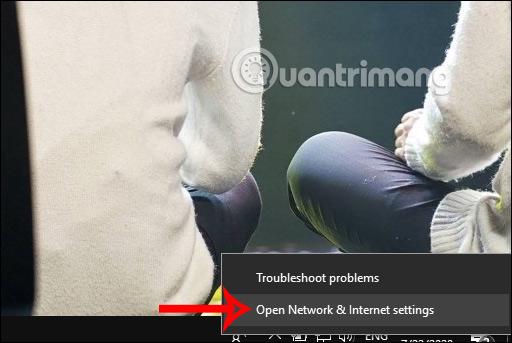
<p style="text-align: justify;"><strong>Bước 1:</strong></p>

<p style="text-align: justify;">Tại giao diện trên máy tính bạn click vào&nbsp;<strong>biểu tượng kết nối mạng</strong>&nbsp;tại thanh Taskbar rồi chọn&nbsp;<strong>Open Network and Sharing Center</strong>.</p>

<p style="text-align: justify;"><img alt="Open Network and Sharing Center" data-i="0" data-src="https://st.quantrimang.com/photos/image/2020/07/22/DNS-Google-thiet-lap-1.jpg" data-was-processed="true" height="343" src="https://st.quantrimang.com/photos/image/2020/07/22/DNS-Google-thiet-lap-1.jpg" width="512" /></p>

<div style="text-align: justify;">&nbsp;</div>

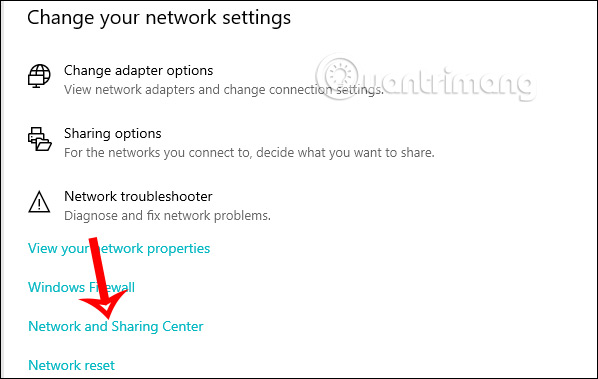
<p style="text-align: justify;"><strong>Bước 2:</strong></p>

<p style="text-align: justify;">Sau đó hiển thị giao diện Network status tại Windows Settings. Bạn kéo xuống dưới click vào mục&nbsp;<strong>Network and Sharing Center</strong>.</p>

<p style="text-align: justify;">&nbsp;</p>

<div style="text-align: justify;"><img alt="Network and Sharing Center" data-adbro-processed="true" data-i="1" data-src="https://st.quantrimang.com/photos/image/2020/07/22/DNS-Google-thiet-lap-2.jpg" data-was-processed="true" height="379" src="https://st.quantrimang.com/photos/image/2020/07/22/DNS-Google-thiet-lap-2.jpg" width="598" /></div>

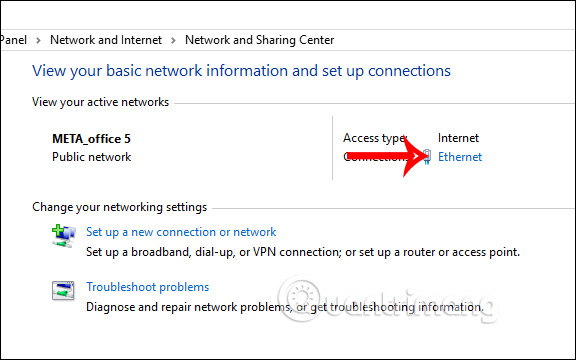
<p style="text-align: justify;"><strong>Bước 3:</strong></p>

<p style="text-align: justify;">Sau đó chúng ta được chuyển ngay vào giao diện Network and Sharing Center. Tại đây bạn tiếp tục&nbsp;<strong>click đúp vào tên mạng</strong>&nbsp;đang kết nối trên máy tính.</p>

<p style="text-align: justify;"><img alt="Nhấn vào tên mạng " data-i="2" data-src="https://st.quantrimang.com/photos/image/2020/07/22/DNS-Google-thiet-lap-3.jpg" data-was-processed="true" height="360" src="https://st.quantrimang.com/photos/image/2020/07/22/DNS-Google-thiet-lap-3.jpg" width="576" /></p>

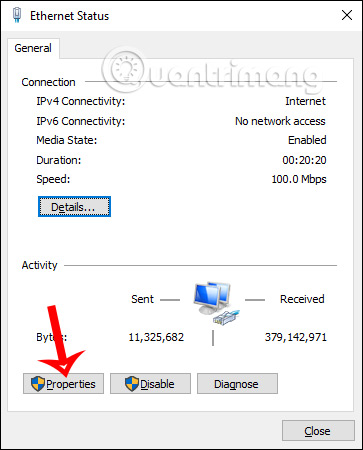
<p style="text-align: justify;">Lúc này hiển thị giao diện mới, bạn nhấn tiếp vào<strong>&nbsp;mục Properties</strong>.</p>

<p style="text-align: justify;"><img alt="Nhấn vào Properties" data-i="3" data-src="https://st.quantrimang.com/photos/image/2020/07/22/DNS-Google-thiet-lap-4.jpg" data-was-processed="true" height="450" src="https://st.quantrimang.com/photos/image/2020/07/22/DNS-Google-thiet-lap-4.jpg" width="363" /></p>

<div style="text-align: justify;">&nbsp;</div>

<p style="text-align: justify;"><strong>Bước 4:</strong></p>

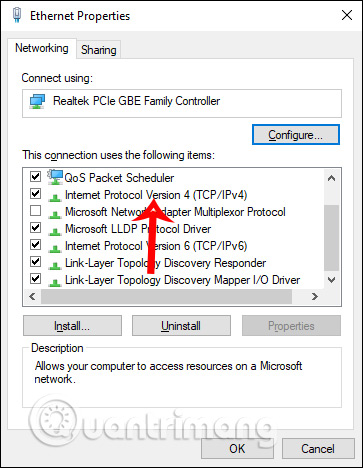
<p style="text-align: justify;">Hiển thị giao diện mới, người dùng nhấn vào&nbsp;<strong>Internet protocol Version 4(TCP/IPv4)</strong>.</p>

<p style="text-align: justify;"><img alt="Internet protocol Version 4(TCP/IPv4)" data-i="4" data-src="https://st.quantrimang.com/photos/image/2020/07/22/DNS-Google-thiet-lap-5.jpg" data-was-processed="true" height="468" src="https://st.quantrimang.com/photos/image/2020/07/22/DNS-Google-thiet-lap-5.jpg" width="363" /></p>

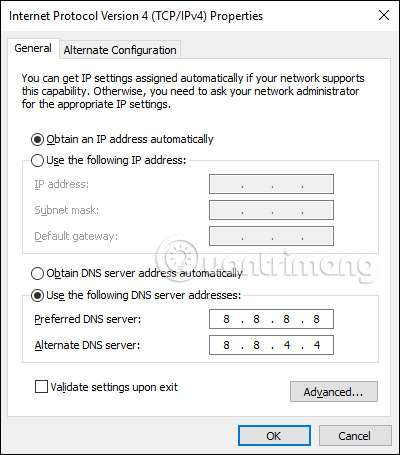
<p style="text-align: justify;">Trong giao diện Internet protocol Version 4(TCP/IPv4) Properties,&nbsp;<strong>tích chọn vào Use the following DNS server address</strong>, rồi điền các thông số tương ứng cho DNS Google theo như hình dưới đây.</p>

<ul>
	<li style="text-align: justify;">8.8.8.8</li>
	<li style="text-align: justify;">8.8.4.4</li>
</ul>

<p style="text-align: justify;">Cuối cùng&nbsp;<strong>nhấn OK</strong>&nbsp;để hoàn thành. Mạng sẽ tự động tải lại theo DNS Google đã nhập.</p>

<p style="text-align: justify;"><img alt="Điền DNS Google" data-i="5" data-src="https://st.quantrimang.com/photos/image/2020/07/22/DNS-Google-thiet-lap-6.jpg" data-was-processed="true" height="455" src="https://st.quantrimang.com/photos/image/2020/07/22/DNS-Google-thiet-lap-6.jpg" width="400" /></p>

<p style="text-align: justify;">Nếu bạn đang sử dụng địa chỉ IPv6 thì chọn TCP/IPv6 rồi nhập 2 giá trị sau thay cho 8.8.8.8 và 8.8.4.4:</p>

<ul>
	<li style="text-align: justify;">Preferred DNS server:&nbsp;<strong>2001:4860:4860::8888</strong>&nbsp;(viết tắt) hoặc&nbsp;<strong>2001: 4860: 4860: 0: 0: 0: 0: 8888</strong>&nbsp;(viết đầy đủ)</li>
	<li style="text-align: justify;">Alternate DNS server:&nbsp;<strong>2001:4860:4860::8844</strong>&nbsp;hoặc&nbsp;<strong>2001: 4860: 4860: 0: 0: 0: 0: 8844</strong></li>
</ul>

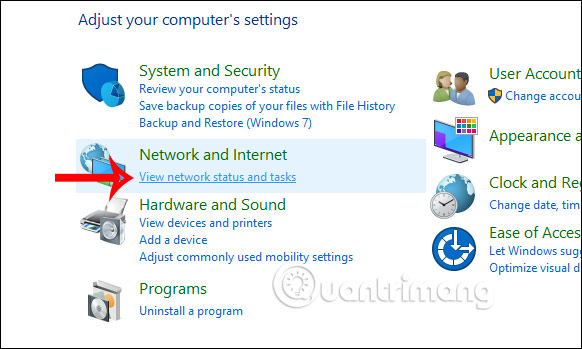
<p style="text-align: justify;">Ngoài cách truy cập tại biểu tượng mạng trên thanh Taskbar, bạn có thể vào Control Panel rồi nhấn vào View Network Status and Tasks. Sau đó bạn cũng nhấn vào tên mạng và thực hiện tương tự như trên.</p>

<p style="text-align: justify;"><img alt="Truy cập qua Control Panel " data-i="6" data-src="https://st.quantrimang.com/photos/image/2020/07/22/DNS-Google-thiet-lap-7.jpg" data-was-processed="true" height="349" src="https://st.quantrimang.com/photos/image/2020/07/22/DNS-Google-thiet-lap-7.jpg" width="582" /></p>

<div style="text-align: justify;">&nbsp;</div>

<h2 style="text-align: justify;">Hướng dẫn đổi DNS Google 8.8.8.8 và 8.8.4.4 trên Windows 8</h2>

<p style="text-align: justify;">Người dùng Windows 8 có thể dễ dàng thay đổi DNS server của họ trong cài đặt mạng.</p>

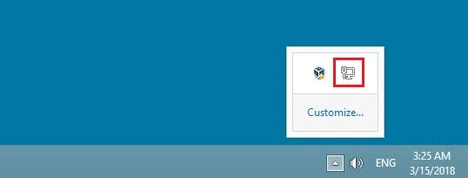
<p style="text-align: justify;"><strong>Bước 1</strong>: Điều hướng đến&nbsp;<strong>Network and Sharing Center</strong>. Tùy chọn này có thể được mở thông qua Control Panel (menu Start &gt; Control Panel) hoặc thông qua biểu tượng kết nối mạng trong bảng thông báo của thanh tác vụ. Khi bạn đã tìm thấy biểu tượng, hãy nhấp vào biểu tượng đó bằng nút chuột phải và chọn tùy chọn&nbsp;<strong>Open Network and Sharing Center</strong>.</p>

<figure>
<div style="text-align: justify;"><img alt="Biểu tượng kết nối mạng trong bảng thông báo" data-i="7" data-src="https://st.quantrimang.com/photos/image/2024/03/18/doi-dns-google-1.jpg" data-was-processed="true" height="178" src="https://st.quantrimang.com/photos/image/2024/03/18/doi-dns-google-1.jpg" width="468" /></div>

<figcaption>
<div style="text-align: justify;">Biểu tượng kết nối mạng trong bảng thông báo</div>
</figcaption>
</figure>

<p style="text-align: justify;">Biểu tượng kết nối mạng không phải lúc nào cũng được hiển thị trên thanh tác vụ của Windows nhưng bạn có thể tìm thấy nó bằng cách nhấp vào&nbsp;<strong>Show hidden symbols</strong>.</p>

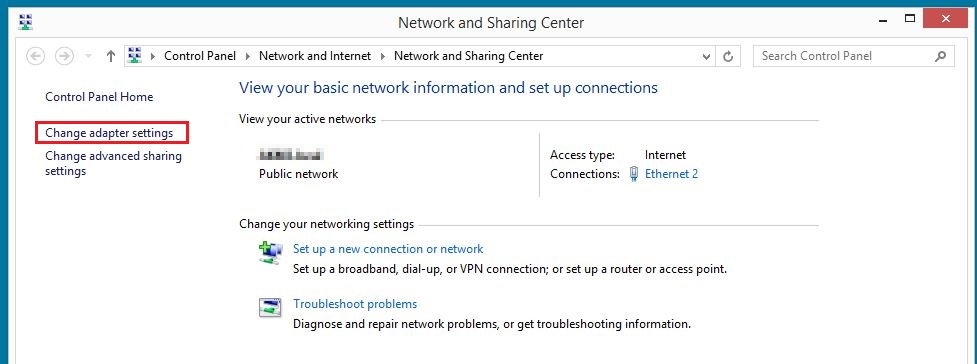
<p style="text-align: justify;"><strong>Bước 2:</strong>&nbsp;Khởi chạy cài đặt adapter bằng cách nhấp vào nút thích hợp.</p>

<figure>
<div style="text-align: justify;"><img alt="Network and Sharing center trong cài đặt adapter trên Windows 8" data-i="8" data-src="https://st.quantrimang.com/photos/image/2024/03/18/doi-dns-google-2.jpg" data-was-processed="true" height="364" src="https://st.quantrimang.com/photos/image/2024/03/18/doi-dns-google-2.jpg" width="977" /></div>

<figcaption>
<div style="text-align: justify;">Network and Sharing center trong cài đặt adapter trên Windows 8</div>
</figcaption>
</figure>

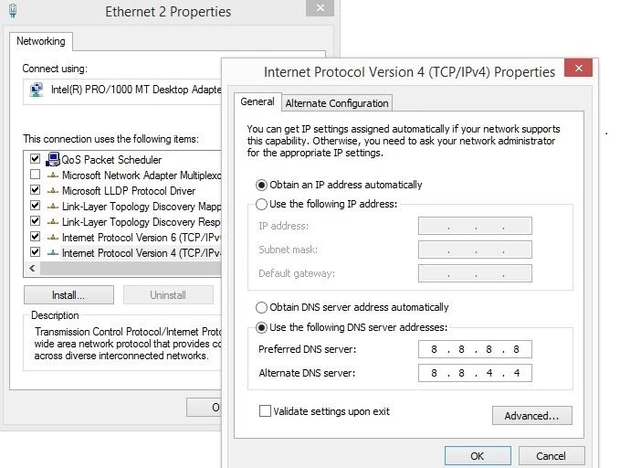
<p style="text-align: justify;"><strong>Bước 3</strong>: Bây giờ, nhấp chuột phải vào kết nối bạn muốn cấu hình và chọn&nbsp;<strong>Properties</strong>&nbsp;trong menu xuất hiện.</p>

<p style="text-align: justify;"><strong>Bước 4</strong>: Nhấp đúp vào&nbsp;<strong>Internet Protocol Version 4 (TCP/IPv4)</strong>&nbsp;để mở menu thay đổi DNS server trong Windows 8, nơi bạn có thể nhập các địa chỉ trên cho các DNS server public của Google (8.8.8.8 và 8.8 .4.4).</p>

<figure>
<div style="text-align: justify;"><img alt="Kết nối mạng LAN và thuộc tính IPv4 trên Windows 8" data-i="9" data-src="https://st.quantrimang.com/photos/image/2024/03/18/doi-dns-google-3.jpg" data-was-processed="true" height="468" src="https://st.quantrimang.com/photos/image/2024/03/18/doi-dns-google-3.jpg" width="620" /></div>

<figcaption>
<div style="text-align: justify;">Kết nối mạng LAN và thuộc tính IPv4 trên Windows 8</div>
</figcaption>
</figure>

<p style="text-align: justify;">Ví dụ này sử dụng địa chỉ Google để thay đổi DNS server trên Windows 8.</p>

<h2 style="text-align: justify;">Hướng dẫn đổi DNS Google 8.8.8.8 và 8.8.4.4 trên Windows&nbsp;7</h2>

<p style="text-align: justify;">Bạn có thể thay đổi DNS server trên Windows 7 thông qua cài đặt kết nối mạng.</p>

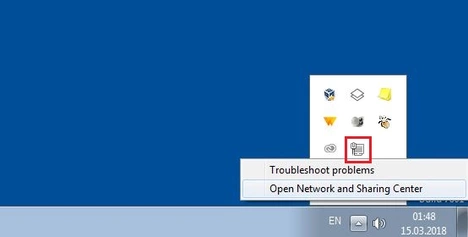
<p style="text-align: justify;"><strong>Bước 1</strong>: Khởi chạy&nbsp;<strong>Network and Sharing Center</strong>. Bạn có thể thực hiện việc này thông qua Control Panel, nơi bạn sẽ tìm thấy mục menu tương ứng hoặc bằng cách nhấp chuột phải vào biểu tượng kết nối mạng trong bảng thông báo trên thanh tác vụ (còn được gọi là khay hệ thống) rồi nhấp vào&nbsp;<strong>Open Network and Sharing Center.</strong></p>

<figure>
<div style="text-align: justify;"><img alt="Biểu tượng mạng trên khay hệ thống" data-i="10" data-src="https://st.quantrimang.com/photos/image/2024/03/18/doi-dns-google-4.jpg" data-was-processed="true" height="237" src="https://st.quantrimang.com/photos/image/2024/03/18/doi-dns-google-4.jpg" width="468" /></div>

<figcaption>
<div style="text-align: justify;">Biểu tượng mạng trên khay hệ thống</div>
</figcaption>
</figure>

<div style="text-align: justify;"><iframe allow="autoplay" allowtransparency="true" aria-label="Advertisement" data-google-container-id="a!5" data-google-query-id="COCGvdTY4YYDFeUAewcdfLAOKQ" data-load-complete="true" frameborder="0" height="174" hspace="0" id="aswift_4" marginheight="0" marginwidth="0" name="aswift_4" sandbox="allow-scripts allow-same-origin allow-forms allow-presentation" scrolling="no" tabindex="0" title="Advertisement" vspace="0" width="694"></iframe></div>

<p style="text-align: justify;">Nếu không tìm thấy biểu tượng cho kết nối mạng của mình, bạn cũng có thể mở Network and Sharing Center trong Windows 7 thông qua Control Panel.</p>

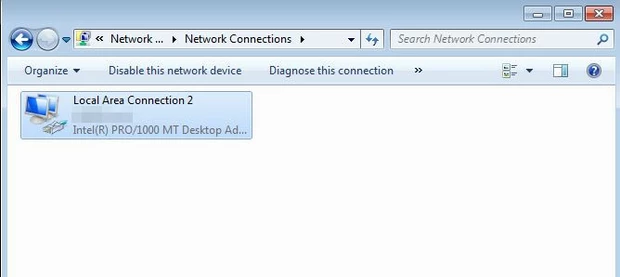
<p style="text-align: justify;"><strong>Bước 2</strong>: Trong menu tiếp theo, chọn tùy chọn&nbsp;<strong>Change adapter settings</strong>&nbsp;và sau đó chọn kết nối với cài đặt DNS mà bạn muốn thay đổi.</p>

<figure>
<div style="text-align: justify;"><img alt="Tổng quan về kết nối mạng trong Windows 7" data-i="11" data-src="https://st.quantrimang.com/photos/image/2024/03/18/doi-dns-google-5.jpg" data-was-processed="true" height="277" src="https://st.quantrimang.com/photos/image/2024/03/18/doi-dns-google-5.jpg" width="620" /></div>

<figcaption>
<div style="text-align: justify;">Tổng quan về kết nối mạng trong Windows 7</div>
</figcaption>
</figure>

<p style="text-align: justify;">Có thể dễ dàng phân biệt kết nối cáp và WiFi trong Windows 7 bằng ký hiệu: Kết nối cáp được biểu thị bằng phích cắm, trong khi biểu tượng cường độ tín hiệu được hiển thị cho kết nối WiFi.</p>

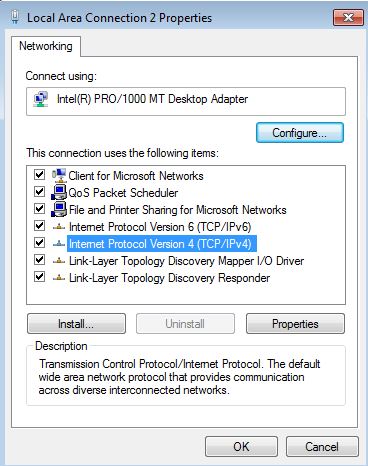
<p style="text-align: justify;"><strong>Bước 3</strong>: Bạn có thể mở tổng quan về giao thức và dịch vụ cho kết nối đã chọn bằng cách nhấp chuột phải, rồi đi tới&nbsp;<strong>Properties</strong>. Tìm mục&nbsp;<strong>Internet Protocol Version 4 (TCP/IPv4)</strong>&nbsp;và nhấp đúp để hiển thị menu thay đổi DNS server trong Windows 7.</p>

<figure>
<div style="text-align: justify;"><img alt="Cài đặt IPv4 trong menu Properties" data-i="12" data-src="https://st.quantrimang.com/photos/image/2024/03/18/doi-dns-google-6.jpg" data-was-processed="true" height="466" src="https://st.quantrimang.com/photos/image/2024/03/18/doi-dns-google-6.jpg" width="368" /></div>

<figcaption>
<div style="text-align: justify;">Cài đặt IPv4 trong menu Properties</div>
</figcaption>
</figure>

<p style="text-align: justify;">Cả IPv4 và IPv6 đều được kích hoạt theo tiêu chuẩn trên Windows 7. Việc thay đổi thiết lập DNS có đáng hay không chủ yếu phụ thuộc vào router của bạn, router phải cung cấp sự hỗ trợ cần thiết.</p>

<p style="text-align: justify;"><strong>Bước 4</strong>: Ở bước cuối cùng, kích hoạt tùy chọn&nbsp;<strong>Use the following DNS server addresses</strong>&nbsp;và nhập cả hai địa chỉ cho các DNS server public:</p>

<ul>
	<li>
	<p style="text-align: justify;"><strong>Preferred DNS server</strong>: 8.8.8.8</p>
	</li>
	<li style="text-align: justify;"><strong>Alternate DNS server</strong>: 8.8.4.4</li>
</ul>
		</div>
				<div id="author">
						<p>
				<strong>Nguồn tin:</strong>
				Quantrimang.com:
			</p>
		</div>
	</div>
	<div id="footer" class="clearfix">
		<div id="url">
			<strong>URL của bản tin này: </strong><a href="https://www.nguoicodonvn2008.info/vi/news/savefile/kien-thuc-may-tinh/huong-dan-doi-dns-google-8-8-8-8-va-8-8-4-4-8491.html" title="Hướng dẫn đổi DNS Google 8.8.8.8 và 8.8.4.4">https://www.nguoicodonvn2008.info/vi/news/savefile/kien-thuc-may-tinh/huong-dan-doi-dns-google-8-8-8-8-va-8-8-4-4-8491.html</a>

		</div>
		<div class="clear"></div>
		<div class="copyright">
			&copy; .&#x3A; Nguoicodonvn2008.info - Cõi lòng người cô đơn &#x3A;.
		</div>
		<div id="contact">
			<a href="mailto:admin@nguoicodonvn2008.info">admin@nguoicodonvn2008.info</a>
		</div>
	</div>
</div>
        <div id="timeoutsess" class="chromeframe">
            Bạn đã không sử dụng Site, <a onclick="timeoutsesscancel();" href="https://www.nguoicodonvn2008.info/#">Bấm vào đây để duy trì trạng thái đăng nhập</a>. Thời gian chờ: <span id="secField"> 60 </span> giây
        </div>
        <div id="openidResult" class="nv-alert" style="display:none"></div>
        <div id="openidBt" data-result="" data-redirect=""></div>
		</script>
		<div class="car-top">
  <span><img src="https://www.nguoicodonvn2008.info/themes/default/images/car.png" alt=""></span>
</div>
<div id="run_cronjobs" style="visibility:hidden;display:none;"><img alt="cron" src="/index.php?second=cronjobs&amp;p=r3d3bq9x" width="1" height="1" /></div>
<script src="https://www.nguoicodonvn2008.info/assets/js/jquery/jquery.min.js"></script>
<script>var nv_base_siteurl="/",nv_lang_data="vi",nv_lang_interface="vi",nv_name_variable="nv",nv_fc_variable="op",nv_lang_variable="language",nv_module_name="news",nv_func_name="savefile",nv_is_user=0, nv_my_ofs=-4,nv_my_abbr="EDT",nv_cookie_prefix="nv4c_e856T",nv_check_pass_mstime=1738000,nv_area_admin=0,nv_safemode=0,theme_responsive=0,nv_recaptcha_ver=2,nv_recaptcha_sitekey="",nv_recaptcha_type="image",XSSsanitize=1;</script>
<script src="https://www.nguoicodonvn2008.info/assets/js/language/vi.js"></script>
<script src="https://www.nguoicodonvn2008.info/assets/js/DOMPurify/purify3.js"></script>
<script src="https://www.nguoicodonvn2008.info/assets/js/global.js"></script>
<script src="https://www.nguoicodonvn2008.info/assets/js/site.js"></script>
<script src="https://www.nguoicodonvn2008.info/themes/default/js/news.js"></script>
<script src="https://www.nguoicodonvn2008.info/themes/default/js/main.js"></script>
<script src="https://www.nguoicodonvn2008.info/themes/default/js/custom.js"></script>
<script type="application/ld+json">
        {
            "@context": "https://schema.org",
            "@type": "Organization",
            "url": "https://www.nguoicodonvn2008.info",
            "logo": "https://www.nguoicodonvn2008.info/uploads/angel.gif"
        }
        </script>
<script src="https://www.nguoicodonvn2008.info/themes/default/js/bootstrap.min.js"></script>
<script type="text/javascript">
var $scrolltop = $('.car-top');
$scrolltop.on('click', function () {
    $('html,body').animate({
        scrollTop: 0
    }, 800);
    $(this).addClass("car-run");
    setTimeout(function(){ $scrolltop.removeClass('car-run');}, 1000);
    return false;
});
$(window).on('scroll', function ()
{ 
    if($(window).scrollTop() >= 200)
    {
        $scrolltop.addClass("show");
        $scrolltop.addClass("car-down");
    }
    else
    {
       $scrolltop.removeClass("show");
       setTimeout(function(){ $scrolltop.removeClass('car-down');}, 300);
    }
});
</script>
</body>
</html>