<!DOCTYPE html>
    <html lang="vi" xmlns="http://www.w3.org/1999/xhtml" prefix="og: http://ogp.me/ns#">
    <head>
<title>Hướng dẫn 5 cách xóa tài khoản User trên Windows 10</title>
<meta name="description" content="Hướng dẫn 5 cách xóa tài khoản User trên Windows 10 - Savefile - Tin Tức -...">
<meta name="author" content=".: Nguoicodonvn2008.info - Cõi lòng người cô đơn :.">
<meta name="copyright" content=".: Nguoicodonvn2008.info - Cõi lòng người cô đơn :. [admin@nguoicodonvn2008.info]">
<meta name="robots" content="index, archive, follow, noodp">
<meta name="googlebot" content="index,archive,follow,noodp">
<meta name="msnbot" content="all,index,follow">
<meta name="generator" content="NukeViet v4.5">
<meta http-equiv="Content-Type" content="text/html; charset=utf-8">
<meta property="og:title" content="Hướng dẫn 5 cách xóa tài khoản User trên Windows 10">
<meta property="og:type" content="website">
<meta property="og:description" content="Savefile - Tin Tức - https&#x3A;&#x002F;&#x002F;www.nguoicodonvn2008.info&#x002F;vi&#x002F;news&#x002F;savefile&#x002F;kien-thuc-may-tinh&#x002F;huong-dan-5-cach-xoa-tai-khoan-user-tren-windows-10-9085.html">
<meta property="og:site_name" content=".&#x3A; Nguoicodonvn2008.info - Cõi lòng người cô đơn &#x3A;.">
<meta property="og:url" content="https://www.nguoicodonvn2008.info/vi/news/savefile/kien-thuc-may-tinh/huong-dan-5-cach-xoa-tai-khoan-user-tren-windows-10-9085.html">
<link rel="shortcut icon" href="https://www.nguoicodonvn2008.info/favicon.ico">
<link rel="canonical" href="https://www.nguoicodonvn2008.info/vi/news/savefile/kien-thuc-may-tinh/huong-dan-5-cach-xoa-tai-khoan-user-tren-windows-10-9085.html">
<link rel="alternate" href="https://www.nguoicodonvn2008.info/vi/news/rss/" title="Tin Tức" type="application/rss+xml">
<link rel="alternate" href="https://www.nguoicodonvn2008.info/vi/news/rss/karaoke-dual/" title="Tin Tức - Karaoke Dual" type="application/rss+xml">
<link rel="alternate" href="https://www.nguoicodonvn2008.info/vi/news/rss/nhac-tre/" title="Tin Tức - Nhạc trẻ" type="application/rss+xml">
<link rel="alternate" href="https://www.nguoicodonvn2008.info/vi/news/rss/tru-tinh/" title="Tin Tức - Trữ tình" type="application/rss+xml">
<link rel="alternate" href="https://www.nguoicodonvn2008.info/vi/news/rss/nuoc-ngoai/" title="Tin Tức - Nước ngoài" type="application/rss+xml">
<link rel="alternate" href="https://www.nguoicodonvn2008.info/vi/news/rss/remix/" title="Tin Tức - Remix" type="application/rss+xml">
<link rel="alternate" href="https://www.nguoicodonvn2008.info/vi/news/rss/tam-su-tinh-yeu/" title="Tin Tức - Tâm sự tình yêu" type="application/rss+xml">
<link rel="alternate" href="https://www.nguoicodonvn2008.info/vi/news/rss/tho-suu-tam/" title="Tin Tức - Thơ sưu tầm" type="application/rss+xml">
<link rel="alternate" href="https://www.nguoicodonvn2008.info/vi/news/rss/cuoc-song/" title="Tin Tức - Cuộc sống" type="application/rss+xml">
<link rel="alternate" href="https://www.nguoicodonvn2008.info/vi/news/rss/phan-mem/" title="Tin Tức - Phần mềm" type="application/rss+xml">
<link rel="alternate" href="https://www.nguoicodonvn2008.info/vi/news/rss/kien-thuc-may-tinh/" title="Tin Tức - Kiến thức máy tính" type="application/rss+xml">
<link rel="alternate" href="https://www.nguoicodonvn2008.info/vi/news/rss/hoc-tap/" title="Tin Tức - Học tập" type="application/rss+xml">
<link rel="alternate" href="https://www.nguoicodonvn2008.info/vi/news/rss/tai-lieu/" title="Tin Tức - Tài liệu" type="application/rss+xml">
<link rel="alternate" href="https://www.nguoicodonvn2008.info/vi/news/rss/de-thi/" title="Tin Tức - Đề thi" type="application/rss+xml">
<link rel="preload" as="style" href="https://www.nguoicodonvn2008.info/assets/css/font-awesome.min.css" type="text/css">
<link rel="preload" as="style" href="https://www.nguoicodonvn2008.info/themes/default/css/bootstrap.non-responsive.css" type="text/css">
<link rel="preload" as="style" href="https://www.nguoicodonvn2008.info/themes/default/css/style.css" type="text/css">
<link rel="preload" as="style" href="https://www.nguoicodonvn2008.info/themes/default/css/style.non-responsive.css" type="text/css">
<link rel="preload" as="style" href="https://www.nguoicodonvn2008.info/themes/default/css/news.css" type="text/css">
<link rel="preload" as="style" href="https://www.nguoicodonvn2008.info/themes/default/css/custom.css" type="text/css">
<link rel="preload" as="script" href="https://www.nguoicodonvn2008.info/assets/js/jquery/jquery.min.js" type="text/javascript">
<link rel="preload" as="script" href="https://www.nguoicodonvn2008.info/assets/js/language/vi.js" type="text/javascript">
<link rel="preload" as="script" href="https://www.nguoicodonvn2008.info/assets/js/DOMPurify/purify3.js" type="text/javascript">
<link rel="preload" as="script" href="https://www.nguoicodonvn2008.info/assets/js/global.js" type="text/javascript">
<link rel="preload" as="script" href="https://www.nguoicodonvn2008.info/assets/js/site.js" type="text/javascript">
<link rel="preload" as="script" href="https://www.nguoicodonvn2008.info/themes/default/js/news.js" type="text/javascript">
<link rel="preload" as="script" href="https://www.nguoicodonvn2008.info/themes/default/js/main.js" type="text/javascript">
<link rel="preload" as="script" href="https://www.nguoicodonvn2008.info/themes/default/js/custom.js" type="text/javascript">
<link rel="preload" as="script" href="https://www.nguoicodonvn2008.info/themes/default/js/bootstrap.min.js" type="text/javascript">
<link rel="stylesheet" href="https://www.nguoicodonvn2008.info/assets/css/font-awesome.min.css">
<link rel="stylesheet" href="https://www.nguoicodonvn2008.info/themes/default/css/bootstrap.non-responsive.css">
<link rel="stylesheet" href="https://www.nguoicodonvn2008.info/themes/default/css/style.css">
<link rel="stylesheet" href="https://www.nguoicodonvn2008.info/themes/default/css/style.non-responsive.css">
<link rel="StyleSheet" href="https://www.nguoicodonvn2008.info/themes/default/css/news.css">
<link rel="stylesheet" href="https://www.nguoicodonvn2008.info/themes/default/css/custom.css">
<style type="text/css">
	body{background: #fff;}
</style>
    </head>
    <body>
<div id="print">
	<div id="hd_print">
		<h2 class="pull-left">.&#x3A; Nguoicodonvn2008.info - Cõi lòng người cô đơn &#x3A;.</h2>
		<p class="pull-right"><a title=".&#x3A; Nguoicodonvn2008.info - Cõi lòng người cô đơn &#x3A;." href="https://www.nguoicodonvn2008.info/">https://www.nguoicodonvn2008.info</a></p>
	</div>
	<div class="clear"></div>
	<hr />
	<div id="content">
		<h1>Hướng dẫn 5 cách xóa tài khoản User trên Windows 10</h1>
		<ul class="list-inline">
			<li>Thứ sáu - 27/09/2024 23:48</li>
			<li class="hidden-print txtrequired"><em class="fa fa-print">&nbsp;</em><a title="In ra" href="javascript:;" onclick="window.print()">In ra</a></li>
			<li class="hidden-print txtrequired"><em class="fa fa-power-off">&nbsp;</em><a title="Đóng cửa sổ này" href="javascript:;" onclick="window.close()">Đóng cửa sổ này</a></li>
		</ul>
		<div class="clear"></div>
		<div id="hometext">
		</div>
				<div class="imghome">
			<img alt="Hướng dẫn 5 cách xóa tài khoản User trên Windows 10" src="https://st.quantrimang.com/photos/image/2019/09/23/sua-wifi-khong-ket-noi-win-10-10.png" width="460" class="img-thumbnail" />
		</div>
		<div class="clear"></div>
		<div id="bodytext" class="clearfix">
			<p>Nếu bạn có nhiều tài khoản User trên máy tính Windows 10 hoặc nếu bạn không muốn sử dụng một tài khoản User nào đó, bạn có thể lựa chọn xóa tài khoản User đó đi.</p>

<p>Thêm nữa, khi xóa các tài khoản user mà bạn không sử dụng đến có thể &quot;giải phóng&quot; được dung lượng bộ nhớ một cách đáng kể, thậm chí máy tính của bạn còn chạy &quot;mượt&quot; hơn ban đầu.</p>

<h2>&nbsp;</h2>

<h2 id="mcetoc_1dlmik2u50">1. Xóa tài khoản user thông qua Windows Settings</h2>

<p>Để xóa tài khoản user thông qua Windows Settings, bạn thực hiện theo các bước dưới đây:</p>

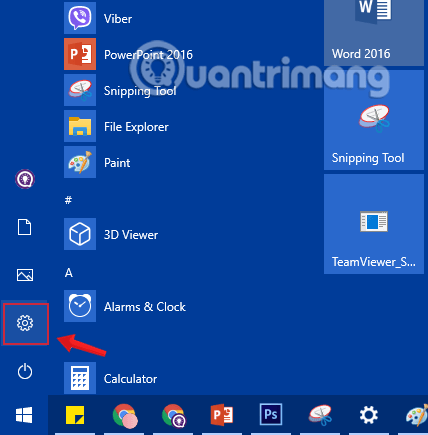
<p><strong>Bước 1:&nbsp;</strong>Mở ứng dụng Settings bằng cách click vào biểu tượng&nbsp;<strong>Settings</strong>&nbsp;trên Start menu hoặc nhấn tổ hợp phím&nbsp;<strong><code>Windows</code>+<code>I</code>.</strong></p>

<figure><img alt="Nhấn chọn biểu tượng Settings trong Start Menu" data-i="0" data-src="https://st.quantrimang.com/photos/image/2019/09/23/sua-wifi-khong-ket-noi-win-10-10.png" data-was-processed="true" height="435" src="https://st.quantrimang.com/photos/image/2019/09/23/sua-wifi-khong-ket-noi-win-10-10.png" width="428" />
<figcaption>Nhấn chọn biểu tượng Settings trong Start Menu</figcaption>
</figure>
&nbsp;

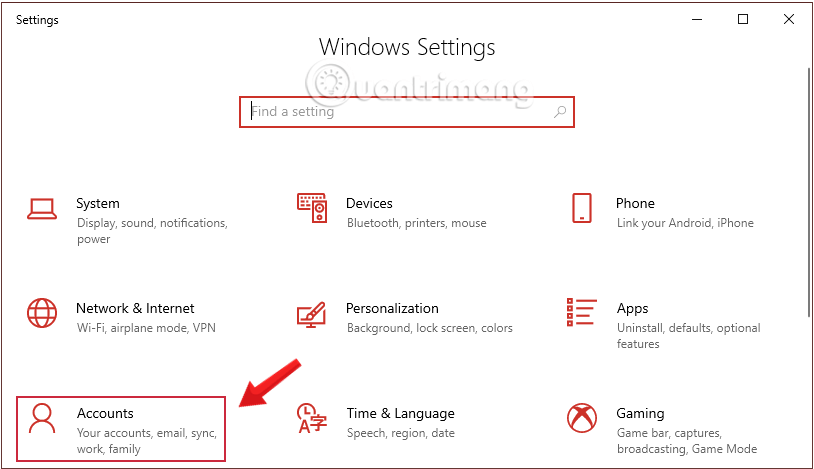
<p><strong>Bước 2:&nbsp;</strong>Trên giao diện&nbsp;<strong>Settings,</strong>&nbsp;bạn click chọn&nbsp;<strong>Account (Your accounts, email, sync, work, family).</strong></p>

<figure><img alt="Nhấn chọn Account trong Windows Settings" data-adbro-processed="true" data-i="1" data-src="https://st.quantrimang.com/photos/image/2019/09/26/xoa-tai-khoan-user-window-10-1.png" data-was-processed="true" height="469" src="https://st.quantrimang.com/photos/image/2019/09/26/xoa-tai-khoan-user-window-10-1.png" width="814" /><br />
Nhấn chọn Account trong Windows Settings</figure>

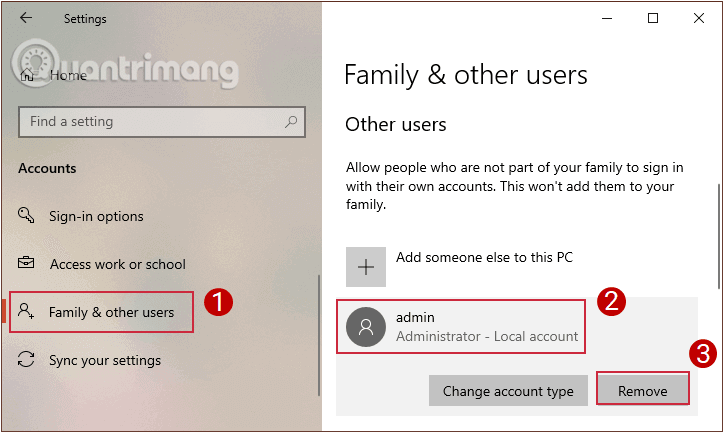
<p><strong>Bước 3:&nbsp;</strong>Click chọn&nbsp;<strong>Family and other users</strong>, sau đó click chọn tài khoản user mà bạn muốn xóa rồi click chọn&nbsp;<strong>Remove.</strong></p>

<figure><img alt="Chọn tài khoản user mà bạn muốn xóa trong Family and other users" data-i="2" data-src="https://st.quantrimang.com/photos/image/2019/09/26/xoa-tai-khoan-user-window-10-2.png" data-was-processed="true" height="433" src="https://st.quantrimang.com/photos/image/2019/09/26/xoa-tai-khoan-user-window-10-2.png" width="728" />
<figcaption>Chọn tài khoản user mà bạn muốn xóa trong Family and other users</figcaption>
</figure>

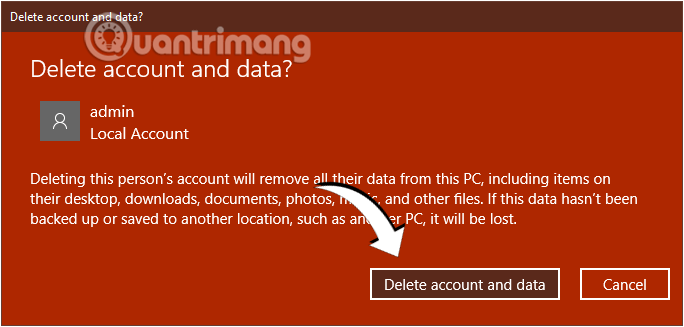
<p><strong>Bước 4:</strong>&nbsp;Lúc này trên màn hình sẽ hiển thị hộp thoại xác nhận, click chọn&nbsp;<strong>Delete account and data</strong>&nbsp;để xóa tài khoản user bạn muốn xóa.</p>

<figure><img alt="Click chọn Delete account and data ở thông báo hiện lên để xác nhận xóa user" data-i="3" data-src="https://st.quantrimang.com/photos/image/2019/09/26/xoa-tai-khoan-user-window-10-3.png" data-was-processed="true" height="327" src="https://st.quantrimang.com/photos/image/2019/09/26/xoa-tai-khoan-user-window-10-3.png" width="684" />
<figcaption>Click chọn Delete account and data ở thông báo hiện lên để xác nhận xóa user</figcaption>
</figure>
&nbsp;

<h2 id="mcetoc_1dlmik2u51">2. Xóa account win 10 thông qua Control Panel</h2>

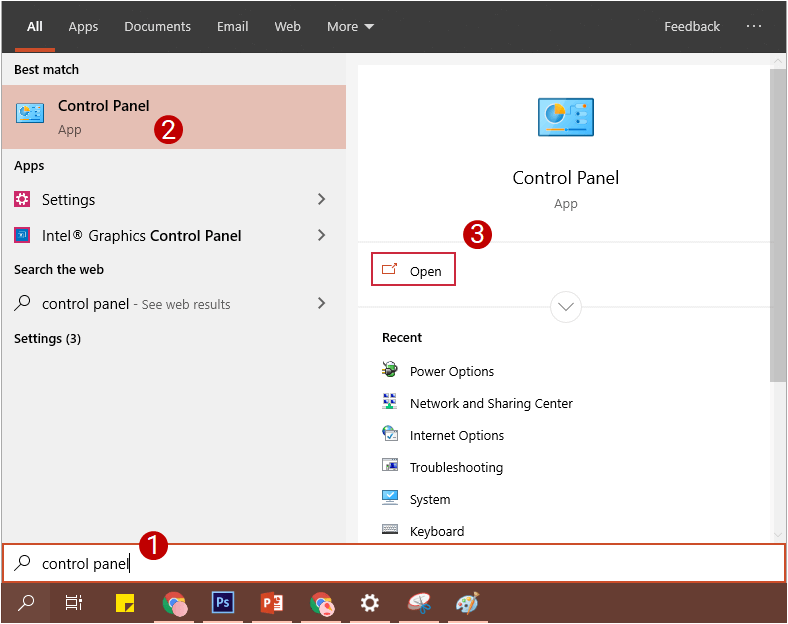
<p><strong>Bước 1:</strong>&nbsp;Mở Control Panel bằng cách nhập từ khóa&nbsp;<strong>Control panel</strong>&nbsp;vào khung&nbsp;<strong>Search Start Menu</strong>&nbsp;hoặc khung&nbsp;<strong>Search</strong>&nbsp;trên thanh&nbsp;<strong>Taskbar</strong>&nbsp;rồi nhấn<strong>&nbsp;Enter.</strong></p>

<figure><img alt="Mở Control Panel trên khung Search thanh Taskbar" data-i="4" data-src="https://st.quantrimang.com/photos/image/2019/09/26/xoa-tai-khoan-user-window-10-4.png" data-was-processed="true" height="624" src="https://st.quantrimang.com/photos/image/2019/09/26/xoa-tai-khoan-user-window-10-4.png" width="788" />
<figcaption>Mở Control Panel trên khung Search thanh Taskbar</figcaption>
</figure>

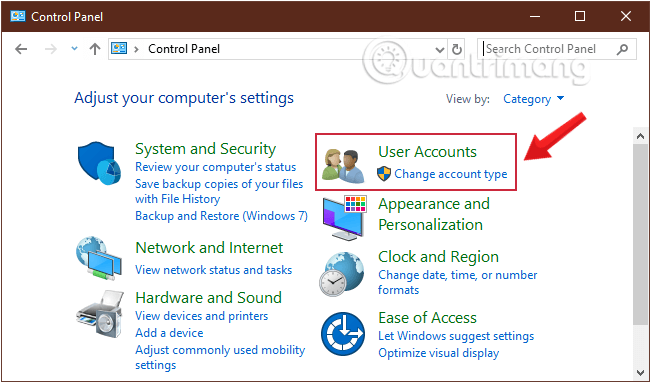
<p><strong>Bước 2:&nbsp;</strong>Click chọn&nbsp;<strong>User Accounts</strong>&nbsp;để mở cửa sổ User Account.</p>

<figure><img alt="Click chọn User Accounts để mở cửa sổ User Account" data-i="5" data-src="https://st.quantrimang.com/photos/image/2019/09/26/xoa-tai-khoan-user-window-10-5.png" data-was-processed="true" height="383" src="https://st.quantrimang.com/photos/image/2019/09/26/xoa-tai-khoan-user-window-10-5.png" width="651" />
<figcaption>Click chọn User Accounts để mở cửa sổ User Account</figcaption>
</figure>

<p><strong>Bước 3:&nbsp;</strong>Chọn tiếp&nbsp;<strong>User Accounts</strong>&nbsp;ở giao diện tiếp theo.</p>

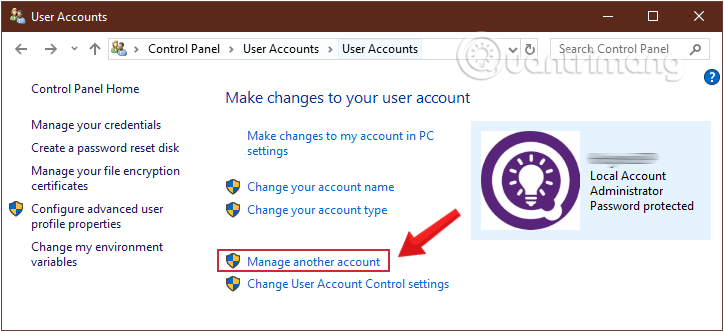
<p><strong>Bước 4:</strong>&nbsp;Click chọn liên kết&nbsp;<strong>Manage another account</strong>&nbsp;để xem tất cả tài khoản user trên máy tính của bạn.</p>

<figure><img alt="Click chọn liên kết Manage another account " data-i="6" data-src="https://st.quantrimang.com/photos/image/2019/09/26/xoa-tai-khoan-user-window-10-6.png" data-was-processed="true" height="332" src="https://st.quantrimang.com/photos/image/2019/09/26/xoa-tai-khoan-user-window-10-6.png" width="724" />
<figcaption>Click chọn liên kết Manage another account</figcaption>
</figure>
&nbsp;

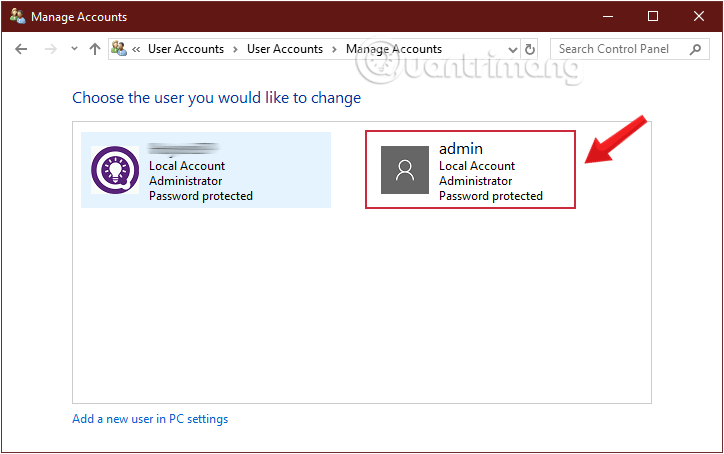
<p><strong>Bước 5:&nbsp;</strong>Click chọn tài khoản user mà bạn muốn xóa.</p>

<figure><img alt="Click chọn tài khoản user mà bạn muốn xóa" data-i="7" data-src="https://st.quantrimang.com/photos/image/2019/09/26/xoa-tai-khoan-user-window-10-7-1.png" data-was-processed="true" height="454" src="https://st.quantrimang.com/photos/image/2019/09/26/xoa-tai-khoan-user-window-10-7-1.png" width="724" />
<figcaption>Click chọn tài khoản user mà bạn muốn xóa</figcaption>
</figure>

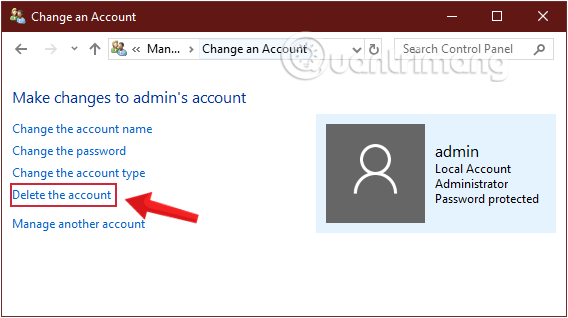
<p><strong>Bước 6:&nbsp;</strong>Tại đây bạn click chọn liên kết<strong>&nbsp;Delete the account.</strong></p>

<figure><img alt="Chọn liên kết Delete the account" data-i="8" data-src="https://st.quantrimang.com/photos/image/2019/09/26/xoa-tai-khoan-user-window-10-8.png" data-was-processed="true" height="318" src="https://st.quantrimang.com/photos/image/2019/09/26/xoa-tai-khoan-user-window-10-8.png" width="568" />
<figcaption>Chọn liên kết Delete the account</figcaption>
</figure>

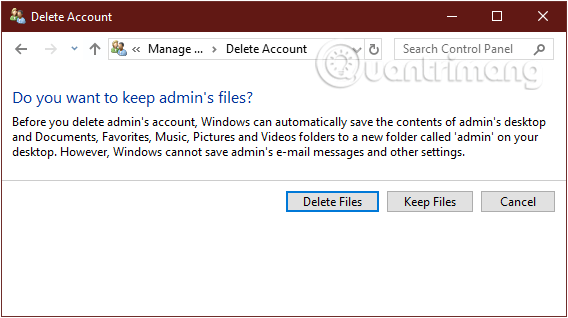
<p><strong>Bước 7:&nbsp;</strong>Trên màn hình sẽ xuất hiện thông báo &quot;<strong>Do you want to keep user&#039;s files?</strong>&quot;.</p>

<p>Nếu click chọn<strong>&nbsp;Keep Files</strong>, Windows 10 sẽ lưu lại các thứ trên màn hình desktop, tài liệu, favorites, video, nhạc và ảnh vào 1 thư mục mới và sẽ đặt tên cho thư mục này. Ngược lại nếu chọn Delete Files thì mọi thứ sẽ bị xóa hoàn toàn.</p>

<figure><img alt="Chọn Keep Files hoặc Delete Files tùy theo nhu cầu của bạn" data-i="9" data-src="https://st.quantrimang.com/photos/image/2019/09/26/xoa-tai-khoan-user-window-10-9.png" data-was-processed="true" height="318" src="https://st.quantrimang.com/photos/image/2019/09/26/xoa-tai-khoan-user-window-10-9.png" width="568" />
<figcaption>Chọn Keep Files hoặc Delete Files tùy theo nhu cầu của bạn</figcaption>
</figure>

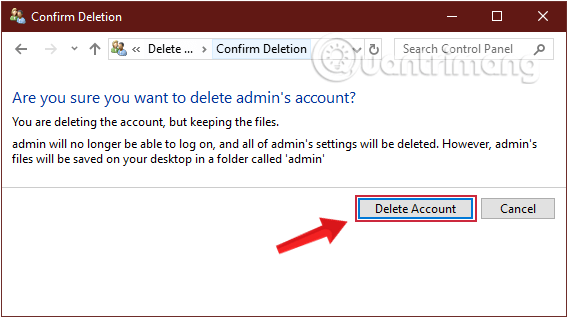
<p><strong>Bước 8:</strong>&nbsp;Sau khi click chọn&nbsp;<strong>Keep Files</strong>&nbsp;để lưu các file này, bạn click chọn<strong>&nbsp;Delete Account</strong>&nbsp;để xóa tài khoản user bạn đã chọn.</p>

<figure><img alt="Chọn Delete Account để xóa tài khoản user bạn đã chọn" data-i="10" data-src="https://st.quantrimang.com/photos/image/2019/09/26/xoa-tai-khoan-user-window-11.png" data-was-processed="true" height="318" src="https://st.quantrimang.com/photos/image/2019/09/26/xoa-tai-khoan-user-window-11.png" width="568" />
<figcaption>Chọn Delete Account để xóa tài khoản user bạn đã chọn</figcaption>
</figure>

<h2 id="mcetoc_1dlmik2u52">3. Xóa người dùng win 10 thông qua Command Prompt</h2>

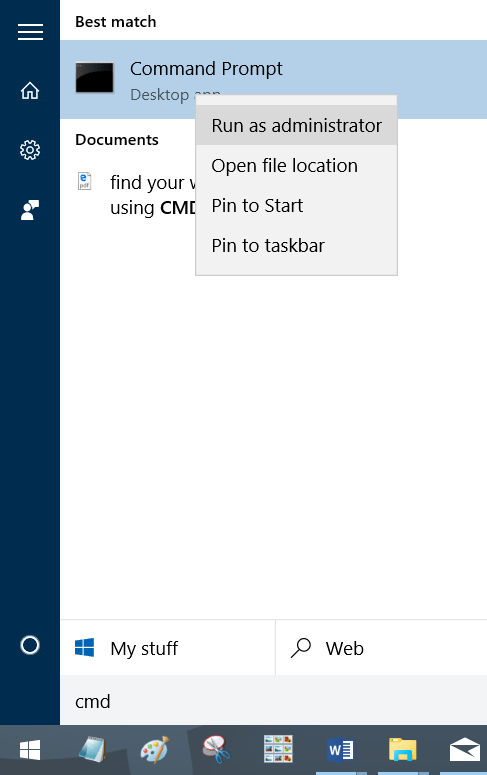
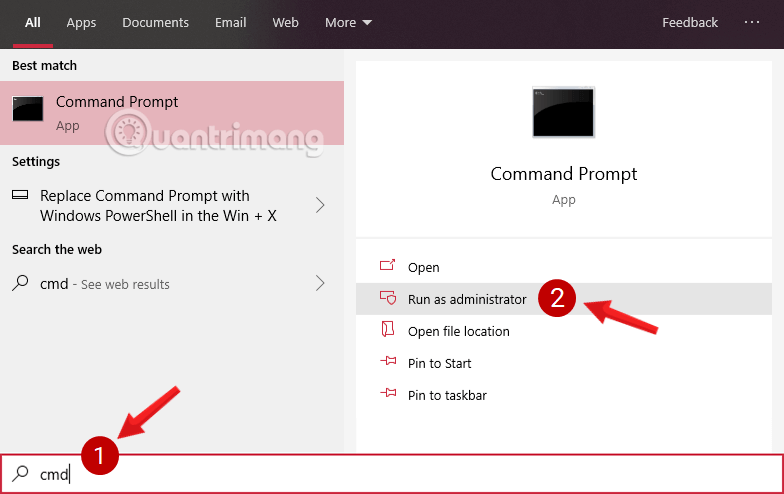
<p><strong>Bước 1:&nbsp;</strong>Mở Command Prompt dưới quyền Admin, đầu tiên bạn nhập&nbsp;<code><strong>cmd</strong></code>&nbsp;vào khung Seach Start Menu hoặc trên thanh Taskbar, sau đó kích chuột phải vào Command Prompt chọn&nbsp;<strong>Run as administrator.</strong></p>

<p>Hoặc cách khác là kích chuột phải vào Start Menu sau đó click chọn&nbsp;<strong>Command Prompt (admin)</strong>&nbsp;để mở Command prompt dưới quyền Admin.</p>

<p><img alt="kích chuột phải vào Command Prompt chọn Run as administrator" data-i="11" data-src="https://st.quantrimang.com/photos/image/2016/05/09/command-prompt.png" data-was-processed="true" height="650" src="https://st.quantrimang.com/photos/image/2016/05/09/command-prompt.png" title="kích chuột phải vào Command Prompt chọn Run as administrator" width="408" /></p>
&nbsp;

<p>Nếu bạn dùng Windows 10 với các phiên bản mới nhất thì nút&nbsp;<strong>Run as administrator</strong>&nbsp;sẽ hiện ngay khi bạn search ra&nbsp;<strong>Command Prompt.</strong></p>

<figure><img alt="Mở Command Prompt trong Windows 10 phiên bản mới" data-i="12" data-src="https://st.quantrimang.com/photos/image/2019/08/31/thay-doi-nut-nguon-win10-3.png" data-was-processed="true" height="494" src="https://st.quantrimang.com/photos/image/2019/08/31/thay-doi-nut-nguon-win10-3.png" width="784" />
<figcaption>Mở Command Prompt trong Windows 10 phiên bản mới</figcaption>
</figure>

<p>Click chọn<strong>&nbsp;Yes</strong>&nbsp;nếu trên màn hình xuất hiện thông báo User Account Control.</p>

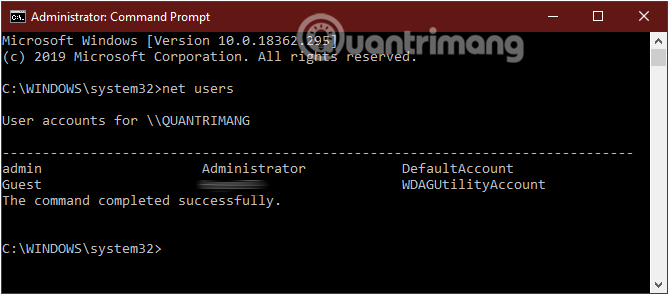
<p><strong>Bước 2:&nbsp;</strong>Trên cửa sổ Command Prompt, nhập lệnh dưới đây vào rồi nhấn&nbsp;<strong>Enter</strong>&nbsp;để xem tất cả các tài khoản user trên máy tính của bạn:</p>

<pre id="pre0">
net users</pre>

<figure><img alt="Nhập lệnh vào cửa sổ command prompt" data-i="13" data-src="https://st.quantrimang.com/photos/image/2019/09/26/xoa-tai-khoan-user-window-10-11-1.png" data-was-processed="true" height="295" src="https://st.quantrimang.com/photos/image/2019/09/26/xoa-tai-khoan-user-window-10-11-1.png" width="669" />
<figcaption>Nhập lệnh vào cửa sổ command prompt</figcaption>
</figure>

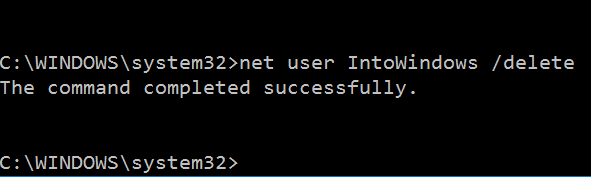
<p><strong>Bước 3:&nbsp;</strong>Tiếp theo nhập câu lệnh dưới đây để xóa tài khoản user, rồi nhấn&nbsp;<strong>Enter:</strong></p>

<pre id="pre1">
net user UserAccountName /delete</pre>

<figure><img alt="Xóa tài khoản user thông qua Command Prompt" data-i="14" data-src="https://st.quantrimang.com/photos/image/2016/05/09/xoa-tai-khoan-user.png" data-was-processed="true" height="177" src="https://st.quantrimang.com/photos/image/2016/05/09/xoa-tai-khoan-user.png" width="591" />
<figcaption>Xóa tài khoản user thông qua Command Prompt</figcaption>
</figure>

<p><strong>Lưu ý:&nbsp;</strong>Trong câu lệnh trên thay&nbsp;<strong>UserName</strong>&nbsp;bằng tên tài khoản user bạn muốn xóa mà bạn vừa tìm ở bước 2.</p>

<h2 id="mcetoc_1dlmik2u53">4. Xóa tài khoản User thông qua Local Users and Groups</h2>

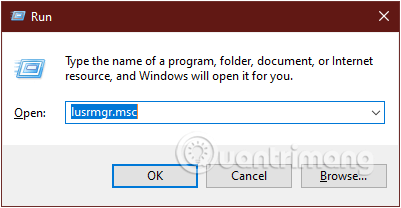
<p><strong>Bước 1:&nbsp;</strong>Nhấn tổ hợp phím&nbsp;<strong>Windows+R&nbsp;</strong>để mở cửa sổ lệnh&nbsp;<strong>Run.</strong></p>

<p><strong>Bước 2:&nbsp;</strong>Nhập lệnh sau vào hộp thoại&nbsp;<strong>Run</strong>&nbsp;và nhấn Enter:</p>

<pre id="pre2">
lusrmgr.msc</pre>

<figure><img alt="Nhập lệnh lusrmgr.msc để mở cửa sổ Local Users and Groups" data-i="15" data-src="https://st.quantrimang.com/photos/image/2019/09/26/xoa-tai-khoan-user-window-10-12.png" data-was-processed="true" height="208" src="https://st.quantrimang.com/photos/image/2019/09/26/xoa-tai-khoan-user-window-10-12.png" width="401" />
<figcaption>Nhập lệnh lusrmgr.msc để mở cửa sổ Local Users and Groups</figcaption>
</figure>

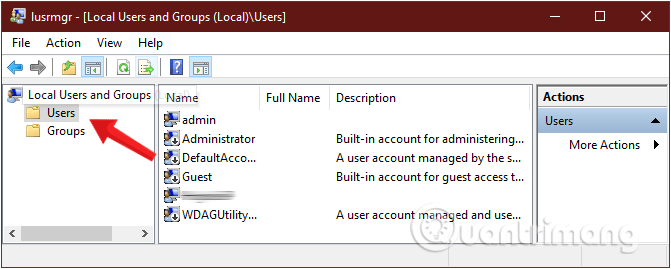
<p><strong>Bước 3:&nbsp;</strong>Ở cửa sổ&nbsp;<strong>Local Users and Groups&nbsp;</strong>hiện ra, click chọn thư mục<strong>&nbsp;User</strong>&nbsp;ở danh sách khung bên trái để mở thư mục&nbsp;<strong>User.</strong></p>

<figure><img alt="Chọn thư mục User ở cửa sổ Local Users and Groups" data-i="16" data-src="https://st.quantrimang.com/photos/image/2019/09/26/xoa-tai-khoan-user-window-10-13-1.png" data-was-processed="true" height="269" src="https://st.quantrimang.com/photos/image/2019/09/26/xoa-tai-khoan-user-window-10-13-1.png" width="671" />
<figcaption>Chọn thư mục User ở cửa sổ Local Users and Groups</figcaption>
</figure>

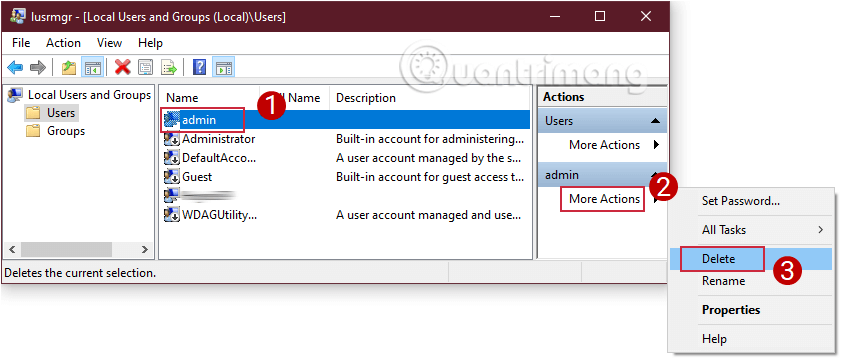
<p><strong>Bước 4:&nbsp;</strong>Tại đây bạn click chọn tài khoản&nbsp;<strong>User</strong>&nbsp;mà bạn muốn xóa ở danh sách khung ở giữa, sau đó click chọn&nbsp;<strong>More Actions</strong>&nbsp;ở khung&nbsp;<strong>Actions</strong>&nbsp;ở bên phải rồi click chọn&nbsp;<strong>Delete</strong>.</p>

<figure><img alt="Xóa tài khoản User thông qua Local Users and Groups" data-i="17" data-src="https://st.quantrimang.com/photos/image/2019/09/26/xoa-tai-khoan-user-window-10-14.png" data-was-processed="true" height="362" src="https://st.quantrimang.com/photos/image/2019/09/26/xoa-tai-khoan-user-window-10-14.png" width="841" />
<figcaption>Xóa tài khoản User thông qua Local Users and Groups</figcaption>
</figure>

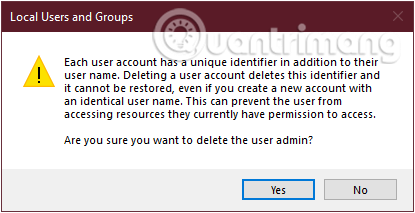
<p><strong>Bước 5:&nbsp;</strong>Lúc này trên màn hình sẽ xuất hiện hộp thoại xác nhận, click chọn&nbsp;<strong>Yes</strong>&nbsp;để đồng ý xóa tài khoản user bạn đã chọn.</p>

<figure><img alt="Click chọn Yes để đồng ý xóa tài khoản user" data-i="18" data-src="https://st.quantrimang.com/photos/image/2019/09/26/xoa-tai-khoan-user-window-10-15.png" data-was-processed="true" height="213" src="https://st.quantrimang.com/photos/image/2019/09/26/xoa-tai-khoan-user-window-10-15.png" width="415" />
<figcaption>Click chọn Yes để đồng ý xóa tài khoản user</figcaption>
</figure>
&nbsp;

<p><strong>Bước 6:&nbsp;</strong>Sau khi hoàn tất, đóng cửa sổ&nbsp;<strong>Local Users and Groups</strong>&nbsp;lại là xong.</p>

<h2 id="mcetoc_1dlmik2u54">5. Xóa tài khoản User thông qua Netplwiz</h2>

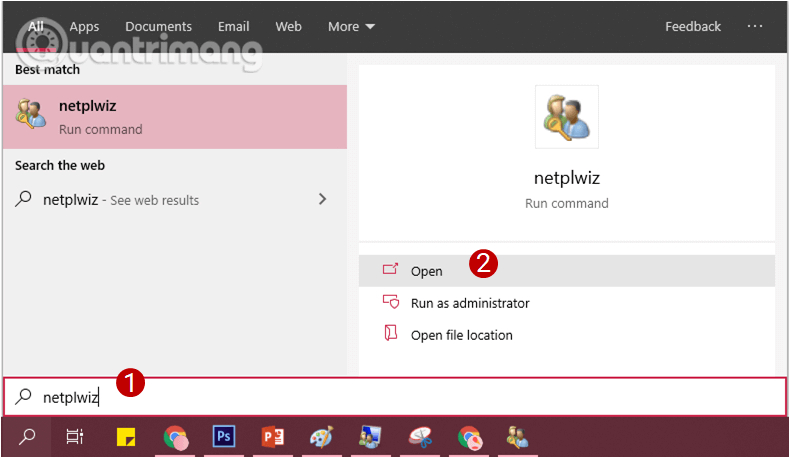
<p><strong>Bước 1:&nbsp;</strong>Nhập&nbsp;<code><strong>netplwiz</strong></code>&nbsp;vào khung Search trên Start Menu hoặc trên khung Search thanh Taskbar rồi nhấn&nbsp;<strong>Enter.</strong></p>

<figure><img alt="Tìm kiếm Netplwiz trên Start Menu" data-i="19" data-src="https://st.quantrimang.com/photos/image/2019/09/26/xoa-tai-khoan-user-window-10-16.png" data-was-processed="true" height="458" src="https://st.quantrimang.com/photos/image/2019/09/26/xoa-tai-khoan-user-window-10-16.png" width="790" />
<figcaption>Tìm kiếm Netplwiz trên Start Menu</figcaption>
</figure>

<p><strong>Bước 2:&nbsp;</strong>Nếu trên màn hình xuất hiện thông báo UAC, click chọn&nbsp;<strong>Yes</strong>&nbsp;dể xác nhận.</p>

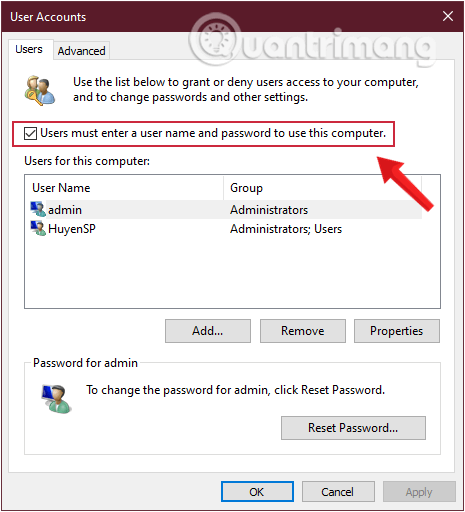
<p><strong>Bước 3:&nbsp;</strong>Tiếp theo trên cửa sổ User Account, bạn đánh tích chọn&nbsp;<strong>Users must enter a user name and password to use this computer.</strong></p>

<figure><img alt="Đánh tích chọn Users must enter a user name and password to use this computer trên cửa sổ User Account" data-i="20" data-src="https://st.quantrimang.com/photos/image/2019/09/26/xoa-tai-khoan-user-window-10-17.png" data-was-processed="true" height="512" src="https://st.quantrimang.com/photos/image/2019/09/26/xoa-tai-khoan-user-window-10-17.png" width="465" />
<figcaption>Đánh tích chọn Users must enter a user name and password to use this computer trên cửa sổ User Account</figcaption>
</figure>

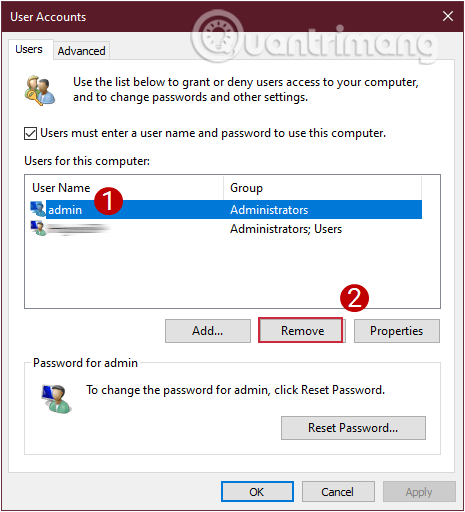
<p><strong>Bước 4:&nbsp;</strong>Tiếp theo click chọn tài khoản user bạn muốn xóa rồi click chọn&nbsp;<strong>Remove</strong>.</p>

<figure><img alt="Xóa tài khoản User bằng Netplwiz" data-i="21" data-src="https://st.quantrimang.com/photos/image/2019/09/26/xoa-tai-khoan-user-window-10-18.png" data-was-processed="true" height="512" src="https://st.quantrimang.com/photos/image/2019/09/26/xoa-tai-khoan-user-window-10-18.png" width="465" />
<figcaption>Xóa tài khoản User bằng Netplwiz</figcaption>
</figure>

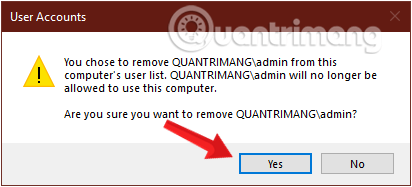
<p><strong>Bước 5:&nbsp;</strong>Click chọn<strong>&nbsp;Yes</strong>&nbsp;để xác nhận xóa.</p>

<figure><img alt="Xác nhận xóa user trên Windows" data-i="22" data-src="https://st.quantrimang.com/photos/image/2019/09/26/xoa-tai-khoan-user-window-10-19.png" data-was-processed="true" height="187" src="https://st.quantrimang.com/photos/image/2019/09/26/xoa-tai-khoan-user-window-10-19.png" width="412" />
<figcaption>Xác nhận xóa user trên Windows</figcaption>
</figure>

<p><strong>Bước 6:&nbsp;</strong>Nếu bạn thiết lập Windows tự động đăng nhập vào tài khoản User này trên Startup, bạn phải thiết lập lại tính năng này một lần nữa.</p>

<p><strong>Bước 7:&nbsp;</strong>Sau khi hoàn tất, đóng cửa sổ&nbsp;<strong>Netplwiz</strong>&nbsp;lại là xong.</p>

<h2 id="mcetoc_1dlmik2u55">6. Xóa user trên máy tính bằng System Properties</h2>

<p><strong>Bước 1:&nbsp;</strong>Nhấn tổ hợp phím&nbsp;<strong><code>Windows</code>+<code>R&nbsp;</code></strong>để mở cửa sổ lệnh&nbsp;<strong>Run.</strong></p>

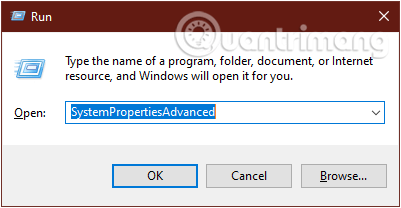
<p><strong>Bước 2:&nbsp;</strong>Nhập lệnh sau vào hộp thoại&nbsp;<strong>Run</strong>&nbsp;và nhấn Enter:</p>

<pre id="pre3">
SystemPropertiesAdvanced</pre>

<figure><img alt="Nhập lệnh SystemPropertiesAdvanced để mở cửa sổ System Properties" data-i="23" data-src="https://st.quantrimang.com/photos/image/2019/09/26/xoa-tai-khoan-user-window-10-20.png" data-was-processed="true" height="208" src="https://st.quantrimang.com/photos/image/2019/09/26/xoa-tai-khoan-user-window-10-20.png" width="401" />
<figcaption>Nhập lệnh SystemPropertiesAdvanced để mở cửa sổ System Properties</figcaption>
</figure>

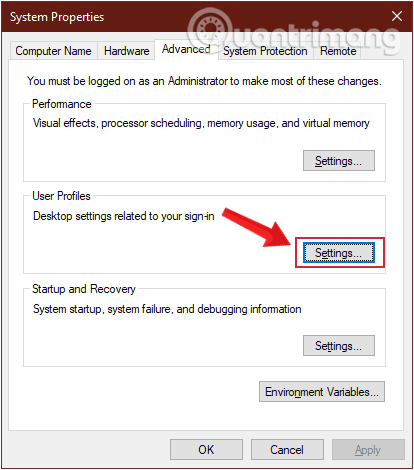
<p><strong>Bước 3:</strong>&nbsp;Ở cửa sổ&nbsp;<strong>System Properties</strong>&nbsp;hiện ra, bạn nhấn vào&nbsp;<strong>Settings</strong>&nbsp;trong phần&nbsp;<strong>User Profiles.</strong></p>

<figure><img alt="Chọn Settings trong phần User Profiles" data-i="24" data-src="https://st.quantrimang.com/photos/image/2019/09/26/xoa-tai-khoan-user-window-10-21.png" data-was-processed="true" height="470" src="https://st.quantrimang.com/photos/image/2019/09/26/xoa-tai-khoan-user-window-10-21.png" width="414" />
<figcaption>Chọn Settings trong phần User Profiles</figcaption>
</figure>

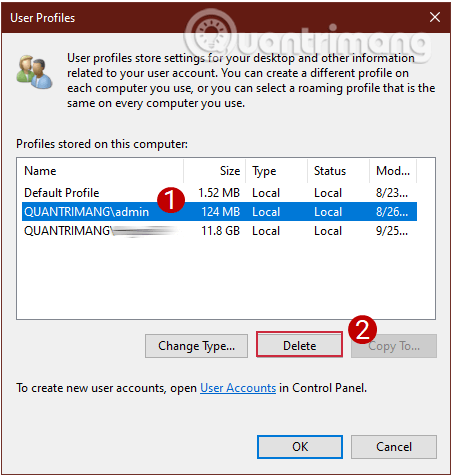
<p><strong>Bước 4:</strong>&nbsp;Trong cửa sổ&nbsp;<strong>User Profiles</strong>&nbsp;mới, chọn profile người dùng bạn muốn xóa và nhấn vào&nbsp;<strong>Delete.</strong></p>

<figure><img alt="Xóa user trên máy tính bằng System Properties" data-i="25" data-src="https://st.quantrimang.com/photos/image/2019/09/26/xoa-tai-khoan-user-window-10-22.png" data-was-processed="true" height="475" src="https://st.quantrimang.com/photos/image/2019/09/26/xoa-tai-khoan-user-window-10-22.png" width="452" />
<figcaption>Xóa user trên máy tính bằng System Properties</figcaption>
</figure>

<p><strong>Bước 5:</strong>&nbsp;Click chọn&nbsp;<strong>Yes</strong>&nbsp;ở lời nhắc hiện lên để xác nhận xóa.</p>

<p>&nbsp;</p>

<p>Chúc các bạn thành công!</p>
		</div>
				<div id="author">
						<p>
				<strong>Nguồn tin:</strong>
				Quantrimang.com:
			</p>
		</div>
	</div>
	<div id="footer" class="clearfix">
		<div id="url">
			<strong>URL của bản tin này: </strong><a href="https://www.nguoicodonvn2008.info/vi/news/savefile/kien-thuc-may-tinh/huong-dan-5-cach-xoa-tai-khoan-user-tren-windows-10-9085.html" title="Hướng dẫn 5 cách xóa tài khoản User trên Windows 10">https://www.nguoicodonvn2008.info/vi/news/savefile/kien-thuc-may-tinh/huong-dan-5-cach-xoa-tai-khoan-user-tren-windows-10-9085.html</a>

		</div>
		<div class="clear"></div>
		<div class="copyright">
			&copy; .&#x3A; Nguoicodonvn2008.info - Cõi lòng người cô đơn &#x3A;.
		</div>
		<div id="contact">
			<a href="mailto:admin@nguoicodonvn2008.info">admin@nguoicodonvn2008.info</a>
		</div>
	</div>
</div>
        <div id="timeoutsess" class="chromeframe">
            Bạn đã không sử dụng Site, <a onclick="timeoutsesscancel();" href="https://www.nguoicodonvn2008.info/#">Bấm vào đây để duy trì trạng thái đăng nhập</a>. Thời gian chờ: <span id="secField"> 60 </span> giây
        </div>
        <div id="openidResult" class="nv-alert" style="display:none"></div>
        <div id="openidBt" data-result="" data-redirect=""></div>
		</script>
		<div class="car-top">
  <span><img src="https://www.nguoicodonvn2008.info/themes/default/images/car.png" alt=""></span>
</div>
<script src="https://www.nguoicodonvn2008.info/assets/js/jquery/jquery.min.js"></script>
<script>var nv_base_siteurl="/",nv_lang_data="vi",nv_lang_interface="vi",nv_name_variable="nv",nv_fc_variable="op",nv_lang_variable="language",nv_module_name="news",nv_func_name="savefile",nv_is_user=0, nv_my_ofs=-4,nv_my_abbr="EDT",nv_cookie_prefix="nv4c_e856T",nv_check_pass_mstime=1738000,nv_area_admin=0,nv_safemode=0,theme_responsive=0,nv_recaptcha_ver=2,nv_recaptcha_sitekey="",nv_recaptcha_type="image",XSSsanitize=1;</script>
<script src="https://www.nguoicodonvn2008.info/assets/js/language/vi.js"></script>
<script src="https://www.nguoicodonvn2008.info/assets/js/DOMPurify/purify3.js"></script>
<script src="https://www.nguoicodonvn2008.info/assets/js/global.js"></script>
<script src="https://www.nguoicodonvn2008.info/assets/js/site.js"></script>
<script src="https://www.nguoicodonvn2008.info/themes/default/js/news.js"></script>
<script src="https://www.nguoicodonvn2008.info/themes/default/js/main.js"></script>
<script src="https://www.nguoicodonvn2008.info/themes/default/js/custom.js"></script>
<script type="application/ld+json">
        {
            "@context": "https://schema.org",
            "@type": "Organization",
            "url": "https://www.nguoicodonvn2008.info",
            "logo": "https://www.nguoicodonvn2008.info/uploads/angel.gif"
        }
        </script>
<script src="https://www.nguoicodonvn2008.info/themes/default/js/bootstrap.min.js"></script>
<script type="text/javascript">
var $scrolltop = $('.car-top');
$scrolltop.on('click', function () {
    $('html,body').animate({
        scrollTop: 0
    }, 800);
    $(this).addClass("car-run");
    setTimeout(function(){ $scrolltop.removeClass('car-run');}, 1000);
    return false;
});
$(window).on('scroll', function ()
{ 
    if($(window).scrollTop() >= 200)
    {
        $scrolltop.addClass("show");
        $scrolltop.addClass("car-down");
    }
    else
    {
       $scrolltop.removeClass("show");
       setTimeout(function(){ $scrolltop.removeClass('car-down');}, 300);
    }
});
</script>
</body>
</html>