<!DOCTYPE html>
    <html lang="vi" xmlns="http://www.w3.org/1999/xhtml" prefix="og: http://ogp.me/ns#">
    <head>
<title>Excel 2019 &#40;Phần 18&#41;&#x3A; Sắp xếp dữ liệu</title>
<meta name="description" content="Excel 2019 &#40;Phần 18&#41;&#x3A; Sắp xếp dữ liệu - Savefile - Tin Tức -...">
<meta name="author" content=".: Nguoicodonvn2008.info - Cõi lòng người cô đơn :.">
<meta name="copyright" content=".: Nguoicodonvn2008.info - Cõi lòng người cô đơn :. [admin@nguoicodonvn2008.info]">
<meta name="robots" content="index, archive, follow, noodp">
<meta name="googlebot" content="index,archive,follow,noodp">
<meta name="msnbot" content="all,index,follow">
<meta name="generator" content="NukeViet v4.5">
<meta http-equiv="Content-Type" content="text/html; charset=utf-8">
<meta property="og:title" content="Excel 2019 &#40;Phần 18&#41;&#x3A; Sắp xếp dữ liệu">
<meta property="og:type" content="website">
<meta property="og:description" content="Savefile - Tin Tức - https&#x3A;&#x002F;&#x002F;www.nguoicodonvn2008.info&#x002F;vi&#x002F;news&#x002F;savefile&#x002F;kien-thuc-may-tinh&#x002F;excel-2019-phan-18-sap-xep-du-lieu-5264.html">
<meta property="og:site_name" content=".&#x3A; Nguoicodonvn2008.info - Cõi lòng người cô đơn &#x3A;.">
<meta property="og:url" content="https://www.nguoicodonvn2008.info/vi/news/savefile/kien-thuc-may-tinh/excel-2019-phan-18-sap-xep-du-lieu-5264.html">
<link rel="shortcut icon" href="https://www.nguoicodonvn2008.info/favicon.ico">
<link rel="canonical" href="https://www.nguoicodonvn2008.info/vi/news/savefile/kien-thuc-may-tinh/excel-2019-phan-18-sap-xep-du-lieu-5264.html">
<link rel="alternate" href="https://www.nguoicodonvn2008.info/vi/news/rss/" title="Tin Tức" type="application/rss+xml">
<link rel="alternate" href="https://www.nguoicodonvn2008.info/vi/news/rss/karaoke-dual/" title="Tin Tức - Karaoke Dual" type="application/rss+xml">
<link rel="alternate" href="https://www.nguoicodonvn2008.info/vi/news/rss/nhac-tre/" title="Tin Tức - Nhạc trẻ" type="application/rss+xml">
<link rel="alternate" href="https://www.nguoicodonvn2008.info/vi/news/rss/tru-tinh/" title="Tin Tức - Trữ tình" type="application/rss+xml">
<link rel="alternate" href="https://www.nguoicodonvn2008.info/vi/news/rss/nuoc-ngoai/" title="Tin Tức - Nước ngoài" type="application/rss+xml">
<link rel="alternate" href="https://www.nguoicodonvn2008.info/vi/news/rss/remix/" title="Tin Tức - Remix" type="application/rss+xml">
<link rel="alternate" href="https://www.nguoicodonvn2008.info/vi/news/rss/tam-su-tinh-yeu/" title="Tin Tức - Tâm sự tình yêu" type="application/rss+xml">
<link rel="alternate" href="https://www.nguoicodonvn2008.info/vi/news/rss/tho-suu-tam/" title="Tin Tức - Thơ sưu tầm" type="application/rss+xml">
<link rel="alternate" href="https://www.nguoicodonvn2008.info/vi/news/rss/cuoc-song/" title="Tin Tức - Cuộc sống" type="application/rss+xml">
<link rel="alternate" href="https://www.nguoicodonvn2008.info/vi/news/rss/phan-mem/" title="Tin Tức - Phần mềm" type="application/rss+xml">
<link rel="alternate" href="https://www.nguoicodonvn2008.info/vi/news/rss/kien-thuc-may-tinh/" title="Tin Tức - Kiến thức máy tính" type="application/rss+xml">
<link rel="alternate" href="https://www.nguoicodonvn2008.info/vi/news/rss/hoc-tap/" title="Tin Tức - Học tập" type="application/rss+xml">
<link rel="alternate" href="https://www.nguoicodonvn2008.info/vi/news/rss/tai-lieu/" title="Tin Tức - Tài liệu" type="application/rss+xml">
<link rel="alternate" href="https://www.nguoicodonvn2008.info/vi/news/rss/de-thi/" title="Tin Tức - Đề thi" type="application/rss+xml">
<link rel="preload" as="style" href="https://www.nguoicodonvn2008.info/assets/css/font-awesome.min.css" type="text/css">
<link rel="preload" as="style" href="https://www.nguoicodonvn2008.info/themes/default/css/bootstrap.non-responsive.css" type="text/css">
<link rel="preload" as="style" href="https://www.nguoicodonvn2008.info/themes/default/css/style.css" type="text/css">
<link rel="preload" as="style" href="https://www.nguoicodonvn2008.info/themes/default/css/style.non-responsive.css" type="text/css">
<link rel="preload" as="style" href="https://www.nguoicodonvn2008.info/themes/default/css/news.css" type="text/css">
<link rel="preload" as="style" href="https://www.nguoicodonvn2008.info/themes/default/css/custom.css" type="text/css">
<link rel="preload" as="script" href="https://www.nguoicodonvn2008.info/assets/js/jquery/jquery.min.js" type="text/javascript">
<link rel="preload" as="script" href="https://www.nguoicodonvn2008.info/assets/js/language/vi.js" type="text/javascript">
<link rel="preload" as="script" href="https://www.nguoicodonvn2008.info/assets/js/DOMPurify/purify3.js" type="text/javascript">
<link rel="preload" as="script" href="https://www.nguoicodonvn2008.info/assets/js/global.js" type="text/javascript">
<link rel="preload" as="script" href="https://www.nguoicodonvn2008.info/assets/js/site.js" type="text/javascript">
<link rel="preload" as="script" href="https://www.nguoicodonvn2008.info/themes/default/js/news.js" type="text/javascript">
<link rel="preload" as="script" href="https://www.nguoicodonvn2008.info/themes/default/js/main.js" type="text/javascript">
<link rel="preload" as="script" href="https://www.nguoicodonvn2008.info/themes/default/js/custom.js" type="text/javascript">
<link rel="preload" as="script" href="https://www.nguoicodonvn2008.info/themes/default/js/bootstrap.min.js" type="text/javascript">
<link rel="stylesheet" href="https://www.nguoicodonvn2008.info/assets/css/font-awesome.min.css">
<link rel="stylesheet" href="https://www.nguoicodonvn2008.info/themes/default/css/bootstrap.non-responsive.css">
<link rel="stylesheet" href="https://www.nguoicodonvn2008.info/themes/default/css/style.css">
<link rel="stylesheet" href="https://www.nguoicodonvn2008.info/themes/default/css/style.non-responsive.css">
<link rel="StyleSheet" href="https://www.nguoicodonvn2008.info/themes/default/css/news.css">
<link rel="stylesheet" href="https://www.nguoicodonvn2008.info/themes/default/css/custom.css">
<style type="text/css">
	body{background: #fff;}
</style>
    </head>
    <body>
<div id="print">
	<div id="hd_print">
		<h2 class="pull-left">.&#x3A; Nguoicodonvn2008.info - Cõi lòng người cô đơn &#x3A;.</h2>
		<p class="pull-right"><a title=".&#x3A; Nguoicodonvn2008.info - Cõi lòng người cô đơn &#x3A;." href="https://www.nguoicodonvn2008.info/">https://www.nguoicodonvn2008.info</a></p>
	</div>
	<div class="clear"></div>
	<hr />
	<div id="content">
		<h1>Excel 2019 &#40;Phần 18&#41;&#x3A; Sắp xếp dữ liệu</h1>
		<ul class="list-inline">
			<li>Thứ năm - 10/03/2022 23:53</li>
			<li class="hidden-print txtrequired"><em class="fa fa-print">&nbsp;</em><a title="In ra" href="javascript:;" onclick="window.print()">In ra</a></li>
			<li class="hidden-print txtrequired"><em class="fa fa-power-off">&nbsp;</em><a title="Đóng cửa sổ này" href="javascript:;" onclick="window.close()">Đóng cửa sổ này</a></li>
		</ul>
		<div class="clear"></div>
		<div id="hometext">
		</div>
				<div class="imghome">
			<img alt="Excel 2019 &#40;Phần 18&#41;&#x3A; Sắp xếp dữ liệu" src="https://st.quantrimang.com/photos/image/2022/03/11/sap-xep-du-lieu-8.png" width="460" class="img-thumbnail" />
		</div>
		<div class="clear"></div>
		<div id="bodytext" class="clearfix">
			<p style="text-align: justify;">Trong&nbsp;Excel, khi bạn thêm nhiều nội dung hơn vào trang tính, việc tổ chức thông tin này trở nên đặc biệt quan trọng. Bạn có thể nhanh chóng tổ chức lại trang tính bằng cách sắp xếp dữ liệu của mình. Ví dụ, bạn có thể sắp xếp danh sách thông tin liên hệ theo họ. Nội dung có thể được sắp xếp theo thứ tự bảng chữ cái, số và theo một số cách khác.</p>

<h2 style="text-align: justify;">Các cách phân loại</h2>

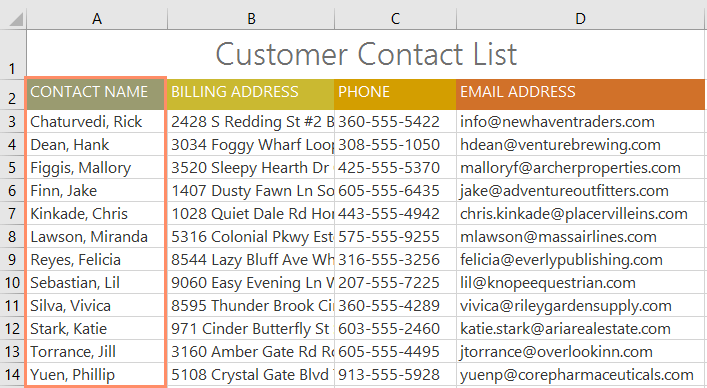
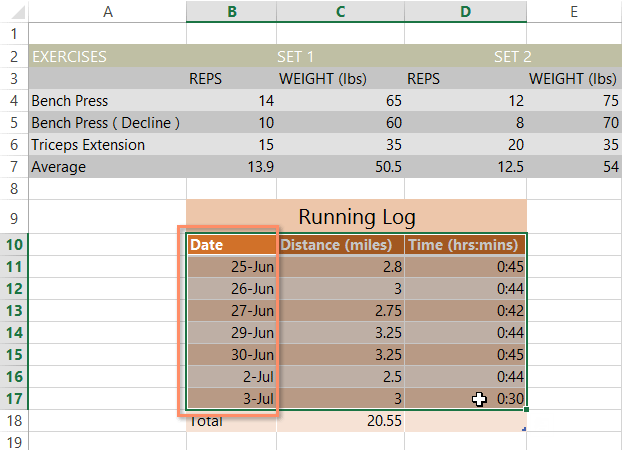
<p style="text-align: justify;">Khi sắp xếp dữ liệu, điều quan trọng trước tiên là phải quyết định xem bạn muốn áp dụng cho toàn bộ trang tính (1) hay chỉ một phạm vi ô (2).</p>

<ul>
	<li style="text-align: justify;">Trong trường hợp (1), tất cả dữ liệu trong trang tính sẽ được tổ chức theo một cột. Thông tin liên quan trên mỗi hàng được lưu cùng nhau khi áp dụng việc sắp xếp. Trong ví dụ dưới đây, cột&nbsp;<strong>Contact Name</strong>&nbsp;(cột A) đã được sắp xếp để hiển thị các tên theo thứ tự bảng chữ cái.</li>
</ul>

<p style="text-align: justify;"><img alt="" data-i="0" data-src="https://st.quantrimang.com/photos/image/2022/03/11/sap-xep-du-lieu-1.png" data-was-processed="true" height="357" src="https://st.quantrimang.com/photos/image/2022/03/11/sap-xep-du-lieu-1.png" width="650" /></p>

<ul>
	<li style="text-align: justify;">Trong trường hợp (2), chỉ dữ liệu trong một phạm vi ô được sắp xếp, điều này có thể hữu ích khi làm việc với một trang tính có chứa nhiều bảng. Việc sắp xếp một phạm vi sẽ không ảnh hưởng đến nội dung khác trong trang tính.</li>
</ul>

<p style="text-align: justify;"><img alt="" data-i="1" data-src="https://st.quantrimang.com/photos/image/2022/03/11/sap-xep-du-lieu-2.png" data-was-processed="true" height="450" src="https://st.quantrimang.com/photos/image/2022/03/11/sap-xep-du-lieu-2.png" width="622" /></p>

<h2 style="text-align: justify;">Cách sắp xếp một trang tính</h2>

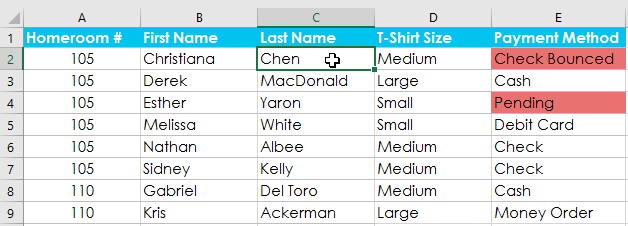
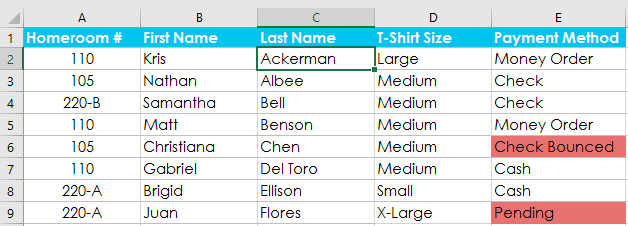
<p style="text-align: justify;">Ví dụ sẽ sắp xếp đơn đặt hàng áo phông theo thứ tự bảng chữ cái dựa trên<strong>&nbsp;Last Name</strong>&nbsp;(cột C).</p>

<p style="text-align: justify;">1. Chọn một ô trong cột bạn muốn sắp xếp. Ví dụ sẽ chọn ô&nbsp;<strong>C2.</strong></p>

<p style="text-align: justify;"><img alt="" data-i="2" data-src="https://st.quantrimang.com/photos/image/2022/03/11/sap-xep-du-lieu-3.png" data-was-processed="true" height="226" src="https://st.quantrimang.com/photos/image/2022/03/11/sap-xep-du-lieu-3.png" width="628" /></p>

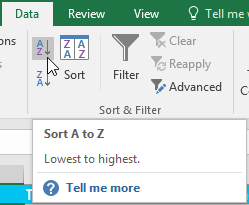
<p style="text-align: justify;">2. Chọn tab&nbsp;<strong>Data</strong>&nbsp;trên Ribbon, sau đó nhấp vào lệnh&nbsp;<strong>A-Z&nbsp;</strong>để sắp xếp từ A đến Z hoặc lệnh<strong>&nbsp;Z-A</strong>&nbsp;để sắp xếp từ Z đến A. Ví dụ sẽ chọn sắp xếp từ A đến Z.</p>

<p style="text-align: justify;"><img alt="" data-i="3" data-src="https://st.quantrimang.com/photos/image/2022/03/11/sap-xep-du-lieu-4.png" data-was-processed="true" height="205" src="https://st.quantrimang.com/photos/image/2022/03/11/sap-xep-du-lieu-4.png" width="249" /></p>

<p style="text-align: justify;">3. Trang tính sẽ được sắp xếp theo cột đã chọn. Trong ví dụ, trang tính hiện được sắp xếp theo họ.</p>

<p style="text-align: justify;"><img alt="" data-i="4" data-src="https://st.quantrimang.com/photos/image/2022/03/11/sap-xep-du-lieu-5.png" data-was-processed="true" height="226" src="https://st.quantrimang.com/photos/image/2022/03/11/sap-xep-du-lieu-5.png" width="628" /></p>

<h2 style="text-align: justify;">Cách sắp xếp một phạm vi ô</h2>

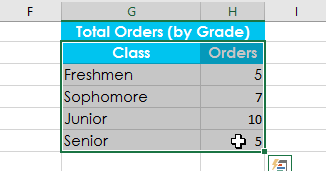
<p style="text-align: justify;">Ví dụ sẽ chọn một bảng riêng biệt trong biểu mẫu đặt hàng áo phông để sắp xếp số lượng áo sơ mi đã được đặt hàng ở mỗi lớp.</p>

<p style="text-align: justify;">1. Chọn phạm vi ô bạn muốn sắp xếp. Ví dụ sẽ chọn dải ô&nbsp;<strong>G2:H6.</strong></p>

<p style="text-align: justify;"><img alt="" data-i="5" data-src="https://st.quantrimang.com/photos/image/2022/03/11/sap-xep-du-lieu-6.png" data-was-processed="true" height="171" src="https://st.quantrimang.com/photos/image/2022/03/11/sap-xep-du-lieu-6.png" width="326" /></p>

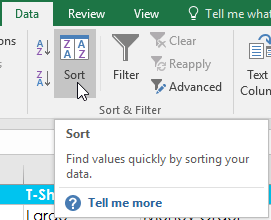
<p style="text-align: justify;">2. Chọn tab&nbsp;<strong>Data</strong>&nbsp;trên Ribbon, sau đó bấm vào lệnh&nbsp;<strong>Sort.</strong></p>

<p style="text-align: justify;"><strong><img alt="" data-i="6" data-src="https://st.quantrimang.com/photos/image/2022/03/11/sap-xep-du-lieu-7.png" data-was-processed="true" height="220" src="https://st.quantrimang.com/photos/image/2022/03/11/sap-xep-du-lieu-7.png" width="271" /></strong></p>

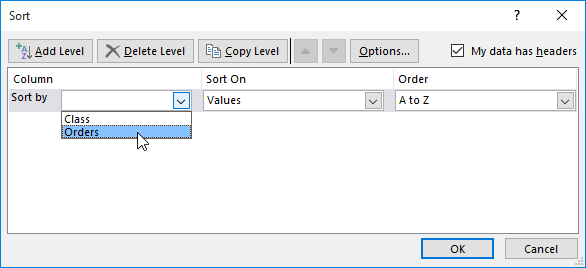
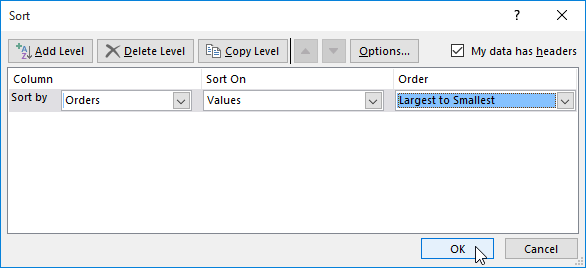
<p style="text-align: justify;">3. Hộp thoại&nbsp;<strong>Sort</strong>&nbsp;sẽ xuất hiện. Chọn cột bạn muốn sắp xếp. Ví dụ muốn sắp xếp dữ liệu theo số lượng đơn đặt hàng áo phông, vì vậy cột&nbsp;<strong>Orders</strong>&nbsp;sẽ được chọn.</p>

<p style="text-align: justify;"><img alt="" data-i="7" data-src="https://st.quantrimang.com/photos/image/2022/03/11/sap-xep-du-lieu-8.png" data-was-processed="true" height="268" src="https://st.quantrimang.com/photos/image/2022/03/11/sap-xep-du-lieu-8.png" width="586" /></p>

<p style="text-align: justify;">4. Quyết định thứ tự sắp xếp (tăng dần hoặc giảm dần). Ví dụ sẽ sử dụng tùy chọn&nbsp;<strong>Largest to Smallest</strong>.</p>

<p style="text-align: justify;">5. Khi bạn đã hài lòng với lựa chọn của mình, hãy nhấp vào&nbsp;<strong>OK.</strong></p>

<p style="text-align: justify;"><strong><img alt="" data-i="8" data-src="https://st.quantrimang.com/photos/image/2022/03/11/sap-xep-du-lieu-9.png" data-was-processed="true" height="268" src="https://st.quantrimang.com/photos/image/2022/03/11/sap-xep-du-lieu-9.png" width="586" /></strong></p>

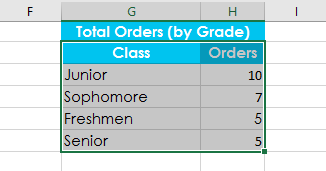
<p style="text-align: justify;">6. Phạm vi ô sẽ được sắp xếp theo cột đã chọn. Trong ví dụ, cột&nbsp;<strong>Orders</strong>&nbsp;sẽ được sắp xếp từ cao nhất đến thấp nhất. Lưu ý rằng nội dung khác trong trang tính không bị ảnh hưởng bởi cách sắp xếp này.</p>

<p style="text-align: justify;"><img alt="" data-i="9" data-src="https://st.quantrimang.com/photos/image/2022/03/11/sap-xep-du-lieu-10.png" data-was-processed="true" height="171" src="https://st.quantrimang.com/photos/image/2022/03/11/sap-xep-du-lieu-10.png" width="326" /></p>

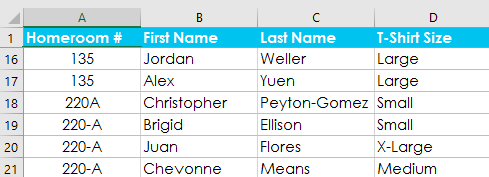
<p style="text-align: justify;">Nếu dữ liệu của bạn không được sắp xếp đúng cách, hãy kiểm tra kỹ các giá trị ô để đảm bảo rằng chúng được nhập vào trang tính một cách chính xác. Ngay cả một lỗi đánh máy nhỏ cũng có thể gây ra sự cố khi sắp xếp một trang tính lớn. Ví dụ dưới đây đã quên thêm dấu gạch ngang vào ô A18, khiến việc sắp xếp có chút không chính xác.</p>

<p style="text-align: justify;"><img alt="" data-i="10" data-src="https://st.quantrimang.com/photos/image/2022/03/11/sap-xep-du-lieu-11.png" data-was-processed="true" height="177" src="https://st.quantrimang.com/photos/image/2022/03/11/sap-xep-du-lieu-11.png" width="489" /></p>

<h2 style="text-align: justify;">Phân loại tùy chỉnh</h2>

<p style="text-align: justify;">Đôi khi bạn có thể thấy rằng các tùy chọn sắp xếp mặc định không thể sắp xếp dữ liệu theo thứ tự bạn cần. May mắn thay, Excel cho phép bạn tạo một danh sách tùy chỉnh để xác định thứ tự sắp xếp của riêng bạn.</p>

<h3 style="text-align: justify;">Cách tạo phân loại tùy chỉnh</h3>

<p style="text-align: justify;">Ví dụ muốn sắp xếp trang tính theo&nbsp;<strong>T-Shirt Size</strong>&nbsp;(cột D). Cách sắp xếp thông thường sẽ sắp xếp các kích thước theo thứ tự bảng chữ cái, điều này sẽ không hợp lý. Thay vào đó, cần tạo một danh sách tùy chỉnh để sắp xếp theo thứ tự từ nhỏ nhất đến lớn nhất.</p>

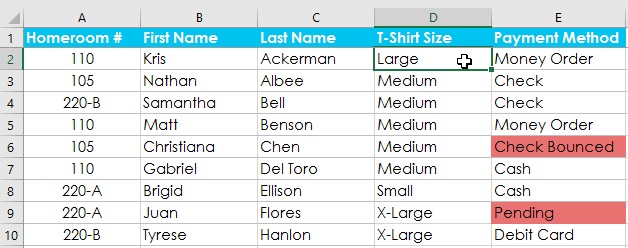
<p style="text-align: justify;">1. Chọn một ô trong cột bạn muốn sắp xếp. Ví dụ sẽ chọn ô&nbsp;<strong>D2.</strong></p>

<p style="text-align: justify;"><img alt="" data-i="11" data-src="https://st.quantrimang.com/photos/image/2022/03/11/sap-xep-du-lieu-12.png" data-was-processed="true" height="248" src="https://st.quantrimang.com/photos/image/2022/03/11/sap-xep-du-lieu-12.png" width="628" /></p>

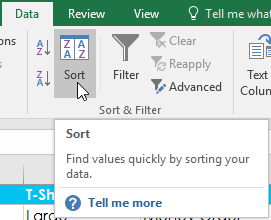
<p style="text-align: justify;">2. Chọn tab&nbsp;<strong>Data</strong>, sau đó nhấp vào lệnh&nbsp;<strong>Sort.</strong></p>

<p style="text-align: justify;"><strong><img alt="" data-i="12" data-src="https://st.quantrimang.com/photos/image/2022/03/11/sap-xep-du-lieu-13.png" data-was-processed="true" height="220" src="https://st.quantrimang.com/photos/image/2022/03/11/sap-xep-du-lieu-13.png" width="271" /></strong></p>

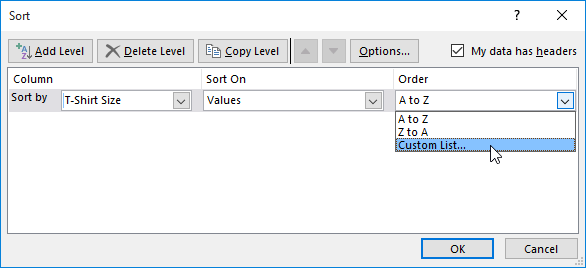
<p style="text-align: justify;">3. Hộp thoại&nbsp;<strong>Sort</strong>&nbsp;sẽ xuất hiện. Chọn cột bạn muốn sắp xếp, sau đó chọn&nbsp;<strong>Custom List...</strong>&nbsp;từ trường&nbsp;<strong>Order.</strong>&nbsp;Ví dụ sẽ chọn sắp xếp theo&nbsp;<strong>T-Shirt Size.</strong></p>

<p style="text-align: justify;"><strong><img alt="" data-i="13" data-src="https://st.quantrimang.com/photos/image/2022/03/11/sap-xep-du-lieu-14.png" data-was-processed="true" height="268" src="https://st.quantrimang.com/photos/image/2022/03/11/sap-xep-du-lieu-14.png" width="586" /></strong></p>

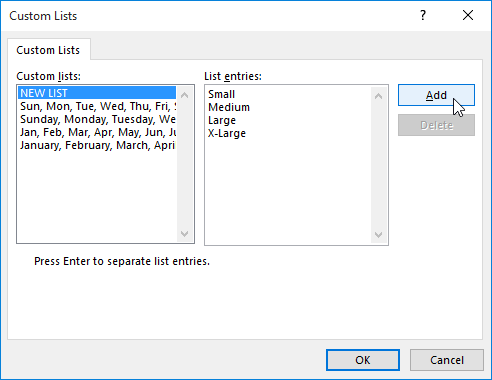
<p style="text-align: justify;">4. Hộp thoại&nbsp;<strong>Custom Lists</strong>&nbsp;sẽ xuất hiện. Chọn&nbsp;<strong>NEW LIST</strong>&nbsp;từ hộp&nbsp;<strong>Custom Lists:.</strong></p>

<p style="text-align: justify;">5. Nhập các mục theo thứ tự tùy chỉnh mong muốn vào hộp&nbsp;<strong>List entries:.</strong>&nbsp;Ví dụ muốn sắp xếp dữ liệu của mình theo kích thước áo phông từ nhỏ nhất đến lớn nhất, vì vậy các giá trị&nbsp;<strong>Small, Medium, Large</strong>&nbsp;và&nbsp;<strong>X-Large</strong>&nbsp;sẽ được nhập, nhấn&nbsp;<strong>Enter</strong>&nbsp;trên bàn phím sau mỗi mục.</p>

<p style="text-align: justify;"><img alt="" data-i="14" data-src="https://st.quantrimang.com/photos/image/2022/03/11/sap-xep-du-lieu-15.png" data-was-processed="true" height="380" src="https://st.quantrimang.com/photos/image/2022/03/11/sap-xep-du-lieu-15.png" width="492" /></p>

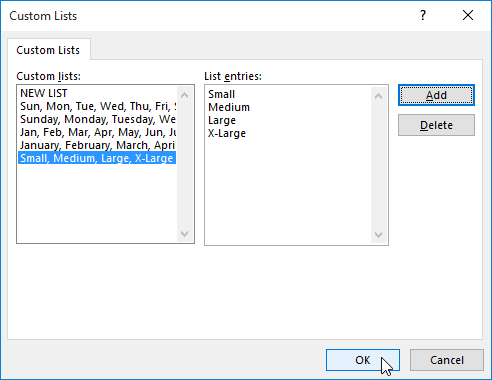
<p style="text-align: justify;">6. Bấm&nbsp;<strong>Add</strong>&nbsp;để lưu thứ tự sắp xếp mới. Danh sách mới sẽ được thêm vào hộp&nbsp;<strong>Custom lists:.</strong>&nbsp;Đảm bảo rằng danh sách mới đã được chọn, sau đó bấm&nbsp;<strong>OK.</strong></p>

<p style="text-align: justify;"><strong><img alt="" data-i="15" data-src="https://st.quantrimang.com/photos/image/2022/03/11/sap-xep-du-lieu-16.png" data-was-processed="true" height="380" src="https://st.quantrimang.com/photos/image/2022/03/11/sap-xep-du-lieu-16.png" width="492" /></strong></p>

<p style="text-align: justify;">7. Hộp thoại&nbsp;<strong>Custom Lists</strong>&nbsp;sẽ đóng. Bấm&nbsp;<strong>OK</strong>&nbsp;trong hộp thoại&nbsp;<strong>Sort</strong>&nbsp;để thực hiện sắp xếp tùy chỉnh.</p>

<p style="text-align: justify;"><img alt="" data-i="16" data-src="https://st.quantrimang.com/photos/image/2022/03/11/sap-xep-du-lieu-17.png" data-was-processed="true" height="268" src="https://st.quantrimang.com/photos/image/2022/03/11/sap-xep-du-lieu-17.png" width="586" /></p>

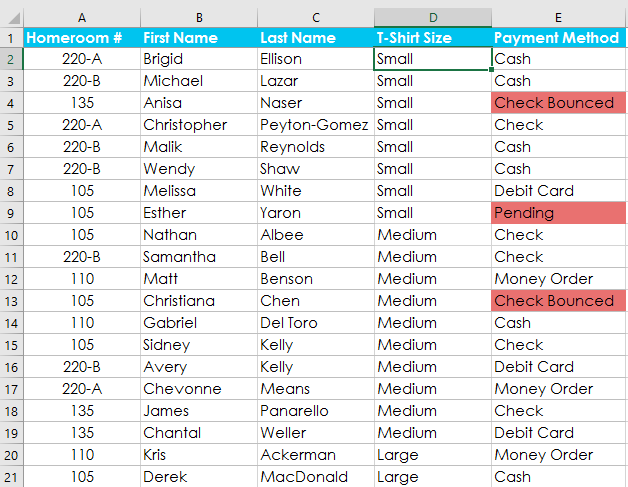
<p style="text-align: justify;">8. Trang tính sẽ được sắp xếp theo thứ tự tùy chỉnh. Trong ví dụ, bảng tính hiện được sắp xếp theo kích thước áo phông từ nhỏ nhất đến lớn nhất.</p>

<p style="text-align: justify;"><img alt="" data-i="17" data-src="https://st.quantrimang.com/photos/image/2022/03/11/sap-xep-du-lieu-18.png" data-was-processed="true" height="487" src="https://st.quantrimang.com/photos/image/2022/03/11/sap-xep-du-lieu-18.png" width="628" /></p>

<h3 style="text-align: justify;">Các cấp độ sắp xếp</h3>

<p style="text-align: justify;">Nếu cần kiểm soát nhiều hơn cách sắp xếp dữ liệu của mình, bạn có thể thêm nhiều cấp độ vào bất kỳ loại nào. Điều này cho phép bạn sắp xếp dữ liệu của mình theo nhiều cột.</p>

<p style="text-align: justify;"><strong>Cách thêm một cấp độ</strong></p>

<p style="text-align: justify;">Ví dụ bên dưới sẽ sắp xếp trang tính theo&nbsp;<strong>T-Shirt Size</strong>&nbsp;(Cột D), sau đó theo&nbsp;<strong>Homeroom #&nbsp;</strong>(cột A).</p>

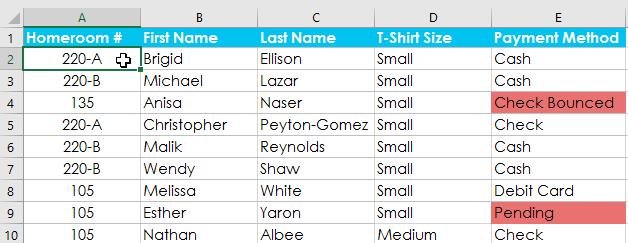
<p style="text-align: justify;">1. Chọn một ô trong cột bạn muốn sắp xếp. Ví dụ sẽ chọn ô&nbsp;<strong>A2.</strong></p>

<p style="text-align: justify;"><img alt="" data-i="18" data-src="https://st.quantrimang.com/photos/image/2022/03/11/sap-xep-du-lieu-19.png" data-was-processed="true" height="243" src="https://st.quantrimang.com/photos/image/2022/03/11/sap-xep-du-lieu-19.png" width="628" /></p>

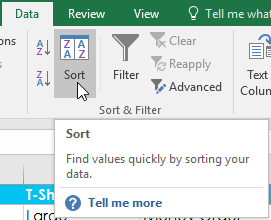
<p style="text-align: justify;">2. Bấm vào tab&nbsp;<strong>Data</strong>, sau đó chọn lệnh&nbsp;<strong>Sort.</strong></p>

<p style="text-align: justify;"><strong><img alt="" data-i="19" data-src="https://st.quantrimang.com/photos/image/2022/03/11/sap-xep-du-lieu-20.png" data-was-processed="true" height="220" src="https://st.quantrimang.com/photos/image/2022/03/11/sap-xep-du-lieu-20.png" width="271" /></strong></p>

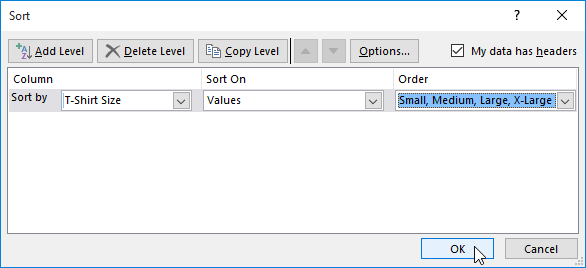
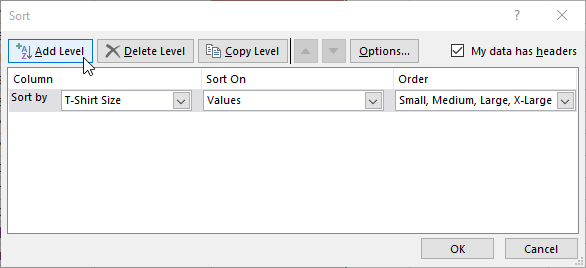
<p style="text-align: justify;">3. Hộp thoại&nbsp;<strong>Sort</strong>&nbsp;sẽ xuất hiện. Chọn cột đầu tiên bạn muốn sắp xếp. Ví dụ này sẽ sắp xếp theo&nbsp;<strong>T-Shirt Size</strong>&nbsp;(cột D) với danh sách tùy chỉnh đã tạo trước đó cho trường&nbsp;<strong>Order.</strong></p>

<p style="text-align: justify;">4. Bấm&nbsp;<strong>Add Level</strong>&nbsp;để thêm một cột khác cho việc sắp xếp.</p>

<p style="text-align: justify;"><img alt="" data-i="20" data-src="https://st.quantrimang.com/photos/image/2022/03/11/sap-xep-du-lieu-21.png" data-was-processed="true" height="268" src="https://st.quantrimang.com/photos/image/2022/03/11/sap-xep-du-lieu-21.png" width="586" /></p>

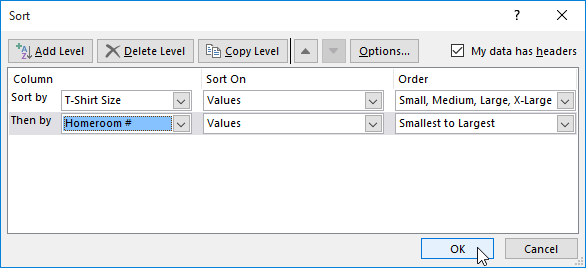
<p style="text-align: justify;">5. Chọn cột tiếp theo bạn muốn sắp xếp, sau đó bấm&nbsp;<strong>OK.</strong>&nbsp;Ví dụ sẽ sắp xếp theo&nbsp;<strong>Homeroom #</strong>&nbsp;(cột A).</p>

<p style="text-align: justify;"><img alt="" data-i="21" data-src="https://st.quantrimang.com/photos/image/2022/03/11/sap-xep-du-lieu-22.png" data-was-processed="true" height="268" src="https://st.quantrimang.com/photos/image/2022/03/11/sap-xep-du-lieu-22.png" width="586" /></p>

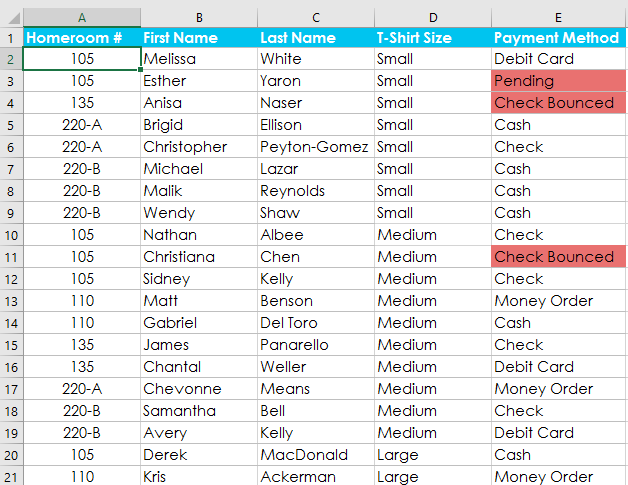
<p style="text-align: justify;">6. Trang tính sẽ được sắp xếp theo thứ tự đã chọn. Trong ví dụ, các đơn đặt hàng được sắp xếp theo kích thước áo phông. Trong mỗi kích cỡ áo phông nhóm, học sinh được sắp xếp theo số lớp.</p>

<p style="text-align: justify;"><img alt="" data-i="22" data-src="https://st.quantrimang.com/photos/image/2022/03/11/sap-xep-du-lieu-23.png" data-was-processed="true" height="485" src="https://st.quantrimang.com/photos/image/2022/03/11/sap-xep-du-lieu-23.png" width="628" /></p>

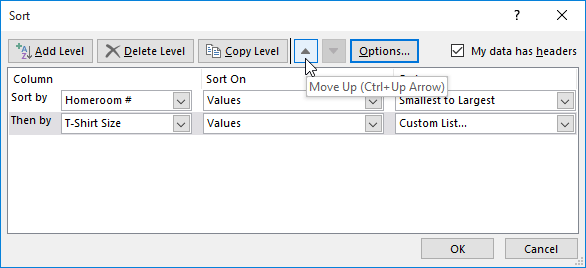
<p style="text-align: justify;">Nếu bạn cần thay đổi thứ tự sắp xếp gồm nhiều cấp độ, thật dễ dàng để kiểm soát cột nào được sắp xếp trước. Chỉ cần chọn cột mong muốn, sau đó nhấp vào mũi tên&nbsp;<strong>Move Up</strong>&nbsp;hoặc&nbsp;<strong>Move Down&nbsp;</strong>để điều chỉnh mức độ ưu tiên của nó.</p>

<p style="text-align: justify;"><img alt="" data-i="23" data-src="https://st.quantrimang.com/photos/image/2022/03/11/sap-xep-du-lieu-24.png" data-was-processed="true" height="268" src="https://st.quantrimang.com/photos/image/2022/03/11/sap-xep-du-lieu-24.png" width="586" /></p>
		</div>
				<div id="author">
						<p>
				<strong>Nguồn tin:</strong>
				Quantrimang.com
			</p>
		</div>
	</div>
	<div id="footer" class="clearfix">
		<div id="url">
			<strong>URL của bản tin này: </strong><a href="https://www.nguoicodonvn2008.info/vi/news/savefile/kien-thuc-may-tinh/excel-2019-phan-18-sap-xep-du-lieu-5264.html" title="Excel 2019 &#40;Phần 18&#41;&#x3A; Sắp xếp dữ liệu">https://www.nguoicodonvn2008.info/vi/news/savefile/kien-thuc-may-tinh/excel-2019-phan-18-sap-xep-du-lieu-5264.html</a>

		</div>
		<div class="clear"></div>
		<div class="copyright">
			&copy; .&#x3A; Nguoicodonvn2008.info - Cõi lòng người cô đơn &#x3A;.
		</div>
		<div id="contact">
			<a href="mailto:admin@nguoicodonvn2008.info">admin@nguoicodonvn2008.info</a>
		</div>
	</div>
</div>
        <div id="timeoutsess" class="chromeframe">
            Bạn đã không sử dụng Site, <a onclick="timeoutsesscancel();" href="https://www.nguoicodonvn2008.info/#">Bấm vào đây để duy trì trạng thái đăng nhập</a>. Thời gian chờ: <span id="secField"> 60 </span> giây
        </div>
        <div id="openidResult" class="nv-alert" style="display:none"></div>
        <div id="openidBt" data-result="" data-redirect=""></div>
		</script>
		<div class="car-top">
  <span><img src="https://www.nguoicodonvn2008.info/themes/default/images/car.png" alt=""></span>
</div>
<div id="run_cronjobs" style="visibility:hidden;display:none;"><img alt="cron" src="/index.php?second=cronjobs&amp;p=s8J46w1j" width="1" height="1" /></div>
<script src="https://www.nguoicodonvn2008.info/assets/js/jquery/jquery.min.js"></script>
<script>var nv_base_siteurl="/",nv_lang_data="vi",nv_lang_interface="vi",nv_name_variable="nv",nv_fc_variable="op",nv_lang_variable="language",nv_module_name="news",nv_func_name="savefile",nv_is_user=0, nv_my_ofs=-4,nv_my_abbr="EDT",nv_cookie_prefix="nv4c_e856T",nv_check_pass_mstime=1738000,nv_area_admin=0,nv_safemode=0,theme_responsive=0,nv_recaptcha_ver=2,nv_recaptcha_sitekey="",nv_recaptcha_type="image",XSSsanitize=1;</script>
<script src="https://www.nguoicodonvn2008.info/assets/js/language/vi.js"></script>
<script src="https://www.nguoicodonvn2008.info/assets/js/DOMPurify/purify3.js"></script>
<script src="https://www.nguoicodonvn2008.info/assets/js/global.js"></script>
<script src="https://www.nguoicodonvn2008.info/assets/js/site.js"></script>
<script src="https://www.nguoicodonvn2008.info/themes/default/js/news.js"></script>
<script src="https://www.nguoicodonvn2008.info/themes/default/js/main.js"></script>
<script src="https://www.nguoicodonvn2008.info/themes/default/js/custom.js"></script>
<script type="application/ld+json">
        {
            "@context": "https://schema.org",
            "@type": "Organization",
            "url": "https://www.nguoicodonvn2008.info",
            "logo": "https://www.nguoicodonvn2008.info/uploads/angel.gif"
        }
        </script>
<script src="https://www.nguoicodonvn2008.info/themes/default/js/bootstrap.min.js"></script>
<script type="text/javascript">
var $scrolltop = $('.car-top');
$scrolltop.on('click', function () {
    $('html,body').animate({
        scrollTop: 0
    }, 800);
    $(this).addClass("car-run");
    setTimeout(function(){ $scrolltop.removeClass('car-run');}, 1000);
    return false;
});
$(window).on('scroll', function ()
{ 
    if($(window).scrollTop() >= 200)
    {
        $scrolltop.addClass("show");
        $scrolltop.addClass("car-down");
    }
    else
    {
       $scrolltop.removeClass("show");
       setTimeout(function(){ $scrolltop.removeClass('car-down');}, 300);
    }
});
</script>
</body>
</html>