<!DOCTYPE html>
    <html lang="vi" xmlns="http://www.w3.org/1999/xhtml" prefix="og: http://ogp.me/ns#">
    <head>
<title>Di chuyển Desktop, Download và Documents sang ổ khác trên Windows 10</title>
<meta name="description" content="Di chuyển Desktop, Download và Documents sang ổ khác trên Windows 10 - Savefile - Tin Tức -...">
<meta name="author" content=".: Nguoicodonvn2008.info - Cõi lòng người cô đơn :.">
<meta name="copyright" content=".: Nguoicodonvn2008.info - Cõi lòng người cô đơn :. [admin@nguoicodonvn2008.info]">
<meta name="robots" content="index, archive, follow, noodp">
<meta name="googlebot" content="index,archive,follow,noodp">
<meta name="msnbot" content="all,index,follow">
<meta name="generator" content="NukeViet v4.5">
<meta http-equiv="Content-Type" content="text/html; charset=utf-8">
<meta property="og:title" content="Di chuyển Desktop, Download và Documents sang ổ khác trên Windows 10">
<meta property="og:type" content="website">
<meta property="og:description" content="Savefile - Tin Tức - https&#x3A;&#x002F;&#x002F;www.nguoicodonvn2008.info&#x002F;vi&#x002F;news&#x002F;savefile&#x002F;kien-thuc-may-tinh&#x002F;di-chuyen-desktop-download-va-documents-sang-o-khac-tren-windows-10-11105.html">
<meta property="og:site_name" content=".&#x3A; Nguoicodonvn2008.info - Cõi lòng người cô đơn &#x3A;.">
<meta property="og:url" content="https://www.nguoicodonvn2008.info/vi/news/savefile/kien-thuc-may-tinh/di-chuyen-desktop-download-va-documents-sang-o-khac-tren-windows-10-11105.html">
<link rel="shortcut icon" href="https://www.nguoicodonvn2008.info/favicon.ico">
<link rel="canonical" href="https://www.nguoicodonvn2008.info/vi/news/savefile/kien-thuc-may-tinh/di-chuyen-desktop-download-va-documents-sang-o-khac-tren-windows-10-11105.html">
<link rel="alternate" href="https://www.nguoicodonvn2008.info/vi/news/rss/" title="Tin Tức" type="application/rss+xml">
<link rel="alternate" href="https://www.nguoicodonvn2008.info/vi/news/rss/karaoke-dual/" title="Tin Tức - Karaoke Dual" type="application/rss+xml">
<link rel="alternate" href="https://www.nguoicodonvn2008.info/vi/news/rss/nhac-tre/" title="Tin Tức - Nhạc trẻ" type="application/rss+xml">
<link rel="alternate" href="https://www.nguoicodonvn2008.info/vi/news/rss/tru-tinh/" title="Tin Tức - Trữ tình" type="application/rss+xml">
<link rel="alternate" href="https://www.nguoicodonvn2008.info/vi/news/rss/nuoc-ngoai/" title="Tin Tức - Nước ngoài" type="application/rss+xml">
<link rel="alternate" href="https://www.nguoicodonvn2008.info/vi/news/rss/remix/" title="Tin Tức - Remix" type="application/rss+xml">
<link rel="alternate" href="https://www.nguoicodonvn2008.info/vi/news/rss/tam-su-tinh-yeu/" title="Tin Tức - Tâm sự tình yêu" type="application/rss+xml">
<link rel="alternate" href="https://www.nguoicodonvn2008.info/vi/news/rss/tho-suu-tam/" title="Tin Tức - Thơ sưu tầm" type="application/rss+xml">
<link rel="alternate" href="https://www.nguoicodonvn2008.info/vi/news/rss/cuoc-song/" title="Tin Tức - Cuộc sống" type="application/rss+xml">
<link rel="alternate" href="https://www.nguoicodonvn2008.info/vi/news/rss/phan-mem/" title="Tin Tức - Phần mềm" type="application/rss+xml">
<link rel="alternate" href="https://www.nguoicodonvn2008.info/vi/news/rss/kien-thuc-may-tinh/" title="Tin Tức - Kiến thức máy tính" type="application/rss+xml">
<link rel="alternate" href="https://www.nguoicodonvn2008.info/vi/news/rss/hoc-tap/" title="Tin Tức - Học tập" type="application/rss+xml">
<link rel="alternate" href="https://www.nguoicodonvn2008.info/vi/news/rss/tai-lieu/" title="Tin Tức - Tài liệu" type="application/rss+xml">
<link rel="alternate" href="https://www.nguoicodonvn2008.info/vi/news/rss/de-thi/" title="Tin Tức - Đề thi" type="application/rss+xml">
<link rel="preload" as="style" href="https://www.nguoicodonvn2008.info/assets/css/font-awesome.min.css" type="text/css">
<link rel="preload" as="style" href="https://www.nguoicodonvn2008.info/themes/default/css/bootstrap.non-responsive.css" type="text/css">
<link rel="preload" as="style" href="https://www.nguoicodonvn2008.info/themes/default/css/style.css" type="text/css">
<link rel="preload" as="style" href="https://www.nguoicodonvn2008.info/themes/default/css/style.non-responsive.css" type="text/css">
<link rel="preload" as="style" href="https://www.nguoicodonvn2008.info/themes/default/css/news.css" type="text/css">
<link rel="preload" as="style" href="https://www.nguoicodonvn2008.info/themes/default/css/custom.css" type="text/css">
<link rel="preload" as="script" href="https://www.nguoicodonvn2008.info/assets/js/jquery/jquery.min.js" type="text/javascript">
<link rel="preload" as="script" href="https://www.nguoicodonvn2008.info/assets/js/language/vi.js" type="text/javascript">
<link rel="preload" as="script" href="https://www.nguoicodonvn2008.info/assets/js/DOMPurify/purify3.js" type="text/javascript">
<link rel="preload" as="script" href="https://www.nguoicodonvn2008.info/assets/js/global.js" type="text/javascript">
<link rel="preload" as="script" href="https://www.nguoicodonvn2008.info/assets/js/site.js" type="text/javascript">
<link rel="preload" as="script" href="https://www.nguoicodonvn2008.info/themes/default/js/news.js" type="text/javascript">
<link rel="preload" as="script" href="https://www.nguoicodonvn2008.info/themes/default/js/main.js" type="text/javascript">
<link rel="preload" as="script" href="https://www.nguoicodonvn2008.info/themes/default/js/custom.js" type="text/javascript">
<link rel="preload" as="script" href="https://www.nguoicodonvn2008.info/themes/default/js/bootstrap.min.js" type="text/javascript">
<link rel="stylesheet" href="https://www.nguoicodonvn2008.info/assets/css/font-awesome.min.css">
<link rel="stylesheet" href="https://www.nguoicodonvn2008.info/themes/default/css/bootstrap.non-responsive.css">
<link rel="stylesheet" href="https://www.nguoicodonvn2008.info/themes/default/css/style.css">
<link rel="stylesheet" href="https://www.nguoicodonvn2008.info/themes/default/css/style.non-responsive.css">
<link rel="StyleSheet" href="https://www.nguoicodonvn2008.info/themes/default/css/news.css">
<link rel="stylesheet" href="https://www.nguoicodonvn2008.info/themes/default/css/custom.css">
<style type="text/css">
	body{background: #fff;}
</style>
    </head>
    <body>
<div id="print">
	<div id="hd_print">
		<h2 class="pull-left">.&#x3A; Nguoicodonvn2008.info - Cõi lòng người cô đơn &#x3A;.</h2>
		<p class="pull-right"><a title=".&#x3A; Nguoicodonvn2008.info - Cõi lòng người cô đơn &#x3A;." href="https://www.nguoicodonvn2008.info/">https://www.nguoicodonvn2008.info</a></p>
	</div>
	<div class="clear"></div>
	<hr />
	<div id="content">
		<h1>Di chuyển Desktop, Download và Documents sang ổ khác trên Windows 10</h1>
		<ul class="list-inline">
			<li>Thứ ba - 09/09/2025 00:00</li>
			<li class="hidden-print txtrequired"><em class="fa fa-print">&nbsp;</em><a title="In ra" href="javascript:;" onclick="window.print()">In ra</a></li>
			<li class="hidden-print txtrequired"><em class="fa fa-power-off">&nbsp;</em><a title="Đóng cửa sổ này" href="javascript:;" onclick="window.close()">Đóng cửa sổ này</a></li>
		</ul>
		<div class="clear"></div>
		<div id="hometext">
		</div>
				<div class="imghome">
			<img alt="Di chuyển Desktop, Download và Documents sang ổ khác trên Windows 10" src="https://st.quantrimang.com/photos/image/2024/04/08/di-chuyen-desktop-download-va-documents-sang-o-khac-tren-windows-10-8.png" width="460" class="img-thumbnail" />
		</div>
		<div class="clear"></div>
		<div id="bodytext" class="clearfix">
			<p style="text-align: justify;">Hầu hết chúng ta đều lưu các file đã tải xuống trong thư mục Downloads mặc định và nhiều người trong chúng ta có hàng chục thư mục và file trên&nbsp;&nbsp;desktop. Vì hầu hết người dùng đều có nhiều GB dữ liệu trong cả thư mục Downloads và&nbsp;&nbsp;Desktop&nbsp;(tất cả các mục trên desktop đều được lưu trong thư mục Desktop), nên di chuyển các thư mục này sang ổ khác nếu&nbsp;&nbsp;Windows&nbsp;hoặc ổ hệ thống của bạn sắp hết dung lượng ổ đĩa .</p>

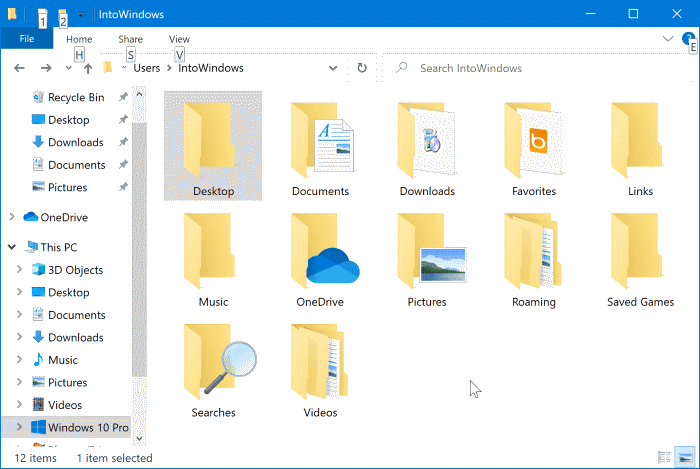
<p style="text-align: justify;">Với cài đặt mặc định, các thư mục như Documents,&nbsp;&nbsp;Desktop, Downloads, Picture và Music đều nằm trên ổ cài đặt&nbsp;&nbsp;Windows&nbsp;10. Ví dụ, nếu Windows 10 được cài đặt trên ổ “C”, bạn có thể tìm thấy các thư mục này bằng cách điều hướng đến thư mục&nbsp;<strong>C:\Users\YourUserName.</strong></p>

<figure>
<div style="text-align: justify;"><img alt="Các thư mục như Documents, Desktop, Downloads, Picture và Music" data-adbro-processed="true" data-i="0" data-src="https://st.quantrimang.com/photos/image/2024/04/08/di-chuyen-desktop-download-va-documents-sang-o-khac-tren-windows-10-1.png" data-was-processed="true" height="469" src="https://st.quantrimang.com/photos/image/2024/04/08/di-chuyen-desktop-download-va-documents-sang-o-khac-tren-windows-10-1.png" width="700" /></div>

<figcaption>
<div style="text-align: justify;">Các thư mục như Documents, Desktop, Downloads, Picture và Music</div>
</figcaption>
</figure>

<p style="text-align: justify;">Nếu bạn đang chạy Windows 10 trên&nbsp;ổ SSD&nbsp;tương đối nhỏ hoặc trên một phân vùng nhỏ của&nbsp;&nbsp;ổ cứng&nbsp;và hết dung lượng ổ đĩa, bạn có thể cân nhắc việc di chuyển các thư mục Documents, Desktop và Download sang ổ khác.</p>

<p style="text-align: justify;">Nhiều người dùng muốn di chuyển thư mục User Profile sang ổ khác để giải phóng dung lượng ổ đĩa trên phân vùng hệ thống, nhưng do việc di chuyển thư mục User Profile sang ổ khác không được Windows hỗ trợ nên sẽ có vấn đề khi nâng cấp Windows 10 lên bản build mới. Vì vậy, phương pháp di chuyển các thư mục Desktop, Documents, Downloads, Music và Pictures sang một ổ khác (qua thư mục User Profile) nơi bạn có nhiều không gian trống là điều hợp lý.</p>

<p style="text-align: justify;"><strong>LƯU Ý QUAN TRỌNG</strong>: Không sử dụng hướng dẫn này nếu ổ được mã hóa.</p>

<h2 style="text-align: justify;">Di chuyển Desktop, Download và Documents sang ổ khác</h2>

<p style="text-align: justify;">Dưới đây là cách di chuyển các thư mục Desktop, Downloads, Picture và Music sang ổ khác trên&nbsp;Windows 10. Lưu ý rằng bạn có thể di chuyển các thư mục mà bạn muốn và không cần phải di chuyển tất cả chúng.</p>

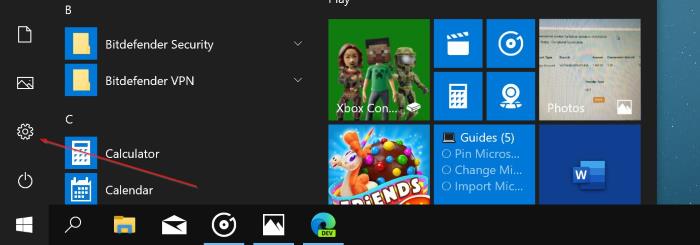
<p style="text-align: justify;"><strong>Bước 1</strong>:&nbsp;Mở File Explorer&nbsp;bằng cách nhấp vào biểu tượng của nó trên thanh tác vụ hoặc nhấp vào biểu tượng File Explorer trong menu Start.</p>

<figure>
<div style="text-align: justify;"><img alt="Mở File Explorer" data-i="1" data-src="https://st.quantrimang.com/photos/image/2024/04/08/di-chuyen-desktop-download-va-documents-sang-o-khac-tren-windows-10-2.jpg" data-was-processed="true" height="245" src="https://st.quantrimang.com/photos/image/2024/04/08/di-chuyen-desktop-download-va-documents-sang-o-khac-tren-windows-10-2.jpg" width="700" /></div>

<figcaption>
<div style="text-align: justify;">Mở File Explorer</div>
</figcaption>
</figure>

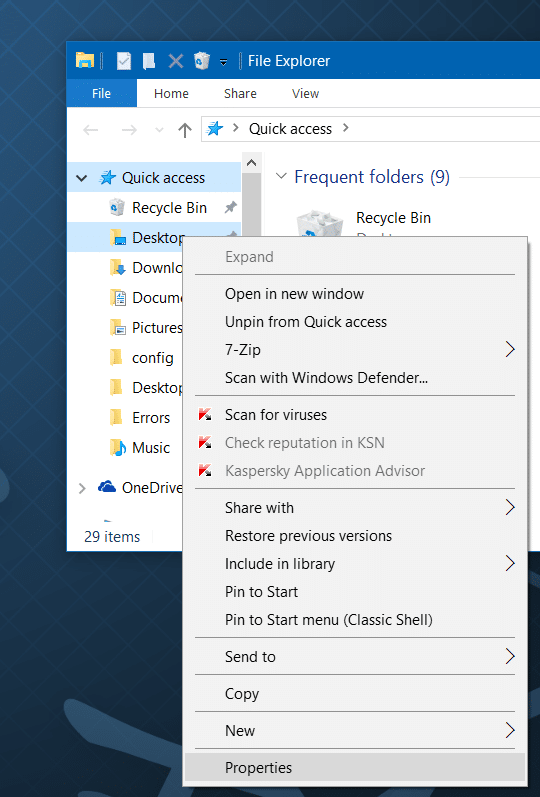
<p style="text-align: justify;"><strong>Bước 2</strong>: Trong ngăn điều hướng bên trái của File Explorer, bạn có thể thấy Desktop, Downloads, Picture và các thư mục khác trong Quick Access. Nhấp chuột phải vào thư mục mà bạn muốn di chuyển sang ổ khác và sau đó nhấp vào&nbsp;<strong>Properties.</strong></p>

<p style="text-align: justify;">Ví dụ, nếu bạn muốn di chuyển thư mục Desktop, hãy nhấp chuột phải vào thư mục đó rồi nhấp vào&nbsp;<strong>Properties</strong>&nbsp;để mở Desktop Properties. Xin lưu ý rằng không thể di chuyển nhiều thư mục cùng một lúc.</p>

<figure>
<div style="text-align: justify;"><img alt="Nhấp chuột phải vào thư mục bạn muốn di chuyển và chọn Properties" data-i="2" data-src="https://st.quantrimang.com/photos/image/2024/04/08/di-chuyen-desktop-download-va-documents-sang-o-khac-tren-windows-10-3.png" data-was-processed="true" height="797" src="https://st.quantrimang.com/photos/image/2024/04/08/di-chuyen-desktop-download-va-documents-sang-o-khac-tren-windows-10-3.png" width="540" /></div>

<figcaption>
<div style="text-align: justify;">Nhấp chuột phải vào thư mục bạn muốn di chuyển và chọn Properties</div>
</figcaption>
</figure>

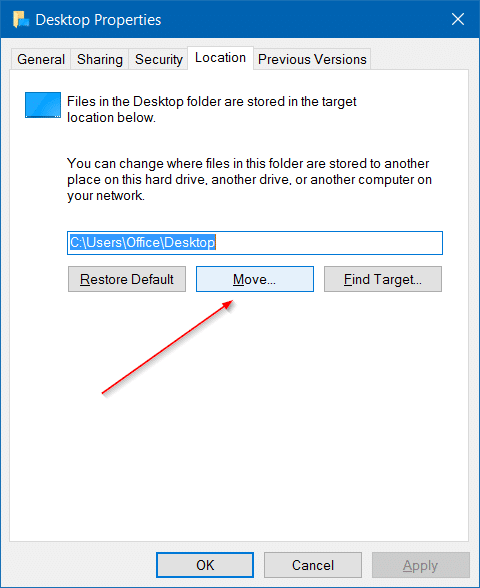
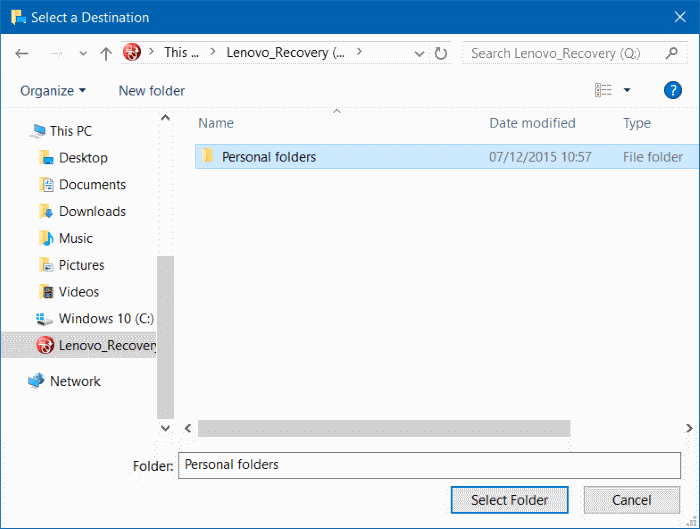
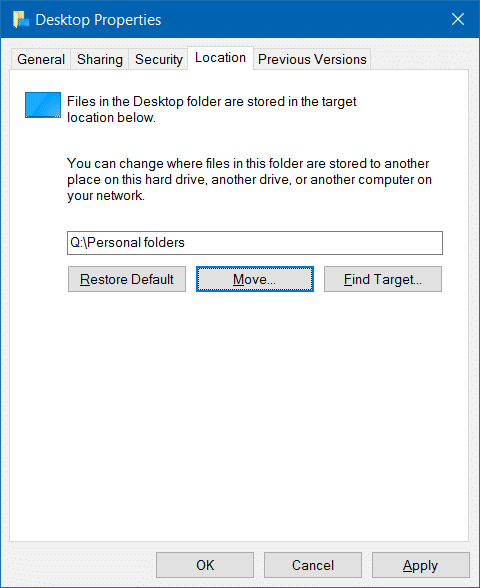
<p style="text-align: justify;"><strong>Bước 3</strong>: Chuyển sang tab&nbsp;<strong>Location</strong>, nhấp vào nút&nbsp;<strong>Move</strong>, sau đó chọn một vị trí trên bất kỳ ổ nào (không phải ổ cứng ngoài) và cuối cùng, nhấp vào&nbsp;<strong>Select Folder</strong>, sau đó nhấn vào nút&nbsp;<strong>Apply</strong>&nbsp;để di chuyển thư mục đã chọn sang ổ mới .</p>

<figure>
<div style="text-align: justify;"><img alt="" data-i="3" data-src="https://st.quantrimang.com/photos/image/2024/04/08/di-chuyen-desktop-download-va-documents-sang-o-khac-tren-windows-10-4.png" data-was-processed="true" height="588" src="https://st.quantrimang.com/photos/image/2024/04/08/di-chuyen-desktop-download-va-documents-sang-o-khac-tren-windows-10-4.png" width="480" /></div>
</figure>

<figure>
<div style="text-align: justify;"><img alt="" data-i="4" data-src="https://st.quantrimang.com/photos/image/2024/04/08/di-chuyen-desktop-download-va-documents-sang-o-khac-tren-windows-10-5.png" data-was-processed="true" height="529" src="https://st.quantrimang.com/photos/image/2024/04/08/di-chuyen-desktop-download-va-documents-sang-o-khac-tren-windows-10-5.png" width="700" /></div>
</figure>

<figure>
<div style="text-align: justify;"><img alt="" data-i="5" data-src="https://st.quantrimang.com/photos/image/2024/04/08/di-chuyen-desktop-download-va-documents-sang-o-khac-tren-windows-10-6.png" data-was-processed="true" height="588" src="https://st.quantrimang.com/photos/image/2024/04/08/di-chuyen-desktop-download-va-documents-sang-o-khac-tren-windows-10-6.png" width="480" /></div>
</figure>

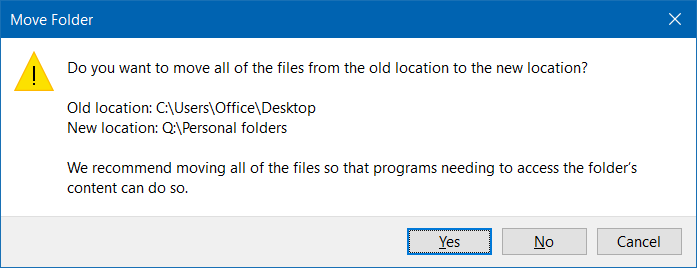
<p style="text-align: justify;">Và nếu bạn thấy hộp thoại xác nhận sau hỏi “Do you want to move all of the files from the old location to the new location?&quot; (Bạn có muốn di chuyển tất cả các file từ vị trí cũ sang vị trí mới không?), hãy nhấp vào nút&nbsp;<strong>Yes</strong>&nbsp;để di chuyển tất cả các file đến vị trí mới.</p>

<figure>
<div style="text-align: justify;"><img alt="" data-i="6" data-src="https://st.quantrimang.com/photos/image/2024/04/08/di-chuyen-desktop-download-va-documents-sang-o-khac-tren-windows-10-7.png" data-was-processed="true" height="268" src="https://st.quantrimang.com/photos/image/2024/04/08/di-chuyen-desktop-download-va-documents-sang-o-khac-tren-windows-10-7.png" width="697" /></div>
</figure>

<figure>
<div style="text-align: justify;"><img alt="" data-i="7" data-src="https://st.quantrimang.com/photos/image/2024/04/08/di-chuyen-desktop-download-va-documents-sang-o-khac-tren-windows-10-8.png" data-was-processed="true" height="209" src="https://st.quantrimang.com/photos/image/2024/04/08/di-chuyen-desktop-download-va-documents-sang-o-khac-tren-windows-10-8.png" width="561" /></div>
</figure>

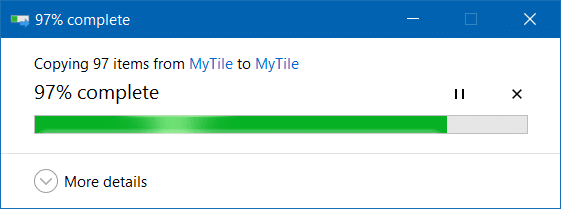
<p style="text-align: justify;">Sử dụng phương pháp này, bạn có thể di chuyển thư mục Desktop, Documents, Downloads, Pictures và Music sang ổ đĩa khác.</p>

<h2 style="text-align: justify;">Cách khôi phục vị trí ban đầu của các thư mục</h2>

<p style="text-align: justify;">Trong hướng dẫn này, chúng ta sẽ láy việc khôi phục thư mục Desktop về vị trí ban đầu làm ví dụ. Các hướng dẫn này cũng áp dụng cho thư mục Downloads, Documents, Music và Pictures.</p>

<p style="text-align: justify;"><strong>Bước 1</strong>: Mở File Explorer, điều hướng đến vị trí bạn đã lưu thư mục Desktop. Bấm chuột phải vào thư mục Desktop, rồi chọn&nbsp;<strong>Properties</strong>.</p>

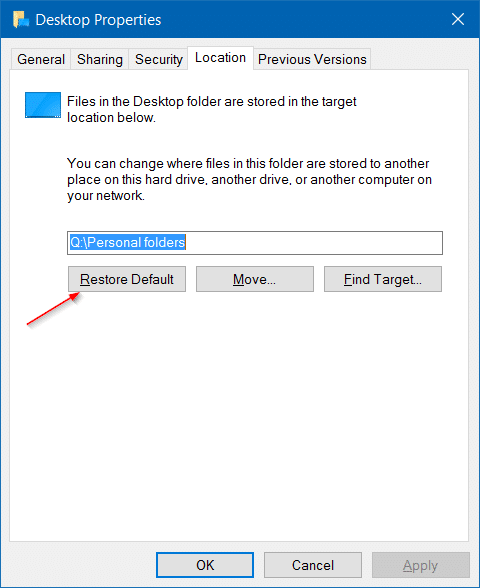
<p style="text-align: justify;"><strong>Bước 2</strong>: Nhấp vào tab&nbsp;<strong>Location</strong>, sau đó nhấp vào nút&nbsp;<strong>Restore default</strong>&nbsp;để di chuyển trở lại thư mục đã chọn về vị trí ban đầu. Nhấp vào nút&nbsp;<strong>Apply</strong>. Nhấp vào nút&nbsp;<strong>Yes</strong>&nbsp;khi bạn thấy hộp thoại xác nhận.</p>

<figure>
<div style="text-align: justify;"><img alt="" data-i="8" data-src="https://st.quantrimang.com/photos/image/2024/04/08/di-chuyen-desktop-download-va-documents-sang-o-khac-tren-windows-10-9.png" data-was-processed="true" height="588" src="https://st.quantrimang.com/photos/image/2024/04/08/di-chuyen-desktop-download-va-documents-sang-o-khac-tren-windows-10-9.png" width="480" /></div>
</figure>

<p style="text-align: justify;">Phương pháp này là một trong những cách dễ nhất hiện có để giải phóng dung lượng trên ổ hệ thống của bạn.</p>

<p style="text-align: justify;">Chúc các bạn thành công!</p>
		</div>
				<div id="author">
						<p>
				<strong>Nguồn tin:</strong>
				Quantrimang.com:
			</p>
		</div>
	</div>
	<div id="footer" class="clearfix">
		<div id="url">
			<strong>URL của bản tin này: </strong><a href="https://www.nguoicodonvn2008.info/vi/news/savefile/kien-thuc-may-tinh/di-chuyen-desktop-download-va-documents-sang-o-khac-tren-windows-10-11105.html" title="Di chuyển Desktop, Download và Documents sang ổ khác trên Windows 10">https://www.nguoicodonvn2008.info/vi/news/savefile/kien-thuc-may-tinh/di-chuyen-desktop-download-va-documents-sang-o-khac-tren-windows-10-11105.html</a>

		</div>
		<div class="clear"></div>
		<div class="copyright">
			&copy; .&#x3A; Nguoicodonvn2008.info - Cõi lòng người cô đơn &#x3A;.
		</div>
		<div id="contact">
			<a href="mailto:admin@nguoicodonvn2008.info">admin@nguoicodonvn2008.info</a>
		</div>
	</div>
</div>
        <div id="timeoutsess" class="chromeframe">
            Bạn đã không sử dụng Site, <a onclick="timeoutsesscancel();" href="https://www.nguoicodonvn2008.info/#">Bấm vào đây để duy trì trạng thái đăng nhập</a>. Thời gian chờ: <span id="secField"> 60 </span> giây
        </div>
        <div id="openidResult" class="nv-alert" style="display:none"></div>
        <div id="openidBt" data-result="" data-redirect=""></div>
		</script>
		<div class="car-top">
  <span><img src="https://www.nguoicodonvn2008.info/themes/default/images/car.png" alt=""></span>
</div>
<script src="https://www.nguoicodonvn2008.info/assets/js/jquery/jquery.min.js"></script>
<script>var nv_base_siteurl="/",nv_lang_data="vi",nv_lang_interface="vi",nv_name_variable="nv",nv_fc_variable="op",nv_lang_variable="language",nv_module_name="news",nv_func_name="savefile",nv_is_user=0, nv_my_ofs=-4,nv_my_abbr="EDT",nv_cookie_prefix="nv4c_e856T",nv_check_pass_mstime=1738000,nv_area_admin=0,nv_safemode=0,theme_responsive=0,nv_recaptcha_ver=2,nv_recaptcha_sitekey="",nv_recaptcha_type="image",XSSsanitize=1;</script>
<script src="https://www.nguoicodonvn2008.info/assets/js/language/vi.js"></script>
<script src="https://www.nguoicodonvn2008.info/assets/js/DOMPurify/purify3.js"></script>
<script src="https://www.nguoicodonvn2008.info/assets/js/global.js"></script>
<script src="https://www.nguoicodonvn2008.info/assets/js/site.js"></script>
<script src="https://www.nguoicodonvn2008.info/themes/default/js/news.js"></script>
<script src="https://www.nguoicodonvn2008.info/themes/default/js/main.js"></script>
<script src="https://www.nguoicodonvn2008.info/themes/default/js/custom.js"></script>
<script type="application/ld+json">
        {
            "@context": "https://schema.org",
            "@type": "Organization",
            "url": "https://www.nguoicodonvn2008.info",
            "logo": "https://www.nguoicodonvn2008.info/uploads/angel.gif"
        }
        </script>
<script src="https://www.nguoicodonvn2008.info/themes/default/js/bootstrap.min.js"></script>
<script type="text/javascript">
var $scrolltop = $('.car-top');
$scrolltop.on('click', function () {
    $('html,body').animate({
        scrollTop: 0
    }, 800);
    $(this).addClass("car-run");
    setTimeout(function(){ $scrolltop.removeClass('car-run');}, 1000);
    return false;
});
$(window).on('scroll', function ()
{ 
    if($(window).scrollTop() >= 200)
    {
        $scrolltop.addClass("show");
        $scrolltop.addClass("car-down");
    }
    else
    {
       $scrolltop.removeClass("show");
       setTimeout(function(){ $scrolltop.removeClass('car-down');}, 300);
    }
});
</script>
</body>
</html>