<!DOCTYPE html>
    <html lang="vi" xmlns="http://www.w3.org/1999/xhtml" prefix="og: http://ogp.me/ns#">
    <head>
<title>Chuyển email tự động vào một thư mục trong Outlook</title>
<meta name="description" content="Chuyển email tự động vào một thư mục trong Outlook - Savefile - Tin Tức -...">
<meta name="author" content=".: Nguoicodonvn2008.info - Cõi lòng người cô đơn :.">
<meta name="copyright" content=".: Nguoicodonvn2008.info - Cõi lòng người cô đơn :. [admin@nguoicodonvn2008.info]">
<meta name="robots" content="index, archive, follow, noodp">
<meta name="googlebot" content="index,archive,follow,noodp">
<meta name="msnbot" content="all,index,follow">
<meta name="generator" content="NukeViet v4.5">
<meta http-equiv="Content-Type" content="text/html; charset=utf-8">
<meta property="og:title" content="Chuyển email tự động vào một thư mục trong Outlook">
<meta property="og:type" content="website">
<meta property="og:description" content="Savefile - Tin Tức - https&#x3A;&#x002F;&#x002F;www.nguoicodonvn2008.info&#x002F;vi&#x002F;news&#x002F;savefile&#x002F;kien-thuc-may-tinh&#x002F;chuyen-email-tu-dong-vao-mot-thu-muc-trong-outlook-11476.html">
<meta property="og:site_name" content=".&#x3A; Nguoicodonvn2008.info - Cõi lòng người cô đơn &#x3A;.">
<meta property="og:url" content="https://www.nguoicodonvn2008.info/vi/news/savefile/kien-thuc-may-tinh/chuyen-email-tu-dong-vao-mot-thu-muc-trong-outlook-11476.html">
<link rel="shortcut icon" href="https://www.nguoicodonvn2008.info/favicon.ico">
<link rel="canonical" href="https://www.nguoicodonvn2008.info/vi/news/savefile/kien-thuc-may-tinh/chuyen-email-tu-dong-vao-mot-thu-muc-trong-outlook-11476.html">
<link rel="alternate" href="https://www.nguoicodonvn2008.info/vi/news/rss/" title="Tin Tức" type="application/rss+xml">
<link rel="alternate" href="https://www.nguoicodonvn2008.info/vi/news/rss/karaoke-dual/" title="Tin Tức - Karaoke Dual" type="application/rss+xml">
<link rel="alternate" href="https://www.nguoicodonvn2008.info/vi/news/rss/nhac-tre/" title="Tin Tức - Nhạc trẻ" type="application/rss+xml">
<link rel="alternate" href="https://www.nguoicodonvn2008.info/vi/news/rss/tru-tinh/" title="Tin Tức - Trữ tình" type="application/rss+xml">
<link rel="alternate" href="https://www.nguoicodonvn2008.info/vi/news/rss/nuoc-ngoai/" title="Tin Tức - Nước ngoài" type="application/rss+xml">
<link rel="alternate" href="https://www.nguoicodonvn2008.info/vi/news/rss/remix/" title="Tin Tức - Remix" type="application/rss+xml">
<link rel="alternate" href="https://www.nguoicodonvn2008.info/vi/news/rss/tam-su-tinh-yeu/" title="Tin Tức - Tâm sự tình yêu" type="application/rss+xml">
<link rel="alternate" href="https://www.nguoicodonvn2008.info/vi/news/rss/tho-suu-tam/" title="Tin Tức - Thơ sưu tầm" type="application/rss+xml">
<link rel="alternate" href="https://www.nguoicodonvn2008.info/vi/news/rss/cuoc-song/" title="Tin Tức - Cuộc sống" type="application/rss+xml">
<link rel="alternate" href="https://www.nguoicodonvn2008.info/vi/news/rss/phan-mem/" title="Tin Tức - Phần mềm" type="application/rss+xml">
<link rel="alternate" href="https://www.nguoicodonvn2008.info/vi/news/rss/kien-thuc-may-tinh/" title="Tin Tức - Kiến thức máy tính" type="application/rss+xml">
<link rel="alternate" href="https://www.nguoicodonvn2008.info/vi/news/rss/hoc-tap/" title="Tin Tức - Học tập" type="application/rss+xml">
<link rel="alternate" href="https://www.nguoicodonvn2008.info/vi/news/rss/tai-lieu/" title="Tin Tức - Tài liệu" type="application/rss+xml">
<link rel="alternate" href="https://www.nguoicodonvn2008.info/vi/news/rss/de-thi/" title="Tin Tức - Đề thi" type="application/rss+xml">
<link rel="preload" as="style" href="https://www.nguoicodonvn2008.info/assets/css/font-awesome.min.css" type="text/css">
<link rel="preload" as="style" href="https://www.nguoicodonvn2008.info/themes/default/css/bootstrap.non-responsive.css" type="text/css">
<link rel="preload" as="style" href="https://www.nguoicodonvn2008.info/themes/default/css/style.css" type="text/css">
<link rel="preload" as="style" href="https://www.nguoicodonvn2008.info/themes/default/css/style.non-responsive.css" type="text/css">
<link rel="preload" as="style" href="https://www.nguoicodonvn2008.info/themes/default/css/news.css" type="text/css">
<link rel="preload" as="style" href="https://www.nguoicodonvn2008.info/themes/default/css/custom.css" type="text/css">
<link rel="preload" as="script" href="https://www.nguoicodonvn2008.info/assets/js/jquery/jquery.min.js" type="text/javascript">
<link rel="preload" as="script" href="https://www.nguoicodonvn2008.info/assets/js/language/vi.js" type="text/javascript">
<link rel="preload" as="script" href="https://www.nguoicodonvn2008.info/assets/js/DOMPurify/purify3.js" type="text/javascript">
<link rel="preload" as="script" href="https://www.nguoicodonvn2008.info/assets/js/global.js" type="text/javascript">
<link rel="preload" as="script" href="https://www.nguoicodonvn2008.info/assets/js/site.js" type="text/javascript">
<link rel="preload" as="script" href="https://www.nguoicodonvn2008.info/themes/default/js/news.js" type="text/javascript">
<link rel="preload" as="script" href="https://www.nguoicodonvn2008.info/themes/default/js/main.js" type="text/javascript">
<link rel="preload" as="script" href="https://www.nguoicodonvn2008.info/themes/default/js/custom.js" type="text/javascript">
<link rel="preload" as="script" href="https://www.nguoicodonvn2008.info/themes/default/js/bootstrap.min.js" type="text/javascript">
<link rel="stylesheet" href="https://www.nguoicodonvn2008.info/assets/css/font-awesome.min.css">
<link rel="stylesheet" href="https://www.nguoicodonvn2008.info/themes/default/css/bootstrap.non-responsive.css">
<link rel="stylesheet" href="https://www.nguoicodonvn2008.info/themes/default/css/style.css">
<link rel="stylesheet" href="https://www.nguoicodonvn2008.info/themes/default/css/style.non-responsive.css">
<link rel="StyleSheet" href="https://www.nguoicodonvn2008.info/themes/default/css/news.css">
<link rel="stylesheet" href="https://www.nguoicodonvn2008.info/themes/default/css/custom.css">
<style type="text/css">
	body{background: #fff;}
</style>
    </head>
    <body>
<div id="print">
	<div id="hd_print">
		<h2 class="pull-left">.&#x3A; Nguoicodonvn2008.info - Cõi lòng người cô đơn &#x3A;.</h2>
		<p class="pull-right"><a title=".&#x3A; Nguoicodonvn2008.info - Cõi lòng người cô đơn &#x3A;." href="https://www.nguoicodonvn2008.info/">https://www.nguoicodonvn2008.info</a></p>
	</div>
	<div class="clear"></div>
	<hr />
	<div id="content">
		<h1>Chuyển email tự động vào một thư mục trong Outlook</h1>
		<ul class="list-inline">
			<li>Thứ ba - 28/10/2025 22:10</li>
			<li class="hidden-print txtrequired"><em class="fa fa-print">&nbsp;</em><a title="In ra" href="javascript:;" onclick="window.print()">In ra</a></li>
			<li class="hidden-print txtrequired"><em class="fa fa-power-off">&nbsp;</em><a title="Đóng cửa sổ này" href="javascript:;" onclick="window.close()">Đóng cửa sổ này</a></li>
		</ul>
		<div class="clear"></div>
		<div id="hometext">
		</div>
				<div class="imghome">
			<img alt="Chuyển email tự động vào một thư mục trong Outlook" src="https://st.quantrimang.com/photos/image/2019/11/14/chuyen-email-den-thu-muc-outlook-5.png" width="460" class="img-thumbnail" />
		</div>
		<div class="clear"></div>
		<div id="bodytext" class="clearfix">
			<p style="text-align: justify;">Một cách tốt quản lý email trên Outlook là tự động chuyển hướng email đến đến các thư mục trong Outlook. Bạn có thể thực hiện việc này bằng cách thiết lập quy tắc, thông qua email hiện có hoặc bằng Rules Wizard. Bạn có thể dễ dàng lọc email từ người gửi hoặc công ty cụ thể vào các thư mục. Dưới đây là hướng dẫn chuyển email tự động vào thư mục Outlook.</p>

<div style="text-align: justify;">&nbsp;</div>

<h2 style="text-align: justify;">Cách chuyển tiếp email đến thư mục trong Outlook</h2>

<p style="text-align: justify;">Để chuyển email đến một thư mục cụ thể, bạn làm như sau:</p>

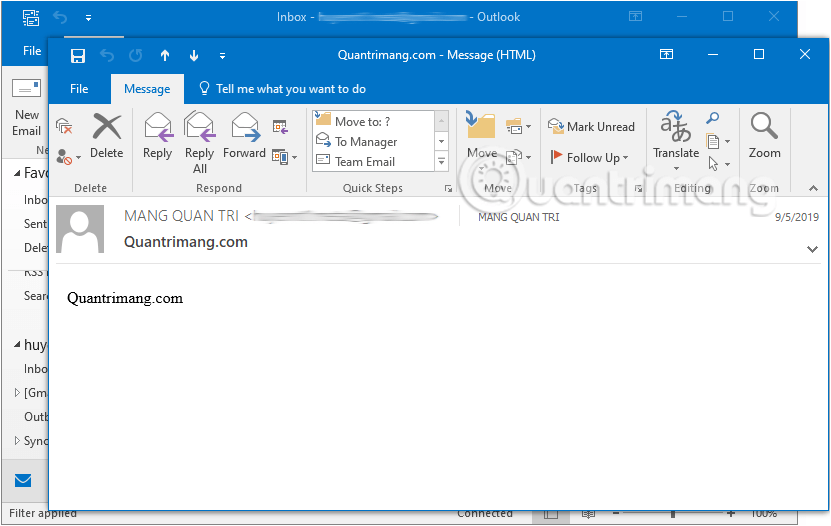
<p style="text-align: justify;"><strong>Bước 1:</strong>&nbsp;Mở email từ người gửi bạn muốn cài đặt di chuyển tự động đến thư mục cụ thể.</p>

<figure>
<div style="text-align: justify;"><img alt="Mở email Outlook từ người gửi bạn muốn di chuyển đến folder riêng biệt" data-adbro-processed="true" data-i="0" data-src="https://st.quantrimang.com/photos/image/2019/11/14/chuyen-email-den-thu-muc-outlook-1.png" data-was-processed="true" height="526" src="https://st.quantrimang.com/photos/image/2019/11/14/chuyen-email-den-thu-muc-outlook-1.png" width="831" /></div>

<figcaption>
<div style="text-align: justify;">Mở email Outlook từ người gửi bạn muốn di chuyển đến folder riêng biệt</div>
</figcaption>
</figure>

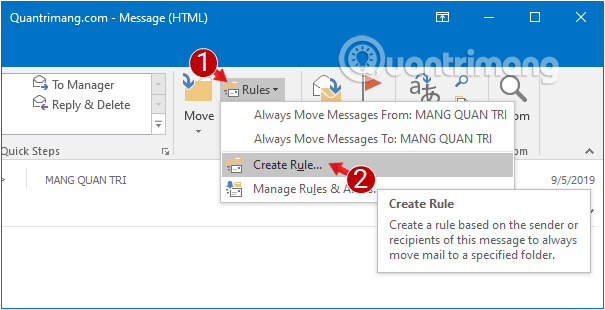
<p style="text-align: justify;"><strong>Bước 2:</strong>&nbsp;Ở tab&nbsp;<strong>Message,</strong>&nbsp;click chọn&nbsp;<strong>Rules</strong>&nbsp;&gt;&nbsp;<strong>Create Rule.</strong></p>

<figure>
<div style="text-align: justify;"><img alt="Click chọn Rules &gt; Create Rule trên tab Message trong mail lựa chọn" data-i="1" data-src="https://st.quantrimang.com/photos/image/2019/11/14/chuyen-email-den-thu-muc-outlook-2.png" data-was-processed="true" height="310" src="https://st.quantrimang.com/photos/image/2019/11/14/chuyen-email-den-thu-muc-outlook-2.png" width="605" /></div>

<figcaption>
<div style="text-align: justify;">Click chọn Rules &gt; Create Rule trên tab Message trong mail lựa chọn</div>
</figcaption>
</figure>

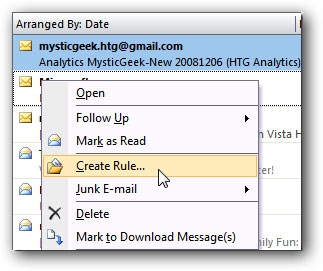
<p style="text-align: justify;">Với Outlook 2010 và 2007 thì nhấn chuột phải lên email bạn muốn đặt di chuyển tự động đến thư mục cụ thể và chọn&nbsp;<strong>Create Rule.</strong></p>

<figure>
<div style="text-align: justify;"><img alt="Create Rule trên Outlook 2010 và 2007" data-i="2" data-src="https://st.quantrimang.com/photos/image/052009/29/createrule-1.jpg" data-was-processed="true" height="271" src="https://st.quantrimang.com/photos/image/052009/29/createrule-1.jpg" width="323" /></div>

<figcaption>
<div style="text-align: justify;">Create Rule trên Outlook 2010 và 2007</div>
</figcaption>
</figure>

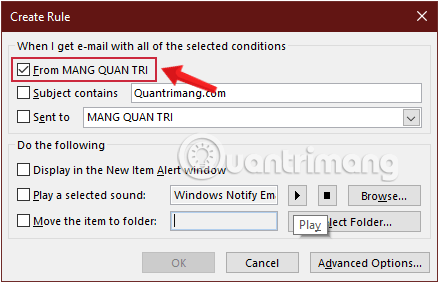
<p style="text-align: justify;"><strong>Bước 3:</strong>&nbsp;Trong hộp thoại&nbsp;<strong>Create Rule</strong>&nbsp;mở ra, bạn tích chọn ô&nbsp;<strong>From &#91;Người gửi&#93;</strong>&nbsp;và&nbsp;<strong>Move the item to folder.</strong></p>

<figure>
<div style="text-align: justify;"><img alt="Chọn người gửi cố định muốn chuyển toàn bộ mail sang folder riêng biệt" data-i="3" data-src="https://st.quantrimang.com/photos/image/2019/11/14/chuyen-email-den-thu-muc-outlook-3.png" data-was-processed="true" height="283" src="https://st.quantrimang.com/photos/image/2019/11/14/chuyen-email-den-thu-muc-outlook-3.png" width="439" /></div>

<figcaption>
<div style="text-align: justify;">Chọn người gửi cố định muốn chuyển toàn bộ mail sang folder riêng biệt</div>
</figcaption>
</figure>

<p style="text-align: justify;">Thao tác này sẽ đánh dấu việc từ sau này, các thư được gửi từ &#91;Người gửi&#93; sẽ chuyển trực tiếp vào một thư mục sẽ tạo ở bước sau.</p>

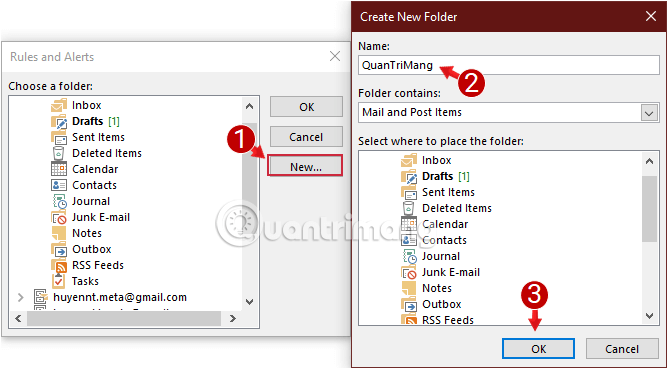
<p style="text-align: justify;"><strong>Bước 4:</strong>&nbsp;Sau khi tích mục&nbsp;<strong>Move the item to folder,</strong>&nbsp;hộp thoại&nbsp;<strong>Rules and Alerts</strong>&nbsp;sẽ được hiển thị, bạn chọn thư mục để lưu trữ mail từ<strong>&nbsp;&#91;Người gửi&#93;.</strong></p>

<p style="text-align: justify;">Nếu muốn tạo folder mới, chọn&nbsp;<strong>New,</strong>&nbsp;nhập tên cho thư mục trên cửa sổ&nbsp;<strong>Create New Folder</strong>&nbsp;và chọn OK.</p>

<figure>
<div style="text-align: justify;"><img alt="Tạo thư mục lưu trữ email trên Outlook" data-i="4" data-src="https://st.quantrimang.com/photos/image/2019/11/14/chuyen-email-den-thu-muc-outlook-4.png" data-was-processed="true" height="369" src="https://st.quantrimang.com/photos/image/2019/11/14/chuyen-email-den-thu-muc-outlook-4.png" width="668" /></div>

<figcaption>
<div style="text-align: justify;">Tạo thư mục lưu trữ email trên Outlook</div>
</figcaption>
</figure>

<p style="text-align: justify;"><strong>Bước 5:</strong>&nbsp;Nhấn OK trong cửa sổ&nbsp;<strong>Create Rule</strong>&nbsp;sau đó OK trên hộp thoại xác nhận sau. Tất cả đã hoàn tất, bây giờ tất cả các email được gửi từ&nbsp;<strong>&#91;Người gửi&#93;</strong>&nbsp;sẽ được chuyển đến một thư mục cụ thể đúng như mong muốn của bạn.</p>

<h2 style="text-align: justify;">Chuyển email tự động vào thư mục Outlook bằng Rules Wizard</h2>

<p style="text-align: justify;">Nếu bạn muốn kiểm soát chặt chẽ hơn cách lọc thư, thì có thể dùng Rules Wizard của Outlook. Phương pháp này tương đối phức tạp nhưng bạn có thể tự động hóa nhiều hơn và tùy chỉnh nhiều hơn.</p>

<p style="text-align: justify;"><strong>Bước 1:</strong></p>

<p style="text-align: justify;">Tại giao diện Outlook bạn tìm tới nhóm Move, sau đó nhấn&nbsp;<strong>chọn Rules</strong>&nbsp;rồi chọn&nbsp;<strong>Manage Rules &amp; Alerts…</strong></p>

<p style="text-align: justify;"><strong><img alt="Tạo quy tắc Outlook mới" data-i="5" data-src="https://st.quantrimang.com/photos/image/2025/10/27/tu-dong-chuyen-email-vao-thu-muc-Outlook-1.jpg" data-was-processed="true" height="269" src="https://st.quantrimang.com/photos/image/2025/10/27/tu-dong-chuyen-email-vao-thu-muc-Outlook-1.jpg" width="600" /></strong></p>

<p style="text-align: justify;">Trong giao diện hiển thị người dùng&nbsp;<strong>nhấn chọn vào New Rule…</strong></p>

<p style="text-align: justify;"><strong><img alt="Chọn New Rule…" data-i="6" data-src="https://st.quantrimang.com/photos/image/2025/10/27/tu-dong-chuyen-email-vao-thu-muc-Outlook-2.jpg" data-was-processed="true" height="398" src="https://st.quantrimang.com/photos/image/2025/10/27/tu-dong-chuyen-email-vao-thu-muc-Outlook-2.jpg" width="500" /></strong></p>

<p style="text-align: justify;"><strong>Bước 2:</strong></p>

<p style="text-align: justify;">Tiếp tục&nbsp;<strong>tại Start from a blank rule</strong>&nbsp;người dùng&nbsp;<strong>chọn Apply rule on messages I receive</strong>&nbsp;để tiến hành tạo quy tắc cho email nhận được. Nhấn Next để tiếp tục.</p>

<p style="text-align: justify;"><strong><img alt="Tạo quy tắc email gửi đến Outlook" data-i="7" data-src="https://st.quantrimang.com/photos/image/2025/10/27/tu-dong-chuyen-email-vao-thu-muc-Outlook-3.jpg" data-was-processed="true" height="480" src="https://st.quantrimang.com/photos/image/2025/10/27/tu-dong-chuyen-email-vao-thu-muc-Outlook-3.jpg" width="400" /></strong></p>

<p style="text-align: justify;"><strong>Bước 3:</strong></p>

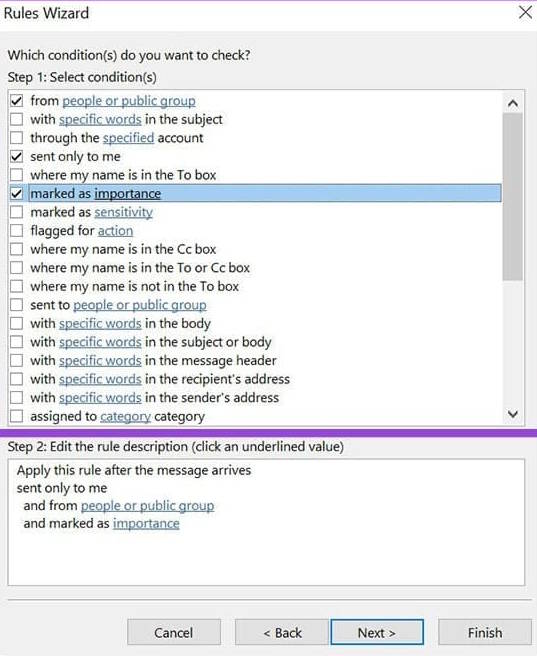
<p style="text-align: justify;"><strong>Chọn tiếp các điều kiện khác nhau</strong>&nbsp;bạn muốn áp dụng cho các email mình nhận được, rồi nhấn Next ở bên dưới.</p>

<p style="text-align: justify;"><strong><img alt="Chọn quy tắc email gửi đến Outlook" data-i="8" data-src="https://st.quantrimang.com/photos/image/2025/10/27/tu-dong-chuyen-email-vao-thu-muc-Outlook-4.jpg" data-was-processed="true" height="550" src="https://st.quantrimang.com/photos/image/2025/10/27/tu-dong-chuyen-email-vao-thu-muc-Outlook-4.jpg" width="450" /></strong></p>

<p style="text-align: justify;">Lúc này bạn<strong>&nbsp;nhấp vào phần văn bản được gạch chân màu xanh lam</strong>&nbsp;cho từng điều kiện để chỉ định chi tiết, chẳng hạn như tên người gửi hoặc mức độ quan trọng và nhấn Next.</p>

<p style="text-align: justify;"><strong><img alt="Chỉnh điều kiện chi tiết" data-i="9" data-src="https://st.quantrimang.com/photos/image/2025/10/27/tu-dong-chuyen-email-vao-thu-muc-Outlook-5.jpg" data-was-processed="true" height="376" src="https://st.quantrimang.com/photos/image/2025/10/27/tu-dong-chuyen-email-vao-thu-muc-Outlook-5.jpg" width="500" /></strong></p>

<p style="text-align: justify;"><strong>Bước 4:</strong></p>

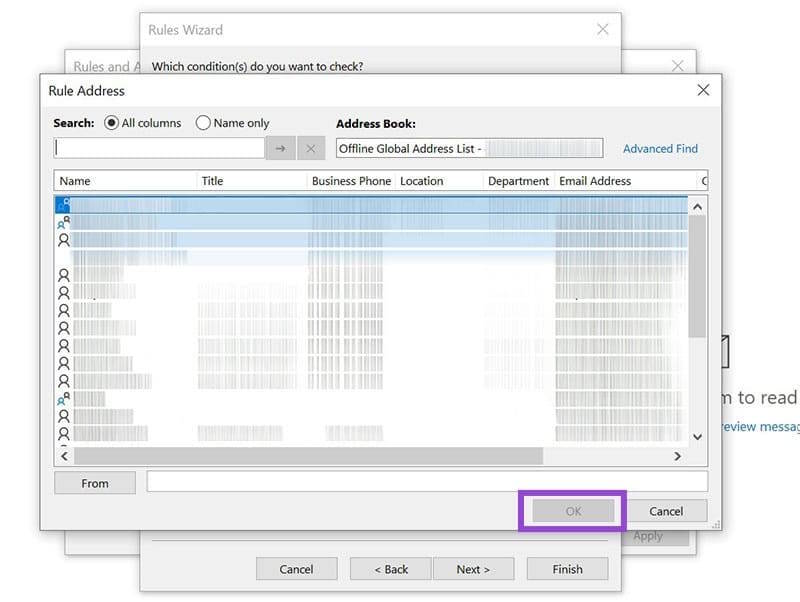
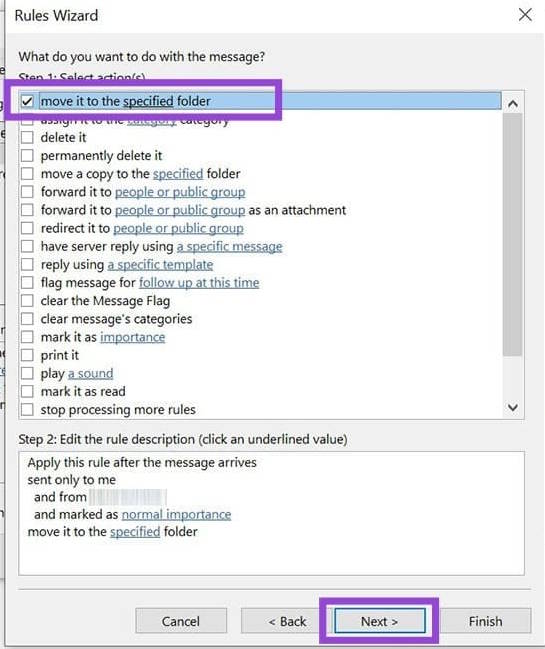
<p style="text-align: justify;"><strong>Click đúp vào tên hoặc nhóm công khai</strong>&nbsp;trong cửa sổ Rule Address, sau đó nhấn OK rồi nhấn Next. Tích chọn vào&nbsp;<strong>move it to the specified folder</strong>.</p>

<p style="text-align: justify;"><strong><img alt="Chỉnh điều kiện chi tiết" data-i="10" data-src="https://st.quantrimang.com/photos/image/2025/10/27/tu-dong-chuyen-email-vao-thu-muc-Outlook-6.jpg" data-was-processed="true" height="595" src="https://st.quantrimang.com/photos/image/2025/10/27/tu-dong-chuyen-email-vao-thu-muc-Outlook-6.jpg" width="500" /></strong></p>

<p style="text-align: justify;"><strong>Bước 5:</strong></p>

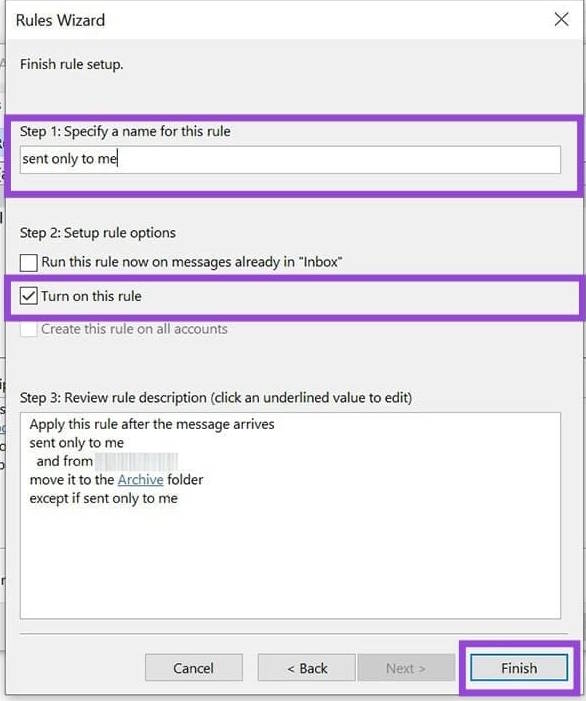
<p style="text-align: justify;">Trong giao diện mới&nbsp;<strong>nhấn specified</strong>&nbsp;rồi&nbsp;<strong>chọn thư mục đích cho email muốn chuyển đến</strong>. Đặt tên cho quy tắc và&nbsp;<strong>đánh dấu vào Turn on this rule</strong>.</p>

<p style="text-align: justify;">Cuối cùng bạn nhấn chọn Finish để kết thúc.</p>

<p style="text-align: justify;"><strong><img alt="Tự động chuyển email vào thư mục Outlook" data-i="11" data-src="https://st.quantrimang.com/photos/image/2025/10/27/tu-dong-chuyen-email-vao-thu-muc-Outlook-7.jpg" data-was-processed="true" height="598" src="https://st.quantrimang.com/photos/image/2025/10/27/tu-dong-chuyen-email-vao-thu-muc-Outlook-7.jpg" width="500" /></strong></p>

<div style="text-align: justify;">&nbsp;</div>

<h2 style="text-align: justify;">Cách chuyển email vào folder trong Outlook trên web</h2>

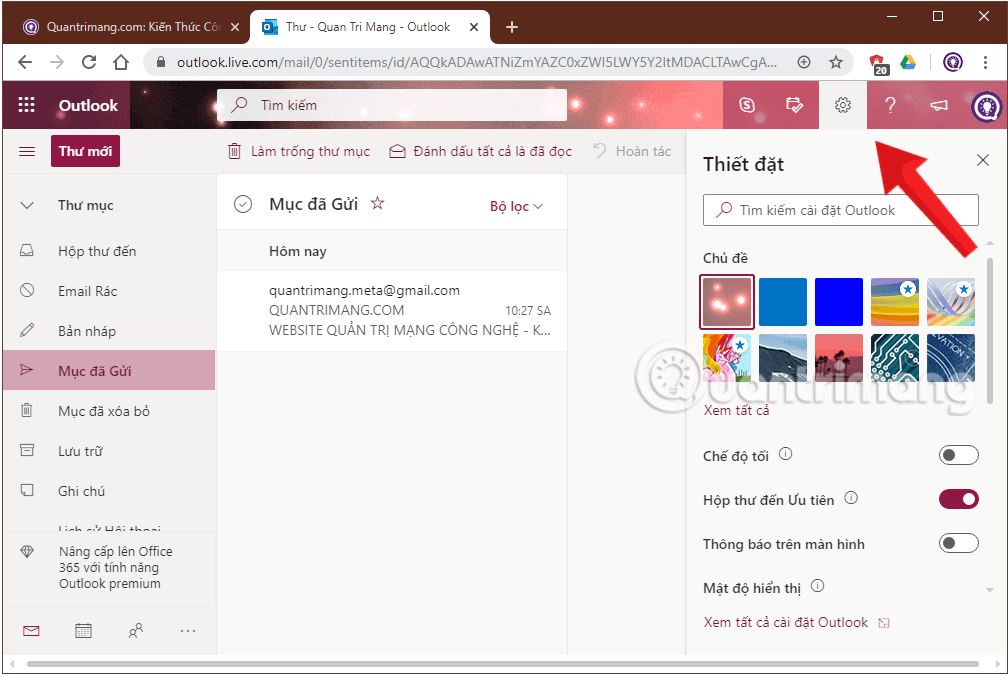
<p style="text-align: justify;"><strong>Bước 1</strong>: Đăng nhập tài khoản tại&nbsp;<strong>Outlook.com</strong>&nbsp;và chọn&nbsp;<strong>Thiết đặt</strong>&nbsp;(biểu tượng bánh răng ở góc trên bên phải). Outlook trên web giờ có Tiếng Việt nên bạn sẽ rất dễ dàng thao tác.</p>

<figure>
<div style="text-align: justify;"><img alt="Mở cài đặt Outlook trên web sau khi đăng nhập" data-i="12" data-src="https://st.quantrimang.com/photos/image/2019/11/14/chuyen-email-den-thu-muc-outlook-5.png" data-was-processed="true" height="675" src="https://st.quantrimang.com/photos/image/2019/11/14/chuyen-email-den-thu-muc-outlook-5.png" width="1008" /></div>

<figcaption>
<div style="text-align: justify;">Mở cài đặt Outlook trên web sau khi đăng nhập</div>
</figcaption>
</figure>

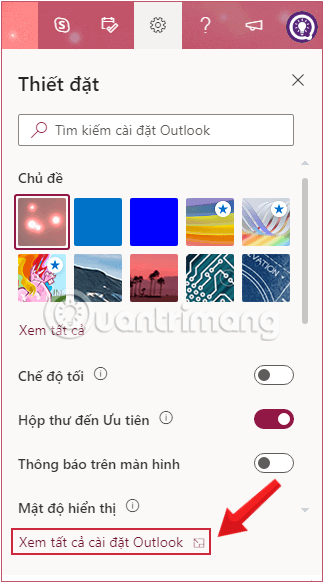
<p style="text-align: justify;"><strong>Bước 2:</strong>&nbsp;Chọn&nbsp;<strong>Xem tất cả cài đặt Outlook</strong>&nbsp;(View all Outlook settings)</p>

<figure>
<div style="text-align: justify;"><img alt="Mở tất cả cài đặt Outlook để tùy chỉnh chuyển email tự động vào một thư mục " data-i="13" data-src="https://st.quantrimang.com/photos/image/2019/11/14/chuyen-email-den-thu-muc-outlook-6.png" data-was-processed="true" height="583" src="https://st.quantrimang.com/photos/image/2019/11/14/chuyen-email-den-thu-muc-outlook-6.png" width="324" /></div>

<figcaption>
<div style="text-align: justify;">Mở tất cả cài đặt Outlook để tùy chỉnh chuyển email tự động vào một thư mục</div>
</figcaption>
</figure>

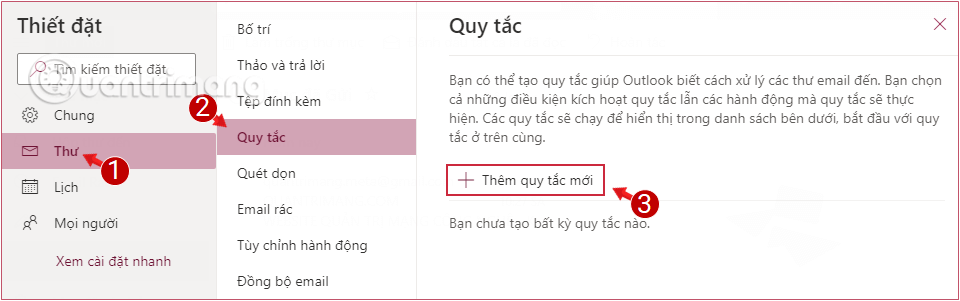
<p style="text-align: justify;"><strong>Bước 3:</strong>&nbsp;Trong cửa sổ&nbsp;<strong>Thiết đặt (Settings)</strong>&nbsp;hiển thị, bạn chọn&nbsp;<strong>Thư&nbsp;</strong>(Mail)<strong>&nbsp;&gt; Quy tắc</strong>&nbsp;(Rules)<strong>&nbsp;&gt; Thêm quy tắc mới&nbsp;</strong>(Add new rule).</p>

<figure>
<div style="text-align: justify;"><img alt="Thêm quy tắc mới trong Thiết đặt &gt; Thư &gt; Quy tắc" data-i="14" data-src="https://st.quantrimang.com/photos/image/2019/11/14/chuyen-email-den-thu-muc-outlook-7.png" data-was-processed="true" height="301" src="https://st.quantrimang.com/photos/image/2019/11/14/chuyen-email-den-thu-muc-outlook-7.png" width="960" /></div>

<figcaption>
<div style="text-align: justify;">Thêm quy tắc mới trong Thiết đặt &gt; Thư &gt; Quy tắc</div>
</figcaption>
</figure>

<p style="text-align: justify;"><strong>Bước 4:</strong>&nbsp;Nhập tên cho thư mục mới trên giao diện&nbsp;<strong>Quy tắc</strong>&nbsp;(Rules).</p>

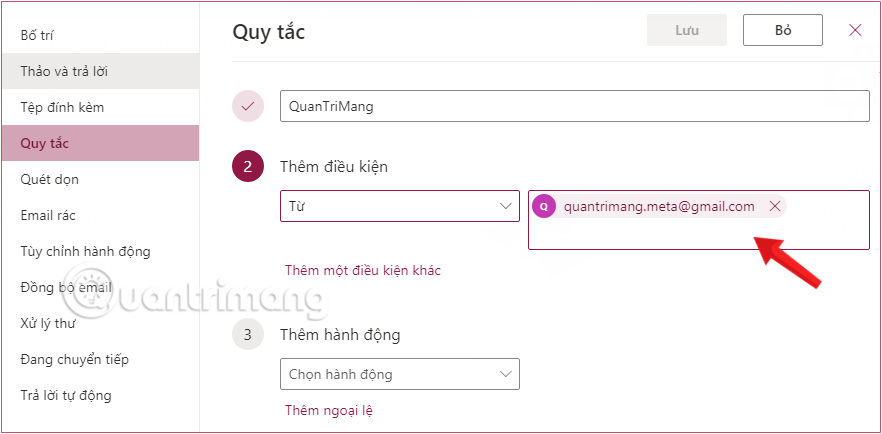
<p style="text-align: justify;"><strong>Bước 5:</strong>&nbsp;Ở phần&nbsp;<strong>Thêm điều kiện</strong>&nbsp;(Add a condition), nhấn vào mũi tên chỉ xuống của&nbsp;<strong>Chọn điều kiện</strong>&nbsp;(Choose a condition) và chọn điều kiện bạn cần.</p>

<p style="text-align: justify;">Ở đây Quantrimang.com chọn điều kiện là thư gửi từ một người cụ thể, nên sẽ click vào&nbsp;<strong>Từ</strong>&nbsp;(From) rồi nhập địa chỉ người gửi ở ô bên cạnh.</p>

<figure>
<div style="text-align: justify;"><img alt="Thêm điều kiện và địa chỉ người gửi sẽ tự động thêm mail vào thư mục mới" data-i="15" data-src="https://st.quantrimang.com/photos/image/2019/11/14/chuyen-email-den-thu-muc-outlook-8.png" data-was-processed="true" height="434" src="https://st.quantrimang.com/photos/image/2019/11/14/chuyen-email-den-thu-muc-outlook-8.png" width="882" /></div>

<figcaption>
<div style="text-align: justify;">Thêm điều kiện và địa chỉ người gửi sẽ tự động thêm mail vào thư mục mới</div>
</figcaption>
</figure>

<p style="text-align: justify;">Có thể đặt nhiều điều kiện lồng nhau ở bước này nếu bạn muốn</p>

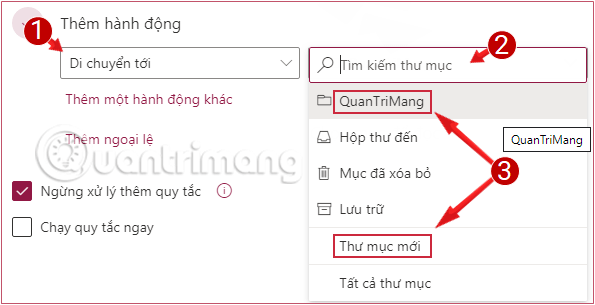
<p style="text-align: justify;"><strong>Bước 6:</strong>&nbsp;Ở phần<strong>&nbsp;Thêm hành động</strong>&nbsp;(Add an action), nhấn vào mũi tên chỉ xuống của&nbsp;<strong>Chọn hành động</strong>&nbsp;(Choose an action) rồi chọn&nbsp;<strong>Di chuyển tới</strong>&nbsp;(Move to), sau đó thêm thư mục đích để lưu trữ mail theo điều kiện vào ô bên cạnh.</p>

<figure>
<div style="text-align: justify;"><img alt="Thêm hành động di chuyển thư tới folder mới trong Outlook" data-i="16" data-src="https://st.quantrimang.com/photos/image/2019/11/14/chuyen-email-den-thu-muc-outlook-9.png" data-was-processed="true" height="305" src="https://st.quantrimang.com/photos/image/2019/11/14/chuyen-email-den-thu-muc-outlook-9.png" width="595" /></div>

<figcaption>
<div style="text-align: justify;">Thêm hành động di chuyển thư tới folder mới trong Outlook</div>
</figcaption>
</figure>

<p style="text-align: justify;"><strong>Bước 7:</strong>&nbsp;Chọn&nbsp;<strong>Lưu</strong>&nbsp;(Save). Email đến từ người gửi đó sẽ tự động chuyển đến thư mục bạn đã chọn.</p>

<p style="text-align: justify;">Đây là một trong nhiều rules rất hữu ích giúp bạn sắp xếp Outlook ngăn nắp gọn gàng và quan trọng là nó cực kì dễ thực hiện. Bạn hãy thử xem nhé!</p>

<div style="text-align: justify;">&nbsp;</div>
		</div>
				<div id="author">
						<p>
				<strong>Nguồn tin:</strong>
				Quantrimang.com:
			</p>
		</div>
	</div>
	<div id="footer" class="clearfix">
		<div id="url">
			<strong>URL của bản tin này: </strong><a href="https://www.nguoicodonvn2008.info/vi/news/savefile/kien-thuc-may-tinh/chuyen-email-tu-dong-vao-mot-thu-muc-trong-outlook-11476.html" title="Chuyển email tự động vào một thư mục trong Outlook">https://www.nguoicodonvn2008.info/vi/news/savefile/kien-thuc-may-tinh/chuyen-email-tu-dong-vao-mot-thu-muc-trong-outlook-11476.html</a>

		</div>
		<div class="clear"></div>
		<div class="copyright">
			&copy; .&#x3A; Nguoicodonvn2008.info - Cõi lòng người cô đơn &#x3A;.
		</div>
		<div id="contact">
			<a href="mailto:admin@nguoicodonvn2008.info">admin@nguoicodonvn2008.info</a>
		</div>
	</div>
</div>
        <div id="timeoutsess" class="chromeframe">
            Bạn đã không sử dụng Site, <a onclick="timeoutsesscancel();" href="https://www.nguoicodonvn2008.info/#">Bấm vào đây để duy trì trạng thái đăng nhập</a>. Thời gian chờ: <span id="secField"> 60 </span> giây
        </div>
        <div id="openidResult" class="nv-alert" style="display:none"></div>
        <div id="openidBt" data-result="" data-redirect=""></div>
		</script>
		<div class="car-top">
  <span><img src="https://www.nguoicodonvn2008.info/themes/default/images/car.png" alt=""></span>
</div>
<div id="run_cronjobs" style="visibility:hidden;display:none;"><img alt="cron" src="/index.php?second=cronjobs&amp;p=g7osLFfO" width="1" height="1" /></div>
<script src="https://www.nguoicodonvn2008.info/assets/js/jquery/jquery.min.js"></script>
<script>var nv_base_siteurl="/",nv_lang_data="vi",nv_lang_interface="vi",nv_name_variable="nv",nv_fc_variable="op",nv_lang_variable="language",nv_module_name="news",nv_func_name="savefile",nv_is_user=0, nv_my_ofs=-4,nv_my_abbr="EDT",nv_cookie_prefix="nv4c_e856T",nv_check_pass_mstime=1738000,nv_area_admin=0,nv_safemode=0,theme_responsive=0,nv_recaptcha_ver=2,nv_recaptcha_sitekey="",nv_recaptcha_type="image",XSSsanitize=1;</script>
<script src="https://www.nguoicodonvn2008.info/assets/js/language/vi.js"></script>
<script src="https://www.nguoicodonvn2008.info/assets/js/DOMPurify/purify3.js"></script>
<script src="https://www.nguoicodonvn2008.info/assets/js/global.js"></script>
<script src="https://www.nguoicodonvn2008.info/assets/js/site.js"></script>
<script src="https://www.nguoicodonvn2008.info/themes/default/js/news.js"></script>
<script src="https://www.nguoicodonvn2008.info/themes/default/js/main.js"></script>
<script src="https://www.nguoicodonvn2008.info/themes/default/js/custom.js"></script>
<script type="application/ld+json">
        {
            "@context": "https://schema.org",
            "@type": "Organization",
            "url": "https://www.nguoicodonvn2008.info",
            "logo": "https://www.nguoicodonvn2008.info/uploads/angel.gif"
        }
        </script>
<script src="https://www.nguoicodonvn2008.info/themes/default/js/bootstrap.min.js"></script>
<script type="text/javascript">
var $scrolltop = $('.car-top');
$scrolltop.on('click', function () {
    $('html,body').animate({
        scrollTop: 0
    }, 800);
    $(this).addClass("car-run");
    setTimeout(function(){ $scrolltop.removeClass('car-run');}, 1000);
    return false;
});
$(window).on('scroll', function ()
{ 
    if($(window).scrollTop() >= 200)
    {
        $scrolltop.addClass("show");
        $scrolltop.addClass("car-down");
    }
    else
    {
       $scrolltop.removeClass("show");
       setTimeout(function(){ $scrolltop.removeClass('car-down');}, 300);
    }
});
</script>
</body>
</html>