<!DOCTYPE html>
    <html lang="vi" xmlns="http://www.w3.org/1999/xhtml" prefix="og: http://ogp.me/ns#">
    <head>
<title>Cách xóa tùy chọn &#039;Edit with Paint&#039; trong Windows 11</title>
<meta name="description" content="Cách xóa tùy chọn &#039;Edit with Paint&#039; trong Windows 11 - Savefile - Tin Tức -...">
<meta name="author" content=".: Nguoicodonvn2008.info - Cõi lòng người cô đơn :.">
<meta name="copyright" content=".: Nguoicodonvn2008.info - Cõi lòng người cô đơn :. [admin@nguoicodonvn2008.info]">
<meta name="robots" content="index, archive, follow, noodp">
<meta name="googlebot" content="index,archive,follow,noodp">
<meta name="msnbot" content="all,index,follow">
<meta name="generator" content="NukeViet v4.5">
<meta http-equiv="Content-Type" content="text/html; charset=utf-8">
<meta property="og:title" content="Cách xóa tùy chọn &#039;Edit with Paint&#039; trong Windows 11">
<meta property="og:type" content="website">
<meta property="og:description" content="Savefile - Tin Tức - https&#x3A;&#x002F;&#x002F;www.nguoicodonvn2008.info&#x002F;vi&#x002F;news&#x002F;savefile&#x002F;kien-thuc-may-tinh&#x002F;cach-xoa-tuy-chon-edit-with-paint-trong-windows-11-9378.html">
<meta property="og:site_name" content=".&#x3A; Nguoicodonvn2008.info - Cõi lòng người cô đơn &#x3A;.">
<meta property="og:url" content="https://www.nguoicodonvn2008.info/vi/news/savefile/kien-thuc-may-tinh/cach-xoa-tuy-chon-edit-with-paint-trong-windows-11-9378.html">
<link rel="shortcut icon" href="https://www.nguoicodonvn2008.info/favicon.ico">
<link rel="canonical" href="https://www.nguoicodonvn2008.info/vi/news/savefile/kien-thuc-may-tinh/cach-xoa-tuy-chon-edit-with-paint-trong-windows-11-9378.html">
<link rel="alternate" href="https://www.nguoicodonvn2008.info/vi/news/rss/" title="Tin Tức" type="application/rss+xml">
<link rel="alternate" href="https://www.nguoicodonvn2008.info/vi/news/rss/karaoke-dual/" title="Tin Tức - Karaoke Dual" type="application/rss+xml">
<link rel="alternate" href="https://www.nguoicodonvn2008.info/vi/news/rss/nhac-tre/" title="Tin Tức - Nhạc trẻ" type="application/rss+xml">
<link rel="alternate" href="https://www.nguoicodonvn2008.info/vi/news/rss/tru-tinh/" title="Tin Tức - Trữ tình" type="application/rss+xml">
<link rel="alternate" href="https://www.nguoicodonvn2008.info/vi/news/rss/nuoc-ngoai/" title="Tin Tức - Nước ngoài" type="application/rss+xml">
<link rel="alternate" href="https://www.nguoicodonvn2008.info/vi/news/rss/remix/" title="Tin Tức - Remix" type="application/rss+xml">
<link rel="alternate" href="https://www.nguoicodonvn2008.info/vi/news/rss/tam-su-tinh-yeu/" title="Tin Tức - Tâm sự tình yêu" type="application/rss+xml">
<link rel="alternate" href="https://www.nguoicodonvn2008.info/vi/news/rss/tho-suu-tam/" title="Tin Tức - Thơ sưu tầm" type="application/rss+xml">
<link rel="alternate" href="https://www.nguoicodonvn2008.info/vi/news/rss/cuoc-song/" title="Tin Tức - Cuộc sống" type="application/rss+xml">
<link rel="alternate" href="https://www.nguoicodonvn2008.info/vi/news/rss/phan-mem/" title="Tin Tức - Phần mềm" type="application/rss+xml">
<link rel="alternate" href="https://www.nguoicodonvn2008.info/vi/news/rss/kien-thuc-may-tinh/" title="Tin Tức - Kiến thức máy tính" type="application/rss+xml">
<link rel="alternate" href="https://www.nguoicodonvn2008.info/vi/news/rss/hoc-tap/" title="Tin Tức - Học tập" type="application/rss+xml">
<link rel="alternate" href="https://www.nguoicodonvn2008.info/vi/news/rss/tai-lieu/" title="Tin Tức - Tài liệu" type="application/rss+xml">
<link rel="alternate" href="https://www.nguoicodonvn2008.info/vi/news/rss/de-thi/" title="Tin Tức - Đề thi" type="application/rss+xml">
<link rel="preload" as="style" href="https://www.nguoicodonvn2008.info/assets/css/font-awesome.min.css" type="text/css">
<link rel="preload" as="style" href="https://www.nguoicodonvn2008.info/themes/default/css/bootstrap.non-responsive.css" type="text/css">
<link rel="preload" as="style" href="https://www.nguoicodonvn2008.info/themes/default/css/style.css" type="text/css">
<link rel="preload" as="style" href="https://www.nguoicodonvn2008.info/themes/default/css/style.non-responsive.css" type="text/css">
<link rel="preload" as="style" href="https://www.nguoicodonvn2008.info/themes/default/css/news.css" type="text/css">
<link rel="preload" as="style" href="https://www.nguoicodonvn2008.info/themes/default/css/custom.css" type="text/css">
<link rel="preload" as="script" href="https://www.nguoicodonvn2008.info/assets/js/jquery/jquery.min.js" type="text/javascript">
<link rel="preload" as="script" href="https://www.nguoicodonvn2008.info/assets/js/language/vi.js" type="text/javascript">
<link rel="preload" as="script" href="https://www.nguoicodonvn2008.info/assets/js/DOMPurify/purify3.js" type="text/javascript">
<link rel="preload" as="script" href="https://www.nguoicodonvn2008.info/assets/js/global.js" type="text/javascript">
<link rel="preload" as="script" href="https://www.nguoicodonvn2008.info/assets/js/site.js" type="text/javascript">
<link rel="preload" as="script" href="https://www.nguoicodonvn2008.info/themes/default/js/news.js" type="text/javascript">
<link rel="preload" as="script" href="https://www.nguoicodonvn2008.info/themes/default/js/main.js" type="text/javascript">
<link rel="preload" as="script" href="https://www.nguoicodonvn2008.info/themes/default/js/custom.js" type="text/javascript">
<link rel="preload" as="script" href="https://www.nguoicodonvn2008.info/themes/default/js/bootstrap.min.js" type="text/javascript">
<link rel="stylesheet" href="https://www.nguoicodonvn2008.info/assets/css/font-awesome.min.css">
<link rel="stylesheet" href="https://www.nguoicodonvn2008.info/themes/default/css/bootstrap.non-responsive.css">
<link rel="stylesheet" href="https://www.nguoicodonvn2008.info/themes/default/css/style.css">
<link rel="stylesheet" href="https://www.nguoicodonvn2008.info/themes/default/css/style.non-responsive.css">
<link rel="StyleSheet" href="https://www.nguoicodonvn2008.info/themes/default/css/news.css">
<link rel="stylesheet" href="https://www.nguoicodonvn2008.info/themes/default/css/custom.css">
<style type="text/css">
	body{background: #fff;}
</style>
    </head>
    <body>
<div id="print">
	<div id="hd_print">
		<h2 class="pull-left">.&#x3A; Nguoicodonvn2008.info - Cõi lòng người cô đơn &#x3A;.</h2>
		<p class="pull-right"><a title=".&#x3A; Nguoicodonvn2008.info - Cõi lòng người cô đơn &#x3A;." href="https://www.nguoicodonvn2008.info/">https://www.nguoicodonvn2008.info</a></p>
	</div>
	<div class="clear"></div>
	<hr />
	<div id="content">
		<h1>Cách xóa tùy chọn &#039;Edit with Paint&#039; trong Windows 11</h1>
		<ul class="list-inline">
			<li>Chủ nhật - 17/11/2024 22:14</li>
			<li class="hidden-print txtrequired"><em class="fa fa-print">&nbsp;</em><a title="In ra" href="javascript:;" onclick="window.print()">In ra</a></li>
			<li class="hidden-print txtrequired"><em class="fa fa-power-off">&nbsp;</em><a title="Đóng cửa sổ này" href="javascript:;" onclick="window.close()">Đóng cửa sổ này</a></li>
		</ul>
		<div class="clear"></div>
		<div id="hometext">
		</div>
				<div class="imghome">
			<img alt="Cách xóa tùy chọn &#039;Edit with Paint&#039; trong Windows 11" src="https://st.quantrimang.com/photos/image/2024/11/11/xoa-tuy-chon-edit-with-paint-trong-windows-113.jpg" width="460" class="img-thumbnail" />
		</div>
		<div class="clear"></div>
		<div id="bodytext" class="clearfix">
			<div class="ckeditor-html5-audio" style="text-align: center;">
<audio controls="controls" controlslist="nodownload" src="https://st.quantrimang.com/photos/media/2024/11/16/206008-202411161548.mp3">&nbsp;</audio>
</div>

<p style="text-align: justify;">Các bản cập nhật Paint gần đây đã giới thiệu một mục nhập trong menu ngữ cảnh của Windows 11, cho phép người dùng chỉnh sửa hình ảnh trong Paint mà không cần sử dụng menu phụ &quot;Open with&quot; (hiện chỉ khả dụng cho người dùng thuộc chương trình Windows Insiders, nhưng dự kiến ​​sẽ sớm có bản phát hành ổn định). Menu ngữ cảnh trong Windows 11 đã đủ gây tranh cãi, và bản cập nhật Paint mới nhất không làm cho mọi thứ trở nên tốt hơn. May thay, bạn hoàn toàn có thể xóa tùy chọn &quot;<strong>Edit with Paint</strong>&quot; khỏi menu ngữ cảnh của Windows 11 khá dễ dàng.</p>

<p style="text-align: justify;">Trên thực tế, quy trình này giống như xóa các tùy chọn &quot;Edit with Notepad&quot; hoặc &quot;Edit with Photos&quot;. Tất cả những gì bạn phải làm là chặn tiện ích mở rộng shell trong Windows Registry. Sau đây là cách thực hiện.</p>

<h2 style="text-align: justify;">Cách xóa tùy chọn &#039;Edit with Paint&#039; trong Windows 11</h2>

<p style="text-align: justify;">Lưu ý rằng các bước dưới đây yêu cầu quyền Quản trị viên (admin) hệ thống.</p>

<p style="text-align: justify;"><strong>Bước 1:</strong>&nbsp;Nhấn&nbsp;<strong>Win + R</strong>&nbsp;và nhập&nbsp;<strong>regedit</strong>. Bạn cũng có thể khởi chạy Windows Registry Editor bằng bất kỳ phương pháp nào khác.</p>

<p style="text-align: justify;"><strong>Bước 2:</strong>&nbsp;Dán nội dung sau vào thanh địa chỉ của trình soạn thảo:&nbsp;<strong>HKEY_CURRENT_USER\Software\Microsoft\Windows\CurrentVersion\Shell Extensions</strong>. Sử dụng đường dẫn này nếu bạn muốn xóa &quot;Edit with Paint&quot; chỉ dành cho tài khoản người dùng hiện tại.</p>

<p style="text-align: justify;"><strong>Bước 3:</strong>&nbsp;Nếu bạn muốn xóa &quot;Edit with Paint&quot; đối với tất cả người dùng, hãy điều hướng tới&nbsp;<strong>HKEY_LOCAL_MACHINE\SOFTWARE\Microsoft\Windows\CurrentVersion\Shell Extensions</strong>.</p>

<p style="text-align: justify;"><strong>Bước 4:&nbsp;</strong>Kiểm tra xem Shell Extension có key &quot;<strong>Blocked</strong>&quot; bên trong không. Nếu không, hãy nhấp vào&nbsp;<strong>Edit &gt; New &gt; Key</strong>&nbsp;và đổi tên thành&nbsp;<strong>Blocked</strong>. Nếu khóa &quot;<strong>Blocked</strong>&quot; đã tồn tại, hãy nhấp vào key đó.</p>

<div style="text-align: justify;">&nbsp;</div>

<p style="text-align: justify;"><img alt="" data-i="0" data-src="https://st.quantrimang.com/photos/image/2024/11/11/xoa-tuy-chon-edit-with-paint-trong-windows-111.jpg" data-was-processed="true" height="350" src="https://st.quantrimang.com/photos/image/2024/11/11/xoa-tuy-chon-edit-with-paint-trong-windows-111.jpg" width="640" /></p>

<p style="text-align: justify;"><strong>Bước 5:</strong>&nbsp;Khi đã chọn &quot;<strong>Blocked</strong>&quot;, hãy nhấp vào&nbsp;<strong>Edit &gt; New &gt; String Value</strong>.</p>

<p style="text-align: justify;"><img alt="" data-adbro-processed="true" data-i="1" data-src="https://st.quantrimang.com/photos/image/2024/11/11/xoa-tuy-chon-edit-with-paint-trong-windows-112.jpg" data-was-processed="true" height="360" src="https://st.quantrimang.com/photos/image/2024/11/11/xoa-tuy-chon-edit-with-paint-trong-windows-112.jpg" width="640" /></p>

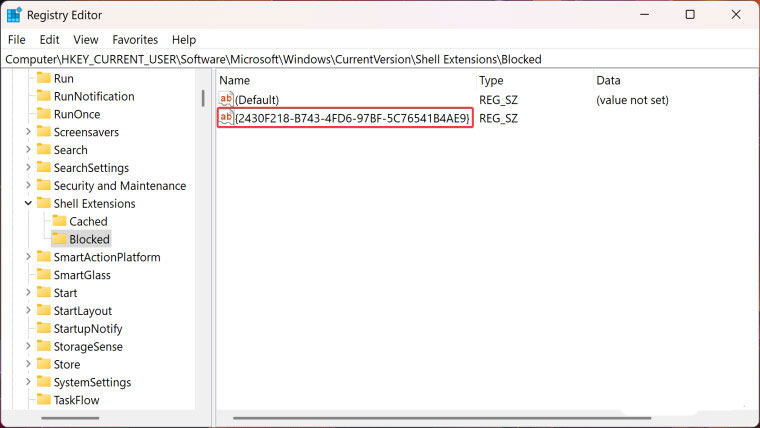
<p style="text-align: justify;"><strong>Bước 6:</strong>&nbsp;Đổi tên giá trị mới thành&nbsp;<strong>{2430F218-B743-4FD6-97BF-5C76541B4AE9}</strong>.</p>

<p style="text-align: justify;"><img alt="" data-i="2" data-src="https://st.quantrimang.com/photos/image/2024/11/11/xoa-tuy-chon-edit-with-paint-trong-windows-113.jpg" data-was-processed="true" height="428" src="https://st.quantrimang.com/photos/image/2024/11/11/xoa-tuy-chon-edit-with-paint-trong-windows-113.jpg" width="760" /></p>

<p style="text-align: justify;"><strong>Bước 7:</strong>&nbsp;Thay đổi sẽ có hiệu lực ngay mà không cần khởi động lại máy tính hoặc explorer.exe.</p>

<p style="text-align: justify;">Nếu bạn không muốn duyệt qua Windows Registry, hãy khởi chạy Notepad và dán nội dung sau (dành cho tài khoản người dùng hiện tại):</p>

<div style="text-align: justify;">&nbsp;</div>

<p style="text-align: justify;"><strong>Windows Registry Editor Version 5.00 &#91;HKEY_CURRENT_USER\Software\Microsoft\Windows\CurrentVersion\Shell Extensions\Blocked&#93; &quot;{2430F218-B743-4FD6-97BF-5C76541B4AE9}&quot;=-</strong></p>

<p style="text-align: justify;">Và dán nội dung này cho tất cả tài khoản người dùng trên PC:</p>

<p style="text-align: justify;"><strong>Windows Registry Editor Version 5.00 &#91;HKEY_LOCAL_MACHINE\Software\Microsoft\Windows\CurrentVersion\Shell Extensions\Blocked&#93; &quot;{2430F218-B743-4FD6-97BF-5C76541B4AE9}&quot;=-</strong></p>

<p style="text-align: justify;">Lưu tệp dưới dạng&nbsp;<strong>.reg&nbsp;</strong>và nhấp đúp vào tệp đó. Xác nhận thay đổi và khởi động lại máy tính của bạn.</p>

<h2 style="text-align: justify;">Cách khôi phục tùy chọn &#039;Edit with Paint&#039; trong Windows 11</h2>

<p style="text-align: justify;">Những thay đổi trên không phải là vĩnh viễn và bạn có thể khôi phục tùy chọn &quot;Edit with Paint&quot; bất kỳ lúc nào. Sau đây là cách thực hiện:</p>

<p style="text-align: justify;"><strong>Bước 1:&nbsp;</strong>Mở Windows Registry Editor.</p>

<p style="text-align: justify;"><strong>Bước 2:</strong>&nbsp;Đi tới&nbsp;<strong>HKEY_CURRENT_USER\Software\Microsoft\Windows\CurrentVersion\Shell Extensions\Blocked</strong>&nbsp;(dành cho tài khoản người dùng hiện tại) hoặc&nbsp;<strong>HKEY_LOCAL_MACHINE\SOFTWARE\Microsoft\Windows\CurrentVersion\Shell Extensions\Blocked&nbsp;</strong>(dành cho tất cả tài khoản người dùng).</p>

<p style="text-align: justify;"><strong>Bước 3:&nbsp;</strong>Tìm giá trị<strong>&nbsp;{2430F218-B743-4FD6-97BF-5C76541B4AE9}</strong>&nbsp;và xóa nó. Những thay đổi sẽ hiển thị ngay lập tức.</p>

<p style="text-align: justify;">Xin lưu ý thêm là bạn có thể xóa &quot;Edit with Paint&quot; chỉ bằng cách gỡ cài đặt ứng dụng. Đây là một tùy chọn nhanh chóng và dễ dàng cho những người không sử dụng trình chỉnh sửa hình ảnh có sẵn của Windows 11.</p>

<div style="text-align: justify;">&nbsp;</div>
		</div>
				<div id="author">
						<p>
				<strong>Nguồn tin:</strong>
				Quantrimang.com:
			</p>
		</div>
	</div>
	<div id="footer" class="clearfix">
		<div id="url">
			<strong>URL của bản tin này: </strong><a href="https://www.nguoicodonvn2008.info/vi/news/savefile/kien-thuc-may-tinh/cach-xoa-tuy-chon-edit-with-paint-trong-windows-11-9378.html" title="Cách xóa tùy chọn &#039;Edit with Paint&#039; trong Windows 11">https://www.nguoicodonvn2008.info/vi/news/savefile/kien-thuc-may-tinh/cach-xoa-tuy-chon-edit-with-paint-trong-windows-11-9378.html</a>

		</div>
		<div class="clear"></div>
		<div class="copyright">
			&copy; .&#x3A; Nguoicodonvn2008.info - Cõi lòng người cô đơn &#x3A;.
		</div>
		<div id="contact">
			<a href="mailto:admin@nguoicodonvn2008.info">admin@nguoicodonvn2008.info</a>
		</div>
	</div>
</div>
        <div id="timeoutsess" class="chromeframe">
            Bạn đã không sử dụng Site, <a onclick="timeoutsesscancel();" href="https://www.nguoicodonvn2008.info/#">Bấm vào đây để duy trì trạng thái đăng nhập</a>. Thời gian chờ: <span id="secField"> 60 </span> giây
        </div>
        <div id="openidResult" class="nv-alert" style="display:none"></div>
        <div id="openidBt" data-result="" data-redirect=""></div>
		</script>
		<div class="car-top">
  <span><img src="https://www.nguoicodonvn2008.info/themes/default/images/car.png" alt=""></span>
</div>
<script src="https://www.nguoicodonvn2008.info/assets/js/jquery/jquery.min.js"></script>
<script>var nv_base_siteurl="/",nv_lang_data="vi",nv_lang_interface="vi",nv_name_variable="nv",nv_fc_variable="op",nv_lang_variable="language",nv_module_name="news",nv_func_name="savefile",nv_is_user=0, nv_my_ofs=-4,nv_my_abbr="EDT",nv_cookie_prefix="nv4c_e856T",nv_check_pass_mstime=1738000,nv_area_admin=0,nv_safemode=0,theme_responsive=0,nv_recaptcha_ver=2,nv_recaptcha_sitekey="",nv_recaptcha_type="image",XSSsanitize=1;</script>
<script src="https://www.nguoicodonvn2008.info/assets/js/language/vi.js"></script>
<script src="https://www.nguoicodonvn2008.info/assets/js/DOMPurify/purify3.js"></script>
<script src="https://www.nguoicodonvn2008.info/assets/js/global.js"></script>
<script src="https://www.nguoicodonvn2008.info/assets/js/site.js"></script>
<script src="https://www.nguoicodonvn2008.info/themes/default/js/news.js"></script>
<script src="https://www.nguoicodonvn2008.info/themes/default/js/main.js"></script>
<script src="https://www.nguoicodonvn2008.info/themes/default/js/custom.js"></script>
<script type="application/ld+json">
        {
            "@context": "https://schema.org",
            "@type": "Organization",
            "url": "https://www.nguoicodonvn2008.info",
            "logo": "https://www.nguoicodonvn2008.info/uploads/angel.gif"
        }
        </script>
<script src="https://www.nguoicodonvn2008.info/themes/default/js/bootstrap.min.js"></script>
<script type="text/javascript">
var $scrolltop = $('.car-top');
$scrolltop.on('click', function () {
    $('html,body').animate({
        scrollTop: 0
    }, 800);
    $(this).addClass("car-run");
    setTimeout(function(){ $scrolltop.removeClass('car-run');}, 1000);
    return false;
});
$(window).on('scroll', function ()
{ 
    if($(window).scrollTop() >= 200)
    {
        $scrolltop.addClass("show");
        $scrolltop.addClass("car-down");
    }
    else
    {
       $scrolltop.removeClass("show");
       setTimeout(function(){ $scrolltop.removeClass('car-down');}, 300);
    }
});
</script>
</body>
</html>