<!DOCTYPE html>
    <html lang="vi" xmlns="http://www.w3.org/1999/xhtml" prefix="og: http://ogp.me/ns#">
    <head>
<title>Cách xóa lịch sử trong Ubuntu</title>
<meta name="description" content="Cách xóa lịch sử trong Ubuntu - Savefile - Tin Tức - https&#x3A;&#x002F;&#x002F;www.nguoicodonvn2008.info&#x002F;vi&#x002F;news&#x002F;savefile&#x002F;kien-thuc-may-tinh&#x002F;cach-xoa-lich-su-trong-ubuntu-9552.html">
<meta name="author" content=".: Nguoicodonvn2008.info - Cõi lòng người cô đơn :.">
<meta name="copyright" content=".: Nguoicodonvn2008.info - Cõi lòng người cô đơn :. [admin@nguoicodonvn2008.info]">
<meta name="robots" content="index, archive, follow, noodp">
<meta name="googlebot" content="index,archive,follow,noodp">
<meta name="msnbot" content="all,index,follow">
<meta name="generator" content="NukeViet v4.5">
<meta http-equiv="Content-Type" content="text/html; charset=utf-8">
<meta property="og:title" content="Cách xóa lịch sử trong Ubuntu">
<meta property="og:type" content="website">
<meta property="og:description" content="Savefile - Tin Tức - https&#x3A;&#x002F;&#x002F;www.nguoicodonvn2008.info&#x002F;vi&#x002F;news&#x002F;savefile&#x002F;kien-thuc-may-tinh&#x002F;cach-xoa-lich-su-trong-ubuntu-9552.html">
<meta property="og:site_name" content=".&#x3A; Nguoicodonvn2008.info - Cõi lòng người cô đơn &#x3A;.">
<meta property="og:url" content="https://www.nguoicodonvn2008.info/vi/news/savefile/kien-thuc-may-tinh/cach-xoa-lich-su-trong-ubuntu-9552.html">
<link rel="shortcut icon" href="https://www.nguoicodonvn2008.info/favicon.ico">
<link rel="canonical" href="https://www.nguoicodonvn2008.info/vi/news/savefile/kien-thuc-may-tinh/cach-xoa-lich-su-trong-ubuntu-9552.html">
<link rel="alternate" href="https://www.nguoicodonvn2008.info/vi/news/rss/" title="Tin Tức" type="application/rss+xml">
<link rel="alternate" href="https://www.nguoicodonvn2008.info/vi/news/rss/karaoke-dual/" title="Tin Tức - Karaoke Dual" type="application/rss+xml">
<link rel="alternate" href="https://www.nguoicodonvn2008.info/vi/news/rss/nhac-tre/" title="Tin Tức - Nhạc trẻ" type="application/rss+xml">
<link rel="alternate" href="https://www.nguoicodonvn2008.info/vi/news/rss/tru-tinh/" title="Tin Tức - Trữ tình" type="application/rss+xml">
<link rel="alternate" href="https://www.nguoicodonvn2008.info/vi/news/rss/nuoc-ngoai/" title="Tin Tức - Nước ngoài" type="application/rss+xml">
<link rel="alternate" href="https://www.nguoicodonvn2008.info/vi/news/rss/remix/" title="Tin Tức - Remix" type="application/rss+xml">
<link rel="alternate" href="https://www.nguoicodonvn2008.info/vi/news/rss/tam-su-tinh-yeu/" title="Tin Tức - Tâm sự tình yêu" type="application/rss+xml">
<link rel="alternate" href="https://www.nguoicodonvn2008.info/vi/news/rss/tho-suu-tam/" title="Tin Tức - Thơ sưu tầm" type="application/rss+xml">
<link rel="alternate" href="https://www.nguoicodonvn2008.info/vi/news/rss/cuoc-song/" title="Tin Tức - Cuộc sống" type="application/rss+xml">
<link rel="alternate" href="https://www.nguoicodonvn2008.info/vi/news/rss/phan-mem/" title="Tin Tức - Phần mềm" type="application/rss+xml">
<link rel="alternate" href="https://www.nguoicodonvn2008.info/vi/news/rss/kien-thuc-may-tinh/" title="Tin Tức - Kiến thức máy tính" type="application/rss+xml">
<link rel="alternate" href="https://www.nguoicodonvn2008.info/vi/news/rss/hoc-tap/" title="Tin Tức - Học tập" type="application/rss+xml">
<link rel="alternate" href="https://www.nguoicodonvn2008.info/vi/news/rss/tai-lieu/" title="Tin Tức - Tài liệu" type="application/rss+xml">
<link rel="alternate" href="https://www.nguoicodonvn2008.info/vi/news/rss/de-thi/" title="Tin Tức - Đề thi" type="application/rss+xml">
<link rel="preload" as="style" href="https://www.nguoicodonvn2008.info/assets/css/font-awesome.min.css" type="text/css">
<link rel="preload" as="style" href="https://www.nguoicodonvn2008.info/themes/default/css/bootstrap.non-responsive.css" type="text/css">
<link rel="preload" as="style" href="https://www.nguoicodonvn2008.info/themes/default/css/style.css" type="text/css">
<link rel="preload" as="style" href="https://www.nguoicodonvn2008.info/themes/default/css/style.non-responsive.css" type="text/css">
<link rel="preload" as="style" href="https://www.nguoicodonvn2008.info/themes/default/css/news.css" type="text/css">
<link rel="preload" as="style" href="https://www.nguoicodonvn2008.info/themes/default/css/custom.css" type="text/css">
<link rel="preload" as="script" href="https://www.nguoicodonvn2008.info/assets/js/jquery/jquery.min.js" type="text/javascript">
<link rel="preload" as="script" href="https://www.nguoicodonvn2008.info/assets/js/language/vi.js" type="text/javascript">
<link rel="preload" as="script" href="https://www.nguoicodonvn2008.info/assets/js/DOMPurify/purify3.js" type="text/javascript">
<link rel="preload" as="script" href="https://www.nguoicodonvn2008.info/assets/js/global.js" type="text/javascript">
<link rel="preload" as="script" href="https://www.nguoicodonvn2008.info/assets/js/site.js" type="text/javascript">
<link rel="preload" as="script" href="https://www.nguoicodonvn2008.info/themes/default/js/news.js" type="text/javascript">
<link rel="preload" as="script" href="https://www.nguoicodonvn2008.info/themes/default/js/main.js" type="text/javascript">
<link rel="preload" as="script" href="https://www.nguoicodonvn2008.info/themes/default/js/custom.js" type="text/javascript">
<link rel="preload" as="script" href="https://www.nguoicodonvn2008.info/themes/default/js/bootstrap.min.js" type="text/javascript">
<link rel="stylesheet" href="https://www.nguoicodonvn2008.info/assets/css/font-awesome.min.css">
<link rel="stylesheet" href="https://www.nguoicodonvn2008.info/themes/default/css/bootstrap.non-responsive.css">
<link rel="stylesheet" href="https://www.nguoicodonvn2008.info/themes/default/css/style.css">
<link rel="stylesheet" href="https://www.nguoicodonvn2008.info/themes/default/css/style.non-responsive.css">
<link rel="StyleSheet" href="https://www.nguoicodonvn2008.info/themes/default/css/news.css">
<link rel="stylesheet" href="https://www.nguoicodonvn2008.info/themes/default/css/custom.css">
<style type="text/css">
	body{background: #fff;}
</style>
    </head>
    <body>
<div id="print">
	<div id="hd_print">
		<h2 class="pull-left">.&#x3A; Nguoicodonvn2008.info - Cõi lòng người cô đơn &#x3A;.</h2>
		<p class="pull-right"><a title=".&#x3A; Nguoicodonvn2008.info - Cõi lòng người cô đơn &#x3A;." href="https://www.nguoicodonvn2008.info/">https://www.nguoicodonvn2008.info</a></p>
	</div>
	<div class="clear"></div>
	<hr />
	<div id="content">
		<h1>Cách xóa lịch sử trong Ubuntu</h1>
		<ul class="list-inline">
			<li>Thứ ba - 17/12/2024 22:46</li>
			<li class="hidden-print txtrequired"><em class="fa fa-print">&nbsp;</em><a title="In ra" href="javascript:;" onclick="window.print()">In ra</a></li>
			<li class="hidden-print txtrequired"><em class="fa fa-power-off">&nbsp;</em><a title="Đóng cửa sổ này" href="javascript:;" onclick="window.close()">Đóng cửa sổ này</a></li>
		</ul>
		<div class="clear"></div>
		<div id="hometext">
		</div>
				<div class="imghome">
			<img alt="Cách xóa lịch sử trong Ubuntu" src="https://st.quantrimang.com/photos/image/2024/06/11/xoa-lich-su-trong-ubuntu-1.jpg" width="460" class="img-thumbnail" />
		</div>
		<div class="clear"></div>
		<div id="bodytext" class="clearfix">
			<p style="text-align: justify;">Xóa nhật ký lịch sử hệ thống&nbsp;Linux&nbsp;là điều quan trọng để duy trì một máy tính khỏe mạnh. Nó cho phép tiết kiệm dung lượng ổ đĩa quý giá và bảo vệ các hoạt động kỹ thuật số của người dùng khỏi những con mắt tò mò. Bài viết hôm nay sẽ chỉ cho bạn cách xóa dữ liệu lịch sử trên shell Bash, trình quản lý file và trình soạn thảo văn bản trên Ubuntu Linux.</p>

<h2 style="text-align: justify;">&nbsp;</h2>

<h2 id="mcetoc_1ifa2mqr961" style="text-align: justify;">Xóa lịch sử lệnh trong Bash</h2>

<p style="text-align: justify;">Linux là một hệ điều hành dựa trên dòng lệnh. Từ quản lý file đến cấu hình chương trình, hầu hết mọi hành động trong Linux đều thực hiện dưới dạng lệnh terminal. Theo thời gian, các lệnh này sẽ chồng chất lên shell hệ thống Bash, có thể chiếm nhiều dung lượng ổ đĩa.</p>

<p style="text-align: justify;">Cách dễ nhất để xóa lịch sử lệnh Bash trong Ubuntu là sử dụng UNIX pipe để chuyển hướng một chuỗi trống đến file “.bash_history”:</p>

<pre id="pre0">
<code>echo &quot;&quot; &gt; ~/.bash_history</code></pre>

<p style="text-align: justify;">Điều đó có nghĩa là thao tác này sẽ không xóa buffer lịch sử cho phiên Bash hiện tại. Để làm điều đó, hãy chạy lệnh sau:</p>

<pre id="pre1">
<code>history -cw</code></pre>

<p style="text-align: justify;"><strong>Lưu ý</strong>: Bạn cần chạy lại lệnh này cho mọi shell Bash đang hoạt động trên phiên desktop hiện tại của mình.</p>

<p style="text-align: justify;">Xác nhận rằng lịch sử Bash hiện tại của bạn bị xóa bằng cách chạy lệnh history mà không có bất kỳ đối số nào.</p>

<figure>
<div style="text-align: justify;"><img alt="Terminal hiển thị lịch sử đã xóa của phiên shell hiện tại." data-i="0" data-src="https://st.quantrimang.com/photos/image/2024/06/11/xoa-lich-su-trong-ubuntu-1.jpg" data-was-processed="true" height="131" src="https://st.quantrimang.com/photos/image/2024/06/11/xoa-lich-su-trong-ubuntu-1.jpg" width="703" /></div>

<figcaption>
<div style="text-align: justify;">Terminal hiển thị lịch sử đã xóa của phiên shell hiện tại.</div>
</figcaption>
</figure>

<div style="text-align: justify;">&nbsp;</div>

<h3 id="mcetoc_1ifa2mqr962" style="text-align: justify;">Vô hiệu hóa nhật ký lịch sử trong Bash</h3>

<p style="text-align: justify;">Có thể buộc Bash không lưu mọi lịch sử lệnh từ bất kỳ phiên nào trong tương lai. Điều này có thể hữu ích nếu bạn đang thiết lập một máy tính dùng chung và không muốn những người dùng khác biết các lệnh bạn đang chạy trên tài khoản của mình.</p>

<p style="text-align: justify;">Bắt đầu bằng cách đảm bảo rằng buffer lịch sử hiện tại trong Ubuntu hoàn toàn bị xóa:</p>

<pre id="pre2">
<code>history -cw</code></pre>

<p style="text-align: justify;">Mở file .bashrc bằng trình soạn thảo yêu thích của bạn:</p>

<pre id="pre3">
<code>nano ~/.bashrc</code></pre>

<p style="text-align: justify;">Dán các dòng code sau vào cuối file .bashrc:</p>

<pre id="pre4">
<code>export HISTSIZE=0
export HISTFILESIZE=0</code></pre>

<p style="text-align: justify;"><strong>Lưu ý</strong>: Biến HISTSIZE xác định số lượng dòng mà Bash sẽ giữ trong một phiên hoạt động. Trong khi đó, HISTFILESIZE đặt số lượng dòng mà file nhật ký lịch sử sẽ duy trì theo thời gian.</p>

<p style="text-align: justify;">Lưu file .bashrc, sau đó chạy lệnh sau để áp dụng cài đặt mới cho phiên shell hiện tại:</p>

<pre id="pre5">
<code>source ~/.bashrc</code></pre>

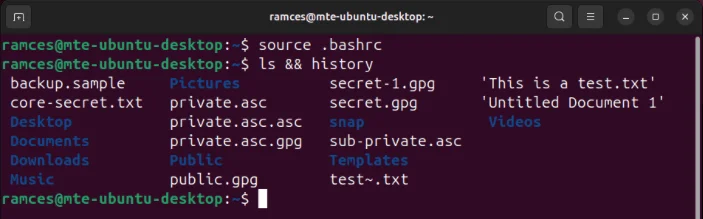
<p style="text-align: justify;">Kiểm tra cài đặt mới bằng cách chạy lệnh ls trên thư mục hiện tại, sau đó chạy lại lệnh history:</p>

<pre id="pre6">
<code>ls &amp;&amp; history</code></pre>

<figure>
<div style="text-align: justify;"><img alt="Terminal hiển thị file lịch sử Bash và cache hoàn toàn bị xóa." data-i="1" data-src="https://st.quantrimang.com/photos/image/2024/06/11/xoa-lich-su-trong-ubuntu-2.jpg" data-was-processed="true" height="219" src="https://st.quantrimang.com/photos/image/2024/06/11/xoa-lich-su-trong-ubuntu-2.jpg" width="703" /></div>

<figcaption>
<div style="text-align: justify;">Terminal hiển thị file lịch sử Bash và cache hoàn toàn bị xóa.</div>
</figcaption>
</figure>

<h3 id="mcetoc_1ifa2mqr963" style="text-align: justify;">Xóa các mục nhập lịch sử Bash cụ thể</h3>

<p style="text-align: justify;">Lệnh history cũng có thể xóa các mục cụ thể khỏi cache và nhật ký lịch sử của nó. Điều này có thể hữu ích nếu bạn chỉ muốn bỏ qua một số lệnh thay vì xóa toàn bộ lịch sử của shell.</p>

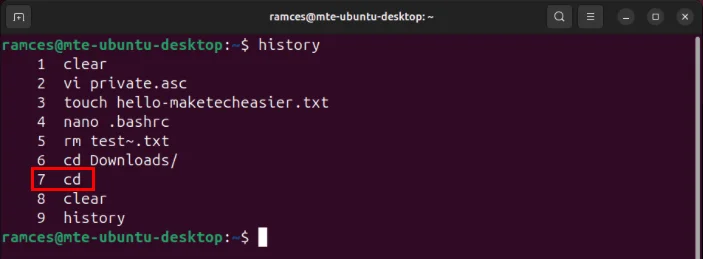
<p style="text-align: justify;">Sử dụng lệnh history để tìm số chỉ mục của lệnh muốn xóa. Trường hợp ví dụ muốn xóa lệnh thứ 7 trong lịch sử shell của mình.</p>

<figure>
<div style="text-align: justify;"><img alt="Mục nhập lịch sử thứ bảy trên phiên shell hiện tại." data-i="2" data-src="https://st.quantrimang.com/photos/image/2024/06/11/xoa-lich-su-trong-ubuntu-3.jpg" data-was-processed="true" height="259" src="https://st.quantrimang.com/photos/image/2024/06/11/xoa-lich-su-trong-ubuntu-3.jpg" width="703" /></div>

<figcaption>
<div style="text-align: justify;">Mục nhập lịch sử thứ bảy trên phiên shell hiện tại.</div>
</figcaption>
</figure>

<p style="text-align: justify;"><strong>Lưu ý</strong>: Bạn có thể tìm kiếm lệnh cụ thể muốn xóa bằng cách chuyển lệnh history tới grep:</p>

<pre id="pre7">
<code>history | grep my-history-command</code></pre>

<p style="text-align: justify;">Chạy lệnh sau cùng với số chỉ mục của mục bạn muốn loại bỏ:</p>

<pre id="pre8">
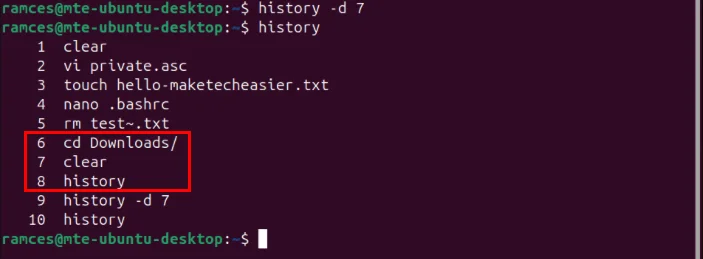
<code>history -d 7</code></pre>

<p style="text-align: justify;">Xác nhận rằng mục nhập lịch sử đã biến mất bằng cách chạy lại lệnh history.</p>

<figure>
<div style="text-align: justify;"><img alt="Các lệnh xung quanh mục nhập lịch sử thứ bảy đã bị xóa." data-i="3" data-src="https://st.quantrimang.com/photos/image/2024/06/11/xoa-lich-su-trong-ubuntu-4.jpg" data-was-processed="true" height="259" src="https://st.quantrimang.com/photos/image/2024/06/11/xoa-lich-su-trong-ubuntu-4.jpg" width="703" /></div>

<figcaption>
<div style="text-align: justify;">Các lệnh xung quanh mục nhập lịch sử thứ bảy đã bị xóa.</div>
</figcaption>
</figure>

<h2 id="mcetoc_1ifa2mqr964" style="text-align: justify;">Xóa lịch sử file gần đây trong Nautilus</h2>

<p style="text-align: justify;">Ngoài việc xóa lịch sử các lệnh trong terminal, bạn có thể xóa lịch sử gần đây trong trình quản lý file mặc định của hệ thống. Để thực hiện việc này, hãy mở trình quản lý file từ trình khởi chạy ứng dụng của hệ thống.</p>

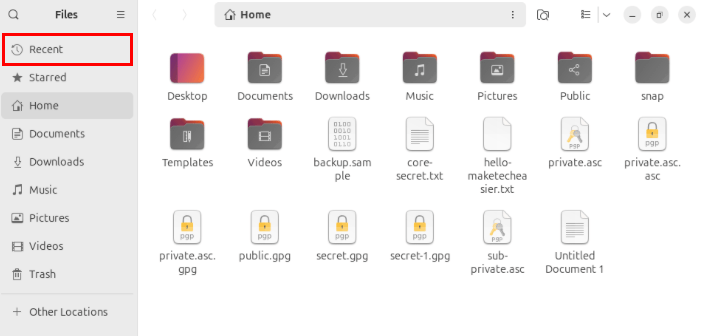
<p style="text-align: justify;">Nhấp vào danh mục&nbsp;<strong>Recent</strong>&nbsp;trên thanh bên trái của trình quản lý.</p>

<figure>
<div style="text-align: justify;"><img alt="Vị trí của danh mục &#039;Recent&#039; bên trong trình quản lý file Nautilus." data-i="4" data-src="https://st.quantrimang.com/photos/image/2024/07/11/xoa-lich-su-trong-ubuntu-1.jpg" data-was-processed="true" height="336" src="https://st.quantrimang.com/photos/image/2024/07/11/xoa-lich-su-trong-ubuntu-1.jpg" width="703" /></div>

<figcaption>
<div style="text-align: justify;">Vị trí của danh mục &quot;Recent&quot; bên trong trình quản lý file Nautilus.</div>
</figcaption>
</figure>

<p style="text-align: justify;">Nhấn&nbsp;<strong>Ctrl + A&nbsp;</strong>để chọn tất cả các file đã mở gần đây trong Nautilus.</p>

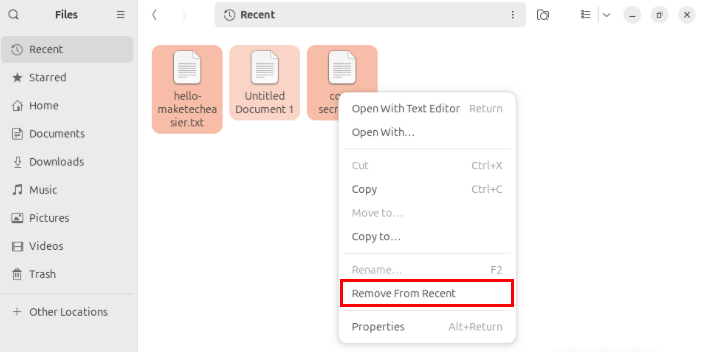
<p style="text-align: justify;">Nhấn Right Click, sau đó chọn&nbsp;<strong>Remove from Recent</strong>&nbsp;để xóa lịch sử hiện tại của trình quản lý file.</p>

<figure>
<div style="text-align: justify;"><img alt="Mục &#039;Remove from Recent&#039; trong trình quản lý file Nautilus." data-adbro-processed="true" data-i="5" data-src="https://st.quantrimang.com/photos/image/2024/07/11/xoa-lich-su-trong-ubuntu-2.jpg" data-was-processed="true" height="352" src="https://st.quantrimang.com/photos/image/2024/07/11/xoa-lich-su-trong-ubuntu-2.jpg" width="703" /><br />
<img alt="" height="0" src="https://ad.doubleclick.net/ddm/trackimp/N1414183.4029011ADBRO/B32633749.406451093;dc_trk_aid=598456155;dc_trk_cid=224593317;ord=1734493582636;dc_lat=;dc_rdid=;tag_for_child_directed_treatment=;tfua=;gdpr=$%7BGDPR%7D;gdpr_consent=$%7BGDPR_CONSENT_755%7D;ltd=;dc_tdv=1?" width="0" /></div>

<figcaption>
<div style="text-align: justify;">Mục &quot;Remove from Recent&quot; trong trình quản lý file Nautilus.</div>
</figcaption>
</figure>

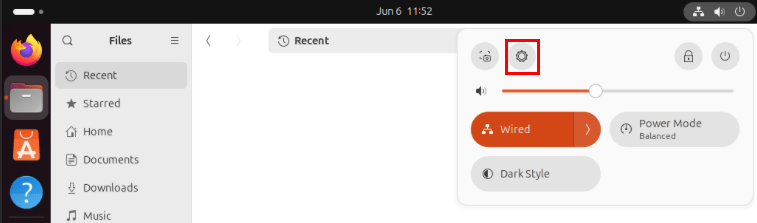
<p style="text-align: justify;">Mở System Menu ở góc trên bên trái của màn hình, sau đó nhấp vào biểu tượng bánh răng trên cửa sổ pop-up.</p>

<figure>
<div style="text-align: justify;"><img alt="Biểu tượng bánh răng trên khay hệ thống của Ubuntu." data-i="6" data-src="https://st.quantrimang.com/photos/image/2024/07/11/xoa-lich-su-trong-ubuntu-3.jpg" data-was-processed="true" height="223" src="https://st.quantrimang.com/photos/image/2024/07/11/xoa-lich-su-trong-ubuntu-3.jpg" width="757" /></div>

<figcaption>
<div style="text-align: justify;">Biểu tượng bánh răng trên khay hệ thống của Ubuntu.</div>
</figcaption>
</figure>

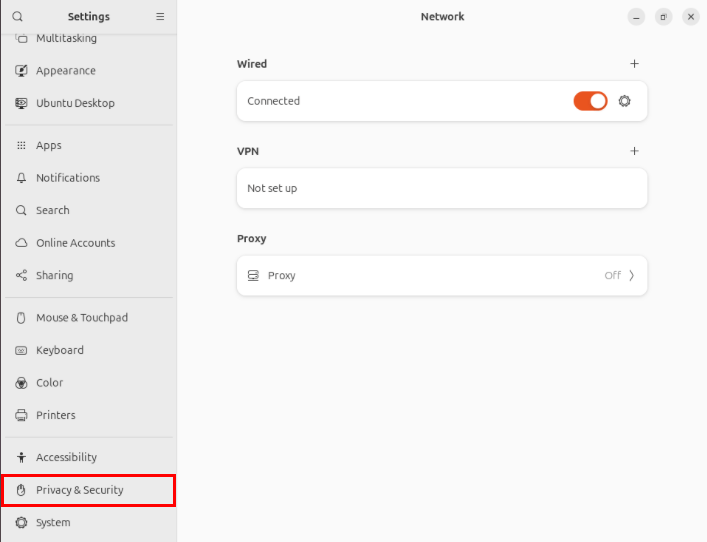
<p style="text-align: justify;">Chọn&nbsp;<strong>Privacy and Security</strong>&nbsp;dưới thanh bên trái của cửa sổ.</p>

<figure>
<div style="text-align: justify;"><img alt="Mục &#039;Privacy and Security&#039; bên trong cài đặt hệ thống của Ubuntu." data-i="7" data-src="https://st.quantrimang.com/photos/image/2024/07/11/xoa-lich-su-trong-ubuntu-4.jpg" data-was-processed="true" height="542" src="https://st.quantrimang.com/photos/image/2024/07/11/xoa-lich-su-trong-ubuntu-4.jpg" width="707" /></div>

<figcaption>
<div style="text-align: justify;">Mục &quot;Privacy and Security&quot; bên trong cài đặt hệ thống của Ubuntu.</div>
</figcaption>
</figure>

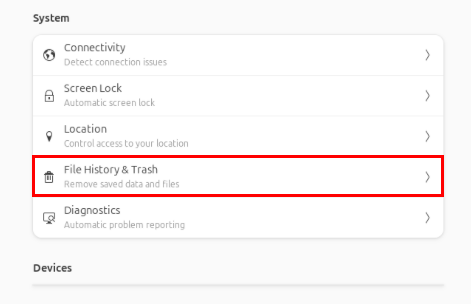
<p style="text-align: justify;">Thao tác này sẽ hiển thị một danh mục con mới trên bảng bên phải của cửa sổ. Nhấp vào danh mục&nbsp;<strong>File History &amp; Trash</strong>.</p>

<figure>
<div style="text-align: justify;"><img alt="Cài đặt &#039;File History &amp; Trash&#039; trên menu System Settings." data-i="8" data-src="https://st.quantrimang.com/photos/image/2024/07/11/xoa-lich-su-trong-ubuntu-5.jpg" data-was-processed="true" height="304" src="https://st.quantrimang.com/photos/image/2024/07/11/xoa-lich-su-trong-ubuntu-5.jpg" width="471" /></div>

<figcaption>
<div style="text-align: justify;">Cài đặt &quot;File History &amp; Trash&quot; trên menu System Settings.</div>
</figcaption>
</figure>

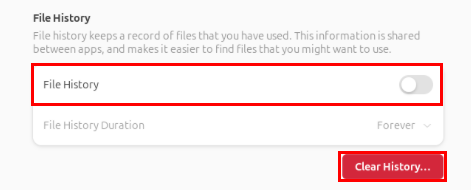
<p style="text-align: justify;">Tắt tùy chọn chuyển đổi&nbsp;<strong>File History</strong>, sau đó nhấp vào nút&nbsp;<strong>Clear History</strong>.</p>

<figure>
<div style="text-align: justify;"><img alt="Nút chuyển đổi &#039;File History&#039; và nút &#039;Clear History&#039;." data-i="9" data-src="https://st.quantrimang.com/photos/image/2024/07/11/xoa-lich-su-trong-ubuntu-6.jpg" data-was-processed="true" height="190" src="https://st.quantrimang.com/photos/image/2024/07/11/xoa-lich-su-trong-ubuntu-6.jpg" width="471" /></div>

<figcaption>
<div style="text-align: justify;">Nút chuyển đổi &quot;File History&quot; và nút &quot;Clear History&quot;.</div>
</figcaption>
</figure>

<h3 id="mcetoc_1ifa2mqr965" style="text-align: justify;">Tự động xóa lịch sử file trong Nautilus</h3>

<p style="text-align: justify;">Một cách khác để xóa lịch sử file trong Ubuntu là xóa các file chứa dữ liệu cho danh mục “Recent” bằng Bash.</p>

<p style="text-align: justify;">Bắt đầu bằng cách tạo một thư mục nhị phân cục bộ trong thư mục home của bạn:</p>

<pre id="pre9">
<code>mkdir -p ~/.local/bin/ &amp;&amp; cd ~/.local/bin/</code></pre>

<p style="text-align: justify;">Tạo một script Bash mới trong thư mục mới bằng trình soạn thảo văn bản yêu thích:</p>

<pre id="pre10">
<code>nano ./user-clear-history.sh</code></pre>

<p style="text-align: justify;">Dán block code sau vào file script:</p>

<pre id="pre11">
<code>#!/bin/bash
rm -f ~/.recently-used.xbel
rm -f ~/.recently-used.xbel.*
rm -f ~/.local/share/recently-used.xbel
rm -f ~/.local/share/recently-used.xbel.*</code></pre>

<p style="text-align: justify;">Lưu file script, sau đó chạy lệnh sau để cập nhật các bit quyền của file:</p>

<pre id="pre12">
<code>chmod +x ./user-clear-history.sh</code></pre>

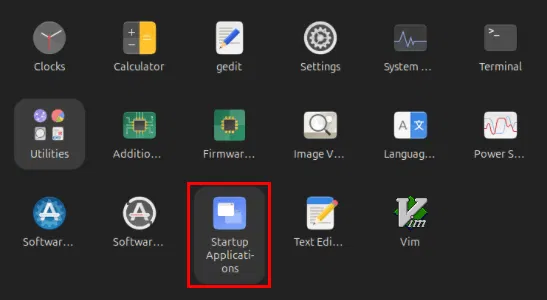
<p style="text-align: justify;">Mở trình app launcher của hệ thống, sau đó chọn&nbsp;<strong>Startup Applications</strong>.</p>

<figure>
<div style="text-align: justify;"><img alt="Chương trình &#039;Startup Applications&#039; bên trong app launcher của hệ thống." data-i="10" data-src="https://st.quantrimang.com/photos/image/2024/08/22/xoa-lich-su-trong-ubuntu-1.jpg" data-was-processed="true" height="300" src="https://st.quantrimang.com/photos/image/2024/08/22/xoa-lich-su-trong-ubuntu-1.jpg" width="547" /></div>

<figcaption>
<div style="text-align: justify;">Chương trình &quot;Startup Applications&quot; bên trong app launcher của hệ thống.</div>
</figcaption>
</figure>

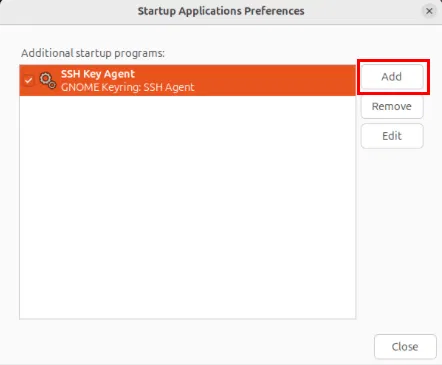
<p style="text-align: justify;">Nhấp vào nút&nbsp;<strong>Add</strong>&nbsp;ở góc trên bên trái của cửa sổ.</p>

<figure>
<div style="text-align: justify;"><img alt="Nút Add trên cửa sổ Startup Applications." data-i="11" data-src="https://st.quantrimang.com/photos/image/2024/08/22/xoa-lich-su-trong-ubuntu-2.jpg" data-was-processed="true" height="365" src="https://st.quantrimang.com/photos/image/2024/08/22/xoa-lich-su-trong-ubuntu-2.jpg" width="442" /></div>

<figcaption>
<div style="text-align: justify;">Nút Add trên cửa sổ Startup Applications.</div>
</figcaption>
</figure>

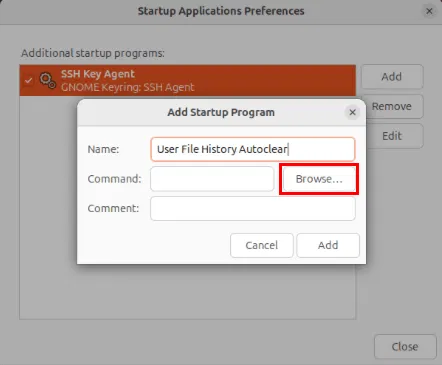
<p style="text-align: justify;">Cung cấp tên cho script mà bạn muốn chạy. Trong trường hợp này, ví dụ sẽ dán nhãn là: &quot;User File History Autoclear&quot;.</p>

<p style="text-align: justify;">Nhấp vào nút&nbsp;<strong>Browse…</strong>&nbsp;bên dưới hộp văn bản Name.</p>

<figure>
<div style="text-align: justify;"><img alt="Nút Browse… trên cửa sổ Startup Applications" data-i="12" data-src="https://st.quantrimang.com/photos/image/2024/08/22/xoa-lich-su-trong-ubuntu-3.jpg" data-was-processed="true" height="365" src="https://st.quantrimang.com/photos/image/2024/08/22/xoa-lich-su-trong-ubuntu-3.jpg" width="442" /></div>

<figcaption>
<div style="text-align: justify;">Nút Browse… trên cửa sổ Startup Applications</div>
</figcaption>
</figure>

<p style="text-align: justify;">Nhấn&nbsp;<strong>Ctrl + H&nbsp;</strong>trên menu chọn file, sau đó điều hướng đến thư mục&nbsp;<strong>&quot;~/.local/bin/&quot;</strong>&nbsp;của bạn.</p>

<figure>
<div style="text-align: justify;"><img alt="Vị trí của script người dùng bên trong trình chọn file." data-i="13" data-src="https://st.quantrimang.com/photos/image/2024/08/22/xoa-lich-su-trong-ubuntu-4.jpg" data-was-processed="true" height="120" src="https://st.quantrimang.com/photos/image/2024/08/22/xoa-lich-su-trong-ubuntu-4.jpg" width="708" /></div>

<figcaption>
<div style="text-align: justify;">Vị trí của script người dùng bên trong trình chọn file.</div>
</figcaption>
</figure>

<p style="text-align: justify;">Chọn script shell của bạn, sau đó nhấp vào&nbsp;<strong>Open</strong>&nbsp;để thêm vào mục khởi động mới.</p>

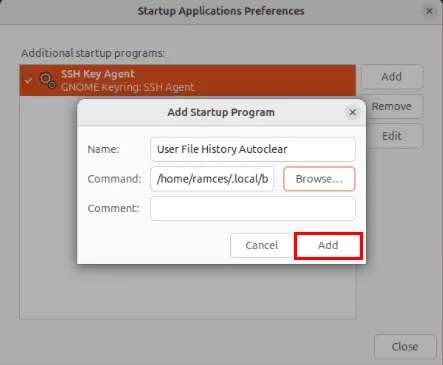
<p style="text-align: justify;">Nhấp vào&nbsp;<strong>Add</strong>&nbsp;để cam kết vào phiên người dùng hiện tại của bạn.</p>

<figure>
<div style="text-align: justify;"><img alt="Nút Add cho script khởi động mới." data-i="14" data-src="https://st.quantrimang.com/photos/image/2024/08/22/xoa-lich-su-trong-ubuntu-5.jpg" data-was-processed="true" height="365" src="https://st.quantrimang.com/photos/image/2024/08/22/xoa-lich-su-trong-ubuntu-5.jpg" width="443" /></div>

<figcaption>
<div style="text-align: justify;">Nút Add cho script khởi động mới.</div>
</figcaption>
</figure>

<h3 id="mcetoc_1ifa2mqr966" style="text-align: justify;">Xóa lịch sử file cho tất cả người dùng</h3>

<p style="text-align: justify;">Một trong những nhược điểm của việc xóa lịch sử file thông qua GUI là nó chỉ xóa lịch sử file cho người dùng hiện tại. Điều này có thể là vấn đề nếu bạn đang bảo trì một máy được chia sẻ giữa nhiều người.</p>

<p style="text-align: justify;">Để khắc phục điều này, hãy mở một phiên terminal mới rồi chạy lệnh sau để chuyển sang người dùng root:</p>

<pre id="pre13">
<code>sudo -s</code></pre>

<figure>
<div style="text-align: justify;"><img alt="Dấu nhắc chuyển đổi từ người dùng tiêu chuẩn sang người dùng root " data-i="15" data-src="https://st.quantrimang.com/photos/image/2024/10/15/xoa-lich-su-trong-ubuntu-1.png" data-was-processed="true" height="107" src="https://st.quantrimang.com/photos/image/2024/10/15/xoa-lich-su-trong-ubuntu-1.png" width="700" /></div>

<figcaption>
<div style="text-align: justify;">Dấu nhắc chuyển đổi từ người dùng tiêu chuẩn sang người dùng root</div>
</figcaption>
</figure>

<p style="text-align: justify;">Đi đến thư mục home của người dùng root, sau đó tạo một thư mục bin cục bộ bên trong thư mục đó:</p>

<pre id="pre14">
<code>cd ~ &amp;&amp; mkdir -p ~/.local/bin/ &amp;&amp; cd ~/.local/bin/</code></pre>

<p style="text-align: justify;">Tạo một file script mới bằng trình soạn thảo văn bản yêu thích của bạn:</p>

<pre id="pre15">
<code>nano ./system-clear-history.sh</code></pre>

<p style="text-align: justify;">Dán block code sau vào file script của bạn:</p>

<pre id="pre16">
<code>#!/bin/bash
rm -f /home/*/.recently-used.xbel
rm -f /home/*/.recently-used.xbel.*
rm -f /home/*/.local/share/recently-used.xbel
rm -f /home/*/.local/share/recently-used.xbel.*</code></pre>

<p style="text-align: justify;">Lưu file script mới của bạn, sau đó đặt các bit quyền của file để thực thi:</p>

<pre id="pre17">
<code>chmod +x ./system-clear-history.sh</code></pre>

<p style="text-align: justify;">Tạo một file service systemd mới trong “/etc/systemd/system” cho script mới của bạn:</p>

<pre id="pre18">
<code>sudo nano /etc/systemd/system/system-clear-history.service</code></pre>

<p style="text-align: justify;">Dán block code sau vào file service mới của bạn:</p>

<pre id="pre19">
<code>&#91;Unit&#93;
Description=Clear File History Before Shutdown
DefaultDependencies=no
Before=shutdown.target
&#91;Service&#93;
Type=oneshot
ExecStart=/root/.local/bin/system-clear-history.sh
&#91;Install&#93;
WantedBy=halt.target reboot.target shutdown.target</code></pre>

<p style="text-align: justify;">Lưu file service mới của bạn, sau đó chạy các lệnh sau để load file đó vào daemon systemd của bạn:</p>

<pre id="pre20">
<code>sudo systemctl daemon-reload
sudo systemctl enable --now system-clear-history.service</code></pre>

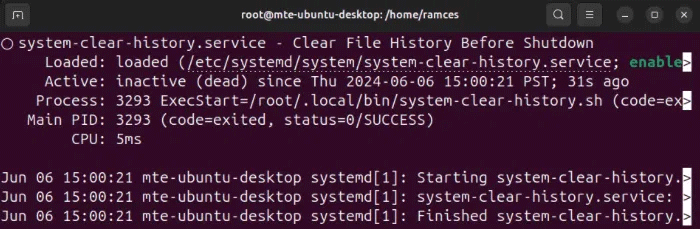
<p style="text-align: justify;">Xác nhận rằng service đang chạy đúng cách bằng cách xem trạng thái hiện tại của service:</p>

<pre id="pre21">
<code>systemctl status system-clear-history.service</code></pre>

<figure>
<div style="text-align: justify;"><img alt="Đầu ra của service systemd tùy chỉnh trong systemctl." data-i="16" data-src="https://st.quantrimang.com/photos/image/2024/10/15/xoa-lich-su-trong-ubuntu-2.png" data-was-processed="true" height="229" src="https://st.quantrimang.com/photos/image/2024/10/15/xoa-lich-su-trong-ubuntu-2.png" width="700" /></div>

<figcaption>
<div style="text-align: justify;">Đầu ra của service systemd tùy chỉnh trong systemctl.</div>
</figcaption>
</figure>

<h2 id="mcetoc_1ifa2mqr967" style="text-align: justify;">Vô hiệu hóa các bản sao lưu gần đây trong Gedit</h2>

<p style="text-align: justify;">Gedit là trình soạn thảo văn bản đơn giản mặc định có trên một số phiên bản Ubuntu gần đây. Trong một số trường hợp, trình soạn thảo này tạo bản sao lưu của mọi file bạn đã mở và lưu trong hệ thống. Đây có thể là vấn đề nếu bạn muốn tiết kiệm dung lượng trên máy của mình.</p>

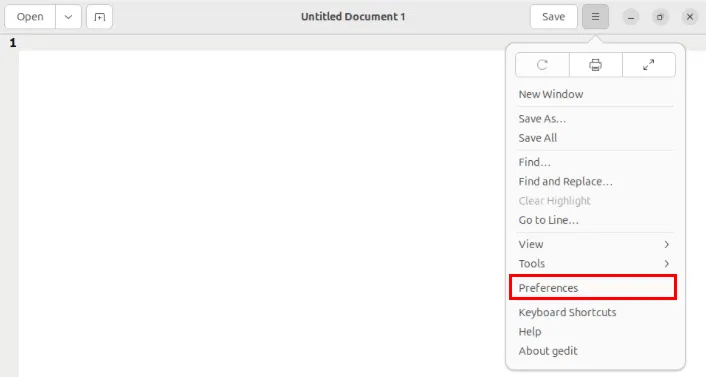
<p style="text-align: justify;">Để tắt tính năng này, hãy nhấp vào menu&nbsp;<strong>Option</strong>&nbsp;ở góc trên bên phải của ứng dụng, sau đó chọn&nbsp;<strong>Preferences</strong>.</p>

<figure>
<div style="text-align: justify;"><img alt="Menu Option trên Gedit." data-i="17" data-src="https://st.quantrimang.com/photos/image/2024/12/17/xoa-lich-su-trong-ubuntu-1.png" data-was-processed="true" height="377" src="https://st.quantrimang.com/photos/image/2024/12/17/xoa-lich-su-trong-ubuntu-1.png" width="706" /></div>

<figcaption>
<div style="text-align: justify;">Menu Option trên Gedit.</div>
</figcaption>
</figure>

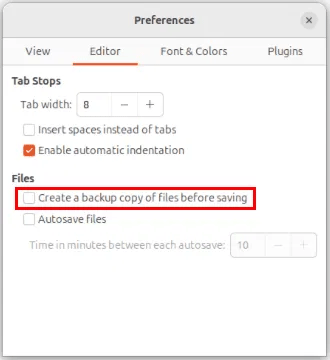
<p style="text-align: justify;">Nhấp vào tab&nbsp;<strong>Editor</strong>&nbsp;trên cửa sổ Settings của Gedit, sau đó bỏ chọn hộp kiểm&nbsp;<strong>Create a backup copy of files before saving</strong>.</p>

<figure>
<div style="text-align: justify;"><img alt="Hộp kiểm sao lưu trong Gedit." data-i="18" data-src="https://st.quantrimang.com/photos/image/2024/12/17/xoa-lich-su-trong-ubuntu-2.png" data-was-processed="true" height="360" src="https://st.quantrimang.com/photos/image/2024/12/17/xoa-lich-su-trong-ubuntu-2.png" width="330" /></div>

<figcaption>
<div style="text-align: justify;">Hộp kiểm sao lưu trong Gedit.</div>
</figcaption>
</figure>

<p style="text-align: justify;">Đóng cửa sổ Settings, sau đó load lại Gedit để áp dụng cài đặt mới của bạn.</p>

<p style="text-align: justify;">Mở một phiên terminal mới, sau đó chạy lệnh sau để xóa bất kỳ file sao lưu nào mà Gedit đã tạo trên thư mục home:</p>

<pre id="pre22">
<code>rm &quot;$(find ~ -regex &#039;.*~$&#039;)&quot;</code></pre>

<p style="text-align: justify;">Cuối cùng, hãy xác nhận rằng không còn file sao lưu Gedit nào trên thư mục home của bạn:</p>

<pre id="pre23">
<code>find ~ -regex &#039;.*~$&#039;</code></pre>

<p style="text-align: justify;">Xóa các bản ghi lịch sử khác nhau khỏi hệ thống chỉ là một bước để duy trì và bảo mật máy tính Linux của bạn. Hãy khám phá thế giới tuyệt vời của bảo mật hệ thống bằng cách tìm hiểu&nbsp;cách ẩn danh bản phân phối Linux của bạn với Whoami!</p>

<div style="text-align: justify;">&nbsp;</div>
		</div>
				<div id="author">
						<p>
				<strong>Nguồn tin:</strong>
				Quantrimang.com:
			</p>
		</div>
	</div>
	<div id="footer" class="clearfix">
		<div id="url">
			<strong>URL của bản tin này: </strong><a href="https://www.nguoicodonvn2008.info/vi/news/savefile/kien-thuc-may-tinh/cach-xoa-lich-su-trong-ubuntu-9552.html" title="Cách xóa lịch sử trong Ubuntu">https://www.nguoicodonvn2008.info/vi/news/savefile/kien-thuc-may-tinh/cach-xoa-lich-su-trong-ubuntu-9552.html</a>

		</div>
		<div class="clear"></div>
		<div class="copyright">
			&copy; .&#x3A; Nguoicodonvn2008.info - Cõi lòng người cô đơn &#x3A;.
		</div>
		<div id="contact">
			<a href="mailto:admin@nguoicodonvn2008.info">admin@nguoicodonvn2008.info</a>
		</div>
	</div>
</div>
        <div id="timeoutsess" class="chromeframe">
            Bạn đã không sử dụng Site, <a onclick="timeoutsesscancel();" href="https://www.nguoicodonvn2008.info/#">Bấm vào đây để duy trì trạng thái đăng nhập</a>. Thời gian chờ: <span id="secField"> 60 </span> giây
        </div>
        <div id="openidResult" class="nv-alert" style="display:none"></div>
        <div id="openidBt" data-result="" data-redirect=""></div>
		</script>
		<div class="car-top">
  <span><img src="https://www.nguoicodonvn2008.info/themes/default/images/car.png" alt=""></span>
</div>
<script src="https://www.nguoicodonvn2008.info/assets/js/jquery/jquery.min.js"></script>
<script>var nv_base_siteurl="/",nv_lang_data="vi",nv_lang_interface="vi",nv_name_variable="nv",nv_fc_variable="op",nv_lang_variable="language",nv_module_name="news",nv_func_name="savefile",nv_is_user=0, nv_my_ofs=-4,nv_my_abbr="EDT",nv_cookie_prefix="nv4c_e856T",nv_check_pass_mstime=1738000,nv_area_admin=0,nv_safemode=0,theme_responsive=0,nv_recaptcha_ver=2,nv_recaptcha_sitekey="",nv_recaptcha_type="image",XSSsanitize=1;</script>
<script src="https://www.nguoicodonvn2008.info/assets/js/language/vi.js"></script>
<script src="https://www.nguoicodonvn2008.info/assets/js/DOMPurify/purify3.js"></script>
<script src="https://www.nguoicodonvn2008.info/assets/js/global.js"></script>
<script src="https://www.nguoicodonvn2008.info/assets/js/site.js"></script>
<script src="https://www.nguoicodonvn2008.info/themes/default/js/news.js"></script>
<script src="https://www.nguoicodonvn2008.info/themes/default/js/main.js"></script>
<script src="https://www.nguoicodonvn2008.info/themes/default/js/custom.js"></script>
<script type="application/ld+json">
        {
            "@context": "https://schema.org",
            "@type": "Organization",
            "url": "https://www.nguoicodonvn2008.info",
            "logo": "https://www.nguoicodonvn2008.info/uploads/angel.gif"
        }
        </script>
<script src="https://www.nguoicodonvn2008.info/themes/default/js/bootstrap.min.js"></script>
<script type="text/javascript">
var $scrolltop = $('.car-top');
$scrolltop.on('click', function () {
    $('html,body').animate({
        scrollTop: 0
    }, 800);
    $(this).addClass("car-run");
    setTimeout(function(){ $scrolltop.removeClass('car-run');}, 1000);
    return false;
});
$(window).on('scroll', function ()
{ 
    if($(window).scrollTop() >= 200)
    {
        $scrolltop.addClass("show");
        $scrolltop.addClass("car-down");
    }
    else
    {
       $scrolltop.removeClass("show");
       setTimeout(function(){ $scrolltop.removeClass('car-down');}, 300);
    }
});
</script>
</body>
</html>