<!DOCTYPE html>
    <html lang="vi" xmlns="http://www.w3.org/1999/xhtml" prefix="og: http://ogp.me/ns#">
    <head>
<title>Cách xem lịch sử cập nhật Windows 10</title>
<meta name="description" content="Cách xem lịch sử cập nhật Windows 10 - Savefile - Tin Tức -...">
<meta name="author" content=".: Nguoicodonvn2008.info - Cõi lòng người cô đơn :.">
<meta name="copyright" content=".: Nguoicodonvn2008.info - Cõi lòng người cô đơn :. [admin@nguoicodonvn2008.info]">
<meta name="robots" content="index, archive, follow, noodp">
<meta name="googlebot" content="index,archive,follow,noodp">
<meta name="msnbot" content="all,index,follow">
<meta name="generator" content="NukeViet v4.5">
<meta http-equiv="Content-Type" content="text/html; charset=utf-8">
<meta property="og:title" content="Cách xem lịch sử cập nhật Windows 10">
<meta property="og:type" content="website">
<meta property="og:description" content="Savefile - Tin Tức - https&#x3A;&#x002F;&#x002F;www.nguoicodonvn2008.info&#x002F;vi&#x002F;news&#x002F;savefile&#x002F;kien-thuc-may-tinh&#x002F;cach-xem-lich-su-cap-nhat-windows-10-548.html">
<meta property="og:site_name" content=".&#x3A; Nguoicodonvn2008.info - Cõi lòng người cô đơn &#x3A;.">
<meta property="og:url" content="https://www.nguoicodonvn2008.info/vi/news/savefile/kien-thuc-may-tinh/cach-xem-lich-su-cap-nhat-windows-10-548.html">
<link rel="shortcut icon" href="https://www.nguoicodonvn2008.info/favicon.ico">
<link rel="canonical" href="https://www.nguoicodonvn2008.info/vi/news/savefile/kien-thuc-may-tinh/cach-xem-lich-su-cap-nhat-windows-10-548.html">
<link rel="alternate" href="https://www.nguoicodonvn2008.info/vi/news/rss/" title="Tin Tức" type="application/rss+xml">
<link rel="alternate" href="https://www.nguoicodonvn2008.info/vi/news/rss/karaoke-dual/" title="Tin Tức - Karaoke Dual" type="application/rss+xml">
<link rel="alternate" href="https://www.nguoicodonvn2008.info/vi/news/rss/nhac-tre/" title="Tin Tức - Nhạc trẻ" type="application/rss+xml">
<link rel="alternate" href="https://www.nguoicodonvn2008.info/vi/news/rss/tru-tinh/" title="Tin Tức - Trữ tình" type="application/rss+xml">
<link rel="alternate" href="https://www.nguoicodonvn2008.info/vi/news/rss/nuoc-ngoai/" title="Tin Tức - Nước ngoài" type="application/rss+xml">
<link rel="alternate" href="https://www.nguoicodonvn2008.info/vi/news/rss/remix/" title="Tin Tức - Remix" type="application/rss+xml">
<link rel="alternate" href="https://www.nguoicodonvn2008.info/vi/news/rss/tam-su-tinh-yeu/" title="Tin Tức - Tâm sự tình yêu" type="application/rss+xml">
<link rel="alternate" href="https://www.nguoicodonvn2008.info/vi/news/rss/tho-suu-tam/" title="Tin Tức - Thơ sưu tầm" type="application/rss+xml">
<link rel="alternate" href="https://www.nguoicodonvn2008.info/vi/news/rss/cuoc-song/" title="Tin Tức - Cuộc sống" type="application/rss+xml">
<link rel="alternate" href="https://www.nguoicodonvn2008.info/vi/news/rss/phan-mem/" title="Tin Tức - Phần mềm" type="application/rss+xml">
<link rel="alternate" href="https://www.nguoicodonvn2008.info/vi/news/rss/kien-thuc-may-tinh/" title="Tin Tức - Kiến thức máy tính" type="application/rss+xml">
<link rel="alternate" href="https://www.nguoicodonvn2008.info/vi/news/rss/hoc-tap/" title="Tin Tức - Học tập" type="application/rss+xml">
<link rel="alternate" href="https://www.nguoicodonvn2008.info/vi/news/rss/tai-lieu/" title="Tin Tức - Tài liệu" type="application/rss+xml">
<link rel="alternate" href="https://www.nguoicodonvn2008.info/vi/news/rss/de-thi/" title="Tin Tức - Đề thi" type="application/rss+xml">
<link rel="preload" as="style" href="https://www.nguoicodonvn2008.info/assets/css/font-awesome.min.css" type="text/css">
<link rel="preload" as="style" href="https://www.nguoicodonvn2008.info/themes/default/css/bootstrap.non-responsive.css" type="text/css">
<link rel="preload" as="style" href="https://www.nguoicodonvn2008.info/themes/default/css/style.css" type="text/css">
<link rel="preload" as="style" href="https://www.nguoicodonvn2008.info/themes/default/css/style.non-responsive.css" type="text/css">
<link rel="preload" as="style" href="https://www.nguoicodonvn2008.info/themes/default/css/news.css" type="text/css">
<link rel="preload" as="style" href="https://www.nguoicodonvn2008.info/themes/default/css/custom.css" type="text/css">
<link rel="preload" as="script" href="https://www.nguoicodonvn2008.info/assets/js/jquery/jquery.min.js" type="text/javascript">
<link rel="preload" as="script" href="https://www.nguoicodonvn2008.info/assets/js/language/vi.js" type="text/javascript">
<link rel="preload" as="script" href="https://www.nguoicodonvn2008.info/assets/js/DOMPurify/purify3.js" type="text/javascript">
<link rel="preload" as="script" href="https://www.nguoicodonvn2008.info/assets/js/global.js" type="text/javascript">
<link rel="preload" as="script" href="https://www.nguoicodonvn2008.info/assets/js/site.js" type="text/javascript">
<link rel="preload" as="script" href="https://www.nguoicodonvn2008.info/themes/default/js/news.js" type="text/javascript">
<link rel="preload" as="script" href="https://www.nguoicodonvn2008.info/themes/default/js/main.js" type="text/javascript">
<link rel="preload" as="script" href="https://www.nguoicodonvn2008.info/themes/default/js/custom.js" type="text/javascript">
<link rel="preload" as="script" href="https://www.nguoicodonvn2008.info/themes/default/js/bootstrap.min.js" type="text/javascript">
<link rel="stylesheet" href="https://www.nguoicodonvn2008.info/assets/css/font-awesome.min.css">
<link rel="stylesheet" href="https://www.nguoicodonvn2008.info/themes/default/css/bootstrap.non-responsive.css">
<link rel="stylesheet" href="https://www.nguoicodonvn2008.info/themes/default/css/style.css">
<link rel="stylesheet" href="https://www.nguoicodonvn2008.info/themes/default/css/style.non-responsive.css">
<link rel="StyleSheet" href="https://www.nguoicodonvn2008.info/themes/default/css/news.css">
<link rel="stylesheet" href="https://www.nguoicodonvn2008.info/themes/default/css/custom.css">
<style type="text/css">
	body{background: #fff;}
</style>
    </head>
    <body>
<div id="print">
	<div id="hd_print">
		<h2 class="pull-left">.&#x3A; Nguoicodonvn2008.info - Cõi lòng người cô đơn &#x3A;.</h2>
		<p class="pull-right"><a title=".&#x3A; Nguoicodonvn2008.info - Cõi lòng người cô đơn &#x3A;." href="https://www.nguoicodonvn2008.info/">https://www.nguoicodonvn2008.info</a></p>
	</div>
	<div class="clear"></div>
	<hr />
	<div id="content">
		<h1>Cách xem lịch sử cập nhật Windows 10</h1>
		<ul class="list-inline">
			<li>Thứ ba - 23/07/2019 00:39</li>
			<li class="hidden-print txtrequired"><em class="fa fa-print">&nbsp;</em><a title="In ra" href="javascript:;" onclick="window.print()">In ra</a></li>
			<li class="hidden-print txtrequired"><em class="fa fa-power-off">&nbsp;</em><a title="Đóng cửa sổ này" href="javascript:;" onclick="window.close()">Đóng cửa sổ này</a></li>
		</ul>
		<div class="clear"></div>
		<div id="hometext">
		</div>
				<div class="imghome">
			<img alt="Cách xem lịch sử cập nhật Windows 10" src="https://st.quantrimang.com/photos/image/2019/07/22/xem-lich-su-cap-nhat-windows-11.png" width="460" class="img-thumbnail" />
		</div>
		<div class="clear"></div>
		<div id="bodytext" class="clearfix">
			<p style="text-align: justify;">Các bản cập nhật tích lũy Windows 10 được phát hành ít nhất hai lần mỗi tháng và bao gồm bản sửa lỗi bảo mật và không bảo mật. Nó được tải và cài đặt tự động trong nền giúp cải thiện tính năng và sửa lỗi bảo mật quan trọng. Bản cập nhật Servicing stack, thành phần bảo mật được cài đặt mà không cần sự đồng ý của người dùng.</p>

<p style="text-align: justify;">Việc&nbsp;cập nhật Windows 10&nbsp;không phải lúc nào cũng dễ thực hiện, quá trình này có thể không thành công hoặc làm hỏng máy tính của bạn. Do đó, đây là lý do tại sao bạn nên xem lịch sử cài đặt cập nhật để có thể chẩn đoán sự cố hoặc đảm bảo máy tính luôn được cập nhật.</p>

<div style="text-align: justify;">&nbsp;</div>

<p style="text-align: justify;">Bài viết này sẽ hướng dẫn bạn một số cách để xem lịch sử cập nhật trên Windows 10.</p>

<h2 style="text-align: justify;">&nbsp;</h2>

<h2 id="mcetoc_1dgbr28ui0" style="text-align: justify;">1. Cách xem lịch sử cập nhật bằng ứng dụng Settings</h2>

<p style="text-align: justify;">Bạn có thể xem các cập nhật đã cài đặt trên Windows thông qua ứng dụng Settings. Để kiểm tra, thực hiện theo các bước sau đây:</p>

<p style="text-align: justify;"><strong>Bước 1</strong>. Mở menu Start.</p>

<p style="text-align: justify;"><strong>Bước 2.</strong>&nbsp;Truy cập&nbsp;<strong>Settings</strong>.</p>

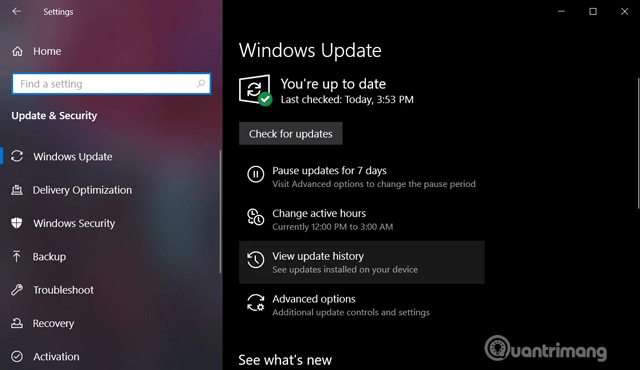
<p style="text-align: justify;"><strong>Bước 3</strong>. Điều hướng đến&nbsp;<strong>Update &amp; Security &gt; Windows Update</strong>.</p>

<p style="text-align: justify;"><img alt="Truy cập vào Windows Update" data-i="0" data-src="https://st.quantrimang.com/photos/image/2019/07/22/xem-lich-su-cap-nhat-windows-1.png" data-was-processed="true" height="370" src="https://st.quantrimang.com/photos/image/2019/07/22/xem-lich-su-cap-nhat-windows-1.png" width="640" /></p>

<p style="text-align: justify;"><strong>Bước 4</strong>. Click vào&nbsp;<strong>View update history</strong>.</p>

<p style="text-align: justify;"><img alt="Danh sách cập nhật trong Settings" data-i="1" data-src="https://st.quantrimang.com/photos/image/2019/07/22/xem-lich-su-cap-nhat-windows-2.png" data-was-processed="true" height="334" src="https://st.quantrimang.com/photos/image/2019/07/22/xem-lich-su-cap-nhat-windows-2.png" width="640" /></p>

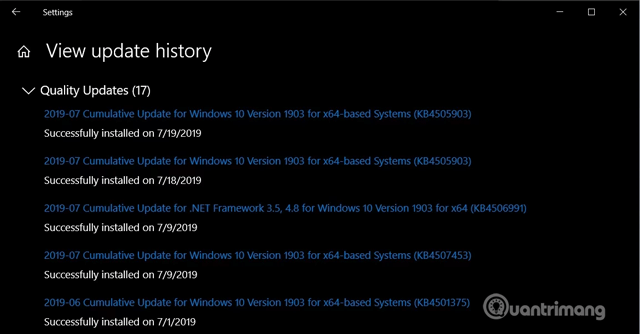
<p style="text-align: justify;">Trong trang Windows Update History, bạn sẽ thấy danh sách các bản cập nhật và thời gian được cài đặt trên máy tính.</p>

<h2 id="mcetoc_1dgbr28uj1" style="text-align: justify;">2. Cách xem lịch sử cập nhật bằng Control Panel</h2>

<p style="text-align: justify;">Các bản cập nhật khác như Windows 10 Servicing Stack, Intel Microcodes và Visual Studio không được liệt kê trong trang Windows Update. Do đó bạn cần&nbsp;<a href="https://quantrimang.com/cach-mo-control-panel-tren-windows-10-8-7-vista-va-xp-152771" title="Cách mở Control Panel trên Windows 10, 8.1, 7">truy cập Control Panel</a>&nbsp;để xem danh sách cập nhật bổ sung.</p>

<p style="text-align: justify;"><strong>Bước 1</strong>. Mở menu Start hoặc Cortana.</p>

<p style="text-align: justify;"><strong>Bước 2</strong>. Tìm kiếm&nbsp;<strong>Control Panel</strong>.</p>

<p style="text-align: justify;"><img alt="Mở Control Panel " data-i="2" data-src="https://st.quantrimang.com/photos/image/2019/07/22/xem-lich-su-cap-nhat-windows-3.png" data-was-processed="true" height="326" src="https://st.quantrimang.com/photos/image/2019/07/22/xem-lich-su-cap-nhat-windows-3.png" width="640" /></p>

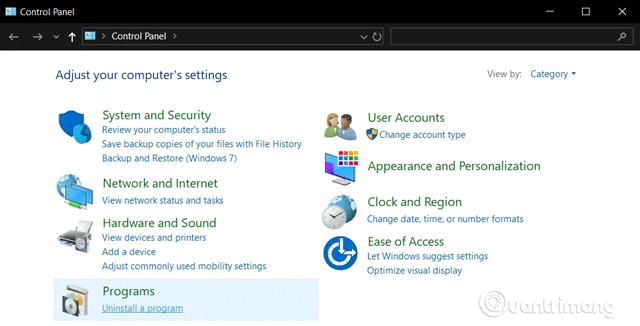
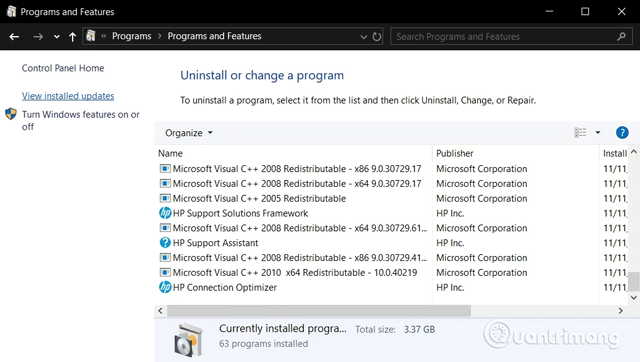
<p style="text-align: justify;"><strong>Bước 3</strong>. Trong Control Panel, điều hướng đến&nbsp;<strong>Programs &gt; Programs and Features</strong>.</p>

<p style="text-align: justify;"><img alt="Truy cập Programs and Features" data-i="3" data-src="https://st.quantrimang.com/photos/image/2019/07/22/xem-lich-su-cap-nhat-windows-4.png" data-was-processed="true" height="362" src="https://st.quantrimang.com/photos/image/2019/07/22/xem-lich-su-cap-nhat-windows-4.png" width="640" /></p>

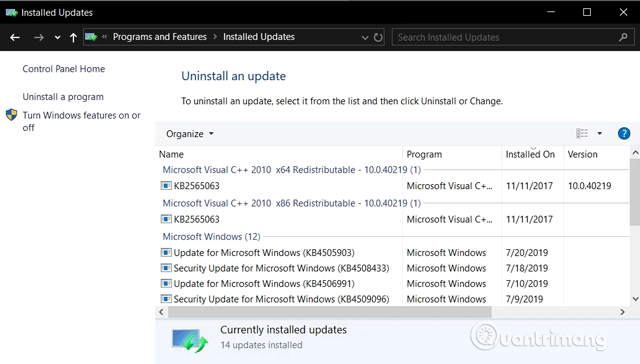
<p style="text-align: justify;"><strong>Bước 4</strong>. Click vào&nbsp;<strong>View Installed Updates</strong>&nbsp;để xem danh sách các bản cập nhật bổ sung.</p>

<p style="text-align: justify;"><img alt="Danh sách cập nhật bổ sung" data-i="4" data-src="https://st.quantrimang.com/photos/image/2019/07/22/xem-lich-su-cap-nhat-windows-5.png" data-was-processed="true" height="364" src="https://st.quantrimang.com/photos/image/2019/07/22/xem-lich-su-cap-nhat-windows-5.png" width="640" /></p>

<p style="text-align: justify;"><strong>Bước 5</strong>. Bạn cũng có thể sử dụng thanh tìm kiếm và nhập số KB của bản cập nhật để tìm nó.</p>

<div style="text-align: justify;">&nbsp;</div>

<h2 id="mcetoc_1dgbr28uj2" style="text-align: justify;">3. Cách xem lịch sử cập nhật bằng Command Prompt&nbsp;</h2>

<p style="text-align: justify;">Bạn có thể xem lịch sử cập nhật thông qua&nbsp;Command Prompt&nbsp;và lệnh systeminfo. Cách này rất hữu ích nếu bạn muốn&nbsp;file batch&nbsp;danh sách cập nhật.</p>

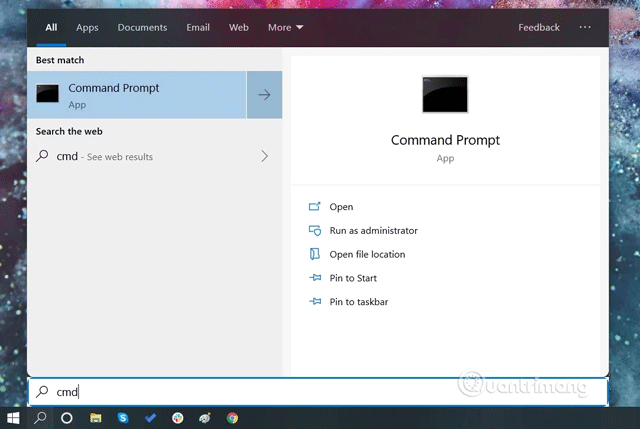
<p style="text-align: justify;"><strong>Bước 1</strong>. Mở tìm kiếm/Cortana.</p>

<p style="text-align: justify;"><strong>Bước 2</strong>. Tìm kiếm&nbsp;<strong>cmd</strong>.</p>

<p style="text-align: justify;"><img alt="Tìm kiếm cmd" data-i="5" data-src="https://st.quantrimang.com/photos/image/2019/07/22/xem-lich-su-cap-nhat-windows-6.png" data-was-processed="true" height="429" src="https://st.quantrimang.com/photos/image/2019/07/22/xem-lich-su-cap-nhat-windows-6.png" width="640" /></p>

<p style="text-align: justify;"><strong>Bước 3</strong>.&nbsp;<a href="https://quantrimang.com/huong-dan-mo-command-prompt-duoi-quyen-admin-tren-windows-8-va-10-119884" title="Cách mở và chạy cmd với quyền Admin trên Windows">Mở Command Prompt với quyền admin</a>.</p>

<p style="text-align: justify;"><img alt="Mở cmd với quyền admin" data-i="6" data-src="https://st.quantrimang.com/photos/image/2019/07/22/xem-lich-su-cap-nhat-windows-7.png" data-was-processed="true" height="102" src="https://st.quantrimang.com/photos/image/2019/07/22/xem-lich-su-cap-nhat-windows-7.png" width="640" /></p>

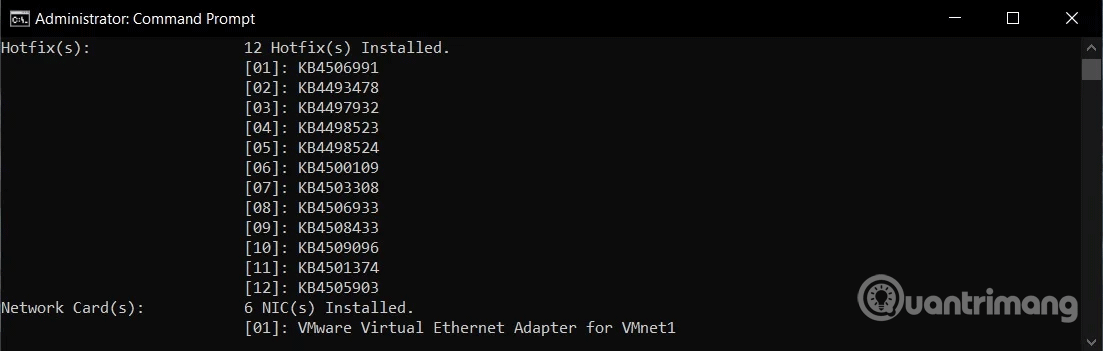
<p style="text-align: justify;"><strong>Bước 4</strong>. Gõ&nbsp;<strong>systeminfo.exe</strong>&nbsp;và nhấn&nbsp;<strong>Enter</strong>.</p>

<p style="text-align: justify;"><img alt="Gõ systeminfo.exe" data-i="7" data-src="https://st.quantrimang.com/photos/image/2019/07/22/xem-lich-su-cap-nhat-windows-8.png" data-was-processed="true" height="204" src="https://st.quantrimang.com/photos/image/2019/07/22/xem-lich-su-cap-nhat-windows-8.png" width="640" /></p>

<p style="text-align: justify;"><strong>Bước 5</strong>. Trong phần&nbsp;<strong>Hotfix(s)</strong>, bạn có thể tìm thấy danh sách cập nhật Windows đã cài đặt trên máy tính.</p>

<h2 id="mcetoc_1dgbr28uj3" style="text-align: justify;">4. Cách xem lịch sử cập nhật bằng PowerShell</h2>

<p style="text-align: justify;">Cách cuối cùng, bạn có thể sử dụng&nbsp;<a href="https://quantrimang.com/gioi-thieu-ve-powershell-37928" title="Giới thiệu về PowerShell">PowerShell</a>&nbsp;để xem danh sách cập nhật và truy vấn bản cập nhật cụ thể. Phương pháp này cực kỳ hữu ích cho admin hệ thống khi muốn biết những máy tính nào đã cài đặt bản cập nhật cụ thể.</p>

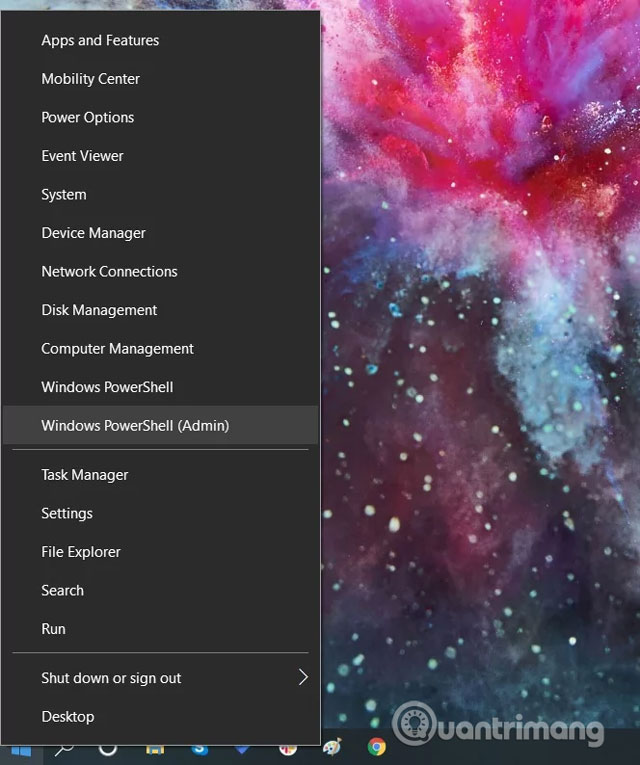
<p style="text-align: justify;"><strong>Bước 1</strong>. Click chuột phải vào icon menu Start.</p>

<p style="text-align: justify;"><img alt="Click vào Windows PowerShell (Admin)" data-i="8" data-src="https://st.quantrimang.com/photos/image/2019/07/22/xem-lich-su-cap-nhat-windows-9.jpg" data-was-processed="true" height="500" src="https://st.quantrimang.com/photos/image/2019/07/22/xem-lich-su-cap-nhat-windows-9.jpg" width="418" /></p>

<p style="text-align: justify;"><strong>Bước 2</strong>. Click vào&nbsp;<strong>Windows PowerShell (Admin)</strong>.</p>

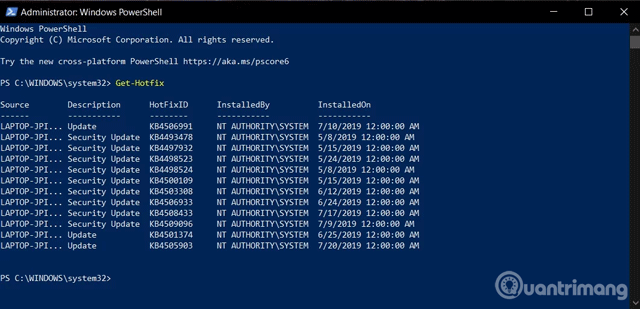
<p style="text-align: justify;"><strong>Bước 3</strong>. Trên PowerShell mở ra, gõ&nbsp;<strong>Get-Hotfix</strong>&nbsp;và nhấn&nbsp;<strong>Enter</strong>&nbsp;để lấy danh sách các bản cập nhật và thời gian cài đặt của nó.</p>

<p style="text-align: justify;"><img alt="Gõ Get-Hotfix" data-i="9" data-src="https://st.quantrimang.com/photos/image/2019/07/22/xem-lich-su-cap-nhat-windows-10.png" data-was-processed="true" height="309" src="https://st.quantrimang.com/photos/image/2019/07/22/xem-lich-su-cap-nhat-windows-10.png" width="640" /></p>

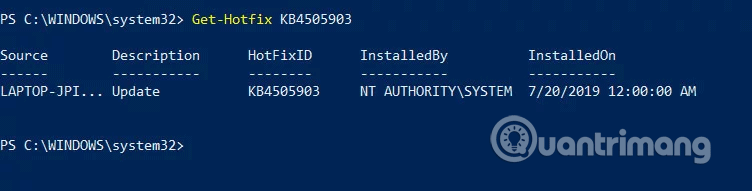
<p style="text-align: justify;"><strong>Bước 4</strong>. Bạn cũng có thể xem cập nhật cụ thể được cài đặt sử dụng số KB làm đối số. Ví dụ lệnh&nbsp;<strong>Get-Hotfix KB4505903</strong>&nbsp;sẽ kiểm tra xem&nbsp;<strong>KB4497932</strong>&nbsp;đã được cài đặt chưa.</p>

<p style="text-align: justify;"><img alt="Kiểm tra bản cập nhật cụ thể" data-i="10" data-src="https://st.quantrimang.com/photos/image/2019/07/22/xem-lich-su-cap-nhat-windows-11.png" data-was-processed="true" height="163" src="https://st.quantrimang.com/photos/image/2019/07/22/xem-lich-su-cap-nhat-windows-11.png" width="640" /></p>

<p style="text-align: justify;">Chúc các bạn thực hiện thành công!</p>
		</div>
				<div id="author">
						<p>
				<strong>Nguồn tin:</strong>
				Quantrimang.com
			</p>
		</div>
	</div>
	<div id="footer" class="clearfix">
		<div id="url">
			<strong>URL của bản tin này: </strong><a href="https://www.nguoicodonvn2008.info/vi/news/savefile/kien-thuc-may-tinh/cach-xem-lich-su-cap-nhat-windows-10-548.html" title="Cách xem lịch sử cập nhật Windows 10">https://www.nguoicodonvn2008.info/vi/news/savefile/kien-thuc-may-tinh/cach-xem-lich-su-cap-nhat-windows-10-548.html</a>

		</div>
		<div class="clear"></div>
		<div class="copyright">
			&copy; .&#x3A; Nguoicodonvn2008.info - Cõi lòng người cô đơn &#x3A;.
		</div>
		<div id="contact">
			<a href="mailto:admin@nguoicodonvn2008.info">admin@nguoicodonvn2008.info</a>
		</div>
	</div>
</div>
        <div id="timeoutsess" class="chromeframe">
            Bạn đã không sử dụng Site, <a onclick="timeoutsesscancel();" href="https://www.nguoicodonvn2008.info/#">Bấm vào đây để duy trì trạng thái đăng nhập</a>. Thời gian chờ: <span id="secField"> 60 </span> giây
        </div>
        <div id="openidResult" class="nv-alert" style="display:none"></div>
        <div id="openidBt" data-result="" data-redirect=""></div>
		</script>
		<div class="car-top">
  <span><img src="https://www.nguoicodonvn2008.info/themes/default/images/car.png" alt=""></span>
</div>
<script src="https://www.nguoicodonvn2008.info/assets/js/jquery/jquery.min.js"></script>
<script>var nv_base_siteurl="/",nv_lang_data="vi",nv_lang_interface="vi",nv_name_variable="nv",nv_fc_variable="op",nv_lang_variable="language",nv_module_name="news",nv_func_name="savefile",nv_is_user=0, nv_my_ofs=-4,nv_my_abbr="EDT",nv_cookie_prefix="nv4c_e856T",nv_check_pass_mstime=1738000,nv_area_admin=0,nv_safemode=0,theme_responsive=0,nv_recaptcha_ver=2,nv_recaptcha_sitekey="",nv_recaptcha_type="image",XSSsanitize=1;</script>
<script src="https://www.nguoicodonvn2008.info/assets/js/language/vi.js"></script>
<script src="https://www.nguoicodonvn2008.info/assets/js/DOMPurify/purify3.js"></script>
<script src="https://www.nguoicodonvn2008.info/assets/js/global.js"></script>
<script src="https://www.nguoicodonvn2008.info/assets/js/site.js"></script>
<script src="https://www.nguoicodonvn2008.info/themes/default/js/news.js"></script>
<script src="https://www.nguoicodonvn2008.info/themes/default/js/main.js"></script>
<script src="https://www.nguoicodonvn2008.info/themes/default/js/custom.js"></script>
<script type="application/ld+json">
        {
            "@context": "https://schema.org",
            "@type": "Organization",
            "url": "https://www.nguoicodonvn2008.info",
            "logo": "https://www.nguoicodonvn2008.info/uploads/angel.gif"
        }
        </script>
<script src="https://www.nguoicodonvn2008.info/themes/default/js/bootstrap.min.js"></script>
<script type="text/javascript">
var $scrolltop = $('.car-top');
$scrolltop.on('click', function () {
    $('html,body').animate({
        scrollTop: 0
    }, 800);
    $(this).addClass("car-run");
    setTimeout(function(){ $scrolltop.removeClass('car-run');}, 1000);
    return false;
});
$(window).on('scroll', function ()
{ 
    if($(window).scrollTop() >= 200)
    {
        $scrolltop.addClass("show");
        $scrolltop.addClass("car-down");
    }
    else
    {
       $scrolltop.removeClass("show");
       setTimeout(function(){ $scrolltop.removeClass('car-down');}, 300);
    }
});
</script>
</body>
</html>