<!DOCTYPE html>
    <html lang="vi" xmlns="http://www.w3.org/1999/xhtml" prefix="og: http://ogp.me/ns#">
    <head>
<title>Cách vô hiệu hóa Narrator trên Windows 10&#x002F;11</title>
<meta name="description" content="Cách vô hiệu hóa Narrator trên Windows 10&#x002F;11 - Savefile - Tin Tức -...">
<meta name="author" content=".: Nguoicodonvn2008.info - Cõi lòng người cô đơn :.">
<meta name="copyright" content=".: Nguoicodonvn2008.info - Cõi lòng người cô đơn :. [admin@nguoicodonvn2008.info]">
<meta name="robots" content="index, archive, follow, noodp">
<meta name="googlebot" content="index,archive,follow,noodp">
<meta name="msnbot" content="all,index,follow">
<meta name="generator" content="NukeViet v4.5">
<meta http-equiv="Content-Type" content="text/html; charset=utf-8">
<meta property="og:title" content="Cách vô hiệu hóa Narrator trên Windows 10&#x002F;11">
<meta property="og:type" content="website">
<meta property="og:description" content="Savefile - Tin Tức - https&#x3A;&#x002F;&#x002F;www.nguoicodonvn2008.info&#x002F;vi&#x002F;news&#x002F;savefile&#x002F;kien-thuc-may-tinh&#x002F;cach-vo-hieu-hoa-narrator-tren-windows-10-11-5720.html">
<meta property="og:site_name" content=".&#x3A; Nguoicodonvn2008.info - Cõi lòng người cô đơn &#x3A;.">
<meta property="og:url" content="https://www.nguoicodonvn2008.info/vi/news/savefile/kien-thuc-may-tinh/cach-vo-hieu-hoa-narrator-tren-windows-10-11-5720.html">
<link rel="shortcut icon" href="https://www.nguoicodonvn2008.info/favicon.ico">
<link rel="canonical" href="https://www.nguoicodonvn2008.info/vi/news/savefile/kien-thuc-may-tinh/cach-vo-hieu-hoa-narrator-tren-windows-10-11-5720.html">
<link rel="alternate" href="https://www.nguoicodonvn2008.info/vi/news/rss/" title="Tin Tức" type="application/rss+xml">
<link rel="alternate" href="https://www.nguoicodonvn2008.info/vi/news/rss/karaoke-dual/" title="Tin Tức - Karaoke Dual" type="application/rss+xml">
<link rel="alternate" href="https://www.nguoicodonvn2008.info/vi/news/rss/nhac-tre/" title="Tin Tức - Nhạc trẻ" type="application/rss+xml">
<link rel="alternate" href="https://www.nguoicodonvn2008.info/vi/news/rss/tru-tinh/" title="Tin Tức - Trữ tình" type="application/rss+xml">
<link rel="alternate" href="https://www.nguoicodonvn2008.info/vi/news/rss/nuoc-ngoai/" title="Tin Tức - Nước ngoài" type="application/rss+xml">
<link rel="alternate" href="https://www.nguoicodonvn2008.info/vi/news/rss/remix/" title="Tin Tức - Remix" type="application/rss+xml">
<link rel="alternate" href="https://www.nguoicodonvn2008.info/vi/news/rss/tam-su-tinh-yeu/" title="Tin Tức - Tâm sự tình yêu" type="application/rss+xml">
<link rel="alternate" href="https://www.nguoicodonvn2008.info/vi/news/rss/tho-suu-tam/" title="Tin Tức - Thơ sưu tầm" type="application/rss+xml">
<link rel="alternate" href="https://www.nguoicodonvn2008.info/vi/news/rss/cuoc-song/" title="Tin Tức - Cuộc sống" type="application/rss+xml">
<link rel="alternate" href="https://www.nguoicodonvn2008.info/vi/news/rss/phan-mem/" title="Tin Tức - Phần mềm" type="application/rss+xml">
<link rel="alternate" href="https://www.nguoicodonvn2008.info/vi/news/rss/kien-thuc-may-tinh/" title="Tin Tức - Kiến thức máy tính" type="application/rss+xml">
<link rel="alternate" href="https://www.nguoicodonvn2008.info/vi/news/rss/hoc-tap/" title="Tin Tức - Học tập" type="application/rss+xml">
<link rel="alternate" href="https://www.nguoicodonvn2008.info/vi/news/rss/tai-lieu/" title="Tin Tức - Tài liệu" type="application/rss+xml">
<link rel="alternate" href="https://www.nguoicodonvn2008.info/vi/news/rss/de-thi/" title="Tin Tức - Đề thi" type="application/rss+xml">
<link rel="preload" as="style" href="https://www.nguoicodonvn2008.info/assets/css/font-awesome.min.css" type="text/css">
<link rel="preload" as="style" href="https://www.nguoicodonvn2008.info/themes/default/css/bootstrap.non-responsive.css" type="text/css">
<link rel="preload" as="style" href="https://www.nguoicodonvn2008.info/themes/default/css/style.css" type="text/css">
<link rel="preload" as="style" href="https://www.nguoicodonvn2008.info/themes/default/css/style.non-responsive.css" type="text/css">
<link rel="preload" as="style" href="https://www.nguoicodonvn2008.info/themes/default/css/news.css" type="text/css">
<link rel="preload" as="style" href="https://www.nguoicodonvn2008.info/themes/default/css/custom.css" type="text/css">
<link rel="preload" as="script" href="https://www.nguoicodonvn2008.info/assets/js/jquery/jquery.min.js" type="text/javascript">
<link rel="preload" as="script" href="https://www.nguoicodonvn2008.info/assets/js/language/vi.js" type="text/javascript">
<link rel="preload" as="script" href="https://www.nguoicodonvn2008.info/assets/js/DOMPurify/purify3.js" type="text/javascript">
<link rel="preload" as="script" href="https://www.nguoicodonvn2008.info/assets/js/global.js" type="text/javascript">
<link rel="preload" as="script" href="https://www.nguoicodonvn2008.info/assets/js/site.js" type="text/javascript">
<link rel="preload" as="script" href="https://www.nguoicodonvn2008.info/themes/default/js/news.js" type="text/javascript">
<link rel="preload" as="script" href="https://www.nguoicodonvn2008.info/themes/default/js/main.js" type="text/javascript">
<link rel="preload" as="script" href="https://www.nguoicodonvn2008.info/themes/default/js/custom.js" type="text/javascript">
<link rel="preload" as="script" href="https://www.nguoicodonvn2008.info/themes/default/js/bootstrap.min.js" type="text/javascript">
<link rel="stylesheet" href="https://www.nguoicodonvn2008.info/assets/css/font-awesome.min.css">
<link rel="stylesheet" href="https://www.nguoicodonvn2008.info/themes/default/css/bootstrap.non-responsive.css">
<link rel="stylesheet" href="https://www.nguoicodonvn2008.info/themes/default/css/style.css">
<link rel="stylesheet" href="https://www.nguoicodonvn2008.info/themes/default/css/style.non-responsive.css">
<link rel="StyleSheet" href="https://www.nguoicodonvn2008.info/themes/default/css/news.css">
<link rel="stylesheet" href="https://www.nguoicodonvn2008.info/themes/default/css/custom.css">
<style type="text/css">
	body{background: #fff;}
</style>
    </head>
    <body>
<div id="print">
	<div id="hd_print">
		<h2 class="pull-left">.&#x3A; Nguoicodonvn2008.info - Cõi lòng người cô đơn &#x3A;.</h2>
		<p class="pull-right"><a title=".&#x3A; Nguoicodonvn2008.info - Cõi lòng người cô đơn &#x3A;." href="https://www.nguoicodonvn2008.info/">https://www.nguoicodonvn2008.info</a></p>
	</div>
	<div class="clear"></div>
	<hr />
	<div id="content">
		<h1>Cách vô hiệu hóa Narrator trên Windows 10&#x002F;11</h1>
		<ul class="list-inline">
			<li>Thứ tư - 08/06/2022 00:19</li>
			<li class="hidden-print txtrequired"><em class="fa fa-print">&nbsp;</em><a title="In ra" href="javascript:;" onclick="window.print()">In ra</a></li>
			<li class="hidden-print txtrequired"><em class="fa fa-power-off">&nbsp;</em><a title="Đóng cửa sổ này" href="javascript:;" onclick="window.close()">Đóng cửa sổ này</a></li>
		</ul>
		<div class="clear"></div>
		<div id="hometext">
		</div>
				<div class="imghome">
			<img alt="Cách vô hiệu hóa Narrator trên Windows 10&#x002F;11" src="https://st.quantrimang.com/photos/image/2022/06/02/vo-hieu-hoa-narrator-tren-windows-14.jpg" width="460" class="img-thumbnail" />
		</div>
		<div class="clear"></div>
		<div id="bodytext" class="clearfix">
			<p style="text-align: justify;">Ứng dụng Narrator là một tính năng của Windows kể từ phiên bản Windows 2000. Nó được phát triển cho những người gặp khó khăn khi làm việc trên PC do thị lực bị suy giảm.</p>

<p style="text-align: justify;">Tuy nhiên, nếu bạn không sử dụng Narrator hoặc muốn sử dụng một ứng dụng khác, bạn có thể dễ dàng tắt hoặc vô hiệu hóa nó. Bằng cách đó, nó sẽ không ảnh hưởng đến trải nghiệm máy tính hàng ngày của bạn. Vì vậy, hãy cùng khám phá cách bạn có thể tắt ứng dụng Narrator trên Windows 10 và 11.</p>

<h2 style="text-align: justify;">Cách tắt Narrator trên Windows 10 và 11 bằng phím tắt</h2>

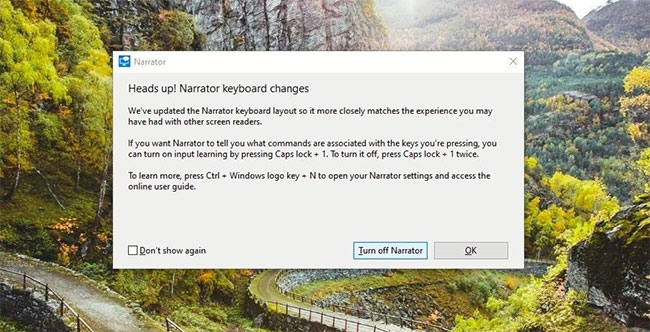
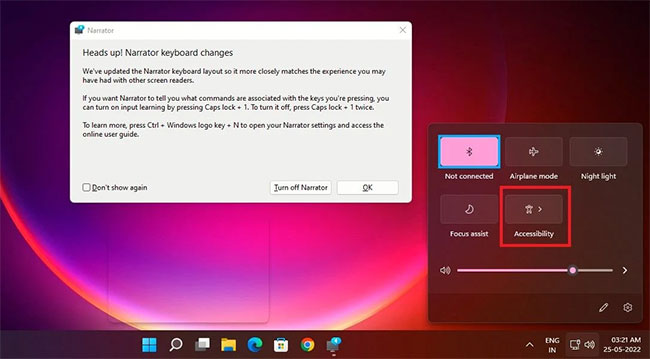
<p style="text-align: justify;">Narrator có thể được kích hoạt bằng cách sử dụng các phím tắt:&nbsp;<strong>Win + Ctrl + Enter</strong>. Vì vậy, nếu nó đang bật hoặc đã được bật do bạn nhấn nhầm các phím tắt của ứng dụng, hãy nhấn lại các phím&nbsp;<strong>Win + Ctrl + Enter</strong>. Bạn sẽ nghe thấy&nbsp;<strong>&quot;Exiting Narrator&quot;</strong>&nbsp;và ứng dụng sẽ tắt.</p>

<p style="text-align: justify;">Ngoài ra, khi cửa sổ Narrator mở ra, bạn luôn có thể tắt nó bằng cách nhấp vào nút&nbsp;<strong>Turn off Narrator</strong>.</p>

<figure>
<div style="text-align: justify;"><img alt="Tắt Narrator bằng phím tắt" data-i="0" data-src="https://st.quantrimang.com/photos/image/2022/06/02/vo-hieu-hoa-narrator-tren-windows-1.jpg" data-was-processed="true" height="332" src="https://st.quantrimang.com/photos/image/2022/06/02/vo-hieu-hoa-narrator-tren-windows-1.jpg" width="650" /></div>

<figcaption>
<div style="text-align: justify;">Tắt Narrator bằng phím tắt</div>
</figcaption>
</figure>

<p style="text-align: justify;">Một phím tắt đơn giản khác để tắt Narrator là sử dụng đồng thời các phím&nbsp;<strong>Caps Lock + Esc</strong>.</p>

<h2 style="text-align: justify;">Cách tắt Narrator thông qua Settings trên Windows 10</h2>

<p style="text-align: justify;">Thật dễ dàng để tắt Narrator thông qua Windows Settings. Hãy làm như sau:</p>

<p style="text-align: justify;">1. Nhấn tổ hợp phím&nbsp;<strong>Win + I</strong>&nbsp;để&nbsp;<a href="https://quantrimang.com/6-cach-truy-cap-nhanh-settings-tren-windows-10-130106" title="Tổng hợp 12 cách truy cập nhanh ứng dụng Settings trên Windows 10">mở Settings</a>&nbsp;trên máy tính của bạn.</p>

<p style="text-align: justify;">2. Nhấp vào&nbsp;<strong>Ease of Access</strong>&nbsp;và trong trang mở ra, hãy chọn&nbsp;<strong>Narrator</strong>&nbsp;từ ngăn bên trái. Trang cài đặt Narrator sẽ mở ra - bạn cũng có thể truy cập trực tiếp trang này bằng cách nhấn tổ hợp phím&nbsp;<strong>Win + Ctrl + N</strong>.</p>

<figure>
<div style="text-align: justify;"><img alt="Trang cài đặt Narrator" data-i="1" data-src="https://st.quantrimang.com/photos/image/2022/06/02/vo-hieu-hoa-narrator-tren-windows-2.jpg" data-was-processed="true" height="439" src="https://st.quantrimang.com/photos/image/2022/06/02/vo-hieu-hoa-narrator-tren-windows-2.jpg" width="650" /></div>

<figcaption>
<div style="text-align: justify;">Trang cài đặt Narrator</div>
</figcaption>
</figure>

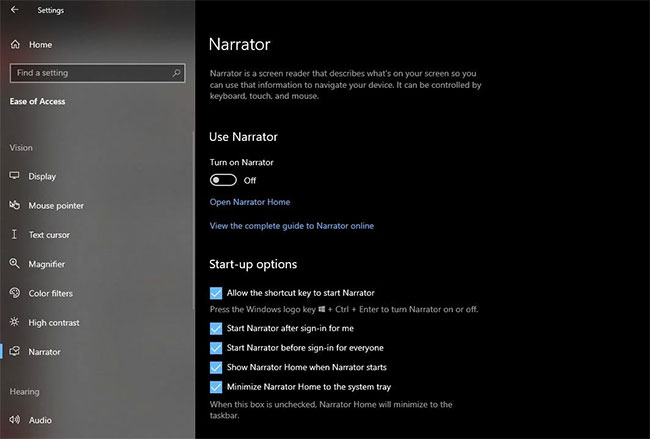
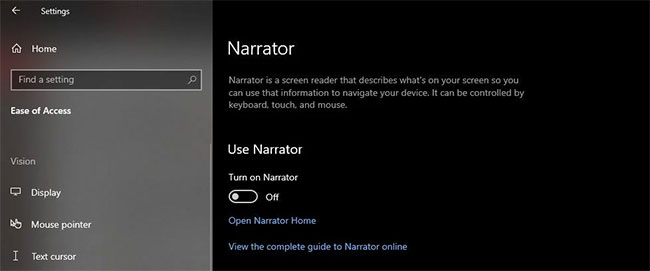
<p style="text-align: justify;">3. Trên trang&nbsp;<strong>Narrator</strong>, đảm bảo rằng nút&nbsp;<strong>Turn On Narrator</strong>&nbsp;được chuyển sang vị trí tắt.</p>

<figure>
<div style="text-align: justify;"><img alt="Tắt nút Turn On Narrator" data-i="2" data-src="https://st.quantrimang.com/photos/image/2022/06/02/vo-hieu-hoa-narrator-tren-windows-3.jpg" data-was-processed="true" height="271" src="https://st.quantrimang.com/photos/image/2022/06/02/vo-hieu-hoa-narrator-tren-windows-3.jpg" width="650" /></div>

<figcaption>
<div style="text-align: justify;">Tắt nút Turn On Narrator</div>
</figcaption>
</figure>

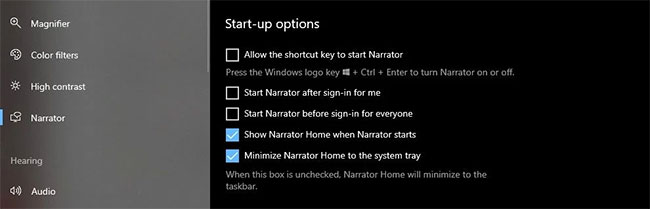
<p style="text-align: justify;">4. Sau đó, trong phần&nbsp;<strong>Start-up options</strong>&nbsp;bên dưới, hãy đảm bảo rằng bạn bỏ chọn hộp bên cạnh&nbsp;<strong>Allow the shortcut key to start Narrator</strong>. Vì vậy, Narrator sẽ không bắt đầu ngay bây giờ, ngay cả khi bạn nhập nhầm các phím tắt.</p>

<p style="text-align: justify;">5. Nếu bạn đang sử dụng Narrator và đã lên lịch kích hoạt tài khoản của mình sau khi đăng nhập, hãy bỏ chọn hộp bên cạnh&nbsp;<strong>Start Narrator after sign-in for me</strong>&nbsp;để vô hiệu hóa nó. Nếu bạn muốn tắt tính năng này trên máy tính của mình cho tất cả người dùng, hãy bỏ chọn hộp bên cạnh&nbsp;<strong>Start Narrator before sign-in for everyone</strong>.</p>

<figure>
<div style="text-align: justify;"><img alt="Bỏ chọn Start Narrator after sign-in for me " data-i="3" data-src="https://st.quantrimang.com/photos/image/2022/06/02/vo-hieu-hoa-narrator-tren-windows-4.jpg" data-was-processed="true" height="209" src="https://st.quantrimang.com/photos/image/2022/06/02/vo-hieu-hoa-narrator-tren-windows-4.jpg" width="650" /></div>

<figcaption>
<div style="text-align: justify;">Bỏ chọn Start Narrator after sign-in for me</div>
</figcaption>
</figure>

<h2 style="text-align: justify;">Cách tắt Narrator thông qua Settings trên Windows 11</h2>

<p style="text-align: justify;">Nếu bạn đang sử dụng Windows 11, việc tắt Narrator là một quá trình hơi khác:</p>

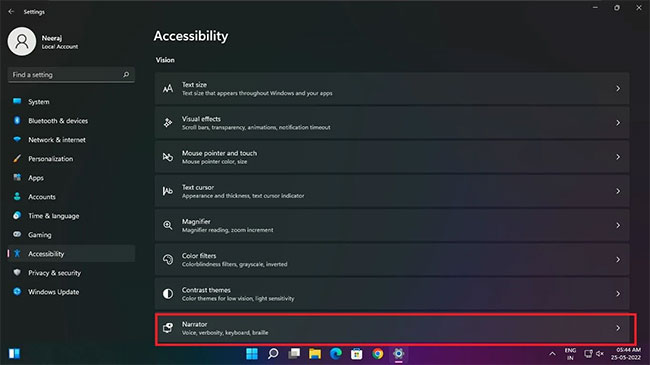
<p style="text-align: justify;">1. Mở&nbsp;Windows Settings trên Windows 11&nbsp;bằng cách nhấn đồng thời các phím&nbsp;<strong>Win + I</strong>.</p>

<p style="text-align: justify;">2. Bấm vào&nbsp;<strong>Accessibility</strong>&nbsp;trên ngăn bên trái và chọn&nbsp;<strong>Narrator</strong>&nbsp;ở ngăn bên phải.</p>

<figure>
<div style="text-align: justify;"><img alt="Chọn Narrator ở ngăn bên phải" data-i="4" data-src="https://st.quantrimang.com/photos/image/2022/06/02/vo-hieu-hoa-narrator-tren-windows-5.jpg" data-was-processed="true" height="365" src="https://st.quantrimang.com/photos/image/2022/06/02/vo-hieu-hoa-narrator-tren-windows-5.jpg" width="650" /></div>

<figcaption>
<div style="text-align: justify;">Chọn Narrator ở ngăn bên phải</div>
</figcaption>
</figure>

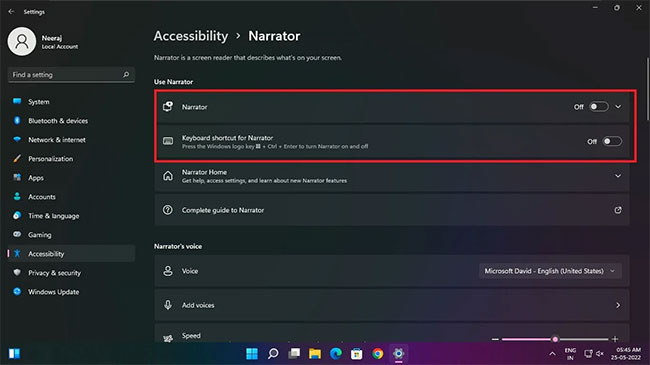
<p style="text-align: justify;">3. Trên trang&nbsp;<strong>Narrator</strong>, đảm bảo rằng nút&nbsp;<strong>Turn On Narrator&nbsp;</strong>được tắt.</p>

<p style="text-align: justify;">4. Sau đó, cũng bỏ chọn hộp bên cạnh&nbsp;<strong>Keyboard shortcut for Narrator</strong>&nbsp;để Narrator không bật ngay cả khi phím tắt của nó bị sử dụng nhầm.</p>

<figure>
<div style="text-align: justify;"><img alt="Bỏ chọn hộp Keyboard shortcut for Narrator" data-i="5" data-src="https://st.quantrimang.com/photos/image/2022/06/02/vo-hieu-hoa-narrator-tren-windows-6.jpg" data-was-processed="true" height="365" src="https://st.quantrimang.com/photos/image/2022/06/02/vo-hieu-hoa-narrator-tren-windows-6.jpg" width="650" /></div>

<figcaption>
<div style="text-align: justify;">Bỏ chọn hộp Keyboard shortcut for Narrator</div>
</figcaption>
</figure>

<h2 style="text-align: justify;">Cách tắt Narrator trong menu Quick Settings trên Windows 11</h2>

<p style="text-align: justify;">Nếu có PC chạy Windows 11, bạn cũng có thể dễ dàng tắt Narrator qua&nbsp;Quick Settings.</p>

<p style="text-align: justify;">Chỉ cần nhấn tổ hợp phím&nbsp;<strong>Win + A</strong>&nbsp;để mở&nbsp;<strong>Quick Settings.</strong>&nbsp;Sau đó nhấp vào nút&nbsp;<strong>Accessibility.</strong></p>

<figure>
<div style="text-align: justify;"><img alt="Nhấp vào nút Accessibility" data-i="6" data-src="https://st.quantrimang.com/photos/image/2022/06/02/vo-hieu-hoa-narrator-tren-windows-7.jpg" data-was-processed="true" height="359" src="https://st.quantrimang.com/photos/image/2022/06/02/vo-hieu-hoa-narrator-tren-windows-7.jpg" width="650" /></div>

<figcaption>
<div style="text-align: justify;">Nhấp vào nút Accessibility</div>
</figcaption>
</figure>

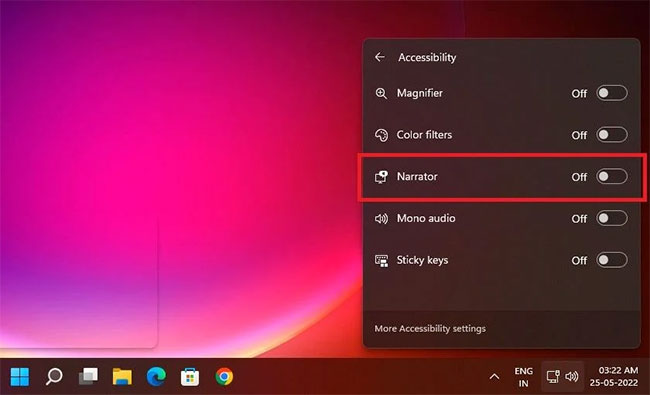
<p style="text-align: justify;">Sau đó, tắt nút&nbsp;<strong>Narrator.</strong>&nbsp;Bạn cũng có thể tắt các tùy chọn trợ năng khác từ đây.</p>

<figure>
<div style="text-align: justify;"><img alt="Tắt nút Narrator" data-i="7" data-src="https://st.quantrimang.com/photos/image/2022/06/02/vo-hieu-hoa-narrator-tren-windows-8.jpg" data-was-processed="true" height="395" src="https://st.quantrimang.com/photos/image/2022/06/02/vo-hieu-hoa-narrator-tren-windows-8.jpg" width="650" /></div>

<figcaption>
<div style="text-align: justify;">Tắt nút Narrator</div>
</figcaption>
</figure>

<h2 style="text-align: justify;">Cách tắt Narrator trong Task Manager trên Windows 11</h2>

<p style="text-align: justify;">Trên Windows 11, nếu Narrator đang bật và bạn không thể tắt nó vì bất kỳ lý do gì, bạn cũng có thể tắt nó qua&nbsp;Task Manager.</p>

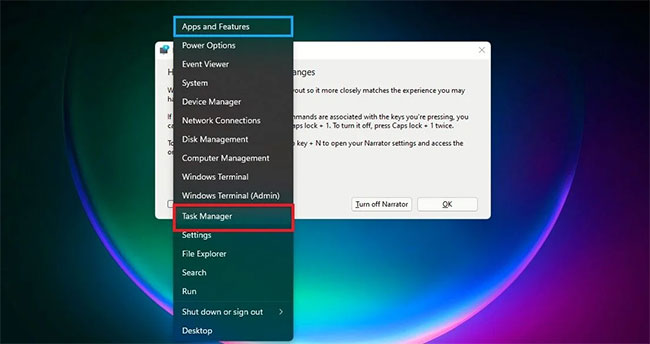
<p style="text-align: justify;">Nhấp chuột phải vào vùng trống trên Taskbar và chọn&nbsp;<strong>Task Manager</strong>&nbsp;từ menu mở ra.</p>

<figure>
<div style="text-align: justify;"><img alt="Chọn Task Manager từ menu" data-i="8" data-src="https://st.quantrimang.com/photos/image/2022/06/02/vo-hieu-hoa-narrator-tren-windows-9.jpg" data-was-processed="true" height="344" src="https://st.quantrimang.com/photos/image/2022/06/02/vo-hieu-hoa-narrator-tren-windows-9.jpg" width="650" /></div>

<figcaption>
<div style="text-align: justify;">Chọn Task Manager từ menu</div>
</figcaption>
</figure>

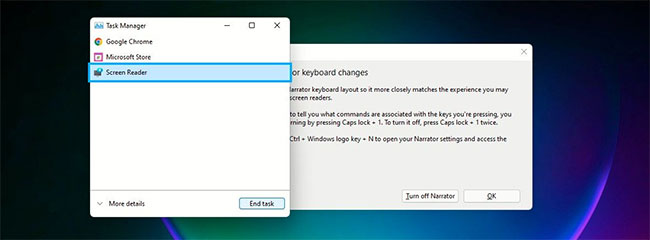
<p style="text-align: justify;">Trong&nbsp;<strong>Task Manager</strong>&nbsp;bên dưới&nbsp;<strong>Apps</strong>, bạn sẽ thấy ứng dụng Narrator được liệt kê là&nbsp;<strong>Screen Reader</strong>. Nhấp vào&nbsp;<strong>Screen Reader</strong>&nbsp;để highlight nó. Và sau đó nhấp vào nút&nbsp;<strong>End Task</strong>&nbsp;ở cuối cửa sổ để tắt Narrator.</p>

<figure>
<div style="text-align: justify;"><img alt="Nhấp vào nút End Task" data-i="9" data-src="https://st.quantrimang.com/photos/image/2022/06/02/vo-hieu-hoa-narrator-tren-windows-10.jpg" data-was-processed="true" height="240" src="https://st.quantrimang.com/photos/image/2022/06/02/vo-hieu-hoa-narrator-tren-windows-10.jpg" width="650" /></div>

<figcaption>
<div style="text-align: justify;">Nhấp vào nút End Task</div>
</figcaption>
</figure>

<h2 style="text-align: justify;">Cách tắt Narrator bằng cách thu hồi quyền tài khoản trên Windows 10/11</h2>

<p style="text-align: justify;">Bạn cũng có thể tắt Narrator khỏi máy tính của mình bằng cách thu hồi quyền tài khoản Windows. Đây là cách thực hiện:</p>

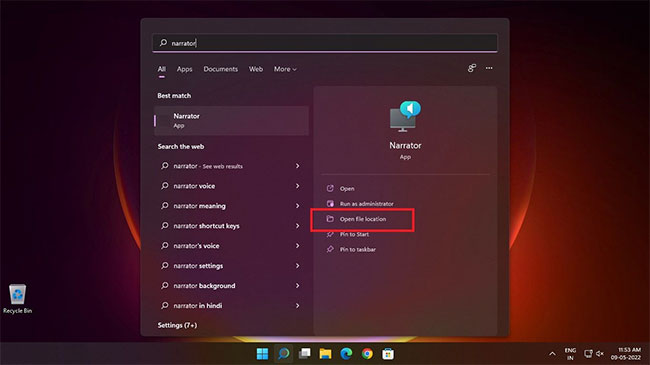
<p style="text-align: justify;">1. Tìm kiếm Narrator trong thanh tìm kiếm. Bạn sẽ thấy nó dưới mục&nbsp;<strong>Best match.</strong></p>

<p style="text-align: justify;">2. Trên ngăn bên phải bên dưới ứng dụng Narrator, nhấp vào&nbsp;<strong>Open file location</strong>.</p>

<figure>
<div style="text-align: justify;"><img alt="Nhấp vào Open file location" data-i="10" data-src="https://st.quantrimang.com/photos/image/2022/06/02/vo-hieu-hoa-narrator-tren-windows-11.jpg" data-was-processed="true" height="365" src="https://st.quantrimang.com/photos/image/2022/06/02/vo-hieu-hoa-narrator-tren-windows-11.jpg" width="650" /></div>

<figcaption>
<div style="text-align: justify;">Nhấp vào Open file location</div>
</figcaption>
</figure>

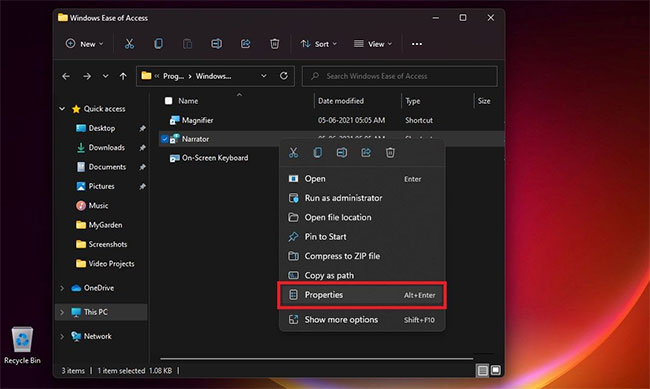
<p style="text-align: justify;">3. Trên trang vị trí file mở ra, bấm chuột phải vào&nbsp;<strong>Narrator</strong>, sau đó nhấp vào&nbsp;<strong>Properties.</strong></p>

<figure>
<div style="text-align: justify;"><img alt="Nhấp vào Properties" data-i="11" data-src="https://st.quantrimang.com/photos/image/2022/06/02/vo-hieu-hoa-narrator-tren-windows-12.jpg" data-was-processed="true" height="389" src="https://st.quantrimang.com/photos/image/2022/06/02/vo-hieu-hoa-narrator-tren-windows-12.jpg" width="650" /></div>

<figcaption>
<div style="text-align: justify;">Nhấp vào Properties</div>
</figcaption>
</figure>

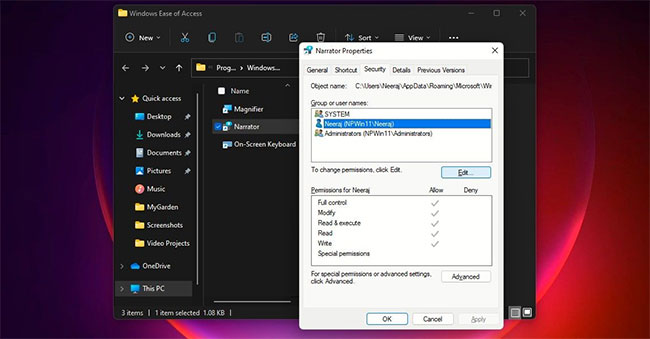
<p style="text-align: justify;">4. Trong cửa sổ&nbsp;<strong>Narrator</strong>&nbsp;<strong>Properties</strong>, chọn tab&nbsp;<strong>Security.</strong>&nbsp;Sau đó nhấp vào&nbsp;<strong>Edit</strong>&nbsp;để thay đổi quyền tài khoản người dùng. Sau đó, chọn tài khoản người dùng mà bạn muốn tắt ứng dụng Narrator.</p>

<figure>
<div style="text-align: justify;"><img alt="Chọn tài khoản người dùng" data-i="12" data-src="https://st.quantrimang.com/photos/image/2022/06/02/vo-hieu-hoa-narrator-tren-windows-13.jpg" data-was-processed="true" height="339" src="https://st.quantrimang.com/photos/image/2022/06/02/vo-hieu-hoa-narrator-tren-windows-13.jpg" width="650" /></div>

<figcaption>
<div style="text-align: justify;">Chọn tài khoản người dùng</div>
</figcaption>
</figure>

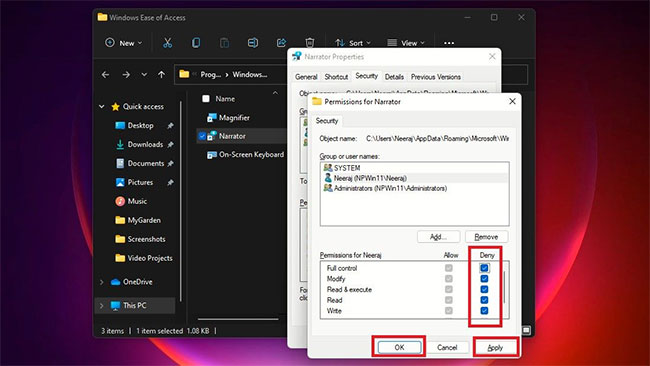
<p style="text-align: justify;">5. Sau đó, trong&nbsp;<strong>Permissions</strong>&nbsp;cho tài khoản người dùng đã chọn của bạn, hãy đánh dấu vào tùy chọn&nbsp;<strong>Full control</strong>&nbsp;trong&nbsp;<strong>Deny.</strong>&nbsp;Chọn hộp&nbsp;<strong>Full control</strong>&nbsp;sẽ tự động chọn các hộp bên dưới cho tất cả mọi quyền của Narrator.</p>

<p style="text-align: justify;">6. Cuối cùng, nhấp vào&nbsp;<strong>Apply</strong>&nbsp;cho từng tài khoản người dùng, sau đó nhấn&nbsp;<strong>OK.</strong></p>

<figure>
<div style="text-align: justify;"><img alt="Nhấn Apply &gt; OK" data-i="13" data-src="https://st.quantrimang.com/photos/image/2022/06/02/vo-hieu-hoa-narrator-tren-windows-14.jpg" data-was-processed="true" height="366" src="https://st.quantrimang.com/photos/image/2022/06/02/vo-hieu-hoa-narrator-tren-windows-14.jpg" width="650" /></div>

<figcaption>
<div style="text-align: justify;">Nhấn Apply &gt; OK</div>
</figcaption>
</figure>

<p style="text-align: justify;">Trong tương lai, nếu bạn hoặc người thân muốn sử dụng Narrator, hãy làm theo các bước từ 1 đến 4 ở trên, rồi sau khi chọn tài khoản người dùng, hãy nhấp vào&nbsp;<strong>Allow &gt; Full control</strong>. Cuối cùng, nhấp vào&nbsp;<strong>Apply &gt; OK</strong>.</p>

<p style="text-align: justify;">Làm theo các phương pháp và bước trên, bạn có thể dễ dàng tắt hoặc vô hiệu hóa ứng dụng Narrator trên PC Windows. Làm như vậy là hợp lý, đặc biệt nếu bạn không sử dụng nó hoặc muốn sử dụng một ứng dụng khác.</p>

<p style="text-align: justify;">Và như đã biết, bạn cũng có thể dễ dàng bật lại tính năng này nếu người nào đó mà bạn chia sẻ máy tính muốn sử dụng ứng dụng Narrator.</p>
		</div>
				<div id="author">
						<p>
				<strong>Nguồn tin:</strong>
				Quantrimang.com
			</p>
		</div>
	</div>
	<div id="footer" class="clearfix">
		<div id="url">
			<strong>URL của bản tin này: </strong><a href="https://www.nguoicodonvn2008.info/vi/news/savefile/kien-thuc-may-tinh/cach-vo-hieu-hoa-narrator-tren-windows-10-11-5720.html" title="Cách vô hiệu hóa Narrator trên Windows 10&#x002F;11">https://www.nguoicodonvn2008.info/vi/news/savefile/kien-thuc-may-tinh/cach-vo-hieu-hoa-narrator-tren-windows-10-11-5720.html</a>

		</div>
		<div class="clear"></div>
		<div class="copyright">
			&copy; .&#x3A; Nguoicodonvn2008.info - Cõi lòng người cô đơn &#x3A;.
		</div>
		<div id="contact">
			<a href="mailto:admin@nguoicodonvn2008.info">admin@nguoicodonvn2008.info</a>
		</div>
	</div>
</div>
        <div id="timeoutsess" class="chromeframe">
            Bạn đã không sử dụng Site, <a onclick="timeoutsesscancel();" href="https://www.nguoicodonvn2008.info/#">Bấm vào đây để duy trì trạng thái đăng nhập</a>. Thời gian chờ: <span id="secField"> 60 </span> giây
        </div>
        <div id="openidResult" class="nv-alert" style="display:none"></div>
        <div id="openidBt" data-result="" data-redirect=""></div>
		</script>
		<div class="car-top">
  <span><img src="https://www.nguoicodonvn2008.info/themes/default/images/car.png" alt=""></span>
</div>
<script src="https://www.nguoicodonvn2008.info/assets/js/jquery/jquery.min.js"></script>
<script>var nv_base_siteurl="/",nv_lang_data="vi",nv_lang_interface="vi",nv_name_variable="nv",nv_fc_variable="op",nv_lang_variable="language",nv_module_name="news",nv_func_name="savefile",nv_is_user=0, nv_my_ofs=-4,nv_my_abbr="EDT",nv_cookie_prefix="nv4c_e856T",nv_check_pass_mstime=1738000,nv_area_admin=0,nv_safemode=0,theme_responsive=0,nv_recaptcha_ver=2,nv_recaptcha_sitekey="",nv_recaptcha_type="image",XSSsanitize=1;</script>
<script src="https://www.nguoicodonvn2008.info/assets/js/language/vi.js"></script>
<script src="https://www.nguoicodonvn2008.info/assets/js/DOMPurify/purify3.js"></script>
<script src="https://www.nguoicodonvn2008.info/assets/js/global.js"></script>
<script src="https://www.nguoicodonvn2008.info/assets/js/site.js"></script>
<script src="https://www.nguoicodonvn2008.info/themes/default/js/news.js"></script>
<script src="https://www.nguoicodonvn2008.info/themes/default/js/main.js"></script>
<script src="https://www.nguoicodonvn2008.info/themes/default/js/custom.js"></script>
<script type="application/ld+json">
        {
            "@context": "https://schema.org",
            "@type": "Organization",
            "url": "https://www.nguoicodonvn2008.info",
            "logo": "https://www.nguoicodonvn2008.info/uploads/angel.gif"
        }
        </script>
<script src="https://www.nguoicodonvn2008.info/themes/default/js/bootstrap.min.js"></script>
<script type="text/javascript">
var $scrolltop = $('.car-top');
$scrolltop.on('click', function () {
    $('html,body').animate({
        scrollTop: 0
    }, 800);
    $(this).addClass("car-run");
    setTimeout(function(){ $scrolltop.removeClass('car-run');}, 1000);
    return false;
});
$(window).on('scroll', function ()
{ 
    if($(window).scrollTop() >= 200)
    {
        $scrolltop.addClass("show");
        $scrolltop.addClass("car-down");
    }
    else
    {
       $scrolltop.removeClass("show");
       setTimeout(function(){ $scrolltop.removeClass('car-down');}, 300);
    }
});
</script>
</body>
</html>