<!DOCTYPE html>
    <html lang="vi" xmlns="http://www.w3.org/1999/xhtml" prefix="og: http://ogp.me/ns#">
    <head>
<title>Cách vô hiệu hóa Modern Standby trên Windows 10&#x002F;11</title>
<meta name="description" content="Cách vô hiệu hóa Modern Standby trên Windows 10&#x002F;11 - Savefile - Tin Tức -...">
<meta name="author" content=".: Nguoicodonvn2008.info - Cõi lòng người cô đơn :.">
<meta name="copyright" content=".: Nguoicodonvn2008.info - Cõi lòng người cô đơn :. [admin@nguoicodonvn2008.info]">
<meta name="robots" content="index, archive, follow, noodp">
<meta name="googlebot" content="index,archive,follow,noodp">
<meta name="msnbot" content="all,index,follow">
<meta name="generator" content="NukeViet v4.5">
<meta http-equiv="Content-Type" content="text/html; charset=utf-8">
<meta property="og:title" content="Cách vô hiệu hóa Modern Standby trên Windows 10&#x002F;11">
<meta property="og:type" content="website">
<meta property="og:description" content="Savefile - Tin Tức - https&#x3A;&#x002F;&#x002F;www.nguoicodonvn2008.info&#x002F;vi&#x002F;news&#x002F;savefile&#x002F;kien-thuc-may-tinh&#x002F;cach-vo-hieu-hoa-modern-standby-tren-windows-10-11-6048.html">
<meta property="og:site_name" content=".&#x3A; Nguoicodonvn2008.info - Cõi lòng người cô đơn &#x3A;.">
<meta property="og:url" content="https://www.nguoicodonvn2008.info/vi/news/savefile/kien-thuc-may-tinh/cach-vo-hieu-hoa-modern-standby-tren-windows-10-11-6048.html">
<link rel="shortcut icon" href="https://www.nguoicodonvn2008.info/favicon.ico">
<link rel="canonical" href="https://www.nguoicodonvn2008.info/vi/news/savefile/kien-thuc-may-tinh/cach-vo-hieu-hoa-modern-standby-tren-windows-10-11-6048.html">
<link rel="alternate" href="https://www.nguoicodonvn2008.info/vi/news/rss/" title="Tin Tức" type="application/rss+xml">
<link rel="alternate" href="https://www.nguoicodonvn2008.info/vi/news/rss/karaoke-dual/" title="Tin Tức - Karaoke Dual" type="application/rss+xml">
<link rel="alternate" href="https://www.nguoicodonvn2008.info/vi/news/rss/nhac-tre/" title="Tin Tức - Nhạc trẻ" type="application/rss+xml">
<link rel="alternate" href="https://www.nguoicodonvn2008.info/vi/news/rss/tru-tinh/" title="Tin Tức - Trữ tình" type="application/rss+xml">
<link rel="alternate" href="https://www.nguoicodonvn2008.info/vi/news/rss/nuoc-ngoai/" title="Tin Tức - Nước ngoài" type="application/rss+xml">
<link rel="alternate" href="https://www.nguoicodonvn2008.info/vi/news/rss/remix/" title="Tin Tức - Remix" type="application/rss+xml">
<link rel="alternate" href="https://www.nguoicodonvn2008.info/vi/news/rss/tam-su-tinh-yeu/" title="Tin Tức - Tâm sự tình yêu" type="application/rss+xml">
<link rel="alternate" href="https://www.nguoicodonvn2008.info/vi/news/rss/tho-suu-tam/" title="Tin Tức - Thơ sưu tầm" type="application/rss+xml">
<link rel="alternate" href="https://www.nguoicodonvn2008.info/vi/news/rss/cuoc-song/" title="Tin Tức - Cuộc sống" type="application/rss+xml">
<link rel="alternate" href="https://www.nguoicodonvn2008.info/vi/news/rss/phan-mem/" title="Tin Tức - Phần mềm" type="application/rss+xml">
<link rel="alternate" href="https://www.nguoicodonvn2008.info/vi/news/rss/kien-thuc-may-tinh/" title="Tin Tức - Kiến thức máy tính" type="application/rss+xml">
<link rel="alternate" href="https://www.nguoicodonvn2008.info/vi/news/rss/hoc-tap/" title="Tin Tức - Học tập" type="application/rss+xml">
<link rel="alternate" href="https://www.nguoicodonvn2008.info/vi/news/rss/tai-lieu/" title="Tin Tức - Tài liệu" type="application/rss+xml">
<link rel="alternate" href="https://www.nguoicodonvn2008.info/vi/news/rss/de-thi/" title="Tin Tức - Đề thi" type="application/rss+xml">
<link rel="preload" as="style" href="https://www.nguoicodonvn2008.info/assets/css/font-awesome.min.css" type="text/css">
<link rel="preload" as="style" href="https://www.nguoicodonvn2008.info/themes/default/css/bootstrap.non-responsive.css" type="text/css">
<link rel="preload" as="style" href="https://www.nguoicodonvn2008.info/themes/default/css/style.css" type="text/css">
<link rel="preload" as="style" href="https://www.nguoicodonvn2008.info/themes/default/css/style.non-responsive.css" type="text/css">
<link rel="preload" as="style" href="https://www.nguoicodonvn2008.info/themes/default/css/news.css" type="text/css">
<link rel="preload" as="style" href="https://www.nguoicodonvn2008.info/themes/default/css/custom.css" type="text/css">
<link rel="preload" as="script" href="https://www.nguoicodonvn2008.info/assets/js/jquery/jquery.min.js" type="text/javascript">
<link rel="preload" as="script" href="https://www.nguoicodonvn2008.info/assets/js/language/vi.js" type="text/javascript">
<link rel="preload" as="script" href="https://www.nguoicodonvn2008.info/assets/js/DOMPurify/purify3.js" type="text/javascript">
<link rel="preload" as="script" href="https://www.nguoicodonvn2008.info/assets/js/global.js" type="text/javascript">
<link rel="preload" as="script" href="https://www.nguoicodonvn2008.info/assets/js/site.js" type="text/javascript">
<link rel="preload" as="script" href="https://www.nguoicodonvn2008.info/themes/default/js/news.js" type="text/javascript">
<link rel="preload" as="script" href="https://www.nguoicodonvn2008.info/themes/default/js/main.js" type="text/javascript">
<link rel="preload" as="script" href="https://www.nguoicodonvn2008.info/themes/default/js/custom.js" type="text/javascript">
<link rel="preload" as="script" href="https://www.nguoicodonvn2008.info/themes/default/js/bootstrap.min.js" type="text/javascript">
<link rel="stylesheet" href="https://www.nguoicodonvn2008.info/assets/css/font-awesome.min.css">
<link rel="stylesheet" href="https://www.nguoicodonvn2008.info/themes/default/css/bootstrap.non-responsive.css">
<link rel="stylesheet" href="https://www.nguoicodonvn2008.info/themes/default/css/style.css">
<link rel="stylesheet" href="https://www.nguoicodonvn2008.info/themes/default/css/style.non-responsive.css">
<link rel="StyleSheet" href="https://www.nguoicodonvn2008.info/themes/default/css/news.css">
<link rel="stylesheet" href="https://www.nguoicodonvn2008.info/themes/default/css/custom.css">
<style type="text/css">
	body{background: #fff;}
</style>
    </head>
    <body>
<div id="print">
	<div id="hd_print">
		<h2 class="pull-left">.&#x3A; Nguoicodonvn2008.info - Cõi lòng người cô đơn &#x3A;.</h2>
		<p class="pull-right"><a title=".&#x3A; Nguoicodonvn2008.info - Cõi lòng người cô đơn &#x3A;." href="https://www.nguoicodonvn2008.info/">https://www.nguoicodonvn2008.info</a></p>
	</div>
	<div class="clear"></div>
	<hr />
	<div id="content">
		<h1>Cách vô hiệu hóa Modern Standby trên Windows 10&#x002F;11</h1>
		<ul class="list-inline">
			<li>Thứ bảy - 10/09/2022 00:13</li>
			<li class="hidden-print txtrequired"><em class="fa fa-print">&nbsp;</em><a title="In ra" href="javascript:;" onclick="window.print()">In ra</a></li>
			<li class="hidden-print txtrequired"><em class="fa fa-power-off">&nbsp;</em><a title="Đóng cửa sổ này" href="javascript:;" onclick="window.close()">Đóng cửa sổ này</a></li>
		</ul>
		<div class="clear"></div>
		<div id="hometext">
		</div>
				<div class="imghome">
			<img alt="Cách vô hiệu hóa Modern Standby trên Windows 10&#x002F;11" src="https://st.quantrimang.com/photos/image/2022/09/08/vo-hieu-hoa-modern-standby-tren-windows-1.jpg" width="460" class="img-thumbnail" />
		</div>
		<div class="clear"></div>
		<div id="bodytext" class="clearfix">
			<p style="text-align: justify;">Modern Standby (S0) thay thế chế độ tiêu thụ điện năng thấp cổ điển S3 trong Windows 10 và 11. Trên hệ thống tương thích với Modern Standby, tính năng này bổ sung khả năng quản lý điện năng tốt hơn cho các thiết bị được kết nối.</p>

<p style="text-align: justify;">Mặc dù có những đặc quyền khác khi sử dụng Modern Standby, nhưng không phải ai cũng thích chế độ này hơn chế độ ngủ S3 cổ điển. Nếu vì bất kỳ lý do gì, bạn cần phải tắt Modern Standby trong Windows 10 và 11, thì đây là cách bạn thực hiện điều đó.</p>

<h2 style="text-align: justify;">Modern Standby trên Windows là gì và tại sao bạn nên tắt chế độ này?</h2>

<p style="text-align: justify;">Được giới thiệu vào năm 2020, Modern Standby (S0) là trạng thái ngủ mới hơn và là sự kế thừa cho chế độ Sleep Standby (S3) cũ. Nó thay thế tính năng ngủ tiêu chuẩn và đặt laptop của bạn ở trạng thái năng lượng thấp hơn khi không hoạt động.</p>

<p style="text-align: justify;">Ở trạng thái ngủ này, hệ thống của bạn sẽ được duy trì ở chế độ tiêu thụ điện năng tối thiểu để thực hiện các tác vụ nền như đồng bộ email và thông báo qua Internet, v.v…</p>

<p style="text-align: justify;">Nó cũng có tính năng bật/tắt tức thì giúp bạn chuyển đổi nhanh hơn giữa trạng thái bật và tắt, tương tự như điện thoại thông minh.</p>

<p style="text-align: justify;">Mặt khác, Modern Standby được cho là gây ra các vấn đề nóng và tiêu hao pin, do đó buộc một số người dùng phải tắt chế độ nguồn mới trên laptop của họ.</p>

<p style="text-align: justify;">Lưu ý rằng tuổi thọ pin kém và&nbsp;vấn đề laptop bị nóng&nbsp;là những sự cố thường xuyên xảy ra và có thể do một số lý do. Ngoài ra, do bản chất của Modern Standby, đòi hỏi&nbsp;CPU&nbsp;phải tham gia mọi lúc, nên nhiệt độ CPU dự kiến ​​sẽ tăng lên một chút.</p>

<p style="text-align: justify;">Trước khi quyết định tắt Modern Standby, hãy thử các mẹo sau để cải thiện tuổi thọ pin trên Windows 11. Bạn cũng có thể đặt ngưỡng sạc pin cho laptop của mình để tăng tuổi thọ pin. Ngoài ra, bạn cũng có thể khắc phục sự cố laptop quá nóng bằng cách tìm hiểu những điều cơ bản về vấn đề này.</p>

<p style="text-align: justify;">Nếu bạn vẫn cần tắt Modern Standby trong Windows 11, hãy tiến hành các bước bên dưới.</p>

<h2 style="text-align: justify;">Cách kiểm tra trạng thái ngủ hiện tại của hệ thống</h2>

<figure>
<div style="text-align: justify;"><img alt="Trạng thái ngủ Windows 11" data-i="0" data-src="https://st.quantrimang.com/photos/image/2022/09/08/vo-hieu-hoa-modern-standby-tren-windows-1.jpg" data-was-processed="true" height="304" src="https://st.quantrimang.com/photos/image/2022/09/08/vo-hieu-hoa-modern-standby-tren-windows-1.jpg" width="650" /></div>

<figcaption>
<div style="text-align: justify;">Trạng thái ngủ Windows 11</div>
</figcaption>
</figure>

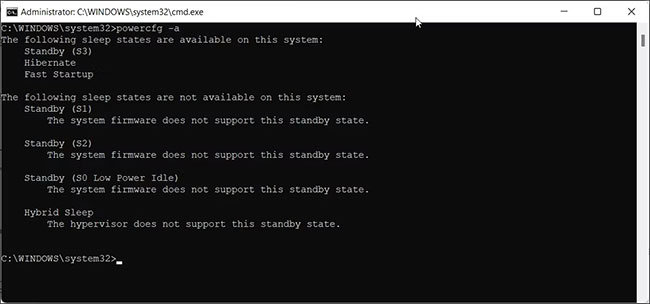
<p style="text-align: justify;">Bạn có thể sử dụng lệnh&nbsp;<strong>powercfg /a</strong>&nbsp;trong&nbsp;<a href="https://quantrimang.com/cong-nghe/huong-dan-su-dung-command-prompt-85301" title="Cách sử dụng Command Prompt, cách dùng cmd trên Windows">Command Prompt</a>&nbsp;để xem và cấu hình trạng thái ngủ sẵn có của hệ thống. Dưới đây là cách sử dụng lệnh này trong Windows 11:</p>

<p style="text-align: justify;">1. Nhấn&nbsp;<strong>Win + X</strong>&nbsp;để mở menu WinX.</p>

<p style="text-align: justify;">2. Tiếp theo, nhấp vào&nbsp;<strong>Windows Terminal (Admin).</strong></p>

<p style="text-align: justify;">3. Trong cửa sổ Windows Terminal, nhập lệnh sau và nhấn&nbsp;<strong>Enter</strong>&nbsp;để thực thi:</p>

<pre id="pre0">
<code>powercfg /a</code></pre>

<p style="text-align: justify;">4. Nếu hệ thống báo cáo,<strong>&nbsp;Standby (S0 Lower Power Idle) Network Connected/Disconnected</strong>, thì bạn đã bật Modern Standby.</p>

<p style="text-align: justify;">5. Tiếp theo, kiểm tra trạng thái Standby (S3). Nếu bạn thấy thông báo&nbsp;<em>&quot;This standby state is disabled when S0 low power idle is supported&quot;</em>, điều đó có nghĩa là bạn có thể tắt Modern Standby để bật Legacy Standby (S3) cũ.</p>

<h2 style="text-align: justify;">Cách tắt Modern Standby bằng registry script</h2>

<p style="text-align: justify;">Bạn có thể sử dụng registry script để tắt Modern Standby trong Windows 11 và 10. Đây là cách dễ nhất để hoàn thành công việc mà không cần phải điều hướng thông qua Windows registry.</p>

<p style="text-align: justify;">Trước khi bạn cố gắng thực hiện bất kỳ thay đổi nào đối với Windows registry của mình, bạn nên tạo một điểm khôi phục. Điều này sẽ giúp bạn khôi phục hệ thống của mình trong trường hợp có sự cố xảy ra.</p>

<p style="text-align: justify;">1. Nhấn&nbsp;<strong>Win + R</strong>&nbsp;để&nbsp;<a href="https://quantrimang.com/cong-nghe/cach-mo-hop-thoai-run-trong-windows-187019" title="7 cách mở hộp thoại Run trong Windows">mở Run</a>.</p>

<p style="text-align: justify;">2. Nhập&nbsp;<strong>notepad</strong>&nbsp;và nhấp vào&nbsp;<strong>OK</strong>&nbsp;để mở file Notepad mới.</p>

<figure>
<div style="text-align: justify;"><img alt="Mở file Notepad mới" data-i="1" data-src="https://st.quantrimang.com/photos/image/2022/09/08/vo-hieu-hoa-modern-standby-tren-windows-2.jpg" data-was-processed="true" height="228" src="https://st.quantrimang.com/photos/image/2022/09/08/vo-hieu-hoa-modern-standby-tren-windows-2.jpg" width="650" /></div>

<figcaption>
<div style="text-align: justify;">Mở file Notepad mới</div>
</figcaption>
</figure>

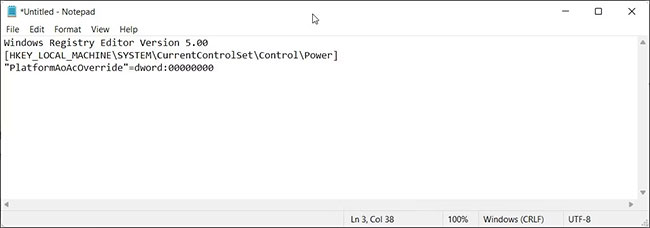
<p style="text-align: justify;">3. Sao chép và dán script sau vào file Notepad:</p>

<pre id="pre1">
<code>Windows Registry Editor Version 5.00
&#91;HKEY_LOCAL_MACHINE\SYSTEM\CurrentControlSet\Control\Power&#93;
&quot;PlatformAoAcOverride&quot;=dword:00000000</code></pre>

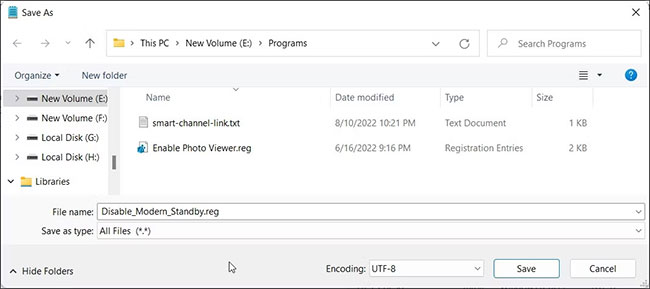
<p style="text-align: justify;">4. Tiếp theo, nhấp vào&nbsp;<strong>File</strong>&nbsp;và chọn&nbsp;<strong>Save As</strong>.</p>

<figure>
<div style="text-align: justify;"><img alt="Chọn Save As" data-i="2" data-src="https://st.quantrimang.com/photos/image/2022/09/08/vo-hieu-hoa-modern-standby-tren-windows-3.jpg" data-was-processed="true" height="289" src="https://st.quantrimang.com/photos/image/2022/09/08/vo-hieu-hoa-modern-standby-tren-windows-3.jpg" width="650" /></div>

<figcaption>
<div style="text-align: justify;">Chọn Save As</div>
</figcaption>
</figure>

<p style="text-align: justify;">5. Nhập tên file là&nbsp;<strong>Disable_Modern_Standby.reg.</strong></p>

<p style="text-align: justify;">6. Tiếp theo, nhấp vào menu drop-down&nbsp;<strong>Save as type</strong>&nbsp;và chọn&nbsp;<strong>All files.</strong></p>

<p style="text-align: justify;">7. Bấm&nbsp;<strong>Save</strong>&nbsp;để lưu file registry.</p>

<p style="text-align: justify;">8. Tiếp theo, nhấp đúp vào file&nbsp;<strong>Disable_Modern_Standby.reg</strong>&nbsp;và nhấp vào&nbsp;<strong>Yes</strong>&nbsp;khi được UAC nhắc.</p>

<p style="text-align: justify;">9.&nbsp;Khởi động lại PC&nbsp;để áp dụng các thay đổi.</p>

<p style="text-align: justify;">Nếu bạn cần bật lại Modern Standby, hãy sao chép và dán script sau vào file Notepad mới:</p>

<pre id="pre2">
<code>Windows Registry Editor Version 5.00
&#91;HKEY_LOCAL_MACHINE\SYSTEM\CurrentControlSet\Control\Power&#93;
&quot;PlatformAoAcOverride&quot;=-</code></pre>

<p style="text-align: justify;">Lưu file dưới dạng&nbsp;<strong>Enable_Modern_Standby.reg.</strong>&nbsp;Tiếp theo, nhấp đúp vào file đã lưu và đợi script thực thi. Khởi động lại PC để xem Modern Standby đã được bật chưa.</p>

<p style="text-align: justify;">Để xác nhận các thay đổi, hãy thực thi lệnh&nbsp;<strong>powercfg /a</strong>&nbsp;trong&nbsp;Command Prompt với quyền admin. Nếu Legacy Standby (S3) được bật, bạn sẽ thấy như sau:</p>

<pre id="pre3">
<code>The following Sleep states are available on this system:
- Standby (S3)
- Hibernate
- Fast Startup</code></pre>

<h2 style="text-align: justify;">Cách vô hiệu hóa Modern Standby bằng Command Prompt</h2>

<figure>
<div style="text-align: justify;"><img alt="Vô hiệu hóa Modern Standby trên Windows 11 bằng CMD" data-i="3" data-src="https://st.quantrimang.com/photos/image/2022/09/08/vo-hieu-hoa-modern-standby-tren-windows-4.jpg" data-was-processed="true" height="82" src="https://st.quantrimang.com/photos/image/2022/09/08/vo-hieu-hoa-modern-standby-tren-windows-4.jpg" width="650" /></div>

<figcaption>
<div style="text-align: justify;">Vô hiệu hóa Modern Standby trên Windows 11 bằng CMD</div>
</figcaption>
</figure>

<p style="text-align: justify;">Bạn có thể sử dụng Command Prompt để tắt Modern Standby trên PC của mình. Phương pháp này sử dụng các lệnh reg được thực thi thông qua Command Prompt để sửa đổi Windows registry.</p>

<p style="text-align: justify;">Làm theo các bước sau để tắt Modern Standby trong Windows 11 bằng các lệnh registry:</p>

<p style="text-align: justify;">1. Nhấn&nbsp;<strong>Win + X</strong>&nbsp;để mở Run.</p>

<p style="text-align: justify;">2. Nhấp vào&nbsp;<strong>Windows Terminal (Admin)</strong>&nbsp;để mở Terminal với quyền admin.</p>

<p style="text-align: justify;">3. Trong cửa sổ Windows Terminal, sao chép và dán lệnh reg sau:</p>

<pre id="pre4">
<code>reg add HKLM\System\CurrentControlSet\Control\Power /v PlatformAoAcOverride /t REG_DWORD /d 0</code></pre>

<p style="text-align: justify;">4. Khi thông báo thao tác hoàn tất thành công xuất hiện, hãy đóng Command Prompt.</p>

<p style="text-align: justify;">5. Nếu bạn cần bật lại Modern Standby, hãy sử dụng lệnh sau trong cửa sổ Windows Terminal với quyền admin:</p>

<pre id="pre5">
<code>reg delete &quot;HKLM\System\CurrentControlSet\Control\Power&quot; /v PlatformAoAcOverride /f</code></pre>

<p style="text-align: justify;">Đảm bảo rằng bạn khởi động lại PC của mình để áp dụng các thay đổi.</p>

<p style="text-align: justify;">Bạn có thể sử dụng lệnh powercfg /a đã nói ở trên để xem trạng thái ngủ và xác nhận các thay đổi.</p>

<h2 style="text-align: justify;">Cách tắt Modern Standby bằng Registry Editor</h2>

<p style="text-align: justify;">Nếu script và lệnh reg không hoạt động, bạn có thể sửa đổi thủ công mục registry cần thiết để vô hiệu hóa Modern Standby. Đây là cách thực hiện:</p>

<p style="text-align: justify;">1. Nhấn&nbsp;<strong>Win + R</strong>&nbsp;để mở Run.</p>

<p style="text-align: justify;">2. Gõ&nbsp;<strong>regedit</strong>&nbsp;và bấm&nbsp;<strong>OK</strong>&nbsp;để&nbsp;<a href="https://quantrimang.com/cong-nghe/cach-mo-registry-editor-tren-windows-143522" title="Cách mở Registry Editor trên Windows">mở Registry Editor</a>. Nhấp vào&nbsp;<strong>Yes</strong>&nbsp;nếu được UAC nhắc.</p>

<p style="text-align: justify;">3. Trong Registry Editor, điều hướng đến vị trí sau. Bạn có thể sao chép và dán đường dẫn registry vào Registry Editor để điều hướng nhanh:</p>

<pre id="pre6">
<code>HKEY_LOCAL_MACHINE\SYSTEM\CurrentControlSet\Control\Power</code></pre>

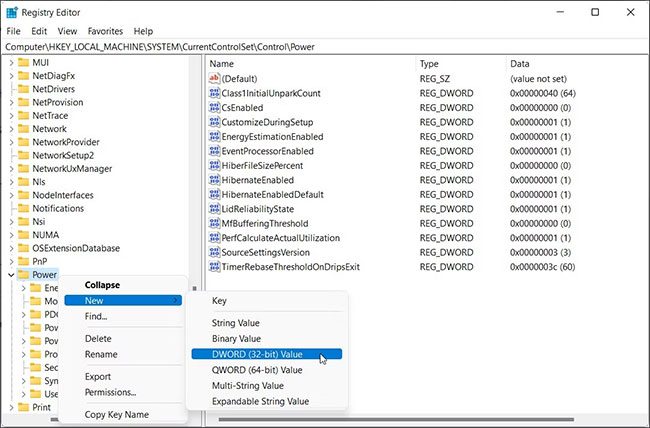
<p style="text-align: justify;">4. Tại đây, nhấp chuột phải vào subkey&nbsp;<strong>Power</strong>&nbsp;và chọn&nbsp;<strong>New &gt; DWORD (32-bit) Value</strong>.</p>

<figure>
<div style="text-align: justify;"><img alt="Chọn New &gt; DWORD (32-bit) Value" data-i="4" data-src="https://st.quantrimang.com/photos/image/2022/09/08/vo-hieu-hoa-modern-standby-tren-windows-5.jpg" data-was-processed="true" height="428" src="https://st.quantrimang.com/photos/image/2022/09/08/vo-hieu-hoa-modern-standby-tren-windows-5.jpg" width="650" /></div>

<figcaption>
<div style="text-align: justify;">Chọn New &gt; DWORD (32-bit) Value</div>
</figcaption>
</figure>

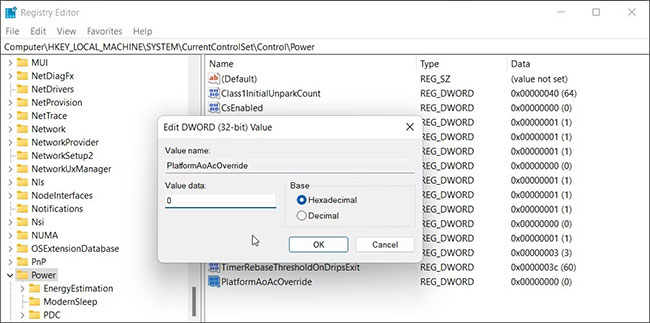
<p style="text-align: justify;">5. Đổi tên giá trị thành&nbsp;<strong>PlatformAoAcOverride.</strong></p>

<p style="text-align: justify;">6. Nhấp chuột phải vào giá trị&nbsp;<strong>PlatformAoAcOverride</strong>&nbsp;và chọn&nbsp;<strong>Modify.</strong></p>

<p style="text-align: justify;">7. Trong trường dữ liệu giá trị, nhập<strong>&nbsp;0&nbsp;</strong>và bấm&nbsp;<strong>OK.</strong></p>

<figure>
<div style="text-align: justify;"><img alt="Nhập 0" data-i="5" data-src="https://st.quantrimang.com/photos/image/2022/09/08/vo-hieu-hoa-modern-standby-tren-windows-6.jpg" data-was-processed="true" height="323" src="https://st.quantrimang.com/photos/image/2022/09/08/vo-hieu-hoa-modern-standby-tren-windows-6.jpg" width="650" /></div>

<figcaption>
<div style="text-align: justify;">Nhập 0</div>
</figcaption>
</figure>

<p style="text-align: justify;">8. Đóng Registry Editor và khởi động lại PC.</p>

<p style="text-align: justify;">Modern Standby không phù hợp với tất cả mọi người. Đối với nhiều người dùng, Modern Standby đã dẫn đến tuổi thọ pin kém và các vấn đề máy nóng.</p>

<p style="text-align: justify;">Bạn có thể khắc phục sự cố này bằng&nbsp;cách đặt thiết bị của mình ở chế độ Hibernate&nbsp;thay vì Sleep khi bạn đóng nắp. Ngoài ra, hãy xem xét việc tối ưu hóa việc sử dụng năng lượng của bạn trong Windows 11 để&nbsp;tăng tuổi thọ pin.</p>
		</div>
				<div id="author">
						<p>
				<strong>Nguồn tin:</strong>
				Quantrimang.com
			</p>
		</div>
	</div>
	<div id="footer" class="clearfix">
		<div id="url">
			<strong>URL của bản tin này: </strong><a href="https://www.nguoicodonvn2008.info/vi/news/savefile/kien-thuc-may-tinh/cach-vo-hieu-hoa-modern-standby-tren-windows-10-11-6048.html" title="Cách vô hiệu hóa Modern Standby trên Windows 10&#x002F;11">https://www.nguoicodonvn2008.info/vi/news/savefile/kien-thuc-may-tinh/cach-vo-hieu-hoa-modern-standby-tren-windows-10-11-6048.html</a>

		</div>
		<div class="clear"></div>
		<div class="copyright">
			&copy; .&#x3A; Nguoicodonvn2008.info - Cõi lòng người cô đơn &#x3A;.
		</div>
		<div id="contact">
			<a href="mailto:admin@nguoicodonvn2008.info">admin@nguoicodonvn2008.info</a>
		</div>
	</div>
</div>
        <div id="timeoutsess" class="chromeframe">
            Bạn đã không sử dụng Site, <a onclick="timeoutsesscancel();" href="https://www.nguoicodonvn2008.info/#">Bấm vào đây để duy trì trạng thái đăng nhập</a>. Thời gian chờ: <span id="secField"> 60 </span> giây
        </div>
        <div id="openidResult" class="nv-alert" style="display:none"></div>
        <div id="openidBt" data-result="" data-redirect=""></div>
		</script>
		<div class="car-top">
  <span><img src="https://www.nguoicodonvn2008.info/themes/default/images/car.png" alt=""></span>
</div>
<script src="https://www.nguoicodonvn2008.info/assets/js/jquery/jquery.min.js"></script>
<script>var nv_base_siteurl="/",nv_lang_data="vi",nv_lang_interface="vi",nv_name_variable="nv",nv_fc_variable="op",nv_lang_variable="language",nv_module_name="news",nv_func_name="savefile",nv_is_user=0, nv_my_ofs=-4,nv_my_abbr="EDT",nv_cookie_prefix="nv4c_e856T",nv_check_pass_mstime=1738000,nv_area_admin=0,nv_safemode=0,theme_responsive=0,nv_recaptcha_ver=2,nv_recaptcha_sitekey="",nv_recaptcha_type="image",XSSsanitize=1;</script>
<script src="https://www.nguoicodonvn2008.info/assets/js/language/vi.js"></script>
<script src="https://www.nguoicodonvn2008.info/assets/js/DOMPurify/purify3.js"></script>
<script src="https://www.nguoicodonvn2008.info/assets/js/global.js"></script>
<script src="https://www.nguoicodonvn2008.info/assets/js/site.js"></script>
<script src="https://www.nguoicodonvn2008.info/themes/default/js/news.js"></script>
<script src="https://www.nguoicodonvn2008.info/themes/default/js/main.js"></script>
<script src="https://www.nguoicodonvn2008.info/themes/default/js/custom.js"></script>
<script type="application/ld+json">
        {
            "@context": "https://schema.org",
            "@type": "Organization",
            "url": "https://www.nguoicodonvn2008.info",
            "logo": "https://www.nguoicodonvn2008.info/uploads/angel.gif"
        }
        </script>
<script src="https://www.nguoicodonvn2008.info/themes/default/js/bootstrap.min.js"></script>
<script type="text/javascript">
var $scrolltop = $('.car-top');
$scrolltop.on('click', function () {
    $('html,body').animate({
        scrollTop: 0
    }, 800);
    $(this).addClass("car-run");
    setTimeout(function(){ $scrolltop.removeClass('car-run');}, 1000);
    return false;
});
$(window).on('scroll', function ()
{ 
    if($(window).scrollTop() >= 200)
    {
        $scrolltop.addClass("show");
        $scrolltop.addClass("car-down");
    }
    else
    {
       $scrolltop.removeClass("show");
       setTimeout(function(){ $scrolltop.removeClass('car-down');}, 300);
    }
});
</script>
</body>
</html>