<!DOCTYPE html>
    <html lang="vi" xmlns="http://www.w3.org/1999/xhtml" prefix="og: http://ogp.me/ns#">
    <head>
<title>Cách vô hiệu hóa khu vực thông báo trong Windows 10</title>
<meta name="description" content="Cách vô hiệu hóa khu vực thông báo trong Windows 10 - Savefile - Tin Tức -...">
<meta name="author" content=".: Nguoicodonvn2008.info - Cõi lòng người cô đơn :.">
<meta name="copyright" content=".: Nguoicodonvn2008.info - Cõi lòng người cô đơn :. [admin@nguoicodonvn2008.info]">
<meta name="robots" content="index, archive, follow, noodp">
<meta name="googlebot" content="index,archive,follow,noodp">
<meta name="msnbot" content="all,index,follow">
<meta name="generator" content="NukeViet v4.5">
<meta http-equiv="Content-Type" content="text/html; charset=utf-8">
<meta property="og:title" content="Cách vô hiệu hóa khu vực thông báo trong Windows 10">
<meta property="og:type" content="website">
<meta property="og:description" content="Savefile - Tin Tức - https&#x3A;&#x002F;&#x002F;www.nguoicodonvn2008.info&#x002F;vi&#x002F;news&#x002F;savefile&#x002F;kien-thuc-may-tinh&#x002F;cach-vo-hieu-hoa-khu-vuc-thong-bao-trong-windows-10-7275.html">
<meta property="og:site_name" content=".&#x3A; Nguoicodonvn2008.info - Cõi lòng người cô đơn &#x3A;.">
<meta property="og:url" content="https://www.nguoicodonvn2008.info/vi/news/savefile/kien-thuc-may-tinh/cach-vo-hieu-hoa-khu-vuc-thong-bao-trong-windows-10-7275.html">
<link rel="shortcut icon" href="https://www.nguoicodonvn2008.info/favicon.ico">
<link rel="canonical" href="https://www.nguoicodonvn2008.info/vi/news/savefile/kien-thuc-may-tinh/cach-vo-hieu-hoa-khu-vuc-thong-bao-trong-windows-10-7275.html">
<link rel="alternate" href="https://www.nguoicodonvn2008.info/vi/news/rss/" title="Tin Tức" type="application/rss+xml">
<link rel="alternate" href="https://www.nguoicodonvn2008.info/vi/news/rss/karaoke-dual/" title="Tin Tức - Karaoke Dual" type="application/rss+xml">
<link rel="alternate" href="https://www.nguoicodonvn2008.info/vi/news/rss/nhac-tre/" title="Tin Tức - Nhạc trẻ" type="application/rss+xml">
<link rel="alternate" href="https://www.nguoicodonvn2008.info/vi/news/rss/tru-tinh/" title="Tin Tức - Trữ tình" type="application/rss+xml">
<link rel="alternate" href="https://www.nguoicodonvn2008.info/vi/news/rss/nuoc-ngoai/" title="Tin Tức - Nước ngoài" type="application/rss+xml">
<link rel="alternate" href="https://www.nguoicodonvn2008.info/vi/news/rss/remix/" title="Tin Tức - Remix" type="application/rss+xml">
<link rel="alternate" href="https://www.nguoicodonvn2008.info/vi/news/rss/tam-su-tinh-yeu/" title="Tin Tức - Tâm sự tình yêu" type="application/rss+xml">
<link rel="alternate" href="https://www.nguoicodonvn2008.info/vi/news/rss/tho-suu-tam/" title="Tin Tức - Thơ sưu tầm" type="application/rss+xml">
<link rel="alternate" href="https://www.nguoicodonvn2008.info/vi/news/rss/cuoc-song/" title="Tin Tức - Cuộc sống" type="application/rss+xml">
<link rel="alternate" href="https://www.nguoicodonvn2008.info/vi/news/rss/phan-mem/" title="Tin Tức - Phần mềm" type="application/rss+xml">
<link rel="alternate" href="https://www.nguoicodonvn2008.info/vi/news/rss/kien-thuc-may-tinh/" title="Tin Tức - Kiến thức máy tính" type="application/rss+xml">
<link rel="alternate" href="https://www.nguoicodonvn2008.info/vi/news/rss/hoc-tap/" title="Tin Tức - Học tập" type="application/rss+xml">
<link rel="alternate" href="https://www.nguoicodonvn2008.info/vi/news/rss/tai-lieu/" title="Tin Tức - Tài liệu" type="application/rss+xml">
<link rel="alternate" href="https://www.nguoicodonvn2008.info/vi/news/rss/de-thi/" title="Tin Tức - Đề thi" type="application/rss+xml">
<link rel="preload" as="style" href="https://www.nguoicodonvn2008.info/assets/css/font-awesome.min.css" type="text/css">
<link rel="preload" as="style" href="https://www.nguoicodonvn2008.info/themes/default/css/bootstrap.non-responsive.css" type="text/css">
<link rel="preload" as="style" href="https://www.nguoicodonvn2008.info/themes/default/css/style.css" type="text/css">
<link rel="preload" as="style" href="https://www.nguoicodonvn2008.info/themes/default/css/style.non-responsive.css" type="text/css">
<link rel="preload" as="style" href="https://www.nguoicodonvn2008.info/themes/default/css/news.css" type="text/css">
<link rel="preload" as="style" href="https://www.nguoicodonvn2008.info/themes/default/css/custom.css" type="text/css">
<link rel="preload" as="script" href="https://www.nguoicodonvn2008.info/assets/js/jquery/jquery.min.js" type="text/javascript">
<link rel="preload" as="script" href="https://www.nguoicodonvn2008.info/assets/js/language/vi.js" type="text/javascript">
<link rel="preload" as="script" href="https://www.nguoicodonvn2008.info/assets/js/DOMPurify/purify3.js" type="text/javascript">
<link rel="preload" as="script" href="https://www.nguoicodonvn2008.info/assets/js/global.js" type="text/javascript">
<link rel="preload" as="script" href="https://www.nguoicodonvn2008.info/assets/js/site.js" type="text/javascript">
<link rel="preload" as="script" href="https://www.nguoicodonvn2008.info/themes/default/js/news.js" type="text/javascript">
<link rel="preload" as="script" href="https://www.nguoicodonvn2008.info/themes/default/js/main.js" type="text/javascript">
<link rel="preload" as="script" href="https://www.nguoicodonvn2008.info/themes/default/js/custom.js" type="text/javascript">
<link rel="preload" as="script" href="https://www.nguoicodonvn2008.info/themes/default/js/bootstrap.min.js" type="text/javascript">
<link rel="stylesheet" href="https://www.nguoicodonvn2008.info/assets/css/font-awesome.min.css">
<link rel="stylesheet" href="https://www.nguoicodonvn2008.info/themes/default/css/bootstrap.non-responsive.css">
<link rel="stylesheet" href="https://www.nguoicodonvn2008.info/themes/default/css/style.css">
<link rel="stylesheet" href="https://www.nguoicodonvn2008.info/themes/default/css/style.non-responsive.css">
<link rel="StyleSheet" href="https://www.nguoicodonvn2008.info/themes/default/css/news.css">
<link rel="stylesheet" href="https://www.nguoicodonvn2008.info/themes/default/css/custom.css">
<style type="text/css">
	body{background: #fff;}
</style>
    </head>
    <body>
<div id="print">
	<div id="hd_print">
		<h2 class="pull-left">.&#x3A; Nguoicodonvn2008.info - Cõi lòng người cô đơn &#x3A;.</h2>
		<p class="pull-right"><a title=".&#x3A; Nguoicodonvn2008.info - Cõi lòng người cô đơn &#x3A;." href="https://www.nguoicodonvn2008.info/">https://www.nguoicodonvn2008.info</a></p>
	</div>
	<div class="clear"></div>
	<hr />
	<div id="content">
		<h1>Cách vô hiệu hóa khu vực thông báo trong Windows 10</h1>
		<ul class="list-inline">
			<li>Thứ ba - 11/07/2023 09:36</li>
			<li class="hidden-print txtrequired"><em class="fa fa-print">&nbsp;</em><a title="In ra" href="javascript:;" onclick="window.print()">In ra</a></li>
			<li class="hidden-print txtrequired"><em class="fa fa-power-off">&nbsp;</em><a title="Đóng cửa sổ này" href="javascript:;" onclick="window.close()">Đóng cửa sổ này</a></li>
		</ul>
		<div class="clear"></div>
		<div id="hometext">
		</div>
				<div class="imghome">
			<img alt="Cách vô hiệu hóa khu vực thông báo trong Windows 10" src="https://st.quantrimang.com/photos/image/2023/07/11/vo-hieu-hoa-khu-vuc-thong-bao-windows-10-5.jpg" width="460" class="img-thumbnail" />
		</div>
		<div class="clear"></div>
		<div id="bodytext" class="clearfix">
			<p style="text-align: justify;">Lần cuối cùng bạn khởi chạy thứ gì đó từ khu vực thông báo của Windows là khi nào? Khu vực thông báo, còn được gọi là khay hệ thống, nằm ở bên phải của thanh tác vụ Windows, ngay bên trái đồng hồ hệ thống. Nó chứa các biểu tượng cho những ứng dụng đang chạy và gửi thông báo cho PC của bạn, chẳng hạn như các bản cập nhật.</p>

<p style="text-align: justify;">Nếu khu vực thông báo Windows đang chiếm quá nhiều diện tích màn hình của bạn, đây là cách loại bỏ nó và lấy lại phần không gian quý giá trên thanh tác vụ. Bạn có thể nhận được tất cả các thông báo và cập nhật quan trọng theo những cách dễ dàng khác.</p>

<h2 style="text-align: justify;">&nbsp;</h2>

<h2 id="mcetoc_1h51a96ve4j" style="text-align: justify;">1. Sử dụng Local Group Policy cho tất cả người dùng</h2>

<p style="text-align: justify;">Tinh chỉnh này chỉ hoạt động nếu bạn đang chạy phiên bản Pro, Enterprise hoặc Education của Windows 10 và bạn phải đăng nhập với quyền admin để hiển thị hoặc ẩn khu vực thông báo. Đây là những việc cần làm.</p>

<p style="text-align: justify;">1. Nhấn&nbsp;<strong>Win + R&nbsp;</strong>để&nbsp;mở Run.</p>

<p style="text-align: justify;">2. Nhập&nbsp;<strong>“gpedit.msc”</strong>&nbsp;và nhấp vào&nbsp;<strong>OK.</strong></p>

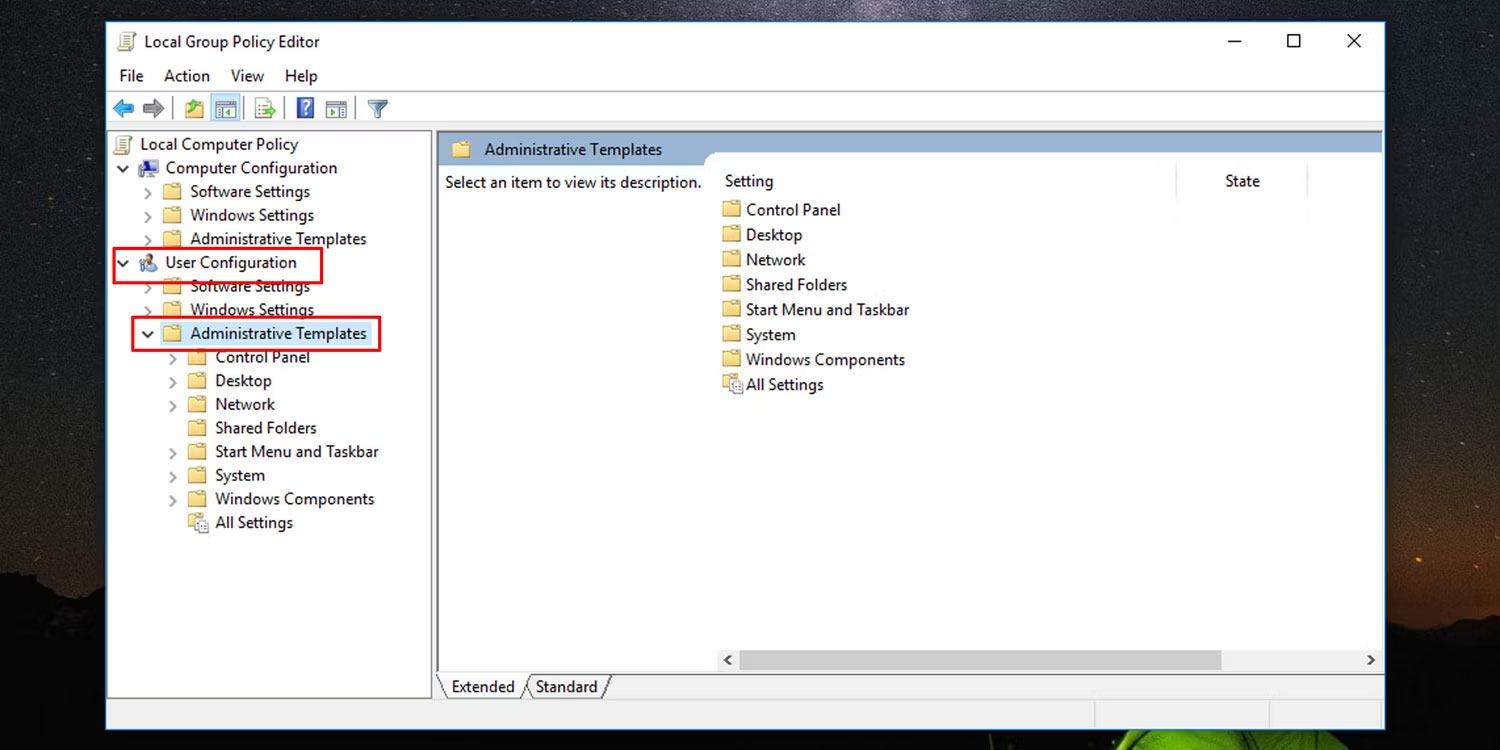
<p style="text-align: justify;">3. Trong bảng điều khiển bên trái của Local Group Policy Editor, bên dưới&nbsp;<strong>User Configuration</strong>, mở rộng&nbsp;<strong>Administrative Templates</strong>.</p>

<figure>
<div style="text-align: justify;"><img alt="Làm việc trong Local Group Policy Editor" data-i="0" data-src="https://st.quantrimang.com/photos/image/2023/07/11/vo-hieu-hoa-khu-vuc-thong-bao-windows-10-1.jpg" data-was-processed="true" height="750" src="https://st.quantrimang.com/photos/image/2023/07/11/vo-hieu-hoa-khu-vuc-thong-bao-windows-10-1.jpg" width="1500" /></div>

<figcaption>
<div style="text-align: justify;">Làm việc trong Local Group Policy Editor</div>
</figcaption>
</figure>

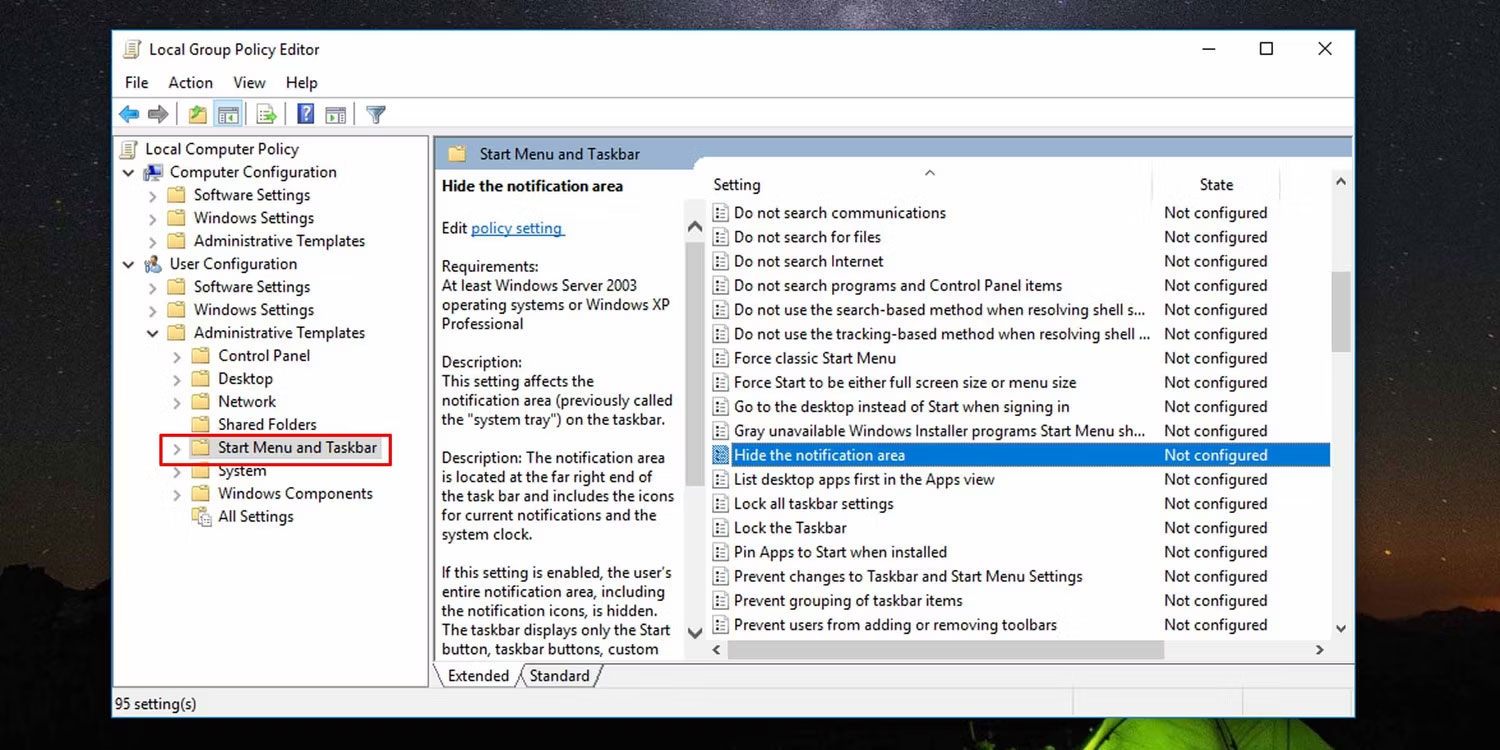
<p style="text-align: justify;">4. Nhấp vào&nbsp;<strong>Start Menu and Taskbar</strong>&nbsp;để mở cài đặt của nó.</p>

<p style="text-align: justify;">5. Trong bảng bên phải, nhấp đúp vào&nbsp;<strong>Hide the notification area</strong>.</p>

<figure>
<div style="text-align: justify;"><img alt="Sử dụng Local Group Policy để ẩn khu vực thông báo" data-i="1" data-src="https://st.quantrimang.com/photos/image/2023/07/11/vo-hieu-hoa-khu-vuc-thong-bao-windows-10-2.jpg" data-was-processed="true" height="750" src="https://st.quantrimang.com/photos/image/2023/07/11/vo-hieu-hoa-khu-vuc-thong-bao-windows-10-2.jpg" width="1500" /></div>

<figcaption>
<div style="text-align: justify;">Sử dụng Local Group Policy để ẩn khu vực thông báo</div>
</figcaption>
</figure>

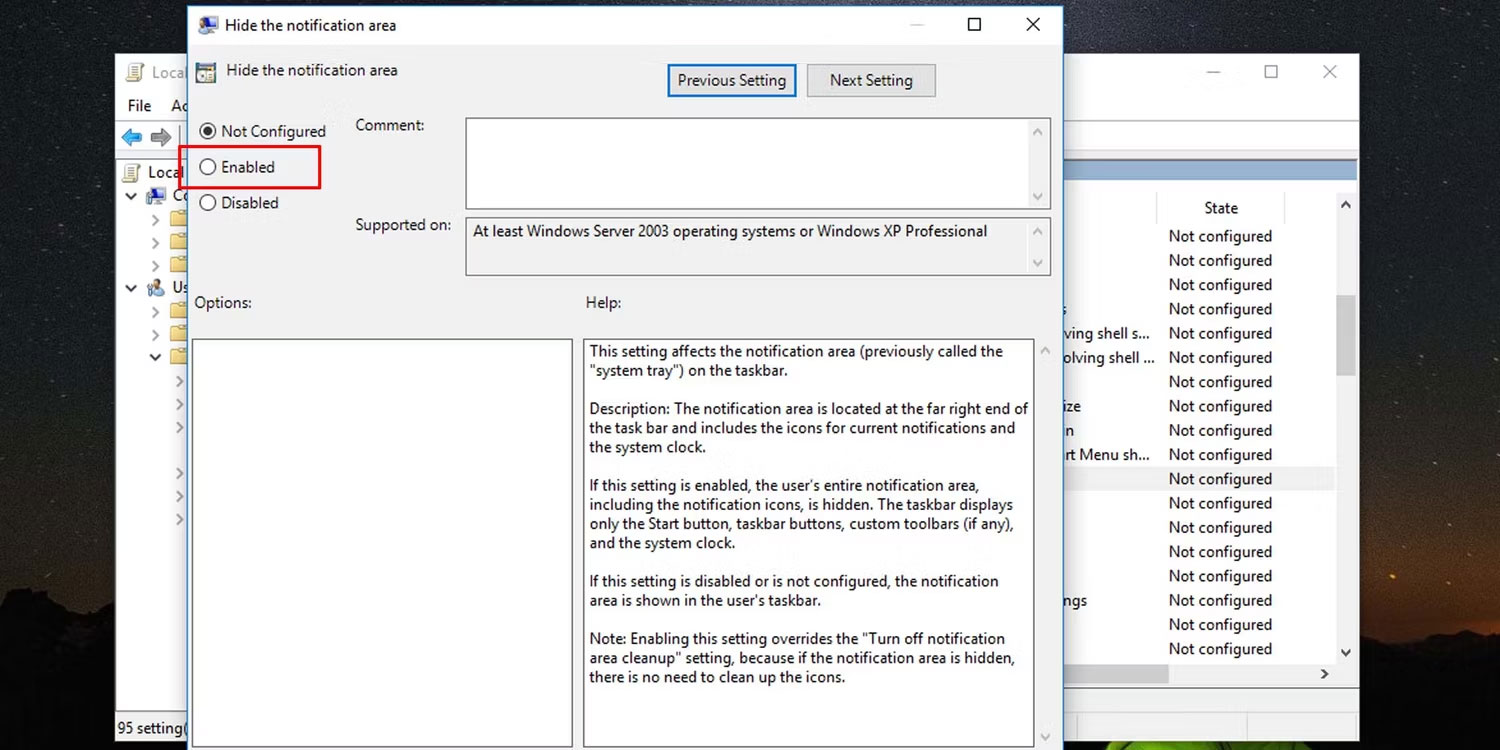
<p style="text-align: justify;">6. Chọn&nbsp;<strong>Enabled</strong>&nbsp;trong cửa sổ mở ra và nhấp vào&nbsp;<strong>OK</strong>&nbsp;để ẩn khu vực thông báo trên thanh tác vụ của Windows.</p>

<p style="text-align: justify;">7. Nếu bạn muốn bỏ ẩn vùng thông báo trên thanh tác vụ, hãy chọn&nbsp;<strong>Not Configured</strong>&nbsp;ở bước 6.</p>

<figure>
<div style="text-align: justify;"><img alt="Vô hiệu hóa khay hệ thống Windows" data-i="2" data-src="https://st.quantrimang.com/photos/image/2023/07/11/vo-hieu-hoa-khu-vuc-thong-bao-windows-10-3.jpg" data-was-processed="true" height="750" src="https://st.quantrimang.com/photos/image/2023/07/11/vo-hieu-hoa-khu-vuc-thong-bao-windows-10-3.jpg" width="1500" /></div>

<figcaption>
<div style="text-align: justify;">Vô hiệu hóa khay hệ thống Windows</div>
</figcaption>
</figure>

<p style="text-align: justify;">Bạn sẽ cần khởi động lại File Explorer để các thay đổi có hiệu lực.</p>

<h2 id="mcetoc_1h51a96ve4k" style="text-align: justify;">2. Sử dụng Local Group Policy cho một người dùng cụ thể</h2>

<p style="text-align: justify;">Bạn cũng có thể áp dụng thay đổi này cho một người dùng hoặc nhóm người dùng cụ thể. Để thực hiện việc này, trước tiên bạn cần&nbsp;<a href="https://quantrimang.com/cong-nghe/ap-dung-local-group-policy-cho-tai-khoan-nguoi-dung-cu-the-198114" title="Cách áp dụng Local Group Policy cho tài khoản người dùng cụ thể trong Windows 10/11">thiết lập Local Group Policy cho (những) người dùng cụ thể</a>.</p>

<p style="text-align: justify;">Khi đã xong, nhấp đúp vào file được tạo để sửa đổi Local Group Policy cho một người dùng cụ thể để mở bảng điều khiển cho người dùng hoặc nhóm đó và làm theo các bước từ 3 đến 7 được liệt kê ở trên để ẩn hoặc bỏ ẩn khu vực thông báo trong Windows.</p>

<h2 id="mcetoc_1h51a96ve4l" style="text-align: justify;">3. Sử dụng Registry Editor</h2>

<p style="text-align: justify;">Registry Editor&nbsp;là một công cụ mạnh mẽ mà bạn có thể sử dụng để khiến Windows hoạt động theo cách bạn muốn. Đây là cách ẩn khu vực thông báo bằng cách chỉnh sửa Windows Registry.</p>

<p style="text-align: justify;">1.&nbsp;<a data-type="internal" href="https://quantrimang.com/cong-nghe/cach-mo-registry-editor-tren-windows-143522" title="Cách mở Registry Editor trên Windows">Mở Registry Editor</a>.</p>

<p style="text-align: justify;">2. Thực hiện các bước từ 3 đến 6 cho mỗi thư mục sau trong registry:</p>

<pre id="pre0">
<code>HKEY_CURRENT_USER\Software\Microsoft\Windows\CurrentVersion\Policies\Explorer</code></pre>

<pre id="pre1">
<code>HKEY_LOCAL_MACHINE\SOFTWARE\Microsoft\Windows\CurrentVersion\Policies\Explorer</code></pre>

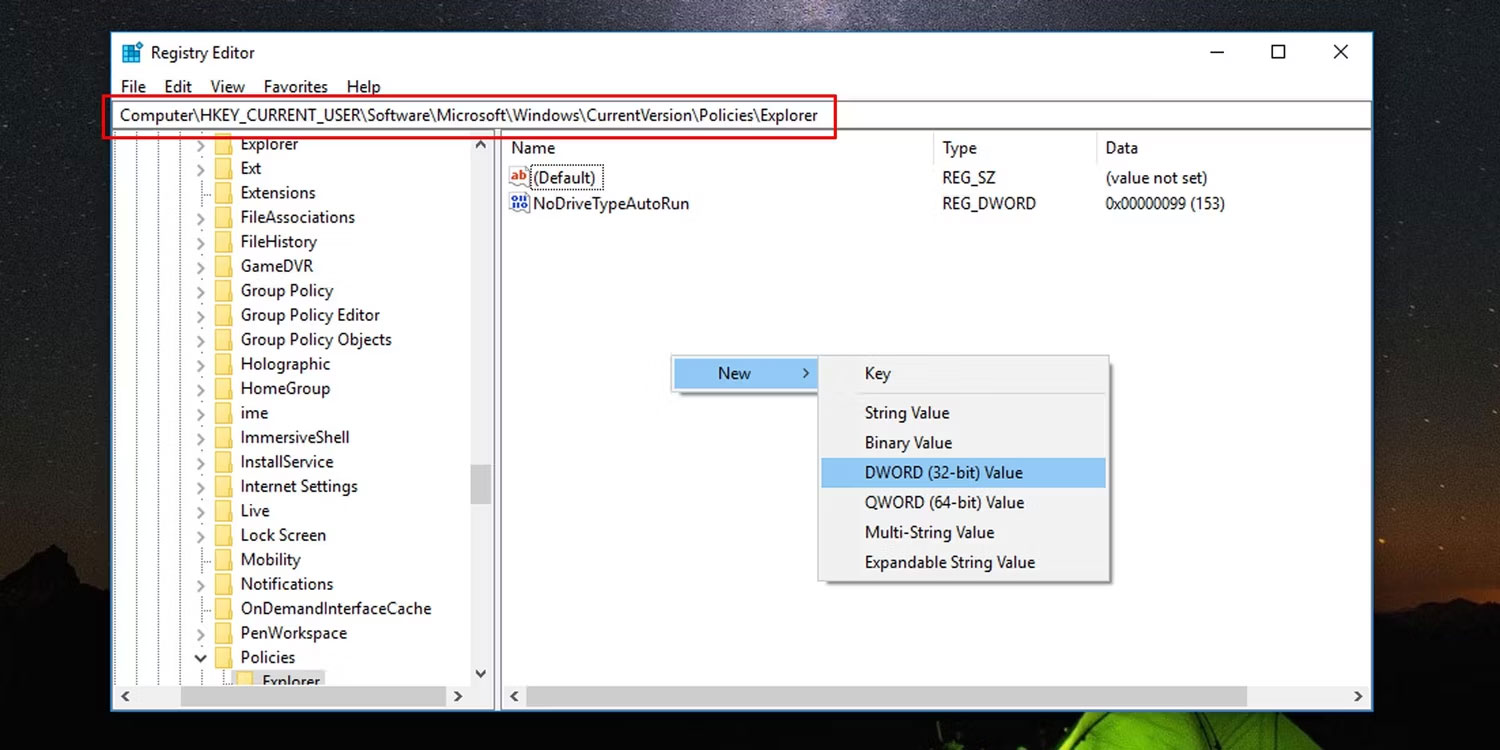
<p style="text-align: justify;">3. Để ẩn khu vực thông báo trên thanh tác vụ trong Windows, nhấp chuột phải vào khoảng đen trên bảng điều khiển bên phải và chọn&nbsp;<strong>New &gt; DWORD</strong>.</p>

<figure>
<div style="text-align: justify;"><img alt="Sử dụng Registry Editor để ẩn khu vực thông báo" data-i="3" data-src="https://st.quantrimang.com/photos/image/2023/07/11/vo-hieu-hoa-khu-vuc-thong-bao-windows-10-4.jpg" data-was-processed="true" height="750" src="https://st.quantrimang.com/photos/image/2023/07/11/vo-hieu-hoa-khu-vuc-thong-bao-windows-10-4.jpg" width="1500" /></div>

<figcaption>
<div style="text-align: justify;">Sử dụng Registry Editor để ẩn khu vực thông báo</div>
</figcaption>
</figure>

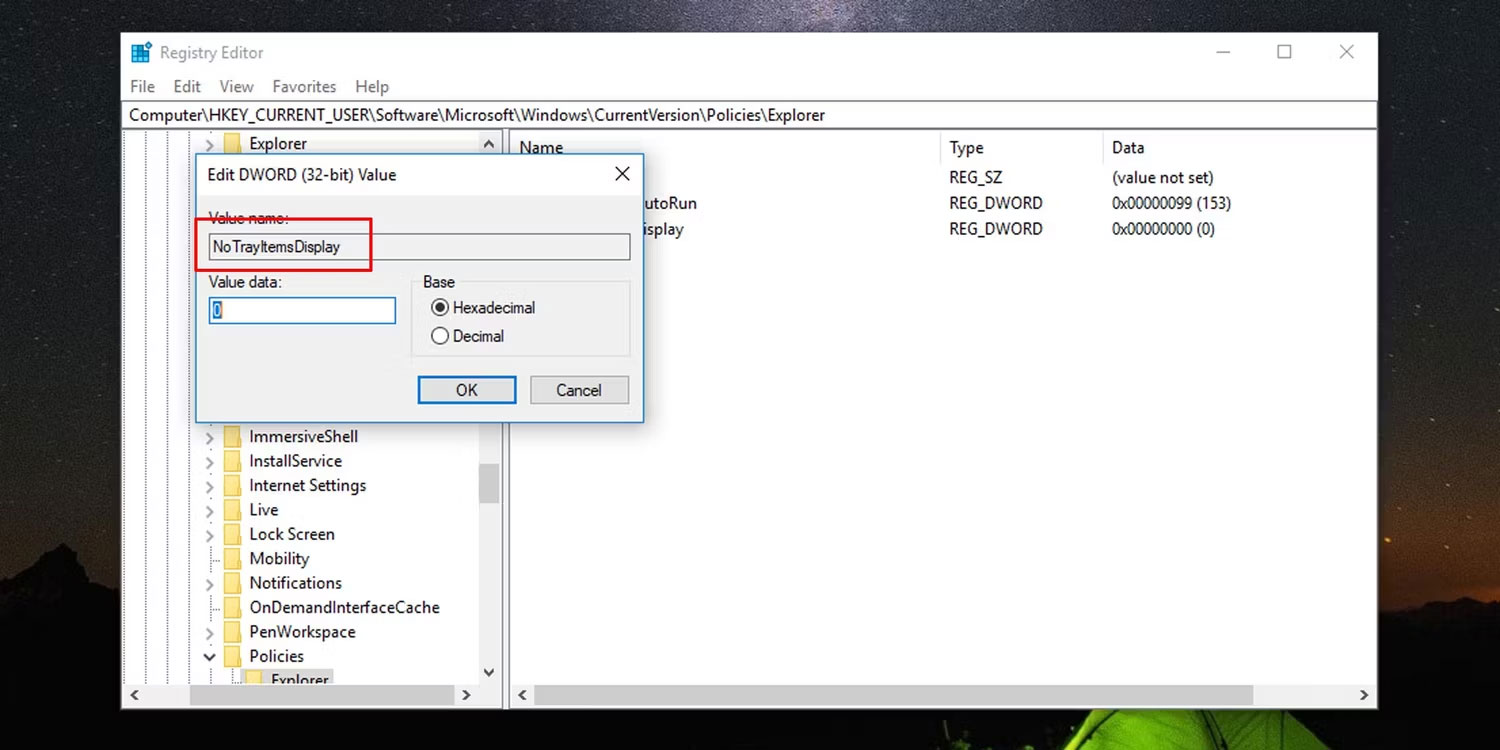
<p style="text-align: justify;">4. Đổi tên nó thành&nbsp;<strong>NoTrayItemsDisplay.</strong></p>

<p style="text-align: justify;">5. Nhấp đúp vào DWORD mới tạo này và đặt giá trị của nó thành&nbsp;<strong>“1”.</strong></p>

<figure>
<div style="text-align: justify;"><img alt="Thay đổi dữ liệu giá trị cho khu vực thông báo DWORD" data-i="4" data-src="https://st.quantrimang.com/photos/image/2023/07/11/vo-hieu-hoa-khu-vuc-thong-bao-windows-10-5.jpg" data-was-processed="true" height="750" src="https://st.quantrimang.com/photos/image/2023/07/11/vo-hieu-hoa-khu-vuc-thong-bao-windows-10-5.jpg" width="1500" /></div>

<figcaption>
<div style="text-align: justify;">Thay đổi dữ liệu giá trị cho khu vực thông báo DWORD</div>
</figcaption>
</figure>

<p style="text-align: justify;">6. Để hiển thị hoặc bỏ ẩn khu vực thông báo trong Windows, hãy xóa DWORD tại mỗi vị trí của registry.</p>
		</div>
				<div id="author">
						<p>
				<strong>Nguồn tin:</strong>
				Quantrimang.com
			</p>
		</div>
	</div>
	<div id="footer" class="clearfix">
		<div id="url">
			<strong>URL của bản tin này: </strong><a href="https://www.nguoicodonvn2008.info/vi/news/savefile/kien-thuc-may-tinh/cach-vo-hieu-hoa-khu-vuc-thong-bao-trong-windows-10-7275.html" title="Cách vô hiệu hóa khu vực thông báo trong Windows 10">https://www.nguoicodonvn2008.info/vi/news/savefile/kien-thuc-may-tinh/cach-vo-hieu-hoa-khu-vuc-thong-bao-trong-windows-10-7275.html</a>

		</div>
		<div class="clear"></div>
		<div class="copyright">
			&copy; .&#x3A; Nguoicodonvn2008.info - Cõi lòng người cô đơn &#x3A;.
		</div>
		<div id="contact">
			<a href="mailto:admin@nguoicodonvn2008.info">admin@nguoicodonvn2008.info</a>
		</div>
	</div>
</div>
        <div id="timeoutsess" class="chromeframe">
            Bạn đã không sử dụng Site, <a onclick="timeoutsesscancel();" href="https://www.nguoicodonvn2008.info/#">Bấm vào đây để duy trì trạng thái đăng nhập</a>. Thời gian chờ: <span id="secField"> 60 </span> giây
        </div>
        <div id="openidResult" class="nv-alert" style="display:none"></div>
        <div id="openidBt" data-result="" data-redirect=""></div>
		</script>
		<div class="car-top">
  <span><img src="https://www.nguoicodonvn2008.info/themes/default/images/car.png" alt=""></span>
</div>
<script src="https://www.nguoicodonvn2008.info/assets/js/jquery/jquery.min.js"></script>
<script>var nv_base_siteurl="/",nv_lang_data="vi",nv_lang_interface="vi",nv_name_variable="nv",nv_fc_variable="op",nv_lang_variable="language",nv_module_name="news",nv_func_name="savefile",nv_is_user=0, nv_my_ofs=-4,nv_my_abbr="EDT",nv_cookie_prefix="nv4c_e856T",nv_check_pass_mstime=1738000,nv_area_admin=0,nv_safemode=0,theme_responsive=0,nv_recaptcha_ver=2,nv_recaptcha_sitekey="",nv_recaptcha_type="image",XSSsanitize=1;</script>
<script src="https://www.nguoicodonvn2008.info/assets/js/language/vi.js"></script>
<script src="https://www.nguoicodonvn2008.info/assets/js/DOMPurify/purify3.js"></script>
<script src="https://www.nguoicodonvn2008.info/assets/js/global.js"></script>
<script src="https://www.nguoicodonvn2008.info/assets/js/site.js"></script>
<script src="https://www.nguoicodonvn2008.info/themes/default/js/news.js"></script>
<script src="https://www.nguoicodonvn2008.info/themes/default/js/main.js"></script>
<script src="https://www.nguoicodonvn2008.info/themes/default/js/custom.js"></script>
<script type="application/ld+json">
        {
            "@context": "https://schema.org",
            "@type": "Organization",
            "url": "https://www.nguoicodonvn2008.info",
            "logo": "https://www.nguoicodonvn2008.info/uploads/angel.gif"
        }
        </script>
<script src="https://www.nguoicodonvn2008.info/themes/default/js/bootstrap.min.js"></script>
<script type="text/javascript">
var $scrolltop = $('.car-top');
$scrolltop.on('click', function () {
    $('html,body').animate({
        scrollTop: 0
    }, 800);
    $(this).addClass("car-run");
    setTimeout(function(){ $scrolltop.removeClass('car-run');}, 1000);
    return false;
});
$(window).on('scroll', function ()
{ 
    if($(window).scrollTop() >= 200)
    {
        $scrolltop.addClass("show");
        $scrolltop.addClass("car-down");
    }
    else
    {
       $scrolltop.removeClass("show");
       setTimeout(function(){ $scrolltop.removeClass('car-down');}, 300);
    }
});
</script>
</body>
</html>