<!DOCTYPE html>
    <html lang="vi" xmlns="http://www.w3.org/1999/xhtml" prefix="og: http://ogp.me/ns#">
    <head>
<title>Cách vô hiệu hóa iphlpsvc trong Windows 10</title>
<meta name="description" content="Cách vô hiệu hóa iphlpsvc trong Windows 10 - Savefile - Tin Tức -...">
<meta name="author" content=".: Nguoicodonvn2008.info - Cõi lòng người cô đơn :.">
<meta name="copyright" content=".: Nguoicodonvn2008.info - Cõi lòng người cô đơn :. [admin@nguoicodonvn2008.info]">
<meta name="robots" content="index, archive, follow, noodp">
<meta name="googlebot" content="index,archive,follow,noodp">
<meta name="msnbot" content="all,index,follow">
<meta name="generator" content="NukeViet v4.5">
<meta http-equiv="Content-Type" content="text/html; charset=utf-8">
<meta property="og:title" content="Cách vô hiệu hóa iphlpsvc trong Windows 10">
<meta property="og:type" content="website">
<meta property="og:description" content="Savefile - Tin Tức - https&#x3A;&#x002F;&#x002F;www.nguoicodonvn2008.info&#x002F;vi&#x002F;news&#x002F;savefile&#x002F;kien-thuc-may-tinh&#x002F;cach-vo-hieu-hoa-iphlpsvc-trong-windows-10-1729.html">
<meta property="og:site_name" content=".&#x3A; Nguoicodonvn2008.info - Cõi lòng người cô đơn &#x3A;.">
<meta property="og:url" content="https://www.nguoicodonvn2008.info/vi/news/savefile/kien-thuc-may-tinh/cach-vo-hieu-hoa-iphlpsvc-trong-windows-10-1729.html">
<link rel="shortcut icon" href="https://www.nguoicodonvn2008.info/favicon.ico">
<link rel="canonical" href="https://www.nguoicodonvn2008.info/vi/news/savefile/kien-thuc-may-tinh/cach-vo-hieu-hoa-iphlpsvc-trong-windows-10-1729.html">
<link rel="alternate" href="https://www.nguoicodonvn2008.info/vi/news/rss/" title="Tin Tức" type="application/rss+xml">
<link rel="alternate" href="https://www.nguoicodonvn2008.info/vi/news/rss/karaoke-dual/" title="Tin Tức - Karaoke Dual" type="application/rss+xml">
<link rel="alternate" href="https://www.nguoicodonvn2008.info/vi/news/rss/nhac-tre/" title="Tin Tức - Nhạc trẻ" type="application/rss+xml">
<link rel="alternate" href="https://www.nguoicodonvn2008.info/vi/news/rss/tru-tinh/" title="Tin Tức - Trữ tình" type="application/rss+xml">
<link rel="alternate" href="https://www.nguoicodonvn2008.info/vi/news/rss/nuoc-ngoai/" title="Tin Tức - Nước ngoài" type="application/rss+xml">
<link rel="alternate" href="https://www.nguoicodonvn2008.info/vi/news/rss/remix/" title="Tin Tức - Remix" type="application/rss+xml">
<link rel="alternate" href="https://www.nguoicodonvn2008.info/vi/news/rss/tam-su-tinh-yeu/" title="Tin Tức - Tâm sự tình yêu" type="application/rss+xml">
<link rel="alternate" href="https://www.nguoicodonvn2008.info/vi/news/rss/tho-suu-tam/" title="Tin Tức - Thơ sưu tầm" type="application/rss+xml">
<link rel="alternate" href="https://www.nguoicodonvn2008.info/vi/news/rss/cuoc-song/" title="Tin Tức - Cuộc sống" type="application/rss+xml">
<link rel="alternate" href="https://www.nguoicodonvn2008.info/vi/news/rss/phan-mem/" title="Tin Tức - Phần mềm" type="application/rss+xml">
<link rel="alternate" href="https://www.nguoicodonvn2008.info/vi/news/rss/kien-thuc-may-tinh/" title="Tin Tức - Kiến thức máy tính" type="application/rss+xml">
<link rel="alternate" href="https://www.nguoicodonvn2008.info/vi/news/rss/hoc-tap/" title="Tin Tức - Học tập" type="application/rss+xml">
<link rel="alternate" href="https://www.nguoicodonvn2008.info/vi/news/rss/tai-lieu/" title="Tin Tức - Tài liệu" type="application/rss+xml">
<link rel="alternate" href="https://www.nguoicodonvn2008.info/vi/news/rss/de-thi/" title="Tin Tức - Đề thi" type="application/rss+xml">
<link rel="preload" as="style" href="https://www.nguoicodonvn2008.info/assets/css/font-awesome.min.css" type="text/css">
<link rel="preload" as="style" href="https://www.nguoicodonvn2008.info/themes/default/css/bootstrap.non-responsive.css" type="text/css">
<link rel="preload" as="style" href="https://www.nguoicodonvn2008.info/themes/default/css/style.css" type="text/css">
<link rel="preload" as="style" href="https://www.nguoicodonvn2008.info/themes/default/css/style.non-responsive.css" type="text/css">
<link rel="preload" as="style" href="https://www.nguoicodonvn2008.info/themes/default/css/news.css" type="text/css">
<link rel="preload" as="style" href="https://www.nguoicodonvn2008.info/themes/default/css/custom.css" type="text/css">
<link rel="preload" as="script" href="https://www.nguoicodonvn2008.info/assets/js/jquery/jquery.min.js" type="text/javascript">
<link rel="preload" as="script" href="https://www.nguoicodonvn2008.info/assets/js/language/vi.js" type="text/javascript">
<link rel="preload" as="script" href="https://www.nguoicodonvn2008.info/assets/js/DOMPurify/purify3.js" type="text/javascript">
<link rel="preload" as="script" href="https://www.nguoicodonvn2008.info/assets/js/global.js" type="text/javascript">
<link rel="preload" as="script" href="https://www.nguoicodonvn2008.info/assets/js/site.js" type="text/javascript">
<link rel="preload" as="script" href="https://www.nguoicodonvn2008.info/themes/default/js/news.js" type="text/javascript">
<link rel="preload" as="script" href="https://www.nguoicodonvn2008.info/themes/default/js/main.js" type="text/javascript">
<link rel="preload" as="script" href="https://www.nguoicodonvn2008.info/themes/default/js/custom.js" type="text/javascript">
<link rel="preload" as="script" href="https://www.nguoicodonvn2008.info/themes/default/js/bootstrap.min.js" type="text/javascript">
<link rel="stylesheet" href="https://www.nguoicodonvn2008.info/assets/css/font-awesome.min.css">
<link rel="stylesheet" href="https://www.nguoicodonvn2008.info/themes/default/css/bootstrap.non-responsive.css">
<link rel="stylesheet" href="https://www.nguoicodonvn2008.info/themes/default/css/style.css">
<link rel="stylesheet" href="https://www.nguoicodonvn2008.info/themes/default/css/style.non-responsive.css">
<link rel="StyleSheet" href="https://www.nguoicodonvn2008.info/themes/default/css/news.css">
<link rel="stylesheet" href="https://www.nguoicodonvn2008.info/themes/default/css/custom.css">
<style type="text/css">
	body{background: #fff;}
</style>
    </head>
    <body>
<div id="print">
	<div id="hd_print">
		<h2 class="pull-left">.&#x3A; Nguoicodonvn2008.info - Cõi lòng người cô đơn &#x3A;.</h2>
		<p class="pull-right"><a title=".&#x3A; Nguoicodonvn2008.info - Cõi lòng người cô đơn &#x3A;." href="https://www.nguoicodonvn2008.info/">https://www.nguoicodonvn2008.info</a></p>
	</div>
	<div class="clear"></div>
	<hr />
	<div id="content">
		<h1>Cách vô hiệu hóa iphlpsvc trong Windows 10</h1>
		<ul class="list-inline">
			<li>Thứ tư - 26/02/2020 00:06</li>
			<li class="hidden-print txtrequired"><em class="fa fa-print">&nbsp;</em><a title="In ra" href="javascript:;" onclick="window.print()">In ra</a></li>
			<li class="hidden-print txtrequired"><em class="fa fa-power-off">&nbsp;</em><a title="Đóng cửa sổ này" href="javascript:;" onclick="window.close()">Đóng cửa sổ này</a></li>
		</ul>
		<div class="clear"></div>
		<div id="hometext">
		</div>
				<div class="imghome">
			<img alt="Cách vô hiệu hóa iphlpsvc trong Windows 10" src="https://st.quantrimang.com/photos/image/2020/02/26/vo-hieu-hoa-iphlpsvc-1.jpg" width="460" class="img-thumbnail" />
		</div>
		<div class="clear"></div>
		<div id="bodytext" class="clearfix">
			<p style="text-align: justify;">Iphlpsvc&nbsp;trong Windows là viết tắt của Internet Protocol Helper Service. Nhiệm vụ của nó là giúp truy xuất và sửa đổi cài đặt cấu hình mạng cho PC&nbsp;<a href="https://quantrimang.com/windows-10-os" title="Chuyên mục Windows 10">Windows 10</a>. Iphlpsvc cho phép các kết nối diễn ra trên nhiều giao thức mạng Windows 10 khác nhau, như IPv6, Port Proxy, v.v...</p>

<p style="text-align: justify;">Vô hiệu hóa iphlpsvc sẽ không làm hỏng hệ thống, phá vỡ chức năng chung của nó hay ảnh hưởng nhiều đến hiệu suất.</p>

<h2 style="text-align: justify;">Dừng iphlpsvc trong Services</h2>

<p style="text-align: justify;">Nếu bạn muốn vô hiệu hóa iphlpsvc, có một vài cách để làm điều đó. Cách nhanh và dễ nhất là dừng service.</p>

<p style="text-align: justify;">1. Tìm kiếm&nbsp;<strong>Services</strong>&nbsp;trong thanh tìm kiếm Windows 10 và chọn kết quả tương ứng.</p>

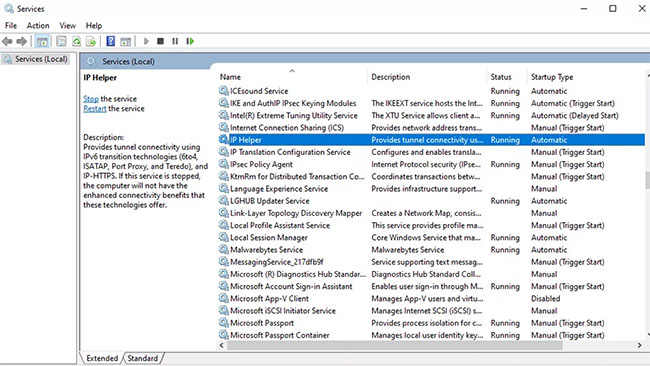
<p style="text-align: justify;">2. Trong cửa sổ&nbsp;<strong>Services</strong>, đảm bảo rằng&nbsp;<strong>Services (Local)</strong>&nbsp;được chọn trong cột bên trái. Sau đó cuộn xuống danh sách để tìm&nbsp;<strong>IP Helper.</strong></p>

<figure>
<div style="text-align: justify;"><img alt="Tìm IP Helper" data-i="0" data-src="https://st.quantrimang.com/photos/image/2020/02/26/vo-hieu-hoa-iphlpsvc-1.jpg" data-was-processed="true" height="366" src="https://st.quantrimang.com/photos/image/2020/02/26/vo-hieu-hoa-iphlpsvc-1.jpg" width="650" /></div>

<figcaption>
<div style="text-align: justify;">Tìm IP Helper</div>
</figcaption>
</figure>

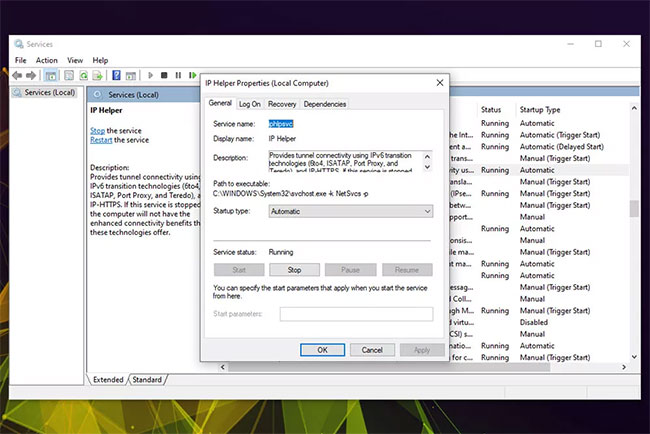
<p style="text-align: justify;">3. Nhấp đúp chuột vào&nbsp;<strong>IP Helper</strong>&nbsp;hoặc nhấp chuột phải và chọn&nbsp;<strong>Properties.</strong></p>

<p style="text-align: justify;">4. Để tạm thời vô hiệu hóa service, chọn nút&nbsp;<strong>Stop</strong>, sau đó là&nbsp;<strong>Apply</strong>&nbsp;và&nbsp;<strong>OK.</strong></p>

<figure>
<div style="text-align: justify;"><img alt="Chọn nút Stop" data-i="1" data-src="https://st.quantrimang.com/photos/image/2020/02/26/vo-hieu-hoa-iphlpsvc-2.jpg" data-was-processed="true" height="434" src="https://st.quantrimang.com/photos/image/2020/02/26/vo-hieu-hoa-iphlpsvc-2.jpg" width="650" /></div>

<figcaption>
<div style="text-align: justify;">Chọn nút Stop</div>
</figcaption>
</figure>

<p style="text-align: justify;">5. Nếu bạn muốn ngăn không cho nó chạy lại, hãy đặt&nbsp;<strong>Startup Type</strong>&nbsp;thành&nbsp;<strong>Disabled</strong>&nbsp;bằng menu drop-down. Sau đó chọn&nbsp;<strong>Apply</strong>&nbsp;và&nbsp;<strong>OK.</strong></p>

<p style="text-align: justify;">Nên khởi động lại hệ thống Windows 10 sau khi hoàn thành bước này. Khi quay lại Windows, hãy mở lại menu&nbsp;<strong>Services</strong>&nbsp;để đảm bảo rằng các thay đổi của bạn đã có hiệu lực.</p>

<p style="text-align: justify;">Bạn cũng có thể kích hoạt lại iphlpsvc theo cách tương tự, chỉ cần vào lại menu&nbsp;<strong>Services</strong>&nbsp;và chọn nút&nbsp;<strong>Start</strong>. Nếu bạn muốn iphlpsvc tự động khởi động với Windows, hãy đảm bảo rằng&nbsp;<strong>Startup Type</strong>&nbsp;được chọn là&nbsp;<strong>Automatic.</strong></p>

<div style="text-align: justify;">&nbsp;</div>

<h2 style="text-align: justify;">Cách vô hiệu hóa iphlpsvc bằng Registry Editor</h2>

<p style="text-align: justify;">Bạn cũng có thể vô hiệu hóa service iphlpsvc bằng Registry Editor của Windows.</p>

<p style="text-align: justify;">1.&nbsp;Mở Registry Editor&nbsp;bằng cách nhấn phím&nbsp;<code>Win</code>+<code>R</code>&nbsp;và nhập&nbsp;<strong>regedit</strong>&nbsp;vào hộp&nbsp;<strong>Run.</strong>&nbsp;Sau đó nhấn&nbsp;<strong>OK.</strong>&nbsp;Đáp ứng yêu cầu phê duyệt admin.</p>

<p style="text-align: justify;">2. Điều hướng đến:</p>

<pre id="pre0">
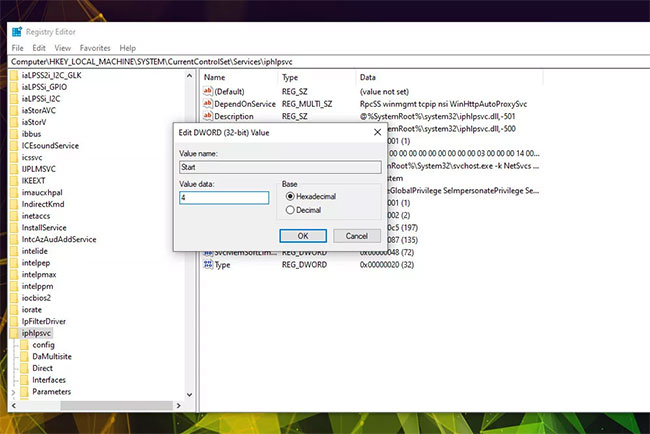
<code>HKEY_LOCAL_MACHINE\SYSTEM\CurrentControlSet\Services\iphlpsvc</code></pre>

<p style="text-align: justify;">Sau đó, nhấp chuột phải vào nó và chọn&nbsp;<strong>Modify.</strong></p>

<p style="text-align: justify;">3. Để vô hiệu hóa nó khi khởi động với Windows, hãy thay đổi&nbsp;<strong>Value data</strong>&nbsp;thành&nbsp;<strong>4</strong>. Chọn&nbsp;<strong>OK.</strong></p>

<figure>
<div style="text-align: justify;"><img alt="Thay đổi Value data thành 4" data-i="2" data-src="https://st.quantrimang.com/photos/image/2020/02/26/vo-hieu-hoa-iphlpsvc-3.jpg" data-was-processed="true" height="434" src="https://st.quantrimang.com/photos/image/2020/02/26/vo-hieu-hoa-iphlpsvc-3.jpg" width="650" /></div>

<figcaption>
<div style="text-align: justify;">Thay đổi Value data thành 4</div>
</figcaption>
</figure>

<p style="text-align: justify;">4. Đóng cửa sổ và khởi động lại máy tính. Iphlpsvc sẽ không còn khởi động với Windows nữa.</p>

<p style="text-align: justify;">Nếu bạn muốn hoàn nguyên iphlpsvc để nó bắt đầu tự động với Windows, hãy thực hiện lại các bước trên, nhưng đặt&nbsp;<strong>Value data</strong>&nbsp;thành&nbsp;<strong>2.</strong></p>

<h2 style="text-align: justify;">Cách vô hiệu hóa iphlpsvc bằng cách sử dụng Command Prompt</h2>

<p style="text-align: justify;">Bạn cũng có thể vô hiệu hóa service iphlpsvc bằng Command Prompt của Windows.</p>

<p style="text-align: justify;">1.&nbsp;Mở Command Prompt với quyền admin.</p>

<p style="text-align: justify;">2. Để tắt iphlpsvc khi khởi động, hãy nhập như sau và nhấn&nbsp;<code>Enter</code>:</p>

<pre id="pre1">
<code>REG add “HKLM\SYSTEM\CurrentControlSet\services\iphlpsvc” /v Start /t REG_DWORD /d 4 /f</code></pre>

<p style="text-align: justify;">3. Khởi động lại PC. Service iphlpsvc sẽ bị vô hiệu hóa.</p>

<p style="text-align: justify;">Nếu bạn muốn kích hoạt lại iphlpsvc tại một số điểm nào đó, hãy làm theo các bước này và nhập thông tin sau vào CMD trước khi nhấn phím&nbsp;<code>Enter</code>:</p>

<pre id="pre2">
<code>REG add “HKLM\SYSTEM\CurrentControlSet\services\iphlpsvc” /v Start /t REG_DWORD /d 2 /f</code></pre>

<div style="text-align: justify;">&nbsp;</div>
		</div>
				<div id="author">
						<p>
				<strong>Nguồn tin:</strong>
				Quantrimang.com
			</p>
		</div>
	</div>
	<div id="footer" class="clearfix">
		<div id="url">
			<strong>URL của bản tin này: </strong><a href="https://www.nguoicodonvn2008.info/vi/news/savefile/kien-thuc-may-tinh/cach-vo-hieu-hoa-iphlpsvc-trong-windows-10-1729.html" title="Cách vô hiệu hóa iphlpsvc trong Windows 10">https://www.nguoicodonvn2008.info/vi/news/savefile/kien-thuc-may-tinh/cach-vo-hieu-hoa-iphlpsvc-trong-windows-10-1729.html</a>

		</div>
		<div class="clear"></div>
		<div class="copyright">
			&copy; .&#x3A; Nguoicodonvn2008.info - Cõi lòng người cô đơn &#x3A;.
		</div>
		<div id="contact">
			<a href="mailto:admin@nguoicodonvn2008.info">admin@nguoicodonvn2008.info</a>
		</div>
	</div>
</div>
        <div id="timeoutsess" class="chromeframe">
            Bạn đã không sử dụng Site, <a onclick="timeoutsesscancel();" href="https://www.nguoicodonvn2008.info/#">Bấm vào đây để duy trì trạng thái đăng nhập</a>. Thời gian chờ: <span id="secField"> 60 </span> giây
        </div>
        <div id="openidResult" class="nv-alert" style="display:none"></div>
        <div id="openidBt" data-result="" data-redirect=""></div>
		</script>
		<div class="car-top">
  <span><img src="https://www.nguoicodonvn2008.info/themes/default/images/car.png" alt=""></span>
</div>
<script src="https://www.nguoicodonvn2008.info/assets/js/jquery/jquery.min.js"></script>
<script>var nv_base_siteurl="/",nv_lang_data="vi",nv_lang_interface="vi",nv_name_variable="nv",nv_fc_variable="op",nv_lang_variable="language",nv_module_name="news",nv_func_name="savefile",nv_is_user=0, nv_my_ofs=-4,nv_my_abbr="EDT",nv_cookie_prefix="nv4c_e856T",nv_check_pass_mstime=1738000,nv_area_admin=0,nv_safemode=0,theme_responsive=0,nv_recaptcha_ver=2,nv_recaptcha_sitekey="",nv_recaptcha_type="image",XSSsanitize=1;</script>
<script src="https://www.nguoicodonvn2008.info/assets/js/language/vi.js"></script>
<script src="https://www.nguoicodonvn2008.info/assets/js/DOMPurify/purify3.js"></script>
<script src="https://www.nguoicodonvn2008.info/assets/js/global.js"></script>
<script src="https://www.nguoicodonvn2008.info/assets/js/site.js"></script>
<script src="https://www.nguoicodonvn2008.info/themes/default/js/news.js"></script>
<script src="https://www.nguoicodonvn2008.info/themes/default/js/main.js"></script>
<script src="https://www.nguoicodonvn2008.info/themes/default/js/custom.js"></script>
<script type="application/ld+json">
        {
            "@context": "https://schema.org",
            "@type": "Organization",
            "url": "https://www.nguoicodonvn2008.info",
            "logo": "https://www.nguoicodonvn2008.info/uploads/angel.gif"
        }
        </script>
<script src="https://www.nguoicodonvn2008.info/themes/default/js/bootstrap.min.js"></script>
<script type="text/javascript">
var $scrolltop = $('.car-top');
$scrolltop.on('click', function () {
    $('html,body').animate({
        scrollTop: 0
    }, 800);
    $(this).addClass("car-run");
    setTimeout(function(){ $scrolltop.removeClass('car-run');}, 1000);
    return false;
});
$(window).on('scroll', function ()
{ 
    if($(window).scrollTop() >= 200)
    {
        $scrolltop.addClass("show");
        $scrolltop.addClass("car-down");
    }
    else
    {
       $scrolltop.removeClass("show");
       setTimeout(function(){ $scrolltop.removeClass('car-down');}, 300);
    }
});
</script>
</body>
</html>