<!DOCTYPE html>
    <html lang="vi" xmlns="http://www.w3.org/1999/xhtml" prefix="og: http://ogp.me/ns#">
    <head>
<title>Cách vô hiệu hóa bàn phím ảo trên Windows 10</title>
<meta name="description" content="Cách vô hiệu hóa bàn phím ảo trên Windows 10 - Savefile - Tin Tức -...">
<meta name="author" content=".: Nguoicodonvn2008.info - Cõi lòng người cô đơn :.">
<meta name="copyright" content=".: Nguoicodonvn2008.info - Cõi lòng người cô đơn :. [admin@nguoicodonvn2008.info]">
<meta name="robots" content="index, archive, follow, noodp">
<meta name="googlebot" content="index,archive,follow,noodp">
<meta name="msnbot" content="all,index,follow">
<meta name="generator" content="NukeViet v4.5">
<meta http-equiv="Content-Type" content="text/html; charset=utf-8">
<meta property="og:title" content="Cách vô hiệu hóa bàn phím ảo trên Windows 10">
<meta property="og:type" content="website">
<meta property="og:description" content="Savefile - Tin Tức - https&#x3A;&#x002F;&#x002F;www.nguoicodonvn2008.info&#x002F;vi&#x002F;news&#x002F;savefile&#x002F;kien-thuc-may-tinh&#x002F;cach-vo-hieu-hoa-ban-phim-ao-tren-windows-10-4469.html">
<meta property="og:site_name" content=".&#x3A; Nguoicodonvn2008.info - Cõi lòng người cô đơn &#x3A;.">
<meta property="og:url" content="https://www.nguoicodonvn2008.info/vi/news/savefile/kien-thuc-may-tinh/cach-vo-hieu-hoa-ban-phim-ao-tren-windows-10-4469.html">
<link rel="shortcut icon" href="https://www.nguoicodonvn2008.info/favicon.ico">
<link rel="canonical" href="https://www.nguoicodonvn2008.info/vi/news/savefile/kien-thuc-may-tinh/cach-vo-hieu-hoa-ban-phim-ao-tren-windows-10-4469.html">
<link rel="alternate" href="https://www.nguoicodonvn2008.info/vi/news/rss/" title="Tin Tức" type="application/rss+xml">
<link rel="alternate" href="https://www.nguoicodonvn2008.info/vi/news/rss/karaoke-dual/" title="Tin Tức - Karaoke Dual" type="application/rss+xml">
<link rel="alternate" href="https://www.nguoicodonvn2008.info/vi/news/rss/nhac-tre/" title="Tin Tức - Nhạc trẻ" type="application/rss+xml">
<link rel="alternate" href="https://www.nguoicodonvn2008.info/vi/news/rss/tru-tinh/" title="Tin Tức - Trữ tình" type="application/rss+xml">
<link rel="alternate" href="https://www.nguoicodonvn2008.info/vi/news/rss/nuoc-ngoai/" title="Tin Tức - Nước ngoài" type="application/rss+xml">
<link rel="alternate" href="https://www.nguoicodonvn2008.info/vi/news/rss/remix/" title="Tin Tức - Remix" type="application/rss+xml">
<link rel="alternate" href="https://www.nguoicodonvn2008.info/vi/news/rss/tam-su-tinh-yeu/" title="Tin Tức - Tâm sự tình yêu" type="application/rss+xml">
<link rel="alternate" href="https://www.nguoicodonvn2008.info/vi/news/rss/tho-suu-tam/" title="Tin Tức - Thơ sưu tầm" type="application/rss+xml">
<link rel="alternate" href="https://www.nguoicodonvn2008.info/vi/news/rss/cuoc-song/" title="Tin Tức - Cuộc sống" type="application/rss+xml">
<link rel="alternate" href="https://www.nguoicodonvn2008.info/vi/news/rss/phan-mem/" title="Tin Tức - Phần mềm" type="application/rss+xml">
<link rel="alternate" href="https://www.nguoicodonvn2008.info/vi/news/rss/kien-thuc-may-tinh/" title="Tin Tức - Kiến thức máy tính" type="application/rss+xml">
<link rel="alternate" href="https://www.nguoicodonvn2008.info/vi/news/rss/hoc-tap/" title="Tin Tức - Học tập" type="application/rss+xml">
<link rel="alternate" href="https://www.nguoicodonvn2008.info/vi/news/rss/tai-lieu/" title="Tin Tức - Tài liệu" type="application/rss+xml">
<link rel="alternate" href="https://www.nguoicodonvn2008.info/vi/news/rss/de-thi/" title="Tin Tức - Đề thi" type="application/rss+xml">
<link rel="preload" as="style" href="https://www.nguoicodonvn2008.info/assets/css/font-awesome.min.css" type="text/css">
<link rel="preload" as="style" href="https://www.nguoicodonvn2008.info/themes/default/css/bootstrap.non-responsive.css" type="text/css">
<link rel="preload" as="style" href="https://www.nguoicodonvn2008.info/themes/default/css/style.css" type="text/css">
<link rel="preload" as="style" href="https://www.nguoicodonvn2008.info/themes/default/css/style.non-responsive.css" type="text/css">
<link rel="preload" as="style" href="https://www.nguoicodonvn2008.info/themes/default/css/news.css" type="text/css">
<link rel="preload" as="style" href="https://www.nguoicodonvn2008.info/themes/default/css/custom.css" type="text/css">
<link rel="preload" as="script" href="https://www.nguoicodonvn2008.info/assets/js/jquery/jquery.min.js" type="text/javascript">
<link rel="preload" as="script" href="https://www.nguoicodonvn2008.info/assets/js/language/vi.js" type="text/javascript">
<link rel="preload" as="script" href="https://www.nguoicodonvn2008.info/assets/js/DOMPurify/purify3.js" type="text/javascript">
<link rel="preload" as="script" href="https://www.nguoicodonvn2008.info/assets/js/global.js" type="text/javascript">
<link rel="preload" as="script" href="https://www.nguoicodonvn2008.info/assets/js/site.js" type="text/javascript">
<link rel="preload" as="script" href="https://www.nguoicodonvn2008.info/themes/default/js/news.js" type="text/javascript">
<link rel="preload" as="script" href="https://www.nguoicodonvn2008.info/themes/default/js/main.js" type="text/javascript">
<link rel="preload" as="script" href="https://www.nguoicodonvn2008.info/themes/default/js/custom.js" type="text/javascript">
<link rel="preload" as="script" href="https://www.nguoicodonvn2008.info/themes/default/js/bootstrap.min.js" type="text/javascript">
<link rel="stylesheet" href="https://www.nguoicodonvn2008.info/assets/css/font-awesome.min.css">
<link rel="stylesheet" href="https://www.nguoicodonvn2008.info/themes/default/css/bootstrap.non-responsive.css">
<link rel="stylesheet" href="https://www.nguoicodonvn2008.info/themes/default/css/style.css">
<link rel="stylesheet" href="https://www.nguoicodonvn2008.info/themes/default/css/style.non-responsive.css">
<link rel="StyleSheet" href="https://www.nguoicodonvn2008.info/themes/default/css/news.css">
<link rel="stylesheet" href="https://www.nguoicodonvn2008.info/themes/default/css/custom.css">
<style type="text/css">
	body{background: #fff;}
</style>
    </head>
    <body>
<div id="print">
	<div id="hd_print">
		<h2 class="pull-left">.&#x3A; Nguoicodonvn2008.info - Cõi lòng người cô đơn &#x3A;.</h2>
		<p class="pull-right"><a title=".&#x3A; Nguoicodonvn2008.info - Cõi lòng người cô đơn &#x3A;." href="https://www.nguoicodonvn2008.info/">https://www.nguoicodonvn2008.info</a></p>
	</div>
	<div class="clear"></div>
	<hr />
	<div id="content">
		<h1>Cách vô hiệu hóa bàn phím ảo trên Windows 10</h1>
		<ul class="list-inline">
			<li>Thứ tư - 21/07/2021 00:44</li>
			<li class="hidden-print txtrequired"><em class="fa fa-print">&nbsp;</em><a title="In ra" href="javascript:;" onclick="window.print()">In ra</a></li>
			<li class="hidden-print txtrequired"><em class="fa fa-power-off">&nbsp;</em><a title="Đóng cửa sổ này" href="javascript:;" onclick="window.close()">Đóng cửa sổ này</a></li>
		</ul>
		<div class="clear"></div>
		<div id="hometext">
		</div>
				<div class="imghome">
			<img alt="Cách vô hiệu hóa bàn phím ảo trên Windows 10" src="https://st.quantrimang.com/photos/image/2021/07/21/vo-hieu-hoa-ban-phim-ao-2.jpg" width="460" class="img-thumbnail" />
		</div>
		<div class="clear"></div>
		<div id="bodytext" class="clearfix">
			<p style="text-align: justify;">Bài viết này sẽ hướng dẫn bạn cách tắt bàn phím ảo xuất hiện trên màn hình đăng nhập trong&nbsp;Windows 10.</p>

<h2 style="text-align: justify;">Làm cách nào để tắt bàn phím ảo trong Windows 10?</h2>

<p style="text-align: justify;">Nếu bạn chỉ đang sử dụng bàn phím ảo trong Windows 10 trên máy tính để bàn hoặc trong các ứng dụng và muốn tắt (hoặc bật lại), hãy nhấn phím&nbsp;<strong>Windows + Ctrl + O</strong>&nbsp;để bật và tắt bàn phím.</p>

<p style="text-align: justify;">Tuy nhiên, nếu thấy rằng bàn phím ảo xuất hiện ở màn hình đăng nhập khi bạn không muốn, bạn có thể cần thực hiện thêm các bước để vô hiệu hóa nó.</p>

<div style="text-align: justify;">&nbsp;</div>

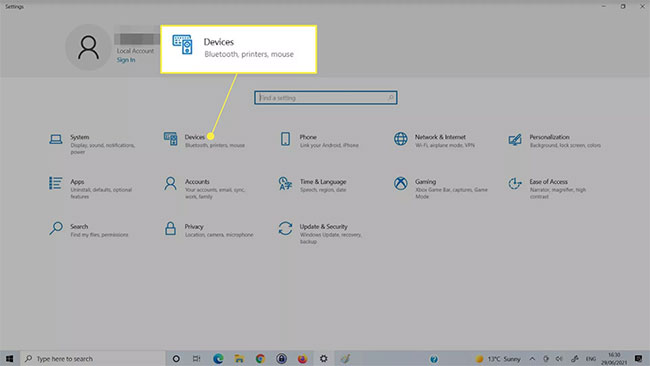
<p style="text-align: justify;">1.&nbsp;Mở ứng dụng Windows Settings&nbsp;bằng cách nhấn phím&nbsp;<strong>Windows + I</strong>.</p>

<p style="text-align: justify;">2. Chọn&nbsp;<strong>Devices.</strong></p>

<figure>
<div style="text-align: justify;"><img alt="Chọn Devices" data-i="0" data-src="https://st.quantrimang.com/photos/image/2021/07/21/vo-hieu-hoa-ban-phim-ao-1.jpg" data-was-processed="true" height="366" src="https://st.quantrimang.com/photos/image/2021/07/21/vo-hieu-hoa-ban-phim-ao-1.jpg" width="650" /></div>

<figcaption>
<div style="text-align: justify;">Chọn Devices</div>
</figcaption>
</figure>

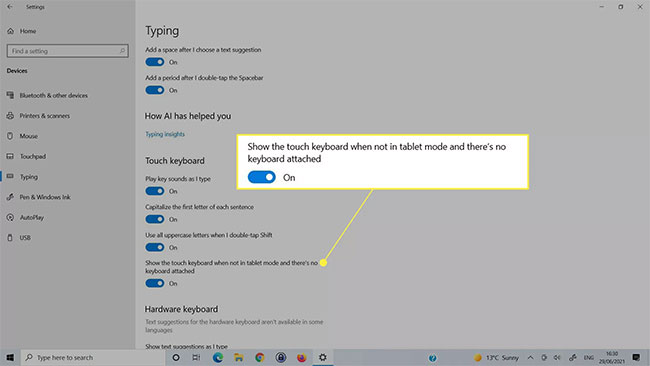
<p style="text-align: justify;">3. Chọn&nbsp;<strong>Typing</strong>&nbsp;từ phía bên trái.</p>

<p style="text-align: justify;">4. Cuộn xuống cho đến khi bạn tìm thấy phần&nbsp;<strong>Touch keyboard</strong>. Tìm nút chuyển đổi có nội dung&nbsp;<strong>Show the touch keyboard when not in tablet mode and there&#039;s no keyboard attached</strong>. Chuyển nó thành&nbsp;<strong>Off</strong>.</p>

<figure>
<div style="text-align: justify;"><img alt="Tắt Show the touch keyboard when not in tablet mode and there&#039;s no keyboard attached" data-i="1" data-src="https://st.quantrimang.com/photos/image/2021/07/21/vo-hieu-hoa-ban-phim-ao-2.jpg" data-was-processed="true" height="366" src="https://st.quantrimang.com/photos/image/2021/07/21/vo-hieu-hoa-ban-phim-ao-2.jpg" width="650" /></div>

<figcaption>
<div style="text-align: justify;">Tắt Show the touch keyboard when not in tablet mode and there&#039;s no keyboard attached</div>
</figcaption>
</figure>

<h2 style="text-align: justify;">Vô hiệu hóa bàn phím ảo trong Ease of Access Center</h2>

<p style="text-align: justify;">Nếu phương pháp trên không tắt được bàn phím ảo, bạn cũng có thể vô hiệu hóa nó trong menu Ease of Access Keyboard Windows 10.</p>

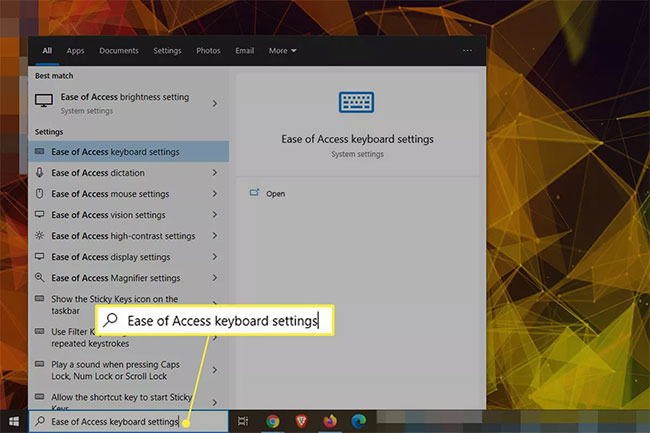
<p style="text-align: justify;">1. Sử dụng hộp tìm kiếm của Windows để tìm<strong>&nbsp;Ease of Access Keyboard Settings</strong>&nbsp;và chọn kết quả tương ứng.</p>

<figure>
<div style="text-align: justify;"><img alt="Tìm Ease of Access Keyboard Settings" data-i="2" data-src="https://st.quantrimang.com/photos/image/2021/07/21/vo-hieu-hoa-ban-phim-ao-3.jpg" data-was-processed="true" height="433" src="https://st.quantrimang.com/photos/image/2021/07/21/vo-hieu-hoa-ban-phim-ao-3.jpg" width="650" /></div>

<figcaption>
<div style="text-align: justify;">Tìm Ease of Access Keyboard Settings</div>
</figcaption>
</figure>

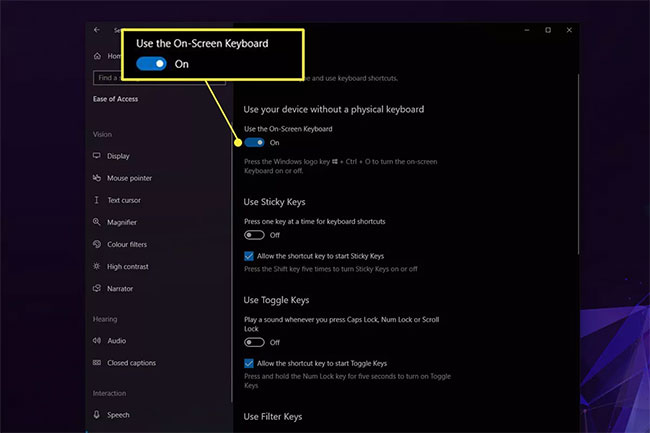
<p style="text-align: justify;">2. Tìm công tắc bật tắt có tiêu đề&nbsp;<strong>Use the On-Screen Keyboard</strong>&nbsp;và tắt, sau đó bật lại. Bạn có thể thấy bàn phím màn hình cảm ứng bật lên rồi lại biến mất.</p>

<figure>
<div style="text-align: justify;"><img alt="Tìm công tắc bật tắt có tiêu đề Use the On-Screen Keyboard" data-i="3" data-src="https://st.quantrimang.com/photos/image/2021/07/21/vo-hieu-hoa-ban-phim-ao-4.jpg" data-was-processed="true" height="433" src="https://st.quantrimang.com/photos/image/2021/07/21/vo-hieu-hoa-ban-phim-ao-4.jpg" width="650" /></div>

<figcaption>
<div style="text-align: justify;">Tìm công tắc bật tắt có tiêu đề Use the On-Screen Keyboard</div>
</figcaption>
</figure>

<ul>
	<li style="text-align: justify;"><a href="https://quantrimang.com/ban-phim-ao-khong-hoat-dong-181967" title="Sửa lỗi bàn phím ảo không hoạt động trong Windows 10">Sửa lỗi bàn phím ảo không hoạt động trong Windows 10</a></li>
</ul>

<h2 style="text-align: justify;">Vô hiệu hóa service bàn phím ảo</h2>

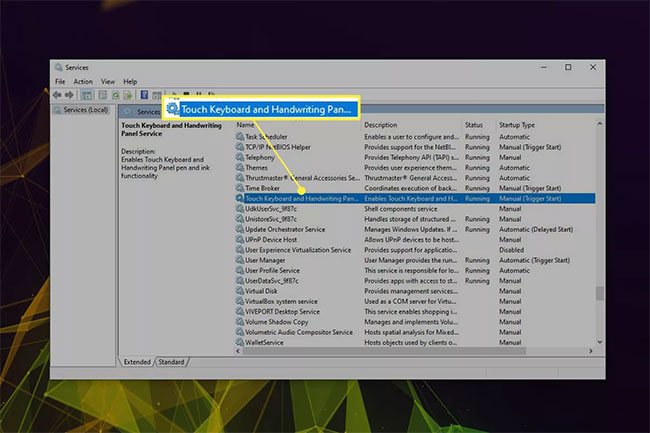
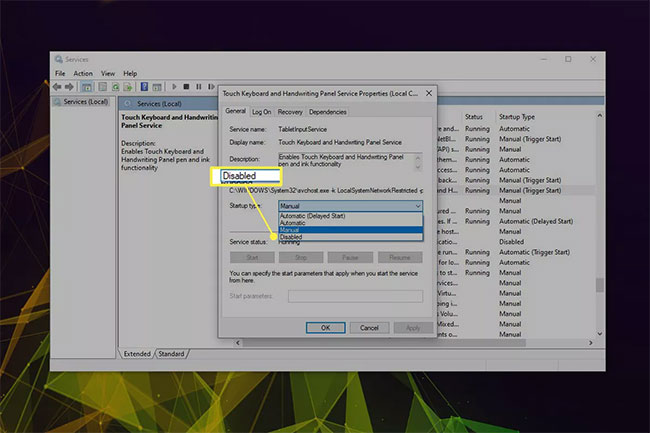
<p style="text-align: justify;">Tắt service bàn phím ảo có thể khiến nó không xuất hiện nữa. Chỉ sử dụng phương pháp này nếu bạn không muốn sử dụng bàn phím nữa. Nếu vô hiệu hóa nó ngay bây giờ, bạn sẽ cần phải kích hoạt lại service sau khi muốn sử dụng.</p>

<p style="text-align: justify;">1. Sử dụng tính năng tìm kiếm của Windows để tìm kiếm&nbsp;<strong>Services</strong>&nbsp;và chọn kết quả tương ứng.</p>

<div style="text-align: justify;">&nbsp;</div>

<p style="text-align: justify;">2. Cuộn xuống danh sách các service cho đến khi bạn tìm thấy&nbsp;<strong>Touch Keyboard and Handwriting Panel Service Properties</strong>. Nhấp đúp vào nó để mở phần thuộc tính của service.</p>

<figure>
<div style="text-align: justify;"><img alt="Tìm Touch Keyboard and Handwriting Panel Service Properties" data-i="4" data-src="https://st.quantrimang.com/photos/image/2021/07/21/vo-hieu-hoa-ban-phim-ao-5.jpg" data-was-processed="true" height="433" src="https://st.quantrimang.com/photos/image/2021/07/21/vo-hieu-hoa-ban-phim-ao-5.jpg" width="650" /></div>

<figcaption>
<div style="text-align: justify;">Tìm Touch Keyboard and Handwriting Panel Service Properties</div>
</figcaption>
</figure>

<p style="text-align: justify;">3. Nhấn nút&nbsp;<strong>Stop</strong>&nbsp;nếu service đang chạy, sau đó sử dụng menu drop-down bên cạnh&nbsp;<strong>Startup type</strong>&nbsp;để chọn&nbsp;<strong>Disabled.</strong></p>

<figure>
<div style="text-align: justify;"><img alt="Đổi Startup type thành Disabled" data-i="5" data-src="https://st.quantrimang.com/photos/image/2021/07/21/vo-hieu-hoa-ban-phim-ao-6.jpg" data-was-processed="true" height="433" src="https://st.quantrimang.com/photos/image/2021/07/21/vo-hieu-hoa-ban-phim-ao-6.jpg" width="650" /></div>

<figcaption>
<div style="text-align: justify;">Đổi Startup type thành Disabled</div>
</figcaption>
</figure>

<p style="text-align: justify;">4. Chọn&nbsp;<strong>Apply &gt; OK</strong>.</p>

<h2 style="text-align: justify;">Xóa các ứng dụng hoặc driver đã cài đặt gần đây</h2>

<p style="text-align: justify;">Đôi khi bàn phím ảo có thể xuất hiện ngẫu nhiên ở màn hình đăng nhập do ứng dụng hoặc&nbsp;driver&nbsp;được cài đặt gần đây. Nếu bạn có bất kỳ ý tưởng nào về những gì có thể xảy ra, hãy thử tắt, khôi phục hoặc xóa cài đặt đó để xem liệu cách này có khắc phục được sự cố hay không. Bạn cũng có thể thử hoàn nguyên về một điểm khôi phục.</p>
		</div>
				<div id="author">
						<p>
				<strong>Nguồn tin:</strong>
				Quantrimang.com
			</p>
		</div>
	</div>
	<div id="footer" class="clearfix">
		<div id="url">
			<strong>URL của bản tin này: </strong><a href="https://www.nguoicodonvn2008.info/vi/news/savefile/kien-thuc-may-tinh/cach-vo-hieu-hoa-ban-phim-ao-tren-windows-10-4469.html" title="Cách vô hiệu hóa bàn phím ảo trên Windows 10">https://www.nguoicodonvn2008.info/vi/news/savefile/kien-thuc-may-tinh/cach-vo-hieu-hoa-ban-phim-ao-tren-windows-10-4469.html</a>

		</div>
		<div class="clear"></div>
		<div class="copyright">
			&copy; .&#x3A; Nguoicodonvn2008.info - Cõi lòng người cô đơn &#x3A;.
		</div>
		<div id="contact">
			<a href="mailto:admin@nguoicodonvn2008.info">admin@nguoicodonvn2008.info</a>
		</div>
	</div>
</div>
        <div id="timeoutsess" class="chromeframe">
            Bạn đã không sử dụng Site, <a onclick="timeoutsesscancel();" href="https://www.nguoicodonvn2008.info/#">Bấm vào đây để duy trì trạng thái đăng nhập</a>. Thời gian chờ: <span id="secField"> 60 </span> giây
        </div>
        <div id="openidResult" class="nv-alert" style="display:none"></div>
        <div id="openidBt" data-result="" data-redirect=""></div>
		</script>
		<div class="car-top">
  <span><img src="https://www.nguoicodonvn2008.info/themes/default/images/car.png" alt=""></span>
</div>
<script src="https://www.nguoicodonvn2008.info/assets/js/jquery/jquery.min.js"></script>
<script>var nv_base_siteurl="/",nv_lang_data="vi",nv_lang_interface="vi",nv_name_variable="nv",nv_fc_variable="op",nv_lang_variable="language",nv_module_name="news",nv_func_name="savefile",nv_is_user=0, nv_my_ofs=-4,nv_my_abbr="EDT",nv_cookie_prefix="nv4c_e856T",nv_check_pass_mstime=1738000,nv_area_admin=0,nv_safemode=0,theme_responsive=0,nv_recaptcha_ver=2,nv_recaptcha_sitekey="",nv_recaptcha_type="image",XSSsanitize=1;</script>
<script src="https://www.nguoicodonvn2008.info/assets/js/language/vi.js"></script>
<script src="https://www.nguoicodonvn2008.info/assets/js/DOMPurify/purify3.js"></script>
<script src="https://www.nguoicodonvn2008.info/assets/js/global.js"></script>
<script src="https://www.nguoicodonvn2008.info/assets/js/site.js"></script>
<script src="https://www.nguoicodonvn2008.info/themes/default/js/news.js"></script>
<script src="https://www.nguoicodonvn2008.info/themes/default/js/main.js"></script>
<script src="https://www.nguoicodonvn2008.info/themes/default/js/custom.js"></script>
<script type="application/ld+json">
        {
            "@context": "https://schema.org",
            "@type": "Organization",
            "url": "https://www.nguoicodonvn2008.info",
            "logo": "https://www.nguoicodonvn2008.info/uploads/angel.gif"
        }
        </script>
<script src="https://www.nguoicodonvn2008.info/themes/default/js/bootstrap.min.js"></script>
<script type="text/javascript">
var $scrolltop = $('.car-top');
$scrolltop.on('click', function () {
    $('html,body').animate({
        scrollTop: 0
    }, 800);
    $(this).addClass("car-run");
    setTimeout(function(){ $scrolltop.removeClass('car-run');}, 1000);
    return false;
});
$(window).on('scroll', function ()
{ 
    if($(window).scrollTop() >= 200)
    {
        $scrolltop.addClass("show");
        $scrolltop.addClass("car-down");
    }
    else
    {
       $scrolltop.removeClass("show");
       setTimeout(function(){ $scrolltop.removeClass('car-down');}, 300);
    }
});
</script>
</body>
</html>