<!DOCTYPE html>
    <html lang="vi" xmlns="http://www.w3.org/1999/xhtml" prefix="og: http://ogp.me/ns#">
    <head>
<title>Cách vẽ đồ thị hàm số lượng giác bằng Excel</title>
<meta name="description" content="Cách vẽ đồ thị hàm số lượng giác bằng Excel - Savefile - Tin Tức -...">
<meta name="author" content=".: Nguoicodonvn2008.info - Cõi lòng người cô đơn :.">
<meta name="copyright" content=".: Nguoicodonvn2008.info - Cõi lòng người cô đơn :. [admin@nguoicodonvn2008.info]">
<meta name="robots" content="index, archive, follow, noodp">
<meta name="googlebot" content="index,archive,follow,noodp">
<meta name="msnbot" content="all,index,follow">
<meta name="generator" content="NukeViet v4.5">
<meta http-equiv="Content-Type" content="text/html; charset=utf-8">
<meta property="og:title" content="Cách vẽ đồ thị hàm số lượng giác bằng Excel">
<meta property="og:type" content="website">
<meta property="og:description" content="Savefile - Tin Tức - https&#x3A;&#x002F;&#x002F;www.nguoicodonvn2008.info&#x002F;vi&#x002F;news&#x002F;savefile&#x002F;kien-thuc-may-tinh&#x002F;cach-ve-do-thi-ham-so-luong-giac-bang-excel-6781.html">
<meta property="og:site_name" content=".&#x3A; Nguoicodonvn2008.info - Cõi lòng người cô đơn &#x3A;.">
<meta property="og:url" content="https://www.nguoicodonvn2008.info/vi/news/savefile/kien-thuc-may-tinh/cach-ve-do-thi-ham-so-luong-giac-bang-excel-6781.html">
<link rel="shortcut icon" href="https://www.nguoicodonvn2008.info/favicon.ico">
<link rel="canonical" href="https://www.nguoicodonvn2008.info/vi/news/savefile/kien-thuc-may-tinh/cach-ve-do-thi-ham-so-luong-giac-bang-excel-6781.html">
<link rel="alternate" href="https://www.nguoicodonvn2008.info/vi/news/rss/" title="Tin Tức" type="application/rss+xml">
<link rel="alternate" href="https://www.nguoicodonvn2008.info/vi/news/rss/karaoke-dual/" title="Tin Tức - Karaoke Dual" type="application/rss+xml">
<link rel="alternate" href="https://www.nguoicodonvn2008.info/vi/news/rss/nhac-tre/" title="Tin Tức - Nhạc trẻ" type="application/rss+xml">
<link rel="alternate" href="https://www.nguoicodonvn2008.info/vi/news/rss/tru-tinh/" title="Tin Tức - Trữ tình" type="application/rss+xml">
<link rel="alternate" href="https://www.nguoicodonvn2008.info/vi/news/rss/nuoc-ngoai/" title="Tin Tức - Nước ngoài" type="application/rss+xml">
<link rel="alternate" href="https://www.nguoicodonvn2008.info/vi/news/rss/remix/" title="Tin Tức - Remix" type="application/rss+xml">
<link rel="alternate" href="https://www.nguoicodonvn2008.info/vi/news/rss/tam-su-tinh-yeu/" title="Tin Tức - Tâm sự tình yêu" type="application/rss+xml">
<link rel="alternate" href="https://www.nguoicodonvn2008.info/vi/news/rss/tho-suu-tam/" title="Tin Tức - Thơ sưu tầm" type="application/rss+xml">
<link rel="alternate" href="https://www.nguoicodonvn2008.info/vi/news/rss/cuoc-song/" title="Tin Tức - Cuộc sống" type="application/rss+xml">
<link rel="alternate" href="https://www.nguoicodonvn2008.info/vi/news/rss/phan-mem/" title="Tin Tức - Phần mềm" type="application/rss+xml">
<link rel="alternate" href="https://www.nguoicodonvn2008.info/vi/news/rss/kien-thuc-may-tinh/" title="Tin Tức - Kiến thức máy tính" type="application/rss+xml">
<link rel="alternate" href="https://www.nguoicodonvn2008.info/vi/news/rss/hoc-tap/" title="Tin Tức - Học tập" type="application/rss+xml">
<link rel="alternate" href="https://www.nguoicodonvn2008.info/vi/news/rss/tai-lieu/" title="Tin Tức - Tài liệu" type="application/rss+xml">
<link rel="alternate" href="https://www.nguoicodonvn2008.info/vi/news/rss/de-thi/" title="Tin Tức - Đề thi" type="application/rss+xml">
<link rel="preload" as="style" href="https://www.nguoicodonvn2008.info/assets/css/font-awesome.min.css" type="text/css">
<link rel="preload" as="style" href="https://www.nguoicodonvn2008.info/themes/default/css/bootstrap.non-responsive.css" type="text/css">
<link rel="preload" as="style" href="https://www.nguoicodonvn2008.info/themes/default/css/style.css" type="text/css">
<link rel="preload" as="style" href="https://www.nguoicodonvn2008.info/themes/default/css/style.non-responsive.css" type="text/css">
<link rel="preload" as="style" href="https://www.nguoicodonvn2008.info/themes/default/css/news.css" type="text/css">
<link rel="preload" as="style" href="https://www.nguoicodonvn2008.info/themes/default/css/custom.css" type="text/css">
<link rel="preload" as="script" href="https://www.nguoicodonvn2008.info/assets/js/jquery/jquery.min.js" type="text/javascript">
<link rel="preload" as="script" href="https://www.nguoicodonvn2008.info/assets/js/language/vi.js" type="text/javascript">
<link rel="preload" as="script" href="https://www.nguoicodonvn2008.info/assets/js/DOMPurify/purify3.js" type="text/javascript">
<link rel="preload" as="script" href="https://www.nguoicodonvn2008.info/assets/js/global.js" type="text/javascript">
<link rel="preload" as="script" href="https://www.nguoicodonvn2008.info/assets/js/site.js" type="text/javascript">
<link rel="preload" as="script" href="https://www.nguoicodonvn2008.info/themes/default/js/news.js" type="text/javascript">
<link rel="preload" as="script" href="https://www.nguoicodonvn2008.info/themes/default/js/main.js" type="text/javascript">
<link rel="preload" as="script" href="https://www.nguoicodonvn2008.info/themes/default/js/custom.js" type="text/javascript">
<link rel="preload" as="script" href="https://www.nguoicodonvn2008.info/themes/default/js/bootstrap.min.js" type="text/javascript">
<link rel="stylesheet" href="https://www.nguoicodonvn2008.info/assets/css/font-awesome.min.css">
<link rel="stylesheet" href="https://www.nguoicodonvn2008.info/themes/default/css/bootstrap.non-responsive.css">
<link rel="stylesheet" href="https://www.nguoicodonvn2008.info/themes/default/css/style.css">
<link rel="stylesheet" href="https://www.nguoicodonvn2008.info/themes/default/css/style.non-responsive.css">
<link rel="StyleSheet" href="https://www.nguoicodonvn2008.info/themes/default/css/news.css">
<link rel="stylesheet" href="https://www.nguoicodonvn2008.info/themes/default/css/custom.css">
<style type="text/css">
	body{background: #fff;}
</style>
    </head>
    <body>
<div id="print">
	<div id="hd_print">
		<h2 class="pull-left">.&#x3A; Nguoicodonvn2008.info - Cõi lòng người cô đơn &#x3A;.</h2>
		<p class="pull-right"><a title=".&#x3A; Nguoicodonvn2008.info - Cõi lòng người cô đơn &#x3A;." href="https://www.nguoicodonvn2008.info/">https://www.nguoicodonvn2008.info</a></p>
	</div>
	<div class="clear"></div>
	<hr />
	<div id="content">
		<h1>Cách vẽ đồ thị hàm số lượng giác bằng Excel</h1>
		<ul class="list-inline">
			<li>Thứ năm - 23/02/2023 23:52</li>
			<li class="hidden-print txtrequired"><em class="fa fa-print">&nbsp;</em><a title="In ra" href="javascript:;" onclick="window.print()">In ra</a></li>
			<li class="hidden-print txtrequired"><em class="fa fa-power-off">&nbsp;</em><a title="Đóng cửa sổ này" href="javascript:;" onclick="window.close()">Đóng cửa sổ này</a></li>
		</ul>
		<div class="clear"></div>
		<div id="hometext">
		</div>
				<div class="imghome">
			<img alt="Cách vẽ đồ thị hàm số lượng giác bằng Excel" src="https://st.quantrimang.com/photos/image/2023/02/22/excel-do-thi-7.jpg" width="460" class="img-thumbnail" />
		</div>
		<div class="clear"></div>
		<div id="bodytext" class="clearfix">
			<p style="text-align: justify;">Bạn muốn vẽ đồ thị hàm số lượng giác nhưng không biết bắt đầu từ đâu? Microsoft Excel có thể giúp bạn. Dưới đây là cách vẽ đồ thị/biểu đồ hàm số lượng giác bằng Excel.</p>

<p style="text-align: justify;"><img alt="Đồ thị trong Excel" data-i="0" data-src="https://st.quantrimang.com/photos/image/2023/02/22/excel-do-thi-7.jpg" data-was-processed="true" height="340" src="https://st.quantrimang.com/photos/image/2023/02/22/excel-do-thi-7.jpg" width="650" /></p>

<p style="text-align: justify;">Để vẽ đồ thị theo một phương trình trong Excel, bạn cần tạo trục cho các giá trị X và Y. Điều tuyệt vời ở đây là Microsoft Excel có hỗ trợ các hàm số lượng giác.</p>

<p style="text-align: justify;">Toàn bộ việc bạn cần làm ở đây là tạo bảng dữ liệu với các giá trị X, sau đó viết một công thức Excel để tự động tính các giá trị cho cột Y. Khi bảng dữ liệu sẵn sàng, bạn có thể tạo biểu đồ Excel để vẽ đồ thị phương trình.</p>

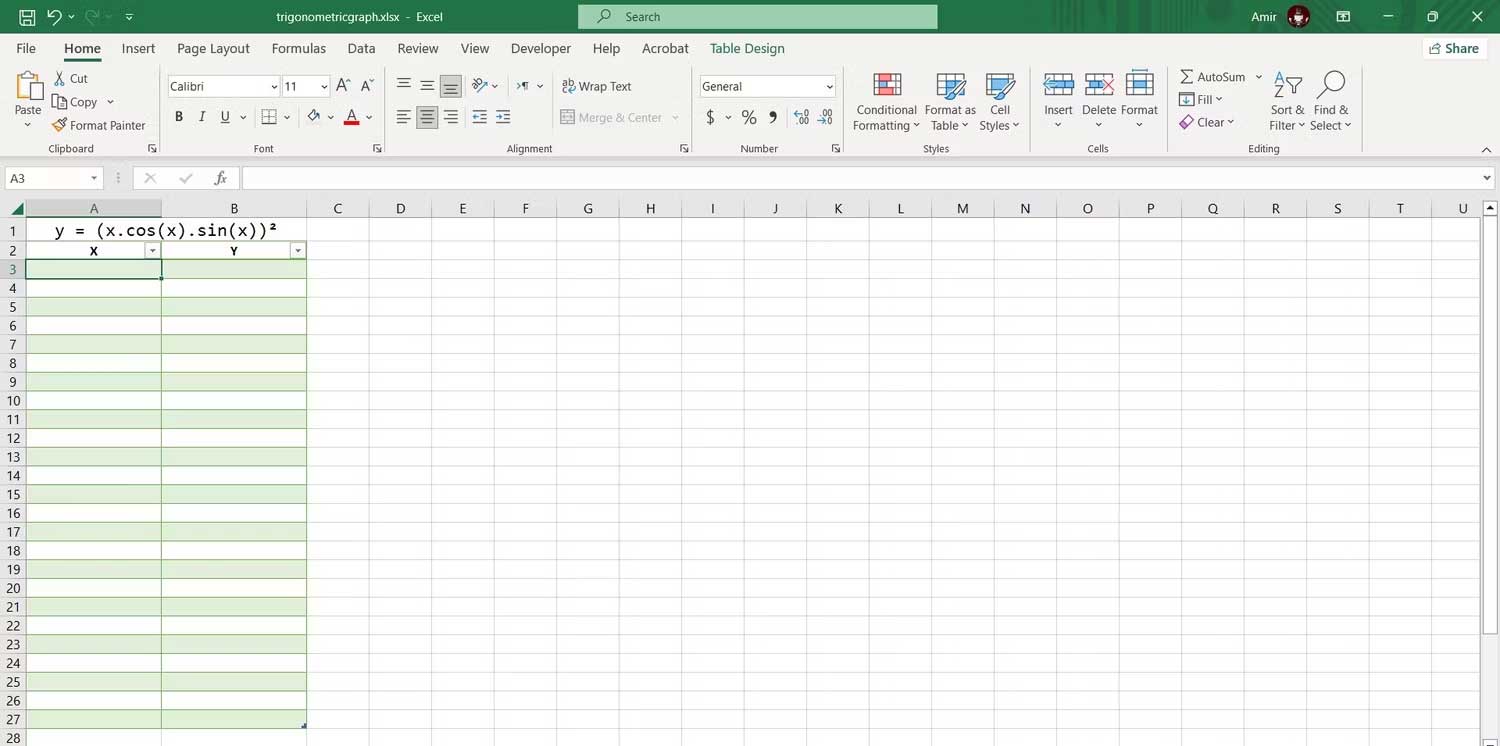
<p style="text-align: justify;">Giờ hãy xem xét ví dụ vẽ đồ thị phương trình y = (x.cos(x).sin(x))² trong Excel dưới đây để có thể dễ hình dung cách thực hiện.</p>

<h2 style="text-align: justify;">1. Nhập giá trị X</h2>

<p style="text-align: justify;">Một đồ thị/biểu đồ luôn cần giá trị X và Y. Bạn có thể nhập tên miền muốn vẽ biểu đồ trong giá trị X, sau đó tính giá trị Y bằng công thức ở bước tiếp theo. Đây là gợi ý hay để tạo bảng dữ liệu vì nó cho phép chạy tính năng tự động điền của Excel.</p>

<p style="text-align: justify;"><img alt="Nhập giá trị X" data-i="1" data-src="https://st.quantrimang.com/photos/image/2023/02/22/ve-do-thi-excel-1.jpg" data-was-processed="true" height="323" src="https://st.quantrimang.com/photos/image/2023/02/22/ve-do-thi-excel-1.jpg" width="650" /></p>

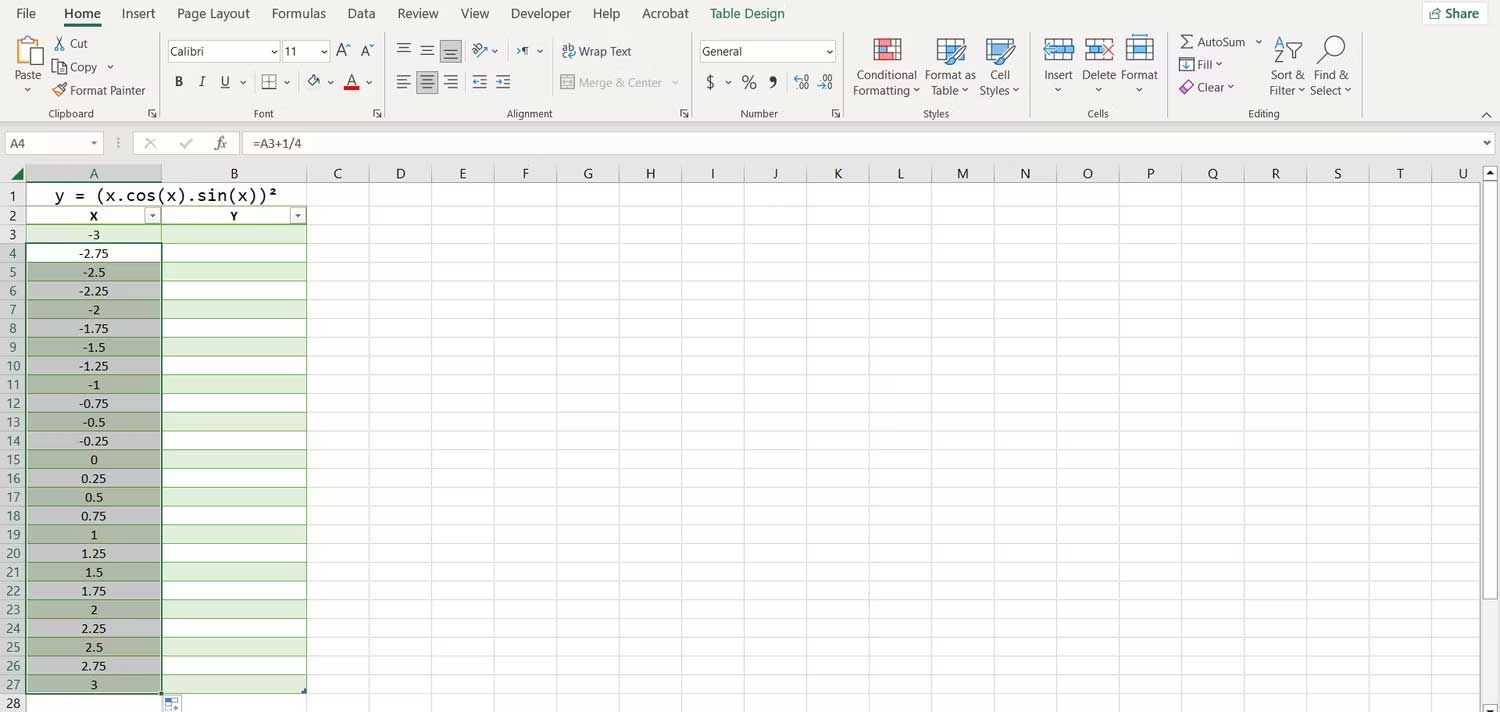
<p style="text-align: justify;">Mức tăng giữa các giá trị X của bạn càng nhỏ thì biểu đồ của bạn càng chính xác. Chúng ta sẽ tăng mỗi giá trị X lên&nbsp;<strong>1/4</strong>&nbsp;trong bảng này. Đây là cách bạn có thể tự động nhập các giá trị X:</p>

<p style="text-align: justify;">1. Nhập giá trị đầu tiên trong một ô. Ở đây, nhập&nbsp;<strong>-3</strong>&nbsp;trong ô&nbsp;<strong>A3</strong>.</p>

<p style="text-align: justify;">2. Chọn ô bên dưới. Ở ví dụ là&nbsp;<strong>A4</strong>.</p>

<p style="text-align: justify;">3. Ở thanh công thức, nhập:&nbsp;<code>=A3+1/4</code></p>

<p style="text-align: justify;">4. Nhấn<strong>&nbsp;Enter</strong>.</p>

<p style="text-align: justify;">5. Kéo thanh điền và thả nó vào các ô bên dưới.</p>

<p style="text-align: justify;"><img alt="Nhập dữ liệu vào biểu đồ Excel" data-i="2" data-src="https://st.quantrimang.com/photos/image/2023/02/22/ve-do-thi-excel-2.jpg" data-was-processed="true" height="309" src="https://st.quantrimang.com/photos/image/2023/02/22/ve-do-thi-excel-2.jpg" width="650" /></p>

<p style="text-align: justify;">Excel giờ sẽ điền tất cả giá trị X khác. Lợi ích khi dùng công thức để nhập các giá trị là giờ bạn có thể nhanh chóng thay đổi chúng bằng cách chỉnh sửa giá trị đầu tiên hoặc sửa công thức.</p>

<h2 style="text-align: justify;">2. Tạo công thức tính giá trị Y</h2>

<p style="text-align: justify;">Bạn có thể tính giá trị Y bằng cách biên dịch phương trình lượng giác sang ngôn ngữ của Excel.</p>

<p style="text-align: justify;">Khi tạo công thức, bạn có thể dùng dấu mũ để chỉ lũy thừa. Dùng dấu ngoặc đơn khi cần để chỉ thứ tự của các toán tử.</p>

<p style="text-align: justify;">1. Chọn ô đầu tiên mà bạn muốn tính giá trị Y. Đó là B3 trong trường hợp này.</p>

<p style="text-align: justify;">2. Tới thanh công thức và nhập:&nbsp;<code>=(A3*COS(A3)*SIN(A3))^2</code></p>

<p style="text-align: justify;">3. Nhấn&nbsp;<strong>Enter</strong>.</p>

<p style="text-align: justify;">Excel giờ sẽ tính tất cả giá trị Y trong bảng. Các hàm lượng giác của Excel dùng đơn vị góc, vì thế, công thức này sẽ lấy nó làm đơn vị cho các giá trị X. Nếu muốn trục X theo tỷ lệ pi - radian, bạn có thể nhân tham chiếu ô với số pi bằng cách sử dụng hàm PI trong Excel.</p>

<pre id="pre0">
<code>=(A3*PI()*COS(A3*PI())*SIN(A3*PI()))^2</code></pre>

<p style="text-align: justify;">Công thức này sẽ xuất giá trị Y cho cùng một phương trình lượng giác nhưng các giá trị sẽ ở thước đo pi-radian.</p>

<h2 style="text-align: justify;">3. Tạo biểu đồ phân tán</h2>

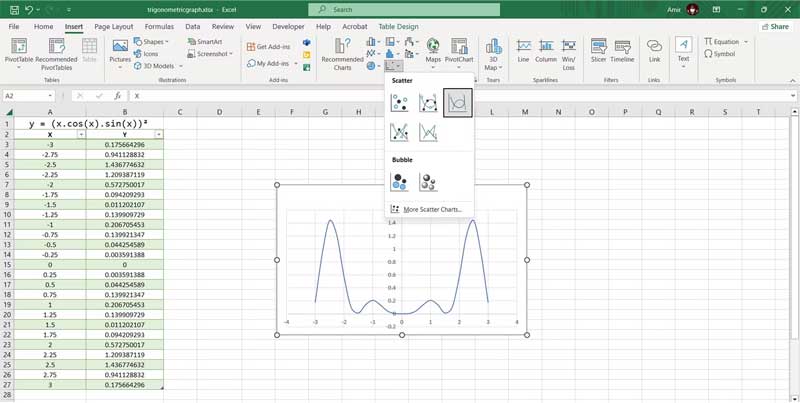
<p style="text-align: justify;">Đây là cách tốt nhất để vẽ đồ thị hàm số phương trình toán học trong Excel. Vì đã có các giá trị X và Y, bạn có thể vẽ biểu đồ hàm số bằng một click:</p>

<p style="text-align: justify;">1. Chọn bảng chứa giá trị X và Y.</p>

<p style="text-align: justify;">2. Tới tab&nbsp;<strong>Insert</strong>.</p>

<p style="text-align: justify;">3. Trong phần&nbsp;<strong>Charts</strong>, click&nbsp;<strong>Scatter</strong>, rồi chọn&nbsp;<strong>Scatter with Smooth Lines</strong>.</p>

<p style="text-align: justify;"><img alt="Biểu đồ phân tán" data-i="3" data-src="https://st.quantrimang.com/photos/image/2023/02/22/ve-do-thi-excel-4.jpg" data-was-processed="true" height="327" src="https://st.quantrimang.com/photos/image/2023/02/22/ve-do-thi-excel-4.jpg" width="650" /></p>

<p style="text-align: justify;">Thế là xong! Giờ bạn có thể kiểm tra biểu đồ để hiểu rõ hơn ý nghĩa của phương trình. Đây là bước cuối cùng nếu bạn đang muốn hình dung nhanh, còn nếu muốn trình bày dạng đồ thị, bạn hoàn toàn có thể tùy chỉnh biểu đồ Excel để vẽ đúng đồ thị của phương trình lượng giác.</p>
		</div>
				<div id="author">
						<p>
				<strong>Nguồn tin:</strong>
				Quantrimang.com
			</p>
		</div>
	</div>
	<div id="footer" class="clearfix">
		<div id="url">
			<strong>URL của bản tin này: </strong><a href="https://www.nguoicodonvn2008.info/vi/news/savefile/kien-thuc-may-tinh/cach-ve-do-thi-ham-so-luong-giac-bang-excel-6781.html" title="Cách vẽ đồ thị hàm số lượng giác bằng Excel">https://www.nguoicodonvn2008.info/vi/news/savefile/kien-thuc-may-tinh/cach-ve-do-thi-ham-so-luong-giac-bang-excel-6781.html</a>

		</div>
		<div class="clear"></div>
		<div class="copyright">
			&copy; .&#x3A; Nguoicodonvn2008.info - Cõi lòng người cô đơn &#x3A;.
		</div>
		<div id="contact">
			<a href="mailto:admin@nguoicodonvn2008.info">admin@nguoicodonvn2008.info</a>
		</div>
	</div>
</div>
        <div id="timeoutsess" class="chromeframe">
            Bạn đã không sử dụng Site, <a onclick="timeoutsesscancel();" href="https://www.nguoicodonvn2008.info/#">Bấm vào đây để duy trì trạng thái đăng nhập</a>. Thời gian chờ: <span id="secField"> 60 </span> giây
        </div>
        <div id="openidResult" class="nv-alert" style="display:none"></div>
        <div id="openidBt" data-result="" data-redirect=""></div>
		</script>
		<div class="car-top">
  <span><img src="https://www.nguoicodonvn2008.info/themes/default/images/car.png" alt=""></span>
</div>
<script src="https://www.nguoicodonvn2008.info/assets/js/jquery/jquery.min.js"></script>
<script>var nv_base_siteurl="/",nv_lang_data="vi",nv_lang_interface="vi",nv_name_variable="nv",nv_fc_variable="op",nv_lang_variable="language",nv_module_name="news",nv_func_name="savefile",nv_is_user=0, nv_my_ofs=-4,nv_my_abbr="EDT",nv_cookie_prefix="nv4c_e856T",nv_check_pass_mstime=1738000,nv_area_admin=0,nv_safemode=0,theme_responsive=0,nv_recaptcha_ver=2,nv_recaptcha_sitekey="",nv_recaptcha_type="image",XSSsanitize=1;</script>
<script src="https://www.nguoicodonvn2008.info/assets/js/language/vi.js"></script>
<script src="https://www.nguoicodonvn2008.info/assets/js/DOMPurify/purify3.js"></script>
<script src="https://www.nguoicodonvn2008.info/assets/js/global.js"></script>
<script src="https://www.nguoicodonvn2008.info/assets/js/site.js"></script>
<script src="https://www.nguoicodonvn2008.info/themes/default/js/news.js"></script>
<script src="https://www.nguoicodonvn2008.info/themes/default/js/main.js"></script>
<script src="https://www.nguoicodonvn2008.info/themes/default/js/custom.js"></script>
<script type="application/ld+json">
        {
            "@context": "https://schema.org",
            "@type": "Organization",
            "url": "https://www.nguoicodonvn2008.info",
            "logo": "https://www.nguoicodonvn2008.info/uploads/angel.gif"
        }
        </script>
<script src="https://www.nguoicodonvn2008.info/themes/default/js/bootstrap.min.js"></script>
<script type="text/javascript">
var $scrolltop = $('.car-top');
$scrolltop.on('click', function () {
    $('html,body').animate({
        scrollTop: 0
    }, 800);
    $(this).addClass("car-run");
    setTimeout(function(){ $scrolltop.removeClass('car-run');}, 1000);
    return false;
});
$(window).on('scroll', function ()
{ 
    if($(window).scrollTop() >= 200)
    {
        $scrolltop.addClass("show");
        $scrolltop.addClass("car-down");
    }
    else
    {
       $scrolltop.removeClass("show");
       setTimeout(function(){ $scrolltop.removeClass('car-down');}, 300);
    }
});
</script>
</body>
</html>