<!DOCTYPE html>
    <html lang="vi" xmlns="http://www.w3.org/1999/xhtml" prefix="og: http://ogp.me/ns#">
    <head>
<title>Cách tùy chỉnh ứng dụng Windows Terminal</title>
<meta name="description" content="Cách tùy chỉnh ứng dụng Windows Terminal - Savefile - Tin Tức -...">
<meta name="author" content=".: Nguoicodonvn2008.info - Cõi lòng người cô đơn :.">
<meta name="copyright" content=".: Nguoicodonvn2008.info - Cõi lòng người cô đơn :. [admin@nguoicodonvn2008.info]">
<meta name="robots" content="index, archive, follow, noodp">
<meta name="googlebot" content="index,archive,follow,noodp">
<meta name="msnbot" content="all,index,follow">
<meta name="generator" content="NukeViet v4.5">
<meta http-equiv="Content-Type" content="text/html; charset=utf-8">
<meta property="og:title" content="Cách tùy chỉnh ứng dụng Windows Terminal">
<meta property="og:type" content="website">
<meta property="og:description" content="Savefile - Tin Tức - https&#x3A;&#x002F;&#x002F;www.nguoicodonvn2008.info&#x002F;vi&#x002F;news&#x002F;savefile&#x002F;kien-thuc-may-tinh&#x002F;cach-tuy-chinh-ung-dung-windows-terminal-211.html">
<meta property="og:site_name" content=".&#x3A; Nguoicodonvn2008.info - Cõi lòng người cô đơn &#x3A;.">
<meta property="og:url" content="https://www.nguoicodonvn2008.info/vi/news/savefile/kien-thuc-may-tinh/cach-tuy-chinh-ung-dung-windows-terminal-211.html">
<link rel="shortcut icon" href="https://www.nguoicodonvn2008.info/favicon.ico">
<link rel="canonical" href="https://www.nguoicodonvn2008.info/vi/news/savefile/kien-thuc-may-tinh/cach-tuy-chinh-ung-dung-windows-terminal-211.html">
<link rel="alternate" href="https://www.nguoicodonvn2008.info/vi/news/rss/" title="Tin Tức" type="application/rss+xml">
<link rel="alternate" href="https://www.nguoicodonvn2008.info/vi/news/rss/karaoke-dual/" title="Tin Tức - Karaoke Dual" type="application/rss+xml">
<link rel="alternate" href="https://www.nguoicodonvn2008.info/vi/news/rss/nhac-tre/" title="Tin Tức - Nhạc trẻ" type="application/rss+xml">
<link rel="alternate" href="https://www.nguoicodonvn2008.info/vi/news/rss/tru-tinh/" title="Tin Tức - Trữ tình" type="application/rss+xml">
<link rel="alternate" href="https://www.nguoicodonvn2008.info/vi/news/rss/nuoc-ngoai/" title="Tin Tức - Nước ngoài" type="application/rss+xml">
<link rel="alternate" href="https://www.nguoicodonvn2008.info/vi/news/rss/remix/" title="Tin Tức - Remix" type="application/rss+xml">
<link rel="alternate" href="https://www.nguoicodonvn2008.info/vi/news/rss/tam-su-tinh-yeu/" title="Tin Tức - Tâm sự tình yêu" type="application/rss+xml">
<link rel="alternate" href="https://www.nguoicodonvn2008.info/vi/news/rss/tho-suu-tam/" title="Tin Tức - Thơ sưu tầm" type="application/rss+xml">
<link rel="alternate" href="https://www.nguoicodonvn2008.info/vi/news/rss/cuoc-song/" title="Tin Tức - Cuộc sống" type="application/rss+xml">
<link rel="alternate" href="https://www.nguoicodonvn2008.info/vi/news/rss/phan-mem/" title="Tin Tức - Phần mềm" type="application/rss+xml">
<link rel="alternate" href="https://www.nguoicodonvn2008.info/vi/news/rss/kien-thuc-may-tinh/" title="Tin Tức - Kiến thức máy tính" type="application/rss+xml">
<link rel="alternate" href="https://www.nguoicodonvn2008.info/vi/news/rss/hoc-tap/" title="Tin Tức - Học tập" type="application/rss+xml">
<link rel="alternate" href="https://www.nguoicodonvn2008.info/vi/news/rss/tai-lieu/" title="Tin Tức - Tài liệu" type="application/rss+xml">
<link rel="alternate" href="https://www.nguoicodonvn2008.info/vi/news/rss/de-thi/" title="Tin Tức - Đề thi" type="application/rss+xml">
<link rel="preload" as="style" href="https://www.nguoicodonvn2008.info/assets/css/font-awesome.min.css" type="text/css">
<link rel="preload" as="style" href="https://www.nguoicodonvn2008.info/themes/default/css/bootstrap.non-responsive.css" type="text/css">
<link rel="preload" as="style" href="https://www.nguoicodonvn2008.info/themes/default/css/style.css" type="text/css">
<link rel="preload" as="style" href="https://www.nguoicodonvn2008.info/themes/default/css/style.non-responsive.css" type="text/css">
<link rel="preload" as="style" href="https://www.nguoicodonvn2008.info/themes/default/css/news.css" type="text/css">
<link rel="preload" as="style" href="https://www.nguoicodonvn2008.info/themes/default/css/custom.css" type="text/css">
<link rel="preload" as="script" href="https://www.nguoicodonvn2008.info/assets/js/jquery/jquery.min.js" type="text/javascript">
<link rel="preload" as="script" href="https://www.nguoicodonvn2008.info/assets/js/language/vi.js" type="text/javascript">
<link rel="preload" as="script" href="https://www.nguoicodonvn2008.info/assets/js/DOMPurify/purify3.js" type="text/javascript">
<link rel="preload" as="script" href="https://www.nguoicodonvn2008.info/assets/js/global.js" type="text/javascript">
<link rel="preload" as="script" href="https://www.nguoicodonvn2008.info/assets/js/site.js" type="text/javascript">
<link rel="preload" as="script" href="https://www.nguoicodonvn2008.info/themes/default/js/news.js" type="text/javascript">
<link rel="preload" as="script" href="https://www.nguoicodonvn2008.info/themes/default/js/main.js" type="text/javascript">
<link rel="preload" as="script" href="https://www.nguoicodonvn2008.info/themes/default/js/custom.js" type="text/javascript">
<link rel="preload" as="script" href="https://www.nguoicodonvn2008.info/themes/default/js/bootstrap.min.js" type="text/javascript">
<link rel="stylesheet" href="https://www.nguoicodonvn2008.info/assets/css/font-awesome.min.css">
<link rel="stylesheet" href="https://www.nguoicodonvn2008.info/themes/default/css/bootstrap.non-responsive.css">
<link rel="stylesheet" href="https://www.nguoicodonvn2008.info/themes/default/css/style.css">
<link rel="stylesheet" href="https://www.nguoicodonvn2008.info/themes/default/css/style.non-responsive.css">
<link rel="StyleSheet" href="https://www.nguoicodonvn2008.info/themes/default/css/news.css">
<link rel="stylesheet" href="https://www.nguoicodonvn2008.info/themes/default/css/custom.css">
<style type="text/css">
	body{background: #fff;}
</style>
    </head>
    <body>
<div id="print">
	<div id="hd_print">
		<h2 class="pull-left">.&#x3A; Nguoicodonvn2008.info - Cõi lòng người cô đơn &#x3A;.</h2>
		<p class="pull-right"><a title=".&#x3A; Nguoicodonvn2008.info - Cõi lòng người cô đơn &#x3A;." href="https://www.nguoicodonvn2008.info/">https://www.nguoicodonvn2008.info</a></p>
	</div>
	<div class="clear"></div>
	<hr />
	<div id="content">
		<h1>Cách tùy chỉnh ứng dụng Windows Terminal</h1>
		<ul class="list-inline">
			<li>Thứ tư - 26/06/2019 07:55</li>
			<li class="hidden-print txtrequired"><em class="fa fa-print">&nbsp;</em><a title="In ra" href="javascript:;" onclick="window.print()">In ra</a></li>
			<li class="hidden-print txtrequired"><em class="fa fa-power-off">&nbsp;</em><a title="Đóng cửa sổ này" href="javascript:;" onclick="window.close()">Đóng cửa sổ này</a></li>
		</ul>
		<div class="clear"></div>
		<div id="hometext">
		</div>
				<div class="imghome">
			<img alt="Cách tùy chỉnh ứng dụng Windows Terminal" src="https://st.quantrimang.com/photos/image/2019/06/26/tuy-chinh-windows-terminal-6.png" width="460" class="img-thumbnail" />
		</div>
		<div class="clear"></div>
		<div id="bodytext" class="clearfix">
			<p>Với ứng dụng Windows Terminal mới, Windows cuối cùng cũng có một terminal theo tab có thể chạyCommand Prompt,&nbsp;Powershell&nbsp;và Bash trong cùng một cửa sổ. Và nó có tính tùy chỉnh cao, bạn thậm chí có thể đặt ảnh GIF động làm hình nền.</p>

<p>Ngoài ra, bạn cũng có thể thay đổi theme terminal, màu văn bản hoặc background, kiểu font chữ để biến Windows Terminal mang phong cách của riêng bạn. Microsoft thậm chí còn cung cấp một số theme cài đặt trước. Tất cả những gì bạn cần là một trình soạn thảo văn bản và một số kiến thức cơ bản về JSON.</p>

<h2>Cách tùy chỉnh Windows Terminal</h2>

<p><img alt="Tùy chỉnh Windows Terminal" data-i="0" data-src="https://st.quantrimang.com/photos/image/2019/06/26/tuy-chinh-windows-terminal-1.png" data-was-processed="true" height="225" src="https://st.quantrimang.com/photos/image/2019/06/26/tuy-chinh-windows-terminal-1.png" width="640" /></p>

<p>Bước đầu tiên để tùy chỉnh Windows Terminal là đảm bảo Windows có ứng dụng mặc định được liên kết với loại file JSON. Cách tốt nhất để làm điều đó là từ File Explorer.</p>

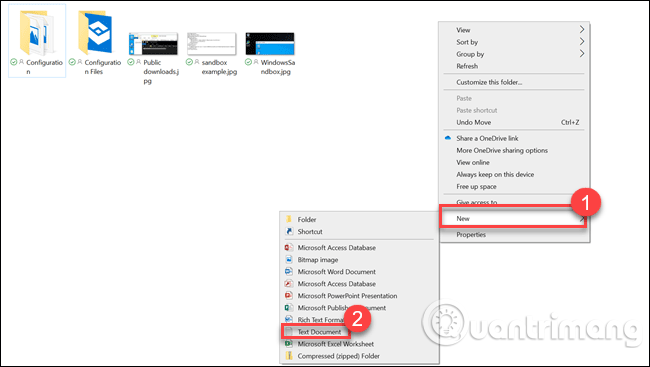
<p>Khởi chạy File Explorer&nbsp;và tìm file JSON. Nếu không có, hãy tạo một file JSON bằng cách click chuột phải vào&nbsp;<strong>File Explorer &gt; New</strong>, sau đó click vào&nbsp;<strong>Text document.</strong></p>

<p>Thay đổi tên file thành test.json (xóa&nbsp;<a href="https://quantrimang.com/phan-mo-rong-file-la-gi-151450" title="Phần mở rộng file là gì?">phần mở rộng file</a>&nbsp;.txt) và xác định thay đổi đuôi. Nếu không thấy đuôi file .txt, bật&nbsp;<a href="https://quantrimang.com/lam-sao-de-hien-thi-file-va-thu-muc-an-trong-windows-118699" title="Cách ẩn file, hiện file ẩn, xem thư mục ẩn và đuôi file trên Windows 7/8/10?">hiển thị đuôi file</a>&nbsp;trong File Explorer.</p>

<p><img alt="Click vào Text document" data-i="1" data-src="https://st.quantrimang.com/photos/image/2019/06/26/tuy-chinh-windows-terminal-2.png" data-was-processed="true" height="361" src="https://st.quantrimang.com/photos/image/2019/06/26/tuy-chinh-windows-terminal-2.png" width="640" /></p>

<p>Tiếp theo, click chuột phải vào file JSON và chọn tùy chọn&nbsp;<strong>Open With</strong>. Chọn trình soạn thảo văn bản yêu thích, bạn có thể sử dụng Notepad++ hoặc Notepad.</p>

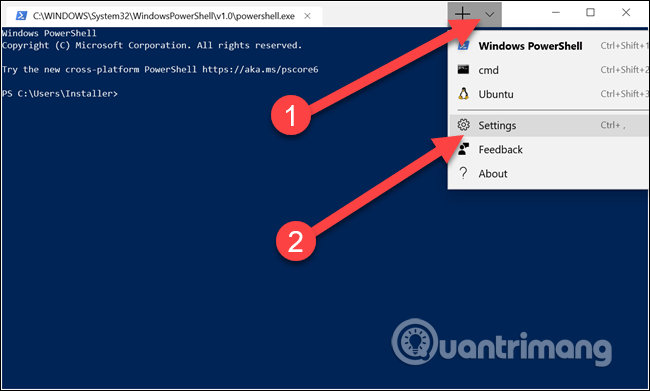
<p>Mở Windows Terminal và click vào mũi tên xuống trong thanh tiêu đề (ngay bên phải biểu tượng dấu cộng), sau đó chọn&nbsp;<strong>Settings</strong>.</p>

<p><img alt="Chọn Settings" data-i="2" data-src="https://st.quantrimang.com/photos/image/2019/06/26/tuy-chinh-windows-terminal-3.png" data-was-processed="true" height="385" src="https://st.quantrimang.com/photos/image/2019/06/26/tuy-chinh-windows-terminal-3.png" width="640" /></p>

<p>File JSON sẽ khởi chạy trong trình soạn thảo. Bạn có thể thực tất cả các thay đổi ở đây.</p>

<h2>Cách thay đổi background</h2>

<p>Bạn có thể thay đổi background với bất kỳ loại file hình ảnh nào như PNG, JPGE hoặc thậm chí GIF động.</p>

<p>Để thay đổi hình nền của bất kỳ shell nào, bạn cần đặt file ảnh ở nơi ứng dụng Terminal có thể đọc. Windows Terminal là&nbsp;<a href="https://quantrimang.com/cach-kiem-tra-phien-ban-ung-dung-windows-hop-nhat-uwp-trong-windows-10-145143" title="Cách kiểm tra phiên bản ứng dụng Windows hợp nhất (UWP) trong Windows 10">ứng dụng Univeral Windows Platform</a>&nbsp;(UWP), do đó nó thích sử dụng thư mục AppData của nó. AppData là thư mục bạn thường thấy trong User Profile và được sử dụng để lưu trữ cài đặt chương trình. Ứng dụng UWP tạo thư mục AppData tùy chỉnh và sử dụng nó.&nbsp;</p>

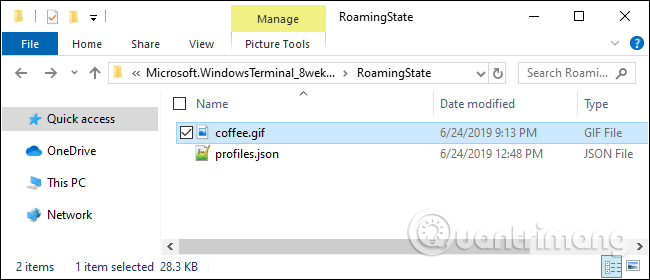
<p>Thư mục AppData của Windows Terminal được đặt trong:</p>

<pre id="pre0">
<code>%LOCALAPPDATA%\Packages\Microsoft.WindowsTerminal_8wekyb3d8bbwe\RoamingState</code></pre>

<p>Chỉ cần sao chép nó vào thanh đường dẫn File Explorer và nhấn&nbsp;<strong>Enter</strong>, bạn sẽ được đưa đến đúng vị trí. Đặt file hình ảnh của bạn ở đây và Windows Terminal có thể sử dụng chúng làm hình nền.</p>

<p><img alt="Đặt file ảnh vào thư mục AppData" data-i="3" data-src="https://st.quantrimang.com/photos/image/2019/06/26/tuy-chinh-windows-terminal-5.png" data-was-processed="true" height="280" src="https://st.quantrimang.com/photos/image/2019/06/26/tuy-chinh-windows-terminal-5.png" width="650" /></p>

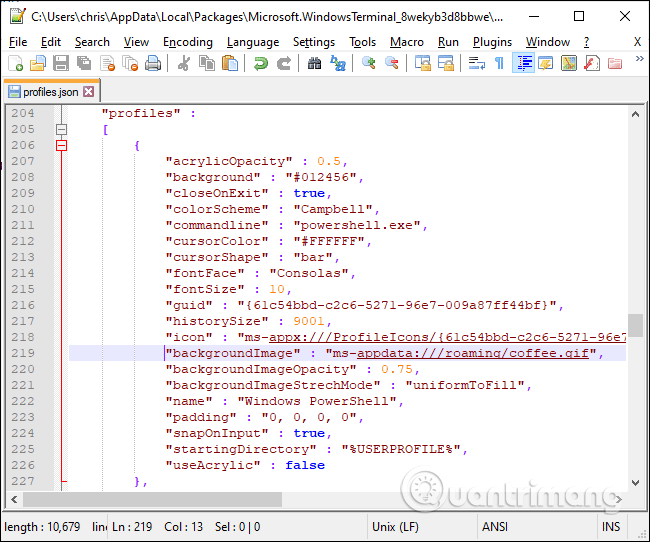
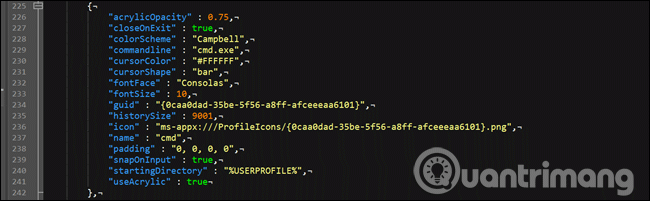
<p>Mở&nbsp;<strong>Settings</strong>&nbsp;trong Windows Terminal và cuộn xuống profile bạn muốn thay đổi. Có một vài profile trong phần&nbsp;<strong>&quot;profiles&quot; :</strong>. Mỗi hồ sơ tương ứng với một tùy chọn trong menu Cmd, PowerShell, bản phân phối Linux, v.v… Bạn có thể biết đó là tùy chọn nào bằng cách kiểm tra dòng&nbsp;<strong>&quot;commandline&quot;</strong>&nbsp;hoặc&nbsp;<strong>&quot;name&quot;</strong>&nbsp;trong từng phần.</p>

<p>Để thay đổi ảnh nền của một trong những phần này, trong dòng icon, thêm dòng sau:</p>

<pre id="pre1">
<code>&quot;backgroundImage&quot; : &quot;ms-appdata:///roaming/yourimage.jpg&quot;,
 &quot;backgroundImageOpacity&quot; : 0.75,
 &quot;backgroundImageStrechMode&quot; : &quot;fill&quot;,</code></pre>

<p>yourimage.jpg là tên file ảnh hoặc ảnh gif của bạn. Bạn cần đảm bảo mỗi dòng trong các phần, ngoại trừ dòng cuối kết thúc bằng dấu phẩy.</p>

<p>Nếu sử dụng file GIF, bạn nên thay đổi fill thành uniformToFill. Nếu để fill bạn sẽ thấy có một hộp màu đen xung quanh hình GIF.</p>

<p><img alt="Thay đổi background" data-i="4" data-src="https://st.quantrimang.com/photos/image/2019/06/26/tuy-chinh-windows-terminal-6.png" data-was-processed="true" height="534" src="https://st.quantrimang.com/photos/image/2019/06/26/tuy-chinh-windows-terminal-6.png" width="640" /></p>
&nbsp;

<h2>Cách thay liên kết phím mặc định</h2>

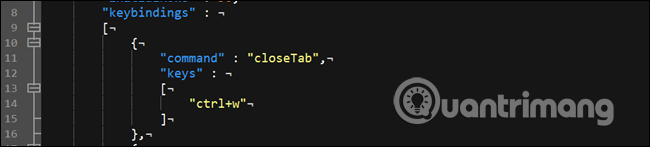
<p>Nếu không thích phím tắt bàn phím cụ thể nào đó, bạn có thể thay đổi nó ở đây. Ví dụ, nếu muốn<code>&nbsp;Ctrl</code>+<code>e</code>&nbsp;để đóng tab, bạn cần tìm thấy phần sau:</p>

<pre id="pre2">
<code>{
 &quot;command&quot; : &quot;closeTab&quot;,
 &quot;keys&quot; :
 &#91;
 &quot;ctrl+w&quot;
 &#93;
 },</code></pre>

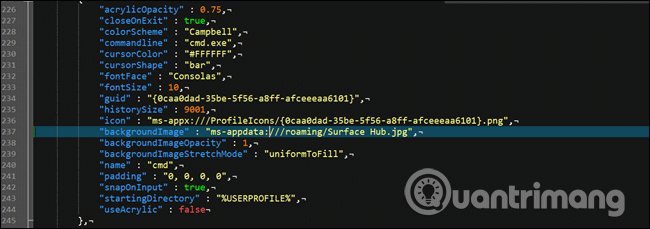
<p>Thay đổi&nbsp;<strong>“ctrl+w”</strong>&nbsp;thành&nbsp;<strong>“ctrl+e”</strong>&nbsp;(giữ nguyên dấu ngoặc kép) và sau đó lưu file. Nếu muốn căn chỉnh mọi thứ phù với những gì hiện có, bạn cần đảm bảo file sử dụng khoảng trắng thay vì các tab. Như hình trên, file sử dụng Unix Line Endings, nhưng hầu hết các trình soạn thảo văn bản (thậm chí Notepad) cũng có thể xử lý Unix Line Endings mà không gặp vấn đề gì.</p>

<p><img alt="Thay đổi liên kết phím" data-i="5" data-src="https://st.quantrimang.com/photos/image/2019/06/26/tuy-chinh-windows-terminal-7.png" data-was-processed="true" height="145" src="https://st.quantrimang.com/photos/image/2019/06/26/tuy-chinh-windows-terminal-7.png" width="640" /></p>

<h2>Các thay đổi bảng màu mặc định</h2>

<p>Windows Terminal có một vài bảng màu được dùng để thay đổi màu font chữ, màu background, hình dạng con trỏ, v.v… Bạn có thể chọn theme riêng cho Command Prompt, Bash và PowerShell.</p>

<p>Để thay đổi theme mặc định, đầu tiên bạn cần tìm profile shell muốn thay đổi bằng cách cuộn xuống phần<strong>&nbsp;&quot;profiles&quot; :</strong>&nbsp;và tìm dòng lệnh trong mỗi phần nhỏ.</p>

<p>Ví dụ, bạn sẽ thấy&nbsp;<strong>&quot;commandline&quot; : &quot;cmd.exe&quot;</strong>&nbsp;trong Command Prompt, sau đó thay đổi&nbsp;<strong>&quot;colorScheme&quot; : &quot;Campbell&quot;</strong>&nbsp;thành màu bạn muốn sử dụng. Bạn có thể chọn từ Campbell, One Half Dark, One Half Light, Solarized Dark và Solarized Light. Chẳng hạn, nếu muốn sử dụng Solarized Light, bạn cần thay đổi dòng bảng màu thành<strong>&quot;colorScheme&quot; : &quot;Solarized Light</strong>. Những màu này giống với bảng màu được sử dụng trong tiện ích colortool của Microsoft.</p>

<p><img alt="Thay đổi màu theme" data-i="6" data-src="https://st.quantrimang.com/photos/image/2019/06/26/tuy-chinh-windows-terminal-8.png" data-was-processed="true" height="198" src="https://st.quantrimang.com/photos/image/2019/06/26/tuy-chinh-windows-terminal-8.png" width="640" /></p>

<p>Windows Terminal khá thú vị và nó mang đến cho bạn một hương vị nhỏ của tính năng Windows Sets trước đây của Microsoft.&nbsp;</p>

<p>Chúc các bạn thực hiện thành công!</p>
		</div>
				<div id="author">
						<p>
				<strong>Nguồn tin:</strong>
				Quantrimang.com
			</p>
		</div>
	</div>
	<div id="footer" class="clearfix">
		<div id="url">
			<strong>URL của bản tin này: </strong><a href="https://www.nguoicodonvn2008.info/vi/news/savefile/kien-thuc-may-tinh/cach-tuy-chinh-ung-dung-windows-terminal-211.html" title="Cách tùy chỉnh ứng dụng Windows Terminal">https://www.nguoicodonvn2008.info/vi/news/savefile/kien-thuc-may-tinh/cach-tuy-chinh-ung-dung-windows-terminal-211.html</a>

		</div>
		<div class="clear"></div>
		<div class="copyright">
			&copy; .&#x3A; Nguoicodonvn2008.info - Cõi lòng người cô đơn &#x3A;.
		</div>
		<div id="contact">
			<a href="mailto:admin@nguoicodonvn2008.info">admin@nguoicodonvn2008.info</a>
		</div>
	</div>
</div>
        <div id="timeoutsess" class="chromeframe">
            Bạn đã không sử dụng Site, <a onclick="timeoutsesscancel();" href="https://www.nguoicodonvn2008.info/#">Bấm vào đây để duy trì trạng thái đăng nhập</a>. Thời gian chờ: <span id="secField"> 60 </span> giây
        </div>
        <div id="openidResult" class="nv-alert" style="display:none"></div>
        <div id="openidBt" data-result="" data-redirect=""></div>
		</script>
		<div class="car-top">
  <span><img src="https://www.nguoicodonvn2008.info/themes/default/images/car.png" alt=""></span>
</div>
<script src="https://www.nguoicodonvn2008.info/assets/js/jquery/jquery.min.js"></script>
<script>var nv_base_siteurl="/",nv_lang_data="vi",nv_lang_interface="vi",nv_name_variable="nv",nv_fc_variable="op",nv_lang_variable="language",nv_module_name="news",nv_func_name="savefile",nv_is_user=0, nv_my_ofs=-4,nv_my_abbr="EDT",nv_cookie_prefix="nv4c_e856T",nv_check_pass_mstime=1738000,nv_area_admin=0,nv_safemode=0,theme_responsive=0,nv_recaptcha_ver=2,nv_recaptcha_sitekey="",nv_recaptcha_type="image",XSSsanitize=1;</script>
<script src="https://www.nguoicodonvn2008.info/assets/js/language/vi.js"></script>
<script src="https://www.nguoicodonvn2008.info/assets/js/DOMPurify/purify3.js"></script>
<script src="https://www.nguoicodonvn2008.info/assets/js/global.js"></script>
<script src="https://www.nguoicodonvn2008.info/assets/js/site.js"></script>
<script src="https://www.nguoicodonvn2008.info/themes/default/js/news.js"></script>
<script src="https://www.nguoicodonvn2008.info/themes/default/js/main.js"></script>
<script src="https://www.nguoicodonvn2008.info/themes/default/js/custom.js"></script>
<script type="application/ld+json">
        {
            "@context": "https://schema.org",
            "@type": "Organization",
            "url": "https://www.nguoicodonvn2008.info",
            "logo": "https://www.nguoicodonvn2008.info/uploads/angel.gif"
        }
        </script>
<script src="https://www.nguoicodonvn2008.info/themes/default/js/bootstrap.min.js"></script>
<script type="text/javascript">
var $scrolltop = $('.car-top');
$scrolltop.on('click', function () {
    $('html,body').animate({
        scrollTop: 0
    }, 800);
    $(this).addClass("car-run");
    setTimeout(function(){ $scrolltop.removeClass('car-run');}, 1000);
    return false;
});
$(window).on('scroll', function ()
{ 
    if($(window).scrollTop() >= 200)
    {
        $scrolltop.addClass("show");
        $scrolltop.addClass("car-down");
    }
    else
    {
       $scrolltop.removeClass("show");
       setTimeout(function(){ $scrolltop.removeClass('car-down');}, 300);
    }
});
</script>
</body>
</html>