<!DOCTYPE html>
    <html lang="vi" xmlns="http://www.w3.org/1999/xhtml" prefix="og: http://ogp.me/ns#">
    <head>
<title>Cách tìm tên tài khoản người dùng trong Windows 10</title>
<meta name="description" content="Cách tìm tên tài khoản người dùng trong Windows 10 - Savefile - Tin Tức -...">
<meta name="author" content=".: Nguoicodonvn2008.info - Cõi lòng người cô đơn :.">
<meta name="copyright" content=".: Nguoicodonvn2008.info - Cõi lòng người cô đơn :. [admin@nguoicodonvn2008.info]">
<meta name="robots" content="index, archive, follow, noodp">
<meta name="googlebot" content="index,archive,follow,noodp">
<meta name="msnbot" content="all,index,follow">
<meta name="generator" content="NukeViet v4.5">
<meta http-equiv="Content-Type" content="text/html; charset=utf-8">
<meta property="og:title" content="Cách tìm tên tài khoản người dùng trong Windows 10">
<meta property="og:type" content="website">
<meta property="og:description" content="Savefile - Tin Tức - https&#x3A;&#x002F;&#x002F;www.nguoicodonvn2008.info&#x002F;vi&#x002F;news&#x002F;savefile&#x002F;kien-thuc-may-tinh&#x002F;cach-tim-ten-tai-khoan-nguoi-dung-trong-windows-10-4018.html">
<meta property="og:site_name" content=".&#x3A; Nguoicodonvn2008.info - Cõi lòng người cô đơn &#x3A;.">
<meta property="og:url" content="https://www.nguoicodonvn2008.info/vi/news/savefile/kien-thuc-may-tinh/cach-tim-ten-tai-khoan-nguoi-dung-trong-windows-10-4018.html">
<link rel="shortcut icon" href="https://www.nguoicodonvn2008.info/favicon.ico">
<link rel="canonical" href="https://www.nguoicodonvn2008.info/vi/news/savefile/kien-thuc-may-tinh/cach-tim-ten-tai-khoan-nguoi-dung-trong-windows-10-4018.html">
<link rel="alternate" href="https://www.nguoicodonvn2008.info/vi/news/rss/" title="Tin Tức" type="application/rss+xml">
<link rel="alternate" href="https://www.nguoicodonvn2008.info/vi/news/rss/karaoke-dual/" title="Tin Tức - Karaoke Dual" type="application/rss+xml">
<link rel="alternate" href="https://www.nguoicodonvn2008.info/vi/news/rss/nhac-tre/" title="Tin Tức - Nhạc trẻ" type="application/rss+xml">
<link rel="alternate" href="https://www.nguoicodonvn2008.info/vi/news/rss/tru-tinh/" title="Tin Tức - Trữ tình" type="application/rss+xml">
<link rel="alternate" href="https://www.nguoicodonvn2008.info/vi/news/rss/nuoc-ngoai/" title="Tin Tức - Nước ngoài" type="application/rss+xml">
<link rel="alternate" href="https://www.nguoicodonvn2008.info/vi/news/rss/remix/" title="Tin Tức - Remix" type="application/rss+xml">
<link rel="alternate" href="https://www.nguoicodonvn2008.info/vi/news/rss/tam-su-tinh-yeu/" title="Tin Tức - Tâm sự tình yêu" type="application/rss+xml">
<link rel="alternate" href="https://www.nguoicodonvn2008.info/vi/news/rss/tho-suu-tam/" title="Tin Tức - Thơ sưu tầm" type="application/rss+xml">
<link rel="alternate" href="https://www.nguoicodonvn2008.info/vi/news/rss/cuoc-song/" title="Tin Tức - Cuộc sống" type="application/rss+xml">
<link rel="alternate" href="https://www.nguoicodonvn2008.info/vi/news/rss/phan-mem/" title="Tin Tức - Phần mềm" type="application/rss+xml">
<link rel="alternate" href="https://www.nguoicodonvn2008.info/vi/news/rss/kien-thuc-may-tinh/" title="Tin Tức - Kiến thức máy tính" type="application/rss+xml">
<link rel="alternate" href="https://www.nguoicodonvn2008.info/vi/news/rss/hoc-tap/" title="Tin Tức - Học tập" type="application/rss+xml">
<link rel="alternate" href="https://www.nguoicodonvn2008.info/vi/news/rss/tai-lieu/" title="Tin Tức - Tài liệu" type="application/rss+xml">
<link rel="alternate" href="https://www.nguoicodonvn2008.info/vi/news/rss/de-thi/" title="Tin Tức - Đề thi" type="application/rss+xml">
<link rel="preload" as="style" href="https://www.nguoicodonvn2008.info/assets/css/font-awesome.min.css" type="text/css">
<link rel="preload" as="style" href="https://www.nguoicodonvn2008.info/themes/default/css/bootstrap.non-responsive.css" type="text/css">
<link rel="preload" as="style" href="https://www.nguoicodonvn2008.info/themes/default/css/style.css" type="text/css">
<link rel="preload" as="style" href="https://www.nguoicodonvn2008.info/themes/default/css/style.non-responsive.css" type="text/css">
<link rel="preload" as="style" href="https://www.nguoicodonvn2008.info/themes/default/css/news.css" type="text/css">
<link rel="preload" as="style" href="https://www.nguoicodonvn2008.info/themes/default/css/custom.css" type="text/css">
<link rel="preload" as="script" href="https://www.nguoicodonvn2008.info/assets/js/jquery/jquery.min.js" type="text/javascript">
<link rel="preload" as="script" href="https://www.nguoicodonvn2008.info/assets/js/language/vi.js" type="text/javascript">
<link rel="preload" as="script" href="https://www.nguoicodonvn2008.info/assets/js/DOMPurify/purify3.js" type="text/javascript">
<link rel="preload" as="script" href="https://www.nguoicodonvn2008.info/assets/js/global.js" type="text/javascript">
<link rel="preload" as="script" href="https://www.nguoicodonvn2008.info/assets/js/site.js" type="text/javascript">
<link rel="preload" as="script" href="https://www.nguoicodonvn2008.info/themes/default/js/news.js" type="text/javascript">
<link rel="preload" as="script" href="https://www.nguoicodonvn2008.info/themes/default/js/main.js" type="text/javascript">
<link rel="preload" as="script" href="https://www.nguoicodonvn2008.info/themes/default/js/custom.js" type="text/javascript">
<link rel="preload" as="script" href="https://www.nguoicodonvn2008.info/themes/default/js/bootstrap.min.js" type="text/javascript">
<link rel="stylesheet" href="https://www.nguoicodonvn2008.info/assets/css/font-awesome.min.css">
<link rel="stylesheet" href="https://www.nguoicodonvn2008.info/themes/default/css/bootstrap.non-responsive.css">
<link rel="stylesheet" href="https://www.nguoicodonvn2008.info/themes/default/css/style.css">
<link rel="stylesheet" href="https://www.nguoicodonvn2008.info/themes/default/css/style.non-responsive.css">
<link rel="StyleSheet" href="https://www.nguoicodonvn2008.info/themes/default/css/news.css">
<link rel="stylesheet" href="https://www.nguoicodonvn2008.info/themes/default/css/custom.css">
<style type="text/css">
	body{background: #fff;}
</style>
    </head>
    <body>
<div id="print">
	<div id="hd_print">
		<h2 class="pull-left">.&#x3A; Nguoicodonvn2008.info - Cõi lòng người cô đơn &#x3A;.</h2>
		<p class="pull-right"><a title=".&#x3A; Nguoicodonvn2008.info - Cõi lòng người cô đơn &#x3A;." href="https://www.nguoicodonvn2008.info/">https://www.nguoicodonvn2008.info</a></p>
	</div>
	<div class="clear"></div>
	<hr />
	<div id="content">
		<h1>Cách tìm tên tài khoản người dùng trong Windows 10</h1>
		<ul class="list-inline">
			<li>Thứ sáu - 30/04/2021 11:18</li>
			<li class="hidden-print txtrequired"><em class="fa fa-print">&nbsp;</em><a title="In ra" href="javascript:;" onclick="window.print()">In ra</a></li>
			<li class="hidden-print txtrequired"><em class="fa fa-power-off">&nbsp;</em><a title="Đóng cửa sổ này" href="javascript:;" onclick="window.close()">Đóng cửa sổ này</a></li>
		</ul>
		<div class="clear"></div>
		<div id="hometext">
		</div>
				<div class="imghome">
			<img alt="Cách tìm tên tài khoản người dùng trong Windows 10" src="https://st.quantrimang.com/photos/image/2021/04/29/tim-ten-tai-khoan-nguoi-dung-win-10-4.jpg" width="460" class="img-thumbnail" />
		</div>
		<div class="clear"></div>
		<div id="bodytext" class="clearfix">
			<p style="text-align: justify;">Nếu bạn không biết tên người dùng của mình trong Windows 10 là gì, thì tin vui là khá dễ dàng để tìm ra thông tin này. Hãy làm theo các bước sau để tìm tên tài khoản người dùng trong&nbsp;Windows 10.</p>

<h2 style="text-align: justify;">Tên tài khoản người dùng trong Windows</h2>

<p style="text-align: justify;">Mỗi tài khoản người dùng trong Windows đều có tên người dùng riêng. Trên thực tế, Windows yêu cầu bạn thêm tên người dùng trong khi tạo tài khoản. Như bạn có thể đoán được, tên của một tài khoản người dùng cụ thể được sử dụng theo nhiều cách và vị trí khác nhau. Ví dụ, tên người dùng được sử dụng để phân biệt giữa những người dùng, tạo thư mục chính cho mỗi người dùng, thêm quyền, tạo môi trường dành riêng cho người dùng, thiết lập cài đặt dành riêng cho người dùng, v.v...</p>

<div style="text-align: justify;">&nbsp;</div>

<p style="text-align: justify;">Nói chung, hầu hết người dùng Windows không bao giờ cần bận tâm về tên người dùng. Tuy nhiên, có thể xuất hiện những tình huống mà bạn cần biết tên tài khoản người dùng Windows của mình. Nếu không biết tên người dùng, bạn không thể cấu hình cài đặt. Ví dụ, nếu bạn muốn có quyền sở hữu hoặc thay đổi quyền của một thư mục hoặc file, bạn cần biết tên người dùng. Điều này cũng đúng đối với hầu hết các cài đặt Windows nâng cao nhắm mục tiêu đến một tài khoản người dùng cụ thể.</p>

<p style="text-align: justify;">Tin tốt là Windows có một số cách khác nhau để tìm tên người dùng Windows. Chỉ là bạn cần biết mình phải tìm ở đâu mà thôi.</p>

<p style="text-align: justify;">Trong hướng dẫn Windows 10 đơn giản này, hãy để&nbsp;<strong>Quantrimang.com</strong>&nbsp;chỉ ra 3 cách khác nhau để tìm tên tài khoản người dùng trong Windows 10.</p>

<h2 style="text-align: justify;">Cách tìm tên tài khoản người dùng trong Windows 10</h2>

<h3 style="text-align: justify;">Tìm tên tài khoản người dùng trong File Explorer</h3>

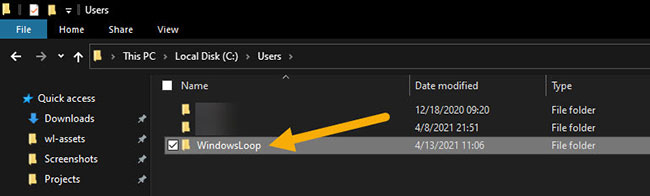
<p style="text-align: justify;">Windows tự động tạo một thư mục chính cho mọi tài khoản người dùng có cùng tên với tên tài khoản người dùng. Vì vậy, cách dễ nhất để tìm tên của tài khoản người dùng Windows là xem tên thư mục chính trong File Explorer. Đây là cách làm.</p>

<div style="text-align: justify;">&nbsp;</div>

<p style="text-align: justify;">1. Nhấn&nbsp;<strong>Win ​​+ E</strong>&nbsp;để&nbsp;mở File Explorer.</p>

<p style="text-align: justify;">2. Chuyển đến thư mục&nbsp;<strong>C:\Users\.</strong></p>

<p style="text-align: justify;">3. Tên tài khoản người dùng Windows giống với tên thư mục chính của bạn.</p>

<p style="text-align: justify;">4. Bằng cách đó, bây giờ bạn biết tên tài khoản người dùng Windows của mình.</p>

<p style="text-align: justify;">Để tìm tên người dùng, hãy mở File Explorer và chuyển đến thư mục&nbsp;<strong>C:\Users.</strong>&nbsp;Tên tài khoản người dùng Windows giống với tên thư mục chính của bạn. Trong trường hợp ví dụ, tên thư mục chính là<strong>WindowsLoop.</strong>&nbsp;Vì vậy, tên tài khoản người dùng là&nbsp;<strong>WindowsLoop.</strong>&nbsp;Nếu máy tính của bạn có nhiều tài khoản người dùng, hãy tìm thư mục chính có liên quan đến bạn.</p>

<figure>
<div style="text-align: justify;"><img alt="Tìm tên tài khoản người dùng trong File Explorer" data-i="0" data-src="https://st.quantrimang.com/photos/image/2021/04/29/tim-ten-tai-khoan-nguoi-dung-win-10-1.jpg" data-was-processed="true" height="196" src="https://st.quantrimang.com/photos/image/2021/04/29/tim-ten-tai-khoan-nguoi-dung-win-10-1.jpg" width="650" /></div>

<figcaption>
<div style="text-align: justify;">Tìm tên tài khoản người dùng trong File Explorer</div>
</figcaption>
</figure>

<h3 style="text-align: justify;">Dùng lệnh để biết tên người dùng Windows</h3>

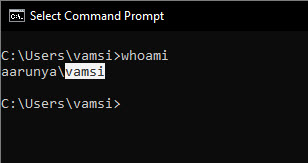
<p style="text-align: justify;">Windows có một số lệnh hiển thị tên người dùng hiện tại của bạn. Dưới đây là các lệnh bạn có thể sử dụng để tìm tên tài khoản người dùng của mình trong Windows 10.</p>

<p style="text-align: justify;">1. Mở menu&nbsp;<strong>Start</strong>.</p>

<p style="text-align: justify;">2. Tìm kiếm và&nbsp;mở Command Prompt.</p>

<div style="text-align: justify;">&nbsp;</div>

<p style="text-align: justify;">3. Nhập&nbsp;<strong>‘whoami‘</strong>&nbsp;và nhấn&nbsp;<strong>Enter.</strong></p>

<p style="text-align: justify;">4.&nbsp;Command Prompt&nbsp;sẽ hiển thị tên người dùng cùng với tên máy tính thực.</p>

<p style="text-align: justify;">5. Bằng cách đó, bạn sẽ biết tên tài khoản người dùng của mình.</p>

<figure>
<div style="text-align: justify;"><img alt="Dùng lệnh để biết tên người dùng Windows" data-i="1" data-src="https://st.quantrimang.com/photos/image/2021/04/29/tim-ten-tai-khoan-nguoi-dung-win-10-2.jpg" data-was-processed="true" height="163" src="https://st.quantrimang.com/photos/image/2021/04/29/tim-ten-tai-khoan-nguoi-dung-win-10-2.jpg" width="308" /></div>

<figcaption>
<div style="text-align: justify;">Dùng lệnh để biết tên người dùng Windows</div>
</figcaption>
</figure>

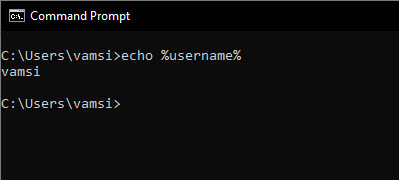
<p style="text-align: justify;">Để thay thế cho lệnh whoami, bạn cũng có thể sử dụng lệnh&nbsp;<strong>echo %username%.</strong>&nbsp;Không giống như lệnh đầu tiên, lệnh này sẽ chỉ hiển thị tên của người dùng hiện tại.</p>

<figure>
<div style="text-align: justify;"><img alt="Bạn cũng có thể sử dụng lệnh echo %username%" data-i="2" data-src="https://st.quantrimang.com/photos/image/2021/04/29/tim-ten-tai-khoan-nguoi-dung-win-10-3.jpg" data-was-processed="true" height="180" src="https://st.quantrimang.com/photos/image/2021/04/29/tim-ten-tai-khoan-nguoi-dung-win-10-3.jpg" width="399" /></div>

<figcaption>
<div style="text-align: justify;">Bạn cũng có thể sử dụng lệnh echo %username%</div>
</figcaption>
</figure>

<ul>
	<li style="text-align: justify;"><a href="https://quantrimang.com/tim-nhanh-cai-dat-he-thong-174501" title="Cách tìm nhanh cài đặt hệ thống cụ thể trên Windows 10">Cách tìm nhanh cài đặt hệ thống cụ thể trên Windows 10</a></li>
</ul>

<h3 style="text-align: justify;">Tìm tên tài khoản người dùng Windows trong netplwiz</h3>

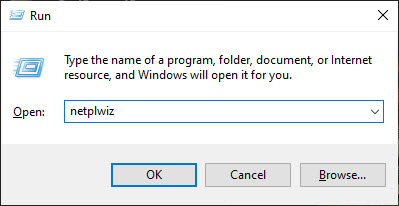
<p style="text-align: justify;">Bạn có thể sử dụng công cụ netplwiz để tìm tên người dùng Windows của mình. Đây là cách làm:</p>

<p style="text-align: justify;">1. Nhấn&nbsp;<strong>Win ​​+ R</strong>&nbsp;để mở cửa sổ&nbsp;<strong>Run.</strong></p>

<p style="text-align: justify;">2. Nhập&nbsp;<strong>netplwiz</strong>&nbsp;và nhấn&nbsp;<strong>Enter.</strong></p>

<figure>
<div style="text-align: justify;"><img alt="Nhập netplwiz" data-i="3" data-src="https://st.quantrimang.com/photos/image/2021/04/29/tim-ten-tai-khoan-nguoi-dung-win-10-4.jpg" data-was-processed="true" height="206" src="https://st.quantrimang.com/photos/image/2021/04/29/tim-ten-tai-khoan-nguoi-dung-win-10-4.jpg" width="399" /></div>

<figcaption>
<div style="text-align: justify;">Nhập netplwiz</div>
</figcaption>
</figure>

<div style="text-align: justify;">&nbsp;</div>

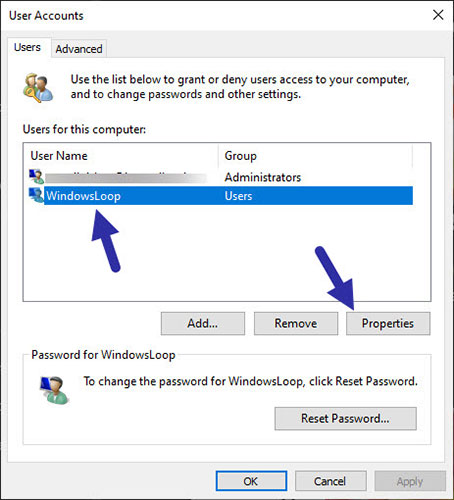
<p style="text-align: justify;">3. Chọn tài khoản người dùng của bạn.</p>

<p style="text-align: justify;">4. Nhấp vào nút&nbsp;<strong>Properties.</strong></p>

<figure>
<div style="text-align: justify;"><img alt="Nhấp vào nút Properties" data-i="4" data-src="https://st.quantrimang.com/photos/image/2021/04/29/tim-ten-tai-khoan-nguoi-dung-win-10-5.jpg" data-was-processed="true" height="500" src="https://st.quantrimang.com/photos/image/2021/04/29/tim-ten-tai-khoan-nguoi-dung-win-10-5.jpg" width="454" /></div>

<figcaption>
<div style="text-align: justify;">Nhấp vào nút Properties</div>
</figcaption>
</figure>

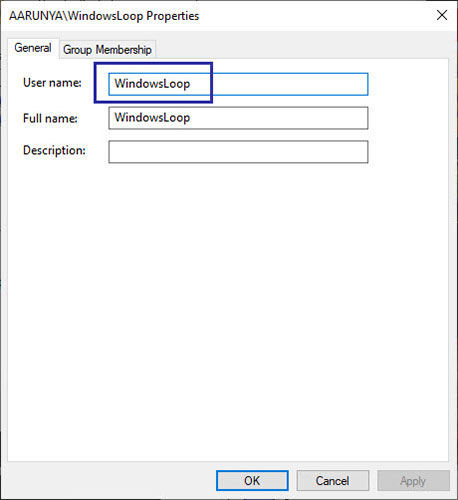
<p style="text-align: justify;">5. Bạn sẽ tìm thấy tên người dùng Windows trong trường&nbsp;<strong>User name.</strong></p>

<figure>
<div style="text-align: justify;"><img alt="Bạn sẽ tìm thấy tên người dùng Windows trong trường User name" data-i="5" data-src="https://st.quantrimang.com/photos/image/2021/04/29/tim-ten-tai-khoan-nguoi-dung-win-10-6.jpg" data-was-processed="true" height="500" src="https://st.quantrimang.com/photos/image/2021/04/29/tim-ten-tai-khoan-nguoi-dung-win-10-6.jpg" width="458" /></div>

<figcaption>
<div style="text-align: justify;">Bạn sẽ tìm thấy tên người dùng Windows trong trường User name</div>
</figcaption>
</figure>

<p style="text-align: justify;">6. Khi bạn đã biết tên người dùng, hãy đóng cửa sổ&nbsp;<strong>netplwiz.</strong></p>

<p style="text-align: justify;">Thật đơn giản để tìm tên tài khoản người dùng trong Windows 10.</p>

<p style="text-align: justify;">Chúc bạn thực hiện thành công!</p>
		</div>
				<div id="author">
						<p>
				<strong>Nguồn tin:</strong>
				Quantrimang.com
			</p>
		</div>
	</div>
	<div id="footer" class="clearfix">
		<div id="url">
			<strong>URL của bản tin này: </strong><a href="https://www.nguoicodonvn2008.info/vi/news/savefile/kien-thuc-may-tinh/cach-tim-ten-tai-khoan-nguoi-dung-trong-windows-10-4018.html" title="Cách tìm tên tài khoản người dùng trong Windows 10">https://www.nguoicodonvn2008.info/vi/news/savefile/kien-thuc-may-tinh/cach-tim-ten-tai-khoan-nguoi-dung-trong-windows-10-4018.html</a>

		</div>
		<div class="clear"></div>
		<div class="copyright">
			&copy; .&#x3A; Nguoicodonvn2008.info - Cõi lòng người cô đơn &#x3A;.
		</div>
		<div id="contact">
			<a href="mailto:admin@nguoicodonvn2008.info">admin@nguoicodonvn2008.info</a>
		</div>
	</div>
</div>
        <div id="timeoutsess" class="chromeframe">
            Bạn đã không sử dụng Site, <a onclick="timeoutsesscancel();" href="https://www.nguoicodonvn2008.info/#">Bấm vào đây để duy trì trạng thái đăng nhập</a>. Thời gian chờ: <span id="secField"> 60 </span> giây
        </div>
        <div id="openidResult" class="nv-alert" style="display:none"></div>
        <div id="openidBt" data-result="" data-redirect=""></div>
		</script>
		<div class="car-top">
  <span><img src="https://www.nguoicodonvn2008.info/themes/default/images/car.png" alt=""></span>
</div>
<script src="https://www.nguoicodonvn2008.info/assets/js/jquery/jquery.min.js"></script>
<script>var nv_base_siteurl="/",nv_lang_data="vi",nv_lang_interface="vi",nv_name_variable="nv",nv_fc_variable="op",nv_lang_variable="language",nv_module_name="news",nv_func_name="savefile",nv_is_user=0, nv_my_ofs=-4,nv_my_abbr="EDT",nv_cookie_prefix="nv4c_e856T",nv_check_pass_mstime=1738000,nv_area_admin=0,nv_safemode=0,theme_responsive=0,nv_recaptcha_ver=2,nv_recaptcha_sitekey="",nv_recaptcha_type="image",XSSsanitize=1;</script>
<script src="https://www.nguoicodonvn2008.info/assets/js/language/vi.js"></script>
<script src="https://www.nguoicodonvn2008.info/assets/js/DOMPurify/purify3.js"></script>
<script src="https://www.nguoicodonvn2008.info/assets/js/global.js"></script>
<script src="https://www.nguoicodonvn2008.info/assets/js/site.js"></script>
<script src="https://www.nguoicodonvn2008.info/themes/default/js/news.js"></script>
<script src="https://www.nguoicodonvn2008.info/themes/default/js/main.js"></script>
<script src="https://www.nguoicodonvn2008.info/themes/default/js/custom.js"></script>
<script type="application/ld+json">
        {
            "@context": "https://schema.org",
            "@type": "Organization",
            "url": "https://www.nguoicodonvn2008.info",
            "logo": "https://www.nguoicodonvn2008.info/uploads/angel.gif"
        }
        </script>
<script src="https://www.nguoicodonvn2008.info/themes/default/js/bootstrap.min.js"></script>
<script type="text/javascript">
var $scrolltop = $('.car-top');
$scrolltop.on('click', function () {
    $('html,body').animate({
        scrollTop: 0
    }, 800);
    $(this).addClass("car-run");
    setTimeout(function(){ $scrolltop.removeClass('car-run');}, 1000);
    return false;
});
$(window).on('scroll', function ()
{ 
    if($(window).scrollTop() >= 200)
    {
        $scrolltop.addClass("show");
        $scrolltop.addClass("car-down");
    }
    else
    {
       $scrolltop.removeClass("show");
       setTimeout(function(){ $scrolltop.removeClass('car-down');}, 300);
    }
});
</script>
</body>
</html>