<!DOCTYPE html>
    <html lang="vi" xmlns="http://www.w3.org/1999/xhtml" prefix="og: http://ogp.me/ns#">
    <head>
<title>Cách tích hợp xác thực Google trong ứng dụng Next.js bằng NextAuth</title>
<meta name="description" content="Cách tích hợp xác thực Google trong ứng dụng Next.js bằng NextAuth - Savefile - Tin Tức -...">
<meta name="author" content=".: Nguoicodonvn2008.info - Cõi lòng người cô đơn :.">
<meta name="copyright" content=".: Nguoicodonvn2008.info - Cõi lòng người cô đơn :. [admin@nguoicodonvn2008.info]">
<meta name="robots" content="index, archive, follow, noodp">
<meta name="googlebot" content="index,archive,follow,noodp">
<meta name="msnbot" content="all,index,follow">
<meta name="generator" content="NukeViet v4.5">
<meta http-equiv="Content-Type" content="text/html; charset=utf-8">
<meta property="og:title" content="Cách tích hợp xác thực Google trong ứng dụng Next.js bằng NextAuth">
<meta property="og:type" content="website">
<meta property="og:description" content="Savefile - Tin Tức - https&#x3A;&#x002F;&#x002F;www.nguoicodonvn2008.info&#x002F;vi&#x002F;news&#x002F;savefile&#x002F;kien-thuc-may-tinh&#x002F;cach-tich-hop-xac-thuc-google-trong-ung-dung-next-js-bang-nextauth-6912.html">
<meta property="og:site_name" content=".&#x3A; Nguoicodonvn2008.info - Cõi lòng người cô đơn &#x3A;.">
<meta property="og:url" content="https://www.nguoicodonvn2008.info/vi/news/savefile/kien-thuc-may-tinh/cach-tich-hop-xac-thuc-google-trong-ung-dung-next-js-bang-nextauth-6912.html">
<link rel="shortcut icon" href="https://www.nguoicodonvn2008.info/favicon.ico">
<link rel="canonical" href="https://www.nguoicodonvn2008.info/vi/news/savefile/kien-thuc-may-tinh/cach-tich-hop-xac-thuc-google-trong-ung-dung-next-js-bang-nextauth-6912.html">
<link rel="alternate" href="https://www.nguoicodonvn2008.info/vi/news/rss/" title="Tin Tức" type="application/rss+xml">
<link rel="alternate" href="https://www.nguoicodonvn2008.info/vi/news/rss/karaoke-dual/" title="Tin Tức - Karaoke Dual" type="application/rss+xml">
<link rel="alternate" href="https://www.nguoicodonvn2008.info/vi/news/rss/nhac-tre/" title="Tin Tức - Nhạc trẻ" type="application/rss+xml">
<link rel="alternate" href="https://www.nguoicodonvn2008.info/vi/news/rss/tru-tinh/" title="Tin Tức - Trữ tình" type="application/rss+xml">
<link rel="alternate" href="https://www.nguoicodonvn2008.info/vi/news/rss/nuoc-ngoai/" title="Tin Tức - Nước ngoài" type="application/rss+xml">
<link rel="alternate" href="https://www.nguoicodonvn2008.info/vi/news/rss/remix/" title="Tin Tức - Remix" type="application/rss+xml">
<link rel="alternate" href="https://www.nguoicodonvn2008.info/vi/news/rss/tam-su-tinh-yeu/" title="Tin Tức - Tâm sự tình yêu" type="application/rss+xml">
<link rel="alternate" href="https://www.nguoicodonvn2008.info/vi/news/rss/tho-suu-tam/" title="Tin Tức - Thơ sưu tầm" type="application/rss+xml">
<link rel="alternate" href="https://www.nguoicodonvn2008.info/vi/news/rss/cuoc-song/" title="Tin Tức - Cuộc sống" type="application/rss+xml">
<link rel="alternate" href="https://www.nguoicodonvn2008.info/vi/news/rss/phan-mem/" title="Tin Tức - Phần mềm" type="application/rss+xml">
<link rel="alternate" href="https://www.nguoicodonvn2008.info/vi/news/rss/kien-thuc-may-tinh/" title="Tin Tức - Kiến thức máy tính" type="application/rss+xml">
<link rel="alternate" href="https://www.nguoicodonvn2008.info/vi/news/rss/hoc-tap/" title="Tin Tức - Học tập" type="application/rss+xml">
<link rel="alternate" href="https://www.nguoicodonvn2008.info/vi/news/rss/tai-lieu/" title="Tin Tức - Tài liệu" type="application/rss+xml">
<link rel="alternate" href="https://www.nguoicodonvn2008.info/vi/news/rss/de-thi/" title="Tin Tức - Đề thi" type="application/rss+xml">
<link rel="preload" as="style" href="https://www.nguoicodonvn2008.info/assets/css/font-awesome.min.css" type="text/css">
<link rel="preload" as="style" href="https://www.nguoicodonvn2008.info/themes/default/css/bootstrap.non-responsive.css" type="text/css">
<link rel="preload" as="style" href="https://www.nguoicodonvn2008.info/themes/default/css/style.css" type="text/css">
<link rel="preload" as="style" href="https://www.nguoicodonvn2008.info/themes/default/css/style.non-responsive.css" type="text/css">
<link rel="preload" as="style" href="https://www.nguoicodonvn2008.info/themes/default/css/news.css" type="text/css">
<link rel="preload" as="style" href="https://www.nguoicodonvn2008.info/themes/default/css/custom.css" type="text/css">
<link rel="preload" as="script" href="https://www.nguoicodonvn2008.info/assets/js/jquery/jquery.min.js" type="text/javascript">
<link rel="preload" as="script" href="https://www.nguoicodonvn2008.info/assets/js/language/vi.js" type="text/javascript">
<link rel="preload" as="script" href="https://www.nguoicodonvn2008.info/assets/js/DOMPurify/purify3.js" type="text/javascript">
<link rel="preload" as="script" href="https://www.nguoicodonvn2008.info/assets/js/global.js" type="text/javascript">
<link rel="preload" as="script" href="https://www.nguoicodonvn2008.info/assets/js/site.js" type="text/javascript">
<link rel="preload" as="script" href="https://www.nguoicodonvn2008.info/themes/default/js/news.js" type="text/javascript">
<link rel="preload" as="script" href="https://www.nguoicodonvn2008.info/themes/default/js/main.js" type="text/javascript">
<link rel="preload" as="script" href="https://www.nguoicodonvn2008.info/themes/default/js/custom.js" type="text/javascript">
<link rel="preload" as="script" href="https://www.nguoicodonvn2008.info/themes/default/js/bootstrap.min.js" type="text/javascript">
<link rel="stylesheet" href="https://www.nguoicodonvn2008.info/assets/css/font-awesome.min.css">
<link rel="stylesheet" href="https://www.nguoicodonvn2008.info/themes/default/css/bootstrap.non-responsive.css">
<link rel="stylesheet" href="https://www.nguoicodonvn2008.info/themes/default/css/style.css">
<link rel="stylesheet" href="https://www.nguoicodonvn2008.info/themes/default/css/style.non-responsive.css">
<link rel="StyleSheet" href="https://www.nguoicodonvn2008.info/themes/default/css/news.css">
<link rel="stylesheet" href="https://www.nguoicodonvn2008.info/themes/default/css/custom.css">
<style type="text/css">
	body{background: #fff;}
</style>
    </head>
    <body>
<div id="print">
	<div id="hd_print">
		<h2 class="pull-left">.&#x3A; Nguoicodonvn2008.info - Cõi lòng người cô đơn &#x3A;.</h2>
		<p class="pull-right"><a title=".&#x3A; Nguoicodonvn2008.info - Cõi lòng người cô đơn &#x3A;." href="https://www.nguoicodonvn2008.info/">https://www.nguoicodonvn2008.info</a></p>
	</div>
	<div class="clear"></div>
	<hr />
	<div id="content">
		<h1>Cách tích hợp xác thực Google trong ứng dụng Next.js bằng NextAuth</h1>
		<ul class="list-inline">
			<li>Thứ ba - 21/03/2023 00:48</li>
			<li class="hidden-print txtrequired"><em class="fa fa-print">&nbsp;</em><a title="In ra" href="javascript:;" onclick="window.print()">In ra</a></li>
			<li class="hidden-print txtrequired"><em class="fa fa-power-off">&nbsp;</em><a title="Đóng cửa sổ này" href="javascript:;" onclick="window.close()">Đóng cửa sổ này</a></li>
		</ul>
		<div class="clear"></div>
		<div id="hometext">
		</div>
				<div class="imghome">
			<img alt="Cách tích hợp xác thực Google trong ứng dụng Next.js bằng NextAuth" src="https://st.quantrimang.com/photos/image/2023/03/20/tich-hop-xac-thuc-google-trong-ung-dung-next-js-bang-nextauth-6.jpg" width="460" class="img-thumbnail" />
		</div>
		<div class="clear"></div>
		<div id="bodytext" class="clearfix">
			<p style="text-align: justify;">Tích hợp hệ thống xác thực bảo mật là một bước phát triển quan trọng không chỉ cung cấp môi trường an toàn cho người dùng mà còn tạo cho họ niềm tin vào sản phẩm của bạn. Hệ thống này đảm bảo rằng dữ liệu của người dùng được bảo vệ và chỉ những cá nhân được ủy quyền mới có thể truy cập ứng dụng.</p>

<p style="text-align: justify;">Xây dựng xác thực bảo mật từ đầu có thể là một quá trình tốn thời gian, đòi hỏi sự hiểu biết thấu đáo về các quy trình và giao thức xác thực, đặc biệt là khi xử lý những nhà cung cấp xác thực khác nhau.</p>

<p style="text-align: justify;">Sử dụng NextAuth, bạn có thể chuyển trọng tâm sang xây dựng các tính năng cốt lõi. Đọc tiếp để tìm hiểu cách tích hợp thông tin đăng nhập Google trong ứng dụng của bạn bằng NextAuth.</p>

<h2 style="text-align: justify;">NextAuth hoạt động như thế nào?</h2>

<p style="text-align: justify;">NextAuth.js là một thư viện xác thực nguồn mở giúp đơn giản hóa quy trình thêm chức năng xác thực và ủy quyền cho các ứng dụng Next.js cũng như tùy chỉnh quy trình xác thực. Nó cung cấp một loạt các tính năng như email, xác thực không cần mật khẩu và hỗ trợ cho nhiều nhà cung cấp xác thực khác nhau như&nbsp;Google, GitHub, v.v...</p>

<figure>
<div style="text-align: justify;"><img alt="Trang đăng nhập được hiển thị trên thiết bị Samsung" data-i="0" data-src="https://st.quantrimang.com/photos/image/2023/03/20/tich-hop-xac-thuc-google-trong-ung-dung-next-js-bang-nextauth-1.jpg" data-was-processed="true" height="599" src="https://st.quantrimang.com/photos/image/2023/03/20/tich-hop-xac-thuc-google-trong-ung-dung-next-js-bang-nextauth-1.jpg" width="1200" /></div>

<figcaption>
<div style="text-align: justify;">Trang đăng nhập được hiển thị trên thiết bị Samsung</div>
</figcaption>
</figure>

<p style="text-align: justify;">Ở cấp độ cao, NextAuth hoạt động như một phần mềm trung gian, hỗ trợ quá trình xác thực giữa ứng dụng của bạn và nhà cung cấp. Về cơ bản, khi người dùng cố gắng đăng nhập, họ sẽ được chuyển hướng đến trang đăng nhập của Google. Sau khi xác thực thành công, Google trả về một payload bao gồm dữ liệu của người dùng, chẳng hạn như tên và địa chỉ email của họ. Dữ liệu này được sử dụng để cấp quyền truy cập vào ứng dụng và tài nguyên của nó.</p>

<p style="text-align: justify;">Sử dụng dữ liệu payload, NextAuth tạo phiên cho mỗi người dùng được xác thực và lưu trữ token phiên trong cookie chỉ HTTP an toàn. Token phiên được sử dụng để xác minh danh tính của người dùng và duy trì trạng thái xác thực của họ. Quy trình này cũng áp dụng cho các nhà cung cấp khác có thay đổi nhỏ trong quá trình triển khai.</p>

<h2 style="text-align: justify;">Đăng ký ứng dụng Next.js trên Google Developer Console</h2>

<p style="text-align: justify;">NextAuth cung cấp hỗ trợ cho dịch vụ xác thực của Google. Tuy nhiên, để ứng dụng tương tác với các API của Google và cho phép người dùng xác thực bằng thông tin đăng nhập Google của họ, bạn cần phải đăng ký ứng dụng của mình trên Google Developer Console, lấy Client ID và Client Secret.</p>

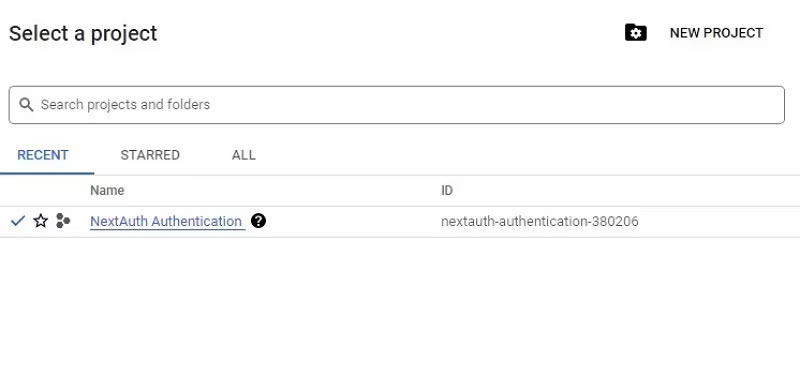
<p style="text-align: justify;">Để làm điều đó, hãy&nbsp;điều hướng đến Google Developer Console. Tiếp theo, đăng nhập bằng tài khoản Google của bạn để truy cập console. Sau khi đăng nhập, hãy tạo một dự án mới.</p>

<figure>
<div style="text-align: justify;"><img alt="Tạo dự án trên Google Developer Console" data-i="1" data-src="https://st.quantrimang.com/photos/image/2023/03/20/tich-hop-xac-thuc-google-trong-ung-dung-next-js-bang-nextauth-2.jpg" data-was-processed="true" height="377" src="https://st.quantrimang.com/photos/image/2023/03/20/tich-hop-xac-thuc-google-trong-ung-dung-next-js-bang-nextauth-2.jpg" width="800" /></div>

<figcaption>
<div style="text-align: justify;">Tạo dự án trên Google Developer Console</div>
</figcaption>
</figure>

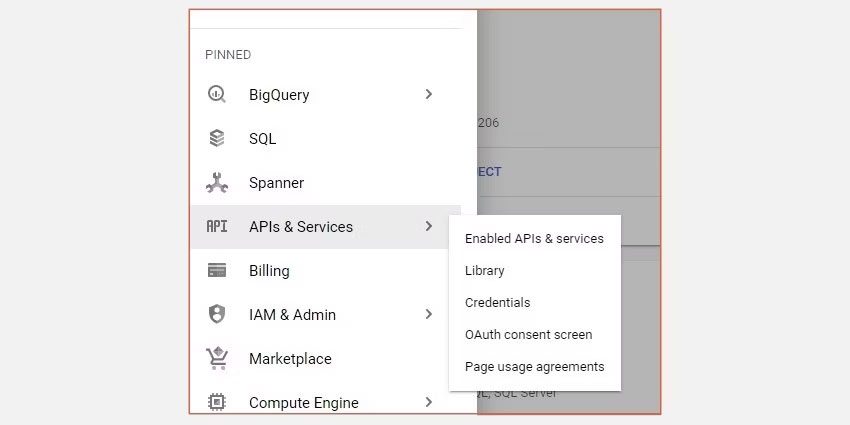
<p style="text-align: justify;">Trên trang tổng quan của dự án, chọn tab&nbsp;<strong>APIs and Services</strong>&nbsp;ở ngăn menu bên trái và cuối cùng là tùy chọn&nbsp;<strong>Credentials</strong>.</p>

<figure>
<div style="text-align: justify;"><img alt="Cài đặt Google Developer Console" data-i="2" data-src="https://st.quantrimang.com/photos/image/2023/03/20/tich-hop-xac-thuc-google-trong-ung-dung-next-js-bang-nextauth-3.jpg" data-was-processed="true" height="425" src="https://st.quantrimang.com/photos/image/2023/03/20/tich-hop-xac-thuc-google-trong-ung-dung-next-js-bang-nextauth-3.jpg" width="850" /></div>

<figcaption>
<div style="text-align: justify;">Cài đặt Google Developer Console</div>
</figcaption>
</figure>

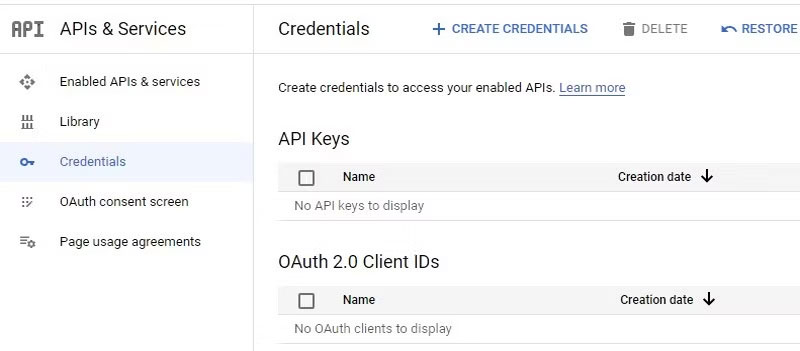
<p style="text-align: justify;">Nhấp vào nút&nbsp;<strong>Create Credentials</strong>&nbsp;để tạo Client ID và Client Secret. Tiếp theo, chỉ định loại ứng dụng từ các tùy chọn đã cho và sau đó cung cấp tên cho ứng dụng của bạn.</p>

<figure>
<div style="text-align: justify;"><img alt="Thiết lập Client ID và Client Secret bằng cách nhấp vào nút Create Credentials" data-i="3" data-src="https://st.quantrimang.com/photos/image/2023/03/20/tich-hop-xac-thuc-google-trong-ung-dung-next-js-bang-nextauth-4.jpg" data-was-processed="true" height="351" src="https://st.quantrimang.com/photos/image/2023/03/20/tich-hop-xac-thuc-google-trong-ung-dung-next-js-bang-nextauth-4.jpg" width="800" /></div>

<figcaption>
<div style="text-align: justify;">Thiết lập Client ID và Client Secret bằng cách nhấp vào nút Create Credentials</div>
</figcaption>
</figure>

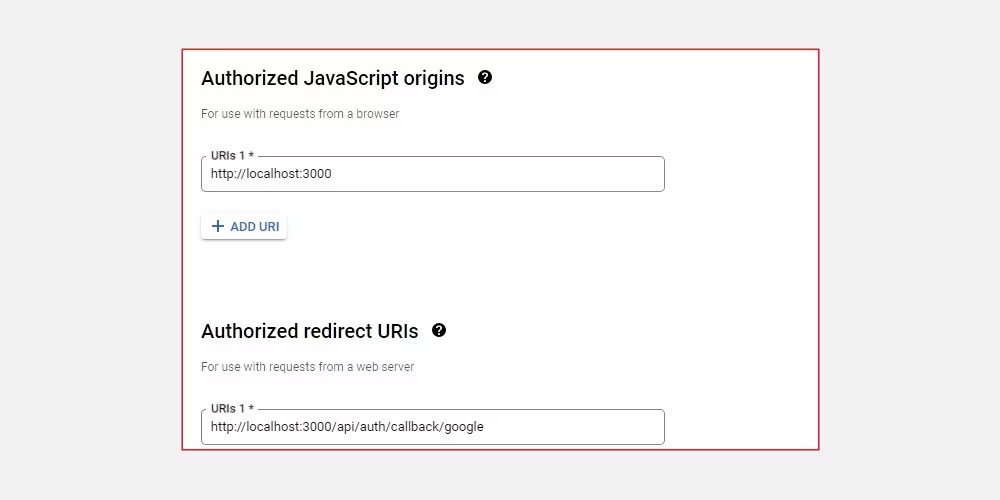
<p style="text-align: justify;">Sau đó, chỉ định URL quay về trang chủ của ứng dụng và cuối cùng chỉ định URI chuyển hướng được ủy quyền cho ứng dụng. Đối với trường hợp này, nó phải là&nbsp;<em>http://localhost:3000/api/auth/callback/google</em>&nbsp;như được chỉ định bởi cài đặt nhà cung cấp dịch vụ Google của NextAuth.</p>

<figure>
<div style="text-align: justify;"><img alt="Cài đặt OAuth client" data-i="4" data-src="https://st.quantrimang.com/photos/image/2023/03/20/tich-hop-xac-thuc-google-trong-ung-dung-next-js-bang-nextauth-5.jpg" data-was-processed="true" height="500" src="https://st.quantrimang.com/photos/image/2023/03/20/tich-hop-xac-thuc-google-trong-ung-dung-next-js-bang-nextauth-5.jpg" width="1000" /></div>

<figcaption>
<div style="text-align: justify;">Cài đặt OAuth client</div>
</figcaption>
</figure>

<p style="text-align: justify;">Sau khi đăng ký thành công, Google sẽ cung cấp cho bạn Client ID và Client Secret để sử dụng trong ứng dụng.</p>

<h2 style="text-align: justify;">Thiết lập ứng dụng NextJS</h2>

<p style="text-align: justify;">Để bắt đầu, hãy tạo cục bộ một dự án Next.js:</p>

<pre id="pre0">
<code>npx create-next-app next-auth-app</code></pre>

<p style="text-align: justify;">Sau khi thiết lập hoàn tất, hãy điều hướng đến thư mục dự án mới được tạo và chạy lệnh này để khởi động server phát triển.</p>

<pre id="pre1">
<code>npm run dev</code></pre>

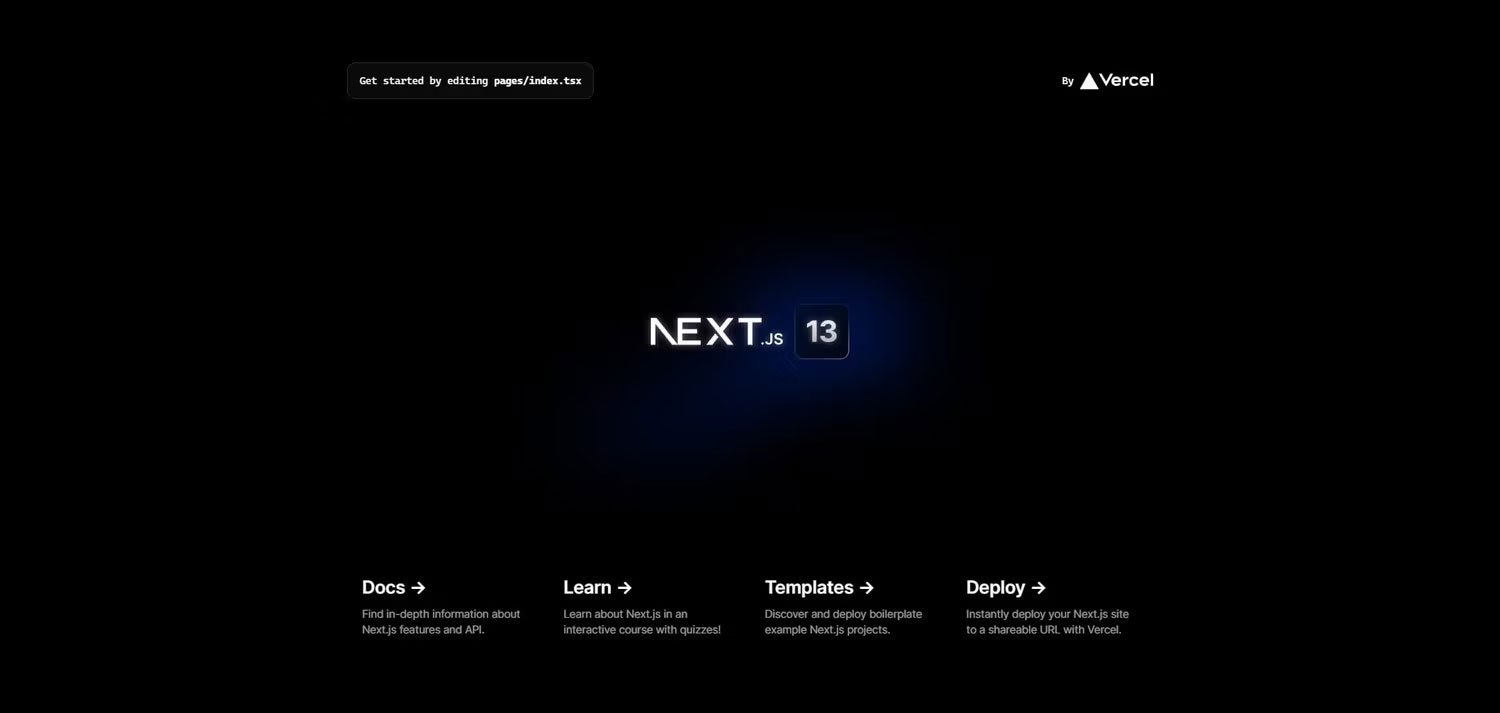
<p style="text-align: justify;">Mở trình duyệt và điều hướng đến&nbsp;<em>http://localhost:3000.</em>&nbsp;Kết quả mong đợi sẽ như sau.</p>

<figure>
<div style="text-align: justify;"><img alt="Màn hình bắt đầu của server phát triển NextJS" data-i="5" data-src="https://st.quantrimang.com/photos/image/2023/03/20/tich-hop-xac-thuc-google-trong-ung-dung-next-js-bang-nextauth-6.jpg" data-was-processed="true" height="713" src="https://st.quantrimang.com/photos/image/2023/03/20/tich-hop-xac-thuc-google-trong-ung-dung-next-js-bang-nextauth-6.jpg" width="1500" /></div>

<figcaption>
<div style="text-align: justify;">Màn hình bắt đầu của server phát triển&nbsp;NextJS</div>
</figcaption>
</figure>

<p style="text-align: justify;">Lưu ý: Bạn có thể tìm thấy code của dự án này trong&nbsp;kho lưu trữ GitHub của nó.</p>

<h2 style="text-align: justify;">Thiết lập file .env</h2>

<p style="text-align: justify;">Trong thư mục root của dự án, hãy tạo một file mới và đặt tên là&nbsp;<strong>.env</strong>&nbsp;để chứa Client ID, Client Secret và URL cơ sở.</p>

<pre id="pre2">
<code>NEXT_PUBLIC_GOOGLE_CLIENT_ID= &#039;client ID&#039;
NEXT_PUBLIC_GOOGLE_CLIENT_SECRET= &#039;secret&#039;
NEXT_PUBLIC_NEXTAUTH_URL= &#039;http://localhost:3000&#039;</code></pre>

<p style="text-align: justify;">URL NextAUTH được sử dụng để chỉ định URL cơ sở của ứng dụng, dùng để chuyển hướng người dùng sau khi xác thực hoàn tất.</p>

<h2 style="text-align: justify;">Tích hợp NextAuth trong ứng dụng Next.js</h2>

<p style="text-align: justify;">Đầu tiên, hãy cài đặt thư viện của NextAuth vào dự án của bạn.</p>

<pre id="pre3">
<code>npm install next-auth</code></pre>

<p style="text-align: justify;">Tiếp theo, trong thư mục&nbsp;<strong>/pages</strong>, tạo một thư mục mới và đặt tên là&nbsp;<strong>api.</strong>&nbsp;Thay đổi thư mục thành thư mục&nbsp;<strong>api</strong>&nbsp;và tạo một thư mục khác có tên&nbsp;<strong>auth.</strong>&nbsp;Trong thư mục auth, thêm một file mới và đặt tên là&nbsp;<strong>&#91;...nextauth&#93;.js</strong>&nbsp;và thêm các dòng code sau.</p>

<pre id="pre4">
<code>import NextAuth from &quot;next-auth/next&quot;;
import GoogleProvider from &quot;next-auth/providers/google&quot;;
export default NextAuth({
    providers:&#91;
        GoogleProvider({
            clientId:process.env.NEXT_PUBLIC_GOOGLE_CLIENT_ID,
            clientSecret: process.env.NEXT_PUBLIC_GOOGLE_CLIENT_SECRET,
        }),
    &#93;

});</code></pre>

<p style="text-align: justify;">Code này cấu hình Google làm nhà cung cấp xác thực. Hàm NextAuth xác định đối tượng cấu hình nhà cung cấp Google có hai thuộc tính: Client ID và Client Secret khởi tạo nhà cung cấp.</p>

<p style="text-align: justify;">Tiếp theo, mở file&nbsp;<strong>pages/_app.js</strong>&nbsp;và thực hiện các thay đổi sau đối với code.</p>

<pre id="pre5">
<code>import &#039;../styles/globals.css&#039;
import { SessionProvider } from &quot;next-auth/react&quot;
function MyApp({ Component, pageProps: { session, ...pageProps } }) {
 return (
   &lt;SessionProvider session={session}&gt;
     &lt;Component {...pageProps} /&gt;
   &lt;/SessionProvider&gt;
 )
}
export default MyApp </code></pre>

<p style="text-align: justify;">Thành phần SessionProvider của NextAuth cung cấp chức năng quản lý trạng thái xác thực cho ứng dụng Next.js. Cần một prop&nbsp;<strong>session</strong>&nbsp;hứa dữ liệu phiên xác thực được trả về từ API của Google, bao gồm các chi tiết người dùng như ID, email và token truy cập của họ.</p>

<p style="text-align: justify;">Bằng cách gói thành phần MyApp với thành phần SessionProvider, đối tượng phiên xác thực với các chi tiết người dùng được cung cấp trong ứng dụng, cho phép ứng dụng duy trì và hiển thị các trang dựa trên trạng thái xác thực của chúng.</p>

<h2 style="text-align: justify;">Cấu hình file index.js</h2>

<p style="text-align: justify;">Mở file&nbsp;<strong>pages/index.js</strong>, xóa code soạn sẵn và thêm code bên dưới để tạo nút đăng nhập định tuyến người dùng đến trang đăng nhập.</p>

<pre id="pre6">
<code>import Head from &#039;next/head&#039;
import styles from &#039;../styles/Home.module.css&#039;
import { useRouter } from &#039;next/router&#039;;

export default function Home() {
  const router = useRouter();
  
  return (
    &lt;div className={styles.container}&gt;
      &lt;Head&gt;
        &lt;title&gt;Create Next App&lt;/title&gt;
        &lt;meta name=&quot;description&quot; content=&quot;Generated by create next app&quot; /&gt;
        &lt;link rel=&quot;icon&quot; href=&quot;/favicon.ico&quot; /&gt;
      &lt;/Head&gt;

      &lt;main className={styles.main}&gt;
        &lt;h1 className={styles.title}&gt;
          Welcome to &lt;a href=&quot;https://nextjs.org&quot;&gt;Next.js!&lt;/a&gt;
        &lt;/h1&gt;

        &lt;p className={styles.description}&gt;
          Get started by signing in{&#039; &#039;}
          &lt;code className={styles.code}&gt;with your Google Account&lt;/code&gt;
          &lt;button className={styles.loginButton}
          onClick={() =&gt; router.push(&#039;/Login&#039;)}&gt; Login&lt;/button&gt;
        &lt;/p&gt;
      &lt;/main&gt;

    &lt;/div&gt;
  )
}</code></pre>

<p style="text-align: justify;">Code này sử dụng hook Next.js useRouter để xử lý định tuyến trong ứng dụng bằng cách xác định đối tượng router. Khi nhấp vào nút đăng nhập, hàm xử lý sẽ gọi phương thức&nbsp;<strong>router.push</strong>&nbsp;để chuyển hướng người dùng đến trang đăng nhập.</p>

<h2 style="text-align: justify;">Tạo một trang xác thực đăng nhập</h2>

<p style="text-align: justify;">Trong thư mục&nbsp;<strong>pages</strong>, tạo một file&nbsp;<strong>Login.js</strong>&nbsp;mới, sau đó thêm các dòng code sau.</p>

<pre id="pre7">
<code>import { useSession, signIn, signOut } from &quot;next-auth/react&quot;
import { useRouter } from &#039;next/router&#039;;
import styles from &#039;../styles/Login.module.css&#039;
export default function Login() {
  const { data: session } = useSession()
  const router = useRouter();
  if (session) {
    return (
      &lt;div className={styles.container}&gt;
        &lt;h1 className=&quot;title&quot;&gt;Create Next App&lt;/h1&gt;
        &lt;div className={styles.content}&gt;
             &lt;h2&gt; Signed in as {session.user.email} &lt;br /&gt;&lt;/h2&gt; 
              &lt;div classname={styles.btns}&gt;
              &lt;button className={styles.button} onClick={() =&gt; router.push(&#039;/Profile&#039;)}&gt;
                 User Profile
             &lt;/button&gt;
              &lt;button className={styles.button} onClick={() =&gt; {
                  signOut()
              }}&gt;
                 Sign out
             &lt;/button&gt;
              &lt;/div&gt;
        &lt;/div&gt;
      &lt;/div&gt;

    )
  }
  return (
    &lt;div className={styles.container}&gt;
       &lt;h1 className=&quot;title&quot;&gt;Create Next App&lt;/h1&gt;
      &lt;div className={styles.content}&gt;
          &lt;h2&gt; You are not signed in!!&lt;/h2&gt;
      &lt;button className={styles.button}
      onClick={() =&gt; signIn()}&gt;Sign in&lt;/button&gt;
      &lt;/div&gt;
    &lt;/div&gt;
  )
}</code></pre>

<p style="text-align: justify;"><strong>useSession, signIn</strong>&nbsp;và&nbsp;<strong>signOut</strong>&nbsp;là các hook được cung cấp bởi&nbsp;<strong>next-auth.</strong>&nbsp;Hook&nbsp;<strong>useSession</strong>&nbsp;được sử dụng để truy cập đối tượng phiên người dùng hiện tại sau khi người dùng đăng nhập và được Google xác thực thành công.</p>

<p style="text-align: justify;">Điều này cho phép Next.js duy trì trạng thái xác thực và kết xuất chi tiết người dùng ở phía client của ứng dụng, trong trường hợp này là email.</p>

<p style="text-align: justify;">Ngoài ra, bằng cách sử dụng đối tượng phiên, bạn có thể dễ dàng tạo profile người dùng tùy chỉnh cho ứng dụng của mình và lưu trữ dữ liệu trong cơ sở dữ liệu như PostgreSQL. Bạn có thể kết nối cơ sở dữ liệu PostgreSQL với ứng dụng Next.js của mình bằng Prisma.</p>

<p style="text-align: justify;">Hook signOut cho phép người dùng đăng xuất khỏi ứng dụng. Hook này sẽ xóa đối tượng phiên được tạo trong quá trình đăng nhập và người dùng sẽ bị đăng xuất.</p>

<p style="text-align: justify;">Hãy tiếp tục và khởi động server phát triển để cập nhật các thay đổi và chuyển đến ứng dụng Next.js đang chạy trên trình duyệt nhằm kiểm tra chức năng xác thực.</p>

<pre id="pre8">
<code>npm run dev</code></pre>

<p style="text-align: justify;">Ngoài ra, bạn có thể sử dụng Tailwind CSS với ứng dụng Next.js của mình để tạo kiểu cho các mô hình xác thực.</p>
		</div>
				<div id="author">
						<p>
				<strong>Nguồn tin:</strong>
				Quantrimang.com
			</p>
		</div>
	</div>
	<div id="footer" class="clearfix">
		<div id="url">
			<strong>URL của bản tin này: </strong><a href="https://www.nguoicodonvn2008.info/vi/news/savefile/kien-thuc-may-tinh/cach-tich-hop-xac-thuc-google-trong-ung-dung-next-js-bang-nextauth-6912.html" title="Cách tích hợp xác thực Google trong ứng dụng Next.js bằng NextAuth">https://www.nguoicodonvn2008.info/vi/news/savefile/kien-thuc-may-tinh/cach-tich-hop-xac-thuc-google-trong-ung-dung-next-js-bang-nextauth-6912.html</a>

		</div>
		<div class="clear"></div>
		<div class="copyright">
			&copy; .&#x3A; Nguoicodonvn2008.info - Cõi lòng người cô đơn &#x3A;.
		</div>
		<div id="contact">
			<a href="mailto:admin@nguoicodonvn2008.info">admin@nguoicodonvn2008.info</a>
		</div>
	</div>
</div>
        <div id="timeoutsess" class="chromeframe">
            Bạn đã không sử dụng Site, <a onclick="timeoutsesscancel();" href="https://www.nguoicodonvn2008.info/#">Bấm vào đây để duy trì trạng thái đăng nhập</a>. Thời gian chờ: <span id="secField"> 60 </span> giây
        </div>
        <div id="openidResult" class="nv-alert" style="display:none"></div>
        <div id="openidBt" data-result="" data-redirect=""></div>
		</script>
		<div class="car-top">
  <span><img src="https://www.nguoicodonvn2008.info/themes/default/images/car.png" alt=""></span>
</div>
<script src="https://www.nguoicodonvn2008.info/assets/js/jquery/jquery.min.js"></script>
<script>var nv_base_siteurl="/",nv_lang_data="vi",nv_lang_interface="vi",nv_name_variable="nv",nv_fc_variable="op",nv_lang_variable="language",nv_module_name="news",nv_func_name="savefile",nv_is_user=0, nv_my_ofs=-4,nv_my_abbr="EDT",nv_cookie_prefix="nv4c_e856T",nv_check_pass_mstime=1738000,nv_area_admin=0,nv_safemode=0,theme_responsive=0,nv_recaptcha_ver=2,nv_recaptcha_sitekey="",nv_recaptcha_type="image",XSSsanitize=1;</script>
<script src="https://www.nguoicodonvn2008.info/assets/js/language/vi.js"></script>
<script src="https://www.nguoicodonvn2008.info/assets/js/DOMPurify/purify3.js"></script>
<script src="https://www.nguoicodonvn2008.info/assets/js/global.js"></script>
<script src="https://www.nguoicodonvn2008.info/assets/js/site.js"></script>
<script src="https://www.nguoicodonvn2008.info/themes/default/js/news.js"></script>
<script src="https://www.nguoicodonvn2008.info/themes/default/js/main.js"></script>
<script src="https://www.nguoicodonvn2008.info/themes/default/js/custom.js"></script>
<script type="application/ld+json">
        {
            "@context": "https://schema.org",
            "@type": "Organization",
            "url": "https://www.nguoicodonvn2008.info",
            "logo": "https://www.nguoicodonvn2008.info/uploads/angel.gif"
        }
        </script>
<script src="https://www.nguoicodonvn2008.info/themes/default/js/bootstrap.min.js"></script>
<script type="text/javascript">
var $scrolltop = $('.car-top');
$scrolltop.on('click', function () {
    $('html,body').animate({
        scrollTop: 0
    }, 800);
    $(this).addClass("car-run");
    setTimeout(function(){ $scrolltop.removeClass('car-run');}, 1000);
    return false;
});
$(window).on('scroll', function ()
{ 
    if($(window).scrollTop() >= 200)
    {
        $scrolltop.addClass("show");
        $scrolltop.addClass("car-down");
    }
    else
    {
       $scrolltop.removeClass("show");
       setTimeout(function(){ $scrolltop.removeClass('car-down');}, 300);
    }
});
</script>
</body>
</html>