<!DOCTYPE html>
    <html lang="vi" xmlns="http://www.w3.org/1999/xhtml" prefix="og: http://ogp.me/ns#">
    <head>
<title>Cách thiết lập webcam phát hiện chuyển động trong Ubuntu</title>
<meta name="description" content="Cách thiết lập webcam phát hiện chuyển động trong Ubuntu - Savefile - Tin Tức -...">
<meta name="author" content=".: Nguoicodonvn2008.info - Cõi lòng người cô đơn :.">
<meta name="copyright" content=".: Nguoicodonvn2008.info - Cõi lòng người cô đơn :. [admin@nguoicodonvn2008.info]">
<meta name="robots" content="index, archive, follow, noodp">
<meta name="googlebot" content="index,archive,follow,noodp">
<meta name="msnbot" content="all,index,follow">
<meta name="generator" content="NukeViet v4.5">
<meta http-equiv="Content-Type" content="text/html; charset=utf-8">
<meta property="og:title" content="Cách thiết lập webcam phát hiện chuyển động trong Ubuntu">
<meta property="og:type" content="website">
<meta property="og:description" content="Savefile - Tin Tức - https&#x3A;&#x002F;&#x002F;www.nguoicodonvn2008.info&#x002F;vi&#x002F;news&#x002F;savefile&#x002F;kien-thuc-may-tinh&#x002F;cach-thiet-lap-webcam-phat-hien-chuyen-dong-trong-ubuntu-8703.html">
<meta property="og:site_name" content=".&#x3A; Nguoicodonvn2008.info - Cõi lòng người cô đơn &#x3A;.">
<meta property="og:url" content="https://www.nguoicodonvn2008.info/vi/news/savefile/kien-thuc-may-tinh/cach-thiet-lap-webcam-phat-hien-chuyen-dong-trong-ubuntu-8703.html">
<link rel="shortcut icon" href="https://www.nguoicodonvn2008.info/favicon.ico">
<link rel="canonical" href="https://www.nguoicodonvn2008.info/vi/news/savefile/kien-thuc-may-tinh/cach-thiet-lap-webcam-phat-hien-chuyen-dong-trong-ubuntu-8703.html">
<link rel="alternate" href="https://www.nguoicodonvn2008.info/vi/news/rss/" title="Tin Tức" type="application/rss+xml">
<link rel="alternate" href="https://www.nguoicodonvn2008.info/vi/news/rss/karaoke-dual/" title="Tin Tức - Karaoke Dual" type="application/rss+xml">
<link rel="alternate" href="https://www.nguoicodonvn2008.info/vi/news/rss/nhac-tre/" title="Tin Tức - Nhạc trẻ" type="application/rss+xml">
<link rel="alternate" href="https://www.nguoicodonvn2008.info/vi/news/rss/tru-tinh/" title="Tin Tức - Trữ tình" type="application/rss+xml">
<link rel="alternate" href="https://www.nguoicodonvn2008.info/vi/news/rss/nuoc-ngoai/" title="Tin Tức - Nước ngoài" type="application/rss+xml">
<link rel="alternate" href="https://www.nguoicodonvn2008.info/vi/news/rss/remix/" title="Tin Tức - Remix" type="application/rss+xml">
<link rel="alternate" href="https://www.nguoicodonvn2008.info/vi/news/rss/tam-su-tinh-yeu/" title="Tin Tức - Tâm sự tình yêu" type="application/rss+xml">
<link rel="alternate" href="https://www.nguoicodonvn2008.info/vi/news/rss/tho-suu-tam/" title="Tin Tức - Thơ sưu tầm" type="application/rss+xml">
<link rel="alternate" href="https://www.nguoicodonvn2008.info/vi/news/rss/cuoc-song/" title="Tin Tức - Cuộc sống" type="application/rss+xml">
<link rel="alternate" href="https://www.nguoicodonvn2008.info/vi/news/rss/phan-mem/" title="Tin Tức - Phần mềm" type="application/rss+xml">
<link rel="alternate" href="https://www.nguoicodonvn2008.info/vi/news/rss/kien-thuc-may-tinh/" title="Tin Tức - Kiến thức máy tính" type="application/rss+xml">
<link rel="alternate" href="https://www.nguoicodonvn2008.info/vi/news/rss/hoc-tap/" title="Tin Tức - Học tập" type="application/rss+xml">
<link rel="alternate" href="https://www.nguoicodonvn2008.info/vi/news/rss/tai-lieu/" title="Tin Tức - Tài liệu" type="application/rss+xml">
<link rel="alternate" href="https://www.nguoicodonvn2008.info/vi/news/rss/de-thi/" title="Tin Tức - Đề thi" type="application/rss+xml">
<link rel="preload" as="style" href="https://www.nguoicodonvn2008.info/assets/css/font-awesome.min.css" type="text/css">
<link rel="preload" as="style" href="https://www.nguoicodonvn2008.info/themes/default/css/bootstrap.non-responsive.css" type="text/css">
<link rel="preload" as="style" href="https://www.nguoicodonvn2008.info/themes/default/css/style.css" type="text/css">
<link rel="preload" as="style" href="https://www.nguoicodonvn2008.info/themes/default/css/style.non-responsive.css" type="text/css">
<link rel="preload" as="style" href="https://www.nguoicodonvn2008.info/themes/default/css/news.css" type="text/css">
<link rel="preload" as="style" href="https://www.nguoicodonvn2008.info/themes/default/css/custom.css" type="text/css">
<link rel="preload" as="script" href="https://www.nguoicodonvn2008.info/assets/js/jquery/jquery.min.js" type="text/javascript">
<link rel="preload" as="script" href="https://www.nguoicodonvn2008.info/assets/js/language/vi.js" type="text/javascript">
<link rel="preload" as="script" href="https://www.nguoicodonvn2008.info/assets/js/DOMPurify/purify3.js" type="text/javascript">
<link rel="preload" as="script" href="https://www.nguoicodonvn2008.info/assets/js/global.js" type="text/javascript">
<link rel="preload" as="script" href="https://www.nguoicodonvn2008.info/assets/js/site.js" type="text/javascript">
<link rel="preload" as="script" href="https://www.nguoicodonvn2008.info/themes/default/js/news.js" type="text/javascript">
<link rel="preload" as="script" href="https://www.nguoicodonvn2008.info/themes/default/js/main.js" type="text/javascript">
<link rel="preload" as="script" href="https://www.nguoicodonvn2008.info/themes/default/js/custom.js" type="text/javascript">
<link rel="preload" as="script" href="https://www.nguoicodonvn2008.info/themes/default/js/bootstrap.min.js" type="text/javascript">
<link rel="stylesheet" href="https://www.nguoicodonvn2008.info/assets/css/font-awesome.min.css">
<link rel="stylesheet" href="https://www.nguoicodonvn2008.info/themes/default/css/bootstrap.non-responsive.css">
<link rel="stylesheet" href="https://www.nguoicodonvn2008.info/themes/default/css/style.css">
<link rel="stylesheet" href="https://www.nguoicodonvn2008.info/themes/default/css/style.non-responsive.css">
<link rel="StyleSheet" href="https://www.nguoicodonvn2008.info/themes/default/css/news.css">
<link rel="stylesheet" href="https://www.nguoicodonvn2008.info/themes/default/css/custom.css">
<style type="text/css">
	body{background: #fff;}
</style>
    </head>
    <body>
<div id="print">
	<div id="hd_print">
		<h2 class="pull-left">.&#x3A; Nguoicodonvn2008.info - Cõi lòng người cô đơn &#x3A;.</h2>
		<p class="pull-right"><a title=".&#x3A; Nguoicodonvn2008.info - Cõi lòng người cô đơn &#x3A;." href="https://www.nguoicodonvn2008.info/">https://www.nguoicodonvn2008.info</a></p>
	</div>
	<div class="clear"></div>
	<hr />
	<div id="content">
		<h1>Cách thiết lập webcam phát hiện chuyển động trong Ubuntu</h1>
		<ul class="list-inline">
			<li>Thứ năm - 18/07/2024 23:42</li>
			<li class="hidden-print txtrequired"><em class="fa fa-print">&nbsp;</em><a title="In ra" href="javascript:;" onclick="window.print()">In ra</a></li>
			<li class="hidden-print txtrequired"><em class="fa fa-power-off">&nbsp;</em><a title="Đóng cửa sổ này" href="javascript:;" onclick="window.close()">Đóng cửa sổ này</a></li>
		</ul>
		<div class="clear"></div>
		<div id="hometext">
		</div>
				<div class="imghome">
			<img alt="Cách thiết lập webcam phát hiện chuyển động trong Ubuntu" src="https://st.quantrimang.com/photos/image/2024/07/18/thiet-lap-webcam-phat-hien-chuyen-dong-ubuntu-11.jpg" width="460" class="img-thumbnail" />
		</div>
		<div class="clear"></div>
		<div id="bodytext" class="clearfix">
			<p style="text-align: justify;">Motion là một công cụ hữu ích có thể biến webcam thông thường thành camera giám sát. Nó thực hiện điều này bằng cách theo dõi tín hiệu từ webcam và chụp ảnh cũng như quay video khi phát hiện chuyển động. Bài viết sau đây sẽ hướng dẫn bạn cách cài đặt Motion và thiết lập webcam phát hiện chuyển động trong Ubuntu Linux.</p>

<h2 style="text-align: justify;">Cài đặt Motion Server</h2>

<p style="text-align: justify;">Theo mặc định, Motion được bao gồm trong kho lưu trữ chính thức của&nbsp;Ubuntu. Điều này có nghĩa là bạn có thể cài đặt chương trình này thông qua trình quản lý gói apt của mình:</p>

<pre id="pre0">
<code>sudo apt install motion v4l-utils</code></pre>

<p style="text-align: justify;"><strong>Lưu ý</strong>: Chúng ta đề cập đến Ubuntu trong bài viết này, nhưng Motion cũng sẽ hoạt động với hầu hết các bản phân phối Linux.</p>

<p style="text-align: justify;">Xác nhận rằng Motion Server đang hoạt động bình thường bằng cách mở lời nhắc trợ giúp của chương trình:</p>

<pre id="pre1">
<code>motion -h</code></pre>

<h2 style="text-align: justify;">Cấu hình Motion cho hệ thống</h2>

<p style="text-align: justify;">Trước khi bắt đầu cấu hình Motion, cần sao chép file cấu hình vào thư mục Home để có bản sao lưu sạch của bản gốc. Mở Terminal và sao chép file cấu hình vào thư mục Home:</p>

<pre id="pre2">
<code>cp /etc/motion/motion.conf ~/motion.conf.backup</code></pre>

<p style="text-align: justify;">Mở cấu hình gốc bằng trình soạn thảo yêu thích:</p>

<pre id="pre3">
<code>sudo nano /etc/motion/motion.conf</code></pre>

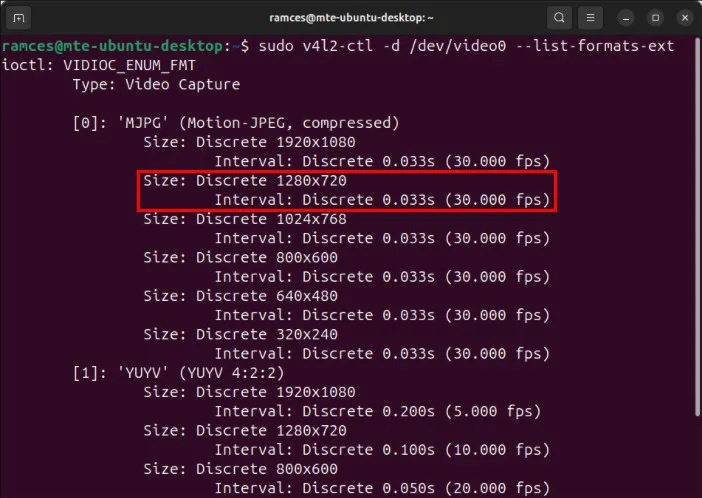
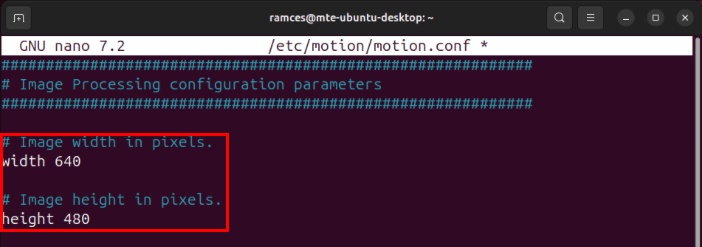
<p style="text-align: justify;">Một trong những điều chỉnh dễ dàng nhất có thể thực hiện cho Motion Server của mình là thay đổi chất lượng đầu ra hình ảnh và video. Theo mặc định, máy chủ đặt độ phân giải ở 640×480, có thể quá nhỏ đối với các webcam hiện đại.</p>

<p style="text-align: justify;">Để thay đổi điều này, hãy chạy lệnh sau trên terminal mới để kiểm tra độ phân giải có sẵn cho camera:</p>

<pre id="pre4">
<code>sudo v4l2-ctl -d /dev/video0 --list-formats-ext</code></pre>

<figure>
<div style="text-align: justify;"><img alt="Danh sách các độ phân giải có sẵn cho webcam." data-i="0" data-src="https://st.quantrimang.com/photos/image/2024/07/18/thiet-lap-webcam-phat-hien-chuyen-dong-ubuntu-1.jpg" data-was-processed="true" height="498" src="https://st.quantrimang.com/photos/image/2024/07/18/thiet-lap-webcam-phat-hien-chuyen-dong-ubuntu-1.jpg" width="702" /></div>

<figcaption>
<div style="text-align: justify;">Danh sách các độ phân giải có sẵn cho webcam.</div>
</figcaption>
</figure>

<div style="text-align: justify;">&nbsp;</div>

<p style="text-align: justify;">Quay lại cấu hình Motion, cuộn xuống danh mục “Image Processing”, sau đó tìm cả biến chiều rộng và chiều cao.</p>

<figure>
<div style="text-align: justify;"><img alt="Các giá trị mặc định cho độ phân giải webcam của Motion." data-i="1" data-src="https://st.quantrimang.com/photos/image/2024/07/18/thiet-lap-webcam-phat-hien-chuyen-dong-ubuntu-2.jpg" data-was-processed="true" height="247" src="https://st.quantrimang.com/photos/image/2024/07/18/thiet-lap-webcam-phat-hien-chuyen-dong-ubuntu-2.jpg" width="702" /></div>

<figcaption>
<div style="text-align: justify;">Các giá trị mặc định cho độ phân giải webcam của Motion.</div>
</figcaption>
</figure>

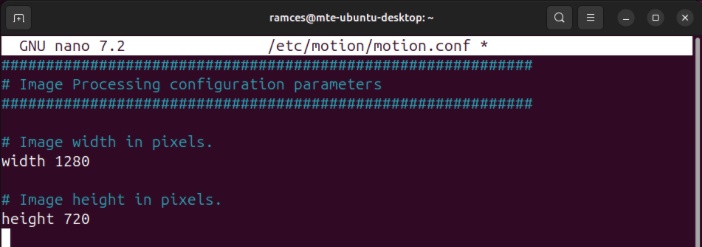
<p style="text-align: justify;">Cung cấp các giá trị thích hợp cho độ phân giải mong muốn. Trường hợp ví dụ muốn chạy Motion ở 1280×720, vì vậy tác giả bài viết đã nhập “1280” làm chiều rộng và “720” làm chiều cao.</p>

<figure>
<div style="text-align: justify;"><img alt="Các giá trị độ phân giải cao hơn được cập nhật cho Motion" data-i="2" data-src="https://st.quantrimang.com/photos/image/2024/07/18/thiet-lap-webcam-phat-hien-chuyen-dong-ubuntu-3.jpg" data-was-processed="true" height="247" src="https://st.quantrimang.com/photos/image/2024/07/18/thiet-lap-webcam-phat-hien-chuyen-dong-ubuntu-3.jpg" width="702" /></div>

<figcaption>
<div style="text-align: justify;">Các giá trị độ phân giải cao hơn được cập nhật cho Motion</div>
</figcaption>
</figure>

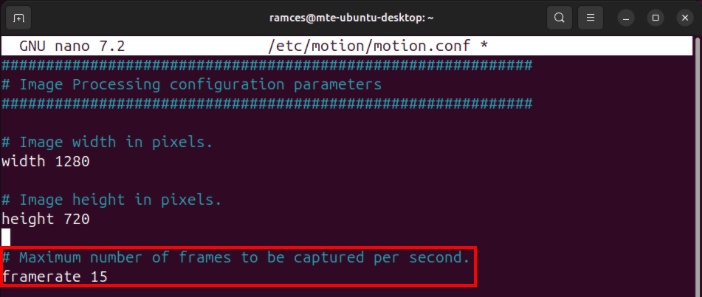
<p style="text-align: justify;">Đặt giá trị framerate thành tốc độ khung hình mà bạn muốn quay video. Theo mặc định, giá trị này được đặt thành “15” nhưng bạn có thể hạ thấp giá trị này để tiết kiệm dung lượng ổ đĩa.</p>

<figure>
<div style="text-align: justify;"><img alt="Biến tốc độ khung hình trong file cấu hình Motion" data-i="3" data-src="https://st.quantrimang.com/photos/image/2024/07/18/thiet-lap-webcam-phat-hien-chuyen-dong-ubuntu-4.jpg" data-was-processed="true" height="297" src="https://st.quantrimang.com/photos/image/2024/07/18/thiet-lap-webcam-phat-hien-chuyen-dong-ubuntu-4.jpg" width="702" /></div>

<figcaption>
<div style="text-align: justify;">Biến tốc độ khung hình trong file cấu hình Motion</div>
</figcaption>
</figure>

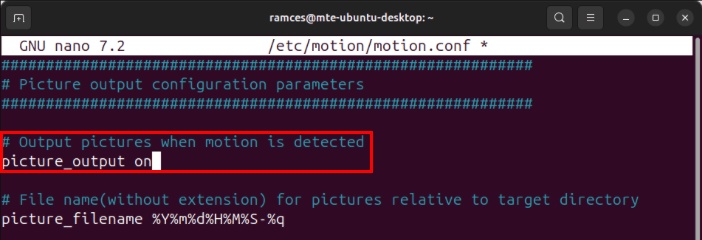
<p style="text-align: justify;">Cuộn xuống danh mục “Picture output”, sau đó đặt giá trị của biến&nbsp;<strong>picture_output</strong>&nbsp;thành “on”. Điều này sẽ cho phép Motion chụp cả hình ảnh và video từ webcam.</p>

<figure>
<div style="text-align: justify;"><img alt="Biến picture_output bên trong file cấu hình Motion" data-i="4" data-src="https://st.quantrimang.com/photos/image/2024/07/18/thiet-lap-webcam-phat-hien-chuyen-dong-ubuntu-5.jpg" data-was-processed="true" height="240" src="https://st.quantrimang.com/photos/image/2024/07/18/thiet-lap-webcam-phat-hien-chuyen-dong-ubuntu-5.jpg" width="702" /></div>

<figcaption>
<div style="text-align: justify;">Biến picture_output bên trong file cấu hình Motion</div>
</figcaption>
</figure>

<h2 style="text-align: justify;">Thay đổi vị trí lưu mặc định</h2>

<p style="text-align: justify;">Một điều chỉnh khác mà bạn có thể thực hiện cho Motion Server là thay đổi nơi lưu dữ liệu. Điều này có thể hữu ích nếu bạn muốn xuất video và hình ảnh đã quay của mình sang thư mục từ xa được gắn hoặc&nbsp;dịch vụ lưu trữ đám mây&nbsp;như&nbsp;Dropbox.</p>

<p style="text-align: justify;">Để bắt đầu, hãy điều hướng đến hoặc tạo thư mục mà bạn muốn lưu dữ liệu của mình vào:</p>

<pre id="pre5">
<code>sudo mkdir /motion/data</code></pre>

<p style="text-align: justify;">Đặt quyền sở hữu thư mục thành “motion:adm”:</p>

<pre id="pre6">
<code>sudo chown -R motion:adm /motion/data</code></pre>

<p style="text-align: justify;">Đảm bảo rằng toàn bộ đường dẫn đến thư mục đều có thể đọc được bởi tất cả người dùng:</p>

<pre id="pre7">
<code>sudo chmod -R 755 /motion/data</code></pre>

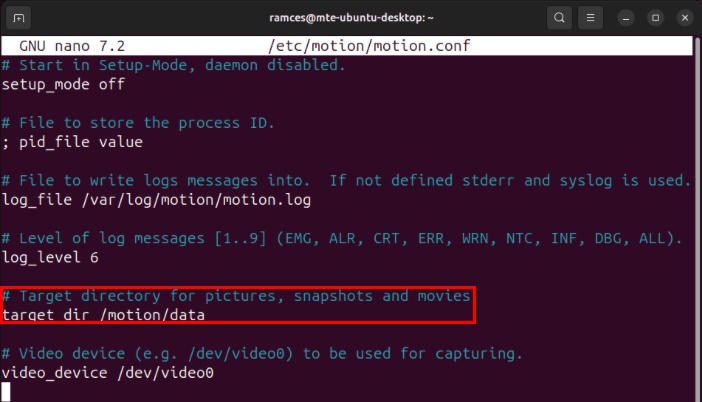
<p style="text-align: justify;">Quay lại cấu hình Motion, tìm biến target_dir, sau đó đặt giá trị của nó thành đường dẫn đầy đủ trong thư mục.</p>

<figure>
<div style="text-align: justify;"><img alt="Thư mục dữ liệu tùy chỉnh cho Motion" data-adbro-processed="true" data-i="5" data-src="https://st.quantrimang.com/photos/image/2024/07/18/thiet-lap-webcam-phat-hien-chuyen-dong-ubuntu-6.jpg" data-was-processed="true" height="402" src="https://st.quantrimang.com/photos/image/2024/07/18/thiet-lap-webcam-phat-hien-chuyen-dong-ubuntu-6.jpg" width="702" /></div>

<figcaption>
<div style="text-align: justify;">Thư mục dữ liệu tùy chỉnh cho Motion</div>
</figcaption>
</figure>

<h2 style="text-align: justify;">Tinh chỉnh cài đặt phát hiện trong Motion</h2>

<p style="text-align: justify;">Motion hoạt động bằng cách xem xét sự khác biệt giữa nguồn cấp dữ liệu video hiện tại và nguồn cấp dữ liệu ngay trước đó. Nếu chương trình tìm thấy đủ sự khác biệt giữa hai điều này, nó sẽ phân loại đó là “chuyển động” và ghi lại video về sự kiện.</p>

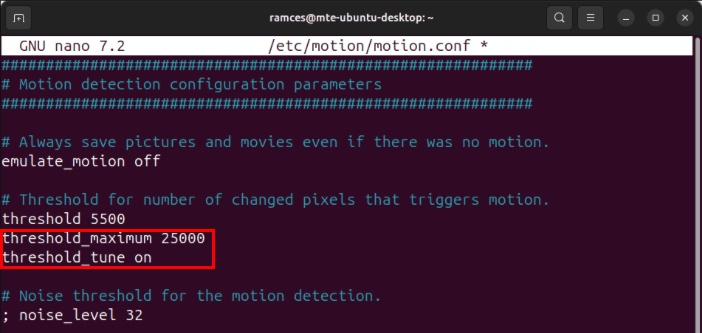
<p style="text-align: justify;">Hiện tại, Motion giả định rằng mức chênh lệch 1500 pixel là đủ để phân loại là “chuyển động”. Mặc dù điều này giúp hầu hết các webcam dễ dàng phát hiện chuyển động nhưng nó có thể quá nhạy đối với các camera có độ phân giải cao hơn.</p>

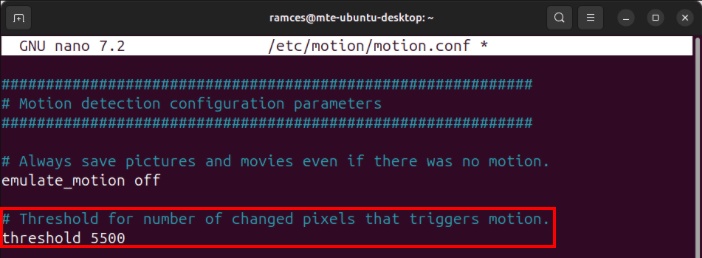
<p style="text-align: justify;">Để giảm bớt điều này, hãy chuyển đến danh mục “Motion Detection”, sau đó tăng giá trị của biến threshold. 5500 pixel là đủ để ngăn Motion ghi lại những chuyển động nhỏ không cần thiết từ nguồn cấp dữ liệu webcam.</p>

<figure>
<div style="text-align: justify;"><img alt="Giá trị ngưỡng tùy chỉnh cho Motion Server." data-i="6" data-src="https://st.quantrimang.com/photos/image/2024/07/18/thiet-lap-webcam-phat-hien-chuyen-dong-ubuntu-7.jpg" data-was-processed="true" height="258" src="https://st.quantrimang.com/photos/image/2024/07/18/thiet-lap-webcam-phat-hien-chuyen-dong-ubuntu-7.jpg" width="702" /></div>

<figcaption>
<div style="text-align: justify;">Giá trị ngưỡng tùy chỉnh cho Motion Server.</div>
</figcaption>
</figure>

<div style="text-align: justify;">&nbsp;</div>

<p style="text-align: justify;">Bạn cũng có thể thêm biến threshold_maximum để đặt giới hạn cho mức chênh lệch mà Motion coi là “chuyển động”. Điều này hữu ích nếu webcam quan sát một khu vực đông người và bạn chỉ muốn nó chạy khi có ít hoạt động hơn.</p>

<p style="text-align: justify;">Nếu không chắc chắn về giá trị threshold và threshold_maximum cho webcam của mình, bạn có thể để Motion điều chỉnh nó cho bạn. Để làm điều đó, hãy thêm biến threshold_tune và đặt thành “on”.</p>

<figure>
<div style="text-align: justify;"><img alt="Các tùy chọn ngưỡng pixel khác nhau cho Motion." data-i="7" data-src="https://st.quantrimang.com/photos/image/2024/07/18/thiet-lap-webcam-phat-hien-chuyen-dong-ubuntu-8.jpg" data-was-processed="true" height="333" src="https://st.quantrimang.com/photos/image/2024/07/18/thiet-lap-webcam-phat-hien-chuyen-dong-ubuntu-8.jpg" width="702" /></div>

<figcaption>
<div style="text-align: justify;">Các tùy chọn ngưỡng pixel khác nhau cho Motion.</div>
</figcaption>
</figure>

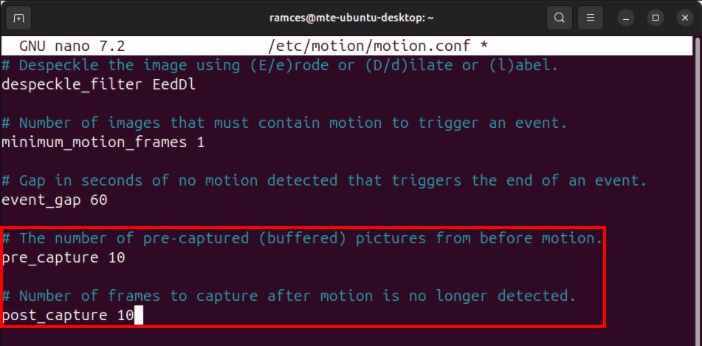
<p style="text-align: justify;">Cuối cùng, bạn có thể cấu hình Motion ghi lại những khoảnh khắc trước và sau khi phát hiện chuyển động. Để làm điều đó, hãy chuyển đến các biến pre_capture và post_capture rồi đặt giá trị của chúng thành số lượng khung hình bổ sung mà bạn muốn lưu.</p>

<figure>
<div style="text-align: justify;"><img alt="Các khung hình bổ sung khi chụp ảnh và quay video trong Motion." data-i="8" data-src="https://st.quantrimang.com/photos/image/2024/07/18/thiet-lap-webcam-phat-hien-chuyen-dong-ubuntu-9.jpg" data-was-processed="true" height="346" src="https://st.quantrimang.com/photos/image/2024/07/18/thiet-lap-webcam-phat-hien-chuyen-dong-ubuntu-9.jpg" width="702" /></div>

<figcaption>
<div style="text-align: justify;">Các khung hình bổ sung khi chụp ảnh và quay video trong Motion.</div>
</figcaption>
</figure>

<h2 style="text-align: justify;">Kích hoạt giao diện web Motion</h2>

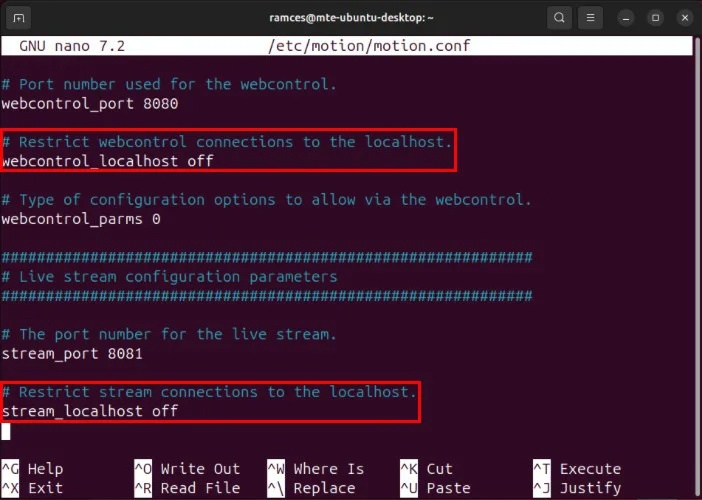
<p style="text-align: justify;">Motion server đi kèm với giao diện web cho phép giám sát webcam từ xa. Để kích hoạt tính năng này, hãy đi tới phần&nbsp;<strong>“Webcontrol”</strong>&nbsp;của cấu hình, sau đó đặt giá trị của biến webcontrol_localhost thành “off”.</p>

<p style="text-align: justify;">Cuộn xuống phần “Live stream”, sau đó đặt giá trị của stream_localhost thành “off”.</p>

<figure>
<div style="text-align: justify;"><img alt="2 tùy chọn cần tắt để cho phép các hệ thống từ xa truy cập vào bảng điều khiển web Motion" data-i="9" data-src="https://st.quantrimang.com/photos/image/2024/07/18/thiet-lap-webcam-phat-hien-chuyen-dong-ubuntu-10.jpg" data-was-processed="true" height="500" src="https://st.quantrimang.com/photos/image/2024/07/18/thiet-lap-webcam-phat-hien-chuyen-dong-ubuntu-10.jpg" width="702" /></div>

<figcaption>
<div style="text-align: justify;">2 tùy chọn cần tắt để cho phép các hệ thống từ xa truy cập vào bảng điều khiển web Motion</div>
</figcaption>
</figure>

<p style="text-align: justify;"><strong>Lưu ý</strong>: Motion không có bất kỳ kiểm tra xác thực nào cho giao diện web của nó. Do đó, bất kỳ ai biết địa chỉ Motion Server của bạn đều có thể xem webcam và kiểm soát dịch vụ.</p>

<h2 style="text-align: justify;">Quản lý ảnh chụp đã lưu từ xa</h2>

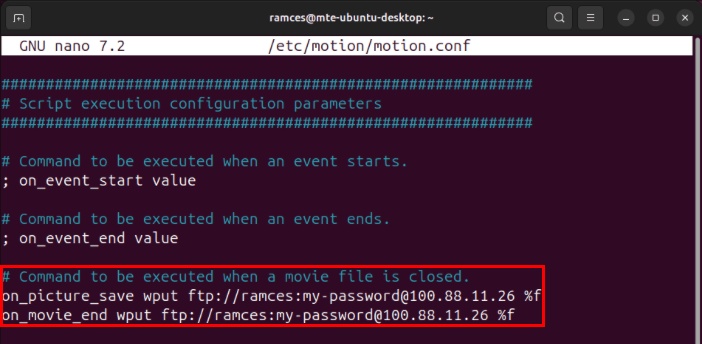
<p style="text-align: justify;">Như đã đề cập trước đó, cách tốt nhất là lưu hình ảnh vào thư mục Dropbox để có thể truy cập nó ở bất cứ đâu bạn muốn. Tuy nhiên, nếu muốn upload hình ảnh lên file server của riêng mình (qua FTP), bạn có thể sử dụng lệnh wput để upload hình ảnh lên:</p>
&nbsp;

<pre id="pre8">
<code>sudo apt install wput</code></pre>

<p style="text-align: justify;">Mở cấu hình Motion Server, sau đó chèn các dòng code sau vào cuối file:</p>

<pre id="pre9">
<code>on_picture_save wput ftp://YOUR-USERNAME:YOUR-PASSWORD@YOUR-SERVER-ADDRESS %f

on_movie_end wput ftp://YOUR-USERNAME:YOUR-PASSWORD@YOUR-SERVER-ADDRESS %f</code></pre>

<figure>
<div style="text-align: justify;"><img alt="2 script hook lưu media đã ghi trên máy chủ từ xa." data-i="10" data-src="https://st.quantrimang.com/photos/image/2024/07/18/thiet-lap-webcam-phat-hien-chuyen-dong-ubuntu-11.jpg" data-was-processed="true" height="344" src="https://st.quantrimang.com/photos/image/2024/07/18/thiet-lap-webcam-phat-hien-chuyen-dong-ubuntu-11.jpg" width="702" /></div>

<figcaption>
<div style="text-align: justify;">2 script hook lưu media đã ghi trên máy chủ từ xa.</div>
</figcaption>
</figure>

<div style="text-align: justify;">&nbsp;</div>
		</div>
				<div id="author">
						<p>
				<strong>Nguồn tin:</strong>
				Quantrimang.com:
			</p>
		</div>
	</div>
	<div id="footer" class="clearfix">
		<div id="url">
			<strong>URL của bản tin này: </strong><a href="https://www.nguoicodonvn2008.info/vi/news/savefile/kien-thuc-may-tinh/cach-thiet-lap-webcam-phat-hien-chuyen-dong-trong-ubuntu-8703.html" title="Cách thiết lập webcam phát hiện chuyển động trong Ubuntu">https://www.nguoicodonvn2008.info/vi/news/savefile/kien-thuc-may-tinh/cach-thiet-lap-webcam-phat-hien-chuyen-dong-trong-ubuntu-8703.html</a>

		</div>
		<div class="clear"></div>
		<div class="copyright">
			&copy; .&#x3A; Nguoicodonvn2008.info - Cõi lòng người cô đơn &#x3A;.
		</div>
		<div id="contact">
			<a href="mailto:admin@nguoicodonvn2008.info">admin@nguoicodonvn2008.info</a>
		</div>
	</div>
</div>
        <div id="timeoutsess" class="chromeframe">
            Bạn đã không sử dụng Site, <a onclick="timeoutsesscancel();" href="https://www.nguoicodonvn2008.info/#">Bấm vào đây để duy trì trạng thái đăng nhập</a>. Thời gian chờ: <span id="secField"> 60 </span> giây
        </div>
        <div id="openidResult" class="nv-alert" style="display:none"></div>
        <div id="openidBt" data-result="" data-redirect=""></div>
		</script>
		<div class="car-top">
  <span><img src="https://www.nguoicodonvn2008.info/themes/default/images/car.png" alt=""></span>
</div>
<script src="https://www.nguoicodonvn2008.info/assets/js/jquery/jquery.min.js"></script>
<script>var nv_base_siteurl="/",nv_lang_data="vi",nv_lang_interface="vi",nv_name_variable="nv",nv_fc_variable="op",nv_lang_variable="language",nv_module_name="news",nv_func_name="savefile",nv_is_user=0, nv_my_ofs=-4,nv_my_abbr="EDT",nv_cookie_prefix="nv4c_e856T",nv_check_pass_mstime=1738000,nv_area_admin=0,nv_safemode=0,theme_responsive=0,nv_recaptcha_ver=2,nv_recaptcha_sitekey="",nv_recaptcha_type="image",XSSsanitize=1;</script>
<script src="https://www.nguoicodonvn2008.info/assets/js/language/vi.js"></script>
<script src="https://www.nguoicodonvn2008.info/assets/js/DOMPurify/purify3.js"></script>
<script src="https://www.nguoicodonvn2008.info/assets/js/global.js"></script>
<script src="https://www.nguoicodonvn2008.info/assets/js/site.js"></script>
<script src="https://www.nguoicodonvn2008.info/themes/default/js/news.js"></script>
<script src="https://www.nguoicodonvn2008.info/themes/default/js/main.js"></script>
<script src="https://www.nguoicodonvn2008.info/themes/default/js/custom.js"></script>
<script type="application/ld+json">
        {
            "@context": "https://schema.org",
            "@type": "Organization",
            "url": "https://www.nguoicodonvn2008.info",
            "logo": "https://www.nguoicodonvn2008.info/uploads/angel.gif"
        }
        </script>
<script src="https://www.nguoicodonvn2008.info/themes/default/js/bootstrap.min.js"></script>
<script type="text/javascript">
var $scrolltop = $('.car-top');
$scrolltop.on('click', function () {
    $('html,body').animate({
        scrollTop: 0
    }, 800);
    $(this).addClass("car-run");
    setTimeout(function(){ $scrolltop.removeClass('car-run');}, 1000);
    return false;
});
$(window).on('scroll', function ()
{ 
    if($(window).scrollTop() >= 200)
    {
        $scrolltop.addClass("show");
        $scrolltop.addClass("car-down");
    }
    else
    {
       $scrolltop.removeClass("show");
       setTimeout(function(){ $scrolltop.removeClass('car-down');}, 300);
    }
});
</script>
</body>
</html>