<!DOCTYPE html>
    <html lang="vi" xmlns="http://www.w3.org/1999/xhtml" prefix="og: http://ogp.me/ns#">
    <head>
<title>Cách thiết lập cửa sổ ứng dụng luôn mở ở cùng vị trí cố định trên màn hình Windows 10</title>
<meta name="description" content="Cách thiết lập cửa sổ ứng dụng luôn mở ở cùng vị trí cố định trên màn hình Windows 10 - Savefile - Tin Tức -...">
<meta name="author" content=".: Nguoicodonvn2008.info - Cõi lòng người cô đơn :.">
<meta name="copyright" content=".: Nguoicodonvn2008.info - Cõi lòng người cô đơn :. [admin@nguoicodonvn2008.info]">
<meta name="robots" content="index, archive, follow, noodp">
<meta name="googlebot" content="index,archive,follow,noodp">
<meta name="msnbot" content="all,index,follow">
<meta name="generator" content="NukeViet v4.5">
<meta http-equiv="Content-Type" content="text/html; charset=utf-8">
<meta property="og:title" content="Cách thiết lập cửa sổ ứng dụng luôn mở ở cùng vị trí cố định trên màn hình Windows 10">
<meta property="og:type" content="website">
<meta property="og:description" content="Savefile - Tin Tức -...">
<meta property="og:site_name" content=".&#x3A; Nguoicodonvn2008.info - Cõi lòng người cô đơn &#x3A;.">
<meta property="og:url" content="https://www.nguoicodonvn2008.info/vi/news/savefile/kien-thuc-may-tinh/cach-thiet-lap-cua-so-ung-dung-luon-mo-o-cung-vi-tri-co-dinh-tren-man-hinh-windows-10-3621.html">
<link rel="shortcut icon" href="https://www.nguoicodonvn2008.info/favicon.ico">
<link rel="canonical" href="https://www.nguoicodonvn2008.info/vi/news/savefile/kien-thuc-may-tinh/cach-thiet-lap-cua-so-ung-dung-luon-mo-o-cung-vi-tri-co-dinh-tren-man-hinh-windows-10-3621.html">
<link rel="alternate" href="https://www.nguoicodonvn2008.info/vi/news/rss/" title="Tin Tức" type="application/rss+xml">
<link rel="alternate" href="https://www.nguoicodonvn2008.info/vi/news/rss/karaoke-dual/" title="Tin Tức - Karaoke Dual" type="application/rss+xml">
<link rel="alternate" href="https://www.nguoicodonvn2008.info/vi/news/rss/nhac-tre/" title="Tin Tức - Nhạc trẻ" type="application/rss+xml">
<link rel="alternate" href="https://www.nguoicodonvn2008.info/vi/news/rss/tru-tinh/" title="Tin Tức - Trữ tình" type="application/rss+xml">
<link rel="alternate" href="https://www.nguoicodonvn2008.info/vi/news/rss/nuoc-ngoai/" title="Tin Tức - Nước ngoài" type="application/rss+xml">
<link rel="alternate" href="https://www.nguoicodonvn2008.info/vi/news/rss/remix/" title="Tin Tức - Remix" type="application/rss+xml">
<link rel="alternate" href="https://www.nguoicodonvn2008.info/vi/news/rss/tam-su-tinh-yeu/" title="Tin Tức - Tâm sự tình yêu" type="application/rss+xml">
<link rel="alternate" href="https://www.nguoicodonvn2008.info/vi/news/rss/tho-suu-tam/" title="Tin Tức - Thơ sưu tầm" type="application/rss+xml">
<link rel="alternate" href="https://www.nguoicodonvn2008.info/vi/news/rss/cuoc-song/" title="Tin Tức - Cuộc sống" type="application/rss+xml">
<link rel="alternate" href="https://www.nguoicodonvn2008.info/vi/news/rss/phan-mem/" title="Tin Tức - Phần mềm" type="application/rss+xml">
<link rel="alternate" href="https://www.nguoicodonvn2008.info/vi/news/rss/kien-thuc-may-tinh/" title="Tin Tức - Kiến thức máy tính" type="application/rss+xml">
<link rel="alternate" href="https://www.nguoicodonvn2008.info/vi/news/rss/hoc-tap/" title="Tin Tức - Học tập" type="application/rss+xml">
<link rel="alternate" href="https://www.nguoicodonvn2008.info/vi/news/rss/tai-lieu/" title="Tin Tức - Tài liệu" type="application/rss+xml">
<link rel="alternate" href="https://www.nguoicodonvn2008.info/vi/news/rss/de-thi/" title="Tin Tức - Đề thi" type="application/rss+xml">
<link rel="preload" as="style" href="https://www.nguoicodonvn2008.info/assets/css/font-awesome.min.css" type="text/css">
<link rel="preload" as="style" href="https://www.nguoicodonvn2008.info/themes/default/css/bootstrap.non-responsive.css" type="text/css">
<link rel="preload" as="style" href="https://www.nguoicodonvn2008.info/themes/default/css/style.css" type="text/css">
<link rel="preload" as="style" href="https://www.nguoicodonvn2008.info/themes/default/css/style.non-responsive.css" type="text/css">
<link rel="preload" as="style" href="https://www.nguoicodonvn2008.info/themes/default/css/news.css" type="text/css">
<link rel="preload" as="style" href="https://www.nguoicodonvn2008.info/themes/default/css/custom.css" type="text/css">
<link rel="preload" as="script" href="https://www.nguoicodonvn2008.info/assets/js/jquery/jquery.min.js" type="text/javascript">
<link rel="preload" as="script" href="https://www.nguoicodonvn2008.info/assets/js/language/vi.js" type="text/javascript">
<link rel="preload" as="script" href="https://www.nguoicodonvn2008.info/assets/js/DOMPurify/purify3.js" type="text/javascript">
<link rel="preload" as="script" href="https://www.nguoicodonvn2008.info/assets/js/global.js" type="text/javascript">
<link rel="preload" as="script" href="https://www.nguoicodonvn2008.info/assets/js/site.js" type="text/javascript">
<link rel="preload" as="script" href="https://www.nguoicodonvn2008.info/themes/default/js/news.js" type="text/javascript">
<link rel="preload" as="script" href="https://www.nguoicodonvn2008.info/themes/default/js/main.js" type="text/javascript">
<link rel="preload" as="script" href="https://www.nguoicodonvn2008.info/themes/default/js/custom.js" type="text/javascript">
<link rel="preload" as="script" href="https://www.nguoicodonvn2008.info/themes/default/js/bootstrap.min.js" type="text/javascript">
<link rel="stylesheet" href="https://www.nguoicodonvn2008.info/assets/css/font-awesome.min.css">
<link rel="stylesheet" href="https://www.nguoicodonvn2008.info/themes/default/css/bootstrap.non-responsive.css">
<link rel="stylesheet" href="https://www.nguoicodonvn2008.info/themes/default/css/style.css">
<link rel="stylesheet" href="https://www.nguoicodonvn2008.info/themes/default/css/style.non-responsive.css">
<link rel="StyleSheet" href="https://www.nguoicodonvn2008.info/themes/default/css/news.css">
<link rel="stylesheet" href="https://www.nguoicodonvn2008.info/themes/default/css/custom.css">
<style type="text/css">
	body{background: #fff;}
</style>
    </head>
    <body>
<div id="print">
	<div id="hd_print">
		<h2 class="pull-left">.&#x3A; Nguoicodonvn2008.info - Cõi lòng người cô đơn &#x3A;.</h2>
		<p class="pull-right"><a title=".&#x3A; Nguoicodonvn2008.info - Cõi lòng người cô đơn &#x3A;." href="https://www.nguoicodonvn2008.info/">https://www.nguoicodonvn2008.info</a></p>
	</div>
	<div class="clear"></div>
	<hr />
	<div id="content">
		<h1>Cách thiết lập cửa sổ ứng dụng luôn mở ở cùng vị trí cố định trên màn hình Windows 10</h1>
		<ul class="list-inline">
			<li>Thứ bảy - 06/02/2021 21:58</li>
			<li class="hidden-print txtrequired"><em class="fa fa-print">&nbsp;</em><a title="In ra" href="javascript:;" onclick="window.print()">In ra</a></li>
			<li class="hidden-print txtrequired"><em class="fa fa-power-off">&nbsp;</em><a title="Đóng cửa sổ này" href="javascript:;" onclick="window.close()">Đóng cửa sổ này</a></li>
		</ul>
		<div class="clear"></div>
		<div id="hometext">
		</div>
				<div class="imghome">
			<img alt="Cách thiết lập cửa sổ ứng dụng luôn mở ở cùng vị trí cố định trên màn hình Windows 10" src="https://st.quantrimang.com/photos/image/2021/01/22/thiet-lap-ung-dung-luon-mo-o-cung-mot-vi-tri-windows-103.jpg" width="460" class="img-thumbnail" />
		</div>
		<div class="clear"></div>
		<div id="bodytext" class="clearfix">
			<p style="text-align: justify;">Làm thế nào để quản lý hiệu quả các cửa sổ đang mở trên Windows 10 có thể là một thách thức đối với những người phải làm việc đa tác vụ với nhiều ứng dụng cùng lúc. May thay, hệ điều hành của Microsoft cũng bao gồm một số tính năng tích hợp với nhiều tùy chọn thú vị giúp bạn quản lý cửa sổ ứng dụng tốt hơn.</p>

<p style="text-align: justify;">Trong bài viết này, chúng ta sẽ cùng tìm hiểu cách thiết lập các cửa sổ ứng dụng luôn mở ở cùng một vị trí nhất định trên màn hình Windows 10 với tiện ích FancyZones thuộc bộ công cụ PowerToys</p>

<h2 style="text-align: justify;">FancyZones là gì</h2>

<p style="text-align: justify;">Việc thiết lập vị trí hiển thị của màn hình ứng dụng đôi khi có thể thực hiện được với tính năng Snap Assist tích hợp sẵn của của Windows 10. Trong nhiều trường hợp, một ứng dụng có thể sẽ mở ở cùng vị trí mà nó đã bị tắt ở phiên làm việc gần nhất, nhưng điều này không phải lúc nào cũng diễn ra như vậy.</p>

<p style="text-align: justify;">Trong trường hợp bạn muốn đảm bảo các ứng dụng luôn mở lại ở cùng một vị trí cố định trên màn hình Windows 10, tiện ích FancyZones thuộc bộ công cụ PowerToys có thể giúp ích cho bạn.</p>

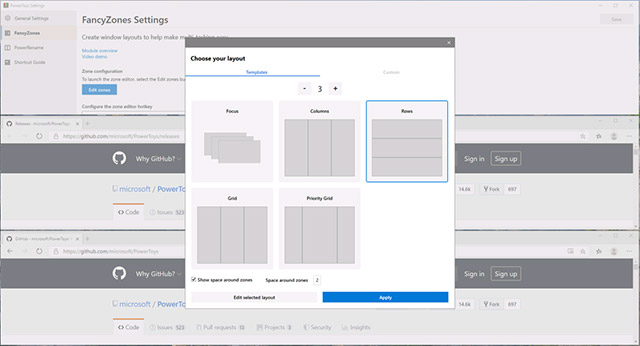
<p style="text-align: justify;">Về cơ bản, có thể hiểu FancyZones là một “trình quản lý cửa sổ Windows”. Tiện ích này cho phép người dùng chạy song song nhiều ứng dụng trên màn hình, cũng như thiết lập vị trí hiển thị cố định của một ứng dụng cụ thể. Ngoài ra, bạn cũng có thể kéo thả ứng dụng này vào một vùng trống trên cửa sổ Desktop (do bạn tạo ra) để thay đổi kích thước hiển thị ứng dụng.</p>

<figure>
<div style="text-align: justify;"><img alt="FancyZones" data-i="0" data-src="https://st.quantrimang.com/photos/image/2021/01/22/thiet-lap-ung-dung-luon-mo-o-cung-mot-vi-tri-windows-104.jpg" data-was-processed="true" height="346" src="https://st.quantrimang.com/photos/image/2021/01/22/thiet-lap-ung-dung-luon-mo-o-cung-mot-vi-tri-windows-104.jpg" width="640" /></div>

<figcaption>
<div style="text-align: justify;">FancyZones</div>
</figcaption>
</figure>

<p style="text-align: justify;">Cụ thể hơn, FancyZones cho phép bạn chia màn hình của mình thành nhiều “khu vực” theo ý muốn. Bạn sẽ không bị giới hạn bởi bố cục sắp xếp 2 × 2 của Snap Assist. Đồng thời, các khu vực này cũng có thể được tùy chỉnh hoàn toàn về kích thước và khoảng cách.</p>

<h2 style="text-align: justify;">Thiết lập vị trí mở cửa sổ ứng dụng trên màn hình</h2>

<p style="text-align: justify;">Đầu tiên, cần phải thực hiện một số thao tác thiết lập cơ bản với FancyZones để gắn cửa sổ vào các vùng màn hình tùy chỉnh. Bạn sẽ cần phải thiết lập tính năng này để các cửa sổ ứng dụng có thể mở ở cùng một vị trí mọi lúc. Để làm điều này, hãy tham khảo bài viết dưới đây (mục FancyZones)</p>

<ul>
	<li style="text-align: justify;"><a href="https://quantrimang.com/cach-su-dung-powertoys-tren-windows-10-166543" title="Cách sử dụng PowerToys trên Windows 10">Cách sử dụng PowerToys trên Windows 10</a></li>
</ul>

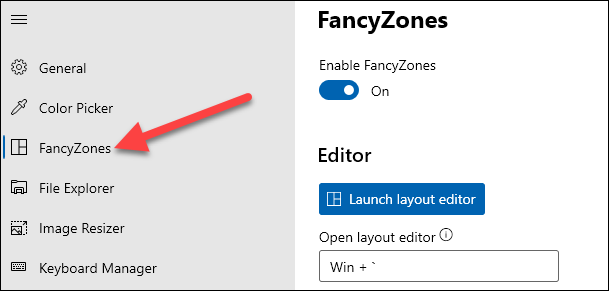
<p style="text-align: justify;">Sau khi đã thiết lập các vùng hiển thị tùy chỉnh, bại lại truy cập lại vào “<strong>PowerToys</strong>” và điều hướng đến tab “<strong>FancyZones</strong>”.</p>

<p style="text-align: justify;"><img alt="Tab “FancyZones”" data-i="1" data-src="https://st.quantrimang.com/photos/image/2021/01/22/thiet-lap-ung-dung-luon-mo-o-cung-mot-vi-tri-windows-101.jpg" data-was-processed="true" height="291" src="https://st.quantrimang.com/photos/image/2021/01/22/thiet-lap-ung-dung-luon-mo-o-cung-mot-vi-tri-windows-101.jpg" width="609" /></p>

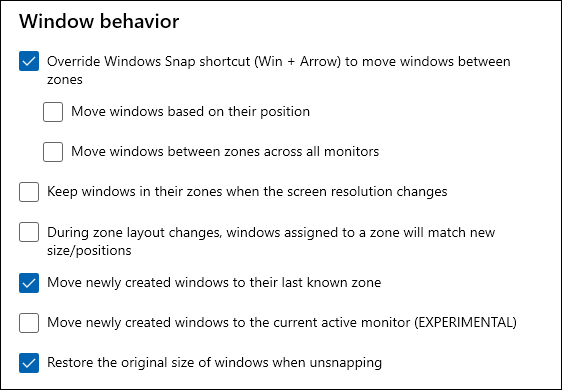
<p style="text-align: justify;">Trong tab “<strong>FancyZones</strong>”, cuộn xuống phần “<strong>Window Behavior</strong>”.</p>

<p style="text-align: justify;"><img alt="“Window Behavior”" data-i="2" data-src="https://st.quantrimang.com/photos/image/2021/01/22/thiet-lap-ung-dung-luon-mo-o-cung-mot-vi-tri-windows-102.jpg" data-was-processed="true" height="390" src="https://st.quantrimang.com/photos/image/2021/01/22/thiet-lap-ung-dung-luon-mo-o-cung-mot-vi-tri-windows-102.jpg" width="562" /></p>

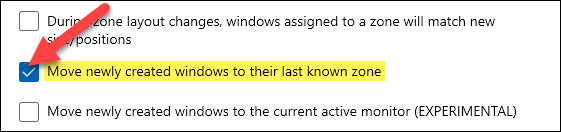
<p style="text-align: justify;">Tùy chọn mà bạn cần bật ở đây là “<strong>Move newly created windows to their last known zone</strong>”.</p>

<p style="text-align: justify;"><img alt="Tích vào “Move newly created windows to their last known zone”" data-i="3" data-src="https://st.quantrimang.com/photos/image/2021/01/22/thiet-lap-ung-dung-luon-mo-o-cung-mot-vi-tri-windows-103.jpg" data-was-processed="true" height="132" src="https://st.quantrimang.com/photos/image/2021/01/22/thiet-lap-ung-dung-luon-mo-o-cung-mot-vi-tri-windows-103.jpg" width="561" /></p>

<p style="text-align: justify;">Điều này có nghĩa là khi bạn đóng một cửa sổ ứng dụng trong một khu vực nhất định mà mình đã “quy hoạch”, cửa sổ sẽ mở lại tại đúng khu vực đó vào lần tiếp theo bạn khởi chạy ứng dụng. Như vậy, bạn đã có một màn hình làm việc đa tác vụ được quy hoạch cụ thể, với mỗi ứng dụng sẽ được hiển thị cố định ở những vị trí mà bạn đã thiết lập sẵn.</p>
		</div>
				<div id="author">
						<p>
				<strong>Nguồn tin:</strong>
				Quantrimang.com
			</p>
		</div>
	</div>
	<div id="footer" class="clearfix">
		<div id="url">
			<strong>URL của bản tin này: </strong><a href="https://www.nguoicodonvn2008.info/vi/news/savefile/kien-thuc-may-tinh/cach-thiet-lap-cua-so-ung-dung-luon-mo-o-cung-vi-tri-co-dinh-tren-man-hinh-windows-10-3621.html" title="Cách thiết lập cửa sổ ứng dụng luôn mở ở cùng vị trí cố định trên màn hình Windows 10">https://www.nguoicodonvn2008.info/vi/news/savefile/kien-thuc-may-tinh/cach-thiet-lap-cua-so-ung-dung-luon-mo-o-cung-vi-tri-co-dinh-tren-man-hinh-windows-10-3621.html</a>

		</div>
		<div class="clear"></div>
		<div class="copyright">
			&copy; .&#x3A; Nguoicodonvn2008.info - Cõi lòng người cô đơn &#x3A;.
		</div>
		<div id="contact">
			<a href="mailto:admin@nguoicodonvn2008.info">admin@nguoicodonvn2008.info</a>
		</div>
	</div>
</div>
        <div id="timeoutsess" class="chromeframe">
            Bạn đã không sử dụng Site, <a onclick="timeoutsesscancel();" href="https://www.nguoicodonvn2008.info/#">Bấm vào đây để duy trì trạng thái đăng nhập</a>. Thời gian chờ: <span id="secField"> 60 </span> giây
        </div>
        <div id="openidResult" class="nv-alert" style="display:none"></div>
        <div id="openidBt" data-result="" data-redirect=""></div>
		</script>
		<div class="car-top">
  <span><img src="https://www.nguoicodonvn2008.info/themes/default/images/car.png" alt=""></span>
</div>
<div id="run_cronjobs" style="visibility:hidden;display:none;"><img alt="cron" src="/index.php?second=cronjobs&amp;p=t2cx4WNS" width="1" height="1" /></div>
<script src="https://www.nguoicodonvn2008.info/assets/js/jquery/jquery.min.js"></script>
<script>var nv_base_siteurl="/",nv_lang_data="vi",nv_lang_interface="vi",nv_name_variable="nv",nv_fc_variable="op",nv_lang_variable="language",nv_module_name="news",nv_func_name="savefile",nv_is_user=0, nv_my_ofs=-4,nv_my_abbr="EDT",nv_cookie_prefix="nv4c_e856T",nv_check_pass_mstime=1738000,nv_area_admin=0,nv_safemode=0,theme_responsive=0,nv_recaptcha_ver=2,nv_recaptcha_sitekey="",nv_recaptcha_type="image",XSSsanitize=1;</script>
<script src="https://www.nguoicodonvn2008.info/assets/js/language/vi.js"></script>
<script src="https://www.nguoicodonvn2008.info/assets/js/DOMPurify/purify3.js"></script>
<script src="https://www.nguoicodonvn2008.info/assets/js/global.js"></script>
<script src="https://www.nguoicodonvn2008.info/assets/js/site.js"></script>
<script src="https://www.nguoicodonvn2008.info/themes/default/js/news.js"></script>
<script src="https://www.nguoicodonvn2008.info/themes/default/js/main.js"></script>
<script src="https://www.nguoicodonvn2008.info/themes/default/js/custom.js"></script>
<script type="application/ld+json">
        {
            "@context": "https://schema.org",
            "@type": "Organization",
            "url": "https://www.nguoicodonvn2008.info",
            "logo": "https://www.nguoicodonvn2008.info/uploads/angel.gif"
        }
        </script>
<script src="https://www.nguoicodonvn2008.info/themes/default/js/bootstrap.min.js"></script>
<script type="text/javascript">
var $scrolltop = $('.car-top');
$scrolltop.on('click', function () {
    $('html,body').animate({
        scrollTop: 0
    }, 800);
    $(this).addClass("car-run");
    setTimeout(function(){ $scrolltop.removeClass('car-run');}, 1000);
    return false;
});
$(window).on('scroll', function ()
{ 
    if($(window).scrollTop() >= 200)
    {
        $scrolltop.addClass("show");
        $scrolltop.addClass("car-down");
    }
    else
    {
       $scrolltop.removeClass("show");
       setTimeout(function(){ $scrolltop.removeClass('car-down');}, 300);
    }
});
</script>
</body>
</html>