<!DOCTYPE html>
    <html lang="vi" xmlns="http://www.w3.org/1999/xhtml" prefix="og: http://ogp.me/ns#">
    <head>
<title>Cách thiết lập code server dựa trên web trong Linux</title>
<meta name="description" content="Cách thiết lập code server dựa trên web trong Linux - Savefile - Tin Tức -...">
<meta name="author" content=".: Nguoicodonvn2008.info - Cõi lòng người cô đơn :.">
<meta name="copyright" content=".: Nguoicodonvn2008.info - Cõi lòng người cô đơn :. [admin@nguoicodonvn2008.info]">
<meta name="robots" content="index, archive, follow, noodp">
<meta name="googlebot" content="index,archive,follow,noodp">
<meta name="msnbot" content="all,index,follow">
<meta name="generator" content="NukeViet v4.5">
<meta http-equiv="Content-Type" content="text/html; charset=utf-8">
<meta property="og:title" content="Cách thiết lập code server dựa trên web trong Linux">
<meta property="og:type" content="website">
<meta property="og:description" content="Savefile - Tin Tức - https&#x3A;&#x002F;&#x002F;www.nguoicodonvn2008.info&#x002F;vi&#x002F;news&#x002F;savefile&#x002F;kien-thuc-may-tinh&#x002F;cach-thiet-lap-code-server-dua-tren-web-trong-linux-11109.html">
<meta property="og:site_name" content=".&#x3A; Nguoicodonvn2008.info - Cõi lòng người cô đơn &#x3A;.">
<meta property="og:url" content="https://www.nguoicodonvn2008.info/vi/news/savefile/kien-thuc-may-tinh/cach-thiet-lap-code-server-dua-tren-web-trong-linux-11109.html">
<link rel="shortcut icon" href="https://www.nguoicodonvn2008.info/favicon.ico">
<link rel="canonical" href="https://www.nguoicodonvn2008.info/vi/news/savefile/kien-thuc-may-tinh/cach-thiet-lap-code-server-dua-tren-web-trong-linux-11109.html">
<link rel="alternate" href="https://www.nguoicodonvn2008.info/vi/news/rss/" title="Tin Tức" type="application/rss+xml">
<link rel="alternate" href="https://www.nguoicodonvn2008.info/vi/news/rss/karaoke-dual/" title="Tin Tức - Karaoke Dual" type="application/rss+xml">
<link rel="alternate" href="https://www.nguoicodonvn2008.info/vi/news/rss/nhac-tre/" title="Tin Tức - Nhạc trẻ" type="application/rss+xml">
<link rel="alternate" href="https://www.nguoicodonvn2008.info/vi/news/rss/tru-tinh/" title="Tin Tức - Trữ tình" type="application/rss+xml">
<link rel="alternate" href="https://www.nguoicodonvn2008.info/vi/news/rss/nuoc-ngoai/" title="Tin Tức - Nước ngoài" type="application/rss+xml">
<link rel="alternate" href="https://www.nguoicodonvn2008.info/vi/news/rss/remix/" title="Tin Tức - Remix" type="application/rss+xml">
<link rel="alternate" href="https://www.nguoicodonvn2008.info/vi/news/rss/tam-su-tinh-yeu/" title="Tin Tức - Tâm sự tình yêu" type="application/rss+xml">
<link rel="alternate" href="https://www.nguoicodonvn2008.info/vi/news/rss/tho-suu-tam/" title="Tin Tức - Thơ sưu tầm" type="application/rss+xml">
<link rel="alternate" href="https://www.nguoicodonvn2008.info/vi/news/rss/cuoc-song/" title="Tin Tức - Cuộc sống" type="application/rss+xml">
<link rel="alternate" href="https://www.nguoicodonvn2008.info/vi/news/rss/phan-mem/" title="Tin Tức - Phần mềm" type="application/rss+xml">
<link rel="alternate" href="https://www.nguoicodonvn2008.info/vi/news/rss/kien-thuc-may-tinh/" title="Tin Tức - Kiến thức máy tính" type="application/rss+xml">
<link rel="alternate" href="https://www.nguoicodonvn2008.info/vi/news/rss/hoc-tap/" title="Tin Tức - Học tập" type="application/rss+xml">
<link rel="alternate" href="https://www.nguoicodonvn2008.info/vi/news/rss/tai-lieu/" title="Tin Tức - Tài liệu" type="application/rss+xml">
<link rel="alternate" href="https://www.nguoicodonvn2008.info/vi/news/rss/de-thi/" title="Tin Tức - Đề thi" type="application/rss+xml">
<link rel="preload" as="style" href="https://www.nguoicodonvn2008.info/assets/css/font-awesome.min.css" type="text/css">
<link rel="preload" as="style" href="https://www.nguoicodonvn2008.info/themes/default/css/bootstrap.non-responsive.css" type="text/css">
<link rel="preload" as="style" href="https://www.nguoicodonvn2008.info/themes/default/css/style.css" type="text/css">
<link rel="preload" as="style" href="https://www.nguoicodonvn2008.info/themes/default/css/style.non-responsive.css" type="text/css">
<link rel="preload" as="style" href="https://www.nguoicodonvn2008.info/themes/default/css/news.css" type="text/css">
<link rel="preload" as="style" href="https://www.nguoicodonvn2008.info/themes/default/css/custom.css" type="text/css">
<link rel="preload" as="script" href="https://www.nguoicodonvn2008.info/assets/js/jquery/jquery.min.js" type="text/javascript">
<link rel="preload" as="script" href="https://www.nguoicodonvn2008.info/assets/js/language/vi.js" type="text/javascript">
<link rel="preload" as="script" href="https://www.nguoicodonvn2008.info/assets/js/DOMPurify/purify3.js" type="text/javascript">
<link rel="preload" as="script" href="https://www.nguoicodonvn2008.info/assets/js/global.js" type="text/javascript">
<link rel="preload" as="script" href="https://www.nguoicodonvn2008.info/assets/js/site.js" type="text/javascript">
<link rel="preload" as="script" href="https://www.nguoicodonvn2008.info/themes/default/js/news.js" type="text/javascript">
<link rel="preload" as="script" href="https://www.nguoicodonvn2008.info/themes/default/js/main.js" type="text/javascript">
<link rel="preload" as="script" href="https://www.nguoicodonvn2008.info/themes/default/js/custom.js" type="text/javascript">
<link rel="preload" as="script" href="https://www.nguoicodonvn2008.info/themes/default/js/bootstrap.min.js" type="text/javascript">
<link rel="stylesheet" href="https://www.nguoicodonvn2008.info/assets/css/font-awesome.min.css">
<link rel="stylesheet" href="https://www.nguoicodonvn2008.info/themes/default/css/bootstrap.non-responsive.css">
<link rel="stylesheet" href="https://www.nguoicodonvn2008.info/themes/default/css/style.css">
<link rel="stylesheet" href="https://www.nguoicodonvn2008.info/themes/default/css/style.non-responsive.css">
<link rel="StyleSheet" href="https://www.nguoicodonvn2008.info/themes/default/css/news.css">
<link rel="stylesheet" href="https://www.nguoicodonvn2008.info/themes/default/css/custom.css">
<style type="text/css">
	body{background: #fff;}
</style>
    </head>
    <body>
<div id="print">
	<div id="hd_print">
		<h2 class="pull-left">.&#x3A; Nguoicodonvn2008.info - Cõi lòng người cô đơn &#x3A;.</h2>
		<p class="pull-right"><a title=".&#x3A; Nguoicodonvn2008.info - Cõi lòng người cô đơn &#x3A;." href="https://www.nguoicodonvn2008.info/">https://www.nguoicodonvn2008.info</a></p>
	</div>
	<div class="clear"></div>
	<hr />
	<div id="content">
		<h1>Cách thiết lập code server dựa trên web trong Linux</h1>
		<ul class="list-inline">
			<li>Thứ ba - 09/09/2025 23:14</li>
			<li class="hidden-print txtrequired"><em class="fa fa-print">&nbsp;</em><a title="In ra" href="javascript:;" onclick="window.print()">In ra</a></li>
			<li class="hidden-print txtrequired"><em class="fa fa-power-off">&nbsp;</em><a title="Đóng cửa sổ này" href="javascript:;" onclick="window.close()">Đóng cửa sổ này</a></li>
		</ul>
		<div class="clear"></div>
		<div id="hometext">
		</div>
				<div class="imghome">
			<img alt="Cách thiết lập code server dựa trên web trong Linux" src="https://st.quantrimang.com/photos/image/2025/07/04/thiet-lap-code-server-dua-tren-web-trong-linux-13.jpg" width="460" class="img-thumbnail" />
		</div>
		<div class="clear"></div>
		<div id="bodytext" class="clearfix">
			<p style="text-align: justify;">Bạn có muốn viết code ở bất kỳ đâu mà không cần phải mang theo laptop của mình đến mọi nơi không? Bạn có thể thử code-server, một ứng dụng tự host mạnh mẽ mang đầy đủ chức năng của&nbsp;Visual Studio Code&nbsp;đến trình duyệt web của bạn. Thay vì dựa vào các IDE đám mây của bên thứ ba, bạn có thể thiết lập một code-server trên homelab server của mình và truy cập an toàn từ bất kỳ thiết bị nào. Thiết lập code-server đảm bảo môi trường phát triển nhất quán và dễ truy cập, trong khi code và dữ liệu vẫn nằm trong tầm kiểm soát của bạn.</p>

<div style="text-align: justify;">Smart home security systems</div>

<h2 id="mcetoc_1j4n13chp9b" style="text-align: justify;">Code-Server là gì và tại sao nên tự host?</h2>

<p style="text-align: justify;">Code-Server chạy VS Code trên máy chủ từ xa, cho phép bạn truy cập thông qua trình duyệt web. Nó hoạt động giống như phiên bản desktop, hỗ trợ tự động hoàn thành, gỡ lỗi, Git và các tiện ích mở rộng. Nó hoàn hảo cho các thiết bị cấu hình thấp như máy tính bảng hoặc&nbsp;Chromebook, vì mọi hoạt động phát triển đều diễn ra trên máy chủ. Điều này giúp thiết lập của bạn nhất quán và có thể truy cập từ mọi nơi.</p>

<p style="text-align: justify;">Tự host mang đến cho bạn toàn quyền kiểm soát, quyền riêng tư và khả năng tùy chỉnh môi trường của mình, từ việc sử dụng domain riêng cho đến việc bật HTTPS để quản lý quyền truy cập của người dùng và mở rộng tài nguyên.</p>

<div style="text-align: justify;">Smart home security systems</div>

<h2 id="mcetoc_1j4n13chp9c" style="text-align: justify;">Thiết lập code-server trên Linux</h2>

<p style="text-align: justify;">Cài đặt code-server rất dễ. Chúng ta sẽ sử dụng&nbsp;Docker&nbsp;để cài đặt.</p>

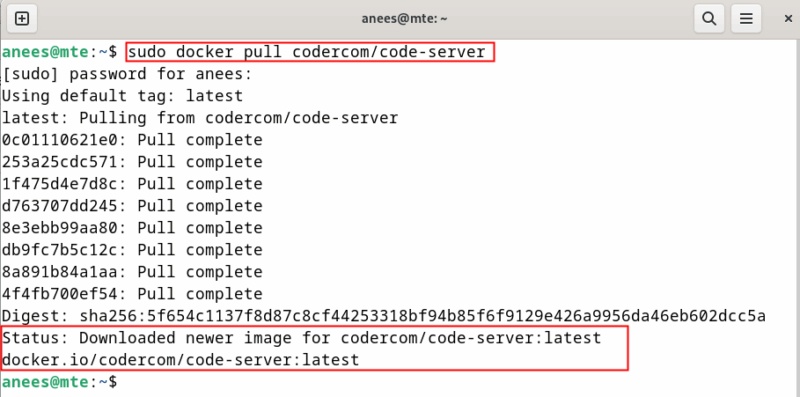
<p style="text-align: justify;">Chạy lệnh sau để tải xuống image code-server chính thức từ Docker Hub:</p>

<pre id="pre0">
<code>sudo docker pull codercom/code-server</code></pre>

<p style="text-align: justify;">Điều này đảm bảo bạn có phiên bản mới nhất của image khả dụng cục bộ trước khi tạo container.</p>

<figure>
<div style="text-align: justify;"><img alt="Tải xuống image Code Server Docker" data-adbro-processed="true" data-i="0" data-src="https://st.quantrimang.com/photos/image/2025/07/04/thiet-lap-code-server-dua-tren-web-trong-linux-1.jpg" data-was-processed="true" height="397" src="https://st.quantrimang.com/photos/image/2025/07/04/thiet-lap-code-server-dua-tren-web-trong-linux-1.jpg" width="800" /></div>

<figcaption>
<div style="text-align: justify;">Tải xuống image Code Server Docker</div>
</figcaption>
</figure>

<p style="text-align: justify;">Tiếp theo, khởi động container code-server mới ở chế độ nền với mật khẩu tùy chỉnh và lưu trữ liên tục:</p>

<pre id="pre1">
<code>sudo docker run -d --name code-server -p 8443:8080 -v &quot;$HOME/code-server-data:/home/coder/project&quot; -e PASSWORD=&quot;my_password&quot; codercom/code-server</code></pre>

<figure>
<div style="text-align: justify;"><img alt="Khởi động container Code Server" data-i="1" data-src="https://st.quantrimang.com/photos/image/2025/07/04/thiet-lap-code-server-dua-tren-web-trong-linux-2.jpg" data-was-processed="true" height="134" src="https://st.quantrimang.com/photos/image/2025/07/04/thiet-lap-code-server-dua-tren-web-trong-linux-2.jpg" width="800" /></div>

<figcaption>
<div style="text-align: justify;">Khởi động container Code Server</div>
</figcaption>
</figure>

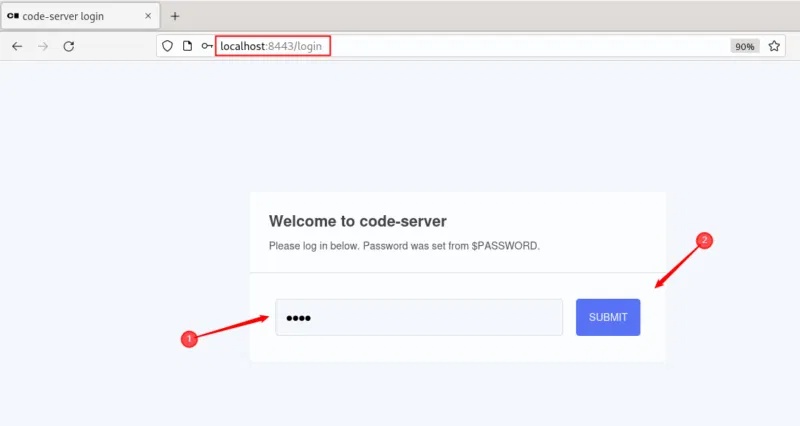
<p style="text-align: justify;">Sau khi thiết lập code-server, bạn có thể truy cập nó từ trình duyệt của mình bằng cách nhập&nbsp;<strong>http://localhost:8443.</strong>&nbsp;Nhập mật khẩu bạn đã đặt trong lệnh docker run và nhấp vào nút&nbsp;<strong>Submit</strong>&nbsp;để đăng nhập vào code-server.</p>

<figure>
<div style="text-align: justify;"><img alt="Truy cập Code Server" data-i="2" data-src="https://st.quantrimang.com/photos/image/2025/07/04/thiet-lap-code-server-dua-tren-web-trong-linux-3.jpg" data-was-processed="true" height="426" src="https://st.quantrimang.com/photos/image/2025/07/04/thiet-lap-code-server-dua-tren-web-trong-linux-3.jpg" width="800" /></div>

<figcaption>
<div style="text-align: justify;">Truy cập Code Server</div>
</figcaption>
</figure>

<h2 id="mcetoc_1j4n13chp9d" style="text-align: justify;">Bắt đầu với Code Server</h2>

<p style="text-align: justify;">Sau khi đăng nhập, bạn sẽ thấy một giao diện trông giống hệt phiên bản desktop thông thường của VS Code. Sau đây là tổng quan nhanh về những gì bạn sẽ tìm thấy:</p>

<h3 id="mcetoc_1j4n13chp9e" style="text-align: justify;">File Explorer</h3>

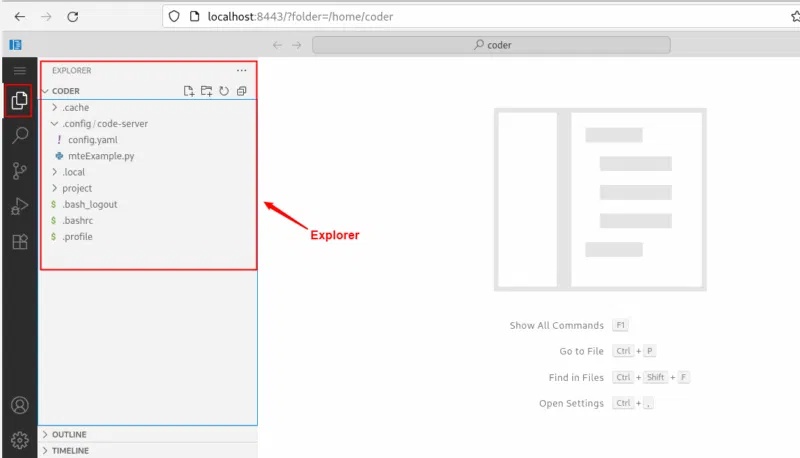
<p style="text-align: justify;">Explorer giúp bạn điều hướng qua dự án của mình. Bạn có thể duyệt qua các thư mục, mở file, tạo file mới và quản lý cấu trúc dự án của mình một cách dễ dàng.</p>

<figure>
<div style="text-align: justify;"><img alt="File Explorer" data-i="3" data-src="https://st.quantrimang.com/photos/image/2025/07/04/thiet-lap-code-server-dua-tren-web-trong-linux-4.jpg" data-was-processed="true" height="458" src="https://st.quantrimang.com/photos/image/2025/07/04/thiet-lap-code-server-dua-tren-web-trong-linux-4.jpg" width="800" /></div>

<figcaption>
<div style="text-align: justify;">File Explorer</div>
</figcaption>
</figure>

<h3 id="mcetoc_1j4n13chp9f" style="text-align: justify;">Editor</h3>

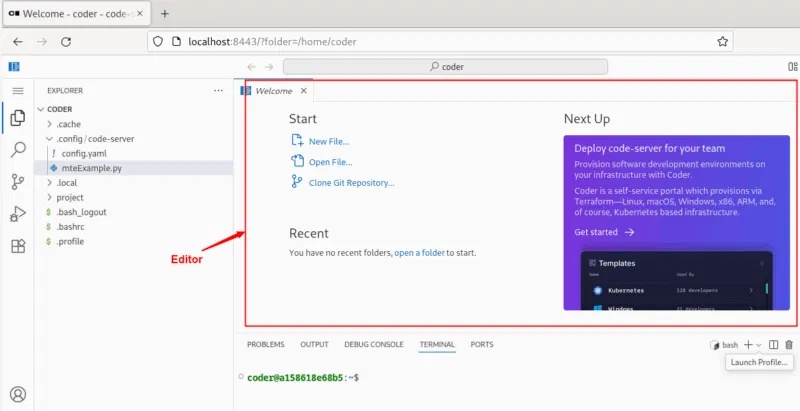
<p style="text-align: justify;">Editor là khu vực trung tâm và đóng vai trò là không gian làm việc chính của bạn. Khi bạn mở file, file sẽ xuất hiện ở đây.</p>

<figure>
<div style="text-align: justify;"><img alt="Code Editor" data-i="4" data-src="https://st.quantrimang.com/photos/image/2025/07/04/thiet-lap-code-server-dua-tren-web-trong-linux-5.jpg" data-was-processed="true" height="411" src="https://st.quantrimang.com/photos/image/2025/07/04/thiet-lap-code-server-dua-tren-web-trong-linux-5.jpg" width="800" /></div>

<figcaption>
<div style="text-align: justify;">Code Editor</div>
</figcaption>
</figure>

<p style="text-align: justify;">Tại đây, bạn có thể viết, chỉnh sửa và định dạng code giống như trong phiên bản desktop của VS Code.</p>

<h3 id="mcetoc_1j4n13chp9g" style="text-align: justify;">Terminal</h3>

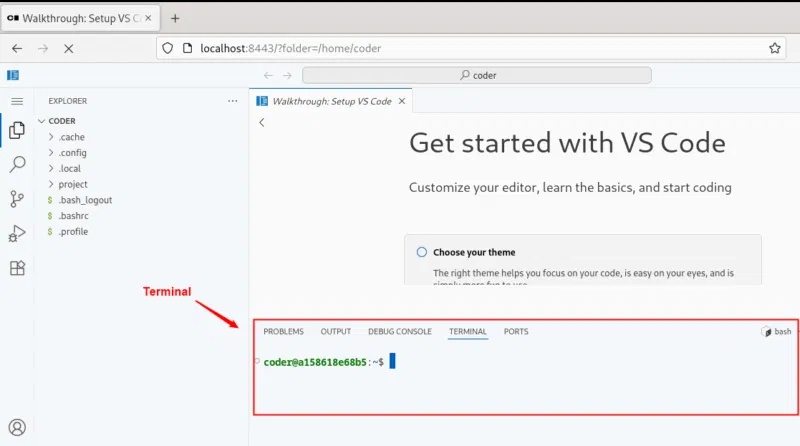
<p style="text-align: justify;">Terminal nằm ở cuối code server. Bạn có thể mở nó từ menu trên cùng&nbsp;<strong>Terminal -&gt; New Terminal</strong>&nbsp;hoặc bằng cách nhấn&nbsp;<strong>Ctrl + `</strong>.</p>

<p style="text-align: justify;">Bạn cũng có thể sử dụng phím tắt&nbsp;<strong>Ctrl + Shift + C&nbsp;</strong>để truy cập terminal của mình trong code server.</p>

<figure>
<div style="text-align: justify;"><img alt="Terminal tích hợp" data-i="5" data-src="https://st.quantrimang.com/photos/image/2025/07/04/thiet-lap-code-server-dua-tren-web-trong-linux-6.jpg" data-was-processed="true" height="446" src="https://st.quantrimang.com/photos/image/2025/07/04/thiet-lap-code-server-dua-tren-web-trong-linux-6.jpg" width="800" /></div>

<figcaption>
<div style="text-align: justify;">Terminal tích hợp</div>
</figcaption>
</figure>

<h3 id="mcetoc_1j4n13chp9h" style="text-align: justify;">Extensions</h3>

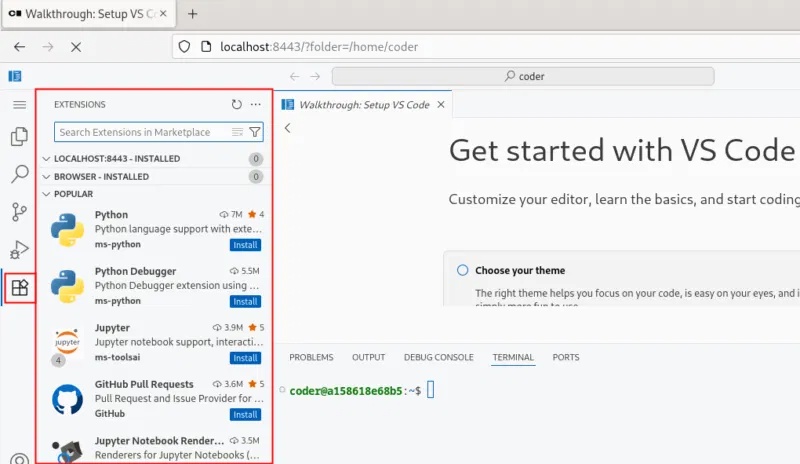
<p style="text-align: justify;">Tính năng Extensions là thứ làm cho VS Code trở nên tuyệt vời. Bạn có thể sử dụng tab Extensions (biểu tượng thanh bên) để duyệt, cài đặt và quản lý các tiện ích mở rộng VS Code như linter, theme và hỗ trợ ngôn ngữ.</p>

<figure>
<div style="text-align: justify;"><img alt="Extensions" data-i="6" data-src="https://st.quantrimang.com/photos/image/2025/07/04/thiet-lap-code-server-dua-tren-web-trong-linux-7.jpg" data-was-processed="true" height="464" src="https://st.quantrimang.com/photos/image/2025/07/04/thiet-lap-code-server-dua-tren-web-trong-linux-7.jpg" width="800" /></div>

<figcaption>
<div style="text-align: justify;">Extensions</div>
</figcaption>
</figure>

<p style="text-align: justify;">Bạn có thể tìm kiếm tiện ích mở rộng bằng thanh tìm kiếm, sau đó cài đặt và kích hoạt ngay lập tức để thêm các tính năng mới hoặc nâng cao chức năng hiện có.</p>

<h2 id="mcetoc_1j4n13chp9i" style="text-align: justify;">Tùy chỉnh IDE dựa trên trình duyệt</h2>

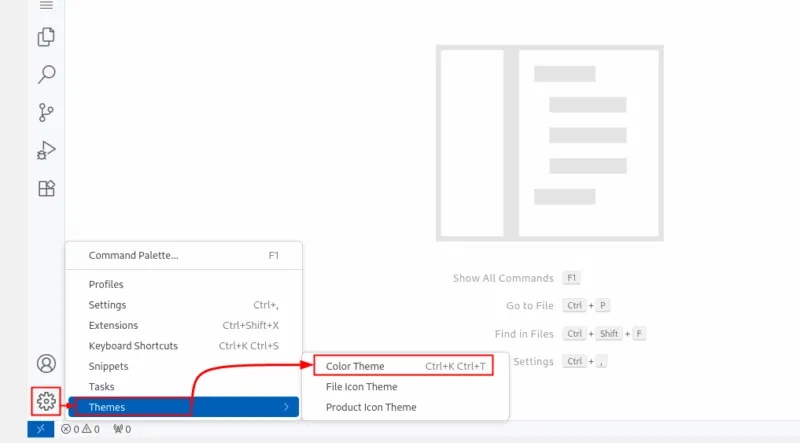
<p style="text-align: justify;">Bây giờ, bạn có thể tùy chỉnh code server theo sở thích của mình, chẳng hạn như cài đặt tiện ích mở rộng, thay đổi theme, cập nhật cài đặt hoặc sửa đổi file cấu hình. Ví dụ, để đặt theme mới, bạn có thể nhấp vào biểu tượng bánh răng ở góc dưới bên trái, di chuột qua&nbsp;<strong>Themes</strong>&nbsp;và chọn&nbsp;<strong>Color Theme</strong>&nbsp;từ menu:</p>

<figure>
<div style="text-align: justify;"><img alt="Mở Cài đặt" data-i="7" data-src="https://st.quantrimang.com/photos/image/2025/07/04/thiet-lap-code-server-dua-tren-web-trong-linux-8.jpg" data-was-processed="true" height="443" src="https://st.quantrimang.com/photos/image/2025/07/04/thiet-lap-code-server-dua-tren-web-trong-linux-8.jpg" width="800" /></div>

<figcaption>
<div style="text-align: justify;">Mở Cài đặt</div>
</figcaption>
</figure>

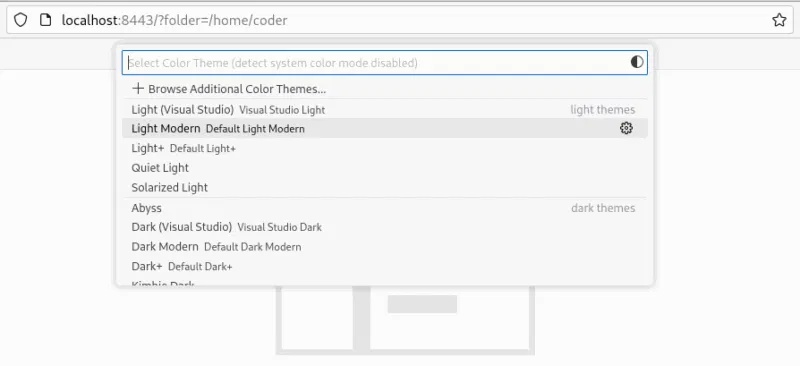
<p style="text-align: justify;">Bây giờ, danh sách các theme khả dụng sẽ xuất hiện. Nhấp vào một theme để xem trước và áp dụng.</p>

<figure>
<div style="text-align: justify;"><img alt="Chọn theme" data-i="8" data-src="https://st.quantrimang.com/photos/image/2025/07/04/thiet-lap-code-server-dua-tren-web-trong-linux-9.jpg" data-was-processed="true" height="366" src="https://st.quantrimang.com/photos/image/2025/07/04/thiet-lap-code-server-dua-tren-web-trong-linux-9.jpg" width="800" /></div>

<figcaption>
<div style="text-align: justify;">Chọn theme</div>
</figcaption>
</figure>

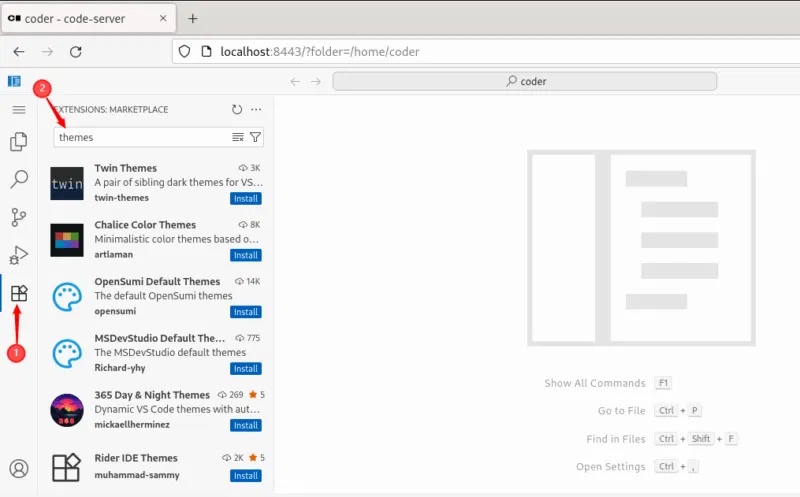
<p style="text-align: justify;">Ngoài ra, bạn có thể dễ dàng cài đặt theme ưa thích của mình từ tab&nbsp;<strong>Extensions</strong>&nbsp;và kích hoạt ngay lập tức.</p>

<figure>
<div style="text-align: justify;"><img alt="Cài đặt theme mới" data-i="9" data-src="https://st.quantrimang.com/photos/image/2025/07/04/thiet-lap-code-server-dua-tren-web-trong-linux-10.jpg" data-was-processed="true" height="497" src="https://st.quantrimang.com/photos/image/2025/07/04/thiet-lap-code-server-dua-tren-web-trong-linux-10.jpg" width="800" /></div>

<figcaption>
<div style="text-align: justify;">Cài đặt theme mới</div>
</figcaption>
</figure>

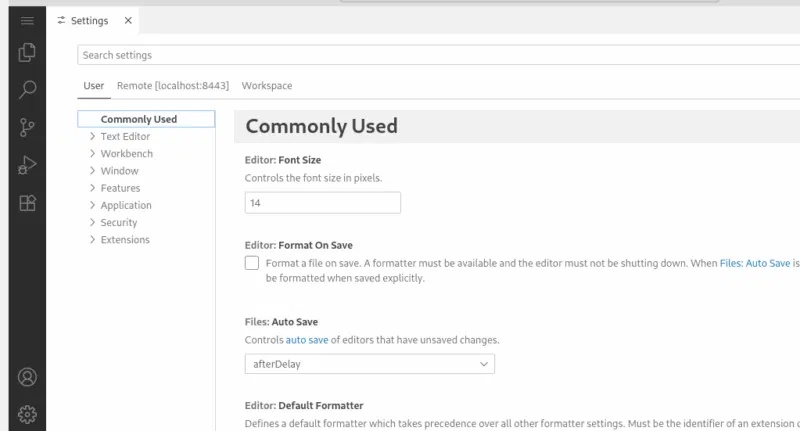
<p style="text-align: justify;">Tương tự như vậy, bạn cũng có thể tùy chỉnh các cài đặt code server khác. Để thực hiện việc này, chỉ cần nhấp vào biểu tượng bánh răng và chọn&nbsp;<strong>Settings</strong>.</p>

<figure>
<div style="text-align: justify;"><img alt="Tùy chỉnh code server" data-i="10" data-src="https://st.quantrimang.com/photos/image/2025/07/04/thiet-lap-code-server-dua-tren-web-trong-linux-11.jpg" data-was-processed="true" height="431" src="https://st.quantrimang.com/photos/image/2025/07/04/thiet-lap-code-server-dua-tren-web-trong-linux-11.jpg" width="800" /></div>

<figcaption>
<div style="text-align: justify;">Tùy chỉnh code server</div>
</figcaption>
</figure>

<p style="text-align: justify;">Từ đây, bạn có thể tùy chỉnh hành vi của trình soạn thảo, kích thước phông chữ, định dạng và nhiều thứ khác nữa.</p>

<h2 id="mcetoc_1j4n13chp9j" style="text-align: justify;">Tạo và chạy chương trình đầu tiên trong code-server</h2>

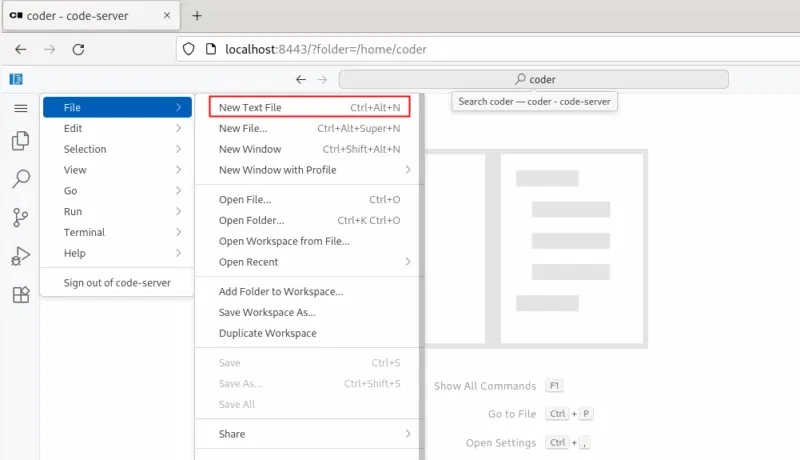
<p style="text-align: justify;">Tạo file văn bản mới từ bảng điều khiển&nbsp;<strong>Explorer</strong>&nbsp;hoặc bằng cách nhấn phím tắt&nbsp;<strong>Ctrl + Alt + N</strong>:</p>

<figure>
<div style="text-align: justify;"><img alt="Tạo file mới" data-i="11" data-src="https://st.quantrimang.com/photos/image/2025/07/04/thiet-lap-code-server-dua-tren-web-trong-linux-12.jpg" data-was-processed="true" height="460" src="https://st.quantrimang.com/photos/image/2025/07/04/thiet-lap-code-server-dua-tren-web-trong-linux-12.jpg" width="800" /></div>

<figcaption>
<div style="text-align: justify;">Tạo file mới</div>
</figcaption>
</figure>

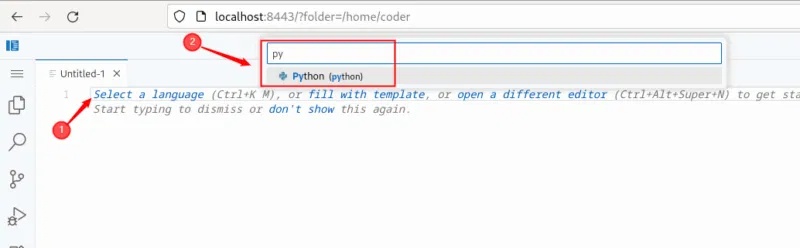
<p style="text-align: justify;">Nhấp vào&nbsp;<strong>Select a language</strong>&nbsp;hoặc nhấn&nbsp;<strong>Ctrl + K</strong>, sau đó là<strong>&nbsp;M</strong>&nbsp;để chọn ngôn ngữ mong muốn, chẳng hạn như Python.</p>

<figure>
<div style="text-align: justify;"><img alt="Chọn ngôn ngữ" data-i="12" data-src="https://st.quantrimang.com/photos/image/2025/07/04/thiet-lap-code-server-dua-tren-web-trong-linux-13.jpg" data-was-processed="true" height="248" src="https://st.quantrimang.com/photos/image/2025/07/04/thiet-lap-code-server-dua-tren-web-trong-linux-13.jpg" width="800" /></div>

<figcaption>
<div style="text-align: justify;">Chọn ngôn ngữ</div>
</figcaption>
</figure>

<p style="text-align: justify;">Bây giờ, dán code sau vào đó để xuất&nbsp;<em>&quot;Welcome to maketecheasier.com&quot;</em>&nbsp;3 lần trên bảng điều khiển:</p>

<pre id="pre2">
<code>for i in range(3):
    print(&quot;Welcome to maketecheasier.com&quot;)</code></pre>

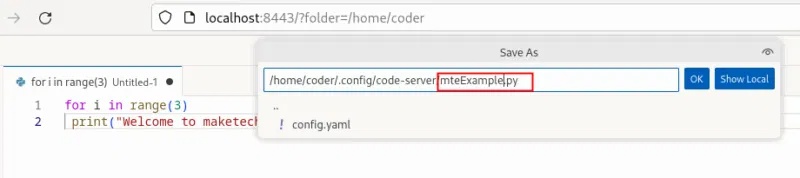
<p style="text-align: justify;">Trước khi thực thi chương trình này, hãy đảm bảo Python đã được cài đặt. Sau đó, nhấn&nbsp;<strong>Ctrl + S&nbsp;</strong>để đặt tên thích hợp cho file, sau đó nhấp vào&nbsp;<strong>OK</strong>&nbsp;để lưu file:</p>

<figure>
<div style="text-align: justify;"><img alt="Lưu file" data-i="13" data-src="https://st.quantrimang.com/photos/image/2025/07/04/thiet-lap-code-server-dua-tren-web-trong-linux-14.jpg" data-was-processed="true" height="178" src="https://st.quantrimang.com/photos/image/2025/07/04/thiet-lap-code-server-dua-tren-web-trong-linux-14.jpg" width="800" /></div>

<figcaption>
<div style="text-align: justify;">Lưu file</div>
</figcaption>
</figure>

<p style="text-align: justify;">Bây giờ, nhấn&nbsp;<strong>Ctrl + `&nbsp;</strong>để mở terminal rồi chạy script Python bằng lệnh sau:</p>

<pre id="pre3">
<code>python3 mteExample.py</code></pre>

<figure>
<div style="text-align: justify;"><img alt="Chạy script Python trong Code Server" data-i="14" data-src="https://st.quantrimang.com/photos/image/2025/07/04/thiet-lap-code-server-dua-tren-web-trong-linux-15.jpg" data-was-processed="true" height="157" src="https://st.quantrimang.com/photos/image/2025/07/04/thiet-lap-code-server-dua-tren-web-trong-linux-15.jpg" width="792" /></div>

<figcaption>
<div style="text-align: justify;">Chạy script Python trong Code Server</div>
</figcaption>
</figure>

<p style="text-align: justify;">Bây giờ, code-server đã hoạt động trên hệ thống Linux, bạn đã sẵn sàng tận dụng tối đa lợi thế của phát triển dựa trên trình duyệt. Bạn có thể tùy chỉnh môi trường của mình bằng các theme và tiện ích mở rộng, tạo và chạy code bằng các ngôn ngữ lập trình khác nhau, thậm chí bảo mật quyền truy cập bằng domain tùy chỉnh và&nbsp;HTTPS. Bước tiếp theo, hãy cân nhắc khám phá cách tích hợp luồng công việc Git, bật SSL để sử dụng trong sản xuất hoặc mở rộng phòng thí nghiệm tại nhà bằng các công cụ dựa trên web khác như JupyterLab, Docker hoặc Portainer để thiết lập phát triển mạnh mẽ và linh hoạt hơn.</p>

<div style="text-align: justify;">&nbsp;</div>
		</div>
				<div id="author">
						<p>
				<strong>Nguồn tin:</strong>
				Quantrimang.com:
			</p>
		</div>
	</div>
	<div id="footer" class="clearfix">
		<div id="url">
			<strong>URL của bản tin này: </strong><a href="https://www.nguoicodonvn2008.info/vi/news/savefile/kien-thuc-may-tinh/cach-thiet-lap-code-server-dua-tren-web-trong-linux-11109.html" title="Cách thiết lập code server dựa trên web trong Linux">https://www.nguoicodonvn2008.info/vi/news/savefile/kien-thuc-may-tinh/cach-thiet-lap-code-server-dua-tren-web-trong-linux-11109.html</a>

		</div>
		<div class="clear"></div>
		<div class="copyright">
			&copy; .&#x3A; Nguoicodonvn2008.info - Cõi lòng người cô đơn &#x3A;.
		</div>
		<div id="contact">
			<a href="mailto:admin@nguoicodonvn2008.info">admin@nguoicodonvn2008.info</a>
		</div>
	</div>
</div>
        <div id="timeoutsess" class="chromeframe">
            Bạn đã không sử dụng Site, <a onclick="timeoutsesscancel();" href="https://www.nguoicodonvn2008.info/#">Bấm vào đây để duy trì trạng thái đăng nhập</a>. Thời gian chờ: <span id="secField"> 60 </span> giây
        </div>
        <div id="openidResult" class="nv-alert" style="display:none"></div>
        <div id="openidBt" data-result="" data-redirect=""></div>
		</script>
		<div class="car-top">
  <span><img src="https://www.nguoicodonvn2008.info/themes/default/images/car.png" alt=""></span>
</div>
<script src="https://www.nguoicodonvn2008.info/assets/js/jquery/jquery.min.js"></script>
<script>var nv_base_siteurl="/",nv_lang_data="vi",nv_lang_interface="vi",nv_name_variable="nv",nv_fc_variable="op",nv_lang_variable="language",nv_module_name="news",nv_func_name="savefile",nv_is_user=0, nv_my_ofs=-4,nv_my_abbr="EDT",nv_cookie_prefix="nv4c_e856T",nv_check_pass_mstime=1738000,nv_area_admin=0,nv_safemode=0,theme_responsive=0,nv_recaptcha_ver=2,nv_recaptcha_sitekey="",nv_recaptcha_type="image",XSSsanitize=1;</script>
<script src="https://www.nguoicodonvn2008.info/assets/js/language/vi.js"></script>
<script src="https://www.nguoicodonvn2008.info/assets/js/DOMPurify/purify3.js"></script>
<script src="https://www.nguoicodonvn2008.info/assets/js/global.js"></script>
<script src="https://www.nguoicodonvn2008.info/assets/js/site.js"></script>
<script src="https://www.nguoicodonvn2008.info/themes/default/js/news.js"></script>
<script src="https://www.nguoicodonvn2008.info/themes/default/js/main.js"></script>
<script src="https://www.nguoicodonvn2008.info/themes/default/js/custom.js"></script>
<script type="application/ld+json">
        {
            "@context": "https://schema.org",
            "@type": "Organization",
            "url": "https://www.nguoicodonvn2008.info",
            "logo": "https://www.nguoicodonvn2008.info/uploads/angel.gif"
        }
        </script>
<script src="https://www.nguoicodonvn2008.info/themes/default/js/bootstrap.min.js"></script>
<script type="text/javascript">
var $scrolltop = $('.car-top');
$scrolltop.on('click', function () {
    $('html,body').animate({
        scrollTop: 0
    }, 800);
    $(this).addClass("car-run");
    setTimeout(function(){ $scrolltop.removeClass('car-run');}, 1000);
    return false;
});
$(window).on('scroll', function ()
{ 
    if($(window).scrollTop() >= 200)
    {
        $scrolltop.addClass("show");
        $scrolltop.addClass("car-down");
    }
    else
    {
       $scrolltop.removeClass("show");
       setTimeout(function(){ $scrolltop.removeClass('car-down');}, 300);
    }
});
</script>
</body>
</html>