<!DOCTYPE html>
    <html lang="vi" xmlns="http://www.w3.org/1999/xhtml" prefix="og: http://ogp.me/ns#">
    <head>
<title>Cách thêm&#x002F;xóa biểu tượng Meet Now trên Taskbar trong Windows 10</title>
<meta name="description" content="Cách thêm&#x002F;xóa biểu tượng Meet Now trên Taskbar trong Windows 10 - Savefile - Tin Tức -...">
<meta name="author" content=".: Nguoicodonvn2008.info - Cõi lòng người cô đơn :.">
<meta name="copyright" content=".: Nguoicodonvn2008.info - Cõi lòng người cô đơn :. [admin@nguoicodonvn2008.info]">
<meta name="robots" content="index, archive, follow, noodp">
<meta name="googlebot" content="index,archive,follow,noodp">
<meta name="msnbot" content="all,index,follow">
<meta name="generator" content="NukeViet v4.5">
<meta http-equiv="Content-Type" content="text/html; charset=utf-8">
<meta property="og:title" content="Cách thêm&#x002F;xóa biểu tượng Meet Now trên Taskbar trong Windows 10">
<meta property="og:type" content="website">
<meta property="og:description" content="Savefile - Tin Tức - https&#x3A;&#x002F;&#x002F;www.nguoicodonvn2008.info&#x002F;vi&#x002F;news&#x002F;savefile&#x002F;kien-thuc-may-tinh&#x002F;cach-them-xoa-bieu-tuong-meet-now-tren-taskbar-trong-windows-10-3241.html">
<meta property="og:site_name" content=".&#x3A; Nguoicodonvn2008.info - Cõi lòng người cô đơn &#x3A;.">
<meta property="og:url" content="https://www.nguoicodonvn2008.info/vi/news/savefile/kien-thuc-may-tinh/cach-them-xoa-bieu-tuong-meet-now-tren-taskbar-trong-windows-10-3241.html">
<link rel="shortcut icon" href="https://www.nguoicodonvn2008.info/favicon.ico">
<link rel="canonical" href="https://www.nguoicodonvn2008.info/vi/news/savefile/kien-thuc-may-tinh/cach-them-xoa-bieu-tuong-meet-now-tren-taskbar-trong-windows-10-3241.html">
<link rel="alternate" href="https://www.nguoicodonvn2008.info/vi/news/rss/" title="Tin Tức" type="application/rss+xml">
<link rel="alternate" href="https://www.nguoicodonvn2008.info/vi/news/rss/karaoke-dual/" title="Tin Tức - Karaoke Dual" type="application/rss+xml">
<link rel="alternate" href="https://www.nguoicodonvn2008.info/vi/news/rss/nhac-tre/" title="Tin Tức - Nhạc trẻ" type="application/rss+xml">
<link rel="alternate" href="https://www.nguoicodonvn2008.info/vi/news/rss/tru-tinh/" title="Tin Tức - Trữ tình" type="application/rss+xml">
<link rel="alternate" href="https://www.nguoicodonvn2008.info/vi/news/rss/nuoc-ngoai/" title="Tin Tức - Nước ngoài" type="application/rss+xml">
<link rel="alternate" href="https://www.nguoicodonvn2008.info/vi/news/rss/remix/" title="Tin Tức - Remix" type="application/rss+xml">
<link rel="alternate" href="https://www.nguoicodonvn2008.info/vi/news/rss/tam-su-tinh-yeu/" title="Tin Tức - Tâm sự tình yêu" type="application/rss+xml">
<link rel="alternate" href="https://www.nguoicodonvn2008.info/vi/news/rss/tho-suu-tam/" title="Tin Tức - Thơ sưu tầm" type="application/rss+xml">
<link rel="alternate" href="https://www.nguoicodonvn2008.info/vi/news/rss/cuoc-song/" title="Tin Tức - Cuộc sống" type="application/rss+xml">
<link rel="alternate" href="https://www.nguoicodonvn2008.info/vi/news/rss/phan-mem/" title="Tin Tức - Phần mềm" type="application/rss+xml">
<link rel="alternate" href="https://www.nguoicodonvn2008.info/vi/news/rss/kien-thuc-may-tinh/" title="Tin Tức - Kiến thức máy tính" type="application/rss+xml">
<link rel="alternate" href="https://www.nguoicodonvn2008.info/vi/news/rss/hoc-tap/" title="Tin Tức - Học tập" type="application/rss+xml">
<link rel="alternate" href="https://www.nguoicodonvn2008.info/vi/news/rss/tai-lieu/" title="Tin Tức - Tài liệu" type="application/rss+xml">
<link rel="alternate" href="https://www.nguoicodonvn2008.info/vi/news/rss/de-thi/" title="Tin Tức - Đề thi" type="application/rss+xml">
<link rel="preload" as="style" href="https://www.nguoicodonvn2008.info/assets/css/font-awesome.min.css" type="text/css">
<link rel="preload" as="style" href="https://www.nguoicodonvn2008.info/themes/default/css/bootstrap.non-responsive.css" type="text/css">
<link rel="preload" as="style" href="https://www.nguoicodonvn2008.info/themes/default/css/style.css" type="text/css">
<link rel="preload" as="style" href="https://www.nguoicodonvn2008.info/themes/default/css/style.non-responsive.css" type="text/css">
<link rel="preload" as="style" href="https://www.nguoicodonvn2008.info/themes/default/css/news.css" type="text/css">
<link rel="preload" as="style" href="https://www.nguoicodonvn2008.info/themes/default/css/custom.css" type="text/css">
<link rel="preload" as="script" href="https://www.nguoicodonvn2008.info/assets/js/jquery/jquery.min.js" type="text/javascript">
<link rel="preload" as="script" href="https://www.nguoicodonvn2008.info/assets/js/language/vi.js" type="text/javascript">
<link rel="preload" as="script" href="https://www.nguoicodonvn2008.info/assets/js/DOMPurify/purify3.js" type="text/javascript">
<link rel="preload" as="script" href="https://www.nguoicodonvn2008.info/assets/js/global.js" type="text/javascript">
<link rel="preload" as="script" href="https://www.nguoicodonvn2008.info/assets/js/site.js" type="text/javascript">
<link rel="preload" as="script" href="https://www.nguoicodonvn2008.info/themes/default/js/news.js" type="text/javascript">
<link rel="preload" as="script" href="https://www.nguoicodonvn2008.info/themes/default/js/main.js" type="text/javascript">
<link rel="preload" as="script" href="https://www.nguoicodonvn2008.info/themes/default/js/custom.js" type="text/javascript">
<link rel="preload" as="script" href="https://www.nguoicodonvn2008.info/themes/default/js/bootstrap.min.js" type="text/javascript">
<link rel="stylesheet" href="https://www.nguoicodonvn2008.info/assets/css/font-awesome.min.css">
<link rel="stylesheet" href="https://www.nguoicodonvn2008.info/themes/default/css/bootstrap.non-responsive.css">
<link rel="stylesheet" href="https://www.nguoicodonvn2008.info/themes/default/css/style.css">
<link rel="stylesheet" href="https://www.nguoicodonvn2008.info/themes/default/css/style.non-responsive.css">
<link rel="StyleSheet" href="https://www.nguoicodonvn2008.info/themes/default/css/news.css">
<link rel="stylesheet" href="https://www.nguoicodonvn2008.info/themes/default/css/custom.css">
<style type="text/css">
	body{background: #fff;}
</style>
    </head>
    <body>
<div id="print">
	<div id="hd_print">
		<h2 class="pull-left">.&#x3A; Nguoicodonvn2008.info - Cõi lòng người cô đơn &#x3A;.</h2>
		<p class="pull-right"><a title=".&#x3A; Nguoicodonvn2008.info - Cõi lòng người cô đơn &#x3A;." href="https://www.nguoicodonvn2008.info/">https://www.nguoicodonvn2008.info</a></p>
	</div>
	<div class="clear"></div>
	<hr />
	<div id="content">
		<h1>Cách thêm&#x002F;xóa biểu tượng Meet Now trên Taskbar trong Windows 10</h1>
		<ul class="list-inline">
			<li>Chủ nhật - 13/12/2020 23:57</li>
			<li class="hidden-print txtrequired"><em class="fa fa-print">&nbsp;</em><a title="In ra" href="javascript:;" onclick="window.print()">In ra</a></li>
			<li class="hidden-print txtrequired"><em class="fa fa-power-off">&nbsp;</em><a title="Đóng cửa sổ này" href="javascript:;" onclick="window.close()">Đóng cửa sổ này</a></li>
		</ul>
		<div class="clear"></div>
		<div id="hometext">
		</div>
				<div class="imghome">
			<img alt="Cách thêm&#x002F;xóa biểu tượng Meet Now trên Taskbar trong Windows 10" src="https://st.quantrimang.com/photos/image/2020/12/14/xoa-bieu-tuong-meet-now.jpg" width="460" class="img-thumbnail" />
		</div>
		<div class="clear"></div>
		<div id="bodytext" class="clearfix">
			<p style="text-align: justify;">Đầu năm nay, Microsoft đã giới thiệu Meet Now trong Skype. Meet Now giúp bạn dễ dàng kết nối với bất kỳ ai chỉ bằng hai cú nhấp chuột và mỗi cuộc gọi có thể kéo dài đến 24 giờ.</p>

<p style="text-align: justify;">Microsoft đã mở rộng khả năng này bắt đầu từ Windows 10 build 20221 bằng cách đưa Meet Now vào ngay thanh tác vụ. Giờ đây, bạn có thể dễ dàng thiết lập cuộc gọi điện video, liên hệ với bạn bè và gia đình ngay lập tức bằng cách nhấp vào biểu tượng&nbsp;<strong>Meet Now</strong>&nbsp;trong khu vực thông báo (khay hệ thống) của thanh tác vụ trong Windows 10. Không cần đăng ký hoặc tải xuống.</p>

<div style="text-align: justify;">&nbsp;</div>

<p style="text-align: justify;">Meet Now sẽ mở ứng dụng Skype đã cài đặt trên mọi thiết bị. Ngay cả khi bạn chưa đăng nhập, bạn có thể tham gia cuộc gọi hoặc trò chuyện với tư cách khách. Nếu bạn chưa cài đặt Skype trên máy tính, nó sẽ mở Skype trên web. Các trình duyệt được hỗ trợ cho Meet Now là Microsoft Edge và phiên bản mới nhất của Google Chrome.</p>

<p style="text-align: justify;">Meet Now trên Taskbar Windows 10 hiện đã có sẵn cho tất cả mọi người bắt đầu từ Windows 10 build 20231.</p>

<p style="text-align: justify;">Hướng dẫn này sẽ chỉ cho bạn cách thêm, xóa, ẩn hoặc hiển thị biểu tượng Meet Now trên khu vực thông báo của thanh tác vụ trên Windows 10.</p>

<h2 style="text-align: justify;">Loại bỏ biểu tượng Meet Now trên Taskbar</h2>

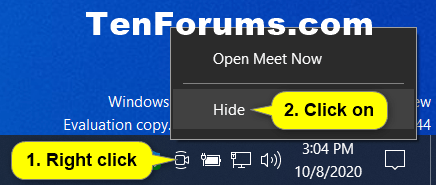
<p style="text-align: justify;">Nhấp chuột phải hoặc nhấn và giữ vào biểu tượng hệ thống&nbsp;<strong>Meet Now</strong>&nbsp;ở khu vực thông báo trên thanh tác vụ và nhấp vào&nbsp;<strong>Hide.</strong></p>

<figure>
<div style="text-align: justify;"><img alt="Xóa biểu tượng Meet Now trên Taskbar" data-i="0" data-src="https://st.quantrimang.com/photos/image/2020/10/09/them-xoa-bieu-tuong-meet-now-tren-taskbar-1.png" data-was-processed="true" height="185" src="https://st.quantrimang.com/photos/image/2020/10/09/them-xoa-bieu-tuong-meet-now-tren-taskbar-1.png" width="436" /></div>

<figcaption>
<div style="text-align: justify;">Xóa biểu tượng Meet Now trên Taskbar</div>
</figcaption>
</figure>

<h2 style="text-align: justify;">Thêm hoặc xóa biểu tượng Meet Now trên Taskbar trong Settings</h2>

<p style="text-align: justify;">1.&nbsp;Mở Settings&nbsp;và nhấp vào biểu tượng&nbsp;<strong>Personalization.</strong></p>

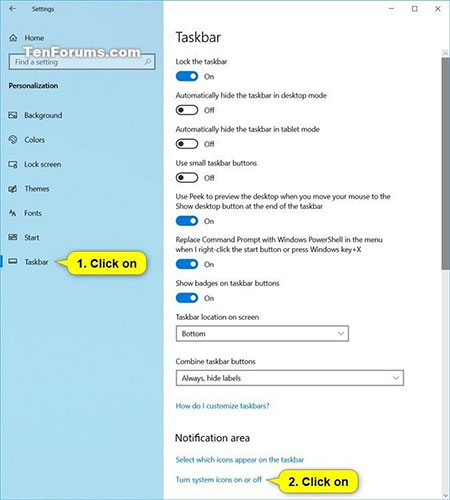
<p style="text-align: justify;">2. Nhấp vào&nbsp;<strong>Taskbar</strong>&nbsp;ở phía bên trái và nhấn vào liên kết&nbsp;<strong>Turn system icons on or off</strong>&nbsp;trong phần&nbsp;<strong>Notification area</strong>&nbsp;ở phía bên phải.</p>

<figure>
<div style="text-align: justify;"><img alt="Nhấn vào liên kết Turn system icons on or off trong phần Notification area" data-i="1" data-src="https://st.quantrimang.com/photos/image/2020/10/09/them-xoa-bieu-tuong-meet-now-tren-taskbar-2.jpg" data-was-processed="true" height="500" src="https://st.quantrimang.com/photos/image/2020/10/09/them-xoa-bieu-tuong-meet-now-tren-taskbar-2.jpg" width="450" /></div>

<figcaption>
<div style="text-align: justify;">Nhấn vào liên kết Turn system icons on or off trong phần Notification area</div>
</figcaption>
</figure>

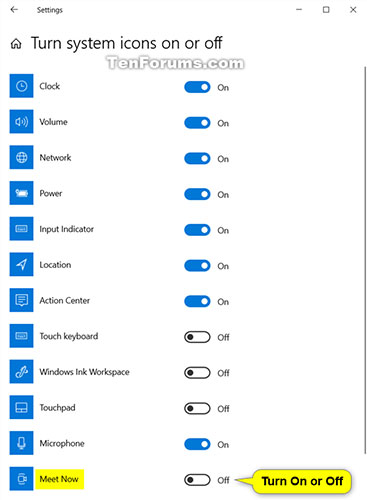
<p style="text-align: justify;">3. Bật (mặc định - thêm) hoặc tắt (xóa) biểu tượng hệ thống Meet Now, tùy thuộc vào những gì bạn muốn.</p>

<figure>
<div style="text-align: justify;"><img alt="Bật (mặc định - thêm) hoặc tắt (xóa) biểu tượng hệ thống Meet Now" data-i="2" data-src="https://st.quantrimang.com/photos/image/2020/10/09/them-xoa-bieu-tuong-meet-now-tren-taskbar-3.jpg" data-was-processed="true" height="500" src="https://st.quantrimang.com/photos/image/2020/10/09/them-xoa-bieu-tuong-meet-now-tren-taskbar-3.jpg" width="367" /></div>

<figcaption>
<div style="text-align: justify;">Bật (mặc định - thêm) hoặc tắt (xóa) biểu tượng hệ thống Meet Now</div>
</figcaption>
</figure>

<p style="text-align: justify;">4. Bây giờ, bạn có thể đóng&nbsp;<strong>Settings</strong>&nbsp;nếu muốn.</p>

<h2 style="text-align: justify;">Ẩn hoặc hiển thị biểu tượng Meet Now trên Taskbar trong Settings</h2>

<p style="text-align: justify;">1. Mở&nbsp;<strong>Settings</strong>&nbsp;và nhấp vào biểu tượng&nbsp;<strong>Personalization.</strong></p>

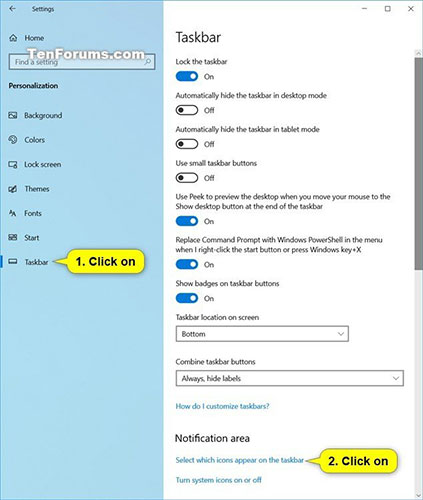
<p style="text-align: justify;">2 Nhấp vào&nbsp;<strong>Taskbar</strong>&nbsp;ở phía bên trái và nhấn vào liên kết&nbsp;<strong>Select which icons appear on the taskbar</strong>&nbsp;trong phần&nbsp;<strong>Notification area</strong>&nbsp;ở phía bên phải.</p>

<figure>
<div style="text-align: justify;"><img alt="Nhấn vào liên kết Select which icons appear on the taskbar trong phần Notification area" data-i="3" data-src="https://st.quantrimang.com/photos/image/2020/10/09/them-xoa-bieu-tuong-meet-now-tren-taskbar-4.jpg" data-was-processed="true" height="500" src="https://st.quantrimang.com/photos/image/2020/10/09/them-xoa-bieu-tuong-meet-now-tren-taskbar-4.jpg" width="423" /></div>

<figcaption>
<div style="text-align: justify;">Nhấn vào liên kết Select which icons appear on the taskbar trong phần Notification area</div>
</figcaption>
</figure>

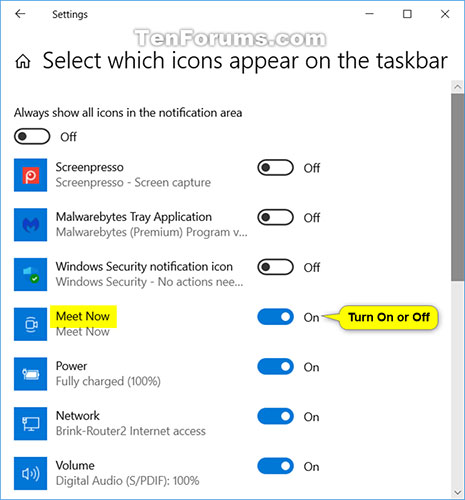
<p style="text-align: justify;">3. Bật (mặc định - hiển thị) hoặc tắt (ẩn) biểu tượng khu vực thông báo Meet Now, tùy thuộc vào những gì bạn muốn.</p>

<p style="text-align: justify;"><strong>Lưu ý</strong>: Bạn sẽ cần phải tắt&nbsp;<strong>Always show all icons in the notification area</strong>&nbsp;ở trên cùng để có thể bật hoặc tắt Meet Now.</p>

<figure>
<div style="text-align: justify;"><img alt="Bật (mặc định - hiển thị) hoặc tắt (ẩn) biểu tượng khu vực thông báo Meet Now" data-i="4" data-src="https://st.quantrimang.com/photos/image/2020/10/09/them-xoa-bieu-tuong-meet-now-tren-taskbar-5.jpg" data-was-processed="true" height="500" src="https://st.quantrimang.com/photos/image/2020/10/09/them-xoa-bieu-tuong-meet-now-tren-taskbar-5.jpg" width="465" /></div>

<figcaption>
<div style="text-align: justify;">Bật (mặc định - hiển thị) hoặc tắt (ẩn) biểu tượng khu vực thông báo Meet Now</div>
</figcaption>
</figure>

<p style="text-align: justify;">4. Bây giờ, bạn có thể đóng&nbsp;<strong>Settings</strong>&nbsp;nếu muốn.</p>

<h2 style="text-align: justify;">Ẩn hoặc hiện biểu tượng Meet Now trên Taskbar cho tất cả hoặc người dùng cụ thể trong Local Group Policy Editor</h2>

<p style="text-align: justify;"><strong>Lưu ý:</strong></p>

<ul>
	<li style="text-align: justify;">Bạn phải đăng nhập với quyền admin để thực hiện tùy chọn này.</li>
	<li style="text-align: justify;">Nếu bị tắt, tùy chọn này sẽ chuyển sang màu xám và ngăn việc sử dụng tùy chọn Settings ở trên.</li>
	<li style="text-align: justify;">Local Group Policy Editor chỉ có sẵn trong các phiên bản Windows 10 Pro, Enterprise và Education.</li>
</ul>

<p style="text-align: justify;">1.&nbsp;Mở Local Group Policy Editor&nbsp;để áp dụng policy này cho tất cả người dùng, người dùng hoặc nhóm cụ thể, hay tất cả người dùng ngoại trừ admin.</p>

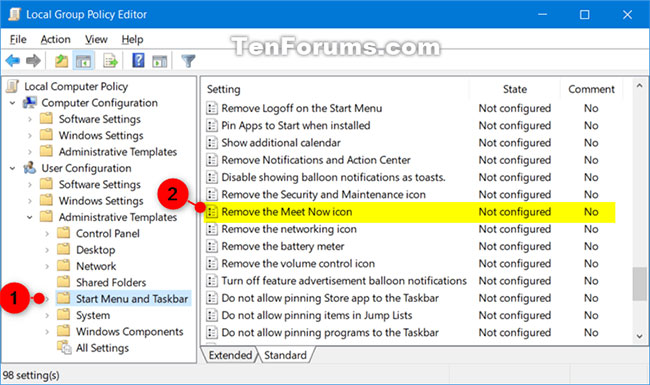
<p style="text-align: justify;">2. Điều hướng đến vị trí policy bên dưới trong ngăn bên trái của&nbsp;<strong>Local Group Policy Editor</strong>.&nbsp;</p>

<pre id="pre0">
<code>User Configuration &gt; Administrative Templates &gt; Start Menu and Taskbar</code></pre>

<figure>
<div style="text-align: justify;"><img alt="Điều hướng đến vị trí policy này trong ngăn bên trái của Local Group Policy Editor" data-i="5" data-src="https://st.quantrimang.com/photos/image/2020/11/20/them-xoa-bieu-tuong-meet-now-tren-taskbar-1.jpg" data-was-processed="true" height="385" src="https://st.quantrimang.com/photos/image/2020/11/20/them-xoa-bieu-tuong-meet-now-tren-taskbar-1.jpg" width="650" /></div>

<figcaption>
<div style="text-align: justify;">Điều hướng đến vị trí policy này trong ngăn bên trái của Local Group Policy Editor</div>
</figcaption>
</figure>

<p style="text-align: justify;">3. Trong bảng điều khiển bên phải của&nbsp;<strong>Start Menu and Taskbar</strong>, nhấp đúp vào policy&nbsp;<strong>Remove the Meet Now icon</strong>&nbsp;để chỉnh sửa.</p>

<p style="text-align: justify;">4. Thực hiện bước 5 (để bật) hoặc bước 6 (để tắt) bên dưới cho những gì bạn muốn làm.</p>

<div style="text-align: justify;">&nbsp;</div>

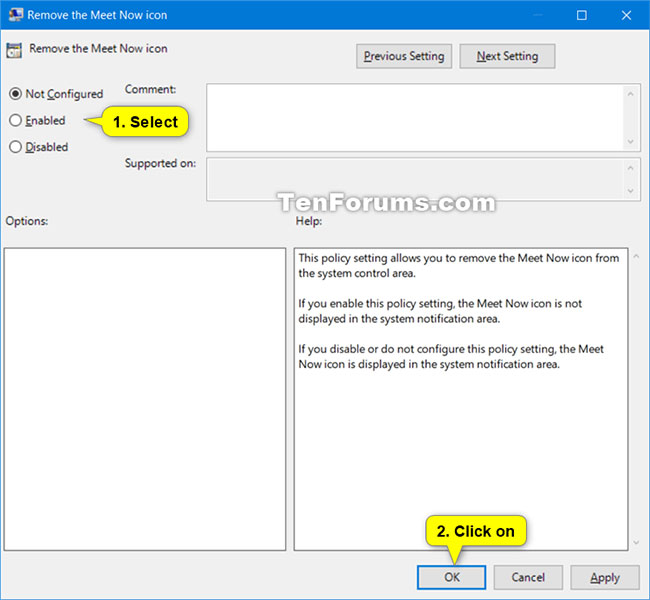
<p style="text-align: justify;">5. Để kích hoạt biểu tượng Meet Now trên Taskbar, chọn&nbsp;<strong>Not Configured</strong>&nbsp;hoặc<strong>&nbsp;Disabled</strong>, nhấn&nbsp;<strong>OK</strong>&nbsp;và chuyển sang bước 7 bên dưới.</p>

<p style="text-align: justify;"><strong>Lưu ý</strong>:&nbsp;<strong>Not Configured</strong>&nbsp;là cài đặt mặc định.</p>

<p style="text-align: justify;">6. Để tắt biểu tượng Meet Now trên Taskbar, chọn&nbsp;<strong>Enabled</strong>, nhấp vào&nbsp;<strong>OK</strong>&nbsp;và chuyển sang bước 7 bên dưới.</p>

<figure>
<div style="text-align: justify;"><img alt="Để tắt biểu tượng Meet Now trên Taskbar, chọn Enabled, nhấp vào OK và chuyển sang bước 7 bên dưới" data-i="6" data-src="https://st.quantrimang.com/photos/image/2020/11/20/them-xoa-bieu-tuong-meet-now-tren-taskbar-2.jpg" data-was-processed="true" height="600" src="https://st.quantrimang.com/photos/image/2020/11/20/them-xoa-bieu-tuong-meet-now-tren-taskbar-2.jpg" width="650" /></div>

<figcaption>
<div style="text-align: justify;">Để tắt biểu tượng Meet Now trên Taskbar, chọn Enabled, nhấp vào OK và chuyển sang bước 7 bên dưới</div>
</figcaption>
</figure>

<p style="text-align: justify;">7. Khi hoàn tất, bạn có thể đóng Local Group Policy Editor nếu muốn.</p>

<p style="text-align: justify;">8. Khởi động lại tiến trình explorer, đăng xuất và đăng nhập hoặc&nbsp;khởi động lại máy tính&nbsp;để áp dụng thay đổi.</p>

<h2 style="text-align: justify;">Xóa biểu tượng Meet Now trên Windows 10 bằng Windows Registry</h2>

<p style="text-align: justify;">Tùy chọn cuối cùng để bạn áp dụng là xóa Meet Now bằng Windows Registry. Đây là tùy chọn ít được khuyến khích nhất vì thực hiện các thay đổi đối với Registry có thể gây ra những hậu quả không mong muốn nếu bạn thay đổi sai cài đặt.</p>

<p style="text-align: justify;">Trong trường hợp này, bạn có thể sử dụng Registry một cách an toàn để ẩn Meet Now cho chính mình hoặc tất cả người dùng trên máy tính dùng chung.</p>

<div style="text-align: justify;">&nbsp;</div>

<p style="text-align: justify;">1. Gõ&nbsp;<strong>regedit</strong>&nbsp;vào thanh tìm kiếm của menu Start và chọn&nbsp;<strong>Best Match</strong>&nbsp;để&nbsp;mở Registry Editor.</p>

<div style="text-align: justify;">&nbsp;</div>

<p style="text-align: justify;">2. Để chặn&nbsp;<strong>Meet Now</strong>&nbsp;trên tài khoản Windows của bạn, hãy duyệt tới:</p>

<pre id="pre1">
<code>HKEY_CURRENT_USER\Software\Microsoft\Windows\CurrentVersion\Policies\Explorer</code></pre>

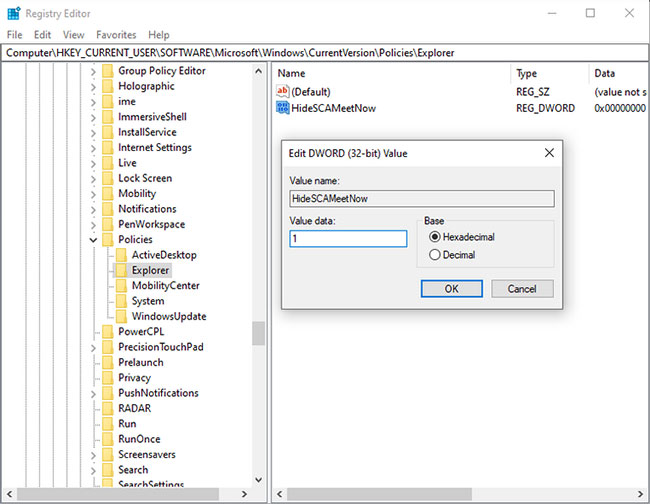
<p style="text-align: justify;">3. Bấm chuột phải vào cửa sổ&nbsp;<strong>Explorer</strong>&nbsp;và chọn&nbsp;<strong>New &gt; Dword (32-bit) Value</strong>.</p>

<p style="text-align: justify;">4. Đặt tên là&nbsp;<strong>HideSCAMeetNow</strong>, sau đó đặt giá trị thành&nbsp;<strong>1</strong>.</p>

<figure>
<div style="text-align: justify;"><img alt="Tạo DWORD HideSCAMeetNow và đặt giá trị là 1" data-i="7" data-src="https://st.quantrimang.com/photos/image/2020/12/14/xoa-bieu-tuong-meet-now.jpg" data-was-processed="true" height="504" src="https://st.quantrimang.com/photos/image/2020/12/14/xoa-bieu-tuong-meet-now.jpg" width="650" /></div>

<figcaption>
<div style="text-align: justify;">Tạo DWORD HideSCAMeetNow và đặt giá trị là 1</div>
</figcaption>
</figure>

<p style="text-align: justify;">Nếu bạn muốn ẩn lời nhắc Meet Now cho mọi tài khoản người dùng trên PC của mình, hãy làm theo hướng dẫn ở trên nhưng duyệt đến vị trí sau trong bước 2:</p>

<pre id="pre2">
<code>HKEY_LOCAL_MACHINE\SOFTWARE\Microsoft\Windows\CurrentVersion\Policies\Explorer</code></pre>

<p style="text-align: justify;">Tạo DWORD, tên và giá trị - tất cả vẫn như cũ.</p>

<h2 style="text-align: justify;">Bạn có thể loại bỏ hoàn toàn Meet Now khỏi Windows 10 không?</h2>

<p style="text-align: justify;">Câu trả lời là không. Meet Now là một tính năng họp trực tuyến của Skype, thuộc ứng dụng Skype hoặc có thể truy cập thông qua ứng dụng Skype web.</p>

<p style="text-align: justify;">Biểu tượng Meet Now xuất hiện trên màn hình mà không có cảnh báo là một sự khó chịu, điều này không có gì phải bàn cãi. Nhưng bạn không thể vùi đầu vào Skype và loại bỏ chức năng của công cụ này. Ẩn biểu tượng và quên rằng nó tồn tại là lựa chọn tốt nhất cho bạn.</p>
		</div>
				<div id="author">
						<p>
				<strong>Nguồn tin:</strong>
				Quantrimang.com
			</p>
		</div>
	</div>
	<div id="footer" class="clearfix">
		<div id="url">
			<strong>URL của bản tin này: </strong><a href="https://www.nguoicodonvn2008.info/vi/news/savefile/kien-thuc-may-tinh/cach-them-xoa-bieu-tuong-meet-now-tren-taskbar-trong-windows-10-3241.html" title="Cách thêm&#x002F;xóa biểu tượng Meet Now trên Taskbar trong Windows 10">https://www.nguoicodonvn2008.info/vi/news/savefile/kien-thuc-may-tinh/cach-them-xoa-bieu-tuong-meet-now-tren-taskbar-trong-windows-10-3241.html</a>

		</div>
		<div class="clear"></div>
		<div class="copyright">
			&copy; .&#x3A; Nguoicodonvn2008.info - Cõi lòng người cô đơn &#x3A;.
		</div>
		<div id="contact">
			<a href="mailto:admin@nguoicodonvn2008.info">admin@nguoicodonvn2008.info</a>
		</div>
	</div>
</div>
        <div id="timeoutsess" class="chromeframe">
            Bạn đã không sử dụng Site, <a onclick="timeoutsesscancel();" href="https://www.nguoicodonvn2008.info/#">Bấm vào đây để duy trì trạng thái đăng nhập</a>. Thời gian chờ: <span id="secField"> 60 </span> giây
        </div>
        <div id="openidResult" class="nv-alert" style="display:none"></div>
        <div id="openidBt" data-result="" data-redirect=""></div>
		</script>
		<div class="car-top">
  <span><img src="https://www.nguoicodonvn2008.info/themes/default/images/car.png" alt=""></span>
</div>
<script src="https://www.nguoicodonvn2008.info/assets/js/jquery/jquery.min.js"></script>
<script>var nv_base_siteurl="/",nv_lang_data="vi",nv_lang_interface="vi",nv_name_variable="nv",nv_fc_variable="op",nv_lang_variable="language",nv_module_name="news",nv_func_name="savefile",nv_is_user=0, nv_my_ofs=-4,nv_my_abbr="EDT",nv_cookie_prefix="nv4c_e856T",nv_check_pass_mstime=1738000,nv_area_admin=0,nv_safemode=0,theme_responsive=0,nv_recaptcha_ver=2,nv_recaptcha_sitekey="",nv_recaptcha_type="image",XSSsanitize=1;</script>
<script src="https://www.nguoicodonvn2008.info/assets/js/language/vi.js"></script>
<script src="https://www.nguoicodonvn2008.info/assets/js/DOMPurify/purify3.js"></script>
<script src="https://www.nguoicodonvn2008.info/assets/js/global.js"></script>
<script src="https://www.nguoicodonvn2008.info/assets/js/site.js"></script>
<script src="https://www.nguoicodonvn2008.info/themes/default/js/news.js"></script>
<script src="https://www.nguoicodonvn2008.info/themes/default/js/main.js"></script>
<script src="https://www.nguoicodonvn2008.info/themes/default/js/custom.js"></script>
<script type="application/ld+json">
        {
            "@context": "https://schema.org",
            "@type": "Organization",
            "url": "https://www.nguoicodonvn2008.info",
            "logo": "https://www.nguoicodonvn2008.info/uploads/angel.gif"
        }
        </script>
<script src="https://www.nguoicodonvn2008.info/themes/default/js/bootstrap.min.js"></script>
<script type="text/javascript">
var $scrolltop = $('.car-top');
$scrolltop.on('click', function () {
    $('html,body').animate({
        scrollTop: 0
    }, 800);
    $(this).addClass("car-run");
    setTimeout(function(){ $scrolltop.removeClass('car-run');}, 1000);
    return false;
});
$(window).on('scroll', function ()
{ 
    if($(window).scrollTop() >= 200)
    {
        $scrolltop.addClass("show");
        $scrolltop.addClass("car-down");
    }
    else
    {
       $scrolltop.removeClass("show");
       setTimeout(function(){ $scrolltop.removeClass('car-down');}, 300);
    }
});
</script>
</body>
</html>