<!DOCTYPE html>
    <html lang="vi" xmlns="http://www.w3.org/1999/xhtml" prefix="og: http://ogp.me/ns#">
    <head>
<title>Cách thêm tính năng Hot Corners từ macOS vào Windows 11</title>
<meta name="description" content="Cách thêm tính năng Hot Corners từ macOS vào Windows 11 - Savefile - Tin Tức -...">
<meta name="author" content=".: Nguoicodonvn2008.info - Cõi lòng người cô đơn :.">
<meta name="copyright" content=".: Nguoicodonvn2008.info - Cõi lòng người cô đơn :. [admin@nguoicodonvn2008.info]">
<meta name="robots" content="index, archive, follow, noodp">
<meta name="googlebot" content="index,archive,follow,noodp">
<meta name="msnbot" content="all,index,follow">
<meta name="generator" content="NukeViet v4.5">
<meta http-equiv="Content-Type" content="text/html; charset=utf-8">
<meta property="og:title" content="Cách thêm tính năng Hot Corners từ macOS vào Windows 11">
<meta property="og:type" content="website">
<meta property="og:description" content="Savefile - Tin Tức - https&#x3A;&#x002F;&#x002F;www.nguoicodonvn2008.info&#x002F;vi&#x002F;news&#x002F;savefile&#x002F;kien-thuc-may-tinh&#x002F;cach-them-tinh-nang-hot-corners-tu-macos-vao-windows-11-6419.html">
<meta property="og:site_name" content=".&#x3A; Nguoicodonvn2008.info - Cõi lòng người cô đơn &#x3A;.">
<meta property="og:url" content="https://www.nguoicodonvn2008.info/vi/news/savefile/kien-thuc-may-tinh/cach-them-tinh-nang-hot-corners-tu-macos-vao-windows-11-6419.html">
<link rel="shortcut icon" href="https://www.nguoicodonvn2008.info/favicon.ico">
<link rel="canonical" href="https://www.nguoicodonvn2008.info/vi/news/savefile/kien-thuc-may-tinh/cach-them-tinh-nang-hot-corners-tu-macos-vao-windows-11-6419.html">
<link rel="alternate" href="https://www.nguoicodonvn2008.info/vi/news/rss/" title="Tin Tức" type="application/rss+xml">
<link rel="alternate" href="https://www.nguoicodonvn2008.info/vi/news/rss/karaoke-dual/" title="Tin Tức - Karaoke Dual" type="application/rss+xml">
<link rel="alternate" href="https://www.nguoicodonvn2008.info/vi/news/rss/nhac-tre/" title="Tin Tức - Nhạc trẻ" type="application/rss+xml">
<link rel="alternate" href="https://www.nguoicodonvn2008.info/vi/news/rss/tru-tinh/" title="Tin Tức - Trữ tình" type="application/rss+xml">
<link rel="alternate" href="https://www.nguoicodonvn2008.info/vi/news/rss/nuoc-ngoai/" title="Tin Tức - Nước ngoài" type="application/rss+xml">
<link rel="alternate" href="https://www.nguoicodonvn2008.info/vi/news/rss/remix/" title="Tin Tức - Remix" type="application/rss+xml">
<link rel="alternate" href="https://www.nguoicodonvn2008.info/vi/news/rss/tam-su-tinh-yeu/" title="Tin Tức - Tâm sự tình yêu" type="application/rss+xml">
<link rel="alternate" href="https://www.nguoicodonvn2008.info/vi/news/rss/tho-suu-tam/" title="Tin Tức - Thơ sưu tầm" type="application/rss+xml">
<link rel="alternate" href="https://www.nguoicodonvn2008.info/vi/news/rss/cuoc-song/" title="Tin Tức - Cuộc sống" type="application/rss+xml">
<link rel="alternate" href="https://www.nguoicodonvn2008.info/vi/news/rss/phan-mem/" title="Tin Tức - Phần mềm" type="application/rss+xml">
<link rel="alternate" href="https://www.nguoicodonvn2008.info/vi/news/rss/kien-thuc-may-tinh/" title="Tin Tức - Kiến thức máy tính" type="application/rss+xml">
<link rel="alternate" href="https://www.nguoicodonvn2008.info/vi/news/rss/hoc-tap/" title="Tin Tức - Học tập" type="application/rss+xml">
<link rel="alternate" href="https://www.nguoicodonvn2008.info/vi/news/rss/tai-lieu/" title="Tin Tức - Tài liệu" type="application/rss+xml">
<link rel="alternate" href="https://www.nguoicodonvn2008.info/vi/news/rss/de-thi/" title="Tin Tức - Đề thi" type="application/rss+xml">
<link rel="preload" as="style" href="https://www.nguoicodonvn2008.info/assets/css/font-awesome.min.css" type="text/css">
<link rel="preload" as="style" href="https://www.nguoicodonvn2008.info/themes/default/css/bootstrap.non-responsive.css" type="text/css">
<link rel="preload" as="style" href="https://www.nguoicodonvn2008.info/themes/default/css/style.css" type="text/css">
<link rel="preload" as="style" href="https://www.nguoicodonvn2008.info/themes/default/css/style.non-responsive.css" type="text/css">
<link rel="preload" as="style" href="https://www.nguoicodonvn2008.info/themes/default/css/news.css" type="text/css">
<link rel="preload" as="style" href="https://www.nguoicodonvn2008.info/themes/default/css/custom.css" type="text/css">
<link rel="preload" as="script" href="https://www.nguoicodonvn2008.info/assets/js/jquery/jquery.min.js" type="text/javascript">
<link rel="preload" as="script" href="https://www.nguoicodonvn2008.info/assets/js/language/vi.js" type="text/javascript">
<link rel="preload" as="script" href="https://www.nguoicodonvn2008.info/assets/js/DOMPurify/purify3.js" type="text/javascript">
<link rel="preload" as="script" href="https://www.nguoicodonvn2008.info/assets/js/global.js" type="text/javascript">
<link rel="preload" as="script" href="https://www.nguoicodonvn2008.info/assets/js/site.js" type="text/javascript">
<link rel="preload" as="script" href="https://www.nguoicodonvn2008.info/themes/default/js/news.js" type="text/javascript">
<link rel="preload" as="script" href="https://www.nguoicodonvn2008.info/themes/default/js/main.js" type="text/javascript">
<link rel="preload" as="script" href="https://www.nguoicodonvn2008.info/themes/default/js/custom.js" type="text/javascript">
<link rel="preload" as="script" href="https://www.nguoicodonvn2008.info/themes/default/js/bootstrap.min.js" type="text/javascript">
<link rel="stylesheet" href="https://www.nguoicodonvn2008.info/assets/css/font-awesome.min.css">
<link rel="stylesheet" href="https://www.nguoicodonvn2008.info/themes/default/css/bootstrap.non-responsive.css">
<link rel="stylesheet" href="https://www.nguoicodonvn2008.info/themes/default/css/style.css">
<link rel="stylesheet" href="https://www.nguoicodonvn2008.info/themes/default/css/style.non-responsive.css">
<link rel="StyleSheet" href="https://www.nguoicodonvn2008.info/themes/default/css/news.css">
<link rel="stylesheet" href="https://www.nguoicodonvn2008.info/themes/default/css/custom.css">
<style type="text/css">
	body{background: #fff;}
</style>
    </head>
    <body>
<div id="print">
	<div id="hd_print">
		<h2 class="pull-left">.&#x3A; Nguoicodonvn2008.info - Cõi lòng người cô đơn &#x3A;.</h2>
		<p class="pull-right"><a title=".&#x3A; Nguoicodonvn2008.info - Cõi lòng người cô đơn &#x3A;." href="https://www.nguoicodonvn2008.info/">https://www.nguoicodonvn2008.info</a></p>
	</div>
	<div class="clear"></div>
	<hr />
	<div id="content">
		<h1>Cách thêm tính năng Hot Corners từ macOS vào Windows 11</h1>
		<ul class="list-inline">
			<li>Thứ hai - 05/12/2022 23:51</li>
			<li class="hidden-print txtrequired"><em class="fa fa-print">&nbsp;</em><a title="In ra" href="javascript:;" onclick="window.print()">In ra</a></li>
			<li class="hidden-print txtrequired"><em class="fa fa-power-off">&nbsp;</em><a title="Đóng cửa sổ này" href="javascript:;" onclick="window.close()">Đóng cửa sổ này</a></li>
		</ul>
		<div class="clear"></div>
		<div id="hometext">
		</div>
				<div class="imghome">
			<img alt="Cách thêm tính năng Hot Corners từ macOS vào Windows 11" src="https://st.quantrimang.com/photos/image/2022/12/06/them-tinh-nang-hot-corners-vao-windows-11-11.jpg" width="460" class="img-thumbnail" />
		</div>
		<div class="clear"></div>
		<div id="bodytext" class="clearfix">
			<p style="text-align: justify;">Hệ điều hành macOS của Apple chứa một số tính năng hay mà Windows thiếu, chẳng hạn như công cụ &quot;Hot Corners&quot;. Tính năng này cho phép bạn kích hoạt một số hành động nhất định bằng cách di chuyển con trỏ đến các góc của màn hình.</p>

<p style="text-align: justify;">Thật tiếc là Windows không có tính năng gốc như vậy, nhưng ít nhất chúng ta có thể thêm các Hot Corners vào hệ điều hành này theo cách thủ công. Cả WinXCorners và Hot Corners đều là các gói phần mềm của bên thứ ba sao chép tính năng Hot Corners từ macOS rồi đưa vào hệ thống Windows.</p>

<h2 style="text-align: justify;">Cách thêm các Hot Corners vào Windows bằng WinXCorners</h2>

<p style="text-align: justify;">WinXCorners là một ứng dụng miễn phí tương thích với Windows 10 và 11. Phần mềm này bao gồm 6 tác vụ mặc định mà bạn có thể áp dụng cho các góc của màn hình và phiên bản 1.2b của phần mềm cho phép thiết lập các lệnh tùy chỉnh.</p>

<p style="text-align: justify;">Bản tải xuống WinXCorners 1.2b có dạng kho lưu trữ 7z. Vì vậy, bạn sẽ cần một&nbsp;tiện ích giải nén, chẳng hạn như 7-Zip, để mở kho lưu trữ của chương trình.</p>

<p style="text-align: justify;">&nbsp;</p>

<p style="text-align: justify;">Sau khi hoàn tất, bạn có thể thêm các Hot Corners vào Windows 11 bằng cách tải xuống WinXCorners và giải nén nó bằng 7-Zip như sau:</p>

<p style="text-align: justify;">1.&nbsp;Mở trang web WinXCorners: <strong><span style="color:rgb(192, 57, 43);">https://apps.codigobit.info/2021/07/winxcorners-hot-corners-for-windows-10.html</span> </strong>và nhấp vào liên kết tải xuống&nbsp;<strong>WinXCorners 1.2b</strong>&nbsp;trên trang web đó.</p>

<p style="text-align: justify;">2. Mở tiện ích giải nén 7-Zip.</p>

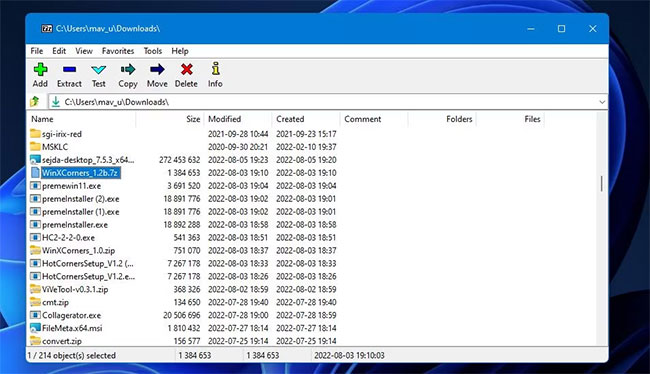
<p style="text-align: justify;">3. Chọn kho lưu trữ&nbsp;<strong>WinXCorners_1.2b</strong>&nbsp;trong 7-Zip.</p>

<figure>
<div style="text-align: justify;"><img alt="Tùy chọn giải nén của 7-Zip" data-i="0" data-src="https://st.quantrimang.com/photos/image/2022/12/06/them-tinh-nang-hot-corners-vao-windows-11-1.jpg" data-was-processed="true" height="374" src="https://st.quantrimang.com/photos/image/2022/12/06/them-tinh-nang-hot-corners-vao-windows-11-1.jpg" width="650" /></div>

<figcaption>
<div style="text-align: justify;">Tùy chọn giải nén của 7-Zip</div>
</figcaption>
</figure>

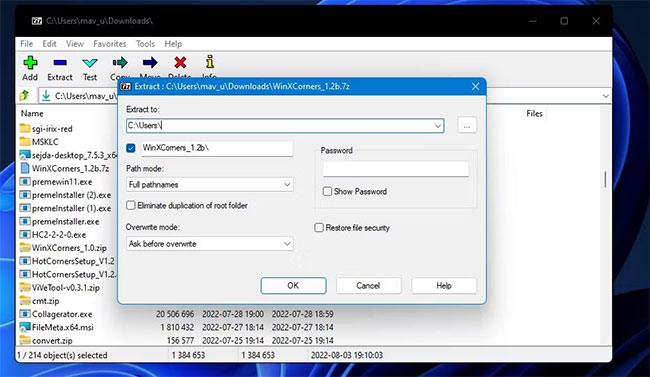
<p style="text-align: justify;">4. Nhấp vào&nbsp;<strong>Extract</strong>&nbsp;để hiển thị cửa sổ trực tiếp bên dưới.</p>

<figure>
<div style="text-align: justify;"><img alt="Cửa sổ Extract" data-i="1" data-src="https://st.quantrimang.com/photos/image/2022/12/06/them-tinh-nang-hot-corners-vao-windows-11-2.jpg" data-was-processed="true" height="377" src="https://st.quantrimang.com/photos/image/2022/12/06/them-tinh-nang-hot-corners-vao-windows-11-2.jpg" width="650" /></div>

<figcaption>
<div style="text-align: justify;">Cửa sổ Extract</div>
</figcaption>
</figure>

<p style="text-align: justify;">5. Nhấn nút hình elip.</p>

<p style="text-align: justify;">6. Chọn một thư mục để đưa thư mục&nbsp;<strong>WinXCorners_1.2b</strong>&nbsp;đã giải nén vào và nhấn&nbsp;<strong>OK</strong>&nbsp;để chọn.</p>

<p style="text-align: justify;">7. Nhấn&nbsp;<strong>OK</strong>&nbsp;trong cửa sổ&nbsp;<strong>Extract.</strong></p>

<p style="text-align: justify;">8. Mở thư mục&nbsp;<strong>WinXCorners_1.2b</strong>&nbsp;đã giải nén.</p>

<p style="text-align: justify;">9. Nhấp đúp vào&nbsp;<strong>WinXCorners.exe</strong>&nbsp;để chạy phần mềm.</p>

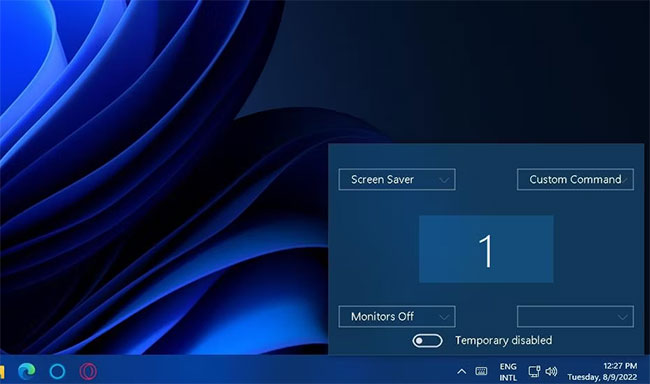
<p style="text-align: justify;">10. Nếu phần mềm bị tắt, hãy nhấp vào công tắc bật/tắt&nbsp;<strong>Temporarily disabled toggle</strong>&nbsp;trong WinXCorners để kích hoạt các Hot Corners.</p>

<figure>
<div style="text-align: justify;"><img alt="Tùy chọn bị vô hiệu hóa tạm thời" data-i="2" data-src="https://st.quantrimang.com/photos/image/2022/12/06/them-tinh-nang-hot-corners-vao-windows-11-3.jpg" data-was-processed="true" height="384" src="https://st.quantrimang.com/photos/image/2022/12/06/them-tinh-nang-hot-corners-vao-windows-11-3.jpg" width="650" /></div>

<figcaption>
<div style="text-align: justify;">Tùy chọn bị vô hiệu hóa tạm thời</div>
</figcaption>
</figure>

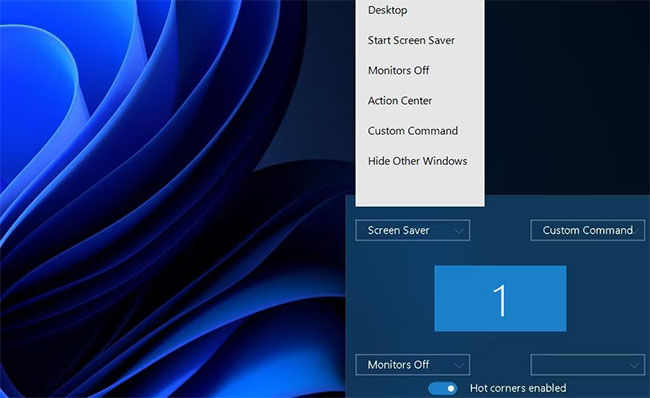
<p style="text-align: justify;">Khi công cụ đang chạy, bạn có thể chọn các hành động ở góc màn hình bằng cách nhấp vào menu drop-down để chọn các tùy chọn cho chúng. Bạn có thể gán hầu hết các hành động mặc định có sẵn cho 4 góc. Đây là những hành động mặc định mà bạn có thể chọn:</p>

<ul>
	<li style="text-align: justify;"><strong>Hide Windows</strong>: Thu nhỏ các cửa sổ phía sau cửa sổ đang hoạt động.</li>
	<li style="text-align: justify;"><strong>Desktop:</strong>&nbsp;Hiển thị Desktop.</li>
	<li style="text-align: justify;"><strong>Smart Screen Saver</strong>: Kích hoạt screen saver đã chọn.</li>
	<li style="text-align: justify;"><strong>Action Center</strong>: Mở Action Center trong Windows.</li>
	<li style="text-align: justify;"><strong>All Windows</strong>: Show Task View hiển thị tất cả các hình thu nhỏ của cửa sổ.</li>
	<li style="text-align: justify;"><strong>Monitors off</strong>: Tắt màn hình (bạn có thể kích hoạt lại bằng cách nhấp vào).</li>
</ul>

<figure>
<div style="text-align: justify;"><img alt="Tùy chọn hành động mặc định của WinXCorners" data-i="3" data-src="https://st.quantrimang.com/photos/image/2022/12/06/them-tinh-nang-hot-corners-vao-windows-11-4.jpg" data-was-processed="true" height="398" src="https://st.quantrimang.com/photos/image/2022/12/06/them-tinh-nang-hot-corners-vao-windows-11-4.jpg" width="650" /></div>

<figcaption>
<div style="text-align: justify;">Tùy chọn hành động mặc định của WinXCorners</div>
</figcaption>
</figure>

<p style="text-align: justify;">Sau khi chọn các hành động, hãy di chuyển con trỏ chuột đến các góc trên cùng, dưới cùng, bên trái và bên phải của màn hình. Di chuyển con trỏ đến từng góc sẽ kích hoạt bất kỳ hành động nào bạn đã chỉ định cho nó, miễn là WinXCorners đang chạy trong nền.</p>

<p style="text-align: justify;">Để cấu hình WinXCorners tự động chạy khi khởi động, nhấp chuột phải vào biểu tượng trên khay hệ thống của nó và chọn&nbsp;<strong>Start with Windows</strong>.</p>

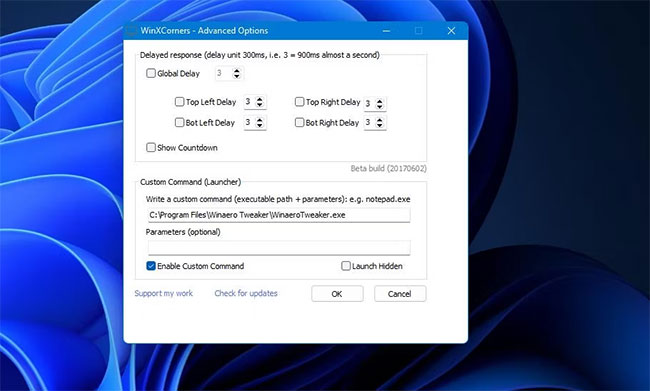
<p style="text-align: justify;">Bạn cũng có thể thiết lập các hot corner để mở phần mềm desktop, phần mềm này sẽ cho phép bạn mở một chương trình bằng cách di chuyển con trỏ đến một góc. Để thực hiện việc này, bạn cần thiết lập WinXCorners mở chương trình thông qua cửa sổ&nbsp;<strong>Advanced Options</strong>&nbsp;như sau:</p>

<p style="text-align: justify;">1. Đầu tiên, chọn tùy chọn&nbsp;<strong>Custom Command</strong>&nbsp;cho một góc trên một trong các menu drop-down của WinXCorners.</p>

<p style="text-align: justify;">2. Nhấp chuột phải vào biểu tượng khay hệ thống WinXCorners và chọn&nbsp;<strong>Advanced.</strong></p>

<p style="text-align: justify;">3. Chọn hộp lệnh&nbsp;<strong>Enable custom command</strong>&nbsp;trong cửa sổ&nbsp;<strong>Advanced Options.</strong></p>

<figure>
<div style="text-align: justify;"><img alt="Cửa sổ Advanced Options" data-i="4" data-src="https://st.quantrimang.com/photos/image/2022/12/06/them-tinh-nang-hot-corners-vao-windows-11-5.jpg" data-was-processed="true" height="391" src="https://st.quantrimang.com/photos/image/2022/12/06/them-tinh-nang-hot-corners-vao-windows-11-5.jpg" width="650" /></div>

<figcaption>
<div style="text-align: justify;">Cửa sổ Advanced Options</div>
</figcaption>
</figure>

<p style="text-align: justify;">4. Dán đường dẫn đến&nbsp;<a href="https://quantrimang.com/cong-nghe/file-exe-180741" title="File exe là file gì?">file EXE</a>&nbsp;của chương trình vào hộp&nbsp;<strong>Custom Command</strong>&nbsp;và nhấp vào nút&nbsp;<strong>OK.</strong></p>

<p style="text-align: justify;">Bây giờ, chương trình sẽ mở bất cứ khi nào bạn di chuyển con trỏ qua góc đã chọn.</p>

<h2 style="text-align: justify;">Cách thêm các hot corner bằng phần mềm Hot Corners</h2>

<p style="text-align: justify;">Hot Corners là một giải pháp thay thế cho WinXCorners - chúng hoạt động giống nhau. Tuy nhiên, chương trình này có một số hành động khác nhau mà bạn có thể đặt cho các góc màn hình.</p>

<p style="text-align: justify;">Hot Corners là một ứng dụng rất nhẹ mà bạn có thể sử dụng trên hầu hết các nền tảng Windows. Đây là cách bạn có thể thêm các hot corner vào Windows 11 bằng phần mềm Hot Corners:</p>

<p style="text-align: justify;">1. Nhấp vào&nbsp;<strong>Download Now</strong>&nbsp;trên&nbsp;trang Softpedia của Hot Corners.:<br />
<span style="color:rgb(192, 57, 43);"><strong>https://www.softpedia.com/get/Desktop-Enhancements/Other-Desktop-Enhancements/HotCorners.shtml</strong></span></p>

<p style="text-align: justify;">2. Mở ứng dụng quản lý file bằng cách nhấn&nbsp;<strong>Win + E</strong>.</p>

<p style="text-align: justify;">3. Điều hướng đến thư mục chứa trình cài đặt cho Hot Corners.</p>

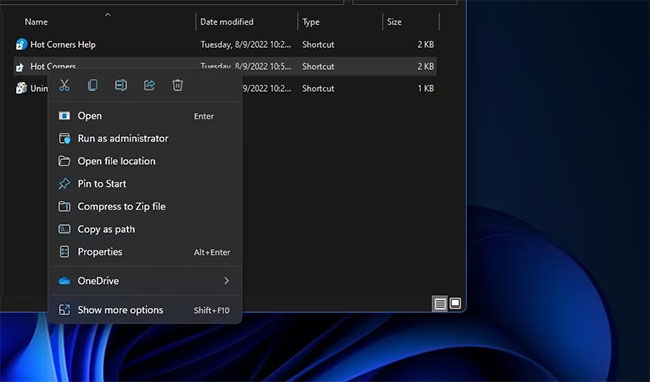
<p style="text-align: justify;">4. Nhấp chuột phải vào&nbsp;<strong>HC-2-2-0.exe</strong>&nbsp;và chọn&nbsp;<strong>Run as administrator</strong>.</p>

<figure>
<div style="text-align: justify;"><img alt="Tùy chọn Run as administrator" data-i="5" data-src="https://st.quantrimang.com/photos/image/2022/12/06/them-tinh-nang-hot-corners-vao-windows-11-6.jpg" data-was-processed="true" height="382" src="https://st.quantrimang.com/photos/image/2022/12/06/them-tinh-nang-hot-corners-vao-windows-11-6.jpg" width="650" /></div>

<figcaption>
<div style="text-align: justify;">Tùy chọn Run as administrator</div>
</figcaption>
</figure>

<p style="text-align: justify;">5. Nhấn&nbsp;<strong>Next</strong>&nbsp;và&nbsp;<strong>Yes</strong>&nbsp;để chấp nhận thỏa thuận bản quyền.</p>

<p style="text-align: justify;">6. Chọn thiết lập&nbsp;<strong>Run Hot Corners</strong>&nbsp;sau khi cài đặt xong và nhấn&nbsp;<strong>Next.</strong></p>

<p style="text-align: justify;">7. Thực hiện theo các hướng dẫn cho đến khi kết thúc.</p>

<figure>
<div style="text-align: justify;"><img alt="Tab Hot Corners" data-i="6" data-src="https://st.quantrimang.com/photos/image/2022/12/06/them-tinh-nang-hot-corners-vao-windows-11-7.jpg" data-was-processed="true" height="371" src="https://st.quantrimang.com/photos/image/2022/12/06/them-tinh-nang-hot-corners-vao-windows-11-7.jpg" width="650" /></div>

<figcaption>
<div style="text-align: justify;">Tab Hot Corners</div>
</figcaption>
</figure>

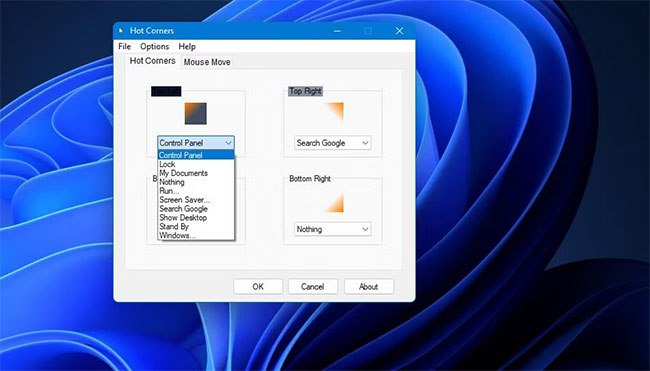
<p style="text-align: justify;">Hot Corners bao gồm chín tùy chọn hành động để lựa chọn. Ví dụ, bạn có thể thiết lập hành động để mở các vị trí hệ thống như&nbsp;<strong>Control Panel&nbsp;</strong>và&nbsp;<strong>My Documents</strong>&nbsp;hoặc bạn có thể đặt một góc để khóa PC hoặc đặt nó ở chế độ chờ.</p>

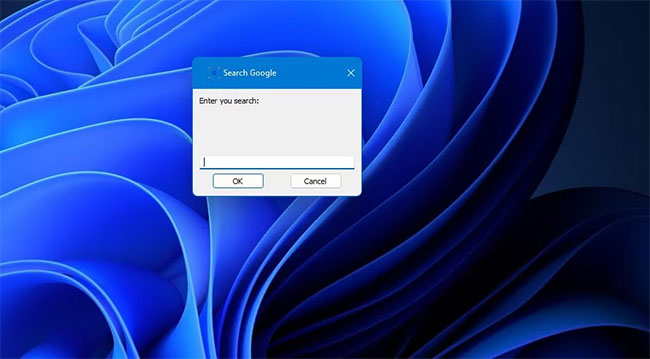
<p style="text-align: justify;">Nếu bạn chọn&nbsp;<strong>Search Google</strong>, hãy di chuyển con trỏ qua một góc sẽ hiển thị hộp tìm kiếm nhỏ. Nhập một từ khóa vào hộp đó sẽ hiển thị kết quả tìm kiếm của Google cho từ khóa đó trong trình duyệt mặc định.</p>

<figure>
<div style="text-align: justify;"><img alt="Cửa sổ Search Google" data-i="7" data-src="https://st.quantrimang.com/photos/image/2022/12/06/them-tinh-nang-hot-corners-vao-windows-11-8.jpg" data-was-processed="true" height="359" src="https://st.quantrimang.com/photos/image/2022/12/06/them-tinh-nang-hot-corners-vao-windows-11-8.jpg" width="650" /></div>

<figcaption>
<div style="text-align: justify;">Cửa sổ Search Google</div>
</figcaption>
</figure>

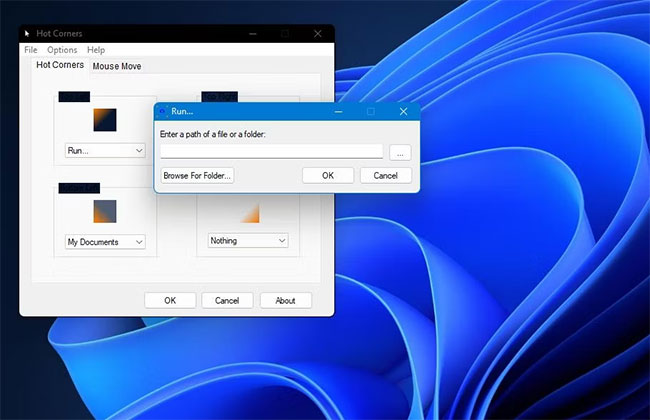
<p style="text-align: justify;">Bạn cũng có thể đặt từng góc để mở các chương trình khác nhau với Hot Corners. Để đặt chương trình cho một góc, nhấp vào menu drop-down cho góc đó và chọn&nbsp;<strong>Run.</strong>&nbsp;Nhấp vào nút hình elip trong cửa sổ&nbsp;<strong>Run</strong>&nbsp;và chọn một chương trình. Sau đó chọn&nbsp;<strong>OK</strong>&nbsp;trên tất cả các cửa sổ.</p>

<figure>
<div style="text-align: justify;"><img alt="Chọn OK trên tất cả các cửa sổ" data-i="8" data-src="https://st.quantrimang.com/photos/image/2022/12/06/them-tinh-nang-hot-corners-vao-windows-11-9.jpg" data-was-processed="true" height="420" src="https://st.quantrimang.com/photos/image/2022/12/06/them-tinh-nang-hot-corners-vao-windows-11-9.jpg" width="650" /></div>

<figcaption>
<div style="text-align: justify;">Chọn OK trên tất cả các cửa sổ</div>
</figcaption>
</figure>

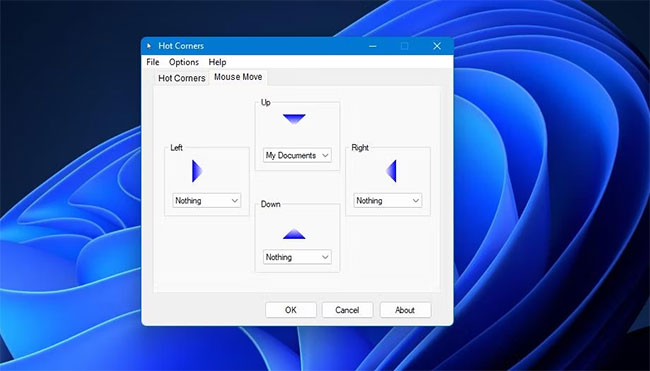
<p style="text-align: justify;">Bạn sẽ nhận thấy Hot Corners bao gồm tab&nbsp;<strong>Mouse Move.</strong>&nbsp;Tính năng này cho phép người dùng kích hoạt các hành động bằng cách di chuyển chuột lên, xuống, trái và phải. Tuy nhiên, tính năng đó có phím nóng kích hoạt&nbsp;<strong>Win + X</strong>, xung đột với menu Power User của Windows 11. Do đó, tính năng đó chỉ hoạt động trong các nền tảng Windows không có menu&nbsp;<strong>Power User</strong>, chẳng hạn như Vista và 7.</p>

<figure>
<div style="text-align: justify;"><img alt="Tab Mouse Move" data-i="9" data-src="https://st.quantrimang.com/photos/image/2022/12/06/them-tinh-nang-hot-corners-vao-windows-11-10.jpg" data-was-processed="true" height="371" src="https://st.quantrimang.com/photos/image/2022/12/06/them-tinh-nang-hot-corners-vao-windows-11-10.jpg" width="650" /></div>

<figcaption>
<div style="text-align: justify;">Tab Mouse Move</div>
</figcaption>
</figure>

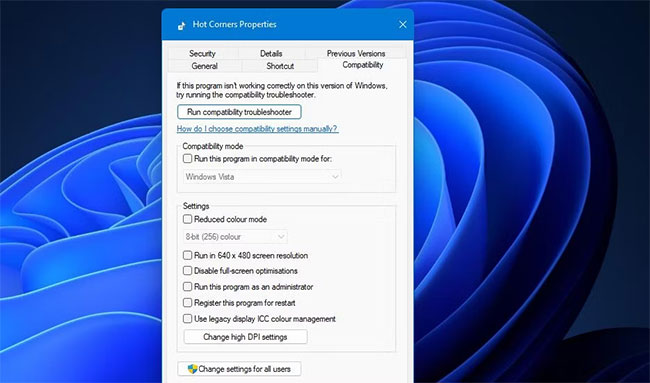
<p style="text-align: justify;">Ngoài ra, hãy lưu ý rằng Hot Corners không lưu cài đặt khi bạn không chạy nó với quyền admin. Vì vậy, hãy đảm bảo rằng bạn luôn chạy phần mềm với tư cách admin, thông qua tab&nbsp;<strong>Compatibility</strong>&nbsp;như sau:</p>

<p style="text-align: justify;">1. Mở thư mục cài đặt cho Hot Corners.</p>

<p style="text-align: justify;">2. Nhấp chuột phải vào file&nbsp;<strong>Hot Corners.exe</strong>&nbsp;và chọn&nbsp;<strong>Properties.</strong></p>

<p style="text-align: justify;">3. Nhấp vào&nbsp;<strong>Compatibility</strong>&nbsp;trên cửa sổ&nbsp;<strong>Hot Corners Properties</strong>.</p>

<figure>
<div style="text-align: justify;"><img alt=" Nhấp vào Compatibility " data-i="10" data-src="https://st.quantrimang.com/photos/image/2022/12/06/them-tinh-nang-hot-corners-vao-windows-11-11.jpg" data-was-processed="true" height="383" src="https://st.quantrimang.com/photos/image/2022/12/06/them-tinh-nang-hot-corners-vao-windows-11-11.jpg" width="650" /></div>

<figcaption>
<div style="text-align: justify;">Nhấp vào Compatibility</div>
</figcaption>
</figure>

<p style="text-align: justify;">4. Chọn&nbsp;<strong>Run this program as administrator</strong>&nbsp;và nhấp vào nút&nbsp;<strong>Apply (save).</strong></p>

<p style="text-align: justify;">Giờ đây, Hot Corners sẽ luôn chạy với quyền admin. Để thêm chương trình vào các mục khởi động, hãy nhấp vào&nbsp;<strong>Options &gt; Settings</strong>&nbsp;trong Hot Corners. Chọn hộp kiểm&nbsp;<strong>Run on Start-up</strong>&nbsp;và bấm&nbsp;<strong>OK</strong>&nbsp;trên cửa sổ&nbsp;<strong>Settings.</strong></p>
		</div>
				<div id="author">
						<p>
				<strong>Nguồn tin:</strong>
				Quantrimang.com
			</p>
		</div>
	</div>
	<div id="footer" class="clearfix">
		<div id="url">
			<strong>URL của bản tin này: </strong><a href="https://www.nguoicodonvn2008.info/vi/news/savefile/kien-thuc-may-tinh/cach-them-tinh-nang-hot-corners-tu-macos-vao-windows-11-6419.html" title="Cách thêm tính năng Hot Corners từ macOS vào Windows 11">https://www.nguoicodonvn2008.info/vi/news/savefile/kien-thuc-may-tinh/cach-them-tinh-nang-hot-corners-tu-macos-vao-windows-11-6419.html</a>

		</div>
		<div class="clear"></div>
		<div class="copyright">
			&copy; .&#x3A; Nguoicodonvn2008.info - Cõi lòng người cô đơn &#x3A;.
		</div>
		<div id="contact">
			<a href="mailto:admin@nguoicodonvn2008.info">admin@nguoicodonvn2008.info</a>
		</div>
	</div>
</div>
        <div id="timeoutsess" class="chromeframe">
            Bạn đã không sử dụng Site, <a onclick="timeoutsesscancel();" href="https://www.nguoicodonvn2008.info/#">Bấm vào đây để duy trì trạng thái đăng nhập</a>. Thời gian chờ: <span id="secField"> 60 </span> giây
        </div>
        <div id="openidResult" class="nv-alert" style="display:none"></div>
        <div id="openidBt" data-result="" data-redirect=""></div>
		</script>
		<div class="car-top">
  <span><img src="https://www.nguoicodonvn2008.info/themes/default/images/car.png" alt=""></span>
</div>
<div id="run_cronjobs" style="visibility:hidden;display:none;"><img alt="cron" src="/index.php?second=cronjobs&amp;p=q5d5zS62" width="1" height="1" /></div>
<script src="https://www.nguoicodonvn2008.info/assets/js/jquery/jquery.min.js"></script>
<script>var nv_base_siteurl="/",nv_lang_data="vi",nv_lang_interface="vi",nv_name_variable="nv",nv_fc_variable="op",nv_lang_variable="language",nv_module_name="news",nv_func_name="savefile",nv_is_user=0, nv_my_ofs=-4,nv_my_abbr="EDT",nv_cookie_prefix="nv4c_e856T",nv_check_pass_mstime=1738000,nv_area_admin=0,nv_safemode=0,theme_responsive=0,nv_recaptcha_ver=2,nv_recaptcha_sitekey="",nv_recaptcha_type="image",XSSsanitize=1;</script>
<script src="https://www.nguoicodonvn2008.info/assets/js/language/vi.js"></script>
<script src="https://www.nguoicodonvn2008.info/assets/js/DOMPurify/purify3.js"></script>
<script src="https://www.nguoicodonvn2008.info/assets/js/global.js"></script>
<script src="https://www.nguoicodonvn2008.info/assets/js/site.js"></script>
<script src="https://www.nguoicodonvn2008.info/themes/default/js/news.js"></script>
<script src="https://www.nguoicodonvn2008.info/themes/default/js/main.js"></script>
<script src="https://www.nguoicodonvn2008.info/themes/default/js/custom.js"></script>
<script type="application/ld+json">
        {
            "@context": "https://schema.org",
            "@type": "Organization",
            "url": "https://www.nguoicodonvn2008.info",
            "logo": "https://www.nguoicodonvn2008.info/uploads/angel.gif"
        }
        </script>
<script src="https://www.nguoicodonvn2008.info/themes/default/js/bootstrap.min.js"></script>
<script type="text/javascript">
var $scrolltop = $('.car-top');
$scrolltop.on('click', function () {
    $('html,body').animate({
        scrollTop: 0
    }, 800);
    $(this).addClass("car-run");
    setTimeout(function(){ $scrolltop.removeClass('car-run');}, 1000);
    return false;
});
$(window).on('scroll', function ()
{ 
    if($(window).scrollTop() >= 200)
    {
        $scrolltop.addClass("show");
        $scrolltop.addClass("car-down");
    }
    else
    {
       $scrolltop.removeClass("show");
       setTimeout(function(){ $scrolltop.removeClass('car-down');}, 300);
    }
});
</script>
</body>
</html>