<!DOCTYPE html>
    <html lang="vi" xmlns="http://www.w3.org/1999/xhtml" prefix="og: http://ogp.me/ns#">
    <head>
<title>Cách thêm shortcut thư mục vào Menu Start trên Windows 11</title>
<meta name="description" content="Cách thêm shortcut thư mục vào Menu Start trên Windows 11 - Savefile - Tin Tức -...">
<meta name="author" content=".: Nguoicodonvn2008.info - Cõi lòng người cô đơn :.">
<meta name="copyright" content=".: Nguoicodonvn2008.info - Cõi lòng người cô đơn :. [admin@nguoicodonvn2008.info]">
<meta name="robots" content="index, archive, follow, noodp">
<meta name="googlebot" content="index,archive,follow,noodp">
<meta name="msnbot" content="all,index,follow">
<meta name="generator" content="NukeViet v4.5">
<meta http-equiv="Content-Type" content="text/html; charset=utf-8">
<meta property="og:title" content="Cách thêm shortcut thư mục vào Menu Start trên Windows 11">
<meta property="og:type" content="website">
<meta property="og:description" content="Savefile - Tin Tức - https&#x3A;&#x002F;&#x002F;www.nguoicodonvn2008.info&#x002F;vi&#x002F;news&#x002F;savefile&#x002F;kien-thuc-may-tinh&#x002F;cach-them-shortcut-thu-muc-vao-menu-start-tren-windows-11-4452.html">
<meta property="og:site_name" content=".&#x3A; Nguoicodonvn2008.info - Cõi lòng người cô đơn &#x3A;.">
<meta property="og:url" content="https://www.nguoicodonvn2008.info/vi/news/savefile/kien-thuc-may-tinh/cach-them-shortcut-thu-muc-vao-menu-start-tren-windows-11-4452.html">
<link rel="shortcut icon" href="https://www.nguoicodonvn2008.info/favicon.ico">
<link rel="canonical" href="https://www.nguoicodonvn2008.info/vi/news/savefile/kien-thuc-may-tinh/cach-them-shortcut-thu-muc-vao-menu-start-tren-windows-11-4452.html">
<link rel="alternate" href="https://www.nguoicodonvn2008.info/vi/news/rss/" title="Tin Tức" type="application/rss+xml">
<link rel="alternate" href="https://www.nguoicodonvn2008.info/vi/news/rss/karaoke-dual/" title="Tin Tức - Karaoke Dual" type="application/rss+xml">
<link rel="alternate" href="https://www.nguoicodonvn2008.info/vi/news/rss/nhac-tre/" title="Tin Tức - Nhạc trẻ" type="application/rss+xml">
<link rel="alternate" href="https://www.nguoicodonvn2008.info/vi/news/rss/tru-tinh/" title="Tin Tức - Trữ tình" type="application/rss+xml">
<link rel="alternate" href="https://www.nguoicodonvn2008.info/vi/news/rss/nuoc-ngoai/" title="Tin Tức - Nước ngoài" type="application/rss+xml">
<link rel="alternate" href="https://www.nguoicodonvn2008.info/vi/news/rss/remix/" title="Tin Tức - Remix" type="application/rss+xml">
<link rel="alternate" href="https://www.nguoicodonvn2008.info/vi/news/rss/tam-su-tinh-yeu/" title="Tin Tức - Tâm sự tình yêu" type="application/rss+xml">
<link rel="alternate" href="https://www.nguoicodonvn2008.info/vi/news/rss/tho-suu-tam/" title="Tin Tức - Thơ sưu tầm" type="application/rss+xml">
<link rel="alternate" href="https://www.nguoicodonvn2008.info/vi/news/rss/cuoc-song/" title="Tin Tức - Cuộc sống" type="application/rss+xml">
<link rel="alternate" href="https://www.nguoicodonvn2008.info/vi/news/rss/phan-mem/" title="Tin Tức - Phần mềm" type="application/rss+xml">
<link rel="alternate" href="https://www.nguoicodonvn2008.info/vi/news/rss/kien-thuc-may-tinh/" title="Tin Tức - Kiến thức máy tính" type="application/rss+xml">
<link rel="alternate" href="https://www.nguoicodonvn2008.info/vi/news/rss/hoc-tap/" title="Tin Tức - Học tập" type="application/rss+xml">
<link rel="alternate" href="https://www.nguoicodonvn2008.info/vi/news/rss/tai-lieu/" title="Tin Tức - Tài liệu" type="application/rss+xml">
<link rel="alternate" href="https://www.nguoicodonvn2008.info/vi/news/rss/de-thi/" title="Tin Tức - Đề thi" type="application/rss+xml">
<link rel="preload" as="style" href="https://www.nguoicodonvn2008.info/assets/css/font-awesome.min.css" type="text/css">
<link rel="preload" as="style" href="https://www.nguoicodonvn2008.info/themes/default/css/bootstrap.non-responsive.css" type="text/css">
<link rel="preload" as="style" href="https://www.nguoicodonvn2008.info/themes/default/css/style.css" type="text/css">
<link rel="preload" as="style" href="https://www.nguoicodonvn2008.info/themes/default/css/style.non-responsive.css" type="text/css">
<link rel="preload" as="style" href="https://www.nguoicodonvn2008.info/themes/default/css/news.css" type="text/css">
<link rel="preload" as="style" href="https://www.nguoicodonvn2008.info/themes/default/css/custom.css" type="text/css">
<link rel="preload" as="script" href="https://www.nguoicodonvn2008.info/assets/js/jquery/jquery.min.js" type="text/javascript">
<link rel="preload" as="script" href="https://www.nguoicodonvn2008.info/assets/js/language/vi.js" type="text/javascript">
<link rel="preload" as="script" href="https://www.nguoicodonvn2008.info/assets/js/DOMPurify/purify3.js" type="text/javascript">
<link rel="preload" as="script" href="https://www.nguoicodonvn2008.info/assets/js/global.js" type="text/javascript">
<link rel="preload" as="script" href="https://www.nguoicodonvn2008.info/assets/js/site.js" type="text/javascript">
<link rel="preload" as="script" href="https://www.nguoicodonvn2008.info/themes/default/js/news.js" type="text/javascript">
<link rel="preload" as="script" href="https://www.nguoicodonvn2008.info/themes/default/js/main.js" type="text/javascript">
<link rel="preload" as="script" href="https://www.nguoicodonvn2008.info/themes/default/js/custom.js" type="text/javascript">
<link rel="preload" as="script" href="https://www.nguoicodonvn2008.info/themes/default/js/bootstrap.min.js" type="text/javascript">
<link rel="stylesheet" href="https://www.nguoicodonvn2008.info/assets/css/font-awesome.min.css">
<link rel="stylesheet" href="https://www.nguoicodonvn2008.info/themes/default/css/bootstrap.non-responsive.css">
<link rel="stylesheet" href="https://www.nguoicodonvn2008.info/themes/default/css/style.css">
<link rel="stylesheet" href="https://www.nguoicodonvn2008.info/themes/default/css/style.non-responsive.css">
<link rel="StyleSheet" href="https://www.nguoicodonvn2008.info/themes/default/css/news.css">
<link rel="stylesheet" href="https://www.nguoicodonvn2008.info/themes/default/css/custom.css">
<style type="text/css">
	body{background: #fff;}
</style>
    </head>
    <body>
<div id="print">
	<div id="hd_print">
		<h2 class="pull-left">.&#x3A; Nguoicodonvn2008.info - Cõi lòng người cô đơn &#x3A;.</h2>
		<p class="pull-right"><a title=".&#x3A; Nguoicodonvn2008.info - Cõi lòng người cô đơn &#x3A;." href="https://www.nguoicodonvn2008.info/">https://www.nguoicodonvn2008.info</a></p>
	</div>
	<div class="clear"></div>
	<hr />
	<div id="content">
		<h1>Cách thêm shortcut thư mục vào Menu Start trên Windows 11</h1>
		<ul class="list-inline">
			<li>Thứ bảy - 17/07/2021 20:25</li>
			<li class="hidden-print txtrequired"><em class="fa fa-print">&nbsp;</em><a title="In ra" href="javascript:;" onclick="window.print()">In ra</a></li>
			<li class="hidden-print txtrequired"><em class="fa fa-power-off">&nbsp;</em><a title="Đóng cửa sổ này" href="javascript:;" onclick="window.close()">Đóng cửa sổ này</a></li>
		</ul>
		<div class="clear"></div>
		<div id="hometext">
		</div>
				<div class="imghome">
			<img alt="Cách thêm shortcut thư mục vào Menu Start trên Windows 11" src="https://st.quantrimang.com/photos/image/2021/07/17/them-shortcut-thu-muc-vao-menu-start-tren-windows-115.jpg" width="460" class="img-thumbnail" />
		</div>
		<div class="clear"></div>
		<div id="bodytext" class="clearfix">
			<p style="text-align: justify;">Trong Windows 11, bạn có thể thiết lập để các shortcut tương ứng với những thư mục đặc biệt của hệ thống (chẳng hạn như Music, Pictures, Downloads, và một số thư mục khác) xuất hiện trong menu Start để tiện truy cập nhanh khi cần.</p>

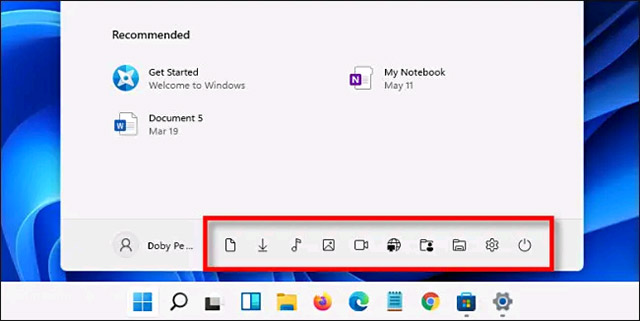
<p style="text-align: justify;">Về cơ bản, bố cục của menu Start trên Windows 11 có khá nhiều khác biệt so với những gì bạn đã quen thuộc trên Windows 10. Ví dụ: trong Windows 10, bạn có thể thiết lập để các shortcut thư mục đặc biệt nằm ở danh sách bên trái của giao diện menu Start. Trong khi với Windows 11, các shortcut này sẽ chỉ xuất hiện dưới dạng hàng biểu tượng glyph đơn giản, không có tiêu đề ở cuối menu Start. Như hình minh họa dưới đây.</p>

<p style="text-align: justify;"><img alt="Shortcut trong Menu Start trên Windows 11" data-i="0" data-src="https://st.quantrimang.com/photos/image/2021/07/17/them-shortcut-thu-muc-vao-menu-start-tren-windows-111.jpg" data-was-processed="true" height="321" src="https://st.quantrimang.com/photos/image/2021/07/17/them-shortcut-thu-muc-vao-menu-start-tren-windows-111.jpg" width="640" /></p>

<p style="text-align: justify;">Để thêm shortcut thư mục vào Menu Start trên Windows 11, bạn chỉ cần thực hiện các thao tác đơn giản sau đây.</p>

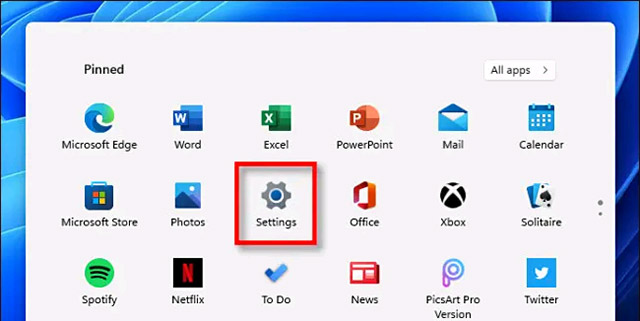
<p style="text-align: justify;">Trước tiên, hãy truy cập ứng dụng Settings bằng cách nhấn tổ hợp phím Windows + i, hoặc nhấp vào biểu tượng bánh răng được ghim sẵn trong menu Start.</p>

<p style="text-align: justify;"><img alt="Truy cập ứng dụng Settings" data-i="1" data-src="https://st.quantrimang.com/photos/image/2021/07/17/them-shortcut-thu-muc-vao-menu-start-tren-windows-112.jpg" data-was-processed="true" height="321" src="https://st.quantrimang.com/photos/image/2021/07/17/them-shortcut-thu-muc-vao-menu-start-tren-windows-112.jpg" width="640" /></p>

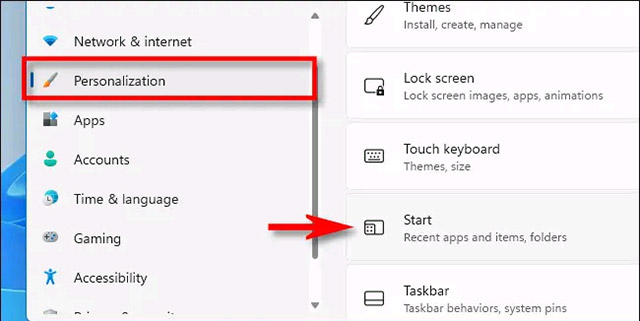
<p style="text-align: justify;">Trên giao diện Settings mở ra, hãy điều hướng đến Personalization &gt; Start.</p>

<p style="text-align: justify;"><img alt="Điều hướng đến Personalization &gt; Start" data-i="2" data-src="https://st.quantrimang.com/photos/image/2021/07/17/them-shortcut-thu-muc-vao-menu-start-tren-windows-113.jpg" data-was-processed="true" height="321" src="https://st.quantrimang.com/photos/image/2021/07/17/them-shortcut-thu-muc-vao-menu-start-tren-windows-113.jpg" width="640" /></p>

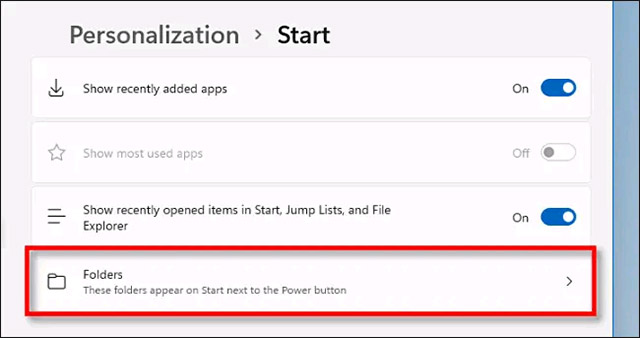
<p style="text-align: justify;">Trong màn hình cài đặt menu Start, hãy nhấp vào “Folders”.</p>

<p style="text-align: justify;"><img alt="Nhấp vào “Folders”" data-i="3" data-src="https://st.quantrimang.com/photos/image/2021/07/17/them-shortcut-thu-muc-vao-menu-start-tren-windows-114.jpg" data-was-processed="true" height="338" src="https://st.quantrimang.com/photos/image/2021/07/17/them-shortcut-thu-muc-vao-menu-start-tren-windows-114.jpg" width="640" /></p>

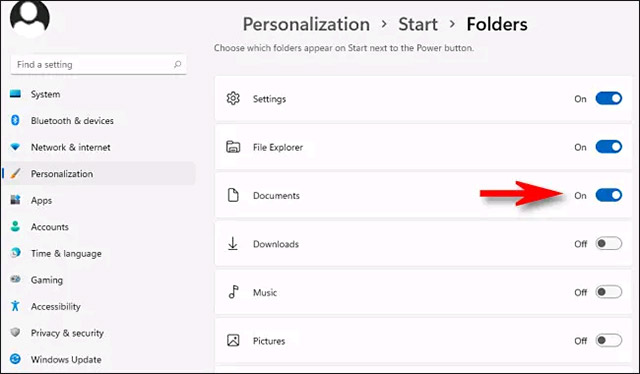
<p style="text-align: justify;">Bạn sẽ thấy danh sách tên các thư mục đặc biệt trên hệ thống, cùng với đó là các công tắc tương ứng ở bên phải chúng. Khi bạn bật công tắc này, shortcut tương ứng của ứng dụng sẽ được hiển thị trong menu Start. Các tùy chọn chính bao gồm “Settings,” “File Explorer,” “Documents,” “Downloads,” “Music,” “Pictures,” “Videos,” “Network,” và “Personal Folder” (thư mục chính trong tài khoản của bạn). Kích hoạt bất cứ tùy chọn nào mà bạn muốn.</p>

<p style="text-align: justify;"><img alt="Bật công tắc hiển thị shortcut tương ứng " data-i="4" data-src="https://st.quantrimang.com/photos/image/2021/07/17/them-shortcut-thu-muc-vao-menu-start-tren-windows-115.jpg" data-was-processed="true" height="374" src="https://st.quantrimang.com/photos/image/2021/07/17/them-shortcut-thu-muc-vao-menu-start-tren-windows-115.jpg" width="640" /></p>

<p style="text-align: justify;">Sau đó, đóng Settings. Khi nhấp vào nút Start, bạn sẽ thấy các shortcut của những thư mục mà mình đã kích hoạt được liệt kê ở góc dưới bên phải của menu Start, ngay bên cạnh nút nguồn.</p>

<p style="text-align: justify;">Nếu bạn thay đổi ý định và muốn xóa shortcut của các thư mục đặc biệt khỏi menu Start, chỉ cần truy cập lại vào Settings &gt; Personalization &gt; Start &gt; Folders và đặt các công tắc về trạng thái tắt.</p>
		</div>
				<div id="author">
						<p>
				<strong>Nguồn tin:</strong>
				Quantrimang.com
			</p>
		</div>
	</div>
	<div id="footer" class="clearfix">
		<div id="url">
			<strong>URL của bản tin này: </strong><a href="https://www.nguoicodonvn2008.info/vi/news/savefile/kien-thuc-may-tinh/cach-them-shortcut-thu-muc-vao-menu-start-tren-windows-11-4452.html" title="Cách thêm shortcut thư mục vào Menu Start trên Windows 11">https://www.nguoicodonvn2008.info/vi/news/savefile/kien-thuc-may-tinh/cach-them-shortcut-thu-muc-vao-menu-start-tren-windows-11-4452.html</a>

		</div>
		<div class="clear"></div>
		<div class="copyright">
			&copy; .&#x3A; Nguoicodonvn2008.info - Cõi lòng người cô đơn &#x3A;.
		</div>
		<div id="contact">
			<a href="mailto:admin@nguoicodonvn2008.info">admin@nguoicodonvn2008.info</a>
		</div>
	</div>
</div>
        <div id="timeoutsess" class="chromeframe">
            Bạn đã không sử dụng Site, <a onclick="timeoutsesscancel();" href="https://www.nguoicodonvn2008.info/#">Bấm vào đây để duy trì trạng thái đăng nhập</a>. Thời gian chờ: <span id="secField"> 60 </span> giây
        </div>
        <div id="openidResult" class="nv-alert" style="display:none"></div>
        <div id="openidBt" data-result="" data-redirect=""></div>
		</script>
		<div class="car-top">
  <span><img src="https://www.nguoicodonvn2008.info/themes/default/images/car.png" alt=""></span>
</div>
<script src="https://www.nguoicodonvn2008.info/assets/js/jquery/jquery.min.js"></script>
<script>var nv_base_siteurl="/",nv_lang_data="vi",nv_lang_interface="vi",nv_name_variable="nv",nv_fc_variable="op",nv_lang_variable="language",nv_module_name="news",nv_func_name="savefile",nv_is_user=0, nv_my_ofs=-4,nv_my_abbr="EDT",nv_cookie_prefix="nv4c_e856T",nv_check_pass_mstime=1738000,nv_area_admin=0,nv_safemode=0,theme_responsive=0,nv_recaptcha_ver=2,nv_recaptcha_sitekey="",nv_recaptcha_type="image",XSSsanitize=1;</script>
<script src="https://www.nguoicodonvn2008.info/assets/js/language/vi.js"></script>
<script src="https://www.nguoicodonvn2008.info/assets/js/DOMPurify/purify3.js"></script>
<script src="https://www.nguoicodonvn2008.info/assets/js/global.js"></script>
<script src="https://www.nguoicodonvn2008.info/assets/js/site.js"></script>
<script src="https://www.nguoicodonvn2008.info/themes/default/js/news.js"></script>
<script src="https://www.nguoicodonvn2008.info/themes/default/js/main.js"></script>
<script src="https://www.nguoicodonvn2008.info/themes/default/js/custom.js"></script>
<script type="application/ld+json">
        {
            "@context": "https://schema.org",
            "@type": "Organization",
            "url": "https://www.nguoicodonvn2008.info",
            "logo": "https://www.nguoicodonvn2008.info/uploads/angel.gif"
        }
        </script>
<script src="https://www.nguoicodonvn2008.info/themes/default/js/bootstrap.min.js"></script>
<script type="text/javascript">
var $scrolltop = $('.car-top');
$scrolltop.on('click', function () {
    $('html,body').animate({
        scrollTop: 0
    }, 800);
    $(this).addClass("car-run");
    setTimeout(function(){ $scrolltop.removeClass('car-run');}, 1000);
    return false;
});
$(window).on('scroll', function ()
{ 
    if($(window).scrollTop() >= 200)
    {
        $scrolltop.addClass("show");
        $scrolltop.addClass("car-down");
    }
    else
    {
       $scrolltop.removeClass("show");
       setTimeout(function(){ $scrolltop.removeClass('car-down');}, 300);
    }
});
</script>
</body>
</html>