<!DOCTYPE html>
    <html lang="vi" xmlns="http://www.w3.org/1999/xhtml" prefix="og: http://ogp.me/ns#">
    <head>
<title>Cách thêm iCloud Photos vào ứng dụng Photos trên Windows 11</title>
<meta name="description" content="Cách thêm iCloud Photos vào ứng dụng Photos trên Windows 11 - Savefile - Tin Tức -...">
<meta name="author" content=".: Nguoicodonvn2008.info - Cõi lòng người cô đơn :.">
<meta name="copyright" content=".: Nguoicodonvn2008.info - Cõi lòng người cô đơn :. [admin@nguoicodonvn2008.info]">
<meta name="robots" content="index, archive, follow, noodp">
<meta name="googlebot" content="index,archive,follow,noodp">
<meta name="msnbot" content="all,index,follow">
<meta name="generator" content="NukeViet v4.5">
<meta http-equiv="Content-Type" content="text/html; charset=utf-8">
<meta property="og:title" content="Cách thêm iCloud Photos vào ứng dụng Photos trên Windows 11">
<meta property="og:type" content="website">
<meta property="og:description" content="Savefile - Tin Tức - https&#x3A;&#x002F;&#x002F;www.nguoicodonvn2008.info&#x002F;vi&#x002F;news&#x002F;savefile&#x002F;kien-thuc-may-tinh&#x002F;cach-them-icloud-photos-vao-ung-dung-photos-tren-windows-11-6324.html">
<meta property="og:site_name" content=".&#x3A; Nguoicodonvn2008.info - Cõi lòng người cô đơn &#x3A;.">
<meta property="og:url" content="https://www.nguoicodonvn2008.info/vi/news/savefile/kien-thuc-may-tinh/cach-them-icloud-photos-vao-ung-dung-photos-tren-windows-11-6324.html">
<link rel="shortcut icon" href="https://www.nguoicodonvn2008.info/favicon.ico">
<link rel="canonical" href="https://www.nguoicodonvn2008.info/vi/news/savefile/kien-thuc-may-tinh/cach-them-icloud-photos-vao-ung-dung-photos-tren-windows-11-6324.html">
<link rel="alternate" href="https://www.nguoicodonvn2008.info/vi/news/rss/" title="Tin Tức" type="application/rss+xml">
<link rel="alternate" href="https://www.nguoicodonvn2008.info/vi/news/rss/karaoke-dual/" title="Tin Tức - Karaoke Dual" type="application/rss+xml">
<link rel="alternate" href="https://www.nguoicodonvn2008.info/vi/news/rss/nhac-tre/" title="Tin Tức - Nhạc trẻ" type="application/rss+xml">
<link rel="alternate" href="https://www.nguoicodonvn2008.info/vi/news/rss/tru-tinh/" title="Tin Tức - Trữ tình" type="application/rss+xml">
<link rel="alternate" href="https://www.nguoicodonvn2008.info/vi/news/rss/nuoc-ngoai/" title="Tin Tức - Nước ngoài" type="application/rss+xml">
<link rel="alternate" href="https://www.nguoicodonvn2008.info/vi/news/rss/remix/" title="Tin Tức - Remix" type="application/rss+xml">
<link rel="alternate" href="https://www.nguoicodonvn2008.info/vi/news/rss/tam-su-tinh-yeu/" title="Tin Tức - Tâm sự tình yêu" type="application/rss+xml">
<link rel="alternate" href="https://www.nguoicodonvn2008.info/vi/news/rss/tho-suu-tam/" title="Tin Tức - Thơ sưu tầm" type="application/rss+xml">
<link rel="alternate" href="https://www.nguoicodonvn2008.info/vi/news/rss/cuoc-song/" title="Tin Tức - Cuộc sống" type="application/rss+xml">
<link rel="alternate" href="https://www.nguoicodonvn2008.info/vi/news/rss/phan-mem/" title="Tin Tức - Phần mềm" type="application/rss+xml">
<link rel="alternate" href="https://www.nguoicodonvn2008.info/vi/news/rss/kien-thuc-may-tinh/" title="Tin Tức - Kiến thức máy tính" type="application/rss+xml">
<link rel="alternate" href="https://www.nguoicodonvn2008.info/vi/news/rss/hoc-tap/" title="Tin Tức - Học tập" type="application/rss+xml">
<link rel="alternate" href="https://www.nguoicodonvn2008.info/vi/news/rss/tai-lieu/" title="Tin Tức - Tài liệu" type="application/rss+xml">
<link rel="alternate" href="https://www.nguoicodonvn2008.info/vi/news/rss/de-thi/" title="Tin Tức - Đề thi" type="application/rss+xml">
<link rel="preload" as="style" href="https://www.nguoicodonvn2008.info/assets/css/font-awesome.min.css" type="text/css">
<link rel="preload" as="style" href="https://www.nguoicodonvn2008.info/themes/default/css/bootstrap.non-responsive.css" type="text/css">
<link rel="preload" as="style" href="https://www.nguoicodonvn2008.info/themes/default/css/style.css" type="text/css">
<link rel="preload" as="style" href="https://www.nguoicodonvn2008.info/themes/default/css/style.non-responsive.css" type="text/css">
<link rel="preload" as="style" href="https://www.nguoicodonvn2008.info/themes/default/css/news.css" type="text/css">
<link rel="preload" as="style" href="https://www.nguoicodonvn2008.info/themes/default/css/custom.css" type="text/css">
<link rel="preload" as="script" href="https://www.nguoicodonvn2008.info/assets/js/jquery/jquery.min.js" type="text/javascript">
<link rel="preload" as="script" href="https://www.nguoicodonvn2008.info/assets/js/language/vi.js" type="text/javascript">
<link rel="preload" as="script" href="https://www.nguoicodonvn2008.info/assets/js/DOMPurify/purify3.js" type="text/javascript">
<link rel="preload" as="script" href="https://www.nguoicodonvn2008.info/assets/js/global.js" type="text/javascript">
<link rel="preload" as="script" href="https://www.nguoicodonvn2008.info/assets/js/site.js" type="text/javascript">
<link rel="preload" as="script" href="https://www.nguoicodonvn2008.info/themes/default/js/news.js" type="text/javascript">
<link rel="preload" as="script" href="https://www.nguoicodonvn2008.info/themes/default/js/main.js" type="text/javascript">
<link rel="preload" as="script" href="https://www.nguoicodonvn2008.info/themes/default/js/custom.js" type="text/javascript">
<link rel="preload" as="script" href="https://www.nguoicodonvn2008.info/themes/default/js/bootstrap.min.js" type="text/javascript">
<link rel="stylesheet" href="https://www.nguoicodonvn2008.info/assets/css/font-awesome.min.css">
<link rel="stylesheet" href="https://www.nguoicodonvn2008.info/themes/default/css/bootstrap.non-responsive.css">
<link rel="stylesheet" href="https://www.nguoicodonvn2008.info/themes/default/css/style.css">
<link rel="stylesheet" href="https://www.nguoicodonvn2008.info/themes/default/css/style.non-responsive.css">
<link rel="StyleSheet" href="https://www.nguoicodonvn2008.info/themes/default/css/news.css">
<link rel="stylesheet" href="https://www.nguoicodonvn2008.info/themes/default/css/custom.css">
<style type="text/css">
	body{background: #fff;}
</style>
    </head>
    <body>
<div id="print">
	<div id="hd_print">
		<h2 class="pull-left">.&#x3A; Nguoicodonvn2008.info - Cõi lòng người cô đơn &#x3A;.</h2>
		<p class="pull-right"><a title=".&#x3A; Nguoicodonvn2008.info - Cõi lòng người cô đơn &#x3A;." href="https://www.nguoicodonvn2008.info/">https://www.nguoicodonvn2008.info</a></p>
	</div>
	<div class="clear"></div>
	<hr />
	<div id="content">
		<h1>Cách thêm iCloud Photos vào ứng dụng Photos trên Windows 11</h1>
		<ul class="list-inline">
			<li>Thứ hai - 14/11/2022 23:49</li>
			<li class="hidden-print txtrequired"><em class="fa fa-print">&nbsp;</em><a title="In ra" href="javascript:;" onclick="window.print()">In ra</a></li>
			<li class="hidden-print txtrequired"><em class="fa fa-power-off">&nbsp;</em><a title="Đóng cửa sổ này" href="javascript:;" onclick="window.close()">Đóng cửa sổ này</a></li>
		</ul>
		<div class="clear"></div>
		<div id="hometext">
		</div>
				<div class="imghome">
			<img alt="Cách thêm iCloud Photos vào ứng dụng Photos trên Windows 11" src="https://st.quantrimang.com/photos/image/2022/11/15/cach-them-icloud-photos-vao-ung-dung-photos-tren-windows-11-3.jpg" width="460" class="img-thumbnail" />
		</div>
		<div class="clear"></div>
		<div id="bodytext" class="clearfix">
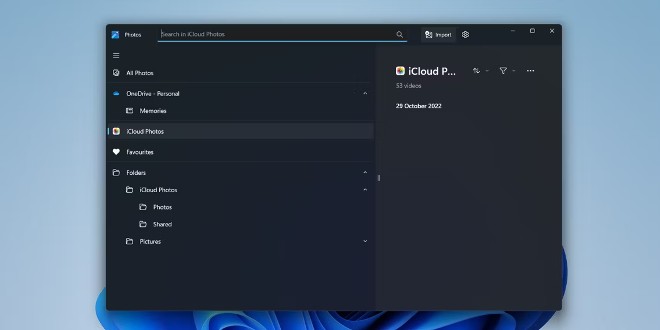
			<p>Bạn có muốn truy cập ảnh lưu trên&nbsp;iCloud&nbsp;bằng máy tính Windows? Nếu có thì đây là tin vui cho bạn. Ứng dụng&nbsp;Photos&nbsp;của Windows 11 giờ đây cho phép bạn làm việc với ảnh và video lưu trên tài khoản Apple iCloud của bạn.</p>

<p>Trong bài viết này, Quản Trị Mạng sẽ hướng dẫn bạn cách thêm iCloud Photos vào ứng dụng Photos của Windows 11.</p>

<p><img alt="Cách thêm iCloud Photos vào ứng dụng Photos trên Windows 11" data-i="0" data-src="https://st.quantrimang.com/photos/image/2022/11/15/cach-them-icloud-photos-vao-ung-dung-photos-tren-windows-11-3.jpg" data-was-processed="true" height="330" src="https://st.quantrimang.com/photos/image/2022/11/15/cach-them-icloud-photos-vao-ung-dung-photos-tren-windows-11-3.jpg" width="660" /></p>

<h2>Chuẩn bị trước khi thêm iCloud Photos vào ứng dụng Photos của Windows 11</h2>

<p>Trước khi bước vào quá trình chính, bạn hãy tải về bất kỳ bản cập nhật nào sẵn có. Để làm điều này, bạn nhấn&nbsp;<strong>Win + I</strong>&nbsp;để mở&nbsp;<strong>Settings</strong>&nbsp;sau đó truy cập vào&nbsp;<strong>Windows Update</strong>. Trong cửa sổ Windows Update bạn nhấn&nbsp;<strong>Check for updates</strong>.</p>

<p>Sau khi cài xong bản cập nhật, bạn khởi động lại máy.</p>

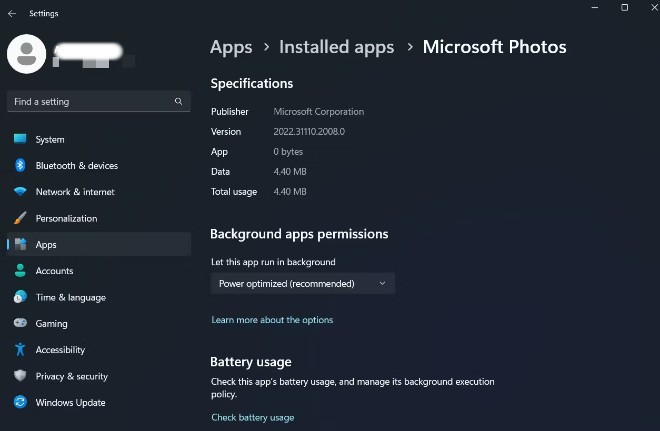
<p>Ngoài ra, bạn cũng phải đảm bảo rằng ứng dụng Photos trên máy tính Windows 11 của bạn đã được cài đặt phiên bản mới nhất. Thực tế thì khả năng tích hợp iCloud Photos chỉ có trên ứng dụng Photos phiên bản 2022.31100.9001.0 hoặc mới hơn.</p>

<p>Để kiểm tra phiên bản của ứng dụng Photos, bạn làm theo các bước sau:</p>

<ul>
	<li>Mở&nbsp;<strong>Settings</strong>&nbsp;và chọn&nbsp;<strong>Apps</strong>&nbsp;trong thanh bên trái</li>
	<li>Chọn&nbsp;<strong>Installed apps</strong>&nbsp;trong cửa sổ mới xuất hiện</li>
	<li>Tìm ứng dụng&nbsp;<strong>Microsoft Photos</strong>&nbsp;và nhấn vào nút 3 dấu chấm bên cạnh</li>
	<li>Chọn&nbsp;<strong>Advanced options</strong>&nbsp;từ menu ngữ cảnh</li>
	<li>Bạn có thể kiểm tra số phiên bản bên dưới phần&nbsp;<strong>Specification</strong></li>
</ul>

<p><strong><img alt="Kiểm tra phiên bản ứng dụng Microsoft Photos" data-i="1" data-src="https://st.quantrimang.com/photos/image/2022/11/15/cach-them-icloud-photos-vao-ung-dung-photos-tren-windows-11-2.jpg" data-was-processed="true" height="431" src="https://st.quantrimang.com/photos/image/2022/11/15/cach-them-icloud-photos-vao-ung-dung-photos-tren-windows-11-2.jpg" width="660" /></strong></p>

<p>Nếu bạn đang cài phiên bản Microsoft Photos cũ hơn, truy cập Microsoft Store và tải bản mới nhất về.</p>

<h2>Cách thêm iCloud Photos vào ứng dụng Photos trên Windows 11</h2>

<p>Bây giờ, bạn đã chuẩn bị đủ điều kiện và chúng ta sẽ bắt đầu tiến hành thêm iCloud Photos vào ứng dụng Photos trên Windows 11.</p>

<p>Các bước thực hiện như sau:</p>

<ul>
	<li>Ở&nbsp;<strong>Start menu</strong>&nbsp;bằng cách nhấn phím&nbsp;<strong>Win</strong></li>
	<li>Trong thanh tìm kiếm, bạn nhập&nbsp;<strong>Photos</strong>&nbsp;và nhấn&nbsp;<strong>Enter</strong></li>
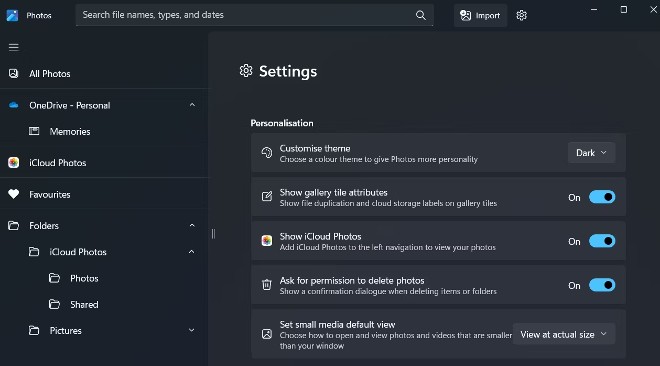
	<li>Nhấn vào nút&nbsp;<strong>Gear</strong>&nbsp;ở phía trên</li>
	<li>Bật nút công tắc bên cạnh&nbsp;<strong>Show iCloud Photos</strong></li>
</ul>

<p><strong><img alt="Hiển thị iCloud Photos" data-i="2" data-src="https://st.quantrimang.com/photos/image/2022/11/15/cach-them-icloud-photos-vao-ung-dung-photos-tren-windows-11-1.jpg" data-was-processed="true" height="366" src="https://st.quantrimang.com/photos/image/2022/11/15/cach-them-icloud-photos-vao-ung-dung-photos-tren-windows-11-1.jpg" width="660" /></strong></p>

<ul>
	<li>Nhấn vào&nbsp;<strong>iCloud Photos</strong>&nbsp;ở panel bên trái</li>
	<li>Nhấn vào nút&nbsp;<strong>Get iCloud for Windows</strong>. Nó sẽ mở&nbsp;<strong>Microsoft Store</strong></li>
	<li>Nhấn vào nút&nbsp;<strong>Install</strong>&nbsp;và chờ iCloud cài đặt trên máy của bạn</li>
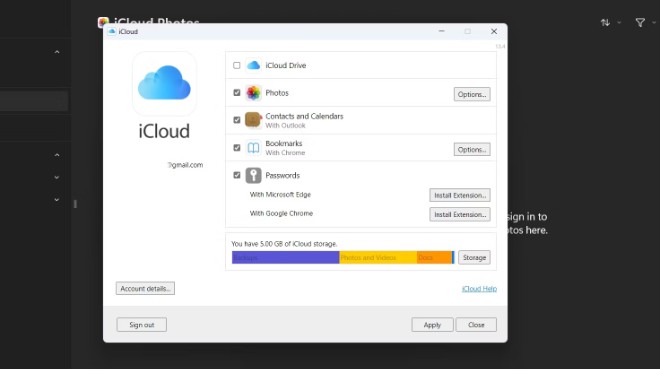
	<li>Tiếp theo, chạy iCloud và đăng nhập tài khoản</li>
	<li>Trong khi cài đặt iCloud, nhấn vào hộp kiểm bên cạnh&nbsp;<strong>Photos</strong>&nbsp;để chọn rồi nhấn&nbsp;<strong>Apply</strong></li>
</ul>

<p><strong><img alt="Cài đặt iCloud" data-i="3" data-src="https://st.quantrimang.com/photos/image/2022/11/15/cach-them-icloud-photos-vao-ung-dung-photos-tren-windows-11.jpg" data-was-processed="true" height="369" src="https://st.quantrimang.com/photos/image/2022/11/15/cach-them-icloud-photos-vao-ung-dung-photos-tren-windows-11.jpg" width="660" /></strong></p>

<p>Thế là xong, bây giờ bạn đã có tất cả ảnh trên iCloud của bạn trong ứng dụng Photos của Windows 11.</p>

<p>Tích hợp iCloud là một trong những cập nhật đáng mong chờ nhất của ứng dụng Photos. Giờ đây nó đã chính thức có mặt và bạn có thể cài bằng các bước được hướng dẫn ở phía trên.</p>
		</div>
				<div id="author">
						<p>
				<strong>Nguồn tin:</strong>
				Quantrimang.com
			</p>
		</div>
	</div>
	<div id="footer" class="clearfix">
		<div id="url">
			<strong>URL của bản tin này: </strong><a href="https://www.nguoicodonvn2008.info/vi/news/savefile/kien-thuc-may-tinh/cach-them-icloud-photos-vao-ung-dung-photos-tren-windows-11-6324.html" title="Cách thêm iCloud Photos vào ứng dụng Photos trên Windows 11">https://www.nguoicodonvn2008.info/vi/news/savefile/kien-thuc-may-tinh/cach-them-icloud-photos-vao-ung-dung-photos-tren-windows-11-6324.html</a>

		</div>
		<div class="clear"></div>
		<div class="copyright">
			&copy; .&#x3A; Nguoicodonvn2008.info - Cõi lòng người cô đơn &#x3A;.
		</div>
		<div id="contact">
			<a href="mailto:admin@nguoicodonvn2008.info">admin@nguoicodonvn2008.info</a>
		</div>
	</div>
</div>
        <div id="timeoutsess" class="chromeframe">
            Bạn đã không sử dụng Site, <a onclick="timeoutsesscancel();" href="https://www.nguoicodonvn2008.info/#">Bấm vào đây để duy trì trạng thái đăng nhập</a>. Thời gian chờ: <span id="secField"> 60 </span> giây
        </div>
        <div id="openidResult" class="nv-alert" style="display:none"></div>
        <div id="openidBt" data-result="" data-redirect=""></div>
		</script>
		<div class="car-top">
  <span><img src="https://www.nguoicodonvn2008.info/themes/default/images/car.png" alt=""></span>
</div>
<div id="run_cronjobs" style="visibility:hidden;display:none;"><img alt="cron" src="/index.php?second=cronjobs&amp;p=t8179ZN3" width="1" height="1" /></div>
<script src="https://www.nguoicodonvn2008.info/assets/js/jquery/jquery.min.js"></script>
<script>var nv_base_siteurl="/",nv_lang_data="vi",nv_lang_interface="vi",nv_name_variable="nv",nv_fc_variable="op",nv_lang_variable="language",nv_module_name="news",nv_func_name="savefile",nv_is_user=0, nv_my_ofs=-4,nv_my_abbr="EDT",nv_cookie_prefix="nv4c_e856T",nv_check_pass_mstime=1738000,nv_area_admin=0,nv_safemode=0,theme_responsive=0,nv_recaptcha_ver=2,nv_recaptcha_sitekey="",nv_recaptcha_type="image",XSSsanitize=1;</script>
<script src="https://www.nguoicodonvn2008.info/assets/js/language/vi.js"></script>
<script src="https://www.nguoicodonvn2008.info/assets/js/DOMPurify/purify3.js"></script>
<script src="https://www.nguoicodonvn2008.info/assets/js/global.js"></script>
<script src="https://www.nguoicodonvn2008.info/assets/js/site.js"></script>
<script src="https://www.nguoicodonvn2008.info/themes/default/js/news.js"></script>
<script src="https://www.nguoicodonvn2008.info/themes/default/js/main.js"></script>
<script src="https://www.nguoicodonvn2008.info/themes/default/js/custom.js"></script>
<script type="application/ld+json">
        {
            "@context": "https://schema.org",
            "@type": "Organization",
            "url": "https://www.nguoicodonvn2008.info",
            "logo": "https://www.nguoicodonvn2008.info/uploads/angel.gif"
        }
        </script>
<script src="https://www.nguoicodonvn2008.info/themes/default/js/bootstrap.min.js"></script>
<script type="text/javascript">
var $scrolltop = $('.car-top');
$scrolltop.on('click', function () {
    $('html,body').animate({
        scrollTop: 0
    }, 800);
    $(this).addClass("car-run");
    setTimeout(function(){ $scrolltop.removeClass('car-run');}, 1000);
    return false;
});
$(window).on('scroll', function ()
{ 
    if($(window).scrollTop() >= 200)
    {
        $scrolltop.addClass("show");
        $scrolltop.addClass("car-down");
    }
    else
    {
       $scrolltop.removeClass("show");
       setTimeout(function(){ $scrolltop.removeClass('car-down');}, 300);
    }
});
</script>
</body>
</html>